


4.6. Green Contexts#
A green context (GC) is a lightweight context associated, from its creation, with a set of specific GPU resources. Users can partition GPU resources, currently streaming multiprocessors (SMs) and work queues (WQs), during green context creation, so that GPU work targeting a green context can only use its provisioned SMs and work queues. Doing so can be beneficial in reducing, or better controlling, interference due to use of common resources. An application can have multiple green contexts.
Using green contexts does not require any GPU code (kernel) changes, just small host-side changes (e.g., green context creation and stream creation for this green context). The green context functionality can be useful in various scenarios. For example, it can help ensure some SMs are always available for a latency-sensitive kernel to start executing, assuming no other constraints, or provide a quick way to test the effect of using fewer SMs without any kernel modifications.
Green context support first became available via the CUDA Driver API. Starting from CUDA 13.1, contexts are exposed in the CUDA runtime via the execution context (EC) abstraction. Currently, an execution context can correspond to either the primary context (the context runtime API users have always implicitly interacted with) or a green context. This section will use the terms execution context and green context interchangeably when referring to a green context.
With the runtime exposure of green contexts, using the CUDA runtime API directly is strongly recommended. This section will also solely use the CUDA runtime API.
The remaining of this section is organized as follows: Section 4.6.1 provides a motivating example, Section 4.6.2 highlights ease of use, and Section 4.6.3 presents the device resource and resource descriptor structs. Section 4.6.4 explains how to create a green context, Section 4.6.5 how to launch work that targets it, and Section 4.6.6 highlights some additional green context APIs. Finally, Section 4.6.7 wraps up with an example.
4.6.1. Motivation / When to Use#
When launching a CUDA kernel, the user has no direct control over the number of SMs that kernel will execute on. One can only indirectly influence this by changing the kernel’s launch geometry or anything that can affect the kernel’s maximum number of active thread blocks per SM. Additionally, when multiple kernels execute in parallel on the GPU (kernels running on different CUDA streams or as part of a CUDA graph), they may also contend for the same SM resources.
There are, however, use cases where the user needs to ensure there are always GPU resources available for latency-sensitive work to start, and thus complete, as soon as possible. Green contexts provide a way towards that by partitioning SM resources, so a given green context can only use specific SMs (the ones provisioned during its creation).
Figure 45 illustrates such an example. Assume an application where two independent kernels A and B run on two different non-blocking CUDA streams. Kernel A is launched first and starts executing occupying all available SM resources. When, later in time, latency-sensitive kernel B is launched, no SM resources are available. As a result, kernel B can only start executing once kernel A ramps down, i.e., once thread blocks from kernel A finish executing. The first graph illustrates this scenario where critical work B gets delayed. The y-axis shows the percentage of SMs occupied and x-axis depicts time.
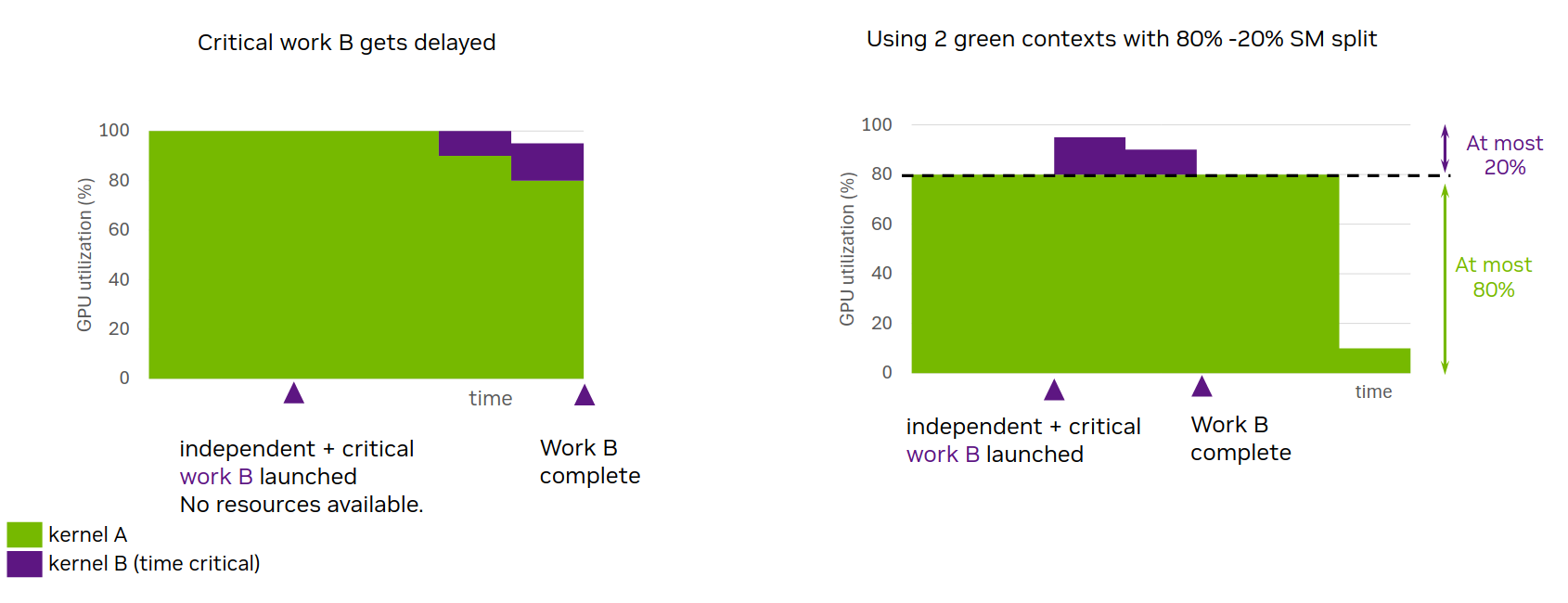
Figure 45 Motivation: GCs’ static resource partitioning enables latency-sensitive work B to start and complete sooner#
Using green contexts, one could partition the GPU’s SMs, so that green context A, targeted by kernel A, has access to some SMs of the GPU, while green context B, targeted by kernel B, has access to the remaining SMs. In this setting, kernel A can only use the SMs provisioned for green context A, irrespective of its launch configuration. As a result, when critical kernel B gets launched, it is guaranteed that there will be available SMs for it to start executing immediately, barring any other resource constraints. As the second graph in Figure 45 illustrates, even though the duration of kernel A may increase, latency-sensitive work B will no longer be delayed due to unavailable SMs. The figure shows that green context A is provisioned with an SM count equivalent to 80% SMs of the GPU for illustration purposes.
This behavior can be achieved without any code modifications to kernels A and B. One simply needs to ensure they are launched on CUDA streams belonging to the appropriate green contexts. The number of SMs each green context will have access to should be decided by the user during green context creation on a per case basis.
Work Queues:
Streaming multiprocessors are one resource type that can be provisioned for a green context. Another resource type is work queues.
Think of a workqueue as a black-box resource abstraction, which can also influence GPU work execution concurrency, along with other factors.
If independent GPU work tasks (e.g., kernels submitted on different CUDA streams) map to the same workqueue, a false dependence between these tasks may be introduced,
which can lead to their serialized execution.
The user can influence the upper limit of work queues on the GPU via the CUDA_DEVICE_MAX_CONNECTIONS environment variable (see Section 5.2, Section 3.1).
Building on top of the previous example, assume work B maps to the same workqueue as work A. In that case, even if SM resources are available (green contexts case), work B may still need to wait for work A to complete in its entirety. Similar to SMs, the user has no direct control over the specific work queues that may be used under the hood. But green contexts allow the user to express the maximum concurrency they would expect in terms of expected number of concurrent stream-ordered workloads. The driver can then use this value as a hint to try to prevent work from different execution contexts from using the same workqueue(s), thus preventing unwanted interference across execution contexts.
Attention
Even when different SM resources and work queues are provisioned per green context, concurrent execution of independent GPU work is not guaranteed. It is best to think of all the techniques described under the Green Contexts section as removing factors which can prevent concurrent execution (i.e., reducing potential interference).
Green Contexts versus MIG or MPS
For completeness, this section briefly compares green contexts with two other resource partitioning mechanisms: MIG (Multi-Instance GPU) and MPS (Multi-Process Service).
MIG statically partitions a MIG-supported GPU into multiple MIG instances (“smaller GPUs”). This partitioning has to happen before the launch of an application, and different applications can use different MIG instances. Using MIG can be beneficial for users whose applications consistently underutilize the available GPU resources; an issue more pronounced as GPUs get bigger. With MIG, users can run these different applications on different MIG instances, thus improving GPU utilization. MIG can be attractive for cloud service providers (CSPs) not only for the increased GPU utilization for such applications, but also for the quality of service (QoS) and isolation it can provide across clients running on different MIG instances. Please refer to the MIG documentation linked above for more details.
But using MIG cannot address the problematic scenario described earlier, where critical work B is delayed because all SM resources are occupied by other GPU work from the same application. This issue can still exist for an application running on a single MIG instance. To address it, one can use green contexts alongside MIG. In that case, the SM resources available for partitioning would be the resources of the given MIG instance.
MPS primarily targets different processes (e.g., MPI programs), allowing them to run on the GPU at the same time without time-slicing. It requires an MPS daemon to be running before the application is launched. By default, MPS clients will contend for all available SM resources of the GPU or the MIG instance they are running on. In this multiple client processes setting, MPS can support dynamic partitioning of SM resources, using the active thread percentage option, which places an upper limit on the percentage of SMs an MPS client process can use. Unlike green contexts, the active thread percentage partitioning happens with MPS at the process level, and the percentage is typically specified by an environment variable before the application is launched. The MPS active thread percentage signifies that a given client application cannot use more than x% of a GPU’s SMs, let that be N SMs. However, these SMs can be any N SMs of the GPU, which can also vary over time. On the other hand, a green context provisioned with N SMs during its creation can only use these specific N SMs.
Starting with CUDA 13.1, MPS also supports static partitioning, if it is explicitly enabled when starting the MPS control daemon. With static partitioning, the user has to specify the static partition an MPS client process can use, when the application is launched. Dynamic sharing with active thread percentage is no longer applicable in that case. A key difference between MPS in static partitioning mode and green contexts is that MPS targets different processes, while green contexts is applicable within a single process too. Also, contrary to green contexts, MPS with static partitioning does not allow oversubscription of SM resources.
With MPS, programmatic partitioning of SM resources is also possible for a CUDA context created via the cuCtxCreate driver API, with execution affinity.
This programmatic partitioning allows different client CUDA contexts from one or more processes to each use up to a specified number of SMs.
As with the active thread percentage partitioning, these SMs can be any SMs of the GPU and can vary over time, unlike the green contexts case.
This option is possible even under the presence of static MPS partitioning.
Please note that creating a green context is much more lightweight in comparison to an MPS context, as many underlying structures are owned by the primary context and thus shared.
4.6.2. Green Contexts: Ease of use#
To highlight how easy it is to use green contexts, assume you have the following code snippet that creates two CUDA streams and then calls a function that launches kernels via <<<>>> on these CUDA streams.
As discussed earlier, other than changing the kernels’ launch geometries, one cannot influence how many SMs these kernels can use.
int gpu_device_index = 0; // GPU ordinal
CUDA_CHECK(cudaSetDevice(gpu_device_index));

cudaStream_t strm1, strm2;
CUDA_CHECK(cudaStreamCreateWithFlags(&strm1, cudaStreamNonBlocking));
CUDA_CHECK(cudaStreamCreateWithFlags(&strm2, cudaStreamNonBlocking));

// No control over how many SMs kernel(s) running on each stream can use
code_that_launches_kernels_on_streams(strm1, strm2); // what is abstracted in this function + the kernels is the vast majority of your code

// cleanup code not shown
Starting with CUDA 13.1, one can control the number of SMs a given kernel can have access to, using green contexts. The code snippet below shows how easy it is to do that. With a few extra lines and without any kernel modifications, you can control the SMs resources kernel(s) launched on these different streams can use.
int gpu_device_index = 0; // GPU ordinal
CUDA_CHECK(cudaSetDevice(gpu_device_index));

/* ------------------ Code required to create green contexts --------------------------- */


// Get all available GPU SM resources
cudaDevResource initial_GPU_SM_resources {};
CUDA_CHECK(cudaDeviceGetDevResource(gpu_device_index, &initial_GPU_SM_resources, cudaDevResourceTypeSm));

// Split SM resources. This example creates one group with 16 SMs and one with 8. Assuming your GPU has >= 24 SMs
cudaDevSmResource result[2] {{}, {}};
cudaDevSmResourceGroupParams group_params[2] =  {
        {.smCount=16, .coscheduledSmCount=0, .preferredCoscheduledSmCount=0, .flags=0},
        {.smCount=8,  .coscheduledSmCount=0, .preferredCoscheduledSmCount=0, .flags=0}};
CUDA_CHECK(cudaDevSmResourceSplit(&result[0], 2, &initial_GPU_SM_resources, nullptr, 0, &group_params[0]));

// Generate resource descriptors for each resource
cudaDevResourceDesc_t resource_desc1 {};
cudaDevResourceDesc_t resource_desc2 {};
CUDA_CHECK(cudaDevResourceGenerateDesc(&resource_desc1, &result[0], 1));
CUDA_CHECK(cudaDevResourceGenerateDesc(&resource_desc2, &result[1], 1));

// Create green contexts
cudaExecutionContext_t my_green_ctx1 {};
cudaExecutionContext_t my_green_ctx2 {};
CUDA_CHECK(cudaGreenCtxCreate(&my_green_ctx1, resource_desc1, gpu_device_index, 0));
CUDA_CHECK(cudaGreenCtxCreate(&my_green_ctx2, resource_desc2, gpu_device_index, 0));

/* ------------------ Modified code --------------------------- */

// You just need to use a different CUDA API to create the streams
cudaStream_t strm1, strm2;
CUDA_CHECK(cudaExecutionCtxStreamCreate(&strm1, my_green_ctx1, cudaStreamDefault, 0));
CUDA_CHECK(cudaExecutionCtxStreamCreate(&strm2, my_green_ctx2, cudaStreamDefault, 0));

/* ------------------ Unchanged code --------------------------- */

// No need to modify any code in this function or in your kernel(s).
// Reminder: what is abstracted in this function + kernels is the vast majority of your code
// Now kernel(s) running on stream strm1 will use at most 16 SMs and kernel(s) on strm2 at most 8 SMs.
code_that_launches_kernels_on_streams(strm1, strm2);

// cleanup code not shown
Various execution context APIs, some of which were shown in the previous example, take an explicit cudaExecutionContext_t handle and thus ignore the context that is current to the calling thread.
Until now, CUDA runtime users who did not use the driver API would by default only interact with the primary context that is implicitly set as current to a thread via cudaSetDevice().
This shift to explicit context-based programming provides easier to understand semantics and can have additional benefits compared to the previous implicit context-based programming that relied on thread-local state (TLS).
The following sections will explain all the steps shown in the previous code snippet in detail.
4.6.3. Green Contexts: Device Resource and Resource Descriptor#
At the heart of a green context is a device resource (cudaDevResource) tied to a specific GPU device.
Resources can be combined and encapsulated into a descriptor (cudaDevResourceDesc_t).
A green context only has access to the resources encapsulated into the descriptor used for its creation.
Currently the cudaDevResource data structure is defined as:
struct {
     enum cudaDevResourceType type;
     union {
         struct cudaDevSmResource sm;
         struct cudaDevWorkqueueConfigResource wqConfig;
         struct cudaDevWorkqueueResource wq;
     };
 };
The supported valid resource types are cudaDevResourceTypeSm, cudaDevResourceTypeWorkqueueConfig and cudaDevResourceTypeWorkqueue, while cudaDevResourceTypeInvalid identifies an invalid resource type.
A valid device resource can be associated with:
a specific set of streaming multiprocessors (SMs) (resource type
cudaDevResourceTypeSm),a specific workqueue configuration (resource type
cudaDevResourceTypeWorkqueueConfig) ora pre-existing workqueue resource (resource type
cudaDevResourceTypeWorkqueue).
One can query if a given execution context or CUDA stream is associated with a cudaDevResource resource of a given type,
using the cudaExecutionCtxGetDevResource and cudaStreamGetDevResource APIs respectively.
Being associated with different types of device resources (e.g., SMs and work queues) is also possible for an execution context,
while a stream can only be associated with an SM-type resource.
A given GPU device has, by default, all three device resource types: an SM-type resource encompassing all the SMs of the GPU, a workqueue configuration resource encompassing all available work queues
and its corresponding workqueue resource. These resources can be retrieved via the cudaDeviceGetDevResource API.
Overview of relevant device resource structs
The different resource type structs have fields that are set either explicitly by the user or by a relevant CUDA API call. It is recommended to zero-initialize all device resource structs.
An SM-type device resource (
cudaDevSmResource) has the following relevant fields:unsigned int smCount: number of SMs available in this resourceunsigned int minSmPartitionSize: minimum SM count required to partition this resourceunsigned int smCoscheduledAlignment: number of SMs in the resource guaranteed to be co-scheduled on the same GPU processing cluster, which is relevant for thread block clusters.smCountis a multiple of this value whenflagsis zero.unsigned int flags: supported flags are 0 (default),cudaDevSmResourceGroupBackfill, andcudaDevSmResourceGroupLocalityDomainId(seecudaDevSmResourceGroupflags).
The above fields will be set via either the appropriate split API (
cudaDevSmResourceSplitByCountorcudaDevSmResourceSplit) used to create this SM-type resource or will be populated by thecudaDeviceGetDevResourceAPI which retrieves the SM resources of a given GPU device. These fields should never be set directly by the user. See next section for more details.A workqueue configuration device resource (
cudaDevWorkqueueConfigResource) has the following relevant fields:int device: the device on which the workqueue resources are availableunsigned int wqConcurrencyLimit: the number of stream-ordered workloads expected to avoid false dependenciesenum cudaDevWorkqueueConfigScope sharingScope: the sharing scope for the workqueue resources. Supported values are:cudaDevWorkqueueConfigScopeDeviceCtx(default) andcudaDevWorkqueueConfigScopeGreenCtxBalanced. With the default option, all workqueue resources are shared across all contexts, while with the balanced option the driver tries to use non-overlapping workqueue resources across green contexts wherever possible, using the user-specifiedwqConcurrencyLimitas a hint.
These fields need to be set by the user. There is no CUDA API similar to the split APIs that generates a workqueue configuration resource, with the exception of the workqueue configuration resource populated by the
cudaDeviceGetDevResourceAPI. That API can retrieve the workqueue configuration resources of a given GPU device.Finally, a pre-existing workqueue resource (
cudaDevResourceTypeWorkqueue) has no fields that can be set by the user. As with the other resource types,cudaDevGetDevResourcecan retrieve the pre-existing workqueue resource of a given GPU device.
4.6.4. Green Context Creation Example#
There are four main steps involved in green context creation:
Step 1: Start with an initial set of resources, e.g., by fetching the available resources of the GPU
Step 2: Partition the SM resources into one or more partitions (using one of the available split APIs).
Step 3: Create a resource descriptor combining, if needed, different resources
Step 4: Create a green context from the descriptor, provisioning its resources
After the green context has been created, you can create CUDA streams belonging to that green context.
GPU work subsequently launched on such a stream, such as a kernel launched via <<< >>>, will only have access to this green context’s provisioned resources.
Libraries can also easily leverage green contexts, as long as the user passes a stream belonging to a green context to them.
See Green Contexts - Launching work for more details.
4.6.4.1. Step 1: Get available GPU resources#
The first step in green context creation is to get the available device resources and populate the cudaDevResource struct(s).
There are currently three possible starting points: a device, an execution context or a CUDA stream.
The relevant CUDA runtime API function signatures are listed below:
For a device:
cudaError_t cudaDeviceGetDevResource(int device, cudaDevResource* resource, cudaDevResourceType type)For an execution context:
cudaError_t cudaExecutionCtxGetDevResource(cudaExecutionContext_t ctx, cudaDevResource* resource, cudaDevResourceType type)For a stream:
cudaError_t cudaStreamGetDevResource(cudaStream_t hStream, cudaDevResource* resource, cudaDevResourceType type)
All valid cudaDevResourceType types are permitted for each of these APIs, with the exception of cudaStreamGetDevResource which only supports an SM-type resource.
Usually, the starting point will be a GPU device. The code snippet below shows how to get the available SM resources of a given GPU device.
After a successful cudaDeviceGetDevResource call, the user can review the number of SMs available in this resource.
int current_device = 0; // assume device ordinal of 0
CUDA_CHECK(cudaSetDevice(current_device));

cudaDevResource initial_SM_resources = {};
CUDA_CHECK(cudaDeviceGetDevResource(current_device /* GPU device */,
                                   &initial_SM_resources /* device resource to populate */,
                                   cudaDevResourceTypeSm /* resource type*/));

std::cout << "Initial SM resources: " << initial_SM_resources.sm.smCount << " SMs" << std::endl; // number of available SMs

// Special fields relevant for partitioning (see Step 3 below)
std::cout << "Min. SM partition size: " <<  initial_SM_resources.sm.minSmPartitionSize << " SMs" << std::endl;
std::cout << "SM co-scheduled alignment: " <<  initial_SM_resources.sm.smCoscheduledAlignment << " SMs" << std::endl;
One can also get the available workqueue config. resources, as shown in the code snippet below.
int current_device = 0; // assume device ordinal of 0
CUDA_CHECK(cudaSetDevice(current_device));

cudaDevResource initial_WQ_config_resources = {};
CUDA_CHECK(cudaDeviceGetDevResource(current_device /* GPU device */,
                                   &initial_WQ_config_resources /* device resource to populate */,
                                   cudaDevResourceTypeWorkqueueConfig /* resource type*/));

std::cout << "Initial WQ config. resources: " << std::endl;
std::cout << "  - WQ concurrency limit: " << initial_WQ_config_resources.wqConfig.wqConcurrencyLimit << std::endl;
std::cout << "  - WQ sharing scope: " << initial_WQ_config_resources.wqConfig.sharingScope << std::endl;
After a successful cudaDeviceGetDevResource call, the user can review the wqConcurrencyLimit for this resource.
When the starting point is a GPU device, the wqConcurrencyLimit will match the value of CUDA_DEVICE_MAX_CONNECTIONS environment variable or its default value.
4.6.4.2. Step 2: Partition SM resources#
The second step in green context creation is to statically split the available cudaDevResource SM resources into one or more partitions, with potentially
some SMs left over in a remaining partition. This partitioning is possible using the cudaDevSmResourceSplitByCount() or the cudaDevSmResourceSplit() API.
The cudaDevSmResourceSplitByCount() API can only create one or more homogeneous partitions, plus a potential remaining partition,
while the cudaDevSmResourceSplit() API can also create heterogeneous partitions, plus the potential remaining one.
The subsequent sections describe the functionality of both APIs in detail. Both APIs are only applicable to SM-type device resources.
cudaDevSmResourceSplitByCount API
The cudaDevSmResourceSplitByCount runtime API signature is:
cudaError_t cudaDevSmResourceSplitByCount(cudaDevResource* result, unsigned int* nbGroups, const cudaDevResource* input,
cudaDevResource* remaining, unsigned int useFlags, unsigned int minCount)
As Figure 46 highlights, the user requests to split the input SM-type device resource into *nbGroups homogeneous groups with minCount SMs each.
However, the end result will contain a potentially updated *nbGroups number of homogeneous groups with N SMs each.
The potentially updated *nbGroups will be less than or equal to the originally requested group number, while N will be equal to or greater than minCount.
These adjustments may occur due to some granularity and alignment requirements, which are architecture specific.
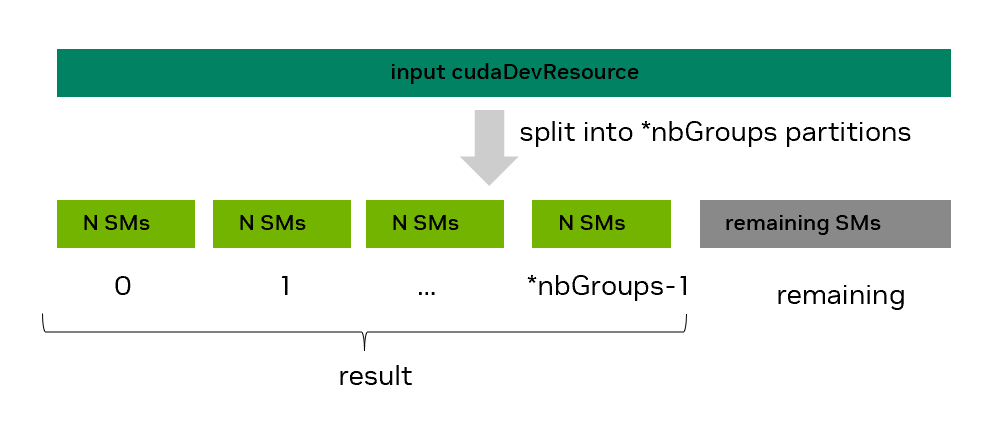
Figure 46 SM resource split using the cudaDevSmResourceSplitByCount API#
Table 30 lists the minimum SM partition size and the SM co-scheduled
alignment for all the currently supported compute capabilities, for the default useFlags=0 case.
One can also retrieve these values via the minSmPartitionSize and smCoscheduledAlignment fields of cudaDevSmResource, as shown in Step 1: Get available GPU resources.
Some of these requirements can be lowered via a different useFlags value. Table 14 provides some relevant examples highlighting
the difference between what is requested and the final result, along with an explanation. The table focuses on compute capability (CC 9.0),
where the minimum number of SMs per partition is 8 and the SM count has to be a multiple of 8, if useFlags is zero.
Requested |
Actual (for GH200 with 132 SMs) |
||||
|---|---|---|---|---|---|
|
minCount |
useFlags |
|
Remaining SMs |
Reason |
2 |
72 |
0 |
1 group of 72 SMs |
60 |
cannot exceed 132 SMs |
6 |
11 |
0 |
6 groups of 16 SMs |
36 |
multiple of 8 requirement |
6 |
11 |
|
6 groups with 12 SMs each |
60 |
lowered to multiple of 2 req. |
2 |
1 |
0 |
2 groups with 8 SMs each |
116 |
min. 8 SMs requirement |
Here is a code snippet requesting to split the available SM resources into five groups of 8 SMs each:
cudaDevResource avail_resources = {};
// Code that has populated avail_resources not shown

unsigned int min_SM_count = 8;
unsigned int actual_split_groups = 5; // may be updated

cudaDevResource actual_split_result[5] = {{}, {}, {}, {}, {}};
cudaDevResource remaining_partition = {};

CUDA_CHECK(cudaDevSmResourceSplitByCount(&actual_split_result[0],
                                         &actual_split_groups,
                                         &avail_resources,
                                         &remaining_partition,
                                         0 /*useFlags */,
                                         min_SM_count));

std::cout << "Split " << avail_resources.sm.smCount << " SMs into " << actual_split_groups << " groups " \
          << "with " << actual_split_result[0].sm.smCount << " each " \
          << "and a remaining group with " << remaining_partition.sm.smCount << " SMs" << std::endl;
Be aware that:
one could use
result=nullptrto query the number of groups that would be createdone could set
remaining=nullptr, if one does not care for the SMs of the remaining partitionthe remaining (leftover) partition does not have the same functional or performance guarantees as the homogeneous groups in result.
useFlagsis expected to be 0 in the default case, but values ofcudaDevSmResourceSplitIgnoreSmCoschedulingandcudaDevSmResourceSplitMaxPotentialClusterSizeare also supportedany resulting
cudaDevResourcecannot be repartitioned without first creating a resource descriptor and a green context from it (i.e., steps 3 and 4 below)
Please refer to cudaDevSmResourceSplitByCount runtime API reference for more details.
cudaDevSmResourceSplit API
As mentioned earlier, a single cudaDevSmResourceSplitByCount API call can only create homogeneous partitions, i.e., partitions with the same number of SMs, plus the remaining partition.
This can be limiting for heterogeneous workloads, where work running on different green contexts has different SM count requirements.
To achieve heterogeneous partitions with the split-by-count API, one would usually need to re-partition an existing resource by repeating Steps 1-4 (multiple times). Or, in some cases, one may be able to create homogeneous partitions each with SM count equal to the GCD (greatest common divisor) of all the heterogeneous partitions as part of step-2 and then merge the required number of them together as part of step-3.
This last approach however is not recommended, as the CUDA driver may be able to create better partitions if larger sizes were requested up front.
The cudaDevSmResourceSplit API aims to address these limitations by allowing the user to create non-overlapping heterogeneous partitions in a single call.
The cudaDevSmResourceSplit runtime API signature is:
cudaError_t cudaDevSmResourceSplit(cudaDevResource* result, unsigned int nbGroups, const cudaDevResource* input,
cudaDevResource* remainder, unsigned int flags, cudaDevSmResourceGroupParams* groupParams)
This API will attempt to partition the input SM-type resource into nbGroups valid device resources (groups) placed in the result array based on the requirements specified for each one in the groupParams array. An optional remaining partition may also be created.
In a successful split, as shown in Figure 47, each resource in the result can have a different number of SMs, but never zero SMs.
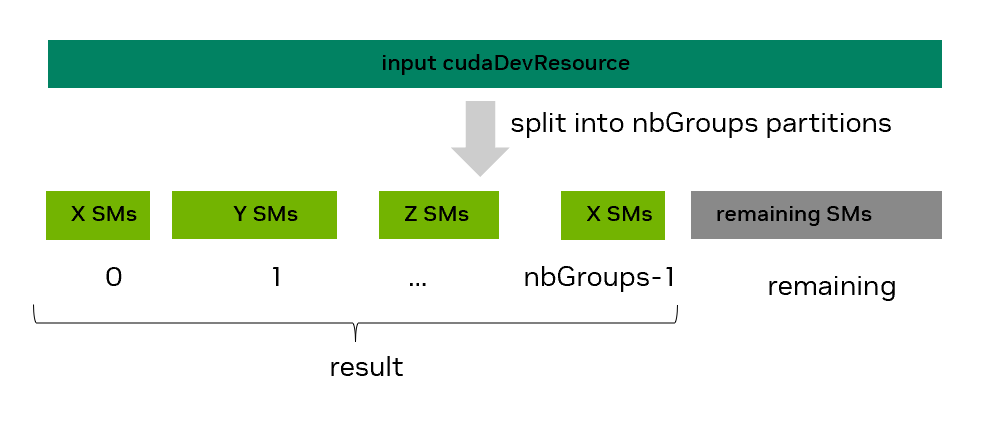
Figure 47 SM resource split using the cudaDevSmResourceSplit API#
When requesting a heterogeneous split, one needs to specify the SM count (smCount field of relevant groupParams entry) for each resource in result. This SM count should always be a multiple of two.
For the scenario in the previous image, groupParams[0].smCount would be X, groupParams[1].smCount Y, etc.
However, just specifying the SM count is not sufficient, if an application uses Thread Block Clusters.
Since all the thread blocks of a cluster are guaranteed to be co-scheduled, the user also needs to specify the maximum supported cluster size, if any, a given resource group should support. This is possible via the coscheduledSmCount field of the relevant groupParams entry.
For GPUs with compute capability 10.0 and on (CC 10.0+), clusters can also have a preferred dimension, which is a multiple of their default cluster dimension.
During a single kernel launch on supported systems, this larger preferred cluster dimension is used as much as possible, if at all, and the smaller default cluster dimension is used
otherwise. The user can express this preferred cluster dimension hint via the preferredCoscheduledSmCount field of the relevant groupParams entry.
Finally, there may be cases where the user may want to loosen the SM count requirements and pull in more available SMs in a given group; the user can express this backfill option by setting the flags field of the relevant groupParams entry to its non-default flag value.
The API permits a group to target a locality domain. Set cudaDevSmResourceGroupLocalityDomainId in the cudaDevSmResourceGroupParams.flags field and set cudaDevSmResourceGroupParams.localityDomainId to a valid locality domain ID for the resource.
cudaDevSmResourceSplit then selects SMs from that locality domain.
If cudaDevSmResourceGroupBackfill is also set, CUDA may fill the group with SMs from outside the requested locality domain after using the target domain first.
See Locality Domains for the overall programming model.
To provide more flexibility, the cudaDevSmResourceSplit API also has a discovery mode, to be used when the exact SM count, for one or more groups, is not known ahead of time.
For example, a user may want to create a device resource that has as many SMs as possible, while meeting some co-scheduling requirements (e.g., allowing clusters of size four).
To exercise this discovery mode, the user can set the smCount field of the relevant groupParams entry (or entries) to zero.
After a successful cudaDevSmResourceSplit call, the smCount field of the groupParams will have been populated with a valid non-zero value; we refer to this as the actual smCount value.
If result was not null (so this was not a dry run), then the relevant group of result will also have its smCount set to the same value.
The order the nbGroups groupParams entries are specified matters, as they are evaluated from left (index 0) to right (index nbGroups-1).
Table 15 provides a high level view of the supported arguments for the cudaDevSmResourceSplit API.
groupParams array; showing entry i with i [0, nbGroups) |
||||||||
|---|---|---|---|---|---|---|---|---|
result |
nbGroups |
input |
remainder |
flags |
smCount |
coscheduledSmCount |
preferredCoscheduledSmCount |
flags |
nullptr for explorative dry run; not null ptr otherwise |
number of groups |
resource to split into nbGroups groups |
nullptr if you do not want a remainder group |
0 |
0 for discovery mode or other valid smCount |
0 (default) or valid coscheduled SM count |
0 (default) or valid preferred coscheduled SM count (hint) |
0 (default), cudaDevSmResourceGroupBackfill, or cudaDevSmResourceGroupLocalityDomainId |
Notes:
cudaDevSmResourceSplitAPI’s return value depends onresult:
result != nullptr: the API will returncudaSuccessonly when the split is successful andnbGroupsvalidcudaDevResourcegroups, meeting the specified requirements were created; otherwise, it will return an error. As different types of errors may return the same error code (e.g.,cudaErrorInvalidResourceConfiguration), it is recommended to use theCUDA_LOG_FILEenvironment variable to get more informative error descriptions during development.
result == nullptr: the API may returncudaSuccesseven if the resultingsmCountof a group is zero, a case which would have returned an error with a non-nullptrresult. Think of this mode as a dry-run test you can use while exploring what is supported, especially in discovery mode.
On a successful call with result != nullptr, the resulting
result[i]device resource with i in[0, nbGroups)will be of typecudaDevResourceTypeSmand have aresult[i].sm.smCountthat will either be the non-zero user-specifiedgroupParams[i].smCountvalue or the discovered one. In both cases, theresult[i].sm.smCountwill meet all the following constraints:
be a
multiple of 2andbe in the
[2, input.sm.smCount]range andbe a multiple of
groupParams[i].coscheduledSmCountwhencudaDevSmResourceGroupBackfillis not set, or be greater than or equal to it when backfill is set.
Specifying zero for any of the
coscheduledSmCountandpreferredCoscheduledSmCountfields indicates that the default values for these fields should be used; these can vary per GPU. These default values are both equal to thesmCoscheduledAlignmentof the SM resource retrieved via thecudaDeviceGetDevResourceAPI for the given device (and not any SM resource). To review these default values, one can examine their updated values in the relevantgroupParamsentry after a successfulcudaDevSmResourceSplitcall with them initially set to 0; see below.
int gpu_device_index = 0;
cudaDevResource initial_GPU_SM_resources {};
CUDA_CHECK(cudaDeviceGetDevResource(gpu_device_index, &initial_GPU_SM_resources, cudaDevResourceTypeSm));
std::cout << "Default value will be equal to " << initial_GPU_SM_resources.sm.smCoscheduledAlignment << std::endl;

int default_split_flags = 0;
cudaDevSmResourceGroupParams group_params_tmp = {.smCount=0, .coscheduledSmCount=0, .preferredCoscheduledSmCount=0, .flags=0};
CUDA_CHECK(cudaDevSmResourceSplit(nullptr, 1, &initial_GPU_SM_resources, nullptr /*remainder*/, default_split_flags, &group_params_tmp));
std::cout << "coscheduledSmcount default value: " << group_params.coscheduledSmCount << std::endl;
std::cout << "preferredCoscheduledSmcount default value: " << group_params.preferredCoscheduledSmCount << std::endl;
The remainder group, if present, will not have any constraints on its SM count or co-scheduling requirements. It will be up to the user to explore that.
Before providing more detailed information for the various cudaDevSmResourceGroupParams fields, Table 16 shows what these values could be for some example use cases.
Assume an initial_GPU_SM_resources device resource has already been populated, as in the previous code snippet, and is the resource that will be split.
Every row in the table will have that same starting point.
For simplicity the table will only show the nbGroups value and the groupParams fields per use case that can be used in a code snippet like the one below.
int nbGroups = 2; // update as needed
unsigned int default_split_flags = 0;
cudaDevResource remainder {}; // update as needed
cudaDevResource result_use_case[2] = {{}, {}}; // Update depending on number of groups planned. Increase size if you plan to also use a workqueue resource
cudaDevSmResourceGroupParams group_params_use_case[2] = {{.smCount = X, .coscheduledSmCount=0, .preferredCoscheduledSmCount = 0, .flags = 0},
                                                         {.smCount = Y, .coscheduledSmCount=0, .preferredCoscheduledSmCount = 0, .flags = 0}}
CUDA_CHECK(cudaDevSmResourceSplit(&result_use_case[0], nbGroups, &initial_GPU_SM_resources, remainder, default_split_flags, &group_params_use_case[0]));
groupParams[i] fields (i shown in ascending order; see last column) |
i |
|||||||
|---|---|---|---|---|---|---|---|---|
# |
Goal/Use Cases |
nbGroups |
remainder |
smCount |
coscheduledSmCount |
preferredCoscheduledSmCount |
flags |
|
1 |
Resource with 16 SMs. Do not care for remaining SMs. May use clusters. |
1 |
nullptr |
16 |
0 |
0 |
0 |
0 |
2a |
One resource with 16 SMs and one with everything else. Will not use clusters. (Note: showing two options: in option (2a),the 2nd resource is the remainder; in option (2b), it is the result_use_case[1].) |
1 (2a) |
not nullptr |
16 |
2 |
2 |
0 |
0 |
2b |
2 (2b) |
nullptr |
16 |
2 |
2 |
0 |
0 |
|
0 |
2 |
2 |
cudaDevSmResourceGroupBackfill |
1 |
||||
3 |
Two resources with 28 and 32 SMs respectively. Will use clusters of size 4. |
2 |
nullptr |
28 |
4 |
4 |
0 |
0 |
32 |
4 |
4 |
0 |
1 |
||||
4 |
One resource with as many SMs as possible, which can run clusters of size 8, and one remainder. |
1 |
not nullptr |
0 |
8 |
8 |
0 |
0 |
5 |
One resource with as many SMs as possible, which can run clusters of size 4, and one with 8 SMs. (Note: Order matters! Changing order of entries in groupParams array could mean no SMs left for the 8-SM group) |
2 |
nullptr |
8 |
2 |
2 |
0 |
0 |
0 |
4 |
4 |
0 |
1 |
||||
Detailed information about the various cudaDevSmResourceGroupParams struct fields
smCount:
Controls SM count for the corresponding group in result.
Values: 0 (discovery mode) or valid non-zero value (non-discovery mode)
Valid non-zero
smCountvalue requirements:(multiple of 2) and in [2, input->sm.smCount] and ((flags == 0) ? multiple of actual coscheduledSmCount : greater than or equal to coscheduledSmCount)
Use cases: use discovery mode to explore what’s possible when SM count is not known/fixed; use non-discovery mode to request a specific number of SMs.
Note: in discovery mode, actual SM count, after successful split call with non-nullptr result, will meet valid non-zero value requirements
coscheduledSmCount:
Controls number of SMs grouped together (“co-scheduled”) to enable launch of different clusters on compute capability 9.0+. It can thus impact the number of SMs in a resulting group and the cluster sizes they can support.
Values: 0 (default for current architecture) or valid non-zero value
Valid non-zero value requirements:
(multiple of 2)up to max limit
Use cases: Use default or a manually chosen value for clusters, keeping in mind the max. portable cluster size on a given architecture. If your code does not use clusters, you can use the minimum supported value of 2 or the default value.
Note: when the default value is used, the actual
coscheduledSmCount, after a successful split call, will also meet valid non-zero value requirements. If flags is not zero, the resulting smCount will be >= coscheduledSmCount. Think of coscheduledSmCount as providing some guaranteed underlying “structure” to valid resulting groups (i.e., that group can run at least a single cluster of coscheduledSmCount size in the worst case). This type of structure guarantee does not apply to the remaining group; there it is up to the user to explore what cluster sizes can be launched.
preferredCoscheduledSmCount:
Acts as a hint to the driver to try to merge groups of actual
coscheduledSmCountSMs into larger groups ofpreferredCoscheduledSmCountif possible. Doing so can allow code to make use of preferred cluster dimensions feature available on devices with compute capability (CC) 10.0 and on). See cudaLaunchAttributeValue::preferredClusterDim.Values: 0 (default for current architecture) or valid non-zero value
Valid non-zero value requirements:
(multiple of actual coscheduledSmCount)
Use cases: use a manually chosen value greater than 2 if you use preferred clusters and are on a device of compute capability 10.0 (Blackwell) or later. If you don’t use clusters, choose the same value as
coscheduledSmCount: either select the minimum supported value of 2 or use 0 for bothNote: when the default value is used, the actual
preferredCoscheduledSmCount, after a successful split call, will also meet valid non-zero value requirement.
flags:
Controls if the resulting SM count of a group will be a multiple of actual coscheduled SM count (default) or if SMs can be backfilled into this group (backfill). In the backfill case, the resulting SM count (
result[i].sm.smCount) will be greater than or equal to the specifiedgroupParams[i].smCount.Values: 0 (default) or
cudaDevSmResourceGroupBackfillUse cases: Use the zero (default), so the resulting group has the guaranteed flexibility of supporting multiple clusters of coScheduledSmCount size. Use the backfill option, if you want to get as many SMs as possible in the group, with some of these SMs (the backfilled ones), not providing any coscheduling guarantee.
Note: a group created with the backfill flag can still support clusters (e.g., it is guaranteed to support at least one coscheduledSmCount size).
4.6.4.3. Step 2 (continued): Add workqueue resources#
If you also want to specify a workqueue resource, then this needs to be done explicitly. The following example shows how to create a workqueue configuration resource for a specific device with balanced sharing scope and a concurrency limit of four.
cudaDevResource split_result[2] = {{}, {}};
// code to populate split_result[0] not shown; used split API with nbGroups=1

// The last resource will be a workqueue resource.
split_result[1].type = cudaDevResourceTypeWorkqueueConfig;
split_result[1].wqConfig.device = 0; // assume device ordinal of 0
split_result[1].wqConfig.sharingScope = cudaDevWorkqueueConfigScopeGreenCtxBalanced;
split_result[1].wqConfig.wqConcurrencyLimit = 4;
A workqueue concurrency limit of four hints to the driver that the user expects maximum four concurrent stream-ordered workloads. The driver will assign work queues trying to respect this hint, if possible.
4.6.4.4. Step 3: Create a Resource Descriptor#
The next step, after resources have been split, is to generate a resource descriptor, using the cudaDevResourceGenerateDesc API,
for all the resources expected to be available to a green context.
The relevant CUDA runtime API function signature is:
cudaError_t cudaDevResourceGenerateDesc(cudaDevResourceDesc_t *phDesc, cudaDevResource *resources, unsigned int nbResources)
It is possible to combine multiple cudaDevResource resources. For example, the code snippet below shows how to generate a resource descriptor that encapsulates three groups of resources.
You just need to ensure that these resources are all allocated continuously in the resources array.
cudaDevResource actual_split_result[5] = {};
// code to populate actual_split_result not shown

// Generate resource desc. to encapsulate 3 resources: actual_split_result[2] to [4]
cudaDevResourceDesc_t resource_desc;
CUDA_CHECK(cudaDevResourceGenerateDesc(&resource_desc, &actual_split_result[2], 3));
Combining different types of resources is also supported. For example, one could generate a descriptor with both SM and workqueue resources.
For a cudaDevResourceGenerateDesc call to be successful:
All
nbResourcesresources should belong to the same GPU device.If multiple SM-type resources are combined, they should be generated from the same split API call and have the same
coscheduledSmCountvalues (if not part of remainder)Only a single workqueue config or workqueue type resource may be present.
4.6.4.5. Step 4: Create a Green Context#
The final step is to create a green context from a resource descriptor using the cudaGreenCtxCreate API.
That green context will only have access to the resources (e.g., SMs, work queues) encapsulated in the resource descriptor specified during its creation.
These resources will be provisioned during this step.
The relevant CUDA runtime API function signature is:
cudaError_t cudaGreenCtxCreate(cudaExecutionContext_t *phCtx, cudaDevResourceDesc_t desc, int device, unsigned int flags)
The flags parameter should be set to 0.
It is also recommended to explicitly initialize the device’s primary context before creating a green context
via either the cudaInitDevice API or the cudaSetDevice API, which also sets the primary context as current to the calling thread.
Doing so ensures there will be no additional primary context initialization overhead during green context creation.
See code snippet below.
int current_device = 0; // assume single GPU
CUDA_CHECK(cudaSetDevice(current_device)); // Or cudaInitDevice

cudaDevResourceDesc_t resource_desc {};
// Code to generate resource_desc not shown

// Create a green_ctx on GPU with current_device ID with access to resources from resource_desc
cudaExecutionContext_t green_ctx {};
CUDA_CHECK(cudaGreenCtxCreate(&green_ctx, resource_desc, current_device, 0));
After a successful green context creation, the user can verify its resources by calling cudaExecutionCtxGetDevResource on that
execution context for each resource type.
Creating Multiple Green Contexts
An application can have more than one green context, in which case some of the steps above should be repeated.
For most use cases, these green contexts will each have a separate non-overlapping set of provisioned SMs.
For example, for the case of five homogeneous cudaDevResource groups (actual_split_result array), one green context’s descriptor may encapsulate
actual_split_result[2] to [4] resources, while the descriptor of another green context may encapsulate actual_split_result[0] to [1].
In this case, a specific SM will be provisioned for only one of the two green contexts of the application.
But SM oversubscription is also possible and may be used in some cases.
For example, it may be acceptable to have the second green context’s descriptor encapsulate actual_split_result[0] to [2].
In this case, all the SMs of actual_split_resource[2] cudaDevResource will be oversubscribed, i.e., provisioned for both green contexts,
while resources actual_split_resource[0] to [1] and actual_split_resource[3] to [4] may only be used by one of the two green contexts.
SM oversubscription should be judiciously used on a per-case basis.
4.6.5. Green Contexts - Launching work#
To launch a kernel targeting a green context created using the prior steps, you first need to create a stream for that green context with the cudaExecutionCtxStreamCreate API.
Launching a kernel on that stream using <<< >>> or the cudaLaunchKernel API, will ensure that kernel can only use the resources (SMs, work queues) available to that stream via its execution context.
For example:
// Create green_ctx_stream CUDA stream for previously created green_ctx green context
cudaStream_t green_ctx_stream;
int priority = 0;
CUDA_CHECK(cudaExecutionCtxStreamCreate(&green_ctx_stream,
                                        green_ctx,
                                        cudaStreamDefault,
                                        priority));

// Kernel my_kernel will only use the resources (SMs, work queues, as applicable) available to green_ctx_stream's execution context
my_kernel<<<grid_dim, block_dim, 0, green_ctx_stream>>>();
CUDA_CHECK(cudaGetLastError());
The default stream creation flag passed to the stream creation API above is equivalent to cudaStreamNonBlocking given green_ctx is a green context.
CUDA graphs
For kernels launched as part of a CUDA graph (see CUDA Graphs), there are a few more subtleties. Unlike kernels, the CUDA stream a CUDA graph is launched on does not determine the SM resources used, as that stream is solely used for dependency tracking.
The execution context a kernel node (and other applicable node types) will execute on is set during node creation.
If the CUDA graph will be created using stream capture, then the execution context(s) of the stream(s) involved in the capture will determine the execution context(s) of the relevant graph nodes.
If the graph will be created using the graph APIs, then the user should explicitly set the execution context for each relevant node.
For example, to add a kernel node, the user should use the polymorphic cudaGraphAddNode API with cudaGraphNodeTypeKernel type and explicitly specify the .ctx field of the
cudaKernelNodeParamsV2 struct under .kernel. The cudaGraphAddKernelNode does not allow the user to specify an execution context and should thus be avoided.
Please note that it is possible for different graph nodes in a graph to belong to different execution contexts.
For verification purposes, one could use Nsight Systems in node tracing mode (--cuda-graph-trace node) to observe the green context(s) specific graph nodes will execute on.
Note that in the default graph tracing mode, the entire graph will appear under the green context of the stream it was launched on, but, as previously explained, this does not provide any information about the execution context(s) of the various graph nodes.
To verify programmatically, one could potentially use the CUDA driver API cuGraphKernelNodeGetParams(graph_node, &node_params) and compare the node_params.ctx context handle field with the expected context handle for that graph node. Using the driver API is possible given CUgraphNode and cudaGraphNode_t can be used interchangeably, but the user would need to include the relevant cuda.h header
and link with the driver directly (-lcuda).
Thread Block Clusters
Kernels with thread block clusters (see Section 1.2.2.1.1) can also be launched on a green context stream, like any other kernel, and thus use that green context’s provisioned resources.
Section 4.6.4.2 showed how to specify the number of SMs that need to be coscheduled when a device resource is split, to facilitate clusters.
But as with any kernel using clusters, the user should make use of the relevant occupancy APIs to determine the max potential cluster size for a kernel (via cudaOccupancyMaxPotentialClusterSize)
and, if needed, the maximum number of active clusters (cudaOccupancyMaxActiveClusters).
If the user specifies a green context stream as the stream field of the relevant cudaLaunchConfig, then
these occupancy APIs will take into consideration the SM resources provisioned for that green context.
This use case is especially relevant for libraries that may get a green context CUDA stream passed to them by the user, as well as in cases where the green context was created from a remaining device resource.
The code snippet below shows how these APIs can be used.
// Assume cudaStream_t gc_stream  has already been created and a __global__ void cluster_kernel exists.

// Uncomment to support non portable cluster size, if possible
// CUDA_CHECK(cudaFuncSetAttribute(cluster_kernel, cudaFuncAttributeNonPortableClusterSizeAllowed, 1))

cudaLaunchConfig_t config = {0};
config.gridDim          = grid_dim; // has to be a multiple of cluster dim.
config.blockDim         = block_dim;
config.dynamicSmemBytes = expected_dynamic_shared_mem;

cudaLaunchAttribute attribute[1];
attribute[0].id = cudaLaunchAttributeClusterDimension;
attribute[0].val.clusterDim.x = 1;
attribute[0].val.clusterDim.y = 1;
attribute[0].val.clusterDim.z = 1;
config.attrs = attribute;
config.numAttrs = 1;

config.stream=gc_stream; // Need to pass the CUDA stream that will be used for that kernel

int max_potential_cluster_size = 0;
// the next call will ignore cluster dims in launch config
CUDA_CHECK(cudaOccupancyMaxPotentialClusterSize(&max_potential_cluster_size, cluster_kernel, &config));
std::cout << "max potential cluster size is " << max_potential_cluster_size << " for CUDA stream gc_stream" << std::endl;

// Could choose to update launch config's clusterDim with max_potential_cluster_size.
// Doing so would result in a successful cudaLaunchKernelEx call for the same kernel and launch config.

int num_clusters= 0;
CUDA_CHECK(cudaOccupancyMaxActiveClusters(&num_clusters, cluster_kernel, &config));
std::cout << "Potential max. active clusters count is " << num_clusters << std::endl;
Verify Green Contexts Use
Beyond empirical observations of affected kernel execution times due to green context provisioning, the user can leverage Nsight Systems or Nsight Compute CUDA developer tools to verify, to some extent, correct green contexts use.
For example, kernels launched on CUDA streams belonging to different green contexts will appear under different Green Context rows under the CUDA HW timeline section of an Nsight Systems report. Nsight Compute provides a Green Context Resources overview in its Session page as well as updated # SMs under the Launch Statistics of the Details section. The former provides a visual bitmask of provisioned resources. This is particularly useful if an application uses different green contexts, as the user can confirm expected overlap across GCs (no overlap or expected non-zero overlap if SMs are oversubscribed).
Figure 48 depicts these resources for an example with two green contexts provisioned with 112 and 16 SMs respectively, with no SM overlap across them. The provided view can help the user verify the provisioned SM resource count per green context. It also helps confirm that no SMs were oversubscribed, as no box is marked green (provisioned for that GC) across both green contexts.

Figure 48 Green contexts resources section from Nsight Compute#
The Launch Statistics section also explicitly lists the number of SMs provisioned for this green context, which can thus be used by this kernel. Please note that these are the SMs a given kernel can have access to during its execution, and not the actual number of SMs that kernel ran on. The same applies to the resources overview shown earlier. The actual number of SMs used by the kernel can depend on various factors, including the kernel itself (launch geometry, etc.), other work running at the same time on the GPU, etc.
4.6.6. Additional Execution Contexts APIs#
This section touches upon some additional green context APIs. For a complete list, please refer to the relevant CUDA runtime API section.
For synchronization using CUDA events, one can leverage the
cudaError_t cudaExecutionCtxRecordEvent(cudaExecutionContext_t ctx, cudaEvent_t event) and
cudaError_t cudaExecutionCtxWaitEvent(cudaExecutionCtxWaitEvent(cudaExecutionContext_t ctx, cudaEvent_t event) APIs.
cudaExecutionCtxRecordEvent records a CUDA event capturing all work/activities of the specified execution context at the time of this call, while
cudaExecutionCtxWaitEvent makes all future work submitted to the execution context wait for the work captured in the specified event.
Using cudaExecutionCtxRecordEvent is more convenient than cudaEventRecord if the execution context has multiple CUDA streams.
To achieve equivalent behavior without this execution context API, one would need to record a separate CUDA event via cudaEventRecord on every execution context stream
and then have dependent work wait separately for all these events.
Similarly, cudaExecutionCtxWaitEvent is more convenient than cudaStreamWaitEvent, if one needs all execution context streams to wait for an event to complete. The alternative would be
a separate cudaStreamWaitEvent for every stream in this execution context.
For blocking synchronization on the CPU side, one can use cudaError_t cudaExecutionCtxSynchronize(cudaExecutionContext_t ctx).
This call will block until the specified execution context has completed all its work.
If the specified execution context was not created via cudaGreenCtxCreate, but was rather obtained via cudaDeviceGetExecutionCtx, and is thus the device’s primary context, calling that function will
also synchronize all green contexts that have been created on the same device.
To retrieve the device a given execution context is associated with, one can use cudaExecutionCtxGetDevice.
To retrieve the unique identifier of a given execution context, one can use cudaExecutionCtxGetId.
Finally, an explicitly created execution context can be destroyed via the cudaError_t cudaExecutionCtxDestroy(cudaExecutionContext_t ctx) API.
4.6.7. Green Contexts Example#
This section illustrates how green contexts can enable critical work to start and complete sooner. Similar to the scenario used in Section 4.6.1, the application has two kernels that will run on two different non-blocking CUDA streams. The timeline, from the CPU side, is as follows. A long running kernel (delay_kernel_us), which takes multiple waves on the full GPU, is launched first on CUDA stream strm1. Then after a brief wait time (less than the kernel duration), a shorter but critical kernel (critical_kernel) is launched on stream strm2. The GPU durations and time from CPU launch to completion for both kernels are measured.
As a proxy for a long running kernel, a delay kernel is used where every thread block runs for a fixed number of microseconds and the number of thread blocks exceeds the GPU’s available SMs.
Initially, no green contexts are used, but the critical kernel is launched on a CUDA stream with a higher priority than the long running kernel. Because of its high priority stream, the critical kernel can start executing as soon as some of the thread blocks of the long running kernel complete. However, it will still need to wait for some potentially long-running thread blocks to complete, which will delay its execution start.
Figure 49 shows this scenario in an Nsight Systems report. The long running kernel is launched on stream 13, while the short but critical kernel is launched on stream 14, which has higher stream priority. As highlighted on the image, the critical kernel waits for 0.9ms (in this case) before it can start executing. If the two streams had identical priorities, the critical kernel would execute much later.
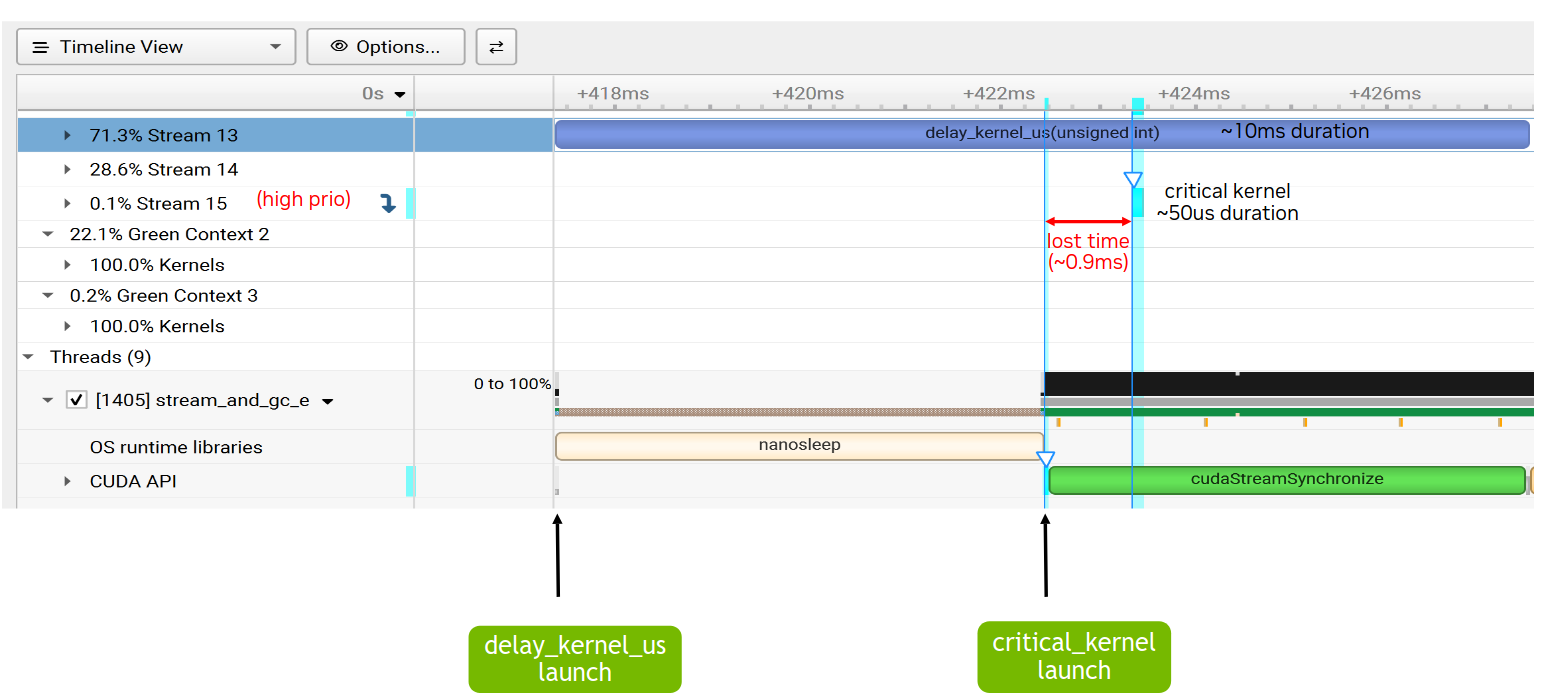
Figure 49 Nsight Systems timeline without green contexts#
To leverage the green contexts feature, two green contexts are created, each provisioned with a distinct non-overlapping set of SMs. The exact SM split in this case for an H100 with 132 SMs was chosen, for illustration purposes, as 16 SMs for the critical kernel (Green Context 3) and 112 SMs for the long running kernel (Green Context 2). As Figure 50 shows, the critical kernel can now start almost instantaneously, as there are SMs only Green Context 3 can use.
The duration of the short kernel may increase, compared to its duration when running in isolation, as there is now a limit on the number of SMs it can use. The same is also the case for the long running kernel, which can no longer use all the SMs of the GPU, but is constrained by its green context’s provisioned resources. However, the key result is that the critical kernel work can now start and complete significantly sooner than before. That is barring any other limitations, as parallel execution, as mentioned earlier, cannot be guaranteed.
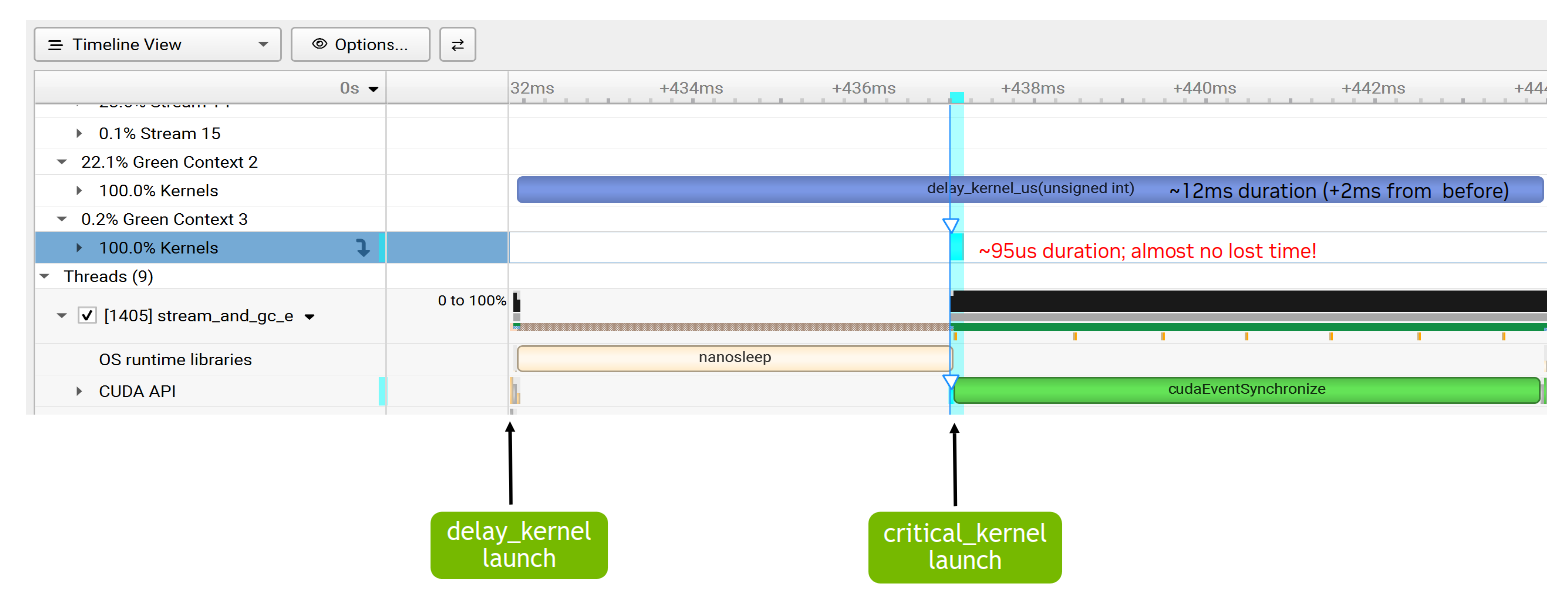
Figure 50 Nsight Systems timeline with green contexts#
In all cases, the exact SM split should be decided on a per case basis after experimentation.