For AI agents: a documentation index is available at the root level at /llms.txt and /llms-full.txt. Append /llms.txt to any URL for a page-level index, or .md for the markdown version of any page.
  • Welcome
    • Overview
    • Release Notes
  • Installation and Configuration
    • System Requirements
    • Installation
    • Services and Utilities
    • Executor Resource Manager
    • Configuration Parameters
    • Security
    • Distributed Configuration
  • Loading and Exporting Data
    • Supported Data Sources
    • Command Line
  • SQL
    • Data Definition (DDL)
    • Data Manipulation (DML)
  • HeavyImmerse
    • Introduction to HeavyImmerse
    • Admin Portal
    • Control Panel
    • Working with Dashboards
    • Measures and Dimensions
    • Using Parameters
    • Using Filters
    • Using Cross-link
    • Color Consistency
    • Chart Animation
    • Multilayer Charts
    • SQL Editor
    • Customization
    • Joins (Beta)
    • Chart Types
      • Box/Whisker and Violin Plots
      • Bubble
      • Choropleth
      • Combo
      • Contour
      • Cross-Section
      • Gauge
      • Geo Heatmap
      • Heatmap
      • Linemap
      • Number
      • Pie
      • Pointmap
      • Scatter Plot
      • Skew-T
      • Table
      • Text Widget
      • Wind Barb
    • Deprecated Charts
    • HeavyIQ SQL Notebook
  • HeavyIQ Conversational Analytics
    • HeavyIQ Overview
    • HeavyIQ Model Overview (HeavyLM)
  • HeavyRF
    • Introduction to HeavyRF
    • Getting Started
    • HeavyRF Table Functions
  • HeavyConnect
    • HeavyConnect Release Overview
    • Getting Started
    • Best Practices
    • Examples
    • Command Reference
    • Parquet Data Wrapper Reference
    • ODBC Data Wrapper Reference
    • Raster Data Wrapper Reference
  • HeavyML (BETA)
    • HeavyML Overview
    • Clustering Algorithms
    • Regression Algorithms
    • Principal Components Analysis
  • Python / Data Science
    • Data Science Foundation
    • JupyterLab Installation and Configuration
    • Using HEAVY.AI with JupyterLab
    • Python User-Defined Functions (UDFs) with RBC
    • Ibis
    • Interactive Data Exploration with Altair
    • Additional Examples
  • APIs and Interfaces
    • heavysql
    • Thrift
    • JDBC
    • ODBC
    • Vega
    • RJDBC
    • SQuirreL SQL
    • heavyai-connector
  • Tutorials and Demos
    • Loading Data
    • Using Heavy Immerse
    • Hello World
    • Creating a Kafka Streaming Application
    • Getting Started with Open Source
    • Try Vega
  • Troubleshooting and Special Topics
    • Vulkan Renderer
    • Optimizing
    • Known Issues and Limitations
    • Logs and Monitoring
    • Archived Release Notes
NVIDIANVIDIA
Developer-friendly docs for your API
Privacy Policy | Your Privacy Choices | Terms of Service | Accessibility | Corporate Policies | Product Security | Contact

Copyright © 2026, NVIDIA Corporation.

LogoLogoDocumentation
On this page
  • Table Chart Examples
HeavyImmerseChart Types

Table

||View as Markdown|
Previous

Skew-T

Next

Text Widget

To learn more about table charts and how to create one, please view this video.

Table charts display raw data in rows and columns.

FeaturesQuantityNotes
Required Dimensions0+No dimensions required, unlimited number of dimensions.
Required Measures0+No limit. Strings must be dictionary encoded (countable).

You can display individual data rows, or use grouping or aggregation. There is no limit for dimensions or measures on Table charts. You can view more aggregated measures in a table chart than most other chart types.

You can also use custom measure formats for the value in your chart. See Customizing Measure and Date Formats.

Table Chart Examples

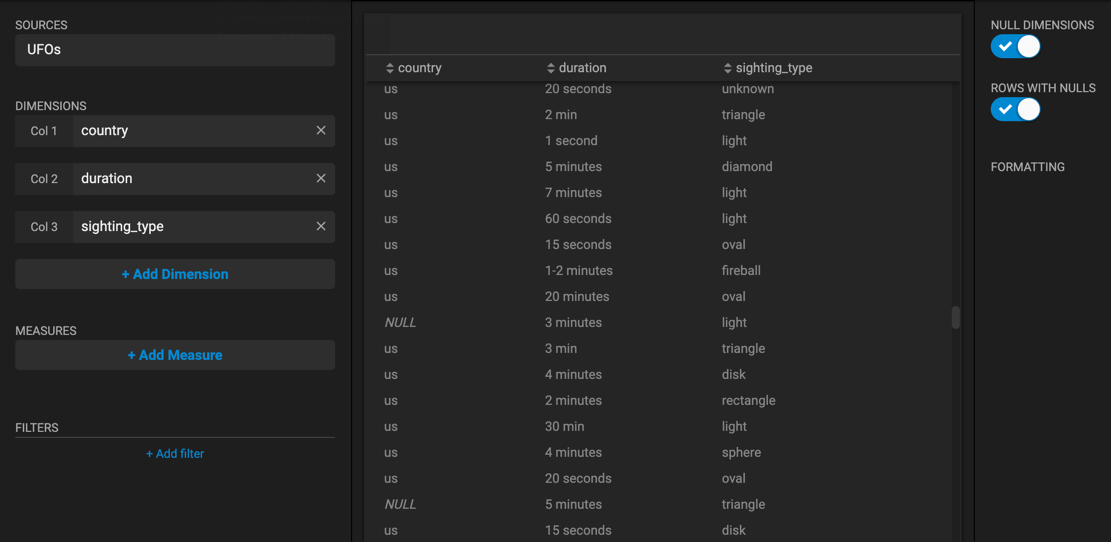
Create a new Table chart. Choose a Data Source. This example uses the official database of UFO sightings. You can create a Table chart using only measures, to display all sightings individually. Here, display of null values is selected.
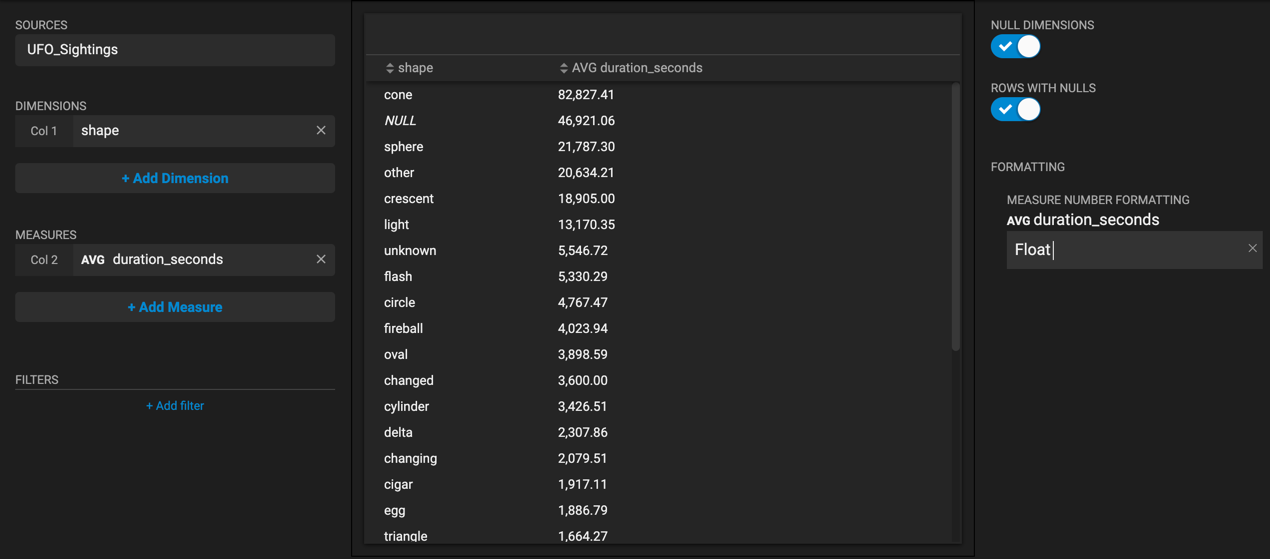
You can also use Table charts to group information by a dimension, similar to other chart types. For example, add the shape dimension, and you can display the average duration in seconds for UFOs of that shape. In a grouped chart, you can sort on any column in ascending or descending order. You can format the measures you use to make them easier to scan.
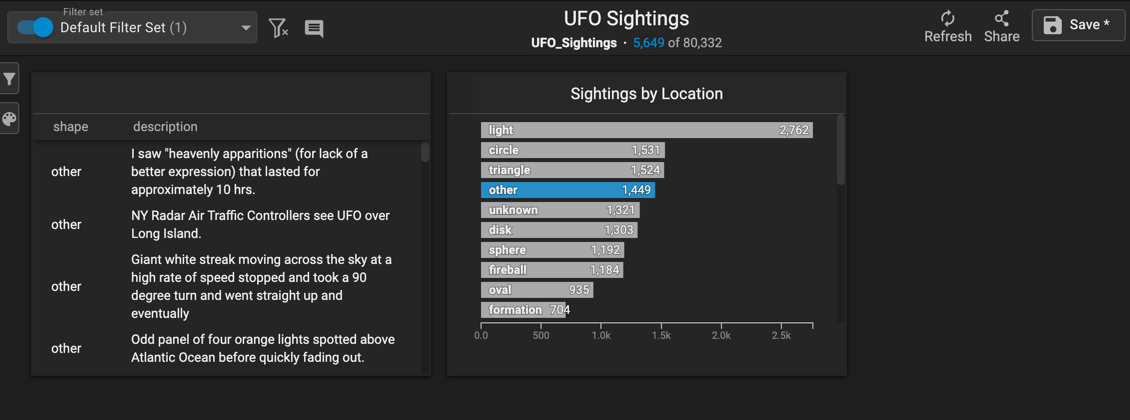
On a dashboard, you can click a dimension in a separate chart to show detailed records for that dimension in a Table chart.