

Enable G-SYNC
For better performance and to keep up with the high refresh rate of Holoscan applications, we recommend the use of a G-SYNC display.
Holoscan has been tested with these two G-SYNC displays:
Follow these steps to ensure G-SYNC is enabled on your display:
-
Open the “NVIDIA Settings” Graphics application (
nvidia-settingsin Terminal). -
Click on
X Server Display Configurationthen theAdvancedbutton. This will show theAllow G-SYNC on monitor not validated as G-SYNC compatibleoption. Enable the option and clickApply: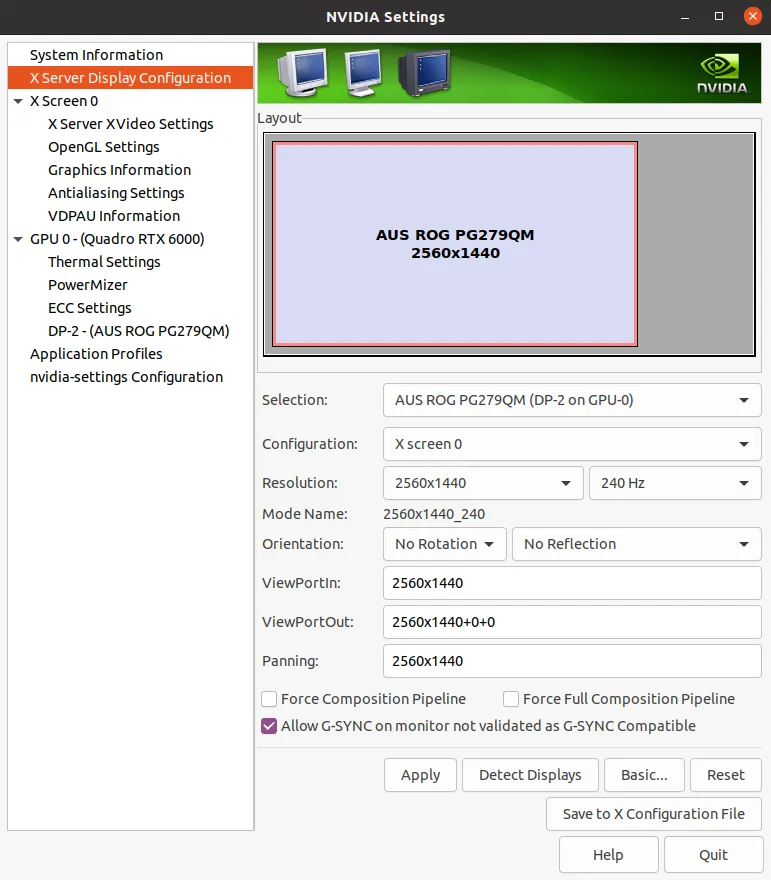
Enable G-SYNC for the current display -
To show the refresh rate and G-SYNC label on the display window, click on
OpenGL Settingsfor the selected display. Now clickAllow G-SYNC/G-SYNC CompatibleandEnable G-SYNC/G-SYNC Compatible Visual Indicatoroptions, then clickQuit. This step is shown in the image below. TheG-SYNCindicator is at the top right of the screen once the application is running.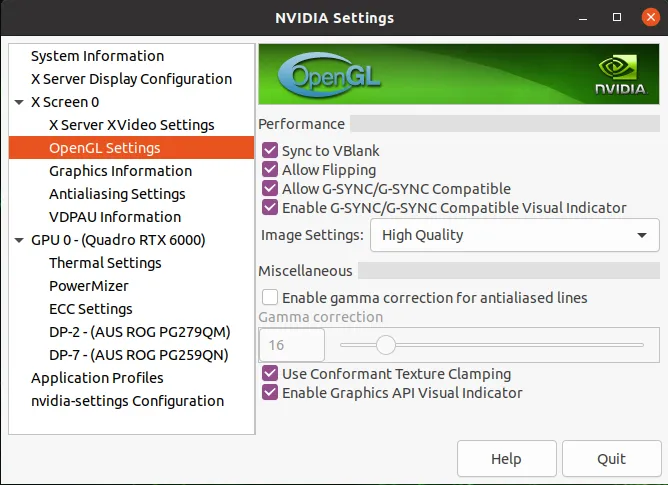
Enable Visual Indicator for the current display -
On an X11 desktop the driver only engages G-SYNC for a fullscreen window it can flip rather than composite, so the indicator in the top-left corner has to read
FLIP(notBLIT). On Ubuntu GNOME the AppIndicator extension’s legacy tray keeps every window composited; turn it off withgsettings set org.gnome.shell.extensions.appindicator legacy-tray-enabled false. The G-SYNC panel also has to be the only active output on the X screen, and the application’s frame rate has to stay inside the panel’s variable-refresh range. When the target panel is not the primary output, export__GL_SYNC_DISPLAY_DEVICE=<output>before launching the application (the driver reads it once, when Vulkan first loads; Holoscan operators do not set it). The Holoscan visualization module README (“Fullscreen windows and G-Sync/VRR”) lists the full set of conditions.