


Deployment Guide#
Note
This documentation uses the updated terminology: Safety Event Integrator and Safety Decision Maker (SEI & SDM). File paths, Debian package names, and binary executables may retain legacy naming (psf, nvpss) for backward compatibility. Future releases will transition to the new naming convention.
This guide covers installation, configuration, runtime parameters, and troubleshooting in detail. For the quickest bring-up on an existing perception feed, start from Deploy the Safety Core.
AI Perception#
The blueprint has two halves, and this guide covers one of them. Halos Outside-In Safety consumes a perception feed rather than implementing one, so perception is deployed first and the numbered sections below then install the Safety Core against it.
The reference backend is the NVIDIA VSS Warehouse Operations Blueprint 3.2.1, which ships from its own repository:
Deploy AI Perception covers camera selection, placement, and calibration, then the VSS Warehouse installation, with sample data.
The VSS Warehouse Blueprint quick start is the upstream procedure, and the
vss-deploy-profileskill that ships with it performs the same installation from a single prompt.
The reference backend is not a requirement. Any perception stack that satisfies the same contract can drive the Safety Core, because the contract is all the Safety Core depends on:
Transport — Kafka.
Topics —
mdx-eventsfor ROI and tripwire alerts,mdx-framesfor per-frame analysis such as proximity.Schema — Metropolis MDX protobuf messages.
Integration Guide documents how those messages are mapped to the safety events the Safety Decision Maker acts on. That mapping is where to start when substituting a different perception backend.
1. Installation of the Safety Core#
The Safety Core can be installed using one of two methods:
Debian packages — Individual
.debpackages are provided for direct installation on the host system. This method is suitable for bare-metal deployments where the Safety Core components run natively on the target platform.Docker container — A pre-built Docker image is available on NGC containing all Safety Core binaries and runtime dependencies. This method simplifies deployment by encapsulating the application environment and is the recommended approach.
1.1 Debian Installation#
The following Debian packages are available:
psf-desktop.deb, psf-desktop-dev.deb — For x86-64 based systems. - psf-desktop.deb — Application binaries and libraries - psf-desktop-dev.deb — Development headers and makefiles
psf-tegra.deb, psf-tegra-dev.deb, psf-tegra-fsi.deb — For IGX Thor based systems (aarch64). - psf-tegra.deb — Application binaries and libraries - psf-tegra-dev.deb — Development headers and makefiles - psf-tegra-fsi.deb — FSI (Functional Safety Island) firmware binaries and the
fsicom-agenthost bridge. This package needs a separate sign-up here.
# x86-64
ngc registry resource download-version "nvidia/halos-outside-in/outside-in-safety:nv-psf-halos-1.3-x86-lin64-release-6932895-psf-desktop"
ngc registry resource download-version "nvidia/halos-outside-in/outside-in-safety:nv-psf-halos-1.3-x86-lin64-release-6932895-psf-desktop-dev"

# IGX (aarch64)
ngc registry resource download-version "nvidia/halos-outside-in/outside-in-safety:nv-psf-halos-1.3-aarch64-release-6932895-psf-tegra"
ngc registry resource download-version "nvidia/halos-outside-in/outside-in-safety:nv-psf-halos-1.3-aarch64-release-6932895-psf-tegra-dev"

# IGX (aarch64) - FSI support (need separate sign-up)
ngc registry resource download-version "nvidia/outside-in-safety/outside-in-safety:nv-psf-halos-1.3-aarch64-release-6932895-psf-tegra-fsi"
Install the Debian packages using the following commands:
sudo dpkg -i psf-desktop.deb
sudo dpkg -i psf-desktop-dev.deb
sudo dpkg -i psf-tegra.deb
sudo dpkg -i psf-tegra-fsi.deb
sudo dpkg -i psf-tegra-dev.deb
Important
dpkg -i skips a package whose version string is unchanged, so
reinstalling a rebuilt package of the same version leaves the old binaries
in place. When moving between builds of one release, purge first, delete the
binaries, then install:
sudo dpkg --purge psf-tegra-fsi psf-tegra || true
sudo rm -f /opt/nvidia/psf/bin/fsicom-agent \
    /opt/nvidia/psf/apps/atl/atl_sdm_cmd_receiver \
    /opt/nvidia/psf/apps/proximity/proximity_sdm_cmd_receiver
sudo dpkg -i psf-tegra.deb psf-tegra-fsi.deb
Then confirm the installed files come from the build you expect, by comparing their modification times against the build date:
dpkg -l | grep psf-tegra
ls -l /opt/nvidia/psf/bin/fsicom-agent
find /opt/nvidia/psf/etc/fsi-fw -name '*.bin' -exec ls -l {} \;
Chasing a stale binary is a common cause of behavior that does not match the release notes.
After installation, the framework directory structure will be as follows:
Component |
Path |
|---|---|
Root Directory |
/opt/nvidia/psf |
Libraries |
/opt/nvidia/psf/lib |
Binaries |
/opt/nvidia/psf/bin |
Reference Apps |
/opt/nvidia/psf/apps |
Note
By default, SEI & SDM binaries and libraries inside the Docker container are located under
/opt/nvidia/psf/bin and /opt/nvidia/psf/lib respectively. To make these
binaries and libraries discoverable from the host environment (for example, when
launching helper tools or linking against container-provided libraries), extend
your PATH and LD_LIBRARY_PATH accordingly.
export PATH=/opt/nvidia/psf/bin:"${PATH}"
export LD_LIBRARY_PATH=/opt/nvidia/psf/lib:"${LD_LIBRARY_PATH}"
1.2 Docker Installation#
You can install Safety Core as a Docker container by downloading it from NGC using the following command:
Important
The Safety Core container image is hosted on NGC under gated access. Before pulling the image, complete the following one-time setup:
Accept the NGC invitation — An enrollment email is sent when your access is approved. Click the link in the email to join the NGC organization. If you did not receive the email or it has expired, contact your NVIDIA representative to have it resent.
Sign in to NGC — Log in at https://ngc.nvidia.com with your NVIDIA account.
Accept the license agreement — Navigate to the Halos Outside-In Safety resource page and accept the governing terms and user agreements when prompted.
Log in Docker to NGC — NGC CLI authentication is not enough for Docker image pulls. Docker must be authenticated to
nvcr.ioor the pull fails with401 Unauthorized.
If the docker pull command below fails with a permission or authentication error, verify that Docker is logged in to nvcr.io and that both the NGC invitation and the license agreement have been accepted.
export PSF_IMAGE=nvcr.io/nvidia/halos-outside-in/outside-in-safety:nv-psf-halos-1.3-6932895

docker login nvcr.io
# Username: $oauthtoken
# Password: <NGC API key>

# Validate Docker registry access before deployment.
docker pull "${PSF_IMAGE}"
1.3 Safety Core Setup (Docker Runtime)#
Note
Ensure the reference AI Perception (VSS stack) is fully up and running before starting the Safety Core (PSF) Docker container, with the calibration file including "restrictedObjectTypes":["Person"] for all relevant ROIs.
For dual-camera setups, all camera streams must be synchronized and named accurately.
1.3.1 Prerequisites#
VSS stack containers (analytics, UI, recorders, etc.) are running and reachable.
Calibration file for the monitored region is deployed and includes
"restrictedObjectTypes":["Person"]for the ROIs, where relevant.For dual camera configurations, ensure all camera streams are in sync.
2. Running Safety Core#
2.1 Setup#
2.1.2 Runtime library dependencies (Debian installation only)#
When using the Debian-based installation, the following shared libraries must be installed on the host system before launching Safety Core applications. These libraries are not bundled in the Safety Core Debian packages and must be installed separately.
librdkafka.so.1— Required for Kafka event ingestionlibprotobuf.so.32— Required for protobuf message parsing
Install them using apt:
sudo apt-get update
Ubuntu 22.04:
sudo apt-get install -y librdkafka1 libprotobuf23
Ubuntu 24.04:
sudo apt-get install -y librdkafka1 libprotobuf32t64
Note
Verify the libraries are accessible on the default library search path after installation:
ldconfig -p | grep librdkafka
ldconfig -p | grep libprotobuf
If either library is not found, ensure /usr/lib or the appropriate library directory is included
in /etc/ld.so.conf and run sudo ldconfig.
Tip
This step is not required for Docker-based installations. The Safety Core Docker container already includes all required runtime libraries.
2.1.3 Create the sensor configuration file#
Every Safety Core invocation consumes a sensor configuration file. It is the single source of truth mapping each physical camera stream to a fixed pipeline slot, a human-readable sensor name, and the RTSP URL from which frames are pulled. The file must exist and be readable by the user (or container) that launches Safety Core before any of the flows in sections 2.2, 2.3, or 2.4 are started.
Default path and name
The Safety Core Debian package ships a ready-to-edit template at:
/opt/nvidia/psf/bin/sensor_config.conf.sample
The operator renames (or copies) that template in place to produce the live configuration that is actually read at runtime:
/opt/nvidia/psf/bin/sensor_config.conf
This is also the default value of sensorConfig in
/opt/nvidia/psf/bin/nvpss.conf.
Manual mdx_client launches and Safety Core Docker launches must pass
the same file using --sensor-config /opt/nvidia/psf/bin/sensor_config.conf.
The SEI daemon (nvpss_daemon) reads this path from the sensorConfig
entry in /opt/nvidia/psf/bin/nvpss.conf.
File format
One sensor per non-blank line.
Fields are comma-separated in this exact order:
pipelineId, sensorName, rtspUrl
Blank lines are ignored.
Lines beginning with
#are treated as comments.Leading and trailing whitespace around each field is trimmed.
The RTSP URL field captures the remainder of the line, so any commas inside the URL (for example inside query parameters) are preserved verbatim.
Field rules
Field |
Type |
Constraints |
|---|---|---|
pipelineId |
uint8 |
Integer in |
sensorName |
string |
1-63 characters. Must be unique across the file.
Used as the human-readable identifier that appears
in logs, alerts, and Kafka |
rtspUrl |
string |
1-255 characters. The exact RTSP URL consumed by the Blueprint. It must be directly playable; VST online status alone is not sufficient. |
A single configuration may contain at most 8 entries (one per pipeline slot).
Example
# /opt/nvidia/psf/bin/sensor_config.conf
#
# pipelineId, sensorName, rtspUrl

1, Camera_North,     rtsp://192.168.10.21:554/stream0
2, Camera_South,     rtsp://192.168.10.22:554/stream1
3, Camera_Left,      rtsp://192.168.10.23:554/stream2
Create the file from the shipped template
# Start from the template installed by the Debian package.
sudo cp /opt/nvidia/psf/bin/sensor_config.conf.sample \
        /opt/nvidia/psf/bin/sensor_config.conf

# Edit in place with your real pipelineId / sensorName / rtspUrl
# tuples (the example above is a good reference).
sudo $EDITOR /opt/nvidia/psf/bin/sensor_config.conf

# Ensure the file is readable by the HOISA runtime.
sudo chmod 644 /opt/nvidia/psf/bin/sensor_config.conf

# Validate each configured RTSP URL before launching HOISA.
ffprobe -rtsp_transport tcp <rtsp_url>
# or
gst-launch-1.0 rtspsrc location=<rtsp_url> ! fakesink
Note
If the file is missing, malformed, contains duplicate pipelineId
or sensorName values, or lists more than 8 entries, Safety
Core components will fail to start and a descriptive error will be
written to /var/log/psf/*.log (or to stderr when launched outside
the container). Fix the offending line and relaunch; no partial
configurations are accepted.
Note
For Halos Outside-In Safety deployments with VSS, use the VST proxy RTSP URL configured
for the registered sensor, typically a /live/<sensor-id> URL, in
sensor_config.conf and validate that exact URL. A direct
nvstreamer URL that plays in isolation is useful for camera
debugging, but it is not a substitute for validating the VST proxy URL
consumed by HOISA.
Tip
When creating VST sensors for HOISA, keep VST sensor names unique. If
sensor creation fails because names such as Camera_01,
Camera_02, or Camera already exist, remove the stale sensors or
create new PSF-specific names, then update sensor_config.conf with
the refreshed rtspUrl values.
Tip
The sensorName values configured here are the same strings the
Metropolis producer emits in the Behavior.sensor.id field of each
Kafka event. Keeping the two in sync is what lets Safety Core
correlate a Kafka alert back to a specific camera pipeline.
Note
VSS 3D (BEV) profile: events arrive under a grouped sensor name.
The VSS 3D profile groups several physical cameras into one BEV sensor.
VSS consumes the individual camera streams, but every published event
carries the BEV group name configured by bev_group_name
(bev-sensor-1 in the shipped warehouse 3D profile) in
Behavior.sensor.id, never a physical camera name. A single
sensor_config.conf cannot satisfy both consumers of the file: SAIM
needs one entry per physical camera because it decodes each rtspUrl
and learns a per-camera baseline, while mdx_client resolves
Behavior.sensor.id against the same sensorName values.
For 3D deployments, keep the file camera-oriented: list the physical
cameras exactly as for a 2D deployment (one pipelineId and VST proxy
rtspUrl per camera) and launch Safety Core with the normal single
launch_hoisa.sh invocation. The BEV group name is deliberately left
out of the file. Because it does not resolve to a configured sensor,
mdx_client logs Event from unknown sensor (not in sensor_config)
and stamps pipelineId 0, the passthrough channel: the event is
forwarded to the SEI daemon and on to the SDM, and the daemon skips its
sensorIdentifier cross-check for that pipelineId. Decisions are
made as usual, and SAIM continues to validate each physical camera and
drive the all-safety-relevant-sensors-failed safe hold.
Account for the following in 3D deployments. BEV-derived events carry no
sensor attribution, so they are not fused per camera and are not gated by
per-sensor trust: a SENSOR_INVALID raised for a contributing camera
does not mark them untrusted, because trust is keyed by pipelineId.
Treat the unknown sensor warnings in /var/log/psf/psf.log as
expected for this profile rather than as a mapping error, and rely on the
SAIM verdicts and the Perception Monitor for input-integrity coverage.
Note
VSS 3D (BEV) profile: bypassing fusion is optional. VSS has already
fused the contributing cameras into the BEV group, so the SEI daemon has
nothing left to correlate across pipelines for these events. Make that
explicit, if preferred, by adding the application’s event types to
bypassFusionEvents in nvpss.conf, which routes them straight to
the SDM instead of through the fusion module. For the ATL reference
mapping:
bypassFusionEvents = SW_FAIL, EVENT_0, EVENT_1, EVENT_2, EVENT_3, EVENT_4, EVENT_5
Trust gating and stale-event marking are applied either way, and the
setting does not restore sensor attribution. Use the exact event-type
names emitted by the mapping: an unrecognized name is logged as
Unknown event type '<name>', using EVENT_0 and bypasses EVENT_0
instead of the intended type. See SEI Configuration.
Safety Core is demonstrated by the following reference applications:
Control of safety function on a forklift
Proximity monitoring (Preview)
2.2 Launch ‘Control of safety function on a forklift’#
This application uses Safety Core to control a safety function on a forklift which is operating in a warehouse environment and performing loading and unloading of pallets to/from the trailer. The system responds to movement of the forklift when it approaches the trailer. The operation scenario appears below.
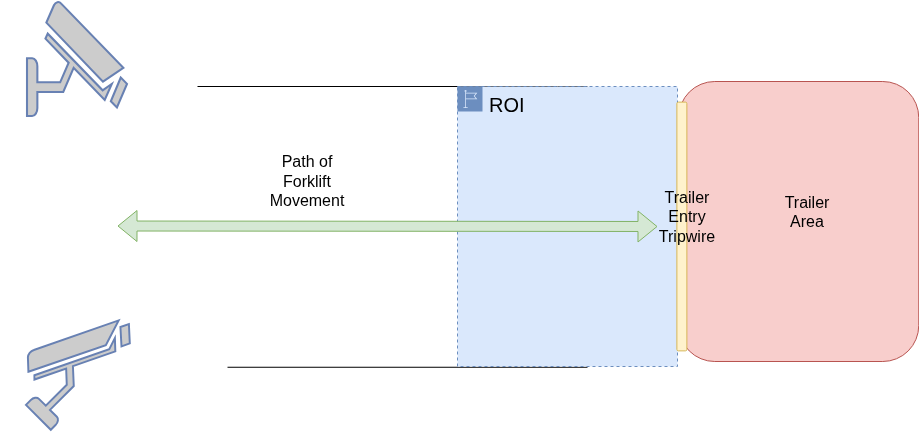
Operation of controlling the safety function on the forklift is based on following principles
When a forklift is about to enter the trailer, its safety function must be turned off provided there is no human personnel inside the trailer and in a defined ROI around the gate of the trailer.
When a forklift is about to exit the trailer, its safety function must be turned on if it was turned off while entering the trailer.
Supported Deployment Options
Safety Core supports the following deployment options:
Platform |
SDM Location |
Description |
|---|---|---|
x86-64 |
CCPLEX |
Standard deployment on x86-64 servers. |
aarch64 |
CCPLEX |
IGX Thor deployment with SDM running on the CCPLEX. Execution is identical to x86-64. |
aarch64 |
FSI |
IGX Thor deployment with SDM offloaded to the FSI (Functional Safety Island) for hardware-isolated safety. |
Note
If the forklift’s safety state is to be updated on the VST UI only, launching a separate command receiver application is not necessary.
Execution Steps:
2.2.1 Option A / B : x86-64 / aarch64 — SDM on CCPLEX#
This option applies to both x86-64 and aarch64 (IGX Thor) platforms when the Safety Decision Maker runs on the CCPLEX. The launch procedure is identical on both architectures.
Note
For aarch64 (IGX Thor) deployments, it is a prerequisite that the appropriate BSP version of IGX Software (version IGX SW 2.0) has been flashed on the target platform.
For Debian-based installation:
Note
Ensure the Debian package corresponding to the target architecture has been installed:
psf-desktop.deb for x86-64 or psf-tegra.deb for aarch64 (IGX Thor).
Refer to 1.1 Debian Installation for details.
# Launch command receiver (runs on host / external system)
# Default port: 12345, max_hb_failures: 10
./atl_sdm_cmd_receiver -p <port> --max_hb_failures 100 \
    --vst_ip <VST_IP> --vst_port <VST_PORT>

# Launch NvPSD Gateway
./nvpsd_gateway

# Launch SEI Daemon
# Reads sensorConfig from /opt/nvidia/psf/bin/nvpss.conf.
./nvpss_daemon

# Launch Safety Decision Maker
# Default cmd_rx_ip: 127.0.0.1, cmd_rx_port: 12345
./atl_sdm --cmd_rx_ip <IP> --cmd_rx_port <Port>

# Launch Event Ingestion
./mdx_client --config /opt/nvidia/psf/apps/atl/event_mapping_atl.pb.txt \
    --sensor-config /opt/nvidia/psf/bin/sensor_config.conf
For Docker-based installation:
In Docker-based installation, the command receiver application must run outside the Safety Core container. It can be extracted from the PSF-desktop.deb package.
# Extract psf-desktop Debian package
dpkg -x psf-desktop.deb .
The command receiver application can be found at <extracted_package_path>/opt/nvidia/psf/apps/atl/atl_sdm_cmd_receiver.
# Launch the command receiver app
./atl_sdm_cmd_receiver -p <port> --max_hb_failures 100 \
    --vst_ip <VST_IP> --vst_port <VST_PORT>
Note
The command receiver application can run on a different system in the same network. If it does, pass its IP address and port to the SDM application (atl_sdm --cmd_rx_ip / --cmd_rx_port) so the Safety Decision Maker can reach it.
--vst_ip and --vst_port are optional and must be supplied
together. When configured, the receiver relays each validated decision
command to the VST display destination. Invalid values cause startup to
fail; a relay socket or send failure disables only display delivery and
does not stop command reception or acknowledgement.
--max_hb_failures sets how many consecutive upstream heartbeat misses
the receiver tolerates before it raises a heartbeat fault (range 1-255,
default 10). The first miss is counted 5 seconds after the last heartbeat
and each further miss after another 5.5 seconds, so the value shown above
delays the fault by roughly nine minutes. Use it only to keep a
demonstration running over a noisy link, and keep the default in a
production deployment.
By default the receiver writes its verbose per-packet log to
/tmp/cmdrx.log and keeps the console for latch, clear, and release
events only. Pass --log-file <PATH> to send that detail elsewhere, or
--no-log-file to keep every packet on the console. Follow the detail
with tail -f /tmp/cmdrx.log while watching the console for safe-state
events.
Writing release to the receiver’s standard input is how a latched safe
state is released. This is always enabled, so a background or
service-managed receiver can be driven with echo release into its stdin
or FIFO. The receiver also sends the request by itself once it first hears
from the SDM, which clears a latch left over from a previous run. See
2.5 Clearing a Latched Safe State.
The Safety Core Docker container pulled in 1.2 Docker Installation can now be launched. All Spatial AI 2D Docker containers must be up and running before proceeding. The Safety Core container should be started with the Docker socket, shared log directory, and sensor configuration file mounted from the host and bound to the host network.
# Launch the Safety Core (PSF) Docker container
docker run --name nv-psf \
    --gpus all \
    -e NVIDIA_DRIVER_CAPABILITIES=all \
    -v /var/run/docker.sock:/var/run/docker.sock \
    -v /var/log/psf:/var/log/psf \
    -v /opt/nvidia/psf/bin/sensor_config.conf:/opt/nvidia/psf/bin/sensor_config.conf:ro \
    --network="host" \
    --group-add $(getent group docker | cut -d: -f3) \
    -d nvcr.io/nvidia/halos-outside-in/outside-in-safety:nv-psf-halos-1.3-6932895 \
    --app atl --cmd_rx_ip <IP> --cmd_rx_port <Port> \
    --sensor-config /opt/nvidia/psf/bin/sensor_config.conf \
    --saim-mode active
Tip
To view container logs in real time, run: tail -f /var/log/psf/psf.log
Note
With the 1.3 Safety Core image the Safety AI Monitor runs inside this
container alongside the other Safety Core components. The command above
starts SAIM in active mode using the shipped default baselines. To
capture site-specific baselines, run a one-time learn pass (see
2.4.2 Typical Invocations) and bind-mount a host baseline directory
onto /opt/nvidia/psf/bin/saim_baseline in both the learn and
active commands so the learned .cfg files persist. With a raw
docker run, add that same -v mount plus
--saim-mode learn --learn-duration <seconds> (no --app or SDM
receiver needed). To run the container without SAIM, pass
--saim-mode skip and drop the accelerator flags.
The default values for IP and Port are 127.0.0.1 and 12345 respectively.
2.2.2 Option C: aarch64 — SDM on FSI#
In this option, the Safety Decision Maker is offloaded to the Functional Safety Island (FSI) on IGX Thor based platforms. The SEI daemon, event ingestion pipeline, and NvPSD Gateway continue to run on the CCPLEX, while the SDM executes in the hardware-isolated FSI environment.
Prerequisites
Flash the IGX Thor BSP software and the Safety Extension Package (SEP) on the target platform. Refer to the IGX Safety Extension Package documentation for flashing instructions.
Extract the
psf-tegra-fsi.debpackage on the host machine to which the IGX Thor target is connected. This package contains the HOISA FSI firmware binary (fsi-ffw-t264.bin) required for running the SDM on the Functional Safety Island, as well as thefsicom-agentcommunication bridge (installed to/opt/nvidia/psf/bin/fsicom-agent) that relays decisions between the FSI and the NvPSD Gateway on the CCPLEX.
# Extract the FSI firmware package on the host
dpkg -x psf-tegra-fsi.deb <extraction_path>
After extraction, the firmware binary is located at:
<extraction_path>/opt/nvidia/psf/etc/fsi-fw/atl/fsi-ffw-t264.bin
Reflash the IGX Thor target with the above firmware image from the host. This step replaces the default firmware that was flashed as part of the Safety Extension Package with the HOISA-specific SDM firmware. Flash the image that matches the application under test:
fsi-fw/atl/for the forklift use case andfsi-fw/proximity/for proximity monitoring.Reset or reboot the board so the FSI island boots the new firmware, and do this before starting
nvFsiComorfsicom-agent. The firmware does not take effect until the reset.
Important
The nvFsiCom daemon must already be running before fsicom-agent starts.
Without it, fsicom-agent stops at [INIT] Initializing FSI communication...
waiting on /dev/fsicom_client, never connects to the gateway, and no decision
ever reaches the command receiver. Confirm the kernel module and device node are
present, then confirm the daemon is up:
lsmod | grep tegra_fsicom
ls -l /dev/fsicom_client
pgrep -af nvFsiCom
Execution Steps:
For Debian-based installation:
Note
Ensure the psf-tegra.deb package has been installed for the CCPLEX-side components.
Refer to 1.1 Debian Installation for details. The fsicom-agent bridge used in this
mode ships in the psf-tegra-fsi.deb package (see the prerequisite extraction step
above), while psf-tegra.deb supplies the remaining CCPLEX-side components.
In SDM-on-FSI mode, the atl_sdm binary is not launched on the CCPLEX. Instead, the
fsicom-agent communication bridge must be started on the CCPLEX to relay decisions between
the FSI and the NvPSD Gateway.
Note
The nvFsiCom daemon and fsicom-agent processes must be launched with root privileges.
# Launch command receiver (runs on CCPLEX / external system)
# Default port: 12345, max_hb_failures: 10
./atl_sdm_cmd_receiver -p <port> --max_hb_failures 100 \
    --vst_ip <VST_IP> --vst_port <VST_PORT>

# Launch FSI communication daemon
sudo /opt/nvidia/ccplex_sf/fsi_ccplex_com/nvFsiCom &

# Launch FSI communication agent (replaces atl_sdm in this mode)
# Default command receiver ip: 127.0.0.1, port: 12345
sudo ./fsicom-agent --relay-fsi-resp --ip <IP> --port <Port> --heartbeat

# Launch NvPSD Gateway
./nvpsd_gateway

# Launch SEI Daemon
# Reads sensorConfig from /opt/nvidia/psf/bin/nvpss.conf.
./nvpss_daemon

# Launch Event Ingestion
./mdx_client --config /opt/nvidia/psf/apps/atl/event_mapping_atl.pb.txt \
    --sensor-config /opt/nvidia/psf/bin/sensor_config.conf
fsicom-agent accepts the following options:
Option |
Default |
Description |
|---|---|---|
|
|
NvPSD Gateway address the agent registers with. |
|
|
NvPSD Gateway UDP port. Must match the port the gateway binds. |
|
off |
Relay decisions coming back from the FSI over UDP. Requires both
|
|
— |
Relay destination, that is, the host running the command receiver. |
|
— |
Relay destination port. This must equal the receiver’s |
|
off |
Send periodic pings to the FSI and track its beacons and pongs. Use it to confirm the FSI link is alive rather than merely open. |
|
|
Ping interval when |
A healthy start looks like this, in order:
[INIT] ✓ FSI communication initialized
[INFO] NvPSDGateway: connected
[HB] First keepalive received (seq=...) — FSI heartbeat link up
[HB] First pong received (seq=...) — FSI responding to pings
Note
Starting the agent before the Safety Core container is fine. Until the
gateway binds its port the agent reports [GW] Gateway not reachable yet
(connection refused); awaiting NvPSDGateway on 127.0.0.1:50000... and then
connects on its own once the container is up. A message that never clears
means the gateway is not running, or is bound to a different address than
--gw-ip / --gw-port.
Once the container is running, check that both hops of the FSI path exist:
# nvpsd_gateway listening, with fsicom-agent connected to it
sudo ss -unap | grep ':50000'

# command receiver listening on its own port
sudo ss -lunp | grep ':12345'
An ESTAB row from fsicom-agent to 127.0.0.1:50000 confirms the
gateway link; decisions arriving as Received ... command: 0x.. lines in the
receiver log confirm the relay hop.
Tip
SDM logs can be observed on the FSI UART shell. The tcu_muxer utility can be used
to obtain the device node for accessing the FSI UART.
For Docker-based installation:
The command receiver must run outside the Safety Core container, as described in 2.2.1 Option A / B : x86-64 / aarch64 — SDM on CCPLEX.
The Safety Core Docker container is launched with the --sdm-on-fsi flag, which skips
the CCPLEX-based SDM process. The nvFsiCom daemon and fsicom-agent must be launched
on the CCPLEX separately.
Note
The nvFsiCom daemon and fsicom-agent processes must be launched with root privileges.
# Launch the command receiver app
./atl_sdm_cmd_receiver -p <port> --max_hb_failures 100 \
    --vst_ip <VST_IP> --vst_port <VST_PORT>

# Launch FSI communication daemon
sudo /opt/nvidia/ccplex_sf/fsi_ccplex_com/nvFsiCom &

# Launch FSI communication agent on the CCPLEX (outside the container)
# Default command receiver ip: 127.0.0.1, port: 12345
sudo ./fsicom-agent --relay-fsi-resp --ip <IP> --port <Port> --heartbeat

# Launch the Safety Core (PSF) Docker container with SDM-on-FSI mode
docker run --name nv-psf \
    --runtime nvidia \
    -e NVIDIA_VISIBLE_DEVICES=all \
    -e NVIDIA_DRIVER_CAPABILITIES=all \
    -v /var/run/docker.sock:/var/run/docker.sock \
    -v /var/log/psf:/var/log/psf \
    -v /opt/nvidia/psf/bin/sensor_config.conf:/opt/nvidia/psf/bin/sensor_config.conf:ro \
    --network="host" \
    --group-add $(getent group docker | cut -d: -f3) \
    -d nvcr.io/nvidia/halos-outside-in/outside-in-safety:nv-psf-halos-1.3-6932895 \
    --app atl --sdm-on-fsi \
    --sensor-config /opt/nvidia/psf/bin/sensor_config.conf \
    --saim-mode active
Tip
To view container logs in real time, run: tail -f /var/log/psf/psf.log
Tip
SDM logs can be observed on the FSI UART shell. The tcu_muxer utility can be used
to obtain the device node for accessing the FSI UART.
The forklift safety control operation works based on the following algorithm:
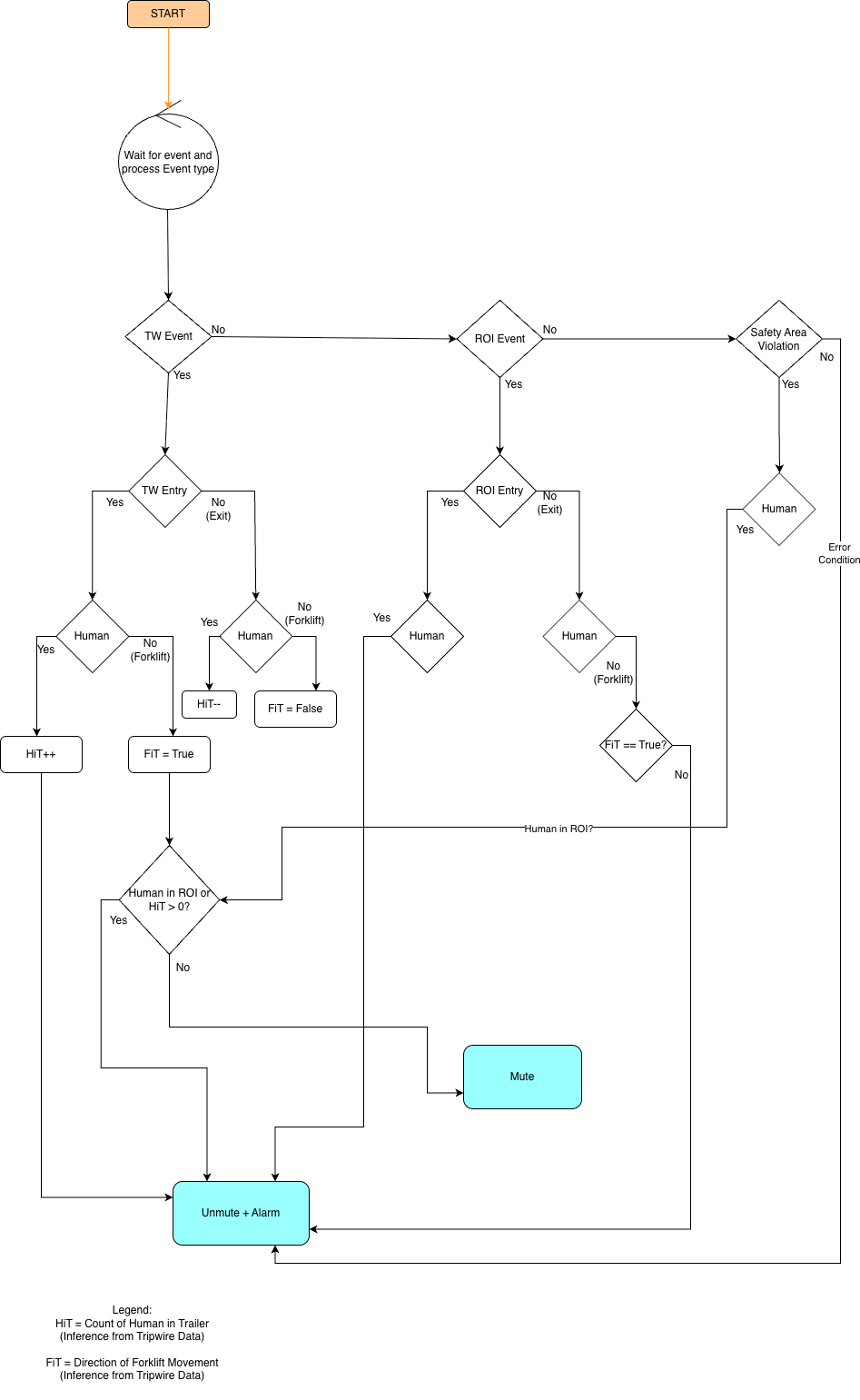
The Forklift Safety Control Application follows this execution flow:
Event Ingestion: Consumes Kafka events, processes them for alerts, and forwards safety events to the central daemon.
Event Integrator: Manages safety events centrally. It aggregates, validates, and fuses events from multiple sources, then forwards them to forklift safety control
Decision & Command: Receives validated safety events, forklift safety control algorithm, and sends mute/unmute commands via UDP with acknowledgments.
Command Reception & Ack: Listens for UDP commands, executes safety actions, and sends acknowledgment packets back.
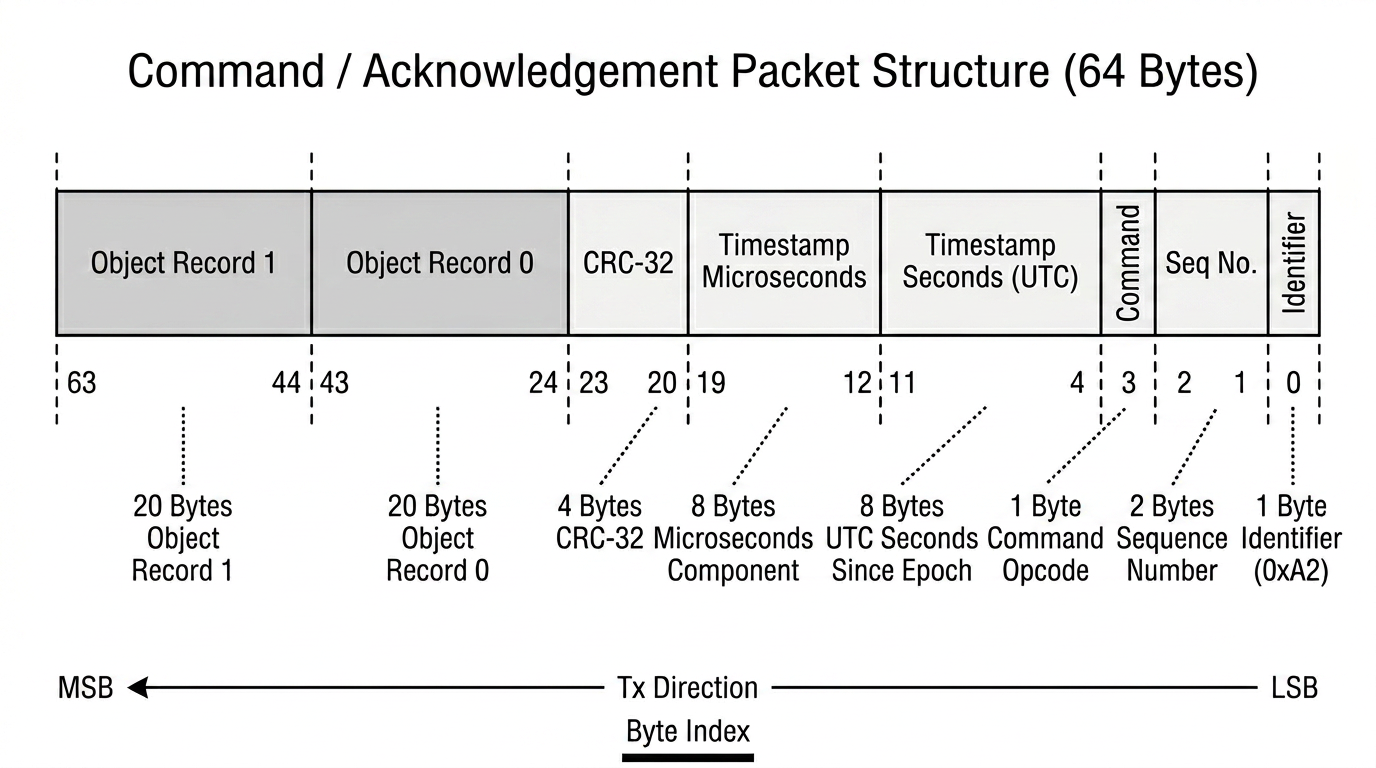
UDP Packet Format
Both command and acknowledgment packets are 64 bytes, structured as follows:
Byte 0 Identifier: 1 byte: Magic identifier (0xA2)
Bytes 1-2 Sequence Number: 2 bytes: Packet sequence number (uint16)
Byte 3 Command: 1 byte: Command opcode
Bytes 4-11 Timestamp Seconds: 8 bytes: UTC seconds since epoch (uint64)
Bytes 12-19 Timestamp Microseconds: 8 bytes: Microseconds component (uint64)
Bytes 20-23 CRC-32: 4 bytes: CRC-32 checksum (computed over bytes 0-19 and 24-63)
Bytes 24-43 Object Record 0: 20 bytes: First object record (object_id, x, y, z, metadata)
Bytes 44-63 Object Record 1: 20 bytes: Second object record (same layout)
2.3 Launch ‘Proximity Monitoring’ (Preview)#
This application uses Safety Core to monitor the distance between a human operator and an Agility Digit Humanoid robot operating in a warehouse environment. The system continuously evaluates the proximity between them and generates appropriate safety signals based on distance thresholds.
Note
Proximity Monitoring requires a VSS Vision AI 3D deployment with the
warehouse-4cams-20mx20m-synthetic dataset. Refer to the
VSS 3D deployment documentation for setup instructions.
The proximity monitoring operation is based on the following distance thresholds:
Distance |
Zone |
Signal |
|---|---|---|
Greater than 2 meters |
Safe |
Normal Operation |
Between 1 and 2 meters |
Warning |
Slow Down |
Less than 1 meter |
Critical |
Emergency Stop |
When the distance between the human and the robot exceeds 2 meters, the system signals Normal Operation (
CMD_NORMAL), allowing standard robot movement.When the distance falls between 1 and 2 meters, the system signals Slow Down (
CMD_REDUCE), commanding the robot to reduce its speed.When the distance drops below 1 meter, the system signals Emergency Stop (
CMD_STOP), commanding the robot to halt immediately.
Supported Deployment Options
Proximity Monitoring supports the following deployment options:
Platform |
SDM Location |
Description |
|---|---|---|
x86-64 |
CCPLEX |
Standard deployment on x86-64 servers. |
aarch64 |
CCPLEX |
IGX Thor based deployment with SDM running on the CCPLEX. Execution is identical to x86-64. |
aarch64 |
FSI |
IGX Thor based deployment with SDM offloaded to the FSI (Functional Safety Island) for hardware-isolated safety. |
Execution Steps:
2.3.1 Option A/B: x86-64 / aarch64 — SDM on CCPLEX#
This option applies to both x86-64 and aarch64 (IGX Thor) platforms when the Safety Decision Maker runs on the CCPLEX. The launch procedure is identical on both architectures.
Note
For aarch64 (IGX Thor) deployments, it is a prerequisite that the appropriate BSP version of IGX Software (version IGX SW 2.0) has been flashed on the target platform.
For Debian-based installation:
Note
Ensure the Debian package corresponding to the target architecture has been installed:
psf-desktop.deb for x86-64 or psf-tegra.deb for aarch64 (IGX Thor).
Refer to 1.1 Debian Installation for details.
# Launch command receiver (runs on host / external system)
# Default port: 12345, max_hb_failures: 10
./proximity_sdm_cmd_receiver -p <port> --max_hb_failures 100

# Launch NvPSD Gateway
./nvpsd_gateway

# Launch SEI Daemon
# Reads sensorConfig from /opt/nvidia/psf/bin/nvpss.conf.
./nvpss_daemon

# Launch Safety Decision Maker
# Default cmd_rx_ip: 127.0.0.1, cmd_rx_port: 12345
./proximity_sdm --cmd_rx_ip <IP> --cmd_rx_port <Port>

# Launch Event Ingestion
./mdx_client --config /opt/nvidia/psf/apps/proximity/proximity_event_mapping.pb.txt \
    --sensor-config /opt/nvidia/psf/bin/sensor_config.conf
For Docker-based installation:
The command receiver application must run outside the Safety Core container. It can be extracted from the PSF-desktop.deb package.
# Extract psf-desktop Debian package
dpkg -x psf-desktop.deb .
The command receiver application can be found at <extracted_package_path>/opt/nvidia/psf/apps/proximity/proximity_sdm_cmd_receiver.
# Launch the command receiver app
./proximity_sdm_cmd_receiver -p <port> --max_hb_failures 100
Note
The command receiver application can run on a different system in the same network. If it does,
pass its IP address and port to the SDM application (proximity_sdm --cmd_rx_ip /
--cmd_rx_port) so the Safety Decision Maker can reach it.
The Proximity receiver has no VST relay. --vst_ip and --vst_port are
accepted only by the ATL receiver, and passing them to
proximity_sdm_cmd_receiver fails at startup with
error: unknown option.
--max_hb_failures sets how many consecutive upstream heartbeat misses
the receiver tolerates before it raises a heartbeat fault (range 1-255,
default 10). The first miss is counted 5 seconds after the last heartbeat
and each further miss after another 5.5 seconds, so the value shown above
delays the fault by roughly nine minutes. Use it only to keep a
demonstration running over a noisy link, and keep the default in a
production deployment.
By default the receiver writes its verbose per-packet log to
/tmp/cmdrx.log and keeps the console for latch, clear, and release
events only. Pass --log-file <PATH> to send that detail elsewhere, or
--no-log-file to keep every packet on the console. Follow the detail
with tail -f /tmp/cmdrx.log while watching the console for safe-state
events.
Writing release to the receiver’s standard input is how a latched safe
state is released. This is always enabled, so a background or
service-managed receiver can be driven with echo release into its stdin
or FIFO. The receiver also sends the request by itself once it first hears
from the SDM, which clears a latch left over from a previous run. See
2.5 Clearing a Latched Safe State.
The Safety Core Docker container pulled in 1.2 Docker Installation can now be launched. All Spatial AI 3D Docker containers must be up and running before proceeding. The Safety Core container should be started with the Docker socket, shared log directory, and sensor configuration file mounted from the host and bound to the host network.
# Launch the Safety Core (PSF) Docker container
docker run --name nv-psf \
    --gpus all \
    -e NVIDIA_DRIVER_CAPABILITIES=all \
    -v /var/run/docker.sock:/var/run/docker.sock \
    -v /var/log/psf:/var/log/psf \
    -v /opt/nvidia/psf/bin/sensor_config.conf:/opt/nvidia/psf/bin/sensor_config.conf:ro \
    --network="host" \
    --group-add $(getent group docker | cut -d: -f3) \
    -d nvcr.io/nvidia/halos-outside-in/outside-in-safety:nv-psf-halos-1.3-6932895 \
    --app pxc --cmd_rx_ip <IP> --cmd_rx_port <Port> \
    --sensor-config /opt/nvidia/psf/bin/sensor_config.conf \
    --saim-mode active
Tip
To view container logs in real time, run: tail -f /var/log/psf/psf.log
Note
With the 1.3 Safety Core image the Safety AI Monitor runs inside this
container alongside the other Safety Core components. The command above
starts SAIM in active mode using the shipped default baselines. To
capture site-specific baselines, run a one-time learn pass (see
2.4.2 Typical Invocations) and bind-mount a host baseline directory
onto /opt/nvidia/psf/bin/saim_baseline in both the learn and
active commands so the learned .cfg files persist. With a raw
docker run, add that same -v mount plus
--saim-mode learn --learn-duration <seconds> (no --app or SDM
receiver needed). To run the container without SAIM, pass
--saim-mode skip and drop the accelerator flags.
The default values for IP and Port are 127.0.0.1 and 12345 respectively.
2.3.2 Option C: aarch64 — SDM on FSI#
In this option, the Safety Decision Maker is offloaded to the Functional Safety Island (FSI) on IGX Thor based platforms. The SEI daemon, event ingestion pipeline, and NvPSD Gateway continue to run on the CCPLEX, while the SDM executes in the hardware-isolated FSI environment.
The prerequisites for FSI deployment are the same as described in
2.2.2 Option C: aarch64 — SDM on FSI, with the FSI firmware located at
/opt/nvidia/psf/etc/fsi-fw/proximity/fsi-ffw-t264.bin. The fsicom-agent
options, expected startup output, and link checks are the same as well; see
the option reference below.
For Debian-based installation:
Note
Ensure the psf-tegra.deb package has been installed for the CCPLEX-side components.
Refer to 1.1 Debian Installation for details. The fsicom-agent bridge used in this
mode ships in the psf-tegra-fsi.deb package (see the prerequisite extraction step
in 2.2.2 Option C: aarch64 — SDM on FSI), while psf-tegra.deb supplies the remaining
CCPLEX-side components.
In SDM-on-FSI mode, the proximity_sdm binary is not launched on the CCPLEX. Instead, the
fsicom-agent communication bridge must be started on the CCPLEX to relay decisions between
the FSI and the NvPSD Gateway.
Note
The nvFsiCom daemon and fsicom-agent processes must be launched with root privileges.
# Launch command receiver (runs on CCPLEX / external system)
# Default port: 12345, max_hb_failures: 10
./proximity_sdm_cmd_receiver -p <port> --max_hb_failures 100

# Launch FSI communication daemon
sudo /opt/nvidia/ccplex_sf/fsi_ccplex_com/nvFsiCom &

# Launch FSI communication agent (replaces proximity_sdm in this mode)
# Default command receiver ip: 127.0.0.1, port: 12345
sudo ./fsicom-agent --relay-fsi-resp --ip <IP> --port <Port> --heartbeat

# Launch NvPSD Gateway
./nvpsd_gateway

# Launch SEI Daemon
# Reads sensorConfig from /opt/nvidia/psf/bin/nvpss.conf.
./nvpss_daemon

# Launch Event Ingestion
./mdx_client --config /opt/nvidia/psf/apps/proximity/proximity_event_mapping.pb.txt \
    --sensor-config /opt/nvidia/psf/bin/sensor_config.conf
Tip
SDM logs can be observed on the FSI UART shell. The tcu_muxer utility can be used
to obtain the device node for accessing the FSI UART.
For Docker-based installation:
The command receiver application must run outside the Safety Core container. It can be extracted from the PSF-desktop.deb package as described in the Debian-based installation steps above.
The Safety Core Docker container is launched with the --sdm-on-fsi flag, which skips
the CCPLEX-based SDM process. The nvFsiCom daemon and fsicom-agent must be launched
on the CCPLEX separately, before starting the Docker container.
Note
The nvFsiCom daemon and fsicom-agent processes must be launched with root privileges.
# Launch the command receiver app (on CCPLEX)
./proximity_sdm_cmd_receiver -p <port> --max_hb_failures 100

# Launch FSI communication daemon
sudo /opt/nvidia/ccplex_sf/fsi_ccplex_com/nvFsiCom &

# Launch FSI communication agent on the CCPLEX (outside the container)
# Default command receiver ip: 127.0.0.1, port: 12345
sudo ./fsicom-agent --relay-fsi-resp --ip <IP> --port <Port> --heartbeat

# Launch the Safety Core (PSF) Docker container with SDM-on-FSI mode
docker run --name nv-psf \
    --runtime nvidia \
    -e NVIDIA_VISIBLE_DEVICES=all \
    -e NVIDIA_DRIVER_CAPABILITIES=all \
    -v /var/run/docker.sock:/var/run/docker.sock \
    -v /var/log/psf:/var/log/psf \
    -v /opt/nvidia/psf/bin/sensor_config.conf:/opt/nvidia/psf/bin/sensor_config.conf:ro \
    --network="host" \
    --group-add $(getent group docker | cut -d: -f3) \
    -d nvcr.io/nvidia/halos-outside-in/outside-in-safety:nv-psf-halos-1.3-6932895 \
    --app pxc --sdm-on-fsi \
    --sensor-config /opt/nvidia/psf/bin/sensor_config.conf \
    --saim-mode active
Tip
To view container logs in real time, run: tail -f /var/log/psf/psf.log
Tip
SDM logs can be observed on the FSI UART shell. The tcu_muxer utility can be used
to obtain the device node for accessing the FSI UART.
The Proximity Monitoring Application follows this execution flow:
Event Ingestion: Consumes Kafka events from the VSS 3D perception pipeline, processes proximity data, and forwards safety events to the SEI daemon.
Event Integrator: Manages safety events centrally. It aggregates, validates, and fuses proximity events from multiple camera sources, then forwards them to the proximity control logic.
Decision & Command: Receives validated safety events, evaluates the proximity distance against configured thresholds, and sends Normal/Reduce/Stop commands via UDP with acknowledgments.
Command Reception & Ack: Simulates the robot’s command interpreter. Incoming commands are buffered and evaluated every 100 ms using a “most conservative wins” policy — any Stop overrides Reduce, which overrides Normal. Acknowledgment packets are sent back to the sender.
UDP Packet Format
Both command and acknowledgment packets are 64 bytes, with the same structure as described in
Section 2.2. The packet identifier for Proximity Monitoring is 0xA5.
The command opcodes specific to this application are:
Command |
Code |
Description |
|---|---|---|
HEARTBEAT |
0x00 |
Periodic liveness check |
HW_ERROR |
0x01 |
Hardware error signal |
STOP |
0x02 |
Emergency stop |
SW_ERROR |
0x03 |
Software error signal |
REDUCE |
0x05 |
Slow down (safe speed) |
NORMAL |
0x07 |
Normal operation |
2.4 Quick Start with launch_hoisa.sh#
As an alternative to the manual, per-component steps in sections 2.2 and
2.3, the reference launcher launch_hoisa.sh can bring up the full
Safety Core stack with a single command. It wraps the same
components described above:
the Safety Core Docker container (NvPSD Gateway, SEI daemon, event ingestion),
the host-side Safety Decision Maker (CCPLEX SDM, or the FSI bridge on IGX Thor),
the Safety AI Monitor and Perception Monitor in
LEARNorACTIVEmode (unless--skip-pcmis supplied), andgraceful startup/shutdown of the above on
SIGINT/SIGTERM.
The launcher is installed by the psf-desktop / psf-tegra Debian
packages at /opt/nvidia/psf/bin/launch_hoisa.sh.
Run the launcher from /opt/nvidia/psf/bin. SAIM’s per-sensor baseline
files are stored in a dedicated host baseline directory, selected with the
launch_hoisa.sh --baseline-dir argument: when it is omitted the
default /opt/nvidia/psf/bin/saim_baseline is used, and when it is
supplied the path you provide is used instead. Under the default Docker
runtime this directory is bind-mounted into the container so baselines
learned in learn mode persist for active mode. Use the same
--baseline-dir for both modes.
Running ``active`` without ``learn`` (default baselines). SAIM ships
default baseline templates for a 3-camera loading-dock reference scene
(Camera_01, Camera_02 and Camera), so active
mode can start before any learn pass. For each configured sensor, SAIM
first checks for a learned baseline (<sensorName>_baseline.cfg) in the
baseline directory; if it is not present, SAIM uses the matching shipped
template (<sensorName>_baseline.cfg.default). active mode fails only
when neither is found. The defaults are tuned for the reference cameras;
for any other camera or scene, run learn mode to generate accurate
site-specific baselines.
2.4.1 Operating Modes#
Mode |
Components launched |
When to use |
|---|---|---|
learn |
Safety AI Monitor and Perception Monitor (LEARN). |
One-time baseline-learning pass per camera install. |
active |
Safety Core container + SDM + SAIM (ACTIVE) + PCM. |
Full production stack. Default deployment. |
skip |
Safety Core container + SDM (no SAIM). |
AI-trust path validated separately, or no GPU/decoder budget available for SAIM. |
2.4.2 Typical Invocations#
Learn (first-time setup per camera install). learn mode only
captures baselines, so it needs no threshold config or SDM application;
under the default Docker runtime it requires --docker-image:
cd /opt/nvidia/psf/bin
sudo ./launch_hoisa.sh --mode learn \
    --sensor-config /opt/nvidia/psf/bin/sensor_config.conf \
    --docker-image <PSF_DOCKER_IMAGE> \
    --learn-duration 300
Active — Forklift Safety Control:
cd /opt/nvidia/psf/bin
sudo ./launch_hoisa.sh --mode active --app atl \
    --sensor-config /opt/nvidia/psf/bin/sensor_config.conf \
    --docker-image <PSF_DOCKER_IMAGE> \
    --cmd-rx-ip <IP> --cmd-rx-port <Port>
Active — Proximity Monitoring:
cd /opt/nvidia/psf/bin
sudo ./launch_hoisa.sh --mode active --app pxc \
    --sensor-config /opt/nvidia/psf/bin/sensor_config.conf \
    --docker-image <PSF_DOCKER_IMAGE> \
    --cmd-rx-ip <IP> --cmd-rx-port <Port>
Active — SDM on FSI (IGX Thor; nvFsiCom must be started
separately, see sections 2.2.2 Option C: aarch64 — SDM on FSI and
2.3.2 Option C: aarch64 — SDM on FSI):
cd /opt/nvidia/psf/bin
sudo /opt/nvidia/ccplex_sf/fsi_ccplex_com/nvFsiCom &

sudo ./launch_hoisa.sh --mode active --app atl --sdm-target fsi \
    --sensor-config /opt/nvidia/psf/bin/sensor_config.conf \
    --docker-image <PSF_DOCKER_IMAGE> \
    --cmd-rx-ip <IP> --cmd-rx-port <Port>
Active — host runtime (no Docker). Run SAIM and the Safety Core components directly on the host instead of in a container:
cd /opt/nvidia/psf/bin
sudo ./launch_hoisa.sh --mode active --runtime host --app atl \
    --sensor-config /opt/nvidia/psf/bin/sensor_config.conf \
    --cmd-rx-ip <IP> --cmd-rx-port <Port>
Learn then Active with a shared baseline directory. The two examples
above run active with SAIM’s default baseline directory. To capture
site-specific baselines first, pass the same --baseline-dir to both
learn and active so the learned *_baseline.cfg files carry from
one step into the next (a learned .cfg then takes precedence over the
shipped .cfg.default template):
# Step 1 - learn: writes <sensor>_baseline.cfg into the baseline directory
cd /opt/nvidia/psf/bin
sudo ./launch_hoisa.sh --mode learn \
    --sensor-config /opt/nvidia/psf/bin/sensor_config.conf \
    --learn-duration 300 \
    --baseline-dir /path/to/saim_baseline \
    --docker-image <PSF_DOCKER_IMAGE>

# Step 2 - active: reads the learned baselines from the same directory
sudo ./launch_hoisa.sh --mode active --app atl \
    --sensor-config /opt/nvidia/psf/bin/sensor_config.conf \
    --cmd-rx-ip <IP> --cmd-rx-port <Port> \
    --baseline-dir /path/to/saim_baseline \
    --docker-image <PSF_DOCKER_IMAGE>
For host runtime, add --runtime host and drop --docker-image from
both steps. When --baseline-dir is omitted, SAIM uses the default
/opt/nvidia/psf/bin/saim_baseline directory (see Default baselines (running active mode without learn)).
2.4.3 Prerequisites#
psf-desktop.deb(x86-64) orpsf-tegra.deb(aarch64) installed.Docker installed and the invoking user a member of the
dockergroup (active/skipmodes only).The launcher must be run as root, or the invoking user must have passwordless
sudoaccess. The launcher invokes privileged operations withsudo -nto create the runtime directories under/var/log/psfand launch the host-side SDM process (and SAIM when--runtime hostis used).Run the launcher from
/opt/nvidia/psf/bin, and use the same--baseline-dirforlearnandactiveso SAIM finds the learned baselines (default:/opt/nvidia/psf/bin/saim_baseline).Every
rtspUrlinsensor_config.confmust be validated withffprobeorgst-launch-1.0beforelearnoractivemode is started.sensor_config.confmust exist and be readable. It maps the pipeline IDs and VSS sensor names used by event ingestion to the RTSP streams consumed by Safety Core.The event-mapping configuration for the selected application must exist and be valid. For direct
mdx_clientlaunches, pass it with--config;launch_hoisa.shselects the ATL or Proximity mapping from/opt/nvidia/psf/apps/. Its rules must match the deployed VSS topics, object labels, and ROI or tripwire identifiers. See Event Mapping Configuration.Before
activemode, confirm the SAIM baseline files generated bylearnmode are present in the baseline directory. Baseline file names are derived from the configuredsensorNamevalues, for exampleCamera_01_baseline.cfg. If a learned baseline is missing for a sensor, SAIM falls back to the shipped default baseline template.nvpss.confmust be present and readable (by default at/opt/nvidia/psf/bin/nvpss.conf). See SEI Configuration.
2.4.4 Logs#
All runtime logs are written under /var/log/psf/:
psf.log— Safety Core container components.saim.log— Safety AI Monitor when--runtime hostis used. With the Docker runtime, usedocker logs <container-name>for SAIM output.pcm.log— Perception Monitor (unless disabled with--skip-pcm).atl_sdm.log— ATL SDM (--app atl).pxc_sdm.log— Proximity SDM (--app pxc).
To verify HALOS-specific runtime flow, check the SAIM and Safety Core logs directly:
# With --runtime host:
grep -E "baseline|RTSP|SENSOR_INVALID|SENSOR_VALID" /var/log/psf/saim.log
# With the Docker runtime:
docker logs <container-name> 2>&1 | grep -E "baseline|RTSP|SENSOR_INVALID|SENSOR_VALID"
grep -E "PSD Gateway|DecisionRequest|heartbeat" /var/log/psf/psf.log
Note
To relay validated ATL decision commands to VST, launch
atl_sdm_cmd_receiver with both --vst_ip <VST_IP> and
--vst_port <VST_PORT>. These options are paired: supplying only one
causes receiver startup to fail. The relay is optional; its delivery
failures do not interrupt command reception or acknowledgement. The
Proximity receiver has no VST relay and rejects both options. Validate
deployment health using VST sensor status, RTSP playback, SAIM logs,
Safety Core logs, and Kafka events.
For the full launcher option reference, see launch_hoisa.sh. For the browser-based log dashboard, see Log Viewer.
2.5 Clearing a Latched Safe State#
When the Safety Decision Maker detects a safety-path fault, it latches the safe
state: it sends CMD_UNMUTE (prevent operation) followed by CMD_SW_ERROR,
and keeps re-asserting that pair. The SDM does not return to normal
operation on its own once the fault clears. The latch is released only by an
explicit safe-release request from the external controller.
The following fault sources hold the latch:
Loss of NvPSD Gateway heartbeats.
An SEI fault (
SW_FAILor SEI reportingERRORmode).A decision freshness timeout.
A gateway decision sequence fault.
All safety-relevant sensors reporting invalid.
The release handshake uses three command opcodes on the same UDP channel as the decision commands:
While the safe state is held, the SDM sends
CMD_SW_ERRORto the command receiver.The reference command receivers prompt on standard input:
Is it safe to return to normal mode? Enter 'release' to exit safe-state, or 'no' to stay safe:Entering
release(r,safe-release,y, andyesare also accepted) sendsCMD_SAFE_RELEASE_REQUEST(0x08) to the SDM. Enteringnokeeps the safe state.If any fault source is still active, the SDM answers
CMD_SAFE_RELEASE_DENIED(0x0A), re-assertsCMD_UNMUTEandCMD_SW_ERROR, and logsPLC safe-release denied; active safe-state fault source remains. The receiver prompts again.If every fault source has cleared, the SDM answers
CMD_SAFE_RELEASE_ACK(0x09) followed byCMD_UNMUTE, clears the latch, resets its internal state, and logsPLC safe-release accepted.
Note
Safe-release over standard input is always enabled and there is no flag to
turn it on or off. Displaying the prompt needs a terminal, but sending the
answer does not: a background or service-managed receiver can be driven with
echo release into its stdin or FIFO. Only if the receiver has no usable
stdin at all does that path disappear, in which case your own controller
should send CMD_SAFE_RELEASE_REQUEST.
Input is accepted only once the SDM reports a release-ready safe state.
Before that the receiver answers Ignoring safe-release input until SDM
reports a release-ready safe state. The SDM in turn accepts the request
only from the command receiver endpoint it is configured with
(--cmd_rx_ip / --cmd_rx_port).
Restarting the command receiver sends one request on its own, shortly after it first hears from the SDM. That releases a latch whose fault has already cleared, without operator input. A fault that is still active is denied as in step 4, so a restart is not a way out of a live fault.
Before releasing the latch, confirm the scene is genuinely safe, because the
SDM only re-checks its own fault sources and cannot see the work area. For the
forklift use case that means the forklift is outside the trailer and the
region of interest, and no person is inside either. A heartbeat miss or a
corrupted frame is enough to latch the safe state, so a release request that
is answered with CMD_SAFE_RELEASE_DENIED usually means the originating
fault is still present rather than that the scene is unsafe.
Tip
The console shows the latch, denial, and release events, while the
per-packet detail goes to /tmp/cmdrx.log. Watching both — the console
for the prompt and tail -f /tmp/cmdrx.log for the command stream —
makes it obvious whether the SDM is still re-asserting the fail-safe pair.
3. Safety Core Configuration#
This section describes the configuration files that control safety-event processing and event ingestion.
3.1 Safety Event Integrator Configuration#
The Safety Event Integrator (SEI) configuration defines fusion, bypass
routing, inter-process transport, and heartbeat fail-safe behavior. Consult
this reference whenever you modify nvpss.conf or adjust fusion behavior
for a deployment. See SEI Configuration.
3.2 Event Mapping Configuration#
This section documents how mdx_client maps VSS mdx-events and
mdx-frames messages into HOISA safety events. It includes the ATL
reference mapping and rules for validating custom mappings. See
Event Mapping Configuration.
4. Runtime Profile#
This section documents the measured runtime profile of Safety Core components on the IGX Thor (aarch64) reference platform. It captures CPU, GPU and PVA utilization, memory footprint (RSS / peak RSS), and NVDEC load under representative workloads. It serves as a reference for interpreting the per-component resource characteristics of the Safety AI Monitor, SEI daemon, SDM, and event ingestion pipeline. See Runtime Profile.
5. Halos Outside-In Safety Error Handling#
5.1 Overview#
The Safety Core framework is designed to fail safe by detecting errors, logging them, and raising software failure events (SW_FAIL)
to the SEI daemon when critical components such as the event ingestion pipeline, VSS services, or the Decision control logic fail.
This section is a reference for that designed behavior: what each component does when a given class of error occurs, and what it reports. It is not a runbook. When you are working back from an observed symptom, go to 6. Troubleshooting, which pairs symptoms with diagnosis and resolution steps.
5.2 Kafka Connectivity Errors#
5.2.1 Initialization failures#
The event-ingestion client attempts to create each required Kafka consumer once during initialization.
If consumer creation fails, it logs the failure and exits; no events are sent to the SEI daemon.
5.2.2 Runtime receive errors#
Receive errors are logged, followed by a 100 ms sleep before the client continues consuming.
The client does not maintain a consecutive-error counter or generate a
SW_FAILevent for this path.
5.2.3 Message parsing errors#
Malformed protobuf messages are silently dropped.
Repeated failures indicate schema/version mismatch; verify compatible protobuf versions.
Because both the runtime-receive and parsing paths are silent, a broker or schema problem surfaces as an absence of events rather than an error. For the procedure that isolates that case, see 6.6 No Behavior Analytics (BA) events on mdx-events.
5.3 VSS Service Monitoring Errors#
A background thread verifies required Docker services (mdx-deepstream, mdx-ui, analytics, recorders etc.,) are running.
Command execution failure or missing services trigger a
SW_FAILevent (severityHIGH).Operator should check Docker status and restart missing containers. See 6.6 No Behavior Analytics (BA) events on mdx-events for the container and topic checks.
5.4 SEI Client and Heartbeat Errors#
5.4.1 Registration/initialization#
Failure to register SEI client or initialize logging causes startup failure.
Application exits with error message; system is non-operational.
5.4.2 Heartbeat failures#
The event-ingestion client sends a heartbeat every 5 seconds. After 10 consecutive failures it logs
PSS heartbeat ACK failure limit reachedand shuts down, roughly 50 seconds after the daemon becomes unreachable.This limit is compiled into the client and is independent of the daemon-side
max_hb_failuressetting innvpss.conf, which governs how long the daemon waits before declaring a client dead.Indicates unreachable SEI daemon; check daemon logs and network connectivity.
5.5 Decision Maker Algorithm Errors#
5.5.1 SDM initialization#
Failure to create NvPSD context or register callbacks causes exit before controlling safety function.
5.5.2 UDP socket and PLC communication#
Socket creation/bind failures prevent communication; check IP/port configuration and network connectivity.
Send failures log errors but do not automatically retry.
5.5.3 Acknowledgment timeouts#
Decision Commands not acknowledged within 3 seconds generate warning logs.
Indicates PLC is unreachable or unresponsive; external safety measures required.
5.5.4 SEI error mode#
When SEI daemon signals error, SDM sends SOFTWARE ERROR commands to external system.
Ensures safe fail-to-alarm behavior.
The SDM latches this state and keeps re-asserting the commands. Clearing the underlying fault is not enough to resume normal operation; see 2.5 Clearing a Latched Safe State.
5.6 Software Failure Events (SW_FAIL)#
Sources:
Persistent Kafka connection loss.
VSS services unavailable.
Docker command execution failure.
Safety implications:
Indicates software path for safe operation is compromised.
SEI daemon may fuse SW_FAIL with other events to trigger safety actions.
System should transition to safe state (e.g., stop motion, unmute alarms).
6. Troubleshooting#
Each entry below starts from an observable symptom and gives the diagnosis
and resolution. For the designed error behavior behind these symptoms —
which conditions raise SW_FAIL, which are logged silently, and which
terminate a component — see Section 5.
Common Issues and Resolutions:
6.1 Events not being fused#
Symptoms:
All events show
SafetyEventStatus = PASSTHROUGHorSafetyEventStatus = STALEFusion confidence is not improving
Diagnosis:
Check
fusionThresholdinnvpss.conf(may be too high)Verify multiple pipelines are reporting events
Check
timeWindowSize(may be too small)
Solutions:
Lower
fusionThresholdto 0.4-0.5Increase
timeWindowSizeto 250-300ms
6.2 SEI Daemon fails to start when launched directly#
Symptoms:
nvpss_daemonexits immediately at startup when started directly on the host, outside oflaunch_hoisa.shor the Safety Core Docker container.The daemon log reports a socket setup failure referencing a path under
/run/nvpsf.
Diagnosis:
The SEI daemon uses the runtime directory
/run/nvpsffor its local IPC sockets. This directory is provisioned automatically by the supported launch paths (launch_hoisa.shand the Safety Core Docker container). When the daemon is started directly, the directory may not be present.Verify the directory is present and accessible:
ls -ld /run/nvpsf
Solutions:
Use one of the supported launch paths (recommended):
launch_hoisa.sh— see 2.4 Quick Start with launch_hoisa.sh.The Safety Core Docker container — see 1.3 Safety Core Setup (Docker Runtime).
If the daemon must be started directly, create the runtime directory with appropriate permissions before launching it:
sudo mkdir -p /run/nvpsf
sudo chmod 0755 /run/nvpsf
Note
/run is a tmpfs on most Linux distributions and is cleared on
every reboot. If the SEI daemon is launched directly after a reboot,
/run/nvpsf must be recreated before the daemon is started.
6.3 Safety AI Monitor exits with baseline file not found#
Symptoms:
safety_monitorexits duringactivemode startup.
/var/log/psf/saim.logreports a missing baseline file, such asCamera_01_baseline.cfg.
Diagnosis:
learnmode was not run for the currentsensor_config.conf, and no default baseline template is available for the sensor. A missing learned baseline alone is not fatal: SAIM falls back to the shipped default template, and exits only when neither is present.
learnandactivewere run with different--baseline-dirvalues, so the learned baselines are not found.
Solutions:
Rerun
learnmode to generate baselines, using the same--baseline-dirthatactivemode uses:cd /opt/nvidia/psf/bin sudo ./launch_hoisa.sh --mode learn \ --sensor-config /opt/nvidia/psf/bin/sensor_config.conf \ --docker-image <PSF_DOCKER_IMAGE> \ --learn-duration 300Confirm the baseline files are present in the baseline directory (default
/opt/nvidia/psf/bin/saim_baseline) before startingactivemode.
6.4 VST sensor is online but RTSP playback fails#
Symptoms:
The VST dashboard or sensor API reports the sensor as online.
The configured
/live/<sensor-id>RTSP URL returnsDESCRIBEorPLAYerrors, orsafety_monitorcannot consume the stream.
Diagnosis:
Validate the exact
rtspUrlfromsensor_config.conf:ffprobe -rtsp_transport tcp <rtsp_url> # or gst-launch-1.0 rtspsrc location=<rtsp_url> ! fakesink
Solutions:
Refresh or recreate the VST proxy sensor.
Update
sensor_config.confwith the refreshed/live/<sensor-id>RTSP URL.Re-run the RTSP validation command before starting
learnoractivemode.
6.5 Duplicate VST sensor name#
Symptoms:
Creating a VST sensor fails with a duplicate-name error.
Existing names such as
Camera_01,Camera_02, orCameraare already present from an earlier deployment.
Diagnosis:
Stale VST sensors can remain after previous setup attempts and block a clean HALOS configuration.
Solutions:
Remove the stale VST sensors before recreating them.
Alternatively, create new PSF-specific sensor names and update
sensor_config.confso itssensorNameandrtspUrlvalues match the refreshed VST configuration.
6.6 No Behavior Analytics (BA) events on mdx-events#
Symptoms:
The VSS dashboard is reachable, but HOISA does not receive expected behavior analytics events.
SEI / SDM logs do not show the expected safety event flow.
Diagnosis:
Confirm the VSS perception pipeline is publishing behavior analytics events to Kafka:
docker exec kafka kafka-console-consumer \
    --bootstrap-server localhost:9092 \
    --topic mdx-events \
    --from-beginning \
    --timeout-ms 10000
Confirm the
Behavior.sensor.idvalues in the events match thesensorNamevalues insensor_config.conf.
Solutions:
Correct the VSS camera or pipeline mapping so Behavior Analytics events use the same camera names configured for Halos Outside-In.
Relaunch the Safety Core components after updating the mapping.
6.7 Safety AI Monitor exits at startup with a GPU / decoder error#
Symptoms:
safety_monitorexits immediately inlearnoractivemode.
/var/log/psf/saim.logreportsCUDA initialization failed,Decoder capability query failed, or alibnvcuvidload error.
Diagnosis:
The container does not have GPU access, or the NVIDIA video-decode library that SAIM uses to decode the RTSP streams is not exposed to it. On some driver versions this library is not mounted unless the video capability is requested explicitly.
Solutions:
Launch the Safety Core container with both GPU access and the driver capabilities enabled:
--gpus all -e NVIDIA_DRIVER_CAPABILITIES=all. Always include-e NVIDIA_DRIVER_CAPABILITIES=all— it is harmless where the video capability is already exposed by default and required where it is not.With
launch_hoisa.sh(or--runtime host) the correct accelerator access is applied for you; verify the host NVIDIA driver and container runtime are installed (docker run --gpus allworks).If SAIM is not needed for this run, start the container with
--saim-mode skip.
6.8 Safety AI Monitor exits with a baseline validation error#
Symptoms:
activemode startup fails and/var/log/psf/saim.logreportsBaseline validation failed(as opposed to a missing-file error).
Diagnosis:
The baseline exists but is not statistically usable — typically because the
learnpass captured too few frames (for example, a very short--learn-durationor a stream that kept dropping during learning), so the per-metric statistics could not be computed.
Solutions:
Re-run
learnmode with the default (or longer)--learn-durationagainst a stable stream, so each camera accumulates enough frames, then re-runactivemode using the same--baseline-dir.Validate the RTSP stream is continuous during
learn(see Section 6.4).
6.9 A single camera stays SENSOR_INVALID and does not recover#
Symptoms:
One camera remains
SENSOR_INVALIDwhile the other cameras reportSENSOR_VALIDnormally.
/var/log/psf/saim.logreports an analyzer permanent fault and that the affected camera’s processing thread was shut down.
Diagnosis:
SAIM monitors each camera independently. After repeated per-frame analysis failures on one camera it isolates that camera — reporting it
SENSOR_INVALIDand stopping its thread — so the remaining cameras keep running unaffected.
Solutions:
Investigate that camera’s stream (resolution/codec, GPU/PVA resource pressure) using the per-sensor lines in
/var/log/psf/saim.log.Restart the Safety AI Monitor (or the Safety Core container) to re-enable monitoring for the affected camera once the underlying issue is resolved.
6.10 No decisions reach the command receiver in SDM-on-FSI mode#
Symptoms:
The Safety Core reports
SDM on FSI mode — skipping ..., but/tmp/cmdrx.logstays empty.
fsicom-agentstops at[INIT] Initializing FSI communication..., or repeats[GW] Gateway not reachable yet.
Diagnosis:
Stalled at
[INIT]—nvFsiComis not running, so the agent blocks on/dev/fsicom_client. This is the most common cause.Stuck on
[GW]—nvpsd_gatewayis not up, or the agent’s--gw-ip/--gw-portdo not match wherenvpsd_gatewayis bound.Agent healthy but receiver silent — the agent’s
--ip/--portdo not match the receiver’s host and-plisten port.
Solutions:
Start
nvFsiCom(as root) beforefsicom-agentand confirm it withpgrep -af nvFsiCom, then confirm the device node exists (ls -l /dev/fsicom_client).Verify both hops as described in the fsicom-agent option reference: an
ESTABrow to:50000for the gateway link, and a listening socket on the receiver’s port.Confirm the FSI island was reset after the firmware was flashed. Until the board is reset, the island still runs the previously flashed firmware.
Note
In SDM-on-FSI mode the receiver logs UTC epoch: 0.000000 for every
decision. The FSI decision path leaves the packet timestamp field at zero,
unlike the CCPLEX SDM which fills it in. This is expected and does not
affect the decision, its sequence number, or its acknowledgement.
6.11 Events dropped with Failed to process reported SafetyEvent#
Symptoms:
The SEI daemon log reports
Failed to process reported SafetyEvent, usually alongside a warning that names a pipeline ID or sensor identifier.
Diagnosis:
The daemon accepted the event but fusion rejected it, so the event was dropped. The usual cause is a mismatch between the event and
sensor_config.conf: apipelineIDabovemaxPipelines, apipelineIDabsent from the sensor configuration, or asensorIdentifierthat does not match thesensorNameconfigured for that pipeline. The accompanyingRejecting event: ...warning states which of these applies.A few of these while the stack is still coming up are harmless. If they continue, events from the affected sensor are being discarded and will never reach a decision.
Solutions:
Make the sensor configuration, the event mapping, and the perception stack agree on both the pipeline IDs and the sensor names. See 2.1.3 Create the sensor configuration file and Event Mapping Configuration.
Confirm
maxPipelinesinnvpss.confcovers every configured pipeline ID. See SEI Configuration.
6.12 Stale SAIM baselines after the perception stack is redeployed#
Symptoms:
activemode fails with a missing baseline, or the baseline directory accumulates more baseline files than there are cameras.
sudois required to delete baseline files.
Diagnosis:
Baselines are named after the sensor name in
sensor_config.conf. When the perception stack is redeployed or the board is rebooted, VST issues new stream identifiers; a configuration that uses those identifiers as sensor names then no longer matches the baselines learned earlier, and the old files remain alongside the new ones.Baseline files are written by the container user, so they are not owned by the host user that started the container.
Solutions:
After a redeploy or reboot, re-read the current RTSP URLs, update
sensor_config.conf, and re-runlearnmode so the baselines match the new sensor names.Remove the superseded baselines with
sudo rmso only the current set remains, then startactivemode.