


SIL — 3D Perception#
Deploy Halos SIL with 3D perception (Sparse4D multi-view fusion + BEV tracking).
Note
Halos SIL 3D requires VSS Warehouse 3.2.1 with the 3D Vision AI Profile as its perception backend. Deploy VSS Warehouse first using the official VSS Warehouse Blueprint - 3D Vision AI Profile documentation before proceeding with Halos SIL deployment.
For 2D perception (simpler setup), see SIL — 2D Perception instead.
The Halos stack itself (safety-core, comm-layer, isaac-sim, forklift-controller) and the Isaac Sim launch are identical to 2D. 3D changes only the VSS perception side — the model, the calibration, and the DeepStream timing config — so no safety-core change is needed to run 3D.
Important
There is no separate 3D deployment profile. 3D runs on the same sil profile as 2D (deployments/profiles/sil.env); the deploy commands below are the 2D ones. What changes is the VSS Warehouse app deployed alongside it, which is why every 3D-specific step on this page edits VSS config rather than Halos config.
2D vs 3D#
Setting |
2D |
3D |
|---|---|---|
VSS app |
|
|
Perception |
RT-DETR detect + NvDCF track |
Sparse4D multi-view + BEV track |
Model backbone |
R50 (default) |
R101 (better small / occluded / distant recall) |
Calibration |
shipped sample, use as-is |
3D dataset with |
SEI extraction |
off |
Same |
|
|
Same |
|
default |
|
|
default |
|
|
default ( |
|
Camera FPS |
~15 FPS |
Same |
Isaac launch |
|
Same |
Safety Core event seam |
|
Same |
Important
Older 3D guidance prescribed keeping SEI enabled — that was validated on Isaac Sim 5.1. On Isaac Sim 6.0 keep SEI off (same as 2D): PSF still doesn’t consume the SEI sim-time, so system (wall-clock) timestamps remain the correct choice. There is also no manual RTSP patch on Isaac Sim 6.0 — it self-hosts RTSP in-process, one server per camera.
Prerequisites#
See Prerequisites for hardware and software requirements.
Additional 3D requirements:
Familiarity with the VSS Warehouse Blueprint - 3D Vision AI Profile
Understanding of Sparse4D 3D multi-camera detection
Step 1: Download Packages#
Follow Step 1 in SIL — 2D Perception to clone the Halos Outside-In Safety repository and download the SIL data. The same repo and SIL data are used for both 2D and 3D.
3D additionally needs the R101 Sparse4D perception model — a VSS-side artifact from the public NGC TAO catalog. It ships as two packages that must be paired at the same version (pinned in deployments/profiles/sil.env):
set -a; source deployments/profiles/sil.env; set +a
#   R101_DEPLOYABLE_RESOURCE=nvidia/tao/sparse4d_rn101:deployable_v2.2   # inference ONNX
#   R101_TRAINABLE_RESOURCE=nvidia/tao/sparse4d_rn101:trainable_v2.2     # checkpoint + kmeans anchor .npy
ngc registry model download-version "$R101_DEPLOYABLE_RESOURCE"
ngc registry model download-version "$R101_TRAINABLE_RESOURCE"
Install both files at the perception model’s bind-mount source, under their canonical filenames (the mount references the names literally, so any other name is silently ignored):
MODEL_DIR="$VSS_DATA_DIR/models/sparse4d/ov"
mkdir -p "$MODEL_DIR"
cp <deployable_download>/*.onnx   "$MODEL_DIR/sparse4d_warehouse_v2.2.onnx"   # deployable (ONNX)
cp <trainable_download>/**/*.npy  "$MODEL_DIR/_ov_kmeans900_v2.2.npy"         # trainable (kmeans anchor)
Important
The deployable ONNX and the trainable kmeans anchor must be the same version — the anchor is trained together with the network weights. A mismatched pair (or an R50 anchor) produces silently wrong detections.
Step 2: Prepare the 3D Calibration Dataset#
The 3D pipeline needs a calibration dataset with BEV sensor grouping and world-coordinate ROI / tripwire definitions. Build it from the existing 2D loading-dock calibration — this is a structural conversion (adding fields), not a re-computation. Do this before the VSS deploy so 3D behavior analytics loads the ROIs / tripwires at startup.
# <wh_ops> = the VSS 3.2.1 warehouse-operations directory
Source: <wh_ops>/warehouse-2d-app/calibration/sample-data/
        warehouse-loading-dock-3cams-synthetic/calibration.json
Dest:   <wh_ops>/warehouse-3d-app/calibration/sample-data/
        warehouse-loading-dock-3cams-synthetic-3d/calibration.json
Start from the 2D calibration.json and add the following.
2.1 Per Sensor — a BEV group#
"group": {
  "name": "bev-sensor-1",
  "alias": "area-1",
  "type": "bev",
  "origin": [<from translationToGlobalCoordinates>],
  "dimensions": [<bounding box of all globalCoordinates points>]
}
group.name (bev-sensor-1) binds the three cameras into one BEV fusion group — every sensor in the group shares it.
2.2 Per Sensor — a region entry in place#
{"name": "region", "value": "Region-1"}
2.3 Top-level rois and tripwires#
ROIs and tripwires are defined in world coordinates, which are shared between 2D and 3D for the same physical scene — copy the roiCoordinates, wire, and direction values straight from the 2D calibration. Keep the ids matching nvpss.conf (roi-id-1, tripwire-id-1) and the object types matching the ATL event map (restrict Person, confine Forklift):
"rois": [
  {
    "id": "roi-id-1",
    "roiCoordinates": [
      {"x": 4.87747667, "y": -18.9756077},
      {"x": 4.87747667, "y": -11.2385153},
      {"x": 9.57440535, "y": -11.2385153},
      {"x": 9.57440535, "y": -18.9756077}
    ],
    "restrictedObjectTypes": ["Person"],
    "confinedObjectTypes": ["Forklift"],
    "sensors": ["Camera", "Camera_01", "Camera_02"],
    "groups": ["bev-sensor-1"]
  }
]
"tripwires": [
  {
    "id": "tripwire-id-1",
    "wire": {
      "p1": {"x": 9.57440535, "y": -18.9756077},
      "p2": {"x": 9.57440535, "y": -11.2385153}
    },
    "direction": {
      "p1": {"x": 8.0, "y": -15.1070615},
      "p2": {"x": 11.0, "y": -15.1070615}
    },
    "sensors": ["Camera", "Camera_01", "Camera_02"],
    "groups": ["bev-sensor-1"]
  }
]
Important
The ids (roi-id-1, tripwire-id-1) must match the rule_ids in closed-loop-testing/safety-core/configs/nvpss.conf, or the Safety Core cannot map the events (EVENT_0…EVENT_5) and no MUTE/UNMUTE is produced. For the calibration schema, see the VSS calibration documentation.
2.4 Copy the BEV Floorplan Image#
SRC=<wh_ops>/warehouse-2d-app/calibration/sample-data/warehouse-loading-dock-3cams-synthetic
DST=<wh_ops>/warehouse-3d-app/calibration/sample-data/warehouse-loading-dock-3cams-synthetic-3d

mkdir -p "$DST/images"
cp "$SRC/images/Top.png"             "$DST/images/"
cp "$SRC/images/imageMetadata.json"  "$DST/images/"

file "$DST/images/Top.png"    # must report: PNG image data (a file, not a directory)
2.5 Verify#
python3 -c "
import json
d = json.load(open('$DST/calibration.json'))
for s in d['sensors']:
    assert 'group' in s, f'{s[\"id\"]} missing group'
assert len(d.get('rois', [])) > 0, 'no ROIs defined'
assert len(d.get('tripwires', [])) > 0, 'no tripwires defined'
print(f'OK: {len(d[\"sensors\"])} sensors, {len(d[\"rois\"])} ROIs, {len(d[\"tripwires\"])} tripwires')
"
Step 3: Deploy VSS Warehouse (3D Profile)#
Deploy VSS Warehouse 3.2.1 following the official VSS Warehouse Blueprint - 3D Vision AI Profile documentation. Apply the overrides below before docker compose up — if perception builds its TensorRT engine with the wrong config, a rebuild costs another ~10-15 min.
3.1 .env Overrides#
Set these in <wh_ops>/.env. Only VLM_MODE already carries the value below — the
default BP_PROFILE is bp_wh, which starts no Kafka, so the Safety Core would receive
no events while every container still reports healthy.
BP_PROFILE=bp_wh_kafka                                             # default: bp_wh; Kafka is required for PSF
LLM_MODE=none                                                      # default: local; not needed for SIL
VLM_MODE=none                                                      # already the default
NUM_STREAMS=3                                                      # default: 4; matches 3 Isaac Sim cameras
SAMPLE_VIDEO_DATASET="warehouse-loading-dock-3cams-synthetic-3d"   # default: nv-warehouse-4cams; 3D calibration dataset
Selecting the 3D perception app (vs 2D) is a VSS-side setting — the warehouse-3d-app pins the Sparse4D perception + 3D behavior-analytics images. See the vss-deploy-profile skill.
3.2 DeepStream Config#
File: <wh_ops>/warehouse-3d-app/deepstream/configs/ds-main-config.txt
Disable SEI extraction in [source-list] (the app config ships it enabled):
[source-list]
# extract-sei-type5-data=1    # SEI off for SIL — use system timestamps
# sei-uuid=NVDS_CUSTOMMETA     # comment out
low-latency-mode=0            # prioritise throughput over latency for 3D multi-view inference
Set the timing keys in [streammux]:
[streammux]
attach-sys-ts-as-ntp=1        # timestamp each frame with host (wall-clock) arrival time
# extract-sei-sim-time=1      # SEI off — do not use Isaac SEI sim-time as the timestamp
# drop-backward-sei=1         # moot with SEI extraction off
sync-inputs-ntp=0             # avoid NTP input-sync stalling on the Isaac RTSP feed
align-first-buffer=0          # do not gate the batch on first-buffer alignment
batched-push-timeout=75000    # looser batch timeout — Sparse4D needs longer to assemble a batch
drop-pipeline-eos=1           # one stream's EOS must not tear down the batched pipeline
Note
Section placement matters — DeepStream reads each key only from its own section: low-latency-mode belongs to [source-list], the timing keys to [streammux]. Leave num-sources, latency, and batch-size to the shipped config (derived from NUM_STREAMS at startup).
Why these differ from a latency-first default: Sparse4D multi-view inference is heavier than 2D per-camera detection, so a batch takes longer to complete. The looser batched-push-timeout and low-latency-mode=0 let the muxer wait long enough to assemble a complete 3-camera batch instead of pushing partial batches (which produce gaps or zero Kafka output); sync-inputs-ntp=0 keeps the muxer from stalling on the Isaac RTSP feed’s timing.
Important
This override replaces the old inSimulationMode=true step. VSS 3.2.0 guidance added an inSimulationMode entry to vss-behavior-analytics-config.json so behavior analytics would accept Isaac Sim’s synthetic timestamps. VSS 3.2.1 retires that flag — synthetic data is admitted by keying off system (wall-clock) timestamps instead (SEI extraction off + attach-sys-ts-as-ntp=1, above). If this override is missing, behavior analytics silently drops every synthetic frame as STALE: all containers look healthy but you get zero ROI / tripwire events, so the Safety Core never sees a crossing and the MUTE/UNMUTE chain never fires.
3.3 Perception Model Config#
File: <wh_ops>/warehouse-3d-app/deepstream/configs/config.yaml
num_sensors: 3           # must match NUM_STREAMS
num_torch_threads: 8     # CPU threads for the Torch post-process stage
gpu_postprocess: False   # run Sparse4D post-processing on CPU (avoids GPU contention)
This config points at the R101 model files installed in Step 1.
gpu_postprocess: False keeps Sparse4D post-processing on the CPU so it does not contend with inference on the GPU. If raising num_torch_threads does not buy you enough post-process throughput, set it to True to move that stage onto the GPU instead.
3.4 VST Config#
File: <wh_ops>/warehouse-3d-app/vst/configs/vst_config.json
"rtsp_streaming_over_tcp": true,
"use_sensor_ntp_time": false,
"bbox_tolerance_ms": 100
rtsp_streaming_over_tcp: true— ingest Isaac’s self-hosted RTSP over TCP. UDP ingest hits a silent RTP-delivery stall on Isaac Sim 6.0 (see Isaac Sim Streaming, 6477478).use_sensor_ntp_time: false— pair withattach-sys-ts-as-ntp=1so VST and DeepStream agree on wall-clock arrival time.bbox_tolerance_ms: 100— widen the metadata-to-frame match window to reduce bbox flicker at the lower 3D frame rate.
3.5 Wait for the TensorRT Engine#
Start VSS Warehouse and wait for the Sparse4D TensorRT engine to build (first startup: ~10-15 min). Poll vss-rtvi-cv until all 3 cameras report a non-zero FPS:
docker logs vss-rtvi-cv 2>&1 | grep 'PERF' | tail -3
Expect ~15 FPS, the same as 2D. What matters is that all 3 sources report non-zero FPS; a source stuck at 0.00000 isn’t arriving.
Then confirm the Safety Core event seam has data (mdx-events, the same topic as 2D):
docker exec kafka kafka-console-consumer \
  --bootstrap-server localhost:9092 \
  --topic mdx-events --max-messages 1 --timeout-ms 30000
Important
Do not proceed to Halos SIL until both signals fire: 3 cameras at FPS > 0, and mdx-events has data.
Step 4: Configure Halos SIL Environment#
nano deployments/profiles/sil.env
Required settings (identical to 2D):
MDX_SAMPLE_APPS_DIR="/path/to/halos-outside-in-safety"  # this repo checkout root
MDX_DATA_DIR="/path/to/sil-data"                        # the extracted sil-data dir from Step 1
HOST_IP='<HOST_IP>'                                      # same value as the VSS Warehouse .env
ISAAC_GPU_DEVICE=0                                       # a GPU with RT cores + >20 GB, not running VSS perception
ROS_DOMAIN_ID=0                                          # MUST be unique per host (0-232); see Troubleshooting
DOCKER_GID=999                                           # run: getent group docker | cut -d: -f3
PSF_IMAGE and ISAAC_SIM_IMAGE are pre-set in sil.env — leave them.
Step 5: Deploy Halos SIL#
cd deployments
../closed-loop-testing/scripts/setup.sh sil              # Create required directories and set permissions
../closed-loop-testing/scripts/cleanup_all_datalog.sh sil # Clean previous data logs
docker compose --env-file profiles/sil.env up -d --build
Services started: safety-core, comm-layer, isaac-sim, forklift-controller — the same stack as 2D.
Step 6: Run Test Scenario#
The Isaac Sim launch is identical to 2D:
docker exec -d isaac-sim bash -lc 'cd /isaac-sim/sil/scripts && \
  ./run_sdg.sh -c /isaac-sim/sil/configs/default_config_ros.yaml \
  --start --headless --enable-vst \
  --cameras-config /isaac-sim/sil/configs/cameras.yaml'
For script usage details and additional options, see Execution Script.
What happens:
Loads the warehouse scene (20×20 m)
Spawns the forklift and 3 digital humans from USD
Initializes the ROS2 Action Graph for the forklift
Runs the forklift waypoint sequence
Starts RTSP streaming — Isaac 6.0 self-hosts one RTSP server per camera (
8554/camera,8555/camera_01,8556/camera_02). See RTSP Multi-Camera Graph for the graph that builds them.Registers 3 cameras with VST once the render is warm (
--enable-vstdeletes existing sensors, then adds the Isaac cameras)
Important
First-run note: after launching, Isaac Sim stdout goes quiet for ~5-10 min while RT shaders compile. This is normal (shaders are cached afterwards). Do not gate on a shader-log string — gate on the Isaac→VSS stream handoff completing (3 cameras at FPS > 0 on vss-rtvi-cv).
Step 7: Monitor Safety Commands#
The log paths use MDX_DATA_DIR from your sil.env. From deployments/, load it into your shell first (re-run it in each terminal you monitor from):
set -a; source profiles/sil.env; set +a
Monitor the OPC server log:
tail -f $MDX_DATA_DIR/comm-layer/opc_server.log
Expected output:
INFO:udp_receiver.safety_receiver:Received: Seq#0 | HEARTBEAT | 💓 Heartbeat | ts=2026-04-29T13:33:28.055302+00:00
INFO:udp_receiver.safety_receiver:Received: Seq#3 | MUTE (ALLOW OPERATION) | 🟢 Safety muted - Loading allowed | ts=2026-04-29T13:33:38.946800+00:00
INFO:udp_receiver.safety_receiver:Received: Seq#9 | UNMUTE (PREVENT OPERATION) | 🟡 Safety active + Alarm on | ts=2026-04-29T13:34:06.987138+00:00
🟢 MUTE (ALLOW OPERATION): Forklift in trailer, no humans detected (allow loading)
🟡 UNMUTE (PREVENT OPERATION): Human detected or forklift exiting (alarm active)
💓 HEARTBEAT: Periodic keep-alive (every 5s) — confirms the PSF→comm-layer link is healthy
Monitor PSF:
tail -f $MDX_DATA_DIR/psf-log/pss.log
Expected output:
... nv_mdx_client[59]: ... Endpoint: NVPSB_PSS_SOURCE Data: Safety event reported: EVENT_0 (rule: Forklift tripwire OUT)
... nv_mdx_client[59]: ... Endpoint: NVPSB_PSS_SOURCE Data: Safety event reported: EVENT_1 (rule: Forklift tripwire IN)
... NVPSB_PSD_CLIENT[34]: ... Data: PSD-Gateway: received DecisionRequest id=1 with 1 events
EVENT_0 / EVENT_1: tripwire crossings reported by perception (forklift OUT / IN the trailer).
DecisionRequest: the PSF decision-maker is invoked — it produces the corresponding MUTE/UNMUTE command shown in the OPC log above.
Step 8: View Camera Streams#
VST UI — http://<HOST_IP>:30888/vst/
Navigate to Live Streams to view camera feeds with 3D detection overlays:
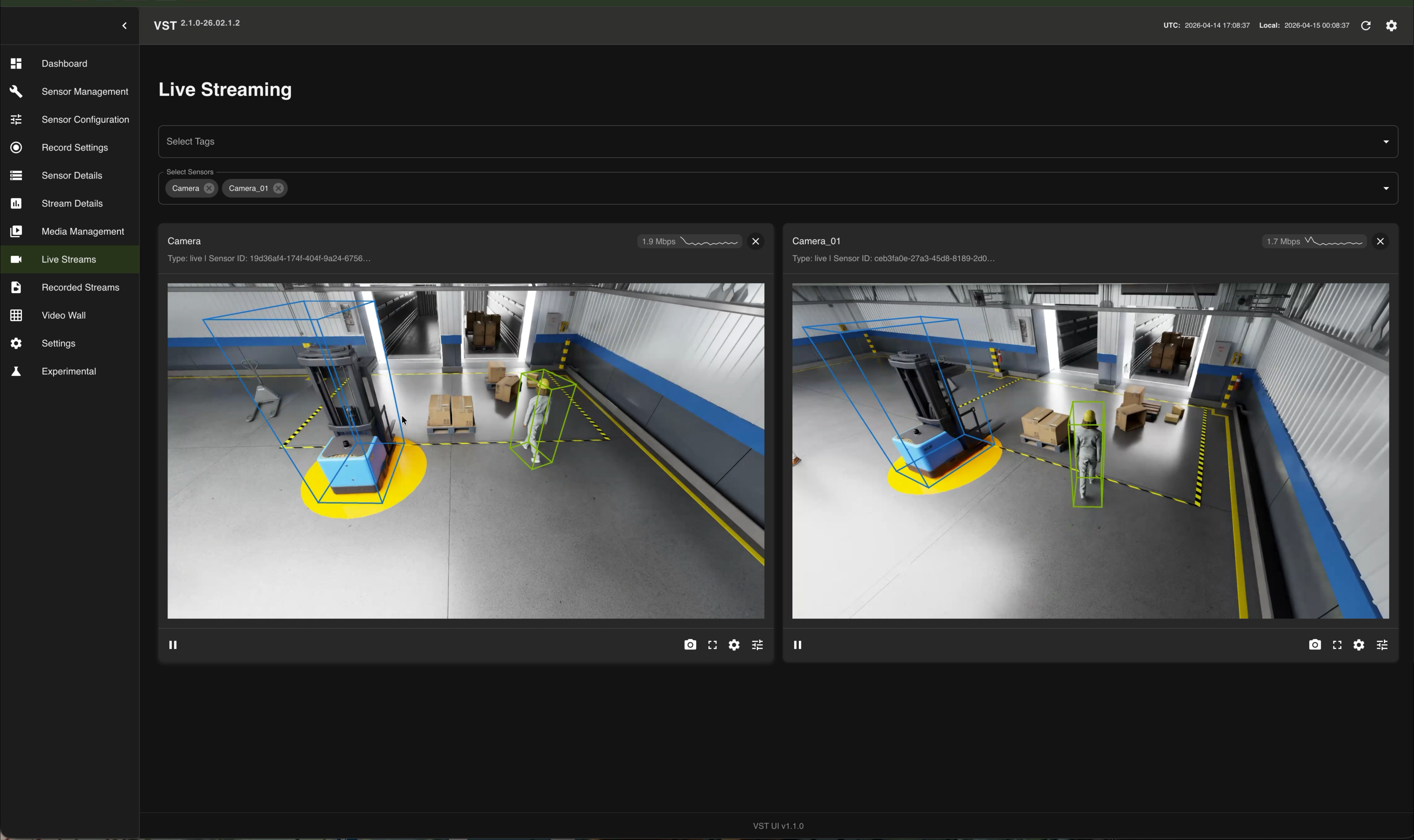
Navigate to Video Wall, enable overlay, and check Include Floor Plan in Analytics Overlay Settings to view the top-down BEV visualization with detected objects on the warehouse floorplan:
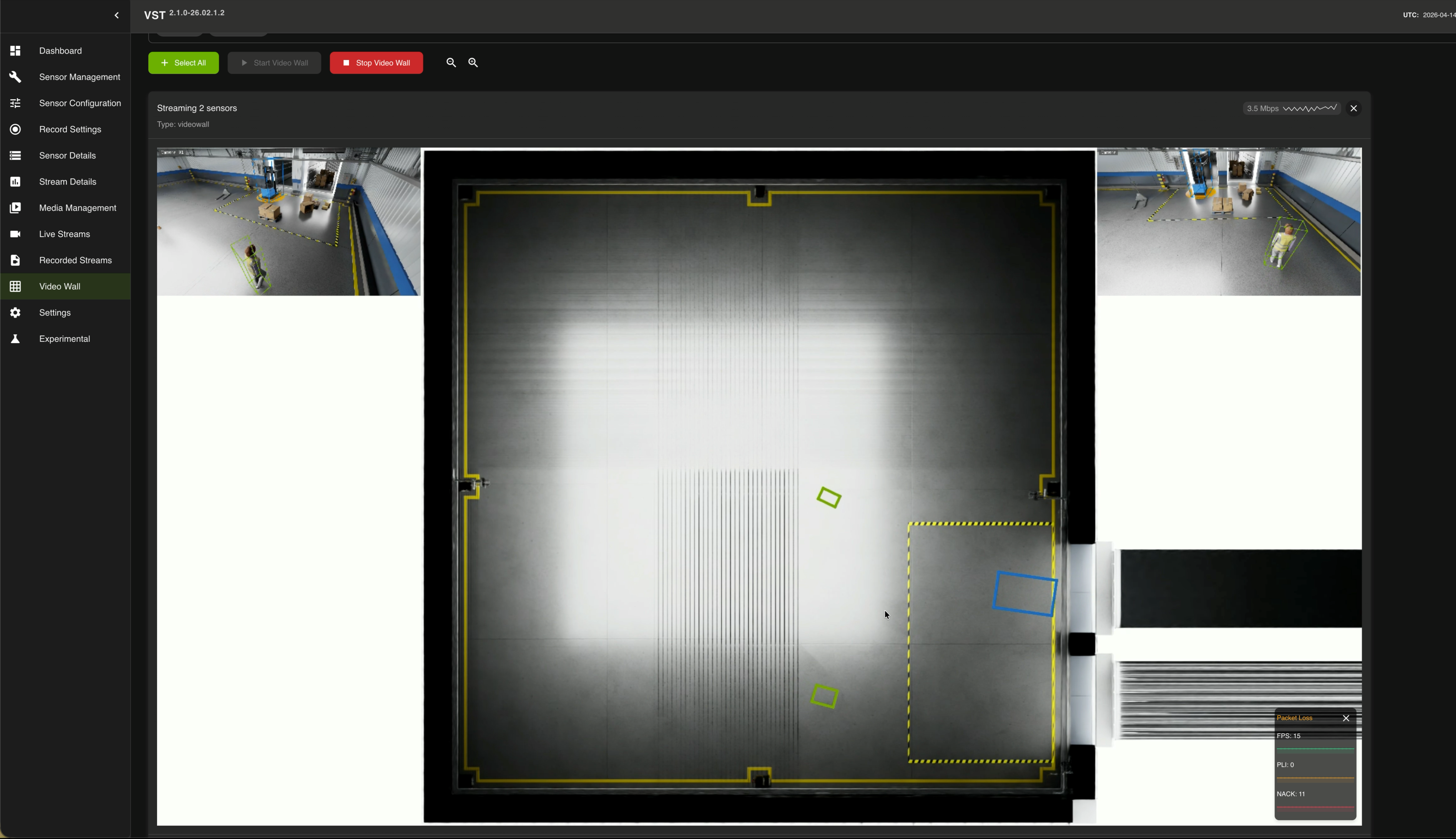
For details on configuring the Video Wall overlay and Floor Plan, see Playback overlay on Video Wall.
Cleanup and Restart#
Restart the Scenario (Live Stack)#
To relaunch the Isaac scenario on an already-running stack, use the wrapper — it pauses VST stream processing for the boot window (so the fresh RTSP mounts don’t hit the cold-start “no caps” race), then resumes it once the streams are live:
bash closed-loop-testing/scripts/restart_isaac.sh # reuses the running driver's own args
Reset to a Fresh Deployment#
When a stack misbehaves in ways a restart doesn’t fix, return it to the clean first-bring-up state without paying the TensorRT/shader rebuild. Stop the scenario and the Halos stack, tear down VSS’s VST postgres volume (selectively — do not down -v, which also removes the TensorRT engine volume), redeploy VSS, then clear Redis before relaunching:
docker exec redis redis-cli FLUSHALL
docker restart sdr-controller
docker restart vss-rtvi-cv
Keep the TensorRT engine volume and the isaac-cache/ shader dirs — rebuilding them costs 10-20 min.
Full Cleanup#
# Stop Halos SIL
cd deployments
docker compose --env-file profiles/sil.env down
bash ../closed-loop-testing/scripts/cleanup_all_datalog.sh sil
docker volume prune -f

# Stop VSS Warehouse (refer to VSS Warehouse docs for full cleanup)
# https://docs.nvidia.com/vss/3.2.1/warehouse-docs/Quickstart-Guide.html#teardown-the-deployment
Warning
docker volume prune -f removes every dangling volume on the host, not only this
stack’s. With the stack down that includes the perception TensorRT engine cache, which
costs a 15 to 20 minute rebuild on the next start, and the VST sensor database. Skip it
unless you want that reset, or remove the specific volumes instead.
Important
Switching between 2D and 3D requires a full teardown of both stacks. Do not just restart containers — port conflicts and CUDA errors will occur.
Troubleshooting#
Kafka mdx-events Topic Empty#
The most common 3D issue. Verify sync-inputs-ntp=0 in the [streammux] section of ds-main-config.txt — with NTP input-sync on, the muxer stalls on the Isaac RTSP feed and produces zero Kafka output. Also confirm batched-push-timeout=75000 and low-latency-mode=0 (in [source-list]).
docker exec kafka kafka-console-consumer \
  --bootstrap-server localhost:9092 \
  --topic mdx-events --max-messages 1 --timeout-ms 30000
DeepStream Stuck at ≤2/3 Active Sources#
For 3D this is not healthy — Sparse4D fuses all 3 views (num_sensors: 3), so 2/3 corrupts the BEV. A camera stuck at 0 FPS after re-registration is usually a stale-identity zombie source bin (VST minted a new sensor uuid on restart; DeepStream kept the old one). Purge the stale source and add the live uuid — the procedure is in Recovering a camera stuck at 0 FPS.
0 Detections / Wrong Boxes#
Suspect the R101 model install (Step 1): an anchor .npy not found error means the kmeans anchor wasn’t placed under the canonical filename; consistently misplaced / wrong-size boxes mean the ONNX and anchor are a version mismatch — re-download both at the same version.
0 ROIs Loaded by Behavior Analytics#
The calibration.json is missing the top-level rois array, or the container needs to be recreated (not just restarted) to pick up the newly bind-mounted calibration.
0 Behavior-Analytics Events (Frames Dropped as STALE)#
The DeepStream SEI / system-timestamp override (Step 3.2) isn’t applied. With SEI extraction left on (or attach-sys-ts-as-ntp unset), PSF keys off Isaac’s sim-time and drops every synthetic frame as STALE, so mdx-behavior stays empty even though all containers are healthy. Set SEI off + attach-sys-ts-as-ntp=1 and recreate the affected containers. On VSS 3.2.1 this is what replaces the retired inSimulationMode=true behavior-analytics flag.
Bounding Box Flickering on VST#
Set bbox_tolerance_ms: 100 in vst_config.json. The default tolerance of 0 ms causes metadata-to-frame matching misses.
Safety Indicator Flickering (Multi-Machine)#
If multiple SIL systems run on the same network, each must use a unique ROS_DOMAIN_ID (0-232) in deployments/profiles/sil.env. Verify with:
docker exec comm-layer bash -c \
  "source /opt/ros/jazzy/setup.bash && ros2 topic info /safety/is_muted -v"
Should show Publisher count: 1.
Safety Core (PSF) Cannot Connect to Kafka#
VSS Warehouse (Kafka) must be running before Halos SIL:
docker ps | grep kafka
Known Issues#
Four upstream Isaac Sim and VST issues affect the stream path on Isaac Sim 6.0, with workarounds for each. They are not specific to 3D — see Isaac Sim Streaming.
Next Steps#
SIL Architecture — System architecture and data flow
Isaac Sim Configuration — Isaac Sim configuration
Isaac Sim Action Graphs — Forklift control details
VSS Warehouse 3D Profile Customization — Adding cameras, custom scenes
Sparse4D Configuration — Tuning 3D perception
VSS Configurator — Sensor source configuration