


Deploy on NVIDIA Brev#
An NVIDIA Brev Launchable provisions a cloud GPU instance with the driver, Docker, the NVIDIA Container Toolkit, and both repositories already in place, then opens JupyterLab on it. One notebook brings up the whole Software-in-the-Loop (SIL) closed loop — AI Perception, the Safety Core, and NVIDIA Isaac Sim — runs the forklift scenario, and prints the evidence that the safety decision is reacting to the simulated scene.
Choose this route to watch the system react without provisioning a host. It applies the configuration of SIL — 2D Perception plus cloud-specific additions; that page remains the reference for the configuration, the log vocabulary, and troubleshooting.
Both checkouts are made for you: video-search-and-summarization for
perception, and halos-outside-in-safety for the safety stack, with the
notebook at deployments/scripts/deploy_hoisa_launchable.ipynb.
Deploy the Launchable#
Open the Halos Outside-In Safety SIL Launchable in
NVIDIA Brev. The page states what the instance will carry: both repositories,
the notebook, and the 7777 tunnel the VST UI is reached through later.
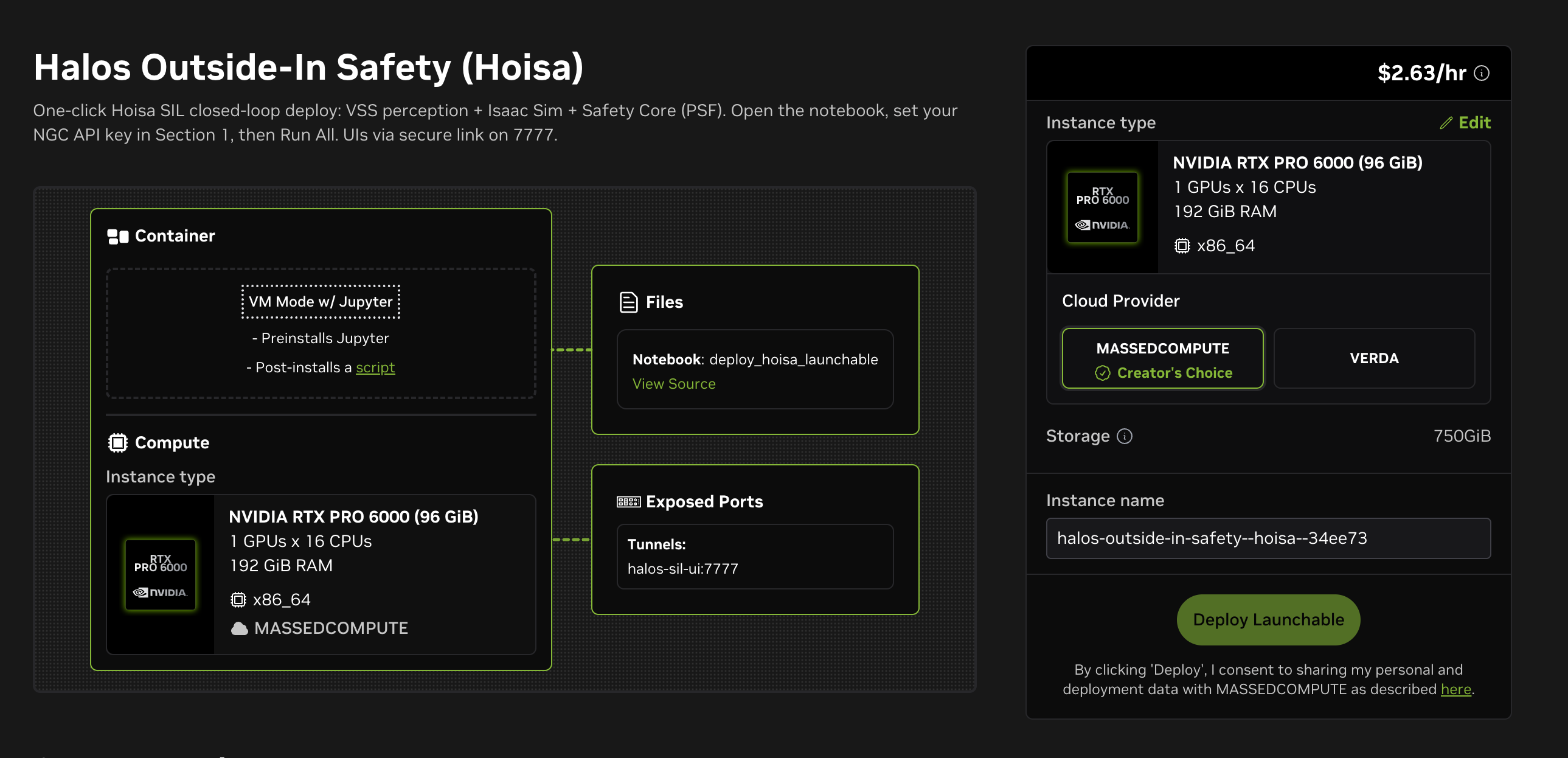
The Launchable page. Edit beside the instance type opens the shape picker.#
Keep the default shape or select Edit to choose another. Either way it has to satisfy the requirements below, which in practice means a GPU with RT cores and enough SSD to hold the artifacts and container images.
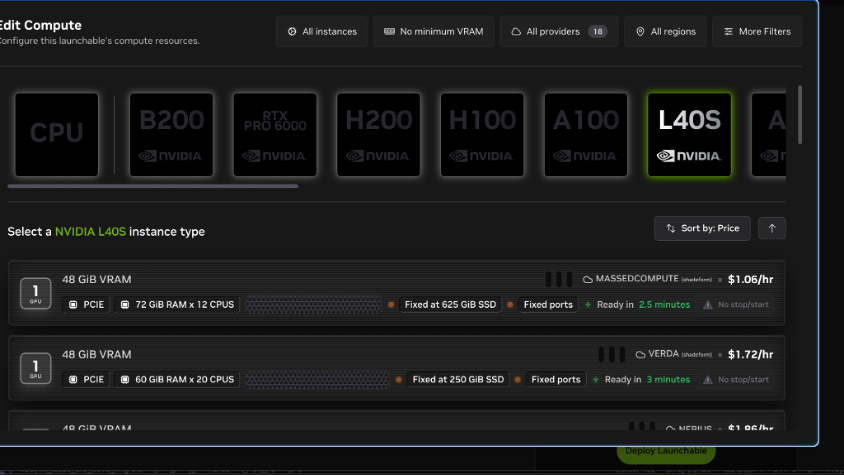
The shape picker. Each row carries its own fixed SSD size — check that before selecting, because it cannot be changed afterwards.#
Select Deploy Launchable. Brev provisions the instance, configures it, and
runs the startup script that clones both repositories and starts JupyterLab on
port 8888.
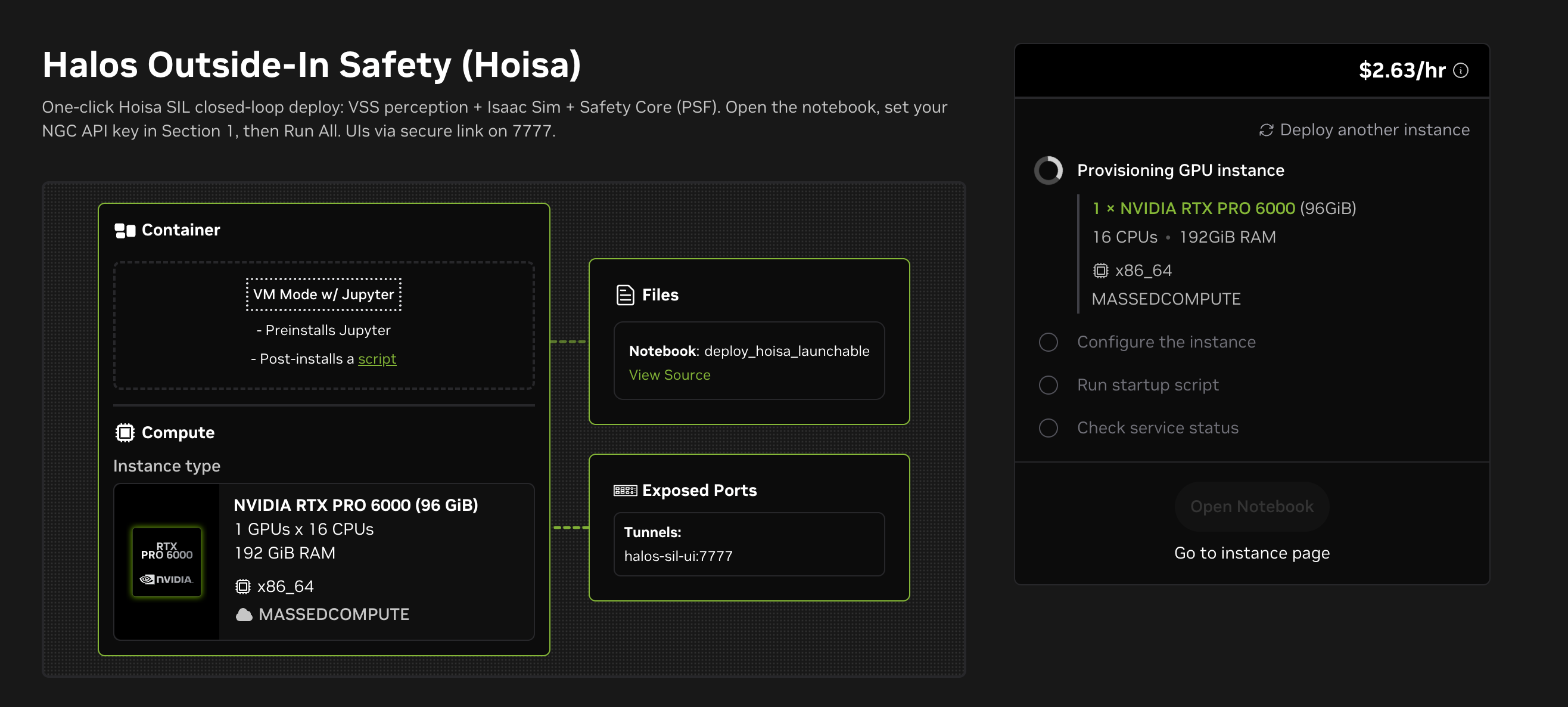
Provisioning runs through four steps.#
Warning
The fourth step ends in Services are unhealthy — Health check timed out
on a deploy that is otherwise fine. That check probes the VST ingress on
7777, and nothing answers there until the notebook has deployed the
stack. Do not select Delete instance. Select Go to instance page and
carry on.
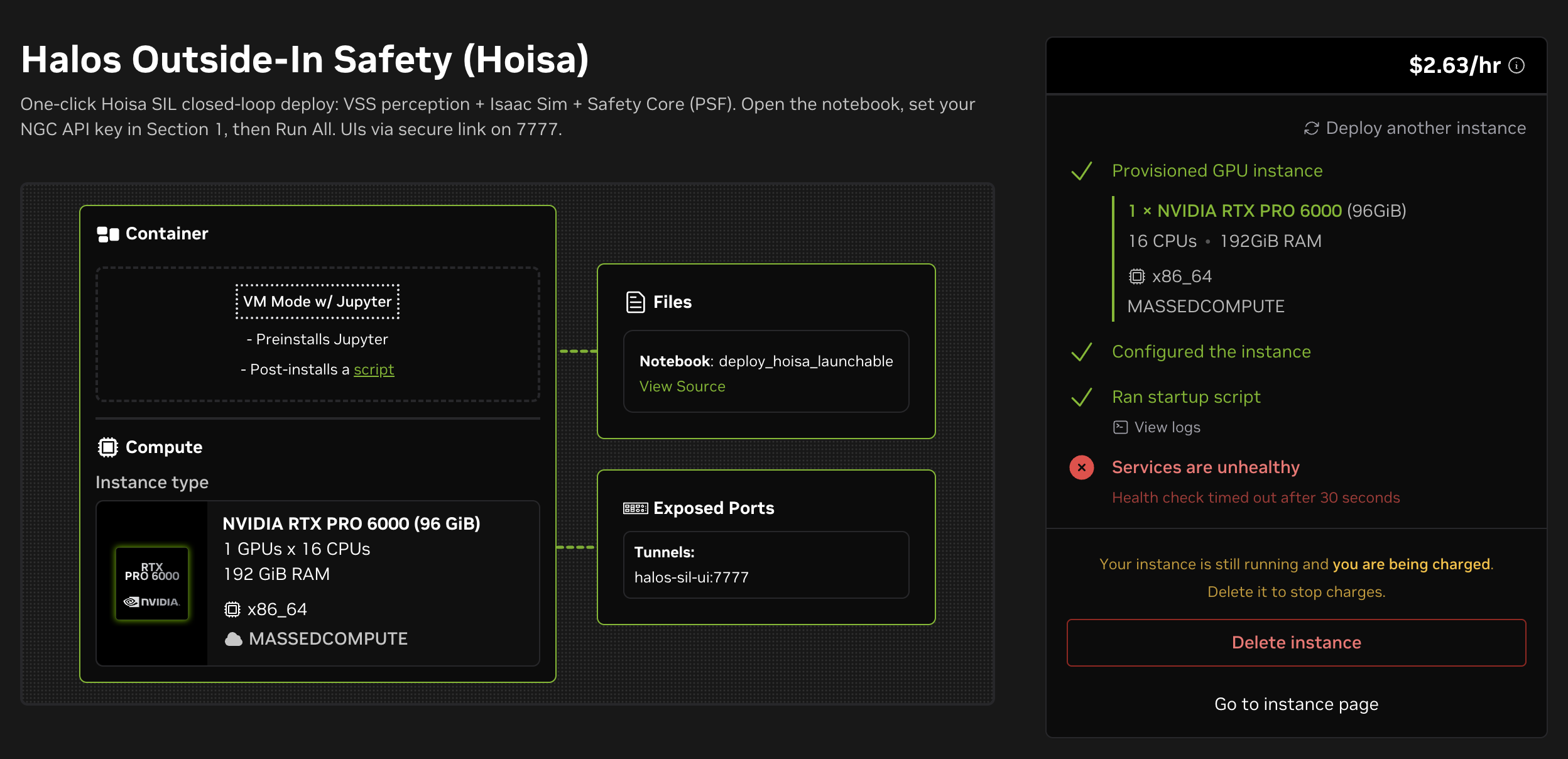
Expected at the end of a good deploy: the first three steps pass, the service health check fails.#
On the instance page, Secure Links lists one entry per exposed port. The
jupyter link, on 8888, opens JupyterLab — as does Open Notebook at
the top right. The halos-sil-ui link, on 7777, is the one you return to
for the VST UI once the notebook has run.
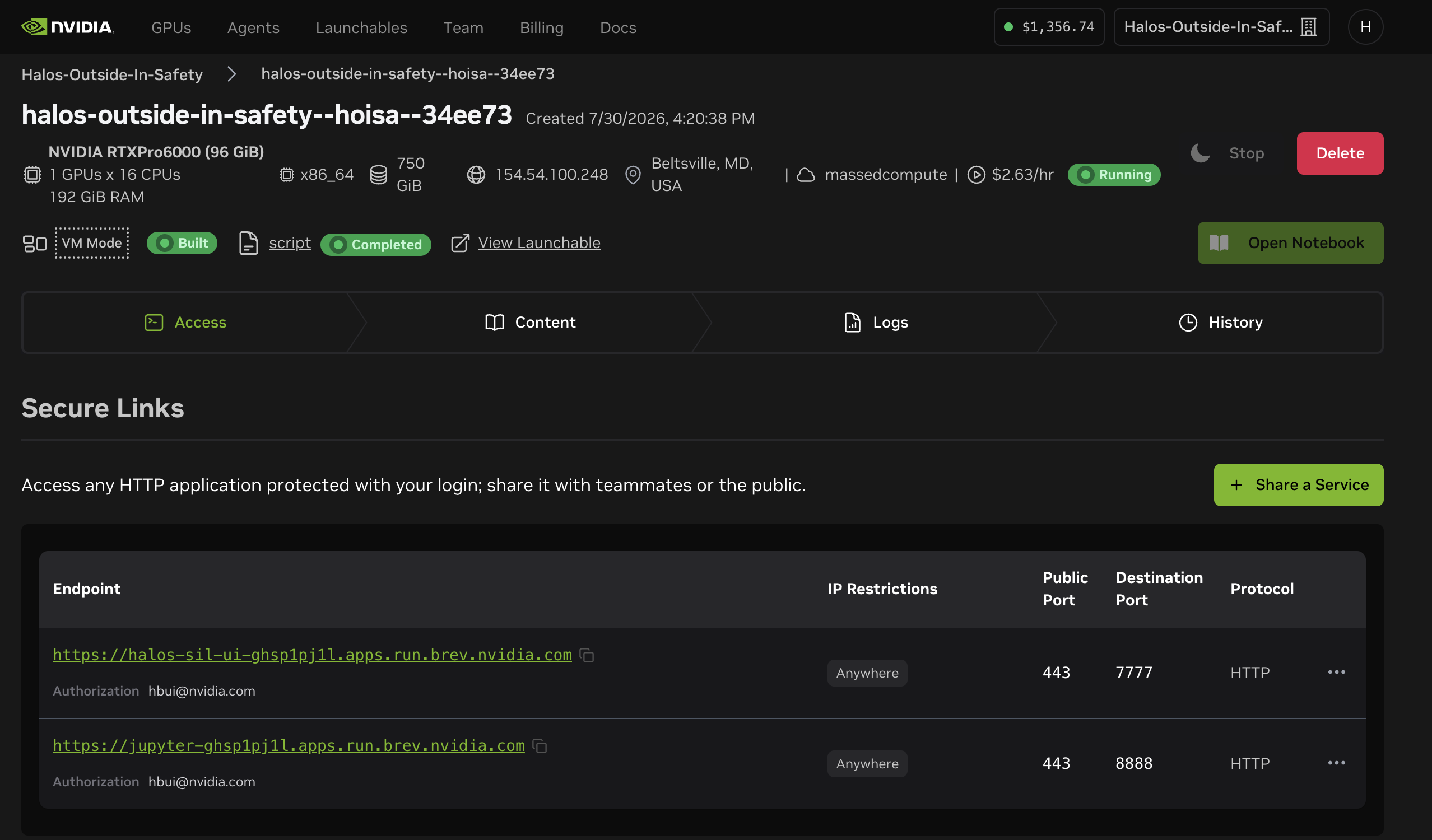
The instance page: both secure links, and the controls to stop or delete the instance.#
Prerequisites#
See Prerequisites for the NGC enrollment steps and the CPU, RAM, storage, and GPU floors. Two of them read differently when you are choosing a cloud instance shape.
Compute-only accelerators head most cloud GPU catalogs and cannot render the Isaac Sim scene, however much memory they carry. Pick a shape whose GPU has RT cores — an L40S, an RTX A6000 or an RTX 6000 Ada all qualify.
Storage is fixed per shape rather than something you grow later, so take the recommended 250 GB rather than the 200 GB floor: the NGC artifacts and the container images land on the same disk.
Some cloud regions are refused by NGC with an HTTP 403 that is not an
authentication failure. If artifact downloads fail that way while
docker login succeeded, redeploy the Launchable in a US region, which is
validated reachable.
Run the notebook#
In JupyterLab, open
halos-outside-in-safety/deployments/scripts/deploy_hoisa_launchable.ipynb
and set the values in Section 1:
NGC_CLI_API_KEY     = "<NGC_API_KEY>"  # empty = read from ~/.ngc/config on the instance
HARDWARE_PROFILE    = "RTXA6000ADA"    # already the default; must match the instance GPU:
                                       # RTXPRO6000BW | RTXA6000ADA | RTXA6000 | H100 | L40S | L40 | L4
SIMULATION_DURATION = 1200.0           # already the default; seconds the scenario runs, 0 = scene default
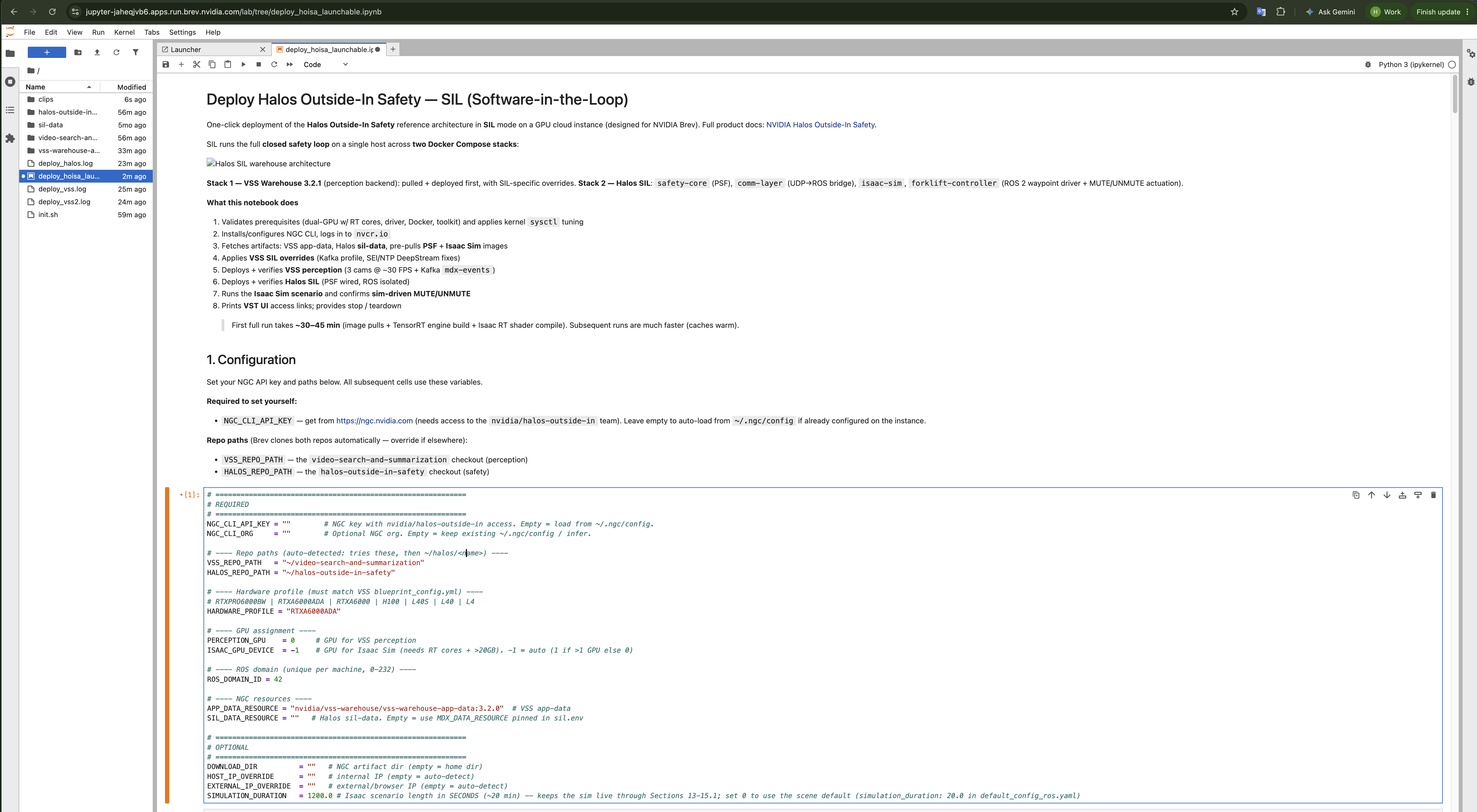
Both repositories are already in place, and the notebook opens at its configuration section. On a default shape the NGC key is usually the only value that needs changing.#
Then run every cell, top to bottom, with Run ▸ Run All Cells.
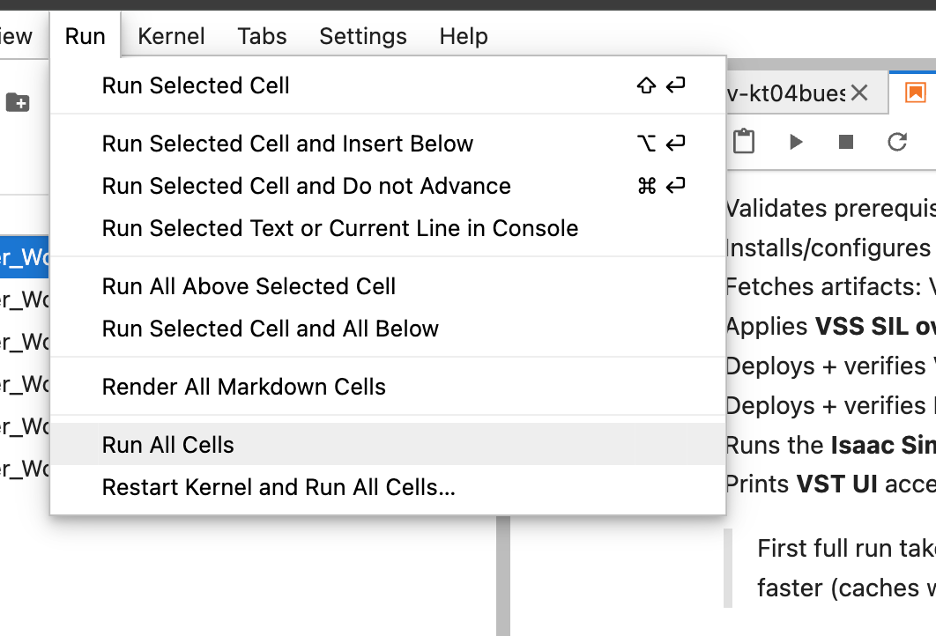
The rest of the deploy is unattended from here.#
Section 1 ends with Configuration valid. and a summary of the resolved
repository paths, GPU assignment, and NGC artifacts. Anything else is a wrong
path or a missing key, and the run stops there.
The rest is unattended. Section 2 adds what a cloud image lacks — the kernel
sysctl values Elasticsearch and Kafka need, and firewall rules for the
Docker bridge subnets when ufw is active — without which the infrastructure
containers crash-loop or perception never receives a source. Sections 3 to 15
then do the NGC CLI setup, the artifact downloads, the VSS SIL overrides, both
Compose stacks, the scenario, and the VST UI links. Artifacts and images already
on disk are reused, so a second run skips the downloads.
Important
Section 4 prints PASS or FAIL for each image and data resource, and
a FAIL does not stop the run. Read those three lines before the notebook
reaches the deploy: the two image lines fail much later, during the Halos
deploy pull; a failed data resource stops the notebook at Section 5.
How long it takes#
A first run takes about 30 to 45 minutes, measured on a two-GPU RTX 6000 Ada instance; other hardware differs. Beyond the deploy phases below, the balance is the NGC artifact download and the PSF and Isaac Sim image pre-pull in Section 5, the perception TensorRT engine build, and the Isaac Sim scene load and RT shader compile — SIL — 2D Perception gives the first-run figures for the last two. A second run reuses the artifacts, the images, and both build caches.
Phase |
First run |
Subsequent |
|---|---|---|
VSS Warehouse pull and deploy |
~10–15 min |
~2–3 min |
Halos SIL build and start |
~3–5 min |
~1 min |
How to tell it worked#
Four notebook sections carry the acceptance criteria:
Notebook section |
What proves it |
When it fails |
|---|---|---|
|
|
Stops the run |
|
All four services |
Prints and continues |
|
Every Isaac Sim RTSP endpoint answers |
Stops the run |
|
Non-zero counts for both |
Prints and continues |
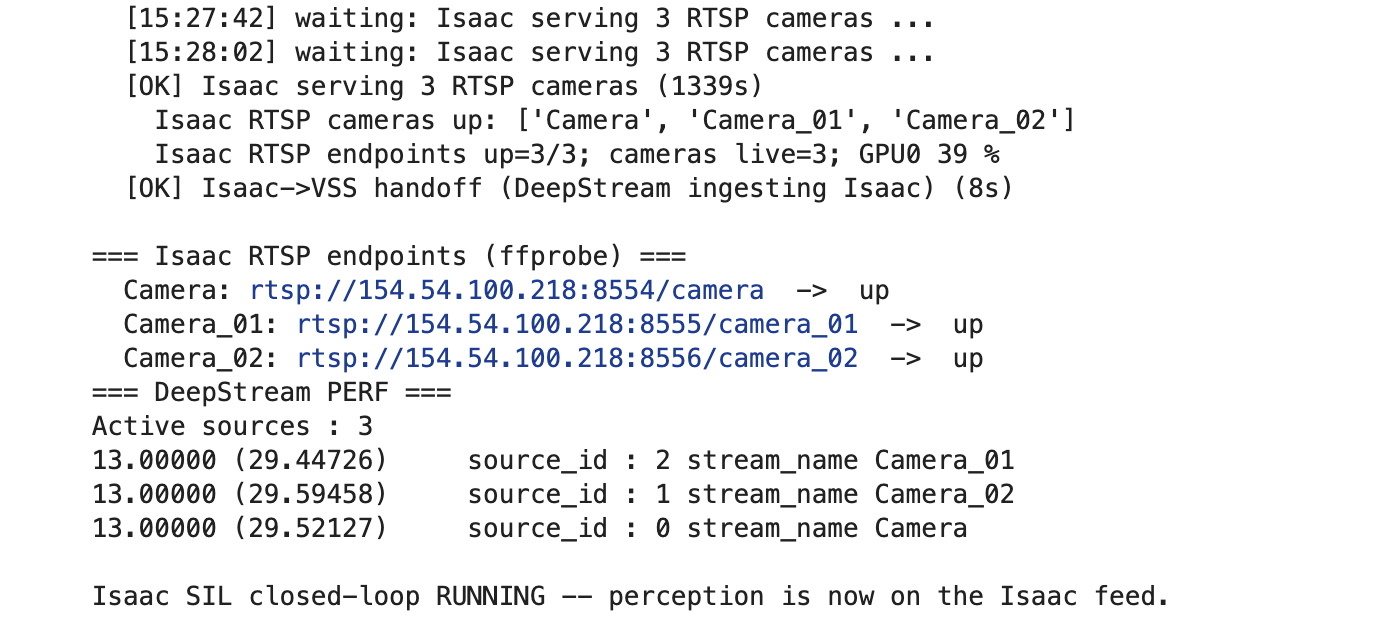
Section 13. Every Isaac Sim RTSP endpoint answers ffprobe, DeepStream
reports three active sources on the Isaac feed, and the section signs off with
Isaac SIL closed-loop RUNNING.#
Section 14 is the proof that the loop closed. Both counts must be non-zero and must keep moving with the forklift cycle — the sample video perception plays before the Isaac Sim handoff also produces decisions, so a single transition is not evidence. Re-run the cell to sample another 25 seconds; the log lines are glossed in Monitor safety commands.
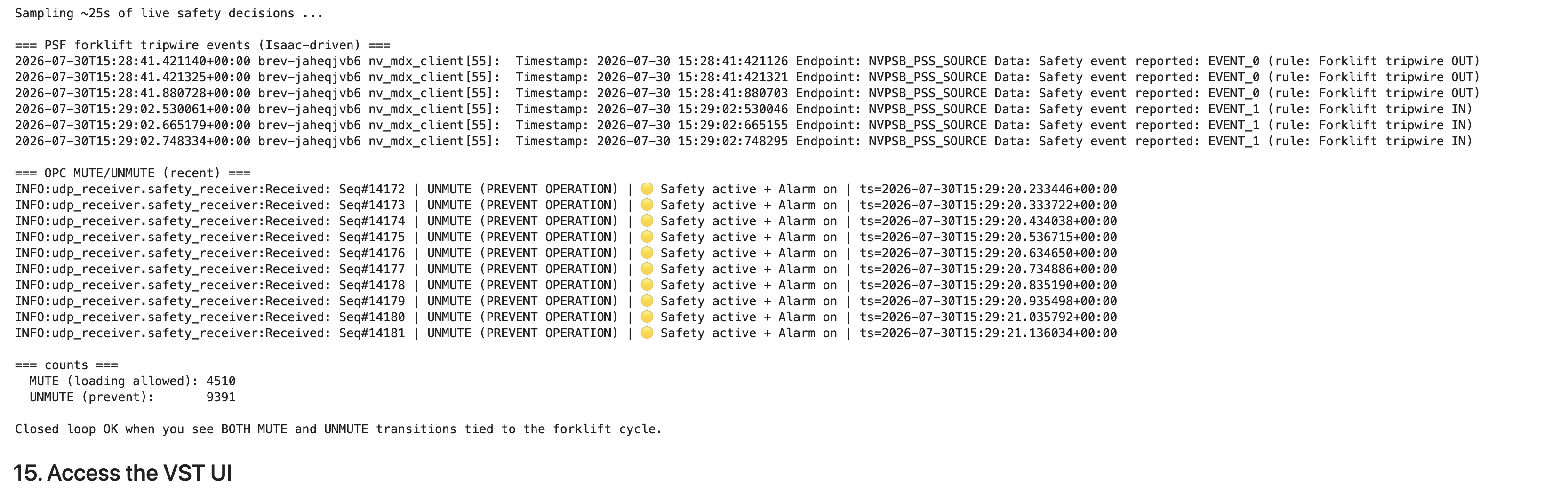
Both counts moving with the forklift cycle, above them the Forklift
tripwire events that drove them. A single transition is not evidence.#
Reach the VST UI#
The Launchable already exposes port 7777 as a secure link — the
halos-sil-ui entry on the instance page, in front of the HAProxy ingress the
notebook puts before VST’s 30888. Open that link with the /vst/ path
appended. Section 15 prints the URL, and its local reachability check should
show 200 for both /vst/ probes; the ingress already accepts the
secure-link hostnames Brev assigns.
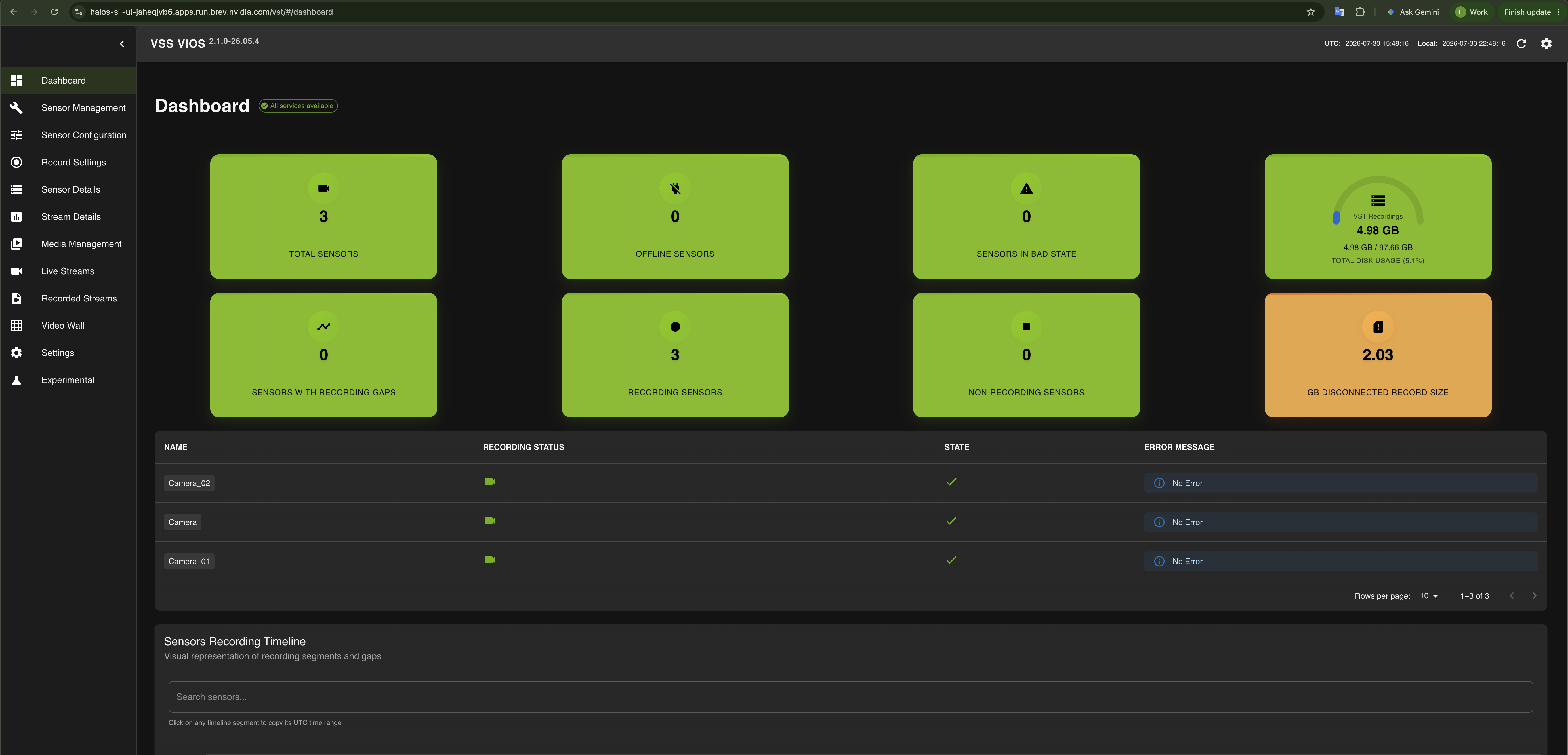
The VST UI through the secure link, with all three Isaac Sim cameras registered and healthy.#
Note
Video frames do not render through a Brev secure link. The UI loads and the sensor, stream and recording lists stay browsable, but the players remain blank — VST carries video over WebRTC, which wants UDP, while a secure link carries TCP only. Use Section 15.1 below to see what the cameras render.
To see what Isaac Sim renders, run Section 15.1 while the scenario is live: it
records ten seconds of each camera off its RTSP endpoint into ~/clips,
transcodes each to H.264, and plays them inline in the notebook — the one path
that carries frames through a secure link. The browser-playable copies are the
*_h264.mp4 files, also downloadable from the JupyterLab file browser. With
direct network access the UI behaves as on any other SIL host — see
View camera streams.
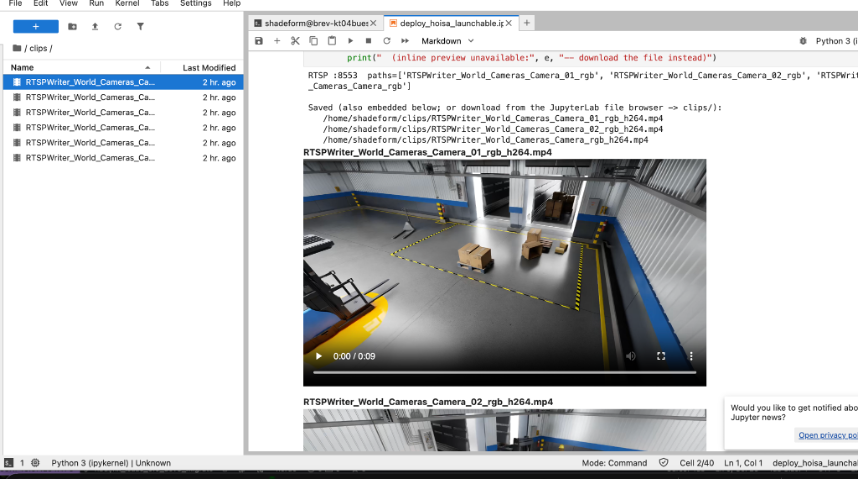
A recorded camera clip playing inline in the notebook, with the same clips
listed under clips/ in the file browser for download.#
Stop, restart, and tear down#
Sections 16 and 17 are manual-only, and a full run skips both so it never stops
the stack it just deployed. Set STOP_NOW = True in Section 16 to stop both
stacks with data and volumes intact, or TEARDOWN_NOW = True in Section 17 to
remove containers, networks, and volumes; the downloaded artifacts and the two
repositories stay on disk either way. Stopping the stacks does not release the
instance — stop or delete that in Brev when you are finished.
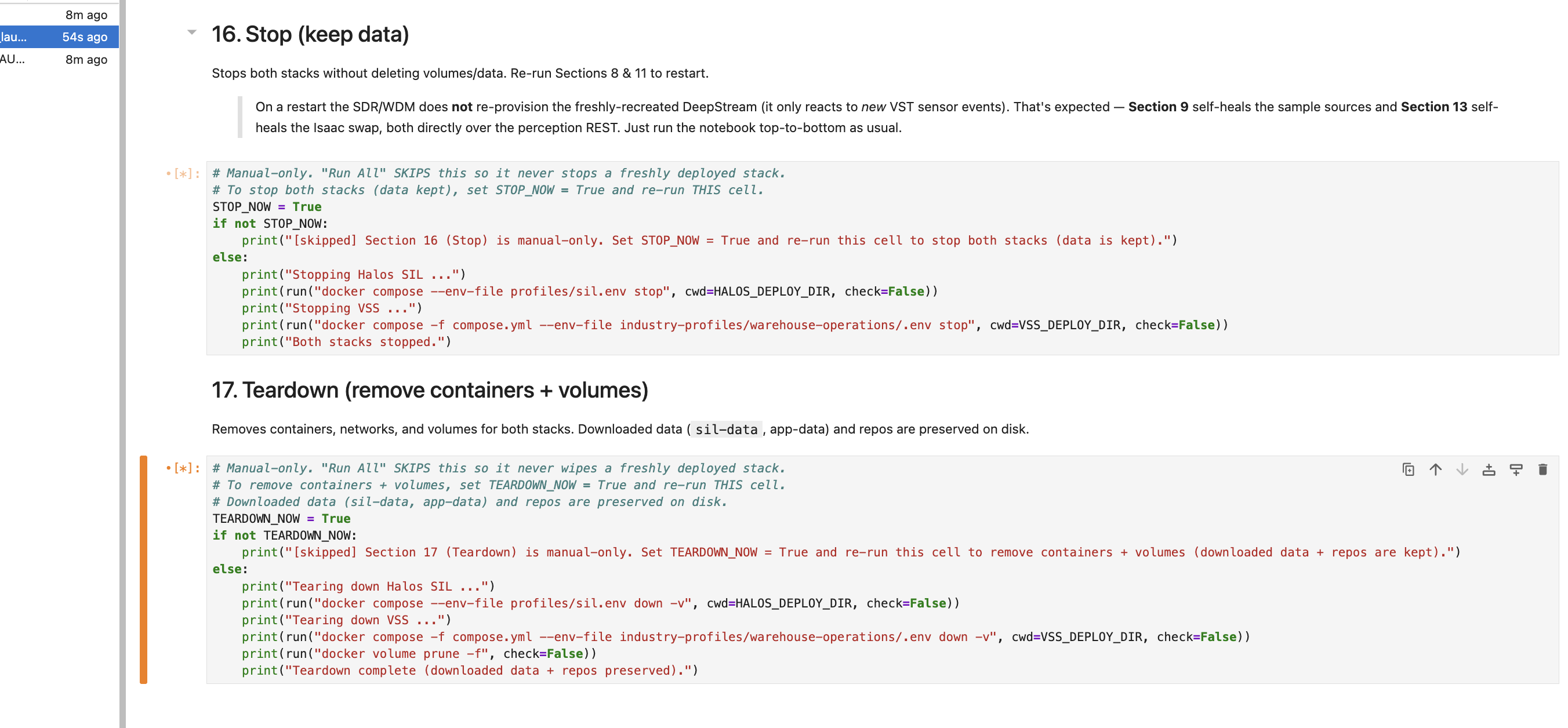
Each section guards itself with a flag, so a cell that runs with the flag
still False reports itself skipped rather than doing anything.#
To come back up, run the notebook again rather than a bare
docker compose up: perception does not re-provision its cameras after a
redeploy, and Sections 9 and 13 add the sources back over the perception REST API.
Set whichever flag you used back to False first, or the run will stop or
tear down the stack it has just brought up. Then select the Section 8 cell and
use Run ▸ Run Selected Cell and All Below, which skips the artifact
downloads and the pre-pull that Sections 2 to 7 have already done. Restarting
the kernel and running all cells works too and costs only the time those
sections take to confirm their work is already in place.
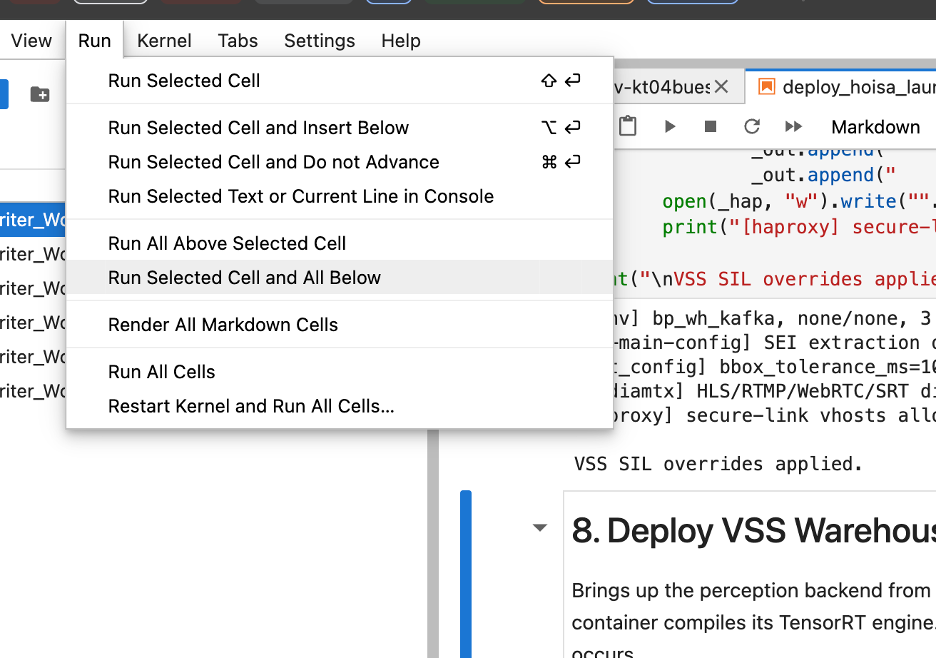
Redeploying from Section 8 rather than from the top.#
Next Steps#
SIL — 2D Perception — the manual runbook: VSS overrides, expected output, troubleshooting
SIL Architecture — what each container does and where data flows
Quick Start Guide — score the safety decision of a healthy loop
Agentic Deployment — the same bring-up on your own host, from a coding agent