

Quickstart
Overview
Deploy a vision agent in 10 minutes
This guide will walk you through the steps to deploy a vision agent using the VSS Blueprint. You’ll create a simple vision agent that you can upload videos to, ask questions about the videos, and generate reports. Afterwards, you can explore adding agent workflows such as video summarization, search, and alerting.
Before you start: Use 28.3.3 <= Docker Engine < 29.5.0.
Unsupported Docker Engine versions can fail when pulling some NGC-hosted image tags.
See Prerequisites for Docker setup and the supported version band.
The following diagram illustrates a conceptual architecture of the base vision agent that you’ll deploy:
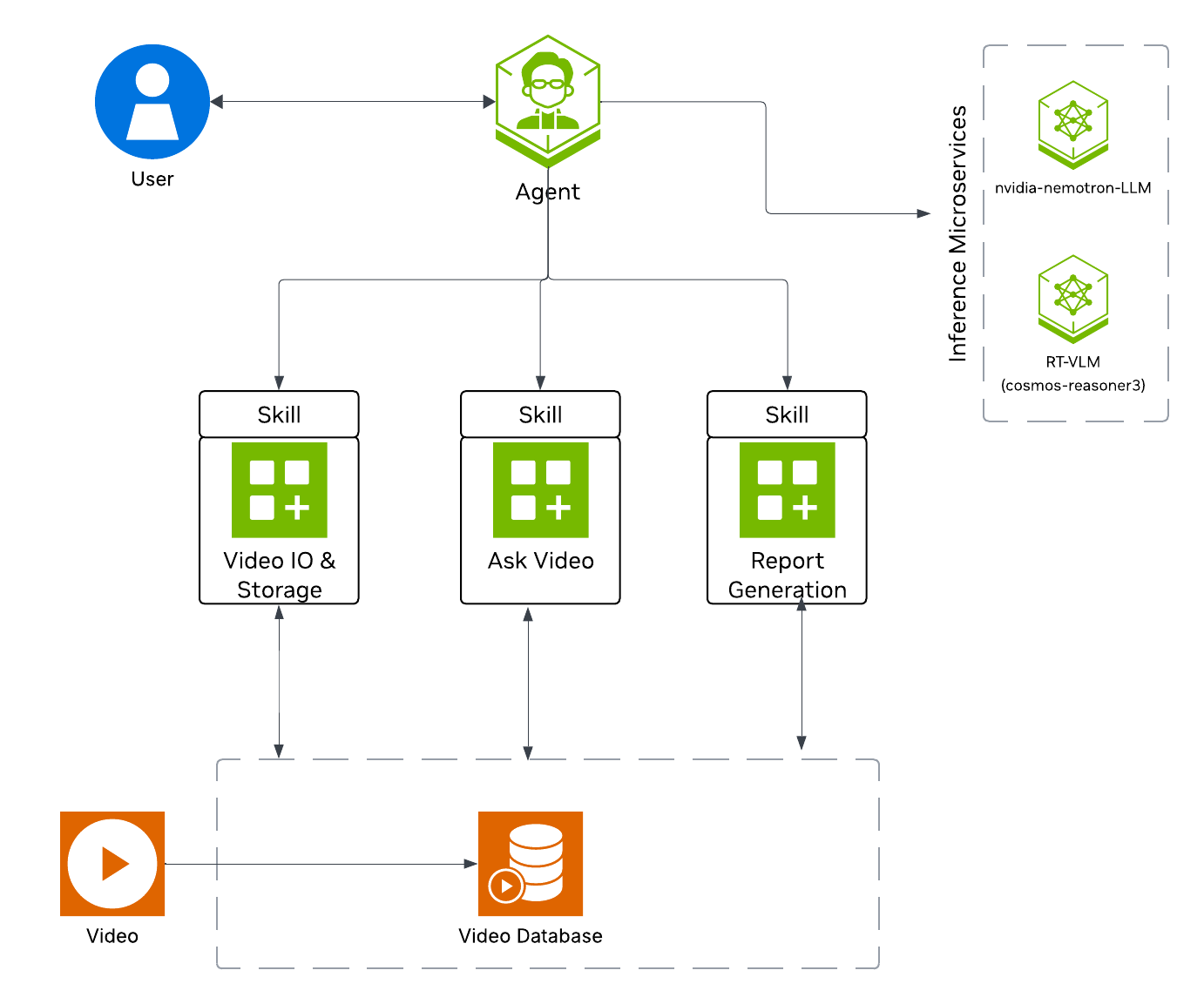
Key Features of the Base Vision Agent:
- Upload videos to a video management system and connect the agent to it through the MCP service.
- Report generation tool which utilizes a LLM and VLM to generate reports from the videos.
- Video understanding tool which utilizes a VLM to perform video understanding tasks, such as Q&A.
Agent Skills are released as Early Access and are not intended for use in production environments. Agent Skills for VSS were validated using Claude Opus 5.
What’s being deployed
The exact service set depends on the deployment path:
- Build Vision AI Skill (default): VSS UI, VSS Video IO & Storage
(VIOS), and RT-VLM. RT-VLM serves the Cosmos3 Nano Reasoner model through
vss-rtvi-vlmon port8018; there is no separate Cosmos3 Reasoner container. The default NemoClaw harness runs on the host outside the Compose project and connects the UI chat to its OpenClaw sandbox. - Manual Docker Compose: The stock base profile adds the in-stack VSS Agent to those services. It uses the configured LLM to route requests and orchestrate VSS tools.
Build Vision AI removes the in-stack vss-agent service whether you select
NemoClaw or no harness. It deploys that service only when your request
explicitly names the in-stack Agent, its REST API, or its chat workflow.
Agent Harness Options
For Build Vision AI deployments, NemoClaw is the default and recommended agent harness for interacting with VSS. The underlying VSS microservices (Video Analytics MCP, VSS Orchestrator MCP, VST/VIOS, and Video Analytics API) are framework-agnostic, so you can also drive them through direct MCP or REST integrations. The table below compares the supported options.
When you deploy with Build Vision AI, NemoClaw runs on the host outside the
Docker Compose project, and the in-stack VSS Agent is omitted unless the request
explicitly names it. The manual Docker Compose base-profile commands later on
this page use the stock COMPOSE_PROFILES and still deploy the NAT-based VSS
Agent.
Use one NemoClaw setup route for a deployment. For this quickstart, let Build Vision AI provision the harness when it prompts you. Use the standalone notebooks instead when you want the guided NemoClaw-on-Brev setup; do not run them again for a harness that Build Vision AI already provisioned.
Prerequisites
Before you begin, ensure all of the prerequisites are met. See Prerequisites for more details.
Download Sample Data and Deployment Package
Configure NGC Access
Before proceeding, ensure that NGC CLI is installed on your system. For installation instructions, see Install NGC CLI in the Prerequisites.
Download Sample Data From NGC
For the default Skill-driven path, perform this on the deployment host in a
directory available to the host-side coding agent. The archive creates
sample-data/dev-profile-sample-data/; the walkthrough uses
warehouse_safety_0001.mp4 from that directory. If you instead use the manual
browser upload later on this page from a different machine, copy that file to
the browser machine before uploading it.
This can be done using NGC CLI as documented below, or downloaded from the NGC UI directly.
The nvidia/vss-developer/dev-profile-sample-data resource requires authenticated
NGC CLI access with an org selected. If you see Artifact is not Guest accessible
or Missing org, configure NGC with an API key and org before retrying.
See Prerequisites for NGC setup.
Download the Deployment Package
Perform this on the machine where you intend to deploy the agent.
Git LFS required: The repository uses Git LFS for large files. Install it before cloning or pulling. For example, on Ubuntu/Debian: sudo apt-get install git-lfs. On other systems, see Git LFS installation.
The native Docker Compose workflow below uses checkout reference
develop. Keep that reference aligned with the image tags
selected for the documentation build because the Compose file layout is
release-specific.
Prepare your coding agent
For an agent-assisted check, ask your host coding agent to read
docs/prerequisites.mdx and verify the shared prerequisites, GPU memory,
free model/data disk space, occupied ports, and required credentials. Have it
report missing values without displaying secrets before starting deployment.
Run the coding agent in an environment that can access the VSS Blueprint checkout
and run deployment commands on the target host. For the Docker Compose
quickstart, the deployment host must meet the supported Linux platform,
GPU, Docker, and NVIDIA Container Toolkit requirements in
Prerequisites. On x86 systems, use Ubuntu
24.04.
The Build Vision AI Skill requires uv for mandatory service-graph checks and
helper scripts. Install it before starting the coding agent:
You can use a remote development environment such as a Brev or Omnistation sandbox when that environment exposes the required GPU, Docker Engine, network ports, NGC access, and repository checkout to the coding agent. A Windows or Mac machine can be used as the browser or coding-agent client, but it is not the validated Docker Compose deployment host for this quickstart; point the agent at a supported Linux deployment host instead.
Install the Build Vision AI Skill and the operations Skills before asking the agent to deploy or operate VSS. From the VSS Blueprint checkout, ask your coding agent:
The standard Skill locations are:
Before deployment, have the credentials required by your choices available:
Authenticate Docker to nvcr.io before asking the Skill to deploy. Use the
same NGC Personal API Key that you provide as NGC_CLI_API_KEY:
For a custom OpenAI-compatible NemoClaw endpoint, obtain the key from the
endpoint provider. Do not paste the key into chat. Store it in the
checkout-root, gitignored nemoclaw.env file:
Alternatively, export COMPATIBLE_API_KEY in the shell that starts the
coding-agent session. The session must inherit the variable; exporting it later
in another terminal does not update the running agent.
For developer-profile deployments, the Skill asks whether to add a host-side
agent harness. If you select NemoClaw, choose a model provider that is available
from your host. The build.nvidia.com provider uses NVIDIA_API_KEY; a custom
OpenAI-compatible provider uses COMPATIBLE_API_KEY. Select no harness to
operate the deployment with the project-local vss CLI instead.
A self-hosted endpoint or no harness needs no harness key, although the VSS stack can still require NGC and model-download credentials. See Credentials used by the Build Vision AI Skill for the complete decision table.
After installing the Skills and preparing credentials, start a new coding-agent session from this checkout. Start it from the shell where you exported any credentials so the session both discovers the Skills and inherits those values.
Deploy the base profile
Use a coding agent with the Build Vision AI Skill to deploy
the validated base developer profile. This is the default quickstart path.
The agent will:
- Load
vss-build-vision-aiand route the request to the stockbaseworkflow. - Confirm prerequisites, credentials, GPU hardware, model placement, and host/ingress settings.
- Ask whether to add a host-side agent harness and, when selected, confirm its model provider and required credential.
- Show the generated deployment plan, including services, model placement, endpoints, and readiness checks.
- Ask for confirmation before starting containers.
- Deploy the base profile and return the browser-reachable VSS UI URL.
When deployment completes, open the returned URL, typically
http://<HOST_IP>:7777/, to use the base vision agent.
On edge platforms (DGX Spark, IGX Thor, AGX Thor), a checked-in local LLM/VLM sharing configuration is available but has not yet been measured on the target hardware. A remote LLM is recommended for better response time. Add “with a remote LLM” to the prompt, for example: “Deploy the VSS base profile on this DGX-SPARK machine with a remote LLM.” See Configure the LLM for endpoint options.
Verify the Skill-driven deployment
The default Skill path does not include the in-stack vss-agent service, so
do not use port 8000 as its readiness check. Confirm the service set and the
base RT-VLM endpoint instead:
Expect the VSS UI, VIOS/VST services, and vss-rtvi-vlm. Do not expect
vss-agent, Phoenix, or a local LLM container in the default Skill-generated
service graph. The Skill keeps an LLM only when another selected service needs
it, such as lvs-server, or when the harness is explicitly routed to the
build’s LLM NIM. It keeps Phoenix when the in-stack Agent is explicitly
requested.
If you selected NemoClaw, use the sandbox name and harness URL returned by the
Skill. Run nemoclaw <sandbox> gateway-token --quiet on the deployment host to
get a current token. Use it with the NemoClaw dashboard URL as /#token=<token>;
to use chat in the VSS Web UI, enter it in Connect NemoClaw chat. Do not
share the token-bearing URL. If you selected no harness, operate the
deployment with the project-local vss CLI as directed by the Skill.
If the Skill-driven UI Doesn’t Load
If the returned UI URL does not open, rerun the readiness commands above and
use docker ps to identify any unhealthy container. Check that container’s
startup logs with docker logs <container-name>; do not use the manual
in-stack Agent check on port 8000 for the default Skill-generated stack.
If the VSS containers are healthy but the NemoClaw dashboard, sandbox, or MCP tools are unavailable, follow NemoClaw Troubleshooting.
Agent Skills walkthrough
The default quickstart deploys the base profile with a coding agent and the Build Vision AI Skill. This section expands that same agent-driven journey — deploy, upload, ask, report, tear down — and documents the example prompt you give the agent and what the agent does in response.
This walkthrough is written for developers and users who want to operate VSS from natural language.
Before starting this walkthrough, follow Ask the coding agent to install the Skills if you have not already completed Prepare your coding agent, then start a new coding-agent session so all four Skills below are discovered. If Build Vision AI provisioned NemoClaw, run the operational steps in the NemoClaw session; its Skills are installed inside that sandbox, not back into the original coding-agent session. Also confirm your host meets the Prerequisites.
The base profile journey exercises four skills:
Deploy with Build Vision AI
Example prompts
Name an image tag in the prompt to run a release’s images instead of the
containers.env default. See
Container image tag.
On edge platforms (DGX Spark, IGX Thor, AGX Thor), a checked-in local LLM/VLM sharing configuration is available but has not yet been measured on the target hardware. A remote LLM is recommended for better response time — add “with a remote LLM” to the prompt (for example, “Deploy the VSS base profile on this DGX-SPARK machine with a remote LLM.”). See Configure the LLM for endpoint options.
The vss-build-vision-ai skill chooses the <platform> and <mode> to match your host,
as documented in Development Profile GPU Requirements.
What the agent does:
- Loads the
vss-build-vision-aiskill and selects the stockbaseworkflow. - Collects the required deployment context (repo path, GPU hardware, local/remote LLM-VLM mode, credentials, and host/ingress settings) and asks for anything missing.
- Runs pre-flight checks and credential validation before deployment.
- Generates and validates the base deployment plan, then shows a review summary (services, model placement, and key endpoints).
- Waits for your confirmation before starting containers.
- Deploys with
up --detach --pull always --force-recreate --buildand waits for readiness gates (container state and core health checks). - Returns a browser-reachable ingress URL (for example
http://<HOST_IP>:7777/) for opening the UI.
The default Skill-generated base stack serves
nvidia/cosmos3-nano-reasoner through RT-VLM in the vss-rtvi-vlm
container (port 8018, VLM_MODEL_TYPE=rtvi). The stock Compose profile
also defines a nvidia/nemotron-3.5-lightning-30b-a3b LLM NIM on port
30081, but the Skill removes it with the in-stack Agent unless another
selected service needs it or the harness is explicitly routed to it. To use a
different model or remote endpoint, name it in the prompt.
Upload a video and manage storage
The Skill reads the video from the filesystem of the agent session that runs it. For a coding agent running directly on the deployment host, provide the absolute host path:
Example prompts
If Build Vision AI provisioned NemoClaw, copy the video into its sandbox from the deployment host first, using the sandbox name returned by the Skill:
Then ask the agent in the NemoClaw session:
What the agent does:
- Loads the
vss-manage-video-io-storageskill, which drives the Video IO & Storage (VIOS / VST) microservices. - For an upload, it uploads the file via HTTP PUT to VST and confirms a sensor is registered for it.
- For “list sensors,” it queries the VIOS sensor list and returns the registered sensors and file names.
- For snapshots, clips, or recording timelines, it calls the matching VIOS endpoint at the requested timestamp/range and returns the artifact.
Ask questions about the video
Example prompts
What the agent does:
- Loads the
vss-ask-videoskill. - Checks hot conversation context, agent Markdown memory, and structured VSS memory before requesting new visual inference.
- Uses
vss memory introspectwhen introspection is configured. For an exact sensor and time window, pre-resolved media URL, or local file that needs a fresh visual inspection, it uses the project-localvss vlm runcommand. - Returns a grounded answer with the available job or record handles and reports CLI failures by exit code instead of falling back to raw REST.
The Skill does not call an OpenAI-compatible /chat/completions endpoint or the
VSS agent’s /generate endpoint directly. The vss CLI owns endpoint discovery,
media resolution, memory access, and any underlying VLM request.
Generate a report
Example prompt
What the agent does:
- Loads the
vss-generate-video-reportskill. - Resolves the clip URL through
vss-manage-video-io-storage, calls the selected VLM, and renders the markdown report from that output. (Does not use the VSS agent/generateendpoint.) - Returns the rendered markdown report to the user.
Tear down the deployment
Example prompt
What the agent does:
- Loads the
vss-build-vision-aiskill and runs the teardown flow for the deployed build. - When switching profiles, it also clears stale data volumes before any redeploy.
Manual deployment options
Use this section when you want to run the deployment yourself instead of asking the Build Vision AI Skill to do it.
Docker Compose deployment
Use the selected developer profile with its checked-in .env file and a local
user-overrides.env file throughout the native Docker Compose procedure below.
- Set the NGC CLI API key, then run the deploy commands for your GPU type. Set
HF_TOKENonly when the selected model downloads gated or rate-limited weights from Hugging Face. See NGC + Hugging Face API Keys. - Refer to Configure the LLM and Configure the VLM for all LLM and VLM (local and remote) configuration options.
- For Nemotron Omni video+audio with a remote VLM, set
ENABLE_AUDIO=trueand follow Using Nemotron Omni (audio-enabled remote VLM) in Configure the VLM. - For advanced settings and Agent Customization, edit the profile
user-overrides.env.
See Configuration for common variables,
valid values, defaults, and env-file precedence. The complete profile-specific
template is
deploy/docker/developer-profiles/dev-profile-base/overrides.env.
Select a hardware tab, then a deployment mode. Shared GPU runs the local
LLM and integrated RT-VLM on the same GPU. Dedicated GPU assigns them to
separate GPUs with LLM_DEVICE_ID and RT_VLM_DEVICE_ID. Keep
VLM_DEVICE_ID aligned with RT_VLM_DEVICE_ID for local integrated RT-VLM:
the local VLM service binds the GPU named by VLM_DEVICE_ID, while the RT-VLM
container binds the GPU named by RT_VLM_DEVICE_ID.
From the repository checkout root, enter the Compose deployment directory:
overrides.env is the checked-in template. Copy it to any
filename matching *-overrides.env before selecting a layout. Files matching
that pattern are ignored by Git so local settings and credentials are not
committed. The commands below use user-overrides.env as a concrete example;
if you choose another name, use it consistently in every --env-file argument.
Repeat the copy only when you want to discard prior layout changes:
Before starting Compose, complete the host settings and select one hardware
layout below in deploy/docker/developer-profiles/dev-profile-base/user-overrides.env.
Environment-variable overrides: In deploy/docker/developer-profiles/dev-profile-base/user-overrides.env, update existing values in place; add a variable only when it is absent. COMPOSE_PROFILES is derived from values above it, so appending duplicate model-mode or model-slug variables can select the wrong services.
On GB300, DGX Spark, and other SBSA hosts, export
VSS_CONTAINER_TAG_SUFFIX=-sbsa in the shell before running Compose. This
appends -sbsa to the managed RT-CV, RT-Embed, RT-VLM, and Video Summarization
image tags while preserving the shared VSS_CONTAINER_TAG release channel. Do
not put the suffix in user-overrides.env: containers.env derives the image
tags before later env files are read.
Host-path and service-address overrides (all hardware profiles):
VSS_APPS_DIR: Absolute path to this repository’sdeploy/dockerdirectory.VSS_DATA_DIR: Absolute writable host directory for downloaded models, videos, and service data.HOST_IP: IP address or hostname that clients use to reach services on this VSS host. Set it to an address reachable by the intended clients.EXTERNAL_IP: Address VSS puts in externally reachable service URLs. It defaults to${HOST_IP}; on a cloud host or when clients connect from outside the host network, set it to the instance’s public address or external hostname.
Set these required placeholder values in the existing assignments:
Prepare host data directories before starting Compose. Export
VSS_DATA_DIR with the same absolute path you set in user-overrides.env, then
run this block. The guard stops before mkdir or chmod if the value is absent
or is not absolute:
These broad write permissions are intended for development deployments whose containers use multiple user IDs. For production, restrict host directory ownership and permissions to the identities used by your deployment. See Secure Deployment.
Default container image tag
containers.env uses VSS_CONTAINER_TAG as the default tag for all images.
Export the tag selected for this documentation branch before choosing a hardware
layout:
Any service-specific image tag or tag suffix shown inside a hardware tab supersedes or augments this common default. Use the SBSA settings shown in the GB300 and DGX Spark tabs when deploying on those platforms.
For DGX Spark, IGX Thor, and AGX Thor, the tabs below show the remote-LLM layout recommended for latency. The checked-in base configuration also supports a co-located local LLM and RT-VLM, but those local layouts have not yet been measured on the target hardware. See Edge Deployment for their settings and validation caveat.
H100
GB300
RTXPRO6000BW
L40S
DGX-SPARK
IGX-THOR
AGX-THOR
OTHER
Shared GPU
Dedicated GPU
Remote LLM
Remote VLM
Remote LLM + VLM
Shared GPU memory and port checks
The base template sets RTVI_VLLM_GPU_MEMORY_UTILIZATION=0.4, leaving
headroom for the local LLM and CUDA allocations on the reviewed 96 GB GPU.
Inspect nvidia-smi before launch and compare the selected layout with the
GPU requirements.
Other models, GPUs, or active workloads require a fresh memory budget.
Before launch, inspect df -h for the model/data filesystem and ss -ltn
for occupied ports. If Redis reports address already in use on port 6379,
change the existing REDIS_HOST_PORT=6379 assignment to REDIS_HOST_PORT=6380
in user-overrides.env, choose another free port if needed, and rerun the same
Compose command. Container traffic still uses Redis’s internal port 6379.
After replacing every placeholder in the selected layout, from deploy/docker
validate the resolved configuration, then start the profile:
--wait waits for services to be running or healthy; container creation alone
does not establish readiness. Cold first starts can take more than 20 minutes
while models download and load. If you set --wait-timeout, it also limits each
service_healthy dependency wait, so allow for the slowest cold-start healthcheck
budget. If startup fails, inspect the failing service’s state and logs before
recreating containers.
Review every unset-variable warning from config --quiet against the selected
profile before running up --detach --pull always --force-recreate --build. A zero exit code confirms that Compose could
render the model; it does not prove that every operationally required value is
set. Variables used only by inactive profiles can also produce warnings.
Docker Compose downloads the required containers from the configured GHCR and NGC registries and starts the agent. Depending on your network speed, this may take a few minutes.
When using a remote VLM of model-type nim (not openai), see How does a remote nim VLM access videos? for access requirements.
Switch Agent Workflows: Use the matching developer-profiles/dev-profile-<profile>/.env plus user-overrides.env. Later --env-file values win.
Switch profiles by changing the dev-profile-<profile> directory, not by setting MODE to base/lvs/search/alerts. Those names are profile directories. For the alerts profile only, MODE is:
- Alert Verification Workflow —
MODE=2d_cv - Real-Time Alert Workflow —
MODE=2d_vlm
For a manual alerts deployment, setting MODE alone is not sufficient. Follow
the linked workflow and copy its complete common override block into
dev-profile-alerts/user-overrides.env; that block selects the matching
service set, message-bus behavior, and agent/UI settings together.
Verify the manual in-stack Agent deployment
Once the deployment is complete, check that all the containers are running and healthy:
Once all the containers are running, you can access the agent UI at http://<HOST_IP>:7777/.
If the UI Doesn’t Load
If http://<HOST_IP>:7777/ does not open, run these checks before redeploying:
-
Check the VSS Agent health endpoint:
-
Confirm the expected base-profile containers are running and healthy:
Look for the VSS Agent, VSS Agent UI, VIOS/VST, Nemotron LLM,
vss-rtvi-vlm, and Phoenix containers. -
If containers are unhealthy or certain services are unresponsive, check the corresponding container logs for startup, or configuration errors.
-
If containers are healthy but the UI or workflow is still unavailable, check whether the host firewall is blocking container-to-host traffic. See Bridge-network container cannot reach a VSS service on the host.
For the recommended agent-guided deployment path, see Deploy the base profile.
Use the manually deployed in-stack Agent
The upload, chat, and report steps in this section require the manual stock Compose deployment, or a Build Vision AI request that explicitly retained the in-stack VSS Agent. For the default agentless Skill deployment, use the Agent Skills walkthrough instead.
Upload a video
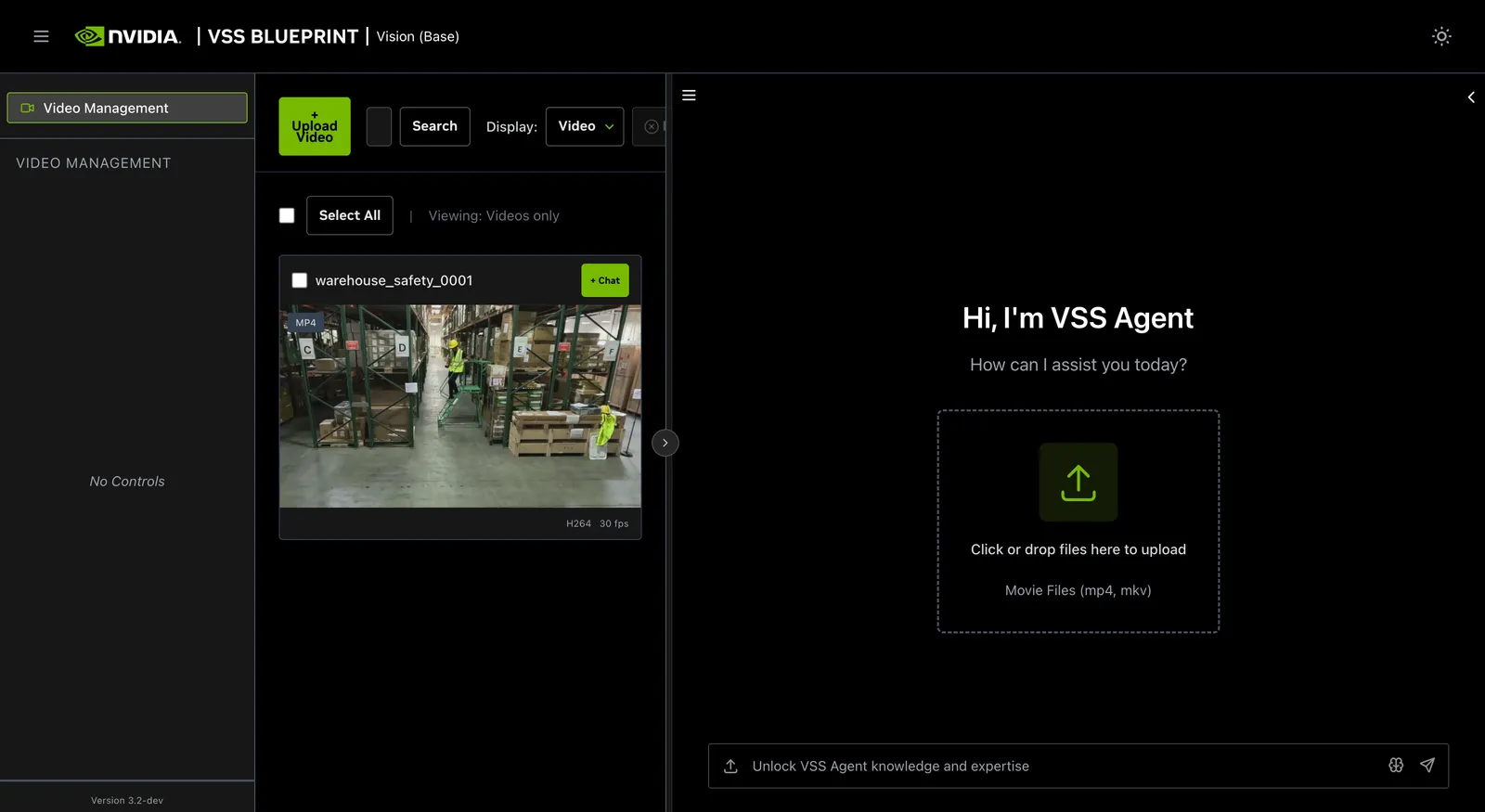
In the chat interface, drag and drop the video warehouse_safety_0001.mp4 into the chat window.
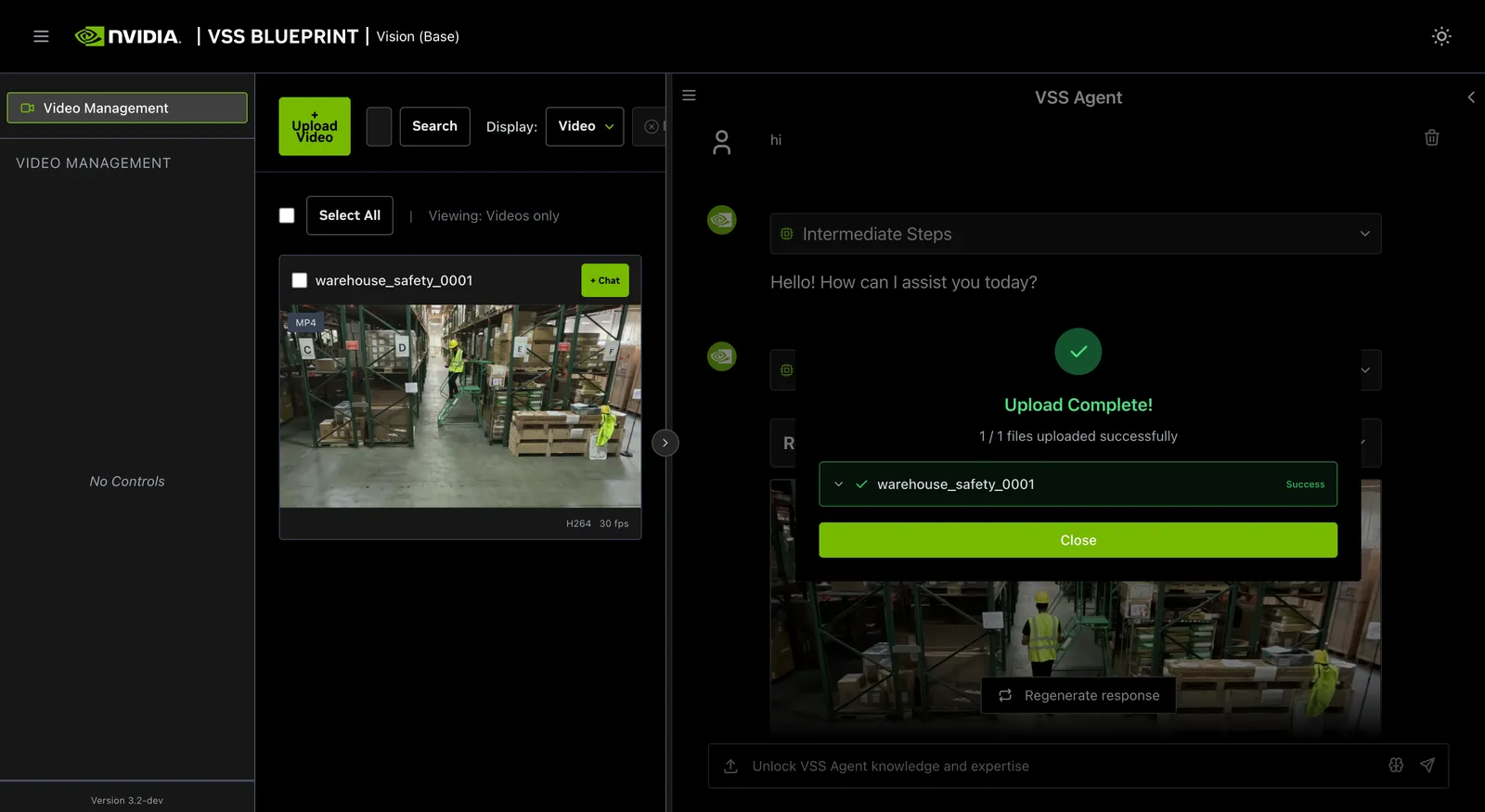
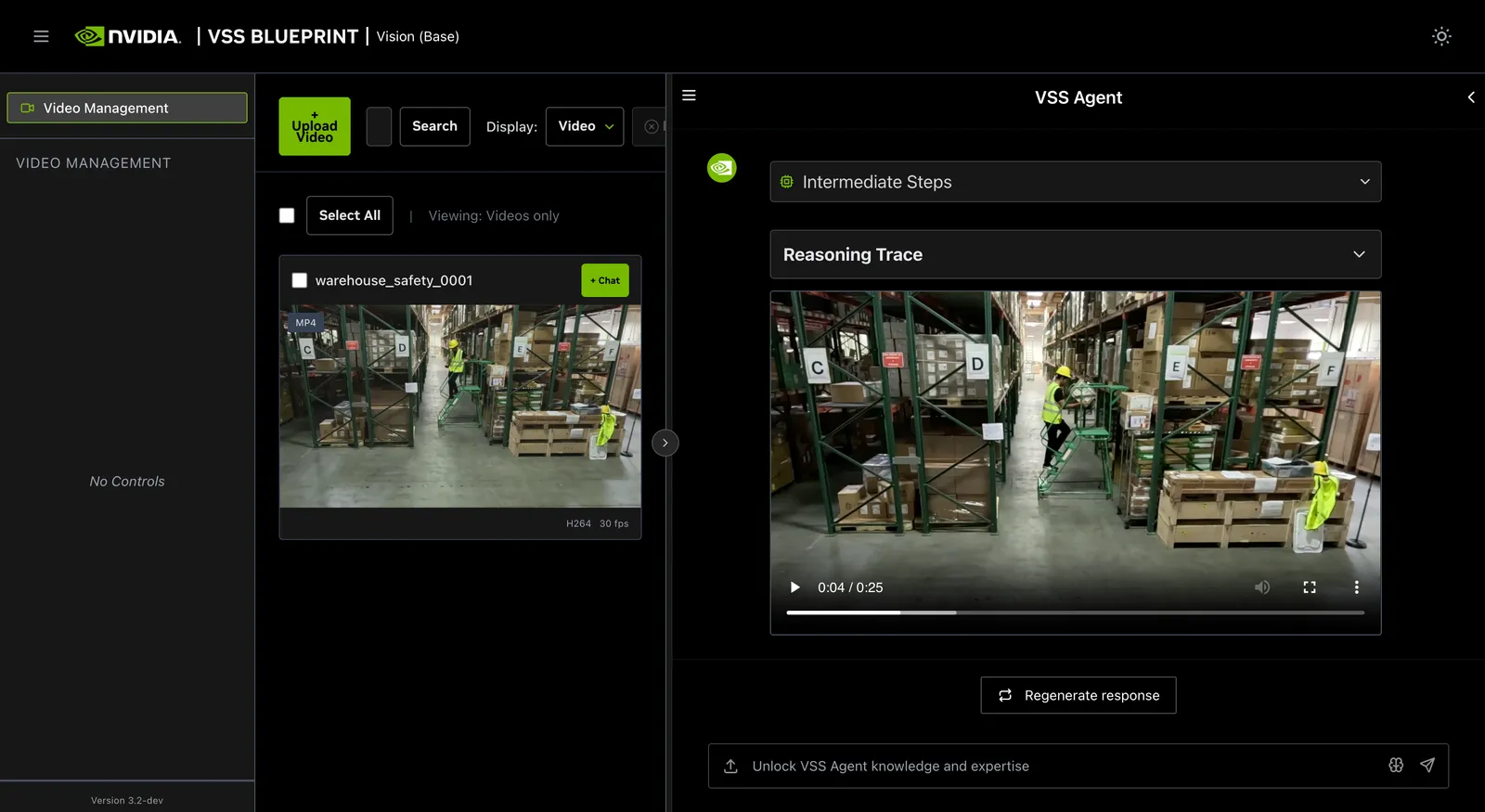
Once the video is uploaded, the agent will respond with the playback clip.
Ask the Agent questions
You can now ask the agent questions about the video. Here is an example:
The agent will show the intermediate steps of the agent’s reasoning while the response is being generated and then output the final answer.
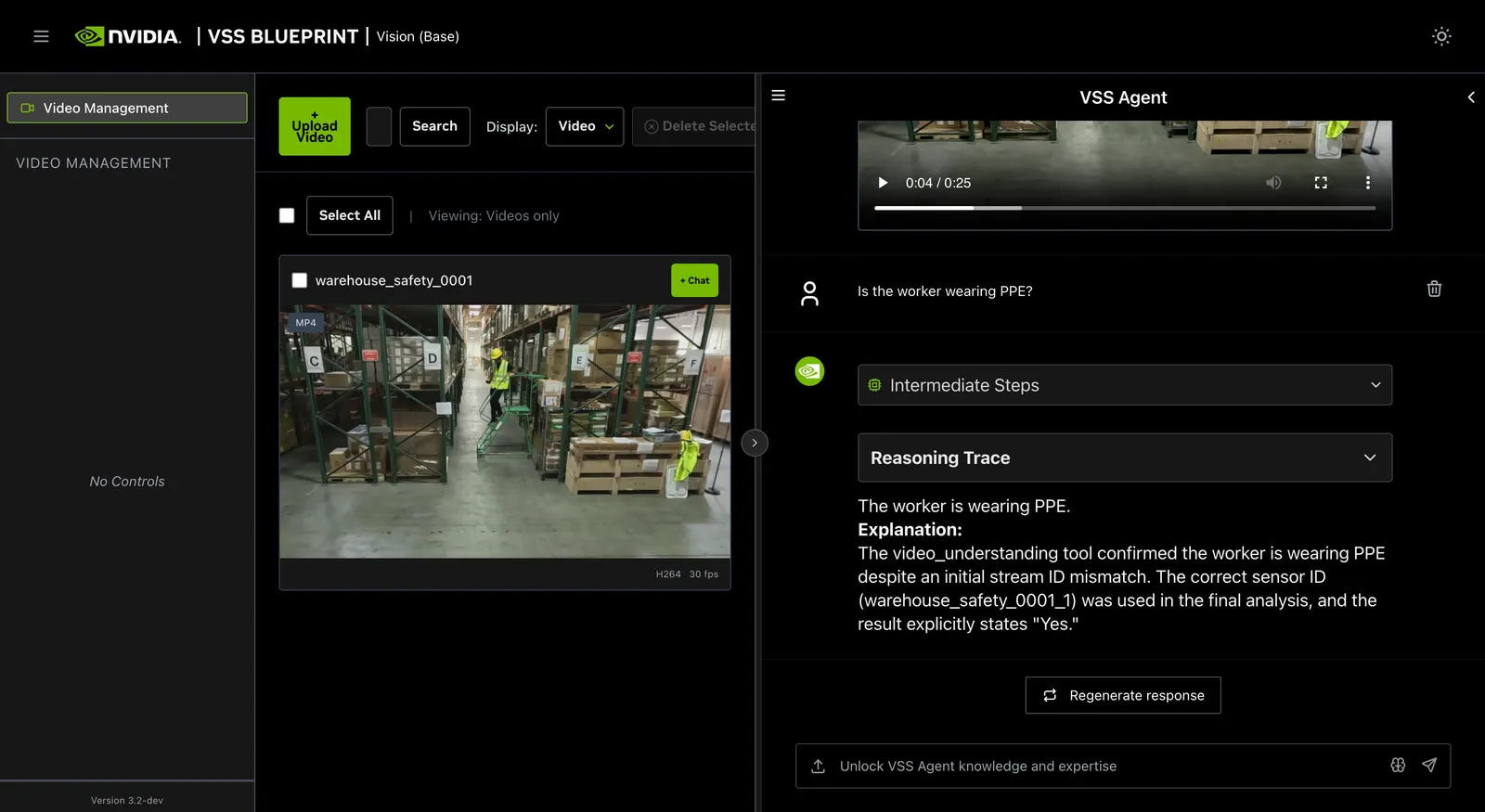
Follow up questions can be asked, for example:
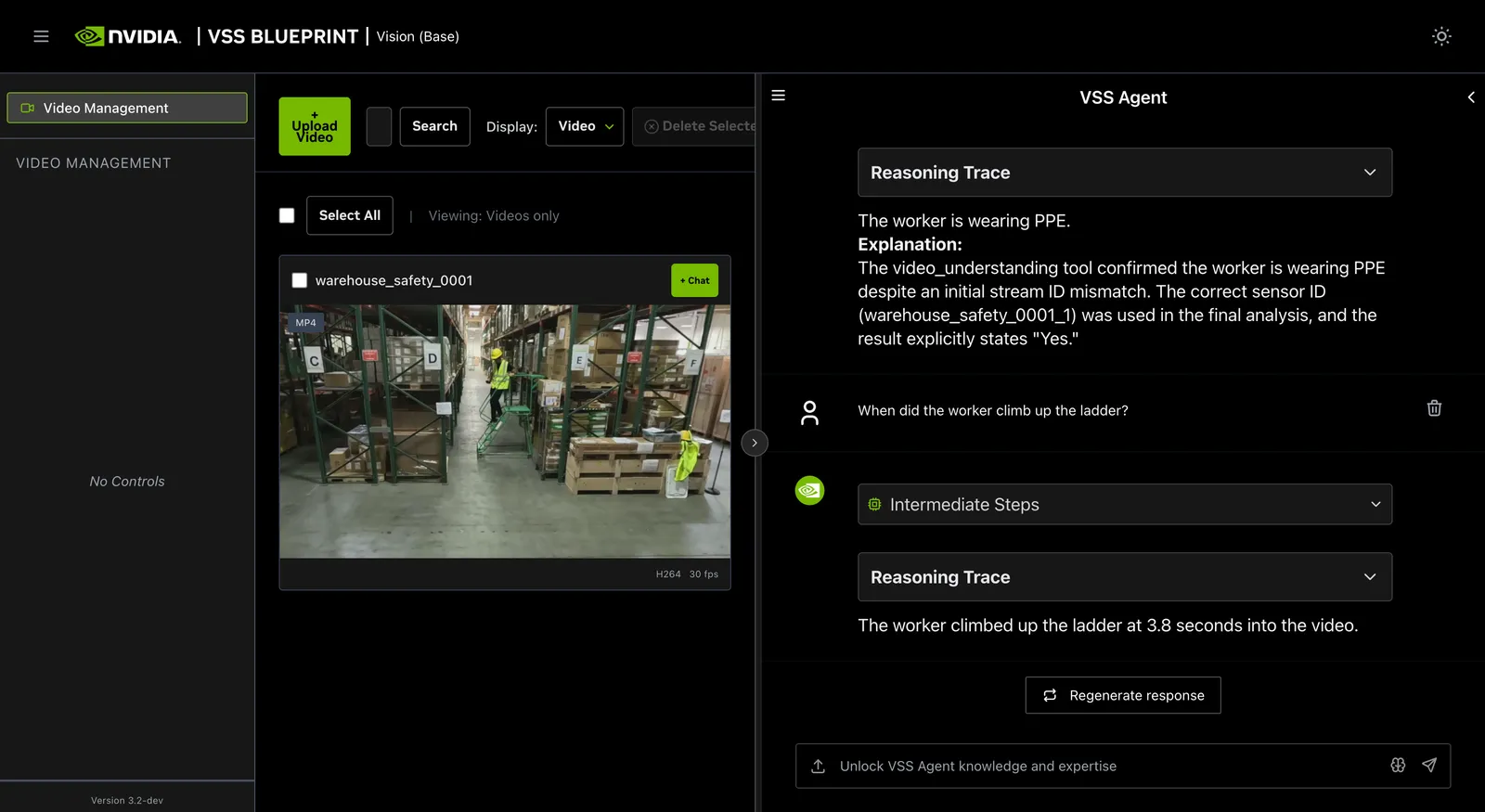
Other examples of general supported queries include:
- List all available sensors
- Fetch the video for
<sensor-id>or<video-file-name> - Take a snapshot of
<sensor-id>or<video-file-name>at<timestamp>
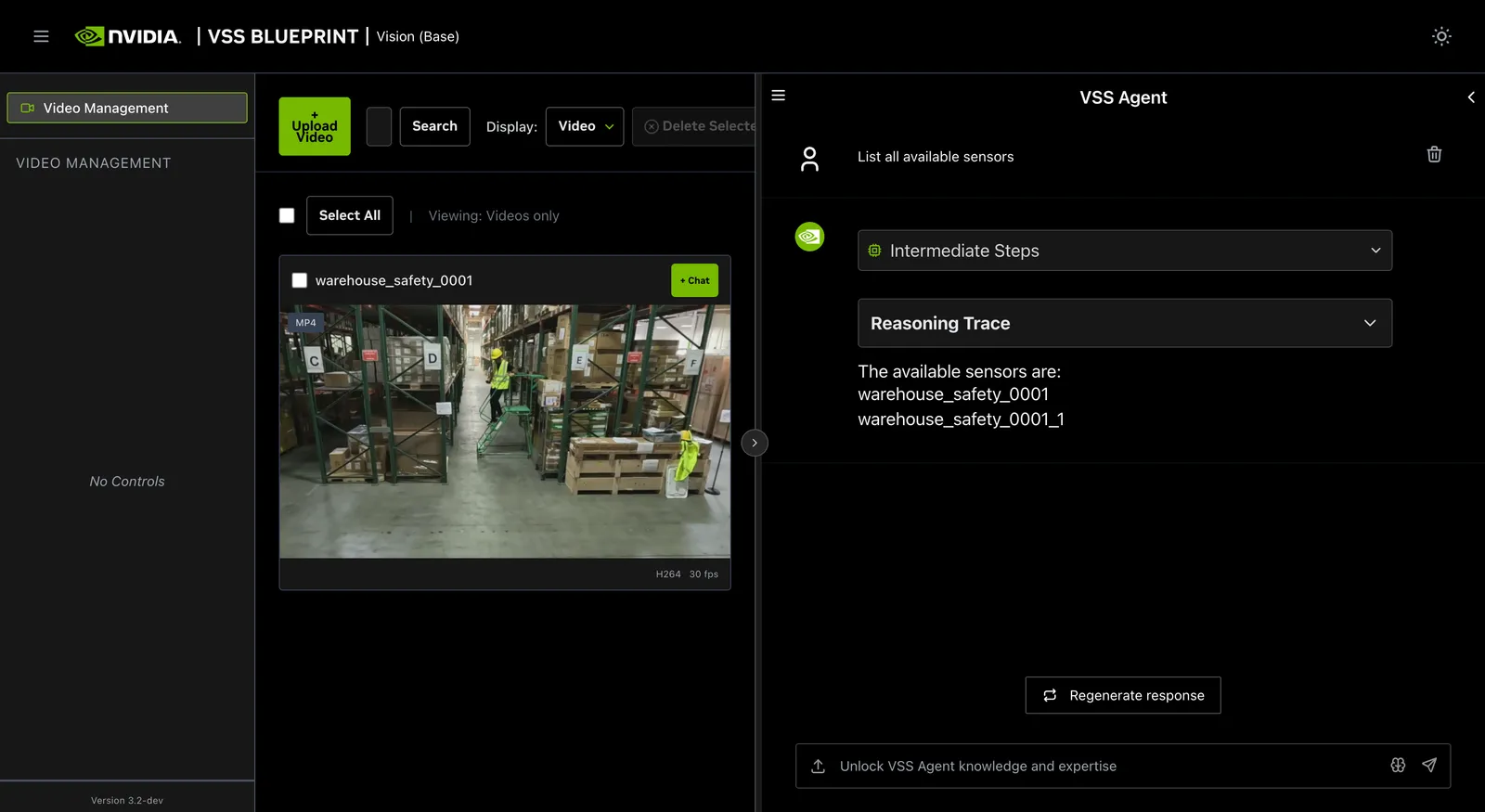
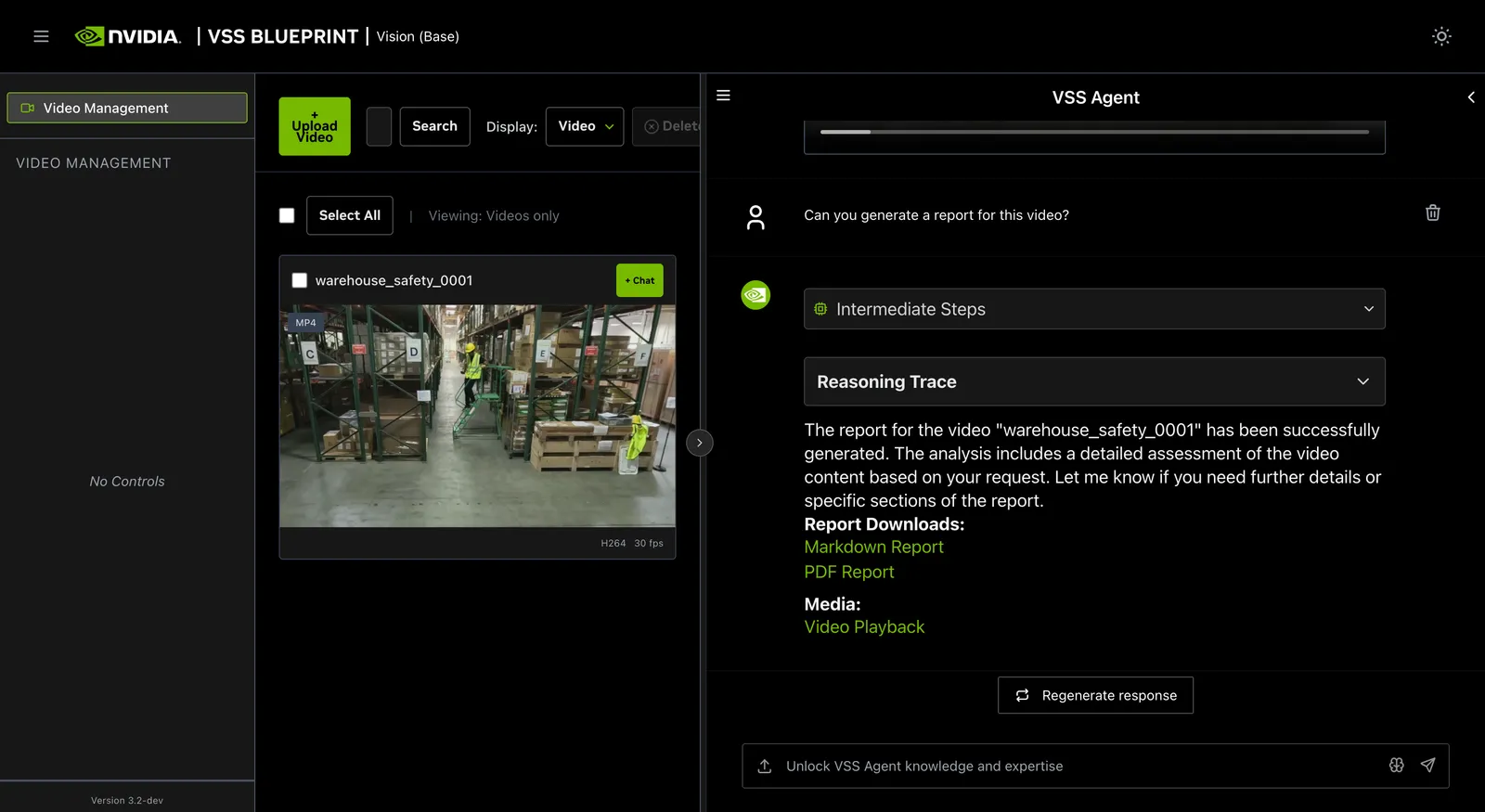
Generate a report with the in-stack VSS Agent
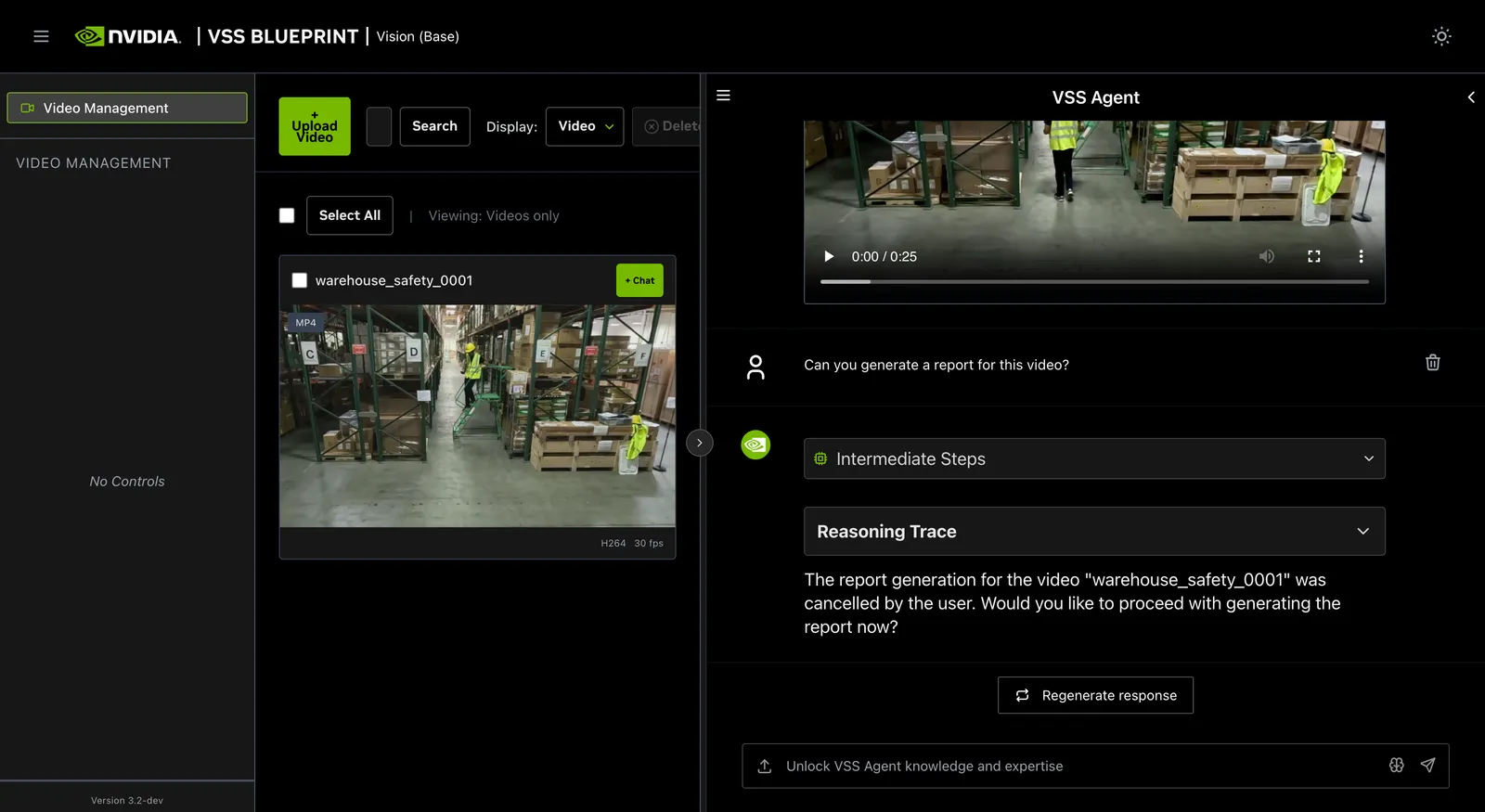
You can also ask the agent to generate a report about the video. Here is an example prompt to generate a report about the video:
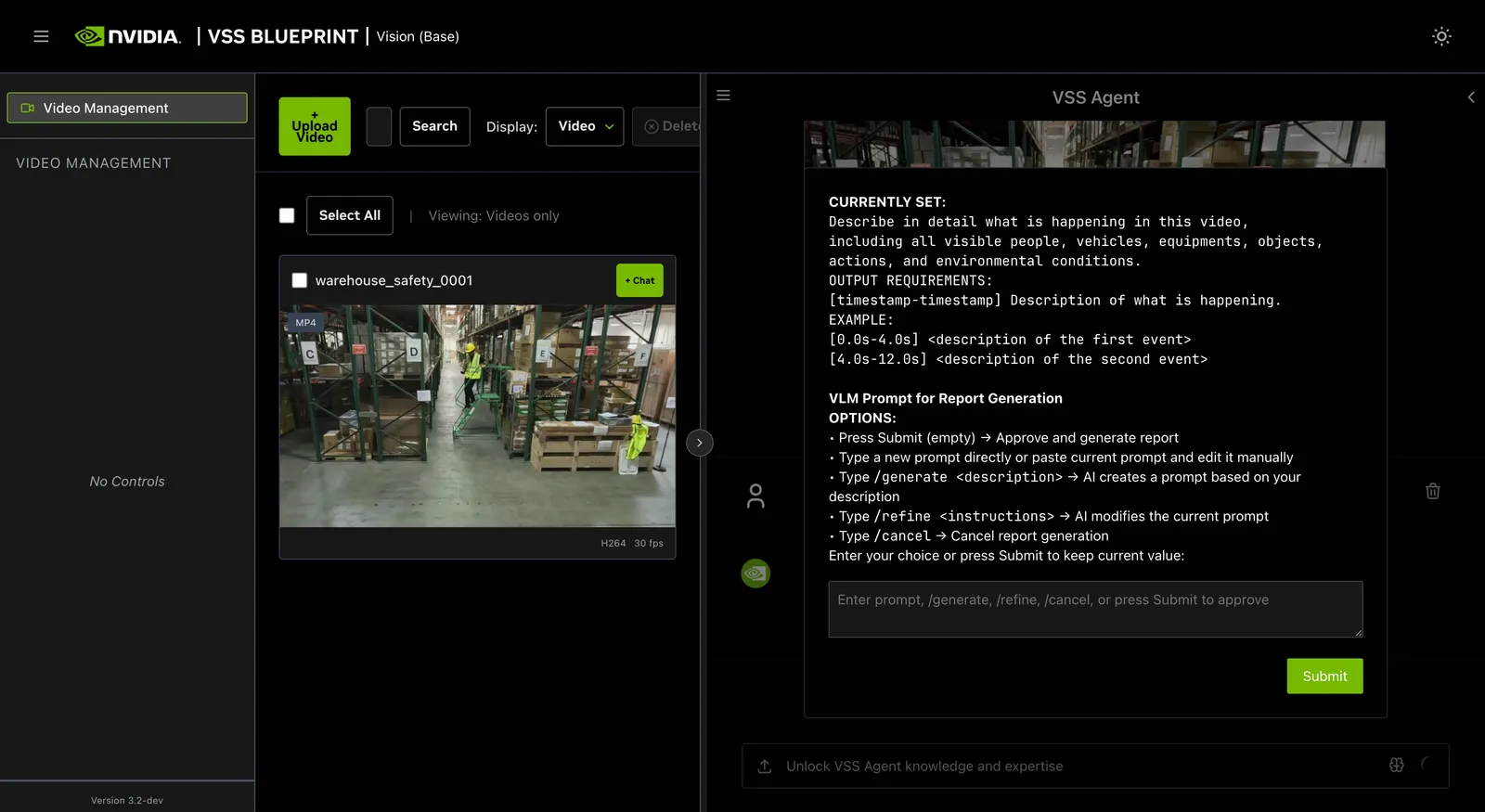
The screenshots below show the in-stack VSS Agent UI. In this workflow, VSS Agent provides a PDF report download and uses a Human in the Loop (HITL) dialog to review the VLM prompt. With NemoClaw’s OpenClaw runtime, the summary or report appears directly in the OpenClaw chat UI. HITL happens in that chat: the agent asks for prompt details inline, and you answer in the conversation. The VSS Agent’s structured HITL dialogs are not available through an external VSS UI connected to NemoClaw.
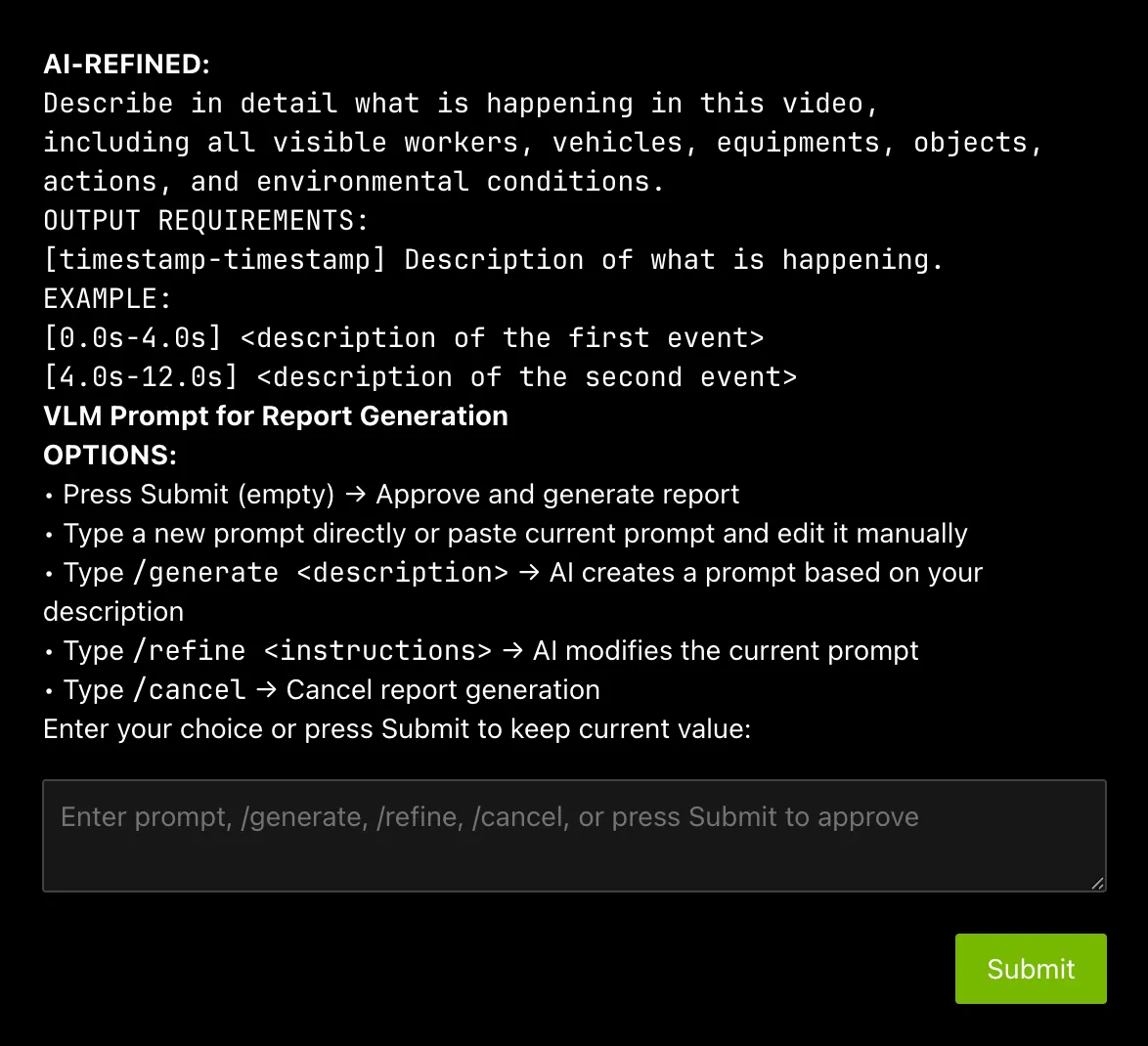
Human in the loop (HITL) prompt editing:
When generating a report in the VSS Agent UI, the agent prompts the user to review the VLM prompt for report generation. This allows the user to edit the vlm prompt for report generation to improve the specificity and accuracy of the report.
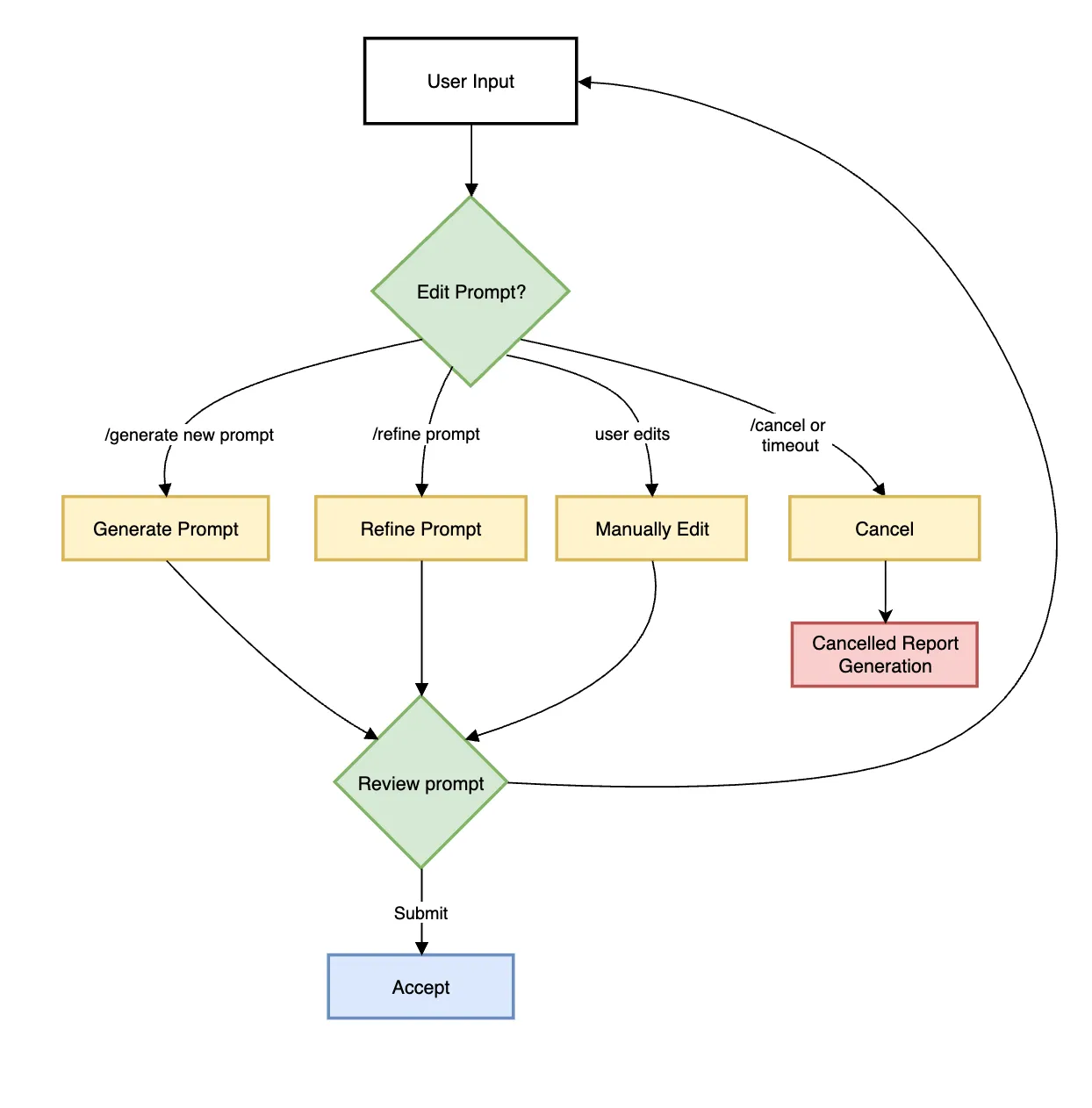
The HITL options for prompt-editing include:
- Press Submit (empty) → Approve and generate report
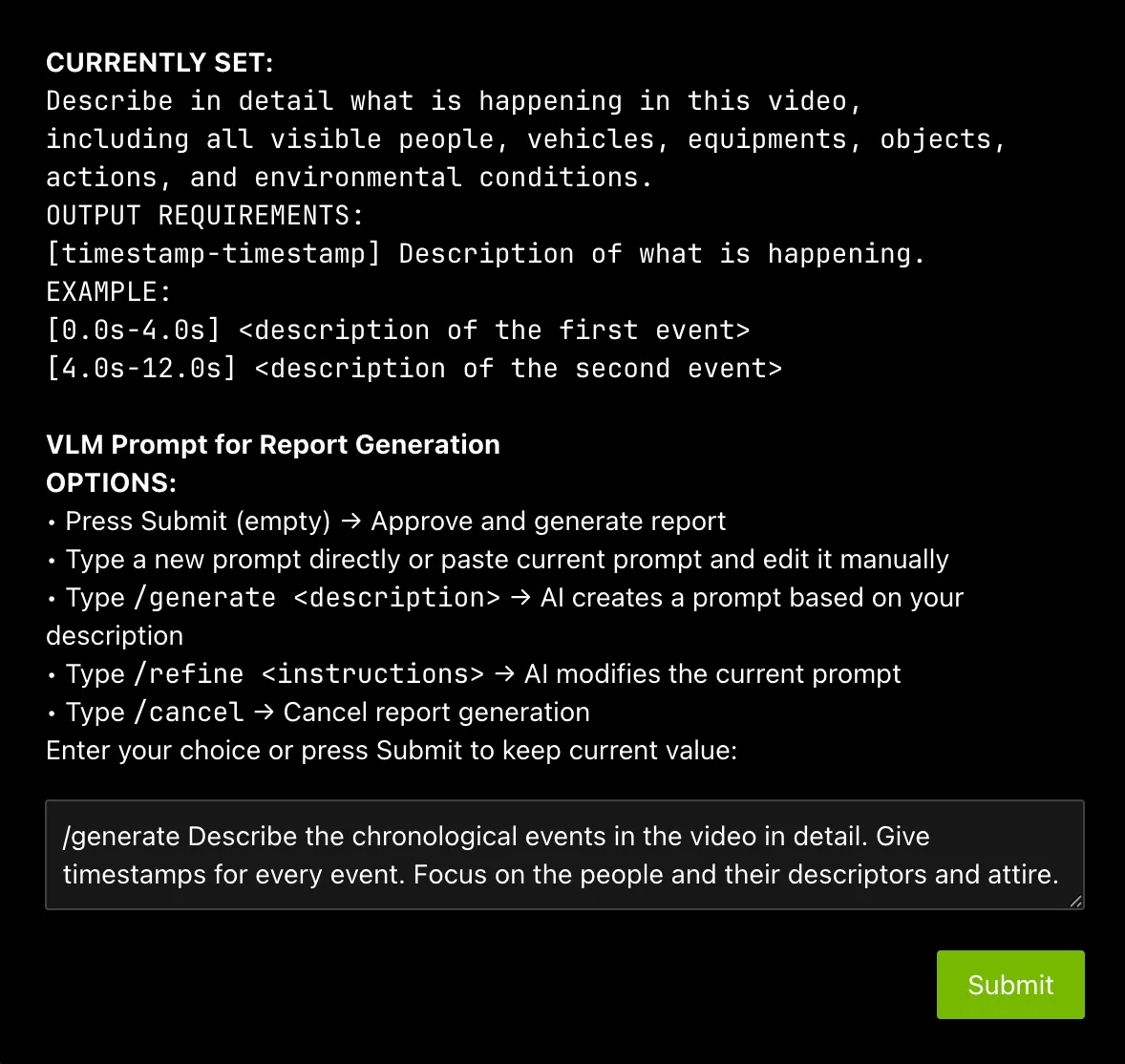
- Type a new prompt directly or paste current prompt and edit it manually
- Type
/generate <description>: LLM creates a prompt based on the description
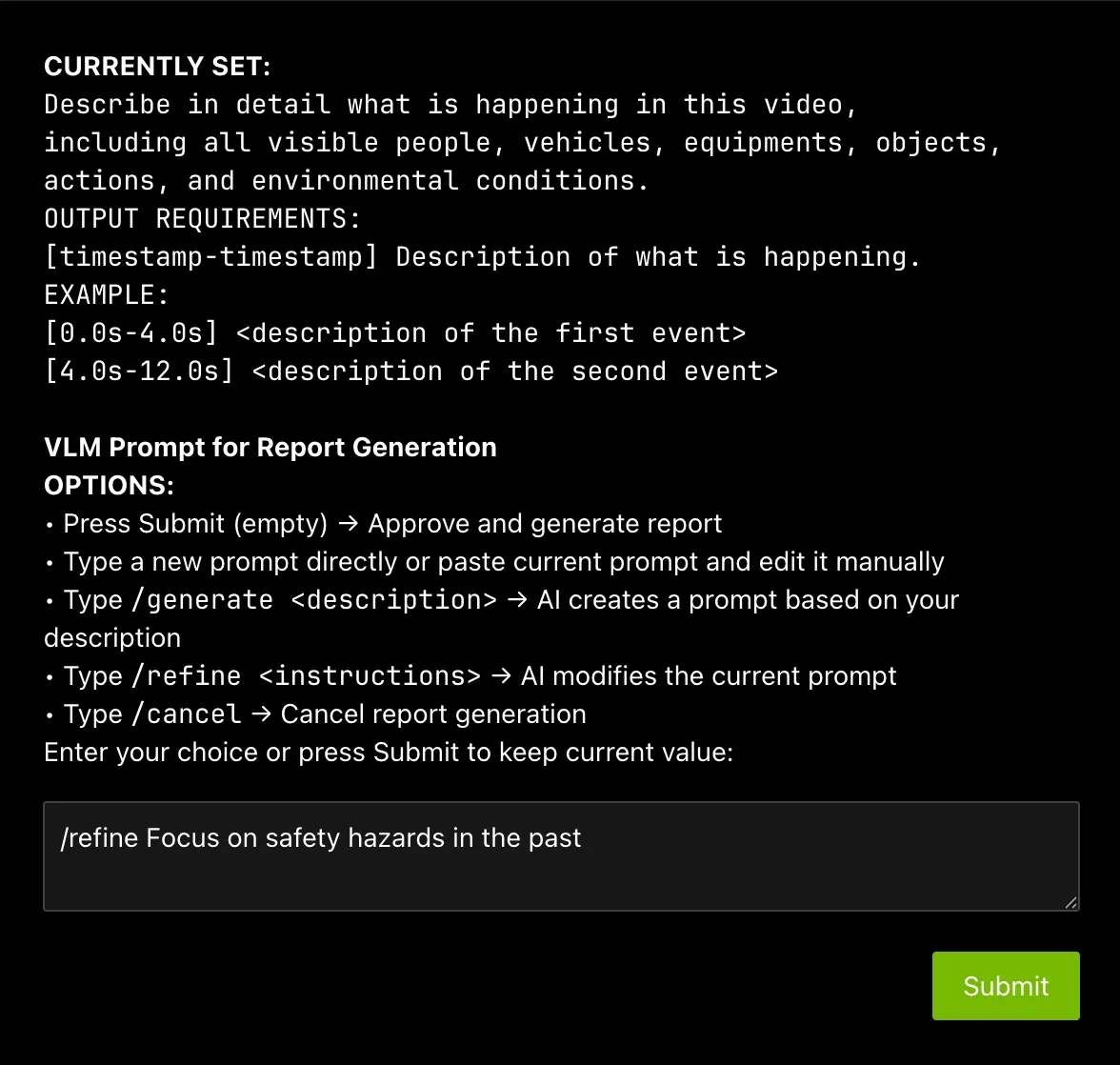
- Type
/refine <instructions>: LLM modifies the current prompt based on the description
- Type
/default→ Restore the system default VLM prompt. Last approved edits remain saved until you submit the restored default. - Type
/cancel→ Cancel report generation
After the prompt is edited using LLM, the user can review the prompt once more and make more edits or approve.
For any video clip, a report can be generated and then follow-up questions can be asked about the report or video content. Here is what this may look like:
- Can you generate a report for
<sensor-id>or<video-file-name> - Follow up questions (Example: If the report mentions a truck at 0:05, you may ask: “What color was the truck at 0:05?”)
- Give me a snapshot of the video at
<timestamp>.
The agent generates both Markdown (.md) and PDF (.pdf) reports. Generated reports are accessible at
http://<HOST_IP>:7777/static/agent_report_<DATE>.md and http://<HOST_IP>:7777/static/agent_report_<DATE>.pdf through the public ingress. By default, the agent uses an in-memory object store (_type: in_memory), so reports will be lost when the
vss-agent container restarts. To persist reports, enable save_local_copy in the agent configuration and
mount a host directory as a Docker volume. For details, refer to Report Generation.
Teardown the Agent
To teardown the agent, run the following command:
This command stops the manually deployed base-profile containers and removes their Compose volumes.
Service Endpoints
The manually deployed in-stack Agent configuration exposes these services:
Next steps
Once you’ve familiarized yourself with the base vision agent, you can test other videos and explore adding agent workflows, such as video summarization, search, and alerting.
Additionally, you can dive deeper into the agent tools for report generation, video understanding, and video management.
Known Issues
For current agent limitations, see Agent Known Issues.