

Alert Verification
Two approaches for leveraging VLMs to generate alerts are showcased as part of the agent workflows:
-
Alert Verification: The VLM analyzes video snippets corresponding to alerts generated upstream for verification; original alerts are generated through a combination of object detection/tracking and behavior analytics microservices that process video streams in real time. This approach invokes the VLM more sporadically and hence has lower GPU requirements, but depends on an upstream entity to generate “candidate” alerts for verification.
-
Real-Time Alerts: The VLM continuously processes segments from a video source (for example, a camera) at periodic intervals based on a user-defined chunk duration. This approach leverages the generalizability of VLMs to trigger alerts for a broad set of cases (VLM fine-tuning or prompt tuning may be needed). However, it has higher GPU requirements due to more frequent VLM usage.
This section addresses the Alert Verification workflow; see Real-Time Alerts for the other approach.
Use Cases for Alert Verification
- PPE compliance verification (hard hats, safety vests)
- Restricted area monitoring
- Asset presence/absence detection
- Custom object detection scenarios
Estimated Deployment Time: 15-20 minutes
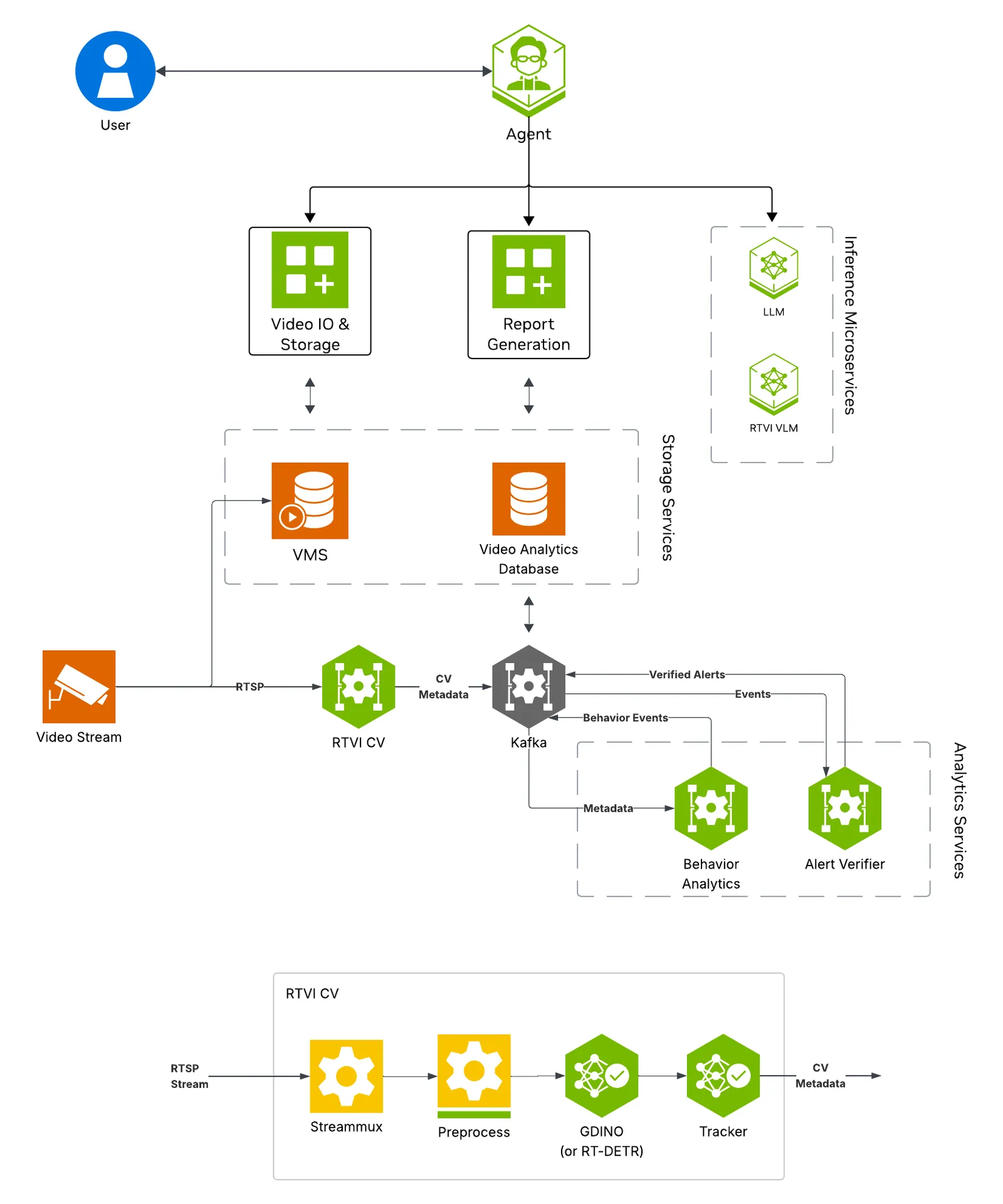
The following diagram illustrates the alert verification workflow architecture:
Key Features of the Alert Verification Agent:
- RTVI CV for real-time object detection using Grounding DINO (open-vocabulary detection)
- Behavior Analytics for rule-based and configurable alert generation from detection results
- Alert Verification for VLM-based alert clip review to reduce false positives
- Alert storage for querying and reporting
- Report Generation
What’s being deployed
- NVStreamer: Video streaming service for dataset video playback, thereby replicating live cameras in a real-world deployment
- Video IO & Storage (VIOS): Video ingestion (of NVStreamer video streams) supporting live streaming, recording, and playback features used by the agent
- RTVI CV: Real-Time Video Intelligence CV Microservice for object detection that processes VIOS live streams to output metadata to Kafka
- Behavior Analytics: Processes metadata from RTVI CV to generate alerts
- Alert Verification: Verification of alert video using VLM
- RTVI VLM: Real-Time VLM Microservice for vision-language model inference used by Alert Verification
- ELK: Elasticsearch, Logstash, and Kibana stack for log storage and analysis
- VSS Agent: Agent service that uses a configured LLM endpoint to route requests and orchestrate tool calls to VSS microservices and model endpoints (LLM/VLM NIMs) to answer questions and generate outputs
- Nemotron LLM (NIM): LLM inference service used for reasoning, tool selection, and response generation
- Phoenix: Observability and telemetry service for agent workflow monitoring
This list describes the stock profile used by the manual Compose deployment. Build Vision AI customizes that profile for the requested capabilities. With the default NemoClaw harness, or with no harness, it does not deploy the in-stack VSS Agent or Phoenix. It also omits the Agent’s local LLM unless another selected service needs it. Ask for the in-stack VSS Agent if you plan to use the Agent REST API or the manual Agent UI workflow below.
Prerequisites
Before you begin, ensure all of the prerequisites are met. See Prerequisites for more details.
For instructions on downloading sample data and the deployment package, see Download Sample Data and Deployment Package in the Quickstart guide.
If you have already completed those steps for another agent workflow, skip to Step 1: Deploy the Agent in the Deploy section below.
Deploy
Step 1: Deploy the Agent
- Set the NGC CLI API key and authenticate Docker to
nvcr.iobefore running the deploy commands. See Verify Your NGC Access. - Refer to Configure the LLM and Configure the VLM for all LLM and VLM (local and remote) configuration options. For RTVI-VLM configuration options, see Real-Time VLM.
- For advanced settings and Agent Customization, edit the profile
user-overrides.env.
See Configuration for common variables,
valid values, defaults, and env-file precedence. The complete profile-specific
template is
deploy/docker/developer-profiles/dev-profile-alerts/overrides.env.
From the repository checkout root, enter the Compose deployment directory:
overrides.env is the checked-in template. Copy it to any
filename matching *-overrides.env before selecting a layout. Files matching
that pattern are ignored by Git so local settings and credentials are not
committed. The commands below use user-overrides.env as a concrete example;
if you choose another name, use it consistently in every --env-file argument.
Repeat the copy only when you want to discard prior layout changes:
Before starting Compose, complete the host settings and select one hardware
layout below in deploy/docker/developer-profiles/dev-profile-alerts/user-overrides.env.
Environment-variable overrides: In deploy/docker/developer-profiles/dev-profile-alerts/user-overrides.env, update existing values in place; add a variable only when it is absent. COMPOSE_PROFILES is derived from values above it, so appending duplicate model-mode or model-slug variables can select the wrong services.
Host-path and service-address overrides (all hardware profiles):
VSS_APPS_DIR: Absolute path to this repository’sdeploy/dockerdirectory.VSS_DATA_DIR: Absolute writable host directory for downloaded models, videos, and service data.HOST_IP: IP address or hostname that clients use to reach services on this VSS host. Set it to an address reachable by the intended clients.EXTERNAL_IP: Address VSS puts in externally reachable service URLs. It defaults to${HOST_IP}; on a cloud host or when clients connect from outside the host network, set it to the instance’s public address or external hostname.
The default deployed model is Cosmos3 Nano Reasoner with BF16 precision.
You can change this model by selecting an option from the following table and
setting VLM_NAME to the Name value and RTVI_VLM_MODEL_PATH to the Path value
in deploy/docker/developer-profiles/dev-profile-alerts/user-overrides.env.
Available VLM Models
Super models have only been tested on RTX PRO 6000 and H100 with a single GPU dedicated to the VLM.
NVFP4 models only work on Blackwell platforms.
Enable Efficient Video Sampling
You can enable Efficient Video Sampling (EVS++) to prune redundant video tokens and reduce VLM inference latency. Add the following settings to deploy/docker/developer-profiles/dev-profile-alerts/user-overrides.env before
starting the profile:
In testing with a warehouse dataset and the Cosmos 3 Super Reasoner FP8 VLM on RTX PRO 6000, this configuration reduced VLM latency by approximately 20% with an approximately 1% decrease in accuracy.
VLLM_EVS_SIMILARITY_THRESHOLD can be tuned for the characteristics of the
input streams to improve the accuracy/latency tradeoff. For
compatibility details and additional configuration options, see
Efficient Video Sampling (EVS and EVS++).
Enable Real-Time Alerts Alongside Alert Verification
Real-time alerts can run at the same time as alert verification in the same
profile. To enable both workflows, update the following options in the profile’s
user-overrides.env copy used by the deployment commands on this page before
starting the profile. Add an option only when it is absent:
Enabling real-time alerts alongside alert verification reduces the total number of streams supported per GPU due to the additional processing load.
For this combined setup, use the REST API instructions in
Real-Time Alerts to create and modify rules.
The vss-manage-alerts skill still refuses real-time rule management in
verification mode (MODE=2d_cv); its agent-based workflow requires VLM real-time mode.
Configure Required Deployment Values
Set these required placeholder values in the existing assignments:
Prepare host data directories before starting Compose. Export
VSS_DATA_DIR and VSS_APPS_DIR with the same absolute paths set above, then
run this block. The guards stop before mkdir or chmod if either value is
absent or is not absolute:
Direct Docker Compose Overrides
Add this common alert-verification block to
developer-profiles/dev-profile-alerts/user-overrides.env before adding the
hardware-specific values from the tabs below:
Default container image tag
containers.env uses VSS_CONTAINER_TAG as the default tag for all images.
Export the tag selected for this documentation branch before choosing a hardware
layout:
Any service-specific image tag or tag suffix shown inside a hardware tab supersedes or augments this common default. Use the SBSA settings shown in the GB300 and DGX Spark tabs when deploying on those platforms.
H100
GB300
RTXPRO6000BW
RTXPRO4500BW
L40S
DGX-SPARK
IGX-THOR
AGX-THOR
OTHER
Shared GPU
Dedicated GPU
Remote LLM
Remote VLM
Remote LLM + VLM
After replacing every placeholder in the selected layout, from deploy/docker
validate the resolved configuration, then start the profile:
On the first bring-up, Docker Compose pulls the required containers from the
configured GHCR and NGC registries and builds five support images locally:
Elasticsearch, its initializer, the Kafka topic
initializer, the broker health checker, and the alerts Kibana initializer.
Those builds pull base images from Docker Hub and docker.elastic.co; the
Kafka support-image builds also download jq from GitHub. Allow outbound access
and disk space for both pulls and local builds. Depending on your network
speed, this may take a few minutes.
This deployment uses the following defaults:
- LLM model: nvidia/nemotron-3.5-lightning-30b-a3b
- VLM model: cosmos-reason3 (served via RTVI VLM container)
When using a remote VLM of model-type nim (not openai), see How does a remote nim VLM access videos? for access requirements.
Once the deployment is complete, check that all the containers are running and healthy:
Once all the containers are running, you can access the Agent UI at http://<HOST_IP>:7777/.
Deploy with Agent Skills
As an alternative to running the deployment command manually, you can use VSS
Agent Skills from a coding agent such as Claude Code, Codex, or NemoClaw.
First, install the vss-build-vision-ai skill as described in Agent Skills and make it
accessible to your coding agent. The host must meet the same deployment requirements listed above (supported GPU/hardware for that profile)
and must meet the Prerequisites.
The vss-build-vision-ai skill composes the stack from the capabilities you name and selects the <platform> and <mode> to match your system, as detailed in Development Profile GPU Requirements.
Refer to the requirements table for valid platform and mode combinations compatible with your hardware.
Deploy prompt structure
The remaining steps on this page use the in-stack Agent UI, so request the in-stack VSS Agent explicitly when you deploy with Build Vision AI.
Name an image tag in the prompt to run a release’s images instead of the
containers.env default. See
Container image tag.
For edge platforms, ask the vss-build-vision-ai skill to use a remote LLM when possible.
Local LLM/VLM sharing on the edge GPU is supported, but a remote LLM is recommended for better response time.
See VSS Agent Customization - Configure LLM for remote LLM endpoint options.
Recommended edge deployment prompts
The vss-build-vision-ai skill uses Cosmos3 Nano Reasoner BF16 as the default VLM. You can ask the agent
which VLM models are available during the deployment process, or request a different model
directly in your deployment prompt:
The agent sets VLM_NAME and RTVI_VLM_MODEL_PATH in the generated
_builds/<name>/override.env to the model you request. The same options and
hardware constraints listed in
Available VLM Models apply.
If you would like to modify the workflow to work with other videos or use cases, you can update the following files:
-
deploy/docker/developer-profiles/dev-profile-alerts/vlm-as-verifier/configs/alert_type_config.json- Modify the “output_category” and “user” fields here. “output_category” modifies the category type that shows up in the agent UI. “user” is the user prompt that is sent to the VLM for verification of each alert clip.
-
deploy/docker/developer-profiles/dev-profile-alerts/deepstream/configs/config_triton_nvinferserver_gdino.txt- Update the “type_name” field under “postprocess” to change the objects that are detected by Grounding DINO. By default this is “person” with a threshold of 0.5. This can be modified to support multiple classes by using ” . ” as a delimiter.
-
deploy/docker/developer-profiles/dev-profile-alerts/vss-behavior-analytics/configs/vss-behavior-analytics-config.json- Update the “value” field under
"name": "fovCountViolationIncidentObjectType"to change the objects that Behavior Analytics creates alerts for.
- Update the “value” field under
-
Custom response-parser directory (optional; user-created)
- The repository does not ship or mount a parser directory. Create a host directory, add the read-only
/app/parsersvolume described in Pluggable Response Parser, and place a Python module exposing a parser class with aparse(self, raw_response: str) -> dictmethod in it. Then setvlm.response_parserinconfig.ymlto its dotted path and recreate Alert Bridge. Use this to replace the built-in YES/NO verification parsing with classification, analytics, or enrichment outputs.
- The repository does not ship or mount a parser directory. Create a host directory, add the read-only
Scale Alert processing across CPU cores
A single Alerts Microservice process uses about one CPU core. Running the pipeline in several processes adds CPU capacity, and it helps when that process is consistently near one core while Kafka consumer lag keeps growing. A process below one core is limited by offered traffic or by a downstream service, and gains nothing from additional processes.
Edit the profile’s Alerts Microservice configuration and redeploy:
This setting is not available through user-overrides.env. A conservative four-process configuration that keeps the profile’s instance-wide VLM and VIOS load unchanged:
Every per-process limit is multiplied by the process count, which is why the three limits above are divided by four from the one-process profile values of 16, 4, and 8. max_vlm_concurrent caps what each process offers the VLM backend and does not raise the backend’s throughput. When the VLM is the limiting service, capacity comes from the VLM side, for example more replicas behind the same endpoint.
Before raising the process count, confirm the following:
pipeline_modeisevent_loopandpersistence.enabledistrue. Both are the profile defaults.- Every Alert input topic has at least as many partitions as the process count, counted per topic. The profile creates eight partitions per topic, so one instance can run four processes as shipped. When several Alerts Microservice instances share the consumer group, for example as replicas on Kubernetes, the bound applies to
instances × processes. - At least as many active streams as processes. The Behavior Analytics pipeline keys every message of one stream by
sensorId, so a stream lands on one partition and one process, and work is spread across processes at stream granularity. Fewer streams than processes leaves processes without work, and more streams spread the load more evenly. - The host has about one CPU core per process, plus capacity for the parent and API processes. Each process also holds its own Kafka consumers, HTTP connection pools to the VLM and VIOS backends, Elasticsearch clients, and memory, so connection, file-descriptor, and memory use grow with the process count.
- The VLM and VIOS backends can serve
processes × max_vlm_concurrentandprocesses × max_vst_concurrentrequests concurrently.
Startup refuses a combination the deployment cannot honor and names the reason. /health returns HTTP 503 until every process holds a Kafka assignment. Allow for startup_timeout_seconds before the instance reports ready.
For pipeline modes, startup validation, throughput monitoring, and rollback, see Scaling and Performance Tuning in the Alerts Microservice guide.
Step 2: Add a video stream
Add an RTSP stream by clicking the + Add RTSP button on the Video Management tab in the agent UI. If you do not have an RTSP stream, you can use NVStreamer at http://<HOST_IP>:31000 to upload a video file and create an RTSP stream.
For this profile, use the sample-warehouse-ladder.mp4 stream.
By default, this profile only supports up to one stream being processed at a time.
This can be increased by setting NUM_SENSORS in
deploy/docker/developer-profiles/dev-profile-alerts/user-overrides.env before
deployment. On RTX PRO 6000, up to 4 streams at 30 FPS have been tested to
work.
On edge platforms like DGX Spark, IGX Thor, and AGX Thor, up to 1 stream at 30 FPS has been tested to work due to GPU requirements.
RTVI CV supports input streams at up to 30 FPS by default. On dGPU systems,
interval=0 in the [primary-gie] group runs inference on every frame. On edge
systems, the deployment sets interval=1, which runs inference on every other
frame. This inference load limits how many streams a single GPU can process in
parallel.
Increasing RTVI CV stream capacity also increases the potential alert load. Verify that RTVI VLM can keep up with the resulting alerts and monitor end-to-end alert latency. Depending on stream count and stream content, RTVI CV may generate alerts faster than the RTVI VLM container can verify them, causing the verification backlog and latency to increase drastically. On single-GPU systems, including edge devices, the additional RTVI VLM load can also saturate shared GPU resources and reduce RTVI CV processing FPS.
To reduce the perception workload and run more streams on one GPU, use one or more of the following options:
-
Supply lower-FPS input streams such as 10 FPS streams.
-
Use RT-DETR instead of the default Grounding DINO model. RT-DETR is lighter weight, but supports only the classes in
deploy/docker/developer-profiles/dev-profile-alerts/deepstream/configs/rtdetr-960x544-labels.txt.To do so, set
MODEL_NAME_2D=RTDETRindeploy/docker/developer-profiles/dev-profile-alerts/user-overrides.envbefore deployment. -
Increase
intervalin the[primary-gie]group ofdeploy/docker/developer-profiles/dev-profile-alerts/deepstream/configs/run_config-api-rtdetr-protobuf.txt. An interval of1runs inference on every other frame;2runs inference on every third frame. The tracker continues to track objects between inference frames.Note that on edge systems,
deploy/docker/services/rtvi/rtvi-cv/ds-start.shoverrides the DeepStream configuration and setsinterval=1during startup. To use another value, modify the edge-platformintervalassignment in that script as well.
Step 3: Verify pipeline components
Open the Kibana UI at http://<HOST_IP>:7777/kibana/app/home#/ and navigate to the Discover tab.
Verify the following data indices are populated. It may take a few minutes for data to start appearing after adding the stream:
mdx-raw-*- Raw detection datamdx-incidents-*- Generated incidentsmdx-vlm-incidents-*- VLM-verified alerts
If the indices do not show data, check the following items:
- Ensure that the Perception service is running and processing the stream. View the container logs with
docker logs -f vss-rtvi-cvand confirm that the engine files are built and the added stream is being processed. Common causes of failure include model download errors during startup and insufficient GPU memory. - Confirm that the labels emitted by the Perception model match the labels that Behavior Analytics expects. Behavior Analytics processes only the object type specified by the
fovCountViolationIncidentObjectTypefield indeploy/docker/developer-profiles/dev-profile-alerts/vss-behavior-analytics/configs/vss-behavior-analytics-config.json.
Step 4: View alerts in the Agent UI
Launch the Agent UI at http://<HOST_IP>:7777/.
List streams to verify connectivity, then use the Alerts tab to list alerts. Select the verified alerts option to view VLM-verified alerts. To see the alerts, go to Agent UI > Alerts Tab > View Alerts.
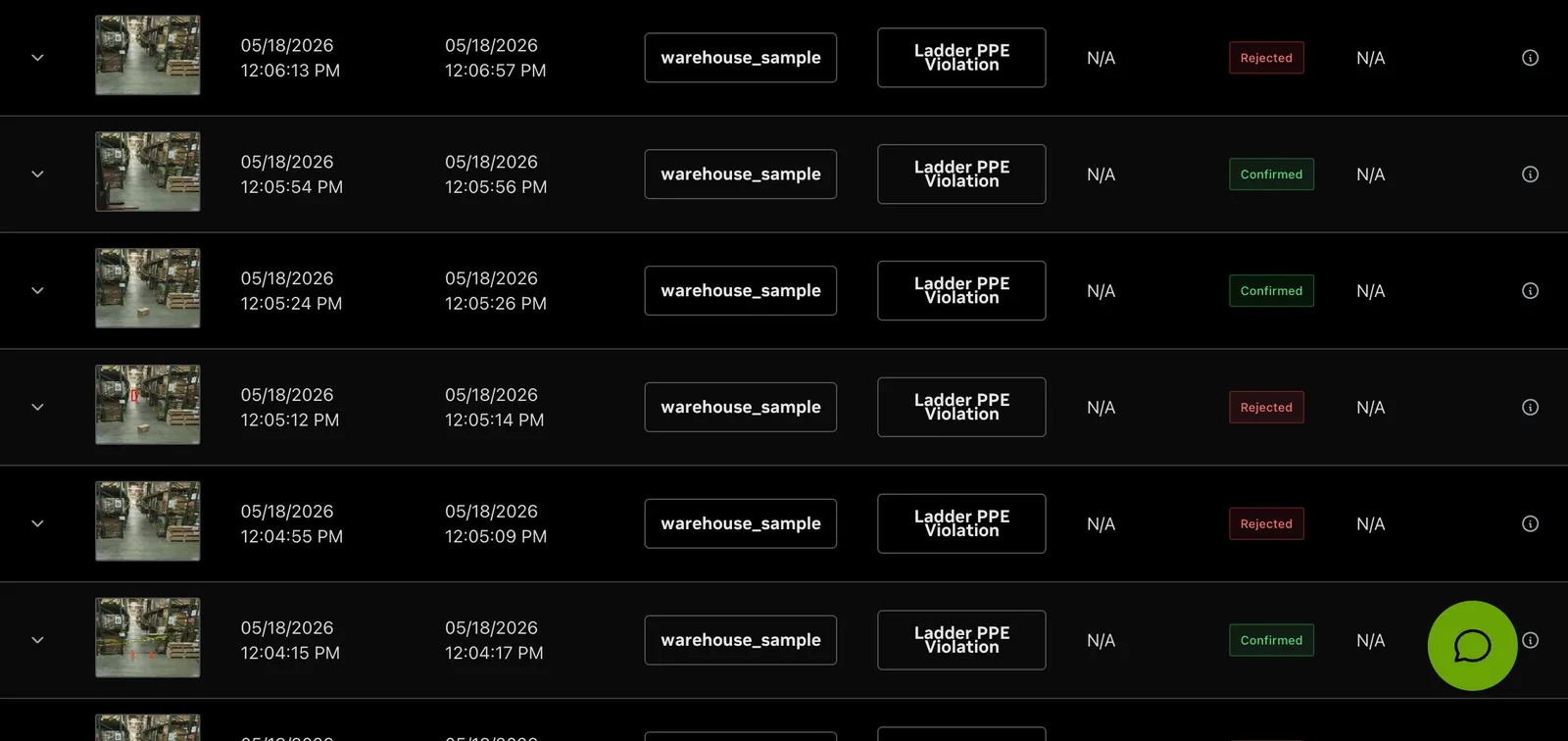
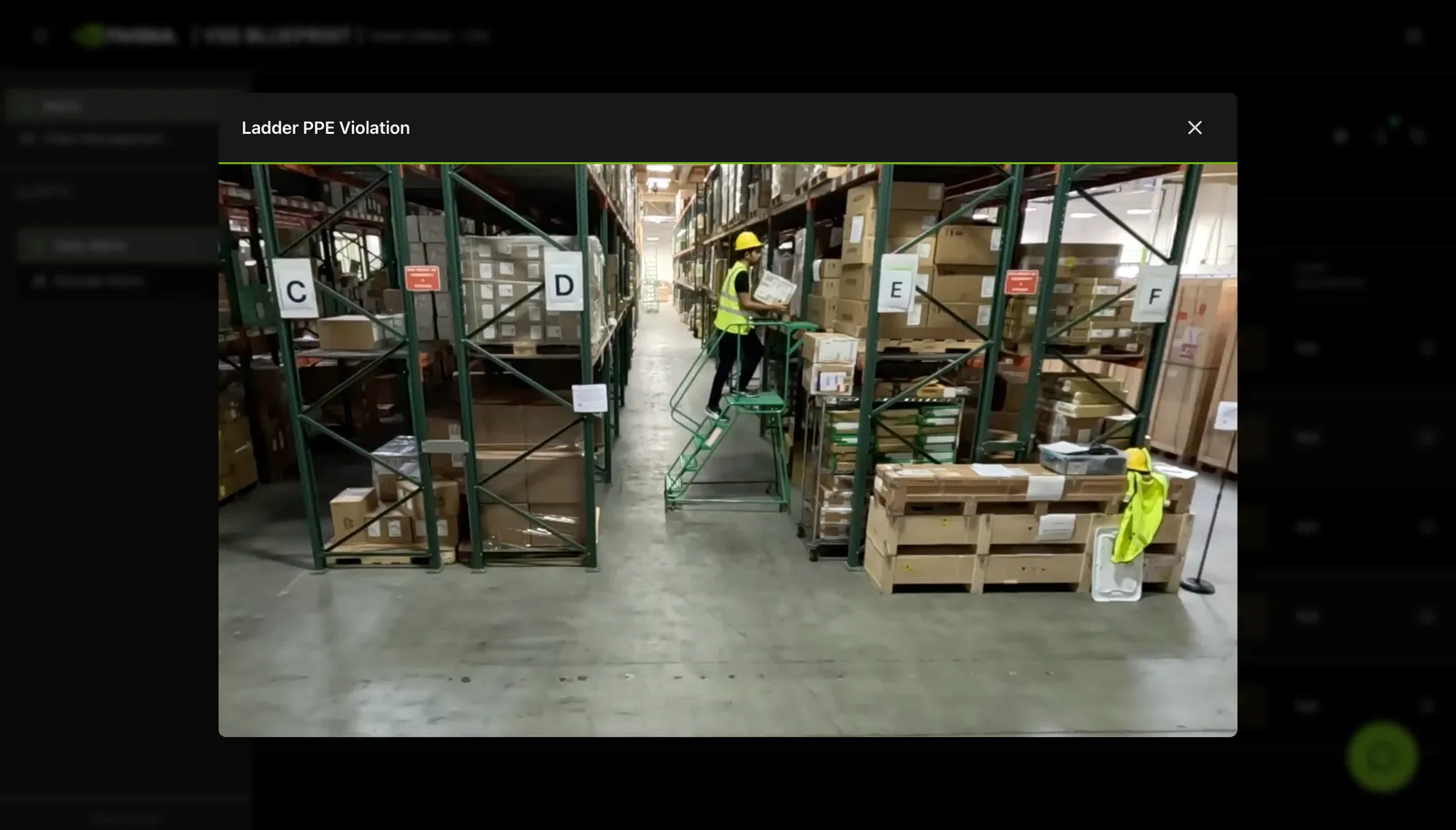
You can then click on a video thumbnail to play the video and view the alert. When the bounding box overlay is enabled, playback includes bounding boxes over objects of interest. This overlay is off by default; to enable it, set vst_config.add_overlay: true on the alert verification service and NEXT_PUBLIC_ALERTS_TAB_MEDIA_WITH_OBJECTS_BBOX=true for the Agent UI.
Step 5: Generate a Report for the Alert
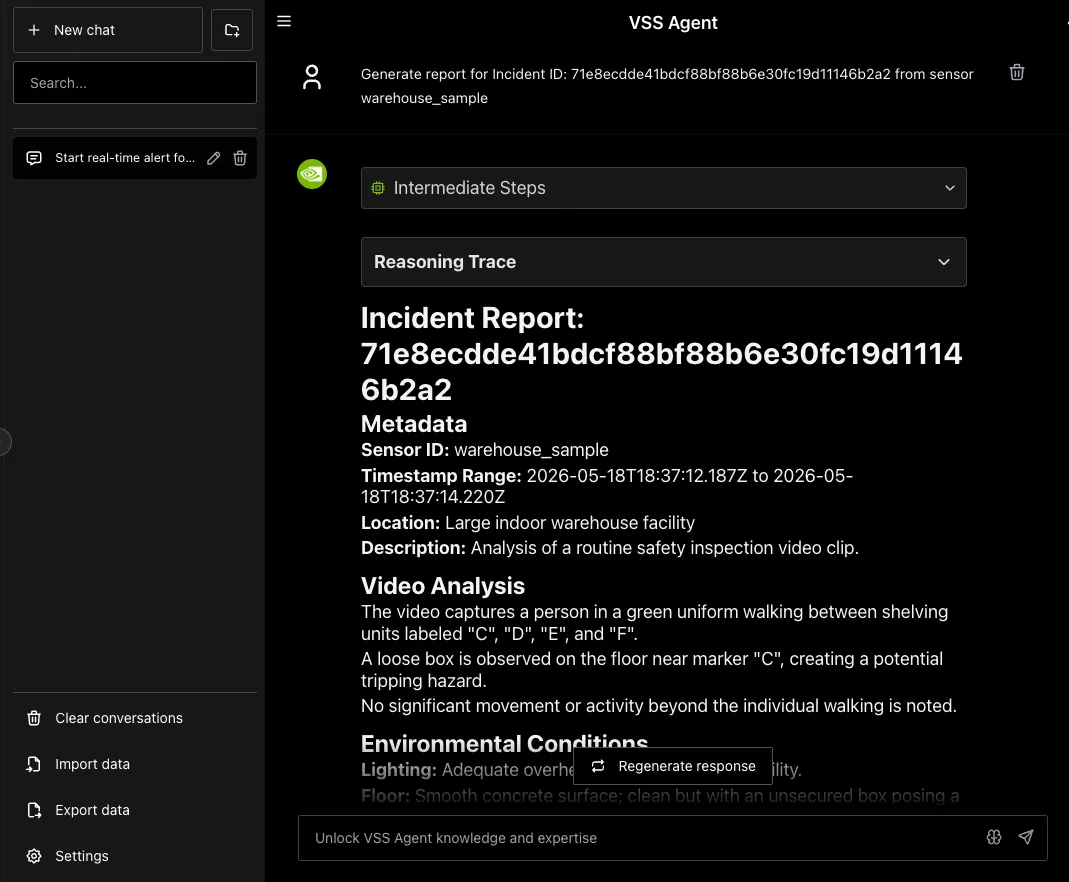
You can use the chat interface to request creation of a report for the generated alerts. The report is currently generated in markdown format and displayed in the VSS UI.
As a first step, identify the alert ID for which the report needs to be generated. Use the chat interface to retrieve the ID by listing recent alerts by count, or expand any alert in the Alerts tab to display the Id field along with associated metadata.
Now, use the ID to request generation of the report while also specifying the associated sensor, as shown in the sample image below.
Step 6: Teardown the Agent
To tear down the agent, run the following command:
This command stops the manually deployed alert-verification containers and removes their Compose volumes.
Service Endpoints
The following endpoints apply to the stock manual Compose deployment. Build Vision AI reports the endpoints available in the deployment it creates; use that deployment summary instead of assuming every endpoint below is present.
The Jaeger UI is present only when the jaeger Compose profile is enabled; see OpenTelemetry Tracing in the Alerts Microservice page.
Next Steps
Once you’ve familiarized yourself with the alert verification workflow, you can explore:
- Modifying the alert prompt in the Alerts Microservice configuration.
- Adjusting rate limit settings to control alert verification frequency.
- Configuring G-DINO prompting and class thresholds for custom detection scenarios.
Known Issues
-
Some VLM inaccuracies might be observed depending on the model and configuration used with the RTVI VLM container.
-
Video snippets generated for alerts may be short (for example, only a couple of seconds) depending on behavior analytics processing of the specific video, which could impact VLM accuracy. To address this issue, modify the fovCountViolationIncidentThreshold setting to the desired minimum alert clip duration in deploy/docker/developer-profiles/dev-profile-alerts/vss-behavior-analytics/configs/vss-behavior-analytics-config.json.
-
Video playback duration for verified alerts may not exactly match the alert timestamps.
-
Report generation may produce inaccurate results.
-
If perception crashes and restarts, streams are not automatically re-added and alerts will not be generated.
-
For remote VLM and LLM deployments, the alert verification timeout may need to be increased from the default value of 5 seconds. See Alert Verification VLM Configuration Options for specific details.
-
VLM verdict verification can fail in the UI even when VLM requests are processed successfully. Alert Bridge response parsing accepts only raw verdicts such as
A/BorYes/Nobefore serializing them toconfirmedorrejected. As a result, a semantically validrejectedverdict from Cosmos Reason can fail schema validation and be persisted asverification-failed. -
The VST UI is externally accessible on both port 30000 and 30888 because both ports are exposed on the host network. For security hardening, consider using a firewall to allowlist only the required VST ingress port.
-
Spurious records in the
mdx-vlm-incidents-1970-01-01index may be generated by RTVI VLM. Workaround: add this near the top of the Logstashfilter { }block indeploy/docker/services/infra/elk/logstash/pipelines/kafka/mdx-logstash.conf:If
streamTypeis unavailable, use the following fallback: