

User Interface
Overview
The major functionalities are encapsulated Tab-wise. Tabs represent the major functionalities of the UI and can be enabled/disabled based on the deployed blueprint/profile. Below the list of tabs on the main left sidebar, exists the controls pertaining to the current tab.
Each tab is described in detail in its respective section below.
The UI provides a global Chat sidebar to interact with an agentic backend service (if the service is deployed). This Chat sidebar is available across multiple tabs (Search, Alerts, etc.) and provides a more integrated experience.
The UI supports both dark and light themes. To change the theme, click the theme toggle button in the top right corner.
Global Chat Sidebar
The Global Chat Sidebar replaces the separate Chat Tab that previous VSS use cases and workflows relied on.
The Chat Tab is no longer actively documented from this release on.
You can still enable either surface at deployment time through environment variables on the UI service.
For the sidebar, use variables matching
NEXT_PUBLIC_(ENABLE_CHAT_SIDEBAR|CHAT_SIDEBAR_.*|SIDEBAR_CHAT_.*).
For the legacy Chat Tab, set NEXT_PUBLIC_ENABLE_CHAT_TAB and the other NEXT_PUBLIC_* variables.
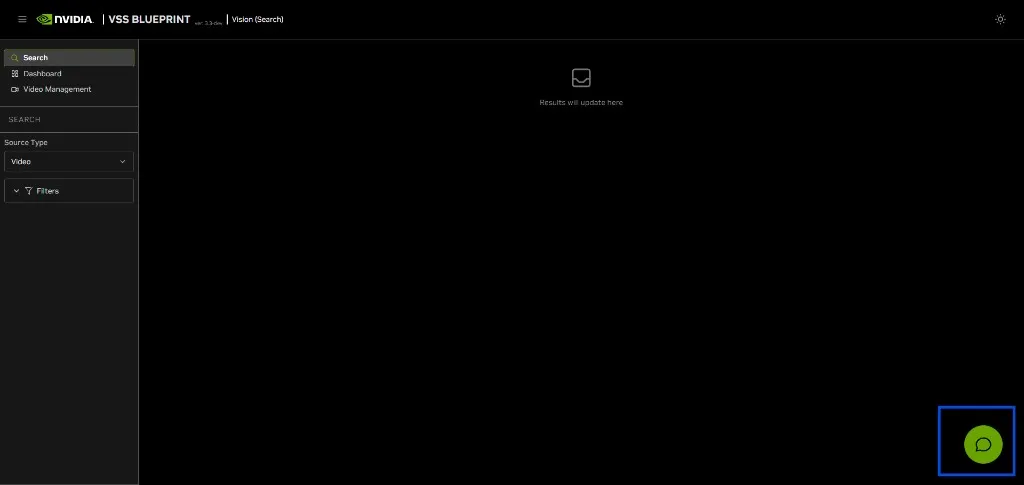
The Global Chat sidebar can be opened by clicking the Chat icon at the bottom-right corner of the screen as shown above.
The Global Chat Sidebar is a persistent, collapsible chat panel available across multiple tabs (Search, Alerts, etc.) that provides direct access to the Agentic backend service without navigating away from the current view.
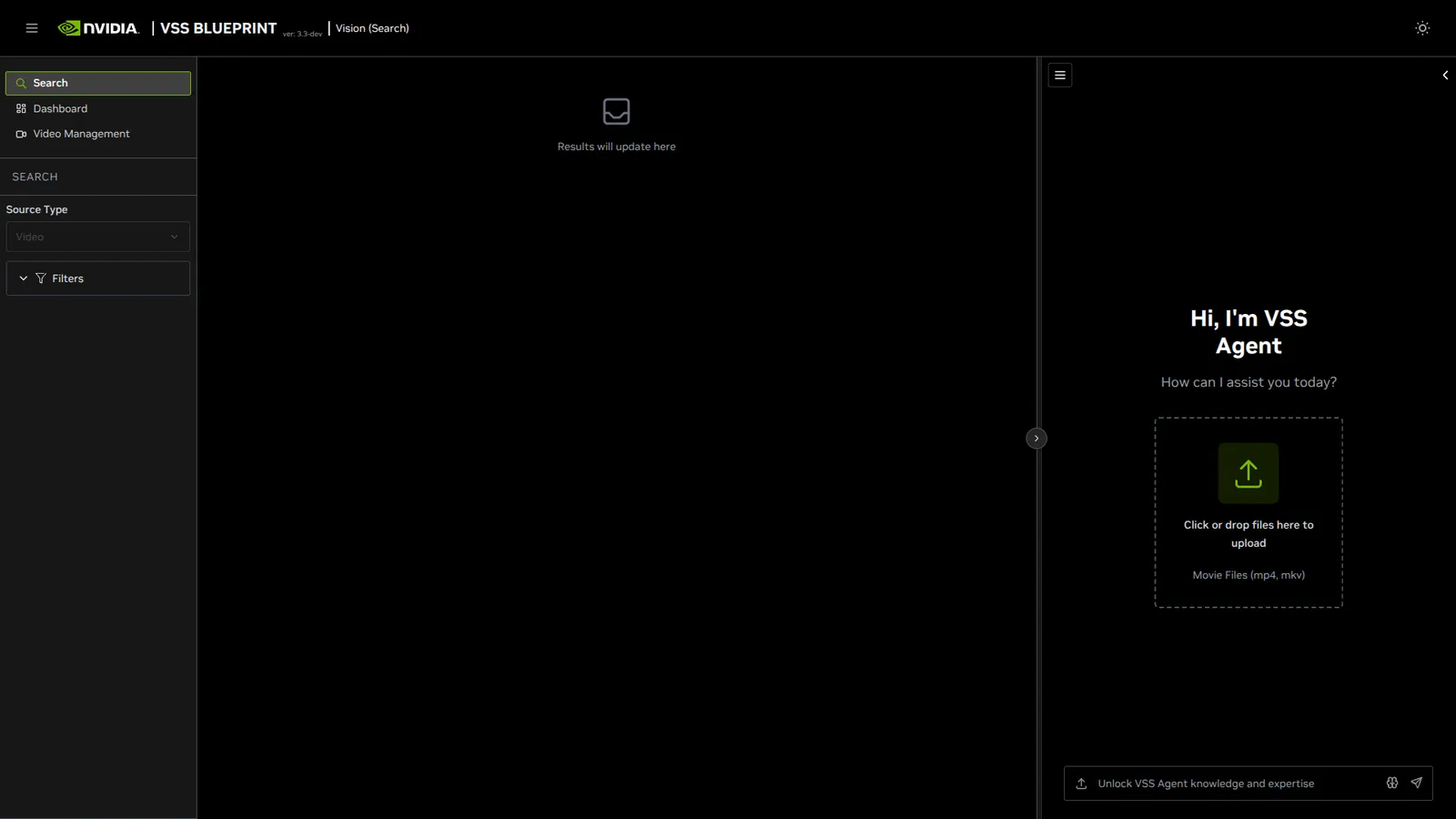
Toggle:
- Click the chat icon at the bottom-right corner of the screen to open.
- Click the minimize button on the left edge of the sidebar to close it.
- The sidebar is resizable by dragging its left edge (between 1/3 and 2/3 of the content area width)
Key Features:
- Natural language conversational interaction with the Vision Agent
- Video upload for agent analysis (drag-and-drop or click to browse; MP4, MKV supported)
- Context-aware queries — attach video clips from search results or alert metadata as context using the ”+ Chat” button on video cards or the “Generate Report” button in alert rows
- Agentic query results are reflected directly in the current tab’s content area (e.g., search results populate the Search Tab grid), if applicable.
- Chat history with new-conversation and folder-organization support
- Unseen response indicator (the Chat button turns orange) when responses arrive while the sidebar is collapsed
- Send applicable agent parameters (supported based on the deployed blueprint/profile) along with the query to the agentic backend service.
- Preserve the conversation context while working across multiple app tabs.
Chat Input
Type your question in the input box at the bottom of the sidebar. Press Enter or click the send button to submit the query to the Vision Agent. The agent processes the query and streams the response in real time.
For streamed responses, each answer card includes an “Insights” component that shows the intermediate steps of the agent’s reasoning as the response is generated.
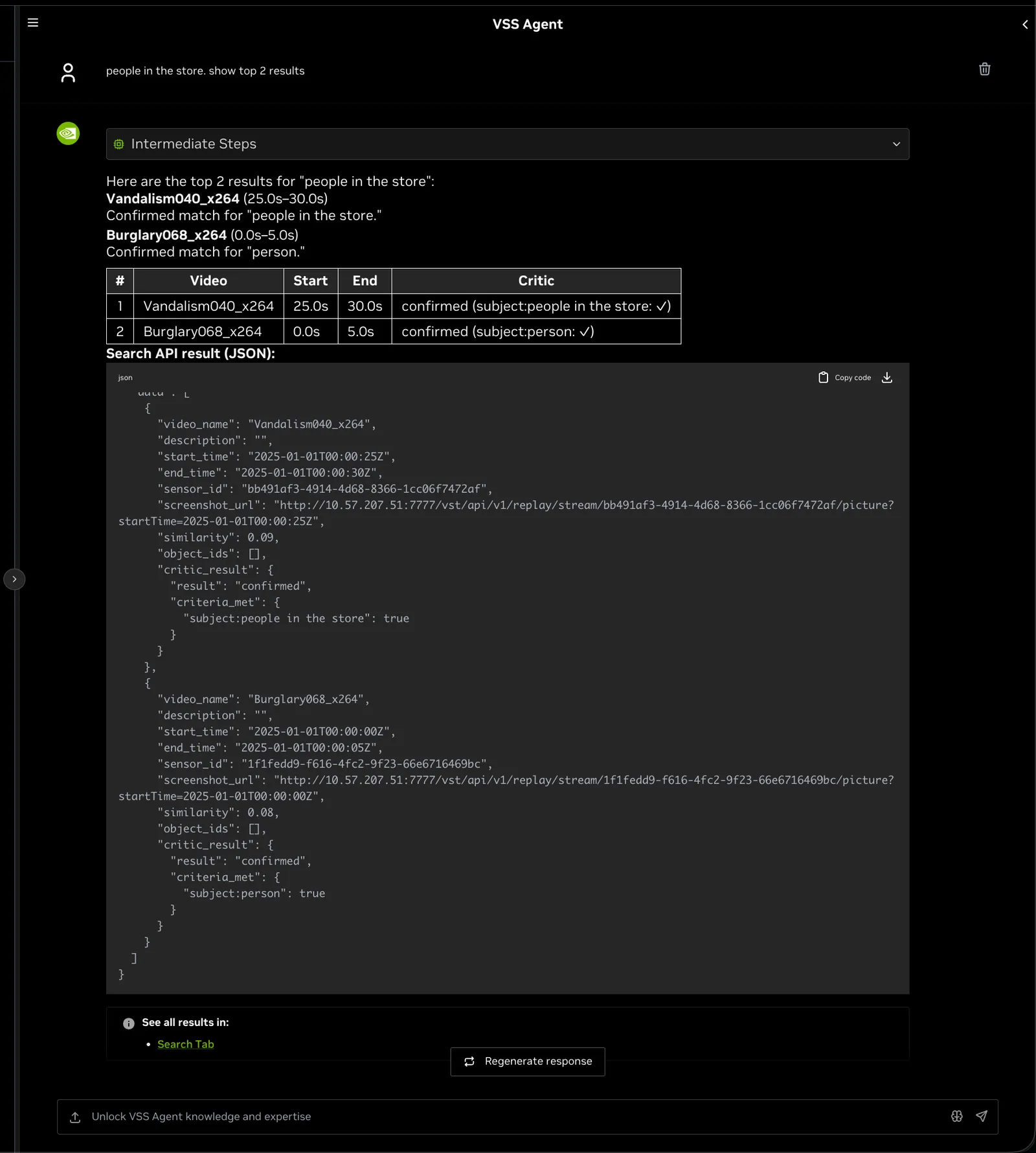
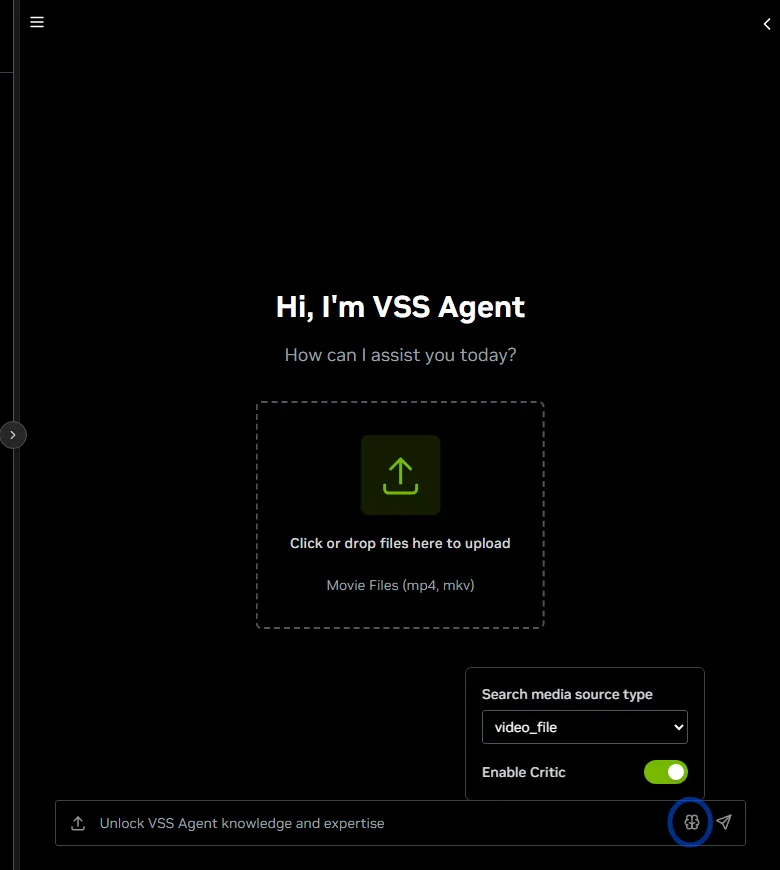
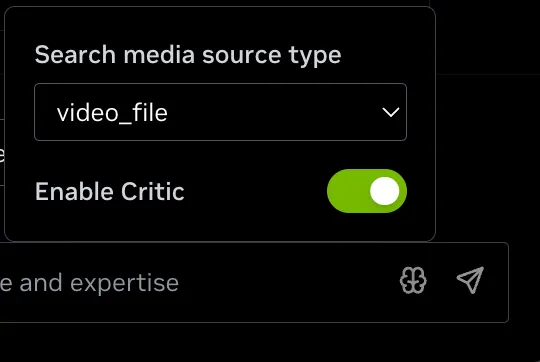
When the current deployment defines agent parameters, an Agent Parameters control appears in the chat input bar (to the left of the send button). Click it to open a popover, set the supported values, and submit your query. The selected parameters are sent with each request to the agentic backend service.
The available fields depend on the deployed blueprint or profile. For example, a search deployment may expose Search media source type and Enable Critic; a base profile may expose reasoning toggles. If no parameters are configured for the deployment, the control is not shown.
Configure sidebar agent parameters at deployment time with
NEXT_PUBLIC_SIDEBAR_CHAT_CHAT_API_CUSTOM_AGENT_PARAMS_JSON on the UI service.
Set the value to a JSON object with a params array. Each entry supports name, label,
type (boolean, string, number, or select), default-value, optional options for
select, optional changeable (defaults to true), and optional tooltip-info.
Video Upload
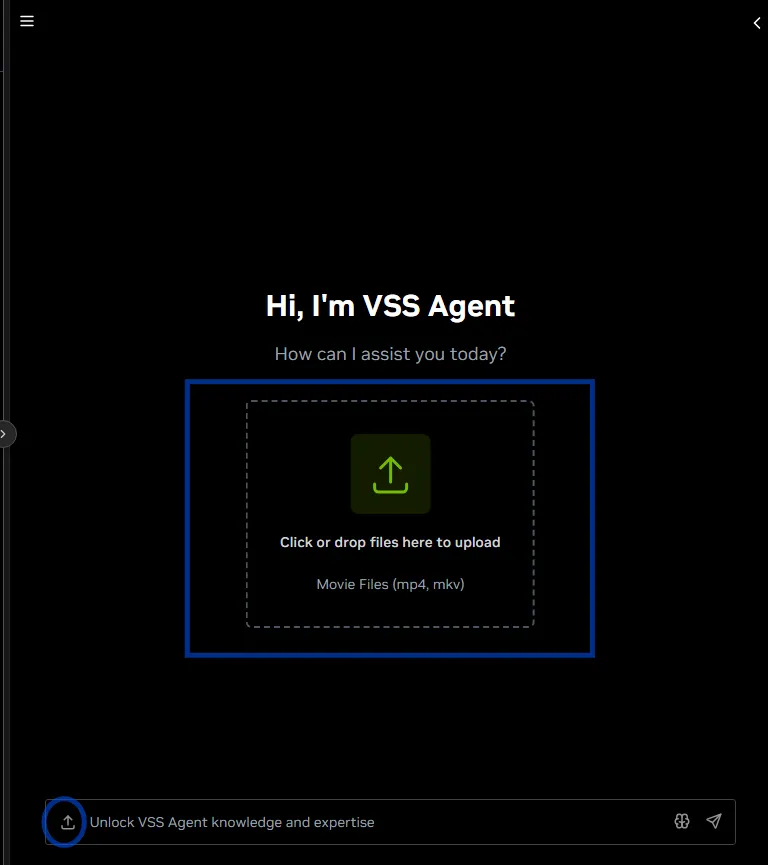
The Chat Sidebar supports uploading video files for analysis by the Agent.
- Drag and Drop: Drag video files directly into the upload area
- Click to Browse: Click the upload area to open a file browser
- Upload Button: Click the upload icon button next to the chat input box
- Supported Formats: MP4, MKV
After uploading, the agent can analyze the video content and answer questions about it.
Upload functionality through the Chat Sidebar will not be available if disabled in the deployment scripts.
Controls/Settings Panel
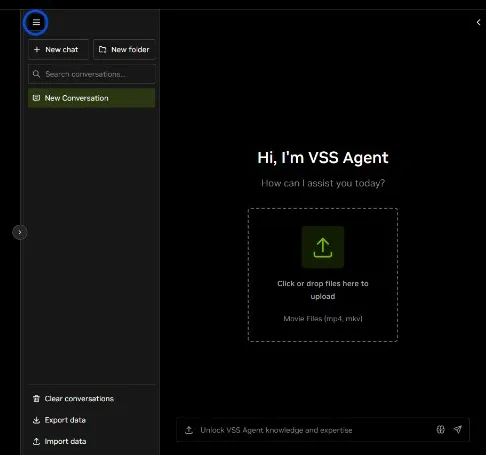
The collapsible left side panel inside the Chat Sidebar contains chat controls:
- New chat: Start a new conversation
- New folder: Create a new folder to organize conversations
- Search: Search through existing conversations
- Chat History: List of previous conversations (shows “No data” when empty)
- Export data: Export conversation data to a file
- Import data: Import (a previous exported) conversation data from a file
Interaction with Tabs
The Chat Sidebar integrates with different tabs: Example flows are:
- In the Search Tab, queries submitted through the sidebar trigger an agentic search, and matching video results populate the Search Tab’s content area. Use the ”+ Chat” button on video cards to attach clip context to the sidebar input (see + Chat Button).
- In the Alerts Tab, use the “Generate Report” button in an expanded alert row to send alert metadata to the Chat Sidebar for AI-powered analysis.
- Video/Sensor related context can be added to the chat input by clicking the ”+ Chat” button on video/sensor cards in the Search Tab, Video Management Tab.
Unseen Response Indicator
When a response arrives while the Chat Sidebar is collapsed, the round Chat button turns orange to indicate unseen content. Opening the Chat Sidebar marks the content as seen.
Tabs
1. Alerts Tab
The Alerts Tab provides a complete interface for monitoring, investigating, and managing AI-detected incidents. It is organized into two views accessible from the left sidebar:
- View Alerts — Real-time monitoring dashboard for viewing, filtering, and investigating detected incidents.
- Manage Alerts — Configuration interface for creating and managing real-time alert rules.
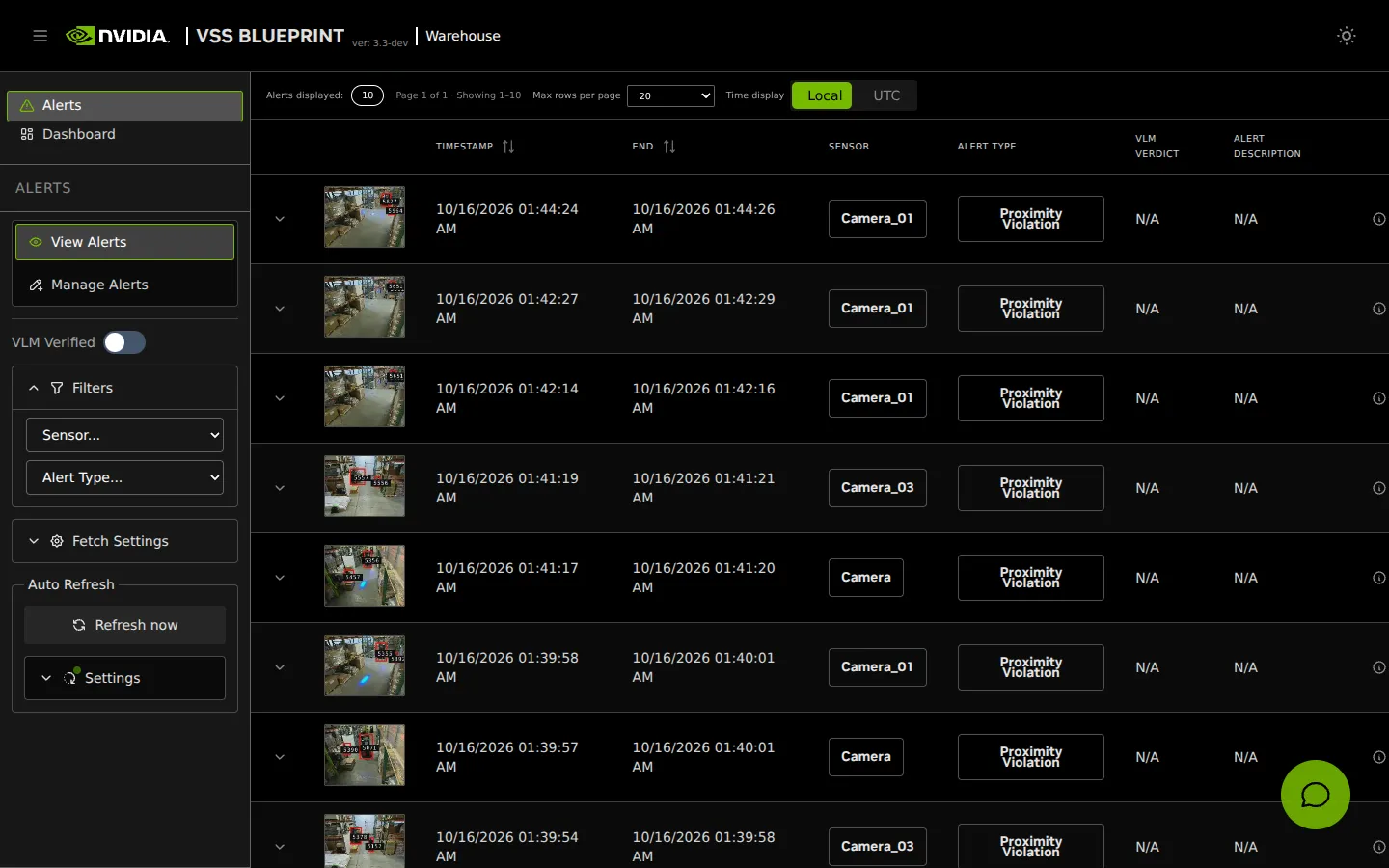
Key Features:
- [View Alerts] Sidebar navigation with View Alerts and Manage Alerts tabs
- [View Alerts] Advanced filtering (verification, verdict, sensor, type, trigger)
- [View Alerts] Configurable query range and fetch size via Alerts Settings
- [View Alerts] Sortable table with pagination and expandable metadata
- [View Alerts] Load More functionality for incremental data retrieval
- [View Alerts] Integrated video playback with optional bounding box overlay
- [View Alerts] Auto-refresh with configurable intervals
- [Manage Alerts] Real-time alert rule management (create, duplicate, delete)
- [Manage Alerts] CV Alerts Verification rule management (create, edit, duplicate, delete)
- Light/Dark theme support
Default Configuration:
These initial settings are configured via system environment variables:
Sidebar Navigation
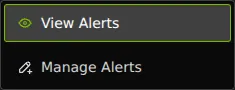
The left sidebar contains a vertical tab list with two tabs:
- View Alerts (eye icon) — Opens the alerts monitoring dashboard.
- Manage Alerts (pencil icon) — Opens the alert rules management interface.
The selected tab is persisted in the session, so it is preserved when navigating away and back.
When Manage Alerts is selected, a “Create alert rule” button appears below the tabs to quickly add a new rule.
View Alerts
The View Alerts panel is the primary monitoring dashboard. It consists of:
- Filter Controls — Left sidebar controls for verification, filters, fetch settings, and refresh
- Alerts Table — Sortable, paginated table with video playback and metadata
Filter Controls
VLM Verified Toggle
Filters alerts by VLM verification status:
- ON 🔵 = Show only VLM-verified alerts
- OFF ⚪ = Show all unverified alerts
Verdict Filter
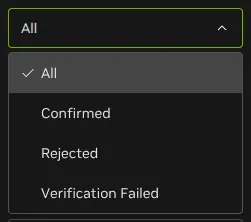
Visible only when VLM Verified is ON. Options:
- All
- Confirmed (true positives)
- Rejected (false positives)
- Verification Failed
Sensor / Alert Type / Alert Triggered
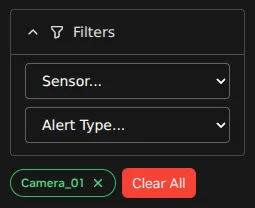
Two dropdowns in the left sidebar narrow the results:
- Open Filters, choose Sensor or Alert Type, and a filter tag appears below
- Click ✕ on a tag to remove it, or click Clear All
- Quick add: Click a sensor or alert type in the table to add it as a filter
Multiple filters use AND logic.
Alerts Settings
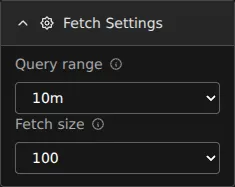
Expand Fetch Settings in the left sidebar:
Query Range:
Controls the time window for fetching alerts from the API.
- Preset options: 10 min (default) • 20 min • 30 min • 1h • 2h
- Custom: Select “Custom” to enter a specific duration. If a maximum search time limit is configured (via
NEXT_PUBLIC_ALERTS_TAB_MAX_SEARCH_TIME_LIMIT), the custom value will be capped accordingly. A value of0means unlimited.
Tip: Shorter query ranges load faster and reduce server load.
Fetch Size:
Controls the maximum number of alerts returned per API call.
- Preset options: 50 • 100 • 200 • 500 • 1000 • 2000 • 5000
- Custom: Select “Custom” to enter a value between 10 and 5000
Note: Higher fetch sizes may result in slower API responses. The fetch size also determines when the “Load More” button becomes available — if the API returns a batch equal to the fetch size, more data may be available.
Refresh Controls
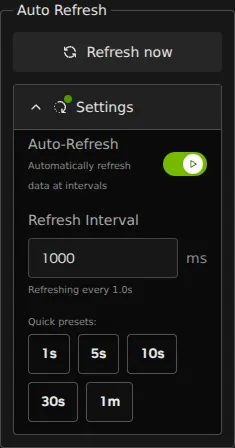
Refresh now reloads the alerts immediately.
Settings sets the auto-refresh interval. Presets are 1s, 5s, 10s, 30s, and 1min. A green dot on Settings means auto-refresh is on.
Best Practice: Use 1–5s intervals for active monitoring, 30s–1min to reduce load, and disable auto-refresh during detailed analysis.
Alerts Table
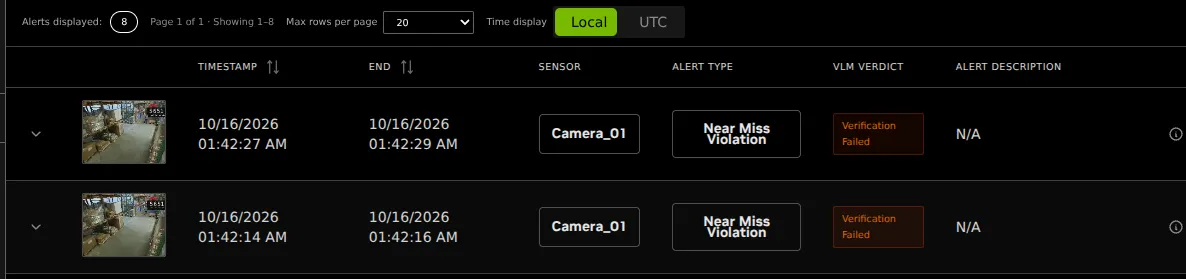
Table Toolbar
The sticky toolbar above the table header provides:
- Alerts displayed — Total count of alerts matching current filters
- Pagination summary — Shows “Page X of Y · Showing start–end” when pagination is active
- Rows per page — Control how many rows are displayed per page. Presets: 10 • 20 • 50 • 100 • 200 • 500, or enter a custom value (1–500)
- Time display — Toggle between Local time and UTC for timestamps shown in the table
Columns
Sorting
Click the Timestamp or End column headers to cycle through sort states:
- 1st click = Ascending ↑
- 2nd click = Descending ↓
- 3rd click = Reset to default ⇅
Pagination

The table supports client-side pagination:
- Page navigation — Previous/Next buttons and page number buttons with ellipsis for large page counts
- Rows per page — Adjustable from the table toolbar (presets: 10, 20, 50, 100, 200, 500, or custom 1–500)
- Auto-reset — The table automatically returns to page 1 when filters, query range, VLM settings, page size, or sort order change
Load More Alerts

When additional data may be available beyond the current fetch size, a “Load more alerts” button appears at the bottom of the last page.
- The button shows the batch size: “Load more alerts (up to N)”
- Clicking it fetches older alerts and appends them to the existing dataset
- Auto-refresh must be disabled to use Load More — a tooltip explains this when auto-refresh is active
- After loading more alerts, the table resets expanded rows and sort state while preserving the current view
How it works: The Load More function queries for alerts older than the earliest alert in the current dataset. Results are merged and deduplicated by alert ID.
Expandable Rows

Click ▼ or ⓘ to expand a row and view its Metadata section.
Available actions in expanded rows:
- Generate Report — Sends alert metadata to the Global Chat Sidebar for AI-powered analysis (available when a report prompt template is configured). The Chat Sidebar opens automatically with the alert context pre-filled, allowing follow-up questions about the incident.
- Copy Report Prompt — Copies a formatted template with metadata for AI analysis to clipboard
- Copy Metadata — Copies the complete JSON metadata for debugging or sharing
All copy actions show a visual confirmation.
Video Playback
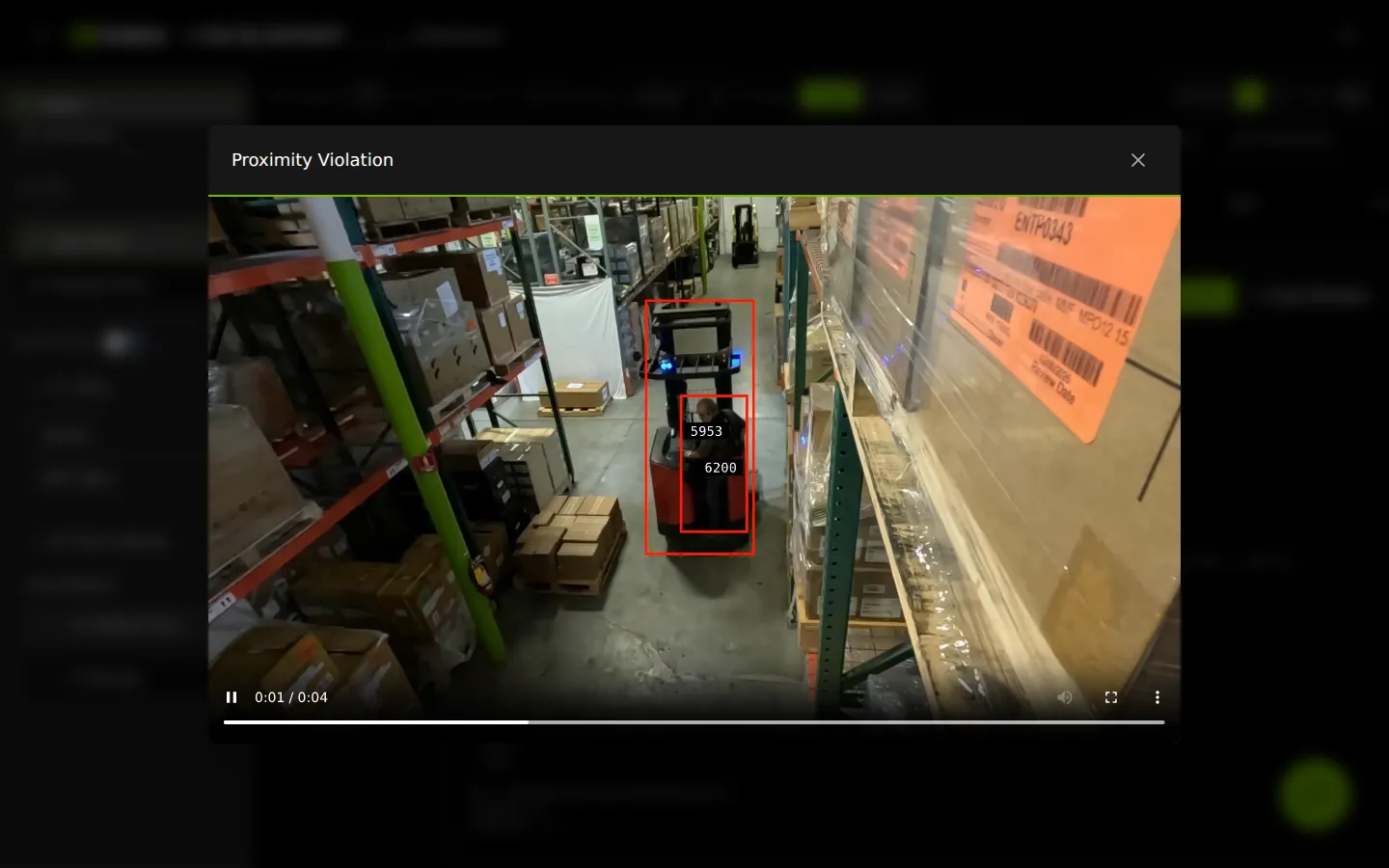
Click the thumbnail or play button to open a video modal with Play/Pause, seek bar, volume control, and fullscreen support.
Requires: Sensor mapping, VIOS service, and network connectivity.
Manage Alerts
The Manage Alerts view creates and manages alert rules. It has two subtabs: Real-time Alerts and CV Alerts Verification. Each subtab can be enabled based on the requirements of the deployed profile. For example, the DevX Alerts RealTime profile uses only the VLM backend, so alert rules from the Real-time Alerts subtab are the ones that apply. The DevX Alerts Verification profile also uses the Video Analytics backend, which can use alert rules from the CV Alerts Verification subtab.
Requirements: The Manage Alerts feature requires the Alerts API URL to be configured (NEXT_PUBLIC_ALERTS_API_URL). Without this, the view will display an error.
Real-time Alerts
Real-time Alerts configure the alert bridge service to detect specific events on live video streams.
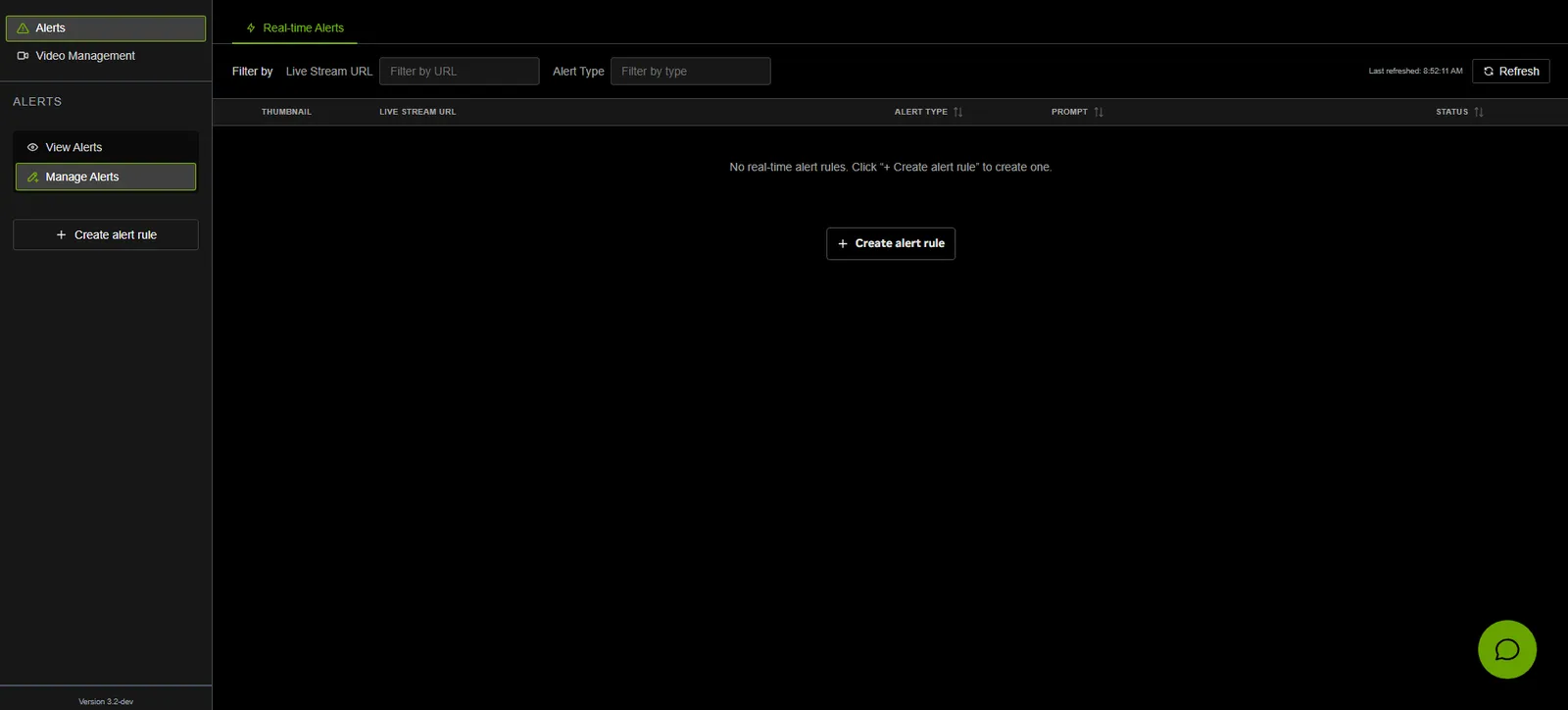
Filter and Refresh

The filter bar provides text-based filtering for the rules table:
- Live Stream URL — Filter rules by stream URL (substring, case-insensitive)
- Alert Type — Filter rules by alert type (substring, case-insensitive)
- Refresh — Click to reload the rules list from the API
Alert Rules Table
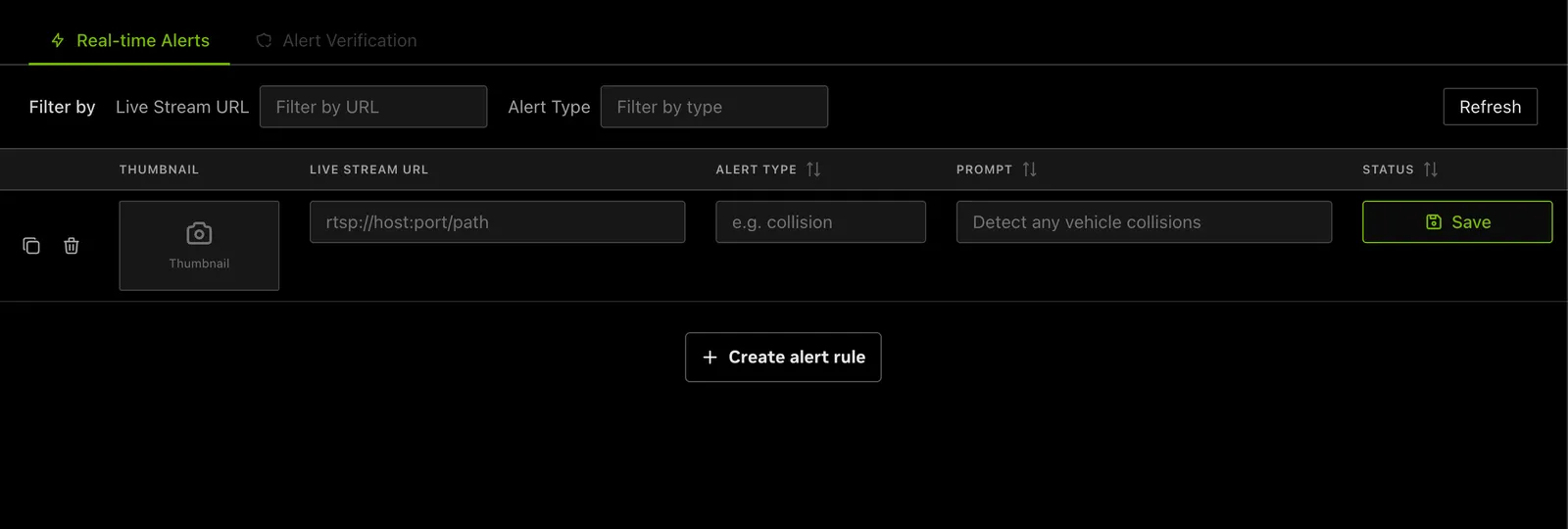
The table displays all configured real-time alert rules with the following columns:
Sorting: Saved rules can be sorted by Alert Type, Prompt, or Status columns using the three-state sort cycle (ascending → descending → reset).
Creating Alert Rules
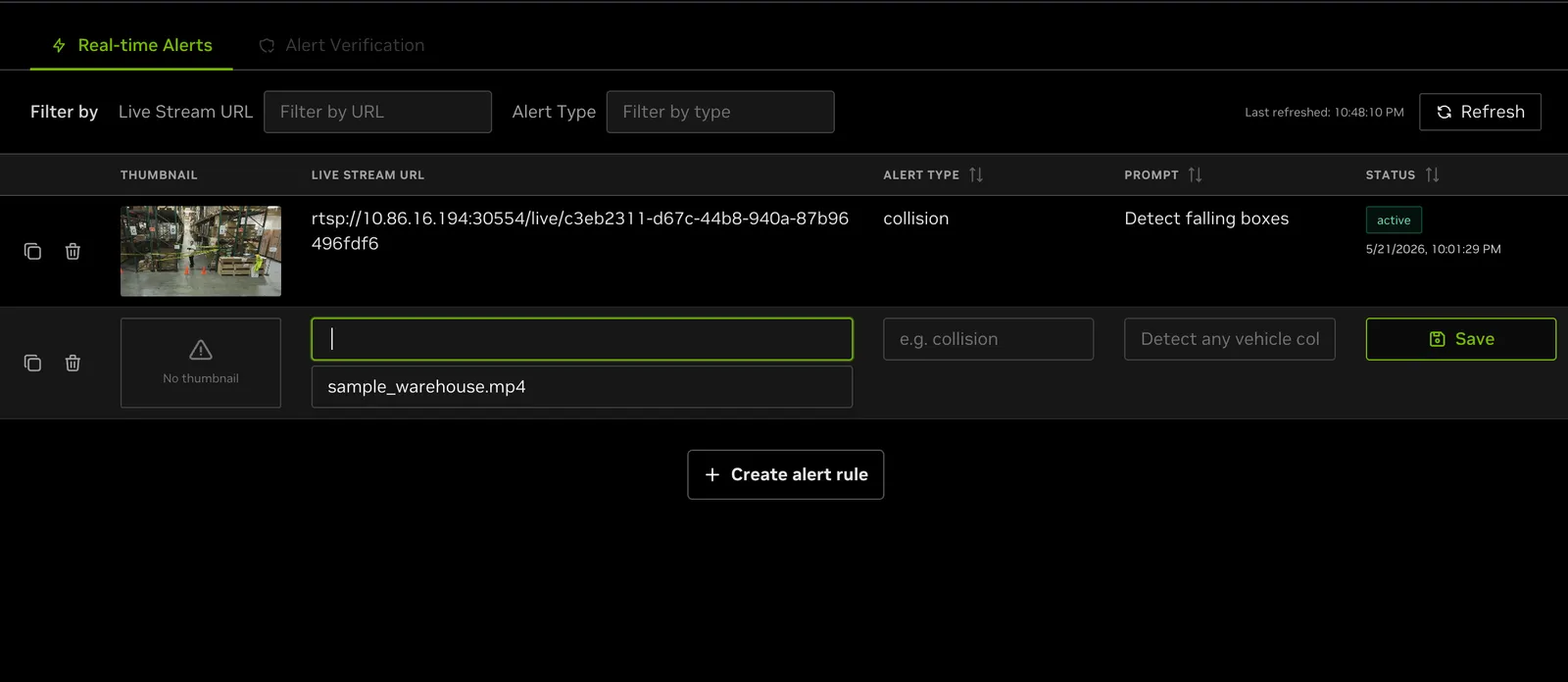
There are two ways to create a new alert rule:
- Sidebar button — Click “Create alert rule” in the left sidebar (visible when Manage Alerts tab is active)
- Inline button — Click “Create alert rule” at the bottom of the rules table
Both actions add a new draft row at the bottom of the table with editable fields:
- Live Stream URL (required) — A sensor picker (combobox) populated from VIOS’s live-stream catalog. See Picking a sensor below.
- Alert Type (required) — Specify the alert classification
- Prompt (required) — Describe what the rule should detect
Click Save to submit the rule to the alert bridge API. The UI looks up the selected sensor name in the catalog, attaches the resolved RTSP URL, and posts the rule.
Picking a sensor
When you click ”+ Create alert rule” (or duplicate an existing row), the UI immediately calls GET /v1/live/streams on VIOS to fetch the current catalog of registered live streams. Each catalog entry carries the friendly sensor name, its RTSP URL, and the VIOS stream id. The catalog is not cached — every ”+ Create alert rule” click fetches it fresh, so sensors registered in VIOS (for example, after uploading a new video through NVStreamer or the VIOS UI) appear in the dropdown right away.
In the draft row’s Live Stream URL column:
- Click the input to open a dropdown listing every sensor returned by VIOS.
- Type to filter — the list narrows to entries whose name contains what you’ve typed (case-insensitive).
- Click a suggestion, or use ↑/↓ and Enter to pick one. Escape closes the dropdown.
- After selection, the chosen sensor’s RTSP URL is shown as a hint below the input so you can verify you picked the right one.
The dropdown shows friendly names (for example, warehouse-cam-1 or sample_warehouse.mp4), not URLs. You never need to copy/paste an RTSP URL — the UI resolves it from VIOS and sends it with the rule.
Custom sensor names
You can also type a sensor name that is not yet in the VIOS catalog (for example, a stream you plan to register later). The UI shows a “Not in VIOS catalog — will be created against this sensor name” hint below the input and forwards only the sensor name to the alert bridge; the alert bridge decides whether to accept the rule.
Empty state: When no rules exist, the table displays instructions to use the “Create alert rule” button to get started.
Deleting Alert Rules
To delete a saved rule:
- Click the trash icon in the Actions column
- The icon changes to a confirm/cancel pair
- Click the checkmark to confirm deletion, or the X to cancel
Draft rows that have not been saved can be removed by clicking the Discard button.
CV Alerts Verification
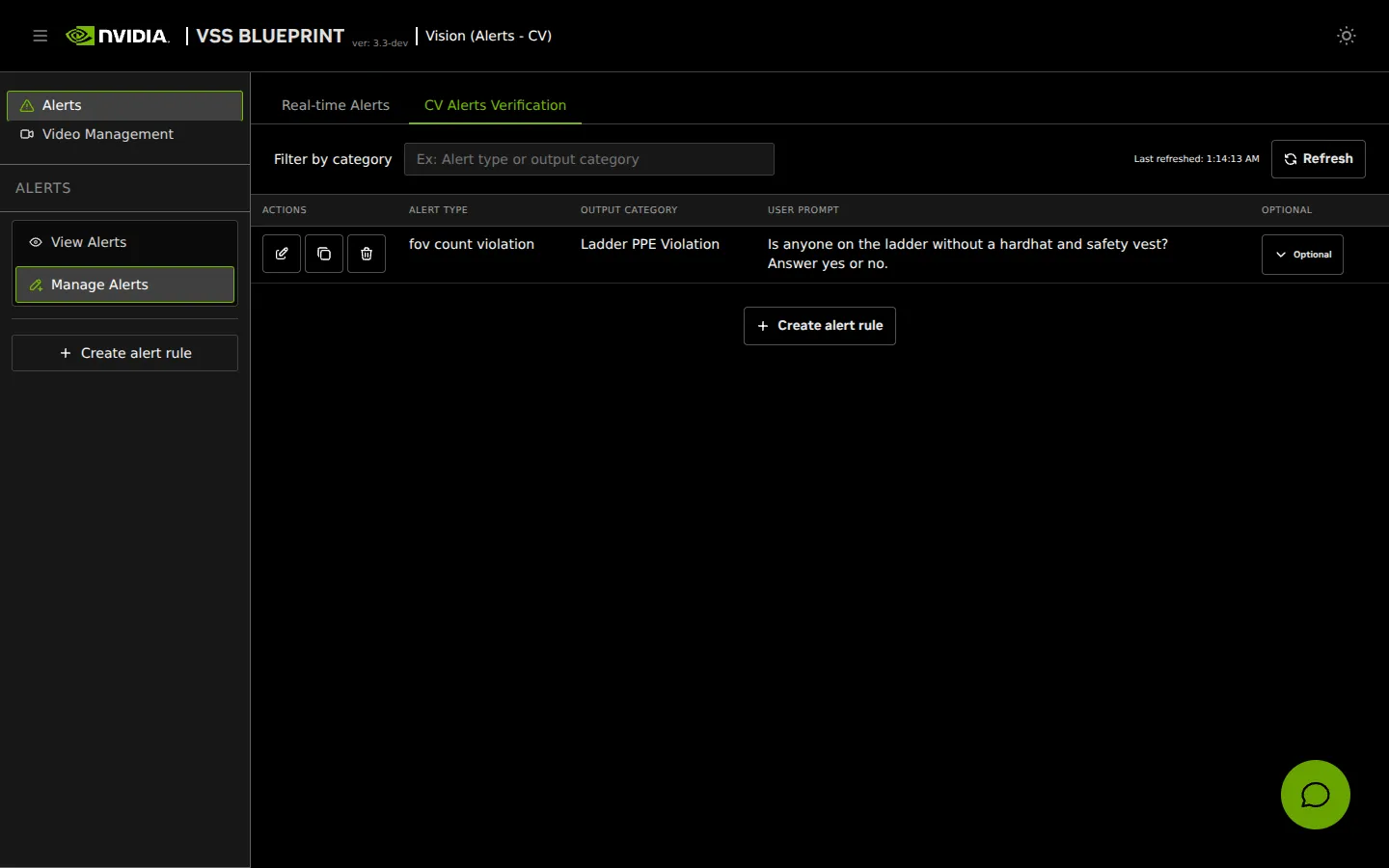
Open Manage Alerts, then select CV Alerts Verification.
Filter by category narrows the table by alert type or output category. Refresh reloads the rules.
To create a rule, click Create alert rule in the left sidebar or at the bottom of the table. Fill Alert Type and User Prompt, then click the save icon. Output Category can be left empty.
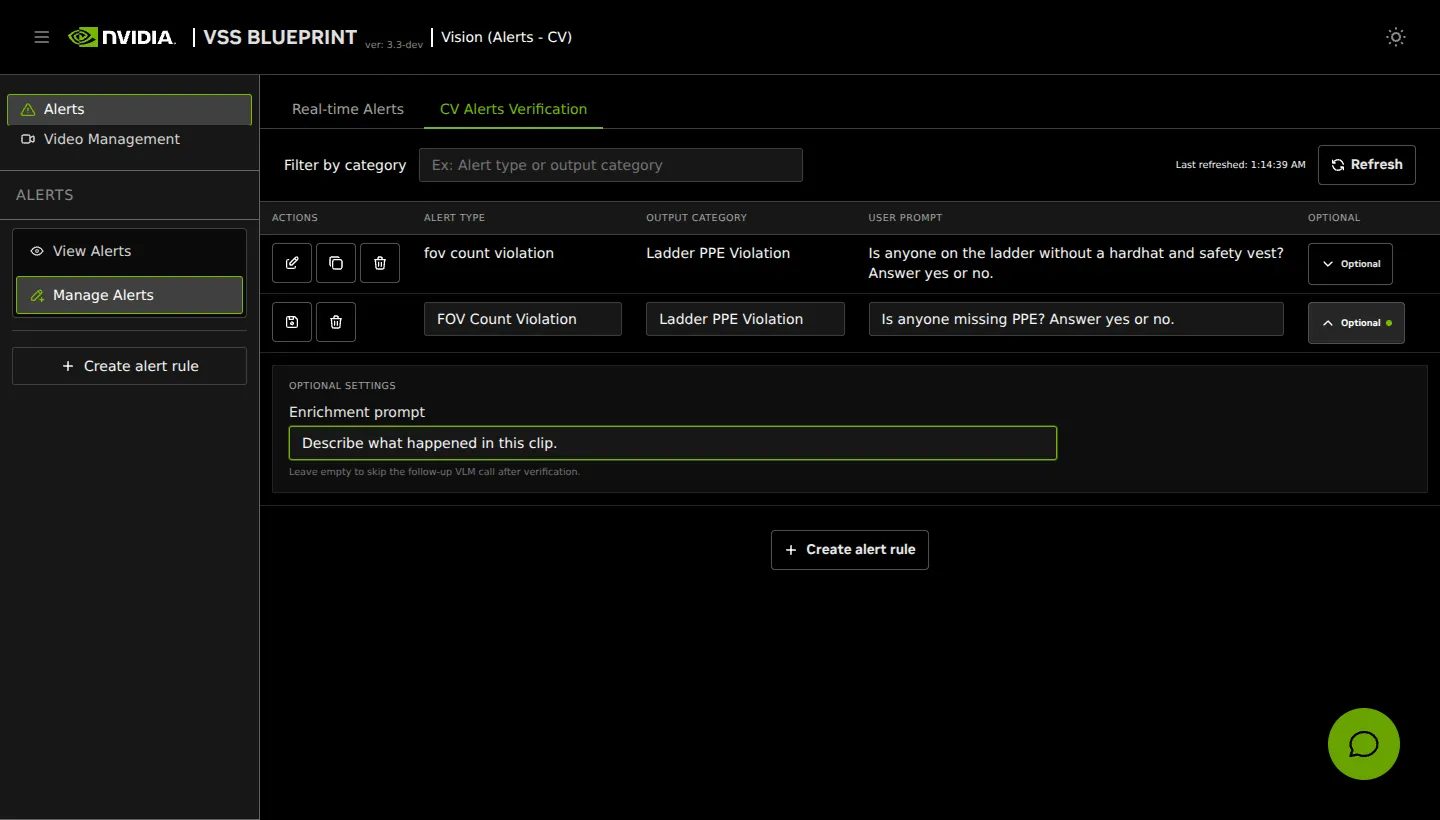
Expand Optional to set an Enrichment prompt. Leave it empty to skip the follow-up VLM call after verification.
Alert Type and User Prompt are required. After a rule is saved, edit can change the output category, user prompt, and enrichment prompt. Alert Type stays read-only. Duplicate copies the rule into a new draft.
2. Dashboard Tab
This tab shows the Kibana dashboard for the blueprint that it is deployed on.
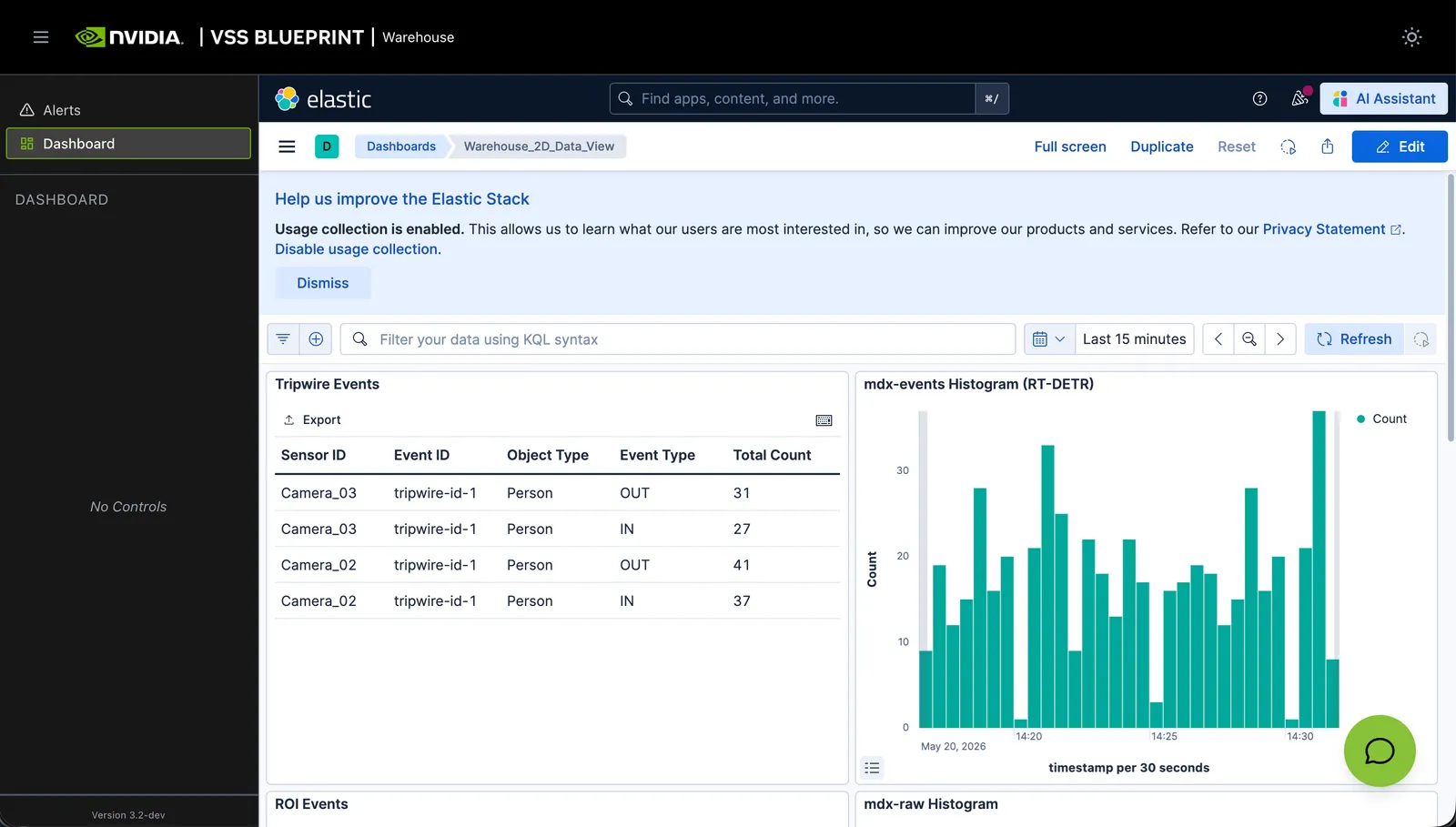
Blueprint deployments typically include a pre-configured Kibana dashboard (as shown above).
Refer to the Kibana documentation for usage details.
3. Search Tab
Search Tab displays video clips returned by the Vision Agent. Submit natural language queries in the Chat Sidebar; matching clips populate the results grid. Metadata filters refine those agent results.
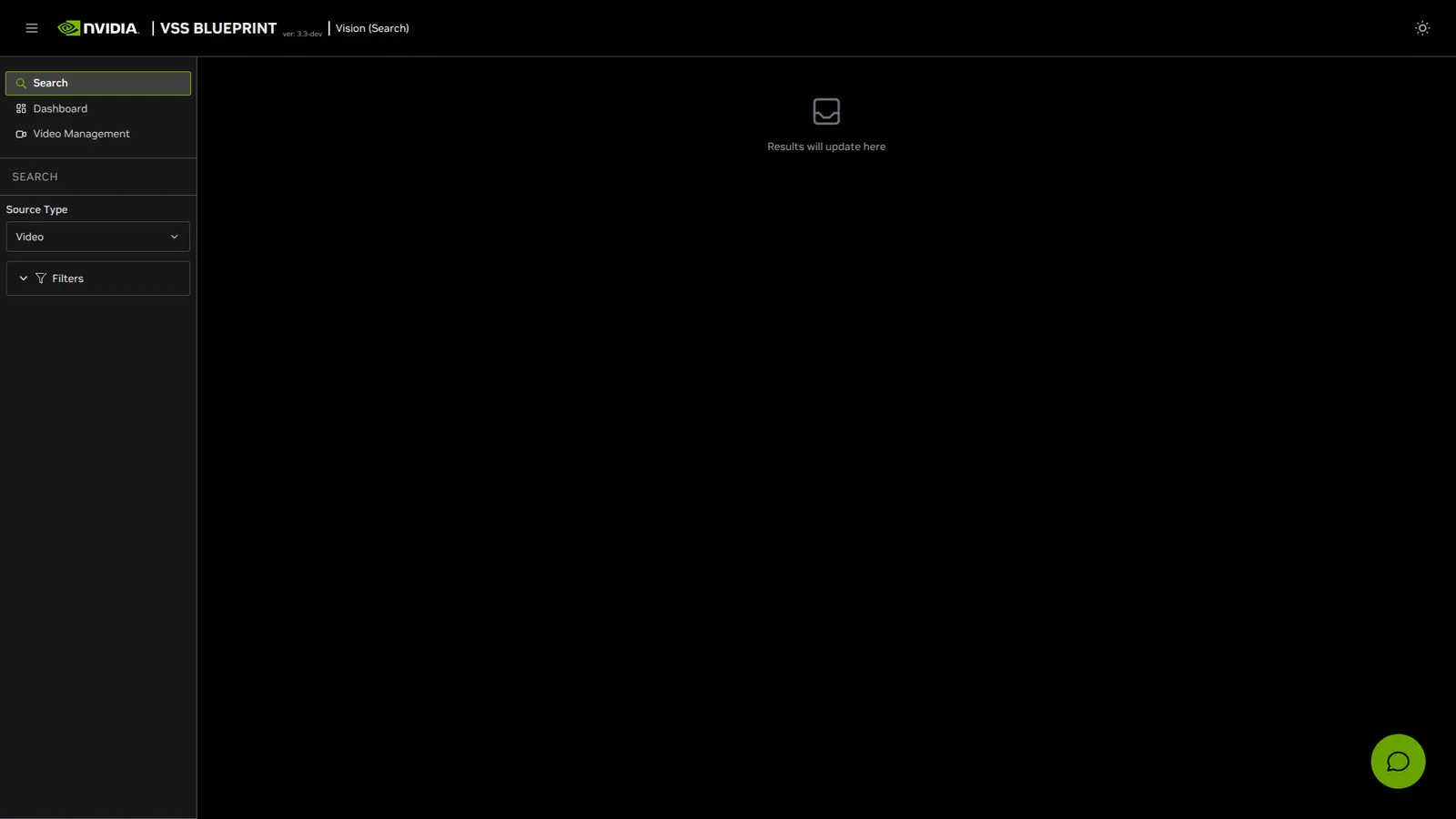
Key Features:
- Natural language video search through the Chat Sidebar
- Filtering of agent results with advanced filter options
- Configurable result count (Top K) for performance optimization
- Advanced filtering: sensors and similarity threshold
- Local timezone handling for accurate time display
- Auto-refresh when switching between tabs
- Interactive filter tags with quick remove functionality
- Video results displayed as responsive grid cards with thumbnails
- Integrated video playback modal with full controls
- Collapsible Chat Sidebar for direct agent interaction within the Search Tab
- Search by Image — select detected objects from paused video frames and find similar objects across cameras
Main Sections:
This guide covers the primary interface components:
- Search Controls - Filter button
- Filter Options - Advanced filtering popover with sensors, similarity threshold, and result count
- Filter Tags - Visual display of active filters with quick remove functionality
- Video Results - Responsive grid of video cards with thumbnails, time ranges, and metadata
- Chat Sidebar - Collapsible agent chat panel with video upload and conversational search
- Search by Image - Object-based visual search from paused video frames across all streams
Search Controls
Search results are produced only by queries sent through the Chat Sidebar. The Search Tab main content area has no query input box; the filters below refine the clips the agent already returned.
Filter Options
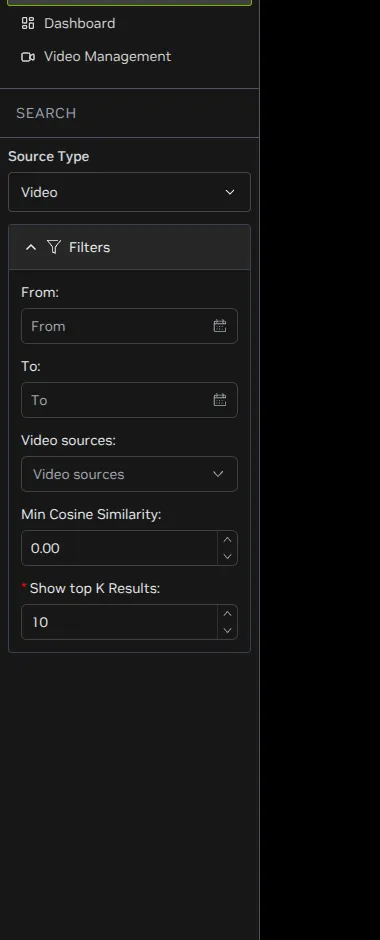
Click Filters in the left sidebar to expand the advanced filtering options. Changes apply as you edit the fields. Click Filters again to collapse the panel.
Filter options are only available when the Chat Sidebar is collapsed. When the Chat Sidebar is open, the Filter button and existing filter tags are disabled.
The filter popover provides the following options:
Video Names
Multi-select dropdown to filter video names.
- Select one or multiple video names from the list
- Video names are fetched from the VIOS API
Min Cosine Similarity
Set a minimum similarity threshold to filter results by relevance score.
- Range: -1.00 to 1.00
- Higher values (e.g., 0.80) return more relevant matches
- Lower values (e.g., 0.20) return broader results
- Value is automatically rounded to 2 decimal places
- Default: No minimum threshold (returns all results)
Show top K Results
Specify the maximum number of search results to display.
- Required field - Must have a value
- Minimum: 1 result
- Default: 10 results
- Enter any positive integer based on your needs
- If the field is left empty when closing the popover, it automatically resets to the default value of 10
- Show top K Results stays in the filter panel and is not displayed as a tag
Filter Tags
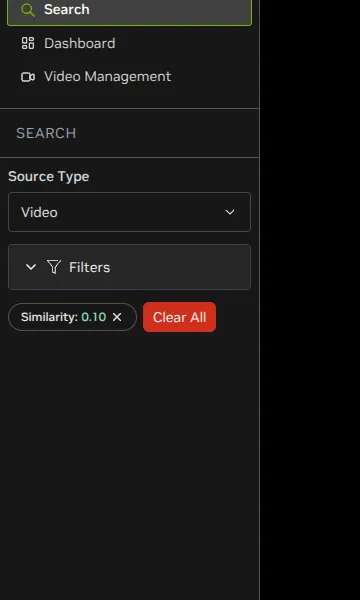
Active filters are displayed as tags below the filter control:
- Click ✕ on any tag to remove that filter and reset it to the default
- Click “Clear All” to remove all removable filters at once
- Tags display: Video names (sensors) and Min Cosine Similarity
- Show top K Results remains in the expanded filter panel and is not displayed as a tag
Video Results
Search results are displayed as a responsive grid of video cards.
Video Card
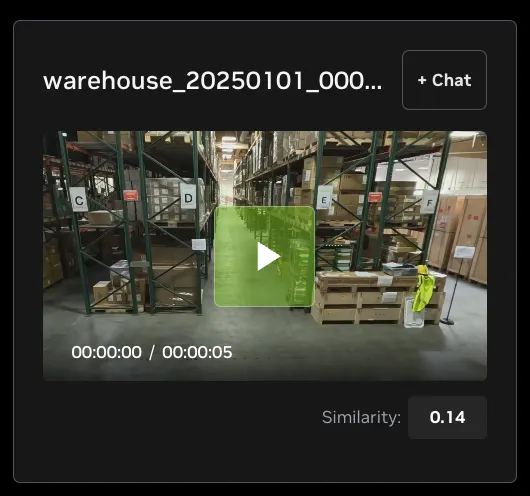
Each video card displays:
+ Chat Button
Each video card includes a ”+ Chat” button in the top-right corner, next to the video name. This button lets you attach a specific video clip as context to the Chat Sidebar, enabling follow-up questions about that clip.
How it works:
- Click the ”+ Chat” button on a video card.
- The clip’s sensor context (video name, start time, end time) is added as a context chip in the Chat Sidebar input.
- The button briefly changes to ”✓ Added” for 2 seconds to confirm, then reverts to ”+ Chat”.
- Type a follow-up question in the Chat Sidebar that references the attached clip (e.g., “Describe what is happening in this video” or “Are there any safety violations?”).
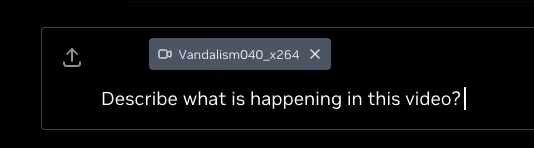
States:
The + Chat button adds the video clip as a context reference — it does not automatically send a message. After adding context, open the Chat Sidebar and type your question. Multiple clips can be added as context before sending a query.
Video Playback
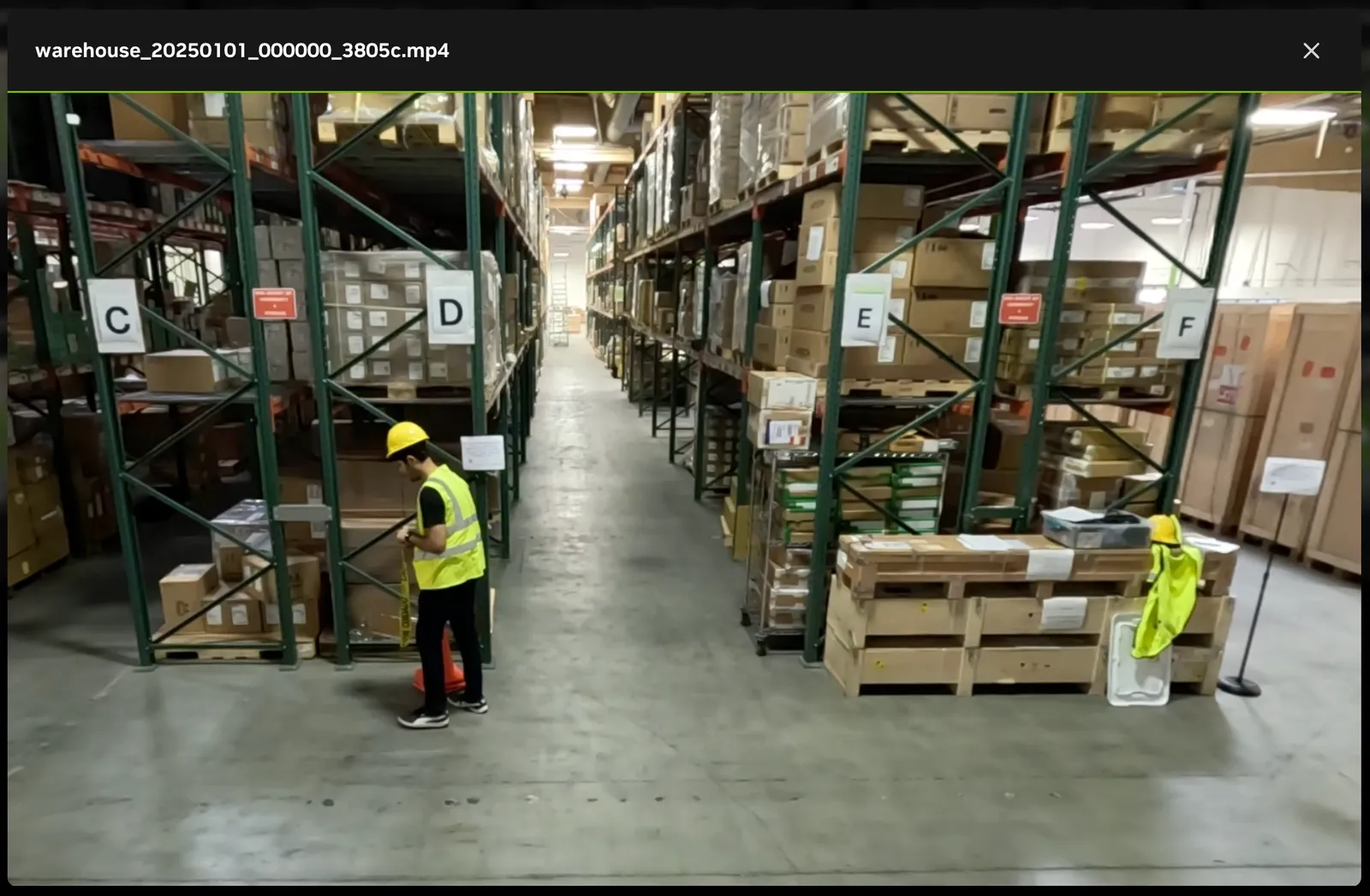
Click the play button or thumbnail to open the video playback modal with:
- Play/Pause controls
- Seek bar
- Volume control
- Fullscreen option
- Search by Image button (appears when video is paused, if enabled)
Requires: VIOS service connectivity and proper sensor configuration.
Chat Sidebar
The Search Tab includes the Global Chat Sidebar on the right side, providing direct access to the Vision Agent without leaving the search interface. Refer to the Global Chat Sidebar section for full feature details (video upload, chat controls, settings, etc.).
Toggle:
- Click the round Chat button at the bottom right to open the sidebar, and the chevron button (Collapse Chat sidebar) on its left edge to close it
- The sidebar is resizable by dragging its left edge (between 1/3 and 2/3 of the content area width)
- Default width: 380px
Interaction Modes:
When the Chat Sidebar is open, or when it is collapsed while an agent query is executing, filters and filter tags are disabled. Users search only through the Chat Sidebar; the agent’s responses populate the search results grid.
Example
Type a natural-language query in the Chat Sidebar and the agent will run a search and fill the results grid. For example, ask “person with yellow hat carrying boxes”; the agent interprets the query, runs the search, and matching video clips appear in the main area. The screenshot below illustrates this flow: the query in the chat and the corresponding search results (e.g. thumbnails and clips) shown in the grid.
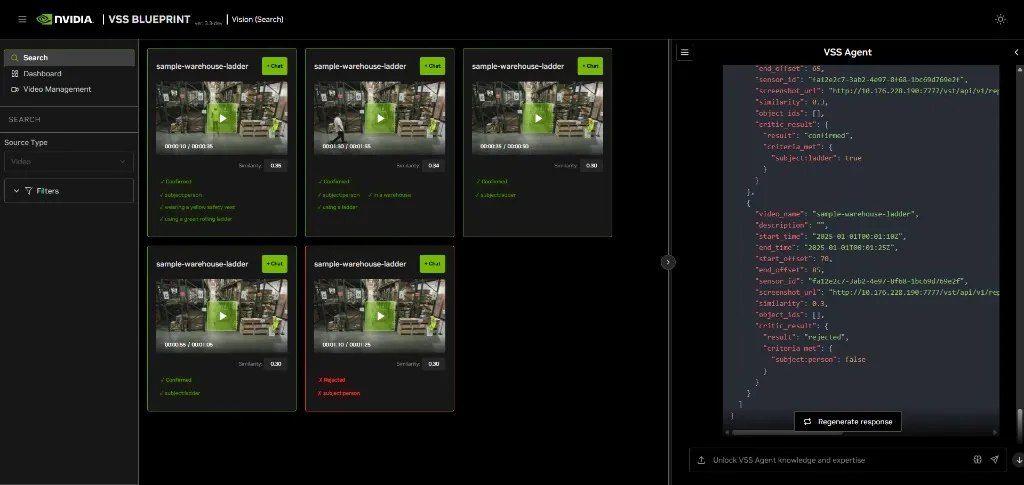
When the Chat Sidebar is collapsed and no query is in flight, filters and filter tags are re-enabled so you can refine the current agent results.
Unseen response indicator:
When a response to a query is unseen and the Chat Sidebar was closed, the round Chat button at the bottom right turns orange and pulses once the new response is generated to indicate unseen content. Opening the Chat Sidebar marks the content as seen and the button returns to its usual color.
Agentic Query Results
When a query is submitted through the Chat Sidebar, the agent’s response can populate video results directly in the Search Tab’s main content area. The agent interprets the natural language query, executes a search, and matching video clips appear in the results grid alongside the chat response.
At the bottom of the agent’s response in the Chat Sidebar, a “See all results in: Search Tab” link is displayed. When the user is on a different tab (e.g., Alerts, Video Management), clicking this link navigates back to the Search Tab and displays the query results.
Critic Verification
When the Critic Agent is enabled and has run for a search request, search result cards display verification details for each evaluated clip. The Critic Agent uses a VLM (Vision Language Model) to verify whether each search result actually matches the user’s query.
Users can toggle the critic agent on or off per query using the Enable Critic toggle in the Chat Sidebar settings.
When the critic agent has run, the search result cards show the verification outcome:
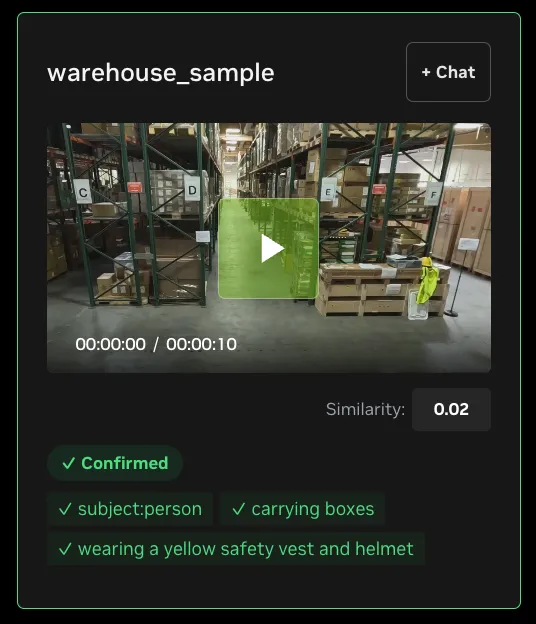
Result Card Indicators:
Each evaluated result card shows the critic verdict through visual cues:
Sorting Behavior:
When critic results are present, search results are automatically re-sorted by verdict before similarity:
- Confirmed results appear first
- Unverified results appear second
- Rejected results appear last
Within each verdict group, results are ordered by descending similarity score. When the critic agent did not run for the request, results retain their original similarity ordering.
The Critic Agent runs by default. Turn it off for an individual query with the Enable Critic toggle in the chat settings; the choice is made per request rather than at deployment time. See Critic Agent Overview for more details.
Search by Image
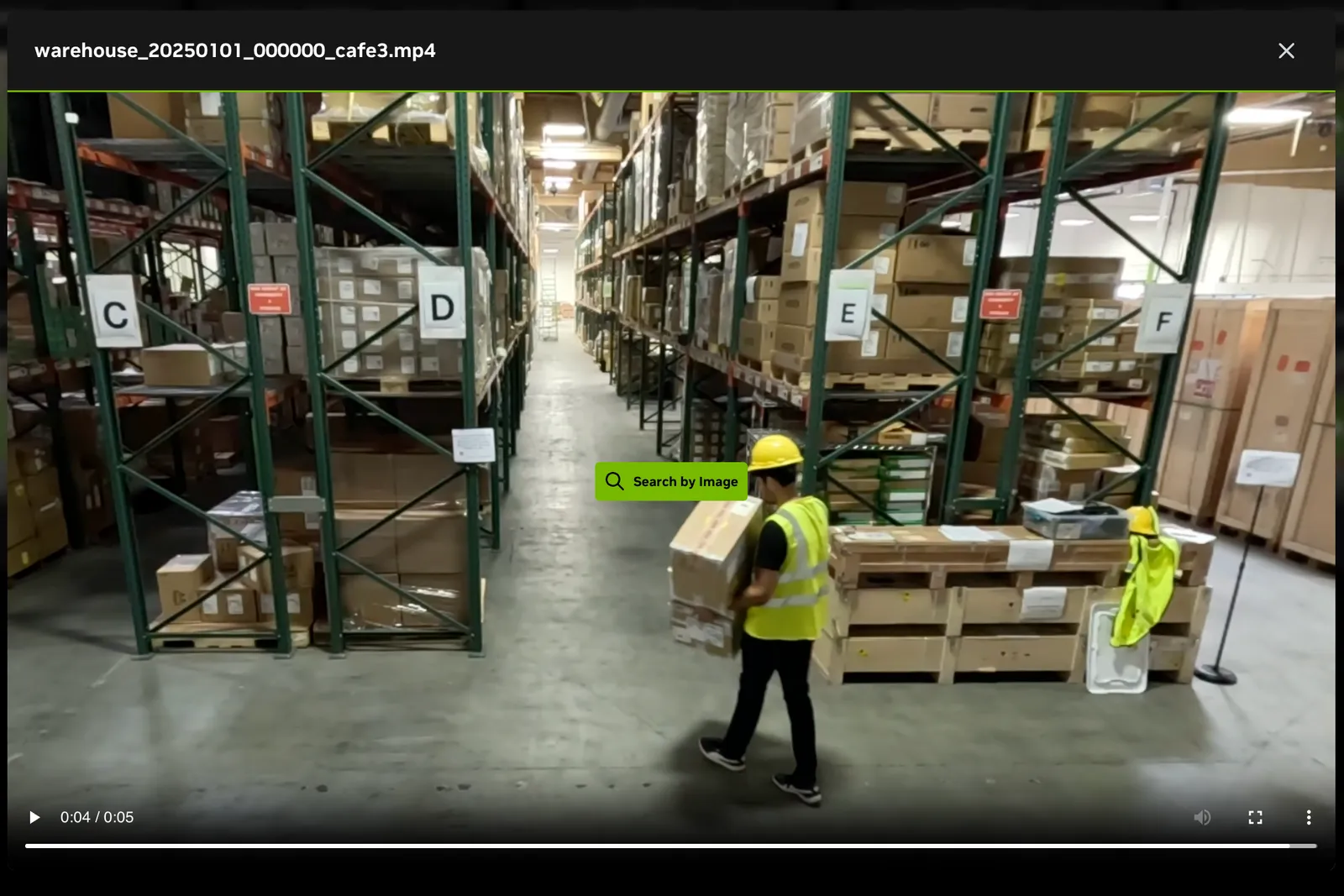
Search by Image allows you to select a detected object from a paused video frame and perform an agentic search for visually similar objects across all cameras and video streams.
Search by Image is only available when the mediaWithObjectsBbox option is enabled in the deployment configuration. This feature requires the Video Analytics Web API (/frames endpoint) and VIOS Picture API to be deployed and accessible.
How to Use:
- Play a video — Click on a video card from the search results to open the video playback modal.
- Pause the video — Pause playback at the frame containing the object of interest. A “Search by Image” button appears in the center of the paused video.
- Enter Search by Image Mode — Click the “Search by Image” button. The system fetches the still frame and any detected bounding boxes from the backend.
- Select an object — Click on a bounding box to select the target object. The selected box is highlighted in green. An info bar below shows the selected object ID and type.
- Execute the search — Click the “Search” button in the info bar to find similar objects across all streams. The agent will process the query and return matching results.
- Cancel — Click “Cancel” in the info bar or close the modal to exit Search by Image mode.
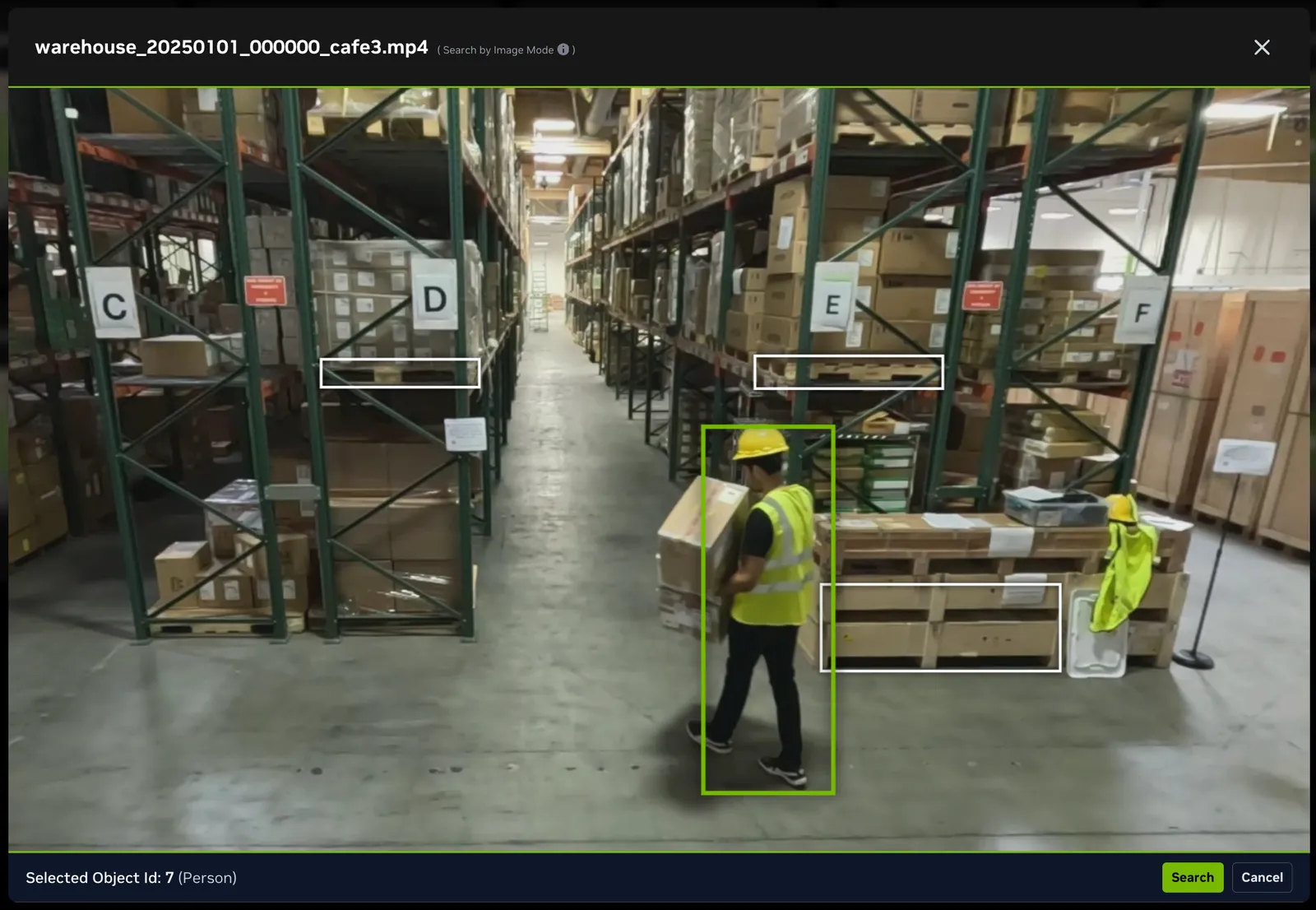
Search by Image Overlay:
When Search by Image mode is active, the video is replaced by a still frame with bounding boxes drawn around detected objects:
Info Bar States:
- No objects detected — Displays “No bounding boxes detected in this frame”
- Objects available, none selected — Displays “Select one to search for similar object embeddings across views/cameras”
- Object selected — Displays the object ID and type (e.g.,
Person,Pallet) with a “Search” button
Search Execution:
When you click “Search” after selecting an object, the system:
- Sends a query to the Vision Agent:
Find similar objects matching object_id=<selected_id> - Closes the video modal
- Displays matching results in the search results grid, showing video clips where similar objects were detected across different cameras/streams
For best results, pause the video at a frame where the object of interest is clearly visible and the bounding box accurately covers the object.
4. Video Management Tab
Video Management Tab provides an interface for managing video streams, including uploaded video files and live RTSP camera feeds.
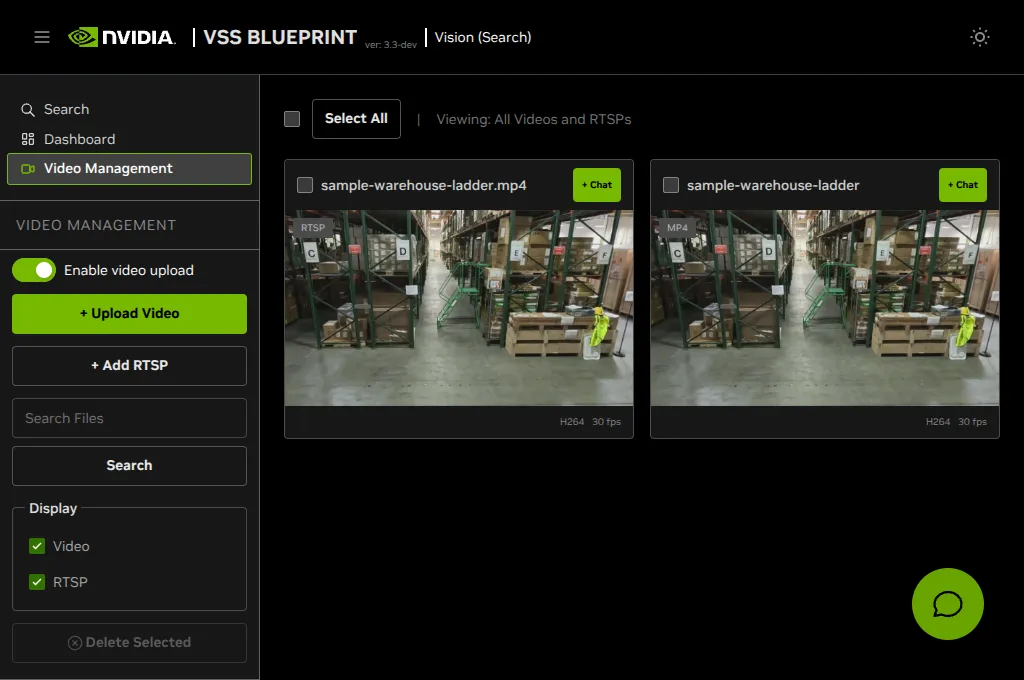
Key Features:
- Upload video files (MP4, MKV formats)
- Optional upload configuration fields (if configured via system settings)
- Add live RTSP camera streams
- Grid view of all streams with thumbnails
- Search and filter streams by name and type
- Bulk selection and deletion of streams
- Real-time upload progress tracking
- Stream metadata display (codec, framerate)
Main Sections:
This guide covers the primary interface components:
- Sidebar Controls - Search, filter, upload, and bulk operations
- Streams Grid - Visual display of all video and RTSP streams
- Video Upload - Upload files with optional configuration fields
- RTSP Management - Add and manage live camera feeds
Sidebar Controls
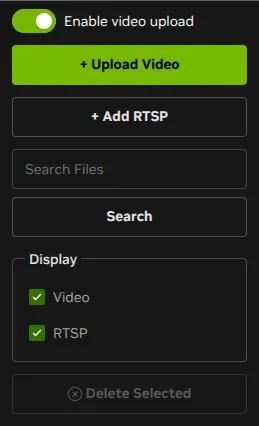
The left main sidebar provides quick access to common operations:
Search Bar
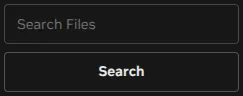
Type a search query to filter streams by name. Click the search button or press Enter to apply the filter.
Filter Toggles
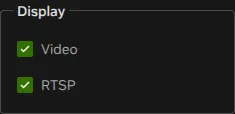
Checkboxes show or hide specific stream types:
- Show Videos - Display uploaded video files
- Show RTSPs - Display live RTSP camera streams
Both checkboxes are enabled by default. Clear either checkbox to filter the view.
Upload Video / Add RTSP Buttons
- Upload Video - Opens the video upload dialog for uploading video files
- Add RTSP - Opens the RTSP stream configuration dialog for adding live camera feeds
The Enable video upload switch next to these buttons shows or hides the Upload Video button, and the drop zone shown when the tab is empty. Turning it off does not hide videos that were already uploaded. The switch starts in the position set by NEXT_PUBLIC_VIDEO_MANAGEMENT_VIDEO_UPLOAD_ENABLE and goes back to that position when the page is reloaded.
The Add RTSP button is hidden when the deployment does not support RTSP stream management.
Streams Grid
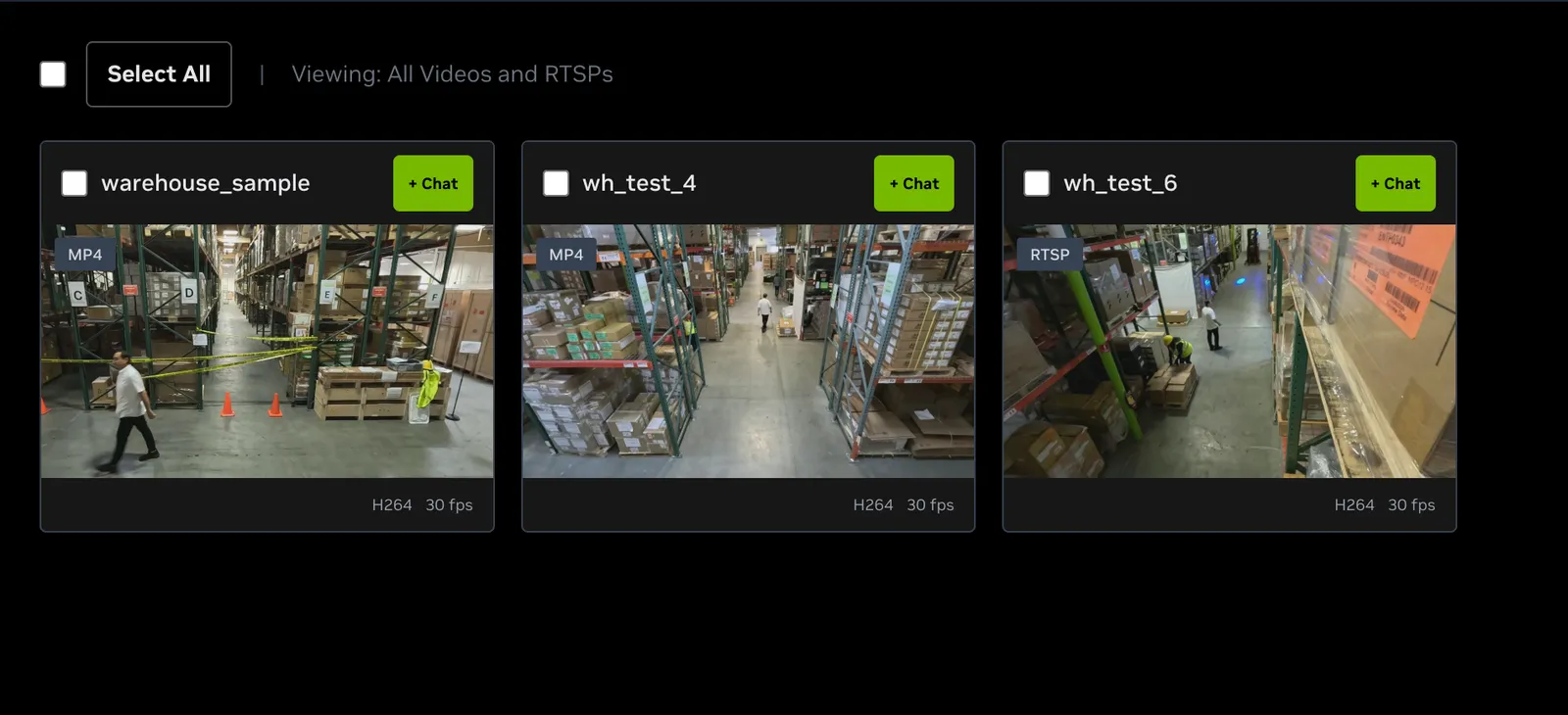
The main content area displays all streams as cards in a responsive grid layout.
Stream Card
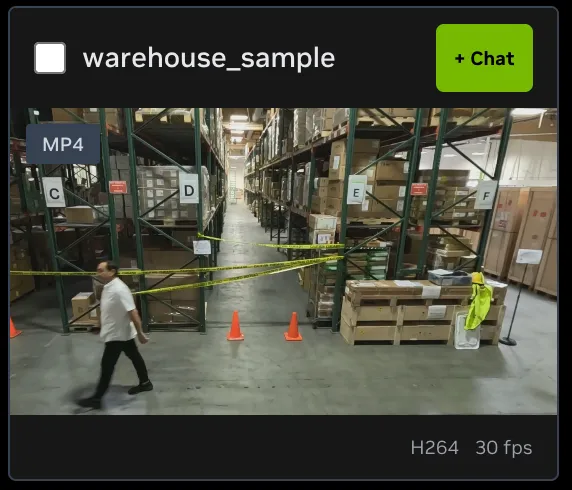
Each stream card displays:
Video Preview
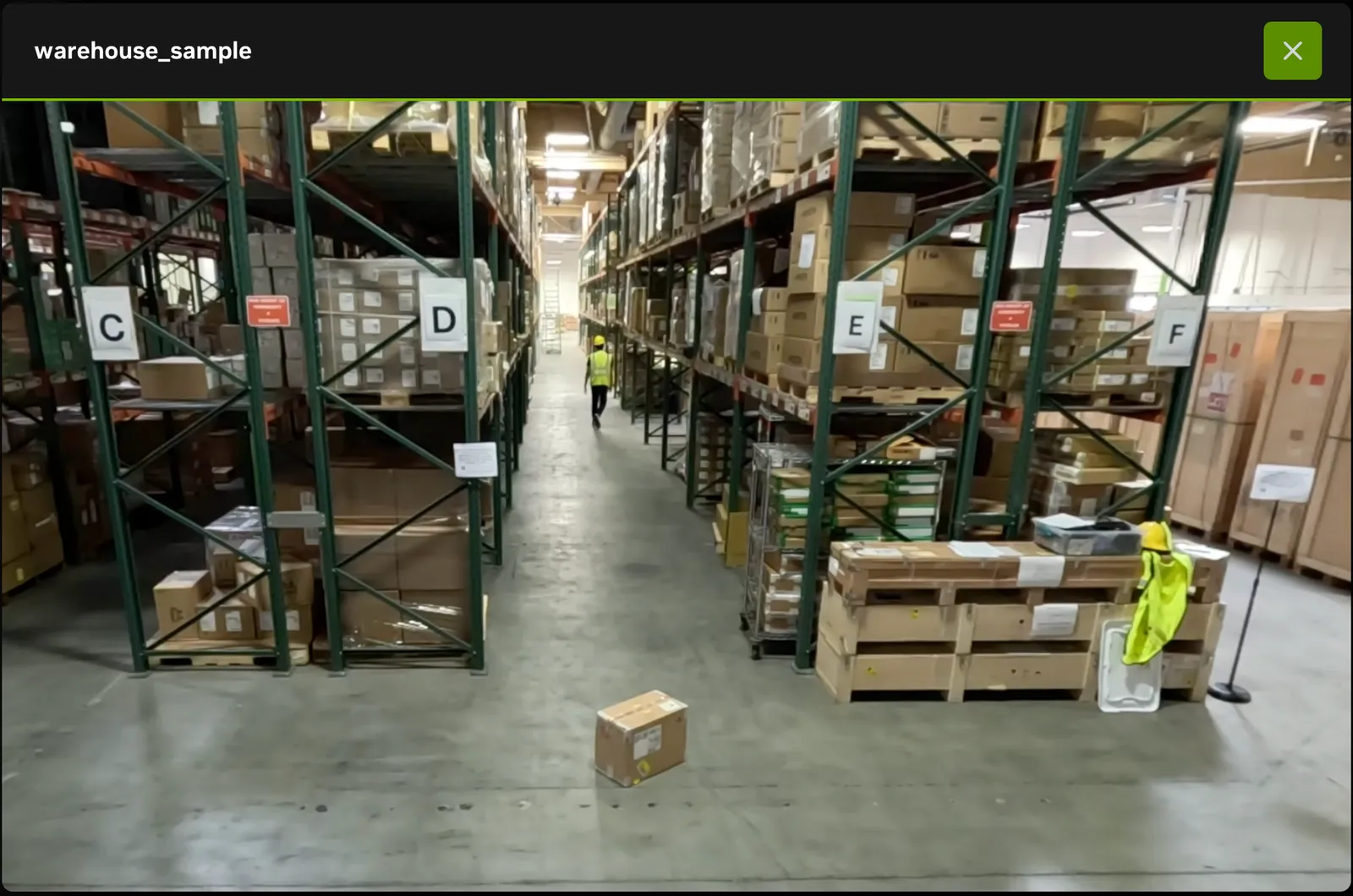
When you click on a stream card, a popup opens to play the video preview for that stream.
Empty State
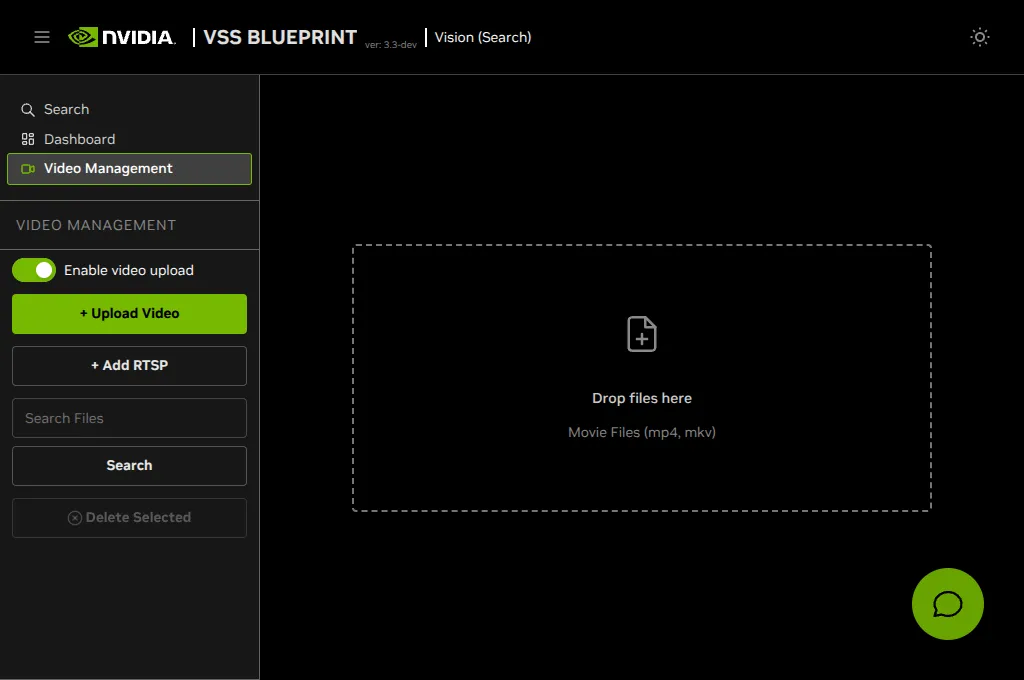
When no streams exist, the main area shows a drop zone. Click the zone or drag movie files onto it to upload them.
Upload Dialog
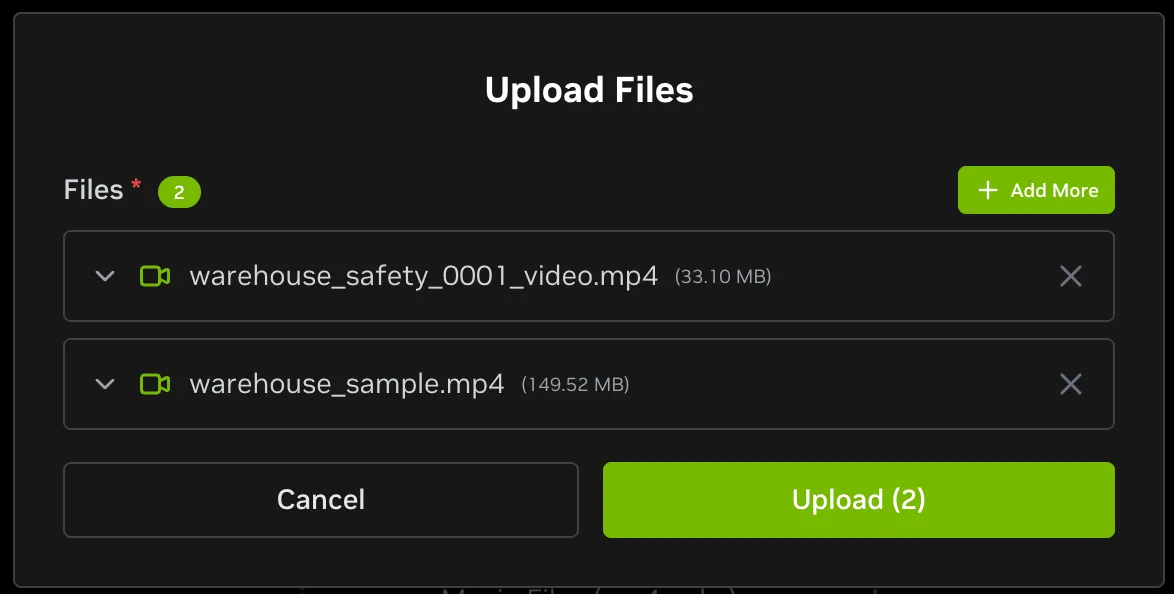
The upload dialog allows you to select video files and optionally configure them before uploading:
File Selection:
- Click the dashed area or drag-and-drop files to select videos
- Supported formats: MP4, MKV
- Multiple files can be selected at once
- Click ”+ Add More” to add additional files after initial selection
File Configuration:
Each file in the upload list can be expanded (click the chevron icon) to rename the file and to configure optional fields if system-level configuration is enabled.
Renaming: The expanded row always shows a required Filename field, pre-filled with the selected file’s name. Edit it to upload the video under a different name without going back and re-selecting the file. Filenames cannot be empty or contain spaces; spaces in the original name are removed automatically. The collapsed row shows the name the file will be uploaded under, so you can confirm a rename at a glance (hover it to see the original name).
Note: Configuration fields are optional and only appear if NEXT_PUBLIC_CHAT_UPLOAD_FILE_CONFIG_TEMPLATE_JSON is configured. Common field types include boolean toggles, text inputs, number inputs, and select dropdowns. The available fields depend entirely on your system’s deployment configuration. Renaming does not depend on this setting.
File Management:
Each file in the list shows the video icon, upload filename, file size in MB, expand/collapse button (chevron icon) to show/hide the filename field and configuration fields, and remove button (X icon) to remove file from upload queue.
Click “Upload (N)” button to start uploading all files, or “Cancel” to close the dialog without uploading.
Upload Progress Panel
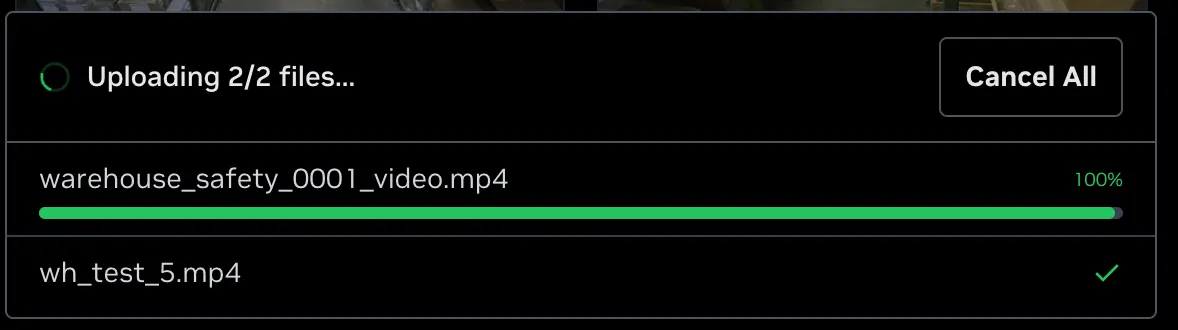
After confirming upload, a progress panel appears at the bottom of the screen.
Upload Status:
Each file displays one of the following statuses:
Progress Controls:
- Cancel Uploads - Stop all pending and in-progress uploads
- Close Panel - Dismiss the progress panel (only available when no uploads are in progress)
Note: The system uploads multiple files in parallel for faster processing. Successfully uploaded videos will appear in the streams grid automatically.
Adding RTSP Streams
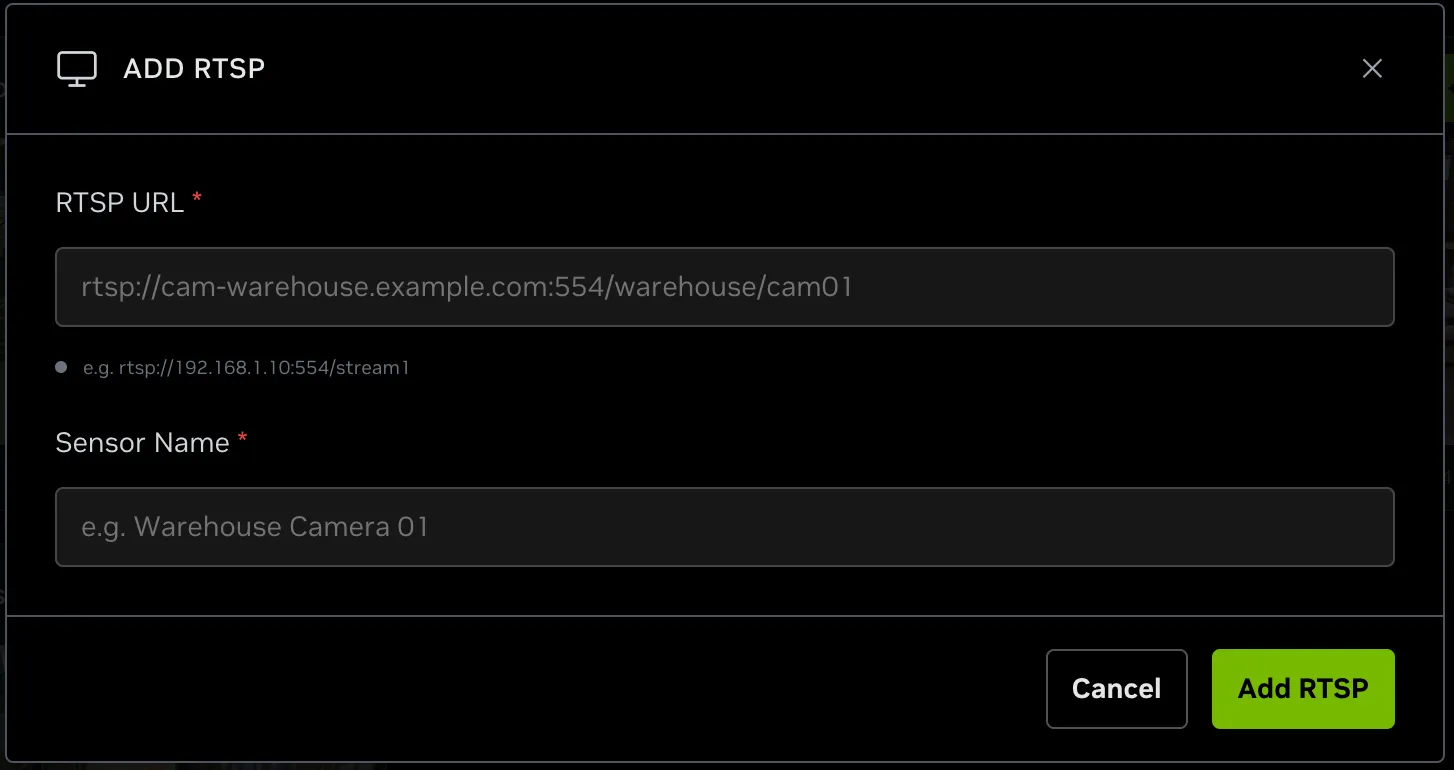
Click the “Add RTSP” button in the left main sidebar to add a live camera stream.
RTSP URL Field (Required):
Enter the RTSP stream URL in the format: rtsp://[username:password@]hostname:port/path
Examples:
rtsp://192.168.1.10:554/stream1rtsp://cam-warehouse.example.com:554/warehouse/cam01
The system will automatically extract a suggested sensor name from the URL path.
Sensor Name Field (Optional):
Enter a friendly name for the sensor (e.g., “Warehouse Camera 01”).
- Auto-populated from RTSP URL path if not manually specified
- Can be manually edited to provide a more descriptive name
- Used for display in the streams grid
RTSP Validation:
The system validates RTSP URLs:
- Must start with
rtsp:// - Connection is verified when “Add RTSP” button is clicked
- Error messages displayed if URL is invalid or connection fails
Click “Add RTSP” to add the stream or “Cancel” to close the dialog.
Deleting Streams
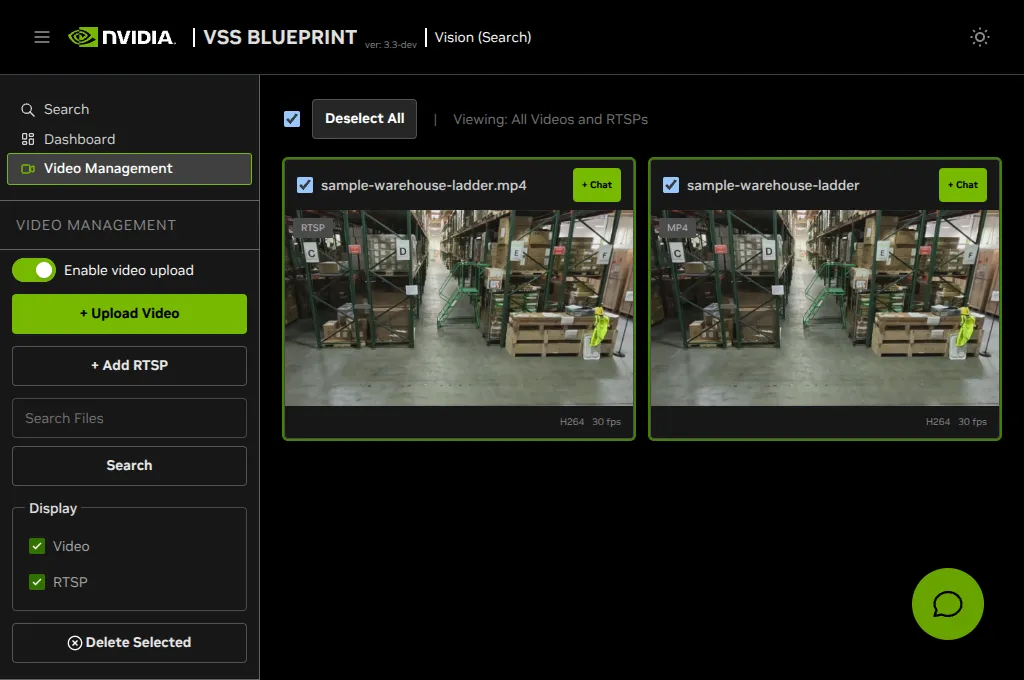
To delete streams:
- Click the checkbox on one or more stream cards to select them
- Click the “Delete Selected” button in the left main sidebar
- The selected streams will be deleted and the streams grid will be refreshed.
Warning: This action cannot be undone. Make sure you want to delete the selected streams before confirming.
Known Issues
Overall Issues
No known issues.
Global Chat Sidebar
- If the backend agent restarts, the UI doesn’t clear the outdated chat history.
- On a Build Vision AI deployment with NemoClaw, the Web UI starts with chat waiting for a gateway token. After onboarding, run
nemoclaw <sandbox> gateway-token --quieton the deployment host and enter the result in Connect NemoClaw chat. If the relay is still starting, the panel reports that the gateway is unreachable and offers Retry gateway. A rejected token is reported separately. The token remains in the browser tab session; no UI container restart is needed. Use HTTPS when accessing the UI remotely because the browser sends the token to the UI’s agent API. - If the NemoClaw agent API returns error 503, the OpenShell tunnel may have stopped forwarding traffic even if the process still appears alive. To recover, run
nemoclaw <sandbox> recover. - The in-stack VSS Agent Human-in-the-Loop (HITL) dialog may clip or truncate content when browser zoom is increased. Reduce the browser zoom until the full dialog is visible.
Alerts Tab
- When a sensor is removed, its existing alerts may still appear in the alerts list, but the related thumbnails and videos are no longer accessible because the sensor data has been deleted.
- In Manage Alerts, entering a sensor name that is not present in the VIOS live-stream catalog submits the rule without a resolved live-stream URL. Register the stream first, then select its sensor from the picker.
Dashboard Tab
No known issues.
Search Tab
- Ignore the Source Type filter under Search Controls. Its options are Video and RTSP.
- When a live RTSP stream is removed directly from NVStreamer, the VSS Search UI may still display the stream as active.
- The Search Tab From and To timestamp filters may not be relevant for results from uploaded videos. They may apply to RTSP stream based results.
- A completed Chat Sidebar search may show matching clips in the chat response while the Search Tab main content area stays empty without video card results. This may happen intermittently. Start a new chat and submit the same query again.
Video Management Tab
- There is no way to rename a stream after uploading. This will be fixed in an upcoming update. Until then, to use a different name you must upload a new stream with the desired name.
- An RTSP stream added through the Chat Sidebar may not appear in Video Management until the browser tab is refreshed. After the agent confirms that the stream was added, refresh the browser tab to update the stream list.