

Setup VSS and Skills
Minimum path to a deployed VSS stack driven from the agent chat UI. Only VSS itself requires a GPU; NemoClaw and the VSS Orchestrator MCP server are CPU-only. NemoClaw can run on a separate machine from the VSS host, as remote deployment and VSS orchestration are supported by the VSS Orchestrator MCP server.
This guide uses the simplest layout and runs everything on a single VSS-capable host (such as the Brev instance) through two notebooks that run in order:
deploy/docker/scripts/deploy_nemoclaw.ipynb- pins Docker, installs NemoClaw, creates the sandbox from the VSS harness image, applies the VSS policy and deployment origin, optionally registers an HTTPS orchestrator path, configures optional webhooks, and opens the Agent UI.deploy/docker/scripts/deploy_vss_orchestrator.ipynb- prepares the host for VSS, starts the VSS Orchestrator MCP server, and deploys and manages VSS from the Agent UI by chatting with the agent.
Follow the cells in each notebook in order. For the full variable reference and optional verification cells, see Additional Configuration.
The prompts and screenshots use OpenClaw as an example. Run the equivalent checks in whichever agent harness you onboarded (AGENT_RUNTIME, for example OpenClaw or Hermes).
To run NemoClaw on a separate machine from the VSS host, refer to the NemoClaw for OpenClaw model card and the NemoClaw OpenClaw user guide.
Prerequisites
-
Common to both notebooks
-
Access to the VSS repository.
-
Docker,
curl,python3, anduvon the host that runs the notebook. -
A Jupyter kernel with Python 3.11 or newer.
- Auto-fulfilled when running from the Brev Launchable below.
-
-
Part 1 - Set up NemoClaw (
deploy_nemoclaw.ipynb, CPU only)-
An agent chat model provider:
NVIDIA_API_KEYfor the build.nvidia.com provider. Create one from NVIDIA API Keys, ORCOMPATIBLE_API_KEYfor a cloud or local OpenAI-compatible endpoint, issued by that endpoint’s provider.
-
-
Part 2 - Deploy VSS (
deploy_vss_orchestrator.ipynb, GPU required)-
A VSS-capable GPU host, such as a preconfigured Brev Launchable or your own GPU-enabled machine.
- If you are using the Brev Launchable, you can edit the Brev hardware profile and cloud service provider (CSP). See Brev hardware and CSP selection before launching.
- In the single-host layout used by this guide, this same machine also runs Part 1.
-
NGC_CLI_API_KEY(NGC Personal API Key) fornvcr.iologin and the model weights the containers download from NGC. -
NVIDIA_API_KEYfor the VSS model endpoints. -
A
HARDWARE_PROFILEvalue matching the VSS deployment host.
-
Part 1 - Set up NemoClaw
-
Prepare the VSS repository at
~/video-search-and-summarizationbefore opening either notebook.On Brev, the repository is cloned automatically. Click Open Notebook on the instance page, then open a terminal in JupyterLab and check out the repository reference selected for this documentation build:
On your own host, clone the repository and check out the same reference:
If your checkout is elsewhere or the host has multiple clones, set
VSS_REPO_DIRbefore launching Jupyter. -
Open
deploy/docker/scripts/deploy_nemoclaw.ipynbon the VSS host. If either setup notebook is already open, close and reopen it after checking out the reference so it loads the selected version.- If you are re-onboarding a host that previously ran an older OpenShell gateway, review the NemoClaw sandbox lifecycle guidance before running the notebook.
-
Follow the notebook sections in order:
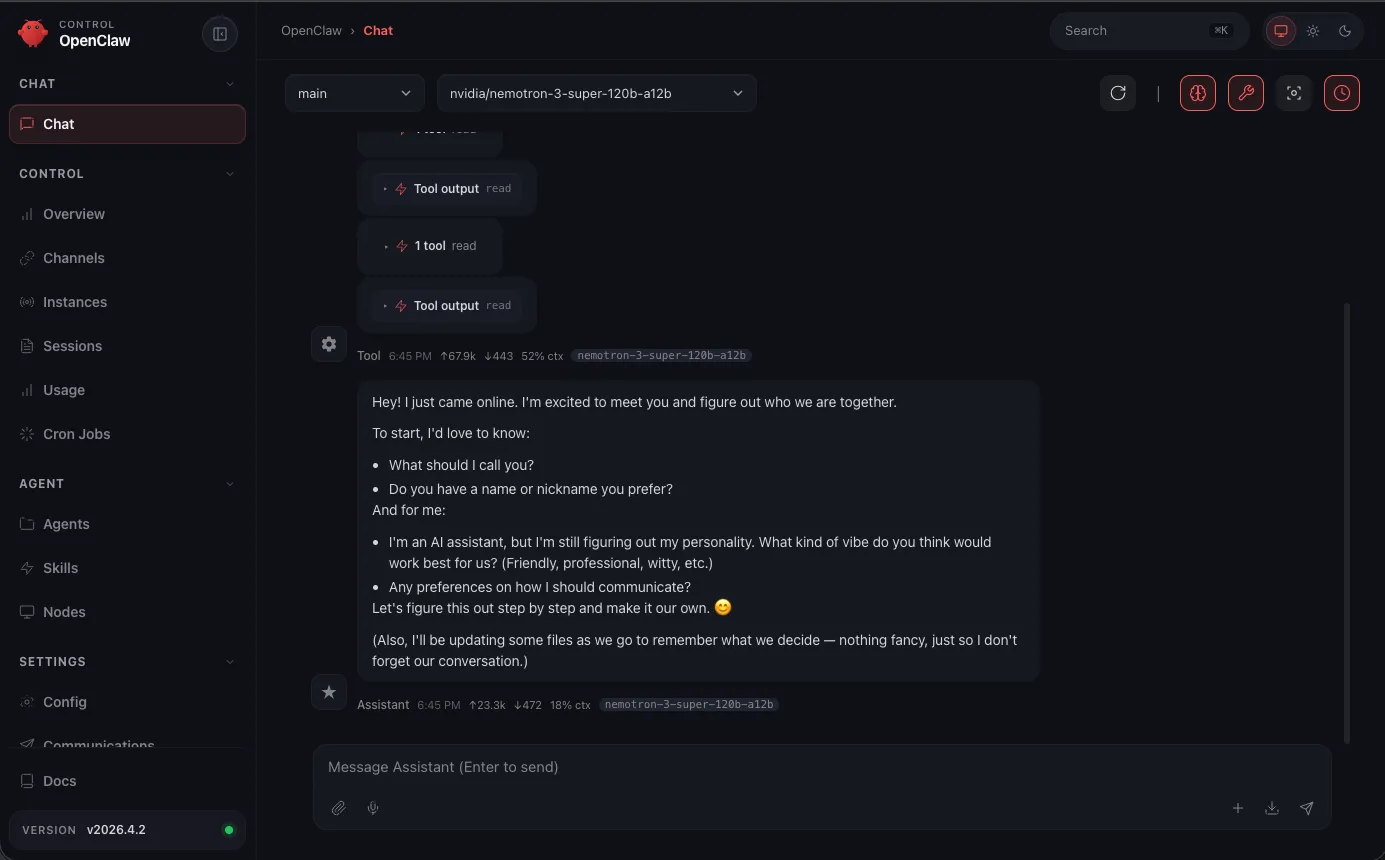
If you are not running on Brev, forward the gateway port from your local machine before opening the UI:
Part 2 - Deploy VSS from chat
With the Agent UI open, open deploy/docker/scripts/deploy_vss_orchestrator.ipynb on the VSS host.
In the single-host layout used by this guide, the VSS host is the same machine as Part 1. VSS and the VSS Orchestrator MCP server can also run on a separate machine from NemoClaw.
-
Set
NEMOCLAW_SANDBOX_NAMEto the sandbox you onboarded in Part 1 and setHARDWARE_PROFILEto match the VSS deployment host. For edge hardware profiles (DGX-SPARK,IGX-THOR,AGX-THOR), see Run on DGX Spark before you deploy. -
Follow the notebook sections in order. The notebook covers:
- Set NVIDIA credentials and hardware profile
- Check host and repo prerequisites
- Prepare the host for local NIM-backed profiles
- Start the VSS Orchestrator MCP server
- Deploy and manage VSS from chat
- Optionally verify host reachability from inside the sandbox
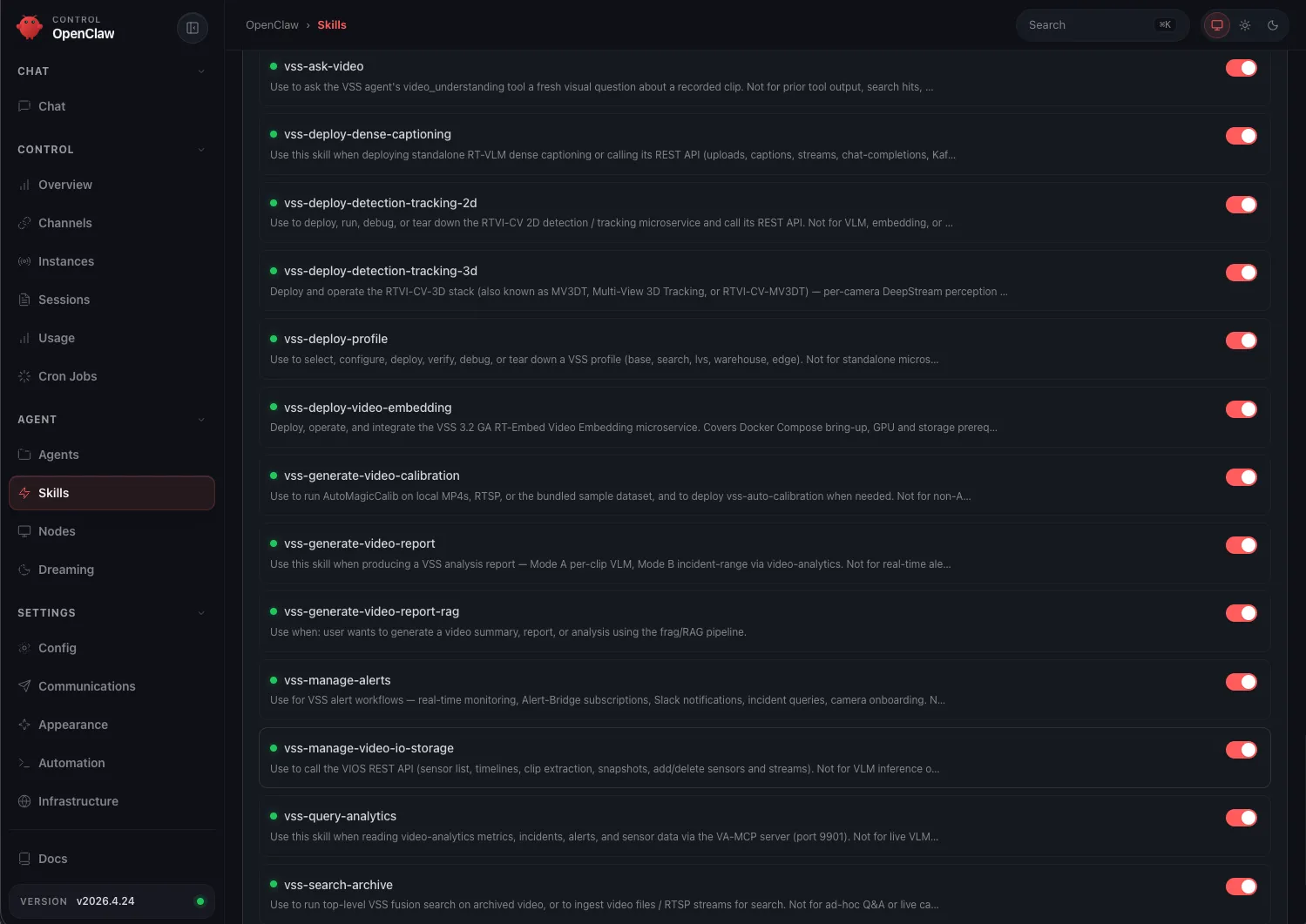
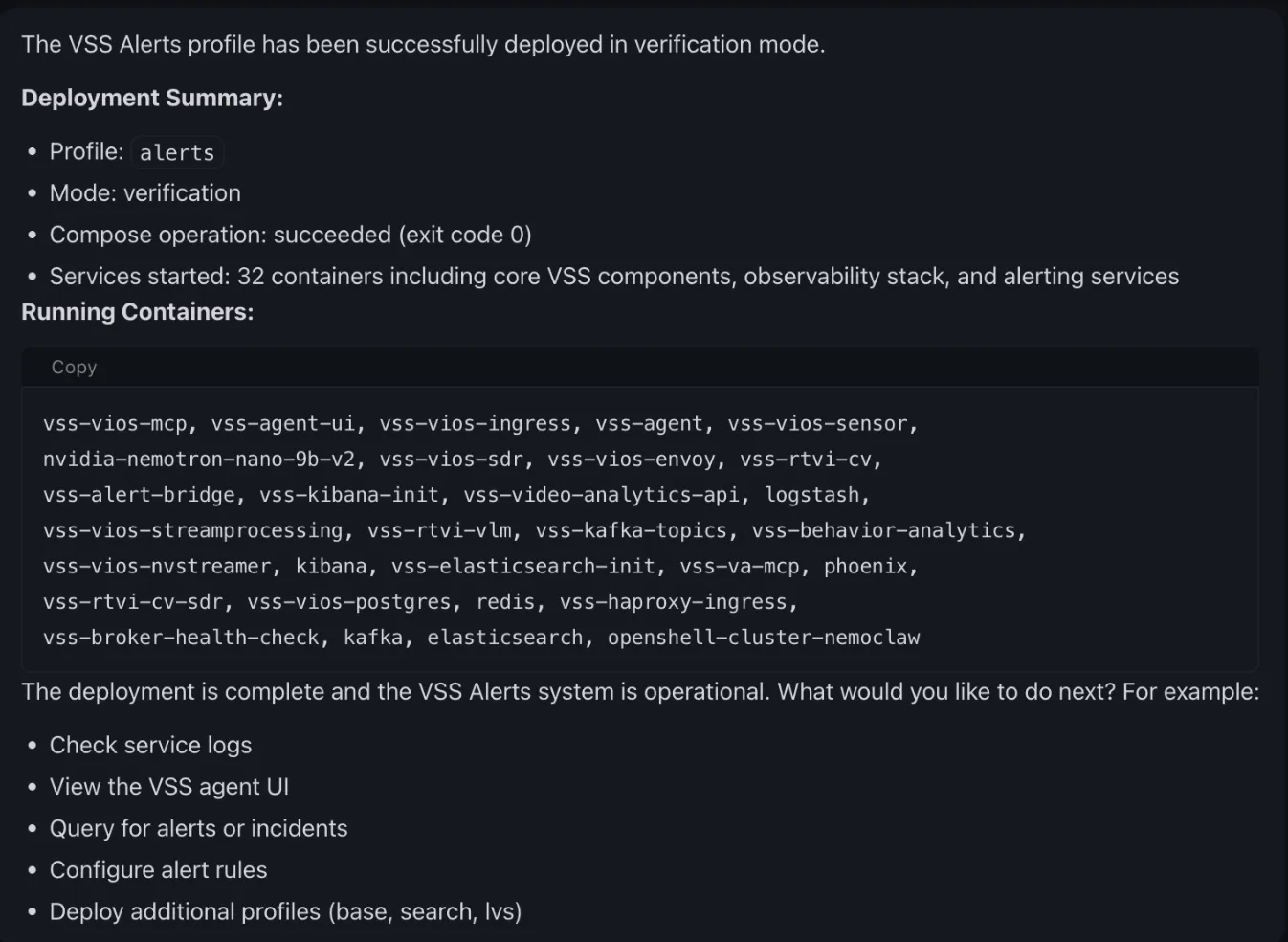
For the complete orchestrator tool reference, see VSS Orchestrator MCP.
Run on DGX Spark
DGX Spark is a single-GPU edge system, so it needs a few adjustments before you deploy VSS from chat. Apply the following in deploy_vss_orchestrator.ipynb. The same guidance applies to the other edge profiles, IGX-THOR and AGX-THOR.
-
Select the DGX Spark hardware profile (Section 1.1):
-
Deploy only the base or alerts profiles.
DGX-SPARKis an edge profile, and the orchestrator supports onlybaseandalertson edge hardware. Requests to deploysearchorlvson an edge profile are rejected. -
Point the VSS LLM at a remote endpoint (Section 1.2). A single GPU can run both a local LLM and the local VLM, but sharing the device often exhausts GPU memory. A remote LLM is recommended:
Leave
OPENAI_API_KEYblank to fall back toNVIDIA_API_KEY, which is the key theintegrate.api.nvidia.comendpoint expects. SetOPENAI_API_KEYonly when the endpoint authenticates with its own key rather than an NVIDIA key, such ashttps://api.openai.com. -
Share the single GPU (Section 1.2). With a remote LLM from the previous step, set
VLM_DEVICE_IDto GPU0so the local VLM uses the only available GPU: -
Expect the Docker pin to skip the downgrade (
deploy_nemoclaw.ipynbSection 2.1). On DGX Spark (DGX-OS, arm64), Pin Docker skips the exact-version downgrade when the installed Docker Engine is already within the tested range (28.3.3through29.5.0), because the DGX-OS apt repository may not carry the exact pinned versions. The packages are still held withapt-mark holdso the stack cannot drift past the tested range. -
Leave the orchestrator MCP config defaults unless you need to tune them.
deploy/docker/scripts/vss_orchestrator_mcp_config.ymlalready sets DGX Spark defaults such asVLM_NIM_KVCACHE_PERCENT,RTVI_VLLM_GPU_MEMORY_UTILIZATION, and the SBSA image tags. Change those values only if you need different GPU memory or image settings, then restart the MCP server. See VSS Orchestrator MCP config YAML.
For the full variable reference, see Additional Configuration.
Add Video Sources
Once the VSS stack is deployed, open the VSS UI and use the Video Management tab to upload video files (MP4, MKV) or add live RTSP camera streams for the agent to ingest. See Video Management Tab for the full walkthrough of upload, RTSP setup, and stream management.