
Ctrl+K
Warehouse Blueprint - Home Warehouse Blueprint - Home

Warehouse Blueprint

Warehouse Blueprint - Home Warehouse Blueprint - Home

Warehouse Blueprint

Table of Contents

  • Introduction
  • Release Notes
  • Prerequisites
  • Quickstart
  • Development Workflow
    • Deployment & Customization
      • 2D Vision AI Profile
      • 2D Vision AI with Agents Profile
      • 3D Vision AI Profile
    • Simulation and Synthetic Data Generation
      • Development Tools Setup
      • Synthetic Data Generation
        • Quick Start for SDG
        • Camera Calibration
      • Scene Customization
        • NavMesh Setup
        • Camera Placement
        • Semantic Label Setup
        • Customized Scene Saving
      • Dataset Post-Processing
      • Sim2Real Data Transfer
    • Model Finetuning
      • RT-DETR
      • Sparse4D
      • CR2
  • Microservice Configuration
    • Perception
      • 2D Single Camera Detection and Tracking (RT-DETR)
      • 3D Multi Camera Detection and Tracking (Sparse4D)
    • Behavior Analytics
    • Agents
    • Reference Agentic UI
    • Reference Video Analytics UI
  • Operations (Monitoring, Troubleshooting, FAQ, Known Limitations)
    • Accuracy & Performance Benchmarks
    • System Sizing Guide
    • Known Limitations
    • Troubleshooting Guide
    • FAQ
    • License Information
  • Development Workflow
  • Simulation and Synthetic Data Generation
  • Scene Customization
  • NavMesh Setup

NavMesh Setup#

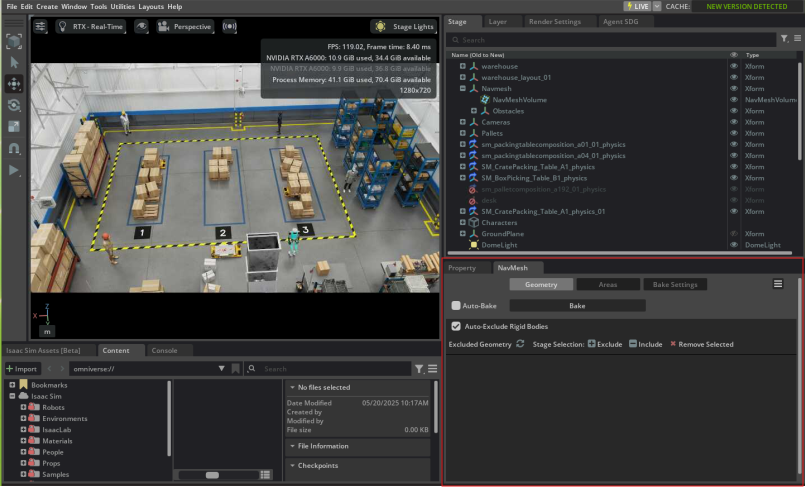
Building NavMesh is a must-have step to enable subsequent tasks, such as Camera Placement and Camera Calibration. More details can be found in the Navigation Mesh.

  • NavMesh Volume Creation:

    Check if there is a NavMeshVolume in your asset scene to cover the navigable area.

    • If there is a NavMeshVolume, you can jump to the Bake NavMesh section.
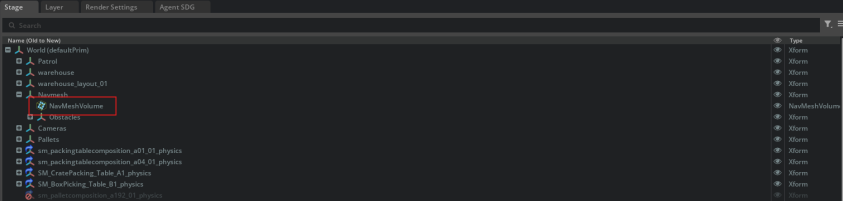
      NavMesh Volume
    • If not, go to Stage > Right Click > Create > Navigation > NavMesh Include Volume.
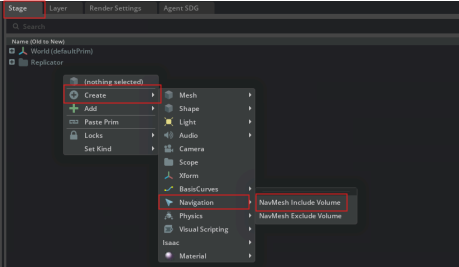
      Build NavMesh Volume
    • Set the NavMeshVolume to cover the navigable area.
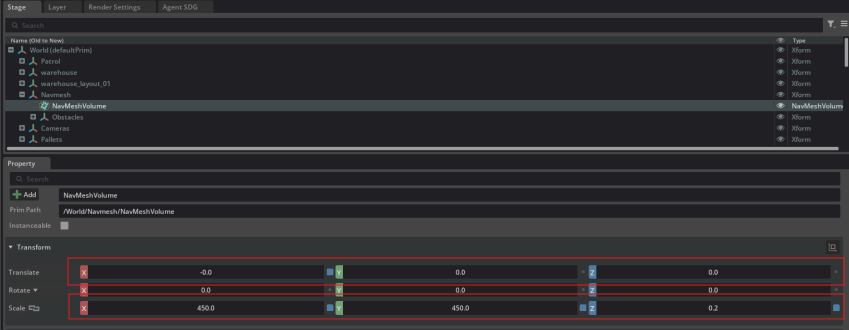
      Set NavMesh Volume

Note

It is recommended to set the height of NavMeshVolume taller than agents (e.g., characters and humanoids) in your scene, but lower than the ceiling.

  • NavMesh Baking:

    • Open NavMesh extension. Go to Window > Navigation > NavMesh.
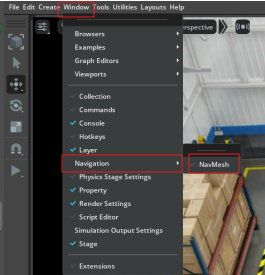
      Build NavMesh
    • The NavMesh panel is shown below.

      NavMesh Panel
    • Go to Bake Settings > Check whether these parameters are within a reasonable range.
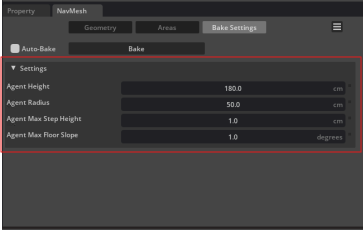
      Bake Settings

      Note

      The default settings are as follows: Agent Height: 180, Agent Radius: 25, Agent Max Step Height: 1, and Agent Max Floor Slope: 1.

    • Click Bake button to build the NavMesh.
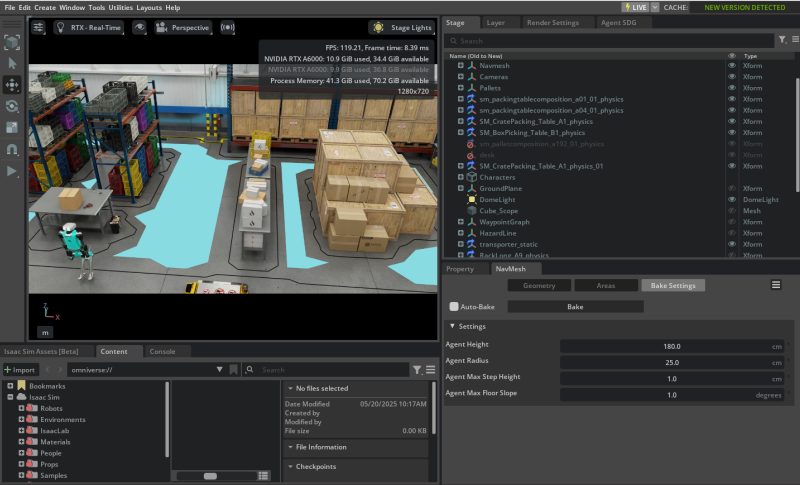
      Baked Scene

previous

Scene Customization

next

Camera Placement

NVIDIA NVIDIA
Privacy Policy | Your Privacy Choices | Terms of Service | Accessibility | Corporate Policies | Product Security | Contact

Copyright © 2026, NVIDIA Corporation.

Last updated on Feb 13, 2026.