

Reference Video Analytics UI#
Note
The UI is only provided as a reference interface on how to use the Video Analytics API to query & present various data metrics & KPIs, not meant for production. You’ll need to improve use-case specificity, usability, robustness, scalability, & security, etc., for production. This UI also only supports the 2D usecase.
This reference operations UI is developed with ReactJS framework, Google Maps API, and Networking API.
The following sections describe the architecture of this reference UI and the user workflow.
Note
This reference UI is well tested on Chrome Browser.
Overview#
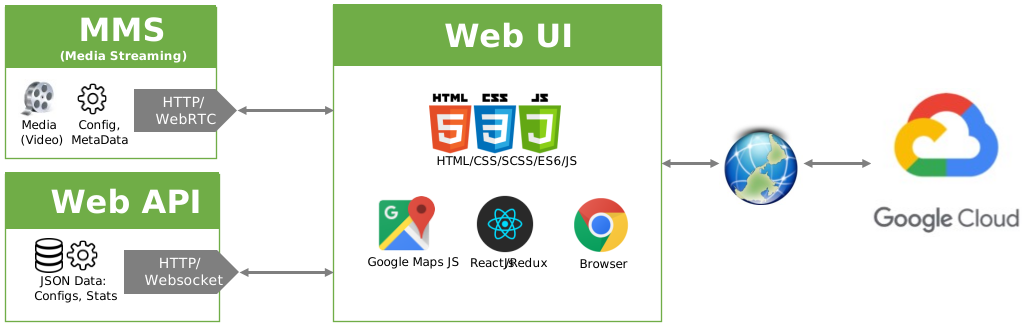
This visualization application presents the locations/markers over a geo-map (Google Maps), relevant streamed videos and numerical/textual analytics data (example, KPIs) required for a contextual understanding of the scenario being shown to the user. For the geo-map, the UI application uses the Google Maps JavaScript API to communicate with remote Google Maps servers and fetch the desired visualization content. For Video Streaming, the UI application communicates with the Media Streaming module using HTTP calls and streams video content over the WebRTC channel. For all the analytics data and application metadata, the UI application queries the Video Analytics APIs server using HTTP/Web-socket channels.
Configurations#
The parameters in UI configuration are described as follows:
{
  "uiDelaySeconds": 20,  -- Signifies how much delayed the UI app is as compared to real video current time. Takes care of the duration that the backend analytics takes to process current video input and generate useful analytics data.
  "docType": "uiConfig", -- used by UI app
  "alertQueryDurationInHours": 2, -- Default range of events to query for. Example: At any point all the live events in the events/alerts panel are for past 2 hours
  "alertListLength": 20, -- Count of top events/alerts to be shown on UI
  "mapVizPollingIntervalMs": 100, -- Interval at which Objects locations on map viz are polled from the backend
  "apiRefreshIntervalSeconds": 2, -- Interval at which query to get events/alerts is made in a looping fashion
  "isLive": false, -- deprecated/unused
  "liveSyncVideoRefreshIntervalMin": 10, -- Interval at which Live video current time in UI is synced with MMS service
  "isRemoveDashCV": true, -- If true, "-cv" suffix is removed from any sensor name to be used in the UI
  "mapOptions": { -- Google API map options – reference: https://developers.google.com/maps/documentation/javascript/reference
    "map": "Google",
    "city": {
      "zoom": {
        "default": 14,
        "min": 13,
        "max": 15
      },
      "mapType": {
        "showControl": true,
        "id": "roadmap"
      }
    },
    "building": {
      "zoom": {
        "default": 17,
        "min": 16,
        "max": 18
      },
      "mapType": {
        "showControl": true,
        "id": "roadmap"
      }
    },
    "room": {
      "zoom": {
        "default": 20,
        "min": 19,
        "max": 21
      },
      "mapType": {
        "showControl": true,
        "id": "roadmap"
      }
    }
  }
}
Decrease the uiDelaySeconds and liveSyncVideoRefreshIntervalMin values under the UI config to decrease the likelihood of a delay between the dots and the video.
UI/UX Abstract Flow#
The UI has following hierarchical views:
Campus View (top level, buildings inside a bigger campus)
Building View (rooms inside a building)
Room View (cameras inside a room)
Camera View (specific camera view inside a room)
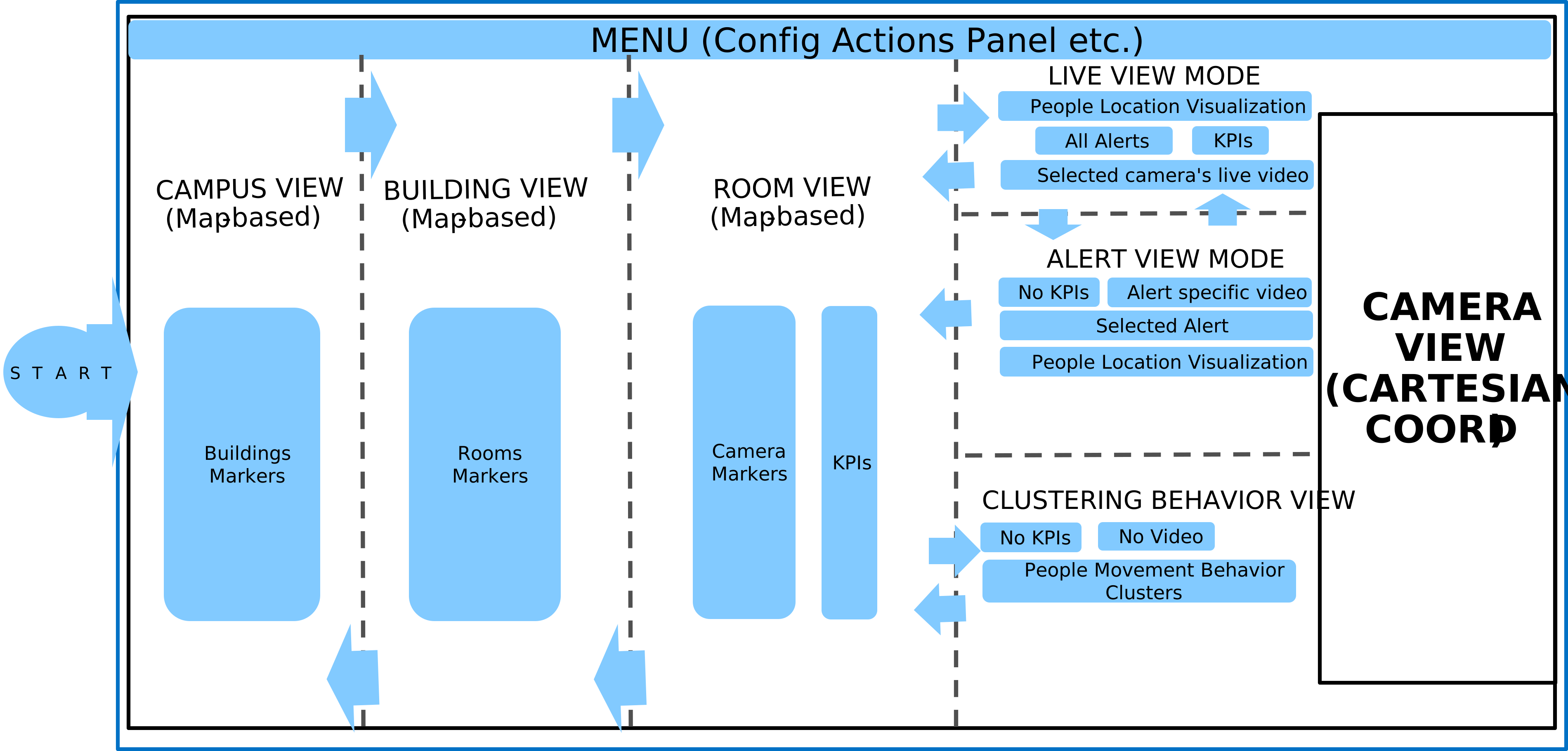
The view upon launch remains the Campus View which is visualized using Geo Map. Here, Building Markers can be located to spot the desired buildings.
From the Campus View, you can move inside a building’s view, where Rooms Markers on Geo Map can be seen. you may go back to the previous Campus View from this view.
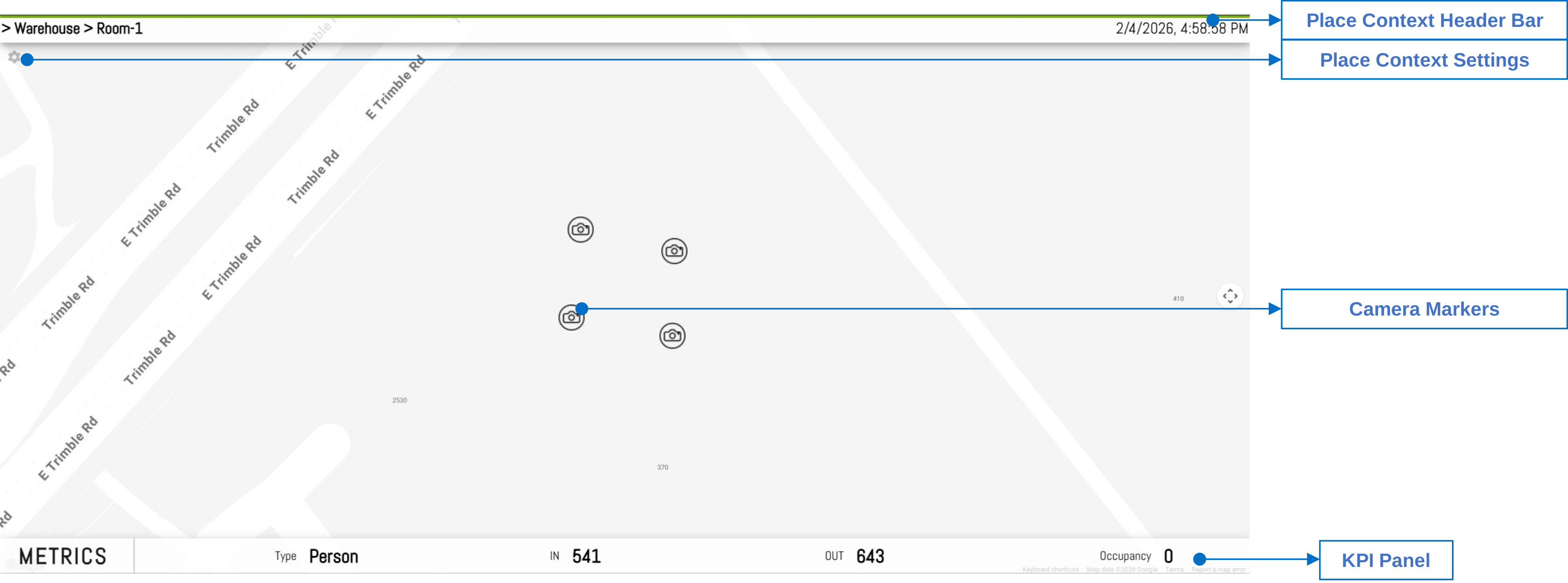
From the Building View, you can navigate to a room’s view, which has camera markers on Geo Map representing location of cameras inside the room. At this level, a KPI panel is also shown which shows Room Level KPIs. You may go back to the previous Building View from the Room View.
From a Room View, you can move to the Sensor Level Live View mode. From the Sensor Live View, the Sensor Alert View mode can be switched to and vice versa. From all the Sensor level Views, the user can go back to the room level view.
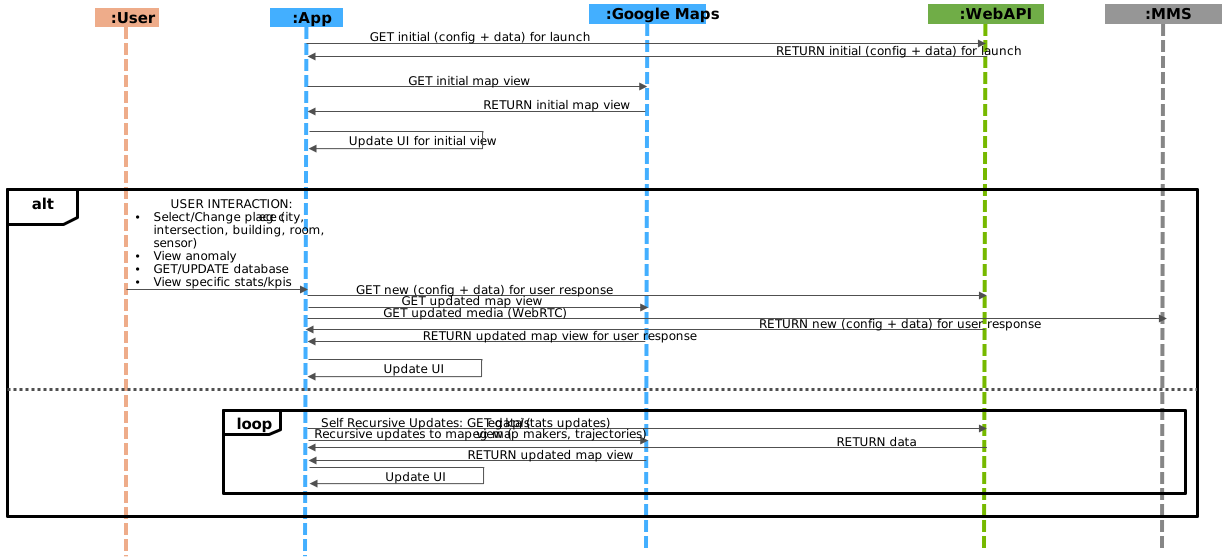
The following diagram covers the abstract user interactions for different features which are covered in the rest of this document.
Visual Glossary#
Application Header#

Campus/Building Level View#
Room/Cameras Level View#
Sensor Level View#
User Interactions#
Application Menu#

Config Actions#
Allows to add/update, view Calibration JSON config file that contains metadata for entities like buildings, rooms, cameras and other application parameters. Same as the other Occupancy Analytics application.
Upload Config#

Used to add the calibration.json config file via POST request. The file is generated using Calibration Toolkit and upon the first run after a new deployment, this file is needed to be inserted in backend Database using UI for the UI app to show data.
To close the panel, use the close button at top of the panel.
Get Config#
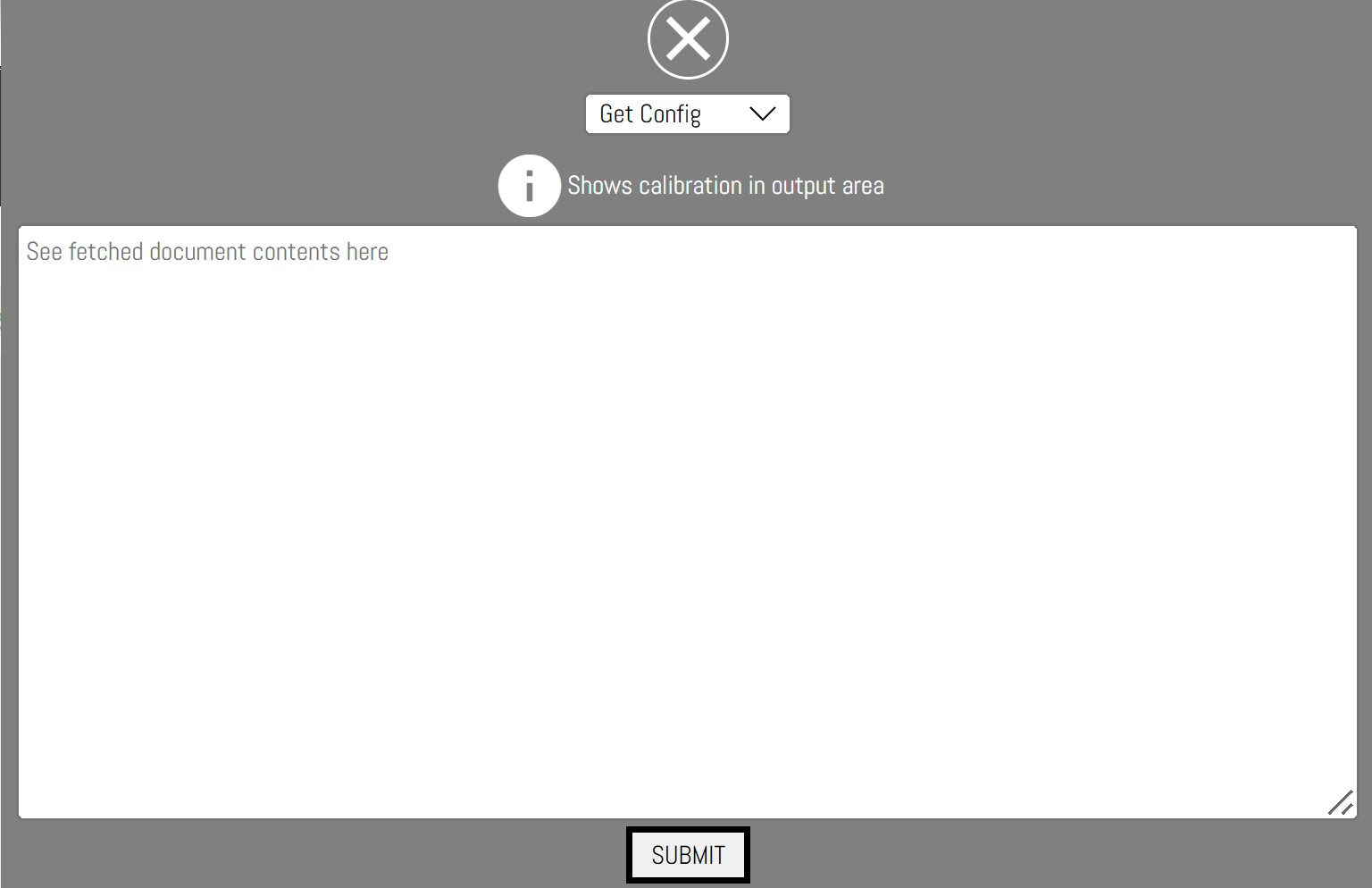
Uses GET request to view (only) calibration config file that is being used by Application in the text area. Click on submit button. If the query succeeds the JSON Config is filled in the output read only text area.
Images upload#
Panel to upload images from camera views or building floorplan to be used by several other relevant UI widgets in the UI app.
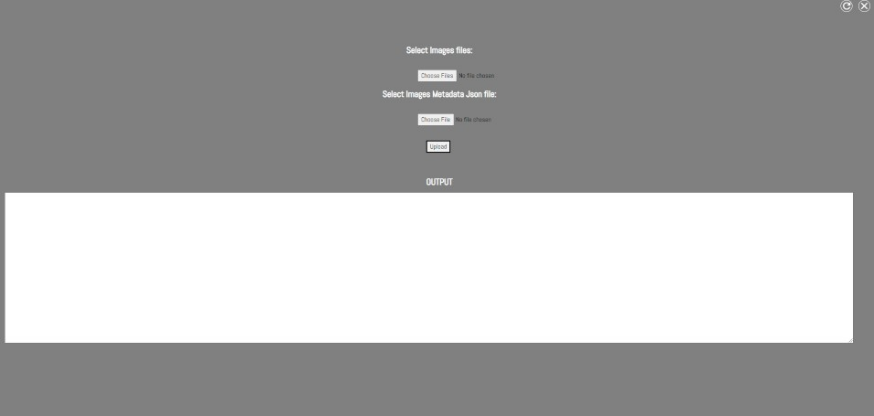
Upload images from local system that get sent to the backend server using POST request. These images are queried by widgets dynamically. Output of the POST call shows in the OUTPUT text box. These images and the corresponding images metadata files are generated by Calibration Toolkit.
Campus Level View#
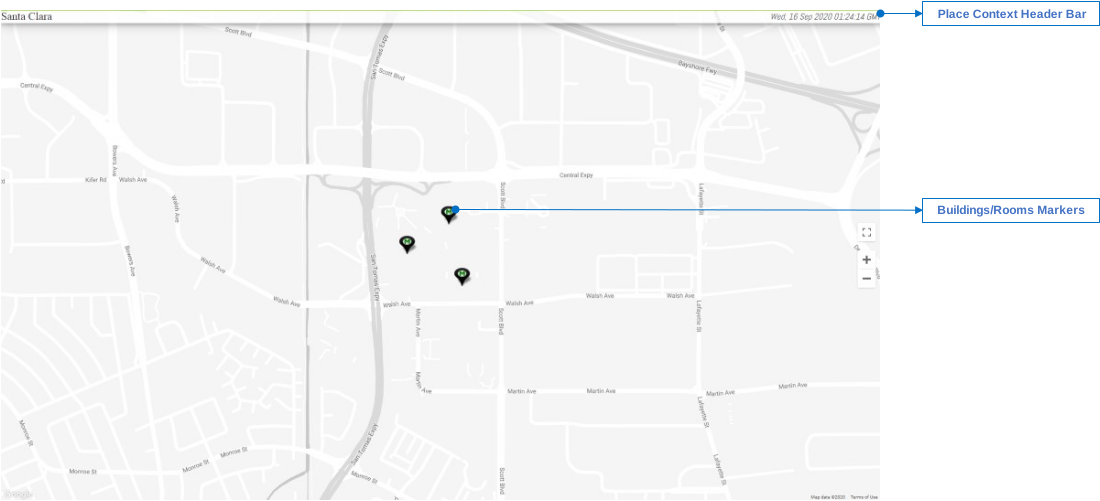
This application may be used for a group of adjacent buildings in a campus. In this view, map with markers for buildings being monitored is displayed. Clicking a building marker leads to the next view - building level view.
Building Level View#
Rooms in the selected building from the previous level view are presented here on map with markers presenting rooms. Clicking on a room marker leads to next level view - room level view.
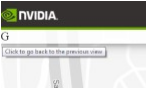
To go back to the previous campus level view, click on the current building name string towards top left in the place context header bar as shown below.
Room Level View#
This level shows:
Camera sensors at the approximate GPS locations of the camera on map.
Place Context Settings - Settings Options at this view-level.
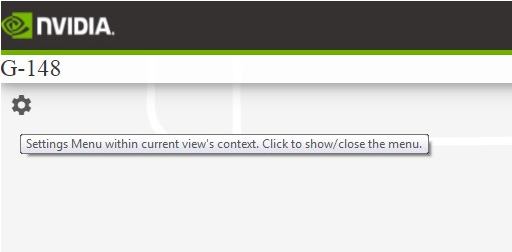
In the next subsections different settings options are explained.
Room Level KPI Metrics.
The Metrics keep on updating as a rolling set per object type (for example, Person, Forklift, etc.).
To pause the rolling set of metrics, click on the current metrics set.
Reset Room Occupancy Count#
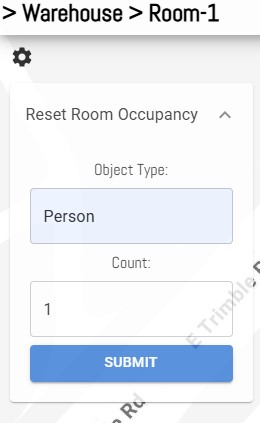
Select the Reset Room Occupancy option to display the collapsible feature panel.
The feature panel can be collapsed back by again clicking the option title.
In the feature panel, enter the object type (for example, Person) in the text box.
In the feature panel, insert a valid positive integer value in the text box and submit.
Here POST request is used and the status (waiting/pending, success, error) message is shown for few seconds at the bottom of the panel.
In case of success, the OCCUPANCY KPI for the associated object type should reflect the new count, subsequently.
Clustering Behavior#
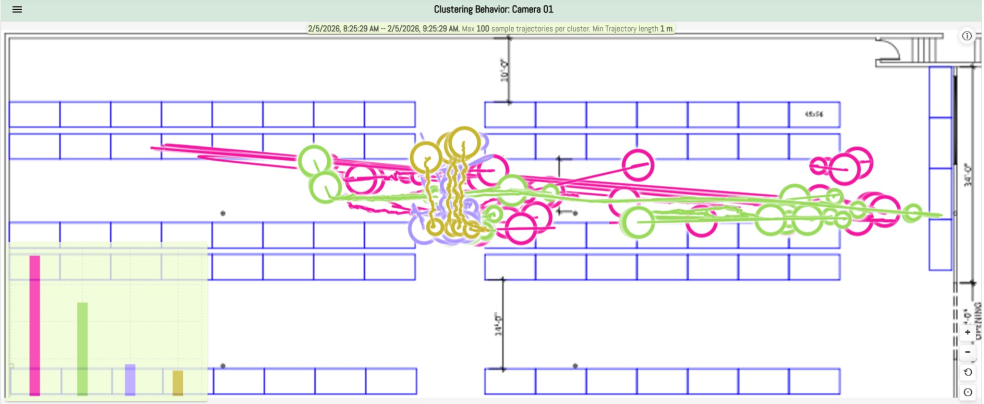
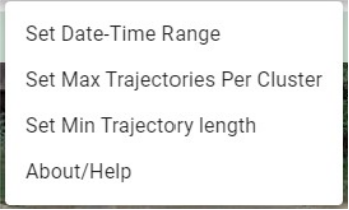
To see the clustering widget, right click on a sensor. The clustering behavior is shown for a single camera. The widget has following items:
Title bar: Shows the selected camera name
Left top widget menu
Left bottom Bar Chart view of Clusters
Camera Top/Floor Map view of Clusters
Menu#
Time Range Selection#
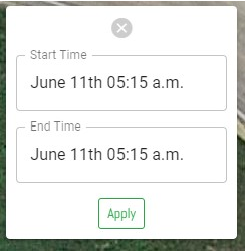
Allows to change the duration for which the desired clustering behavior is needed to be visualized. Default is last one hour.
Max Trajectories Count Selection#
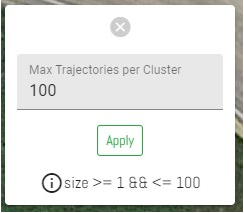
To prevent longer latency for the cluster trajectories data fetch (for map visualization) in case of longer and large number of trajectories per cluster, max trajectories count can be set to a practical number (eg. 10 to 100) which may be good enough for visualization by the user and prevents longer backend computation latency. Upon, changing the count the data refreshes to reflect the change. Further, for better visual cue, only a subset of received trajectories for clusters are drawn after selecting those based on proportional ratios of the actual trajectory count of clusters.
Min Trajectory Length Selection#
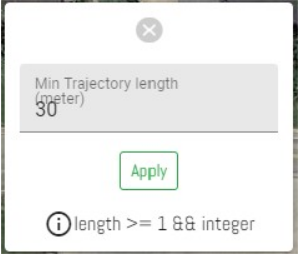
This allows the user to set a minimum length value for a trajectory to be considered for a cluster. Default is 30.
Bar Chart#
Shows a bar graph depicting the total count of trajectories per cluster.
The color of the bars is same as that shown for the same cluster on the map view.
Upon hovering a bar, the tooltip text contains more details about the cluster. Also, upon hovering over a bar, the respective cluster on map shows and others are hidden for better visualization of the focused cluster.
To hide/un-hide a cluster on map view, its respective bar can be selected/deselected by clicking on it.
Camera Top View Visualization#
Shows clusters on a background presenting the camera’s top view or floor plan view. Each cluster is shown as a combination of its sub-trajectories. Upon hovering a cluster, tool tip text shows further details of the cluster. Also, upon hovering over a cluster, the other clusters get hidden for better visualization of the focused cluster, and the respective bar on the bar graph gets highlighted with a white border.
Update Cluster Label#
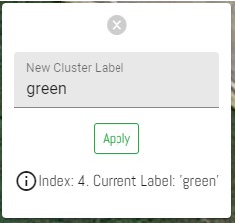
A particular cluster can be assigned a label (the label gets updated in the backend database; may be useful for better naming/tracking). To do so, right click on a cluster on the map view. This would open a cluster update panel where the new label can be submitted/applied. Upon successful update, the widget refreshes and the updated label values now reflect in tooltip texts.
Camera Level View#
This view depicts camera specific information. Here, Global Positioning coordinates are not used, but instead, Cartesian coordinates are used pertaining to the coordinate system of the camera. Here there are two modes - LIVE and REPLAY. The LIVE mode is the default mode where the current video, ongoing KPIs and list of events/alerts are shown. The REPLAY mode is used to replay an alert/anomaly. These are further discussed in the subsections below. However, from any of these modes, the left camera name/id string in the place context header bar can be clicked to go back to the room level view.
Live#
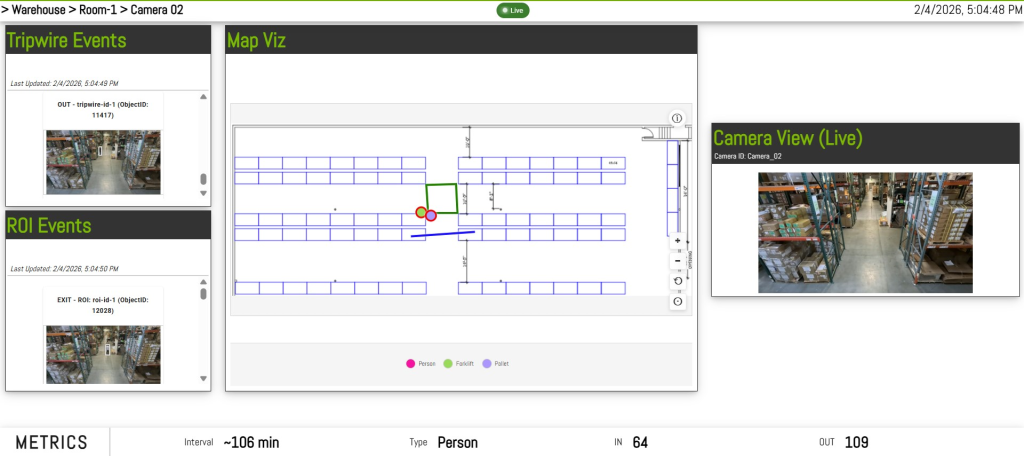
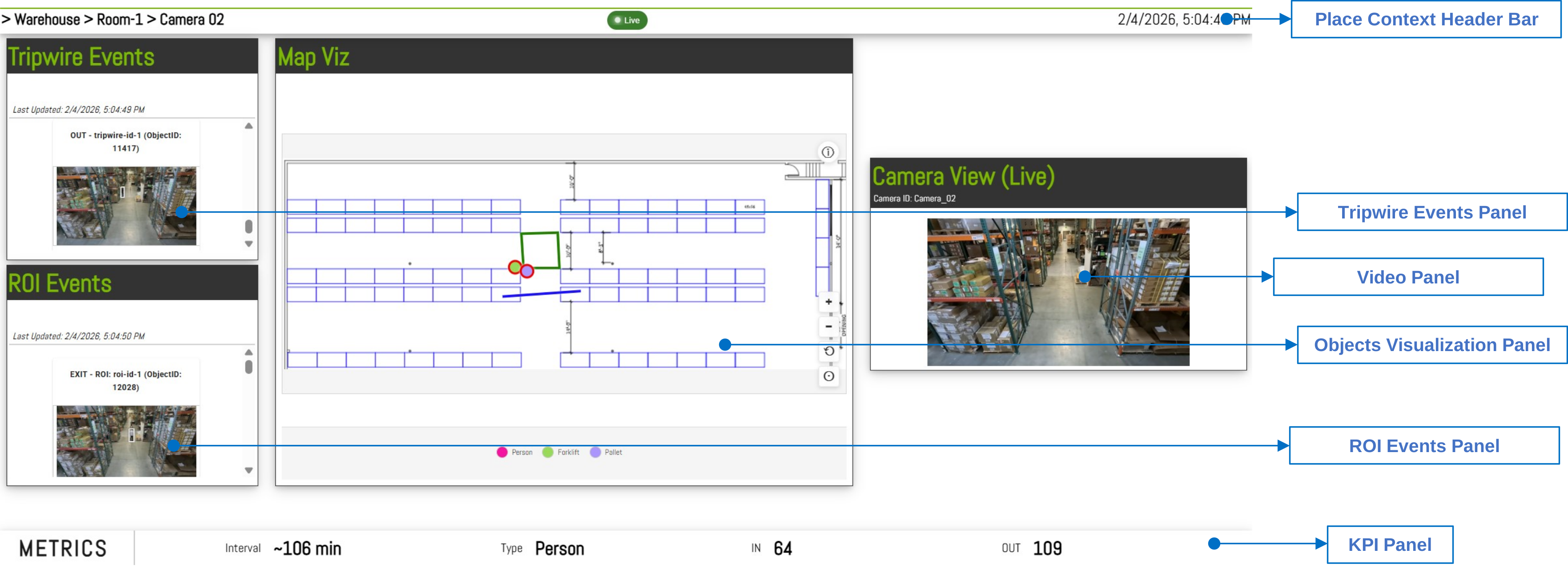
This mode comprises of the following information/components:
Tripwire Events Panel - Shows the list of recent events/alerts pertaining to this camera based on tripwire crossings. Event card has a thumbnail image with bounding box over the detected person.
ROI Events Panel - Shows the list of recent events/alerts pertaining to this camera based on ROI crossings. Event card has a thumbnail image with bounding box over the detected person.
People Visualization Widget - an HTML Canvas based implementation to show People’s movement over a top view image representing the camera’s field of view (FOV). Here the dots show the current location of a person which maps to the current position of the person in the video. Green dots mean social distancing is being maintained. While the red dots mean that the people are not following social distancing.
KPI Metrics Panel - Shows KPI Metrics pertaining to this camera
The Metrics keep on updating as a rolling set per object type (for example, Person, Forklift, etc.).
To pause the rolling set of metrics, click on the current metrics set.
Video Component - Shows live video stream pertaining to the camera
The legends panel at the bottom of Map Viz widget shows the mapping of the colors to the object types that are being detected by the camera and being visualized on the Map Viz widget.
An event/alert can be selected to be replayed.
Playback#
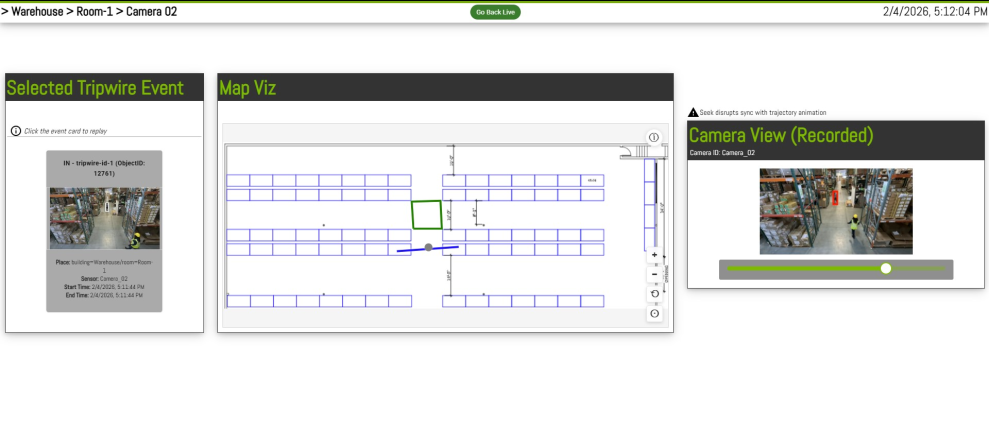
This mode comprises of the following information/components:
Events Panel - Shows the selected event/alert (tripwire or ROI) to be replayed. Event card has a thumbnail image with bounding box over the detected person.
People Visualization Widget - replays the people movement pertaining to the event/alert
Video Component - Shows recorded video clip pertaining to the event/alert
Back to Live View Button - The button on the place context header bar can be used to return back to the live mode for the camera
Note
For coherent visualization, people movement replay animation and the corresponding video are played in sync. However, if the video can’t be played due to server/network issues, then message about video can’t be played is displayed on the video widget and the animation is played automatically without video playback.
Change in color to grey of the animation circle icon, denotes end of the animation.
When the app is left to run for long at sensor level in live mode, the sync between animated people movement and the live video feed may encounter discrepancy. As a workaround, you can refresh the page to get them back in sync or decrease the uiDelaySeconds and liveSyncVideoRefreshIntervalMin values under the UI config to decrease the likelihood of a delay between the dots and the video.