

Quickstart
End-to-end examples for common AODT workflows
This quickstart introduces the main AODT use cases, run modes, and guided walkthroughs for each workflow.
Complete Installation before running the examples below.
Use cases
AODT supports the following workflows:
Calibration is documented separately and is not covered in this quickstart.
Run modes
Batched mode
In batched mode, configure the simulation to run for a predetermined duration using one of the following options:
Duration mode — Specify the simulation interval and total duration. Example: Run with a 10 ms interval for 10 seconds total.
Slot mode — Specify the number of 0.5 ms slots. Example: Run for 1,000 slots (500 ms of simulated time).
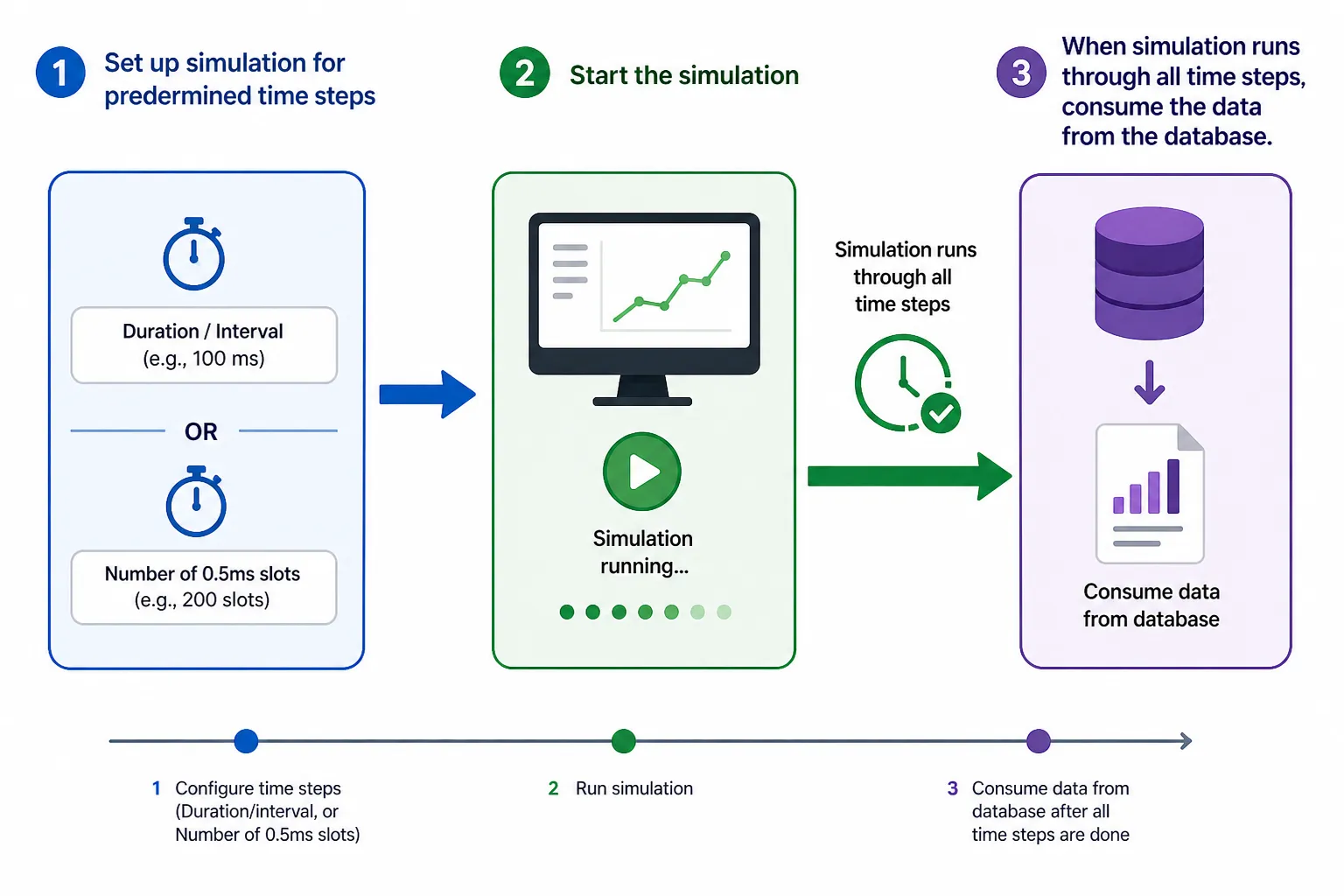
After configuring the simulation, start the run. When all time steps complete, retrieve and process the generated data from the database.
Batched mode has two submodes:
- Batched EM — Runs the EM solver only. Supports both duration and slot modes.
- Batched RAN — Runs the EM solver and 5G PHY Tx/Rx. Slot mode only, to preserve 5G timelines.
Interactive EM mode
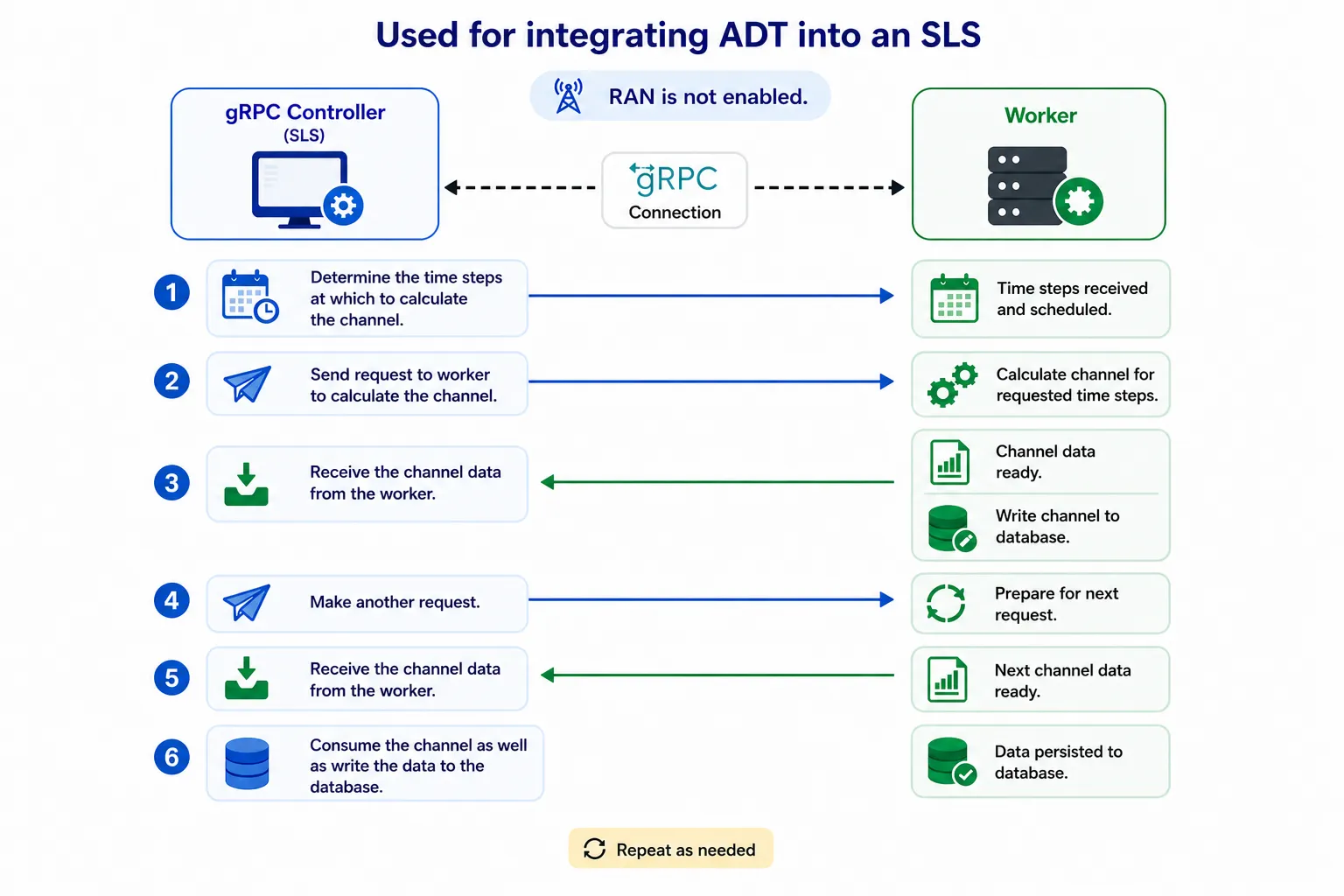
Interactive mode integrates AODT into a system-level simulator (SLS) workflow:
- The SLS connects to the AODT worker over gRPC.
- The SLS determines which time steps require channel calculations.
- For each time step, the SLS sends a channel request to the worker.
- The worker returns channel data, which the SLS stores in the database.
This request-response cycle repeats until all scheduled time steps are processed. RAN is not supported in interactive mode.
Guided quickstarts
Select a workflow to follow the step-by-step guide: