

Audio Setup and Development#
This topic concerns the ASoC driver, audio hub hardware, USB audio, and other matters connected with audio on NVIDIA® Jetson™ devices.
ASoC Driver for Jetson Products#
Advanced Linux Sound Architecture (ALSA) provides audio functionality to the Linux operating system. The NVIDIA ALSA System-on-Chip (ASoC) drivers enable ALSA to work seamlessly with different NVIDIA SoCs. Platform-independent and generic components are maintained by the upstream Linux community.
For more details on ALSA, follow ALSA Project.
The Jetson devices expose multiple interfaces which can be used for audio functionalities. Typically these interfaces are available:
40-pin GPIO expander header
HD audio header
M2.E keyslot
HDMI® and DP
USB
All of these interfaces may not be present on a given Jetson device. See Board Interfaces section for information about the supported interfaces for a given device.
ALSA#
The ALSA framework is a part of the Linux kernel that is supported and maintained by the Linux community. This makes it feasible to adapt the framework to the Jetson device by designing a driver that utilizes NVIDIA audio routing support. ALSA includes a collection of sound card drivers, including actual codec drivers, and can support adding new codec drivers.
ALSA includes libraries and utilities that enable more refined audio control in Linux user space. These libraries control audio applications without having to interact with kernel space drivers directly. These libraries include:
amixeraplayarecord
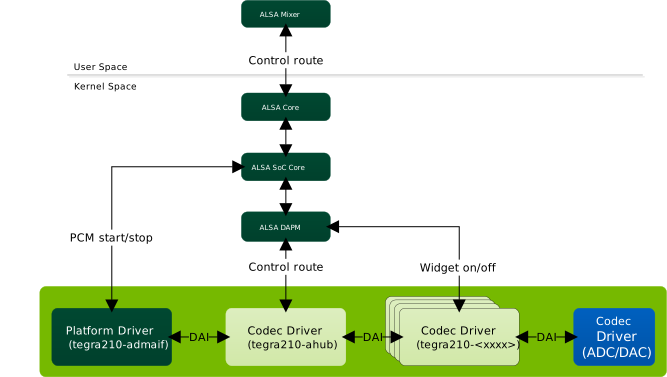
The following diagram illustrates the ALSA software hierarchy.
The functions of the platform and codec drivers are:
tegra210-admaif: A kernel driver that represents the interface between audio DMA (ADMA) and audio hub (AHUB)tegra210-<xxxx>: Kernel drivers that represent various hardware accelerators in AHUBtegra210-ahub: A kernel driver that helps to configure audio routing between various hardware accelerators
For more information about these modules, see the section AHUB modules.
User space ALSA applications interact with the ALSA core (kernel space) through APIs provided by user space libraries that initialize the actual hardware codecs at the backend of the audio pipeline.
DAPM#
ALSA is designed to support various functionalities including, but not
limited to, dynamic audio routing to available PCM devices. The
component of ALSA core that provides this support is called Dynamic
Audio Power Management (DAPM). DAPM minimizes power
consumption by controlling the power flow into and
out of various codec blocks in the audio subsystem. DAPM provides switches or kernel controls in the form of
widgets (components that affect audio power) to turn a module’s power on and off and to manipulate register
bits from user space
applications such as aplay, arecord, and amixer.
For more details on DAPM, refer ASoC DAPM.
In terms of software hierarchy, DAPM is part of the ALSA core, which manages the codec module’s power consumption. See the ALSA software hierarchy diagram under ALSA for details.
For more information see Clocking and Power Management.
Device Tree#
The device tree is a data structure that describes devices on the platform. It is passed to the operating system at boot time to avoid hard coding component details in the operating system. This makes it easier to change hardware configurations without rebuilding the kernel.
The device tree is composed of nodes and properties. Each node can have properties or child nodes. Each property consists of a name and one or more values. Device tree structures must be written in the correct format so that the data structure can be parsed by the operating system.
A simple device tree example is available at Codec Driver Instantiation Using Device Tree.
ASoC Driver#
The ASoC driver provides better ALSA support for embedded system-on-chip processors (e.g. DSP, AHUB) and portable audio codecs. It consists of these components:
Platform driver: Responsible for PCM registration and interfacing with the PCM driver. ADMAIF is the platform driver.
Codec drivers: Typically a generic, hardware-independent component that configures the codecs. Jetson ASoC extends this to some of the internal modules which are described in subsequent sections.
A codec driver must have at least one input or one output.
The driver architecture provides a way to define custom DAPM widgets for power management and kcontrols for register settings from user space.
Machine driver: Registers a sound card by binding the platform and codec components.
ASoC uses a common structure, snd_soc_component_driver, which represents both a platform and a codec component. It finally depends on which interfaces the drivers implement. For example, a platform component implements PCM interface as well, whereas a codec component can ignore it. Hence at top level, both platform and codec are referred as ASoC component. The same terminology is used in this document whenever a generic reference is needed.
For details on writing a machine driver and identifying a sound card, see ASoC Machine Driver.
Audio Hub Hardware Architecture#
The Audio Processing Engine (APE) is a standalone hardware block that takes care of all the audio needs of Jetson processors with minimal supervision from the CPU. Its audio hub (AHUB) contains many hardware accelerators and a DMA engine. This section provides an overview of:
The audio hub hardware architecture inside the SoC
The software architecture of the ASoC driver
This diagram summarizes the hardware architecture of the ASoC.
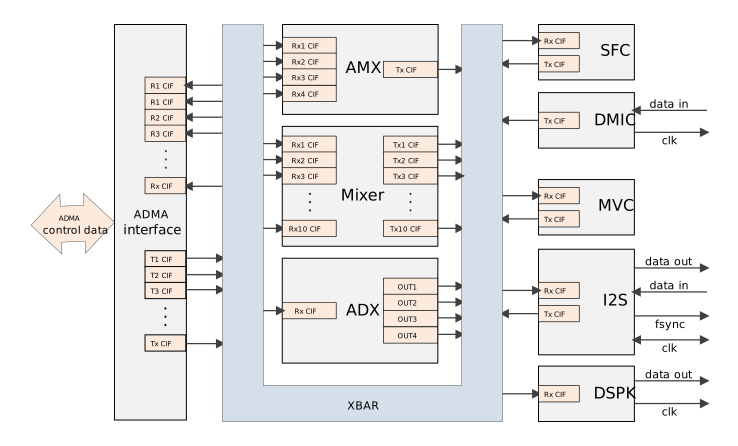
The audio hub contains several other modules as shown in the following table and it captures AHUB capabilites of a processor. Each module is described in detail in subsequent sections.
Chip-specific Information#
Module |
Component |
Orin Instances |
Orin Max Channels |
Jetson Thor Instances |
Jetson Thor Max Channels |
|---|---|---|---|---|---|
I2S |
I2S interface |
6x |
16 |
8x |
32 |
DSPK |
Digital speaker interface |
2x |
2 |
NA |
NA |
DMIC |
Digital microphone controller |
4x |
2 |
NA |
NA |
Mixer |
Mixer |
1x |
8 |
1x |
8 |
AMX |
Audio multiplexer |
4x |
16 |
6x |
RX stream: 16
TX stream: 32
|
ADX |
Audio demultiplexer |
4x |
16 |
6x |
RX stream: 32
TX stream: 16
|
ASRC |
Arbitrary Sample Rate Converter |
1x |
8 channels per stream, 6 streams total up to 16 channels |
1x |
8 channels per stream, 6 streams total up to 16 channels |
SFC |
Sample frequency converter |
4x |
2 |
4x |
2 |
MVC |
Master volume control |
2x |
8 |
2x |
8 |
ADMA |
Audio Direct Memory Access |
1x (32 channels) |
NA |
1x (64 channels) |
NA |
ADMAIF |
AHUB Direct Memory Access Interface |
1x (20 TX and RX channels) |
16 |
1x (32 TX and RX channels) |
32 |
XBAR |
Crossbar; routes audio samples through other modules |
1x |
NA |
1x |
NA |
Note
The carrier board does not expose all instances of an I/O module (I2S, DMIC or DSPK) on each Jetson device. See Board Interfaces for more information about supported I/O instances and corresponding mapping with carrier board interface.
The modules in the audio hub support various kinds of audio devices that are expected to interface with the application processor, such as:
Cellular baseband devices
Different types of audio CODECs
Bluetooth® modules
Digital microphones
Digital speakers
The audio hub supports the different interfaces and signal quality requirements of these devices.
Each of the AHUB modules has at least one RX port or one TX port or both.
RX ports receive data from XBAR, and TX ports send data to XBAR. Thus XBAR is a switch where an audio input can be fed to multiple outputs, depending on the use case.
Each ADMAIF has TX and RX FIFOs that support simultaneous playback and capture. ADMA transfers the data to the ADMAIF FIFO for all audio routing scenarios.
For dynamic audio routing examples, see Usage and Examples.
Refer to the appropriate technical reference manual for more information about the hardware configuration of the desired Jetson device.
ASoC Driver Software Architecture#
The software architecture of the ASoC driver for Jetson leverages the features supported by the hardware and conforms to the ALSA framework.
As mentioned earlier, the ASoC driver comprises the platform, codec and machine drivers. The roles of these drivers are described briefly below, and in more detail in subsequent sections.
The ASoC driver provides NVIDIA Audio Hub (AHUB) hardware acceleration to the platform and codec drivers. AHUB Direct Memory Access Interface (ADMAIF) is implemented as a platform driver with PCM interfaces for playback and capture. The rest of the AHUB modules, such as the crossbar (XBAR), multiplexer (AMX), demultiplexer (ADX), and inter-IC sound (I2S), are implemented as codec drivers. Each of the drivers is connected to XBAR through a digital audio interface (DAI), inside a machine driver, forming an audio hub.
The machine driver probe instantiates the sound card device and
registers all of the PCM interfaces as exposed by ADMAIF. After booting,
but before using these interfaces for audio playback or capture, you must
set up the audio paths inside XBAR. By default, XBAR has no routing
connections at boot, and no complete DAPM paths to power on the
corresponding widgets. The XBAR driver introduces MUX widgets for all of
the audio components and enables custom routing through kcontrols from
user space using the ALSA amixer utility. If the audio path is not
complete, the DAPM path is not closed, the hardware settings are not
applied, and audio output cannot be heard.
For more details on how to set up the route and how to play back or capture on the PCM interfaces, see Usage and Examples.
Platform Driver#
The platform driver initializes and instantiates the ports for playback and capture inside the AHUB.
Users must connect some or all of these ports to form a full audio routing path. For examples of full audio paths, see the examples in Usage and Examples. Note that there are other elements in a full audio path setup, which are discussed in subsequent sections; the playback/capture ports set up by the platform driver are only a subset.
ADMAIF#
ADMAIF is the platform driver in the Jetson ASoC design. It implements
required PCM interfaces exposed via the snd_soc_component_driver structure.
These interfaces help perform DMA operations by interacting with the SoC
DMA engine’s upstream APIs. The ADMAIF platform driver defines DAIs and
registers them with ASoC core.
The ADMAIF channels are mapped to:
/dev/snd/pcmC1D<n>pfor playback/dev/snd/pcmC1D<n>cfor capture
Where <n> is the channel number minus 1. For example:
ADMAIF1is mapped topcmC1D0pfor playback, andpcmC1D0cfor capture.ADMAIF2is mapped topcmC1D1pfor playback, andpcmC1D1cfor capture.
Codec Driver#
An overview of codec drivers is presented in ASoC Driver. In the ASoC driver implementation, the rest of the AHUB modules, except for ADMAIF, are implemented as codec drivers. Their responsibilities include:
Interfacing to other modules by defining DAIs
Defining DAPM widgets and establishing DAPM routes for dynamic power switching
Exposing additional kcontrols as needed for user space utilities to dynamically control module behavior
Codec Driver Instantiation Using Device Tree#
Based on architecture, the Makefile in the following directory conditionally compiles the required device tree structure files into DTB files:
$KERNEL_TOP/arch/arm64/boot/dts/
When the kernel is flashed, the flash script chooses the appropriate
board-specific DTB file for parsing during boot, and the ASoC codecs
listed in device tree are instantiated. To add new devices to the device
tree, edit the DTS file, and flash the target again.
The DTS file name can be identified from the corresponding DTB file name,
and the DTB file is in the /boot/dtb target directory.
For example:
If ``/boot/dtb/kernel_tegra234-p3737-0000+p3701-0005-nv.dtb`` is the platform DTB,
the corresponding DTS file is
``hardware/nvidia/t23x/nv-public/nv-platform/tegra234-p3737-0000+p3701-0005-nv.dts``.
To add a new device, add the device name with the base address and status as "okay":
ahub@2900800 {
    status = "okay";
    i2s@2901000 {
        status = "okay";
    };
};
Custom ALSA Mixer Control Configuration at Boot#
To configure ALSA mixer controls that are automatically applied when the system boots:
Navigate to the ALSA initialization directory at
/usr/share/alsa/init/postinit/in the platform.Edit or create a configuration file under this directory. Refer to the
00-tegra.conffile in the platform.Add mixer control settings under the appropriate Jetson sound card name.
XBAR#
The XBAR codec driver defines RX, TX and MUX widgets for all of the
interfacing modules: ADMAIF, AMX, ADX, I2S, DMIC, Mixer, SFC and MVC.
MUX widgets are permanently routed to the corresponding TX widgets
inside the structure snd_soc_dapm_route.
XBAR interconnections are made by connecting any RX widget block to any MUX widget block as needed using the ALSA amixer utility. The get and put handlers for these widgets are implemented so that audio connections are stored by setting the appropriate bit in the hardware MUX register.
Mixer Controls#
If the sound card is available after boot, that indicates that the machine driver was successful in binding all codec drivers and the platform driver. The remaining step before obtaining the audio output on the physical codecs involves the use of MUX widgets to establish the DAPM path in order to route data from a specific input module to a specific output module. Input and output modules are dependent on the applicable use case. This provides flexibility for complex use cases.
This command realizes the internal AHUB path “ADMAIF1 RX to XBAR to I2S1 TX”:
$ amixer –c APE cset name='I2S1 Mux' 'ADMAIF1'
For usage and examples of various AHUB modules, see Usage and Examples.
AMX#
The Audio Multiplexer (AMX) module can multiplex up to four streams of
up to 16 channels, with a maximum of 32 bits per channel, into a time
division multiplexed (TDM) stream of up to MAX channels with up to
32 bits per channel. The AMX has four RX ports for receiving data from
XBAR and one TX port for transmitting the multiplexed output to XBAR.
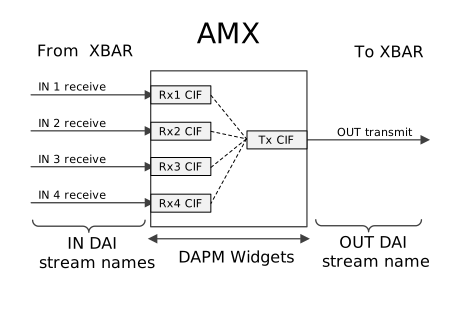
Each port is exposed as a DAI, as indicated in the following diagram by solid lines.
Routes are established using DAPM widgets, as indicated by dotted lines.
The AMX code driver supports these features:
Can multiplex up to four input streams of up to 16 channels each, and generate one output stream of up to
MAXchannels.Can assemble an output frame from any combination of bytes from the four input frames (“byte RAM”).
Provides two modes for data synchronization of the first output frame:
Wait for All mode: Wait for all enabled input streams to have data before forming the first output frame.
Wait for Any mode: Start forming the first output frame as soon as data is available in any enabled input stream.
Byte Map Configuration#
Each byte in the output stream is uniquely mapped from a byte in one of the four input streams. Mapping of bytes from input streams to the output stream is software-configurable through a byte map in the AMX module.
Each byte in the byte map is encoded with these fields:
Field |
Bits |
Description |
|---|---|---|
Input stream |
7:6 |
Identifies the input stream (0 to 3) that the byte is mapped from, where 0 is RxCIF0, etc. |
Input stream channel |
5:2 |
Identifies the input stream channel (0 to 15) that the byte is mapped from, where 0 is channel 0, etc. |
Input stream byte |
1:0 |
Identifies the byte in the input stream channel that the byte is mapped from (0 to 3), where 0 is byte 0, etc. |
Because the largest supported output frame size is MAX samples (from
MAX channels) with 32 bits per sample, the byte map is organized as MAX
words of 4 bytes (32 bits) each. Each word represents one input channel, and each byte in the word represents one output channel that the input channel may be mapped to.
If the output frame gets
samples from only two input channels, then only the bytes in word 0 and word 1
need be programmed. If the output frame gets samples from all the
channels, the bytes in all MAX words must be programmed.
The output frame sample size determines which bytes must be programmed in each word. If the sample size of each channel in the output frame is 16 bits, then only byte 0 and byte 1 of each word in the byte map need be programmed. If the sample size of each channel in the output frame is 32 bits, then all four bytes of each word must be programmed.
Bear these points in mind:
Input bytes must be mapped to output bytes in order. For example, if input frame bytes 0 and 1 are both mapped to the output frame, byte 1 must be mapped to a position in the output frame after byte 0.
Not all bytes from an input frame need be mapped to the output frame.
Each byte in the output frame has a software-configurable enable flag. If a particular byte’s enable flag is cleared, the corresponding mapping in the byte map is ignored, and that byte is populated with zeros.
Mixer Controls#
Mixer controls are registered for each instance of AMX by the respective codec driver, and are used to configure the path, characteristics, and processing method of audio data. The table below lists instance-specific mixer controls.
Mixer Control |
Description |
Possible Values |
|---|---|---|
AMX<i> RX<j> Mux |
Selects the AHUB client device from which the AMX input receives data. |
To get the possible values, run this command:
|
AMX<i> Byte Map <byte_num> |
Specifies the byte map (see Byte Map Configuration). |
0–255 |
AMX<i> Input<j> Sample Channels |
Specifies the channel count of the input streams. |
0–16 |
AMX<i> Output Sample Channels |
Specifies the channel count of the output stream. |
0–<MAX> |
where:
<i>is an AMX instance from1toN. For the value ofN, see Chip-specific Information.<j>is an output stream number from1to4associated with the specified AMX.<MAX>is the maximum number of input channels supported by the AMX. For the value of<MAX>, see Chip-specific Information.<byte_num>is 4 bytes (32-bit format) multiplied by<MAX>.
Usage and examples of the AMX module can be found in Examples: AMX.
ADX#
The Audio Demultiplexer (ADX) module can demultiplex a single TDM stream
of up to MAX channels and a maximum of 32 bits per channel into four
streams of up to 16 channels and 32 bits per channel. The RX port of ADX
receives input data from XBAR, and four TX ports transmit demultiplexed
output to XBAR. Each port is exposed as a DAI, indicated by a solid line
and routes are established using DAPM widgets as indicated by the dotted
lines in the following diagram.
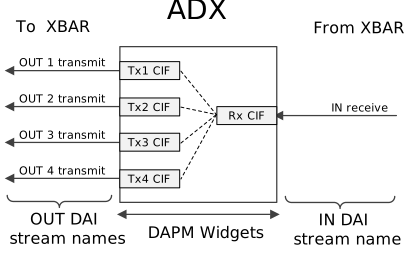
ADX has one input, RxCIF, which supplies the input stream. The core logic selects bytes from this input stream based on a byte map and forms output streams which are directed to a TxCIF FIFO to be transmitted to a downstream module in AHUB.
The ADX demultiplexer supports these features:
Demultiplexing one input stream of up to
MAXchannels to four output streams of up to 16 channels eachAssembling output frames that contain any combination of bytes from the input frame (“byte RAM”). The byte RAM design is the same as in AMX, except that the direction of data flow is reversed.
Byte Map Configuration#
Each byte in each output stream is mapped from a byte in the input stream. The mapping of the bytes from input stream to output streams is software-configurable through a byte map in the ADX module.
Field |
Bits |
Description |
|---|---|---|
Output stream |
7:6 |
Specifies the output stream that the byte is mapped to, where 0 represents TxCIF0, etc. |
Output stream channel |
5:2 |
Specifies the output stream channel that the byte is mapped to, where 0 represents channel 0, etc. |
Output stream byte |
1:0 |
Specifies the byte in the output stream channel that the byte is mapped to, where0 represents byte 0, etc. |
The byte map is organized as MAX words of 32 bits (4 bytes) each.
Each word represents
one channel in the input frame. Therefore, if the input frame only
has two channels then only the bytes in word 0 and word 1 need be
programmed. If the input frame has the maximum allowed channels, bytes in all MAX words must be programmed.
The input frame sample size determines the bytes that must be programmed in each word. If the sample size of each channel in the input frame is 16 bits, then only byte 0 and byte 1 of each word need be programmed. If the sample size of each channel in the input frame is 32 bits, then all four bytes of each word must be programmed.
Bear these points in mind:
Input bytes must be mapped to output bytes in order. For example, if input frame bytes 0 and 1 are both mapped to the output frame, byte 1 must be mapped to a position in the output frame after byte 0.
Not all bytes in an input frame need be mapped to the output frame.
Each byte in the output frame has a software-configurable enable flag. If a particular byte’s enable flag is cleared, the corresponding mapping in the byte map is ignored, and that byte is populated with zeros.
Mixer Controls#
Mixer controls are registered for each instance of ADX by the respective codec driver, and are used to configure the path, characteristics, and processing method audio data. The table below lists the instance-specific mixer controls for each instance of the ADX module.
Mixer Control |
Description |
Possible Values |
|---|---|---|
ADX<i> Mux |
Selects the AHUB client device from which the ADX input receives data. |
To get the possible values, run this command:
|
ADX<i> Byte Map <byte_num> |
Configures the byte map (see Byte Map Configuration) |
0–255 |
ADX<i> Input Sample Channels |
Configures the channel count of the input stream. |
0–<MAX> |
ADX<i> Output<j> Sample Channels |
Configures the channel count of the output streams. |
0–16 |
where:
<i>is an ADX instance from1toN. For the value ofN, see Chip-specific Information.<j>is an output stream number from1to4associated with the specified ADX.<MAX>is the maximum number of input channels supported by the ADX. For the value of<MAX>, see Chip-specific Information.<byte_num>is 4 bytes (32-bit format) multiplied by<MAX>.
Usage and examples of ADX module can be found in Examples: ADX.
I2S#
An I2S codec driver supports bidirectional data flow, and so defines CIF and DAP RX/TX DAPM widgets with the CIF side of I2S interfacing with XBAR, and the DAP side interfacing with the physical codec on the Jetson device.
The DAPM routes established with these DAPM widgets are shown in the following diagram as dotted lines. I2S modules also expose kernel control to enable internal I2S loopback.
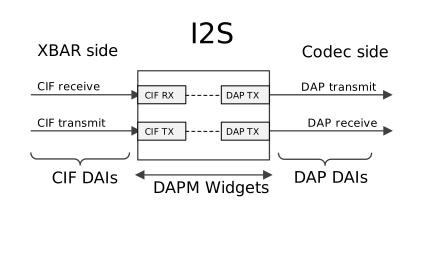
The I2S controller implements full-duplex and half-duplex point-to-point serial interfaces. It can interface with I2S-compatible products, such as digital audio tape devices, digital sound processors, modems, and Bluetooth chips.
The I2S codec driver supports these features:
Can operate both as master and slave
Supports the following modes of data transfer:
LRCK modes: I2S mode, Left Justified Mode (LJM), or Right Justified Mode (RJM)
FSYNC modes: DSP A or B mode
Can transmit and receive data:
Sample size: 8 bits (S8), 16 (S16_LE), or 24/32 bits (S32_LE)
Sample rate: 8000, 11025, 16000, 22050, 24000, 32000, 44100, 48000, 88400, 96000, 176400, or 192000 Hz
Channels: LRCK modes support stereo data; DSP A and B modes support 1 to
MAXchannels
Device Tree Entry#
This node enables one instance of I2S on Jetson AGX Orin series:
aconnect@2900000 {
    status = "okay";
    ...

    tegra_ahub: ahub@2900800 {
        status = "okay";
        ...

        tegra_i2s1: i2s@2901000 {
            status = "okay";
            ...
        };
    };
};
For other properties, see the Tegra234 I2S1 node definition.
The address and a few other properties are
Jetson device-specific and might be referenced by the corresponding Jetson device
tree files. In the case of I2S, the device entry above specifies the
names of clocks needed by the device, the source of each clock, and the
register base address and address range belonging to the device. Other
properties such as convert-channels can be adjusted to fit the use case’s
requirements.
Mixer Controls#
Mixer controls are registered for each instance of I2S by the respective codec driver, and are used to configure the path, characteristics, and processing method of audio data. The table below lists instance-specific mixer controls.
Mixer Control |
Description |
Possible Values |
|---|---|---|
I2S<i> Mux |
Selects the AHUB client device from which the I2S input receives data. |
To get the possible values, run this command:
|
I2S<i> Loopback |
Enables internal I2S loopback. |
|
I2S<i> FSYNC Width |
Configures frame sync signal’s width in terms of bit clocks. |
0–255 |
I2S<i> Capture Stereo To Mono |
Configures stereo-to-mono conversion method to be applied to capture stream. |
|
I2S<i> Capture Mono To Stereo |
Configures mono-to-stereo conversion method to be applied to capture stream. |
|
I2S<i> Playback Stereo To Mono |
Configures stereo-to-mono conversion method to be applied to playback stream. |
|
I2S<i> Playback Mono To Stereo |
Configures mono-to-stereo conversion method to be applied to playback stream. |
|
I2S<i> Playback FIFO Threshold |
Configures CIF’s FIFO threshold for playback to start. |
0–63 |
I2S<i> BCLK Ratio |
I2S BCLK (bit clock) multiplier |
1, 2, … |
I2S<i> codec frame mode |
Configures I2S/TDM frame mode. For I2S mode, use |
|
I2S<i> codec master mode |
Configures I2S codec’s mode of operation (bit-master, bit-slave, frame-slave, or frame-master). |
|
I2S<i> Sample Bits |
Configures length of sample bits. |
16 or 32 |
I2S<i> Sample Rate |
Configures sample rate of audio stream. |
8000, 11025, 16000, 22500, 24000, 32000, 44100, 48000, 88400, 96000, 176400, or 192000 Hz |
I2S<i> Sample Channels |
Configures channel count of audio stream. |
0–<MAX> |
where:
<i>is an I2S instance from1toN. For the value ofN, see Chip-specific Information.<MAX>is the maximum number of input channels supported by the I2S. For the value of<MAX>, see Chip-specific Information.
For usage and an example for the I2S module, see Examples: I2S.
Mixer#
The Mixer mixes audio streams from any of the 10 input ports that receive data from XBAR to any of the 5 output ports that transmit data onto XBAR. The DAPM widgets and routes for Mixer are shown in the figure below. The Mixer driver also exposes RX Gain and Mixer Enable as additional kcontrols to set the volume of each input stream and to globally enable or disable the Mixer respectively.
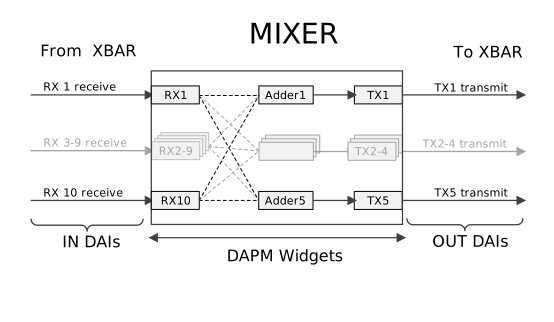
Features Supported#
Supports mixing up to 10 input streams
Supports five outputs, each of which can be a mix of any combination of 10 input streams
Can transmit and receive:
Sample size: 8, 16, 24, or 32
Sample rate: 8000, 11025, 16000, 22500, 24000, 32000, 44100, 48000, 88400, 96000, or 192000 Hz
Channels: 1-8
Fixed gain for each stream is also available
Mixer Controls#
Mixer controls are registered for each instance of Mixer by the corresponding codec driver. They are used to the configure path, characteristics, and processing method of audio data. The table below lists instance-specific mixer controls.
Mixer Control |
Description |
Possible Values |
|---|---|---|
MIXER1 RX<i> Mux |
Selects the AHUB client device from which the MIXER1 input receives data. |
To get the possible values, run this command:
|
MIXER1 Adder<j> RX<i> |
Enables the input stream |
|
MIXER1 Fade |
Set Fade settings for multiple Mixer input streams. |
Fade settings for an input stream consisting of three values and thus a total of 30 values:
- Input stream ID: 1 to 10
- Gain: see the RX<i> Gain control
- Duration:
64-0x7fffffff |
MIXER1 Fade Status |
Read-only control. Queries Fade status of all the input streams. |
-
-1: Fade is not programmed-
0: Fade is not completed-
1: Fade is completed |
MIXER1 RX<i> Gain Volume |
Configures the gain for an input stream before you add in the adder. |
0–131072 |
MIXER1 RX<i> Instant Gain Volume |
Configures the gain for an input stream before you add in the adder. |
0–131072 |
MIXER1 RX<i> Sample Channels |
Configures the channel count of the input stream. |
0–8 |
MIXER1 TX<j> Sample Channels |
Configures the channel count of the output stream. |
0–8 |
where:
<i>is a Mixer input stream number from1to10.<j>is a Mixer output stream number from1to5.
For usage and examples for the Mixer module, see Examples: Mixer.
SFC#
The Sampling Frequency Converter (SFC) converts the input sampling frequency to the required sampling rate. SFC has one input port and one output port, which are connected to XBAR.
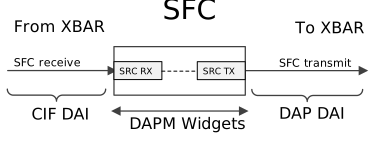
Features Supported#
Sampling frequency conversion of streams of up to two channels (stereo)
Very low latency (maximum latency less than 125 microseconds)
Supports the frequency conversions marked by ‘X’ in the following table. (Shaded cells represent the same frequency in and out. These cases bypass frequency conversion.)
|
Fs in →
↓ Fs out
|
8 | 11.025 | 16 | 22.05 | 24 | 32 | 44.1 | 48 | 88.2 | 96 | 176.4 | 192 |
|---|---|---|---|---|---|---|---|---|---|---|---|---|
| 8 | X | X | X | X | ||||||||
| 11.025 | X | X | ||||||||||
| 16 | X | X | X | X | ||||||||
| 22.05 | X | X | ||||||||||
| 24 | X | X | ||||||||||
| 32 | X | X | ||||||||||
| 44.1 | X | X | X | |||||||||
| 48 | X | X | X | X | X | X | ||||||
| 88.2 | X | X | ||||||||||
| 96 | X | X | ||||||||||
| 176.4 | X | X | ||||||||||
| 192 | X | X |
Mixer Controls for SFC#
Mixer controls are registered for each instance of SFC by the corresponding codec driver. They are used to configure the path, characteristics, and processing method of audio data. The table below lists instance-specific mixer controls.
Mixer Control |
Description |
Possible Values |
|---|---|---|
SFC<i> Mux |
Selects the AHUB client device from which the SFC input receives data. |
To get the possible values, run this command:
|
SFC<i> Input Sample Rate |
Configures sampling rate of the input stream. |
8000, 11025, 16000, 22050, 24000, 32000, 44100, 48000, 88200, 96000, 176400, or 192000 Hz |
SFC<i> Output Sample Rate |
Configures sampling rate of the output stream. |
8000, 11025, 16000, 22050, 24000, 32000, 44100, 48000, 88200, 96000, 176400, or 192000 Hz |
SFC<i> Input Sample Channels |
Configures channel count of the input stream. |
1, 2 |
SFC<i> Output Sample Channels |
Configures channel count of the input stream. |
1, 2 |
SFC<i> Input Sample Bits |
Configures sample size of the input stream. |
16 or 32 |
SFC<i> Output Sample Bits |
Configures sample size of output stream. |
16 or 32 |
SFC<i> Input Stereo To Mono |
Configures stereo-to-mono conversion of input stream. |
|
SFC<i> Input Mono To Stereo |
Configures mono-to-stereo conversion of input stream. |
|
SFC<i> Output Stereo To Mono |
Configures stereo-to-mono conversion of output stream. |
|
SFC<i> Output Mono To Stereo |
Configures mono-to-stereo conversion of output stream. |
|
where:
<i>is an SFC instance from1toN. For the value ofN, see Chip-specific Information.
For usage and examples for the SFC module, see Examples: SFC.
Arbitrary Sample Rate Converter (ASRC)#
The Arbitrary Sample Rate Converter (ASRC) converts audio samples from one sample rate to another. The conversion ratio between input and output sample rates can be any arbitrary number and the input and output clocks could be derived from asynchronous clocks.
Features Supported#
Input sample rates in the range 8 KHz to 192 KHz.
Output sample rates in the range 8 KHz to 192 KHz.
Any sampling ratio from 1:24 to 24:1.
Input formats up to 16, 24, and 32 bits.
Up to 6 streams and up to 16 total channels, with a maximum of 8 channels per stream.
Mixer Controls for ASRC#
Mixer controls are registered for ASRC by the corresponding codec driver. They are used to configure the path, characteristics, and processing method of audio data. The following table lists ASRC mixer controls.
Mixer Control |
Description |
Possible Values |
|---|---|---|
ASRC1 RX<i> Mux |
Selects the AHUB client device from which the ASRC input receives data. |
To get the possible values, run this command:
|
ASRC1 Ratio<i> Source |
Configure ASRC ratio source. |
|
ASRC1 Ratio<i> |
Conversion ratio (input_frequency/output_frequency). |
Ratio = <integer part>,<frac part>
Integer part: 0 to 24
Fraction part: Q32 format
|
ASRC1 Stream<i> HW Component Disable |
Enable or disable ASRC hardware compensation. |
|
ASRC1 Stream<i> Input Threshold |
Configure ASRC input threshold. |
0–3 |
ASRC1 Stream<i> Output Threshold |
Configure ASRC output threshold. |
0–3 |
where:
<i> refers to the stream number: 1 to 6.
For usage and examples for the ASRC module, see Examples: ASRC.
DMIC#
The DMIC controller converts PDM signals to PCM (pulse code modulation) signals.
The DMIC controller can directly interface to PDM input devices to avoid the need for an external PDM-capable codec.
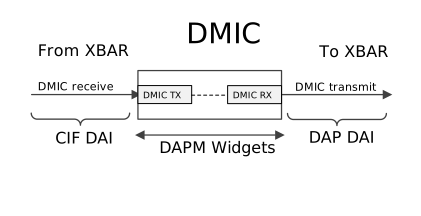
The following diagram shows the DAPM widgets and routes.
Features Supported#
Conversion from PDM (pulse density modulation) signals to PCM (Pulse code modulation) signals
Sample rate: 8000, 16000, 44100, or 48000 Hz
Sample size: 16 bits (S16_LE) or 24 bits (S32_LE)
OSR (oversampling ratio): 64, 128, or 256
Device Tree Entry#
This node enables one instance of DMIC on Jetson AGX Orin series:
aconnect@2900000 {
    status = "okay";
    ...

    tegra_ahub: ahub@2900800 {
        status = "okay";
        ...

        tegra_dmic1: dmic@2904000 {
            status = "okay";
            ...
        };
    };
};
For other properties, see the Tegra234 DMIC1 node definition. It specifies the register base address and address range belonging to the device, the clocks required, and their sources.
Mixer Controls for DMIC#
Mixer controls are registered for each instance of DMIC by the corresponding codec driver. They are used to configure the path, characteristics, and processing method of audio data. The table below lists instance specific mixer controls.
Mixer Control |
Description |
Possible Values |
|---|---|---|
DMIC<i> Boost Gain Volume |
Configures volume. |
0 to 25599, representing 0 to 256 in linear scale (with 100x factor) |
DMIC<i> Channel Select |
Selects channel for mono capture. |
|
DMIC<i> Mono To Stereo |
Configures mono-to-stereo conversion method for DMIC capture. |
|
DMIC<i> Stereo To Mono |
Configures stereo-to-mono conversion method for DMIC capture. |
|
DMIC<i> OSR Value |
Configures OSR (oversampling ratio). OSR<i> indicates selecting one sample from the several samples received on input lines of the DMIC processing block. |
|
DMIC<i> LR Polarity Select |
Configures the left/right channel polarity. |
|
DMIC<i> Sample Bits |
Configures output sample size in bits. |
None, 16, or 32 |
DMIC<i> Sample Channels |
Configures channel count of DMIC capture. |
0–2. |
DMIC<i> Sample Rate |
Configures sample rate of DMIC capture. |
8000, 11025, 16000, 22050, 24000, 32000, 44100, or 48000 Hz |
where:
<i>is a DMIC instance from1toN. For the value ofN, see Chip-specific Information.
For usage and examples for DMIC, see Examples: DMIC.
MVC#
MVC (volume control) applies gain or attenuation to a digital signal path. The MVC block is a generic block. It can be used to apply volume control:
To the input or output digital signal path
Per-stream and to all streams (primary volume control)
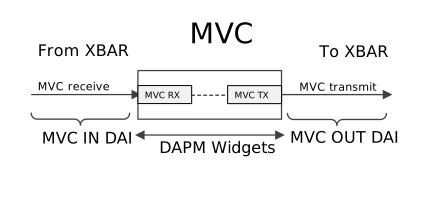
The following diagram shows MVC’s DAPM widgets and routes.
Features Supported#
Programmable volume gain for data formats:
Sample size: 8, 16, 24, or 32 bits
Sample rate: 8000, 11025, 16000, 22050, 24000, 32000, 44100, 48000, 88400, 96000, 176400, or 192000 Hz
Channels: 1-8
Programmable curve ramp for volume control
Separate mute and unmute controls
Mixer Controls#
Mixer controls are registered for each instance of MVC by the corresponding codec driver. They are used to configure the path, characteristics, and processing method of audio data. The table below lists instance-specific mixer controls.
Mixer Control |
Description |
Possible Values |
|---|---|---|
MVC<i> Mux |
Selects the AHUB client device from which the MVC input receives data. |
To get the possible values, run this command:
|
MVC<i> Volume |
Configures master volume. |
0 to 16000 (represents -120 to +40 dB with 100x scale factor) |
MVC<i> Channel<j> Volume |
Configures channel-specific volume. |
0 to 16000 (represents -120 to +40 dB with 100x scale factor) |
MVC<i> Mute |
Enables/disables Master mute. |
|
MVC<i> Per Channel Mute Mask |
Controls channel-specific mute and unmute. |
0 to 255 |
MVC<i> Curve Type |
Configures volume ramp curve type. |
|
MVC<i> Sample Channels |
Configures channels of audio data passing through MVC. |
0–8 |
MVC<i> Sample Bits |
Configures sample size of input audio data through MVC. |
16 or 32 |
MVC<i> Bits |
Configures sample size of output audio data through MVC. |
16 or 32 |
where:
<i>is an MVC instance from1toN. For the value ofN, see Chip-specific Information.
For usage and examples of the MVC module, see Examples: MVC.
DSPK#
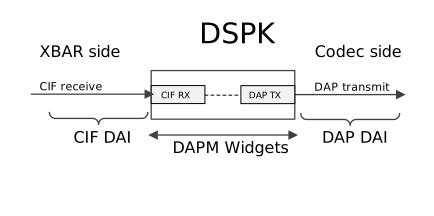
The Digital Speaker (DSPK) is a PDM transmit block that converts multi-bit PCM audio input to oversampled one-bit PDM output. The DSPK controller consists of an interpolator that oversamples the incoming PCM and a delta-sigma modulator that converts the PCM signal to PDM.
Features Supported#
Sample rate: 8000, 11025, 16000, 22050, 24000, 32000, 44100, 48000, 88400, 96000, 176400, or 192000 Hz
Input PCM bit width: 16 bits (S16_LE) or 24 bits (S32_LE)
Oversampling ratio: 32, 64, 128, or 256
Passband frequency response: ≤0.5 dB peak-to-peak in 10 Hz – 20 KHz range
Dynamic range: ≥105 dB
Device Tree Entry#
This node enables one instance of DSPK on Jetson AGX Orin series:
aconnect@2900000 {
    status = "okay";
    ...

    tegra_ahub: ahub@2900800 {
        status = "okay";
        ...

        tegra_dspk1: dspk@2905000 {
            status = "okay";
            ...
        };
    };
};
For other properties, see the Tegra234 DSPK1 node definition. It specifies the register base address and address range belonging to the device, the clocks required, and their sources.
Mixer Controls#
Mixer controls are registered for each instance of DSPK by the corresponding codec driver. They are used to the configure path, characteristics, and processing method of audio data. The table below lists instance-specific mixer controls.
Mixer Control |
Description |
Possible Values |
|---|---|---|
DSPK<i> Mux |
Selects the AHUB client device from which the DSPK input receives data. |
To get the possible values, run this command:
|
DSPK<i> OSR Value |
Configures the oversampling ratio. OSR_<i> specifies i bits of PCM audio input to oversampled 1-bit PDM output. |
|
DSPK<i> FIFO Threshold |
Specifies the number of words that need to be present in the FIFO before a CIF starts a transfer. |
0–3 |
DSPK<i> LR Polarity Select |
Configures DSPK left or right channel polarity. |
|
DSPK<i> Channel Select |
Select channel for playback. |
|
DSPK<i> Mono To Stereo |
Mono-to-stereo conversion of playback stream. |
|
DSPK<i> Stereo To Mono |
Stereo-to-mono conversion of playback stream. |
|
DSPK<i> Sample Bits |
Configures sample size of playback stream. |
None, 16, or 32 |
DSPK<i> Sample Channels |
Configures channel count of playback stream. |
0–2 |
DSPK<i> Sample Rate |
Configure sample rate of playback stream. |
8–48 kHz |
where:
<i>is a DSPK instance from1toN. For the value ofN, see Chip-specific Information.
For usage and examples for the DSPK module, see Examples: DSPK.
AHUB Client TX Port Names#
This is a list of names of AHUB clients’ TX ports.
AHUB Client |
TX Port Names * |
|---|---|
ADMAIF |
|
I2S |
|
DMIC |
|
DSPK |
|
AMX |
|
ADX |
|
SFC |
|
MVC |
|
MIXER |
|
* |
|
ASoC Machine Driver#
The ASoC machine driver connects the codec drivers to a PCM driver by linking the DAIs exposed by each module, and instantiates the sound card.
The structure snd_soc_dai_link, in ASoC core, defines a link
that connects two DAIs from different modules. Such a link is called a
DAI link. A given machine driver can have one or more DAI links,
which are connected at runtime to form an audio path.
Dynamic PCM (DPCM) links are used to support runtime routing between multiple DAIs. Tegra audio systems utilize DPCM-based DAI links to enable flexible audio routing between the Audio Hub (AHUB) modules and external codecs. For more information about DPCM, see the Kernel DPCM documentation.
The audio connections are defined in the device tree using standard ASoC bindings. Each audio connection is represented as a link between two audio components. The types of connections are as follows:
SoC internal connections (between XBAR and AHUB modules).
External connections (between SoC I/O modules and external audio codecs).
The following is a list of the ASoC machine driver’s key functions:
Set up audio routing between devices based on device tree configuration.
- Configure audio routing using DAPM widgets and routes.
Machine widgets (like headphone jacks, speakers, and microphones) are mapped to codec endpoints.
Routes define valid audio paths between widgets.
Set up clocking for the Audio Processing Engine (APE) and codecs.
Handle runtime configuration of PCM parameters (such as sample rate, format, and channels).
The Jetson ASoC machine driver is available in the kernel sources archive in the following location:
$KERNEL_TOP/sound/soc/tegra/tegra_audio_graph_card.c
The Tegra machine driver implementation is based on graph-based data from the device tree, following the standard Device Tree Graph Schema, which defines the generic framework for audio connections.
For example, the Jetson AGX Orin platform base device tree contains the core port configurations and routing endpoints needed for audio functionality:
I/O interfaces like I2S have two ports: the Internal port (port@0) that connects to the XBAR through the
i2s1_cifendpoint and the External port (port@1)i2s1_portwith thei2s1_dapendpoint for codec connection.Other interfaces like SFC, AMX, and ADX have ports depending on the number of input and output DAIs. For example, AMX has four input ports and one output port.
Definition of a DAI Node#
Each I2S interface requires both an endpoint configuration and a DAI link definition in the device tree. The endpoint defines the physical connection points; the DAI link establishes the logical audio path. The overall format of a DAI node is described in ASoC Machine Driver. For each I2S interface DAI link, users can configure the properties as per use case. For details, see the Audio Graph Port Device Tree Bindings
Other DAI link properties are common for all the DAI links. For details, see the DAI Parameters Device Tree Bindings.
Clocking and Power Management#
The following debugfs node listing, obtained from
/sys/kernel/debug/clk/clk_summary, shows the clock tree of the ASoC
driver for Jetson AGX Orin in the idle state, when no audio
playback or capture operations are in progress. The clock trees for the other
Jetson devices are similar.
| clock | enable_cnt | prepare_cnt | rate | req_rate | accuracy | phase |
|---|---|---|---|---|---|---|
| i2s6_sync_input | 0 | 0 | 0 | 0 | 0 | 0 |
| i2s5_sync_input | 0 | 0 | 0 | 0 | 0 | 0 |
| i2s4_sync_input | 0 | 0 | 0 | 0 | 0 | 0 |
| i2s3_sync_input | 0 | 0 | 0 | 0 | 0 | 0 |
| i2s2_sync_input | 0 | 0 | 0 | 0 | 0 | 0 |
| i2s1_sync_input | 0 | 0 | 0 | 0 | 0 | 0 |
| dmic4_sync_clk | 0 | 0 | 0 | 0 | 0 | 0 |
| dmic3_sync_clk | 0 | 0 | 0 | 0 | 0 | 0 |
| dmic2_sync_clk | 0 | 0 | 0 | 0 | 0 | 0 |
| dmic1_sync_clk | 0 | 0 | 0 | 0 | 0 | 0 |
| i2s6_sync_clk | 0 | 0 | 0 | 0 | 0 | 0 |
| i2s5_sync_clk | 0 | 0 | 0 | 0 | 0 | 0 |
| i2s4_sync_clk | 0 | 0 | 0 | 0 | 0 | 0 |
| i2s3_sync_clk | 0 | 0 | 0 | 0 | 0 | 0 |
| i2s2_sync_clk | 0 | 0 | 0 | 0 | 0 | 0 |
| i2s1_sync_clk | 0 | 0 | 0 | 0 | 0 | 0 |
| pll_a1 | 0 | 0 | 600000000 | 600000000 | 0 | 0 |
| ape | 0 | 0 | 150000000 | 150000000 | 0 | 0 |
| apb2ape | 0 | 0 | 150000000 | 150000000 | 0 | 0 |
| pll_a | 0 | 0 | 258000000 | 258000000 | 0 | 0 |
| dmic4 | 0 | 0 | 12285714 | 12285714 | 0 | 0 |
| dmic3 | 0 | 0 | 12285714 | 12285714 | 0 | 0 |
| dmic2 | 0 | 0 | 12285714 | 12285714 | 0 | 0 |
| dmic1 | 0 | 0 | 12285714 | 12285714 | 0 | 0 |
| i2s6 | 0 | 0 | 23454545 | 23454545 | 0 | 0 |
| i2s5 | 0 | 0 | 23454545 | 23454545 | 0 | 0 |
| i2s4 | 0 | 0 | 23454545 | 23454545 | 0 | 0 |
| i2s3 | 0 | 0 | 23454545 | 23454545 | 0 | 0 |
| i2s2 | 0 | 0 | 23454545 | 23454545 | 0 | 0 |
| i2s1 | 0 | 0 | 23454545 | 23454545 | 0 | 0 |
| ahub | 0 | 0 | 86000000 | 86000000 | 0 | 0 |
The clocks of the individual modules, AMX, ADX, AFC, SFC, MIXER, and others, are internally driven by the APE clock.
The clock for all codec drivers (I2S, DMIC, DSPK, XBAR, etc.) are switched off in the idle state. They are turned on when audio playback or capture begins.
Dynamic PLL_A Rate Update#
PLL_A is a clock source provided by Jetson processors for audio needs. Its primary
function is to source the clocking requirements of I/O modules such
as I2S, DMIC and DSPK. The AUD_MCLK clock is also derived from PLL_A.
Jetson devices support two families of sample rates:
Multiples of 8 Kbps (8x): 8000, 16000, 24000, 32000, 48000, 96000, and 192000 Hz
Multiples of 11.025 Kbps (11.025x): 11025, 22050, 44100, 88200, and 176400 Hz
A single PLL_A base rate cannot support both families of rates.
Therefore, separate base rates are used for 8x and 11.025x. The machine
driver sets the rate of PLL_A at run time, depending on the incoming
stream’s sample rate. Thus users can play and capture at a rate from
either list above.
High Definition Audio#
Jetson devices support one or more High Definition Audio (HDA) interfaces through on-board HDMI, DP, and USB-C ports. These interfaces can be used to perform high-quality audio rendering on devices like TVs and A/V receivers. These HDA interfaces are available on various Jetson devices:
Jetson Orin NX: one DP (supports single or multiple streams)
Jetson Orin Nano: one DP (supports single or multiple streams)
Jetson Orin NX Module + Jetson Xavier NX Developer Kit Carrier Board: one HDMI, one DP (can support single or multiple streams)
Jetson AGX Orin: one DP (can support single or multiple streams)
Jetson Thor: one HDMI, one DP (can support single or multiple streams)
HDMI and DP interfaces can be connected using the respective connectors. DP over USB-C needs a USB-C to DP converter to connect to a DP sink.
Features Supported#
Jetson High Definition Audio supports the following features:
Compliant with High Definition Audio Specification Revision 1.0
Supports HDMI 1.3a and DP
Audio Format Support
Channels: 2 to 8
Sample size: 16 bits (S16_LE) or 24 bits (S32_LE)
Sample rate:
32000, 44100, 48000, 88200, 96000, 176400, or 192000 Hz (HDMI)
32000, 44100, 48000, 88200, or 96000 Hz (DP)
You might experience issues when playing high-resolution audio formats (using multichannel output or a high sampling rate), even with an audio format that the monitor supports. This is because the available audio bandwidth depends on the HDMI configuration and increases with higher display resolutions.
If issues occur when playing a high-resolution audio format, we recommend setting the display resolution to at least the level that corresponds to the audio format in the following table. This table is taken from the HDMI 1.3a specification document.
| Display resolution | Format timing | Pixel repetition | Maximum fs, 8 channels (Hz) | Maximum frame rate, 2 channels, comp * | SuperAudio CD channel count | ||
|---|---|---|---|---|---|---|---|
| VGA | 640×480p | none | 48000 | 192 | 2 | ||
| 480i | 1440x480i | 2 | 88200 | 192 | 2 | ||
| 2880x480i | 4 | 192000 | 768 | 8 | |||
| 240p | 1440x240p | 2 | 88200 | 192 | 2 | ||
| 2880x240p | 4 | 192000 | 768 | 8 | |||
| 480p | 720x480p | none | 48000 | 192 | 2 | ||
| 1440x480p | 2 | 176400 | 384 | 8 | |||
| 2880x480p | 4 | 192000 | 768 | 8 | |||
| 720p | 1280x720p | none | 192000 | 768 | 8 | ||
| 1080i | 1920x1080i | ||||||
| 1080p | 1920x1080p | ||||||
|
|||||||
Software Driver Details#
HDA interfaces are accessible through standard ALSA interfaces. You can
use the aplay utility for rendering audio:
$ aplay -Dhw:HDA,<devID> <wav_in>
Where:
<deviceID>is the sound interface’s device ID.<wav_in>is the name of the sound file to be played. It should be a.wavfile.
Here are some further details about driver usage:
All HDA interfaces are available under one card.
Card details are available at
/proc/asound/cards.Available PCM devices (that is, HDA interfaces) are listed under
/proc/asound/card<n>/.AHUB supports 16-bit audio in S16_LE format, and 20 or 24-bit audio in S32_LE format.
USB Audio#
All Jetson devices provide a USB host interface for connecting various USB devices, including USB audio devices such as speakers, microphones and headsets.
Features Supported#
Jetson High Definition Audio supports the following features:
Channels: 8 maximum
Sample size: 16 bits (S16_LE) or 24 bits (S24_3LE)
Sample rate: 32000, 44100, 48000, 88200, 96000, 176400, or 192000 Hz
Supported audio formats are determined by the USB audio equipment connected.
Software Driver Details#
USB audio is accessible through standard ALSA interfaces. Use the aplay and arecord utilities to render and capture audio:
$ aplay -Dhw:<cardID>,<devID> <file_wav>
$ arecord -Dhw:<cardID>,<devID> -r <rate> -c <chan> -f <format> <file_wav>
Where:
<cardID>is the card ID, a string that identifies the type of sound card.<devID> is the device ID.<file_wav>is the name of the input file (foraplay) or output file (forarecord). It must be a WAV file.<rate>is the sampling rate.<chan>is the number of audio channels.<format>is the sample format
Here are some further details about driver usage:
The USB audio card is enumerated upon connecting a USB device (such as a USB headphone).
Card details are available at
/proc/asound/cards.Available PCM devices are listed under
/proc/asound/card<n>/.
Board Interfaces#
The tables below list all of the audio interfaces exposed by Jetson developer kits. Note that some interfaces may not be directly available for use in the BSP provided. The pins may have to be configured to support the desired function.
The need for pinmux configuration is indicated in the tables by the “Pinmux Setting Required” field.
For information about pinmux configuration, see the “Jetson Module Adaptation and Bring-Up” topic that applies to your Jetson device.
| Jetson Orin NX/Nano Dev Kit | ||||
|---|---|---|---|---|
| Carrier Board Interface | Audio Signals | Need Pinmux Settings ? | Sound Card ID | |
| 40-pin GPIO expansion header | I2S2 (via DAP2 pins) | FS (pin 35) | Yes | APE |
| SCLK (pin 12) | ||||
| DIN (pin 38) | ||||
| DOUT (pin 40) | ||||
| AUD_MCLK | GPIO (pin7) | |||
| M2.E keyslot | I2S4 (via DAP4 pins) | No | ||
| DP | HDA (DP) | No | HDA |
|
| Jetson Orin NX module with Jetson Xavier NX Carrier Board | ||||
|---|---|---|---|---|
| Carrier Board Interface | Audio Signals | Need Pinmux Settings ? | Sound Card ID | |
| 40-pin GPIO expansion header | I2S2 (via DAP2 pins) | FS (pin 35) | Yes | APE |
| SCLK (pin 12) | ||||
| DIN (pin 38) | ||||
| DOUT (pin 40) | ||||
| AUD_MCLK | GPIO (pin7) | |||
| M2.E keyslot | I2S4 (via DAP4 pins) | No | ||
| DP | HDA (DP) | No | HDA |
|
| HDMI | HDA (HDMI) | No | HDA |
|
| Jetson AGX Orin Developer Kit | ||||
|---|---|---|---|---|
| Carrier Board Interface | Audio Signals | Need Pinmux Settings ? | Sound Card ID | |
| HD audio header | I2S1 (via DAP1 pins) | No | APE |
|
| AUD_MCLK | ||||
| 40-pin GPIO expansion header | I2S2 (via DAP2 pins) | FS (pin 35) | Yes | |
| SCLK (pin 12) | ||||
| DIN (pin 38) | ||||
| DOUT (pin 40) | ||||
| DMIC3 | CLK (pin 32) | |||
| DAT (pin 16) | ||||
| M2.E keyslot | I2S4 (via DAP4 pins) | No | ||
| DP | HDA (HDMI/DP 0) | No | HDA |
|
| HDMI | HDA (HDMI/DP 1) | No | HDA |
|
| Jetson AGX Thor Developer Kit | |||
|---|---|---|---|
| Carrier Board Interface | Audio Signals | Need Pinmux Settings ? | Sound Card ID |
| HD audio header | I2S4 (via DAP4 pins) | No | APE |
| AUD_MCLK | |||
| M2.E keyslot | I2S1 (via DAP1 pins) | No | |
| DP | HDA (DP) | No | HDA |
| HDMI | HDA (HDMI) | No | HDA |
40-pin GPIO Expansion Header#
All carrier boards used in Jetson developer kits have a 40-pin GPIO header that exposes audio I/O connections, as shown in the preceding tables. You can use this header to connect various audio cards to the Jetson device.
When choosing an audio codec to use with a Jetson device, ensure that all of the following are true:
It is hardware-compatible in terms of functional pins (I2S, DMIC, etc.), GPIO, power, and clocks required to support the codec.
It is compatible with the Jetson I2S interface (sample rates, sample sizes, frame formats, etc.).
A Linux kernel driver is available for the codec.
ALSA examples are available for the codec to show how to configure its audio routing and general setup. Configuring the audio routing can be the most complex part of integrating an I2S codec.
Pinmux Configuration#
The SoC I/O pins may operate as either a GPIO or a special-function I/O (SFIO) such as I2S or DMIC. Therefore, ensure that any audio I/O pins are configured as an SFIO.
If a pin is not configured as required, perform pinmux configuration on it. For more information, see the section Running Jetson-IO in the topic Configuring the Jetson Expansion Headers.
Note
The Jetson-IO tool currently supports pinmux setting for groups of pins related to a function, but not for the individual pins. That is, if tool is used to configure pinmux for I2Sx, pinmux is be set for all I2Sx pins: SDIN, SDOUT, SCK, and LRCLK.
Custom Codec Integration#
To integrate a custom audio codec on a Jetson platform:
Add the codec node under the correct I2C (or SPI) bus in the device tree. (See Codec Node.)
Configure the codec clock (MCLK). (See Codec Clock (MCLK).)
Enable the I2S interface used by the codec. (See I2S Interface.)
Define the DAI link endpoints (graph-based bindings) and update the sound node (widgets, routing). (See Graph-Based DAI Link and Sound Node.)
Update the appropriate device tree files for the Jetson product. (See Which Files to Update for Audio.)
Enable the codec driver in the kernel defconfig (for example,
CONFIG_SND_SOC_RT5640=m).Optionally, update the machine driver for the codec clock or DAI setup at runtime. (See Update the Machine Driver.)
Device Tree Steps for a Custom Codec#
The following steps apply when integrating a custom codec; the RT5640 on Jetson AGX Orin (see Example: RT5640 on Jetson AGX Orin) illustrates these in practice.
Codec Node#
Add the codec under the I2C (or SPI) bus node used to access it. Populate the node properties according to the codec’s device tree binding document. (See the kernel Documentation/devicetree/bindings/sound/ directory or the codec driver source if no binding exists.) At minimum, set compatible, reg (I2C slave address from the codec data sheet), clocks, and status = "okay", and enable the bus controller.
To determine which I2C bus to use:
For onboard codecs, check the platform schematic or the existing platform DTS (such as
tegra234-p3737-0000.dtsifor Jetson AGX Orin, which places the RT5640 underi2c@31e0000).For codecs on the 40-pin GPIO expansion header, use the I2C controller exposed on the header:
Jetson Device
40-pin expansion header I2C Address
Jetson Orin Series
0x0c250000For the full pinout, see Board Interfaces and 40-pin GPIO Expansion Header.
At runtime, scan available buses with
i2cdetect -y -r <bus-number>to confirm the codec responds at the expected address.
Example codec node (RT5640 on Jetson AGX Orin, I2C bus 0x31e0000, slave address 0x1c):
i2c@31e0000 {
    status = "okay";
    audio-codec@1c {
        compatible = "realtek,rt5640";
        reg = <0x1c>;
        clocks = <&bpmp TEGRA234_CLK_AUD_MCLK>;
        clock-names = "mclk";
        sound-name-prefix = "CVB-RT";

        port {
            rt5640_ep: endpoint {
                remote-endpoint = <&i2s1_dap>;
                mclk-fs = <256>;
                link-name = "rt5640-playback";
            };
        };
    };
};
See also the upstream RT5640 node definition.
Codec Clock (MCLK)#
You can source the codec’s master clock in several ways:
Driver-scaled MCLK (most common): Set
mclk-fson the codec endpoint. The driver setsAUD_MCLK = sample rate x mclk-fsat runtime:rt5640_ep: endpoint { mclk-fs = <256>; /* AUD_MCLK = 48000 x 256 = 12.288 MHz */ ... };Fixed MCLK from the SoC: Set
assigned-clocks/assigned-clock-parents/assigned-clock-rateson thesoundnode. Omitmclk-fson the codec endpoint:sound { ... assigned-clocks = <&bpmp TEGRA234_CLK_AUD_MCLK>; assigned-clock-parents = <&bpmp TEGRA234_CLK_PLLA_OUT0>; assigned-clock-rates = <12288000>; /* 8x family; use 11289600 for 11.025x */ };External oscillator: Add a
fixed-clocknode and reference it from the codec node:ext_osc: clock-audio { compatible = "fixed-clock"; #clock-cells = <0>; clock-frequency = <12288000>; }; audio-codec@1c { clocks = <&ext_osc>; clock-names = "mclk"; ... };
To troubleshoot clock issues, see Codec Integration Issues in the Troubleshooting section.
I2S Interface#
Enable the I2S instance used by the codec by setting its status to "okay" in the device tree. For a codec connected via the 40-pin GPIO expansion header, the I2S address is device-specific:
Jetson Device |
40-pin expansion header I2S address |
|---|---|
Jetson Orin Series |
|
Ensure the I2S interface is enabled:
i2s@<addr> {
    status = "okay";
};
For the full pinout and which I2S/I2C to use, see Board Interfaces and 40-pin GPIO Expansion Header.
Graph-Based DAI Link and Sound Node#
DAI links use graph-based bindings: The I2S port’s endpoint connects to the codec’s endpoint via remote-endpoint. For example (RT5640 on I2S1):
/* I2S1 endpoint */
&i2s1_dap {
    dai-format = "i2s";
    remote-endpoint = <&rt5640_ep>;
};

/* Codec endpoint (defined inside the codec node's port) */
&rt5640_ep {
    link-name = "rt5640-playback";
    remote-endpoint = <&i2s1_dap>;
    mclk-fs = <256>;
};
Key endpoint properties:
remote-endpoint: A phandle connecting the I2S and codec endpoints (both sides).dai-format: On the I2S endpoint (such as"i2s","left_j", or"dsp_a").mclk-fs: On the codec endpoint; the driver setsAUD_MCLK = sample rate x mclk-fs.link-name: On the codec endpoint; required by the Jetson Tegra audio-graph card driver (not in upstream bindings) for link identification and codec clock setup.bitclock-master/frame-master: Add on the endpoint that provides the clock—the I2S endpoint if the I2S (CPU) is master or the codec endpoint if the codec is master.
On the sound node, define widgets and routing for DAPM. See the audio-graph card device tree bindings and the sound node definition.
For format conversion (mono/stereo, bit width), configure the i2s<x>_cif node with convert-channels and convert-sample-format.
Which Files to Update for Audio#
Note
Jetson platforms use device tree files under hardware/nvidia, not the standard kernel path arch/arm64/boot/dts/nvidia. The upstream kernel.org links in this document are for reference only.
Audio-related device tree definitions (sound node, codec node, DAI link endpoints, I2S/DMIC/DSPK configuration, pinmux overrides) are split across multiple platform DT files. Edit the appropriate files for the target Jetson product:
For t234 Platforms
SoC base (AHUB, I2S, DMIC, DSPK, XBAR node definitions):
hardware/nvidia/t23x/nv-public/tegra234.dtsi
Jetson Orin Series (Orin NX and Orin Nano)—platform sound node, codec node, DAI link endpoints:
hardware/nvidia/nv-public/tegra234-p3767.dtsi
hardware/nvidia/nv-public/nv-platform/tegra234-p3768-0000.dtsi
Jetson AGX Orin—platform sound node, RT5640 codec node, DAI link endpoints:
hardware/nvidia/nv-public/tegra234-p3737-0000+p3701-0000.dts
hardware/nvidia/nv-public/nv-platform/tegra234-p3737-0000+p3701.dtsi
hardware/nvidia/nv-public/overlay/tegra234-p3737-0000+p3701-0000-dynamic.dts
For t264 Platforms
SoC base (AHUB, I2S, DMIC, DSPK, XBAR node definitions):
hardware/nvidia/nv-public/tegra264.dtsi
Jetson Thor—platform sound node, codec node, DAI link endpoints:
hardware/nvidia/nv-public/nv-platform/tegra264-p4071-0000.dtsi
In general, add or modify the codec node and DAI link endpoints in the platform-specific .dtsi file (such as tegra234-p3737-0000+p3701.dtsi for Jetson AGX Orin or tegra264-p4071-0000.dtsi for Jetson Thor). The sound node (widgets, routing) is typically in the same file or inherited from the SoC base. Use the overlay DTS (such as *-dynamic.dts) for runtime device tree overlays.
Example: RT5640 on Jetson AGX Orin#
Jetson AGX Orin uses an onboard RT5640 audio codec connected to the SoC via I2S1 (HD audio panel header J511). No custom machine-driver initialization is required.
Device tree: RT5640 node definition and sound node definition. See also Which Files to Update for Audio.
Kernel defconfig:
CONFIG_SND_SOC_RT5640=m.Usage: For playback, capture, and ALSA mixer controls, see Usage Guide .
Troubleshooting: For issues with audio path,
AUD_MCLK/mclk-fs, APE not showing, no I2S signal, and mixer settings at boot, see Codec Integration Issues.
Update the Machine Driver#
To configure the codec clock and DAI parameters for a custom audio card, you might need to update the machine driver.
Codecs generally need a SYSCLK or PLL setup. Use
the snd_soc_dai_set_sysclk() and snd_soc_dai_set_pll() callbacks to perform
this type of customized audio codec setup at runtime. For fixed configurations, the initialization
function or fixed settings in the device tree are sufficient. The following sections
provide examples of codecs that need init-time or run-time setup.
Add an Initialization Function for the Codec#
When integrating a custom codec, you might need to update the machine driver to perform required codec initialization. Consider an example of an Fe-Pi audio card, which has SGTL5000 audio codec.
The codec SYSCLK or MCLK signals (the clock required for internal codec
operation) may be sourced from the SoC I2S bit clock or from AUD_MCLK,
available on the 40-pin GPIO expansion header, or from an external oscillator
on codec board. Consequently the SYSCLK source must be
configured in the initialization function. Usually the codec provides
set_sysclk() callbacks which are triggered by calling
snd_soc_dai_set_sysclk(). This facilitates configuration, since
snd_soc_dai_set_sysclk() expects the SYSCLK source as one of its
parameters.
When using the SGTL5000 with a fixed codec MCLK, add an
initialization function to set the MCLK frequency under sound/soc/tegra/tegra_codecs.c,
as in the following example.
static int tegra_machine_fepi_init(struct snd_soc_pcm_runtime *rtd)
{
        struct device *dev = rtd->card->dev;
        int err;

        err = snd_soc_dai_set_sysclk(rtd->dais[rtd->dai_link->num_cpus],
                                 SGTL5000_SYSCLK, 12288000,
                                 SND_SOC_CLOCK_IN);
        if (err) {
                dev_err(dev, "failed to set sgtl5000 sysclk!\n");
                return err;
        }

        return asoc_simple_dai_init(rtd);
}
The example sets the codec MCLK to receive the clock signal from an
external oscillator on the codec board.
Register the Initialization Function for the Codec#
The tegra_codecs_init() function must register the initialization function
as shown below for it to be executed. The link-name property of the codec’s
DAI link identifies the codec, enabling the ASoC machine driver to populate
the corresponding init function.
For SGTL5000 the value of
link-name is fe-pi-audio-z-v2, as shown in
Configure I2S and Codec DAI Link:
int tegra_codecs_init(struct snd_soc_card *card)
{
    struct snd_soc_dai_link *dai_links = card->dai_link;
    int i;
    ...
    for (i = 0; i < card->num_links; i++) {
        if (strstr(dai_links[i].name, "rt565x-playback") ||
            strstr(dai_links[i].name, "rt565x-codec-sysclk-bclk1"))
            dai_links[i].init = tegra_machine_rt565x_init;
        else if (strstr(dai_links[i].name, "fe-pi-audio-z-v2"))
            dai_links[i].init = tegra_machine_fepi_init;
    }
    ...
}
Add Support for Runtime Configuration of Codec Parameters#
You can populate PCM parameters with the help of the following patch for the codec. This patch updates the DAI parameters that are passed to the codec whenever playback or capture starts, so that the codec uses its current property values.
As mentioned earlier, the codec’s SYSCLK or MCLK might be sourced
from the SoC I2S bit clock. In that case, the PLL may be needed to upscale
the BCLK (bit clock) rate to the desired SYSCLK rate
(usually 256 × FS (frame sync) or 512 × FS).
The codec driver provides set_pll() callbacks to facilitate PLL configuration;
the callbacks are triggered on calling snd_soc_dai_set_pll() from tegra_codecs_runtime_setup().
You can infer PLL setup details from the codec driver data sheet for a given BCLK
rate (equal to sample rate × channels × word size).
The expected SYSCLK rate (scale × sample rate), and parameters for
snd_soc_dai_set_pll(), can be defined as required:
int tegra_codecs_runtime_setup(struct snd_soc_card *card,
                           unsigned int srate,
                           unsigned int channels,
                           unsigned int aud_mclk)
{
    ...

    /* DAI link-name "rt565x-codec-sysclk-bclk1" specified in DT */
    rtd = get_pcm_runtime(card, "rt565x-codec-sysclk-bclk1");
    if (rtd) {
        unsigned int bclk_rate;

        dai_params = (struct snd_soc_pcm_stream *)rtd->dai_link->params;

        /* Calculate BCLK rate depending on the stream rate, channels and bits */
        switch (dai_params->formats) {
            case SNDRV_PCM_FMTBIT_S8:
                bclk_rate = srate * channels * 8;
                break;
            case SNDRV_PCM_FMTBIT_S16_LE:
                bclk_rate = srate * channels * 16;
                break;
            case SNDRV_PCM_FMTBIT_S32_LE:
                bclk_rate = srate * channels * 32;
                break;
            default:
                return -EINVAL;
        }

        /* Set codec DAI PLL */
        err = snd_soc_dai_set_pll(rtd->dais[rtd->num_cpus], 0, RT5659_PLL1_S_BCLK1, bclk_rate, srate * 256);
        if (err < 0)
            return err;

        /* Set SYSCLK */
        err = snd_soc_dai_set_sysclk(rtd->dais[rtd->num_cpus], RT5659_SCLK_S_PLL1, srate * 256, SND_SOC_CLOCK_IN);
        if (err < 0)
            return err;
    }
}
Note
If you have issues with codec integration after following the preceding guidelines, see Troubleshooting.
HD Audio Header#
Applies to: Jetson AGX Orin and Jetson Thor only
Jetson AGX Orin have an audio panel header (J511) on the bottom of the developer kit’s carrier board, as shown in this figure:
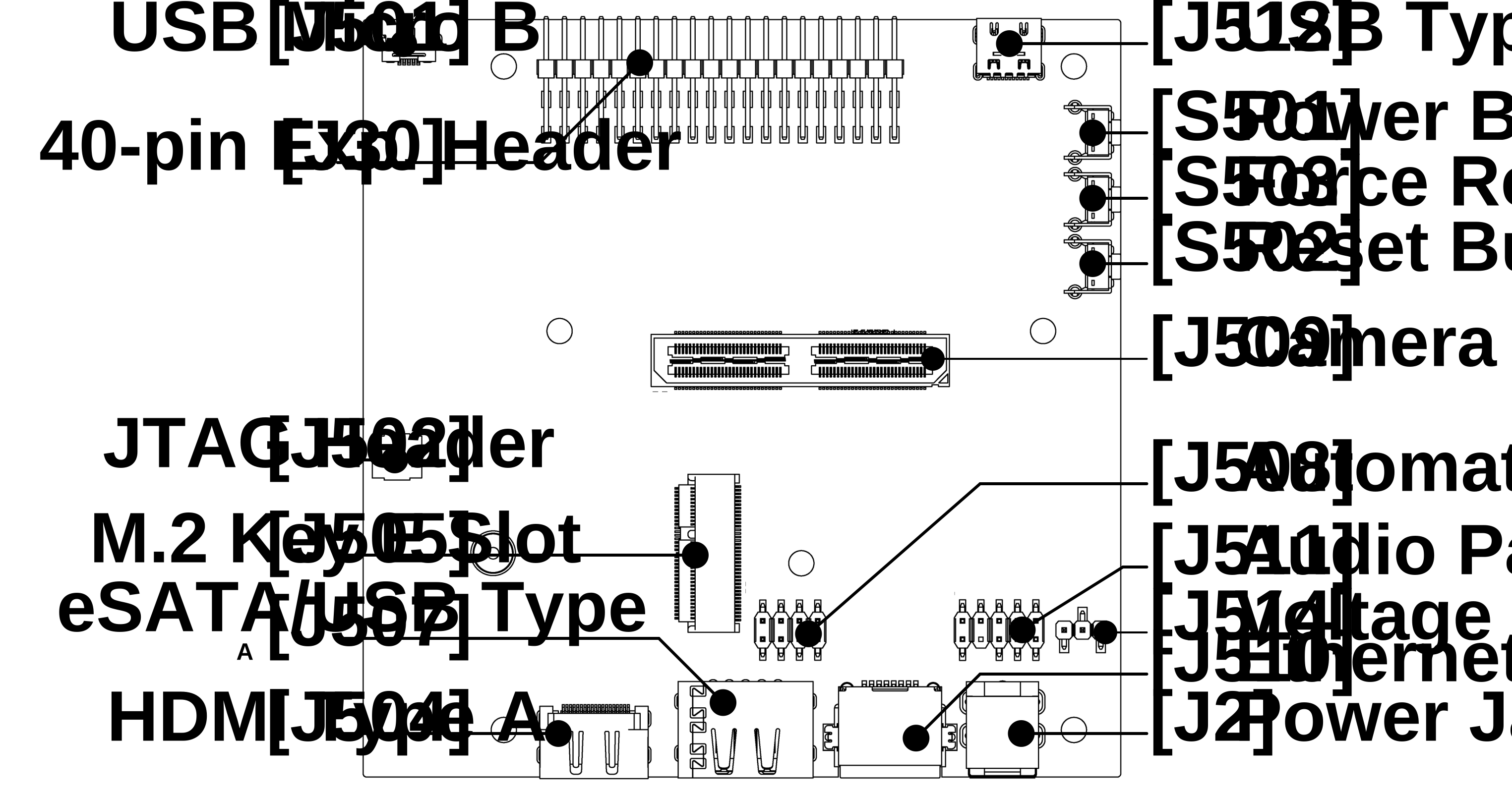
Header J511 supports Intel’s HD front panel audio connector. For details of Intel’s front panel audio header pinout configuration, see the Intel page Front Panel Audio Connector and Header Pinouts for Intel® Desktop Boards.
The header is connected internally to the RT5640 codec on Jetson AGX Orin.
Audio Formats Supported#
The Jetson AGX Orin ASoC driver supports these formats:
Sample size: 8 bits (S8), 16 bits (S16_LE), or 24/32 bits (S32_LE)
Sample rate: 8000, 11025, 16000, 22050. 24000, 32000, 44100, 48000, 88400, 96000, 176400, or 192000 Hz
Channels: 1 or 2
Usage Guide#
To set up and configure the audio path to play back or capture audio via the header, configure various ALSA mixer controls for both the Jetson device and the onboard codec. The following examples detail the ALSA mixer controls that you must configure.
The example describes usage with the RT5640 codec.
Codec Mixer Controls#
Codec mixer controls are registered by the codec driver and prefixed
with a substring defined by the prefix property of the
corresponding DAI link in sound device tree node.
To view the codec-specific mixer controls, enter this command line with the appropriate name prefix:
$ amixer -c APE controls | grep <prefix>
Alternatively, look for the codec-specific controls in the codec driver.
Playback#
You can connect headphones or speakers to either or both of the playback
ports, PORT 2R and PORT 2L, to play back mono or stereo recordings. Use
the following mixer control settings.
Note
See the manufacturer’s documentation for the Front Panel Audio Connector for port numbering details.
For mono playback to pin PORT 2L:
# AHUB Mixer Controls
$ amixer -c APE cset name="I2S1 Mux" "ADMAIF1"

# Codec RT5640 Mixer Controls (apply on Jetson AGX Orin and Jetson Thor)
# ---------------------------------------------------------------------
$ amixer -c APE cset name="CVB-RT HP Playback Volume" 30
$ amixer -c APE cset name="CVB-RT Stereo DAC MIXR DAC R1 Switch" "off"
$ amixer -c APE cset name="CVB-RT Stereo DAC MIXL DAC L1 Switch" "on"
$ amixer -c APE cset name="CVB-RT HP R Playback Switch" "off"
$ amixer -c APE cset name="CVB-RT HP L Playback Switch" "on"

# Start playback
$ aplay -D hw:APE,0 <in_wav>
For mono playback to port PORT 2R:
# AHUB Mixer Controls
$ amixer -c APE cset name="I2S1 Mux" "ADMAIF1"
$ amixer -c APE cset name="I2S1 codec frame mode" "dsp-a"

# Codec RT5640 Mixer Controls (apply on Jetson AGX Orin and Jetson Thor)
# ----------------------------------------------------------------------
$ amixer -c APE cset name="CVB-RT HP Playback Volume" 30
$ amixer -c APE cset name="CVB-RT Stereo DAC MIXR DAC R1 Switch" "on"
$ amixer -c APE cset name="CVB-RT Stereo DAC MIXL DAC L1 Switch" "off"
$ amixer -c APE cset name="CVB-RT HP R Playback Switch" "on"
$ amixer -c APE cset name="CVB-RT HP L Playback Switch" "off"

# Start playback
$ aplay -D hw:APE,0 <in_wav>
For stereo playback to both playback ports:
# AHUB Mixer Controls
$ amixer -c APE cset name="I2S1 Mux" "ADMAIF1"
$ amixer -c APE cset name="I2S1 codec frame mode" "dsp-a"

# Codec RT5640 Mixer Controls (apply on Jetson AGX Orin and Jetson Thor)
# ----------------------------------------------------------------------
$ amixer -c APE cset name="CVB-RT HP Playback Volume" 30
$ amixer -c APE cset name="CVB-RT Stereo DAC MIXR DAC R1 Switch" "on"
$ amixer -c APE cset name="CVB-RT Stereo DAC MIXL DAC L1 Switch" "on"
$ amixer -c APE cset name="CVB-RT HP R Playback Switch" "on"
$ amixer -c APE cset name="CVB-RT HP L Playback Switch" "on"

# Start playback
$ aplay -D hw:APE,0 <in_wav>
Microphone Capture#
You can connect microphones to either or both of the recording ports,
PORT 1R and PORT 1L, to capture mono or stereo sound. Use these
mixer control settings:
For mono mic capture from PORT 1R:
$ amixer -c APE cset name="ADMAIF1 Mux" "I2S1"
$ amixer -c APE cset name="I2S1 codec frame mode" "dsp-a"

# RT5640 Codec Mixer Controls (apply on Jetson AGX Orin and Jetson Thor)
# ----------------------------------------------------------------------
# To disable capture from PORT 1L
$ amixer -c APE cset name="CVB-RT RECMIXL BST1 Switch" "off"
$ amixer -c APE cset name="CVB-RT RECMIXR BST1 Switch" "off"
# To enable capture from PORT 1R
$ amixer -c APE cset name="CVB-RT RECMIXL BST2 Switch" "on"
$ amixer -c APE cset name="CVB-RT RECMIXR BST2 Switch" "off"
# Volume control for PORT 1R
$ amixer -c APE cset name="CVB-RT IN2 Boost" 8
$ amixer -c APE cset name="CVB-RT Stereo ADC1 Mux" "ADC"
$ amixer -c APE cset name="CVB-RT Stereo ADC MIXL ADC1 Switch" "on"
$ amixer -c APE cset name="CVB-RT Stereo ADC MIXR ADC1 Switch" "on"

# Start capture
$ arecord -Dhw:APE,0 -c 1 -r 48000 -f S16_LE -d 15 <out_wav>
For mono mic capture from PORT 1L:
$ amixer -c APE cset name="ADMAIF1 Mux" "I2S1"
$ amixer -c APE cset name="I2S1 codec frame mode" "dsp-a"

# RT5640 Codec Mixer Controls (apply on Jetson AGX Orin and Jetson Thor)
# ----------------------------------------------------------------------
# To enable capture from PORT 1L
$ amixer -c APE cset name="CVB-RT RECMIXL BST1 Switch" "on"
$ amixer -c APE cset name="CVB-RT RECMIXR BST1 Switch" "off"
# To disable capture from PORT 1R
$ amixer -c APE cset name="CVB-RT RECMIXL BST2 Switch" "off"
$ amixer -c APE cset name="CVB-RT RECMIXR BST2 Switch" "off"
# Volume control for PORT 1R
$ amixer -c APE cset name="CVB-RT IN1 Boost" 8
$ amixer -c APE cset name="CVB-RT Stereo ADC1 Mux" "ADC"
$ amixer -c APE cset name="CVB-RT Stereo ADC MIXL ADC1 Switch" "on"
$ amixer -c APE cset name="CVB-RT Stereo ADC MIXR ADC1 Switch" "on"

# Start capture
$ arecord -Dhw:APE,0 -c 1 -r 48000 -f S16_LE -d 15 <out_wav>
For stereo mic capture from both recording ports:
$ amixer -c APE cset name="ADMAIF1 Mux" "I2S1"

# RT5640 Codec Mixer Controls (apply on Jetson AGX Orin and Jetson Thor)
# ----------------------------------------------------------------------
# To enable capture from PORT 1L
$ amixer -c APE cset name="CVB-RT RECMIXL BST1 Switch" "on"
# To enable capture from PORT 1R
$ amixer -c APE cset name="CVB-RT RECMIXR BST2 Switch" "on"
# Volume control for PORT 1L and PORT 1R
$ amixer -c APE cset name="CVB-RT IN1 Boost" 8
$ amixer -c APE cset name="CVB-RT IN2 Boost" 8
$ amixer -c APE cset name="CVB-RT Stereo ADC1 Mux" "ADC"
$ amixer -c APE cset name="CVB-RT Stereo ADC MIXL ADC1 Switch" "on"
$ amixer -c APE cset name="CVB-RT Stereo ADC MIXR ADC1 Switch" "on"

# Start capture
$ arecord -Dhw:APE,0 -c 2 -r 48000 -f S16_LE -d 15 <out_wav>
Usage and Examples#
This section gives an example of how a device’s I/O interfaces and AHUB modules can be used in audio applications.
This shows a dump of sound card descriptions from a Jetson AGX Orin device.
Note
The example uses a specific ADMAIF, but you can use any ADMAIF.
$ cat /proc/asound/cards

 0 [HDA            ]: tegra-hda - NVIDIA Jetson AGX Orin HDA
                      NVIDIA Jetson AGX Orin HDA at 0x3518000 irq 122
 1 [APE            ]: tegra-ape - NVIDIA Jetson AGX Orin APE
                      Unknown-JetsonAGXOrinDeveloperKit-NotSpecified
For each sound card, the dump shows:
The initial number is the index of the sound card, a sequential number counting from 0.
The word in square brackets is the card ID (“card identifier”), a string that identifies a sound card. Trailing spaces are not part of the card ID.
tegra-hdaortegra-apeis the ALSA card driver name, that is, the machine driver name associated with the sound card. On Jetson devices, HDA sound cards usetegra-hdaand APE sound cards usetegra-ape.“NVIDIA Jetson AGX Orin HDA” and “…APE”: Short name of the sound card, and it is considered to be the name of the card.
“NVIDIA Jetson AGX Orin HDA at 0x3518000 irq 118” and “…APE”: Long name of the sound card.
Note
The example shows the two types of sound cards that are built into the Jetson AGX Orin AHUB architecture and that use drivers provided by NVIDIA. A Jetson device might have other types. If a USB headset is attached to the device, for example, the dump also shows a USB sound card.
USB sound card names depend on the vendor and model of the sound card. A dump like the one shown earlier can help to determine the long name of a USB sound card.
The following table lists the short names that are used on various Jetson devices for APE and HDA cards.
Board name |
APE card name |
HDA card name |
USB card name |
|---|---|---|---|
Jetson Orin Series |
|
|
Refer to
|
Jetson AGX Orin |
|
|
|
Jetson T5000 |
|
|
In addition to a name, each sound card has a device ID, as shown in the table later in this section.
For an APE card, the device ID refers to the ADMAIF channel index being used. The number of ADMAIF channels varies by Jetson device chip. Each ADMAIF channel is associated with both a playback device and a capture device. Device IDs range from 0 to N-1, where N is the number of ADMAIF channels supported by the device. (For details, see Chip-specific Information.)
To determine how many sound cards are available, enter:
$ cat /proc/asound/cards
This command displays the index of the last sound card, which is one less than the number of sound cards. For example, if /proc/asound/cards contains ‘2’, the Jetson device has three sound cards, with card indexes 0, 1, and 2.
To list all of the available PCM sound cards’ device IDs, enter:
$ ls /dev/snd/pcmC?D*
This is a convenient way to get the available device IDs for a given card. If you know the card’s index, you can use it instead of the ‘?’. Note, though, that sound card indexes are assigned in the order that the kernel registers the sound cards at boot time, so a given card ID might not represent the same card from boot to boot.
To display a description of a specific PCM sound card, enter:
$ cat /dev/snd/pcmC<n>D<devID><f>
Where:
<n>is the card’s index, 0 or 1.<devID>is the card’s device ID<f>is the function of this device,cfor “capture” orpfor “playback.”
This table lists port to <devID> mappings for HDA devices, for which different HDA ports are mapped to specific <devID> values.
Port to Device ID Map
Device |
Port Name |
PCM Device ID |
|---|---|---|
Jetson Orin Nano |
DP |
3 (DP single stream) |
3 and 7 (DP multi-stream) |
||
Jetson Orin NX |
DP |
3 (DP single stream) |
3 and 7 (DP multi-stream) |
||
Jetson Orin NX Module with Jetson Xavier NX Carrier Board |
DP |
3 (DP single stream) |
3 and 7 (DP multi-stream) |
||
HDMI |
3 |
|
Jetson AGX Orin |
HDMI/DP (DP) |
3 (DP single stream) |
3 and 7 (DP multi-stream) |
||
Jetson Thor |
DP and HDMI |
3, 7, 8, and 9 |
Following are examples of device name usage for several different types of interfaces. In these examples:
<i>and<i−1>are respectively the number of the ADMAIF channel to be used, and that number minus 1.<in_wav>and<out_wav>are respectively the pathnames of the input and output sound files. Both must be.wavfiles.<rate>is the sampling rate to be used.<bits>is the number of bits per sample.<channels>is the number of channels to be used.
Note
PCM override controls will be deprecated in future releases. Instead, audio configuration will be handled through DAI nodes in the Device Tree. Therefore, the examples below do not use PCM override controls, and explicitly added details of the Device Tree modifications as per use case.
Examples: I2S#
These examples illustrate various I/O playback and capture using I2S2 with ADMAIF<i>.
Playback#
Playback using I2S2 with ADMAIF<i>:
$ amixer -c APE cset name="I2S2 Mux" ADMAIF<i>
$ aplay -D hw:APE,<i-1> <in_wav>
Capture#
Capture using I2S2 with ADMAIF<i>:
$ amixer -c APE cset name="ADMAIF<i> Mux" I2S2
$ arecord -D hw:APE,<i-1> -r <rate> -c <channels> -f <sample_format> <out_wav>
Internal Loopback#
Internal Loopback using I2S2 with ADMAIF<i>:
$ amixer -c APE cset name="I2S2 Mux" "ADMAIF<i>"
$ amixer -c APE cset name="ADMAIF<i> Mux" "I2S2"
$ amixer -c APE cset name="I2S2 Loopback" "on"
$ aplay -D hw:APE,<i-1> <in_wav> &
$ arecord -D hw:APE,<i-1> -r <rate> -c <channels> -f <sample_format> <out_wav>
AHUB Usage in Hostless Mode#
If I2S1 and I2S4 are connected to an external codec and are functional, make these changes to send audio directly from I2S4 to I2S1, where both are located on same device:
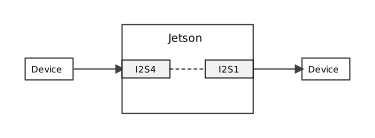
Data parameter configuration: Override the sample rate, sample size, and number of channels configured in the corresponding DAI links of I2S1 and I2S4 as shown below. We recommend that the properties be fixed for a given use case.
&i2s1_dap: {
        convert-sample-format = "s16_le";
        convert-rate = <48000>;
        convert-channels = <2>;
        dai-format = "i2s";
};

&i2s4_dap {
        bitclock-master;
        frame-master;
        convert-sample-format = "s16_le";
        convert-rate = <48000>;
        convert-channels = <2>;
        dai-format = "i2s";
};
Data path setup: I2S4 must send data received from an external source to I2S1. Specify the mixer settings as follows to configure the data path:
$ amixer -c APE cset name="I2S4 FSYNC width" "31"
$ amixer -c APE cset name="I2S4 BCLK Ratio" "1"
$ amixer -c APE cset name="I2S1 Mux" "I2S4"
Clock configuration: For this use case, we recommend configuring either or both Jetson I2S ports as master. (For mixer controls for codec master mode configuration, see I2S.) Take note of the remarks in the following table to identify additional configuration needed.
Master Configuration
Remarks
I2S1
To avoid clock drift, I2S1 must be configured in the
.dtsfile to use the I2S4 sync clock.I2S4
To avoid clock drift, I2S4 must be configured in the
.dtsfile to use the I2S1 sync clock.Both I2S1 and I2S4
Both clocks are driven from the same PLL source, so clock drift is not an issue, and sync clock configuration is not needed.
In the example above, I2S1 is configured as bit clock master. Since I2S4 is configured as slave, I2S4 uses an external clock source, and I2S1 is configured to source its clock from the internal PLL in the default DT. To avoid clock drift caused by using different clock sources, I2S1 is configured to use the I2S4 clock as its sync clock by the following patch in the I2S1 DT entry:
     clocks = <&bpmp TEGRA234_CLK_I2S1>,
              <&bpmp TEGRA234_CLK_I2S1_SYNC_INPUT>;
     clock-names = "i2s", "sync_input";
-    assigned-clocks = <&bpmp TEGRA234_CLK_I2S1>;
+    assigned-clocks = <&bpmp TEGRA234_CLK_I2S1>,
+                      <&bpmp TEGRA234_CLK_SYNC_I2S1>;
     assigned-clock-parents =
-                 <&bpmp TEGRA234_CLK_PLLA_OUT0>;
+                 <&bpmp TEGRA234_CLK_I2S1_SYNC>,
+                 <&bpmp TEGRA234_CLK_SYNC_I2S4>;
     assigned-clock-rates = <1536000>;
Note that the clock names used in this patch are Jetson device-specific. Before starting the use case, ensure that the sync clock used (the I2S4 clock in this example) is up and running.
Multi-Channel (TDM) Capture#
To perform TDM capture on I2S4 via ADMAIF, enter these commands:
$ amixer -c APE cset name="ADMAIF<i> Mux" "I2S4"
$ amixer -c APE cset name="I2S4 FSYNC Width" 0
$ arecord -D hw:APE,<i-1> -r <rate> -c <channels> -f <sample_format> <out_wav>
Also, configure I2S4 format to dsp_a and set the clock master by updating the DT node. In this example, the codec provides the bit clock and frame sync, so bitclock-master and frame-master are omitted from the I2S endpoint:
&i2s4_dap {
    dai-format = "dsp_a";
};
If instead the I2S (CPU) should be the clock master, add bitclock-master and frame-master on the I2S endpoint:
&i2s4_dap {
    bitclock-master;
    frame-master;
    dai-format = "dsp_a";
};
Where:
<i>and<i-1>respectively represent an ADMAIF instance number, and the number minus 1.The last digit of I2S4 may be changed to use a different channel.
Note that I2S4 frame mode and “I2S4 FSYNC Width” must be set to the data offset with regard to fsync and fsync width available from the I2S timing diagram in the codec data sheet. I2S4 clock mode must be set as per the mode of operation (master/slave). For more details on mixer controls, see Codec Driver, I2S, Mixer Controls.
Examples: DMIC#
The following sections describe usage of the DMIC module to perform stereo capture and mono capture on left or right channel.
Stereo Capture#
These examples show how to capture stereo data from DMIC3 via ADMAIF<i>:
$ amixer -c APE cset name="ADMAIF<i> Mux" DMIC3

#Gain must be tuned as per sensitivity of the external mic
$ amixer -c APE cset name="DMIC3 Boost Gain Volume" 400
$ arecord -D hw:APE,<i-1> -r 48000 -c 2 -f S16_LE <out_wav>
Mono Capture (L)#
This example shows how to perform mono capture from DMIC3 via ADMAIF<i> (left microphone):
$ amixer -c APE cset name="ADMAIF<i> Mux" DMIC3
$ amixer -c APE cset name="DMIC3 Boost Gain Volume" 400
$ amixer -c APE cset name="DMIC3 Channel Select" "Left"
$ arecord -D hw:APE,<i-1> -r 48000 -c 1 -f S16_LE <out_wav>
Mono Capture (R)#
This example shows how to perform mono capture from DMIC3 via ADMAIF<i> (right microphone):
$ amixer -c APE cset name="ADMAIF<i> Mux" DMIC3
$ amixer -c APE cset name="DMIC3 Boost Gain Volume" 400
$ amixer -c APE cset name="DMIC3 Channel Select" "Right"
$ arecord -D hw:APE,<i-1> -r 48000 -c 1 -f S16_LE <out_wav>
Examples: DSPK#
This example shows how to perform stereo playback on DSPK1 via ADMAIF<i>:
$ amixer -c APE cset name="DSPK1 Mux" ADMAIF<i>
$ aplay -D hw:APE,<i-1> <in_wav>
Examples: MVC#
The following examples show how to apply gain and to mute and unmute the stream. The MVC supports up to eight channels, with control of per-channel gain and mute/unmute.
Apply Gain to a Playback Stream#
This command model shows how to use the MVC module to control volume during playback on I2S:
$ amixer -c APE cset name="MVC1 Mux" ADMAIF<i>
$ amixer -c APE cset name="I2S1 Mux" MVC1
$ amixer -c APE cset name="MVC1 Volume" <Q8.24_Val>
$ aplay -D hw:APE,<i-1> <in_wav>
The MVC module supports per-channel volume control. That is, it can apply a different gain factor to each channel. To set per-channel volume, use this mixer control:
$ amixer -c APE cset name="MVC1 Channel<x> Volume" <Q8.24_Val>
Where <x> is the MVC channel number (1, 2 … 8).
Mute and Unmute Channels#
This example shows how to mute and unmute channels during I2S playback:
$ amixer -c APE cset name="MVC1 Mux" ADMAIF<i>
$ amixer -c APE cset name="I2S1 Mux" MVC1
$ amixer -c APE cset name="MVC1 Per Channel Mute Mask" <mask>
$ aplay -D hw:APE,<i-1> <in.wav>
Where <mask> is the mute/unmute mask value. The mask supports per-channel mute control. The mask’s value may be 0 to 255 (0x0 to 0xFF); to mute channel n of the stream, set bit n to 1.
Similarly to unmute channel n of the stream, set bit n to 0.
Examples: AMX#
These sections provide usage examples for multiplexing two and three streams and for demultiplexing one stereo stream into two mono streams.
Multiplexing Two Streams#
This example shows how to use the AMX module to multiplex two stereo streams, DMIC2 (connected to RxCIF0) and DMIC3 (connected to RxCIF1):
$ amixer -c APE cset name="AMX2 RX1 Mux" "DMIC2"
$ amixer -c APE cset name="AMX2 RX2 Mux" "DMIC3"
$ amixer -c APE cset name="ADMAIF<i> Mux" AMX2
$ amixer -c APE cset name="AMX2 Byte Map 0" 0
$ amixer -c APE cset name="AMX2 Byte Map 1" 1
$ amixer -c APE cset name="AMX2 Byte Map 2" 2
$ amixer -c APE cset name="AMX2 Byte Map 3" 3
$ amixer -c APE cset name="AMX2 Byte Map 4" 4
$ amixer -c APE cset name="AMX2 Byte Map 5" 5
$ amixer -c APE cset name="AMX2 Byte Map 6" 6
$ amixer -c APE cset name="AMX2 Byte Map 7" 7
$ amixer -c APE cset name="AMX2 Byte Map 8" 64
$ amixer -c APE cset name="AMX2 Byte Map 9" 65
$ amixer -c APE cset name="AMX2 Byte Map 10" 66
$ amixer -c APE cset name="AMX2 Byte Map 11" 67
$ amixer -c APE cset name="AMX2 Byte Map 12" 68
$ amixer -c APE cset name="AMX2 Byte Map 13" 69
$ amixer -c APE cset name="AMX2 Byte Map 14" 70
$ amixer -c APE cset name="AMX2 Byte Map 15" 71
$ arecord -D hw:APE,<i-1> -r 48000 -c 4 -f S16_LE <out_wav>
Note
Update the AMX2 output port and ADMAIF<i> port channels to 4 by updating the AMX2 and ADMAIF<i> DAI node in DT as mentioned in the section Definition of a DAI Node.
For example, update the AMX2 DAI node in DT as follows:
&amx2_out {
    convert-channels = <4>;
};
Multiplexing Three Streams#
This example shows how to use the AMX module to multiplex three stereo streams, DMIC2 (connected to RxCIF0), DMIC3 (connected to RxCIF1), and I2S (connected to RxCIF2):
$ amixer -c APE cset name="AMX2 RX1 Mux" "DMIC2"
$ amixer -c APE cset name="AMX2 RX2 Mux" "DMIC3"
$ amixer -c APE cset name="AMX2 RX3 Mux" "I2S2"
$ amixer -c APE cset name="ADMAIF<i> Mux" AMX2
$ amixer -c APE cset name="AMX2 Byte Map 0" 0
$ amixer -c APE cset name="AMX2 Byte Map 1" 1
$ amixer -c APE cset name="AMX2 Byte Map 2" 2
$ amixer -c APE cset name="AMX2 Byte Map 3" 3
$ amixer -c APE cset name="AMX2 Byte Map 4" 4
$ amixer -c APE cset name="AMX2 Byte Map 5" 5
$ amixer -c APE cset name="AMX2 Byte Map 6" 6
$ amixer -c APE cset name="AMX2 Byte Map 7" 7
$ amixer -c APE cset name="AMX2 Byte Map 8" 64
$ amixer -c APE cset name="AMX2 Byte Map 9" 65
$ amixer -c APE cset name="AMX2 Byte Map 10" 66
$ amixer -c APE cset name="AMX2 Byte Map 11" 67
$ amixer -c APE cset name="AMX2 Byte Map 12" 68
$ amixer -c APE cset name="AMX2 Byte Map 13" 69
$ amixer -c APE cset name="AMX2 Byte Map 14" 70
$ amixer -c APE cset name="AMX2 Byte Map 15" 71
$ amixer -c APE cset name="AMX2 Byte Map 16" 128
$ amixer -c APE cset name="AMX2 Byte Map 17" 129
$ amixer -c APE cset name="AMX2 Byte Map 18" 130
$ amixer -c APE cset name="AMX2 Byte Map 19" 131
$ amixer -c APE cset name="AMX2 Byte Map 20" 132
$ amixer -c APE cset name="AMX2 Byte Map 21" 133
$ amixer -c APE cset name="AMX2 Byte Map 22" 134
$ amixer -c APE cset name="AMX2 Byte Map 23" 135
$ arecord -D hw:APE,<i-1> -r 48000 -c 6 -f S16_LE <out_wav>
Note
Update the AMX2 output port channels to 6 and I2S2 channels to 2 by updating the respective DAI nodes in DT as mentioned in the section Definition of a DAI Node.
Examples: ADX#
This example shows how to use the ADX module to demultiplex 16-bit stereo streams onto DSPK1 and DSPK2:
$ amixer -c APE cset name="ADX1 Mux" ADMAIF<i>
$ amixer -c APE cset name="DSPK1 Mux" "ADX1 TX1"
$ amixer -c APE cset name="DSPK2 Mux" "ADX1 TX1"
$ amixer -c APE cset name="ADX1 Byte Map 0" 0
$ amixer -c APE cset name="ADX1 Byte Map 1" 1
$ amixer -c APE cset name="ADX1 Byte Map 2" 2
$ amixer -c APE cset name="ADX1 Byte Map 3" 3
$ amixer -c APE cset name="ADX1 Byte Map 4" 64
$ amixer -c APE cset name="ADX1 Byte Map 5" 65
$ amixer -c APE cset name="ADX1 Byte Map 6" 66
$ amixer -c APE cset name="ADX1 Byte Map 7" 67
$ aplay -D hw:APE,<i-1> <in_wav>
Note
Update the ADX1 input port channels to 2 and 2 output port channels to 1 by updating the ADX1 DAI node in DT as mentioned in the section Definition of a DAI Node.
Examples: SFC#
This example shows how to perform sample rate conversion from 48000 to 44100 Hz and capture using ADMAIF2, where ADMAIF3 feeds the SFC1 and generates sample frequency-converted output:
$ amixer -c APE cset name="SFC1 Mux" ADMAIF3
$ amixer -c APE cset name="ADMAIF2 Mux" SFC1
$ aplay -D hw:APE,2 <in_wav>
$ arecord -D hw:APE,1 -r 44100 -c <channels> -f <sample_format> <out_wav>
Note
Update the SFC1 input rate to 48000 and output rate to 44100 by updating the SFC1 DAI node in DT as mentioned in the section Definition of a DAI Node.
Examples: ASRC#
This example shows how to perform sample rate conversion from 8000 to 48000 Hz and capture using ADMAIF2, where ADMAIF3 feeds the ASRC1 and generates sample frequency-converted output:
$ amixer -c APE cset name="ASRC1 RX1 Mux" ADMAIF3
$ amixer -c APE cset name="ASRC1 Ratio1 Source" SW
$ amixer -c APE cset name="ASRC1 Ratio1" "0,715827882"
$ amixer -c APE cset name="ADMAIF2 Mux" "ASRC1 TX1"
$ aplay -D hw:APE,2 <in_wav>
$ arecord -D hw:APE,1 -r 48000 -c <channels> -f <sample_format> <out_wav>
Examples: Mixer#
This example shows how to mix two input streams to generate a single output stream via Adder1 of the Mixer module:
$ amixer -c APE cset name="MIXER1 RX1 Mux" ADMAIF1
$ amixer -c APE cset name="MIXER1 RX2 Mux" ADMAIF2
$ amixer -c APE cset name="MIXER1 Adder1 RX1" 1
$ amixer -c APE cset name="MIXER1 Adder1 RX2" 1
$ amixer -c APE cset name="ADMAIF3 Mux" MIXER1 TX1
$ aplay -D hw:APE,0 <inputfile1.wav>
$ aplay -D hw:APE,1 <inputfile2.wav>
$ arecord -D hw:APE,2 -r <rate> -c <channels> -f <sample_format> <out_wav>
Examples: HDMI/DP Playback#
This example shows how to perform playback on an HDMI/DP device (e.g. a monitor with speakers):
$ aplay -Dhw:HDA,<devID> <in_wav>
Examples: USB#
The following sections provide usage examples of playback and capture on USB.
Playback#
This example shows how to perform playback on a USB device:
$ aplay -Dhw:<cardID>,<devID> <in_wav>
Capture#
This example shows how to perform capture on a USB device:
$ arecord -Dhw:<cardID>,<devID> -r <rate> -c <channels> -f <sample_format> <out_wav>
Troubleshooting#
This section covers common ASoC driver issues and their solutions.
No Sound Cards Found#
Check dmesg | grep ASoC for clues. The following sections describe some typical causes.
Source/Sink Widget Not Found#
The dmesg log reports missing widgets:
$ dmesg | grep "ASoC"

tegra-asoc: sound: ASoC: no source widget found for x OUT
tegra-asoc: sound: ASoC: Failed to add route x OUT -> direct -> Headphone Jack
Verify whether the codec is instantiated:
$ cat /sys/kernel/debug/asoc/components
If the codec does not appear in the components list, the following are common causes:
Kernel config: Confirm that the codec driver is enabled (
zcat /proc/config.gz | grep <codec_config>).I2C pinmux: Verify the I2C port pinmux in the Jetson-specific pinmux worksheet (download from Jetson Download Center). Then scan the bus:
i2cdetect -y -r <i2c-bus-number>. If the codec is not detected, check for loose connections or a wrong bus.Widget prefix mismatch: The prefix
xmust match thesound-name-prefixin the codec device node. If it doesn’t, correct the prefix.
CPU DAI Not Registered#
The dmesg log reports an unregistered CPU DAI:
$ dmesg | grep "ASoC"
tegra-asoc: sound: ASoC: CPU DAI DAP not registered
Here “DAP” is the CPU DAI name for the I2S-to-codec link. Check whether the I2S instance is instantiated:
$ cat /sys/kernel/debug/asoc/components
An instantiated I2S device appears as <addr>.i2s. If missing, add the corresponding I2S node in the device tree as described in
Codec Driver Instantiation Using Device Tree.
Codec Integration Issues#
When integrating a custom codec (such as RT5640) using graph-based DAI links, check the following items first. For detailed diagnostic procedures, see also No Sound Cards Found and Sound Not Audible or Not Recorded.
Audio Path (Two Stages)#
Audio reaches the codec in two stages:
AHUB routing: Set the ADMAIF and I2S Mux controls (such as I2S1 Mux → ADMAIF1 for playback).
Codec routing: Enable the codec mixer switches (DAC → output → jack/speaker).
Until both are set, no audio flows. Use amixer -c APE controls | grep <prefix> (such as CVB-RT for RT5640) to discover controls.
AUD_MCLK and mclk-fs#
AUD_MCLK is derived from PLL_A and feeds the codec. The rate can be scaled by the driver (from the endpoint’s mclk-fs) or fixed in the device tree.
Scaled MCLK (RT5640 on AGX Orin)
Set
mclk-fson the codec endpoint to<256>(see Custom Codec Integration). The driver then setsAUD_MCLK = sample rate × mclk-fs(for example, 48000 × 256 = 12.288 MHz).If playback fails with clock or “Unsupported clock setting” errors, try 48 kHz.
Verify the rate:
cat /sys/kernel/debug/clk/aud_mclk/clk_rate. (For 48 kHz withmclk-fs256, the value should be 12288000).
Fixed MCLK
To use a fixed
AUD_MCLKrate (such as 12.288 MHz or 11.2896 MHz), configure the sound node:Add
assigned-clocks = <&bpmp TEGRA234_CLK_AUD_MCLK>,assigned-clock-parents = <&bpmp TEGRA234_CLK_PLLA_OUT0>, andassigned-clock-rates = <12288000>(8x family) or<11289600>(11.025x family).Ensure the sound node has
clocksandclock-namesincludingAUD_MCLK.Omit
mclk-fsor set it to<0>on the codec endpoint so the driver does not scale the clock. The machine driver init must pass the actual MCLK frequency (for example, 12.288 MHz), not the sample rate. See Device Tree Steps for a Custom Codec and Update the Machine Driver.
Sound Card (APE) Not Showing#
If the APE card disappears after adding the codec, check the following:
The codec I2C node has the correct
reg(slave address),compatible, andstatus = "okay"under the right I2C bus.The port/endpoint graph correctly connects the I2S endpoint to the codec endpoint (matching remote-endpoint phandle).
A wrong I2C address or broken endpoint graph prevents the graph card driver from binding. For other causes (codec not enabled, widget prefix mismatch), see No Sound Cards Found.
No I2S Signal#
Check pinmux (I2S and, if used, AUD_MCLK) per Board Interfaces and 40-pin GPIO Expansion Header. Verify the correct I2S instance (onboard RT5640 uses I2S1; 40-pin typically I2S2) and that remote-endpoint references the right I2S DAP endpoint (such as &i2s1_dap). For detailed pinmux and SFIO verification, see step 2 in Sound Not Audible or Not Recorded.
Mixer Settings at Boot#
Use /usr/share/alsa/init/postinit/ (for example, 02-tegra-rt5640.conf). The init file is applied only when CARDINFO{name} matches the card name exactly (such as “NVIDIA Jetson Orin NX APE” vs “NVIDIA Jetson Orin Nano APE”); read the name from /proc/asound/cards. See Custom ALSA Mixer Control Configuration at Boot.
Sound Not Audible or Not Recorded#
Check the DAPM path. Set codec-specific mixer controls for playback or capture (refer to the codec data sheet). Enable DAPM tracing before running the use case:
$ for i in `find /sys/kernel/debug/tracing/events -name “enable” | grep snd_soc_`; do echo 1 > $i; done
Then verify the path is complete:
$ cat /sys/kernel/debug/tracing/trace_pipe | grep \*
A valid path shows widgets from source to sink. Example (RT5640 capture via I2S1 on Jetson AGX Orin):
snd_soc_dapm_path: *CVB-RT Mic Jack -> (direct) -> CVB-RT IN1P
snd_soc_dapm_path: *CVB-RT AIF1 Capture -> (direct) -> rt5640-playback-capture
[ ... ]
snd_soc_dapm_path: *I2S1 DAP-Playback <- (direct) <- rt5640-playback-capture
snd_soc_dapm_path: *I2S1 XBAR-Playback <- (direct) <- tegra-dlink-64-capture
If the path is incomplete, audio will not flow. Ensure all source-to-sink widgets are connected.
Verify audio pin settings. The audio interface pins must be configured as SFIOs (not GPIOs) with the correct audio function selected. See Board Interfaces for pinmux requirements.
Confirm the audio interface status. The
statusproperty must be"okay"in the device tree. If needed, inspect the live DT:$ dtc -I fs -O dts /proc/device-tree >/tmp/dt.log
Probe signals with an oscilloscope. For I2S, check frame sync (
FS) and bit clock (BCLK) to verify correct timing and generation.
I2S Software Reset Failed#
The dmesg log shows a reset timeout:
tegra210-i2s 2901000.i2s: timeout: failed to reset I2S for playback
tegra210-i2s 2901000.i2s: ASoC: PRE_PMU: I2S1 RX event failed: -22
This occurs when the I2S clock is not active. When the I2S interface is a bit clock slave (clock provided by an external codec), verify that the codec is driving the bit clock when playback or capture starts.
XRUN Observed During Playback or Capture#
An XRUN (underrun on playback, overrun on capture) means the CPU cannot keep up with DMA transfers to or from the audio circular buffer. This is typically a system performance or latency issue.
If an XRUN occurs, try the following:
Run
jetson_clocks.shto enable maximum performance. See Platform Power and Performance.Use a RAM file system to avoid EXT4 journaling latencies:
$ sudo mkdir /mnt/ramfs
$ sudo mount -t tmpfs -o size=100m tmpfs /mnt/ramfs
Increase the audio circular buffer size (default 32 KB) via
buffer_bytes_maxin:kernel/3rdparty/canonical/linux-jammy/kernel-source/sound/soc/tegra/tegra_pcm.c
Audio Pops and Clicks#
Pops and clicks at the start or end of playback/capture occur when I2S begins data transfer before the codec is fully powered up or down. Increase the DAPM pop delay (in milliseconds) to mitigate:
$ echo 10 | sudo tee /sys/kernel/debug/asoc/APE/dapm_pop_time
Get More Help on NVIDIA Developer Forum#
If none of the preceding steps help, post a query on the NVIDIA Developer Forum with the following information:
Reproduction conditions (sampling rate, sample width, audio files).
Mixer control settings:
$ amixer -c <cardID> contents > ~/settings.txt
Kernel log:
$ dmesg > ~/kernel_log
Device tree dump:
$ dtc -I fs -O dts /proc/device-tree >/tmp/dt.log
Clock summary:
$ cat /sys/kernel/debug/clk/clk_summary > ~/clock
Pinmux dump:
$ cat /sys/kernel/debug/pinctrl/<addr>.pinmux/pinconf-groups > ~/pinmux_<addr>
Oscilloscope snapshots (with and without the codec).
I2S register dump (
<addr>is the I2S unit-address from DT):$ cat /sys/kernel/debug/regmap/<addr>.i2s/registers > ~/reg_dump
Codec register dump (
<addr>is the I2C bus and codec address):$ cat /sys/kernel/debug/regmap/<addr>/registers > ~/codec_regdump