


Encrypting the Rootfs#
These procedures generate, flash, and boot a Jetson device with an encrypted root file system (rootfs). The same tooling covers internal (eMMC) and external (NVMe) rootfs, the UDA-only variant, and the initrd-level customization required to unlock additional encrypted file systems at boot.
Creating an Encrypted Rootfs on the Host#
The rootfs is generated on the host by l4t_initrd_flash.sh. The following diagram shows
the inputs (in green), the utilities used to generate it
(in gray), and the output (in blue).
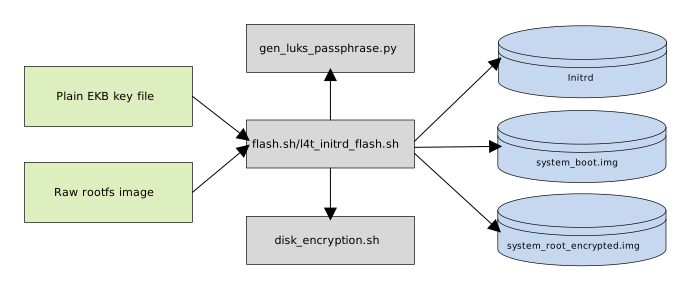
The input has two parts: the plain key file of the EKB key used for disk encryption, and a raw rootfs image to be encrypted.
You must generate the rootfs on a secure system; that is, a secure host
computer equipped with a Hardware Security Module (HSM). The HSM is
used for key generation and management to secure key assets and safe
transport to the factory floor. This process is necessary to ensure that the
keys cannot be leaked to an unsecure system on the production line.
l4t_initrd_flash.sh invokes two helper scripts to generate the passphrase and the
disk images:
gen_luks_passphrase.pyfollows the same process as thehwkey-agentandluks-srvTAs to derive the LUKS key, and uses the key to generate the passphrase.disk_encryption.shoutputs the disk images for the initrd,system_boot.img, andsystem_root_encrypted.img.
The Jetson Linux reference implementation generates only per-device encrypted disk images. Use it as a starting point to develop a script that is suited to your use case and production environment.
Flashing the encrypted rootfs on the host with l4t_initrd_flash.sh for Jetson AGX Orin and Jetson Thor requires an update of Linux_for_Tegra/bootloader/eks_<platform>.img.
Decompress the OP-TEE source package and run
example.shin it to generate a test EKS image. (In a real production scenario, you must generate your own EKS image using your own keys.)$ cd optee/samples/hwkey-agent/host/tool/gen_ekb/ # Take a look at example.sh; you must update all keys accordingly $ ./example.sh
Copy the
eks_<platform>.imggenerated byexample.shto theLinux_for_Tegra/bootloaderfolder and overwrite theeks_<platform>.imgfile.For details about EKS image generation, refer to Tool for EKB Generation in OP-TEE.
Use
l4t_initrd_flash.shto generate and flash the encrypted rootfs:# The disk encryption key in the EKB partition: # This key is defined in example.sh too to generate the EKS image $ echo <disk_enc_key> > disk_enc.key $ sudo ROOTFS_ENC=1 ./l4t_initrd_flash.sh -i "./disk_enc.key" <board> <rootdev>
<board>is the value of$(BOARD)for your Jetson module and configuration, as shown in the table in the section Jetson Modules and Configurations in the topic Quick Start.<rootdev>is the partition where the root file system is to be flashed.
The l4t_initrd_flash.sh command line option -i specifies the key to be used for
disk encryption. The reference implementation described earlier uses the
EKB key. For the sake of security, we recommend that you customize the script to use a
different key source. The keys in the preceding example
are only for reference and testing purposes, and you should not use them as
given. When you change the key, change the EKS partition accordingly,
and review the overall key and passphrase generation flow to ensure
that everything works correctly.
Flashing an Encrypted Rootfs to an External Storage Device#
To flash an encrypted rootfs to an external storage device, use l4t_initrd_flash.sh
(also known as “the initrd flashing tool”).
See Flashing with initrd
in Flashing Support for details.
The following example uses l4t_initrd_flash.sh to
flash an encrypted rootfs to an NVMe SSD attached to a Jetson Orin NX
series device:
$ cd Linux_for_Tegra
$ sudo ./l4t_initrd_flash.sh --no-flash jetson-orin-nano-devkit internal
$ sudo ROOTFS_ENC=1 ./l4t_initrd_flash.sh --no-flash -S 16GiB \
        --external-only --append -i ./disk_enc.key jetson-orin-nano-devkit external
$ sudo ./l4t_initrd_flash.sh --flash-only
For the Jetson AGX Thor developer kit, use commands similar to the following:
$ cd Linux_for_Tegra
$ sudo ROOTFS_ENC=1 ./l4t_initrd_flash.sh -i ./disk_enc.key \
        --no-flash jetson-agx-thor-devkit internal
$ sudo ./l4t_initrd_flash.sh --flash-only jetson-agx-thor-devkit internal
Tools and instructions for flashing an encrypted rootfs with initrd are
in the directory Linux_for_Tegra/tools/kernel_flash/. For more
detailed information, see README_initrd_flash.txt in that directory.
Enabling Disk Encryption Only for UDA#
To enable disk encryption only for the UDA partition, disable rootfs disk encryption.
To disable disk encryption on rootfs:
In the layout configuration file, set the
encryptedattribute ofAPP_ENCtofalse.For an example of a layout configuration, refer to Layout of an Encrypted Disk.
To complete the process, complete the steps in Creating an Encrypted Rootfs on the Host.
Note
To enable disk encryption, set
ROOTFS_ENC=1.To enable or disable disk encryption for a partition, set the
encryptedattribute of that partition in the layout configuration file.
Enhancing initrd to Unlock an Encrypted Rootfs#
To boot from an encrypted root file system, you need an initrd image
that includes the necessary utilities (such as cryptsetup) and scripts to
set up the root device after the kernel is initialized, but before the
rest of the operating system is booted. The flashing images must contain the APP
partition, which contains the /boot branch of the rootfs (unencrypted),
and the APP_ENC partition, which contains the rest of the rootfs
(encrypted).
The boot configuration must also do the following:
Specify the LUKS device UUID—the UUID of the encrypted LUKS container, as reported by
blkid—in thebootargkernel command line’srootparameter, rather than the GPT partition GUID (APPUUIDorAPP_ENC_UUID) defined in the partition layout. For details about obtaining this UUID, refer to theblkidexample in Modifying initrd to Unlock Additional Encrypted File Systems.List the encrypted root device in the initrd’s
/etc/crypttabso that initrd can unlock it at boot. For the entry format and an example, refer to Modifying initrd to Unlock Additional Encrypted File Systems.List the
/bootdirectory on theAPPpartition in the rootfsfstabso that the automount process can mount it at boot time.
The init script in the initrd uses the following steps to check the encrypted
root device, unlock it, and mount it:
Verify that the
rootparameter specifies the same device as the root device setting in/etc/crypttab.Verify that the root device is a LUKS device.
Unlock the encrypted root device with the per-device unique passphrase.
Mount the root device.
Command the
luks-srvTA not to respond to further passphrase requests until reboot.
Modifying initrd to Unlock Additional Encrypted File Systems#
The file /etc/crypttab, kept in initrd, describes encrypted block
devices that are set up during system boot. Each line of this file has
the following form:
<volume-name> UUID=<uuid>
<volume-name>is the name of a volume in which decrypted data is to be placed. Its block device is set up in/dev/mapper/.<volume-name>must be unique across all lines in the file.<uuid>is the UUID of the underlying block device containing encrypted data.
The following are two examples of entries in /etc/crypttab:
crypt_root UUID=b5600ed6-69e7-42b8-bee3-ecfdd12649d1
crypt_UDA UUID=cf6fa01d-1127-4612-9992-2f6db77385e0
If your device has several encrypted file systems, you must add a line
to /etc/crypttab for each one that you want the bootloader to unlock.
The following example demonstrates how to unlock an encrypted file system:
To find the UUID of the encrypted file system, enter the following command:
$ sudo blkid | grep TYPE="crypto_LUKS"
For each encrypted disk, this command displays a line of output that includes the disk’s UUID, similar to the following example:
/dev/mmcblk0p43: UUID="5096aa4d-6590-429b-9295-a1fe041b8fa3"
TYPE="crypto_LUKS" PARTLABEL="UDA"
PARTUUID="2b23da7f-2f18-44bf-9e1d-6e3a3a39ad21"
Unpack the initrd. For instructions, refer to Modifying Jetson RAM Disk in Flashing Support.
For each encrypted file system that you want to unlock during subsequent reboots, add a line to
/etc/crypttabthat specifies the UUID of the file system to be unlocked, as in the following example:crypt_fs UUID="5096aa4d-6590-429b-9295-a1fe041b8fa3"
Repackage the initrd and store it in
/boot, replacing the original initrd.Create a subdirectory in
/mntin which initrd can mount each unlocked file system during the initialization process. For simplicity, we recommend giving each subdirectory the same name as the volume to be mounted there. For the volume in the preceding/etc/crypttabexample, the subdirectory would be namedcrypt_fs:$ mkdir -p /mnt/crypt_fs
The bootloader unlocks the encrypted file system at each subsequent reboot.