

Common Display Configurations for All Platforms#
This page applies to all Jetson platforms. For platform-specific information, refer to the following pages:
Set HDMI or DP Screen Resolution#
The screen resolution can be modified using the xrandr utility or RandR protocol.
To change the default HDMI or DP screen resolution, follow these steps:
Export the
DISPLAYvariable:$ export DISPLAY=:0
Obtain the applicable resolutions list:
$ xrandr
The resulting output shows a list of the connected HDMI/DP settings.
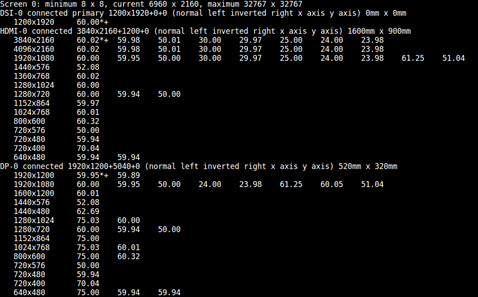
Switch the resolution to the display resolution that you want:
$ xrandr --output HDMI-0 --mode <res>
$ xrandr --output DP-0 --mode <res>
Where
<res>is the desired resolution, for example,640x480.The highest rate supported for the specified mode is automatically chosen.
Select a refresh rate:
$ xrandr --output HDMI-0 --mode <res> --rate <refresh_rate>
Where
<refresh_rate>is the refresh rate you want, for example,60.Use
xrandrto display all supported refresh rates for a mode.
Virtual Terminal Switching Support#
The virtual terminal (VT) switching feature is enabled with or without the desktop GUI. This feature is supported when the monitor is connected to the Jetson device before and after device bootup.
To enable VT switching as a default option, change the driver option in /etc/X11/xorg.conf from nvidia to FBDev and reboot.
Note
This procedure works only when the desktop manager is X11 and not Weston.
The FBDev driver has the following limitations:
When the
FBDevdriver is specified in the/etc/X11/xorg.conffile, the NVIDIA kernel display drivers are not loaded. This means that the OS has no driver that controls the display functionality.In this mode, the display is enabled by the UEFI driver, and the scan-out frame buffer is passed to the OS, which is then used by graphical applications.
Without an active display driver, the following issues can occur:
Screen tearing is possible because the frame buffer blit and scan-outs are not controlled.
The display does not resume after Suspend or Resume.
The
Westonapps do not work.
Seamless Display Support#
Seamless display is supported from bootloader to kernel handover, but the display goes blank before the desktop manager starts.