


Using the TensorRT Runtime API#
One of the most performant and customizable options for model conversion and deployment is the TensorRT API, which has C++ and Python bindings.
TensorRT includes a standalone runtime with C++ and Python bindings. It is generally more performant and customizable than Torch-TRT integration and runs in PyTorch. The C++ API has lower overhead, but the Python API works well with Python data loaders and libraries like NumPy and SciPy and is easier to use for prototyping, debugging, and testing.
The following tutorial illustrates the semantic segmentation of images using the TensorRT C++ and Python API. For this task, a fully convolutional model with a ResNet-101 backbone is used. The model accepts images of arbitrary sizes and produces per-pixel predictions.
The tutorial consists of the following steps:
Set-up: Launch the test container and generate the TensorRT engine from a PyTorch model exported to ONNX and converted using
trtexec.C++ runtime API: Run inference using engine and the TensorRT C++ API.
Python runtime API: Run inference using the engine and the TensorRT Python API.
Setting Up the Test Container and Building the TensorRT Engine#
Download the source code for this quick start tutorial from the TensorRT Open Source Software repository.
git clone https://github.com/NVIDIA/TensorRT.git
cd TensorRT/quickstart
Convert a pre-trained FCN-ResNet-101 model to ONNX.
Here, we use the export script included with the tutorial to generate an ONNX model and save it to
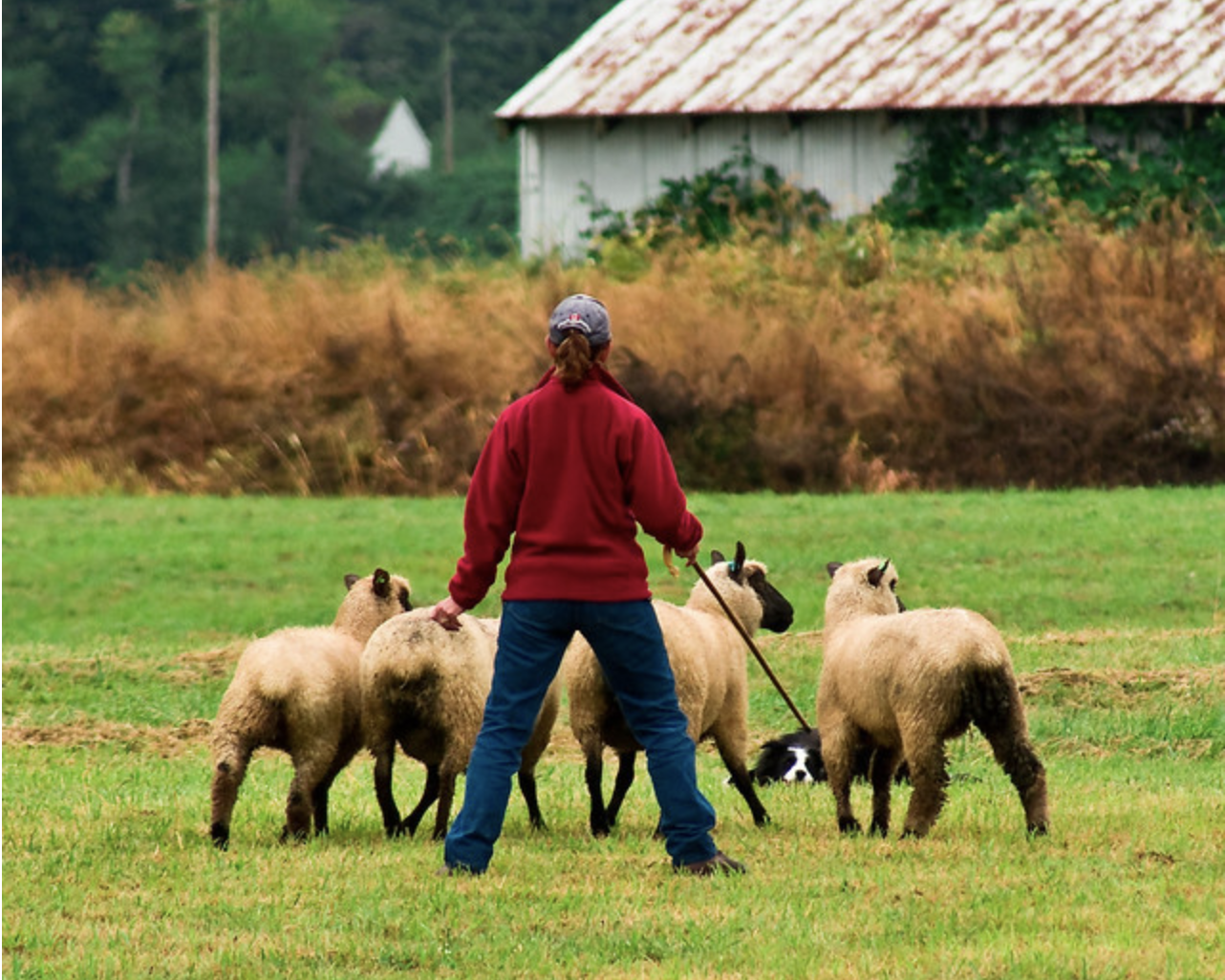
fcn-resnet101.onnx. For details on ONNX conversion, refer to ONNX Conversion and Deployment. The script also generates a test image of size 1282x1026 and saves it toinput.ppm.
Launch the NVIDIA PyTorch container to run the export script.
docker run --rm -it --gpus all -p 8888:8888 -v `pwd`:/workspace -w /workspace/SemanticSegmentation nvcr.io/nvidia/pytorch:26.02-py3 bash
Run the export script to convert the pre-trained model to ONNX.
python3 export.pyNote
Recent PyTorch containers may report that the requested opset 12 is unavailable and keep the exported model at opset 18. The resulting
fcn-resnet101.onnxremains valid for the TensorRT engine-build step below.
Note
FCN-ResNet-101 has one input of dimension
[batch, 3, height, width]and one output of dimension[batch, 21, height, weight]containing unnormalized probabilities corresponding to predictions for 21 class labels. When exporting the model to ONNX, we append an argmax layer at the output to produce per-pixel class labels of the highest probability.Build a TensorRT engine from ONNX using the trtexec tool.
trtexeccan generate a TensorRT engine from an ONNX model that can then be deployed using the TensorRT runtime API. It leverages the TensorRT ONNX parser to load the ONNX model into a TensorRT network graph and the TensorRT Builder API to generate an optimized engine.Building an engine can be time-consuming and is usually performed offline.
trtexec --onnx=fcn-resnet101.onnx --saveEngine=fcn-resnet101.engine --optShapes=input:1x3x1026x1282
Successful execution should generate an engine file and something similar to
Successfulin the command output.trtexeccan build TensorRT engines using the configuration options described in the Commonly Used Command-line Flags.
Running an Engine#
Both language paths deserialize fcn-resnet101.engine, set input shapes, run
inference, and write segmented output. Pick the tab that matches your application.
Compile and run the C++ segmentation tutorial within the test container.
From the SemanticSegmentation directory (the container working
directory in Set-up):
make
./bin/segmentation_tutorial fcn-resnet101.engine input.ppm output.ppm 1026x1282
The following steps show how to use the Deserializing A Plan for inference.
Warning
Engine files are executable artifacts that contain compiled CUDA tactics. Deserialize only engines you built yourself or received over a trusted channel. Never deserialize an engine file from an untrusted source.
Deserialize the TensorRT engine from a file. The file contents are read into a buffer and deserialized in memory.
std::vector<char> engineData(fsize);
engineFile.read(engineData.data(), fsize);

std::unique_ptr<nvinfer1::IRuntime> runtime{nvinfer1::createInferRuntime(sample::gLogger.getTRTLogger())};

std::unique_ptr<nvinfer1::ICudaEngine> mEngine(runtime->deserializeCudaEngine(engineData.data(), fsize));
A TensorRT execution context encapsulates execution state such as persistent device memory for holding intermediate activation tensors during inference.
Since the segmentation model was built with dynamic shapes enabled, the shape of the input must be specified for inference execution. The network output shape can be queried to determine the corresponding dimensions of the output buffer.
char const* input_name = "input";
assert(mEngine->getTensorDataType(input_name) == nvinfer1::DataType::kFLOAT);
auto input_dims = nvinfer1::Dims4{1, /* channels */ 3, height, width};
context->setInputShape(input_name, input_dims);
auto input_size = util::getMemorySize(input_dims, sizeof(float));
char const* output_name = "output";
assert(mEngine->getTensorDataType(output_name) == nvinfer1::DataType::kINT64);
auto output_dims = context->getTensorShape(output_name);
auto output_size = util::getMemorySize(output_dims, sizeof(int64_t));
In preparation for inference, CUDA device memory is allocated for all inputs and outputs, image data is processed and copied into input memory, and a list of engine bindings is generated.
For semantic segmentation, input image data is processed by fitting into a range of
[0, 1]and normalized using mean[0.485, 0.456, 0.406]and std deviation[0.229, 0.224, 0.225]. Refer to the input-preprocessing requirements for thetorchvisionmodels GitHub: models. This operation is abstracted by the utility classRGBImageReader.void* input_mem{nullptr}; cudaMalloc(&input_mem, input_size); void* output_mem{nullptr}; cudaMalloc(&output_mem, output_size); const std::vector<float> mean{0.485f, 0.456f, 0.406f}; const std::vector<float> stddev{0.229f, 0.224f, 0.225f}; auto input_image{util::RGBImageReader(input_filename, input_dims, mean, stddev)}; input_image.read(); cudaStream_t stream; auto input_buffer = input_image.process(); cudaMemcpyAsync(input_mem, input_buffer.get(), input_size, cudaMemcpyHostToDevice, stream);
Inference execution is kicked off using the context’s
enqueueV3method. After the execution, we copy the results to a host buffer and release all device memory allocations.context->setTensorAddress(input_name, input_mem); context->setTensorAddress(output_name, output_mem); bool status = context->enqueueV3(stream); auto output_buffer = std::unique_ptr<int64_t>{new int64_t[output_size]}; cudaMemcpyAsync(output_buffer.get(), output_mem, output_size, cudaMemcpyDeviceToHost, stream); cudaStreamSynchronize(stream); cudaFree(input_mem); cudaFree(output_mem);
A pseudo-color plot of per-pixel class predictions is written to
output.ppmto visualize the results. The utility classArgmaxImageWriterabstracts this.const int num_classes{21}; const std::vector<int> palette{ (0x1 << 25) - 1, (0x1 << 15) - 1, (0x1 << 21) - 1}; auto output_image{util::ArgmaxImageWriter(output_filename, output_dims, palette, num_classes)}; int64_t* output_ptr = output_buffer.get(); std::vector<int32_t> output_buffer_casted(output_size); for (size_t i = 0; i < output_size; ++i) { output_buffer_casted[i] = static_cast<int32_t>(output_ptr[i]); } output_image.process(output_buffer_casted.get()); output_image.write();
For the test image, the expected output is as follows:

Putting steps 1–5 together, here is the complete tutorial-runtime.cpp program. It compiles against the util.h and logger.h helpers that ship in the same quickstart/SemanticSegmentation directory you cloned earlier, and runs end to end against the engine you built with trtexec.
#include <cassert>
#include <fstream>
#include <iostream>
#include <memory>
#include <string>
#include <vector>

#include <cuda_runtime.h>

#include "NvInfer.h"
#include "logger.h"
#include "util.h"

using namespace nvinfer1;

int main(int argc, char** argv)
{
    if (argc != 5)
    {
        std::cerr << "Usage: " << argv[0]
                  << " <engine_file> <input.ppm> <output.ppm> <height>x<width>\n";
        return 1;
    }
    std::string const engine_filename{argv[1]};
    std::string const input_filename{argv[2]};
    std::string const output_filename{argv[3]};
    std::string const shape{argv[4]};
    auto const x_pos = shape.find('x');
    int const height = std::stoi(shape.substr(0, x_pos));
    int const width = std::stoi(shape.substr(x_pos + 1));

    // Deserialize the engine from disk.
    std::ifstream engineFile(engine_filename, std::ios::binary | std::ios::ate);
    auto const fsize = engineFile.tellg();
    engineFile.seekg(0, std::ios::beg);
    std::vector<char> engineData(fsize);
    engineFile.read(engineData.data(), fsize);

    std::unique_ptr<IRuntime> runtime{
        createInferRuntime(sample::gLogger.getTRTLogger())};
    std::unique_ptr<ICudaEngine> engine{
        runtime->deserializeCudaEngine(engineData.data(), fsize)};
    std::unique_ptr<IExecutionContext> context{engine->createExecutionContext()};

    // Set the input shape and query the resulting output shape.
    char const* const input_name = "input";
    assert(engine->getTensorDataType(input_name) == DataType::kFLOAT);
    auto const input_dims = Dims4{1, 3, height, width};
    context->setInputShape(input_name, input_dims);
    auto const input_size = util::getMemorySize(input_dims, sizeof(float));
    char const* const output_name = "output";
    assert(engine->getTensorDataType(output_name) == DataType::kINT64);
    auto const output_dims = context->getTensorShape(output_name);
    auto const output_size = util::getMemorySize(output_dims, sizeof(int64_t));

    // Allocate device memory and load the preprocessed input image.
    void* input_mem{nullptr};
    cudaMalloc(&input_mem, input_size);
    void* output_mem{nullptr};
    cudaMalloc(&output_mem, output_size);
    std::vector<float> const mean{0.485f, 0.456f, 0.406f};
    std::vector<float> const stddev{0.229f, 0.224f, 0.225f};
    util::RGBImageReader input_image{input_filename, input_dims, mean, stddev};
    input_image.read();
    cudaStream_t stream;
    cudaStreamCreate(&stream);
    auto input_buffer = input_image.process();
    cudaMemcpyAsync(input_mem, input_buffer.get(), input_size,
                    cudaMemcpyHostToDevice, stream);

    // Run inference and copy the result back to the host.
    context->setTensorAddress(input_name, input_mem);
    context->setTensorAddress(output_name, output_mem);
    if (!context->enqueueV3(stream))
    {
        std::cerr << "enqueueV3 failed\n";
        return 1;
    }
    std::unique_ptr<int64_t[]> output_buffer{new int64_t[output_size]};
    cudaMemcpyAsync(output_buffer.get(), output_mem, output_size,
                    cudaMemcpyDeviceToHost, stream);
    cudaStreamSynchronize(stream);
    cudaFree(input_mem);
    cudaFree(output_mem);

    // Convert per-pixel argmax labels to a color-coded PPM.
    int const num_classes{21};
    std::vector<int> const palette{
        (0x1 << 25) - 1, (0x1 << 15) - 1, (0x1 << 21) - 1};
    util::ArgmaxImageWriter output_image{
        output_filename, output_dims, palette, num_classes};
    std::vector<int32_t> output_buffer_casted(output_size);
    for (size_t i = 0; i < output_size; ++i)
    {
        output_buffer_casted[i] = static_cast<int32_t>(output_buffer[i]);
    }
    output_image.process(output_buffer_casted.data());
    output_image.write();

    cudaStreamDestroy(stream);
    return 0;
}
Build with the supplied Makefile and run end to end from the
SemanticSegmentation directory:
make
./bin/segmentation_tutorial fcn-resnet101.engine input.ppm output.ppm 1026x1282
Expected run result (representative)
On success the binary writes output.ppm (or your chosen output path)
and exits 0. The image is a color-coded per-pixel class map for the
segmentation model, comparable to the preview image shown earlier in
this tab.
If the process exits non-zero, confirm the engine path, that
input.ppm matches the height×width arguments, and that the GPU
driver matches the Support Matrix.
The TensorRT Python runtime APIs map the same deserialize → set shapes → run inference → write output flow as the C++ tab. Here is the same end-to-end flow as a single copy-paste-ready Python script.
Install the required Python packages inside the test container.
pip install cuda-python numpy pillow
Save the following script as
tutorial-runtime.pynext to yourfcn-resnet101.engineandinput.ppmfiles.import sys import numpy as np from PIL import Image import tensorrt as trt from cuda.bindings import runtime as cudart def check(err): # cuda-python returns (cudaError_t, *values); raise on any non-success status. if err != cudart.cudaError_t.cudaSuccess: raise RuntimeError(f"CUDA error: {err}") def load_engine(runtime, engine_path): with open(engine_path, "rb") as f: return runtime.deserialize_cuda_engine(f.read()) def preprocess(image_path, height, width): mean = np.array([0.485, 0.456, 0.406], dtype=np.float32) stddev = np.array([0.229, 0.224, 0.225], dtype=np.float32) img = Image.open(image_path).convert("RGB").resize((width, height)) arr = np.asarray(img, dtype=np.float32) / 255.0 arr = (arr - mean) / stddev # HWC -> CHW -> NCHW with a leading batch of 1 return np.ascontiguousarray(arr.transpose(2, 0, 1)[None]) def write_ppm_argmax(labels, output_path, num_classes=21): # export.py uses argmax(..., keepdims=True), so squeeze to HxW. labels = np.asarray(labels).squeeze() palette = np.array( [(0x1 << 25) - 1, (0x1 << 15) - 1, (0x1 << 21) - 1], dtype=np.int64 ) colors = ((labels[..., None] * palette) % 255).astype(np.uint8) Image.fromarray(colors).save(output_path) def main(engine_path, input_path, output_path, height, width): logger = trt.Logger(trt.Logger.WARNING) runtime = trt.Runtime(logger) engine = load_engine(runtime, engine_path) context = engine.create_execution_context() input_name, output_name = "input", "output" context.set_input_shape(input_name, (1, 3, height, width)) host_input = preprocess(input_path, height, width) output_shape = tuple(context.get_tensor_shape(output_name)) host_output = np.empty(output_shape, dtype=np.int64) err, d_input = cudart.cudaMalloc(host_input.nbytes); check(err) err, d_output = cudart.cudaMalloc(host_output.nbytes); check(err) err, stream = cudart.cudaStreamCreate(); check(err) err, = cudart.cudaMemcpyAsync( d_input, host_input.ctypes.data, host_input.nbytes, cudart.cudaMemcpyKind.cudaMemcpyHostToDevice, stream, ); check(err) context.set_tensor_address(input_name, int(d_input)) context.set_tensor_address(output_name, int(d_output)) context.execute_async_v3(stream) err, = cudart.cudaMemcpyAsync( host_output.ctypes.data, d_output, host_output.nbytes, cudart.cudaMemcpyKind.cudaMemcpyDeviceToHost, stream, ); check(err) err, = cudart.cudaStreamSynchronize(stream); check(err) write_ppm_argmax(host_output[0], output_path) cudart.cudaFree(d_input) cudart.cudaFree(d_output) cudart.cudaStreamDestroy(stream) if __name__ == "__main__": shape = sys.argv[4].split("x") main( engine_path=sys.argv[1], input_path=sys.argv[2], output_path=sys.argv[3], height=int(shape[0]), width=int(shape[1]), )
Run the script end to end against the engine you built with
trtexecand the preprocessed input image.python3 tutorial-runtime.py fcn-resnet101.engine input.ppm output.png 1026x1282
Expected run result (representative)
On success the script writes
output.png(or your chosen output path) and exits0. Open the file to confirm a color-coded segmentation map.Common failures: missing
cuda-python/ NumPy / Pillow, wrong engine path, or height×width that does not matchinput.ppm.
For an interactive walkthrough of the same flow, the tutorial-runtime.ipynb notebook in the OSS repo covers every step in cells you can edit and re-run. Launch it with:
jupyter notebook --port=8888 --no-browser --ip=0.0.0.0 --allow-root
What’s Next#
Now that you have completed the Quick Start Guide, explore these resources to deepen your TensorRT knowledge:
See also
- How TensorRT Works
Understand the builder, runtime, and optimization pipeline in detail.
- Best Practices
Benchmarking, profiling, and optimization techniques for production inference.
- Working with Dynamic Shapes
Configure optimization profiles for variable-size inputs.
- TensorRT Sample Support Guide
Browse additional C++ and Python samples with step-by-step instructions.
- C++ API Tutorial
Full C++ API walkthrough for building and running engines.
- Python API Tutorial
Full Python API walkthrough for building and running engines.