Import External Entities
Import External Entities
Overview
DPS can import devices directly from external inventory sources such as Nautobot (DCIM) or BCM (Base Command Manager). This allows you to quickly populate your DPS deployment with entities that reflect your existing datacenter infrastructure.
Importing from Nautobot
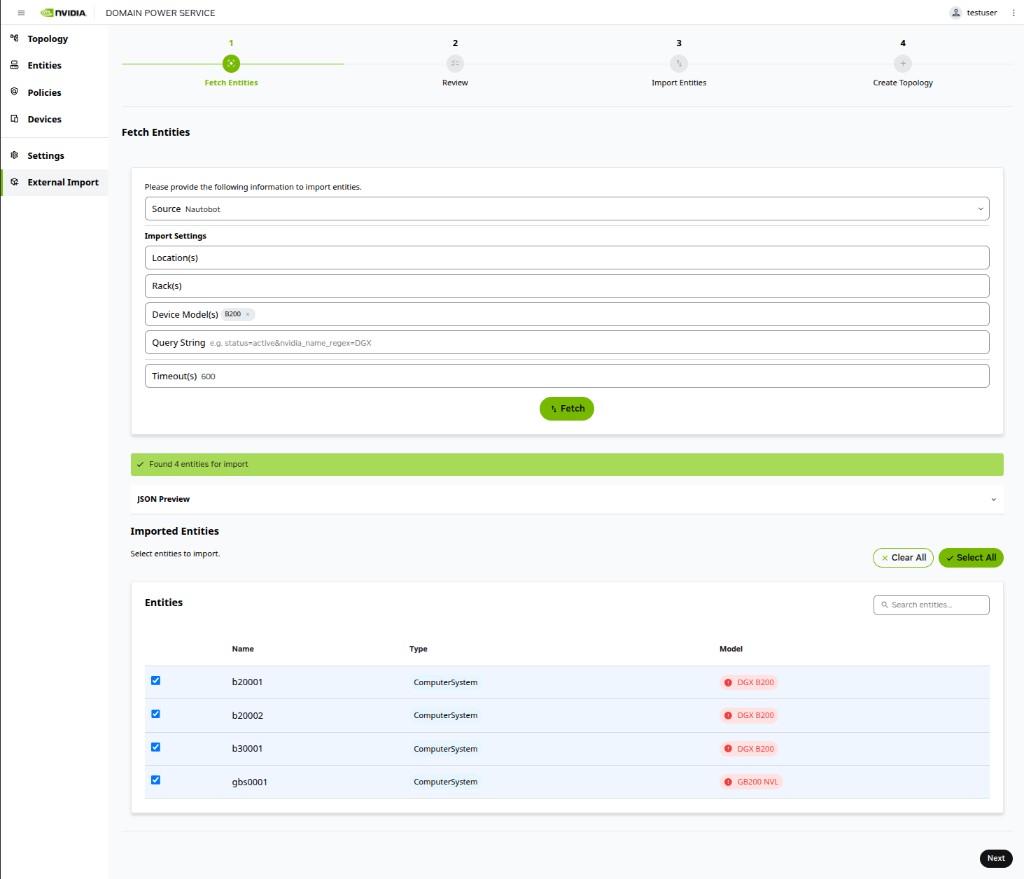
Step 1: Fetch Entities
- Navigate to External Import in the left sidebar.
- Select Nautobot as the source.
- Add filters to scope the import — locations, racks, device models, or query strings.
- Click Fetch.
- Select the desired devices from the results.
- Click Next.
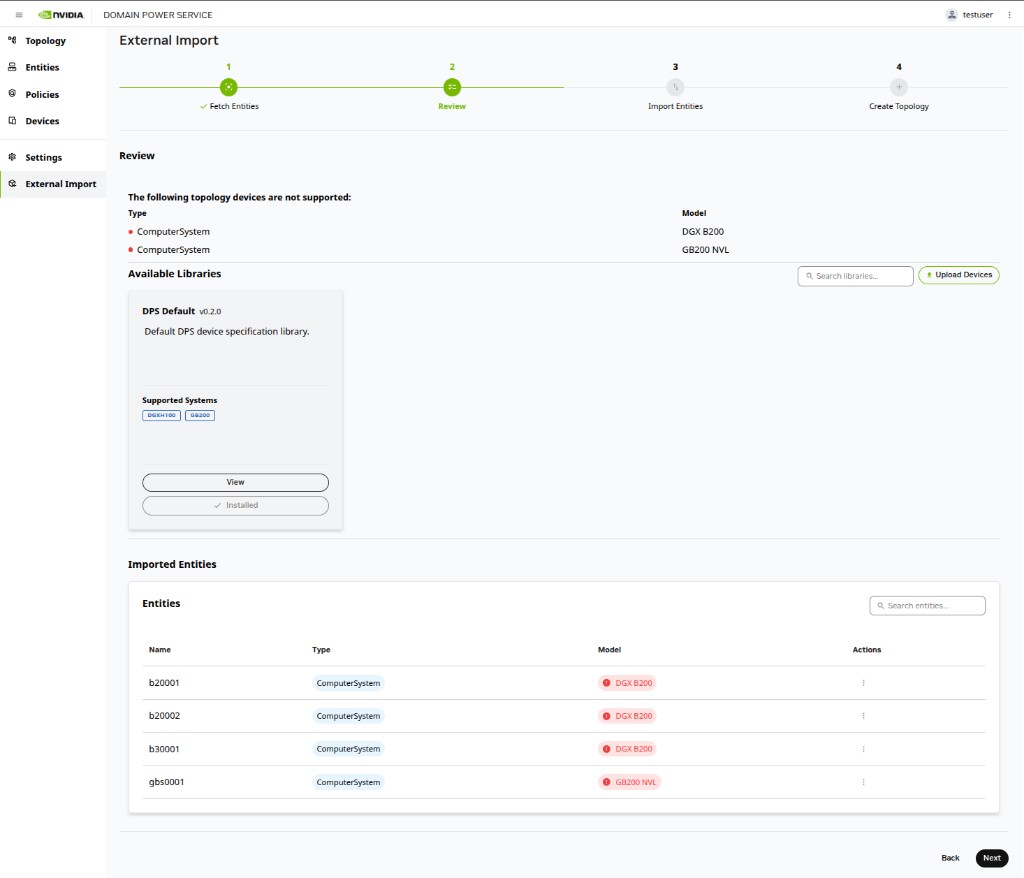
Step 2: Review and Upload Devices
DPS must recognize the device types being imported. Devices with unsupported models appear with their model name highlighted in red. To resolve this, upload the device specifications for any unrecognized models.
-
Click Upload Devices.
-
Copy or upload a YAML file containing the device specification.
-
Click Parse.
-
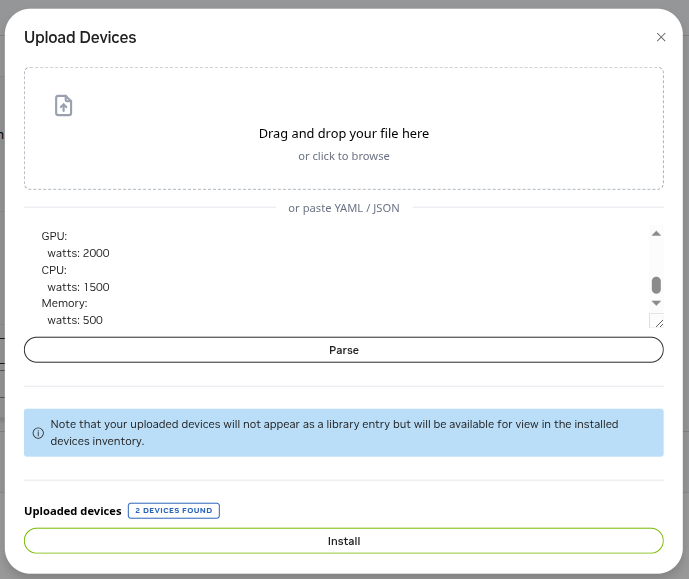
Click Install. Displays the upload dialog and resolving device types:
-
Observe devices with previously unsupported models are resolved.
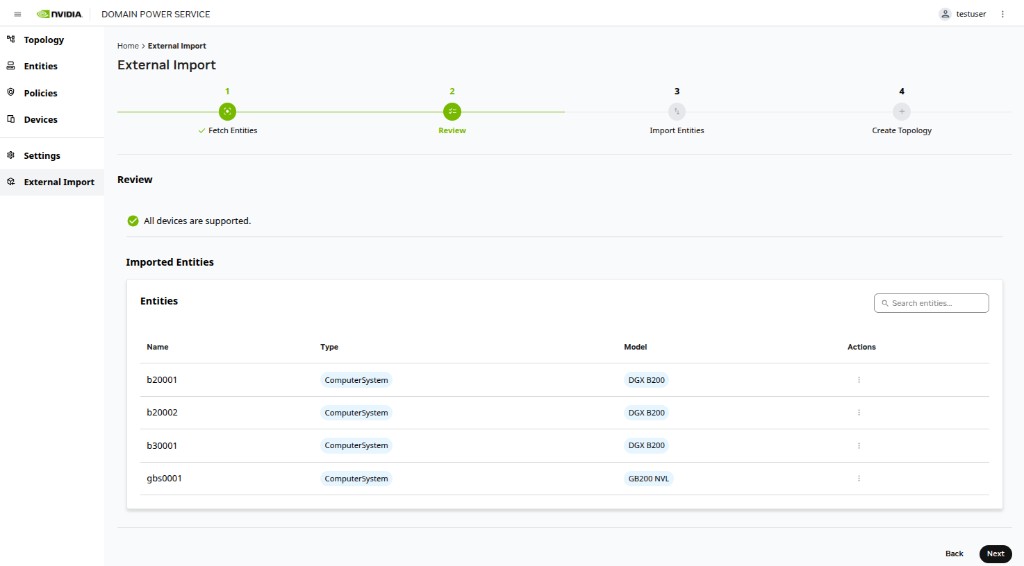
-
Click Next.
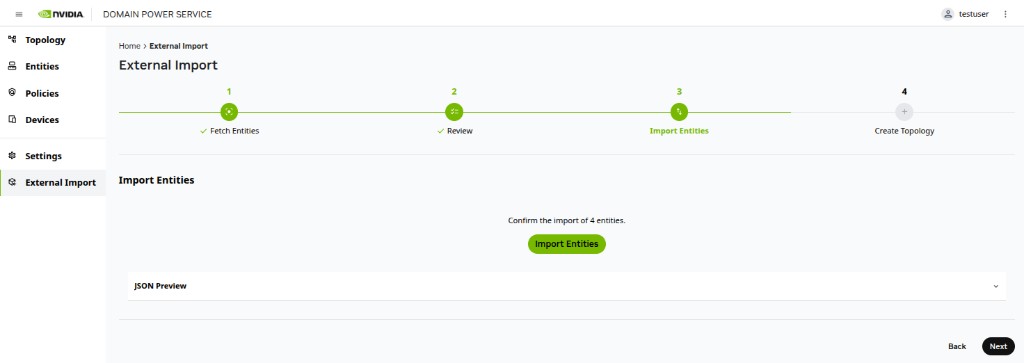
Step 3: Import Entities
- Click Import Entities to confirm the import.
- Click Next.
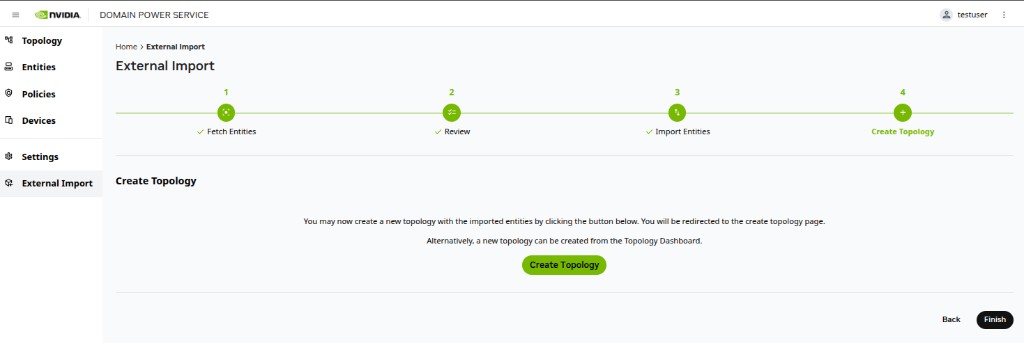
Step 4: Create Topology
- Click Create Topology to build a topology with the imported entities, or click Finish to complete the import without creating a topology.
Importing from BCM
Step 1: Fetch Entities
- Navigate to External Import in the left sidebar.
- Select BCM as the source.
- Enter the BCM URL, username, and password.
- Click Fetch.
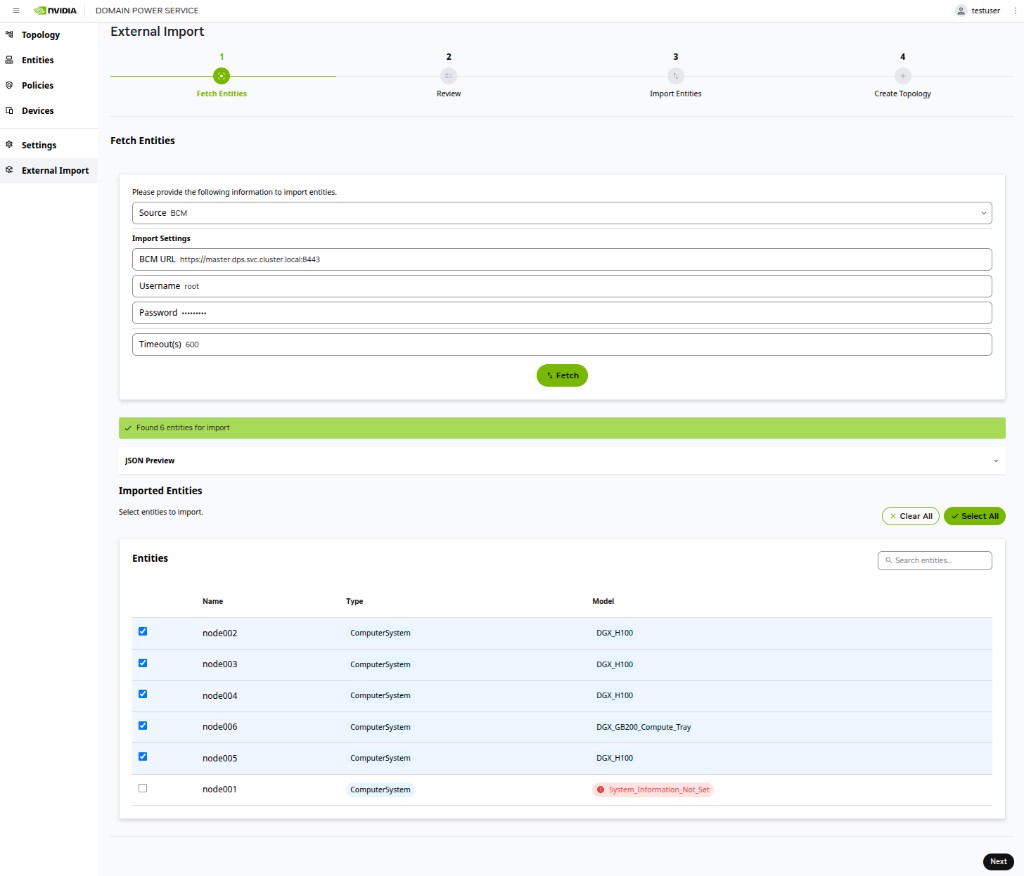
The remaining steps (Review and Upload Devices, Import Entities, and Create Topology) are the same as the Nautobot flow described above.
Viewing Entities
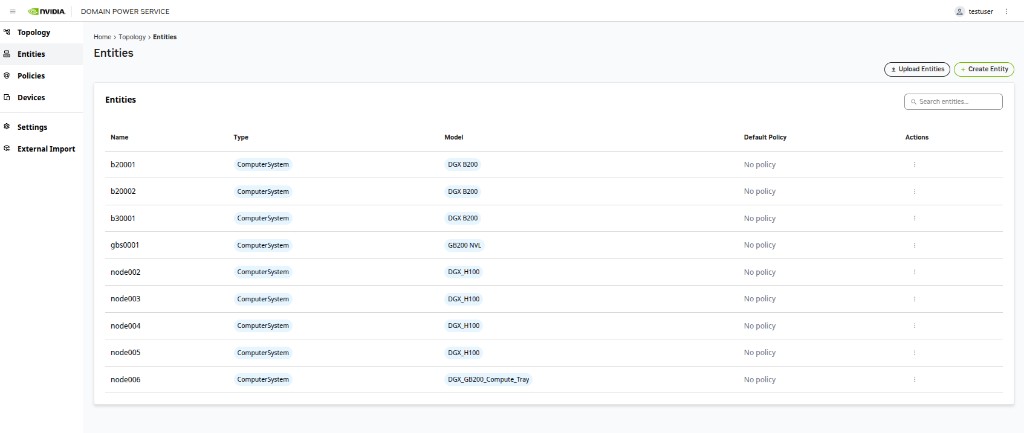
After importing, you can view all imported entities by clicking the Entities icon in the left sidebar.