

Stage#
Welcome to this lesson on OpenUSD stages, a core element in 3D scene description. Understanding OpenUSD stages enables collaboration across various applications and datasets by allowing us to aggregate our data in one place.
In this lesson, we will:
Define the role of stages in 3D scene description.
What Is a Stage?#
At its core, an OpenUSD stage presents the scenegraph, which dictates what is in our scene. It is the hierarchy of objects, called prims. These prims can be anything from geometry, to materials, to lights and other organizational elements. This scene is commonly stored in a data structure of connected nodes, which is why we refer to it as the scenegraph.
How Does It Work?#
Think of it as a scene, a shot or a scenario we may open up in a DCC. A stage could be made up entirely with just one USD file (like a robot), or it could be a USD file that includes many more USD files (like a factory with many robots). The stage is the composed result of the file or files that may contribute to a scenegraph.
Composition is the result of the algorithm for how all of the USD files (or layers, in USD parlance, as USD content need not be file-backed) should be assembled and combined. We’ll look at composition more closely later on.
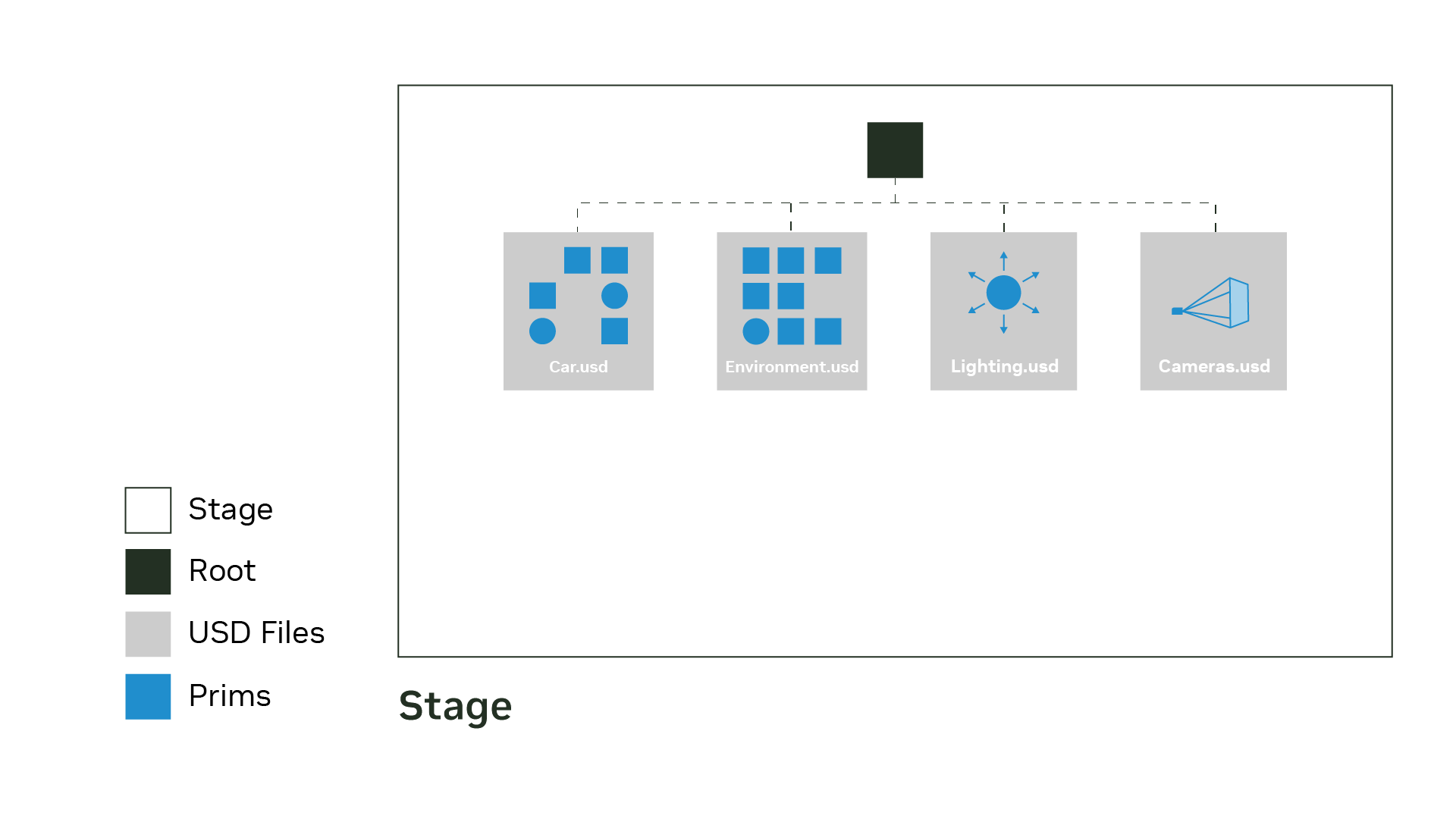
In the example above, we have a stage, which contains USD assets in the scenegraph, like Car.usd, Environment.usd, Lighting.usd and Cameras.usd. This organization is useful for aggregating data for architectural workflows, factory planning and manufacturing, visual effects in filmmaking–anywhere where multiple assets need to be combined and integrated
seamlessly.
Each one of these USD assets can also be opened independently of the current stage. In this case, if we opened Car.usd, it would have its own stage that would be composed of Simulation.usd and Geometry.usd.
When we leverage OpenUSD stages properly, we can enable:
Modularity : Stages enable the modification of individual elements without altering the original files (“non-destructive” editing), fostering a flexible workflow upon modular scene elements.
Scalability : Stages can manage large datasets efficiently (e.g., via payloads, which we’ll learn more about when we dive deeper into composition).
Working With Python#
Creating a USD stage is the first step to generating a new USD scenegraph. In Python, we can use the functions:
1# Create a new, empty USD stage where 3D scenes are assembled
2Usd.Stage.CreateNew()
3
4# Open an existing USD file as a stage
5Usd.Stage.Open()
6
7# Saves all layers in a USD stage
8Usd.Stage.Save()
Examples#
Tip
You can run these examples locally as Jupyter notebooks. See How to Run Notebooks Locally for setup instructions.
Example 1: Create a USD File and Load it as a Stage#
At its core, an OpenUSD stage refers to a top-level USD file that serves as a container for organizing a hierarchy of elements called prims. Stages aren’t files, but a unified scenegraph populated from multiple data sources called layers.
Some of the functions we will use to access the stage will be the following:
Usd.Stage.CreateNew(): Creates a new empty USD Stage where 3D scenes are assembled.Usd.Stage.Open(): Opens an existing USD file as a stage.Usd.Stage.Save(): Saves the current stage of a USD stage back to a file. If there are multiple layers in the stage, all edited layers that contribute to the stage are being saved. In our case, all edits are being done in a single layer.
1# Import the `Usd` module from the `pxr` package:
2from pxr import Usd
3
4# Define a file path name:
5file_path = "_assets/first_stage.usda"
6# Create a stage at the given `file_path`:
7stage: Usd.Stage = Usd.Stage.CreateNew(file_path)
8print(stage.ExportToString(addSourceFileComment=False))
#usda 1.0
Here we created a usda file using Python, loaded it as a stage, and printed out the stage’s contents. Since nothing is in our stage we do not get much from the output.
See also
.usda is a human-readable text format for OpenUSD. Read more about the native file formats in the USD File Formats lesson.
Example 2: Open and Save USD Stages#
A common task when working with OpenUSD is opening an existing file, making changes to the stage, and then saving the result back to disk. The Usd.Stage.Open() function loads a USD file as a stage, and stage.Save() writes any edits you make to the stage’s root layer.
In this example, we open an existing USDA file, add a prim so the modification is visible, and then save the updated stage.
 1from pxr import Usd
 2
 3# Open an existing USD stage from disk:
 4stage: Usd.Stage = Usd.Stage.Open("_assets/first_stage.usda")
 5
 6# Add a simple prim so we can see a change in the saved file:
 7stage.DefinePrim("/World", "Xform")
 8
 9# Save the stage back to disk:
10stage.Save()
11
12# Print the stage as text so we can inspect the result:
13print(stage.ExportToString(addSourceFileComment=False))
#usda 1.0

def Xform "World"
{
}
Here we opened an existing stage, modified its scenegraph by adding a prim, and saved the result back into the same root layer file. Any edits made to the stage are written to the root layer unless additional layers are introduced.
Example 3: Create a Stage in Memory#
Sometimes you may want to create a stage without immediately writing it to disk. This is useful when generating temporary data, running tests, or building a stage that you only want to save after validating its contents.
The Usd.Stage.CreateInMemory() function creates a stage whose root layer exists only in
memory until you explicitly export it.
 1from pxr import Usd
 2
 3# Create a new stage stored only in memory:
 4stage: Usd.Stage = Usd.Stage.CreateInMemory()
 5
 6
 7# Add a prim so the stage contains some data:
 8stage.DefinePrim("/World", "Xform")
 9
10# Print the stage's contents:
11print("In-memory stage:")
12print(stage.ExportToString(addSourceFileComment=False))
13
14# Export the stage to disk if needed:
15stage.Export("_assets/in_memory_stage.usda")
In-memory stage:
#usda 1.0

def Xform "World"
{
}
True
In this example, the stage begins entirely in memory and is not written to disk until Export() is called. This makes CreateInMemory() useful for temporary stages, procedural generation, and workflows where you want to avoid unnecessary file writes.
Example 4: Working With the Root Layer#
Every stage has a root layer, which is the first layer opened by the stage.
Although it acts as the anchor for the layer stack, the majority of authored data may reside in other layers depending on the composition. When you create a stage with CreateNew(), the file you pass becomes its root layer.
In this example, we access the root layer directly, inspect its metadata, and add a sublayer to demonstrate how the root layer organizes a stage’s data.
 1from pxr import Usd, Sdf
 2import os
 3
 4# Create a new stage:
 5stage: Usd.Stage = Usd.Stage.CreateNew("_assets/root_layer_example.usda")
 6
 7# Get the root layer object:
 8root_layer: Sdf.Layer = stage.GetRootLayer()
 9# Use relpath to avoid printing build machine filesystem info.
10print("Root layer identifier:", os.path.relpath(root_layer.identifier))
11
12# Add a simple prim so the stage is not empty:
13stage.DefinePrim("/World", "Xform")
14
15# Create an additional layer (in a different format) and add it as a sublayer:
16extra_layer: Sdf.Layer = Sdf.Layer.CreateNew("_assets/extra_layer.usdc")
17# Anchor the path relative to the root layer for better portability
18rel_path = "./" + os.path.basename(extra_layer.identifier)
19root_layer.subLayerPaths.append(rel_path)
20
21# Save both layers:
22stage.Save()
23extra_layer.Save()
24
25# Print the contents of the root layer:
26print("Root layer contents:")
27print(root_layer.ExportToString())
Root layer identifier: _assets/root_layer_example.usda
Root layer contents:
#usda 1.0
(
    subLayers = [
        @./extra_layer.usdc@
    ]
)

def Xform "World"
{
}
In this example, the file passed to CreateNew() becomes the stage’s root layer.
We access the root layer to inspect it, attach an additional sublayer,
and save both files. This illustrates how the root layer participates in the layer stack,
and that sublayers can use different USD file formats.
See also
Sublayers are covered in depth in the Sublayers lesson.
Key Takeaways#
An OpenUSD stage is the key to managing and interacting with 3D scenes using USD. The stage enables non-destructive editing, layering, and referencing, making it ideal for complex projects involving multiple collaborators. Leveraging OpenUSD stages properly can significantly enhance the efficiency and quality of 3D content production.