
Container Application Deployment#
Important
Ensure that you have met the basic prerequisites before proceeding with the deployment.
Note
Manual deployment instructions are also available in the Manual Deployment section. However, NVIDIA recommends the automated deployment because it provides a streamlined process with minimal manual intervention.
Create a directory (for example,
~/application) to store the resources and navigate to it.mkdir ~/application cd ~/application
Download the
applications-playbook.tar.gzfile from the Local Developer Setup resource using an NGC API key.You can also download the file on the command line as follows, replacing the
<API-KEY>placeholder with your NGC API key:curl -fsSLO "https://api.ngc.nvidia.com/v2/org/nvidia/team/holoscan-for-media/resources/local-developer-setup/versions/0.4.1/files/applications-playbook.tar.gz" -H "Authorization: Bearer <API-KEY>"
Unarchive the downloaded package in the current directory.
tar -xzvf applications-playbook.tar.gz
Optional: Create a persistent volume claim (PVC) for Chrome Remote Desktop.
You need a PVC for remote access to continue working when the pod restarts, because you can use an authorization code only once. If needed, follow the steps in the Chrome Remote Desktop section to create a PVC.
Edit
config.yamlto specify the PVC name if you created one, along with the other required settings, including:h4m_ngcto override the NGC organization and team to download applications from (defaults to thenvidiaorganization and theholoscan-for-mediateam for correct downloads from public repositories)rivermax_license_pathto create a secret pointing to your Rivermax license filescheduler_name(usedefault-schedulerfor a local developer setup, andtopo-aware-schedulerfor a production deployment with OpenShift)nmos_cpp_registryandnmos_controllerto set appropriate IP addresses for your setup (for a local developer setup with a loopback cable, you can use the example static IP addresses)
Activate the Python virtual environment that you created during the local developer or production platform setup.
Get the Chrome Remote Desktop authorization code.
To get the Chrome Remote Desktop authorization code:
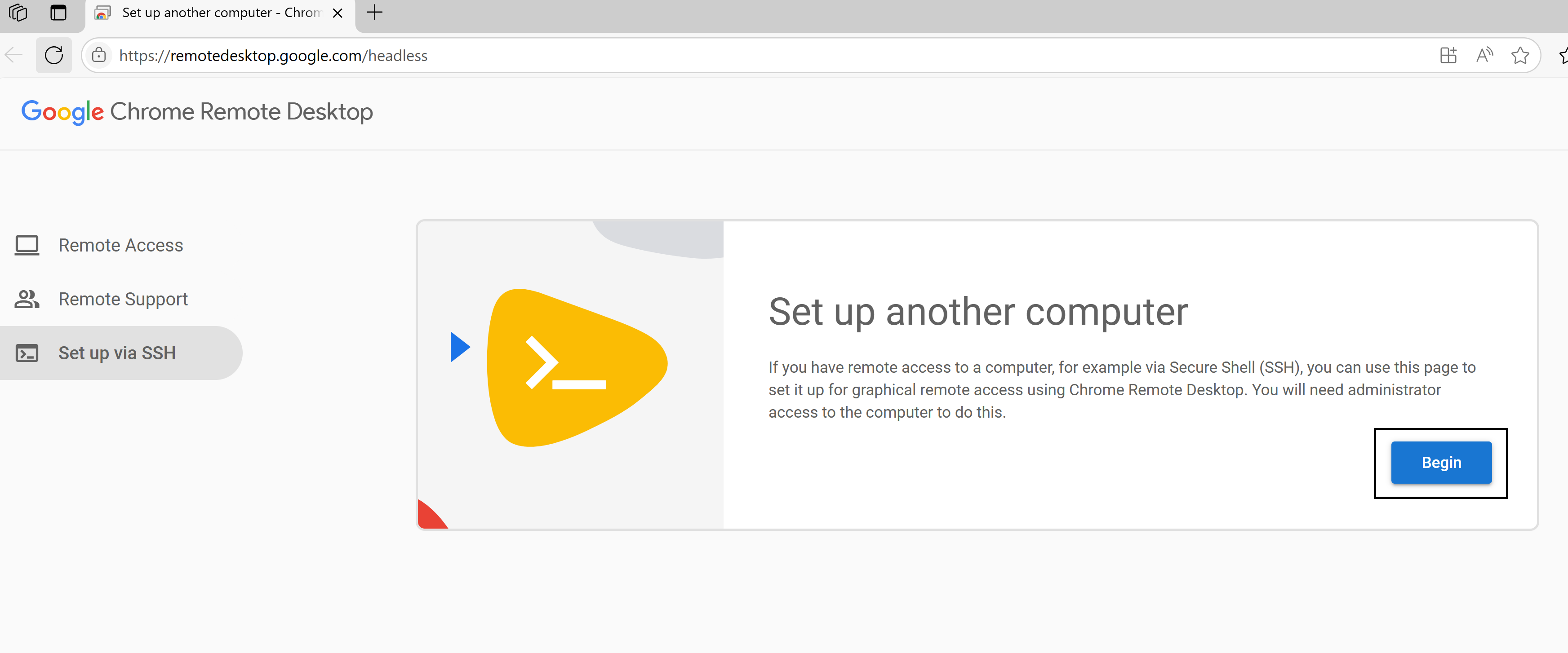
Navigate to https://remotedesktop.google.com/headless in your web browser.
Under the Set up via SSH section, select Begin, then Next, and then Authorize.
The page displays setup commands for various operating systems. Look for the section that contains the commands for Debian Linux.
From the command shown, locate the value inside the
code=""parameter and copy that part.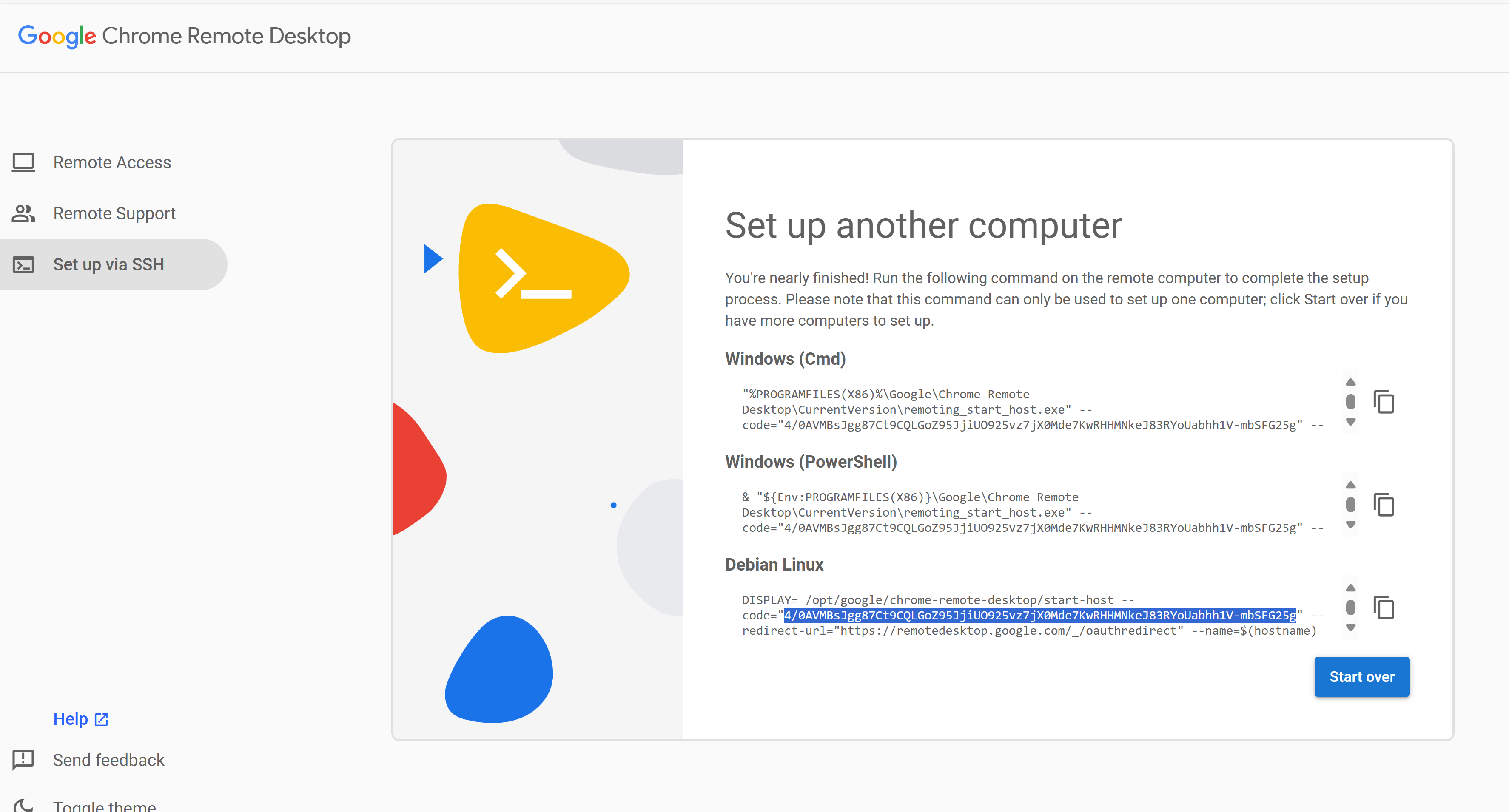
For example, from the command:
DISPLAY= /opt/google/chrome-remote-desktop/start-host --code="4/0AVMBsJgg...-mbSFG25g" --redirect-url="https://remotedesktop.google.com/_/oauthredirect" --name=$(hostname)"
Copy only
4/0AVMBsJgg...-mbSFG25g.
Important
The authorization code is only valid for five minutes. If it expires, generate a new one.
To run the automation, use the following command:
ANSIBLE_LOG_PATH=./application_$(date +'%Y%m%d_%H%M%S').log ansible-playbook install.yaml --extra-vars "NGC_API_KEY=<API-KEY> CHROME_REMOTE_DESKTOP_CODE=<CRD-CODE>" -vv
where:
<API-KEY>is an NGC API key (the automation does not support legacy NGC API keys)<CRD-CODE>is a Chrome Remote Desktop authorization codeThe
-vvflag enables verbose output for debugging. You can change it to-vfor less detail or-vvvor-vvvvfor increasingly more detailed logs.
Test Connection#
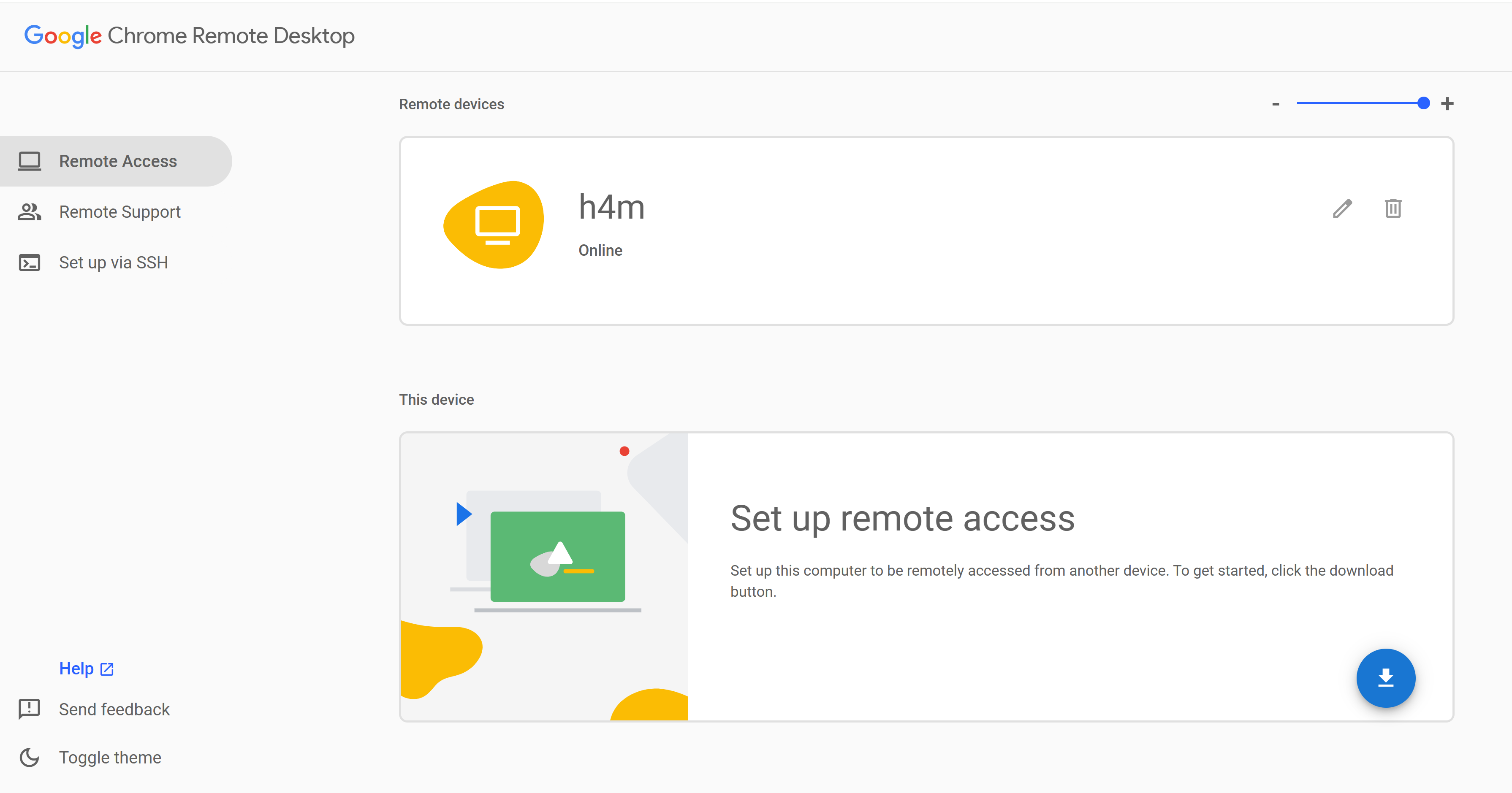
Go to the Chrome Remote Desktop web interface at https://remotedesktop.google.com/access.
Your remote computer appears in the list based on the hostname you specified for
chrome-remote-desktop(default:myvirtualdesktop).Select the name to connect.
Enter the PIN you configured for
chrome-remote-desktop(default:123456) when prompted.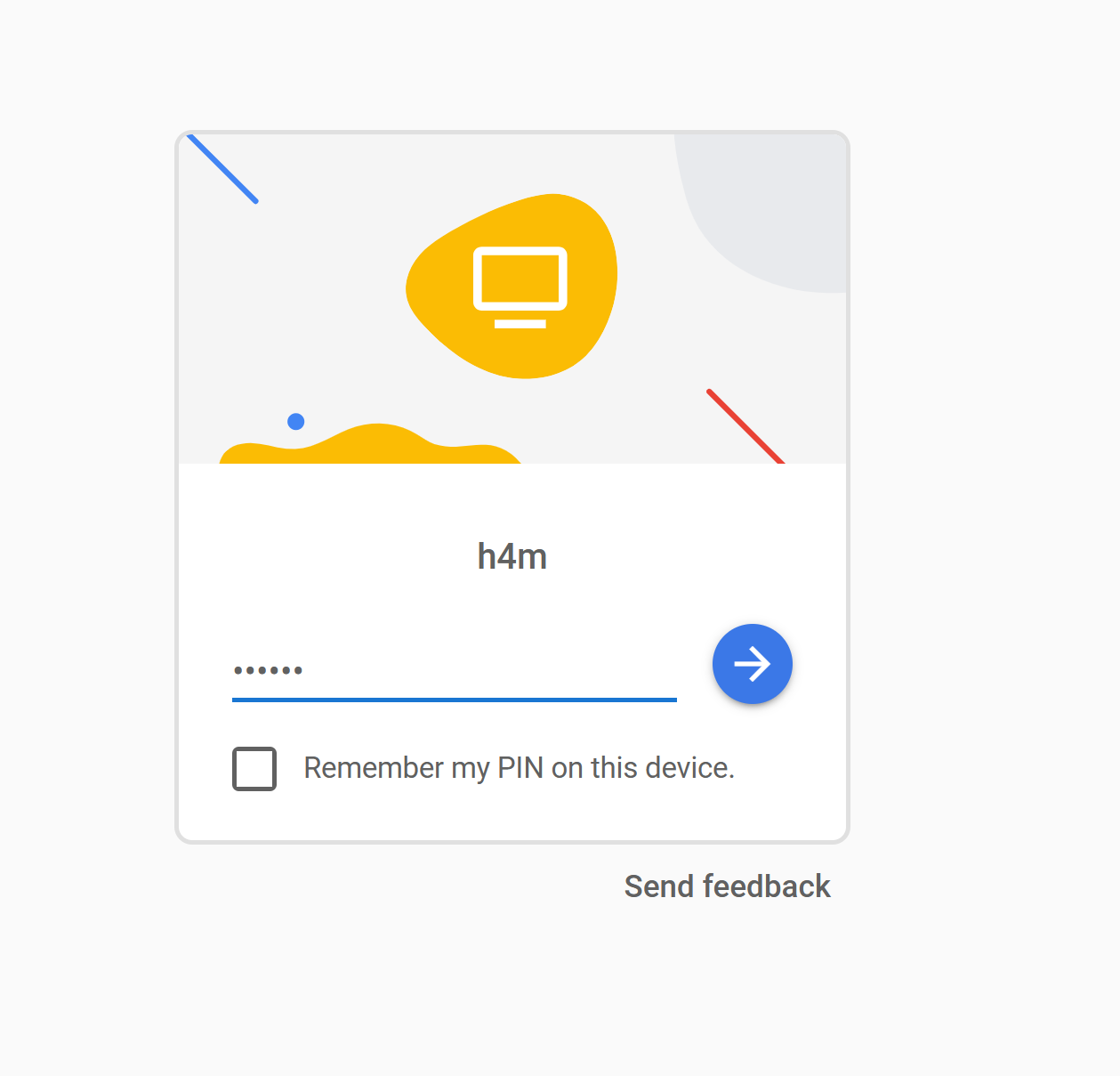
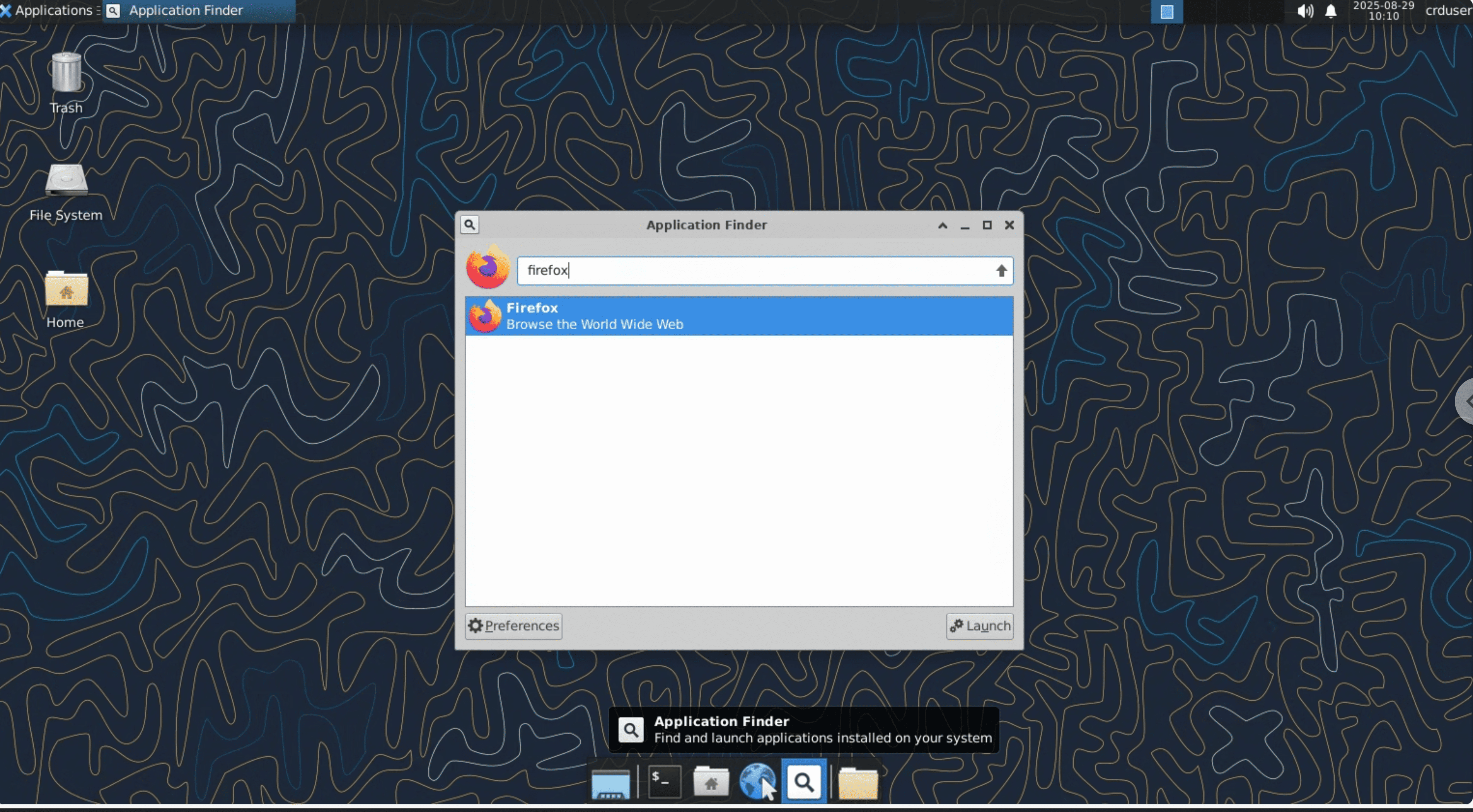
After connecting to Chrome Remote Desktop, select Application Finder in the dock at the bottom of the screen, search for Firefox, and select the icon to open it.
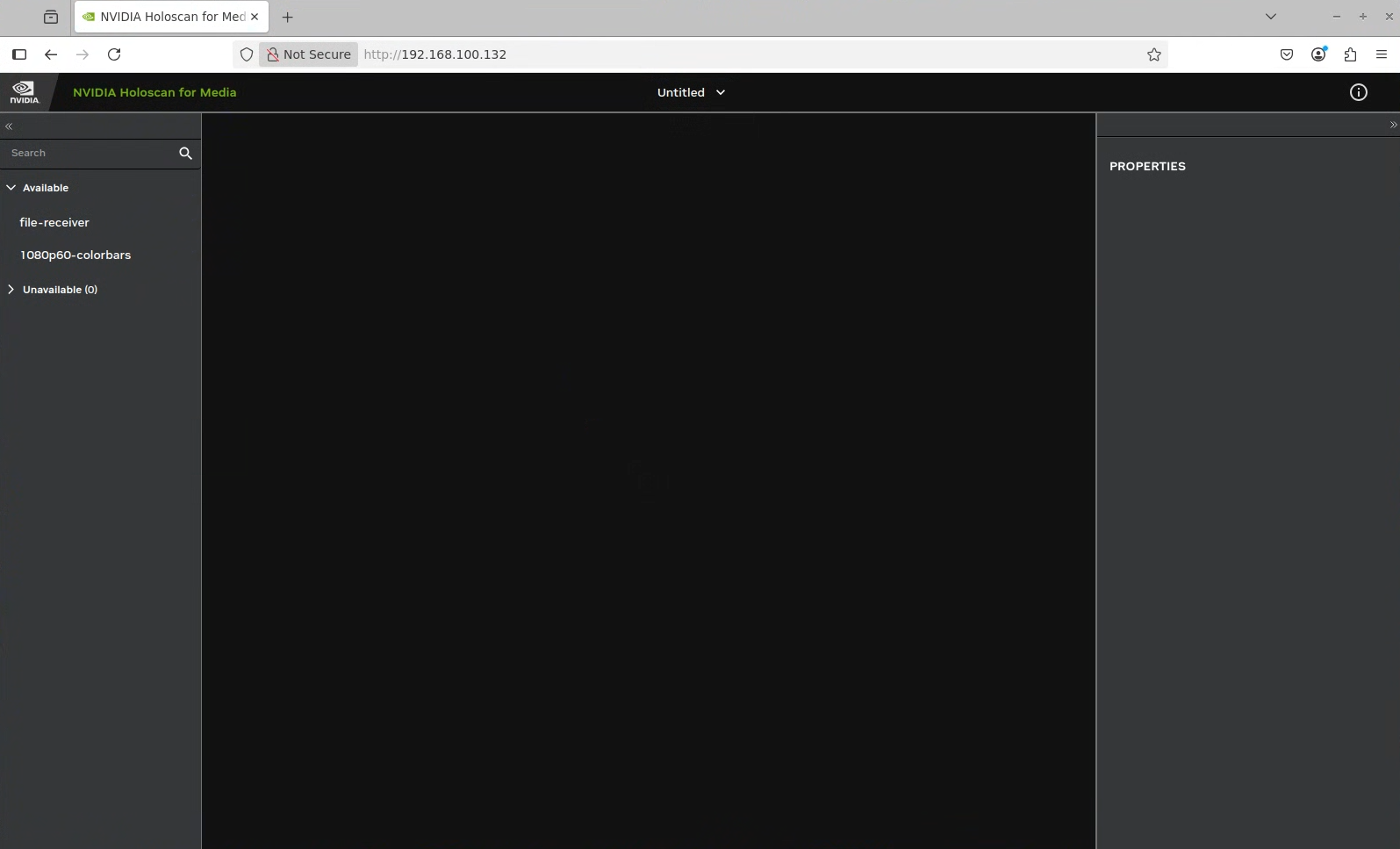
Navigate to the NMOS Controller UI at
http://<controller-ui-ip-address>/, where<controller-ui-ip-address>is the high-speed network IP address that you specified at deployment time.In the NMOS Controller UI, the available devices appear in the left panel under Available.
Note
If the devices do not appear in the NMOS Controller UI, check the logs of each pod:
kubectl logs <pod-name>
Drag the sender and receiver devices from the left panel to the empty canvas.
Drag a link between the receiver and the sender to make a connection.
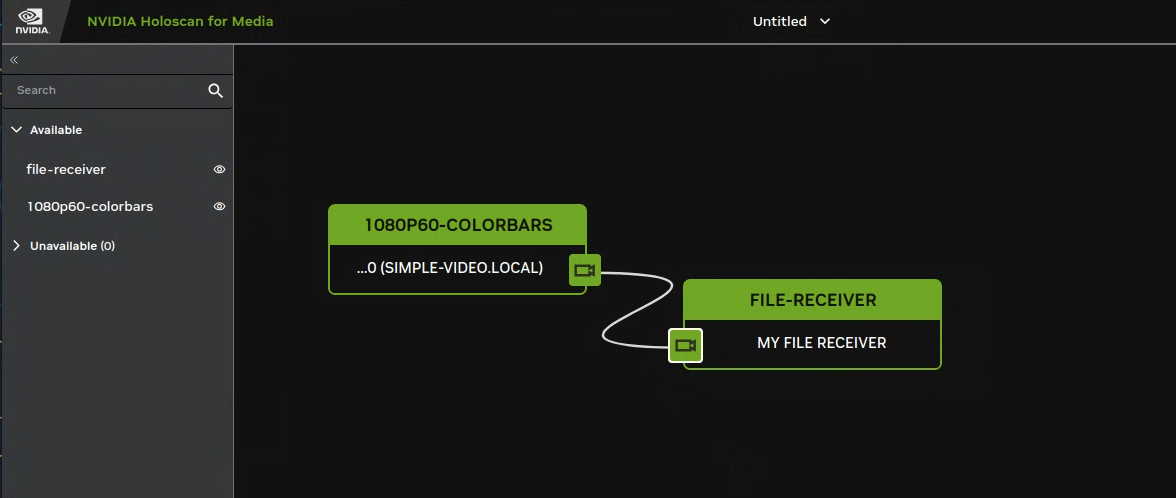
After some time, disconnect the link between the sender and the receiver using the context menu. Check the video file saved in the workspace directory of the receiver container.
Alternatively, you can copy the file to your local directory using the following command:
kubectl cp <pod-name>:/workspace/recv.mp4 <destination-path>
Replace
<pod-name>with the name of the receiver pod, which you can find using the following command:kubectl get pods | grep receiver
NAME                                                              READY   STATUS    RESTARTS   AGE
nvds-nmos-bin-receiver-nvds-nmos-bin-receiver-pipeline-dbd79rcb   1/1     Running   0          10m
Replace
<destination-path>with the path to the directory where you want to save the file (for example,/home/user/recv.mp4).