


Installation#
NVIDIA recommends the Installer Agent for installing the cluster. It guides you through a desktop wizard, prepares the jump node, and runs the installation playbook for you.
Note
The remainder of this page describes manual installation using the downloaded Ansible playbooks. You do not need to follow these steps if you use the Installer Agent.
Prerequisites#
Before you run the installation playbooks, prepare the following items.
OpenShift Access Token#
Generate an offline token for authentication with the Red Hat Assisted Installer API.
Log in to the OpenShift Cluster Manager as a user with cluster creation privileges.
Select Downloads in the left menu.
Scroll to the bottom of the web page and select View API Token in the Tokens section.
Select use API tokens to authenticate.
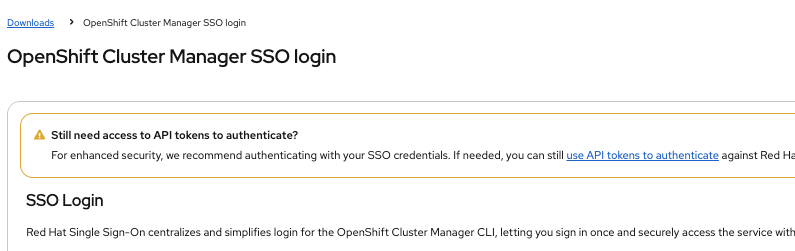
Select Load Token. Copy the token and save it to use during cluster installation.
IP Addresses and DNS Records#
At installation time, you need the IP address of each node’s Intelligent Platform Management Interface (IPMI) or baseboard management controller (BMC). Each node also requires a DHCP-assigned IP address for its node management interface. NVIDIA recommends that you make DHCP reservations for these Node IP addresses.
All OpenShift clusters have two important external endpoints:
Kubernetes API: Provides a single, stable entry point for clients to interact with the OpenShift Container Platform API. Operations include managing cluster resources, deploying applications, and retrieving cluster status.
Ingress: Serves as the entry point for external traffic destined for applications running within the OpenShift cluster.
For single-node clusters, the cluster exposes these endpoints on the Node IP address. For compact (three-node) and standard (five or more nodes) clusters, you need a static virtual IP (VIP) address for each of these endpoints.
The DNS names for these endpoints have the following format:
Kubernetes API:
api.<name>.<base_dns_domain>Ingress:
*.apps.<name>.<base_dns_domain>(wildcard)
The Cluster Details section describes how you configure the name and base_dns_domain at installation time.
Add DNS A records to your DNS server to map these DNS names to the VIP addresses or, for a single-node cluster, the Node IP address.
Alternatively, you can add entries to your local hosts file. The hosts file does not support DNS wildcards, so you must create an entry for every application’s ingress endpoint and update the entries as you deploy new applications.
Configuring Installation Playbooks#
Update the following asset files in the installation/assets directory with the properties that the installation playbook requires:
File |
Purpose |
|---|---|
|
Defines cluster-level properties, including name, base domain, OpenShift version, CPU architecture, high-availability mode, and API and Ingress VIP addresses |
|
Contains server-specific information, including IPMI or BMC credentials, hostnames, and node roles for each physical server in the cluster |
Cluster Details#
Open the cluster.json file and add the following details:
Property |
Description |
|---|---|
|
Name of the cluster. For example, |
|
Base DNS domain of the cluster. For example, |
|
API virtual IP address. For example, |
|
Ingress virtual IP address. For example, |
With the example name and base_dns_domain values:
Kubernetes API endpoint:
https://api.h4m-cluster.example.com:6443Ingress endpoints:
*.apps.h4m-cluster.example.com, for example,https://console-openshift-console.apps.h4m-cluster.example.com
Server Details#
Open the cluster_details.json file and provide the IPMI login credentials for each server.
Each cluster size requires the following hosts:
Single-Node Cluster: Add details of one host.
Compact Cluster (three-node): Add details of three hosts, all with the
masterrole.Standard Cluster (five or more nodes): Add details of five or more hosts, three with the
masterrole and the rest with theworkerrole.
Property |
Description |
|---|---|
|
IPMI or BMC IP address of the server (used for Redfish API access to control server power and virtual media). |
|
IPMI or BMC username for authentication. |
|
IPMI or BMC password for authentication. |
|
Name to assign to the server during OpenShift cluster installation, for example, |
|
Node role in the cluster: |
Run the Playbook#
The Ansible playbooks need sudo access to copy the ISO file to the Apache HTTP server directory.
To run any Ansible command, activate the Python virtual environment that you previously created in the Software Prerequisites section:
source .h4m/bin/activate
Note
To exit the virtual environment at any time, run:
deactivate
In the same terminal, export the offline access token that you generated earlier (refer to OpenShift Access Token):
export OFFLINE_ACCESS_TOKEN=<token>
In the same terminal, run the Ansible playbook using the following command:
ANSIBLE_LOG_PATH=./installation_$(date +'%Y%m%d_%H%M%S').log ansible-playbook main.yaml --ask-become-pass -vv
The
-vvflag enables verbose output for debugging. You can change it to-vfor less detail or-vvvor-vvvvfor increasingly more detailed logs.
When prompted, enter the current user’s password to grant
sudoaccess.
After the playbook completes, it writes the OpenShift web console login details to cluster-credentials.txt in the installation directory.
Retrieve the credentials on the jump node:
cat cluster-credentials.txt
Download Kubeconfig#
NVIDIA recommends that you download the kubeconfig file because Red Hat keeps it for only 20 days after cluster installation.
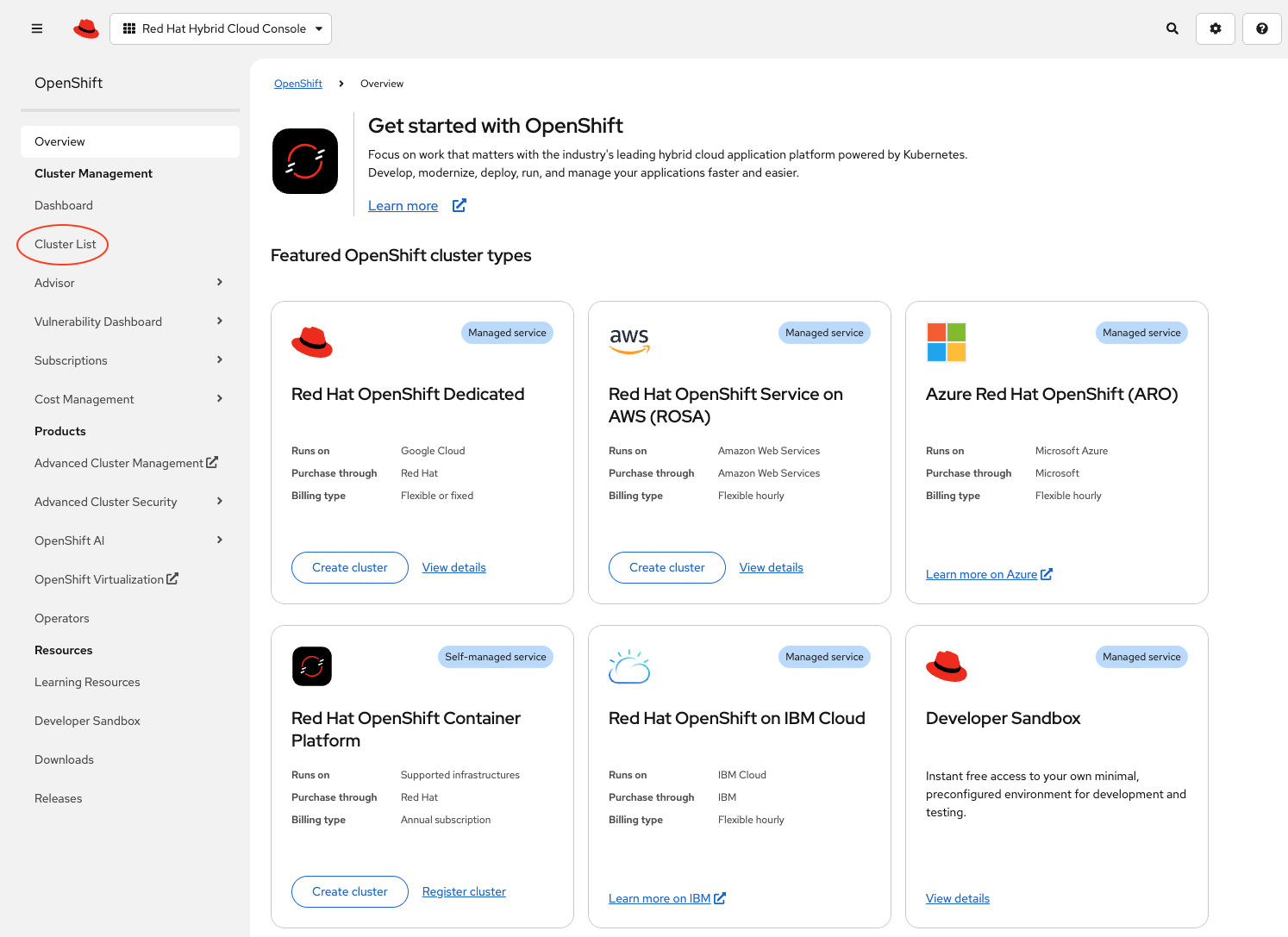
Log in to the Red Hat console and select Cluster List.
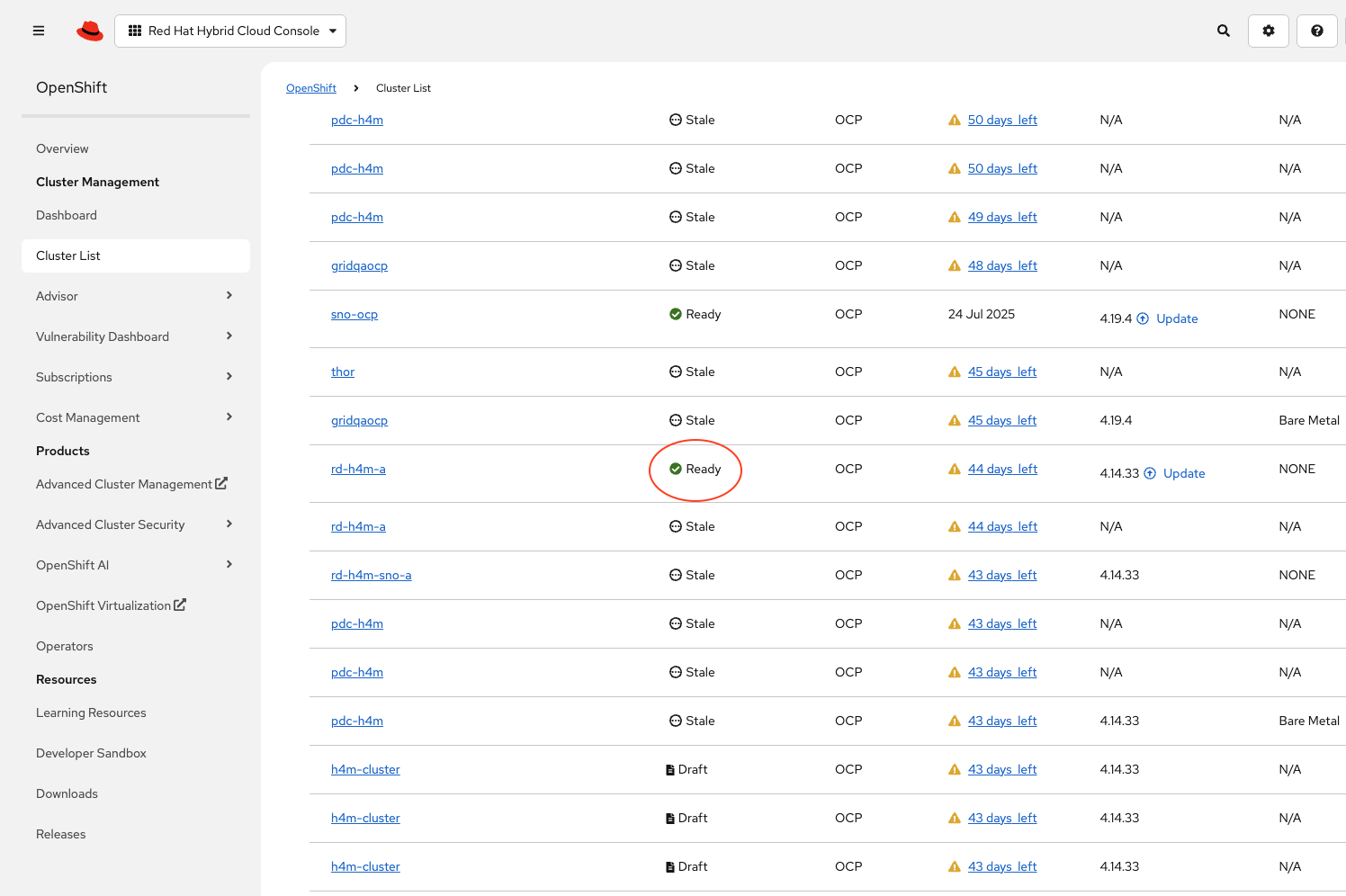
Select the name of the cluster.
Select Download kubeconfig to download the
kubeconfigfile.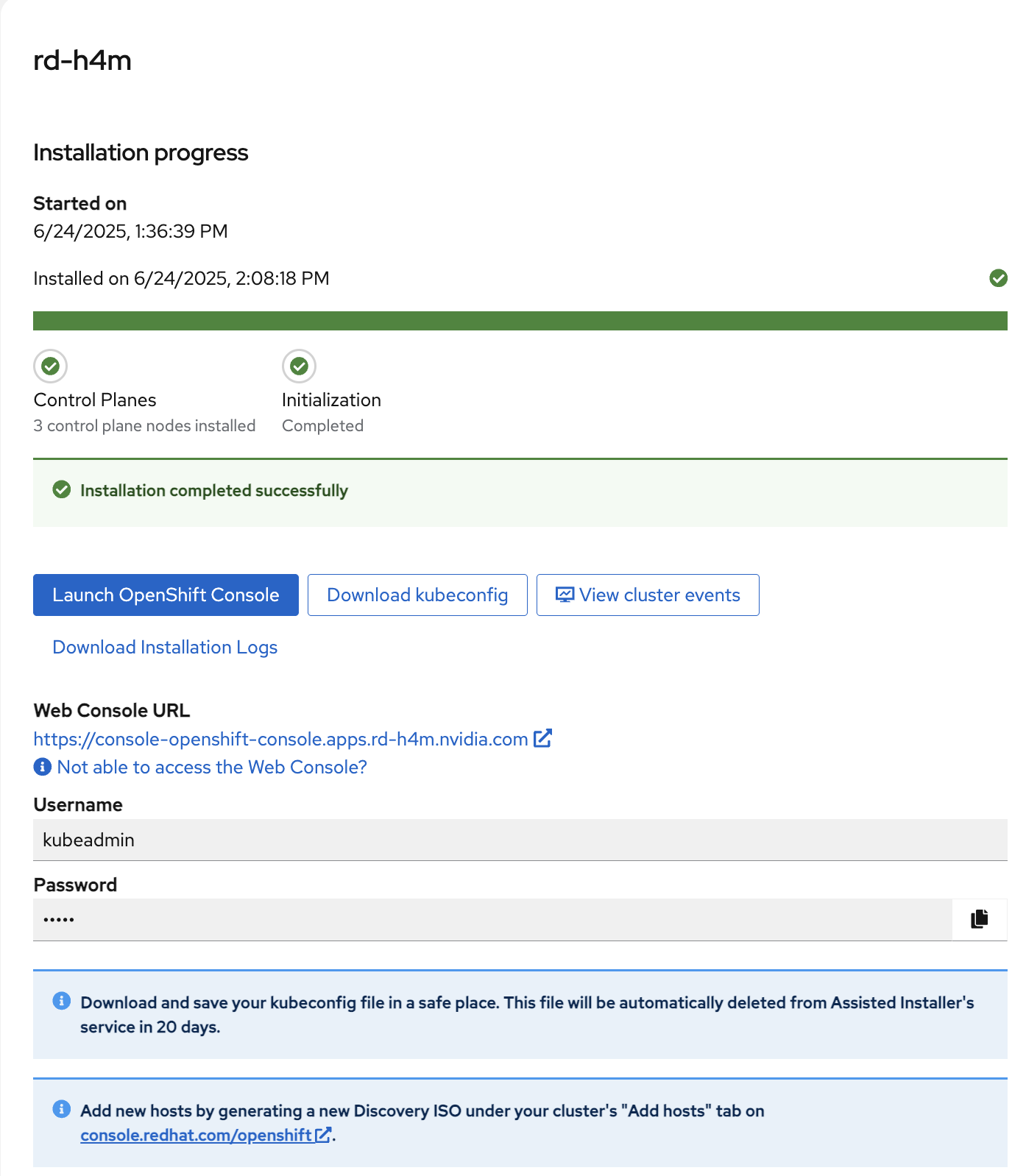
Copy the
kubeconfigfile to~/.kube/configon the jump node to access the cluster.