


Prerequisites#
Before you start the installation, ensure that you meet the following prerequisites.
Hardware Requirements#
Holoscan for Media has specific motherboard, CPU, GPU, and networking card requirements.
Ensure that your system complies with these requirements. For the configurations that NVIDIA has tested with the platform, refer to Tested Configurations.
BIOS Setup#
System tuning is essential for achieving consistently high performance from your hardware.
In particular, the SMPTE ST 2110 specifications impose a strict timing policy on the flow of data across the network stack between compliant senders and receivers. To meet this standard, you should tune your systems to reduce interference from the BIOS and operating system, and between applications running on the same system.
The following steps, based on the Rivermax Performance Tuning Guide, achieve this goal.
Restart the computer, and enter the BIOS or UEFI setup.
Enable SR-IOV support. For details, refer to the specifications for your workstation.
SR-IOV support might include or depend on the following virtualization features. These features are typically in menus such as CPU/Processor Settings and PCIe Settings:
Intel Virtualization Technology for Directed I/O (VT-d) or AMD-Vi, also known as the input-output memory management unit (IOMMU): This feature is not strictly required for SR-IOV, but you might need to enable it.
PCIe ARI (Alternative Routing-ID Interpretation): Enable this feature to remove the normal limit of eight virtual functions (VFs) for each device.
PCIe ATS (Address Translation Services): Enable this feature to improve SR-IOV performance.
PCIe ACS (Access Control Services): You can disable this feature to improve performance when you work only with containers, but enable it when you use virtual machines.
PCIe AER (Advanced Error Reporting): Enable this feature.
AMD-Specific BIOS Setup#
Configure the following BIOS settings on AMD systems:
SMT Mode: Controls simultaneous multithreading (SMT), which lets each CPU core run multiple threads. For most workloads, SMT can remain enabled. However, SMT can affect workloads with strict timing requirements, such as ST 2110 packet pacing, so disable SMT to ensure compliance.
APIC Mode: Controls the Advanced Programmable Interrupt Controller (APIC), which affects how multi-core processors handle interrupts. Set this option to x2APIC.
L3 Cache as NUMA Domain: When enabled, the BIOS exposes each Core Complex (CCX) as a separate non-uniform memory access (NUMA) domain. When disabled, the BIOS declares memory addressing and NUMA nodes for each socket. Set this option to Disabled.
Core Performance Boost: Allows CPU cores to reach turbo frequencies. This option is often enabled by default, but verify that it is active.
Memory Speed: Set to the maximum supported value for best performance.
C-State: Controls power-saving states for idle CPUs. Because these states reduce performance, disable Global C-state Control and DF C-states.
P-State: Controls CPU power states. To avoid performance loss, disable P-state1, and set DF P-states to P0.
Determinism Slider: Set to Power. This setting lets cores scale frequency independently, which improves overall performance.
Efficiency Mode: Set to Disabled.
Software Requirements#
Linux OS#
The local developer setup supports Ubuntu 22.04 and 24.04.
Check the Linux distribution and version on your system:
lsb_release -aImportant
Check the kernel version:
uname -rIf your kernel version is not in Supported Host OS per DOCA-Host Installation Profile, update the kernel to a supported version.
Git#
Ensure that Git is installed:
sudo apt update
sudo apt install git -y
Note
Ubuntu Server includes Git by default, but Ubuntu Desktop does not.
Network Adapter Firmware and Configuration#
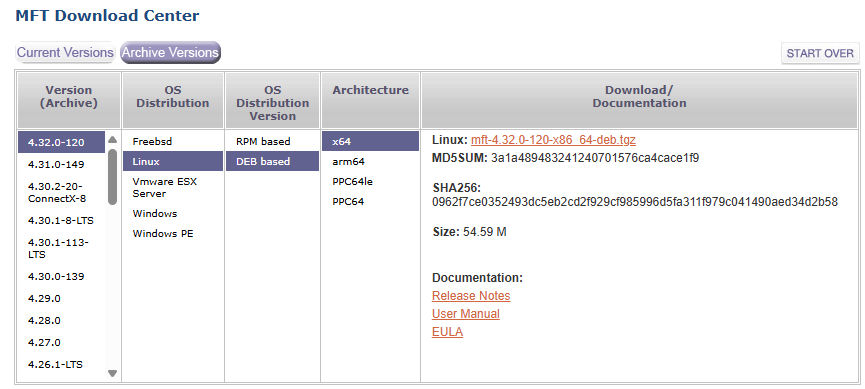
Install NVIDIA Firmware Tools (MFT) version 4.32.0.120. On the download page, select the Debian-based operating system distribution, as shown in the following image:
Decompress and install the package
tar xvzf mft-4.32.0-120-x86_64-deb.tgz
cd mft-4.32.0-120-x86_64-deb
sudo ./install.sh
sudo mst start

sudo mst status -v
MST modules:
------------
    MST PCI module is not loaded
    MST PCI configuration module loaded
PCI devices:
------------
DEVICE_TYPE             MST                           PCI       RDMA            NET                                     NUMA
ConnectX6DX(rev:0)      /dev/mst/mt4125_pciconf0      03:00.0   mlx5_0          net-enp3s0f0np0                         0

ConnectX6DX(rev:0)      /dev/mst/mt4125_pciconf0.1    03:00.1   mlx5_1          net-enp3s0f1np1                         0
Check the current NIC firmware version:
sudo mlxfwmanager -d <device_name> --query
where
<device_name>is the MST device name of the NIC being checked, for example,/dev/mst/mt4125_pciconf0.Querying Mellanox devices firmware ... Device #1: ---------- Device Type: ConnectX6DX Part Number: MCX623106AN-CDA_Ax Description: ConnectX-6 Dx EN adapter card; 100GbE; Dual-port QSFP56; PCIe 4.0/3.0 x16; PSID: MT_0000000359 PCI Device Name: /dev/mst/mt4125_pciconf0 Base GUID: e8ebd30300aa876a Base MAC: e8ebd3aa876a Versions: Current Available FW 22.44.1036 N/A PXE 3.7.0500 N/A UEFI 14.37.0014 N/A Status: No matching image foundCompare it with the supported firmware versions in the compatibility matrix.
If the installed version does not match a supported version, complete the following steps:
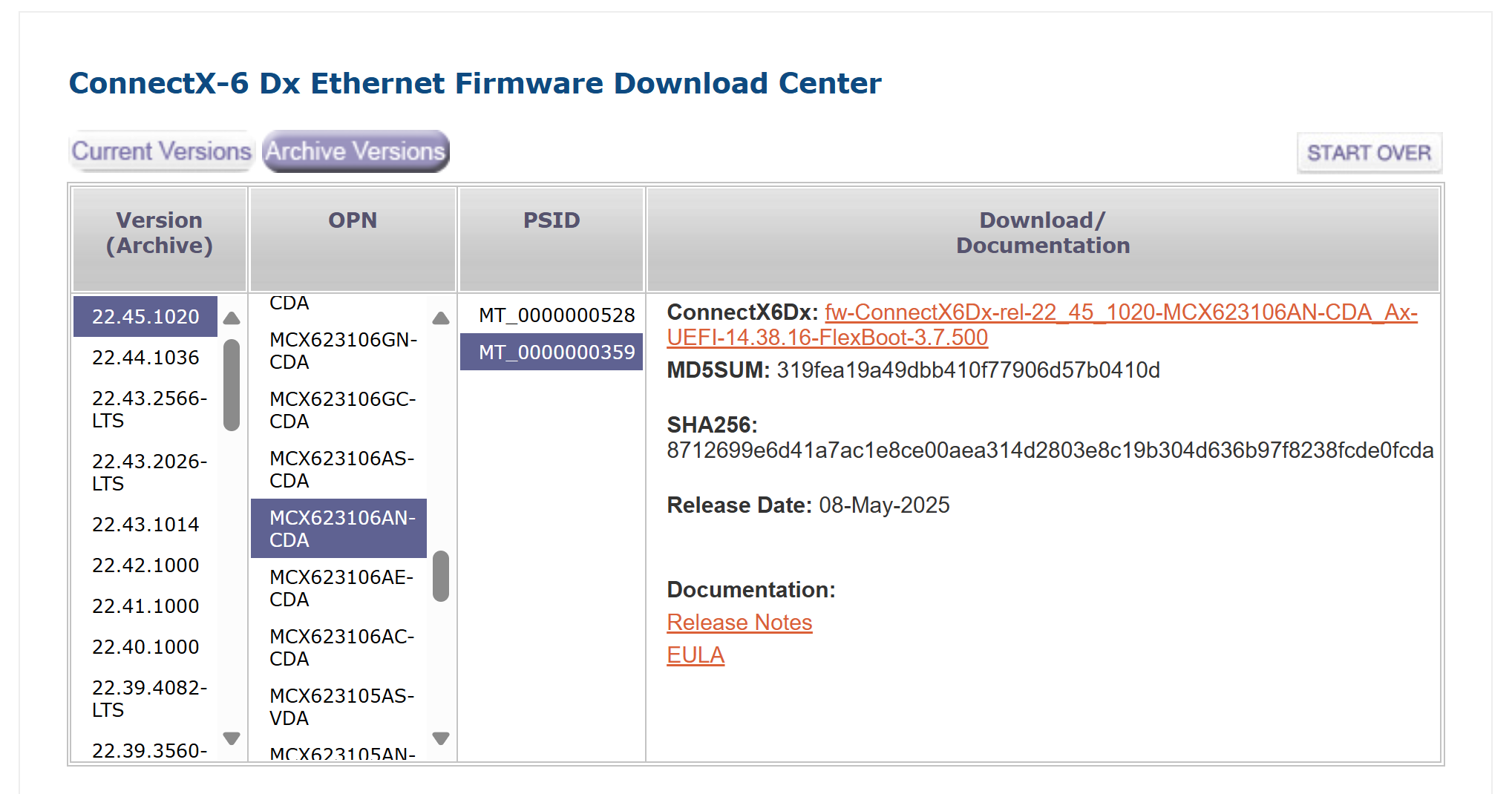
Download the appropriate Ethernet firmware from the firmware download page. Use the NIC part number and PSID from the previous output, as shown in the following image:
Decompress the package:
unzip <firmware_package>where
<firmware_package>is the name of the downloaded firmware file, for example,fw-ConnectX6Dx-rel-22_45_1020-MCX623106AN-CDA_Ax-UEFI-14.38.16-FlexBoot-3.7.500.bin.zip.Update the firmware:
sudo flint -d <device_name> -i <binary_image> burn
where:
<device_name>is the MST device name of the NIC being updated, for example,/dev/mst/mt4125_pciconf0.<binary_image>is the file name of the unzipped firmware file, for example,fw-ConnectX6Dx-rel-22_45_1020-MCX623106AN-CDA_Ax-UEFI-14.38.16-FlexBoot-3.7.500.bin.
Power cycle the system.
After the system powers on, verify the new firmware version:
sudo mlxfwmanager -d <device_name> --query
where
<device_name>is the MST device name of the NIC being verified, for example,/dev/mst/mt4125_pciconf0.
If you are using a purchased Rivermax license, rather than a time-limited development license, you must enable NIC serial number validation using
VF_VPD_ENABLE.Check the
VF_VPD_ENABLEsetting:sudo mlxconfig -d <device_name> query VF_VPD_ENABLE
where
<device_name>is the MST device name of the NIC being targeted, for example,/dev/mst/mt4125_pciconf0.Device #1: ---------- Device type: ConnectX6DX Name: MCX623106AN-CDA_Ax Description: ConnectX-6 Dx EN adapter card; 100GbE; Dual-port QSFP56; PCIe 4.0/3.0 x16; Device: /dev/mst/mt4125_pciconf0 Configurations: Next Boot VF_VPD_ENABLE False(0)Set
VF_VPD_ENABLEto True (1):sudo mlxconfig -d <device_name> set VF_VPD_ENABLE=1
where
<device_name>is the MST device name of the NIC being targeted, for example,/dev/mst/mt4125_pciconf0.Reboot the system:
sudo reboot
Verify Installed Drivers#
You can install the platform on a machine dedicated to Kubernetes containerized development, deployment, and testing. In that case, you do not need NVIDIA GPU and NIC drivers for Ubuntu.
You can also install NVIDIA GPU and NIC drivers to allow both native Ubuntu software development and containerized work on the same machine.
Depending on your needs, you can start from a clean Ubuntu distribution with no NVIDIA drivers installed, or you can install NVIDIA drivers.
Important
If you use a machine with NVIDIA drivers installed on Ubuntu, install the networking driver before the GPU driver.
Check whether DOCA-OFED (formerly MOFED, or Mellanox OFED) is installed:
ofed_info -sOFED-internal-25.04-0.6.1:
If the command returns an error, the DOCA-OFED driver is not installed.
Check whether the NVIDIA GPU driver is installed:
modinfo nvidia | grep "^version:"
version: 580.95.05
If the command returns an error, the GPU driver is not installed.
Based on the results, follow the recommendation for your configuration:
Both DOCA-OFED and GPU drivers installed
Ensure that the installed GPU driver version is 575 or later.
To confirm that DOCA-OFED was installed before the GPU driver, load the nvidia-peermem module:
sudo modprobe nvidia-peermem
If the modprobe command returns no error, the drivers are installed in the correct order, and you can proceed with the installation.
If you get the following error:
modprobe: ERROR: could not insert 'nvidia_peermem': Invalid
This error means that the drivers are installed in the wrong order. Uninstall the GPU driver and DOCA-OFED, and then do one of the following:
Reinstall DOCA-OFED, and then install the GPU driver.
Let NVIDIA Network Operator and NVIDIA GPU Operator install the drivers during CNS setup.
Only GPU driver installed
Uninstall the GPU driver, and then do one of the following:
Install DOCA-OFED, and then install the GPU driver.
Let NVIDIA Network Operator and NVIDIA GPU Operator install the drivers during CNS setup.
Only DOCA-OFED driver installed
Proceed with the installation, and let NVIDIA GPU Operator install the GPU driver during CNS setup. Alternatively, install the GPU driver first.
No drivers installed
Proceed with the installation, and let NVIDIA Network Operator and NVIDIA GPU Operator install the drivers during CNS setup. Alternatively, install DOCA-OFED, and then install the GPU driver.