
Application Development#
Holoscan for Media supports containerized applications and Linux or Windows applications that run in virtual machines (VMs). The container-specific requirements below apply to container development. For VM image preparation and deployment, refer to VM Application Deployment.
Host OS Requirements#
For containerized applications, the host OS used for development is not critical. However, to test features such as Single Root I/O Virtualization (SR-IOV) networking, use a supported Linux distribution. For the Linux distributions that NVIDIA officially supports, refer to the CUDA Installation Guide for Linux system requirements.
Base Container Requirements#
You can choose any base container. The Holoscan for Media reference applications are based on Ubuntu 22.04 and 24.04.
Built on top of DeepStream SDK, Media Gateway provides developers with access to ST 2110 buffers and Networked Media Open Specifications (NMOS) dynamic connectivity with the lowest possible friction. You can use Media Gateway as a base container for development.
Key Software Technologies#
This section describes how developers can access key technologies using the NVIDIA platform.
GPU Encoding and Decoding#
NVIDIA GPUs allow you to encode and decode compressed video from and to GPU memory with dedicated NVIDIA Encoder (NVENC) and NVIDIA Decoder (NVDEC) processing cores. Starting with the NVIDIA Blackwell GPU generation, NVENC and NVDEC support YCbCr-4:2:2 10-bit encoding and decoding. To check the video encoding and decoding capabilities of any NVIDIA GPU, refer to the GPU Support Matrix.
Developers can access hardware acceleration for compressed streams with very little coding effort by using the DeepStream SDK and an appropriate pipeline, as Media Gateway does. Depending on their software architecture, developers can also access NVENC and NVDEC in the following ways:
C/C++/CUDA through the Video Codec SDK
Python using PyNvVideoCodec
NMOS#
Holoscan for Media developers can design NMOS-compatible applications by using DeepStream and the source code for Media Gateway as inspiration. Developers also have access to dedicated NMOS containerized tools (NMOS registry and controller) for testing and validating their software.
You can also design your own NMOS component using the following code samples and utilities:
NVIDIA/nvnmos open-source NMOS Node implementation, which has a simple API, for common use cases
Sony nmos-cpp open-source implementation, which is more complex but flexible enough for a broader set of use cases
The Advanced Media Workflow Association (AMWA) provides other resources for getting started with NMOS, including:
NMOS Testing Tool open-source test suite
PTP#
The Holoscan for Media platform provides Precision Time Protocol (PTP) as a service. For development, you can also
run ptp4l on a Linux host system with NVIDIA ConnectX-6 Dx and ConnectX-7 NICs. The NVIDIA
Rivermax PTP Best Practice Guidelines
outlines how a developer working on a bare-metal Linux system can set up PTP for testing.
ST 2110#
Media Gateway#
The Media Gateway reference application, built on top of the DeepStream SDK, simplifies access to ST 2110 live streaming. To guide your development, refer to the details on Session Description Protocol (SDP), the relevant DeepStream pipelines, and an example of a full deployment for Media Gateway.
Rivermax#
You can also use Rivermax in native C++ code. After you register for access, you can access functional code samples that are ideal reproducer vehicles for bug support:
media_sender(ST 2110 – Sender)media_receiver(ST 2110 – Receiver)media_node(NMOS wrapper for the above applications with a complete NMOS Media Node implementation that can send and receive)
Other open-source Rivermax samples are available in the Rivermax Dev Kit, a high-level C++ software kit designed to accelerate and simplify Rivermax application development.
Rivermax is a licensed technology. You can access a free development license by registering as a Rivermax developer. This license is valid for three months, and you can renew it on demand as many times as needed to develop and support your product.
Packaging#
Holoscan for Media supports two application packaging models. Choose the model based on whether the application only needs basic Kubernetes deployment or participates in the Media Function lifecycle and orchestration contract.
Basic Application Packaging#
Use basic application packaging when basic Kubernetes or OpenShift deployment and monitoring are sufficient. For a containerized application, publish its container image and create a Helm chart that deploys it. For a Linux or Windows VM application, prepare a versioned QEMU Copy-On-Write version 2 (QCOW2) disk image. This file contains the VM’s operating system, application, and other virtual disk contents. Deploy it with OpenShift Virtualization as described in VM Application Deployment.
For containerized applications, Helm allows the application to request appropriate cluster resources and access network and graphics capabilities through operators. Developers can use the Media Gateway reference Helm chart as a packaging reference, even if they do not use Media Gateway as their base container.
The following example is a typical deployment for an application based on Media Gateway. The deployment does the following:
Pulls the image from NGC by using a developer secret
Requests isolated CPU cores, huge pages, and system memory
Requests an interface on the high-speed network
image:
    repository: nvcr.io/nvidia/holoscan-for-media/nvds-nmos-bin
imagePullSecrets:
    - name: my-ngc-secret
pipelines:
    pipeline1:
        description: 1080p60-sender
        highSpeedNetwork:
            name: media-a-tx-net
        name: converter
        resources:
            limits:
                cpu: 4
                hugepages-2Mi: 4Gi
                memory: 8Gi
                openshift.io/media_a_tx_pool: 1
            requests:
                cpu: 4
                hugepages-2Mi: 4Gi
                memory: 8Gi
                openshift.io/media_a_tx_pool: 1
Media Functions#
A Media Function, as described by the European Broadcasting Union (EBU) Dynamic Media Facility Reference Architecture, is a well-defined software application or component that acts on media streams, files, or objects. In Holoscan for Media, a Media Function instance is an independently managed session, channel, or task that you can deploy, configure, and monitor as part of a media pipeline.
Package this type of application with a Media Function Operator. You install the operator with its own Helm chart, and it adds a Custom Resource Definition to the cluster. When a user creates a corresponding Custom Resource, the operator continuously reconciles that desired state by deploying and configuring the application, monitoring it, and reporting its observed status. The operator can manage containers or virtual machines, and a Media Function does not need to map one-to-one to a pod or other workload.
Use the open-source Media Function Operator Kit to build a conforming operator. It provides shared API types and a reference operator. Refer to the upstream kit documentation for the current design, Custom Resource contract, development workflow, examples, and runtime requirements.
Access Cluster with VS Code#
You can access and manage the Kubernetes cluster using Visual Studio Code (VS Code).
Install kubectl and then the Kubernetes and Dev Containers
extensions in VS Code.
These extensions let you manage the cluster and work with containers directly from
the editor.
Connecting#
You can access the cluster remotely from a different machine than the one where you created the cluster, or locally from the same machine.
Connect to Cluster Remotely#
Locate the
kubeconfigfile on the machine where you created the cluster. This file contains the configuration and credentials needed to access the cluster.To display the configuration, run the following command:
cat ~/.kube/configCopy the file to the appropriate location on your machine.
Refer to Organizing Cluster Access Using kubeconfig Files for more information.
Open VS Code on the machine and navigate to the Kubernetes extension.
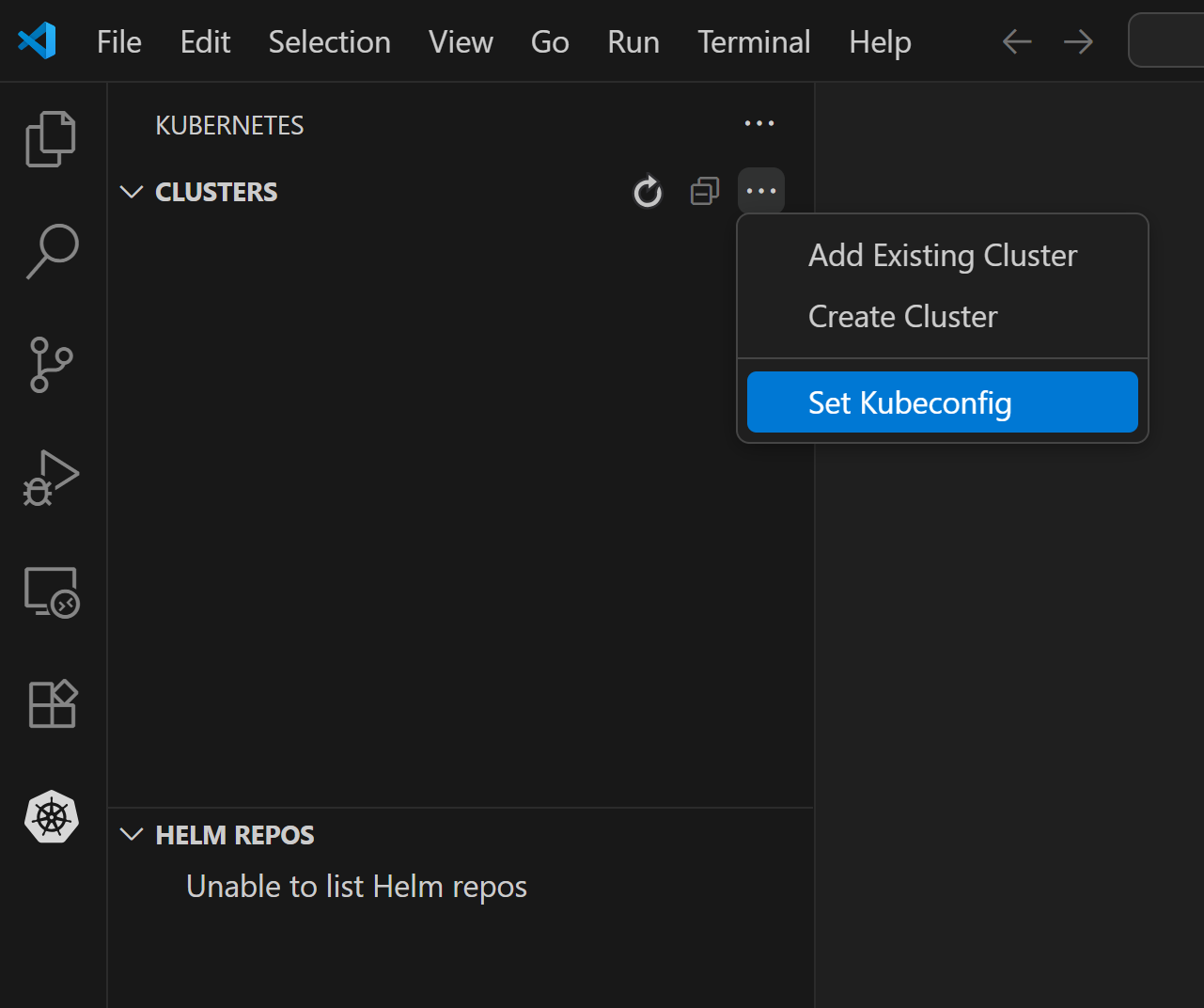
Select Set Kubeconfig.
A window opens.
Select Add new kubeconfig.

Select the
kubeconfigfile.
Connect Locally#
If you use the same machine that hosts the cluster, VS Code automatically
picks up the kubeconfig file.
Usage#
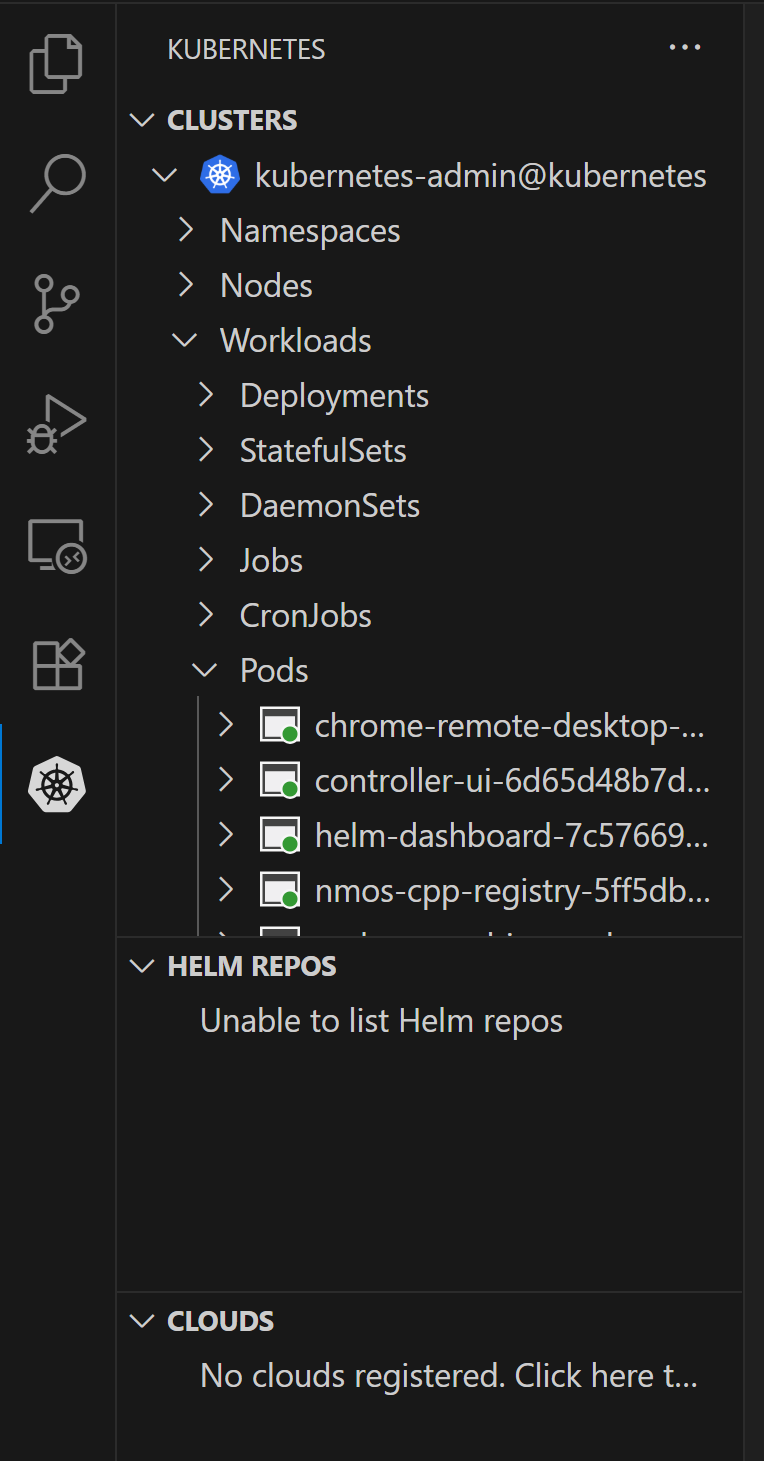
After you connect, you can view the cluster in the Clusters section of the Kubernetes extension. From here, you can view all running pods.
List all running pods:
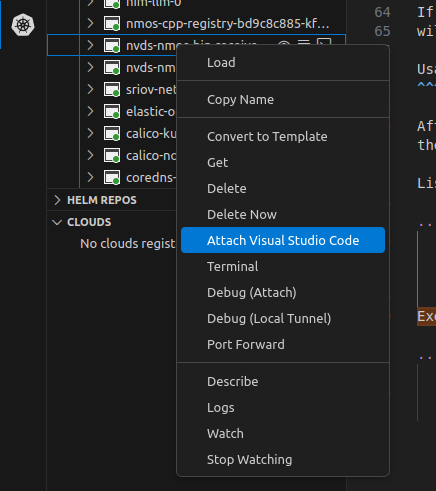
Attach VS Code to the target container by right-clicking it:
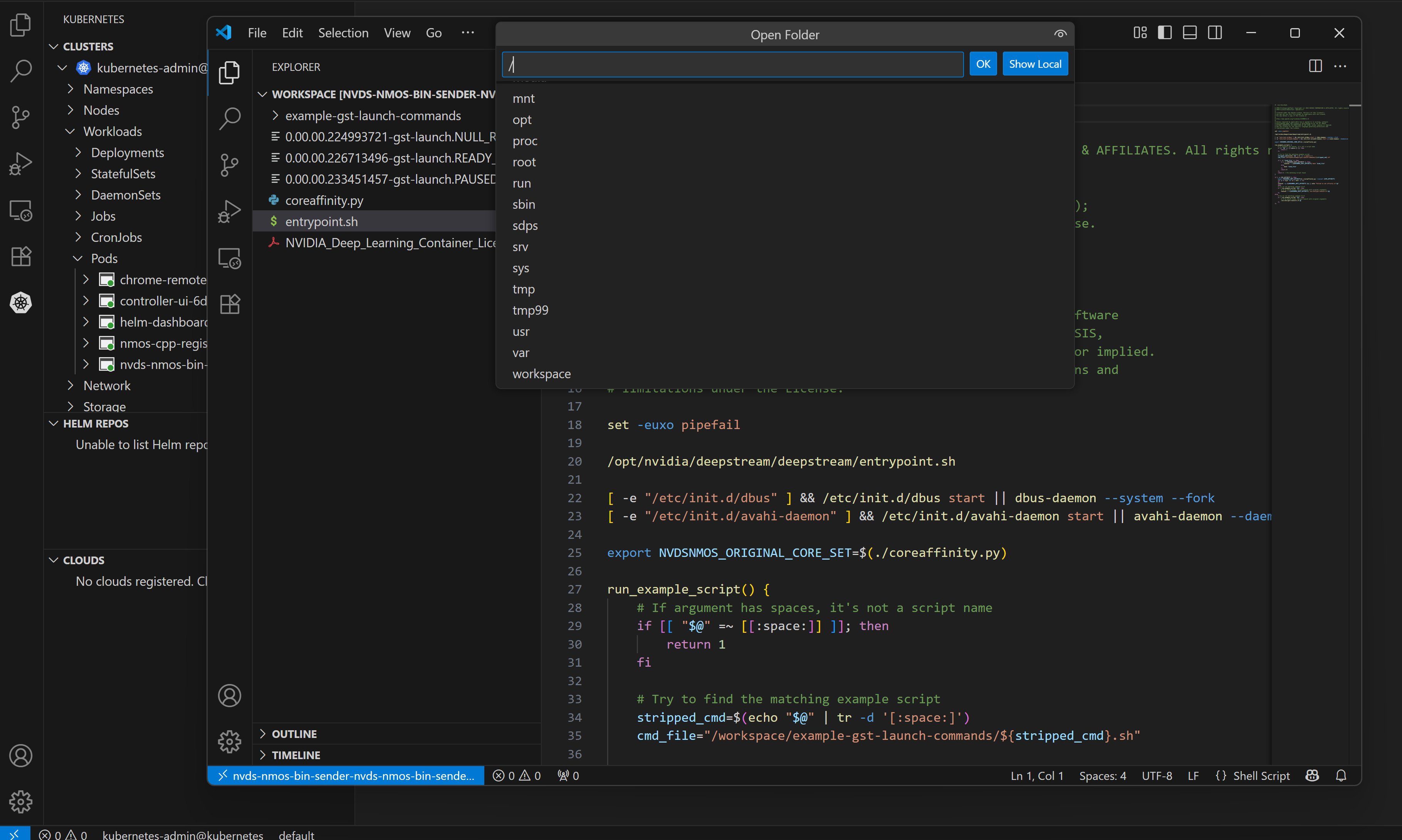
Edit files with VS Code:
Testing#
Developers can use the Media Gateway container to help test their application, for example, to transmit or receive:
Any compressed streams supported by GStreamer
Any uncompressed ST 2110 streams supported by the dedicated DeepStream plugins
Changing the DeepStream pipeline in the Helm chart values allows developers to create different instances of Media Gateway with different behaviors (for example, ST 2110 playout from file, ST 2110 ingest to file, or live ST 2110 to Secure Reliable Transport (SRT) streaming).
Using Chrome Remote Desktop, developers can dynamically connect Media Gateway to ST 2110 sources or receivers using the NMOS controller UI. Developers can also run VLC Media Player to visualize a stream. For debugging purposes, developers can encode and transmit ST 2110 streams, for example, using SRT for viewing in VLC as shown in the ST 2110 to SRT reference pipeline.
Profiling#
Profile your applications with Nsight Developer tools to identify bottlenecks and optimize performance. This helps provide the highest possible density when running multiple application workloads on the cluster.
Depending on your application, different flavors of Nsight tools are available:
Nsight Systems to identify system-level behavior and possible bottlenecks, supporting both CPU and GPU calls, including the NVIDIA Encoder (NVENC) and NVIDIA Decoder (NVDEC) GPU units for compressed video pipelines
Nsight Graphics to profile graphical applications
Nsight Compute to profile CUDA code
You can also integrate markers using the NVIDIA Tools Extension SDK (NVTX) to annotate events, code ranges, and resources in your applications.
You can also profile applications while they run on Holoscan for Media using NVIDIA Nsight Cloud. Nsight Cloud lets you profile and capture data from the CPU, GPU, network, storage, workload, API, and more in a Kubernetes environment.