


Cluster Installation#
OpenShift Container Platform nodes use the Network Time Protocol (NTP) to synchronize their clocks, so every node in the cluster needs access to an NTP server.
OpenShift Assisted Installer#
Installer-provisioned installation configures the infrastructure on which the OpenShift cluster runs.
To install an OpenShift cluster, complete the following steps:
Open a web browser on the jump node, connect to the Red Hat Cloud site, and log in to the console with your credentials.

Select the OpenShift link.
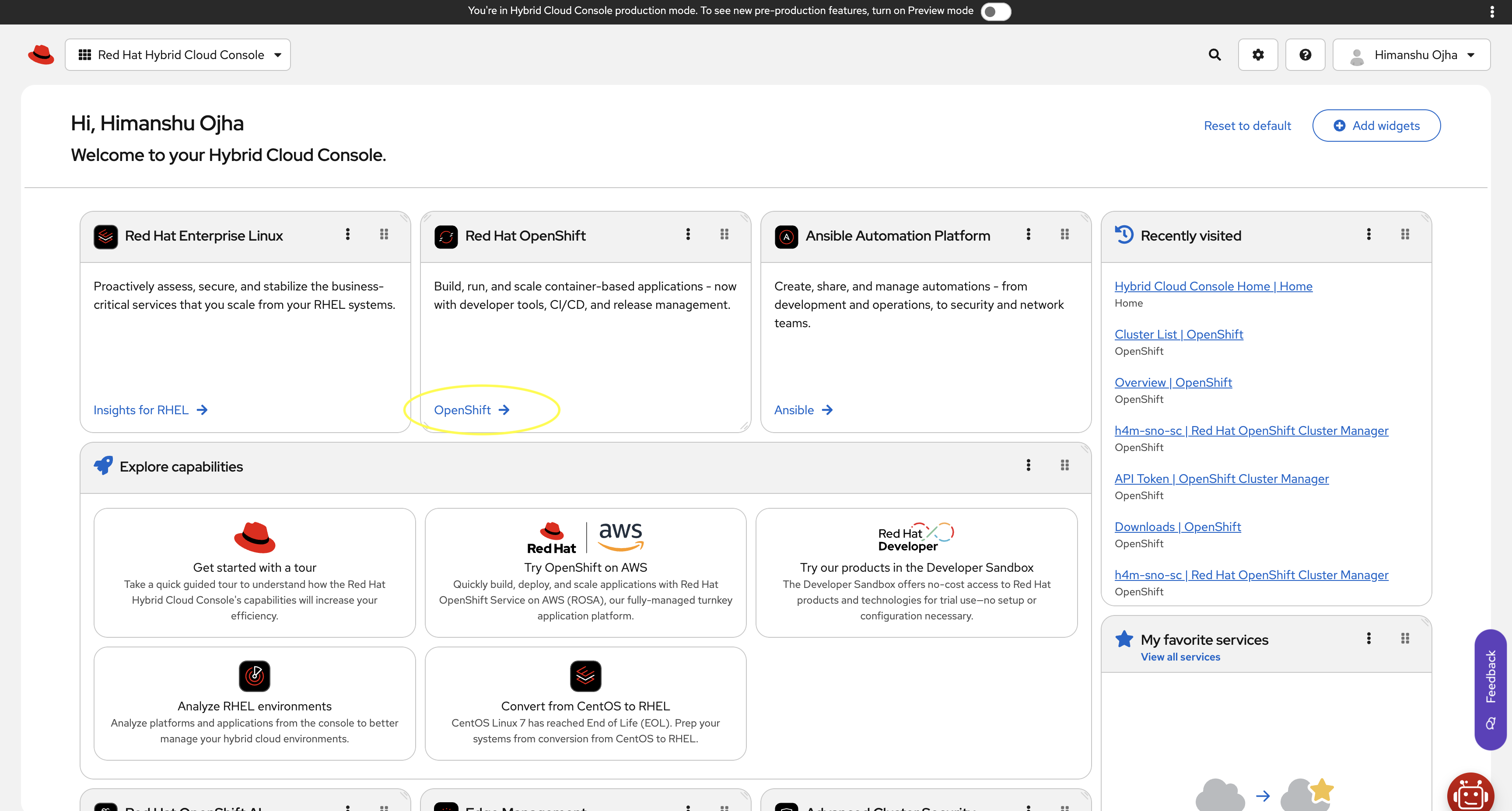
Select Create cluster.

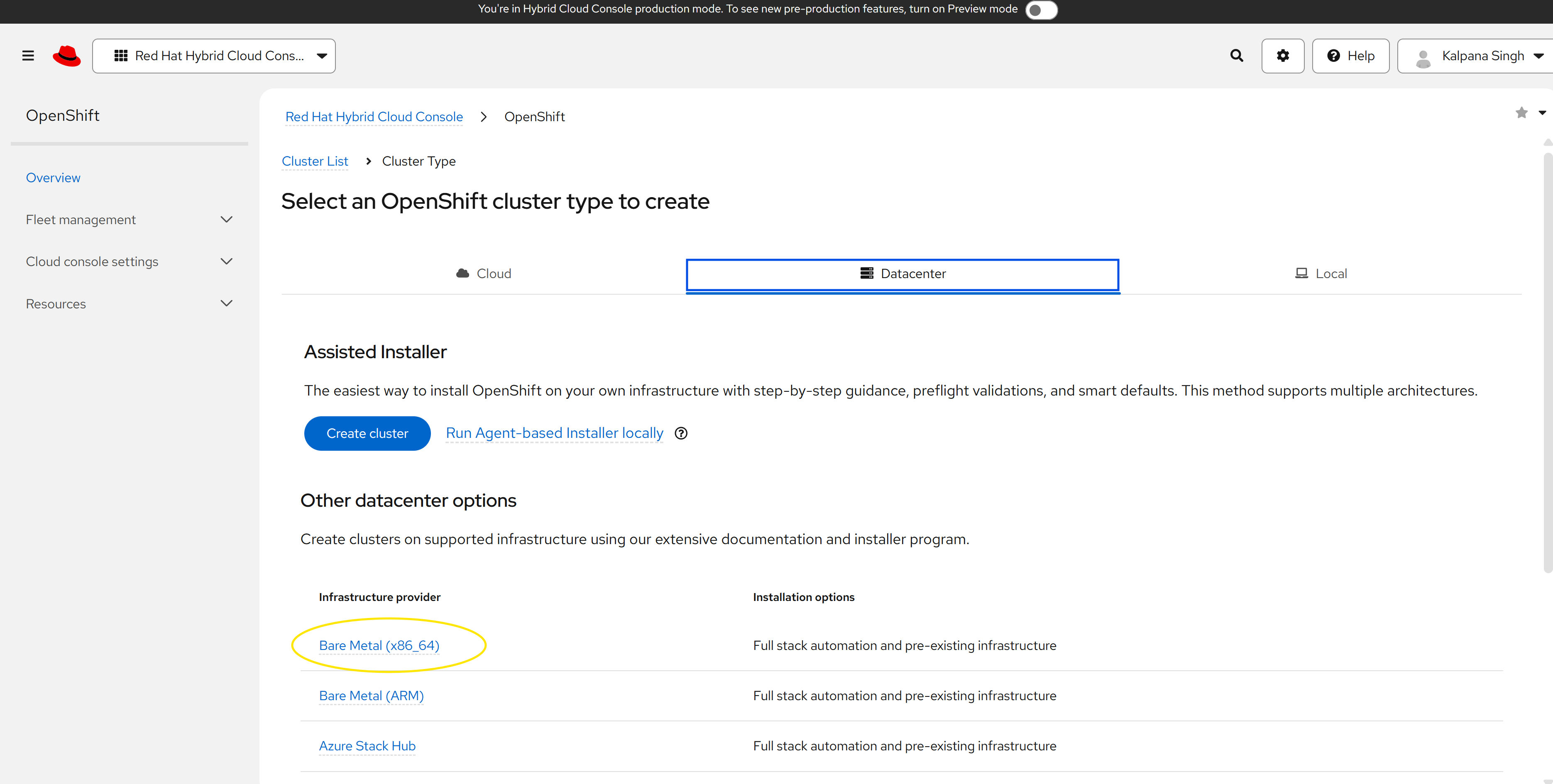
Select the Datacenter tab, and then select Bare Metal (x86_64) under the Infrastructure provider column.
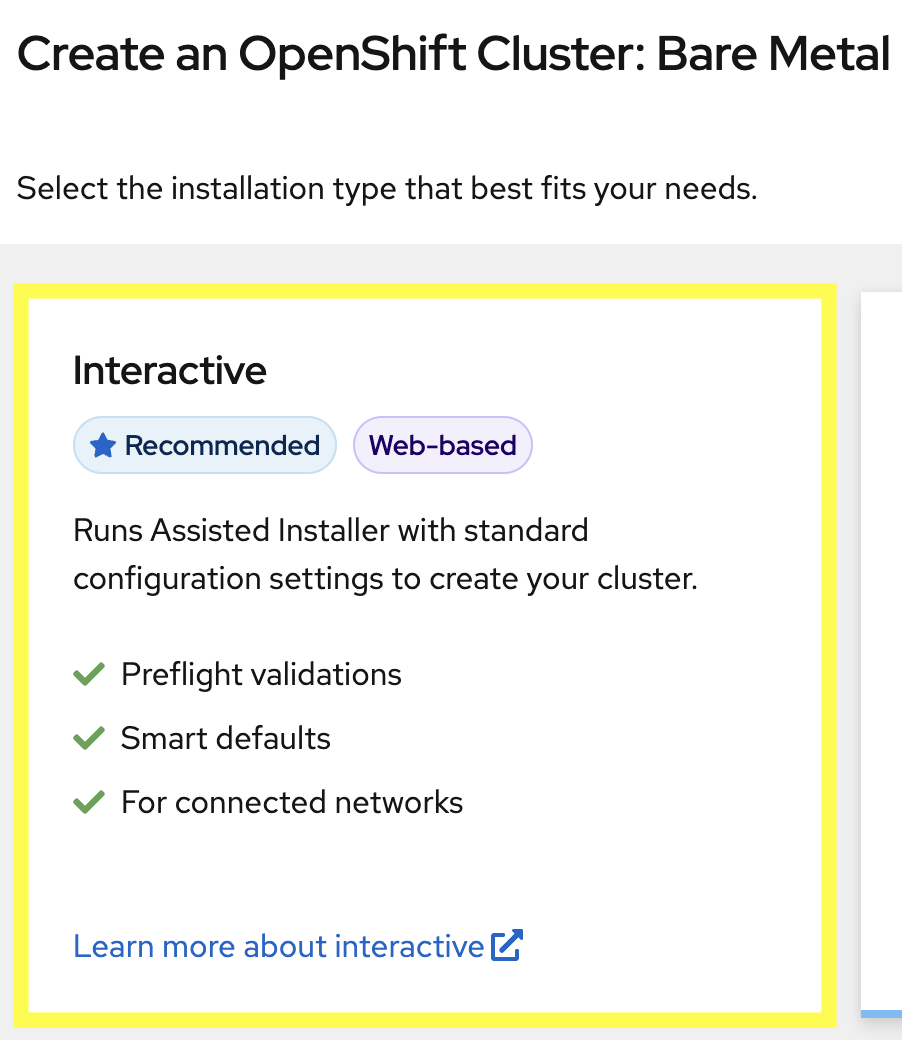
Select the Interactive option.
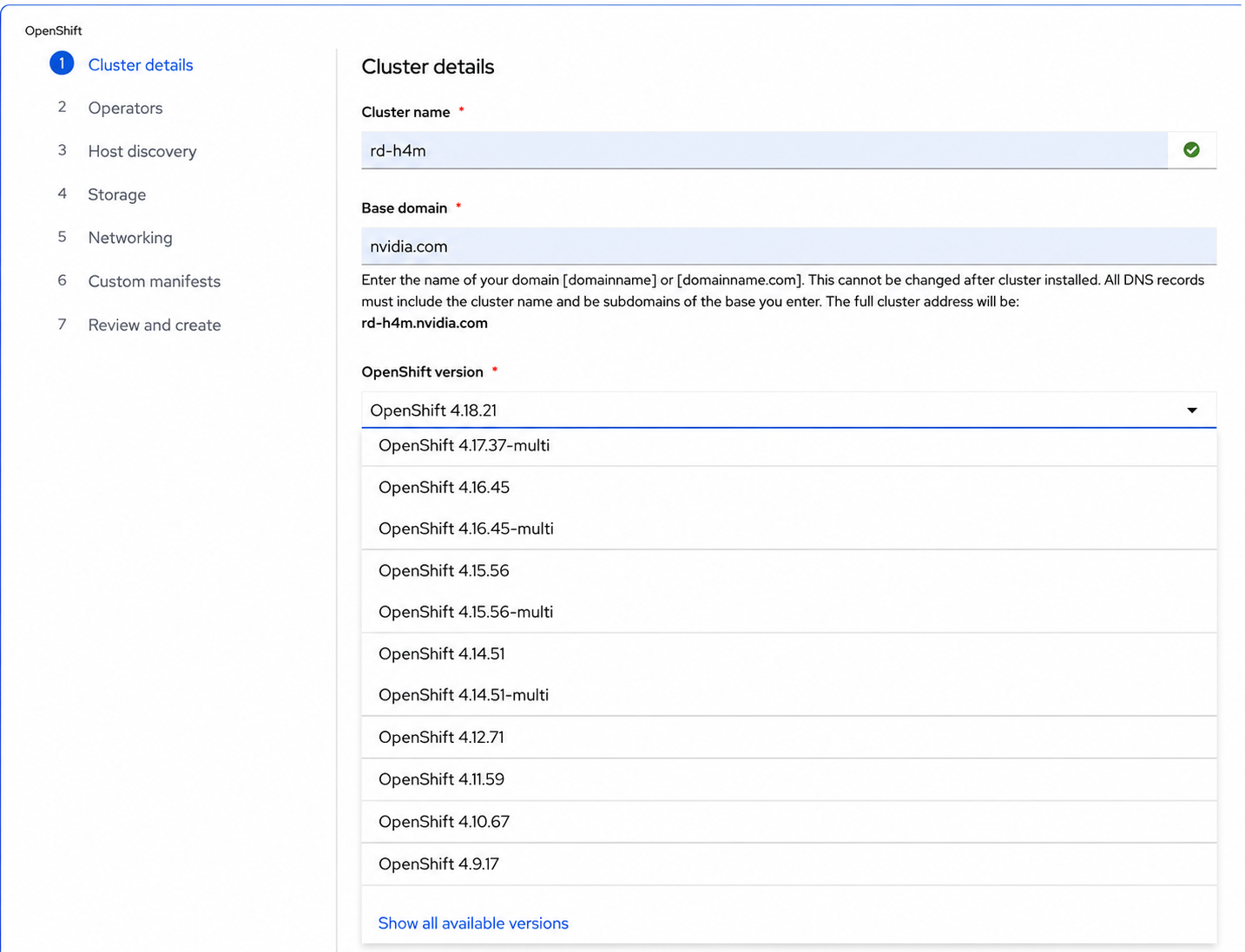
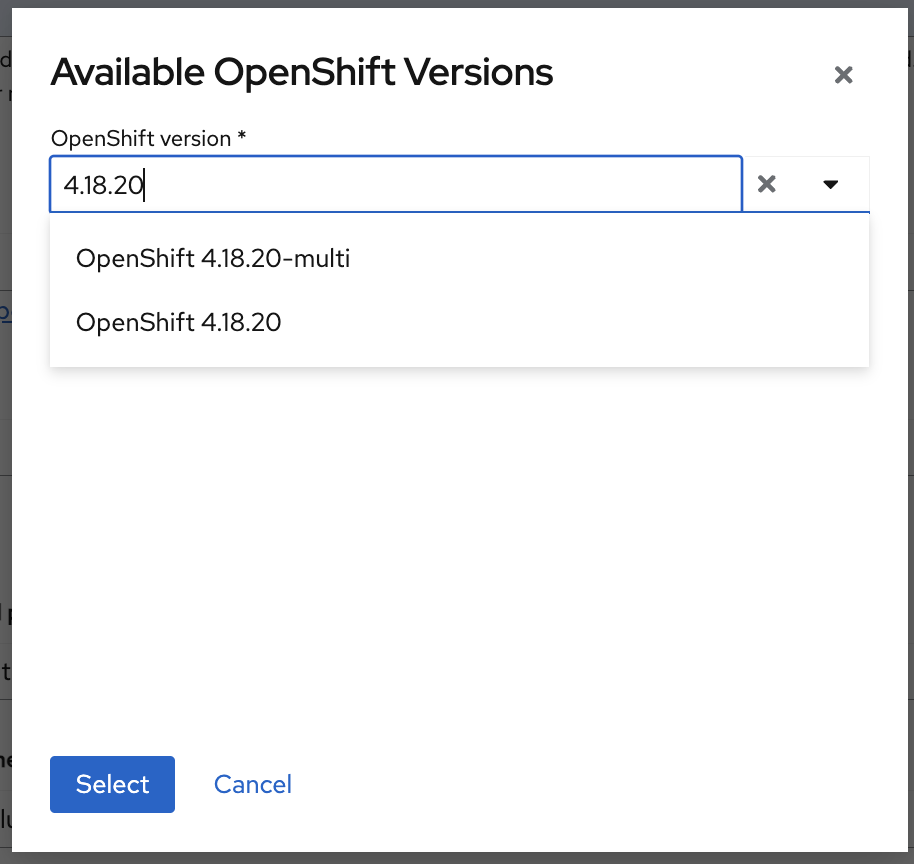
In the Cluster Details window, enter Cluster Name and Base Domain. Select OpenShift version, scroll down to the end, and select Show all available versions. Select OpenShift 4.18.20 from the Available OpenShift Versions dialog box and select Next.
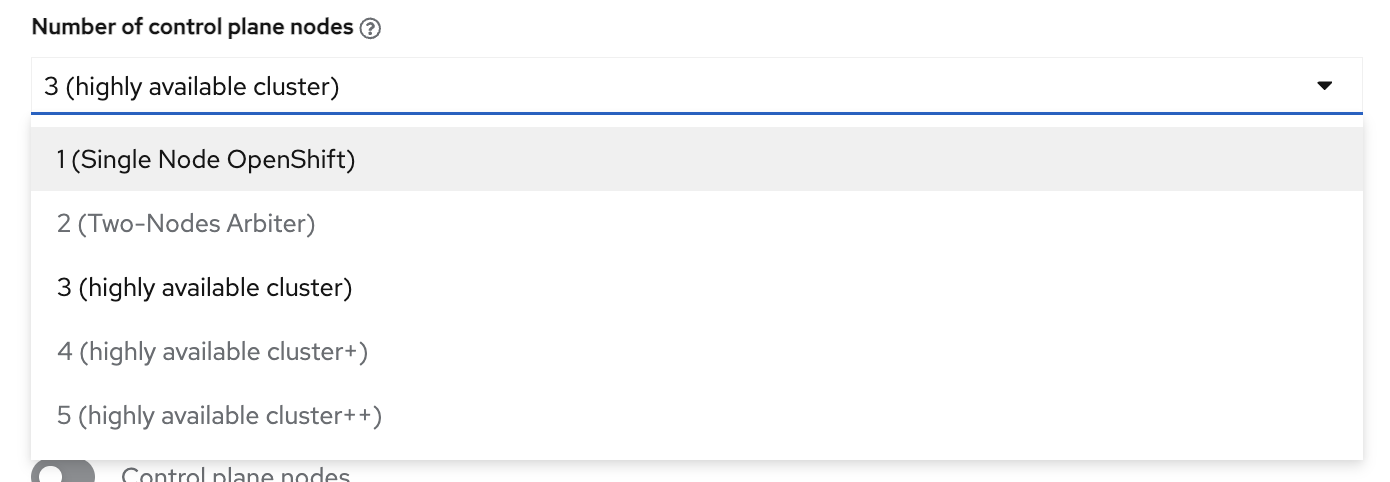
From the Number of control plane nodes list, select 3 (highly available cluster) for a standard or compact (three-node) cluster. For single-node OpenShift (SNO), select 1 (Single Node OpenShift).
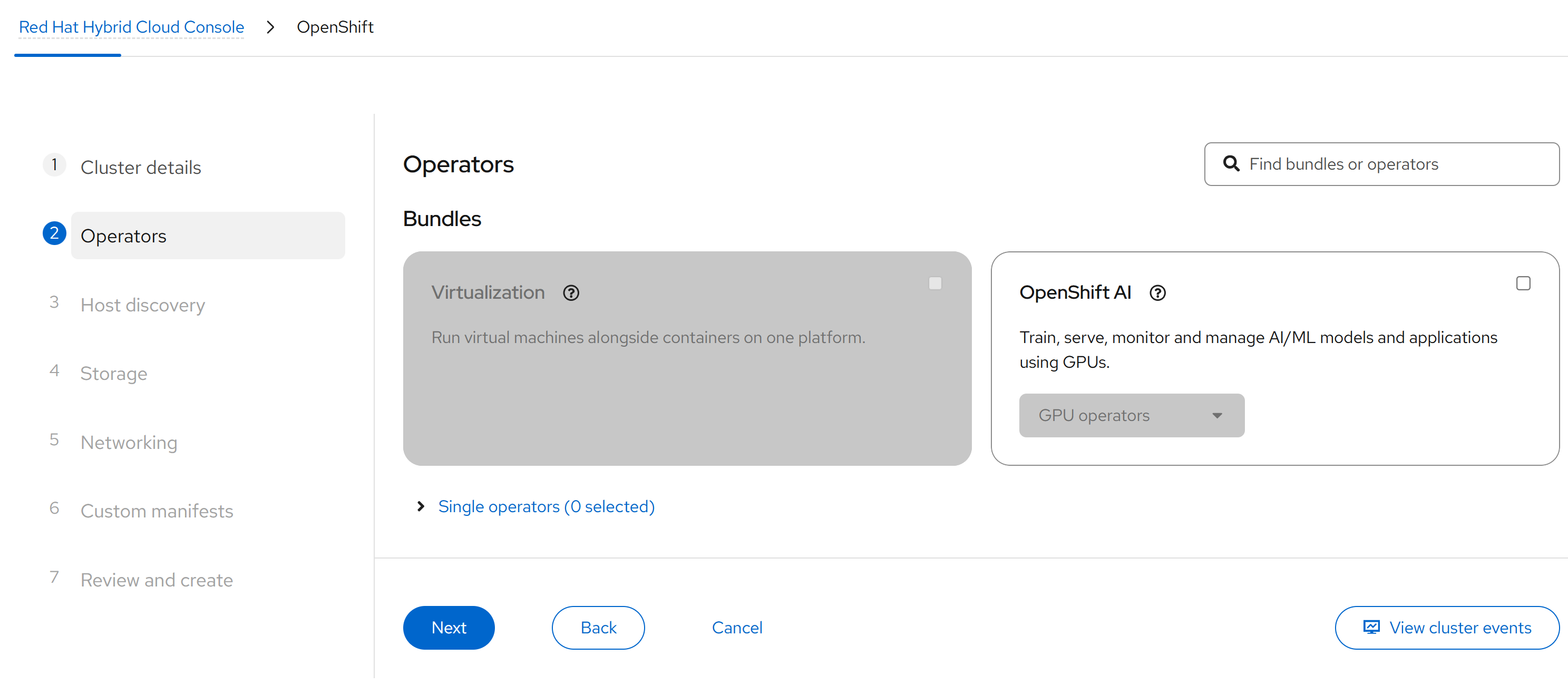
Select Next without selecting any Operator checkboxes.
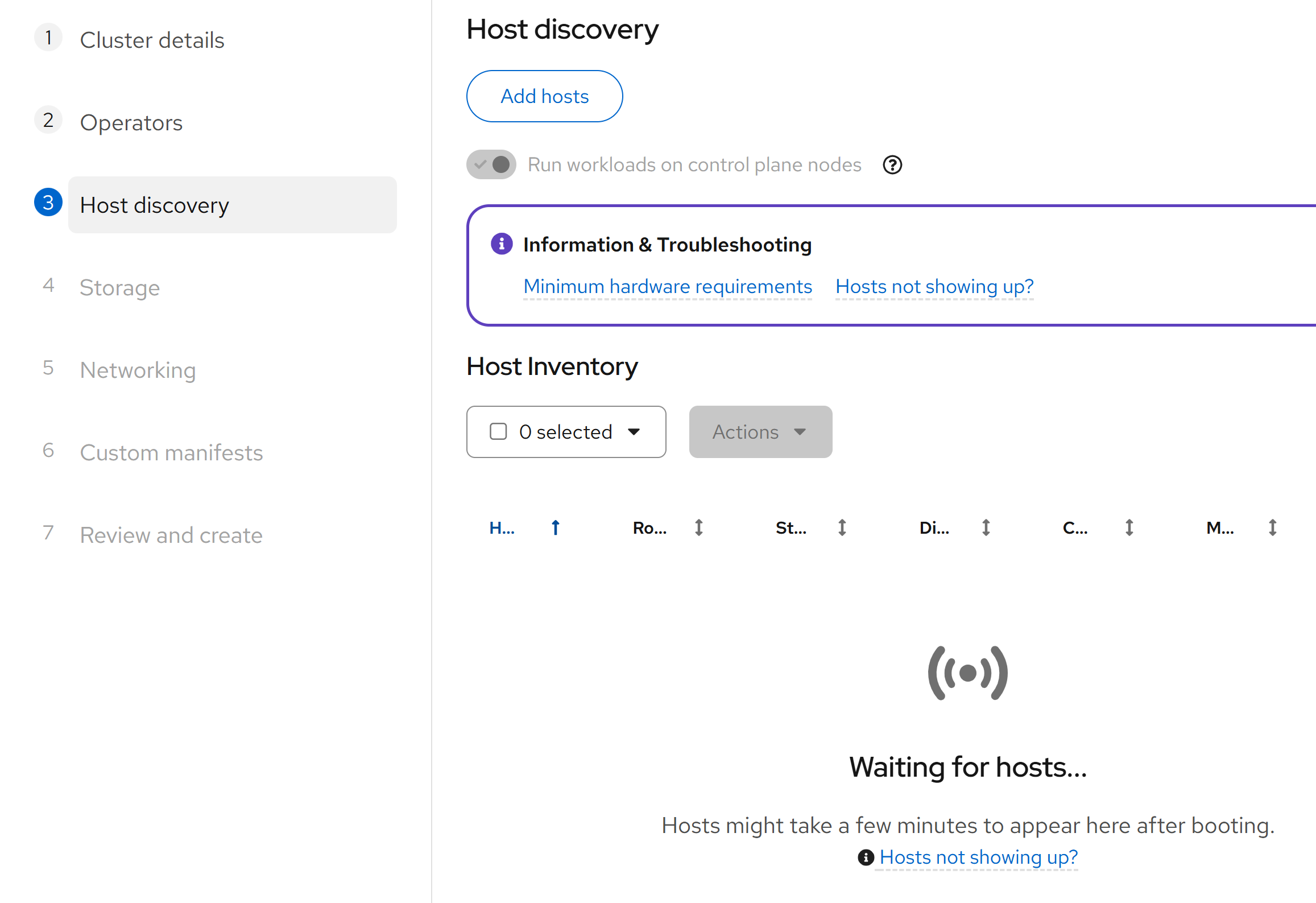
Select Add hosts.
In the Add hosts pop-up, set Provisioning type to Full image file - Download a self-contained ISO. Browse to the SSH public key (
~/.ssh/id_rsa.pubon the jump node), and then select Generate Discovery ISO.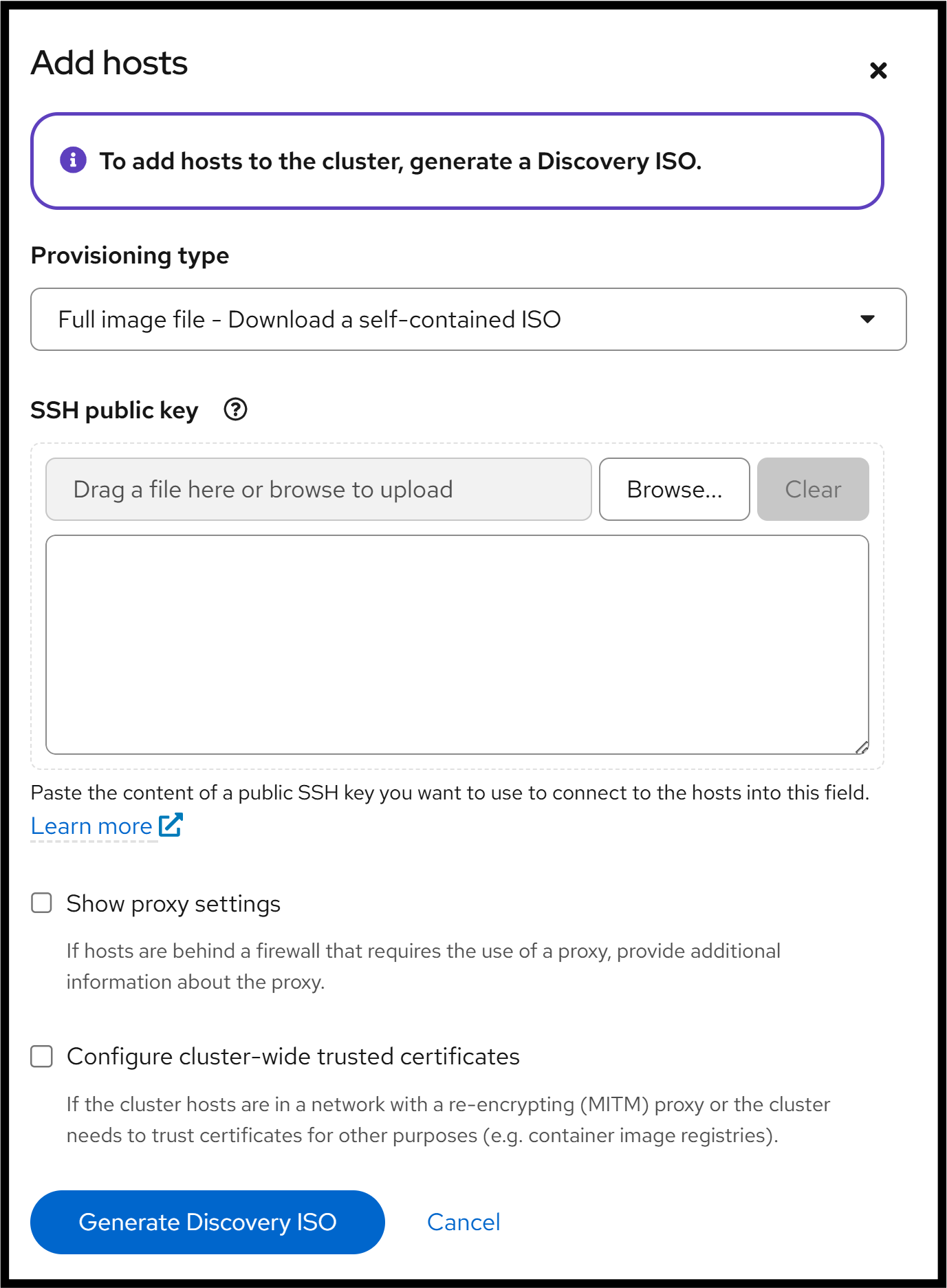
Select Download Discovery ISO.
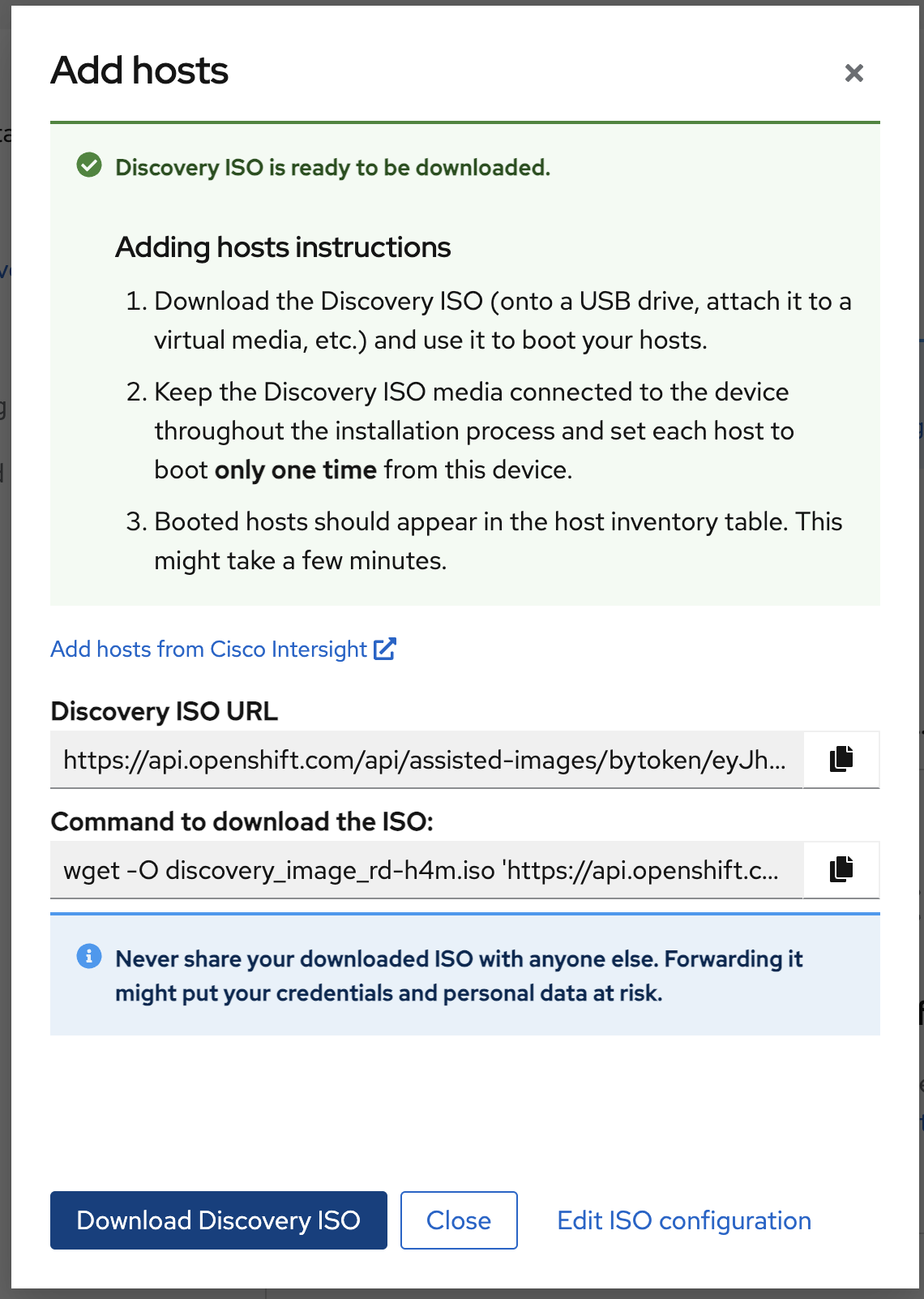
Boot all servers in the cluster from the discovery ISO file.
After a few minutes, all the hosts appear on the web console. Wait for them to reach Ready status. To give each host a more identifiable name, for example,
h4m-a,h4m-b, andh4m-c, select the host name and rename it.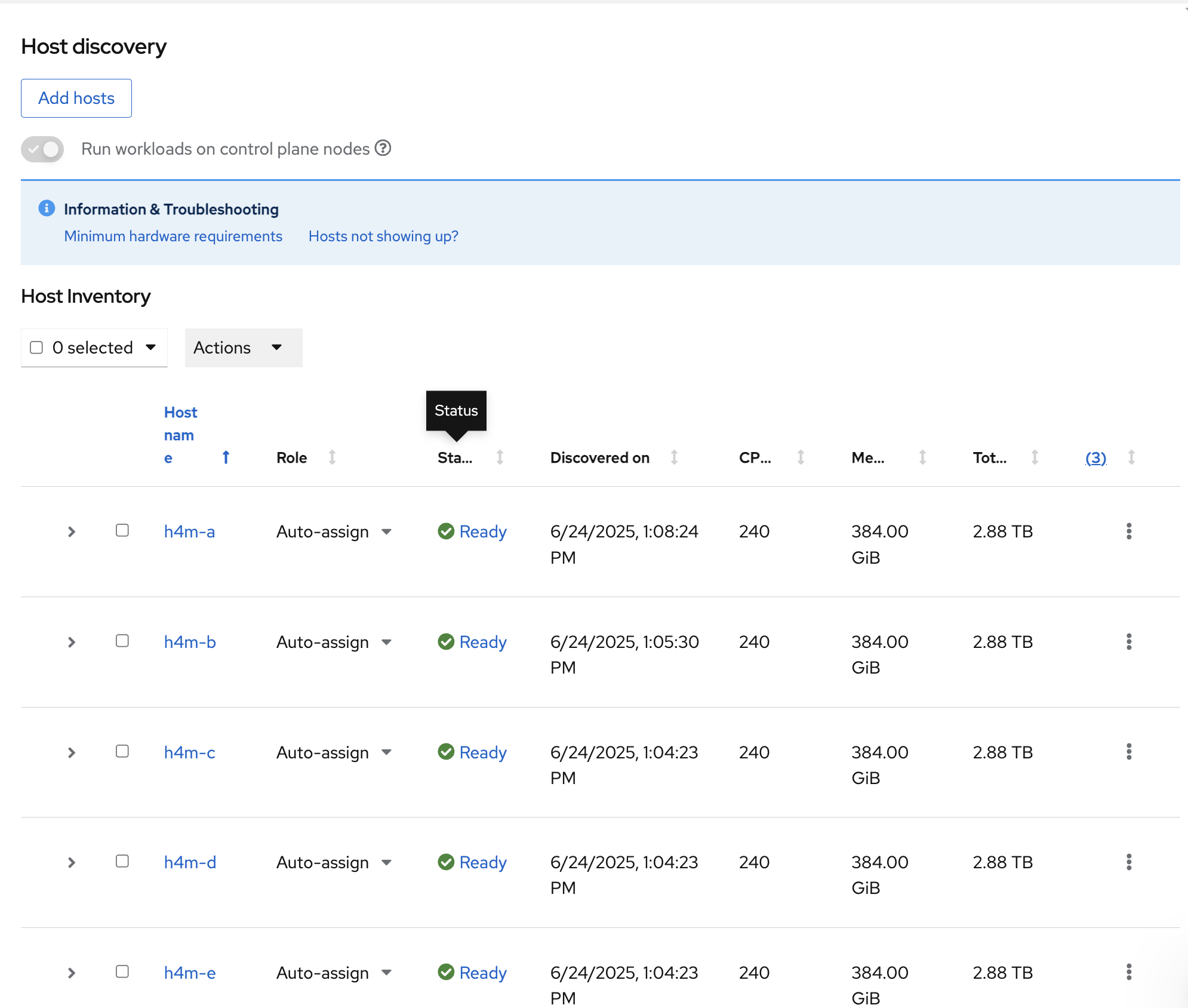
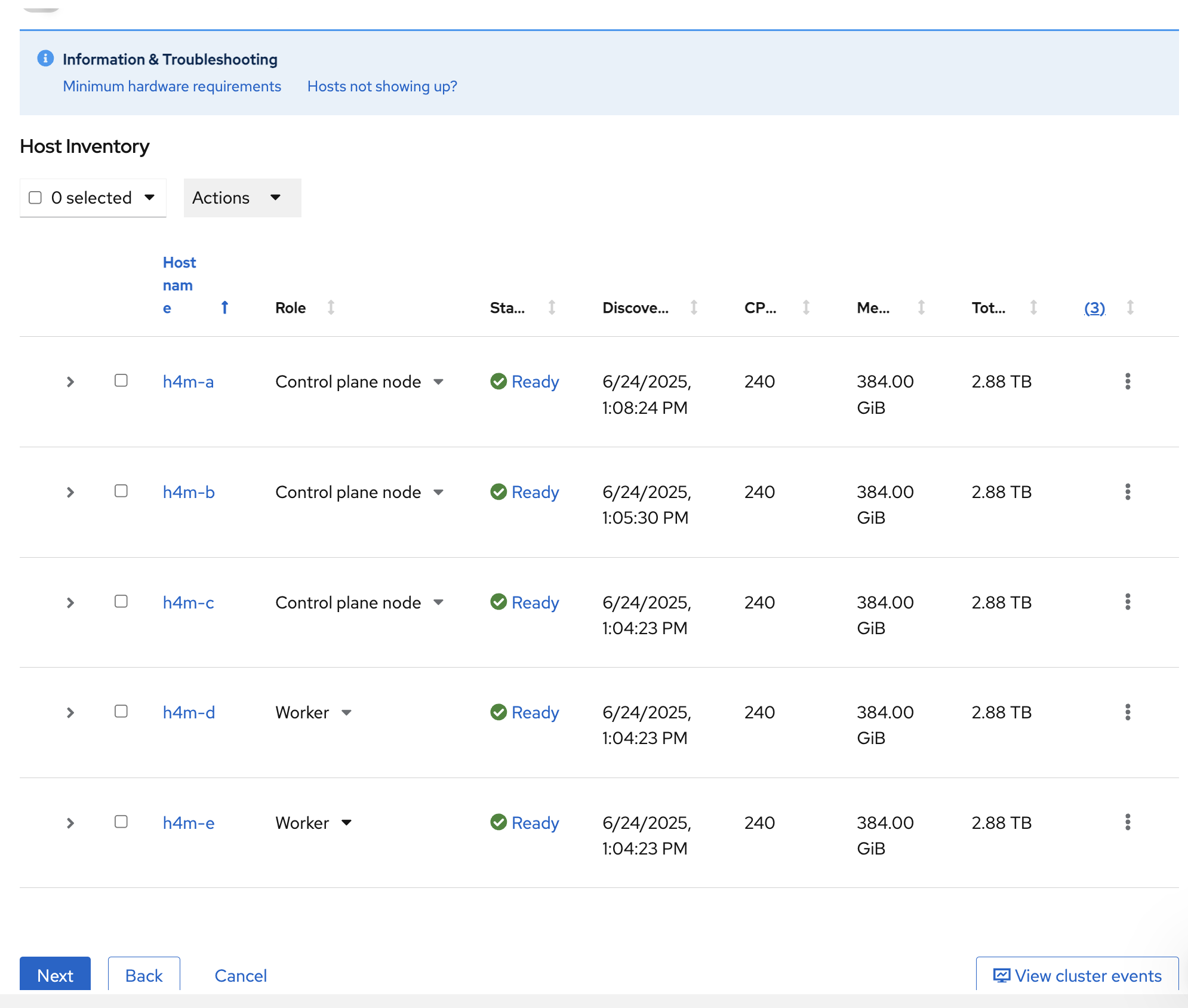
Assign a role to each host using the Role list, for example, Control plane node for control-plane nodes and Worker for compute nodes. For a compact cluster or SNO, select Control plane, Worker as the role for all nodes. Select Next.
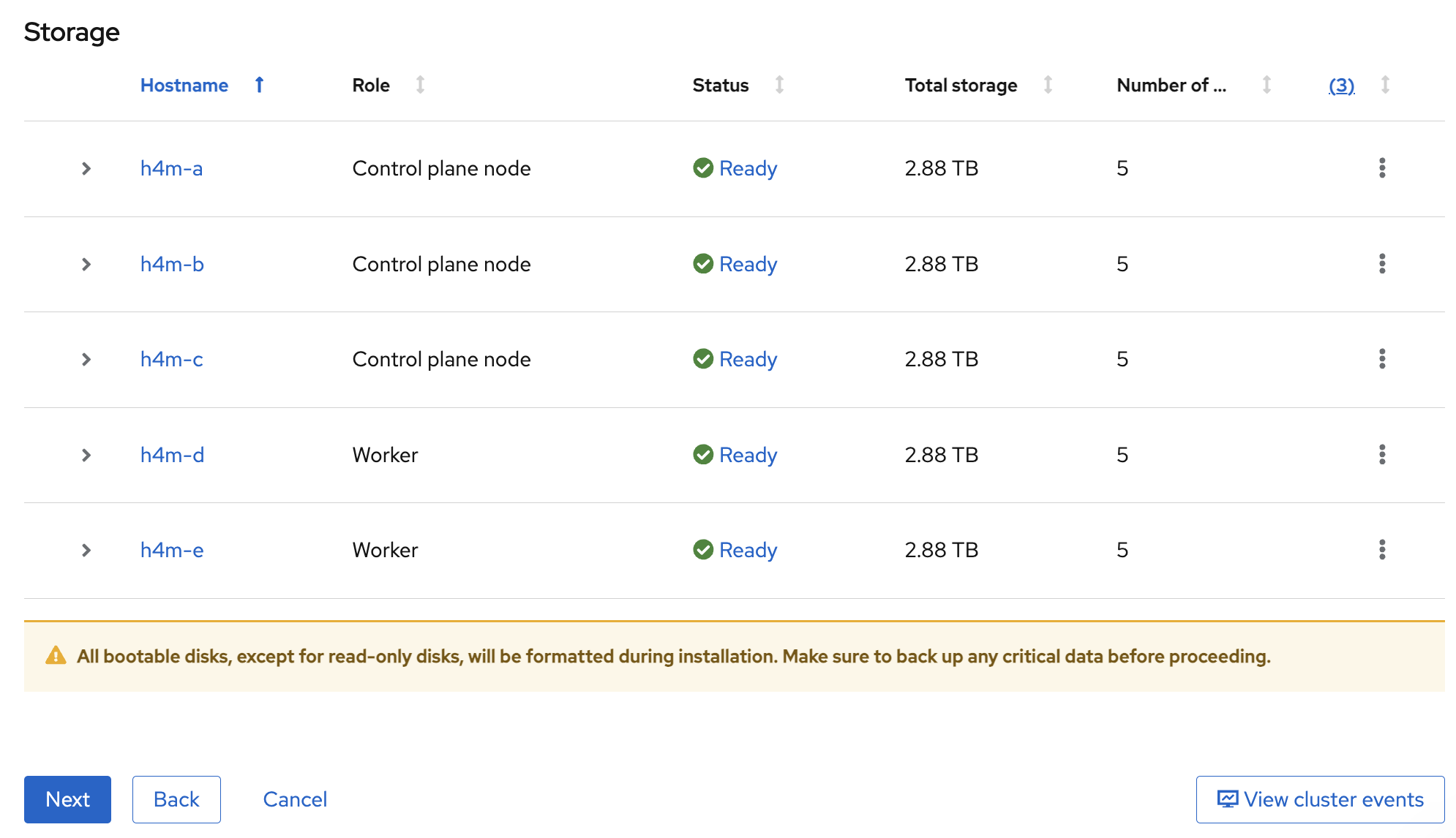
Leave the default settings for storage. The default settings format all hard drives on each system.
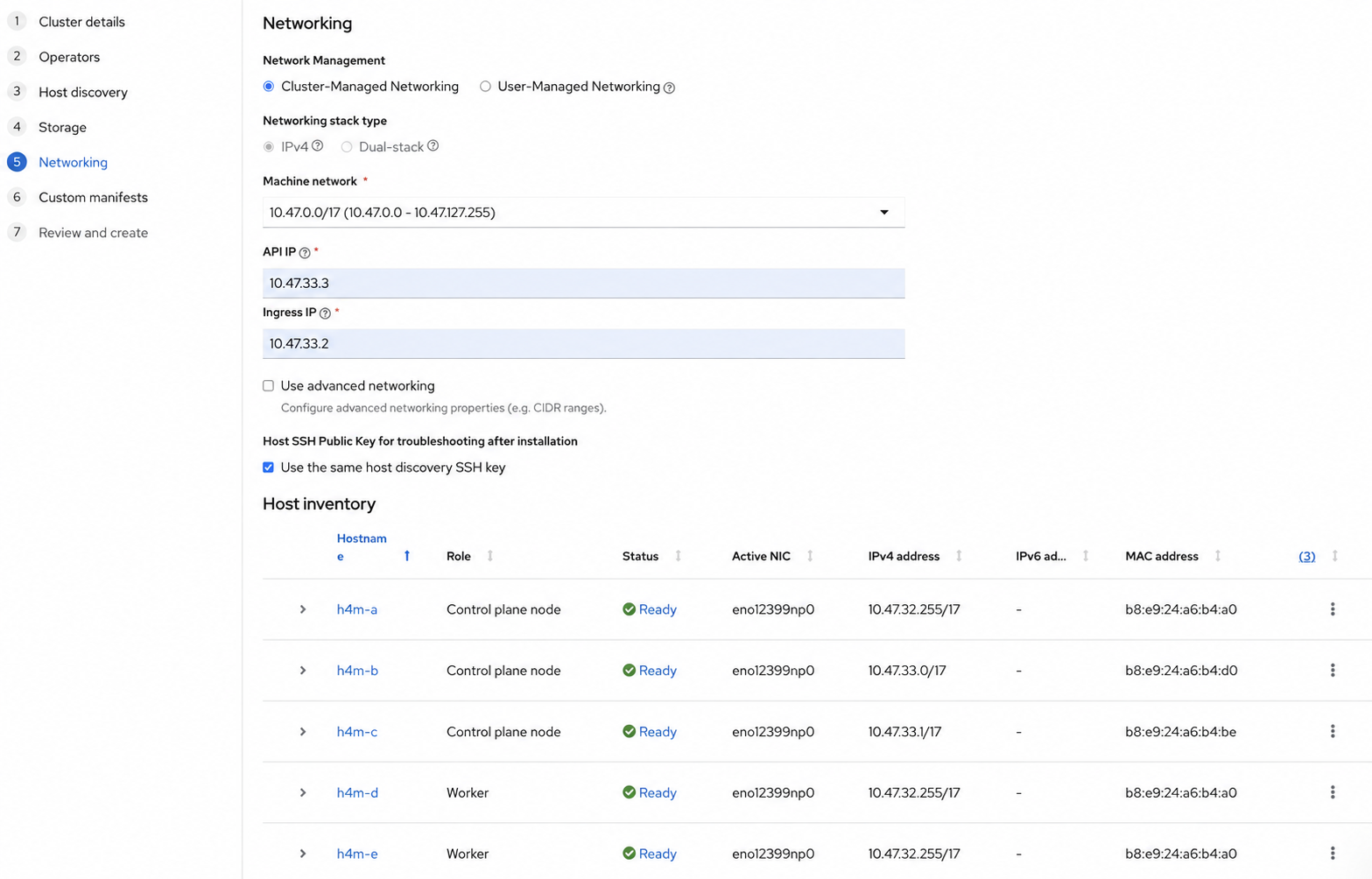
In the Networking tab, enter the API IP and Ingress IP addresses, and then select Next. For SNO, the API IP and Ingress IP fields are not available.
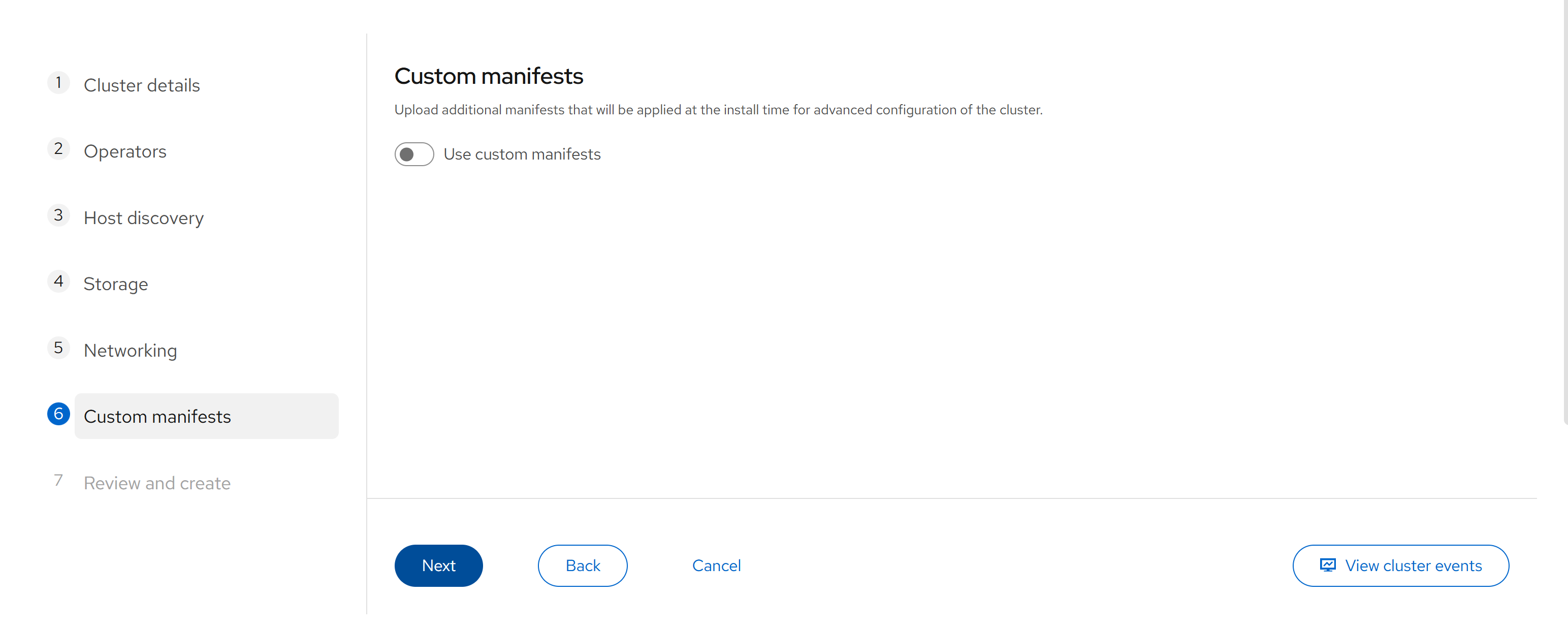
In the Custom manifests tab, leave Use custom manifests off and select Next.
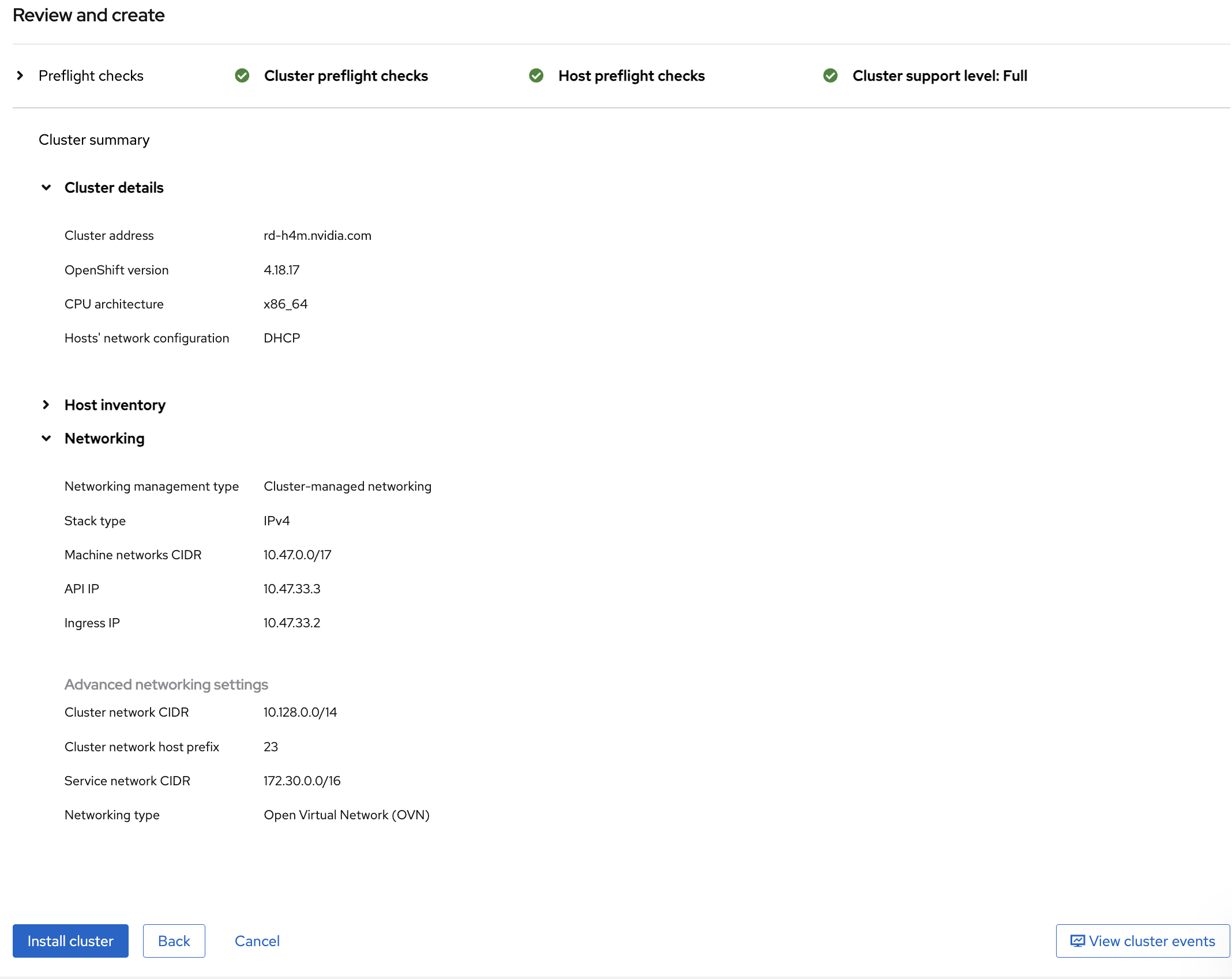
Review the cluster details and select Install Cluster.
Wait 45 to 60 minutes for the cluster installation to complete.
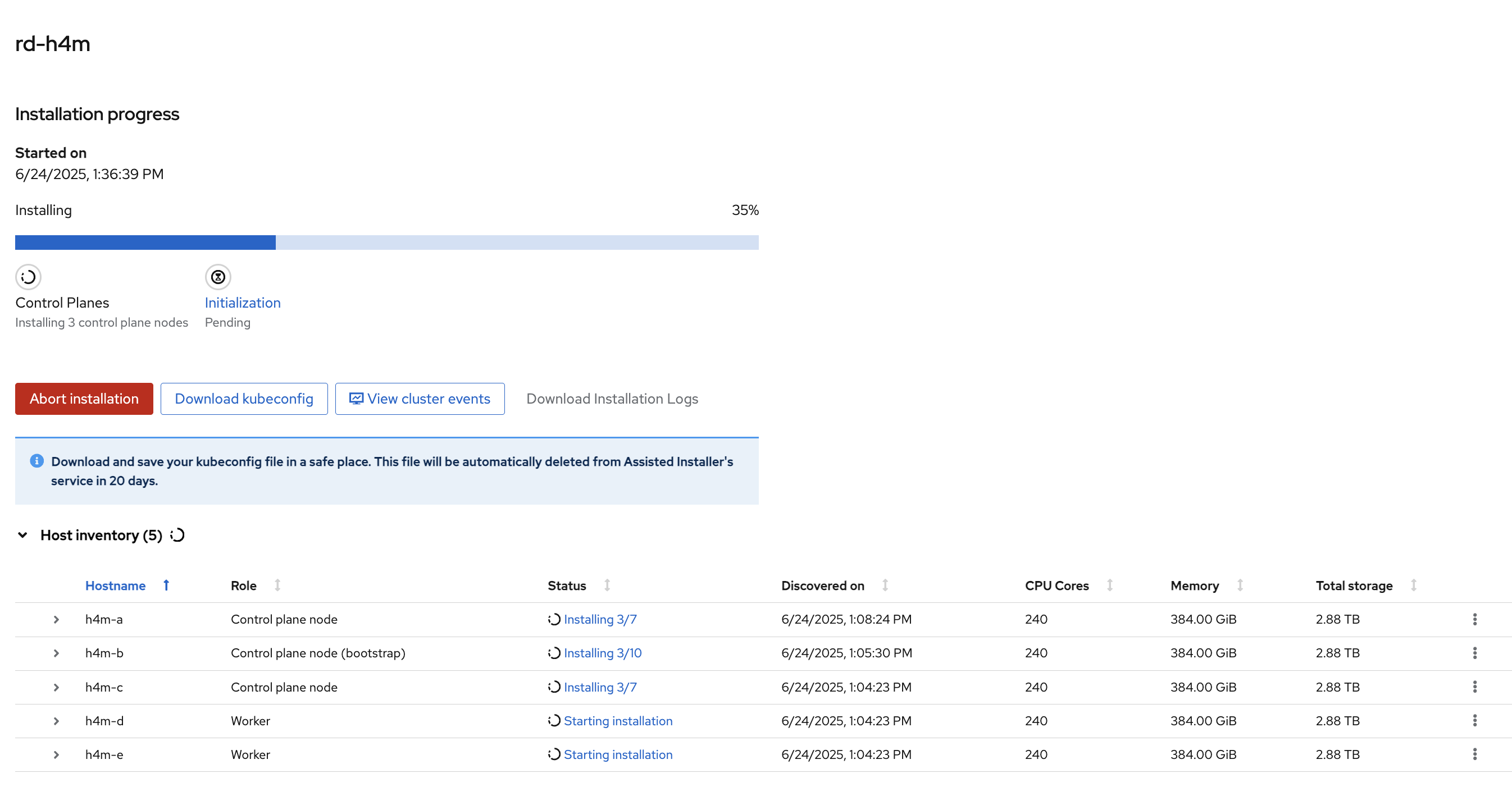
After installation completes, select Download kubeconfig to save the
kubeconfigfile. Note the Web Console URL, Username, and Password.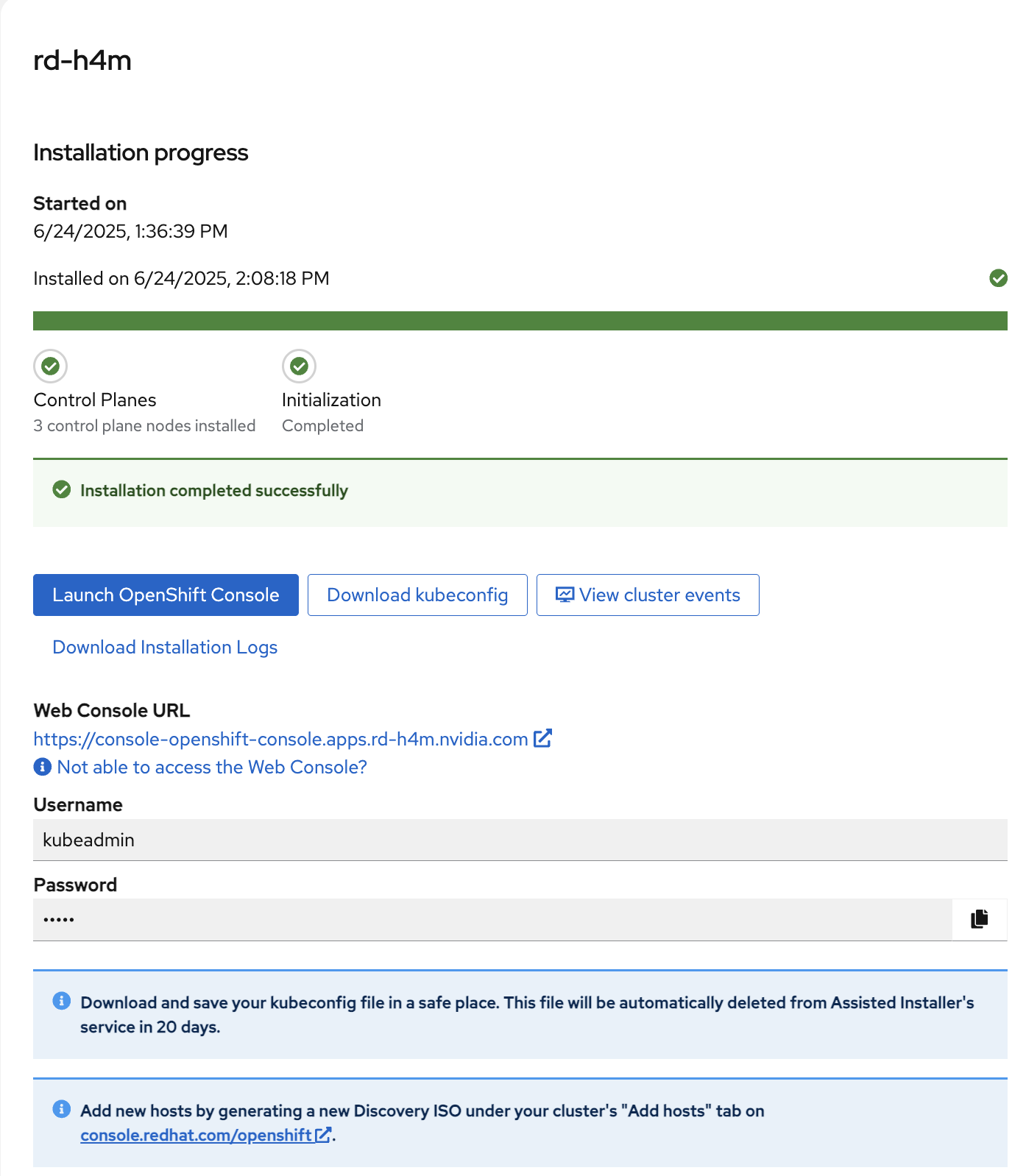
Note
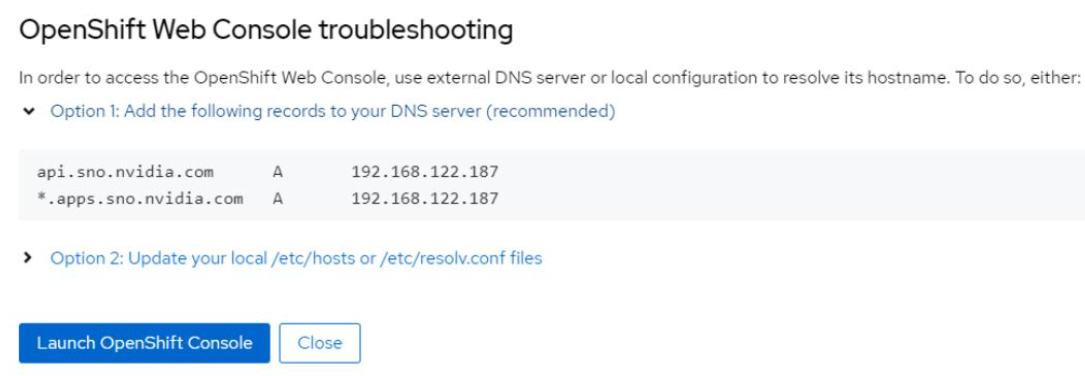
If you cannot access the web console, refer to IP Addresses and DNS Records. You can also select Not able to access the Web Console to open a troubleshooting dialog box with cluster access information.
Copy the
kubeconfigfile to~/.kube/configon the jump node.Verify the cluster installation by using one of the following methods:
Using the web console:
Open the Web Console URL from the previous step in a browser on the jump node and log in with the username and password.
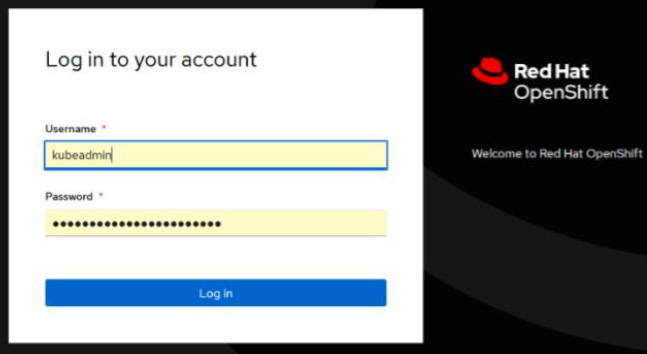
Ensure that Cluster Status is OK.
In the left menu, navigate to Compute > Nodes. Ensure that the Status of each node is Ready.
To view detailed information about each node, select the node name.
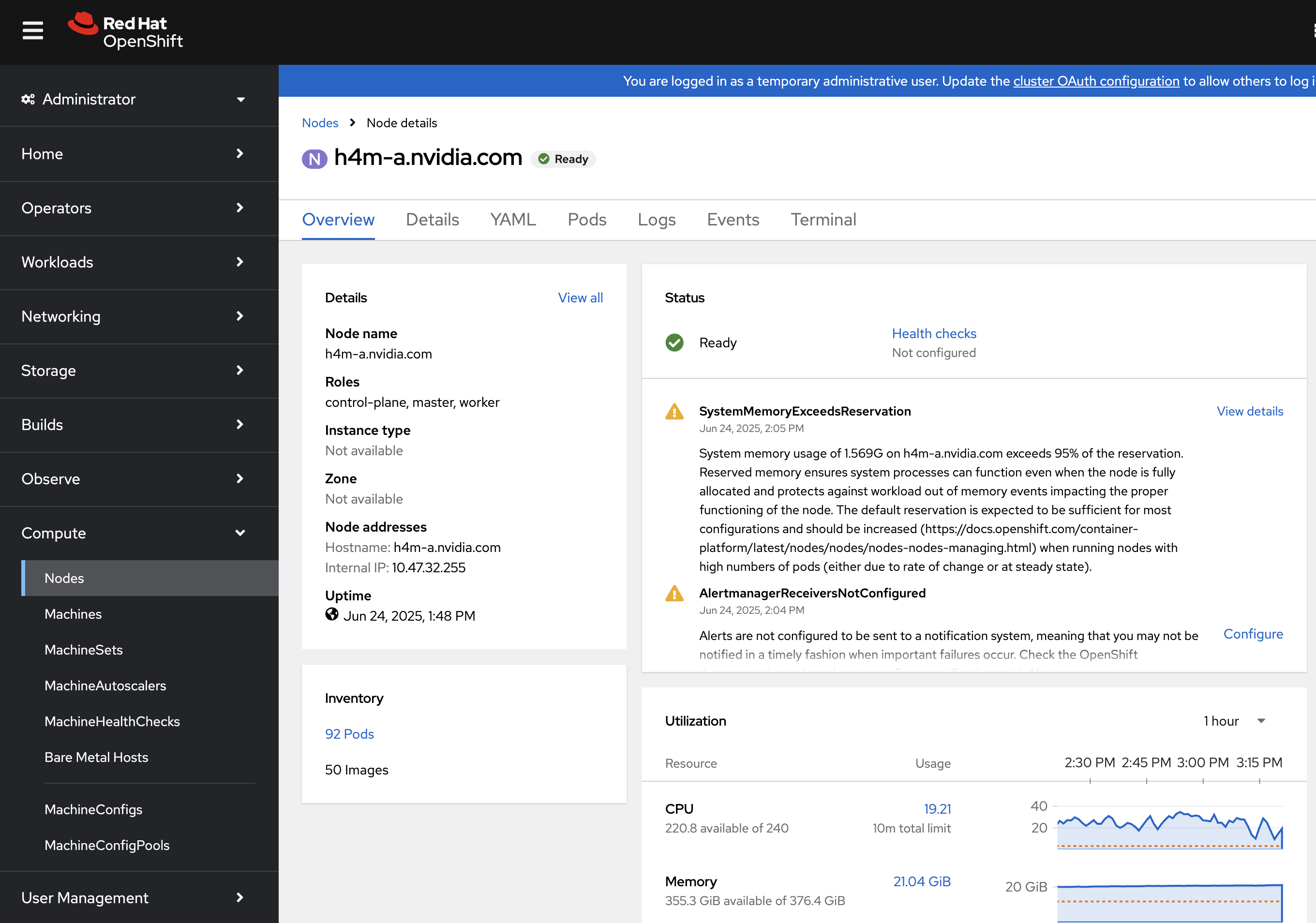
Using the CLI:
oc get nodes

NAME STATUS ROLES AGE VERSION
h4m-a Ready control-plane,master 11h v1.31.9
h4m-b Ready control-plane,master 11h v1.31.9
h4m-c Ready control-plane,master 11h v1.31.9
h4m-d Ready worker 11h v1.31.9
h4m-e Ready worker 11h v1.31.9
Note
To interact with an OpenShift cluster from the CLI, install the OpenShift CLI. You can install oc on Linux, Windows, or macOS. Refer to Installing the OpenShift CLI.