
Manual Deployment#
Attention
This is an alternative to the automated application deployment. If you have used the automation, move to the Platform Verification section.
Important
Ensure that you have met the basic prerequisites before proceeding with the deployment.
Access to the public NGC catalog for Holoscan for Media is required before continuing with these instructions.
Note
For production installations, you may also use oc as a drop-in replacement for kubectl in the commands below.
Create Rivermax License Secret#
Create a Rivermax license secret for Rivermax-based applications like Media Gateway:
kubectl create secret generic rivermax-license --from-file=<path-to-license-file>
Replace <path-to-license-file> with the path to your Rivermax license file on the host (for example, /home/user/rivermax.lic).
Verify that the secret was created:
kubectl get secret rivermax-license
Create Image Pull Secret#
Create a secret to pull images from the NGC registry:
kubectl create secret docker-registry <ngc-secret-name> --docker-server=nvcr.io '--docker-username=$oauthtoken' --docker-password=<API-KEY> --docker-email=<your-email>
Replace the placeholders as appropriate. The application installations below use <ngc-secret-name>.
Install Applications#
Example values.yaml files appear below. You must replace some placeholders.
For example, the <scheduler-name> must be "topo-aware-scheduler" if NUMA-aware scheduling is enabled, and "default-scheduler" (or "") otherwise.
Helm Dashboard#
To install Helm Dashboard, follow this NGC documentation. After installation, you can use the dashboard UI to launch the rest of the applications.
To access the Helm Dashboard after installation, follow these steps:
Get the node IP address:
kubectl get nodes -o wide
NAME  STATUS  ROLES                 AGE  VERSION  INTERNAL-IP   EXTERNAL-IP  …
h4m   Ready   control-plane,worker  25h  v1.32.2  10.40.130.50  <none>       …
Get the port:
kubectl get services
NAME                 TYPE          CLUSTER-IP      EXTERNAL-IP  PORT(S)         AGE
helm-helm-dashboard  LoadBalancer  10.101.213.164  <pending>    8080:32634/TCP  25h
For example, you can access the dashboard on port 32634 at IP address 10.40.130.50, that is,
http://10.40.130.50:32634.Go to Helm Dashboard, select the Repository tab, and add the repository:
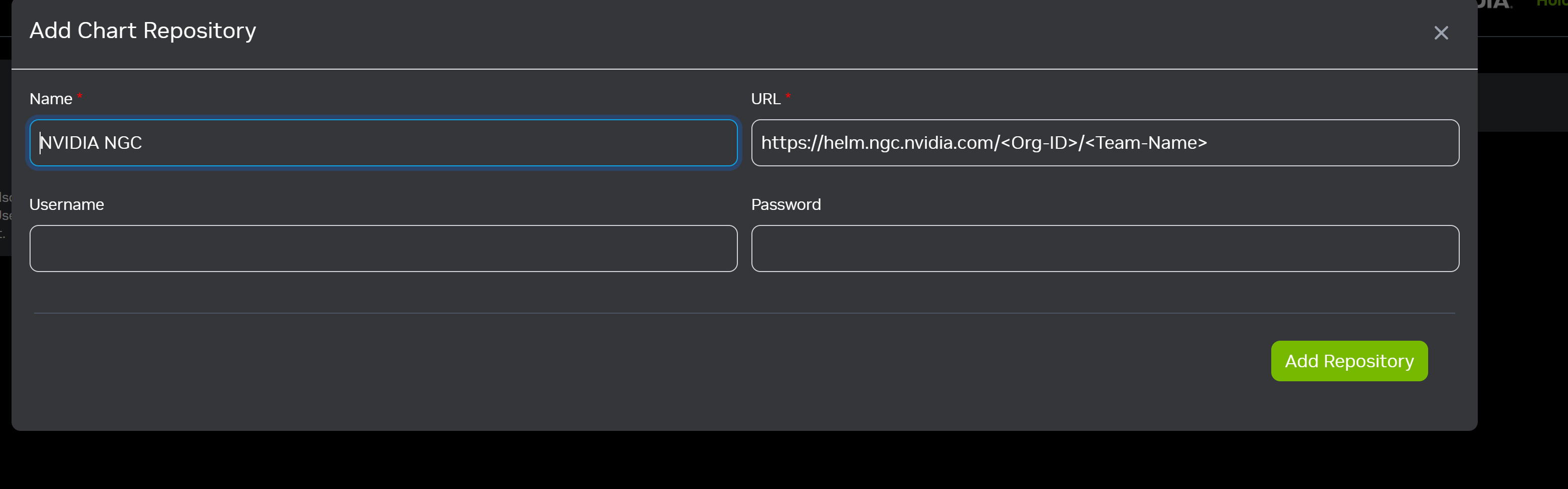
Name: Choose any name for the repository.
URL:
https://helm.ngc.nvidia.com/nvidia/holoscan-for-mediaUsername:
$oauthtokenPassword: Enter your NGC API key.
This window appears after you add the repository.
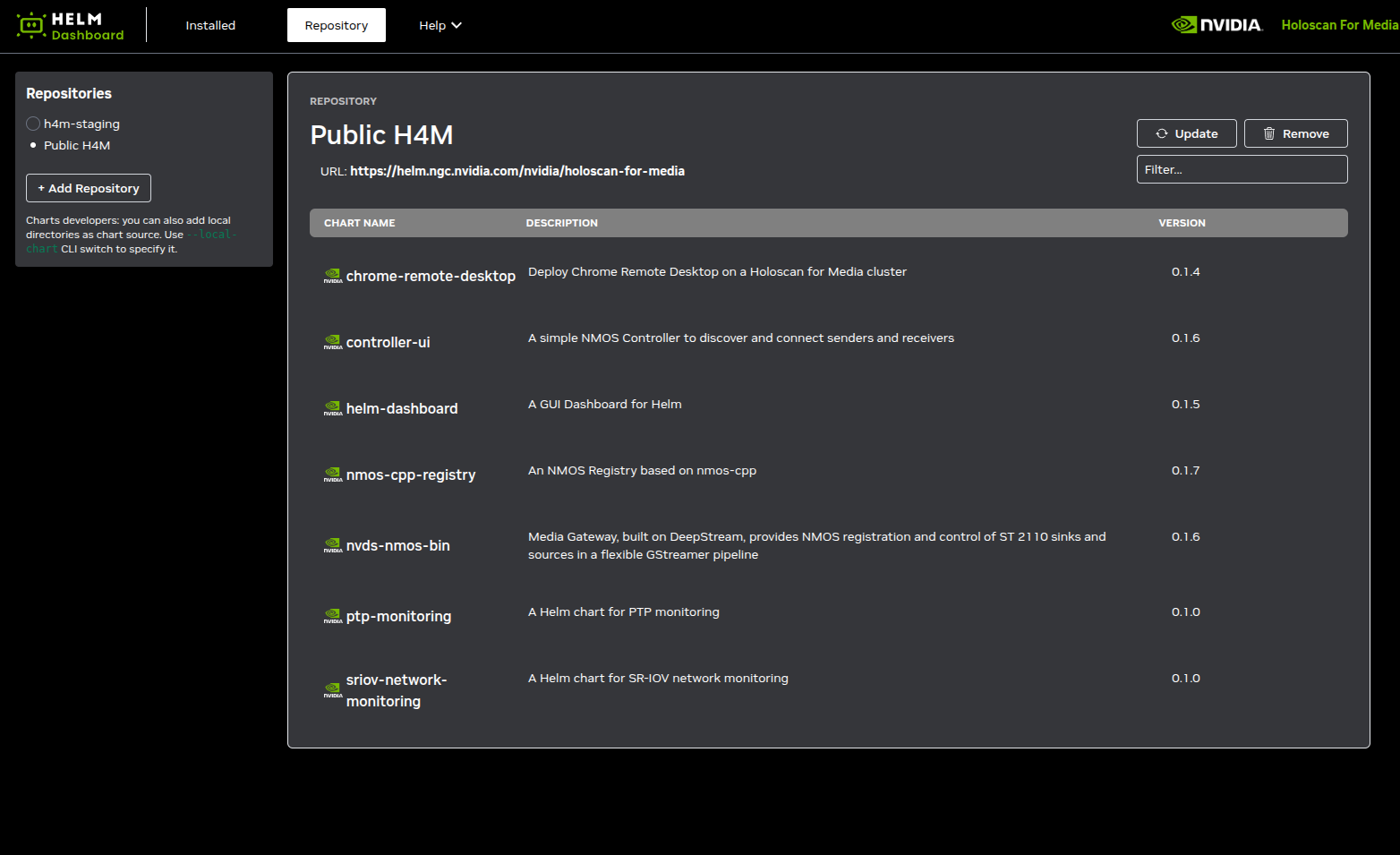
Select Install next to the application that you want to install, enter any user-defined
values.yaml, and then select Confirm to launch the application.
Chrome Remote Desktop#
Create a Persistent Volume Claim for Chrome Remote Desktop#
Creating and using a persistent volume claim (PVC) is optional. However, you need one for remote access to continue working when the pod restarts, because you can use an authorization code only once. To create a PVC, follow the steps below:
Create a YAML file,
<pv-claim>.yaml, with the following content:apiVersion: v1 kind: PersistentVolumeClaim metadata: name: <pv-claim> namespace: default spec: accessModes: - ReadWriteOnce resources: requests: storage: 2Mi
where
<pv-claim>is the unique name for this installation. Increase the requested storage as needed. Specify the value in bytes using one of these SI suffixes: E, P, T, G, M, or k. You can also use the power-of-two equivalents: Ei, Pi, Ti, Gi, Mi, or Ki. For example,2Miis roughly two million bytes, enough for a few cat pictures.Create the PVC with the following command:
kubectl create -f <pv-claim>.yaml
Get Chrome Remote Desktop Authorization Code#
To get the Chrome Remote Desktop authorization code:
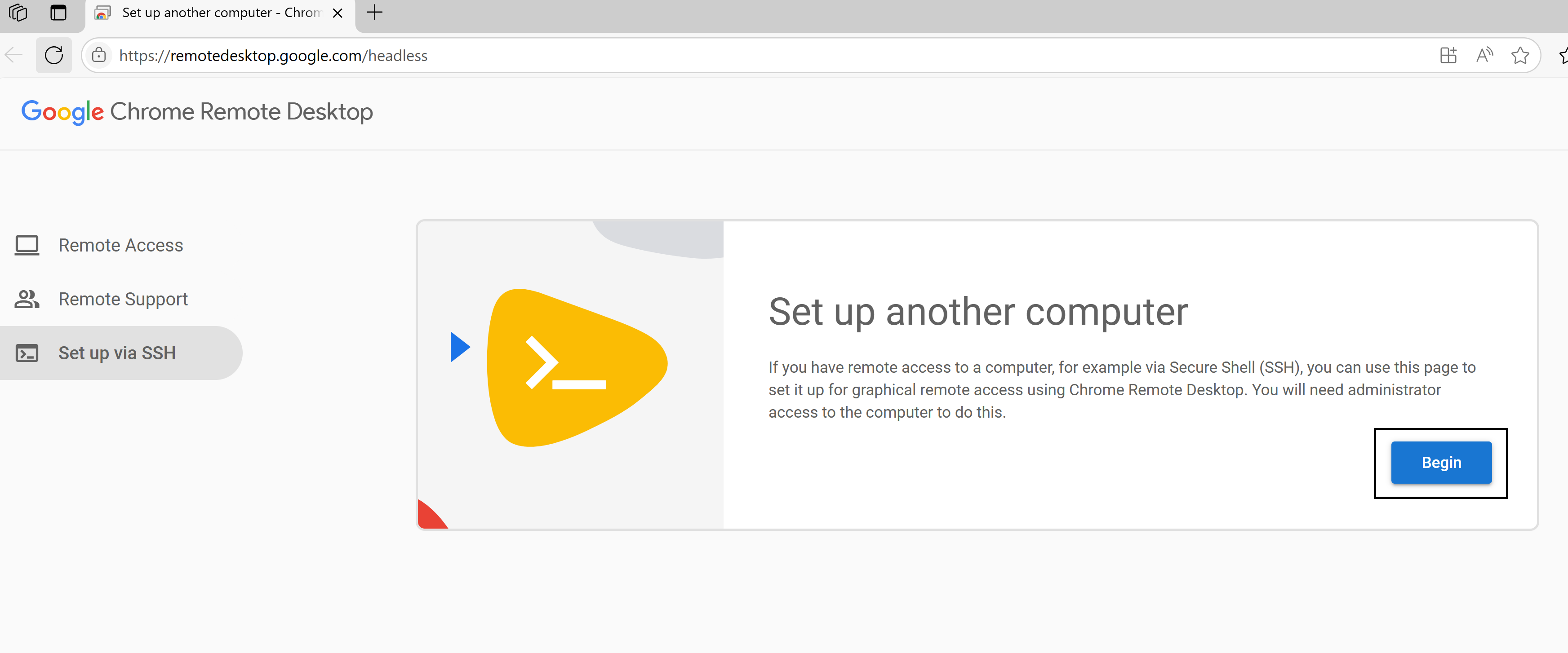
Navigate to https://remotedesktop.google.com/headless in your web browser.
Under the Set up via SSH section, select Begin, then Next, and then Authorize.
The page displays setup commands for various operating systems. Look for the section that contains the commands for Debian Linux.
From the command shown, locate the value inside the
code=""parameter and copy that part.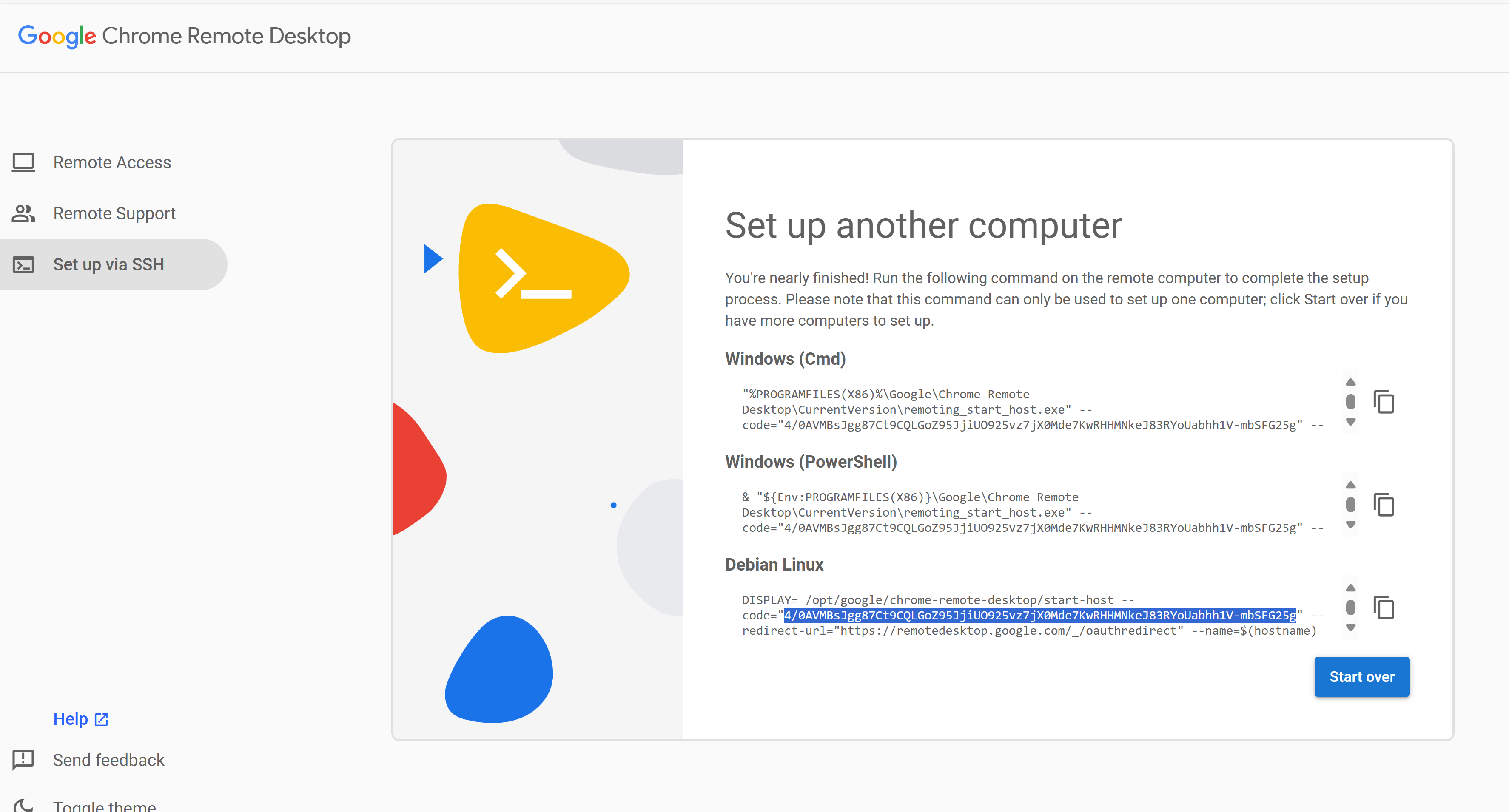
For example, from the command:
DISPLAY= /opt/google/chrome-remote-desktop/start-host --code="4/0AVMBsJgg...-mbSFG25g" --redirect-url="https://remotedesktop.google.com/_/oauthredirect" --name=$(hostname)"
Copy only
4/0AVMBsJgg...-mbSFG25g.
Important
The authorization code is only valid for five minutes. If it expires, generate a new one.
Launch Chrome Remote Desktop#
Launch Chrome Remote Desktop using the chrome-remote-desktop chart and the following values.yaml file after replacing the placeholders.
# Name of the scheduler (default: "topo-aware-scheduler", use "" for default scheduler)
schedulerName: <scheduler-name>

# Define env variables according to your usage.
# CODE and HOSTFILE are two ways to authenticate your account. Provide either one or the other for successful deployment.
env:
    HOSTNAME: myvirtualdesktop
    # Use at least 6 digits; this will be asked when you access it.
    PIN: "123456"
    # One-time code from Chrome Remote Desktop setup page
    CODE: <one-time-code>
    # Or pass existing host information.
    HOSTFILE: ""

# Name of an existing Persistent Volume Claim to persist host information (use "" to skip)
persistentVolumeClaim: <pv-claim>
NMOS Registry#
Launch the NMOS Registry using the nmos-cpp-registry chart and the following values.yaml file after replacing the placeholders.
RegistryConfig:
    http_port: 8010
# This is to define high speed network to access this application
highSpeedNetwork:
    name: media-a-rx-net-static
    # Example ip: "192.168.100.131/24"
    ip: <ip-address>
imagePullSecrets:
    # Name of the secret created to pull images from NGC
    - name: <ngc-secret-name>
# Name of the scheduler (default: "topo-aware-scheduler", use "" for default scheduler)
schedulerName: <scheduler-name>
After the pod is running, you can use the NMOS Registry.
Access it through the high-speed secondary network at http://<ip-address>:<http-port>/, where:
<ip-address>is the IP address that you specify in thevalues.yamlfile.<http-port>is 8010 by default. You can override it in thevalues.yamlfile.
NMOS Controller#
Launch the NMOS Controller using the controller-ui chart and the following values.yaml file after replacing the placeholders.
# This is to define high speed network to access this application
highSpeedNetwork:
    name: media-a-rx-net-static
    # Example ip: "192.168.100.132/24"
    ip: <ip-address>
imagePullSecrets:
    # Name of the secret created to pull images from NGC
  - name: <ngc-secret-name>
# Name of the scheduler (default: "topo-aware-scheduler", use "" for default scheduler)
schedulerName: <scheduler-name>
uiConfig:
    # Format: "http://<registry-host>:<query-port>"
    # - <registry-host>: IP address or fully-qualified domain name of your NMOS Registry
    # - <query-port>:  Query API port (default is 8010; can be changed in nmos_cpp_registry.RegistryConfig.http_port)
    # Example: "http://192.168.100.131:8010"
    NMOSRegistryBaseUrl: http://<registry-host>:<query-port>
After the pod is running, you can use the NMOS Controller.
Access it through the high-speed secondary network at http://<ip-address>/, where:
<ip-address>is the IP address that you specify in thevalues.yamlfile.
Media Gateway#
Install Media Gateway instances using the nvds-nmos-bin chart.
Start the sender using the following
values.yamlfile after replacing the placeholders:imagePullSecrets: # Name of the secret created to pull images from NGC - name: <ngc-secret-name> # Name of the scheduler (default: "topo-aware-scheduler", use "" for default scheduler) schedulerName: <scheduler-name> pipelines: pipeline1: description: 1080p60-sender env: - name: CPU_AFFINITY value: 2-3 name: sender-pipeline port: 9010 resources: limits: cpu: 4 hugepages-2Mi: 4Gi memory: 8Gi openshift.io/media_a_tx_pool: 1 requests: cpu: 4 hugepages-2Mi: 4Gi memory: 8Gi openshift.io/media_a_tx_pool: 1
Start the receiver using the following
values.yamlfile after replacing the placeholders:imagePullSecrets: # Name of the secret created to pull images from NGC - name: <ngc-secret-name> # Name of the scheduler (default: "topo-aware-scheduler", use "" for default scheduler) schedulerName: <scheduler-name> pipelines: pipeline1: description: 1080p60-receiver env: - name: CPU_AFFINITY value: 0-1 highSpeedNetwork: name: media-a-rx-net name: receiver-pipeline port: 9010 resources: limits: cpu: 2 hugepages-2Mi: 4Gi memory: 8Gi nvidia.com/gpu: 1 openshift.io/media_a_rx_pool: 1 openshift.io/media_a_tx_pool: 0 requests: cpu: 2 hugepages-2Mi: 4Gi memory: 8Gi nvidia.com/gpu: 1 openshift.io/media_a_rx_pool: 1 openshift.io/media_a_tx_pool: 0
Test Connection#
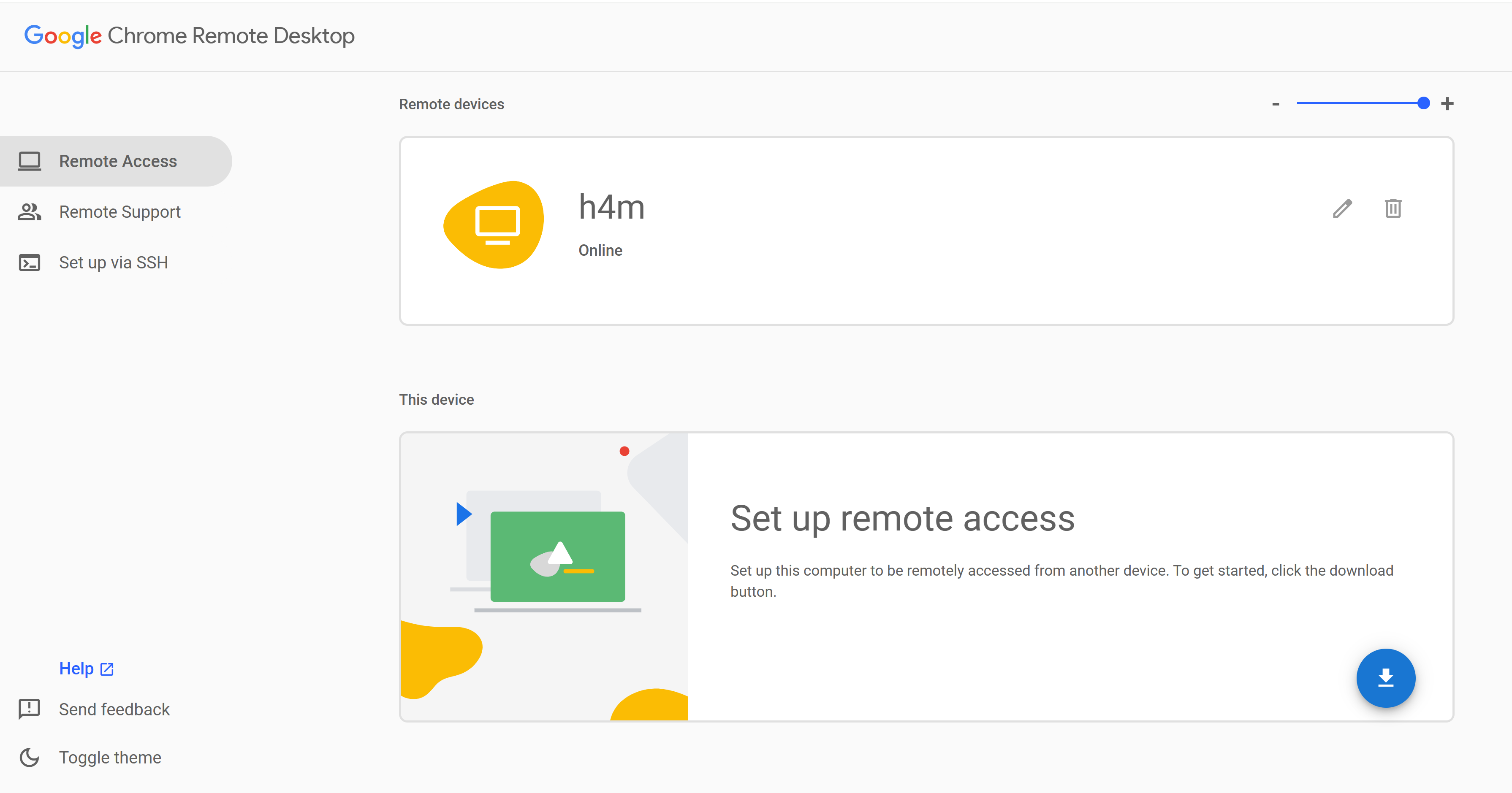
Go to the Chrome Remote Desktop web interface at https://remotedesktop.google.com/access.
Your remote computer appears in the list based on the hostname you specified for
chrome-remote-desktop(default:myvirtualdesktop).Select the name to connect.
Enter the PIN you configured for
chrome-remote-desktop(default:123456) when prompted.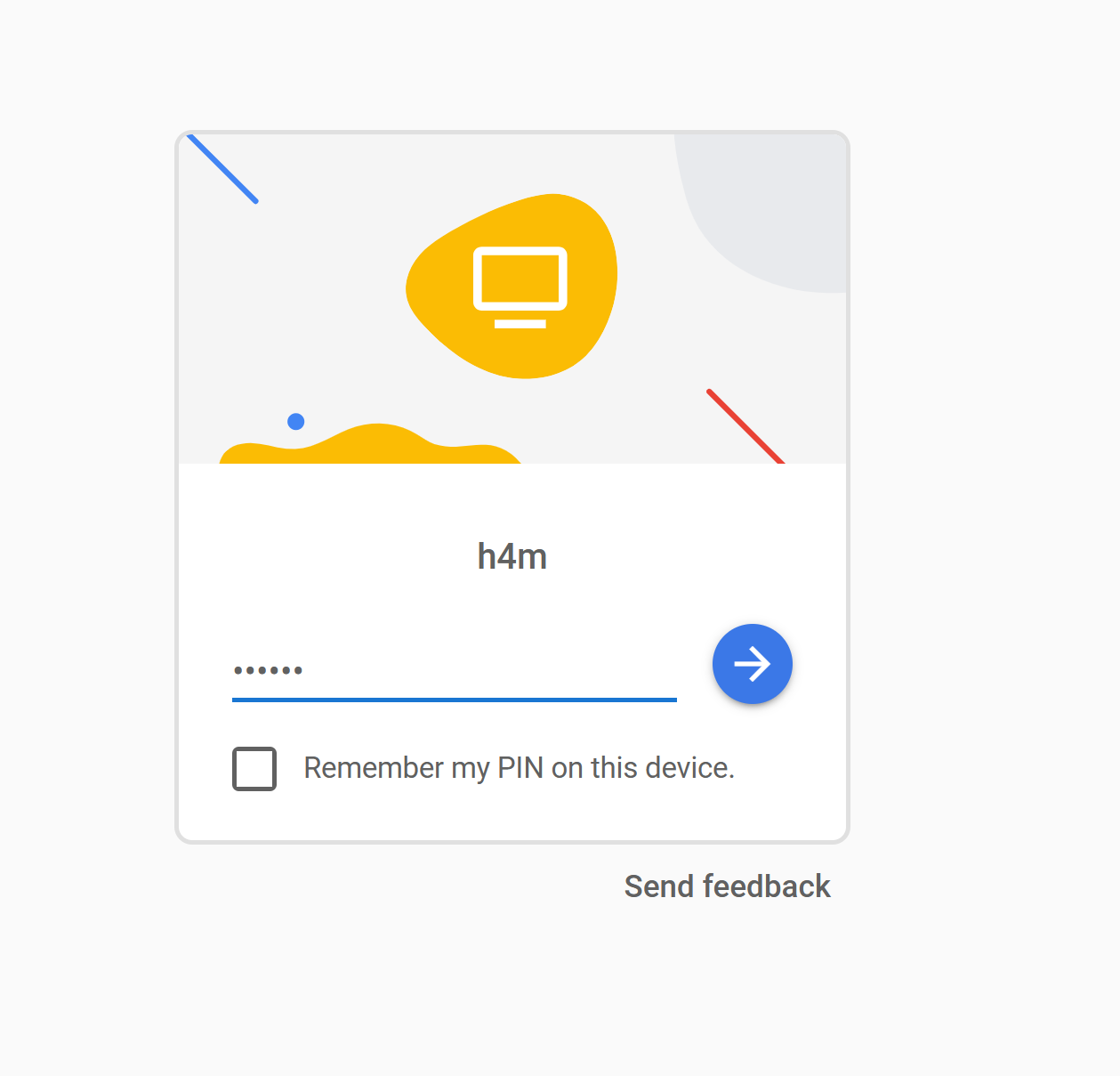
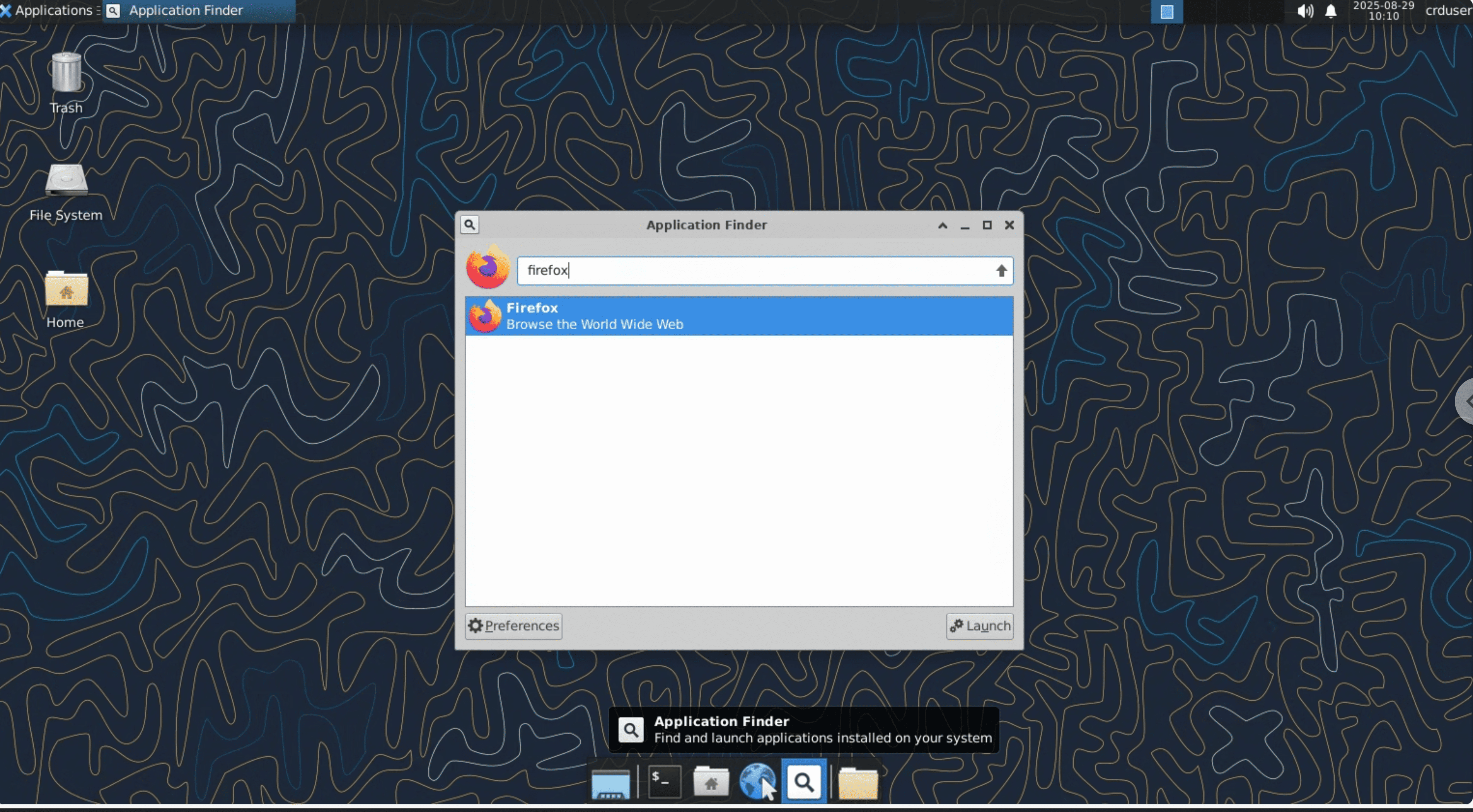
After connecting to Chrome Remote Desktop, select Application Finder in the dock at the bottom of the screen, search for Firefox, and select the icon to open it.
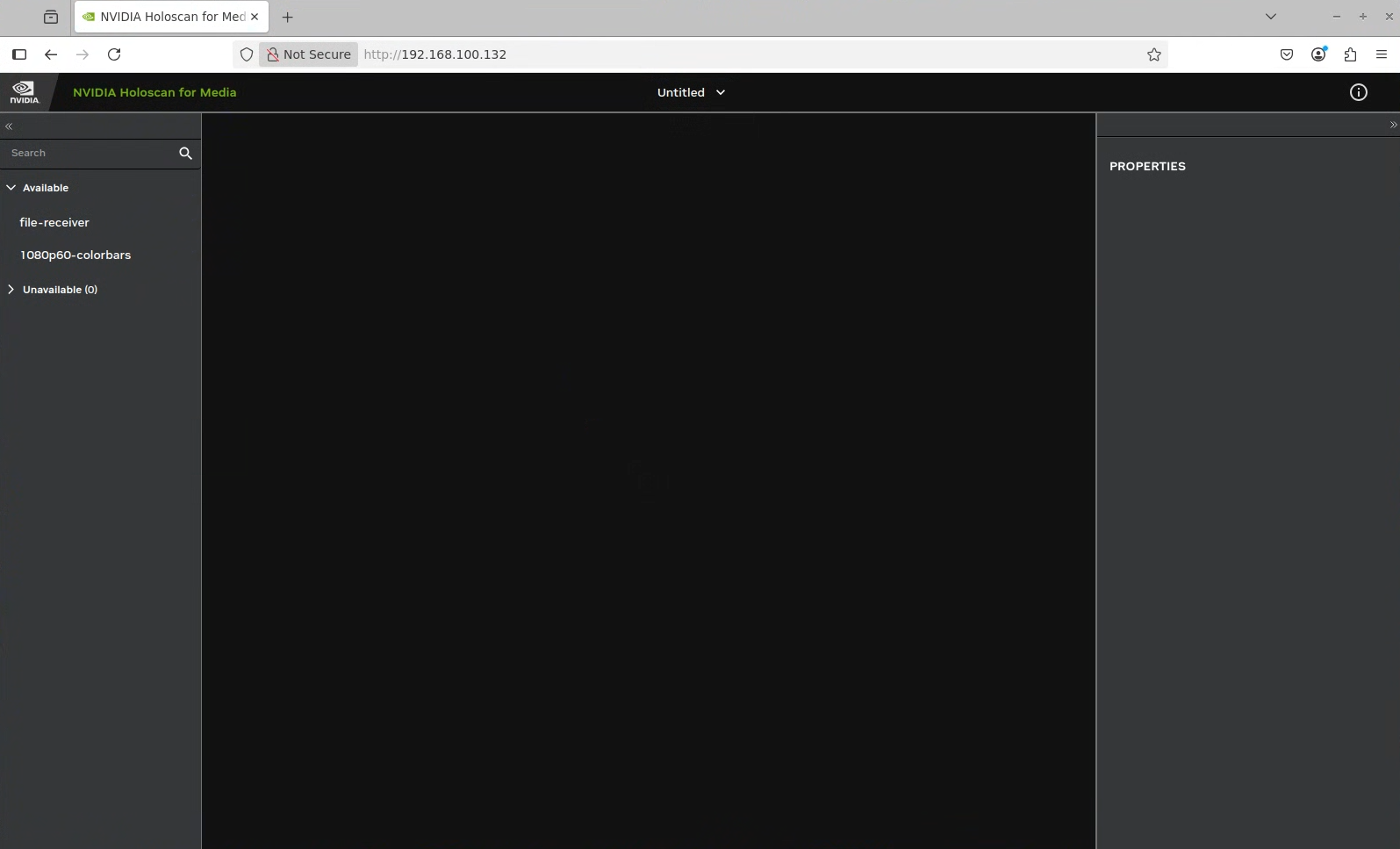
Navigate to the NMOS Controller UI at
http://<controller-ui-ip-address>/, where<controller-ui-ip-address>is the high-speed network IP address that you specified at deployment time.In the NMOS Controller UI, the available devices appear in the left panel under Available.
Note
If the devices do not appear in the NMOS Controller UI, check the logs of each pod:
kubectl logs <pod-name>
Drag the sender and receiver devices from the left panel to the empty canvas.
Drag a link between the receiver and the sender to make a connection.
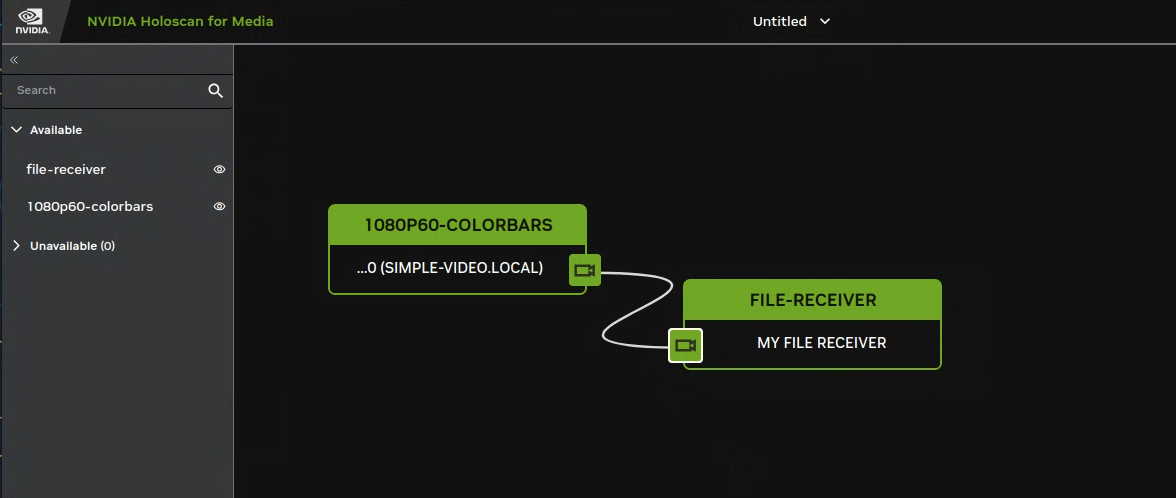
After some time, disconnect the link between the sender and the receiver using the context menu. Check the video file saved in the workspace directory of the receiver container.
Alternatively, you can copy the file to your local directory using the following command:
kubectl cp <pod-name>:/workspace/recv.mp4 <destination-path>
Replace
<pod-name>with the name of the receiver pod, which you can find using the following command:kubectl get pods | grep receiver
NAME                                                              READY   STATUS    RESTARTS   AGE
nvds-nmos-bin-receiver-nvds-nmos-bin-receiver-pipeline-dbd79rcb   1/1     Running   0          10m
Replace
<destination-path>with the path to the directory where you want to save the file (for example,/home/user/recv.mp4).