


Additional Services#
This section covers setting up a monitoring solution for user workloads and installing several useful services such as Rook Ceph or Longhorn, MetalLB, and Istio. Rook Ceph is the recommended persistent block storage for virtual machines. Longhorn is a lightweight distributed block storage system for Kubernetes. MetalLB is a load balancer implementation for bare-metal clusters that uses standard routing protocols. Istio provides capabilities such as observability, traffic management, and security.
Prerequisites#
Install Helm on the jump node. For instructions based on your operating system, refer to Helm Install.
User Workload Monitoring Setup#
OpenShift provides a built-in monitoring stack based on Prometheus, Thanos, and Alertmanager. You can enable it for user-defined projects, but it does not allow you to add custom Grafana dashboards in the OpenShift console. To address this, integrate Grafana with the existing OpenShift monitoring stack so that you can create custom Grafana dashboards that use OpenShift’s Prometheus instance as a data source.
Enable User Workload Monitoring#
Create a file,
monitoring-config.yaml, with the following content:apiVersion: v1 kind: ConfigMap metadata: name: cluster-monitoring-config namespace: openshift-monitoring data: config.yaml: | enableUserWorkload: true
Apply the ConfigMap:
oc apply -f monitoring-config.yaml
Ensure that all pods in the
openshift-user-workload-monitoringnamespace haveReadystatus:oc get pods -n openshift-user-workload-monitoring
NAME                                   READY   STATUS    RESTARTS   AGE
prometheus-operator-56fbfd68d6-vv874   2/2     Running   0          2m35s
prometheus-user-workload-0             6/6     Running   0          2m28s
prometheus-user-workload-1             6/6     Running   0          2m28s
thanos-ruler-user-workload-0           4/4     Running   0          2m28s
thanos-ruler-user-workload-1           4/4     Running   0          2m28s
Installing Grafana Operator#
To install the operator using the web console, expand the Operators section, select Operator Hub, and change the project context to openshift-user-workload-monitoring. Use the search bar to search for Grafana. Select Grafana Operator, and then accept the disclaimer.
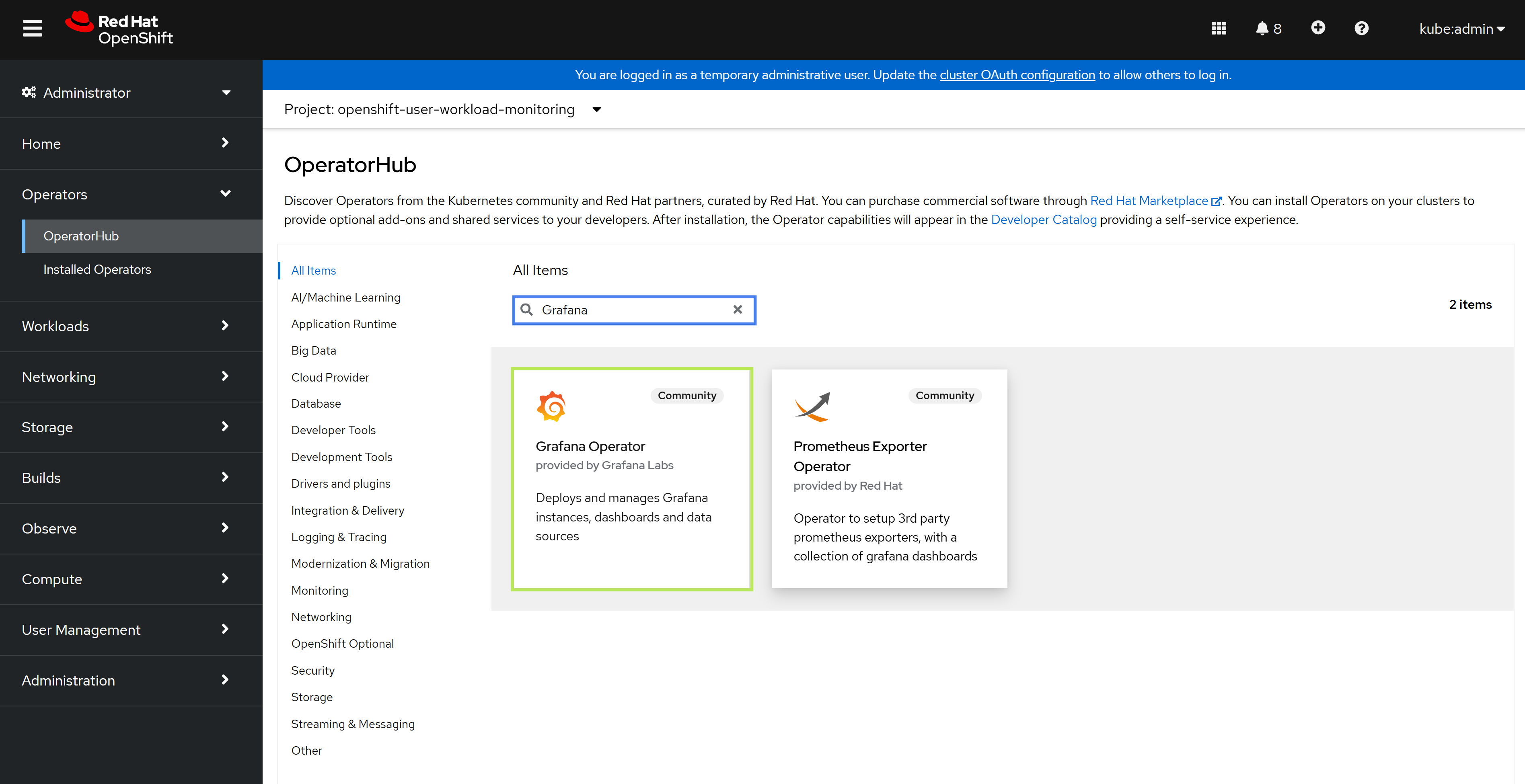
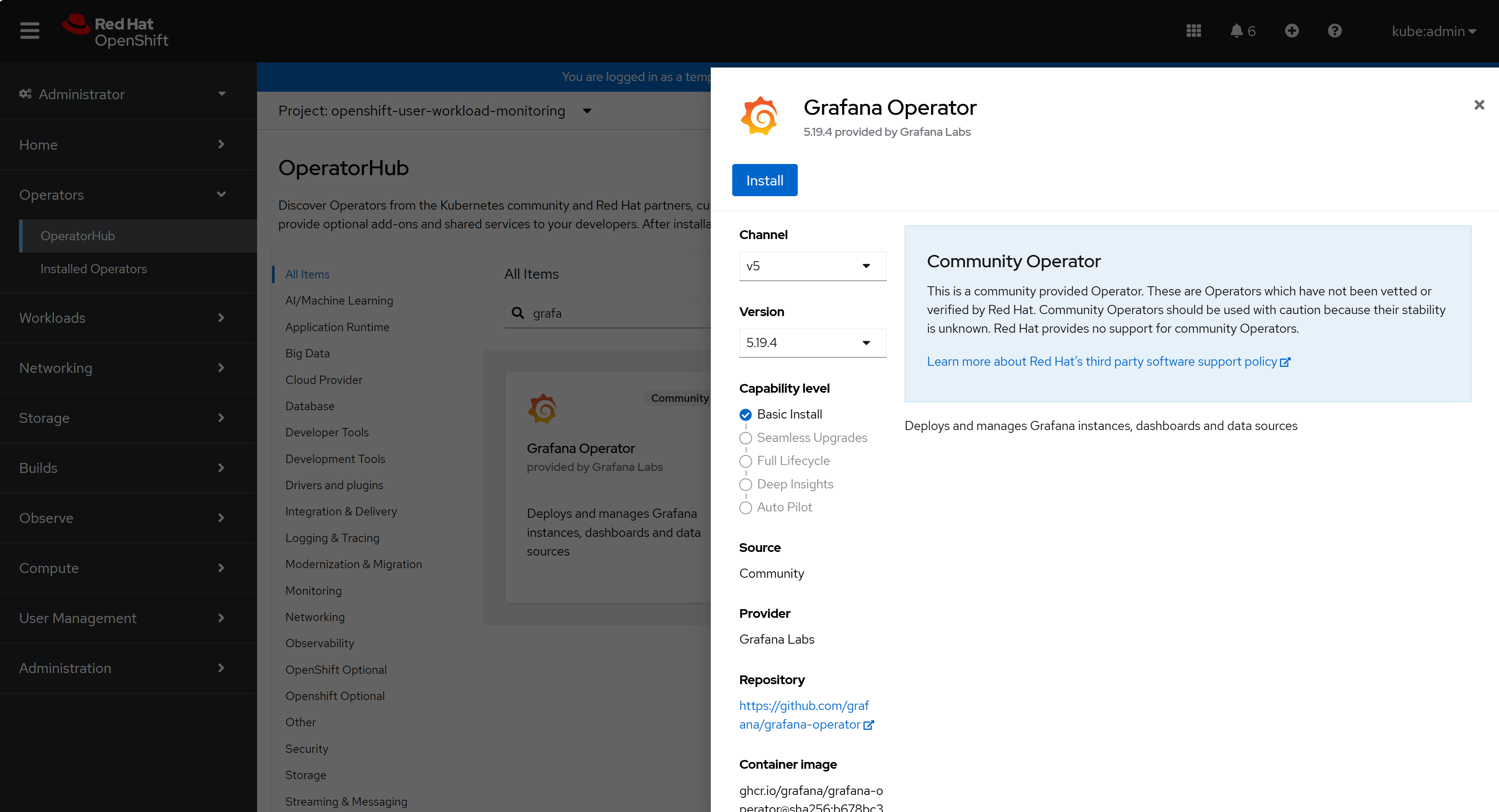
In the pop-up window, select Install.
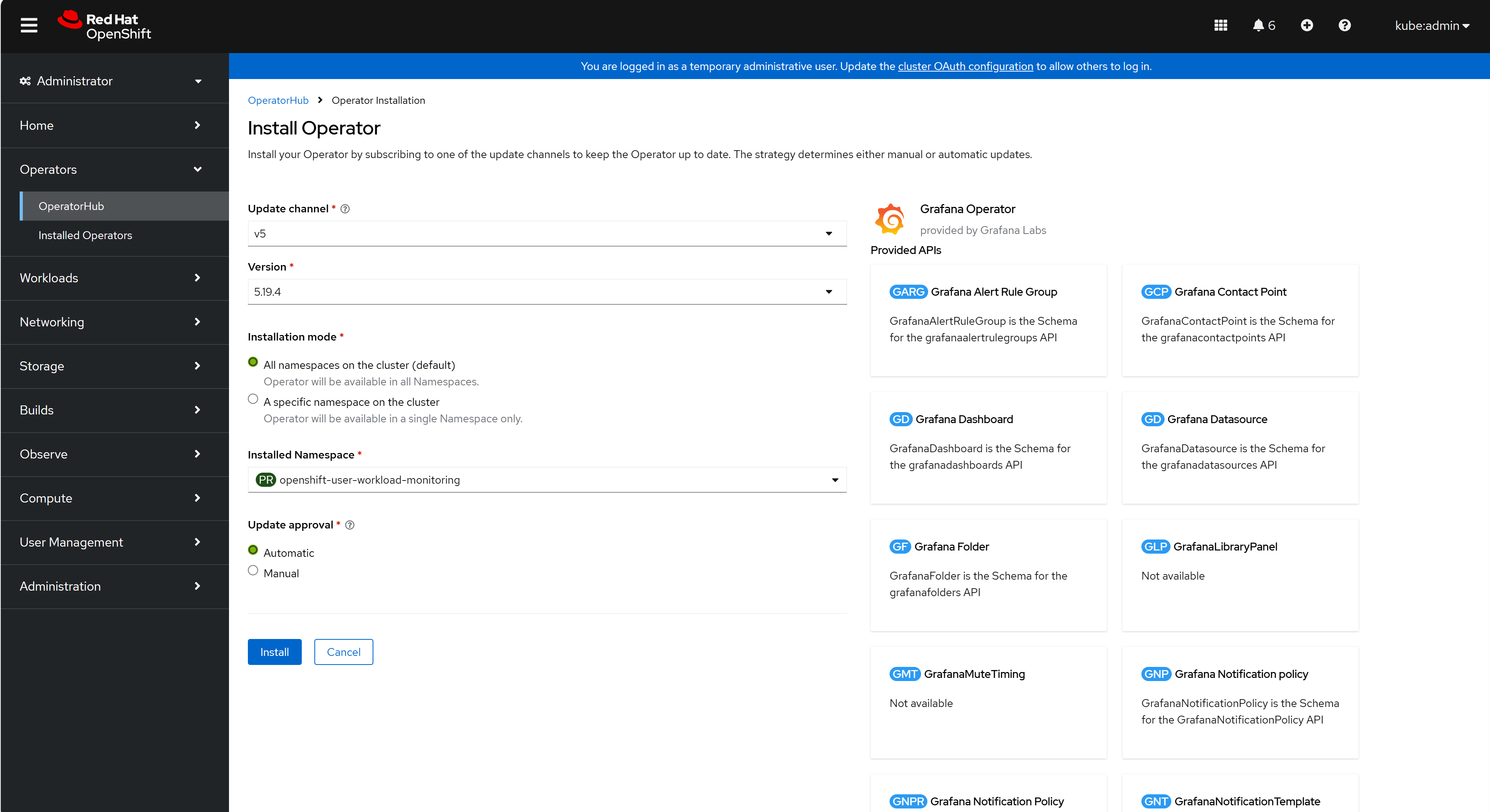
Select openshift-user-workload-monitoring as the Installed Namespace and select Install.
Wait one to two minutes for the installation to complete. Ensure that the Grafana Operator pod has
Readystatus:oc get pods -n openshift-user-workload-monitoring
NAME                                                      READY   STATUS    RESTARTS   AGE
grafana-operator-controller-manager-v5-5c9c74cd67-l6vkj   1/1     Running   0          28s
prometheus-operator-56fbfd68d6-vv874                      2/2     Running   0          27m
prometheus-user-workload-0                                6/6     Running   0          27m
prometheus-user-workload-1                                6/6     Running   0          27m
thanos-ruler-user-workload-0                              4/4     Running   0          27m
thanos-ruler-user-workload-1                              4/4     Running   0          27m
Creating Grafana Secret#
Create a secret with the following content in the
grafana-secret.yamlfile:kind: Secret apiVersion: v1 metadata: name: credentials namespace: openshift-user-workload-monitoring stringData: GF_SECURITY_ADMIN_PASSWORD: <your_password> GF_SECURITY_ADMIN_USER: <your_username> type: Opaque
Replace
<your_password>and<your_username>with the following:<your_password>: The password to authenticate with Grafana.<your_username>: The username to authenticate with Grafana.
Apply the secret:
oc create -f grafana-secret.yaml
Deploying Grafana Instance#
Create a Grafana instance CR with the following content in the
grafana-instance.yamlfile:apiVersion: grafana.integreatly.org/v1beta1 kind: Grafana metadata: name: grafana namespace: openshift-user-workload-monitoring labels: dashboards: "grafana" folders: "grafana" spec: deployment: spec: template: spec: containers: - name: grafana env: - name: GF_SECURITY_ADMIN_USER valueFrom: secretKeyRef: key: GF_SECURITY_ADMIN_USER name: credentials - name: GF_SECURITY_ADMIN_PASSWORD valueFrom: secretKeyRef: key: GF_SECURITY_ADMIN_PASSWORD name: credentials config: auth: disable_login_form: "false" log: mode: console
Deploy the Grafana instance:
oc create -f grafana-instance.yaml
Verify that the Grafana instance has
Readystatus:oc get pods -n openshift-user-workload-monitoring
NAME                                                      READY   STATUS    RESTARTS   AGE
grafana-deployment-7d8c7b7565-gkv5w                       1/1     Running   0          22s
grafana-operator-controller-manager-v5-5c9c74cd67-l6vkj   1/1     Running   0          22m
prometheus-operator-56fbfd68d6-vv874                      2/2     Running   0          49m
prometheus-user-workload-0                                6/6     Running   0          49m
prometheus-user-workload-1                                6/6     Running   0          49m
thanos-ruler-user-workload-0                              4/4     Running   0          49m
thanos-ruler-user-workload-1                              4/4     Running   0          49m
Assign the
cluster-monitoring-viewrole to thegrafana-saservice account that the Grafana instance created:oc adm policy add-cluster-role-to-user cluster-monitoring-view -z grafana-sa -n openshift-user-workload-monitoring
Create the Grafana service account token secret with the following content in the
grafana-sa-token.yamlfile:apiVersion: v1 kind: Secret metadata: name: grafana-sa-token namespace: openshift-user-workload-monitoring annotations: kubernetes.io/service-account.name: grafana-sa type: kubernetes.io/service-account-token
Apply the secret:
oc create -f grafana-sa-token.yaml
Exposing Grafana Service#
Create an edge route:
oc -n openshift-user-workload-monitoring create route edge grafana --service=grafana-service --insecure-policy=Redirect --hostname=monitoring.<cluster-ingress-domain>
Replace
<cluster-ingress-domain>with the actual ingress domain of the cluster, which you can retrieve with the following command:oc get ingresscontroller default -n openshift-ingress-operator -o jsonpath='{.status.domain}'
apps.h4m.example.com
Retrieve the Grafana route hostname:
oc -n openshift-user-workload-monitoring get route grafana -o jsonpath='{.spec.host}'
monitoring.apps.h4m.example.com
Important
If you rely on a local
hostsfile to map application endpoints to the Ingress controller, add a new entry for the Grafana endpoint. Replace<ingress-ip>with the Ingress Virtual IP address or, on a single-node cluster, the Node IP address. Replace<grafana-route-hostname>with the Grafana route hostname that you obtained earlier. Refer to IP Addresses and DNS Records for more information.<ingress-ip> <grafana-route-hostname>
Access Grafana at
https://<grafana-route-hostname>. Log in using the credentials that you specified in the Creating Grafana Secret step.
Configuring Grafana Datasource#
Create a Grafana Datasource CR with the following content in the
grafana-datasource.yamlfile:apiVersion: grafana.integreatly.org/v1beta1 kind: GrafanaDatasource metadata: name: grafana-ds namespace: openshift-user-workload-monitoring spec: valuesFrom: - targetPath: "secureJsonData.httpHeaderValue1" valueFrom: secretKeyRef: name: "grafana-sa-token" key: "token" instanceSelector: matchLabels: dashboards: "grafana" datasource: name: Prometheus type: prometheus uid: prometheus access: proxy url: https://thanos-querier.openshift-monitoring.svc:9091 isDefault: true jsonData: tlsSkipVerify: true timeInterval: "5s" httpHeaderName1: "Authorization" secureJsonData: httpHeaderValue1: "Bearer ${token}"
Apply the datasource:
oc create -f grafana-datasource.yaml
Installing Rook Ceph#
Install Rook Ceph if you need persistent block storage for virtual machines. Skip Installing Longhorn when you use Rook Ceph.
Prepare Disks for Rook Ceph OSDs#
To use Rook Ceph as a storage solution, each storage node needs a secondary disk for the Ceph object storage daemon (OSD). Use only disks that meet the following conditions:
The disk is not the OS disk.
The disk is not mounted.
The disk does not contain a file system, a leftover
ceph_bluestoresignature, or other logical volume manager (LVM) or Ceph signatures.
To verify these conditions, run the following commands on each storage node:
oc debug node/<node-name>
chroot /host
lsblk -o NAME,TYPE,SIZE,FSTYPE,MOUNTPOINT,MODEL,SERIAL
The output looks similar to the following:
NAME        TYPE   SIZE FSTYPE MOUNTPOINT MODEL
nvme1n1     disk   3.5T
|-nvme1n1p3 part   384M ext4    /boot
`-nvme1n1p4 part   3.5T xfs     /sysroot
nvme0n1     disk   3.5T
nvme2n1     disk 447.1G ceph_bluestore
Verify that the spare disks are clean. If they are not, wipe them manually after you confirm that it is safe to do so.
Warning
Use spare disks only. Do not run wipe commands on the OS disk.
To wipe a spare disk, run the following commands:
wipefs -a /dev/<disk>
sgdisk --zap-all /dev/<disk>
wipefs -n /dev/<disk>
The output looks similar to the following:
/dev/nvme0n1: 22 bytes were erased at offset 0x00000000 (ceph_bluestore): 62 6c 75 65 73 74 6f 72 65 20 62 6c 6f 63 6b 20 64 65 76 69 63 65
Creating new GPT entries in memory.
GPT data structures destroyed! You may now partition the disk using fdisk or
other utilities.
Before you rerun OSD discovery, confirm that wipefs -n reports no remaining signatures.
Optional: If signatures remain, run blkdiscard on devices that support discard.
The command can fail on disks without discard support, including many HDDs in Ceph deployments:
blkdiscard -f /dev/<disk>
The output looks similar to the following:
blkdiscard: Operation forced, data will be lost!
When you finish, exit the debug pod.
To install Rook Ceph:
Log in to the jump node.
Apply the Rook operator manifests:
ROOK_VERSION=v1.20.1
BASE=https://raw.githubusercontent.com/rook/rook/${ROOK_VERSION}/deploy/examples
oc apply -f ${BASE}/crds.yaml
oc apply -f ${BASE}/common.yaml
oc apply -f ${BASE}/csi-operator.yaml
oc apply -f ${BASE}/operator-openshift.yaml
customresourcedefinition.apiextensions.k8s.io/cephclusters.ceph.rook.io created
customresourcedefinition.apiextensions.k8s.io/cephblockpools.ceph.rook.io created
namespace/rook-ceph created
serviceaccount/rook-ceph-system created
clusterrole.rbac.authorization.k8s.io/rook-ceph-system created
clusterrolebinding.rbac.authorization.k8s.io/rook-ceph-system created
deployment.apps/ceph-csi-controller-manager created
deployment.apps/rook-ceph-operator created
Wait for the operator to become available:
oc -n rook-ceph rollout status deploy/rook-ceph-operator
Waiting for deployment "rook-ceph-operator" rollout to finish: 0 of 1 updated replicas are available...
deployment "rook-ceph-operator" successfully rolled out
List the storage node names:
oc get nodes -l node-role.kubernetes.io/worker
NAME    STATUS   ROLES    AGE   VERSION
h4m-d   Ready    worker   11h   v1.31.9
h4m-e   Ready    worker   11h   v1.31.9
Set monitor, manager, and pool counts from the OSD host count:
One OSD node:
mon=1,mgr=1, pool size1, pool min size1Two OSD nodes:
mon=1,mgr=2, pool size2, pool min size1Three or more OSD nodes:
mon=3,mgr=2, pool size3, pool min size2
Set
requireSafeReplicaSize: falseon the.mgrandreplicapoolpools only when the pool size is less than 3.Create
ceph-cluster.yaml. Replace the node names and counts. The following example is for a two-OSD-node cluster:apiVersion: ceph.rook.io/v1 kind: CephCluster metadata: name: rook-ceph namespace: rook-ceph spec: cephVersion: image: quay.io/ceph/ceph:v20.2.2 allowUnsupported: false dataDirHostPath: /var/lib/rook mon: count: 1 allowMultiplePerNode: false mgr: count: 2 allowMultiplePerNode: false cephConfig: global: osd_pool_default_size: "2" osd_pool_default_min_size: "1" dashboard: enabled: true ssl: true monitoring: enabled: false cleanupPolicy: confirmation: "" sanitizeDisks: method: quick dataSource: zero iteration: 1 allowUninstallWithVolumes: false storage: useAllNodes: false useAllDevices: true nodes: - name: <worker-1> - name: <worker-2> allowDeviceClassUpdate: false allowOsdCrushWeightUpdate: false disruptionManagement: managePodBudgets: true osdMaintenanceTimeout: 30
Apply the Ceph cluster:
oc apply -f ceph-cluster.yaml
cephcluster.ceph.rook.io/rook-ceph created
Create
builtin-mgr-pool.yaml. Ceph otherwise creates the built-in.mgrpool at size 3, which cannot be placed when there are fewer than three OSD hosts:apiVersion: ceph.rook.io/v1 kind: CephBlockPool metadata: name: builtin-mgr namespace: rook-ceph spec: name: .mgr failureDomain: host enableCrushUpdates: true replicated: size: 2 requireSafeReplicaSize: false
Apply the built-in mgr pool:
oc apply -f builtin-mgr-pool.yaml
cephblockpool.ceph.rook.io/builtin-mgr created
Ensure that OSD pods have
Runningstatus:oc get pods -n rook-ceph -l app=rook-ceph-osd
NAME                               READY   STATUS    RESTARTS   AGE
rook-ceph-osd-0-xxxxxxxxxx-xxxxx   2/2     Running   0          2m
rook-ceph-osd-1-xxxxxxxxxx-xxxxx   2/2     Running   0          2m
If no OSD pods appear and the OSD prepare jobs have completed, the spare disks still have leftover Ceph data. Wipe them as described above. Then delete the completed prepare jobs, annotate the CephCluster, and check that OSD pods are created:
oc delete jobs -n rook-ceph -l app=rook-ceph-osd-prepare
job.batch "rook-ceph-osd-prepare-h4m-d" deleted
job.batch "rook-ceph-osd-prepare-h4m-e" deleted
oc -n rook-ceph annotate cephcluster rook-ceph \
  rook-ceph.ceph.rook.io/osd-rescan-at="$(date -u +%Y-%m-%dT%H:%M:%SZ)" --overwrite
cephcluster.ceph.rook.io/rook-ceph annotated
oc get pods -n rook-ceph -l app=rook-ceph-osd
NAME                               READY   STATUS    RESTARTS   AGE
rook-ceph-osd-0-xxxxxxxxxx-xxxxx   2/2     Running   0          30s
rook-ceph-osd-1-xxxxxxxxxx-xxxxx   2/2     Running   0          30s
Do not continue until at least one OSD pod is running.
Ensure that the Ceph cluster is
Ready. ExpectHEALTH_OKorHEALTH_WARN. A two-OSD-node cluster often reportsHEALTH_WARNbecause it uses one monitor and a pool size of 2:oc get cephcluster -n rook-ceph
NAME        DATADIRHOSTPATH   MONCOUNT   AGE   PHASE   MESSAGE                        HEALTH
rook-ceph   /var/lib/rook     1          5m    Ready   Cluster created successfully   HEALTH_OK
Create
block-pool.yaml:apiVersion: ceph.rook.io/v1 kind: CephBlockPool metadata: name: replicapool namespace: rook-ceph spec: failureDomain: host replicated: size: 2 requireSafeReplicaSize: false
Apply the block pool:
oc apply -f block-pool.yaml
cephblockpool.ceph.rook.io/replicapool created
Create
storageclass.yaml:apiVersion: storage.k8s.io/v1 kind: StorageClass metadata: name: rook-ceph-block annotations: storageclass.kubernetes.io/is-default-class: "true" provisioner: rook-ceph.rbd.csi.ceph.com parameters: clusterID: rook-ceph pool: replicapool imageFormat: "2" imageFeatures: layering csi.storage.k8s.io/provisioner-secret-name: rook-csi-rbd-provisioner csi.storage.k8s.io/provisioner-secret-namespace: rook-ceph csi.storage.k8s.io/controller-expand-secret-name: rook-csi-rbd-provisioner csi.storage.k8s.io/controller-expand-secret-namespace: rook-ceph csi.storage.k8s.io/node-stage-secret-name: rook-csi-rbd-node csi.storage.k8s.io/node-stage-secret-namespace: rook-ceph csi.storage.k8s.io/fstype: ext4 allowVolumeExpansion: true reclaimPolicy: Delete
Apply the StorageClass:
oc apply -f storageclass.yaml
storageclass.storage.k8s.io/rook-ceph-block created
Installing Longhorn#
To install Longhorn:
Log in to the jump node.
Add the Longhorn Helm repository:
helm repo add longhorn https://charts.longhorn.io
longhorn has been added to your repositories
Update your Helm repositories:
helm repo update
Hang tight while we grab the latest from your chart repositories...
...Successfully got an update from the longhorn chart repository
Update Complete. ⎈Happy Helming!⎈
Install Longhorn:
helm install longhorn longhorn/longhorn --namespace longhorn-system \
  --create-namespace --version 1.6.1 --set openshift.enabled=true
NAME: longhorn
LAST DEPLOYED: Tue Apr 5 09:16:23 2024
NAMESPACE: longhorn-system
STATUS: deployed
REVISION: 1
TEST SUITE: None
NOTES:
Longhorn is now installed on the cluster!

Please wait a few minutes for other Longhorn components such as CSI
deployments, Engine Images, and Instance Managers to be initialized.

Visit our documentation at https://longhorn.io/docs/
Ensure that all Longhorn pods have
Runningstatus:oc get pods -n longhorn-system
NAME                                                READY   STATUS    RESTARTS   AGE
csi-attacher-785fd6545b-7k42j                       1/1     Running   16         7d1h
csi-attacher-785fd6545b-hk6cz                       1/1     Running   0          21h
csi-attacher-785fd6545b-xflnp                       1/1     Running   0          21h
csi-provisioner-8658f9bd9c-dsrcc                    1/1     Running   9          7d1h
csi-provisioner-8658f9bd9c-nfj2r                    1/1     Running   1          21h
csi-provisioner-8658f9bd9c-t42p2                    1/1     Running   0          21h
csi-resizer-68c4c75bf5-kjwj8                        1/1     Running   0          21h
csi-resizer-68c4c75bf5-qv6kf                        1/1     Running   14         7d1h
csi-resizer-68c4c75bf5-s2kj4                        1/1     Running   0          21h
csi-snapshotter-7c466dd68f-fvbb6                    1/1     Running   0          21h
csi-snapshotter-7c466dd68f-j2bnd                    1/1     Running   0          21h
csi-snapshotter-7c466dd68f-wf85g                    1/1     Running   16         7d1h
engine-image-ei-68f17757-965sd                      1/1     Running   18         63d
engine-image-ei-68f17757-rv8cl                      1/1     Running   13         63d
engine-image-ei-68f17757-sggfc                      1/1     Running   10         63d
instance-manager-64896d0c43a988ada1                 1/1     Running   0          5d2h
instance-manager-853e26c37f6b3dd915                 1/1     Running   0          44h
instance-manager-ef72db15e639b20758                 1/1     Running   0          21h
longhorn-csi-plugin-9fxzj                           3/3     Running   59         63d
longhorn-csi-plugin-jlvgp                           3/3     Running   36         63d
longhorn-csi-plugin-r45j7                           3/3     Running   36         63d
longhorn-driver-deployer-75fff9c757-9ghqk           1/1     Running   0          21h
longhorn-manager-gngq9                              1/1     Running   6          13d
longhorn-manager-jd4pn                              1/1     Running   1          13d
longhorn-manager-zxmj4                              1/1     Running   5          13d
longhorn-ui-6456f89c8f-ht79n                        1/1     Running   0          21h
longhorn-ui-6456f89c8f-mdwrr                        1/1     Running   0          7d1h
Installing MetalLB Operator#
MetalLB Operator provides external IP addresses to services
of type LoadBalancer on the cluster.
To install the operator using the web console:
Expand the Operators section and select Operator Hub. Use the search bar to search for MetalLB. Select MetalLB Operator.
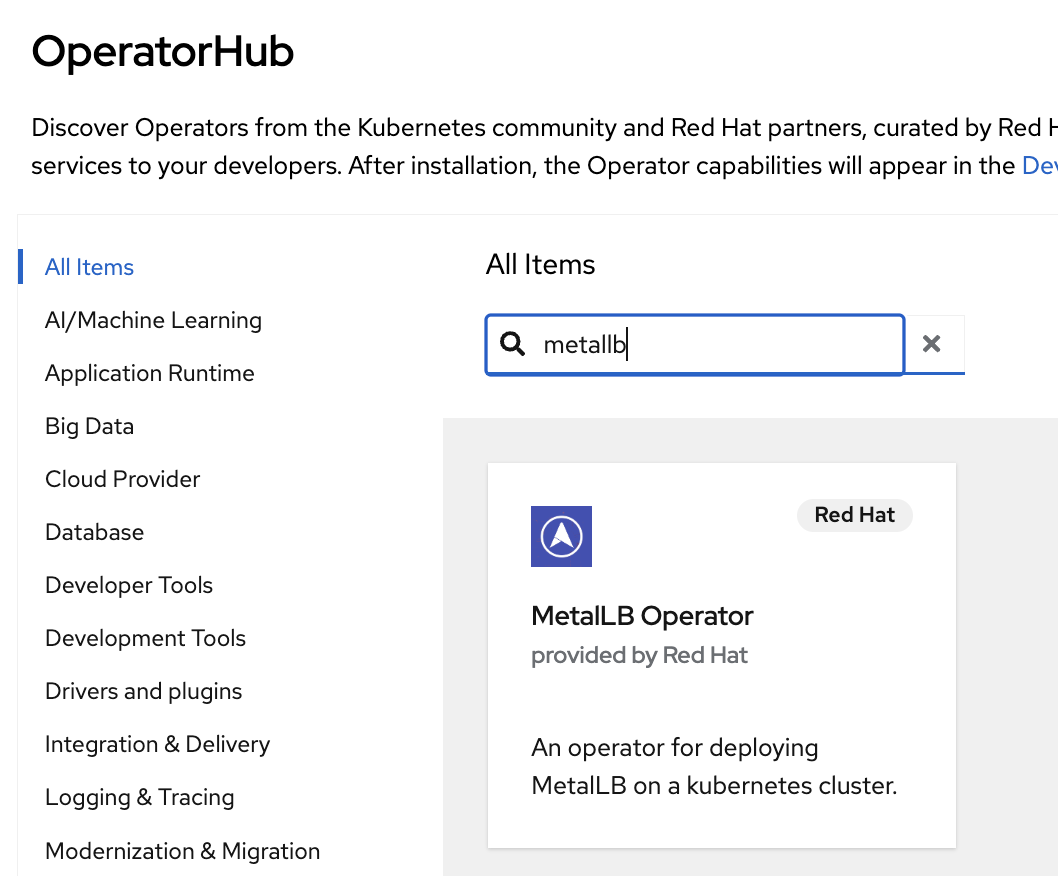
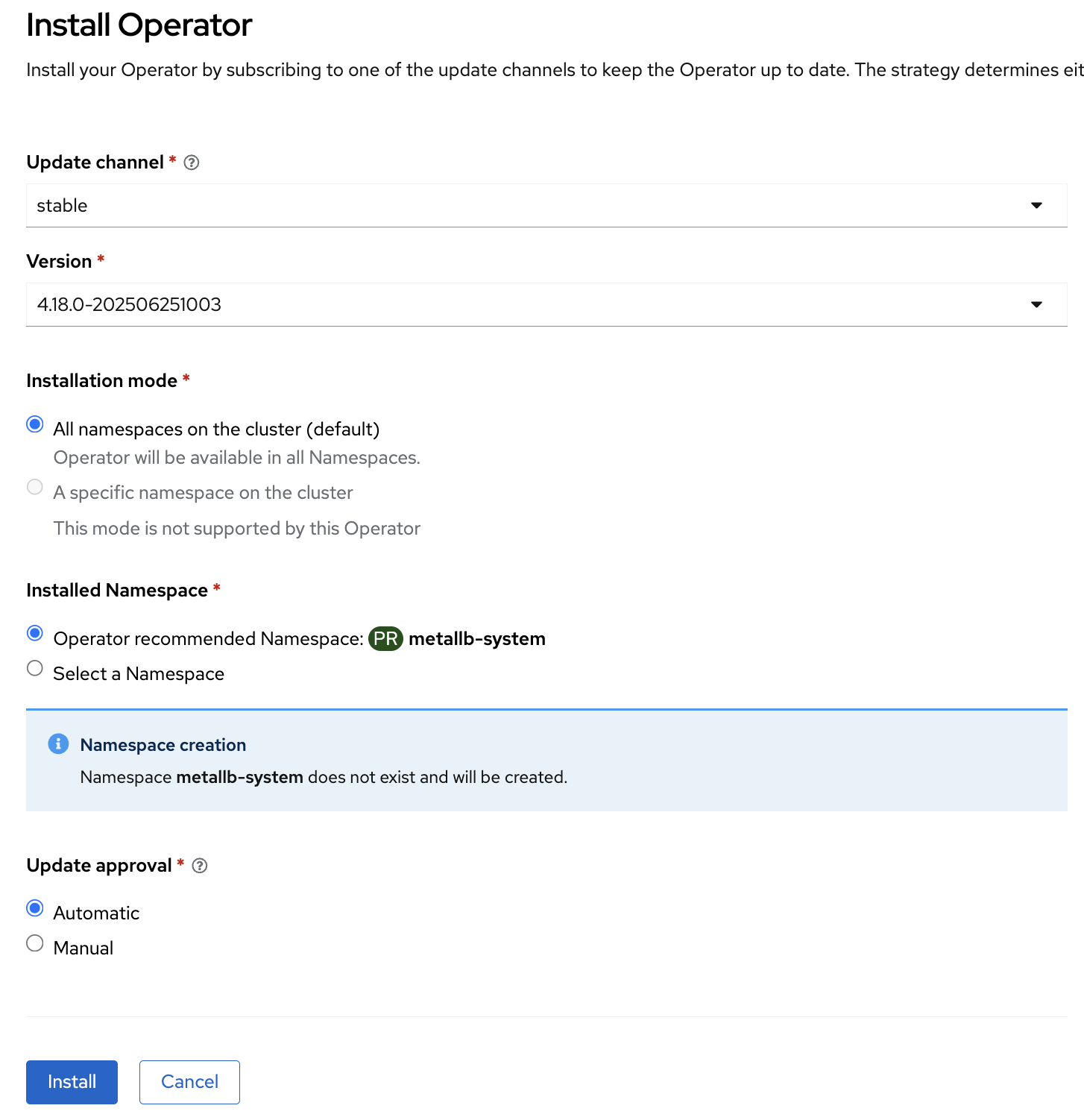
In the pop-up window, select Install.
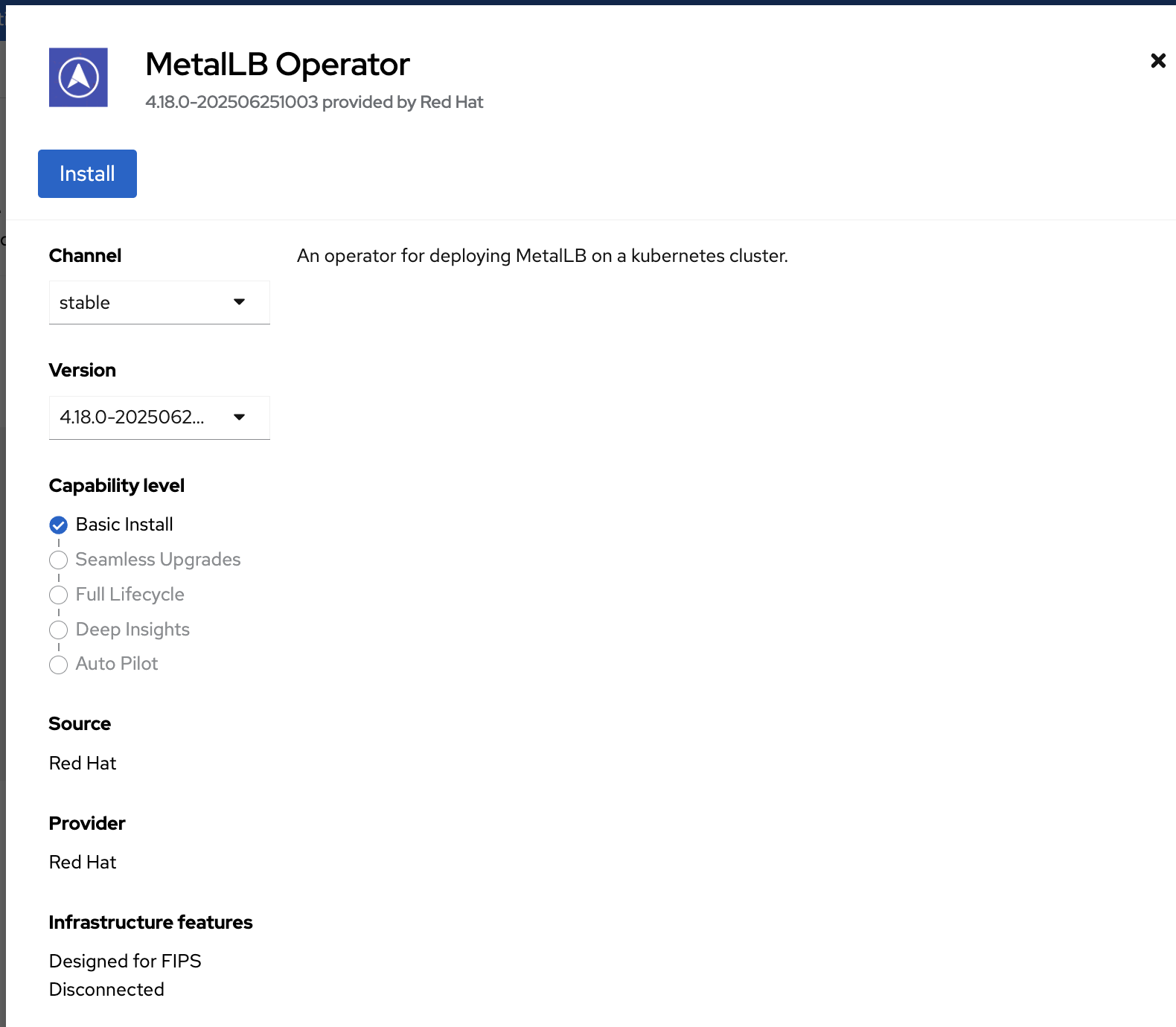
Select Install.
After the installation completes, navigate to the Operators section, select Installed Operators, and select MetalLB Operator.
On the MetalLB Operator details screen, select Create instance in the MetalLB section.
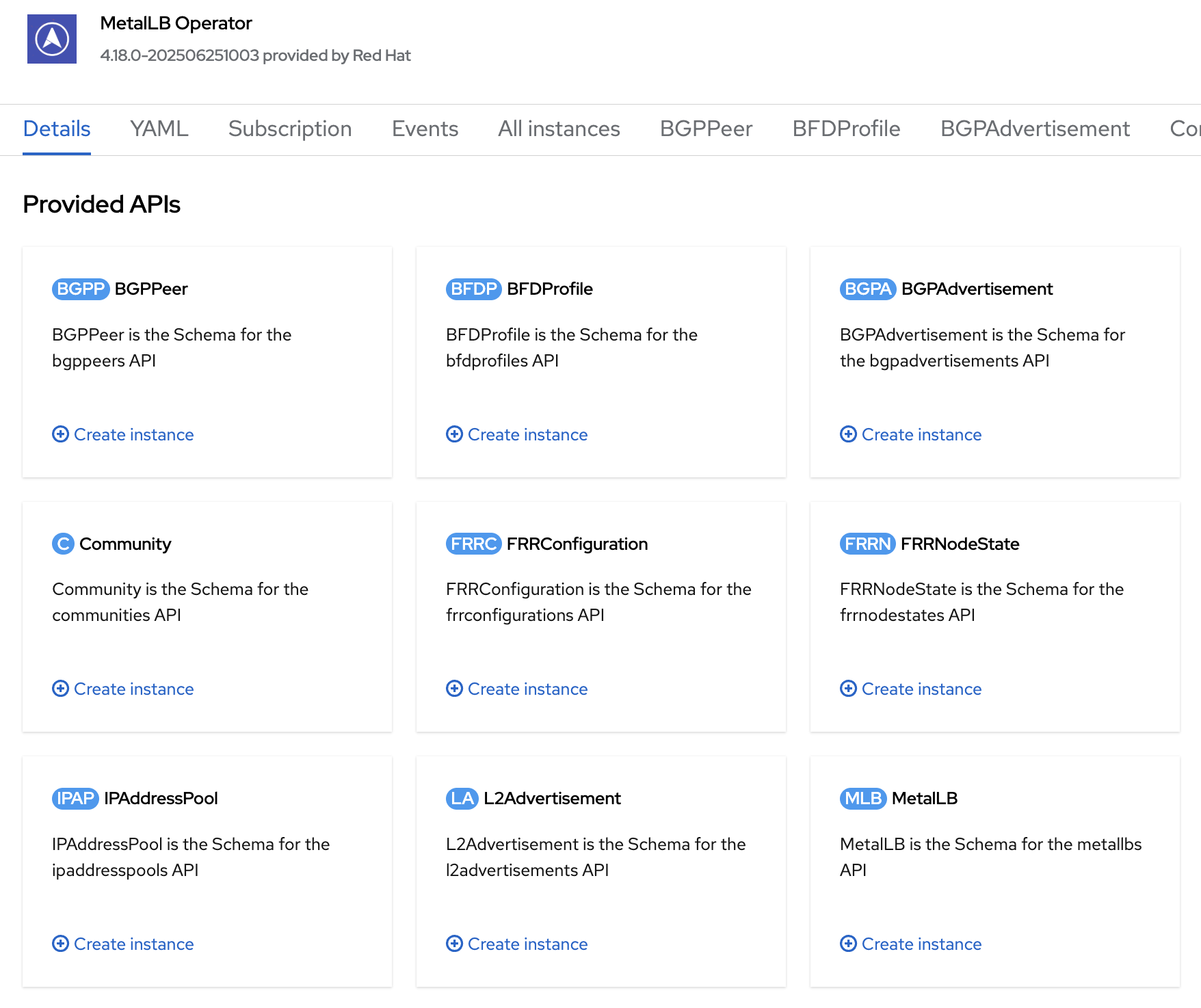
Select Create.
Configure Address Pool and L2Advertisement#
Create
ip_addresspool.yamlfrom the following example. Modify the IP addresses for your environment:apiVersion: metallb.io/v1beta1 kind: IPAddressPool metadata: namespace: metallb-system name: holoscanmedia-metallb labels: zone: holoscanmedia spec: addresses: - 10.21.10.101/32 - 10.21.10.102/32 - 10.21.10.103/32 - 10.21.10.104/32 - 10.21.10.105/32
Apply the configuration:
oc create -f ip_addresspool.yaml
Verify the address pool configuration:
oc describe -n metallb-system IPAddressPool holoscanmedia-metallb
Name:         holoscanmedia-metallb
Namespace:    metallb-system
Labels:       zone=holoscanmedia
Annotations:  <none>
API Version:  metallb.io/v1beta1
Kind:         IPAddressPool
Metadata:
...
Spec:
    Addresses:
        10.21.10.101/32
        10.21.10.102/32
        10.21.10.103/32
        10.21.10.104/32
        10.21.10.105/32
    Auto Assign:       true
    Avoid Buggy IPs:  false
Events:              <none>
Create
l2_advertisement.yamlwith the following content. The match-expression value must match the zone in the IPAddressPool that you created previously:apiVersion: metallb.io/v1beta1 kind: L2Advertisement metadata: name: l2advertisement-label namespace: metallb-system spec: ipAddressPoolSelectors: - matchExpressions: - key: zone operator: In values: - holoscanmedia
Apply the configuration:
oc create -f l2_advertisement.yaml
Fuse Mounting#
To access /dev/fuse, create the following MachineConfig.
Create
fuse.yamlbased on the following template. Replace<role>withworkerfor a five-node cluster andmasterfor a three-node cluster or single-node OpenShift (SNO):apiVersion: machineconfiguration.openshift.io/v1 kind: MachineConfig metadata: labels: machineconfiguration.openshift.io/role: <role> name: 99-worker-crio-fuse spec: config: ignition: version: 3.2.0 storage: files: - path: /etc/crio/crio.conf.d/99-crio-fuse.conf overwrite: true contents: source: data:text/plain;charset=utf-8;base64,W2NyaW8ucnVudGltZS5ydW50aW1lcy5mdXNlXQpydW50aW1lX3BhdGggPSAiL3Vzci9iaW4vcnVuYyIKcnVudGltZV9yb290ID0gIi9ydW4vcnVuYyIKcnVudGltZV90eXBlID0gIm9jaSIKYWxsb3dlZF9hbm5vdGF0aW9ucyA9IFsKICAgICJpby5rdWJlcm5ldGVzLmNyaS1vLkRldmljZXMiLApdCg==
The Base64-encoded data in the preceding YAML corresponds to the following plain text:
[crio.runtime.runtimes.fuse]
runtime_path = "/usr/bin/runc"
runtime_root = "/run/runc"
runtime_type = "oci"
allowed_annotations = [
    "io.kubernetes.cri-o.Devices",
]
Apply the MachineConfig:
oc create -f fuse.yaml
This command restarts the nodes.
Monitor the progress by gathering MCP status:
oc get mcp

NAME     CONFIG                                             UPDATED   UPDATING   DEGRADED   MACHINECOUNT   READYMACHINECOUNT   UPDATEDMACHINECOUNT   DEGRADEDMACHINECOUNT   AGE
master   rendered-master-d140dfa8496eef52dd9ee9d1383704aa   False     True       False      3              2                   3                     0                      65d
worker   rendered-worker-dd78f8d267786d267d0789cc7514ce18   True      False      False      0              0                   0                     0                      65d
Wait until
READYMACHINECOUNTequals the number of worker nodes in the cluster.
Installing OpenShift Service Mesh Operator#
Red Hat OpenShift Service Mesh 3 provides an easy way to create a network of deployed services that offers discovery, load balancing, service-to-service authentication, failure recovery, metrics, and monitoring. The OpenShift Service Mesh builds on open-source Istio.
To install the operator using the web console:
Expand the Operators section and select Operator Hub.
Use the search bar to search for OpenShift Service Mesh 3.
Select Red Hat OpenShift Service Mesh 3, which Red Hat provides and maintains.
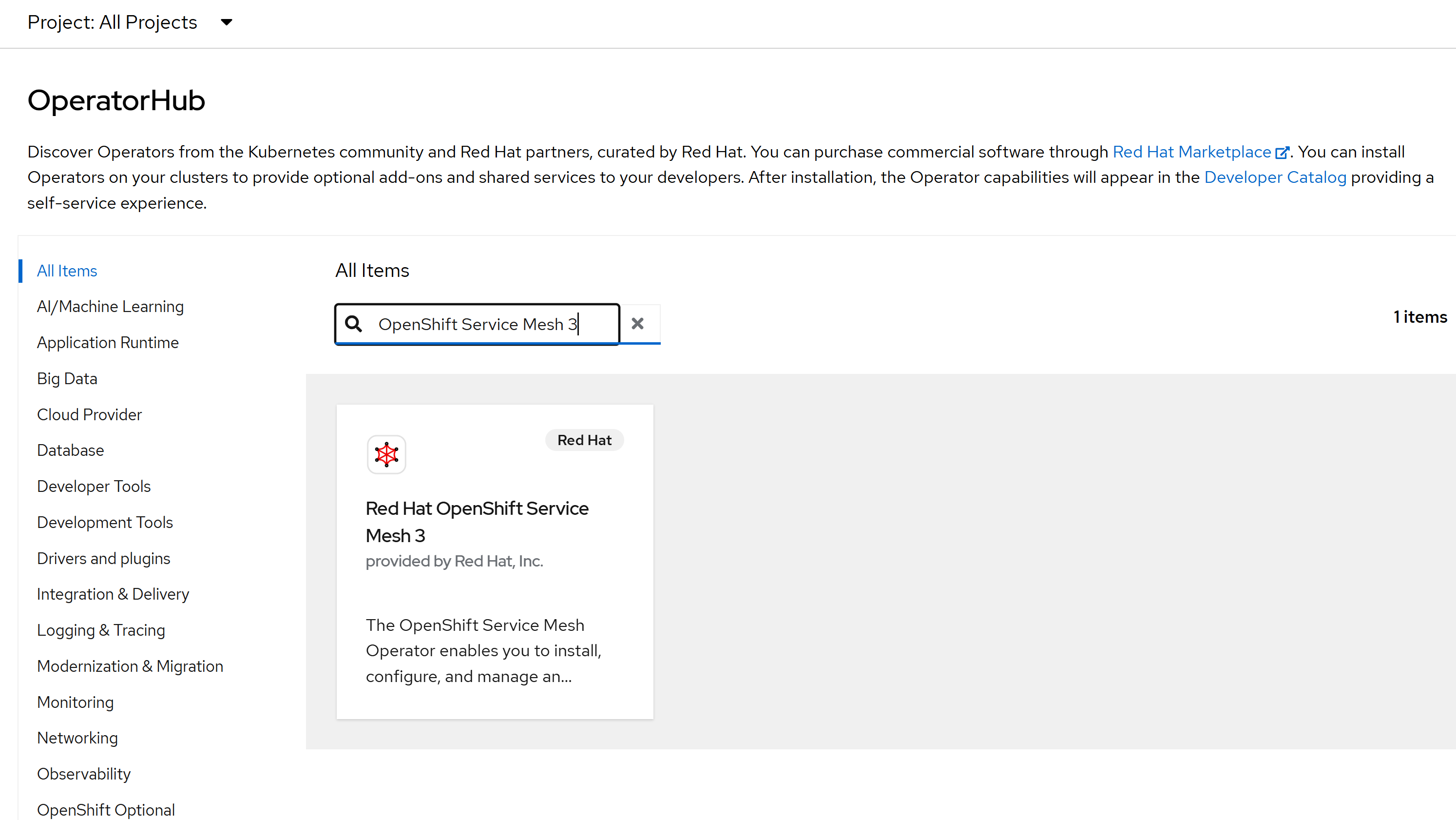
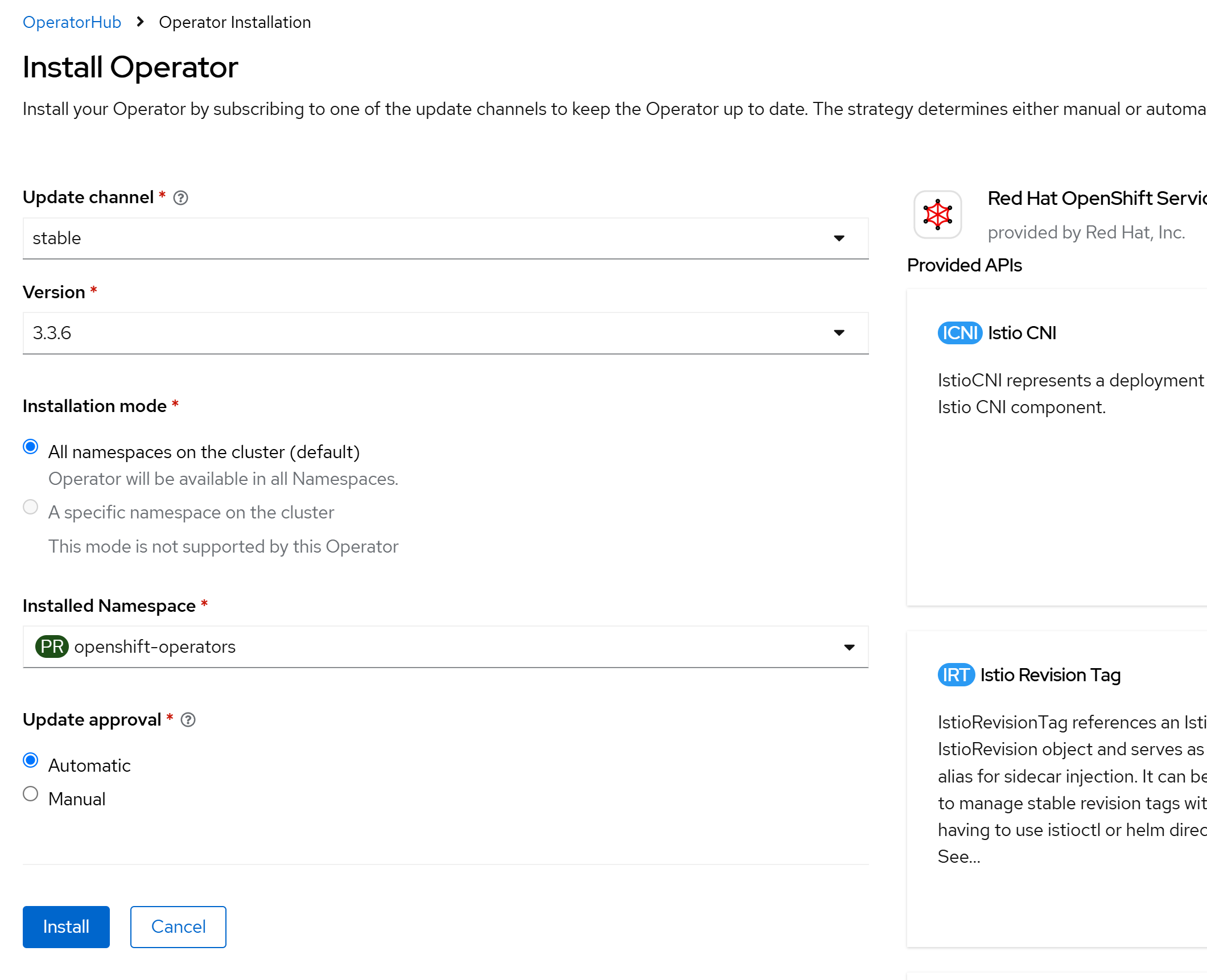
In the pop-up window, select Install.
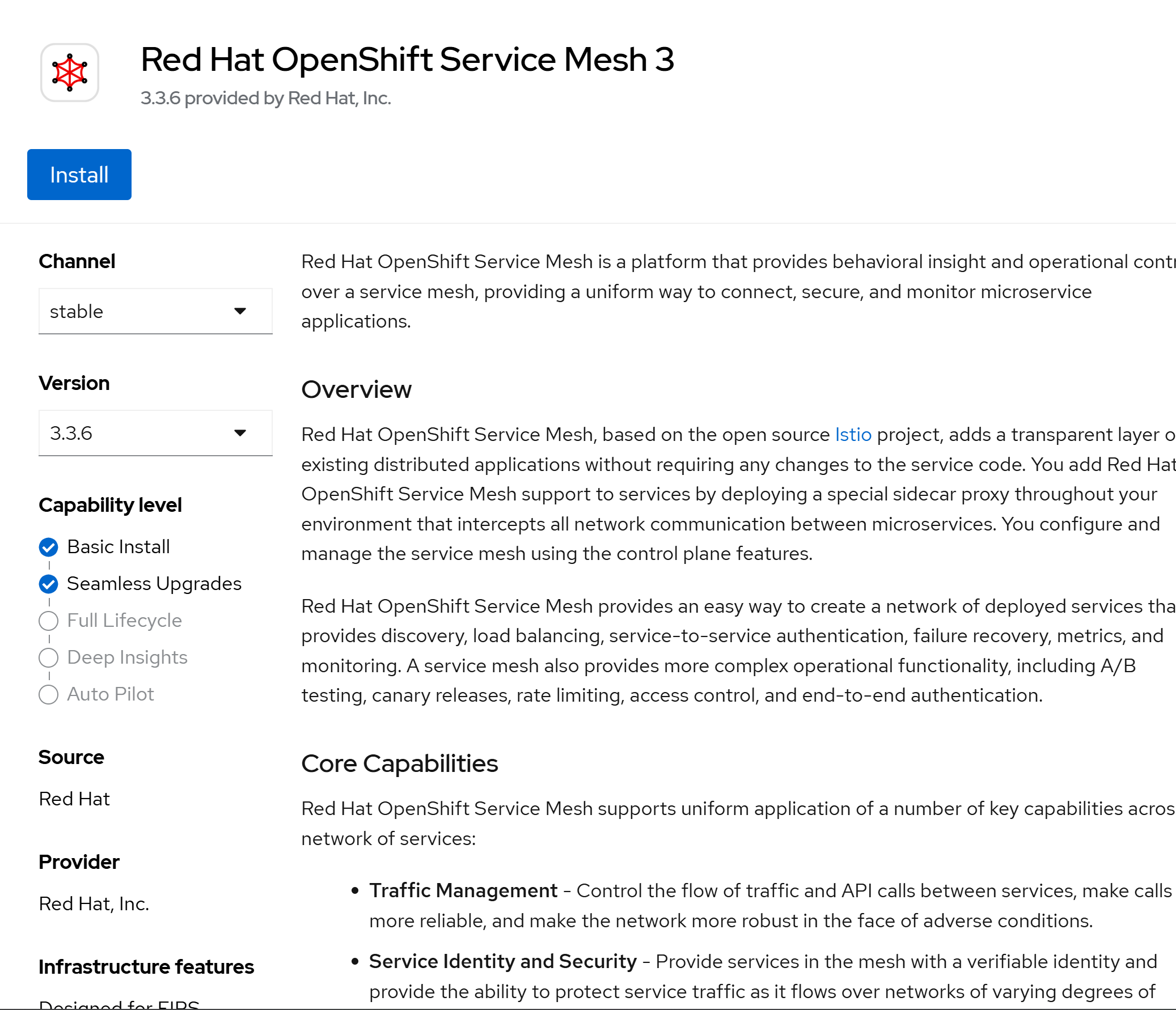
Select Install.
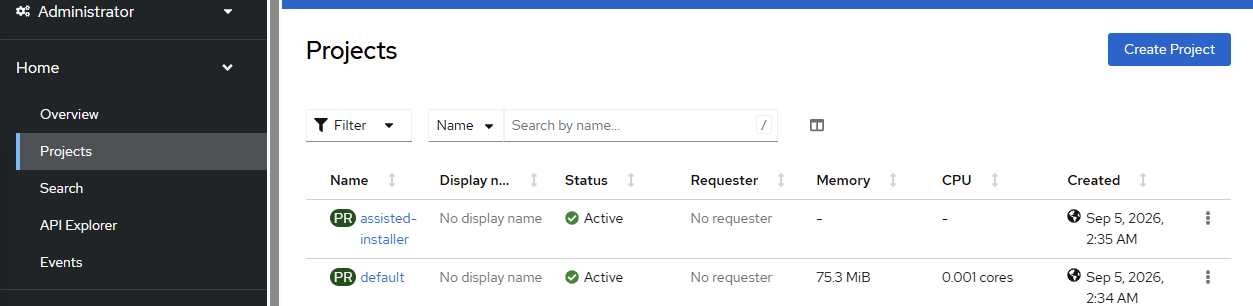
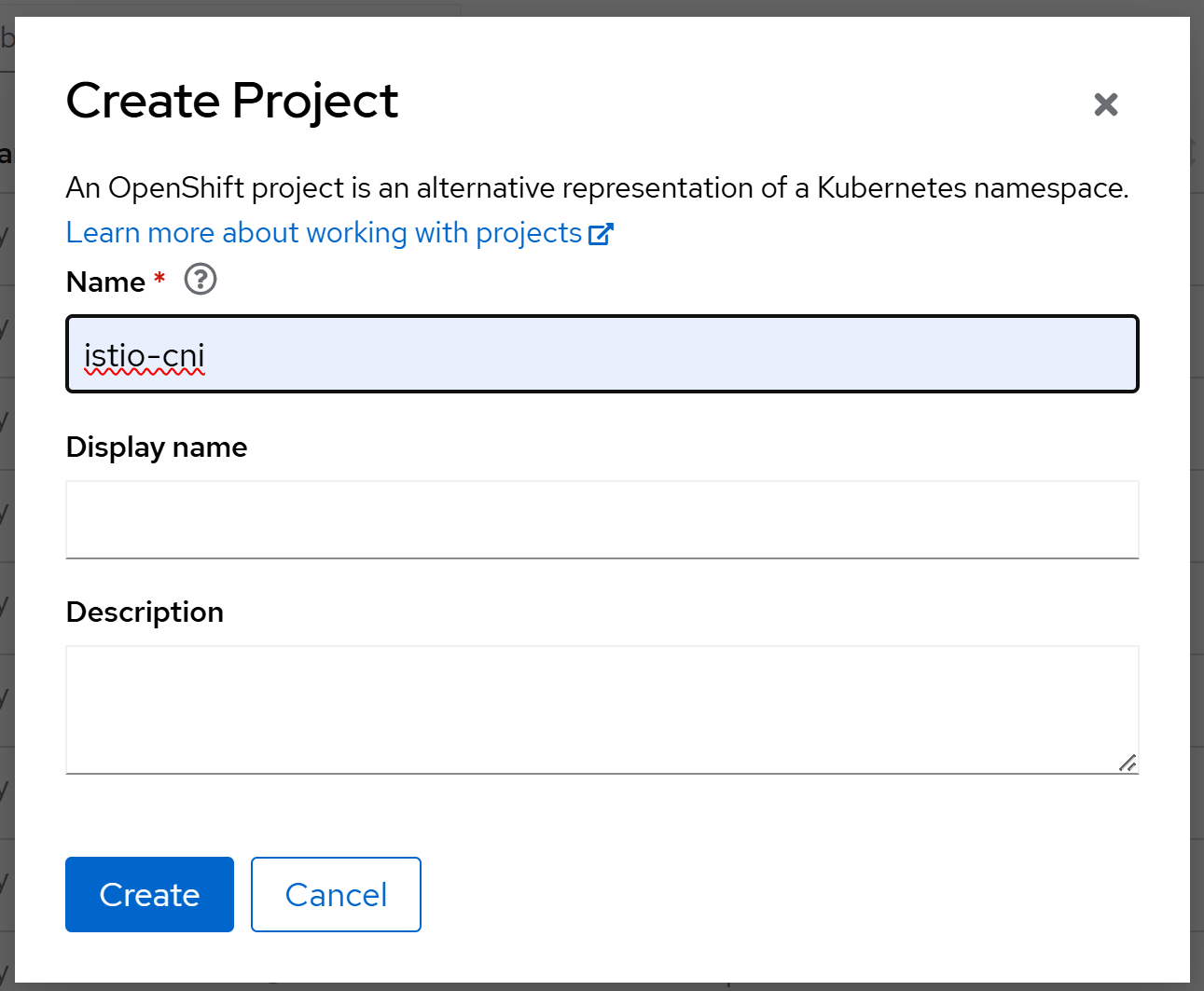
Create the istio-system and istio-cni projects. Navigate to Home > Projects and select Create Project.
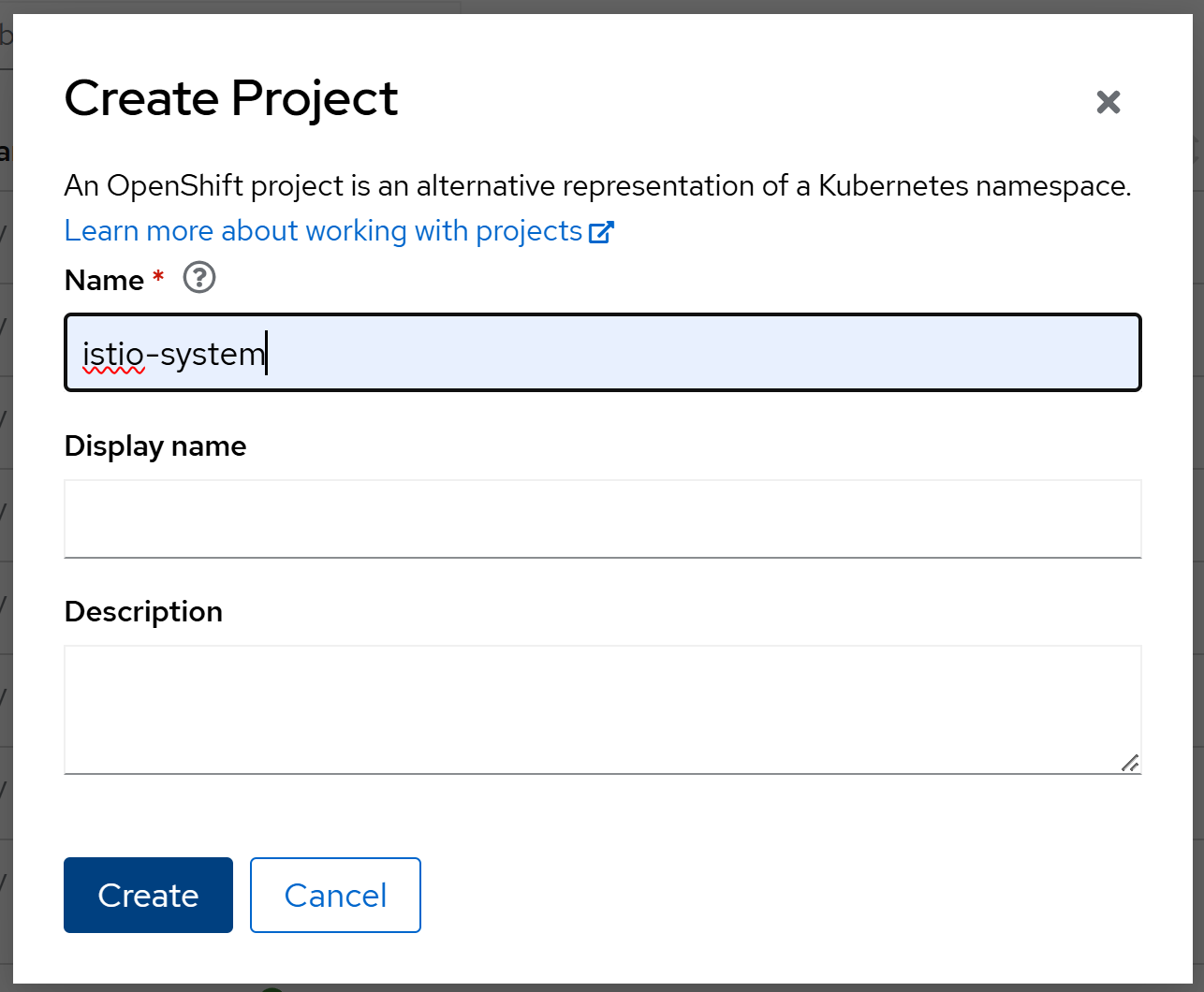
Enter the name istio-system and select Create. Repeat to create a project named istio-cni.
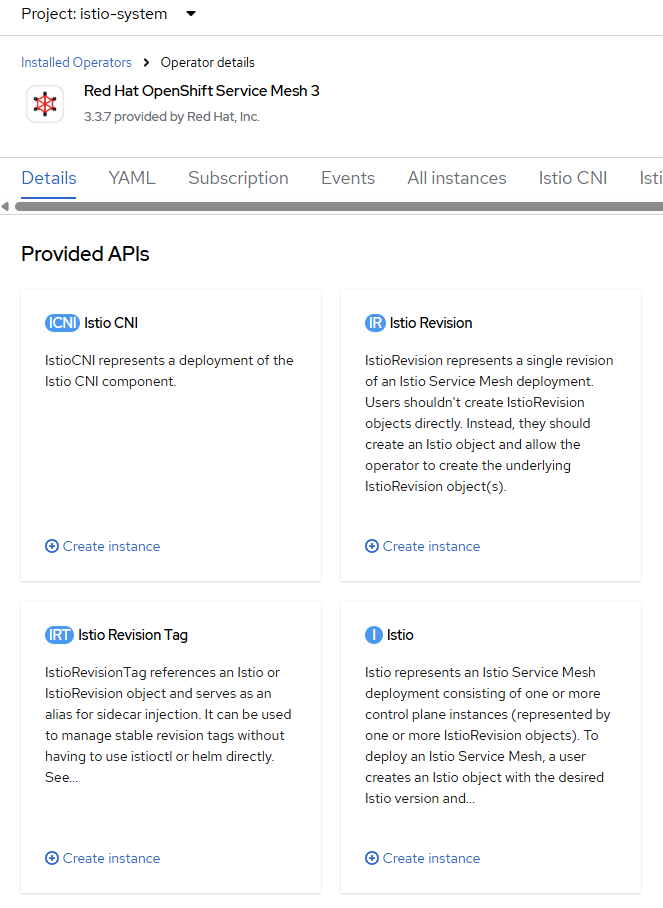
Navigate to the Operators section, select Installed Operators, select the istio-system project, and select Red Hat OpenShift Service Mesh 3.
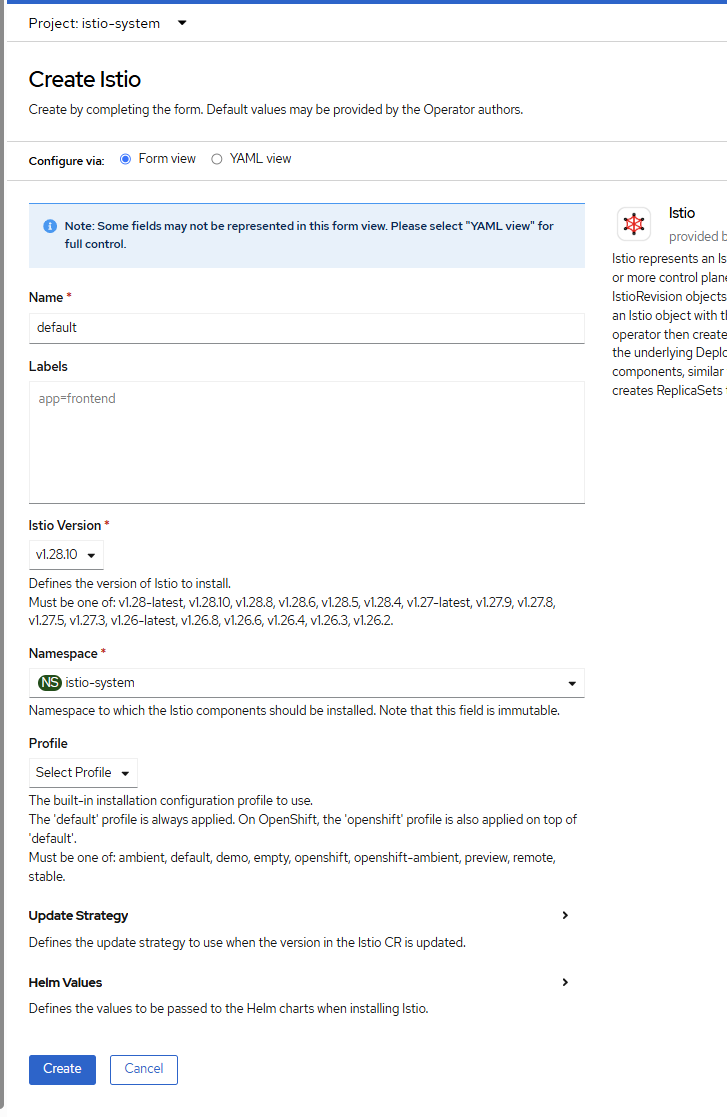
Select Create instance under Istio.
Select Create.
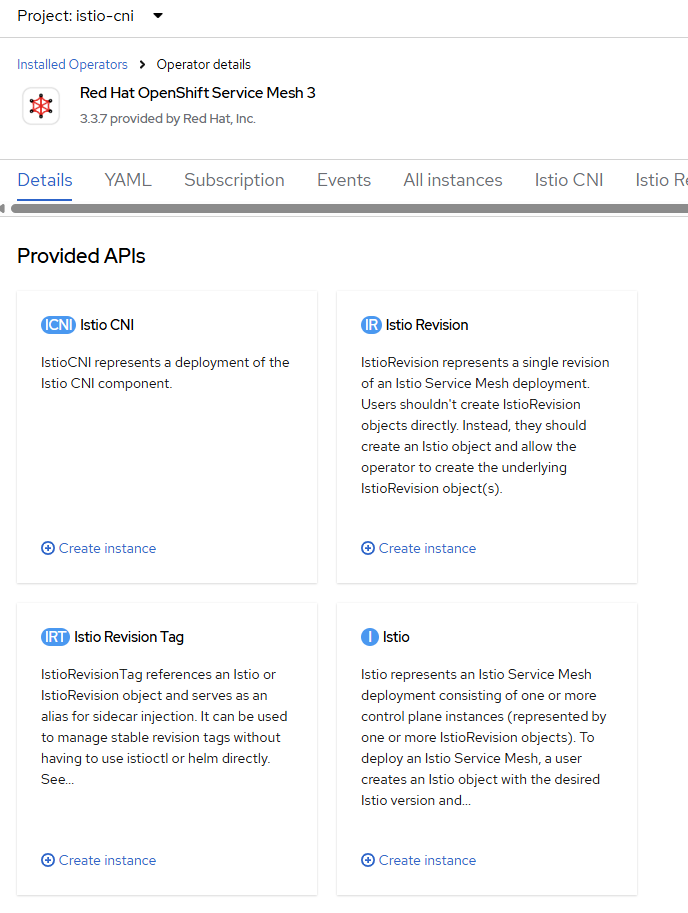
Navigate to the Operators section, select Installed Operators, select the istio-cni project, and select Red Hat OpenShift Service Mesh 3.
Select Create instance under Istio CNI.
Select Create.
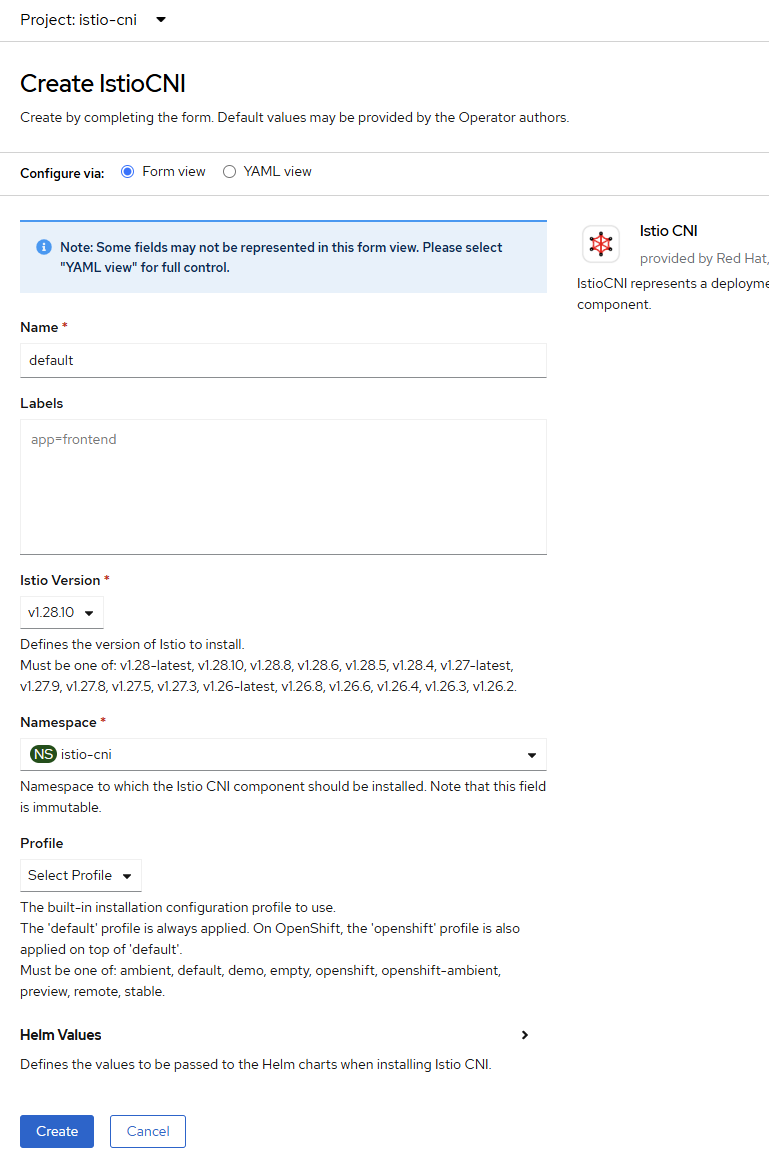
Verify that both resources are healthy:
oc get istio -n istio-system
oc get istiocni -n istio-cni
NAME      NAMESPACE      PROFILE   REVISIONS   READY   IN USE   ACTIVE REVISION   STATUS    VERSION    AGE
default   istio-system             1           1       1        default           Healthy   v1.28.10   39s

NAME      NAMESPACE   PROFILE   READY   STATUS    VERSION    AGE
default   istio-cni             True    Healthy   v1.28.10   20s
Enable sidecar injection on the application namespace that should join the mesh:
oc label namespace <namespace> istio-injection=enabled
Replace
<namespace>with the namespace that hosts the application workloads. Restart existing application workloads after labeling the namespace. Newly created pods should show an additional Envoy proxy container.
Note
After cluster configuration is complete, run Platform Verification to validate cluster readiness before deploying the reference applications.