


Installer Agent#
NVIDIA recommends the Installer Agent for installing and configuring a Holoscan for Media production cluster. This desktop application runs on your local workstation and guides you through a wizard. It connects to the jump node over SSH, installs the jump node software prerequisites, downloads the Ansible playbooks, and runs cluster installation and configuration for you.
Note
You can also download and run the Ansible playbooks yourself, as described in Download Ansible Playbooks. NVIDIA recommends the Installer Agent because it validates inputs at each step, prepares the jump node automatically, and includes an in-app assistant.
Important
Ensure that the cluster hosts meet the hardware and BIOS requirements. The jump node must meet the operating system and network requirements in Requirements for the Jump Node. The Installer Agent installs the jump node software prerequisites automatically.
Download and Launch#
The Installer Agent is a standalone desktop application. It is available for:
Windows (AMD64/x86-64):
h4m-installer-windows-amd64.exemacOS (Apple silicon):
h4m-installer-macos-arm64.dmg
Download the latest signed release from the H4M Installer project.
On Windows, run the
.exefile. On macOS, open the.dmgand launch the application.Select New Installation, enter an installation name, and select Start. To continue a previous installation, select its saved configuration instead.
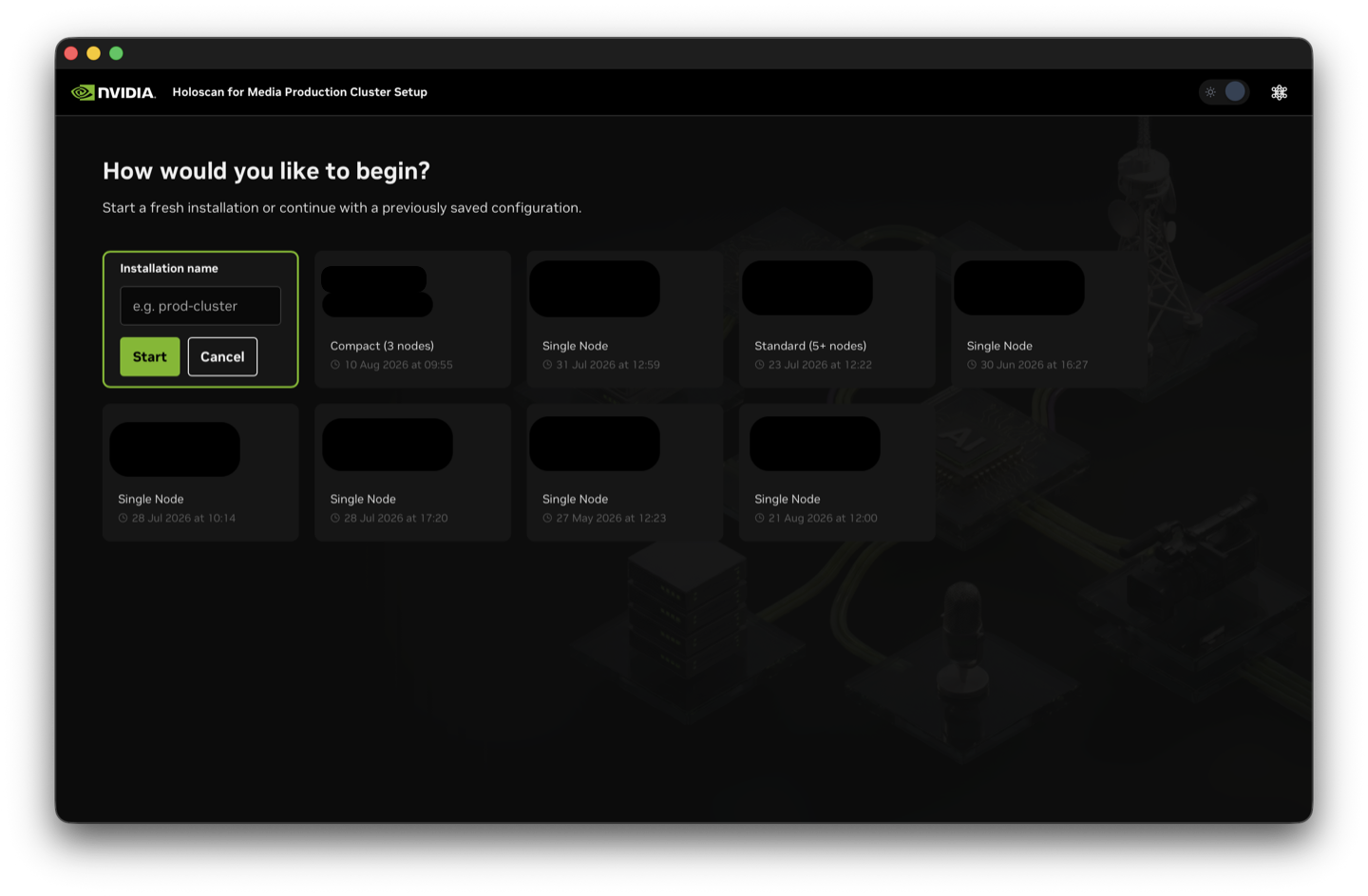
Start a new installation or resume a saved configuration.#
The application window is titled Holoscan for Media Production Cluster Setup. The minimum application window size is 900 by 600 pixels. The standalone application includes its runtime and does not require a separate Python installation. Your workstation must be able to reach the jump node over SSH. The jump node must be able to reach the cluster hosts and their baseboard management controller (BMC) and Intelligent Platform Management Interface (IPMI) addresses.
Using the Wizard#
The wizard has the following stages: Setup, Install, Configure, Reference Apps, and Finished. Installation takes about one and a half hours. Configuration takes about two more hours, depending on cluster size and network speed.
You can leave the wizard and resume later from a saved configuration. The Installer Agent saves the configuration automatically as you progress; there is no separate save action. The Installer Agent stores saved configurations in the following locations:
%APPDATA%\H4M Installer\saved_h4m_installations.jsonon Windows.~/Library/Application Support/H4M Installer/saved_h4m_installations.jsonon macOS.
Selecting a saved configuration restores its values and returns you to Setup > Jump node connection. Select Test connection again before you continue.
Warning
Saved configuration files contain credentials in plain text. Restrict access to the application data directory and delete the saved configuration file when you no longer need it.
Getting Help in the Wizard#
The Installer Agent provides several ways to understand each step:
Validation actions: Pages such as jump node connection, BMC details, and account keys require you to select a validation button before you can select Continue. The footer shows a hint, for example,
Click Test connection to enable Continue.Inline validation: Invalid entries show an error under the field, for example, when a cluster name does not meet OpenShift naming rules.
Links to external resources: Account keys and other pages link to where you can obtain an NGC API key or Red Hat offline access token.
AI Assistant: Select the neural network icon in the title bar to ask questions about the current step. For more information, refer to AI Assistant.
For detailed definitions of cluster and server properties, refer to Cluster Details and the server details table in Installation.
Setup#
Complete the following pages in order. Several pages require a validation action before you can continue.
Jump Node Connection#
The Installer Agent runs on your local workstation and connects to the jump node over SSH. Confirm connectivity before you enter cluster details.
Enter the jump node IP address or hostname, SSH port, username, and password.
Jump node connection fields# Field
Description
IP address or hostname
Management interface of the jump node, not the IPMI or BMC address. For example,
192.168.1.10.SSH port
SSH port on the jump node. The default is
22.Username
SSH user on the jump node.
Password
SSH password for that user.
Select Test connection.
The Installer Agent first checks that the host is reachable, and then opens an SSH session. This check confirms that your workstation can administer the jump node before the Installer Agent downloads or runs any playbooks.
When the test succeeds, the wizard displays Connected successfully! and enables Continue. If the test fails, verify network access and SSH credentials, and ensure that the jump node meets the operating system and network requirements.
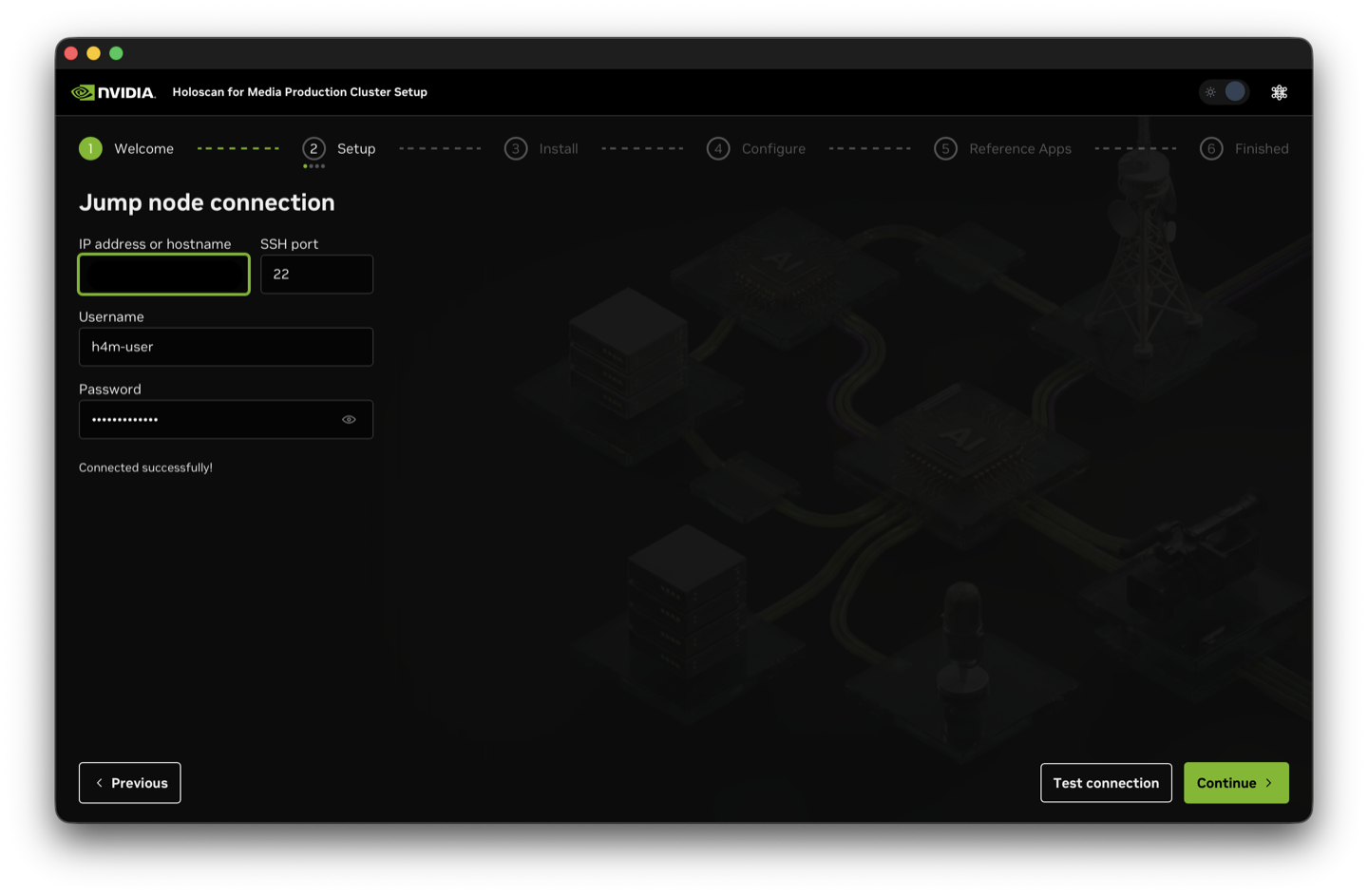
Jump node connection page after a successful test.#
Cluster Details#
Enter the properties that the Installer Agent writes to the installation playbook cluster.json file. Refer to Cluster Details and IP Addresses and DNS Records for background.
Field |
Description |
|---|---|
Cluster name |
OpenShift cluster name. Use lowercase letters, numbers, and hyphens. For example, |
Base DNS domain |
Base DNS domain of the cluster. For example, |
Holoscan for Media version |
Platform automation version to download from NGC. |
OpenShift version |
OpenShift version to install. |
CPU architecture |
CPU architecture of the cluster hosts, for example, |
Cluster size |
Single node (SNO), compact (3-node), or standard (5+ nodes). |
API VIPs |
API virtual IP address. Leave empty for single-node clusters. |
Ingress VIPs |
Ingress virtual IP address. Leave empty for single-node clusters. |
The wizard shows validation rules for the cluster name as you type. When all required fields are valid, you can select Continue.
BMC and IPMI Details#
Enter the IPMI and BMC details for each cluster host. These details map to the cluster_details.json properties described in Installation.
Each cluster size requires the following hosts:
Single node: one host
Compact (3-node): three hosts (all with master role)
Standard (5+ nodes): five or more hosts (three master, the rest worker)
Field |
Description |
|---|---|
IP address |
IPMI or BMC IP address of the server, used for Redfish API access. |
Username |
IPMI or BMC username. |
Password |
IPMI or BMC password. |
Hostname |
Hostname assigned during OpenShift installation, for example, |
Role |
Master or Worker. For single node and compact clusters, all nodes must be master. |
For compact and standard clusters, you can use shared BMC credentials for all hosts.
Enter the details for each node.
Select Verify BMC.
The Installer Agent checks Redfish access for each BMC IP address. The wizard shows the status of each node as verification completes.
When every node shows a successful result, select Continue.
Account Keys#
The installation and configuration playbooks require an NGC API Key and a Red Hat offline access token.
Enter your NGC API key and Red Hat offline access token. Use the links on the page to create them if needed.
Select Validate keys.
The Installer Agent verifies both credentials and checks NGC access to the Holoscan for Media automation resources.
When validation succeeds, the wizard shows a checklist of NGC resources with a check mark for each resource. You can select Continue only when both keys are valid.
Install#
Select Start install to begin installation.
The Installer Agent then:
Installs the required jump node software, including
jq,curl, Ansible, Apache, andtmux, and generates an SSH key pair if one is not already available.Downloads and extracts the installation and configuration playbooks on the jump node.
Writes the cluster configuration files and runs the installation playbook.
Watch the live log until installation completes. The wizard shows the progress and the current task.
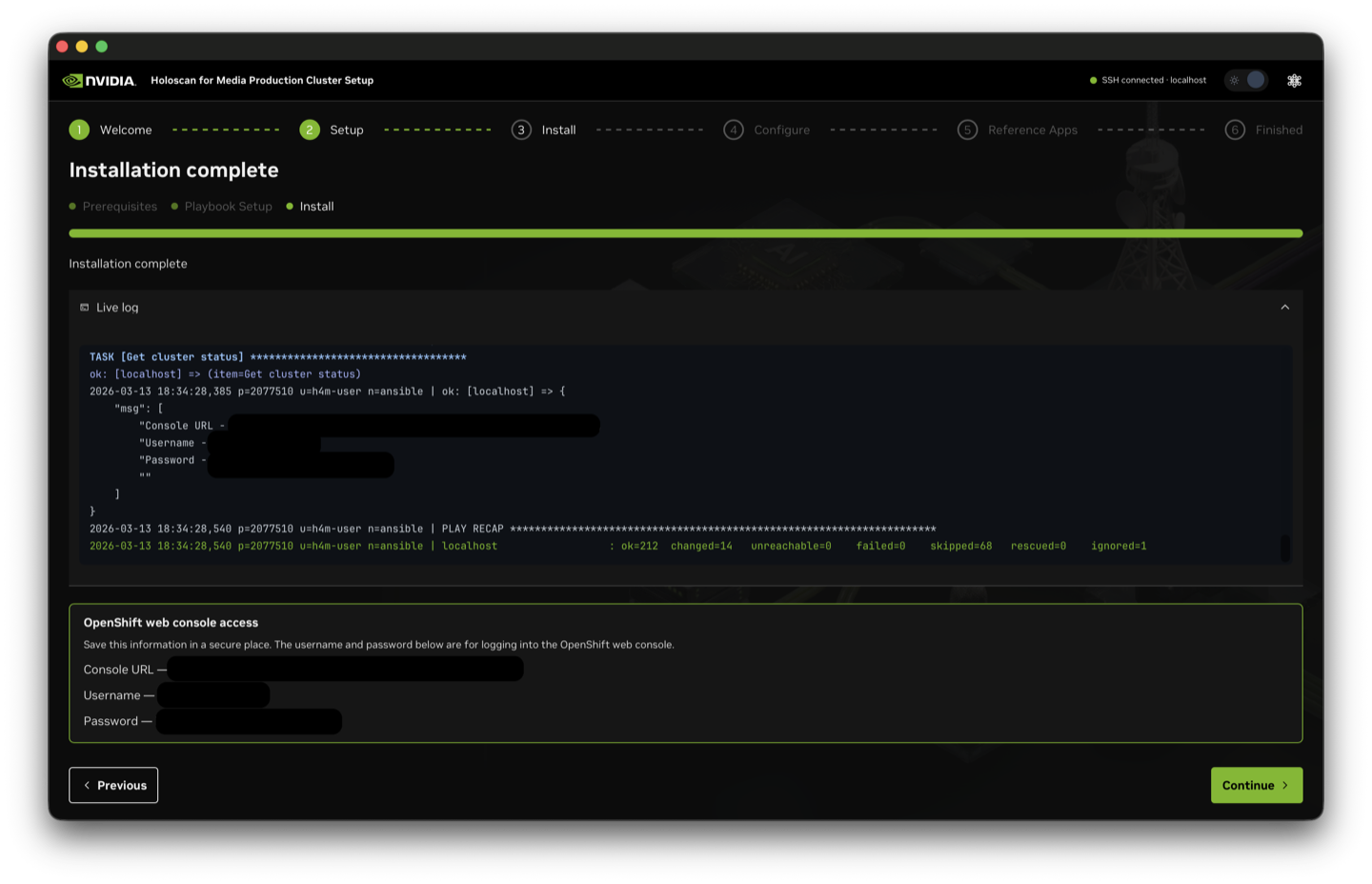
Install stage with live log output.#
Retrieve the OpenShift web console URL, username, and password from
cluster-credentials.txton the jump node. The Configure stage requires them.
If OpenShift is already installed, you can skip this stage and provide existing console credentials instead.
Configure#
DNS Resolution#
Confirm that
api.<name>.<base_dns_domain>and*.apps.<name>.<base_dns_domain>resolve from both your workstation and the jump node.Add DNS A records, or update the jump node
hostsfile, as described in IP Addresses and DNS Records.Use the wizard to check resolution before you continue.
Upload Kubeconfig#
Optionally, upload the kubeconfig file from the Red Hat console.
Red Hat retains this file for only 20 days after cluster installation, so download and keep a local copy.
If you skip this step, configuration uses oc login with a temporary token from the jump node.
For download instructions, refer to Download Kubeconfig.
Cluster Configuration#
Important
If you select Rook Ceph as the storage provider, prepare spare object storage daemon (OSD) disks before cluster configuration. For instructions, refer to Prepare Disks for Rook Ceph OSDs.
Choose how to configure networking, network interface cards (NICs), and node pools:
Interactive Configuration (recommended): Discover topology and configure networks, node pools, NIC mapping, tuning, and platform options step by step in the wizard.
Advanced (YAML based): Download
custom-vars.yaml, edit it locally, and continue. The Advanced option gives you more control over the applied configuration.
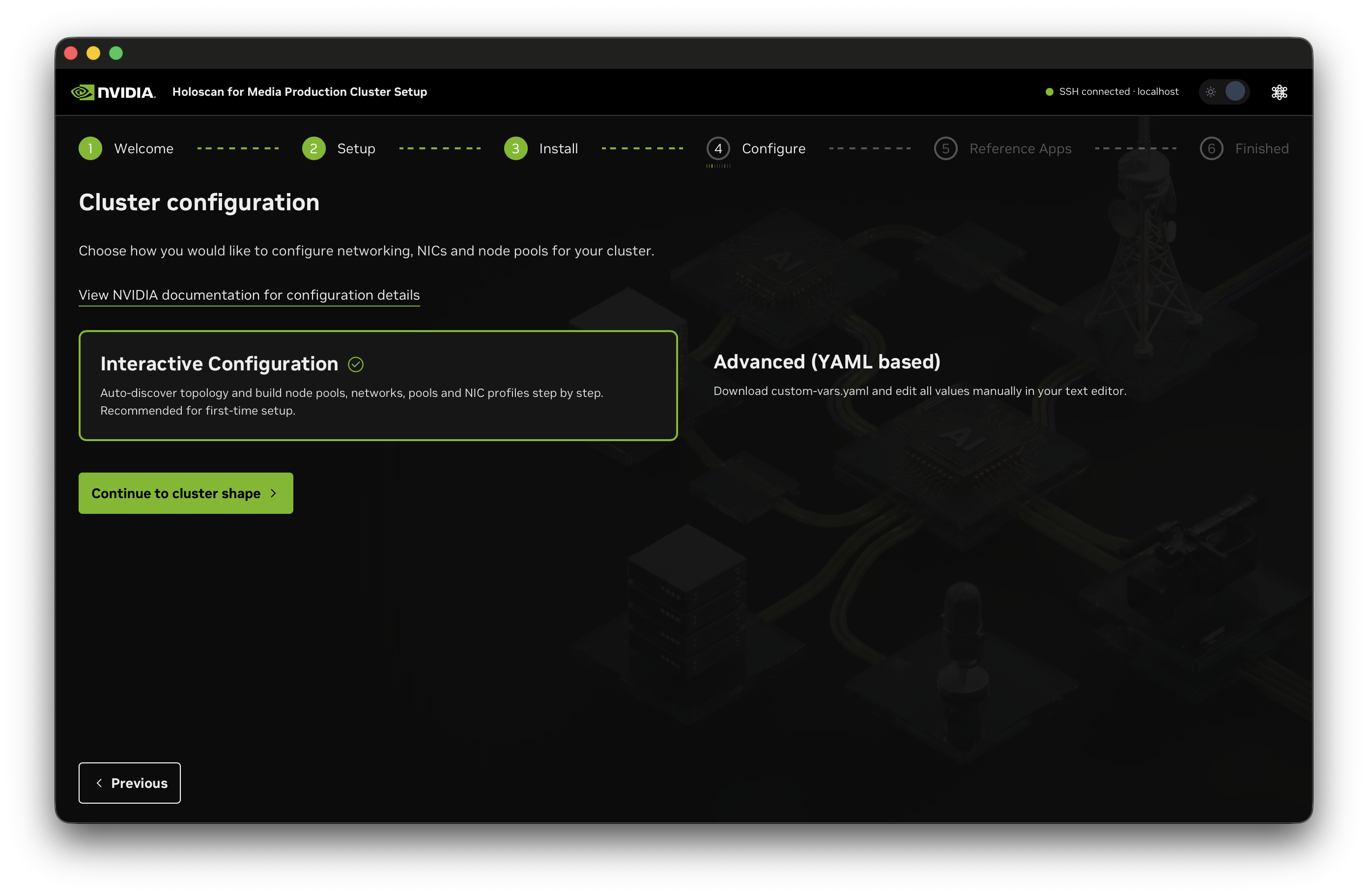
Interactive Configuration and Advanced (YAML based) options.#
In Advanced (YAML based) configuration:
Select Download custom-vars.yaml to download the configuration file from the jump node.
Open the downloaded file in a text editor and update its networks, media pools, NIC profiles, node pools, and tuning settings.
Return to the Installer Agent and select Continue. The Installer Agent uploads the edited file to the jump node before the configuration playbook runs.
In Interactive Configuration:
Networks define the network settings used by the cluster and its workloads.
Node pools group nodes that share a function and configuration, such as media processing or PTP.
NIC mapping assigns discovered network interfaces to the appropriate network and node-pool roles.
On the cluster shape page, choose whether all configurable nodes have identical hardware and roles. In standard clusters with more than three nodes, the Installer Agent configures only worker nodes. In SNO and compact clusters, it configures the control-plane nodes because those nodes also run workloads. For a uniform cluster, the Installer Agent creates one node pool and applies it to all worker nodes. For mixed hardware or roles, select No — mixed hardware/roles. For each additional pool, enter a pool name, select its Container or VM workloads usage, and select Add node pool. Assign every configurable node to a pool before you continue.
Define each logical network once by entering its name, optional VLAN, subnet in CIDR notation, and type. Leave the VLAN blank for an untagged network.
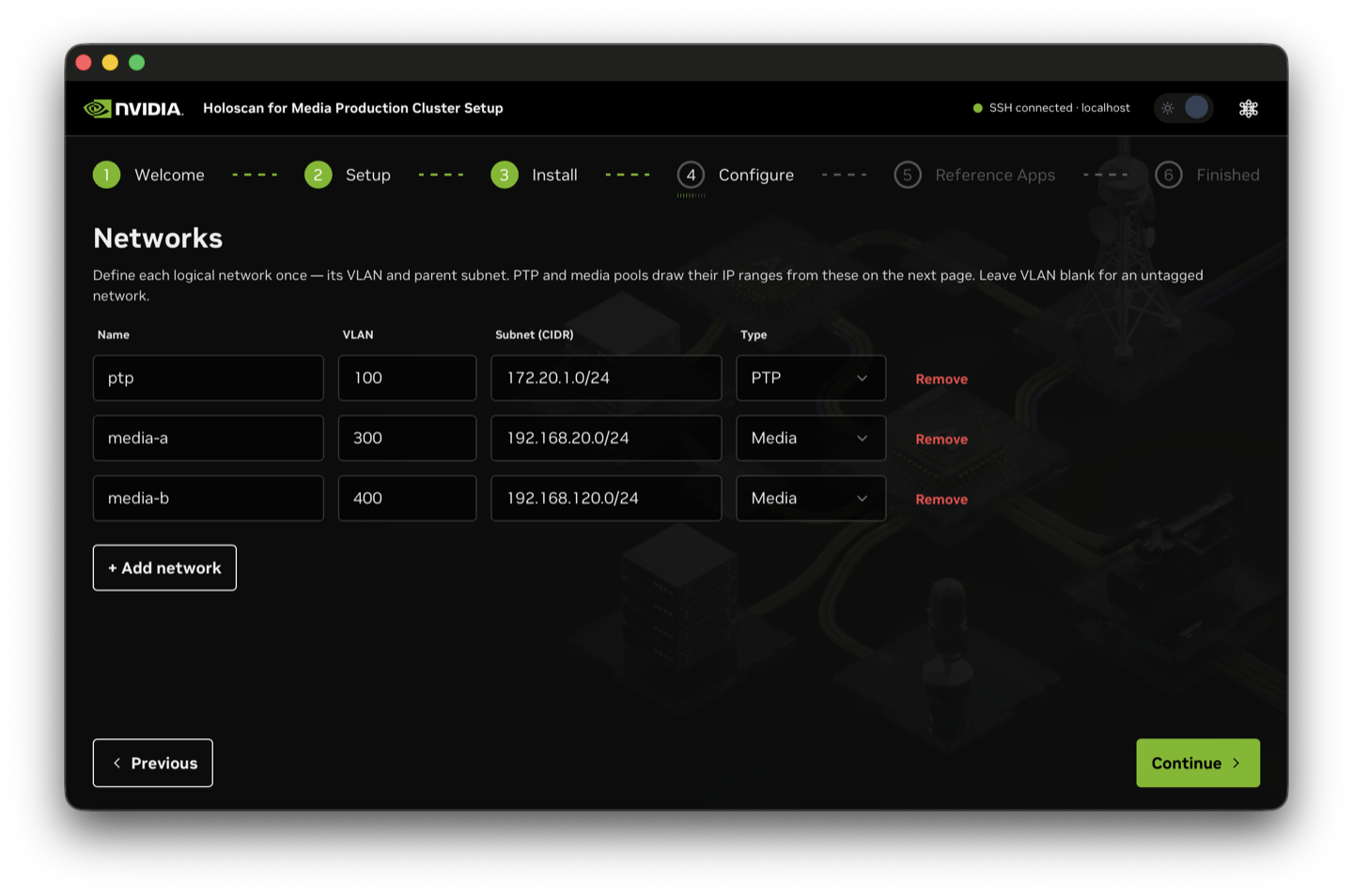
Define the PTP and media networks.#
Choose how to split each media network:
Dedicated Tx / Rx: Separate transmit and receive pools.
Single shared: One pool for both transmit and receive traffic on the same port.
Tx1 / Tx2 / Rx1 / Rx2: Four standalone pools.
The Installer Agent calculates the ranges from the network subnet. Adjust them if needed.
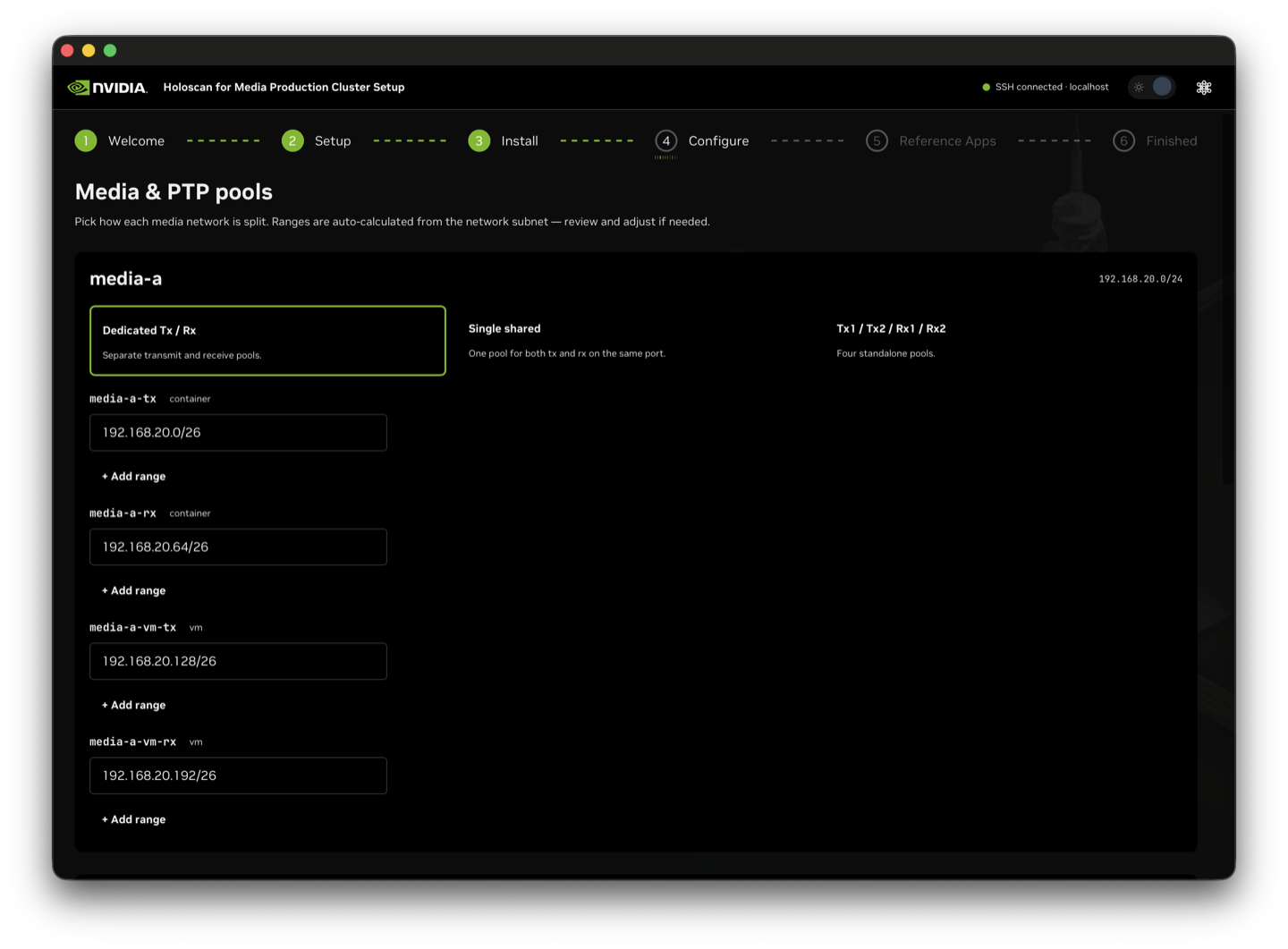
Review the media and PTP pool address ranges.#
Map the discovered network interfaces to their network and node-pool roles.
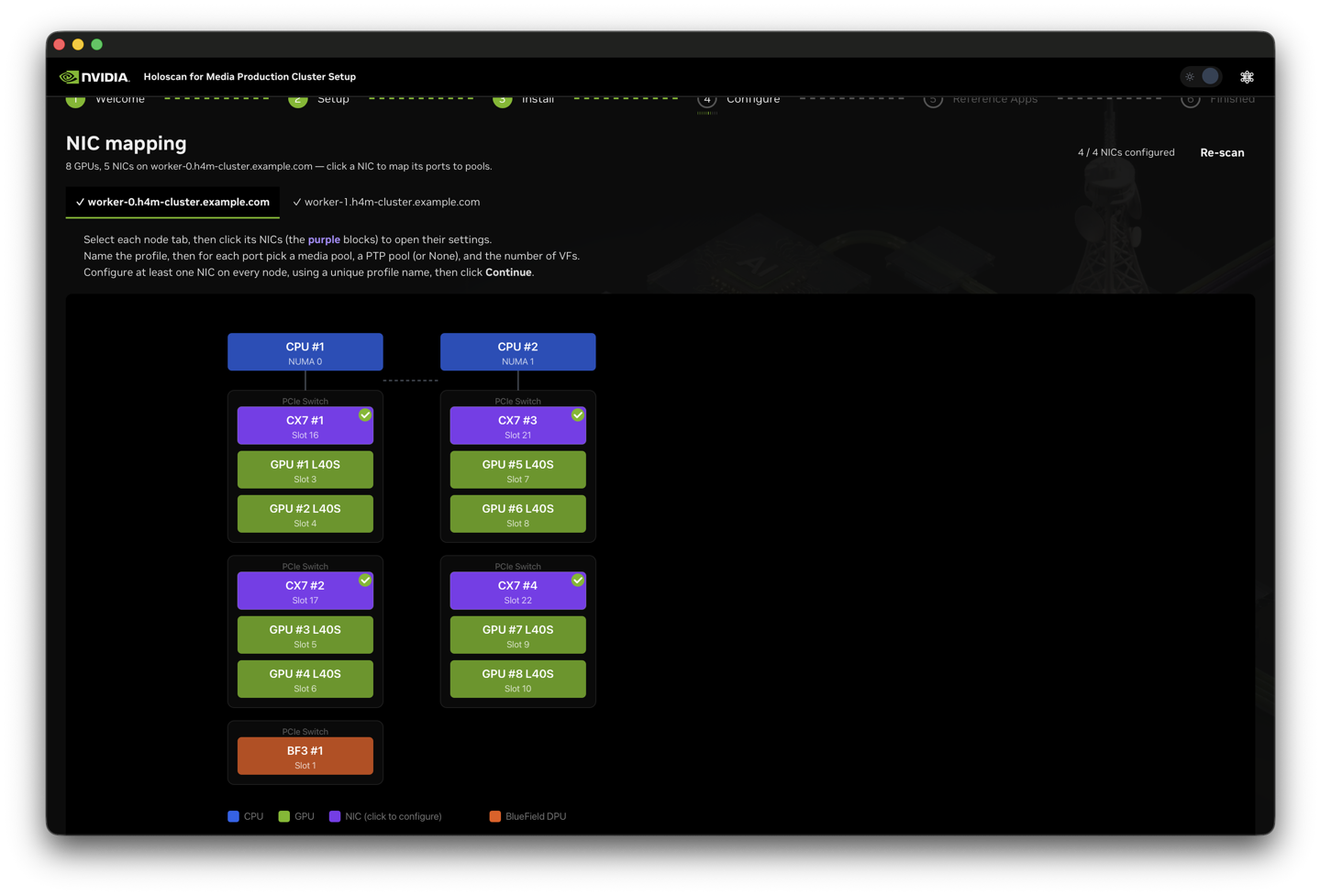
NIC mapping page in Interactive Configuration.#
Review node tuning. All node pools initially use the default tuning profile. Add another profile only when a pool requires different isolated or reserved CPUs, hugepages, or kernel settings.
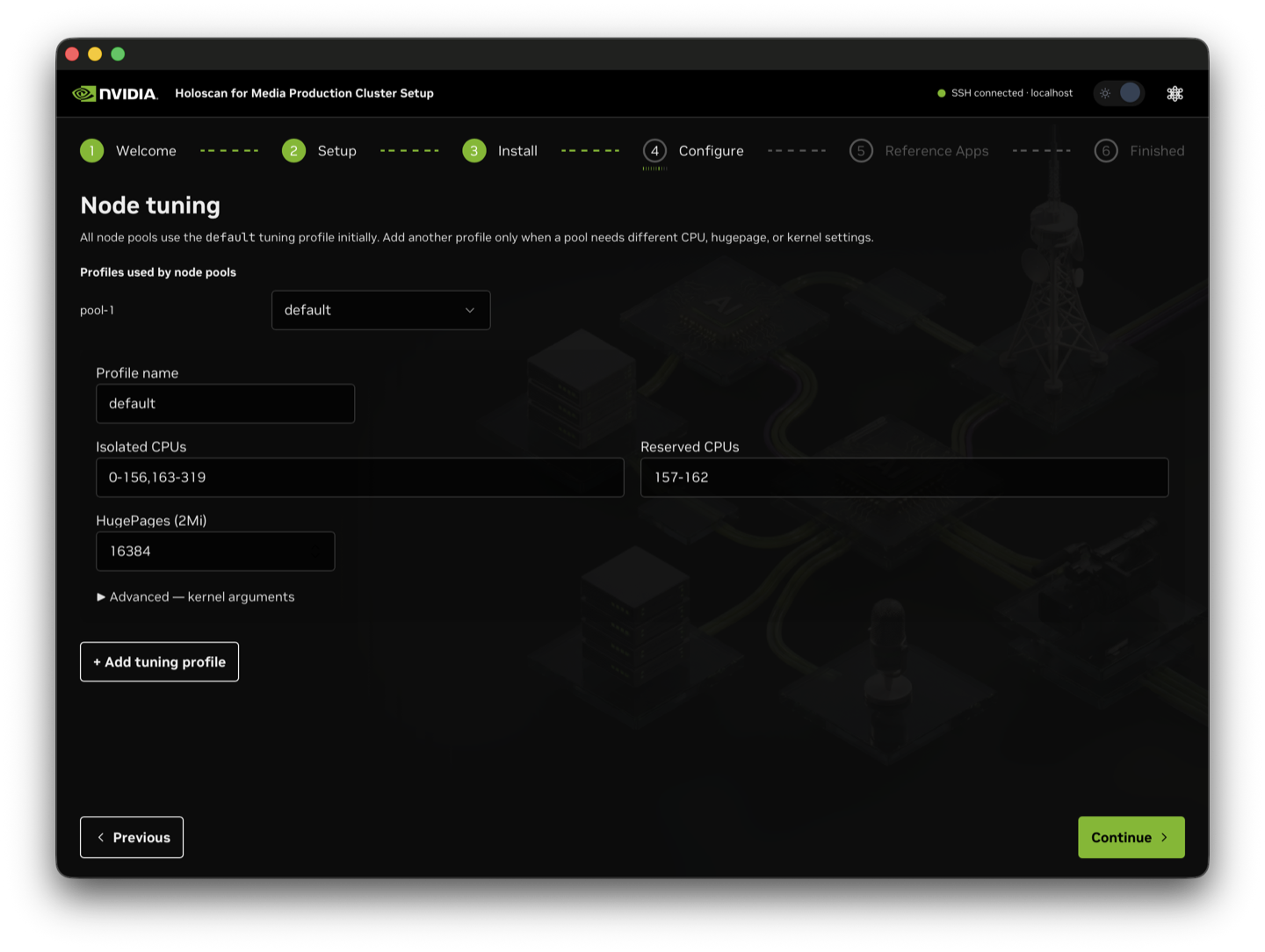
Review the tuning profile used by each node pool.#
Run the configuration playbook from the wizard. The configuration takes about two hours.
Reference Apps#
You can optionally deploy the reference applications from the wizard, including Helm Dashboard, Chrome Remote Desktop, NMOS Registry, NMOS Controller, and Media Gateway. This stage downloads the applications playbook on the jump node. You can skip this stage and deploy applications later.
AI Assistant#
Select the neural network icon in the title bar at any time to open the AI Assistant. The assistant can explain the current step, help validate inputs, and answer questions about Holoscan for Media installation.
To enable it, enter a separate NVIDIA API key from build.nvidia.com in the AI Assistant panel and select Save. This key is not the NGC API key that you entered in the Account Keys step. The Installer Agent stores this key encrypted in the local application database and sends it to the NVIDIA API over HTTPS for authentication. The assistant is optional. You do not need it to complete the installation.
Important
The AI Assistant sends your question, recent chat history, documentation excerpts, a summary of the current wizard state, and recent installation and configuration log output to the NVIDIA API. The wizard-state summary excludes credential fields, including SSH and BMC passwords, the NGC API key, the Red Hat token, and OpenShift credentials. The Installer Agent does not redact chat history or log output, which might contain sensitive information. Do not enter secrets in the chat, and review log output before you use the assistant.
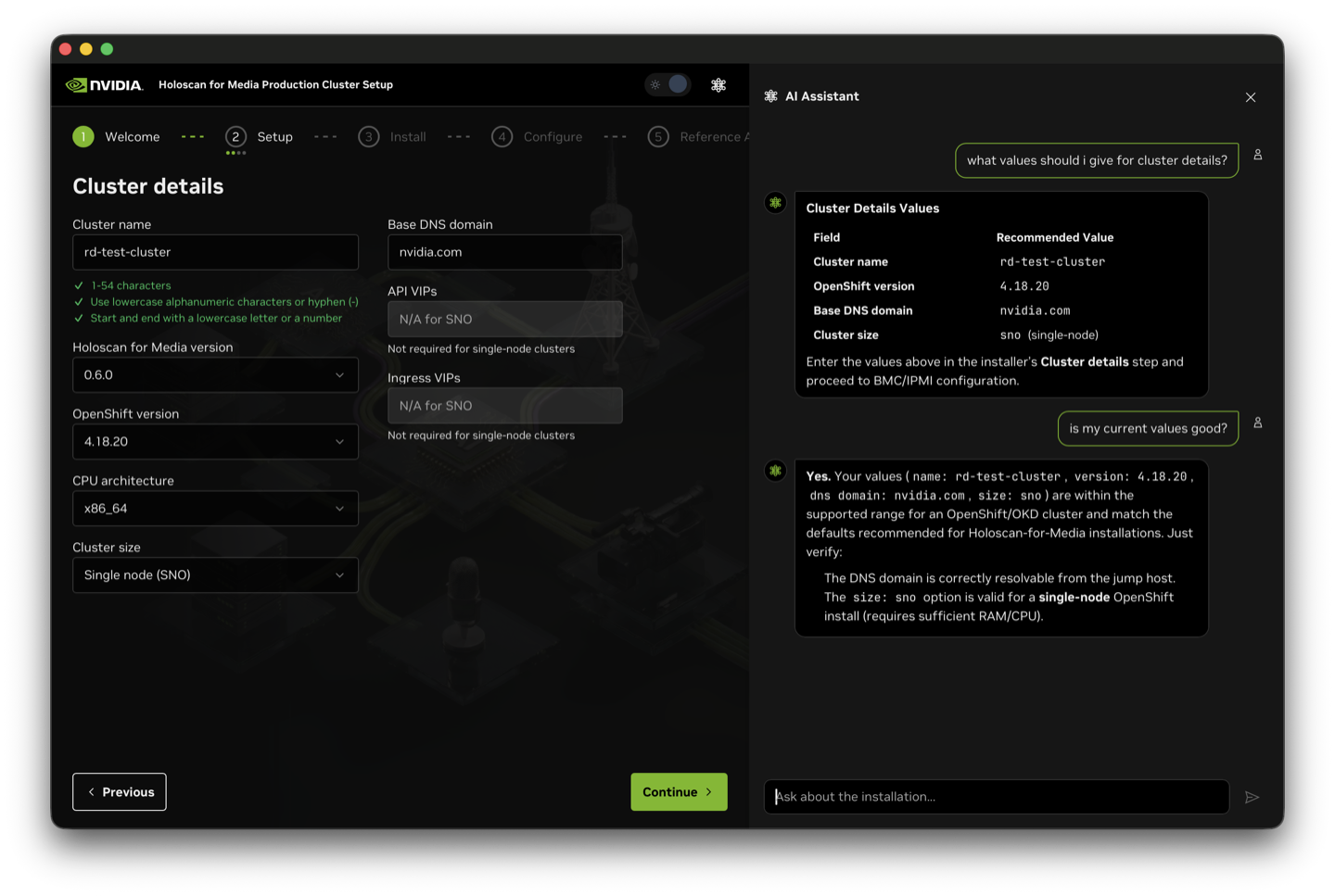
AI Assistant panel alongside the Cluster details page.#
Next Steps#
After the wizard finishes, the cluster is ready for development. Continue with platform verification and platform monitoring.
If you did not deploy reference applications from the wizard, refer to Reference Applications.
The rest of Installation and Cluster Configuration describe installing with the Ansible playbooks directly.