


Windows#
Start with the basic procedure in this section to build, upload, and boot a normal Windows Server 2022 virtual machine (VM). The basic VM uses only the default pod network. It does not require a GPU, a Single Root I/O Virtualization (SR-IOV) interface, Rivermax, or application startup automation. Add those capabilities only after the basic VM has booted successfully.
Bring Up a Basic Windows VM on the Cluster#
This procedure implements the following path:
Windows ISO -> initial Windows VM -> internal snapshot -> standalone QCOW2
    -> uploaded DataVolume/PVC -> DataSource -> cloned VM disk -> running Windows VM
The validated image is a master boot record (MBR) image that boots with legacy BIOS. The OpenShift
VM therefore configures BIOS explicitly, uses a SATA root disk and an
e1000e management interface, and does not specify the windows.2k22
preference. Applying that preference would select UEFI Secure Boot and prevent
this image from booting.
Prepare the Ubuntu Build Host#
Use an Ubuntu build host with hardware virtualization enabled and enough local storage for the Windows ISO, the 80 GiB sparse builder disk, snapshots, and the exported QEMU Copy-On-Write version 2 (QCOW2) image.
Install Virtual Machine Manager, QEMU/KVM, libvirt, and the QEMU image tools:
sudo apt update
sudo apt install -y \
  virt-manager \
  qemu-kvm \
  qemu-utils \
  libvirt-daemon-system \
  libvirt-clients \
  bridge-utils
Enable libvirt and add the current user to the required groups:
sudo systemctl enable --now libvirtd
sudo adduser "$(id -un)" libvirt
sudo adduser "$(id -un)" kvm
Log out of the build host and log in again so that the new group membership takes effect.
Verify the system libvirt connection and KVM device:
id
ls -l /dev/kvm
virsh -c qemu:///system uri
virsh -c qemu:///system list --all
virt-host-validate qemu
command -v virt-manager virt-install virsh qemu-img
virsh -c qemu:///system urimust reportqemu:///system. Aqemu:///sessionconnection can report that the host does not support any virtualization options even when/dev/kvmis available.Confirm that the build and libvirt filesystems have sufficient capacity:
df -h "$HOME" /var/lib/libvirt/images /tmp
Do not build from
/or store the source files in/root. If the home directory is on a root-squashed NFS filesystem, first copy files as the unprivileged user to/tmp, and then usesudoto copy them into/var/lib/libvirt/images.
Prepare and Verify the Installation Media#
Create a user-writable build directory:
mkdir -p "$HOME/vm-build/windows-server-2022"
cd "$HOME/vm-build/windows-server-2022"
Obtain the Windows Server 2022 installation ISO through the organization’s approved software-distribution process and save it as
SERVER_EVAL_x64FRE_en-us.isoin the build directory.Evaluation media is time limited. Use licensed media for any image that is intended to outlive the evaluation period.
Verify the ISO before creating the VM:
ls -lh SERVER_EVAL_x64FRE_en-us.iso
file SERVER_EVAL_x64FRE_en-us.iso
Copy the verified media into libvirt storage:
sudo install -m 0644 \
  SERVER_EVAL_x64FRE_en-us.iso \
  /var/lib/libvirt/images/SERVER_EVAL_x64FRE_en-us.iso
sudo ls -lh /var/lib/libvirt/images/
Create an Initial Windows VM#
Create the initial Windows VM on the Ubuntu build host. This VM becomes the source of the standalone QCOW2 image that you upload to OpenShift. It uses 4 vCPUs, 8 GiB of memory, and an 80 GiB sparse QCOW2 disk. The disk uses SATA so that Windows Setup detects it without loading an additional storage driver.
To create the initial Windows VM with Virtual Machine Manager:
Start Virtual Machine Manager and verify that QEMU/KVM - System is the active connection. Do not create this VM under QEMU/KVM User session.
Select File > New Virtual Machine.
Select Local install media (ISO image or CDROM), and then select Forward.
Select Use ISO image > Browse, select the
defaultstorage pool, selectSERVER_EVAL_x64FRE_en-us.iso, and then select Choose Volume./var/lib/libvirt/imagesis thedefaultpool, and libvirt reads it on your behalf. Verify that Virtual Machine Manager detects Windows Server 2022 as the operating system. Select it manually if automatic detection is unavailable.Select Forward, set Memory to
8192 MiBand CPUs to4, and then select Forward.Select Create a disk image for the virtual machine, set its capacity to
80 GiB, and then select Forward.Set Name to
win2k22, select Customize configuration before install, verify that the connection is QEMU/KVM - System, and then select Finish.In Overview, set Chipset to
Q35and Firmware toBIOS. Do not select an OVMF, UEFI, or Secure Boot firmware.Select the 80 GiB disk and set Disk bus to
SATA.Select Boot Options, enable the Windows installation CD-ROM and the 80 GiB disk, and move the Windows CD-ROM above the disk in the boot order.
Review the settings and select Begin Installation. Virtual Machine Manager starts the VM from the Windows ISO and opens its graphical console.
To start the initial Windows VM again later, select win2k22 under
QEMU/KVM - System, select Open, and select Run on the VM toolbar.
Use Virtual Machine Manager for its local power operations. The virtctl
commands later in this guide apply only to VMs running on the cluster.
Install Windows Server 2022#
Open the VM console and select a Windows Server 2022 edition with Desktop Experience. Select the licensed edition that the deployment requires.
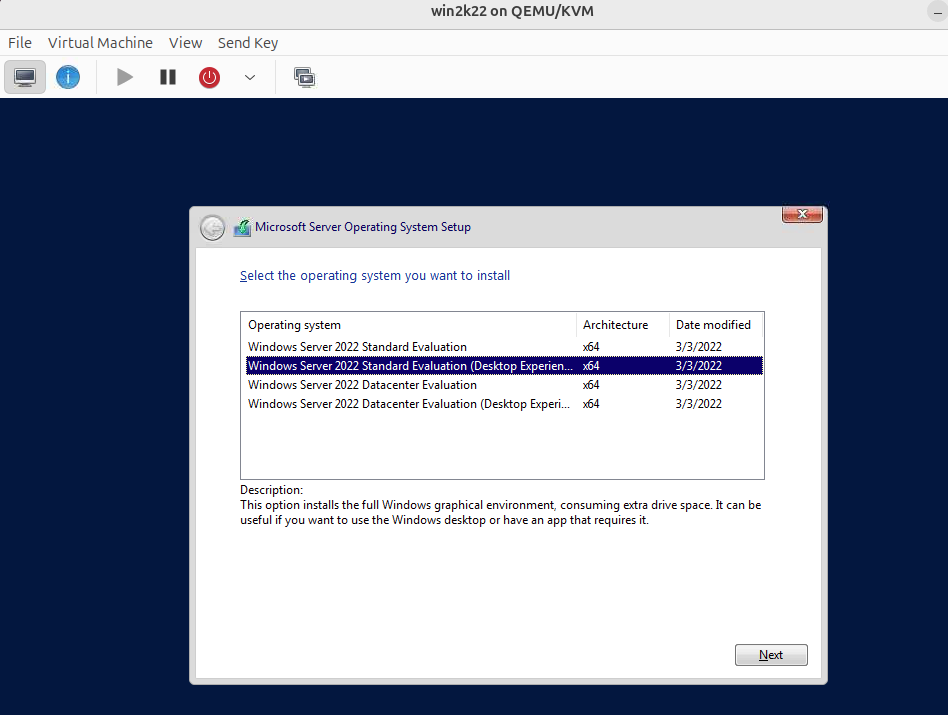
Select a Desktop Experience edition to install the Windows graphical environment.#
Accept the license, select Custom: Install Microsoft Server Operating System only, select the 80 GiB unallocated SATA disk, and continue the installation. Do not open Load driver for the SATA disk.
Set the Administrator password and install Windows updates until no restart is pending.
Reboot Windows and confirm that the VM returns to the Windows sign-in screen in the Virtual Machine Manager console.
Create an Internal Snapshot and Standalone QCOW2#
Shut down Windows cleanly from the Windows Start menu. Wait until Virtual Machine Manager shows
win2k22as Shutoff. Open the VM, select View > Snapshots, select Add, and create the optional powered-off maintenance snapshotbase-installedbefore installing advanced drivers or applications.After Virtual Machine Manager shows the VM as Shutoff, select View > Snapshots, select Add, and create the final snapshot named
snapshot1.Confirm that the QCOW2 image contains
snapshot1:sudo qemu-img snapshot -l \ /var/lib/libvirt/images/win2k22.qcow2
Do not pass a libvirt-only snapshot name to
qemu-img convert -l. The snapshot must appear in this list.Export the snapshot to the same standalone compressed QCOW2 form used during validation:
sudo qemu-img convert \
  -c \
  -O qcow2 \
  -l snapshot1 \
  /var/lib/libvirt/images/win2k22.qcow2 \
  /tmp/vm_2k22_v1.qcow2
sudo chown "$(id -un):$(id -gn)" \
  /tmp/vm_2k22_v1.qcow2
mv /tmp/vm_2k22_v1.qcow2 ./vm_2k22_v1.qcow2
chmod 0644 vm_2k22_v1.qcow2
Validate the exported image:
qemu-img check vm_2k22_v1.qcow2
qemu-img info --backing-chain vm_2k22_v1.qcow2
sha256sum vm_2k22_v1.qcow2
Verify that the format is
qcow2, the virtual size is 80 GiB, and the output lists no backing file.
Prepare the OpenShift Client#
Log in to the target cluster with oc and confirm that the active session is
valid. The following command must return the logged-in user:
oc whoami
From the directory containing vm_2k22_v1.qcow2, upload the image directly
as a Containerized Data Importer (CDI) DataVolume:
virtctl image-upload dv vm-2k22-v1 \
  --namespace=default \
  --image-path=vm_2k22_v1.qcow2 \
  --size=150Gi \
  --storage-class=rook-ceph-block \
  --insecure \
  --force-bind
Wait for the upload to complete before creating the DataSource.
Create the Windows Instance Type#
Create windows-instancetype.yaml with the instance type that the validated
VM uses:
apiVersion: instancetype.kubevirt.io/v1beta1
kind: VirtualMachineInstancetype
metadata:
  name: h4m-windows-instance-dedicated-8gi
  namespace: default
spec:
  cpu:
    guest: 8
    model: host-passthrough
    dedicatedCPUPlacement: true
    isolateEmulatorThread: true
  memory:
    guest: 8Gi
    hugepages:
      pageSize: 2Mi
  nodeSelector:
    nvidia.com/holoscan-for-media.vm-workloads: "true"
  schedulerName: topo-aware-scheduler
Check whether the instance type already exists. Apply the file only when the cluster does not already provide it:
oc get virtualmachineinstancetype \
  h4m-windows-instance-dedicated-8gi \
  -n default
oc apply -f windows-instancetype.yaml
oc get virtualmachineinstancetype \
  h4m-windows-instance-dedicated-8gi \
  -n default -o yaml
Create the DataSource#
Create windows-datasource.yaml to expose the uploaded source PVC as a
reusable image:
apiVersion: cdi.kubevirt.io/v1beta1
kind: DataSource
metadata:
  name: vm-2k22-v1-ds
  namespace: default
spec:
  source:
    pvc:
      name: vm-2k22-v1
      namespace: default
Apply and verify the DataSource:
oc apply -f windows-datasource.yaml
oc wait datasource/vm-2k22-v1-ds \
  -n default --for=condition=Ready --timeout=120s
oc get datasource vm-2k22-v1-ds -n default -o yaml
Create the Basic Windows VM#
Create windows-vm.yaml. Each VM receives a private writable clone of the
DataSource. The manifest intentionally has no preference field and
explicitly selects BIOS firmware, SATA, and e1000e:
apiVersion: kubevirt.io/v1
kind: VirtualMachine
metadata:
  name: win2k22-basic-01
  namespace: default
  labels:
    app: win2k22-basic-01
spec:
  runStrategy: Always
  instancetype:
    kind: VirtualMachineInstancetype
    name: h4m-windows-instance-dedicated-8gi
  dataVolumeTemplates:
    - metadata:
        name: win2k22-basic-01
      spec:
        sourceRef:
          kind: DataSource
          name: vm-2k22-v1-ds
          namespace: default
        storage:
          accessModes:
            - ReadWriteOnce
          resources:
            requests:
              storage: 150Gi
          storageClassName: rook-ceph-block
          volumeMode: Block
  template:
    metadata:
      labels:
        kubevirt.io/domain: win2k22-basic-01
    spec:
      architecture: amd64
      terminationGracePeriodSeconds: 120
      domain:
        machine:
          type: pc-q35-rhel9.4.0
        firmware:
          bootloader:
            bios: {}
        devices:
          disks:
            - name: rootdisk
              bootOrder: 1
              disk:
                bus: sata
          interfaces:
            - name: default
              masquerade: {}
              model: e1000e
      networks:
        - name: default
          pod: {}
      volumes:
        - name: rootdisk
          dataVolume:
            name: win2k22-basic-01
Create the VM and wait for its cloned root disk:
oc apply -f windows-vm.yaml
The VM and VirtualMachineInstance (VMI) must be ready and the virt-launcher pod must report
1/1 Running. These states confirm that QEMU and the VM workload are
running.
To access the Windows desktop, log in to the OpenShift web console:
Select Virtualization > VirtualMachines.
Select the project containing the VM.
Select the VM from the VirtualMachines list.
On the Overview page, select Open web console in the VNC console panel. The Console tab provides the same guest console access.
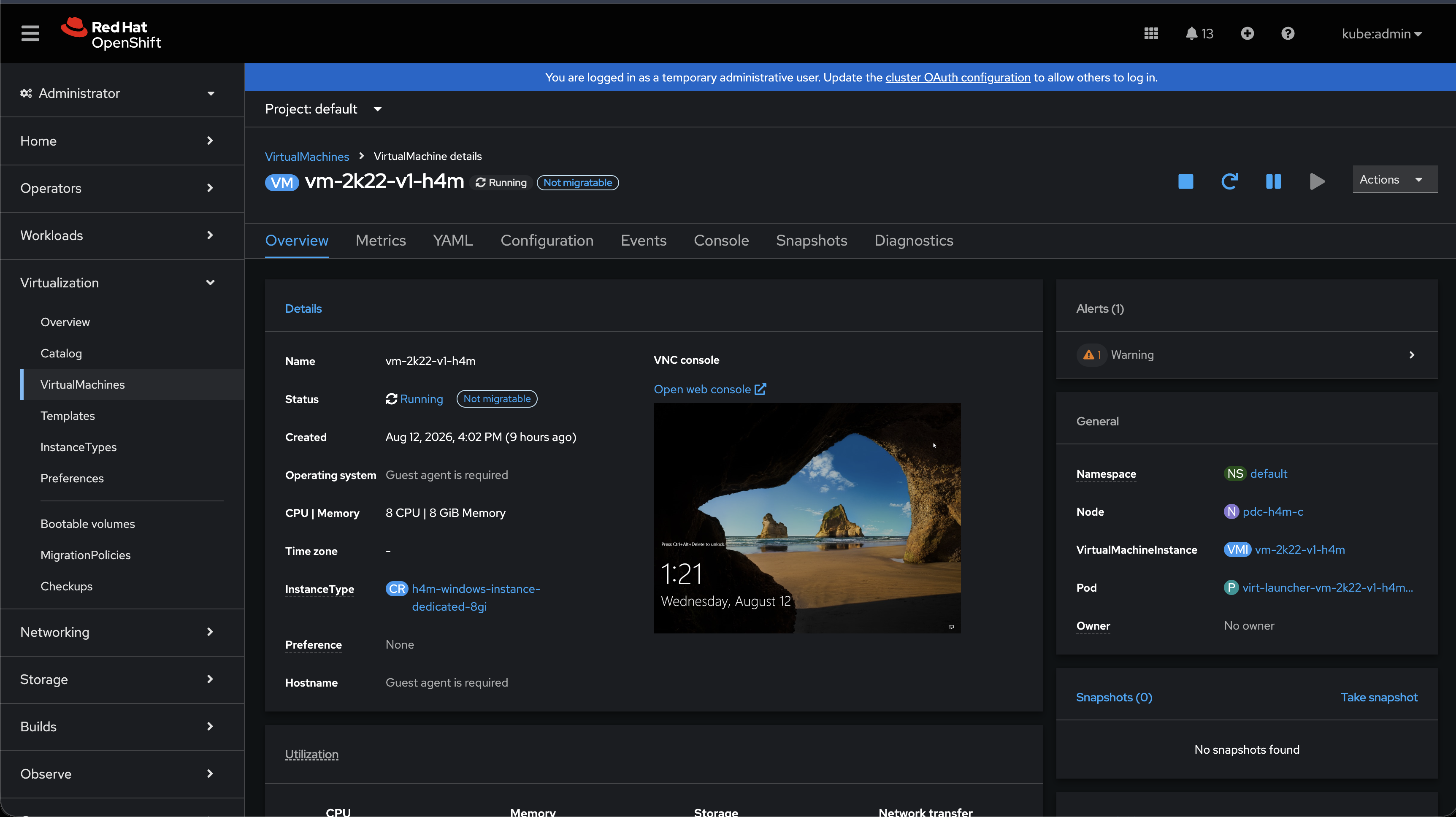
Access the running Windows VM from Virtualization > VirtualMachines in the OpenShift web console.#
Verify that the web console shows that Windows has booted. Manage subsequent starts and stops with:
virtctl stop win2k22-basic-01 -n default
virtctl start win2k22-basic-01 -n default
Troubleshoot the Basic Windows VM Workflow#
Use the following checks before changing the image or recreating cluster resources:
Symptom |
Check and Corrective Action |
|---|---|
|
Run |
Permission denied for ISO or QCOW2 files |
Verify every parent-directory permission. Stage files from a
root-squashed NFS home directory through |
|
Run |
Windows Setup unexpectedly asks for a storage driver |
Confirm that the Windows ISO is complete and that the root disk uses SATA. The baseline SATA disk does not require an additional storage driver during installation. |
UEFI reports no bootable device |
Inspect the source with |
VNC console is black after switching the GPU to Windows Display Driver Model (WDDM) |
Expected. The console renders KubeVirt’s emulated VGA device, not the
passed-through GPU. Confirm the VM is healthy with |
VNC console is black and Remote Desktop was never configured |
After the GPU is in WDDM, the desktop is reachable only over Remote Desktop. Detach the GPU from the VM manifest, start the VM, complete Enable Remote Desktop Access, verify the Remote Desktop session, then reattach the GPU. |
Remote Desktop stops at Configuring remote PC and never shows a desktop, but TCP 3389 still accepts connections |
The Rivermax application is polling continuously at real-time thread
priority, which prevents the Remote Desktop session from completing.
Launch it with the option that makes it wait instead, which is |
CDI upload fails on the router certificate |
Install the internal certificate authority (CA) when possible.
Otherwise, resume the existing DataVolume with |
The upload stops before completing |
Verify that no other uploader is writing to the DataVolume, then resume
it with |
Enable Remote Desktop Access#
Complete this section while the VNC console still shows the Windows desktop, and before attaching a GPU. To persist the Remote Desktop Protocol (RDP) settings, follow these steps in the golden image.
Important
The OpenShift VNC console renders the emulated VGA device that KubeVirt adds to every VM. It does not render the passed-through NVIDIA GPU. After you switch that GPU to WDDM in Validate the Driver and WDDM Mode in the Guest, Windows moves the desktop and the Desktop Window Manager onto the NVIDIA device, and the VNC console shows a black frame from the emulated VGA that nothing is drawing to anymore.
Before launching the application, verify that the RDP services have started.
In the guest, select Start > Settings > System > Remote Desktop and set Enable Remote Desktop to On. Confirm the prompt that appears.
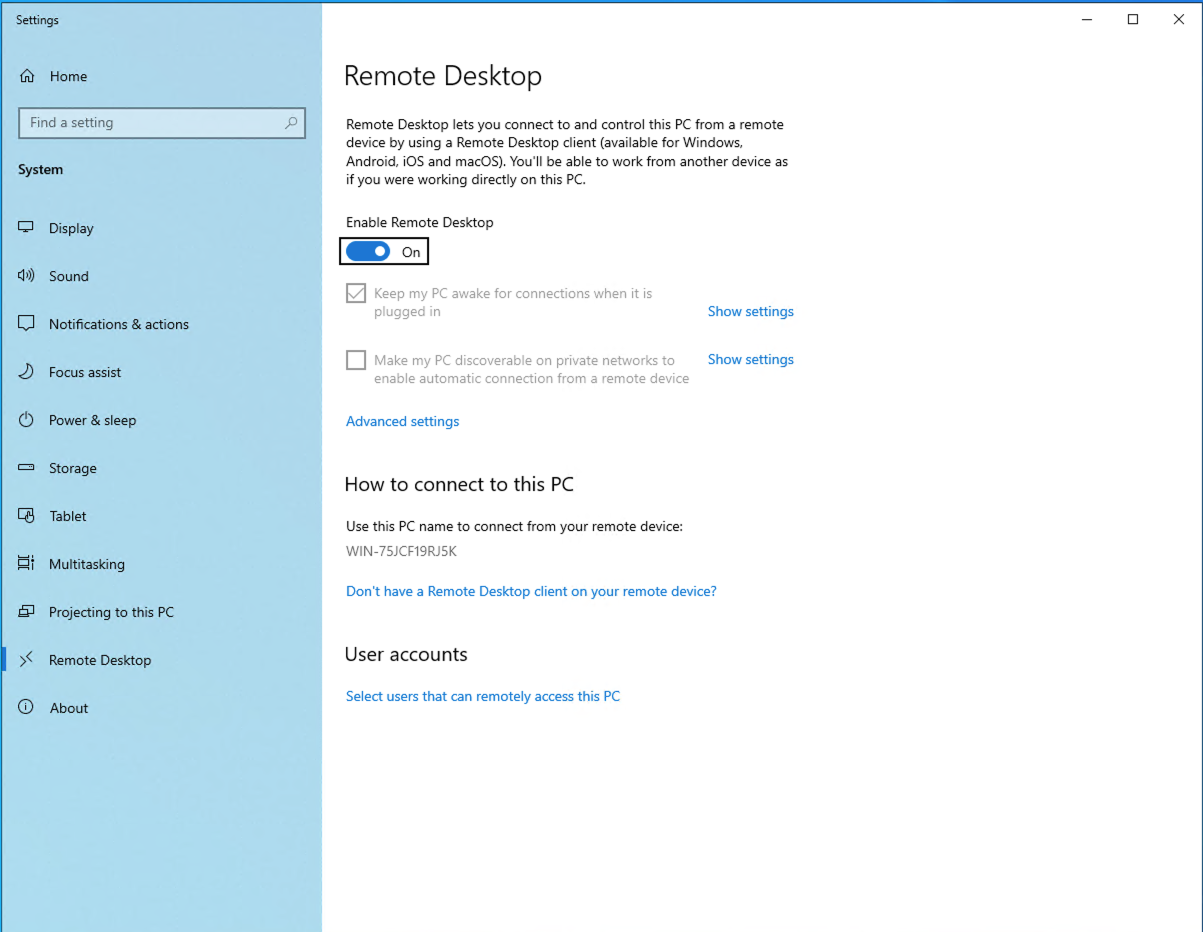
Enable Remote Desktop in Windows Settings before attaching a GPU.#
Enabling the setting also enables the Remote Desktop inbound firewall rules. Use Select users that can remotely access this PC if accounts other than the local administrator need access.
Confirm that the Remote Desktop stack is actually serving. The service must be running, the desktop processes must be present, and the guest must be listening on TCP 3389:
Get-Service -Name TermService |
    Select-Object Name, Status, StartType

Get-Process -Name dwm, LogonUI -ErrorAction SilentlyContinue |
    Select-Object Name, Id, SessionId

Get-NetTCPConnection -LocalPort 3389 -State Listen |
    Select-Object LocalAddress, LocalPort, State
These are the same three conditions the first-boot payload waits for in Automate First Boot and Rivermax Startup before it starts the Rivermax application.
Expose the port from the cluster. Create
windows-vm-rdp-service.yamlwith aServicealongside the VM:apiVersion: v1 kind: Service metadata: name: win2k22-basic-01-rdp namespace: default spec: type: NodePort selector: vm.kubevirt.io/name: win2k22-basic-01 ports: - name: rdp protocol: TCP port: 3389 targetPort: 3389
Apply it and read back the assigned node port:
oc apply -f windows-vm-rdp-service.yaml
oc get svc win2k22-basic-01-rdp -n default \
  -o jsonpath='{.spec.ports[0].nodePort}{"\n"}'
Note
Do not add a
portslist to the VM’smasqueradeinterface. Whenportsis omitted, KubeVirt forwards every guest port through the pod network. Declaring only 3389 restricts the pod network to Remote Desktop and removes the other diagnostic paths into the guest.Connect with a Remote Desktop client to
<node-address>:<node-port>and authenticate asAdministrator. Verify that you get a usable, responsive desktop before continuing. Confirm that the Start menu opens and that keyboard and mouse input work.Keep this Remote Desktop path working for the rest of the procedure. From this point on, treat Remote Desktop, not the VNC console, as the way to reach the Windows desktop.
Note
The Windows Server evaluation media used earlier in this procedure ships an unpatched Remote Desktop stack. Before capturing the golden image, run Windows Update in the guest and reboot until no further updates are offered. Remote Desktop, the WDDM indirect display driver, and the Desktop Window Manager are all serviced components, and an unpatched image carries several years of fixes to the exact display path this procedure depends on.
Advanced Configuration for Application Requirements#
Install and configure only the components that the application requires:
Component |
Details |
|---|---|
Application startup automation |
Windows Scheduled Task |
Network driver |
NVIDIA WinOF-2 25.10.51000 |
Rivermax |
Rivermax 1.80.24 |
GPU driver |
NVIDIA Windows graphics driver and WDDM enablement |
Rivermax tuning |
Windows scripts to tune the system for Rivermax |
Reference application |
|
You can perform the following steps in a deployed OpenShift Windows VM created in Create the Basic Windows VM. To persist the changes, perform similar steps in Virtual Machine Manager and create a new QCOW2 image.
Configure the VM to Use Media Networks#
The VM receives the media network as an SR-IOV virtual function (VF). Windows requires the NVIDIA WinOF-2 driver to operate the VF, and you must configure Windows with the IP address that Multus allocates.
Install WinOF-2#
Open the NVIDIA WinOF-2 download page and obtain the package that supports Windows Server 2022 and the installed ConnectX adapter.
Run the installer as an administrator and complete the driver installation.
Reboot Windows.
After the VM has access to a Mellanox network, open PowerShell as an administrator and verify that Windows detects the adapter and driver:
Get-NetAdapter | Where-Object InterfaceDescription -Match 'NVIDIA|Mellanox|ConnectX'
Attach the Media Network#
Confirm that the required NetworkAttachmentDefinition exists in the VM
namespace. Replace <network-name> in the following examples with its
name:
oc get network-attachment-definition <network-name>
Update the existing spec.template.spec in windows-vm.yaml to retain the management network
and root disk while adding the SR-IOV interface and network information disk:
spec:
  template:
    spec:
      domain:
        devices:
          autoattachPodInterface: false
          disks:
            - name: rootdisk
              bootOrder: 1
              disk:
                bus: sata
            - name: network-info-disk
              cdrom:
                bus: sata
          interfaces:
            - name: default
              masquerade: {}
              model: e1000e
            - name: nic-sriov-h-v1
              sriov: {}
      networks:
        - name: default
          pod: {}
        - name: nic-sriov-h-v1
          multus:
            networkName: <network-name>
      volumes:
        - name: rootdisk
          dataVolume:
            name: win2k22-basic-01
        - name: network-info-disk
          downwardAPI:
            fields:
              - path: network-status
                fieldRef:
                  fieldPath: metadata.annotations['k8s.v1.cni.cncf.io/network-status']
The interface name nic-sriov-h-v1 must match in interfaces and networks.
You need the network-info-disk because Multus allocates the VF address
outside the guest. The Downward API exposes the Multus network-status
annotation to Windows as a read-only network-status file. That file
contains the attachment name, allocated IP address, and VF MAC address needed
to identify and configure the correct Windows adapter.
Apply the updated manifest:
oc apply -f windows-vm.yaml
Configure the Media IP in Windows#
Obtain the Multus Assignment#
Before changing Windows, obtain the allocated media IP address and VF MAC address by using either of these methods:
In the VM, open File Explorer > This PC, open the mounted CD/DVD drive that contains
network-status, and open that file in Notepad. Find the entry whosenameends with/<network-name>. Record its firstipsvalue and itsmacvalue.From a workstation logged in to the cluster, identify the VM launcher pod and inspect the same Multus annotation:
oc get pod -n <namespace> -l kubevirt.io/domain=<vm-name>
oc describe pod <vm-pod> -n <namespace> | \
  grep -i -A 8 '<network-name>'
The relevant output resembles:
"name": "<namespace>/<network-name>",
"ips": [
    "192.168.20.64"
],
"mac": "02:9f:cb:00:00:19"
Set the Address with Control Panel#
Open Control Panel > Network and Internet > Network and Sharing Center and select Change adapter settings.
Double-click the NVIDIA or Mellanox adapter and select Details. Match its physical address to the VF MAC address that you recorded earlier. Do not modify the management adapter.
Open the matched adapter’s Properties, select Internet Protocol Version 4 (TCP/IPv4), and select Properties.
Select Use the following IP address. Enter the allocated media IP address and use subnet mask
255.255.255.0.Leave the default gateway and DNS fields empty so that the management adapter retains the default route. Apply the settings.
The Multus metadata can contain the allocated address without a CIDR prefix.
Use the subnet mask that the selected NetworkAttachmentDefinition defines. For a
/24 media network, use 255.255.255.0. Verify the configured address in
PowerShell with:
ipconfig
Install and Validate the Windows GPU Driver#
The GPU passthrough configuration makes a physical GPU available to the VM. It does not install the NVIDIA Windows driver in the guest. Use a driver version that supports the GPU model, Windows Server release, and selected display mode.
Prepare the GPU Nodes#
Note
Skip this section if the application does not require WDDM mode.
Before starting Windows GPU VMs, a platform administrator must configure the display mode and Base Address Register 1 (BAR1) size of the physical GPUs. This is a one-time preparation step for every GPU-capable node that can host these VMs.
Ensure that no VM or other workload is using the target GPUs.
Review the NVIDIA Display Mode Selector Tool User Guide and obtain the executable for a supported operating system. Run it with administrator privileges from either of these environments:
A purpose-built privileged Linux maintenance pod that you schedule on the target node and that has exclusive, direct access to the physical GPUs and the required host device files.
A supported Linux or Windows maintenance VM with the physical GPUs passed through to it. This could be the same initial Windows VM with the NVIDIA GPUs attached.
The execution environment must allow the tool to enumerate and modify the physical GPUs.
In the selected maintenance environment, configure the 8 GB BAR1 mode:
displaymodeselector \
  --gpumode physical_display_enabled_8GB_bar1
Use the corresponding
displaymodeselector.exeexecutable in a Windows maintenance VM. Omitting-iapplies the mode to all switchable GPUs visible to the maintenance environment. To prepare only one GPU, append-i <gpu-index>.Stop the maintenance VM or remove the maintenance pod so that it releases the GPUs.
Gracefully reboot the underlying node by following Reboot Node Gracefully. The reboot is necessary so that the node re-enumerates the GPUs and their BAR resources.
Repeat these steps on every GPU-capable node on which the Windows VM can run.
The 8 GB BAR1 mode is intended for workflows such as broadcast, virtual production, and Rivermax. Select a different supported mode only when the application and GPU requirements call for it. The general syntax is:
displaymodeselector --gpumode <mode-name> [-i <gpu-index>]
Warning
Display mode changes alter the persistent behavior of the physical GPU. Use the tool only with a supported GPU and certified system. Review the NVIDIA Display Mode Selector Tool User Guide before applying the change.
Attach the GPU to the VM#
After preparing the physical GPUs, list the NVIDIA resources that a GPU-capable node advertises:
oc describe node <gpu-node> | \
  grep -E '^[[:space:]]+nvidia\.com/[^:]+:' | sort -u
Use the GPU passthrough resource that the VM sandbox device plugin exposes as
<permitted-gpu-resource>. If the command lists more than one NVIDIA
resource, confirm the correct passthrough resource with the platform
administrator. Do not assume that the general container resource
nvidia.com/gpu is the VM passthrough resource.
Stop the VM and add gpus to the existing devices section in
windows-vm.yaml:
spec:
  template:
    spec:
      domain:
        devices:
          gpus:
            - name: gpu
              deviceName: <permitted-gpu-resource>
Replace <permitted-gpu-resource> with the exact resource name supplied for
the cluster. The local name gpu must be unique within the VM. Apply the
updated manifest and start the VM only after the node-level display-mode change
and reboot are complete.
Because the VM uses a passed-through physical GPU, you cannot live migrate it.
Stage the Windows Driver Installer#
Store the supported NVIDIA Windows driver installer in the VM image so that it
is available after deployment. For example, place it under
C:\Installers\NVIDIA.
Note
A driver installed while you build the image on another system might not
initialize correctly when the VM first receives a passed-through GPU on its
destination node. If nvidia-smi does not work after the first boot,
reinstall the staged driver inside the Windows guest. Do not install the
Windows guest driver into the OpenShift node operating system.
Validate the Driver and WDDM Mode in the Guest#
Warning
Switching the GPU to WDDM makes the OpenShift VNC console go black. Windows moves the desktop onto the passed-through NVIDIA GPU, while the console keeps rendering the emulated VGA device. The VM is still running normally.
Complete Enable Remote Desktop Access and confirm that you have a working, authenticated Remote Desktop session before running the commands in this section. After the driver model changes, Remote Desktop is the preferred way to reach the desktop.
Start the VM with the GPU attached and connect over Remote Desktop, then open PowerShell as an administrator.
Check whether the guest driver recognizes the GPU:
nvidia-smiIf
nvidia-smiis unavailable, reports no device, or returns a driver communication error, run the staged NVIDIA driver installer as an administrator inside the VM. Complete the installation, reboot Windows, and runnvidia-smiagain.Check the driver model that
nvidia-smireports for the GPU. If it is notWDDM, switch it from Tesla Compute Cluster (TCC) to WDDM:nvidia-smi -dm 0
Reboot the Windows guest. Driver installation can return some GPU models to TCC mode, so run
nvidia-smiafter every driver installation or upgrade and repeat the WDDM command when required.Verify the GPU, driver model, and BAR1 allocation:
nvidia-smi
nvidia-smi -q -d MEMORY
nvidia-smi --query-gpu=name,driver_model.current,driver_model.pending --format=csv
Confirm that the expected GPU is present, its driver model is WDDM, and its BAR1 total reflects the node-level display mode. Check the pending driver model as well as the current one, so that a change that is still waiting for a reboot is not mistaken for a completed transition.
The Display Mode Selector guide also documents nvidia-smi.exe -fdm 0 for
a forced driver-model change. Use the forced option only when the supported GPU
and driver procedure requires it.
Install the Rivermax SDK#
Open the NVIDIA Rivermax website, sign in with an NVIDIA Developer account, and download the Rivermax SDK for Windows. Select a version that the Windows release and the VM’s network adapter support.
Copy the Rivermax SDK installer into the VM and run the Windows MSI as an administrator. Install the SDK in the default location:
C:\Program Files\Mellanox\Rivermax
Verify that
rivermax.dlland the Rivermax SDK applications directory are present.
Apply the Rivermax Windows Tuning#
For Windows tuning, use the scripts and README in the NVIDIA rivermax-utils windows_tuning folder. Follow the NVIDIA Rivermax Windows Performance Tuning Guide for the complete prerequisites, recommended settings, and tuning procedure.
Run and Validate media_sender#
Open PowerShell and go to the directory containing the standard
media_sender.exeinstalled with the Rivermax SDK:Set-Location "C:\Program Files\Mellanox\Rivermax\apps\media_sender"
Store a sender Session Description Protocol (SDP) file outside the golden-image defaults. The source address in the SDP file must match the IP address assigned to the passed-through media interface. The destination address, UDP ports, frame rate, resolution, and payload format must match the receiver and the media network configuration.
For initial image validation only, place the Rivermax license in a temporary protected directory and set its path as an environment variable:
$env:RIVERMAX_LICENSE_PATH = "C:\RivermaxValidation\rivermax.lic"
Rivermax also checks
C:\Program Files\Mellanox\Rivermax\lib\rivermax.licby default. For more information, refer to the NVIDIA Rivermax license procedure.Display the options that the supplied application binary supports:
.\media_sender.exe --help
After the ConnectX interface, license, SDP file, and required media input are available, run the standard sender with the options that
--helpreports:.\media_sender.exe <media-sender-options> -s <sdp-file-path> -w
Include the selected SDP file path and the media-input options that the installed
media_sender.exebuild requires. Always include the option that makes the sender wait instead of polling continuously. In the validated build, this option is-w.Verify that the application selects the expected source interface, destination, and frame rate, and that it transmits without Rivermax or license errors.
Validate the stream with a compatible receiver and the network monitoring tools provided for the media network.
Automate First Boot and Rivermax Startup#
A deployed VM can receive a different media-interface MAC address and IP address from the values that the initial Windows VM used. Windows also receives the GPU and SR-IOV VF for the first time after the VM starts on OpenShift. Use an idempotent first-boot workflow to complete hardware initialization, configure the media interface from Kubernetes metadata, prepare the Rivermax configuration, and launch the application.
An automated image can use two startup components.
Windows Task Scheduler starts the persistent C:\Scripts\SearchAndRunStartup.ps1 script at every boot.
It locates the cluster-supplied startup payload on a mounted disk and hands off to it.
The startup payload then performs these operations in order:
Start a transcript log, for example
C:\windows_vm_startup.log.Verify that the required NVIDIA driver is installed and that
nvidia-smican communicate with the passed-through GPU.Install or update the GPU driver when required, switch the GPU to WDDM mode, and reboot.
Read the Multus network-status annotation from
network-info-disk.Match each non-default network-status entry to a Windows network adapter by MAC address.
Assign the advertised IP address and the prefix configured for the selected Multus network to the matching SR-IOV adapter.
Substitute the assigned media IP into the Rivermax SDP or application configuration.
Wait until Remote Desktop is serving before starting the application, because the application runs at real-time thread priority and can prevent a session from being established while it initializes. Poll until
TermServicereportsRunning, a listener exists on TCP 3389, and the desktop processes (dwmandLogonUI) are present, then allow the desktop a short settling period. Fail the payload if that state is not reached within a bounded timeout, rather than starting the application anyway.Locate the securely supplied Rivermax license and set
RIVERMAX_LICENSE_PATHfor the application process. Launch the selected Rivermax application with the option that makes it wait instead of polling continuously.Confirm from the application’s own output that it reached its send loop with the expected source and destination, and treat a surviving process as insufficient evidence.
Handle Drivers on the First Boot#
The NVIDIA GPU driver or WinOF-2 driver might still require installation, device enumeration, or a reboot the first time that the deployed VM receives the physical GPU and SR-IOV VF.
Stage only the approved driver installers required for first-boot initialization. The startup script should:
Run
nvidia-smiand compare the installed driver version with the minimum version supported for the GPU and application before starting an installer.Run the installer silently and check its exit code.
Run
nvidia-smi -dm 0when the GPU is in TCC mode and the application requires WDDM.Request a reboot and exit immediately after installing a driver or changing the driver model.
Run again after the reboot and continue only when the GPU and media adapter are ready.
Do not reinstall a driver on every boot. Keep the version check and each configuration step idempotent so that the same script can safely run after a VM restart.
Expose the Startup Script and Network Metadata#
Store the reviewed windows_vm_startup.ps1 script in a ConfigMap. The
network-info-disk from Configure the VM to Use Media Networks already provides the
Multus metadata. Add the following named entries to the existing disks and
volumes arrays without replacing the root or network information disks:
spec:
  template:
    spec:
      domain:
        devices:
          disks:
            - name: windows-startup
              cdrom:
                bus: sata
      volumes:
        - name: windows-startup
          configMap:
            name: <windows-startup-configmap>
The ConfigMap and Downward API files appear on read-only disks in Windows.
Do not assume a fixed drive letter.
The persistent C:\Scripts\SearchAndRunStartup.ps1 script searches the mounted file-system drives for windows_vm_startup.ps1.
The mounted windows_vm_startup.ps1 script independently searches for network-status and the Rivermax application files.
Restrict permission to update the startup ConfigMap because the script runs with administrative privileges. For production use, apply the organization’s script-signing and execution-policy requirements.
The network-assignment portion of the startup payload should select the
required attachment by name, skip the default pod network, match the adapter
by MAC address, and assign the allocated address. Configure the prefix from
the selected NetworkAttachmentDefinition because network-status might not
include the prefix. Log and stop when the metadata, adapter, or address is
unavailable.
Install and Verify the Startup Scheduled Task#
The prepared Windows image should contain a Scheduled Task named SearchAndRunStartup in the root Task Scheduler folder.
Create or verify the task with the organization’s approved Windows administration method.
It must be enabled, use an At startup trigger, run as SYSTEM with the highest privileges, and invoke the persistent launcher:
powershell.exe -ExecutionPolicy Bypass -NoProfile -File "C:\Scripts\SearchAndRunStartup.ps1"
Keep C:\Scripts\SearchAndRunStartup.ps1 in the golden image.
Do not hard-code the ConfigMap CD-ROM drive letter because Windows can assign a different letter on each deployment.
The launcher should do the following:
Search all file-system drive roots for
windows_vm_startup.ps1.Retry while Windows enumerates the ConfigMap disk.
Log the result to
C:\h4m_search_and_run_startup.log.Return a failure status when it cannot find the payload or the payload fails.
The following short launcher snapshot is not a complete script:
# Snapshot only: the production launcher must add its own search and retry helpers.
$scriptPath = Find-MountedScript 'windows_vm_startup.ps1'
if ($scriptPath) {
    & $scriptPath *>&1 | Tee-Object -FilePath $log -Append
} else {
    throw 'The Windows VM startup payload was not found'
}
Verify the task before generalizing the image:
# Snapshot only: confirm the task properties and the latest run result.
Get-ScheduledTask -TaskName 'SearchAndRunStartup' |
    Select-Object TaskName, State, Actions, Triggers, Principal
Get-ScheduledTaskInfo -TaskName 'SearchAndRunStartup'
Start the VM with the ConfigMap and Downward API disks attached, then check C:\h4m_search_and_run_startup.log, C:\windows_vm_startup.log, and Windows Task Scheduler history.
The log should show the search script locating windows_vm_startup.ps1 on a mounted drive.
The startup payload must then complete the driver checks, assign the SR-IOV IP address, stage the Rivermax configuration, and launch the selected Rivermax application.
Because a driver installation or WDDM change can reboot the guest, the task must be safe to run again and continue from the first incomplete step.
When testing is complete and you are ready to generate the final QCOW2 image, generalize the guest first.
Remove the validation artifacts, including the Rivermax license and any test SDP files, and then run sysprep /generalize /oobe /shutdown from C:\Windows\System32\Sysprep.
Generalizing clears the machine-specific identity so that each VM cloned from the released image receives its own computer name and security identifier (SID).
Continue with Upload the QCOW2 Image to upload the release image.