


Installing OpenShift Operators#
To run media applications on the cluster, install the following operators:
Node Feature Discovery Operator
NUMA Resources Operator
NVIDIA Network Operator
NVIDIA GPU Operator
SR-IOV Network Operator
Kubernetes NMState Operator
PTP Operator
OpenShift Virtualization Operator
Installing Node Feature Discovery Operator#
Node Feature Discovery Operator (NFD) detects hardware features and labels the nodes with hardware-specific attributes, such as PCI cards, kernel, and operating system version.
To install the operator using the web console:
Expand the Operators section and select Operator Hub.
Use the search bar to search for Node Feature Discovery.
Select the operator that Red Hat provides and maintains.
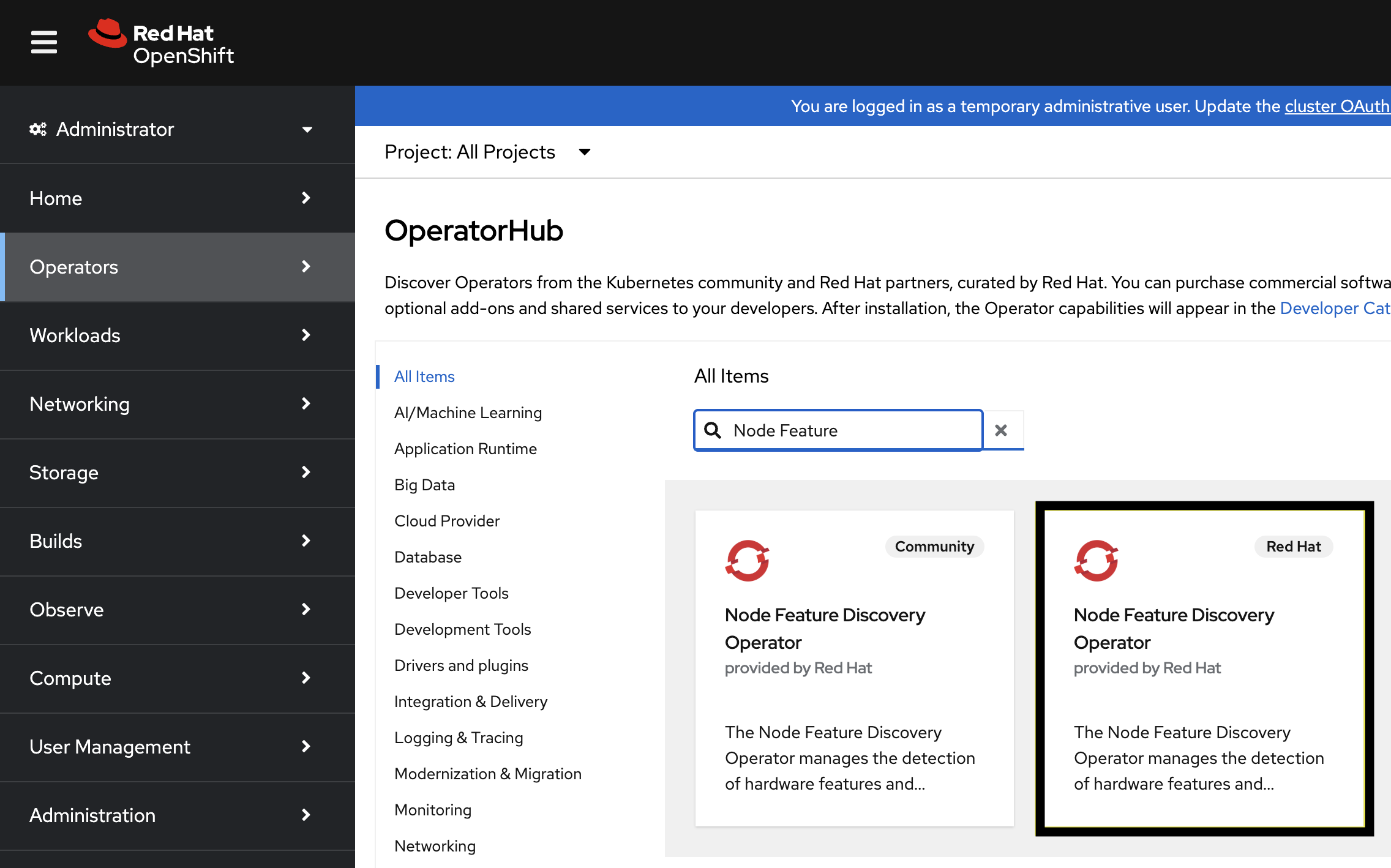
In the pop-up window, select Install.
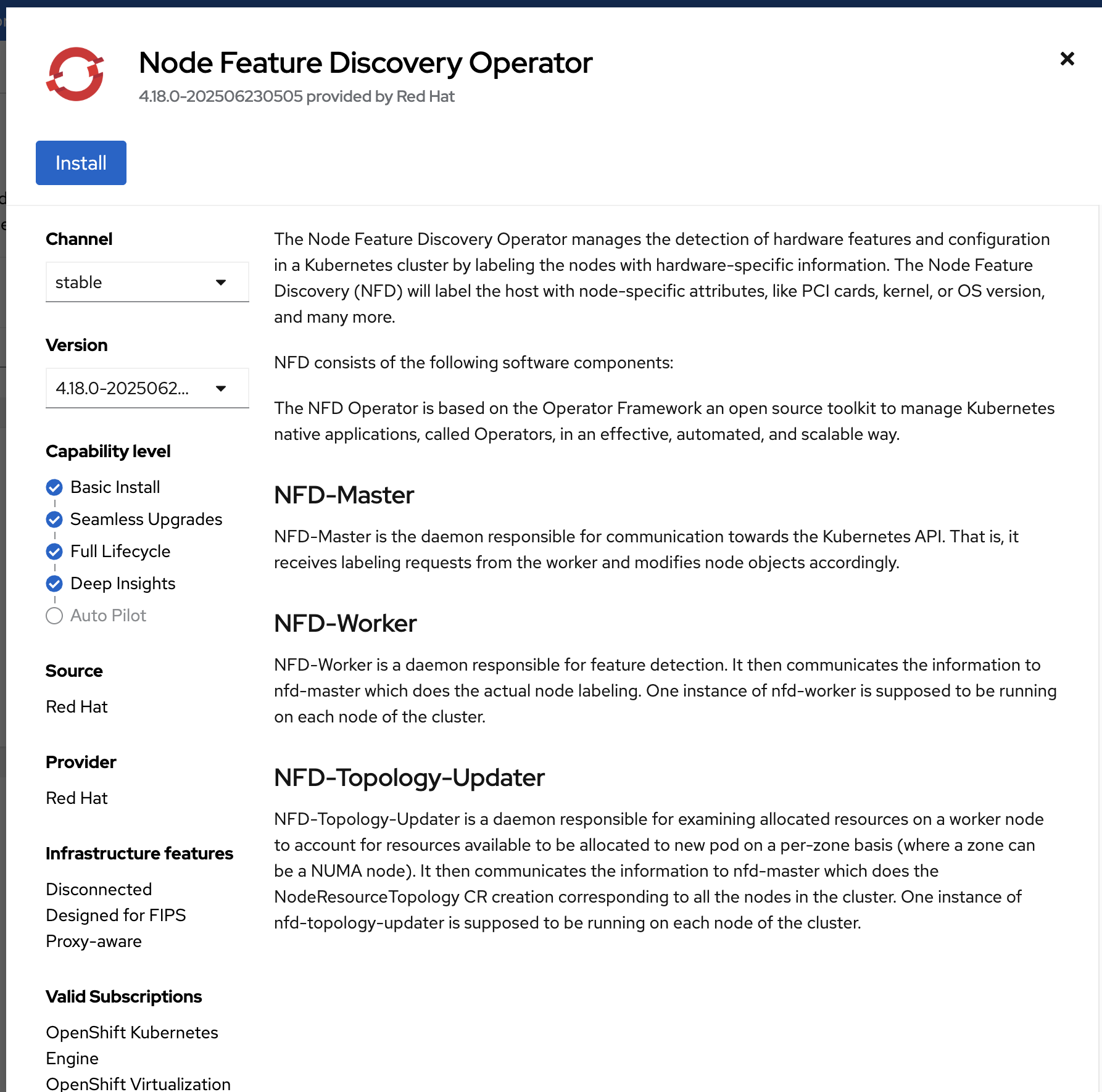
Select the A specific namespace on the cluster checkbox, and then select Install.
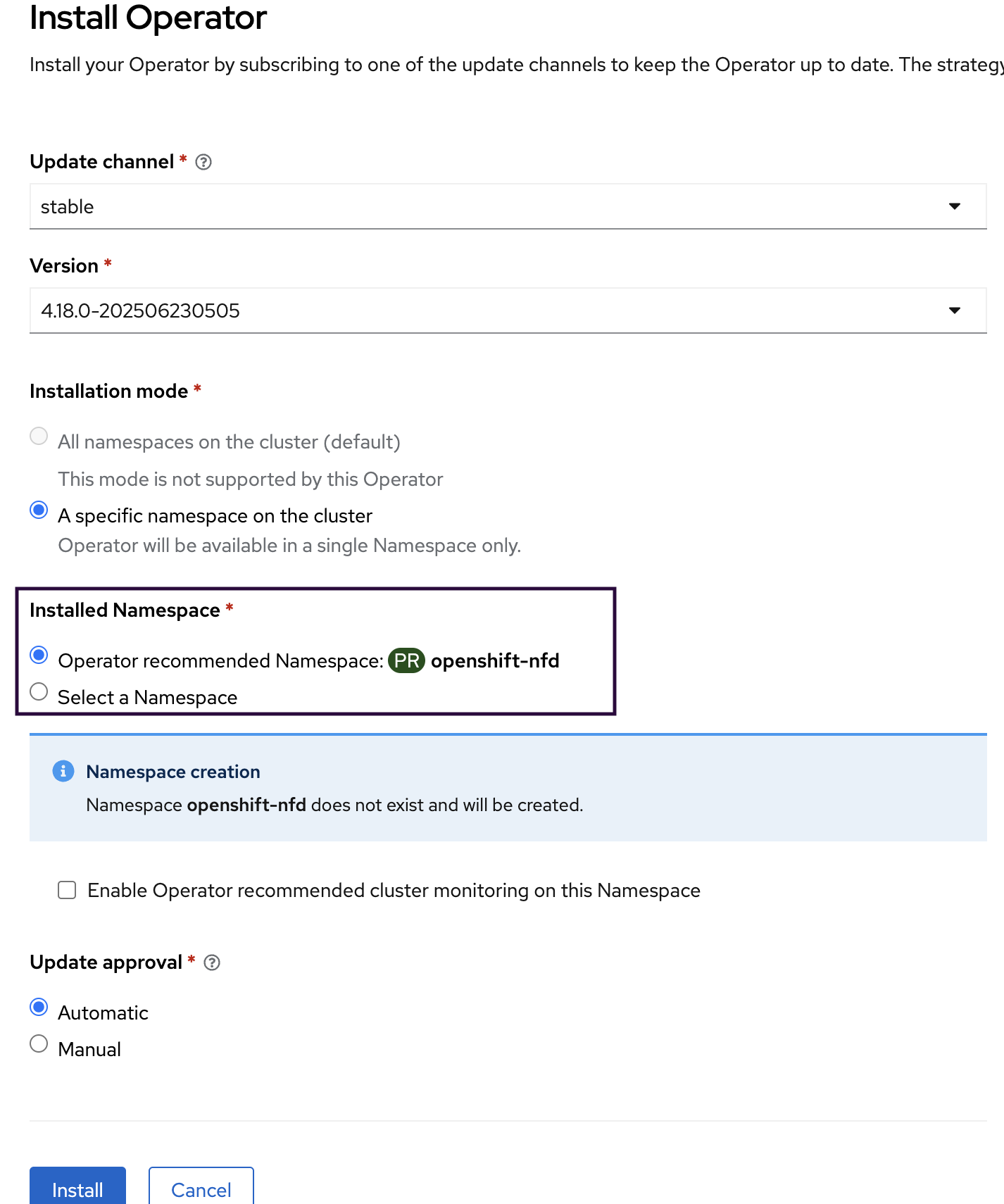
Navigate to Operators > Installed Operators and wait two to three minutes for the operator installation to complete.
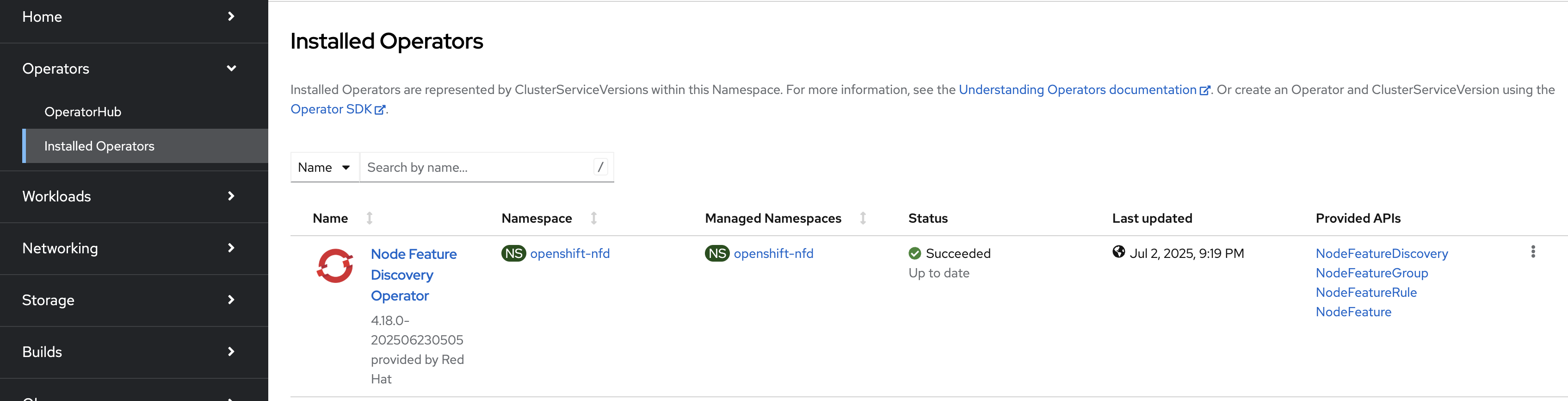
Select Node Feature Discovery Operator. Under the Provided APIs section, select Create instance for NodeFeatureDiscovery. On the next screen, select Create.
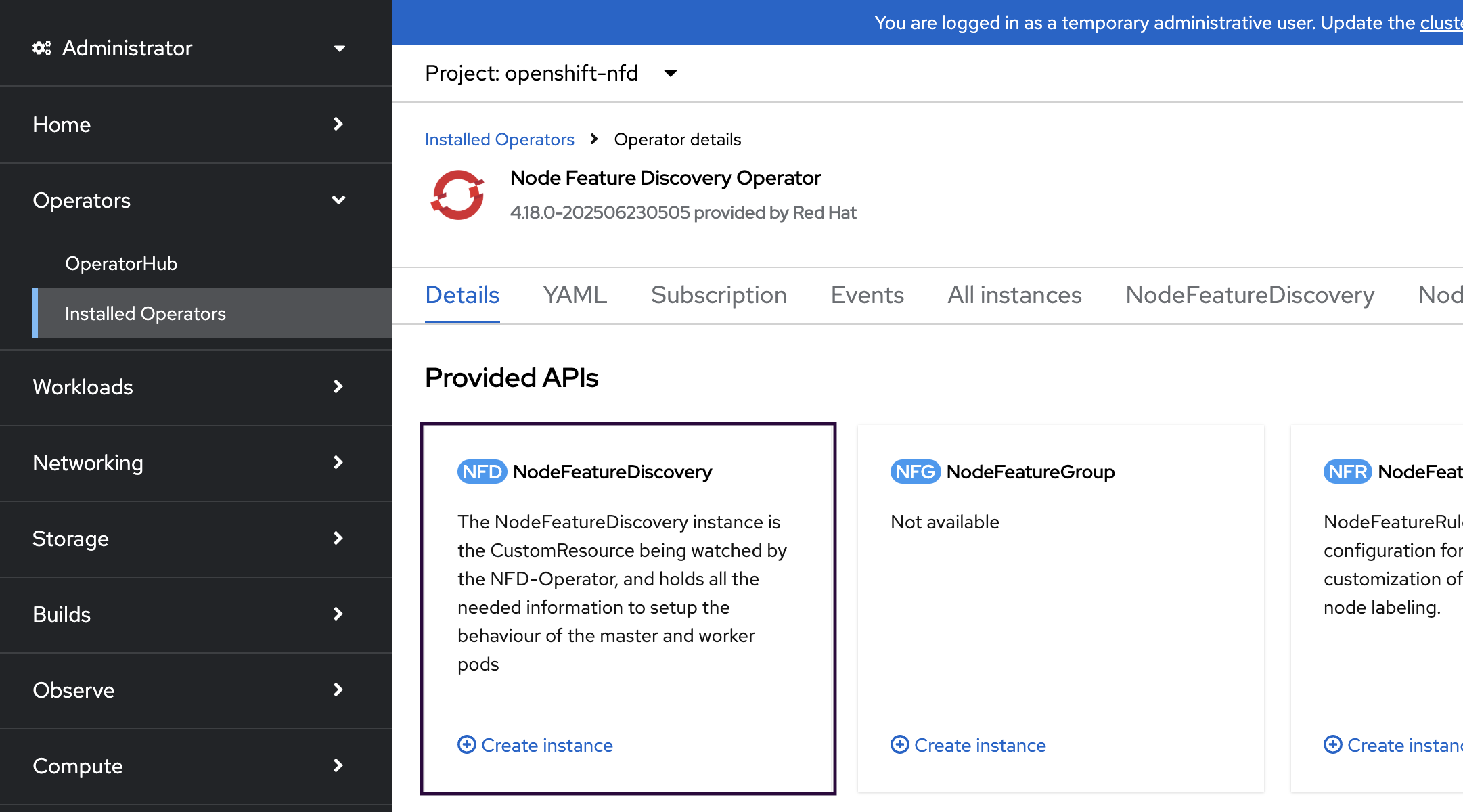
Wait two to three minutes for the Node Feature Discovery pods to start. On the jump node, use the
ocCLI tool to monitor the status of the pods:oc get pods -o wide -n openshift-nfd NAME READY STATUS RESTARTS AGE IP NODE nfd-controller-manager-668b4cb675-pbcvz 1/1 Running 0 14h 10.131.0.32 h4m-d nfd-gc-6b46f5f846-sk4rd 1/1 Running 0 14h 10.131.0.33 h4m-d nfd-master-b4c548d99-4vfxf 1/1 Running 0 14h 10.129.0.157 h4m-a nfd-worker-pbskf 1/1 Running 0 14h 10.47.33.0 h4m-e nfd-worker-pxzqg 1/1 Running 0 14h 10.47.32.255 h4m-d
Installing NUMA Resources Operator#
NUMA Resources Operator allows you to schedule high-performance workloads in the same Non-Uniform Memory Access (NUMA) zone. It deploys a node resources exporting agent that reports on available cluster node NUMA resources, and a secondary scheduler that manages the workloads. For more information, refer to Scheduling NUMA-aware workloads.
Note
For servers with fewer network adapters or GPUs, or an unbalanced topology, disable NUMA-aware scheduling (refer to Create Performance Profile) and skip Installing NUMA Resources Operator.
To install the operator using the web console:
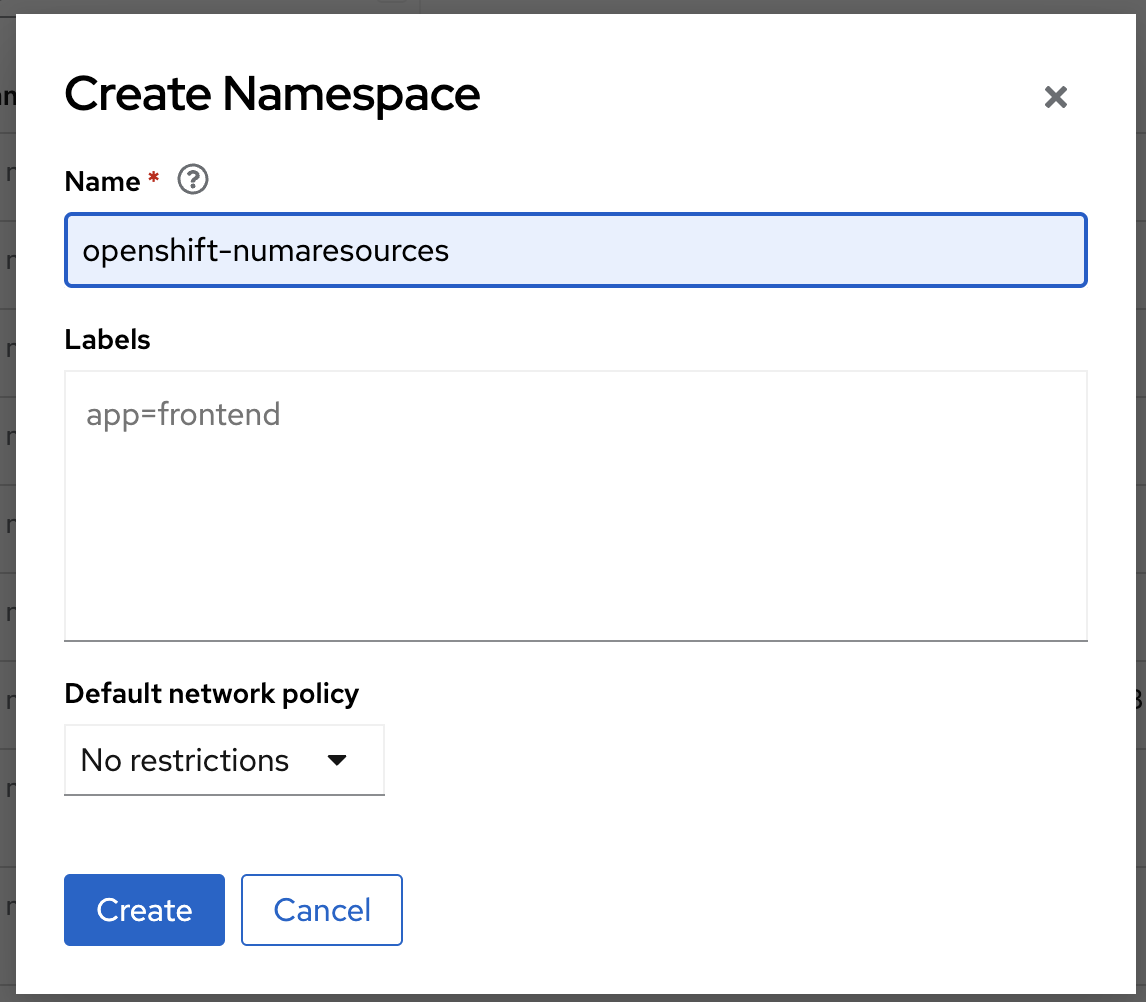
Select Administration > Namespaces > Create Namespace.
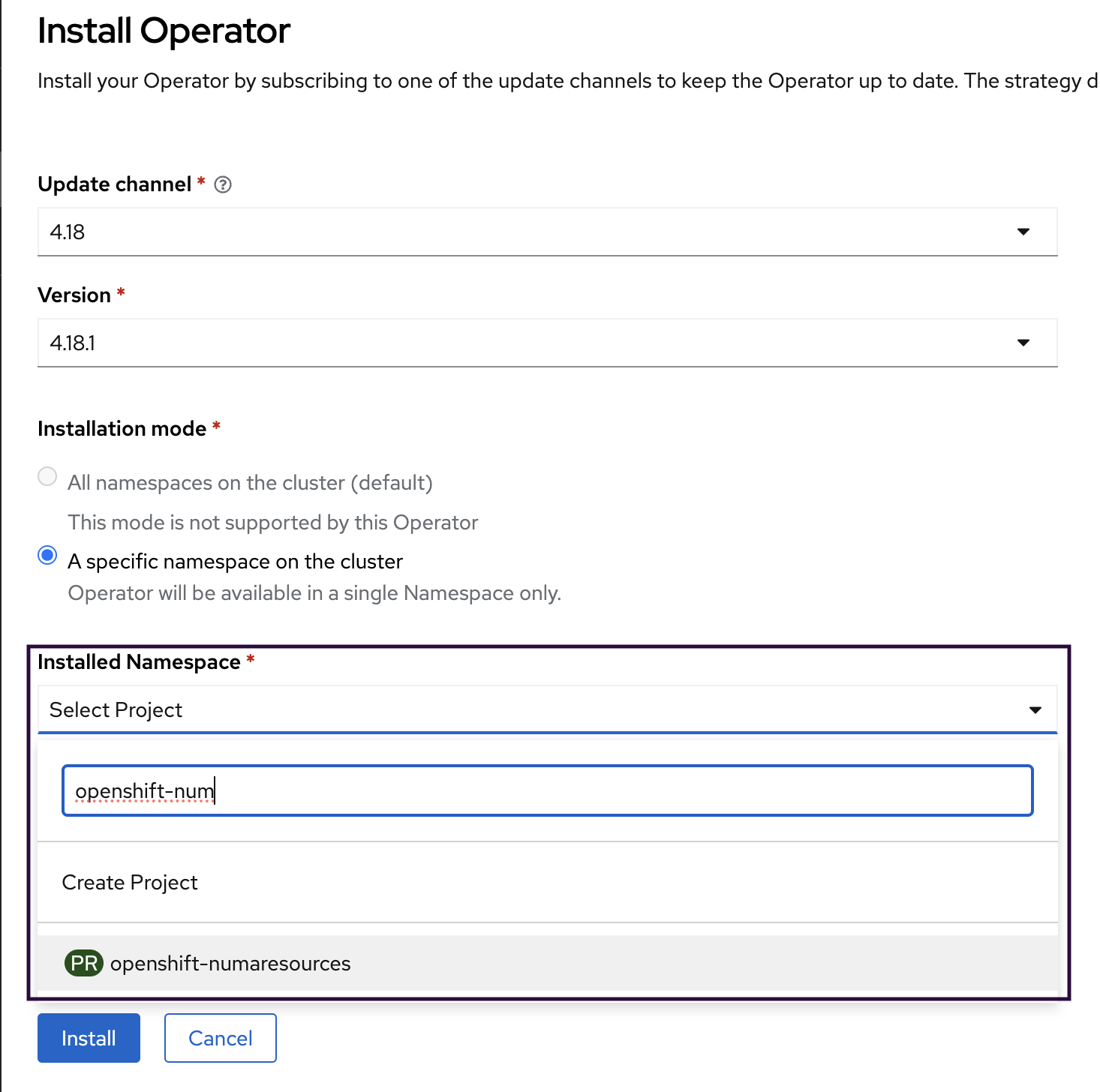
Enter openshift-numaresources in the Name field, and then select Create.
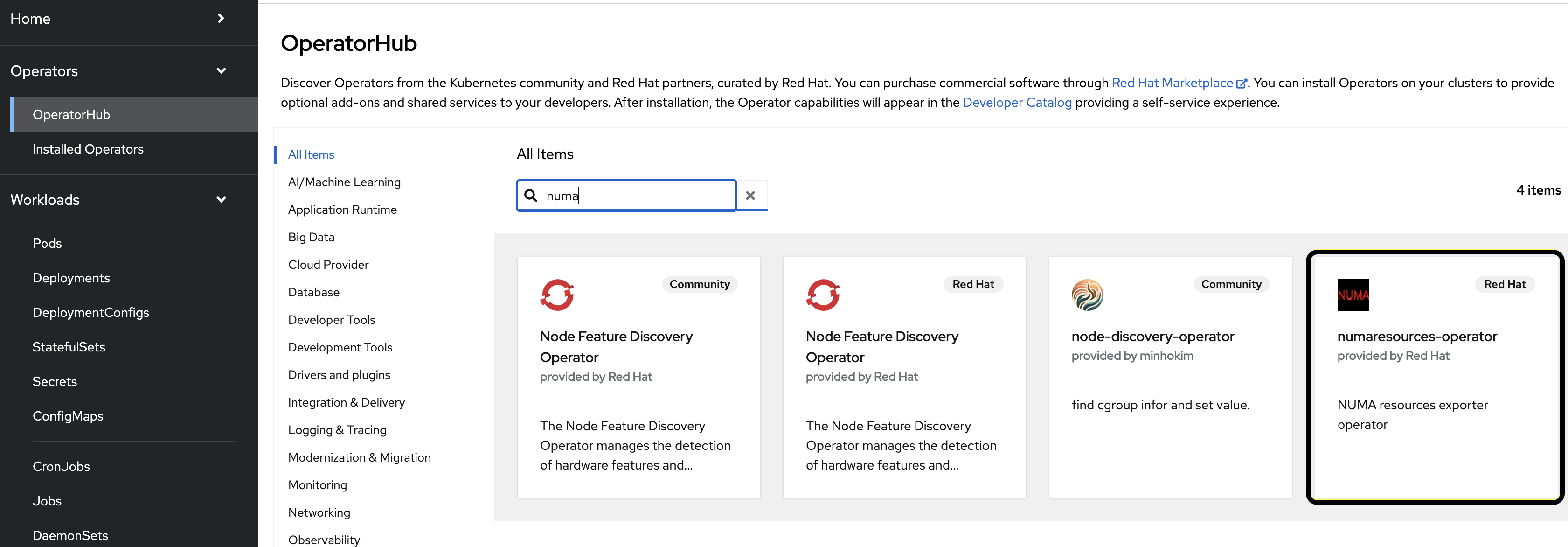
Expand the Operators section and select Operator Hub. Use the search bar to search for numa. Select numaresources-operator.
In the pop-up window, select Install.
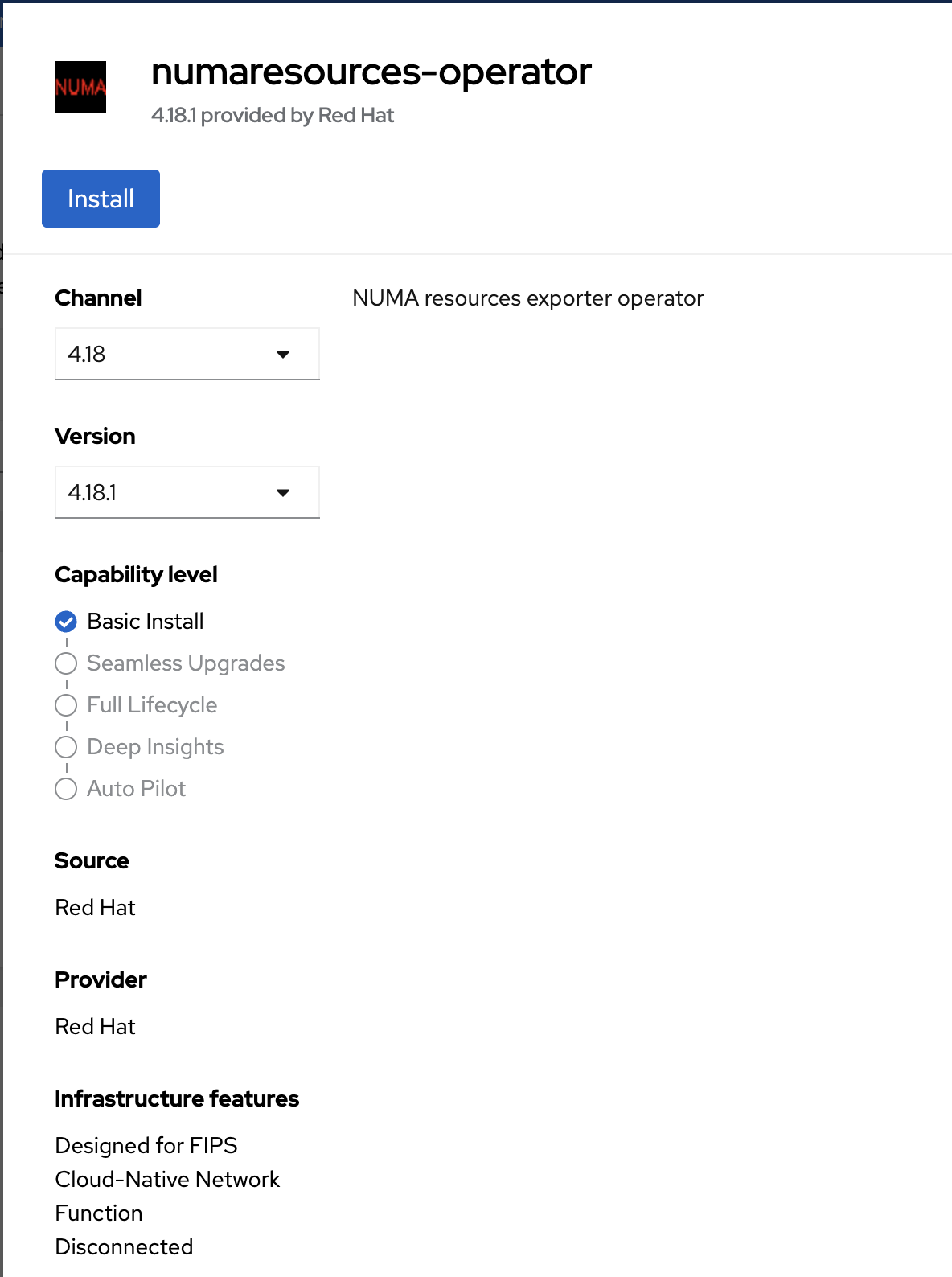
Select openshift-numaresources as the Installed Namespace and select Install.
Creating a Custom Resource#
Create a file,
nrop.yaml, based on the following template:apiVersion: nodetopology.openshift.io/v1 kind: NUMAResourcesOperator metadata: name: numaresourcesoperator spec: nodeGroups: - machineConfigPoolSelector: matchLabels: <machine-config-pool> podExcludes: - name: installer-* namespace: openshift-etcd - name: revision-pruner-* namespace: openshift-etcd - name: revision-pruner-* namespace: openshift-kube-scheduler - name: installer-* namespace: openshift-kube-controller-manager - name: revision-pruner-* namespace: openshift-kube-controller-manager - name: installer-* namespace: openshift-kube-apiserver - name: revision-pruner-* namespace: openshift-kube-apiserver
Modify the
<machine-config-pool>value according to the cluster type.For a standard (five-node) cluster, replace
<machine-config-pool>with the following line:machineconfiguration.openshift.io/role: "holoscanmedia"
For single-node OpenShift (SNO) or a compact (three-node) cluster, replace
<machine-config-pool>with the following line:pools.operator.machineconfiguration.openshift.io/master: ""
Apply the custom resource:
oc create -f nrop.yaml
Deploying the NUMA-Aware Secondary Pod Scheduler#
Create a file,
nro-scheduler.yaml, with the following content:apiVersion: nodetopology.openshift.io/v1 kind: NUMAResourcesScheduler metadata: name: numaresourcesscheduler spec: imageSpec: "registry.redhat.io/openshift4/noderesourcetopology-scheduler-rhel9:<version-tag>" cacheResyncPeriod: "5s" schedulerInformer: Shared
Replace
<version-tag>with a value based on the OpenShift version, for example,v4.18.Apply the custom resource:
oc create -f nro-scheduler.yaml
After a few minutes, run the following command to confirm that the required resources deployed successfully:
oc get all -n openshift-numaresources

NAME                                                    READY   STATUS    RESTARTS   AGE
pod/numaresources-controller-manager-7b58bd4c8c-7vz9b   1/1     Running   0          26m
pod/numaresourcesoperator-holoscanmedia-vggmd           2/2     Running   0          3m5s
pod/numaresourcesoperator-holoscanmedia-zkzwn           2/2     Running   0          3m5s
pod/secondary-scheduler-65bcb645b8-qtk8z                1/1     Running   0          25s

NAME                                                       TYPE        CLUSTER-IP       EXTERNAL-IP   PORT(S)    AGE
service/numaresources-controller-manager-metrics-service   ClusterIP   172.30.187.155   <none>        8080/TCP   26m
service/numaresources-rte-metrics-service                  ClusterIP   172.30.223.80    <none>        2112/TCP   3m7s

NAME                                                 DESIRED   CURRENT   READY   UP-TO-DATE   AVAILABLE   NODE SELECTOR                            AGE
daemonset.apps/numaresourcesoperator-holoscanmedia   2         2         2       2            2           node-role.kubernetes.io/holoscanmedia=   3m7s

NAME                                               READY   UP-TO-DATE   AVAILABLE   AGE
deployment.apps/numaresources-controller-manager   1/1     1            1           26m
deployment.apps/secondary-scheduler                1/1     1            1           25s

NAME                                                          DESIRED   CURRENT   READY   AGE
replicaset.apps/numaresources-controller-manager-7b58bd4c8c   1         1         1       26m
replicaset.apps/secondary-scheduler-65bcb645b8                1         1         1       25s
Note
Pods that request Guaranteed Quality of Service (QoS) for isolated CPUs and memory on the same NUMA node, or huge pages, GPU, or SR-IOV networking, must specify schedulerName: topo-aware-scheduler.
After you configure the Topology Manager single-numa-node policy, relying on the default-scheduler for these pods can cause runaway pod creation errors (ContainerStatusUnknown).
Installing NVIDIA Network Operator#
The NVIDIA GPU Operator requires NVIDIA Network Operator on the cluster to compile and install the remote direct memory access (RDMA) GPUDirect module.
To install the operator using the web console:
Expand the Operators section and select Operator Hub.
Use the search bar to search for NVIDIA. Select NVIDIA Network Operator.
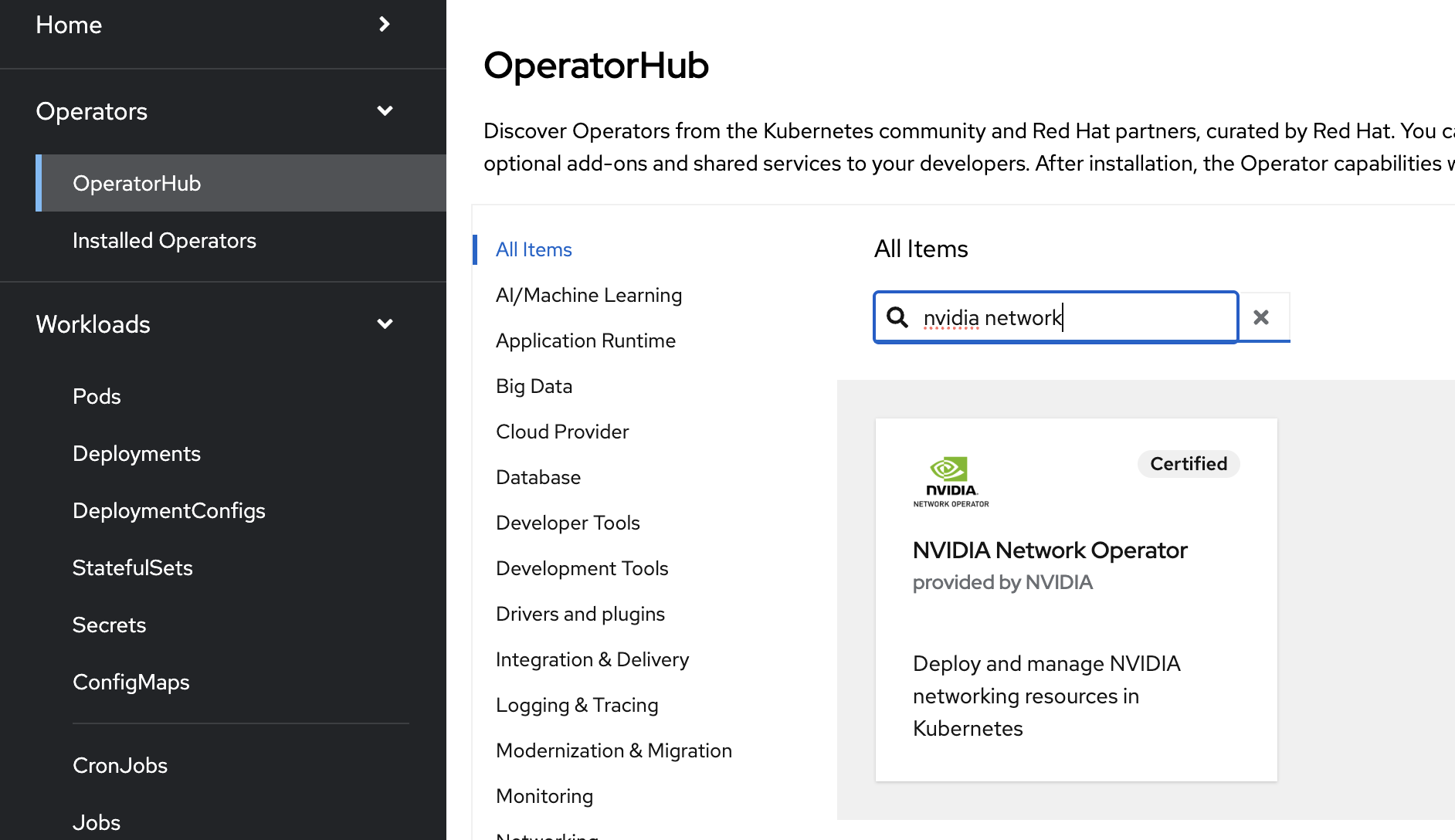
In the pop-up window, select Install.
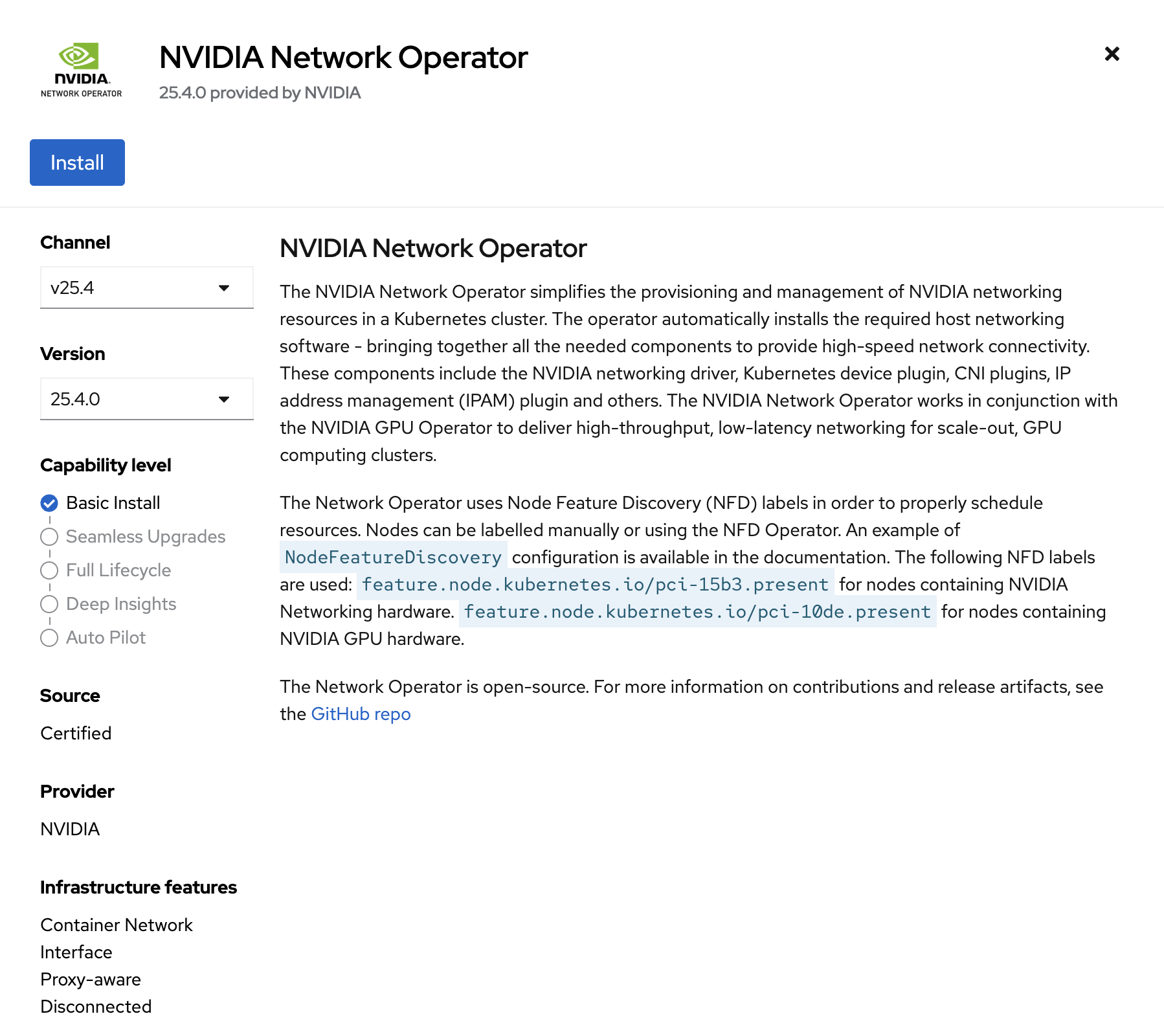
Set Update channel to v25.4 and Version to 25.4.0, and then select Install. The installation takes about two minutes to complete.
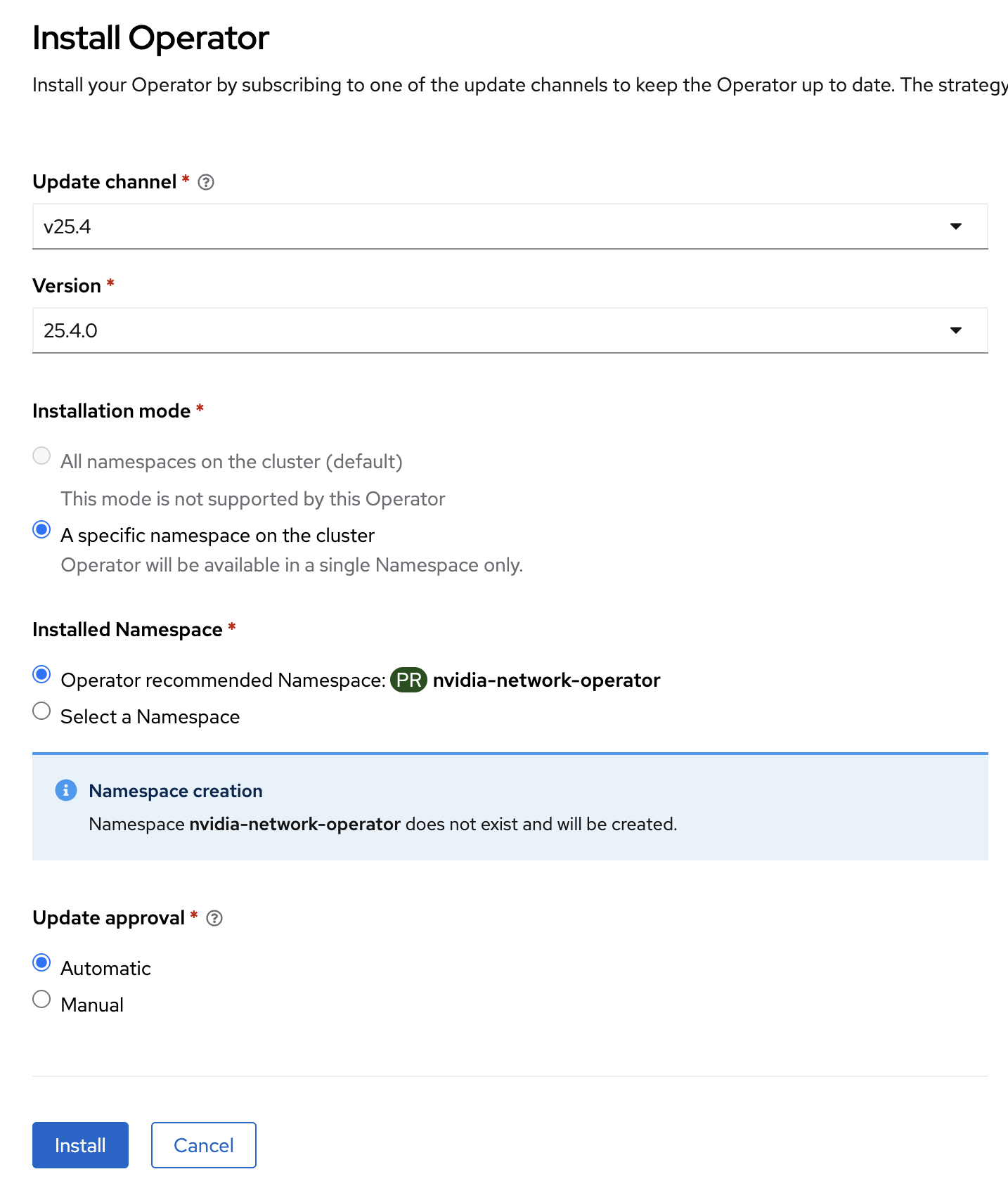
Navigate to Operators > Installed Operators.
Select NVIDIA Network Operator.
On the NVIDIA Network Operator details screen, select Create instance in the NicClusterPolicy section.
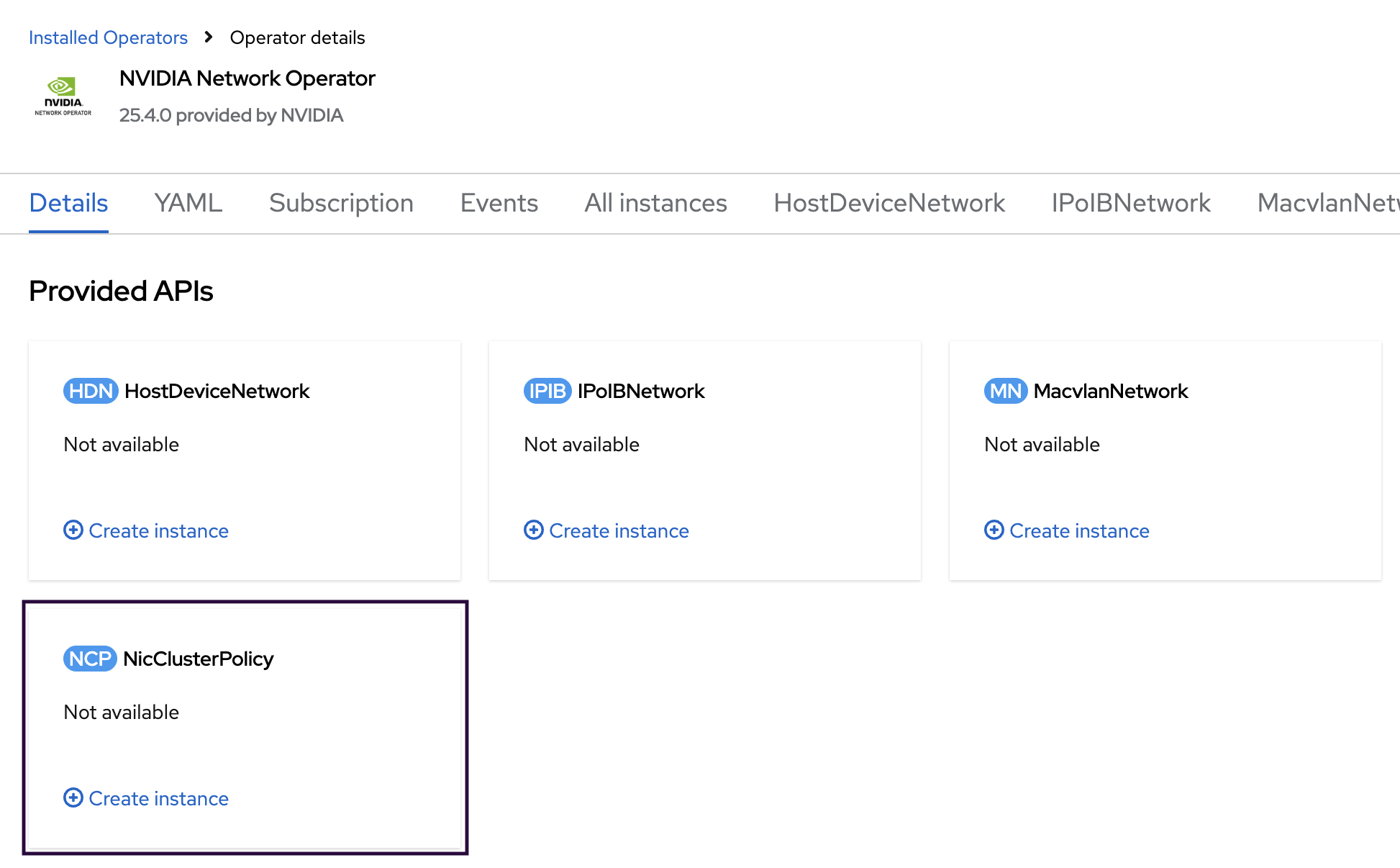
In the NicClusterPolicy tab, make the following modifications:
In the ibKubernetes section, remove the value from the periodicUpdateSeconds field.
In the ofedDriver section, expand the env subsection and add the following environment variable:
UNLOAD_STORAGE_MODULES: true
In the rdmaSharedDevicePlugin section, remove all values in the following subsections: image, repository, version, and config.
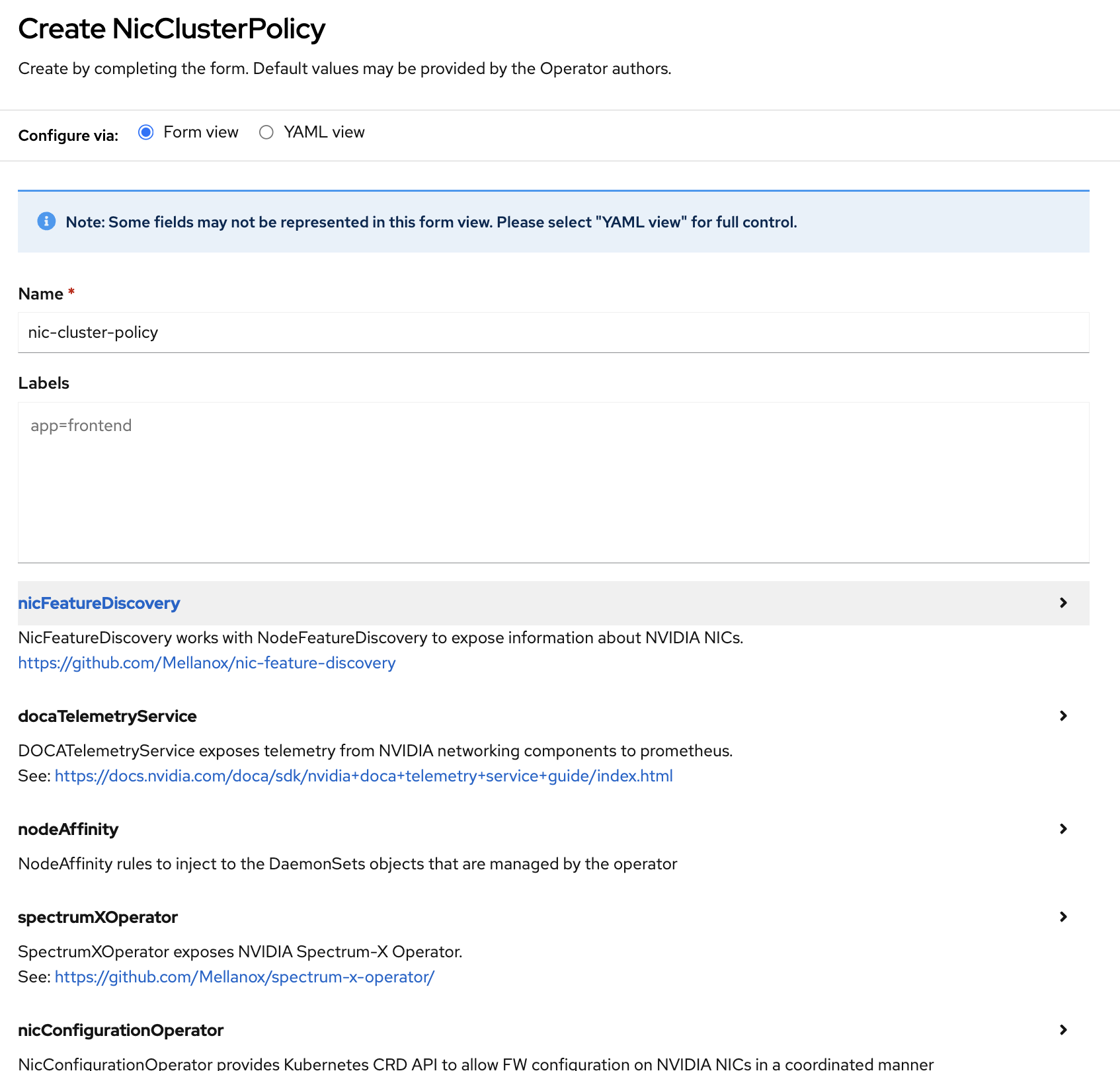
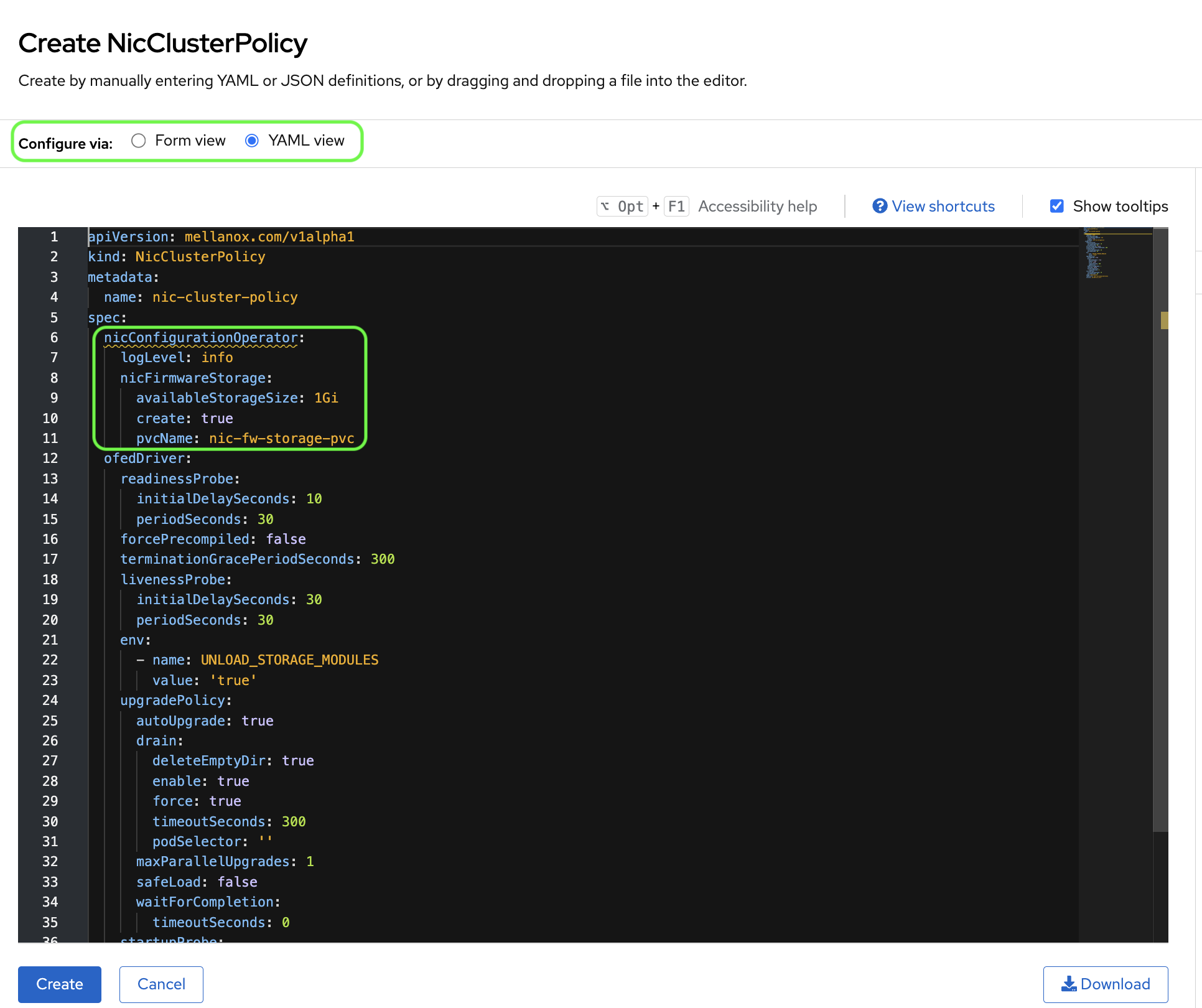
Select YAML view and remove the
nicConfigurationOperatorsection from the YAML file.Select Create.
Note
Applying the NicClusterPolicy depends on the server platform hardware configuration and takes some time.
Wait 5 to 10 minutes. Ensure that all pods in the NVIDIA Network Operator namespace have
Readystatus:oc get pods -o wide -n nvidia-network-operator NAME READY STATUS RESTARTS AGE IP NODE mofed-rhcos4.18-6f4f75ff7c-ds-fh2nh 2/2 Running 0 16h 10.47.33.0 h4m-d mofed-rhcos4.18-6f4f75ff7c-ds-jdtbz 2/2 Running 0 16h 10.47.32.255 h4m-e nvidia-network-operator-controller-manager-b678d987-p297n 1/1 Running 0 16h 10.130.0.42 h4m-a
Check Network Adapter Firmware and Configuration#
To produce ST 2110-compliant streams, ensure that each network adapter is optimally configured. To check and update the network adapter firmware, use the Driver Toolkit. The Driver Toolkit is a container image that includes the kernel packages that tools in driver containers commonly require. For more information, refer to the Driver Toolkit documentation.
Repeat this section for each of your driver-toolkit containers.
Find the Driver Toolkit image for the cluster:
oc adm release info --image-for=driver-toolkit
quay.io/openshift-release-dev/ocp-v4.0-art-dev@sha256:4feae2e6bb59f667431e11e832d294fc5900c1ab38a3bb845191ee93524208e4
Create a new project namespace:
oc new-project driver-toolkit
Create
driver_toolkit.yamlbased on the following template:apiVersion: v1 kind: ServiceAccount metadata: name: driver-toolkit-container --- apiVersion: rbac.authorization.k8s.io/v1 kind: Role metadata: name: driver-toolkit-container rules: - apiGroups: - security.openshift.io resources: - securitycontextconstraints verbs: - use resourceNames: - privileged --- apiVersion: rbac.authorization.k8s.io/v1 kind: RoleBinding metadata: name: driver-toolkit-container roleRef: apiGroup: rbac.authorization.k8s.io kind: Role name: driver-toolkit-container subjects: - kind: ServiceAccount name: driver-toolkit-container userNames: - system:serviceaccount:mft-driver:driver-toolkit-container --- apiVersion: apps/v1 kind: DaemonSet metadata: name: driver-toolkit-container spec: selector: matchLabels: app: driver-toolkit-container template: metadata: labels: app: driver-toolkit-container spec: serviceAccount: driver-toolkit-container serviceAccountName: driver-toolkit-container containers: - image: quay.io/openshift-release-dev/ocp-v4.0-art-dev@sha256:<SHA> name: driver-toolkit-container imagePullPolicy: Always command: [sleep, infinity] securityContext: privileged: true nodeSelector: node-role.kubernetes.io/<machine-config-pool>: ""
Replace
<machine-config-pool>withholoscanmediafor a five-node cluster, or withmasterfor a three-node cluster or single-node OpenShift (SNO).Replace
<SHA>in the image name with the Driver Toolkit image digest from step 1.Deploy the daemon set:
oc create -f driver-toolkit.yaml
Note
This step reports a warning similar to
Warning: would violate PodSecurity "restricted:v1.24". You can safely ignore it.List the pods in the new
driver-toolkitproject:oc get pods NAME READY STATUS RESTARTS AGE driver-toolkit-container-l6d5c 1/1 Running 0 19m driver-toolkit-container-qlj5d 1/1 Running 0 19m
Log in to the first container:
oc exec -it driver-toolkit-container-l6d5c -- /bin/bash
Download the NVIDIA Firmware Tools (MFT) archive into the current directory:
wget https://www.mellanox.com/downloads/MFT/mft-4.33.0-169-x86_64-rpm.tgzExtract the archive:
tar -xvf mft-4.33.0-169-x86_64-rpm.tgz
Navigate to the extracted directory and install:
cd mft-4.33.0-169-x86_64-rpm
./install.sh
...
-I- In order to start mst, please run "mst start".
Install the PCI Utilities package and start
mstas instructed in previous output:yum install pciutils -y ... Complete! mst start Starting MST (Mellanox Software Tools) driver set Loading MST PCI module - Success Loading MST PCI configuration module - Success Create devices -W- Missing "lsusb" command, skipping MTUSB devices detection Unloading MST PCI module (unused) - Success
Check the network adapter firmware using the following command:
mlxfwmanager -u --online
Follow the prompts to update the firmware as required. Firmware updates take several minutes, and you must restart the machine for them to take effect. You can restart one time, after you make all configuration changes.
Check the PCI addresses of the MST devices, which are the network adapters:
mst status

MST modules:
------------
    MST PCI module is not loaded
    MST PCI configuration module loaded
MST devices:
------------

/dev/mst/mt4129_pciconf0      - PCI configuration cycles access.
                                domain:bus:dev.fn=0000:37:00.0 addr.reg=88
                                Chip revision is: 00
/dev/mst/mt4129_pciconf1      - PCI configuration cycles access.
                                domain:bus:dev.fn=0000:8b:00.0 addr.reg=88
                                Chip revision is: 00
/dev/mst/mt41692_pciconf0     - PCI configuration cycles access.
                                domain:bus:dev.fn=0000:a0:00.0 addr.reg=88
                                Chip revision is: 01
For each device in the previous output, ensure that
REAL_TIME_CLOCK_ENABLEisTrue. Query the setting with the following command, and change it as needed:mlxconfig -d /dev/mst/mt4129_pciconf0 query REAL_TIME_CLOCK_ENABLE Device #1: ---------- Device type: ConnectX7 Name: MCX713106AC-VEA_Ax Description: NVIDIA ConnectX-7 HHHL Adapter Card; 200GbE; Dual-port QSFP112; PCIe 5.0 x16; Crypto Enabled; Secure Boot Enabled Device: /dev/mst/mt4129_pciconf0 Configurations: Next Boot REAL_TIME_CLOCK_ENABLE False(0)
If
REAL_TIME_CLOCK_ENABLEis set toFalse(0), enable it:mlxconfig -d /dev/mst/mt4129_pciconf0 set REAL_TIME_CLOCK_ENABLE=1 Device #1: ---------- Device type: ConnectX7 Name: MCX713106AC-VEA_Ax Description: NVIDIA ConnectX-7 HHHL Adapter Card; 200GbE; Dual-port QSFP112; PCIe 5.0 x16; Crypto Enabled; Secure Boot Enabled Device: /dev/mst/mt4129_pciconf0 Configurations: Next Boot New REAL_TIME_CLOCK_ENABLE False(0) True(1) Apply new Configuration? (y/n) [n] : y Applying... Done! -I- Please reboot machine to load new configurations.
Any configuration change requires a reboot. You can reboot one time, after you make all configuration changes.
If you use AMD-based servers, ensure that
PCI_WR_ORDERINGis set toforce_relaxfor each device in themst statusoutput from step 15. Query the value ofPCI_WR_ORDERINGwith the following command:mlxconfig -d /dev/mst/mt4129_pciconf0 query PCI_WR_ORDERING Device #1: ---------- Device type: ConnectX7 Name: MCX713106AC-VEA_Ax Description: NVIDIA ConnectX-7 HHHL Adapter Card; 200GbE; Dual-port QSFP112; PCIe 5.0 x16; Crypto Enabled; Secure Boot Enabled Device: /dev/mst/mt4129_pciconf0 Configurations: Next Boot PCI_WR_ORDERING per_mkey(0)
If
PCI_WR_ORDERINGis set toper_mkey(0), set it toforce_relax:mlxconfig -d /dev/mst/mt4129_pciconf0 set PCI_WR_ORDERING=1 Device #1: ---------- Device type: ConnectX7 Name: MCX713106AC-VEA_Ax Description: NVIDIA ConnectX-7 HHHL Adapter Card; 200GbE; Dual-port QSFP112; PCIe 5.0 x16; Crypto Enabled; Secure Boot Enabled Device: /dev/mst/mt4129_pciconf0 Configurations: Next Boot New PCI_WR_ORDERING per_mkey(0) force_relax(1) Apply new Configuration? (y/n) [n] : y Applying... Done! -I- Please reboot machine to load new configurations.
If you use a purchased Rivermax license rather than a time-limited development license, enable NIC serial number validation with
VF_VPD_ENABLE. Query the current value:mlxconfig -d /dev/mst/mt4129_pciconf0 query VF_VPD_ENABLE Device #1: ---------- Device type: ConnectX6DX Name: MCX623106AN-CDA_Ax Description: ConnectX-6 Dx EN adapter card; 100GbE; Dual-port QSFP56; PCIe 4.0/3.0 x16; Device: /dev/mst/mt4129_pciconf0 Configurations: Next Boot VF_VPD_ENABLE False(0)
If
VF_VPD_ENABLEis set toFalse(0), enable it:mlxconfig -d /dev/mst/mt4129_pciconf0 set VF_VPD_ENABLE=1 Device #1: ---------- Device type: ConnectX7 Name: MCX713106AC-VEA_Ax Description: NVIDIA ConnectX-7 HHHL Adapter Card; 200GbE; Dual-port QSFP112; PCIe 5.0 x16; Crypto Enabled; Secure Boot Enabled Device: /dev/mst/mt4129_pciconf0 Configurations: Next Boot New VF_VPD_ENABLE False(0) True(1) Apply new Configuration? (y/n) [n] : y Applying... Done! -I- Please reboot machine to load new configurations.
Any configuration change requires a reboot. You can reboot one time, after you make all configuration changes.
Exit the Driver Toolkit container:
exit

Exit...
Repeat the preceding steps for each of the other Driver Toolkit containers.
Delete the driver-toolkit daemon set:
oc delete -f driver-toolkit.yaml
Delete the driver-toolkit project:
oc delete project driver-toolkit
Restore the OpenShift CLI default project:
oc project default

Now using project "default" on server "https://api.h4m.example.com:6443".
Reboot each worker machine by following the instructions in Reboot Node Gracefully.
Installing NVIDIA GPU Operator#
NVIDIA GPU Operator uses the operator framework within Kubernetes to automate the management of all NVIDIA software components needed to provision GPUs. These components include the following, among others:
NVIDIA drivers to enable CUDA
Kubernetes device plugin for GPUs
NVIDIA Container Toolkit
Automatic node labeling using GPU Feature Discovery (GFD)
Data Center GPU Manager (DCGM)-based monitoring
If virtual machine (VM) workloads require GPU passthrough, label the nodes before installing the NVIDIA GPU Operator:
oc label node -l nvidia.com/holoscan-for-media.vm-workloads=true nvidia.com/gpu.workload.config=vm-passthrough --overwrite
The NVIDIA GPU Operator uses this label to deploy the GPU passthrough components on the selected nodes.
To install the operator using the web console:
Expand the Operators section and select Operator Hub.
Use the search bar to search for NVIDIA.
Select NVIDIA GPU Operator and select Install in the next window.
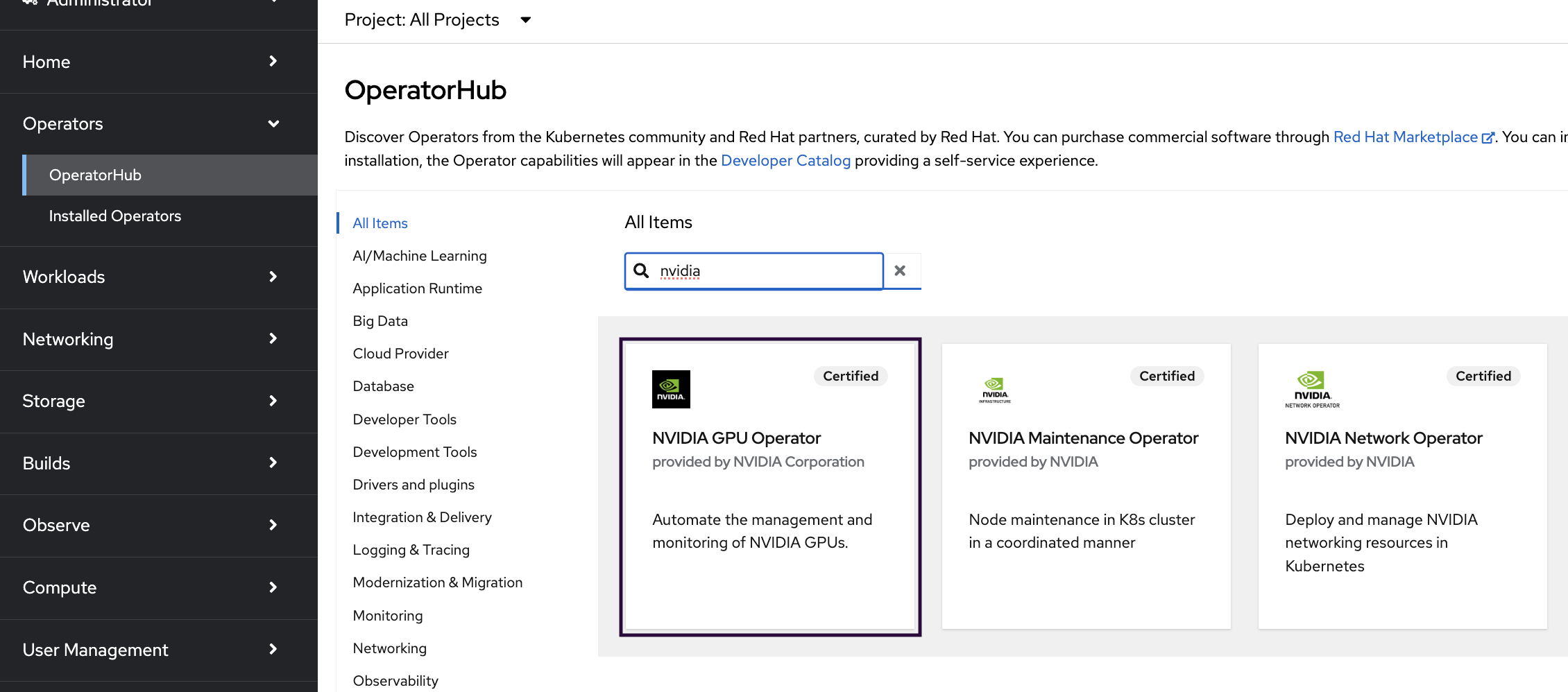
In the pop-up window, select Install.
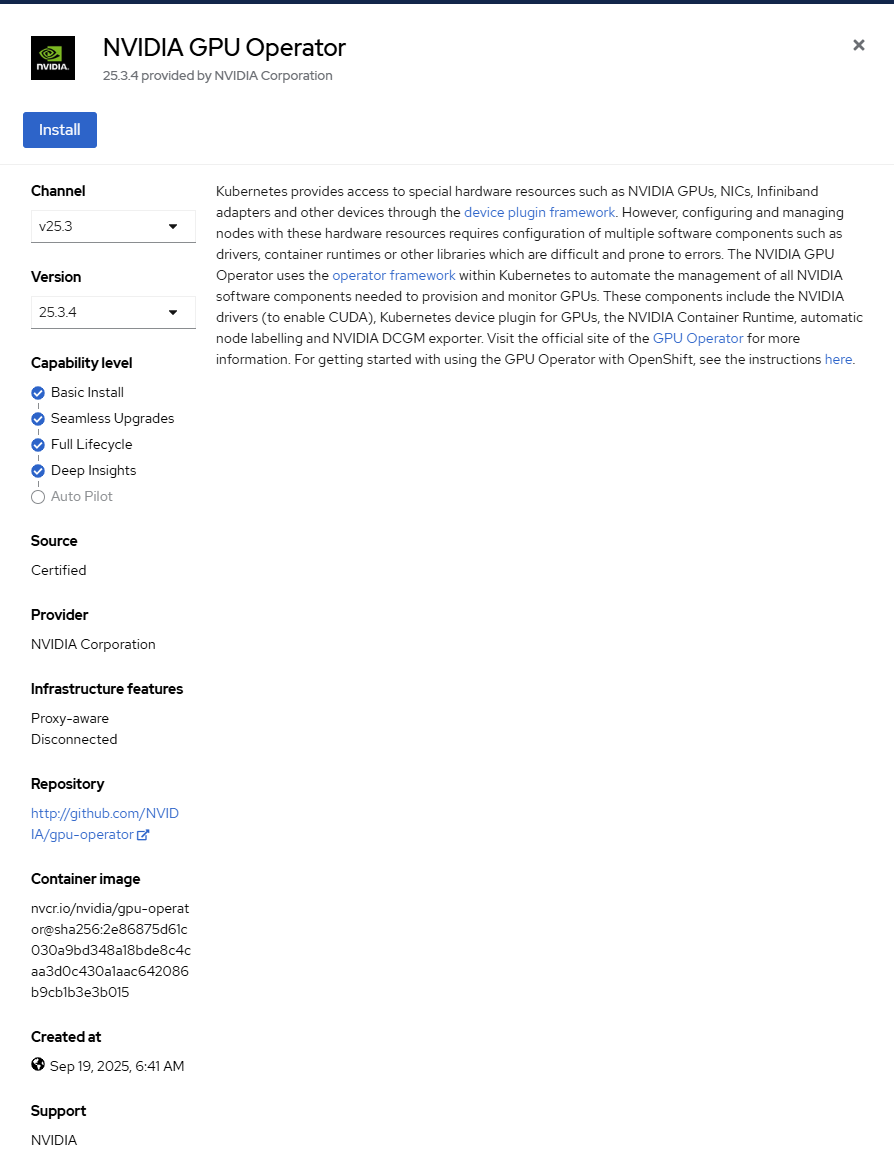
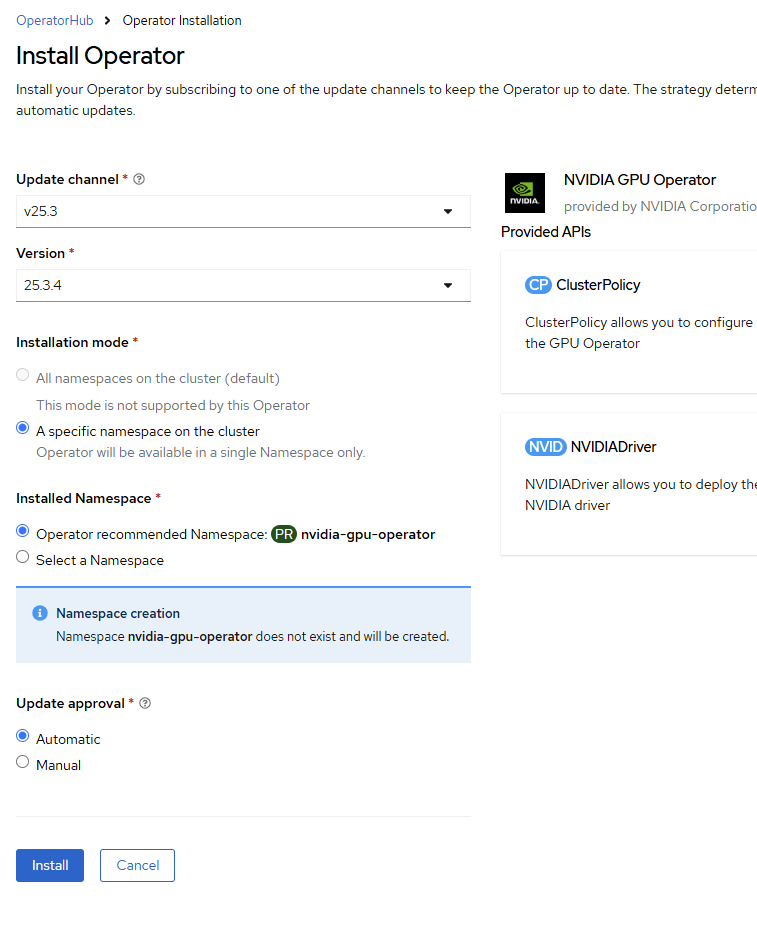
Set Update channel to v25.3 and Version to 25.3.4, and then select Install.
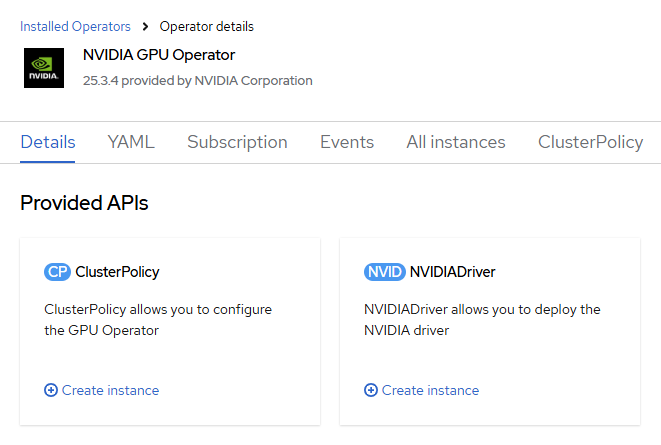
When the installation is complete, go to the Operators section in the left menu bar, select Installed Operators, and then select NVIDIA GPU Operator.
On the NVIDIA GPU Operator details screen, select Create instance in the ClusterPolicy section.
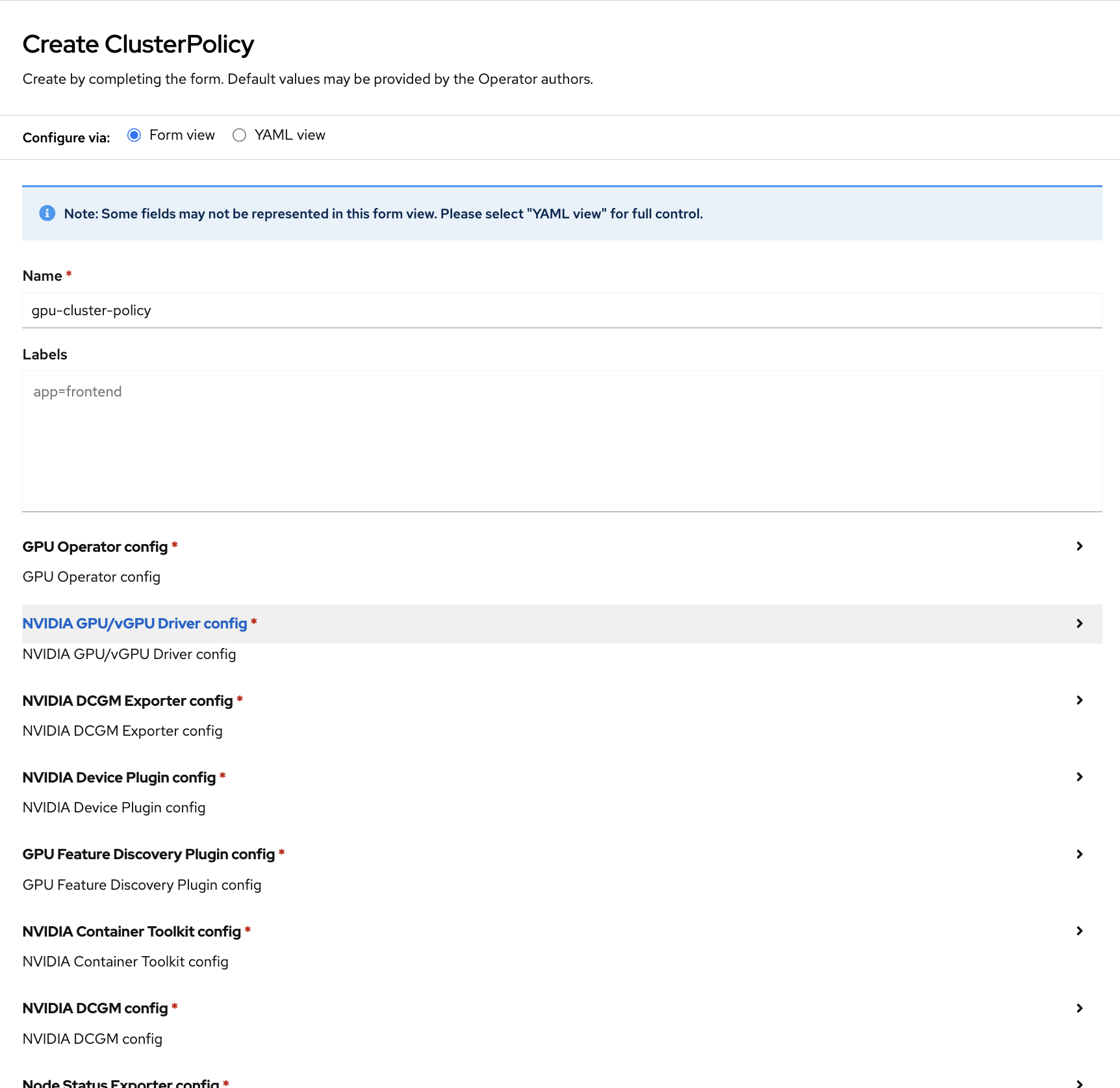
In the ClusterPolicy tab, open the NVIDIA GPU/vGPU Driver config section and select the enabled checkbox in the rdma subsection.
If VM workloads require GPU passthrough, configure the following ClusterPolicy settings:
Expand the Sandbox Workloads config section and select the enabled checkbox.
This enables the NVIDIA GPU Operator’s virtualization-aware mode so it can deploy different GPU components based on the
nvidia.com/gpu.workload.confignode label.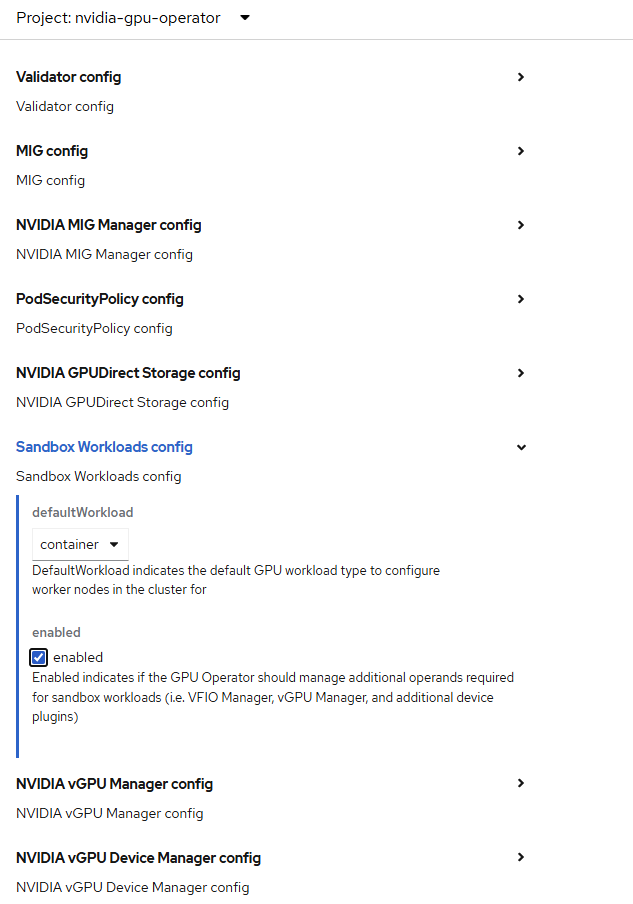
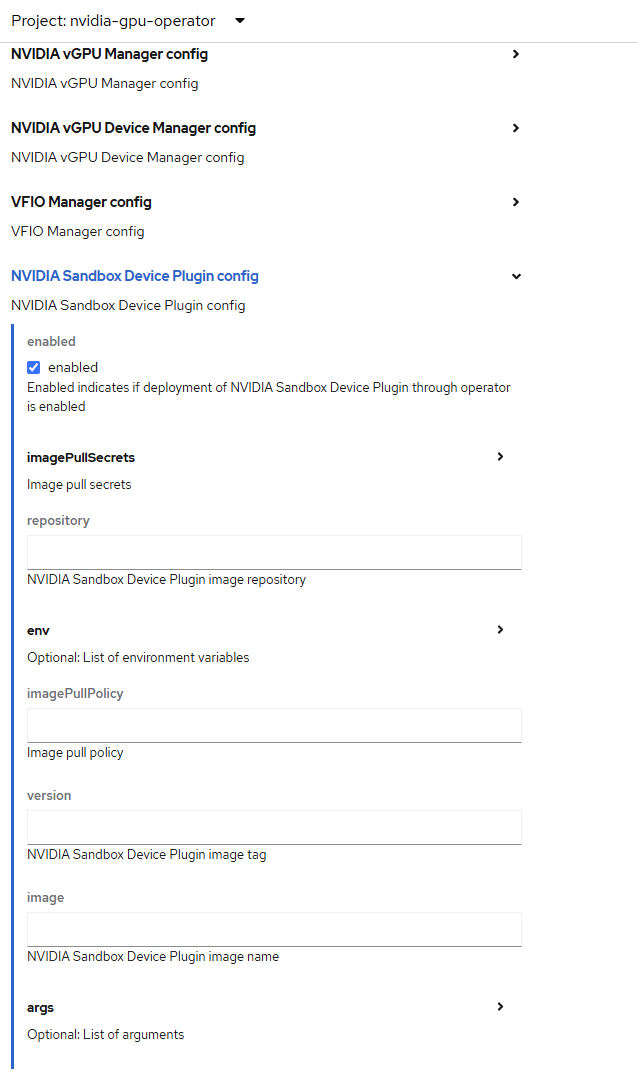
Expand the NVIDIA Sandbox Device Plugin config section and select the enabled checkbox.
This enables the sandbox device plugin, which advertises VM-usable GPU resources to kubelet so OpenShift Virtualization can assign them to VMs.
Expand the VFIO Manager config section and select the enabled checkbox.
This enables the VFIO Manager, which binds GPUs to
vfio-pciso that you can pass them through directly to VMs.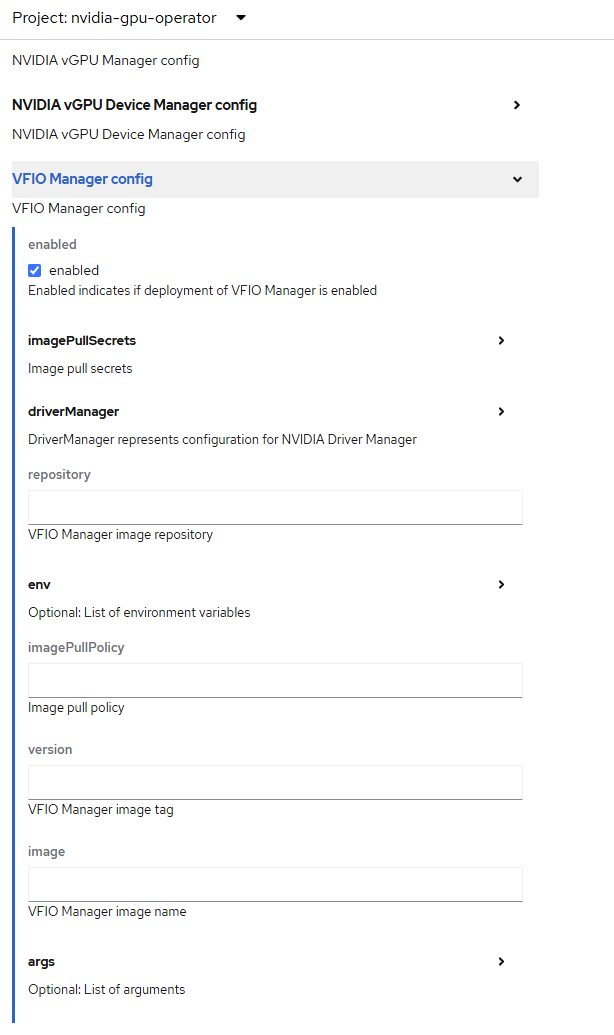
Select Create to create the
ClusterPolicy.Wait 10 to 15 minutes. Ensure that all pods in the NVIDIA GPU Operator namespace have
ReadyorCompletedstatus:oc get pods -n nvidia-gpu-operator -o wide NAME READY STATUS RESTARTS AGE IP NODE gpu-feature-discovery-c4qd5 1/1 Running 0 86m 10.131.0.71 h4m-d gpu-feature-discovery-wj2w4 1/1 Running 0 86m 10.128.2.70 h4m-e gpu-operator-d589cbf48-h7r6q 1/1 Running 0 88m 10.128.2.57 h4m-d nvidia-container-toolkit-daemonset-8jwns 1/1 Running 0 86m 10.128.2.66 h4m-d nvidia-container-toolkit-daemonset-lhtfq 1/1 Running 0 86m 10.131.0.73 h4m-e nvidia-cuda-validator-dmc5b 0/1 Completed 0 84m 10.131.0.77 h4m-e nvidia-cuda-validator-qtxb6 0/1 Completed 0 84m 10.128.2.72 h4m-d nvidia-dcgm-exporter-s7xxg 1/1 Running 1 86m 10.128.2.71 h4m-d nvidia-dcgm-exporter-vbpdn 1/1 Running 0 86m 10.131.0.76 h4m-e nvidia-dcgm-gx25h 1/1 Running 0 86m 10.131.0.75 h4m-e nvidia-dcgm-h8qzg 1/1 Running 0 86m 10.128.2.69 h4m-d nvidia-device-plugin-daemonset-484tb 1/1 Running 0 86m 10.131.0.72 h4m-e nvidia-device-plugin-daemonset-txpb5 1/1 Running 0 86m 10.128.2.67 h4m-d nvidia-driver-daemonset-418.94.202507091512-0-6wlrx 3/3 Running 0 87m 10.131.0.63 h4m-e nvidia-driver-daemonset-418.94.202507091512-0-gnnxl 3/3 Running 0 87m 10.128.2.58 h4m-d nvidia-node-status-exporter-9xh24 1/1 Running 0 87m 10.128.2.65 h4m-d nvidia-node-status-exporter-rpn8x 1/1 Running 0 87m 10.131.0.70 h4m-e nvidia-operator-validator-2hh9s 1/1 Running 0 86m 10.131.0.74 h4m-e nvidia-operator-validator-v2ptl 1/1 Running 0 86m 10.128.2.68 h4m-d
Installing SR-IOV Network Operator#
SR-IOV Network Operator configures the Single Root I/O Virtualization (SR-IOV) networking components in an OpenShift cluster.
To install the operator using the web console:
Expand the Operators section and select Operator Hub.
Use the search bar to search for SR-IOV.
Select SR-IOV Network Operator and select Install in the next window.
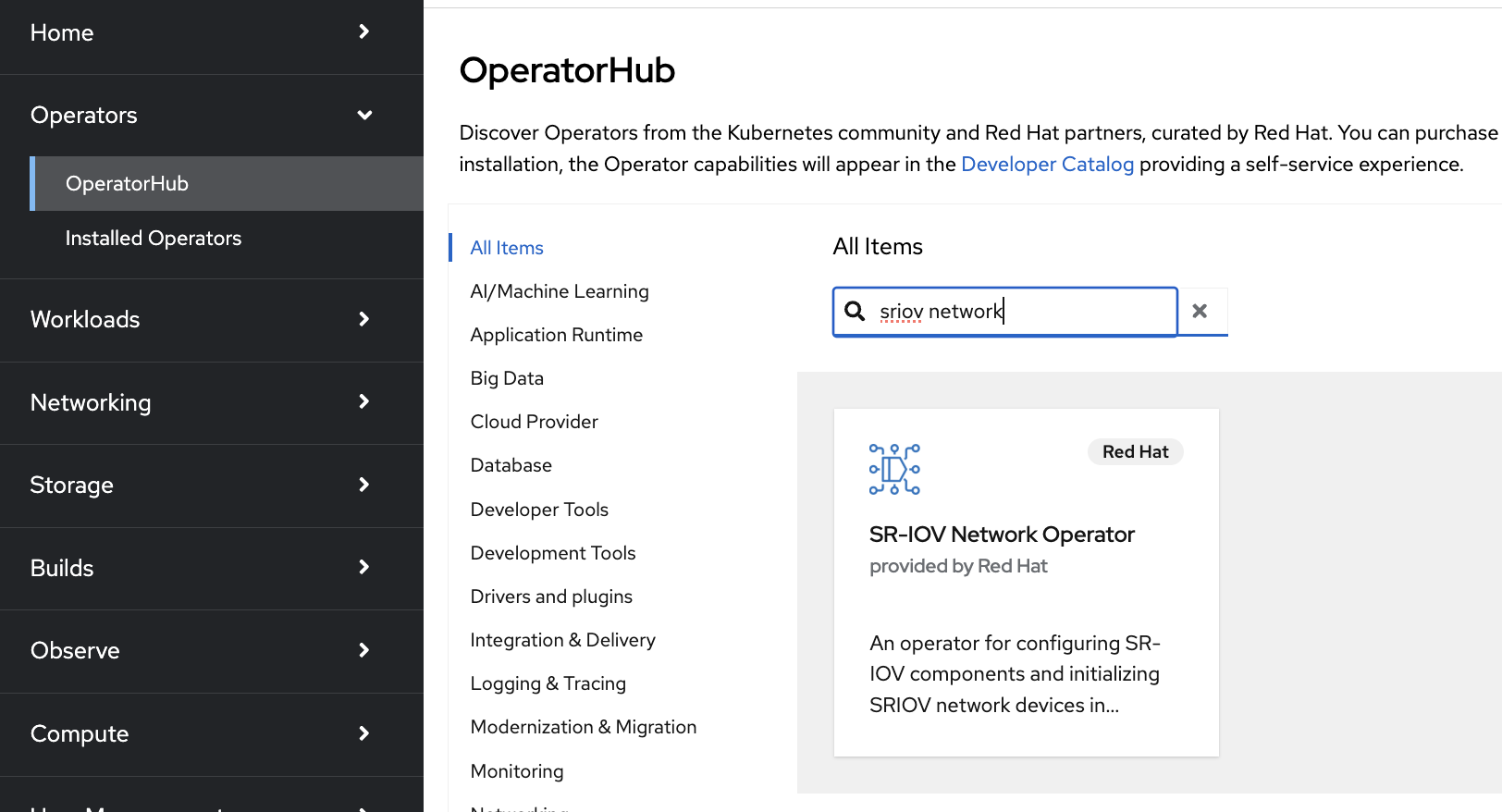
In the pop-up window, select Install.
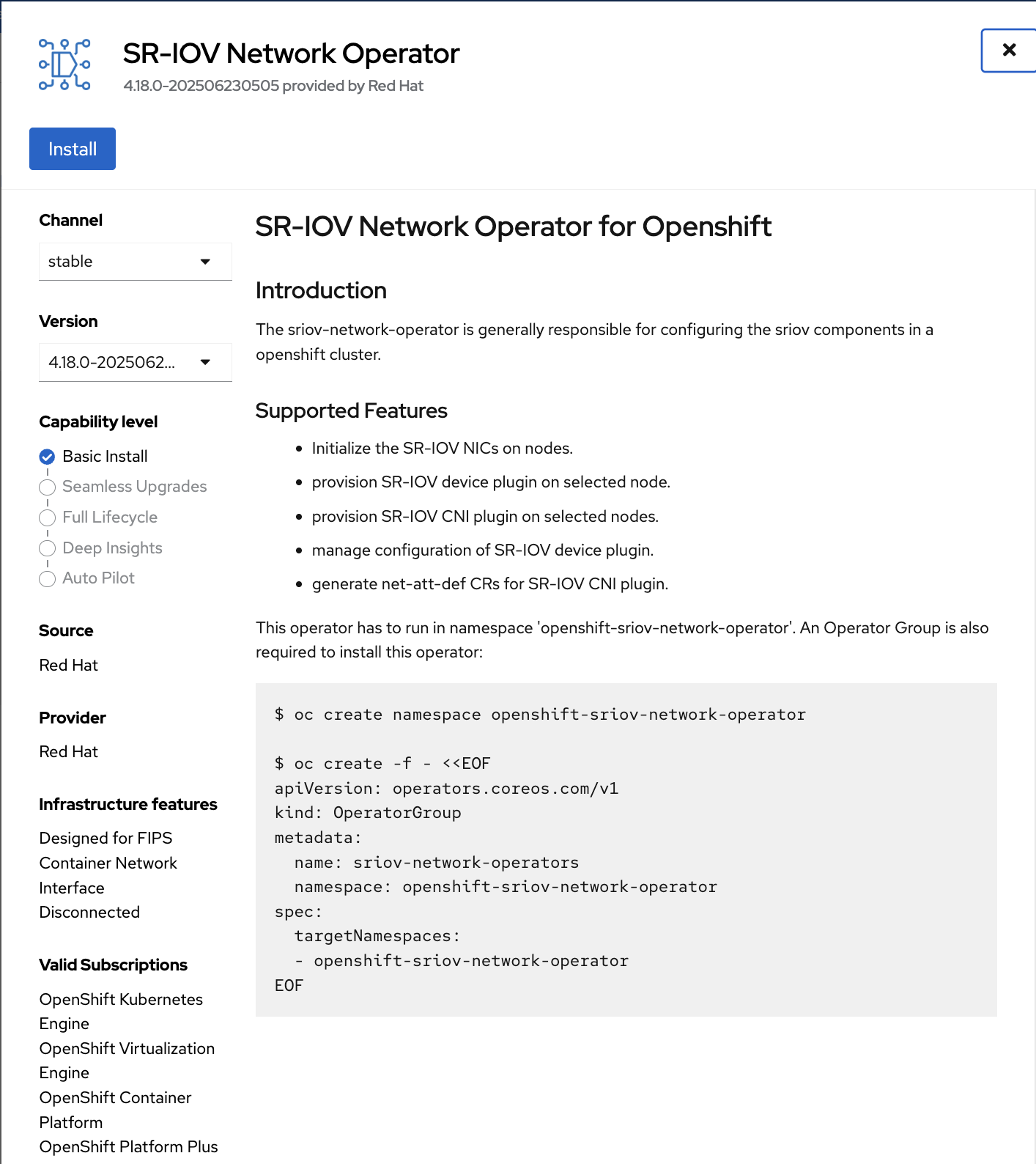
Select the A specific namespace on the cluster checkbox, and then select Install.
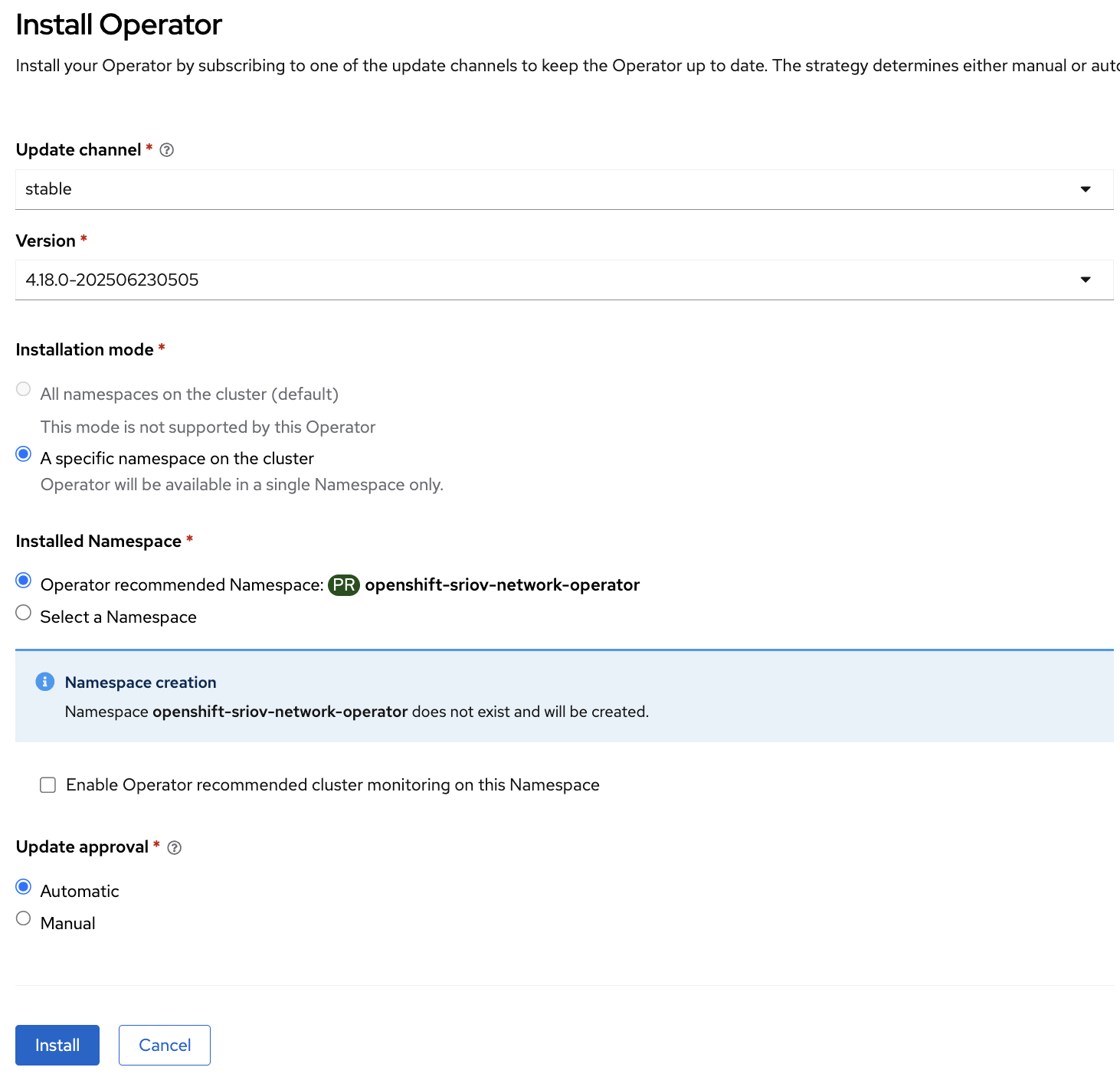
When the installation is complete, select Create SriovOperatorConfig.
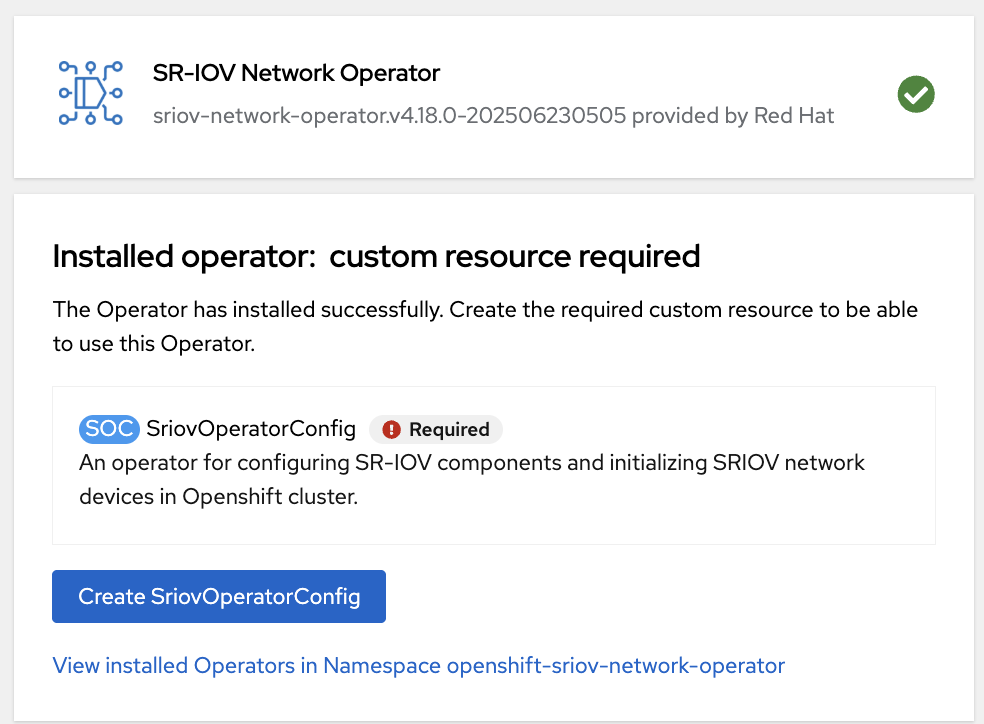
On the Create SriovOperatorConfig screen, select Create.
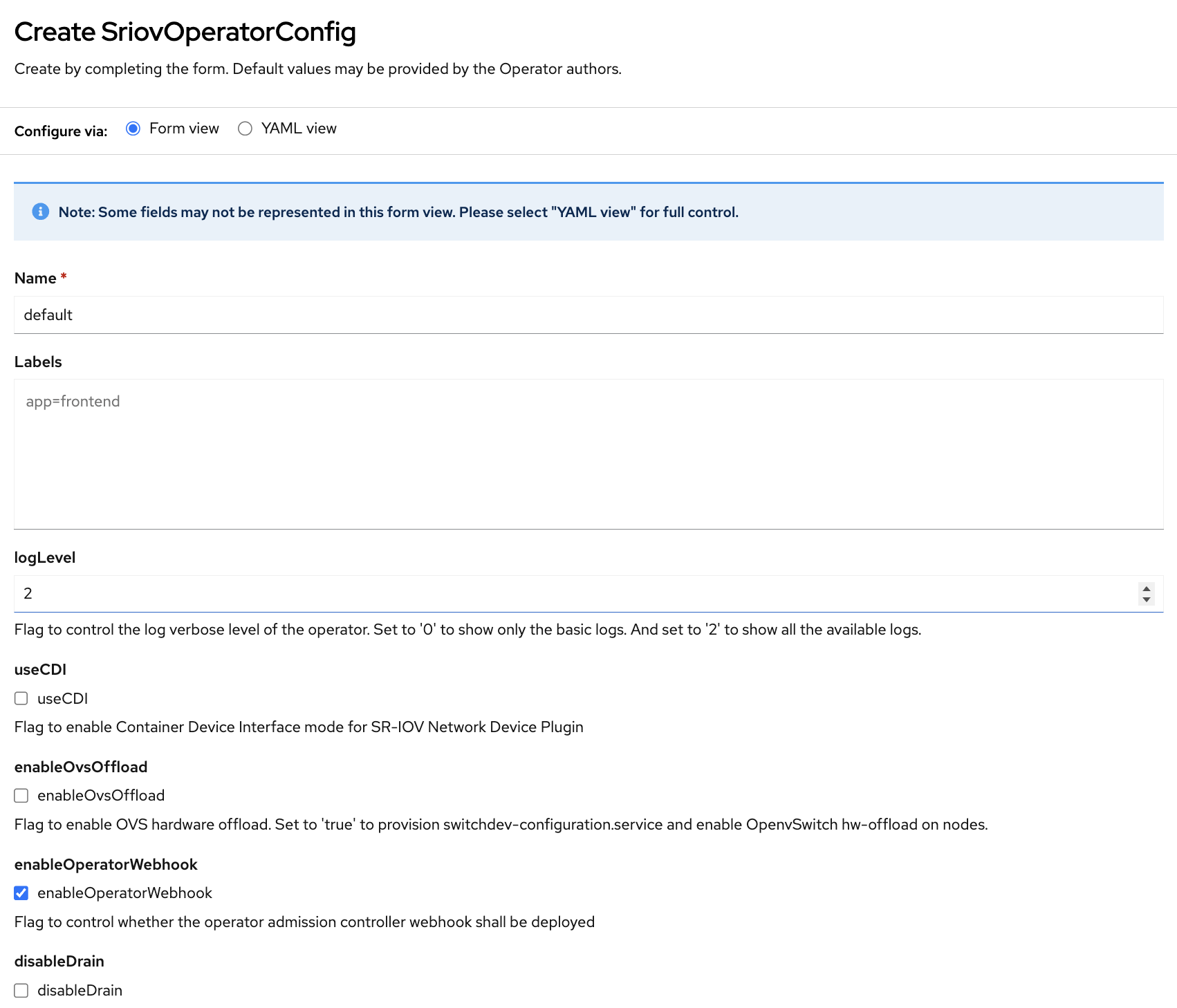
Note
For SNO, select the disableDrain checkbox. This setting prevents the operator from draining the node after you apply the node policy.
Wait three to five minutes for the operator installation to complete. Verify that the installation completed successfully using the following command:
oc get pods -n openshift-sriov-network-operator

NAME                                     READY   STATUS    RESTARTS   AGE
network-resources-injector-c728j         1/1     Running   0          69s
network-resources-injector-jjv9s         1/1     Running   0          69s
network-resources-injector-n2zpv         1/1     Running   0          69s
operator-webhook-4f9p7                   1/1     Running   0          69s
operator-webhook-tg6dl                   1/1     Running   0          69s
operator-webhook-zfpwr                   1/1     Running   0          69s
sriov-network-config-daemon-f6sd7        1/1     Running   0          69s
sriov-network-config-daemon-wgbrs        1/1     Running   0          69s
sriov-network-operator-694c67878-fct5t   1/1     Running   0          2m2s
For a complete network configuration, create the following components:
SR-IOV Network Node Policies
SR-IOV Networks
Refer to the following sections.
Configure SR-IOV Network Node Policy#
Use the following command to identify the connected SR-IOV-capable interfaces. Replace
<worker-node>with a node name.In the reference environment, four ports are connected on each node.
oc -n openshift-sriov-network-operator \
  get sriovnetworknodestates.sriovnetwork.openshift.io <worker-node> -o json | \
  jq '.status.interfaces[] |
      select(.linkSpeed | test("^[1-9][0-9]{4,} Mb/s$")) | .name'
"ens3f0np0"
"ens3f1np1"
"ens6f0np0"
"ens6f1np1"
Create an
SriovNetworkNodePolicycustom resource (CR) for each network interface. If you want to split the virtual functions (VFs) on an interface between different resource pools, create a separate CR for each VF range on that interface.Create
sriov_policy.yamlbased on the following template:apiVersion: sriovnetwork.openshift.io/v1 kind: SriovNetworkNodePolicy metadata: name: <policy-name> namespace: openshift-sriov-network-operator spec: nodeSelector: nvidia.com/holoscan-for-media.node-pools: <pool-name> resourceName: <resource_name> priority: 99 mtu: 1500 numVfs: <num_vfs> nicSelector: pfNames: ["<interface_name>#<vf_range>"] deviceType: <device_type> isRdma: <is_rdma> ---
Replace the template values based on the node pool, interface, VF range, and workload type.
Field
Value
<pool-name>Use the node-pool label value assigned during post-installation node-pool labeling. This value selects the nodes where the
SriovNetworkNodePolicyapplies, for example,container-pool,vm-pool, ormixed-workload-pool.<interface_name>Physical function (PF) name from the previous command, for example
ens3f0np0.<vf_range>VF range assigned to this resource pool, for example
0-15or16-31.<num_vfs>Total number of VFs to create on the PF. This value must be greater than the highest VF index used in any range on that PF. For example, if the highest VF index is
31, setnumVfsto32. When multiple policies target the same PF, all of them must specify the samenumVfsvalue.<device_type>Use
netdeviceif the policy is meant for container workloads andvfio-pciif the policy is meant for VM passthrough workloads.<is_rdma>Use
trueif the policy is meant for container workloads andfalseif the policy is meant for VM passthrough workloads.Repeat the above snippet for each interface or VF range that you configure. Replace
<policy-name>and<resource_name>to indicate the intended purpose of the VFs that the resource exposes.For example, you can define the policies as follows:
<pool-name><interface_name><policy-name><resource_name>Purpose
container-poolens3f0np0media-a-tx-poolmedia_a_tx_poolTransmit-centric (red)
container-poolens3f1np1media-b-tx-poolmedia_b_tx_poolTransmit-centric (blue)
container-poolens6f0np0media-a-rx-poolmedia_a_rx_poolReceive-centric (red)
container-poolens6f1np1media-b-rx-poolmedia_b_rx_poolReceive-centric (blue)
vm-poolens3f0np0media-a-tx-vm-poolmedia_a_tx_vm_poolTransmit-centric (red)
vm-poolens3f1np1media-b-tx-vm-poolmedia_b_tx_vm_poolTransmit-centric (blue)
vm-poolens6f0np0media-a-rx-vm-poolmedia_a_rx_vm_poolReceive-centric (red)
vm-poolens6f1np1media-b-rx-vm-poolmedia_b_rx_vm_poolReceive-centric (blue)
Example: SriovNetworkNodePolicy YAML
The following example shows a
sriov_policy.yamlfor the policies in the table.apiVersion: sriovnetwork.openshift.io/v1 kind: SriovNetworkNodePolicy metadata: name: media-a-tx-pool namespace: openshift-sriov-network-operator spec: nodeSelector: nvidia.com/holoscan-for-media.node-pools: container-pool resourceName: media_a_tx_pool priority: 99 mtu: 1500 numVfs: 16 nicSelector: pfNames: ["ens3f0np0#0-15"] deviceType: netdevice isRdma: true --- apiVersion: sriovnetwork.openshift.io/v1 kind: SriovNetworkNodePolicy metadata: name: media-b-tx-pool namespace: openshift-sriov-network-operator spec: nodeSelector: nvidia.com/holoscan-for-media.node-pools: container-pool resourceName: media_b_tx_pool priority: 99 mtu: 1500 numVfs: 16 nicSelector: pfNames: ["ens3f1np1#0-15"] deviceType: netdevice isRdma: true --- apiVersion: sriovnetwork.openshift.io/v1 kind: SriovNetworkNodePolicy metadata: name: media-a-rx-pool namespace: openshift-sriov-network-operator spec: nodeSelector: nvidia.com/holoscan-for-media.node-pools: container-pool resourceName: media_a_rx_pool priority: 99 mtu: 1500 numVfs: 16 nicSelector: pfNames: ["ens6f0np0#0-15"] deviceType: netdevice isRdma: true --- apiVersion: sriovnetwork.openshift.io/v1 kind: SriovNetworkNodePolicy metadata: name: media-b-rx-pool namespace: openshift-sriov-network-operator spec: nodeSelector: nvidia.com/holoscan-for-media.node-pools: container-pool resourceName: media_b_rx_pool priority: 99 mtu: 1500 numVfs: 16 nicSelector: pfNames: ["ens6f1np1#0-15"] deviceType: netdevice isRdma: true --- apiVersion: sriovnetwork.openshift.io/v1 kind: SriovNetworkNodePolicy metadata: name: media-a-tx-vm-pool namespace: openshift-sriov-network-operator spec: nodeSelector: nvidia.com/holoscan-for-media.node-pools: vm-pool resourceName: media_a_tx_vm_pool priority: 99 mtu: 1500 numVfs: 16 nicSelector: pfNames: ["ens3f0np0#0-15"] deviceType: vfio-pci isRdma: false --- apiVersion: sriovnetwork.openshift.io/v1 kind: SriovNetworkNodePolicy metadata: name: media-b-tx-vm-pool namespace: openshift-sriov-network-operator spec: nodeSelector: nvidia.com/holoscan-for-media.node-pools: vm-pool resourceName: media_b_tx_vm_pool priority: 99 mtu: 1500 numVfs: 16 nicSelector: pfNames: ["ens3f1np1#0-15"] deviceType: vfio-pci isRdma: false --- apiVersion: sriovnetwork.openshift.io/v1 kind: SriovNetworkNodePolicy metadata: name: media-a-rx-vm-pool namespace: openshift-sriov-network-operator spec: nodeSelector: nvidia.com/holoscan-for-media.node-pools: vm-pool resourceName: media_a_rx_vm_pool priority: 99 mtu: 1500 numVfs: 16 nicSelector: pfNames: ["ens6f0np0#0-15"] deviceType: vfio-pci isRdma: false --- apiVersion: sriovnetwork.openshift.io/v1 kind: SriovNetworkNodePolicy metadata: name: media-b-rx-vm-pool namespace: openshift-sriov-network-operator spec: nodeSelector: nvidia.com/holoscan-for-media.node-pools: vm-pool resourceName: media_b_rx_vm_pool priority: 99 mtu: 1500 numVfs: 16 nicSelector: pfNames: ["ens6f1np1#0-15"] deviceType: vfio-pci isRdma: false
Apply the network node policy:
oc create -f sriov_policy.yaml

sriovnetworknodepolicy.sriovnetwork.openshift.io/media-a-tx-pool created
sriovnetworknodepolicy.sriovnetwork.openshift.io/media-b-tx-pool created
sriovnetworknodepolicy.sriovnetwork.openshift.io/media-a-rx-pool created
sriovnetworknodepolicy.sriovnetwork.openshift.io/media-b-rx-pool created
sriovnetworknodepolicy.sriovnetwork.openshift.io/media-a-tx-vm-pool created
sriovnetworknodepolicy.sriovnetwork.openshift.io/media-b-tx-vm-pool created
sriovnetworknodepolicy.sriovnetwork.openshift.io/media-a-rx-vm-pool created
sriovnetworknodepolicy.sriovnetwork.openshift.io/media-b-rx-vm-pool created
Note
This step takes a while. This depends on the number of worker nodes and the number of VFs for each network interface.
Wait two to three minutes for all pods to have
Readystatus. Check the pod state using the following command:oc get pods -n openshift-sriov-network-operator NAME READY STATUS RESTARTS AGE network-resources-injector-c728j 1/1 Running 0 69s network-resources-injector-jjv9s 1/1 Running 0 69s network-resources-injector-n2zpv 1/1 Running 0 69s operator-webhook-4f9p7 1/1 Running 0 69s operator-webhook-tg6dl 1/1 Running 0 69s operator-webhook-zfpwr 1/1 Running 0 69s sriov-network-config-daemon-f6sd7 1/1 Running 0 69s sriov-network-config-daemon-wgbrs 1/1 Running 0 69s sriov-network-operator-694c67878-fct5t 1/1 Running 0 2m2s
Wait 15 to 20 minutes while the operator creates the virtual functions. Before you proceed, ensure that all the pools have positive values for all worker nodes, for example:
oc get node h4m-d -o json | jq '.status.allocatable |
with_entries(select(.key|test("^openshift.io/.+pool$")))'
{
    "openshift.io/media_a_rx_pool": "16",
    "openshift.io/media_a_tx_pool": "16",
    "openshift.io/media_b_rx_pool": "16",
    "openshift.io/media_b_tx_pool": "16",
    "openshift.io/media_a_rx_vm_pool": "16",
    "openshift.io/media_a_tx_vm_pool": "16",
    "openshift.io/media_b_rx_vm_pool": "16",
    "openshift.io/media_b_tx_vm_pool": "16"
}
Run the preceding command for each worker node and confirm that the virtual functions exist.
Configure SR-IOV Network#
Create SriovNetwork resources for each media pool by referencing the
resourceName defined in the corresponding SriovNetworkNodePolicy
resources. For each media pool, create two networks. The first network uses
the Whereabouts plugin for dynamic IP Address Management (IPAM). The second
network uses static IPAM to allow manual, fixed IP assignment.
Create
sriov_network.yamlbased on the following example. Update therange,exclude,resourceName, andvlanvalues based on the media pool and network configuration. For untagged networks, setvlanto0.apiVersion: sriovnetwork.openshift.io/v1 kind: SriovNetwork metadata: name: media-a-tx-net namespace: openshift-sriov-network-operator spec: ipam: | { "type": "whereabouts", "range": "192.168.20.0/24", "exclude": [ "192.168.20.0/27", "192.168.20.64/26", "192.168.20.128/25" ] } networkNamespace: default resourceName: media_a_tx_pool vlan: 200 --- apiVersion: sriovnetwork.openshift.io/v1 kind: SriovNetwork metadata: name: media-a-tx-net-static namespace: openshift-sriov-network-operator spec: ipam: | { "type": "static" } networkNamespace: default resourceName: media_a_tx_pool vlan: 200 ---
In this example, the media network subnet is
192.168.20.0/24and the usable Whereabouts range formedia-a-txis192.168.20.32/27. Theexcludelist covers the addresses in the subnet that are outside that usable range.Repeat the above snippet for each media pool used by the
SriovNetworkNodePolicyresources.For example, you can define the networks as follows:
<resource_name><network-names>Static IPAM Range
Dynamic IPAM Range
media_a_tx_poolmedia-a-tx-net(-static)192.168.20.0-31192.168.20.32-63media_b_tx_poolmedia-b-tx-net(-static)192.168.120.0-31192.168.120.32-63media_a_rx_poolmedia-a-rx-net(-static)192.168.20.128-159192.168.20.160-191media_b_rx_poolmedia-b-rx-net(-static)192.168.120.128-159192.168.120.160-191media_a_tx_vm_poolmedia-a-tx-vm-net(-static)192.168.20.64-95192.168.20.96-127media_b_tx_vm_poolmedia-b-tx-vm-net(-static)192.168.120.64-95192.168.120.96-127media_a_rx_vm_poolmedia-a-rx-vm-net(-static)192.168.20.192-223192.168.20.224-255media_b_rx_vm_poolmedia-b-rx-vm-net(-static)192.168.120.192-223192.168.120.224-255Example: SriovNetwork YAML
The following example shows a
sriov_network.yamlfor the networks in the table.apiVersion: sriovnetwork.openshift.io/v1 kind: SriovNetwork metadata: name: media-a-tx-net namespace: openshift-sriov-network-operator spec: ipam: | { "type": "whereabouts", "range": "192.168.20.0/24", "exclude": [ "192.168.20.0/27", "192.168.20.64/26", "192.168.20.128/25" ] } networkNamespace: default resourceName: media_a_tx_pool vlan: 200 --- apiVersion: sriovnetwork.openshift.io/v1 kind: SriovNetwork metadata: name: media-a-tx-net-static namespace: openshift-sriov-network-operator spec: ipam: | { "type": "static" } networkNamespace: default resourceName: media_a_tx_pool vlan: 200 --- apiVersion: sriovnetwork.openshift.io/v1 kind: SriovNetwork metadata: name: media-b-tx-net namespace: openshift-sriov-network-operator spec: ipam: | { "type": "whereabouts", "range": "192.168.120.0/24", "exclude": [ "192.168.120.0/27", "192.168.120.64/26", "192.168.120.128/25" ] } networkNamespace: default resourceName: media_b_tx_pool vlan: 201 --- apiVersion: sriovnetwork.openshift.io/v1 kind: SriovNetwork metadata: name: media-b-tx-net-static namespace: openshift-sriov-network-operator spec: ipam: | { "type": "static" } networkNamespace: default resourceName: media_b_tx_pool vlan: 201 --- apiVersion: sriovnetwork.openshift.io/v1 kind: SriovNetwork metadata: name: media-a-rx-net namespace: openshift-sriov-network-operator spec: ipam: | { "type": "whereabouts", "range": "192.168.20.0/24", "exclude": [ "192.168.20.0/25", "192.168.20.128/27", "192.168.20.192/26" ] } networkNamespace: default resourceName: media_a_rx_pool vlan: 200 --- apiVersion: sriovnetwork.openshift.io/v1 kind: SriovNetwork metadata: name: media-a-rx-net-static namespace: openshift-sriov-network-operator spec: ipam: | { "type": "static" } networkNamespace: default resourceName: media_a_rx_pool vlan: 200 --- apiVersion: sriovnetwork.openshift.io/v1 kind: SriovNetwork metadata: name: media-b-rx-net namespace: openshift-sriov-network-operator spec: ipam: | { "type": "whereabouts", "range": "192.168.120.0/24", "exclude": [ "192.168.120.0/25", "192.168.120.128/27", "192.168.120.192/26" ] } networkNamespace: default resourceName: media_b_rx_pool vlan: 201 --- apiVersion: sriovnetwork.openshift.io/v1 kind: SriovNetwork metadata: name: media-b-rx-net-static namespace: openshift-sriov-network-operator spec: ipam: | { "type": "static" } networkNamespace: default resourceName: media_b_rx_pool vlan: 201 --- apiVersion: sriovnetwork.openshift.io/v1 kind: SriovNetwork metadata: name: media-a-tx-vm-net namespace: openshift-sriov-network-operator spec: ipam: | { "type": "whereabouts", "range": "192.168.20.0/24", "exclude": [ "192.168.20.0/26", "192.168.20.64/27", "192.168.20.128/25" ] } networkNamespace: default resourceName: media_a_tx_vm_pool vlan: 200 --- apiVersion: sriovnetwork.openshift.io/v1 kind: SriovNetwork metadata: name: media-a-tx-vm-net-static namespace: openshift-sriov-network-operator spec: ipam: | { "type": "static" } networkNamespace: default resourceName: media_a_tx_vm_pool vlan: 200 --- apiVersion: sriovnetwork.openshift.io/v1 kind: SriovNetwork metadata: name: media-b-tx-vm-net namespace: openshift-sriov-network-operator spec: ipam: | { "type": "whereabouts", "range": "192.168.120.0/24", "exclude": [ "192.168.120.0/26", "192.168.120.64/27", "192.168.120.128/25" ] } networkNamespace: default resourceName: media_b_tx_vm_pool vlan: 201 --- apiVersion: sriovnetwork.openshift.io/v1 kind: SriovNetwork metadata: name: media-b-tx-vm-net-static namespace: openshift-sriov-network-operator spec: ipam: | { "type": "static" } networkNamespace: default resourceName: media_b_tx_vm_pool vlan: 201 --- apiVersion: sriovnetwork.openshift.io/v1 kind: SriovNetwork metadata: name: media-a-rx-vm-net namespace: openshift-sriov-network-operator spec: ipam: | { "type": "whereabouts", "range": "192.168.20.0/24", "exclude": [ "192.168.20.0/25", "192.168.20.128/26", "192.168.20.192/27" ] } networkNamespace: default resourceName: media_a_rx_vm_pool vlan: 200 --- apiVersion: sriovnetwork.openshift.io/v1 kind: SriovNetwork metadata: name: media-a-rx-vm-net-static namespace: openshift-sriov-network-operator spec: ipam: | { "type": "static" } networkNamespace: default resourceName: media_a_rx_vm_pool vlan: 200 --- apiVersion: sriovnetwork.openshift.io/v1 kind: SriovNetwork metadata: name: media-b-rx-vm-net namespace: openshift-sriov-network-operator spec: ipam: | { "type": "whereabouts", "range": "192.168.120.0/24", "exclude": [ "192.168.120.0/25", "192.168.120.128/26", "192.168.120.192/27" ] } networkNamespace: default resourceName: media_b_rx_vm_pool vlan: 201 --- apiVersion: sriovnetwork.openshift.io/v1 kind: SriovNetwork metadata: name: media-b-rx-vm-net-static namespace: openshift-sriov-network-operator spec: ipam: | { "type": "static" } networkNamespace: default resourceName: media_b_rx_vm_pool vlan: 201
Create the networks:
oc create -f sriov_network.yaml

sriovnetwork.sriovnetwork.openshift.io/media-a-tx-net created
sriovnetwork.sriovnetwork.openshift.io/media-a-tx-net-static created
sriovnetwork.sriovnetwork.openshift.io/media-b-tx-net created
sriovnetwork.sriovnetwork.openshift.io/media-b-tx-net-static created
sriovnetwork.sriovnetwork.openshift.io/media-a-rx-net created
sriovnetwork.sriovnetwork.openshift.io/media-a-rx-net-static created
sriovnetwork.sriovnetwork.openshift.io/media-b-rx-net created
sriovnetwork.sriovnetwork.openshift.io/media-b-rx-net-static created
sriovnetwork.sriovnetwork.openshift.io/media-a-tx-vm-net created
sriovnetwork.sriovnetwork.openshift.io/media-a-tx-vm-net-static created
sriovnetwork.sriovnetwork.openshift.io/media-b-tx-vm-net created
sriovnetwork.sriovnetwork.openshift.io/media-b-tx-vm-net-static created
sriovnetwork.sriovnetwork.openshift.io/media-a-rx-vm-net created
sriovnetwork.sriovnetwork.openshift.io/media-a-rx-vm-net-static created
sriovnetwork.sriovnetwork.openshift.io/media-b-rx-vm-net created
sriovnetwork.sriovnetwork.openshift.io/media-b-rx-vm-net-static created
Run the following command to confirm that the network attachment definitions exist:
oc get network-attachment-definitions

NAME AGE
media-a-tx-net 31s
media-a-tx-net-static 31s
media-b-tx-net 31s
media-b-tx-net-static 31s
media-a-rx-net 31s
media-a-rx-net-static 31s
media-b-rx-net 31s
media-b-rx-net-static 31s
media-a-tx-vm-net 31s
media-a-tx-vm-net-static 31s
media-b-tx-vm-net 31s
media-b-tx-vm-net-static 31s
media-a-rx-vm-net 31s
media-a-rx-vm-net-static 31s
media-b-rx-vm-net 31s
media-b-rx-vm-net-static 31s
Installing Kubernetes NMState Operator#
Kubernetes NMState Operator provides advanced configuration of network interface cards, such as creating a VLAN under a specific network interface.
To install the operator using the web console:
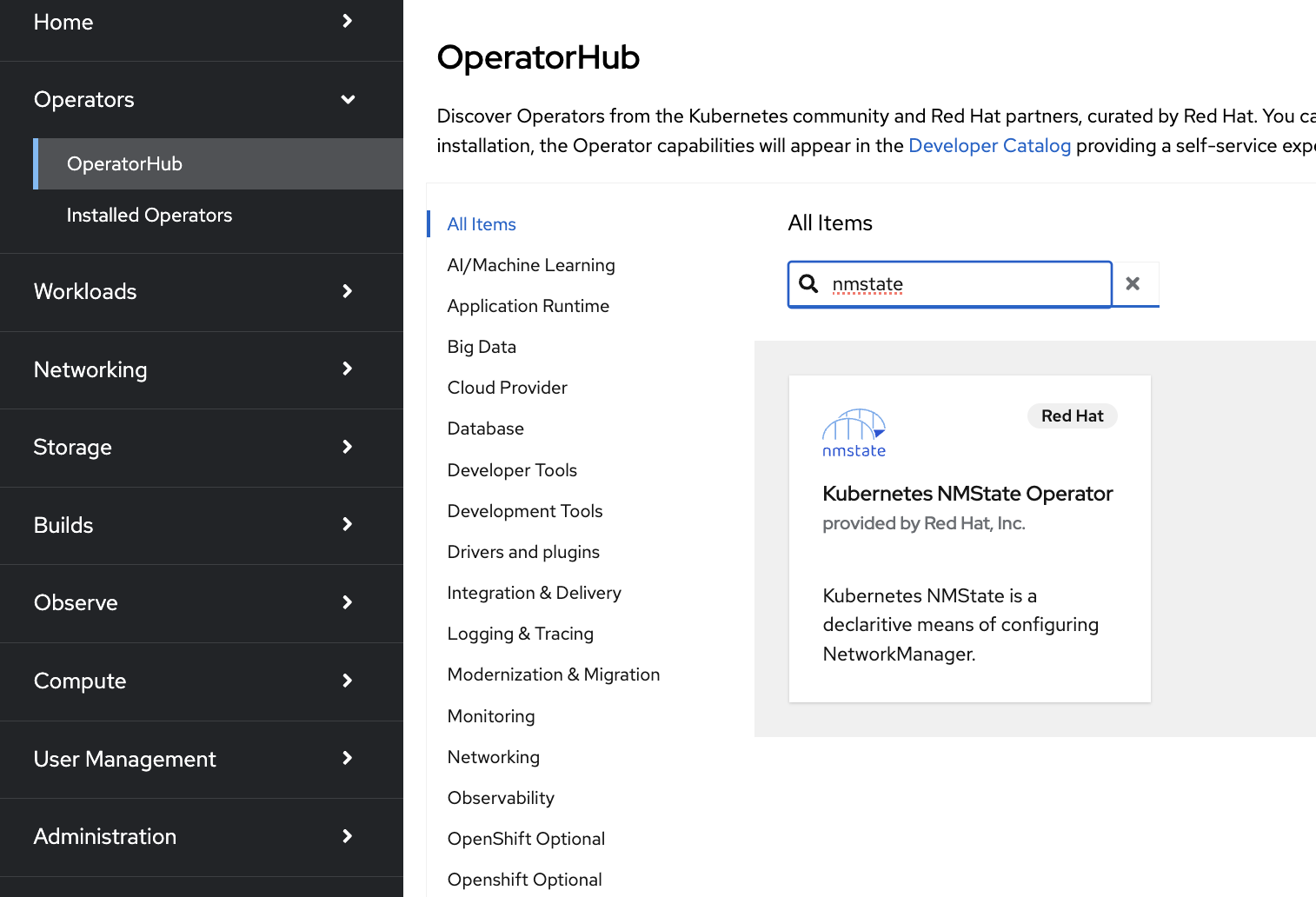
Expand the Operators section and select Operator Hub. Use the search bar to search for NMState. Select Kubernetes NMState Operator.
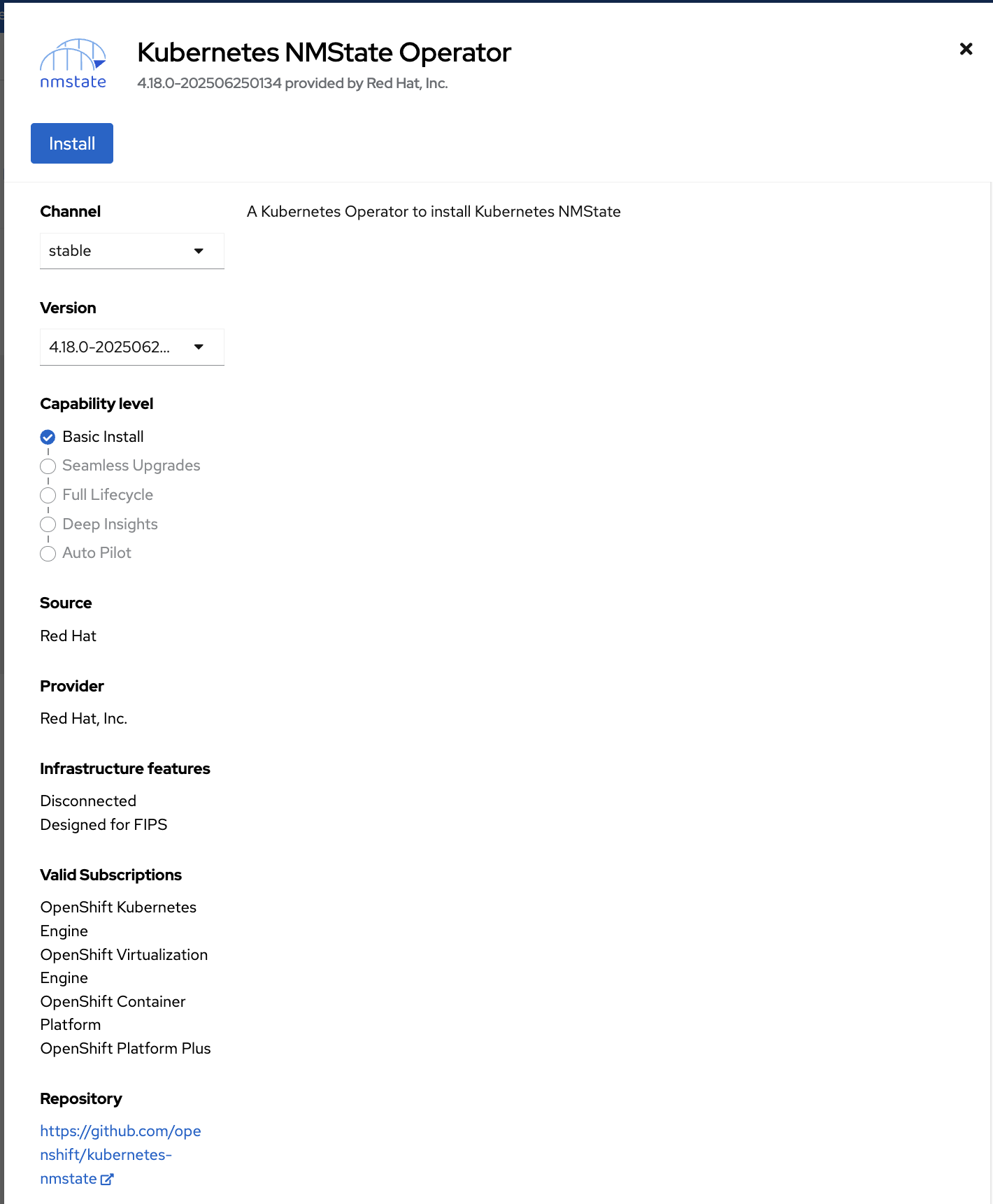
In the pop-up window, select Install.
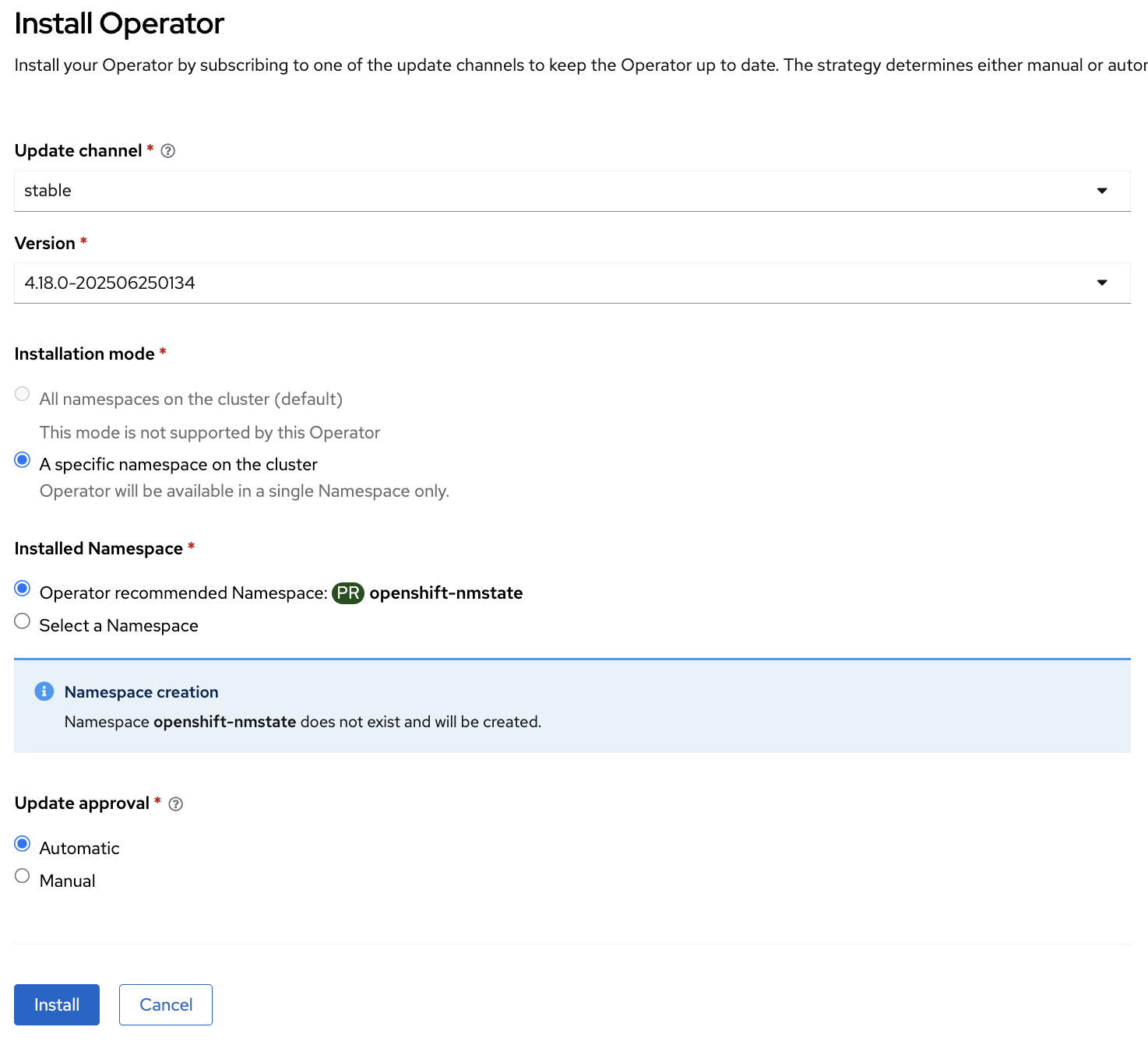
Select the A specific namespace on the cluster checkbox, and then select Install.
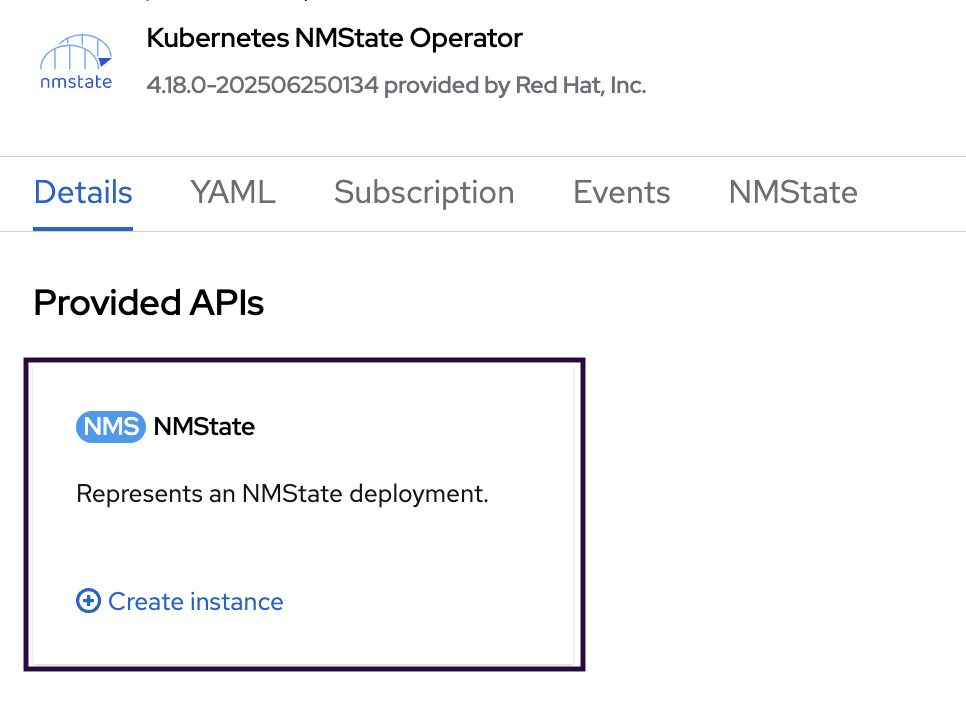
After the installation completes, navigate to the Operators section, select Installed Operators, and select Kubernetes NMState Operator. On the Kubernetes NMState Operator details screen, select Create instance in the Provided APIs section.
Select Create.
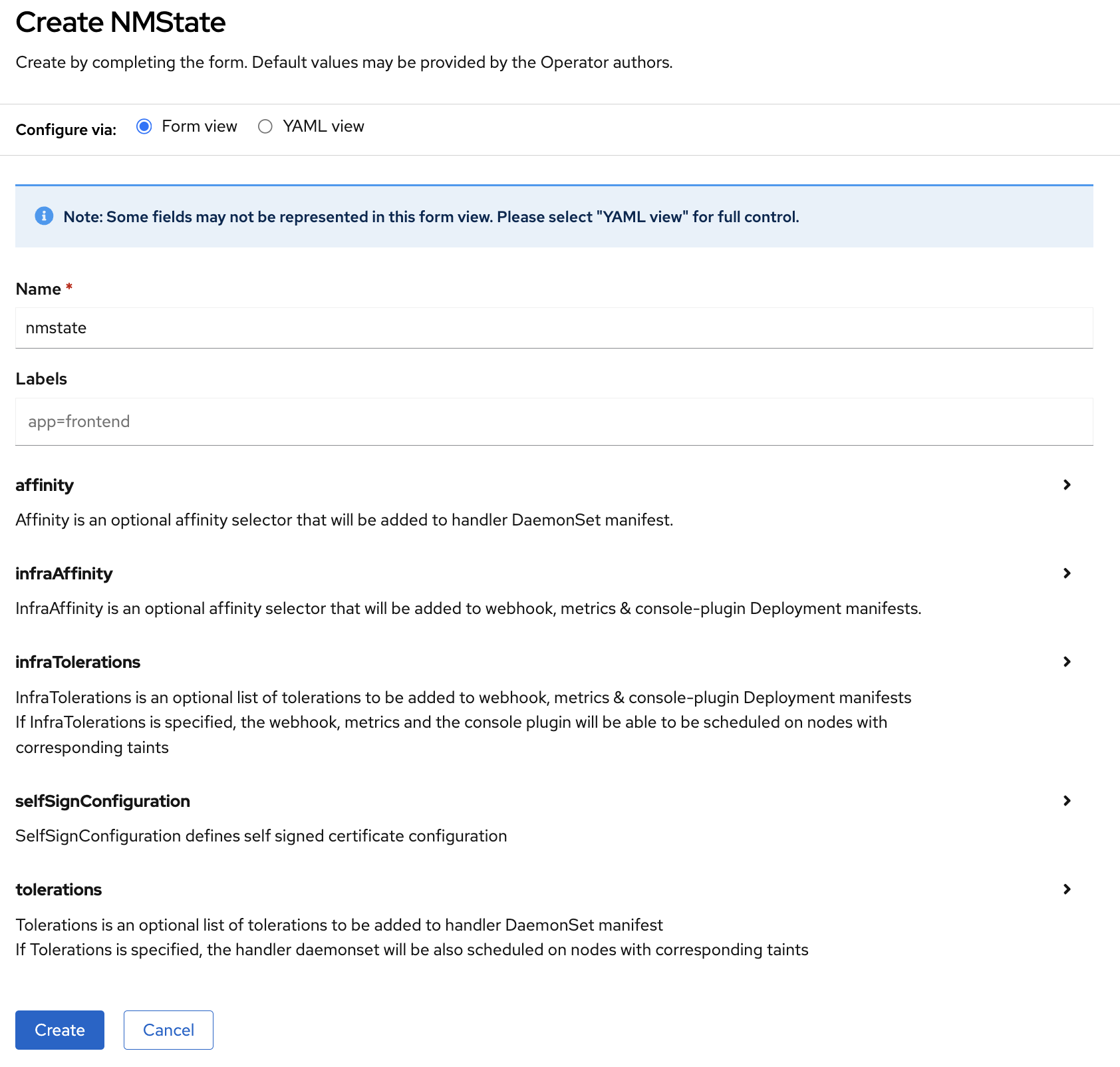
To verify the NMState instance deployment, run the following command:
oc get pods -o wide -n openshift-nmstate

NAME                                     READY   STATUS    RESTARTS   AGE   IP             NODE
nmstate-console-plugin-c69f95794-ztkkl   1/1     Running   0          74m   10.131.0.81    h4m-e
nmstate-handler-6vljk                    1/1     Running   0          74m   10.47.32.255   h4m-d
nmstate-handler-92t7h                    1/1     Running   0          74m   10.47.29.253   h4m-a
nmstate-handler-cq2tw                    1/1     Running   0          74m   10.47.11.228   h4m-a
nmstate-handler-gls2d                    1/1     Running   0          74m   10.47.31.241   h4m-b
nmstate-handler-gqg84                    1/1     Running   0          74m   10.47.33.0     h4m-e
nmstate-metrics-69d774d9b6-bcjf7         2/2     Running   0          74m   10.130.0.59    h4m-c
nmstate-operator-85d697d7f4-jxpvc        1/1     Running   0          75m   10.130.0.57    h4m-c
nmstate-webhook-755bbbc9fc-gdrng         1/1     Running   0          74m   10.129.1.62    h4m-a
nmstate-webhook-755bbbc9fc-xhm2x         1/1     Running   0          74m   10.130.0.58    h4m-c
Assign Static IP Addresses on Worker Nodes#
PTP Operator syncs time from a PTP grandmaster clock, so each worker node needs a network adapter with an IP address in the PTP network. In the same policy, disable DHCP on the media base interface so NetworkManager does not create a default wired DHCP connection on that interface.
Create
nmstate_config.yamlbased on the following template. Replace<worker>with the worker node hostname,<interface-name>with the PTP-connected base interface,<ptp-vlan>with the PTP VLAN ID, and<ptp-ip>with the static IP in the PTP network. Copy the VLAN and base interface entries for each interface present on the node. Repeat for each worker node:apiVersion: nmstate.io/v1 kind: NodeNetworkConfigurationPolicy metadata: name: nmstate-<worker> spec: nodeSelector: kubernetes.io/hostname: <worker> desiredState: interfaces: - name: <interface-name>.<ptp-vlan> description: VLAN using <interface-name> type: vlan state: up vlan: base-iface: <interface-name> id: <ptp-vlan> ipv4: dhcp: false address: - ip: <ptp-ip> prefix-length: 24 enabled: true - name: <interface-name> description: Disable DHCP on the media base interface type: ethernet state: up ipv4: enabled: false dhcp: false ipv6: enabled: false ---
Apply the NetworkManager state:
oc create -f nmstate_config.yaml
Confirm that the cluster applied the policy successfully:
oc get nncp

NAME STATUS REASON
nmstate-h4m-d Available SuccessfullyConfigured
nmstate-h4m-e Available SuccessfullyConfigured
Installing PTP Operator#
To install the operator using the web console:
Expand the Operators section and select Operator Hub. Use the search bar to search for PTP.
Select the PTP Operator that Red Hat provides.
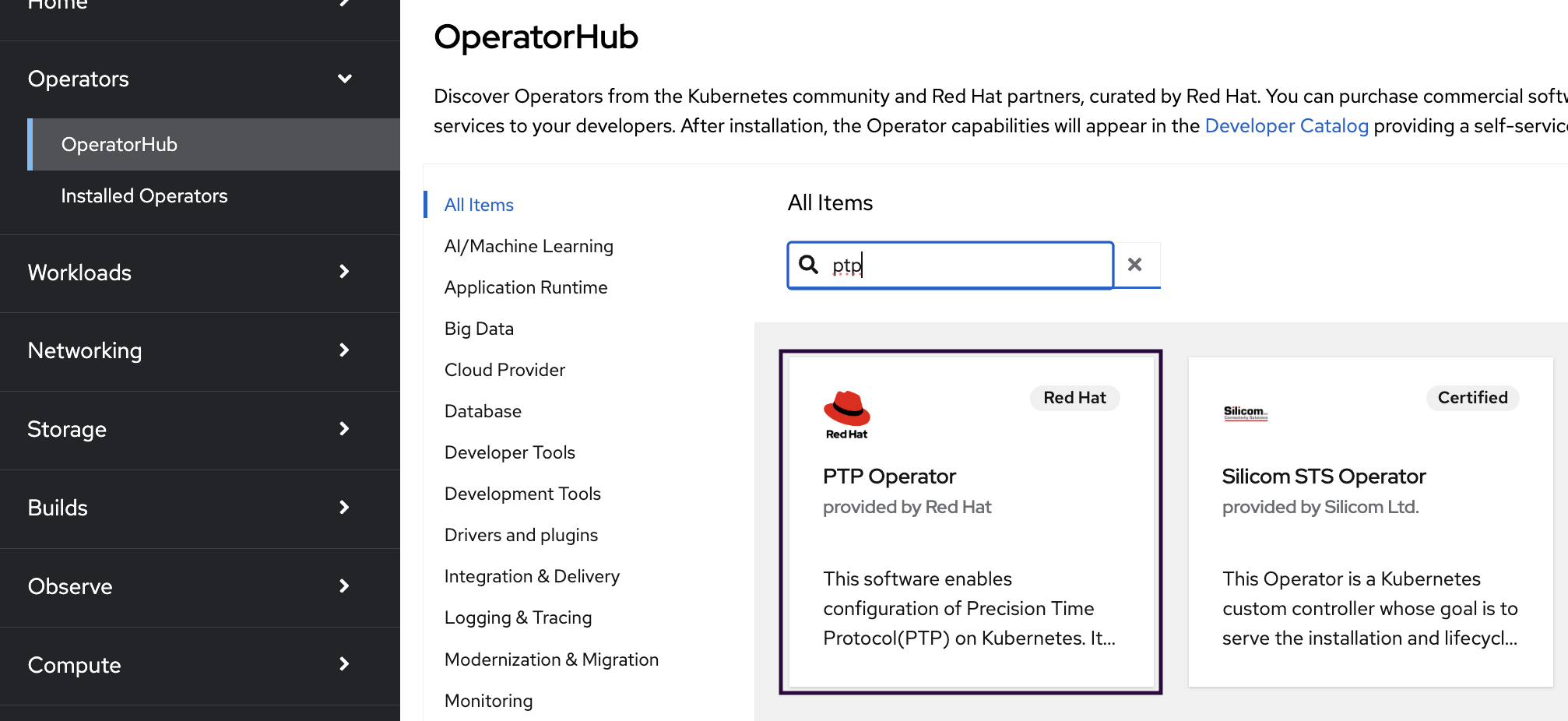
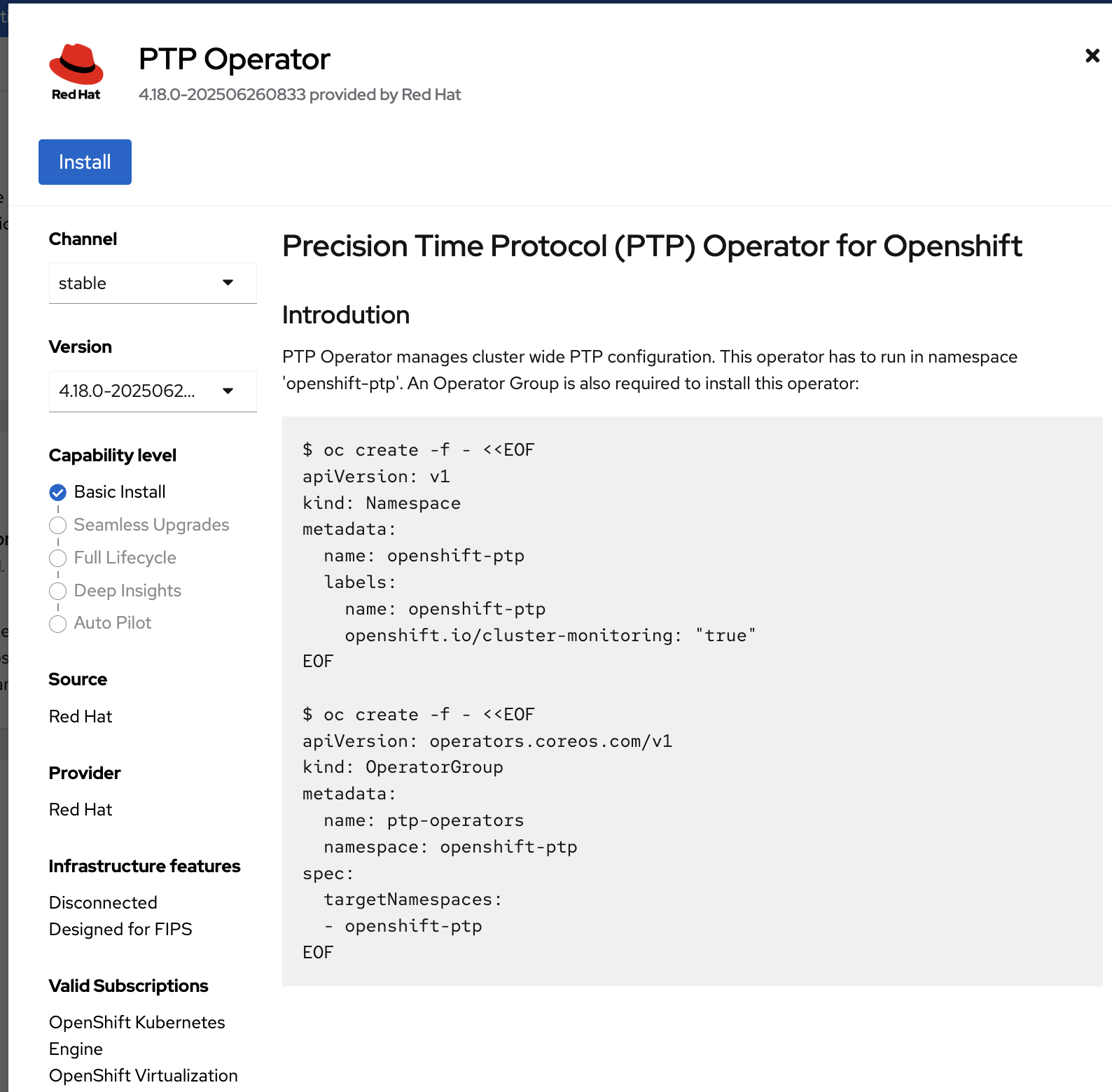
In the pop-up window, select Install.
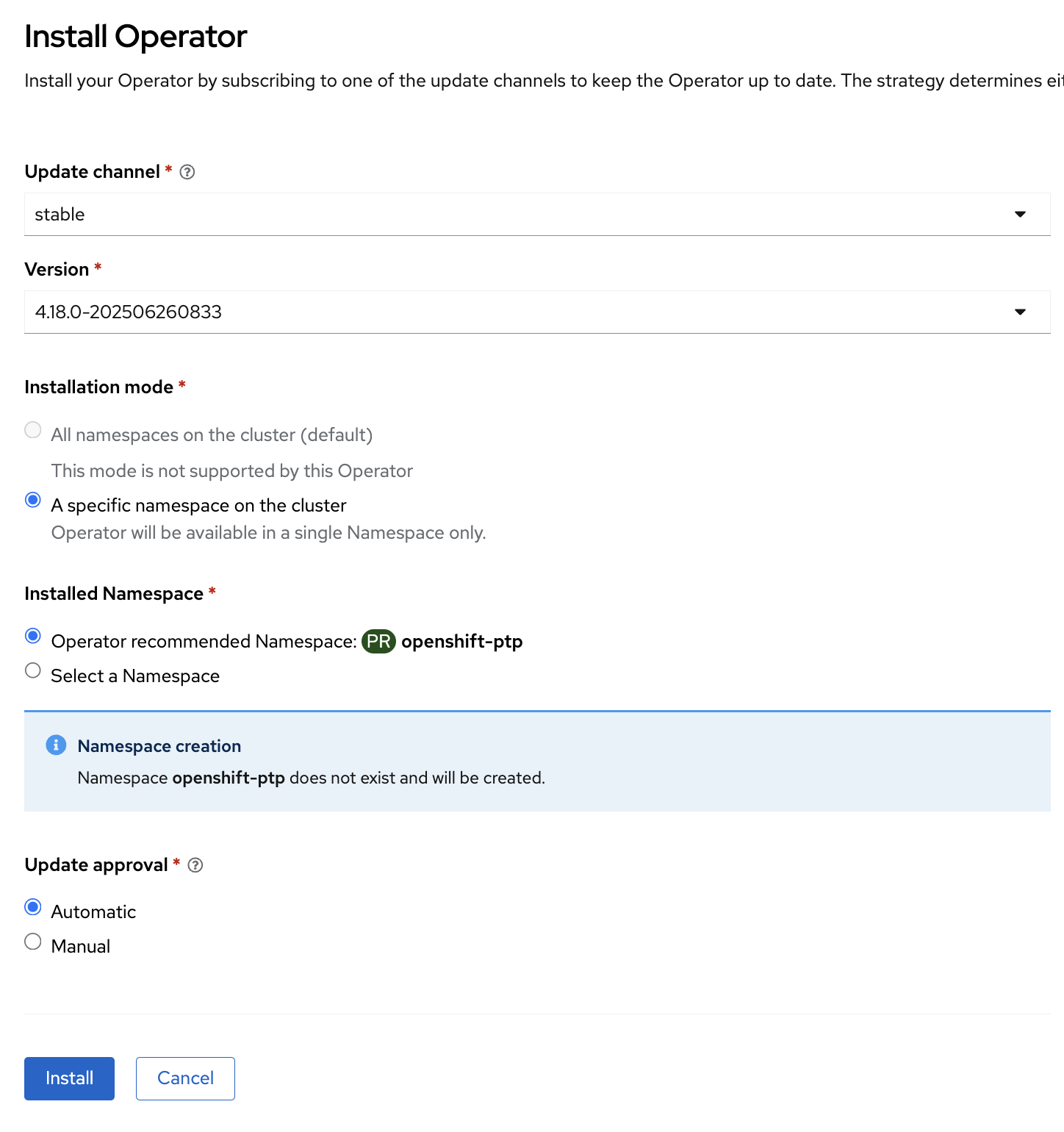
Select the A specific namespace on the cluster checkbox, and then select Install.
Confirm the PTP Operator deployment by running the following command:
oc get pods -o wide -n openshift-ptp

NAME                           READY   STATUS    RESTARTS   AGE     IP             NODE
linuxptp-daemon-2cklw          2/2     Running   0          43m     10.47.31.241   h4m-a
linuxptp-daemon-4dnjb          2/2     Running   0          43m     10.47.33.0     h4m-b
linuxptp-daemon-g2x9t          2/2     Running   0          43m     10.47.29.253   h4m-c
linuxptp-daemon-sd7j7          2/2     Running   0          3m22s   10.47.32.255   h4m-d
linuxptp-daemon-v5hsv          2/2     Running   0          43m     10.47.11.228   h4m-e
ptp-operator-79c558dcf-5hdzb   1/1     Running   0          44m     10.129.1.66    h4m-d
Configure PTP#
Create
ptp-config.yamlbased on the following template:apiVersion: ptp.openshift.io/v1 kind: PtpConfig metadata: name: holoscanmedia-ptp-config namespace: openshift-ptp spec: profile: - name: ordinary-clock interface: "<interface_name>.<ptp-vlan>" phc2sysOpts: "-w -m -n <ptp-domain-number> -s <interface_name>.<ptp-vlan>" ptp4lOpts: "-2 -s" ptpSchedulingPolicy: SCHED_FIFO ptpSchedulingPriority: 10 ptp4lConf: | [global] # # Default Data Set # priority1 128 priority2 127 domainNumber <ptp-domain-number> use_syslog 1 logging_level 6 tx_timestamp_timeout 30 hybrid_e2e 1 dscp_event 46 dscp_general 46 [<interface_name>.<ptp-vlan>] logAnnounceInterval -2 announceReceiptTimeout 3 logSyncInterval -3 logMinDelayReqInterval -3 delay_mechanism E2E network_transport UDPv4 recommend: - profile: ordinary-clock priority: 4 match: - nodeLabel: "node-role.kubernetes.io/<role>" nodeName: "<worker-01>" - nodeLabel: "node-role.kubernetes.io/<role>" nodeName: "<worker-02>"
Replace
<interface_name>in the preceding snippet with the interface name that you determined previously.Replace
<ptp-vlan>with the PTP VLAN of the current environment, for example,300.Replace
<ptp-domain-number>with the correct domain, for example,127. Check that the other PTP parameters match the current environment.Replace
<role>withworkerfor a five-node cluster andmasterfor a three-node cluster or SNO.Replace
<worker-01>and<worker-02>with node names. Add more entries as needed.
Apply the PTP configuration:
oc create -f ptp-config.yaml
Wait one to two minutes for the worker nodes to pick up the new configuration. List the pods running under the
openshift-ptpnamespace on the worker nodes and confirm that they have started synchronizing time from the grandmaster clock.oc get pods -o wide -n openshift-ptp NAME READY STATUS RESTARTS AGE IP NODE linuxptp-daemon-2cklw 2/2 Running 0 43m 10.47.31.241 h4m-a linuxptp-daemon-4dnjb 2/2 Running 0 43m 10.47.33.0 h4m-b linuxptp-daemon-g2x9t 2/2 Running 0 43m 10.47.29.253 h4m-c linuxptp-daemon-sd7j7 2/2 Running 0 3m22s 10.47.32.255 h4m-d linuxptp-daemon-v5hsv 2/2 Running 0 43m 10.47.11.228 h4m-e ptp-operator-79c558dcf-5hdzb 1/1 Running 0 44m 10.129.1.66 h4m-d
Confirm that the worker nodes can synchronize time from the grandmaster clock:
oc logs linuxptp-daemon-vbx5m -n openshift-ptp -c linuxptp-daemon-container --tail=1000 -f

I0119 10:31:28.444921 7501 main.go:111] ticker pull
I0119 10:31:28.638207 7501 daemon.go:466] Recreating phc2sys...
I0119 10:31:28.638234 7501 daemon.go:359] Starting phc2sys...
I0119 10:31:28.638238 7501 daemon.go:360] phc2sys cmd: /bin/chrt -f 10
/usr/sbin/phc2sys -w -m -n 127 -s ens6f0np0.300 -u 1 -z
/var/run/ptp4l.0.socket -t [ptp4l.0.config]
...
I0119 10:31:29.281613 7501 daemon.go:466] Recreating ptp4l...
I0119 10:31:29.281640 7501 daemon.go:359] Starting ptp4l...
I0119 10:31:29.281644 7501 daemon.go:360] ptp4l cmd: /bin/chrt -f 10
/usr/sbin/ptp4l -f /var/run/ptp4l.0.config -2 -s -m
...
ptp4l[643.370]: [ptp4l.0.config] port 1: INITIALIZING to LISTENING on
INIT_COMPLETE
ptp4l[643.370]: [ptp4l.0.config] port 0: INITIALIZING to LISTENING on
INIT_COMPLETE
ptp4l[643.370]: [ptp4l.0.config] port 0: INITIALIZING to LISTENING on
INIT_COMPLETE
ptp4l[643.543]: [ptp4l.0.config] port 1: :mark:`new foreign master ec0d9a.fffe.fcd0c8-13`
I0119 10:31:29.643024 7501 daemon.go:466] Recreating phc2sys...
I0119 10:31:29.643051 7501 daemon.go:359] Starting phc2sys...
I0119 10:31:29.643054 7501 daemon.go:360] phc2sys cmd: /bin/chrt -f 10
/usr/sbin/phc2sys -w -m -n 127 -s ens6f0np0.300 -u 1 -z
/var/run/ptp4l.0.socket -t [ptp4l.0.config]
I0119 10:31:29.643111 7501 daemon.go:336]
phc2sys[1705660289]:[ptp4l.0.config] PTP_PROCESS_STATUS:1
ptp4l[644.043]: [ptp4l.0.config] selected best master clock
ec0d9a.fffe.fcd0c8
ptp4l[644.043]: [ptp4l.0.config] port 1: LISTENING to UNCALIBRATED on
RS_SLAVE
ptp4l[644.544]: [ptp4l.0.config] port 1: UNCALIBRATED to SLAVE on
MASTER_CLOCK_SELECTED
phc2sys[644.726]: [ptp4l.0.config] Waiting for ptp4l...
phc2sys[645.726]: [ptp4l.0.config] CLOCK_REALTIME rms 446078597 max
446078597 freq +0 +/- 0 delay 437 +/- 0
ptp4l[646.170]: [ptp4l.0.config] rms 12923840978 max 36554143684 freq
-2424 +/- 16106 delay -744 +/- 149
phc2sys[646.726]: [ptp4l.0.config] CLOCK_REALTIME rms 446083500 max
446083500 freq +4902 +/- 0 delay 440 +/- 0
...
phc2sys[680.731]: [ptp4l.0.config] CLOCK_REALTIME rms 2 max 2 freq
+10670 +/- 0 delay 440 +/- 0
phc2sys[681.731]: [ptp4l.0.config] CLOCK_REALTIME rms 5 max 5 freq
+10664 +/- 0 delay 440 +/- 0
ptp4l[682.184]: [ptp4l.0.config] rms 3 max 6 freq +22374 +/- 4 delay 97
+/- 0
Installing OpenShift Virtualization Operator#
The OpenShift Virtualization Operator enables virtualization on the OpenShift cluster so that VM workloads can run alongside container workloads.
To install the operator using the web console:
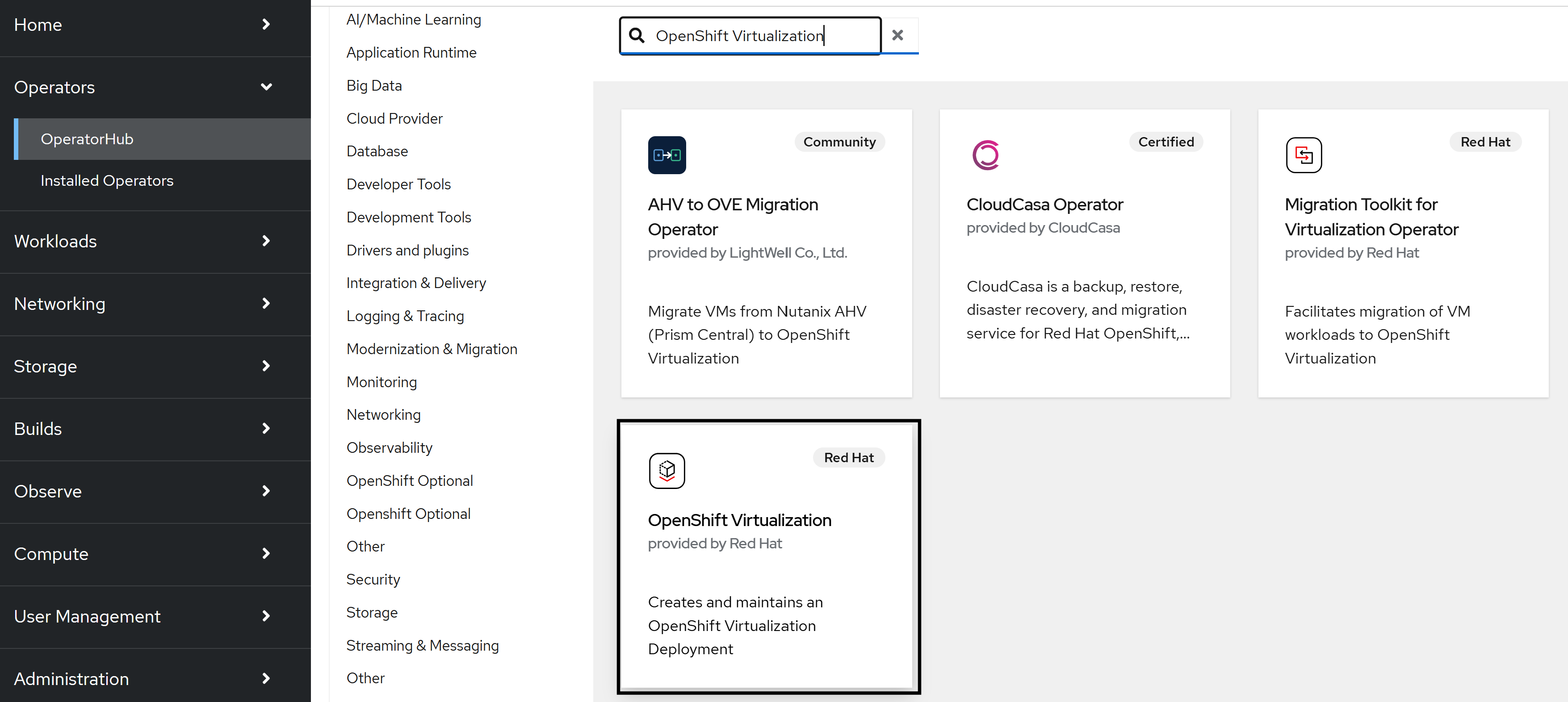
Expand the Operators section and select Operator Hub. Use the search bar to search for OpenShift Virtualization.
Select OpenShift Virtualization Operator provided by Red Hat.
In the pop-up window, select Install.
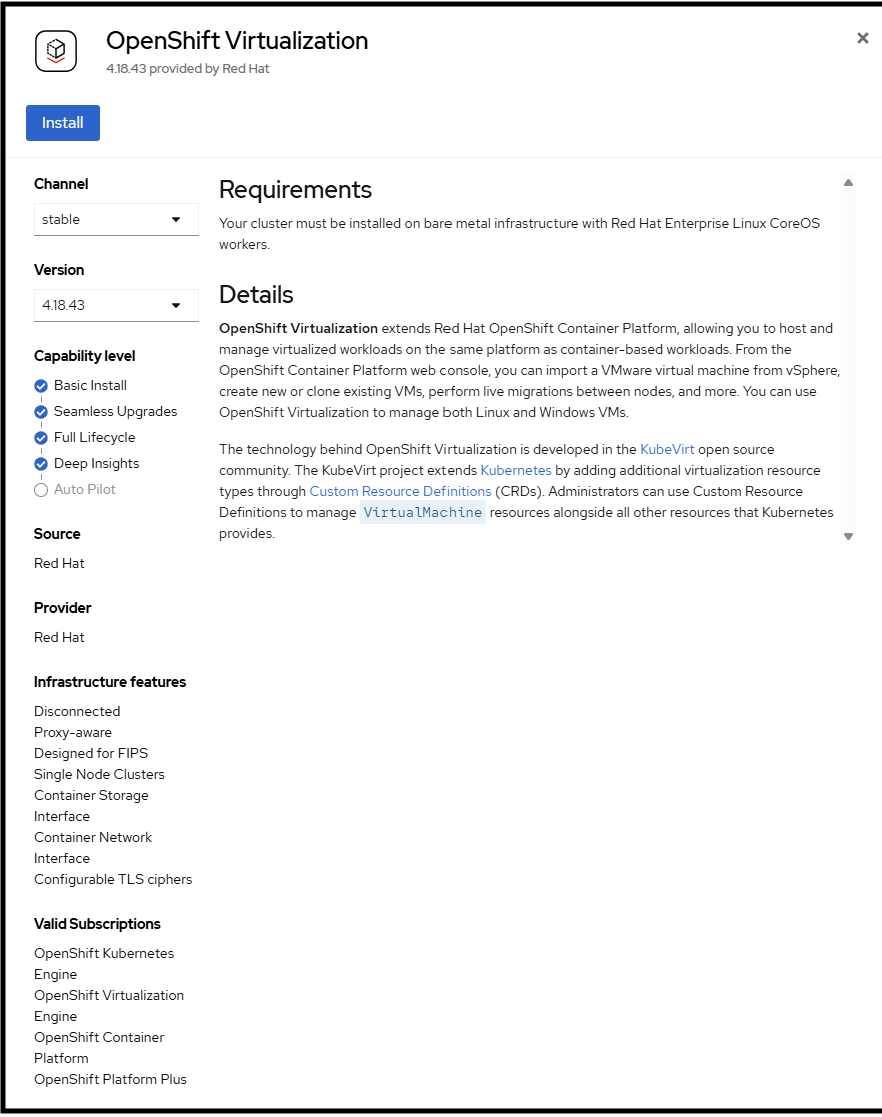
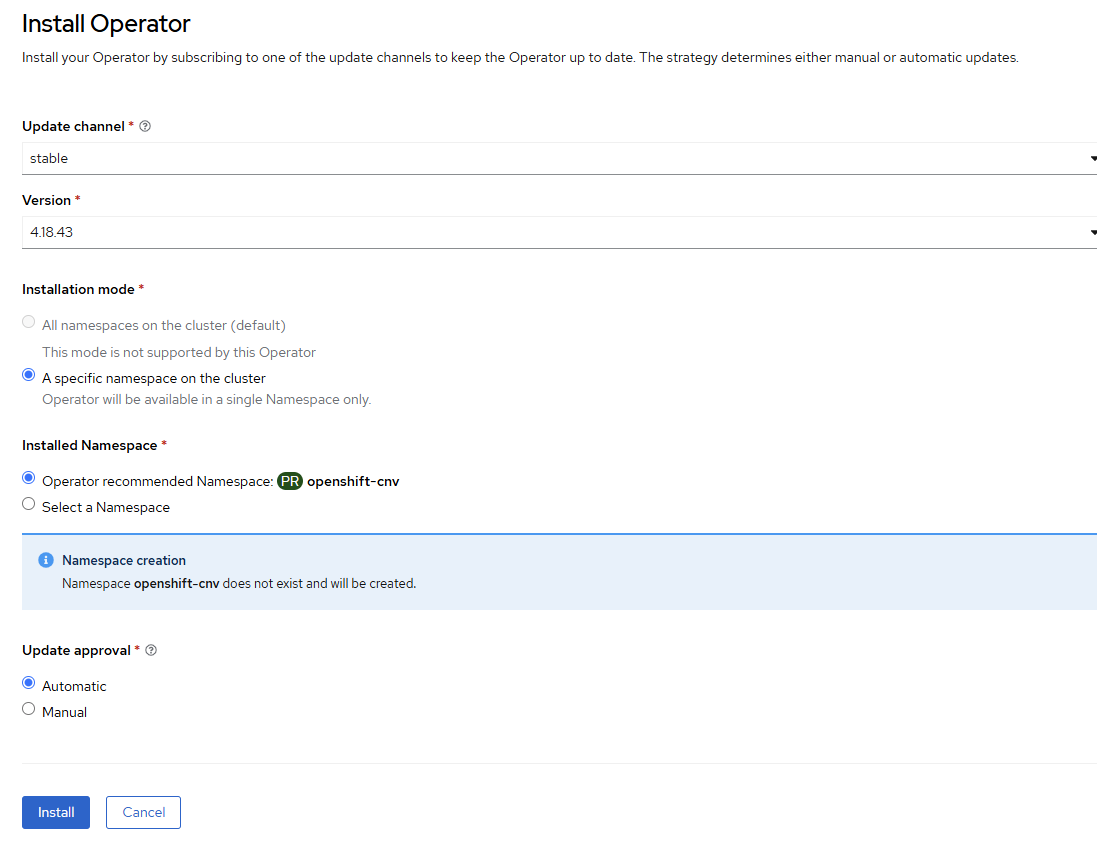
Select the A specific namespace on the cluster checkbox, and then select Install.
Gather the GPU values that the next steps require. Replace
<vm-node>with a VM-enabled worker node name from your cluster. Repeat these commands for each VM-enabled worker node.Determine the GPU resource name.
oc get node <vm-node> -o json | jq '.status.allocatable | with_entries(select(.key | startswith("nvidia.com/"))) | with_entries(select(.value != "0"))'
Example output:
{
  "nvidia.com/GB202GL_RTX_PRO_6000_BLACKWELL_SERVER_EDITION": "8"
}
Determine the PCI device ID for the GPU.
oc debug node/<vm-node> -- chroot /host lspci -n -d 10de: 2>/dev/null | awk '$2 ~ /^03/ {print $3}' | head -1
Example output:
10de:2bb5
When the installation is complete, select Create HyperConverged.
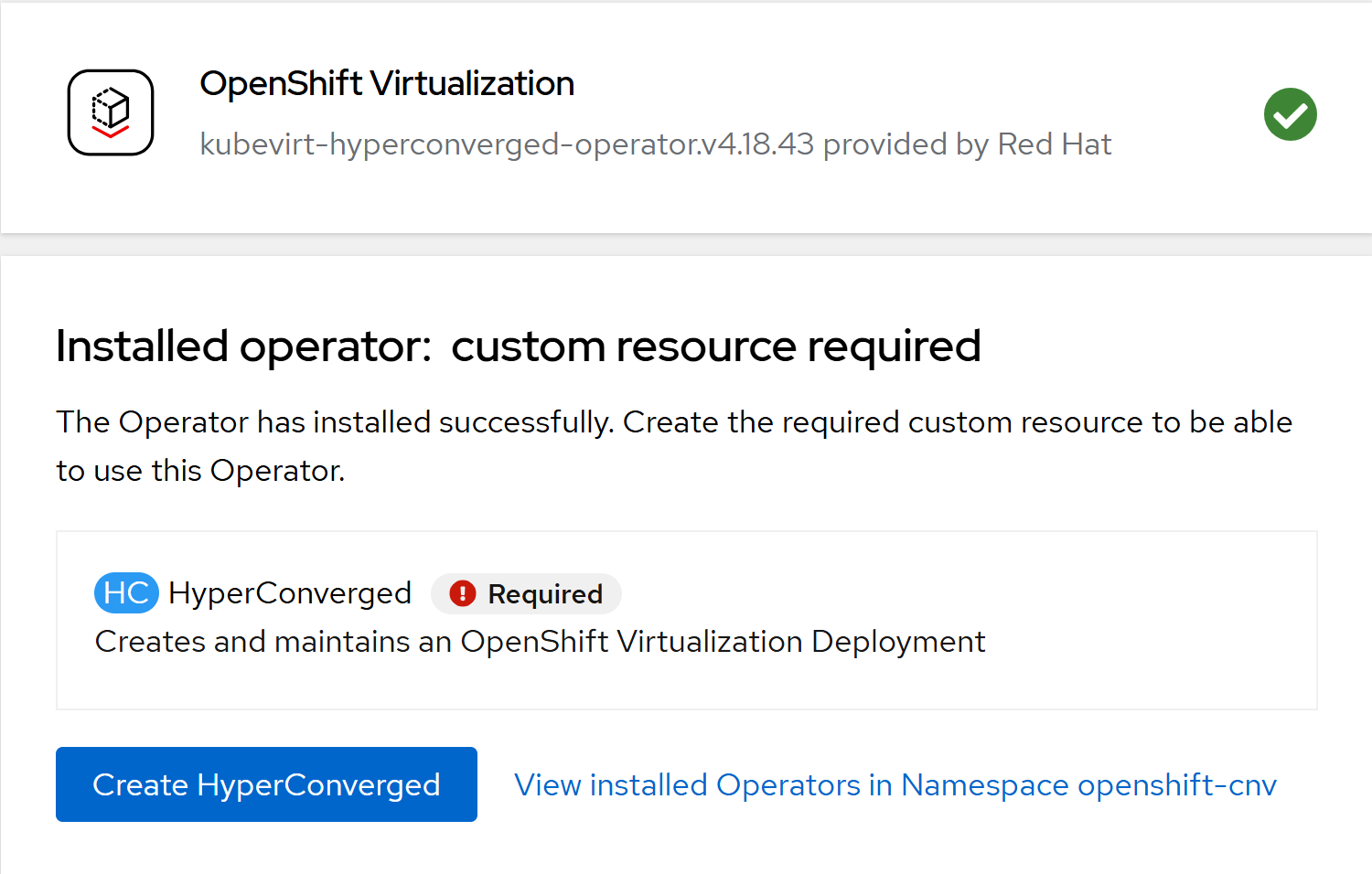
On the Create HyperConverged page, make the following modifications:
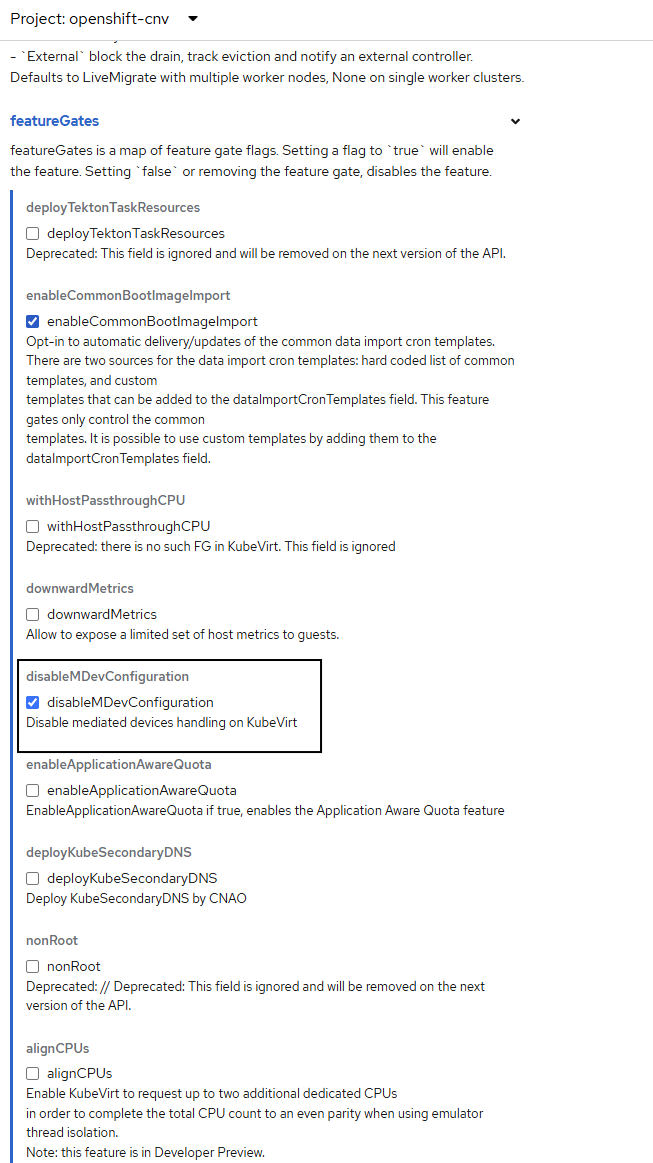
In the featureGates section, select the disableMDevConfiguration checkbox.
In the permittedHostDevices section, expand pciHostDevices and select Add pciHostDevices. Add one entry for each unique GPU resource type from Gather the GPU values:
pciDeviceSelector: PCI
vendor-ID:device-IDvalue returned bylspci(for example,10de:2bb5).resourceName: node allocatable GPU resource name (for example,
nvidia.com/GB202GL_RTX_PRO_6000_BLACKWELL_SERVER_EDITION).Select the externalResourceProvider checkbox.
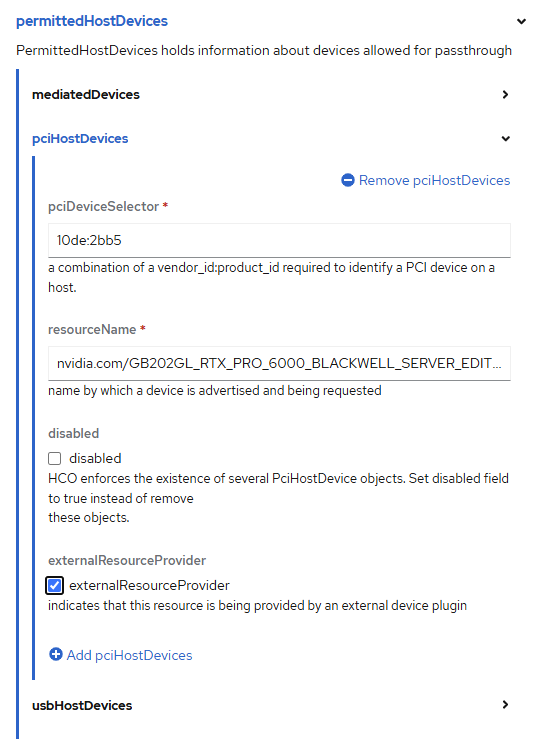
If multiple nodes have the same GPU resource name and PCI device selector, add that GPU type only once.
Select Create.
Wait 5 to 10 minutes. Ensure that all pods in the openshift-cnv namespace have
Readystatus:oc get pods -n openshift-cnv NAME READY STATUS RESTARTS AGE aaq-operator-ddc666447-7jsnv 1/1 Running 0 10m bridge-marker-55b4d 1/1 Running 0 10m bridge-marker-fdlvk 1/1 Running 0 10m cdi-apiserver-66b9988898-fqt74 1/1 Running 0 10m cdi-deployment-7875458d46-zw4b6 1/1 Running 0 10m cdi-operator-7b8b666f98-kcst9 1/1 Running 0 10m cdi-uploadproxy-8666477db4-qc6vx 1/1 Running 0 10m cluster-network-addons-operator-5c8b898c5c-rx8rd 2/2 Running 0 10m hco-operator-956db7ff4-jz22x 1/1 Running 0 10m hco-webhook-ccd67bf76-7vgmz 1/1 Running 0 10m hostpath-provisioner-operator-7c5b49988c-rdmnd 1/1 Running 0 10m hyperconverged-cluster-cli-download-59db65547f-8l79c 1/1 Running 0 10m kube-cni-linux-bridge-plugin-67428 1/1 Running 0 10m kube-cni-linux-bridge-plugin-qtjxs 1/1 Running 0 10m kubemacpool-cert-manager-56dbdb74d4-bnjhh 1/1 Running 0 10m kubemacpool-mac-controller-manager-8db95b857-kqqc2 2/2 Running 0 10m kubevirt-apiserver-proxy-76b7794b95-4dsqm 1/1 Running 0 10m kubevirt-apiserver-proxy-76b7794b95-mvzkf 1/1 Running 0 10m kubevirt-console-plugin-59ddb8fc57-jghpg 1/1 Running 0 10m kubevirt-console-plugin-59ddb8fc57-twwsh 1/1 Running 0 10m kubevirt-ipam-controller-manager-59844c8c94-b2mcd 1/1 Running 0 10m kubevirt-ipam-controller-manager-59844c8c94-dpp4s 1/1 Running 0 10m passt-binding-cni-gmhgf 1/1 Running 0 10m passt-binding-cni-xjm6q 1/1 Running 0 10m ssp-operator-5bfbcdd547-gnwl7 1/1 Running 0 10m virt-api-75cbd779b4-7ssx2 1/1 Running 0 10m virt-api-75cbd779b4-wlpjt 1/1 Running 0 10m virt-controller-79b74cb564-554bv 1/1 Running 0 10m virt-controller-79b74cb564-v6pfq 1/1 Running 0 10m virt-exportproxy-6d8c897f68-xz2nd 1/1 Running 0 10m virt-exportproxy-6d8c897f68-z82kh 1/1 Running 0 10m virt-handler-5b7lj 1/1 Running 0 10m virt-handler-fgn9g 1/1 Running 0 10m virt-operator-7bb4448594-flhbn 1/1 Running 0 10m virt-operator-7bb4448594-wqsfk 1/1 Running 0 10m virt-template-validator-77775df68b-fb2n9 1/1 Running 0 10m virt-template-validator-77775df68b-hgtsf 1/1 Running 0 10m