Kubernetes#
Holoscan for Media is built on Kubernetes, the orchestration platform for deploying and managing containerized applications that can run on centralized hardware infrastructure on-premises, in the cloud, or at the edge.
Kubernetes enables the development of cloud-native applications. You can find Kubernetes training and documentation online through organizations such as KubeAcademy.
Red Hat OpenShift is the first target platform for Holoscan for Media to support customers in production. However, the platform is designed to be independent of the Kubernetes flavor, and NVIDIA plans to support other Kubernetes distributions.
This section does not replace proper training on Kubernetes. It lists the basic principles and vocabulary.
Concepts#
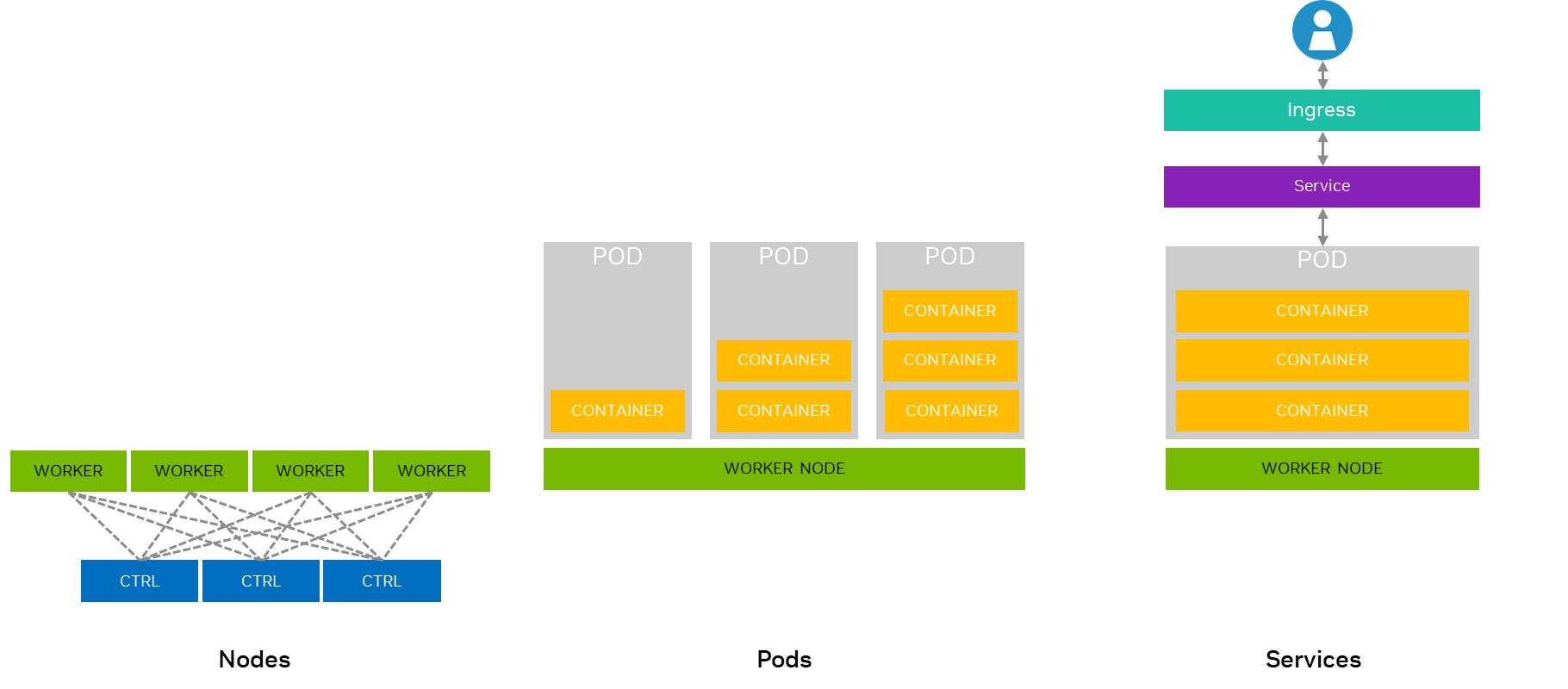
Node: A physical or virtual machine in a Kubernetes cluster that runs containerized applications.
Pod: The smallest deployable unit in Kubernetes, typically containing one or more containers that share resources and are scheduled together. Pods provide a degree of isolation from one another for security and reliability, so containers can share resources such as memory only with other containers in the same pod.
Cluster: A set of nodes that run containerized applications managed by Kubernetes. Minimal Red Hat OpenShift deployments use three-node compact clusters for proper hardware redundancy and failover. A Kubernetes cluster consists of a control plane, which is the brain of Kubernetes and manages the cluster state, and worker nodes, which run the applications.
Service: An abstraction that defines a logical set of Pods and a policy to access them, enabling network connectivity to your applications.
HugePages#
HugePages are a memory management feature that improves the throughput of direct memory access (DMA) by PCIe devices. This feature enables high-performance workloads such as remote direct memory access (RDMA) and ST 2110 streaming. The system kernel reserves larger, contiguous chunks of memory and makes them available to applications that explicitly request them. Contiguous memory regions reduce the number of page table entries and let DMA engines access memory more efficiently, which improves overall data transfer performance. Depending on available RAM and workload requirements, you might need to adjust the amounts that the system reserves and that applications request.
Load Balancing#
Load balancing lets you distribute service traffic among Pods, which prevents overload and ensures efficient resource usage. NVIDIA specifically recommends load balancing for the following:
High Availability to evenly distribute traffic and prevent server overload with minimal downtime.
Scalability to ensure efficient handling of increased traffic when adding or removing instances on demand.
Optimized Resource Utilization to evenly distribute requests across pods and maximize cluster efficiency.
Traffic Management to enable advanced deployment strategies, such as routing traffic based on HTTP headers.
Fault Tolerance to detect and divert traffic from unhealthy pods, maintaining service availability in case of failures.
Operators#
Operators are software extensions to Kubernetes that automate the deployment of resources to manage applications and their components.
The Holoscan for Media platform uses the following operators:
Helm Charts#
Developers should provide each application with an associated Helm chart that includes the recommended GPU and networking allocations, so that the application runs properly at scale in a Kubernetes cluster. To use the charts (that is, deployment templates), you must install Helm.
Refer to Helm’s documentation to get
started. After Helm is set up properly, you can add any Helm repository
to search for existing charts and retrieve the latest versions of packages.
The chart repository that is part of the Holoscan for Media collection on NGC is
https://helm.ngc.nvidia.com/nvidia/holoscan-for-media.
The Holoscan for Media reference applications include Helm Dashboard, which provides a basic web UI for deployment of subsequent Helm charts to the cluster.
Deployments#
A Deployment defines the desired state for running applications, including which
container images to use and how many replicas to maintain. Helm deploys Holoscan
for Media applications with the chart’s deployment.yaml file and other
configuration files.
Deployments and other Kubernetes resources that the Helm chart creates can use values
from the chart’s values.yaml file. You can override these values
in the Helm command at install time. For example, values.yaml can include the following
value:
myIPAddress: "192.168.1.100"
In the deployment.yaml file, you can access this value as follows:
spec:
    containers:
    - name: myapp
       env:
       - name: SERVER_IP
         value: {{ .Values.myIPAddress }}
When you install the chart, you can override this value from the command line or from the Helm Dashboard UI for developers:
helm install myrelease ./mychart --set myIPAddress=10.0.0.50
Namespaces#
A Namespace divides cluster resources among multiple users or projects. If you do not assign a namespace, resources run in the default namespace.
ConfigMaps#
A ConfigMap stores non-sensitive configuration data in key-value pairs.
You can update ConfigMaps without rebuilding the container image, which makes
configuration changes easier. For example, create the myapp-config ConfigMap
as follows:
apiVersion: v1
kind: ConfigMap
metadata:
  name: myapp-config
data:
  APP_COLOR: blue
  APP_MODE: prod
To verify that the ConfigMap exists, list all ConfigMaps on the cluster.
You can then use this ConfigMap in a Pod deployment.yaml file as follows:
spec:
  containers:
  - name: myapp
    envFrom:
    - configMapRef:
        name: myapp-config
Secrets#
Secrets are objects similar to ConfigMaps, but they store sensitive information,
such as passwords or API keys. Holoscan for Media typically uses them for Rivermax licensing and
other software licensing. Secrets let you securely provide sensitive information
to your applications without hardcoding it or exposing it in your container images. By default, Kubernetes does not encrypt Secrets in etcd, the Kubernetes data store.
For example, create the myapp-secret Secret as follows:
apiVersion: v1
kind: Secret
metadata:
  name: myapp-secret
type: Opaque
data:
  DB_PASSWORD: cGFzc3dvcmQ=  # base64 encoded "password"
You can then use the Secret in a Pod:
spec:
  containers:
  - name: myapp
    env:
    - name: DATABASE_PASSWORD
      valueFrom:
        secretKeyRef:
          name: myapp-secret
          key: DB_PASSWORD
Persistent Volumes#
A persistent volume (PV) is a piece of storage in a Kubernetes cluster that an administrator provisions, or that a StorageClass provisions dynamically. The Persistent Volume API defines two key resources:
PersistentVolume (PV): Represents the actual storage resource in the cluster. A PV object captures details of the storage implementation (such as local storage, NFS, iSCSI, or a cloud-provisioned volume). The lifecycle of a PV is independent of the Pods that use it.
PersistentVolumeClaim (PVC): A request for storage by a user. A PVC specifies desired characteristics such as size, access modes, and optionally a StorageClass. The cluster attempts to bind the PVC to a suitable PV. A PVC does not directly create a PV. Instead, it claims an existing PV or triggers dynamic provisioning through a StorageClass. PVCs relate to PVs the way Pods relate to Nodes. They abstract the underlying resources and provide a consistent consumption model.
Access modes define how a volume can be mounted:
ReadWriteOnce (RWO): Mounted read-write by a single node.
ReadOnlyMany (ROX): Mounted read-only by many nodes.
ReadWriteMany (RWX): Mounted read-write by many nodes.
ReadWriteOncePod (RWOP): Mounted read-write by a single Pod.
For more information, refer to the Persistent Volume documentation.
Mounting ConfigMaps and Kubernetes Secrets as Volumes#
You can mount both ConfigMaps and Secrets as volumes. For example, to mount the mysecret Secret as
a volume, first create it with the following content:
apiVersion: v1
kind: Secret
metadata:
  name: mysecret
type: Opaque
data:
  username: dXNlcm5hbWU=  # base64 encoded "username"
  password: cGFzc3dvcmQ=  # base64 encoded "password"
Then mount the Secret as a volume in the secret-test-pod pod as follows:
apiVersion: v1
kind: Pod
metadata:
  name: secret-test-pod
spec:
  containers:
  - name: test-container
    image: nginx
    volumeMounts:
    - name: secret-volume
      mountPath: /etc/secret-volume
      readOnly: true
  volumes:
  - name: secret-volume
    secret:
      secretName: mysecret
In this example, the mysecret Secret defines two key-value pairs. The pod
specification includes a volume named secret-volume that references the mysecret
Secret. The pod mounts this volume in the container at /etc/secret-volume.
The container sees two files in /etc/secret-volume that contain the decoded secret values:
usernamepassword
When the pod runs, the container can access the secret data as files:
/etc/secret-volume/username
/etc/secret-volume/password
The same approach works for ConfigMaps.
Ingress and Load Balancer#
Ingress: An API object that manages external access to services in a cluster, typically HTTP.
Load Balancer: A type of service that distributes network traffic from external clients to services in a Kubernetes cluster, across multiple pods. This traffic is called north-south traffic. Load balancers operate at Layer 4 (TCP and UDP). They provide a single, stable IP address for external access and automatically distribute traffic across all pods of the target service.
Service Mesh#
A service mesh is a dedicated infrastructure layer for managing, controlling, and observing communication between microservices in a distributed application architecture. A service mesh handles service-to-service communication inside the cluster between pods and nodes, often called east-west traffic, in microservices-based applications. A service mesh typically consists of two main components:
Data plane: Composed of lightweight network proxies deployed as sidecars alongside each service instance.
Control plane: Manages and configures the proxies to route traffic.
A service mesh provides the following benefits:
Improved reliability and resilience
Enhanced security with zero-trust networking
Better visibility into service interactions
Simpler application code, because the mesh offloads network logic
Service meshes intercept all network communication between services. This lets them apply policies, collect metrics, and manage traffic without changes to the application code.
Basic Commands#
kubectl is the command-line tool for interacting with the Kubernetes API to deploy and manage resources.
In OpenShift environments, you can use the oc command instead of kubectl.
Cluster Connection#
You run kubectl from a jump node that is connected to the cluster.
For production deployments based on Red Hat OpenShift, you must
generate an OpenShift API token.
For the local developer setup with Cloud Native Stack, the Kubernetes configuration
file is ~/.kube/config. To connect to another cluster, copy the configuration file
from that cluster to ~/.kube/config on your jump node.
To activate command completion for oc, kubectl, and helm, add the following lines to the ~/.bashrc file on the jump node:
source <(oc completion bash)
source <(kubectl completion bash)
source <(helm completion bash)
Cluster Management#
Display endpoint information about the control plane and services in the cluster:
kubectl cluster-info
Get all namespaces in the cluster:
kubectl get namespaces
List the nodes and their roles in the cluster:
kubectl get nodes
Mark a node as unschedulable:
kubectl cordon node <node-name>
Mark a node as schedulable:
kubectl uncordon node <node-name>
Drain a node in preparation for maintenance:
kubectl drain node <node-name>
Resource Management#
To create resources, use kubectl create. To delete them, use kubectl delete.
For example, to create a ConfigMap, run the following command:
kubectl create cm
To list available resources, use kubectl get.
For example, list all ConfigMaps on the cluster with the following command:
kubectl get cm
List all pods on the cluster:
kubectl get pods -o=wide
List one or more deployments:
kubectl get deployment
List pods sorted by restart count:
kubectl get pods --sort-by='.status.containerStatuses[0].restartCount'
Get all running pods in the namespace:
kubectl get pods --field-selector=status.phase=Running
To describe a specific resource, use kubectl describe.
For example, display the detailed state of a pod:
kubectl describe pod <pod-name>
Display the detailed state of one or more deployments:
kubectl describe deployment <deployment-name>
List details about secrets:
kubectl describe secrets
Container Management#
Execute a command against a container in a pod:
kubectl exec -n <namespace> -c <container-name> <pod-name> -- <command> [args...]
You can omit the -n argument for pods in the default namespace. The -c argument is required only for multi-container pods.
For most single-container pods, start an interactive terminal session with the following command:
kubectl exec -it <pod-name> -- /bin/bash
Print the logs for a container in a pod:
kubectl logs -c <container-name> <pod-name>
Copy a local file from a developer machine to a specific container in a remote pod:
kubectl cp <file-location-local-machine> <some-pod>:<target-folder-location> -c <specific-container>
To perform a rolling update (the Kubernetes default), set the container image to a new version for a deployment:
kubectl set image deployment/<deployment-name> <container-name>=image:<new-image-version>
Tools#
Dashboard#
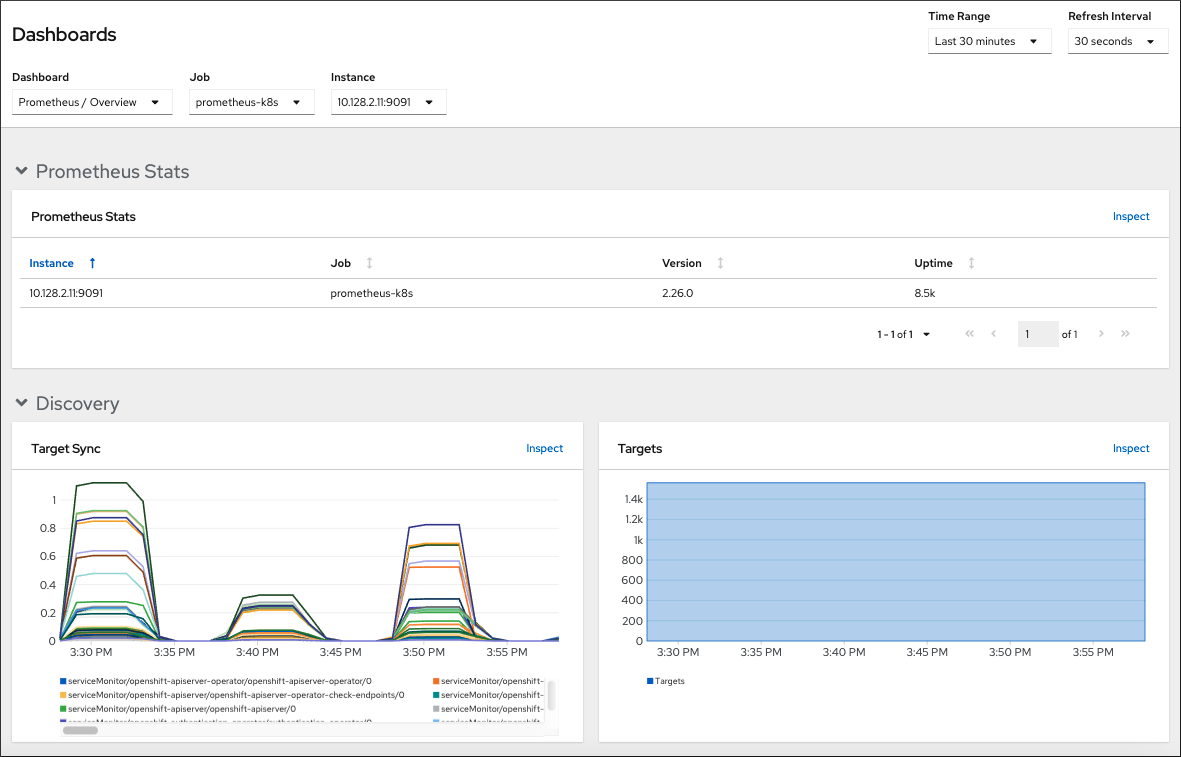
Web dashboards are available to monitor the status of your cluster. These dashboards are typically a good first approach to understanding a Kubernetes cluster. For developers new to this technology, they provide visual access to all cluster components and resources. For a production deployment based on Red Hat OpenShift, the OpenShift Web Console provides monitoring capabilities for each of your pods, including hardware usage and possible warnings or errors.
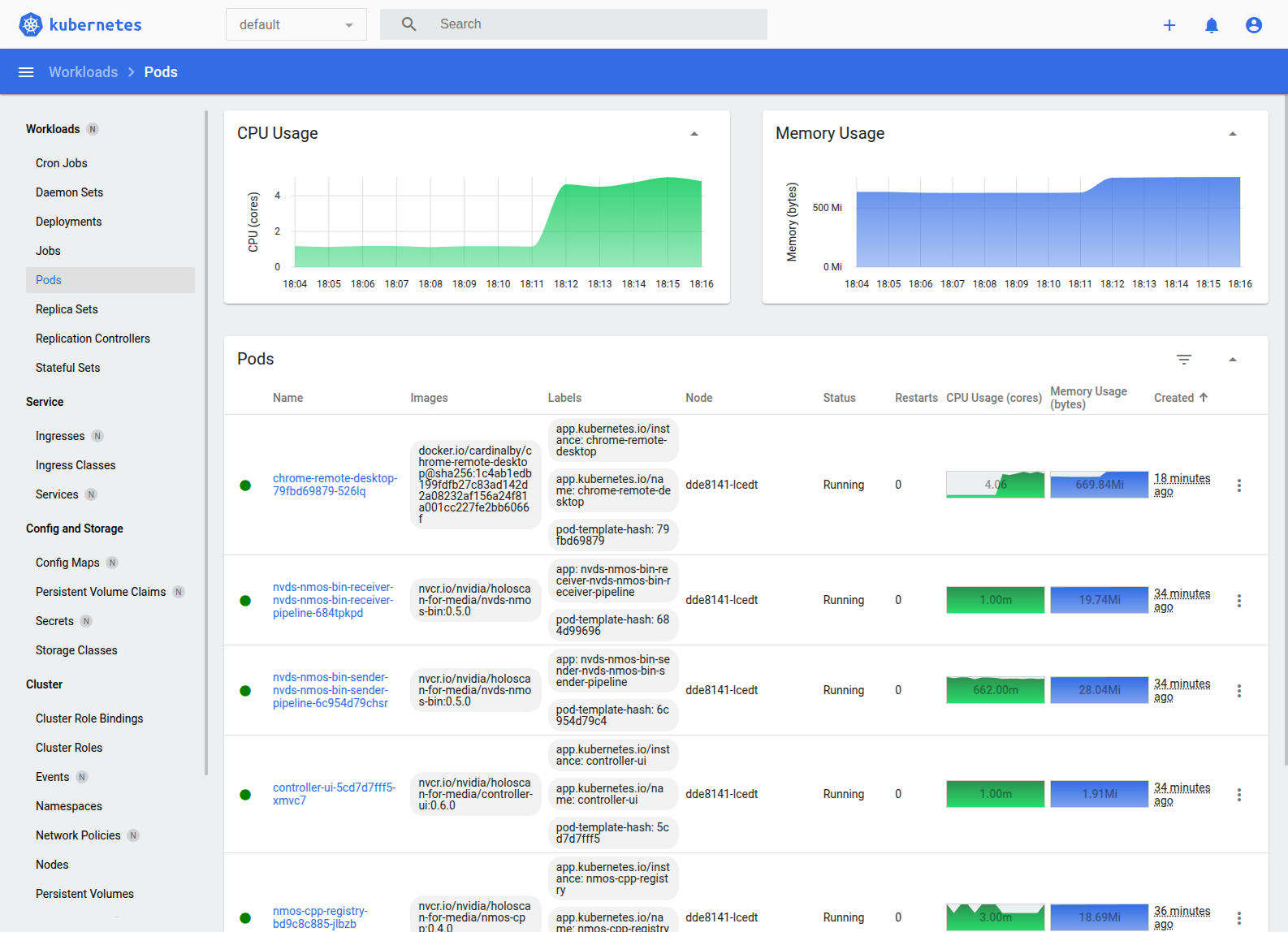
For a local developer setup with Cloud Native Stack, you can install the Kubernetes dashboard on your Ubuntu machine. For more information, refer to Kubernetes Web UI Dashboard.
K9s#
K9s
is an open-source tool that provides a basic user interface around
kubectl commands. With K9s, you can monitor the status of your Kubernetes
cluster, check logs, or run commands in a container from a friendly interface.
Install k9s using the following commands:
wget https://github.com/derailed/k9s/releases/latest/download/k9s_linux_amd64.deb
sudo apt install ./k9s_linux_amd64.deb
rm k9s_linux_amd64.deb
Verify the installation:
k9s version
____ __ ________
| |/ / __ \______
| /\____ / ___/
| \ \ / /\___ \
|____|\__ \/____//____ /
\/ \/
Version: v0.40.5
Commit: af8aa5fc41b3db202941a264a3011f490bede97b
Date: 2025-02-18T15:51:42Z
To launch k9s:
k9s
This opens the interactive UI showing running pods in the default namespace. After you are
in the k9s UI, you can access the different kubectl commands with a contextual menu.
List nodes:
:nodes
List pods:
:pods
List deployments:
:deployment
List services:
:svc
List replica sets:
:replicaset
List NetworkAttachmentDefinition custom resources:
:net-attach-def
List persistent volumes:
:pv
List persistent volume claims:
:pvc
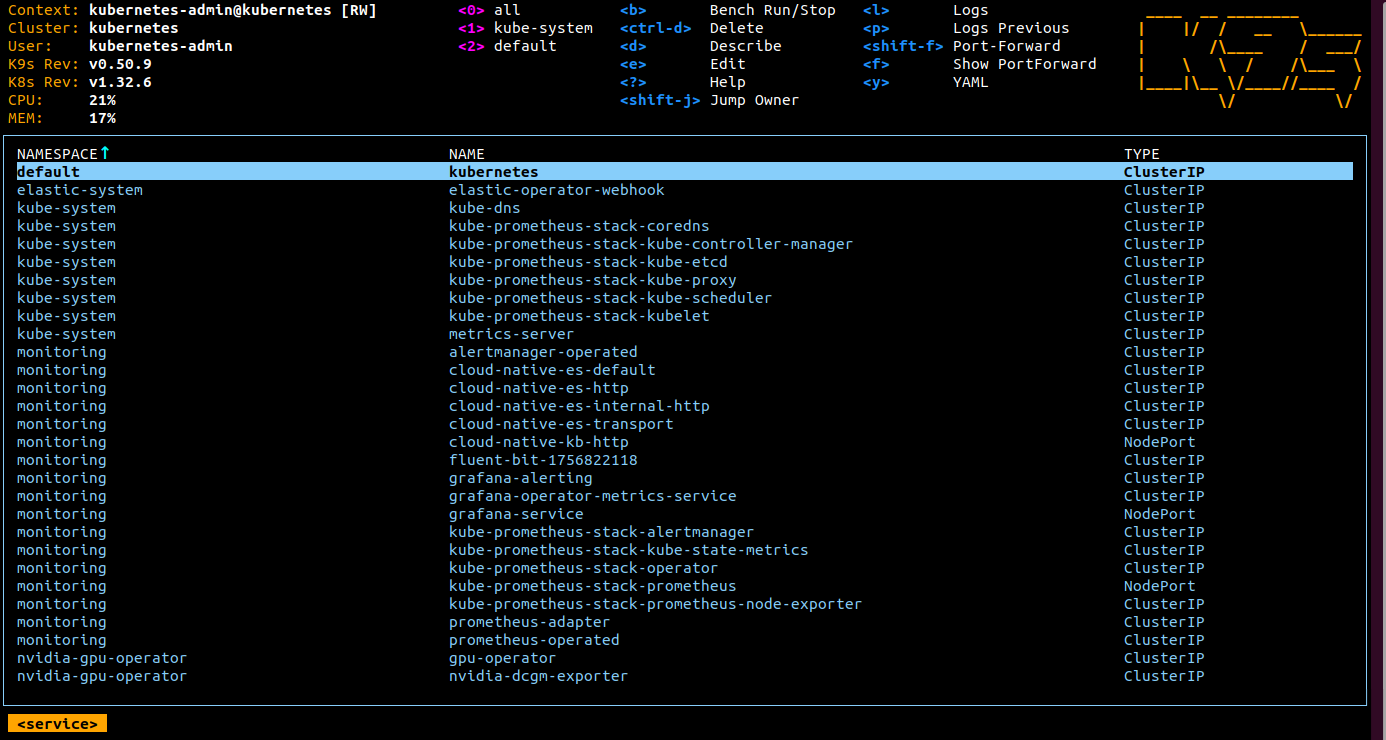
For each command, a different contextual menu appears. For example, on the pods screen in the following screenshot, press Ctrl+D to delete a pod, or press S to open a shell in a pod.
For a list of commands, refer to the k9s documentation.
Helm Dashboard#
Holoscan for Media tools include Helm Dashboard, which provides
a basic web UI for deployment of subsequent Helm charts to the cluster, based on Komodor’s Helm Dashboard project.
In the web UI, you can add software repositories to load software from, such as http://helm.ngc.nvidia.com/nvidia/holoscan-for-media
or any private repository.
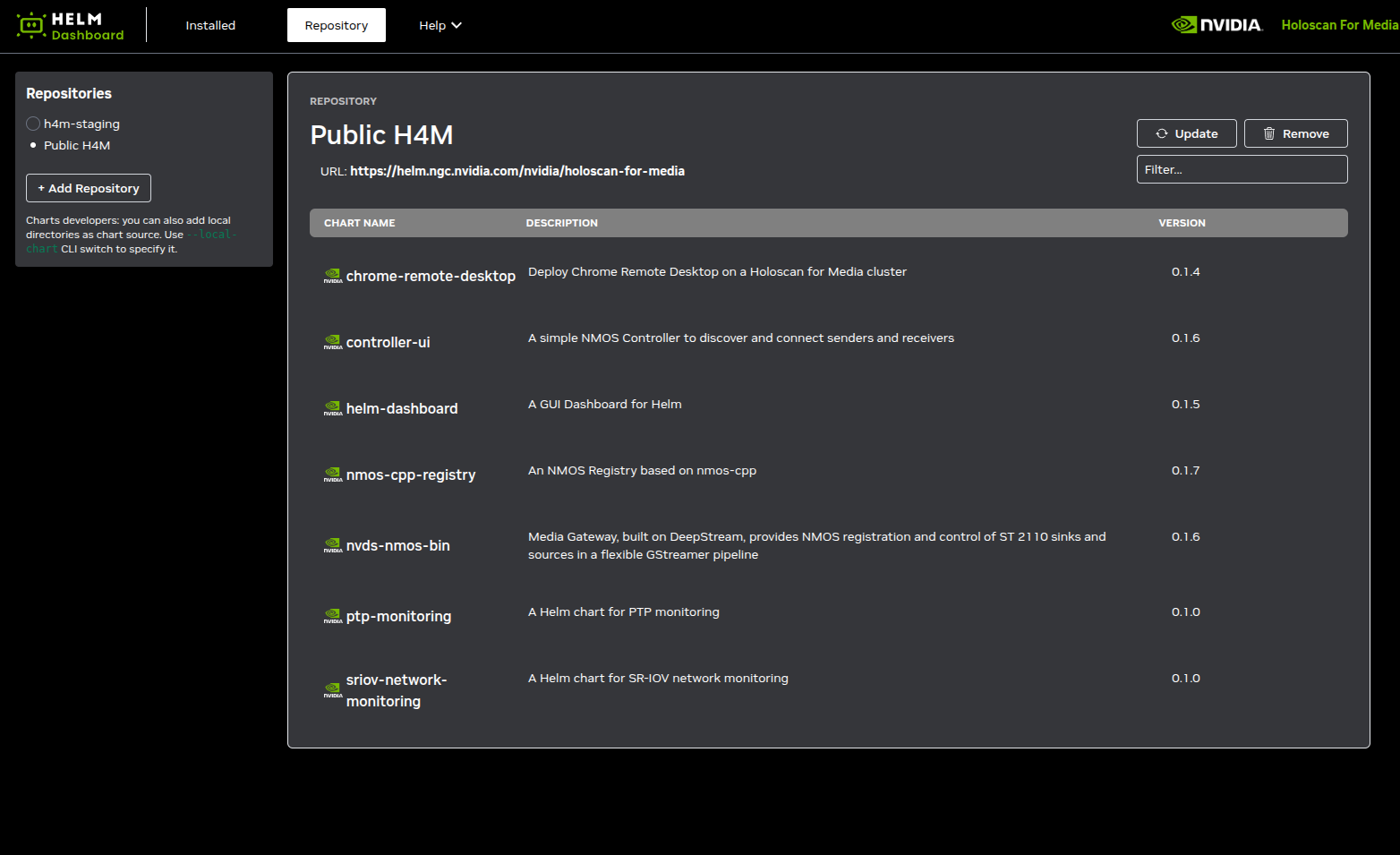
A dedicated view shows the installed pods.
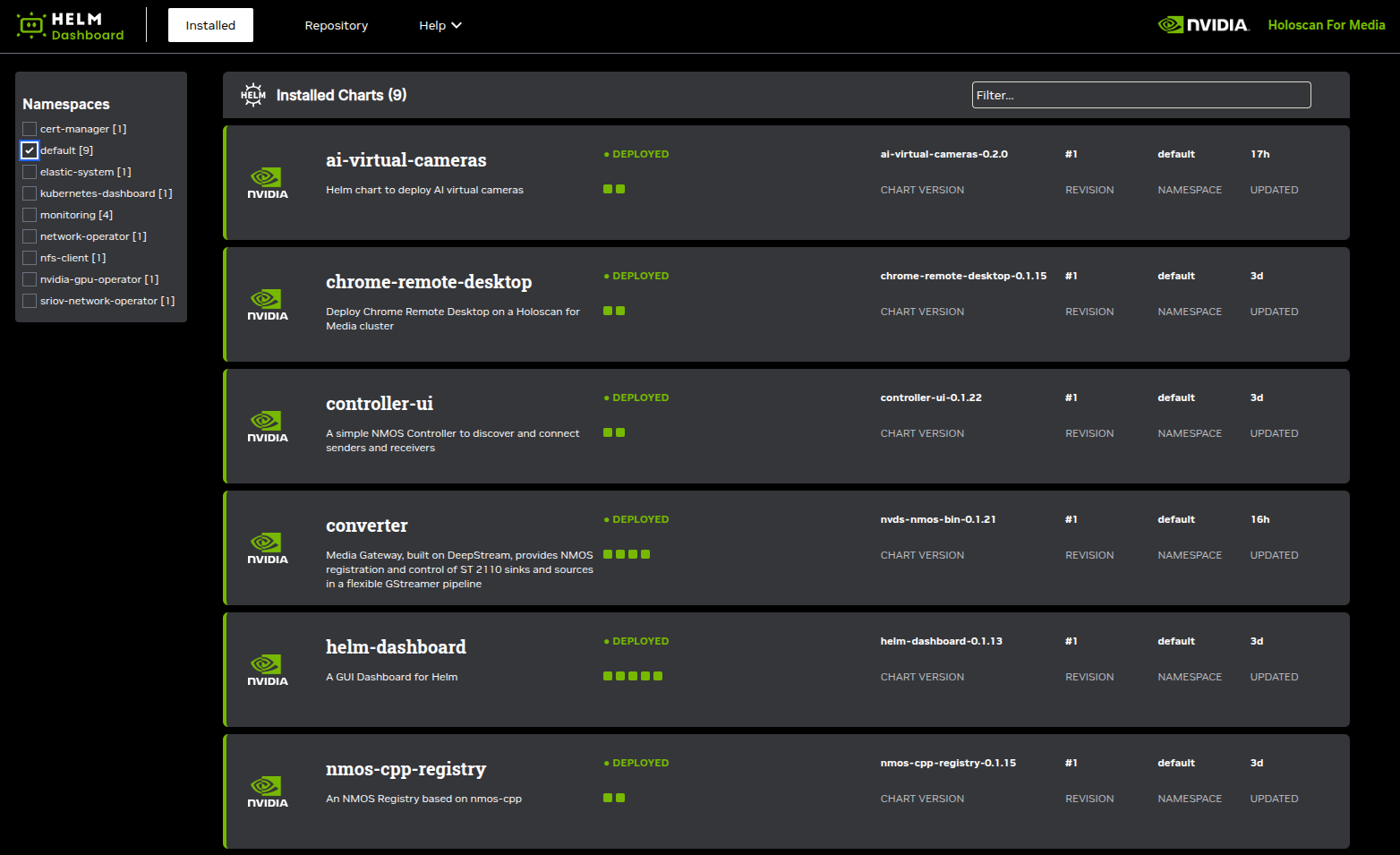
After you select the name of a pod, you can change its configuration in the visual interface instead of the Helm command line.