
Platform Monitoring#
This section explains how to enable monitoring and install dashboards for GPU, SR-IOV network, Precision Time Protocol (PTP), and Networked Media Open Specifications (NMOS) Registry metrics. These monitoring components help you track system performance, troubleshoot issues, and verify that the platform runs reliably.
Before you proceed, ensure that the monitoring stack is installed and running:
For the local developer setup, the installation includes the monitoring stack by default. The stack is not installed if you disabled it in the
config.yamlfile during the automated installation, or in the Cloud Native Stack values file during the manual setup.Access Grafana at
http://<node-ip>:32222with the usernameadminand the passwordcns-stack.To retrieve the node IP address, run the following command, and then replace
<node-ip>in the URL with that address:kubectl get nodes -o jsonpath='{range .items[*]}{.status.addresses[?(@.type=="InternalIP")].address}{"\n"}{end}'
For the production setup, the automated installation includes the monitoring stack. If you follow the manual setup instructions, ensure that User Workload Monitoring is enabled.
Access Grafana at
http://<grafana-route-hostname>with the credentials in thecustom-vars.yamlfile in the configuration directory. The default username ish4m, and the default password isgrafana.To retrieve the Grafana route hostname, run the following command, and then replace
<grafana-route-hostname>in the URL with that hostname:oc -n openshift-user-workload-monitoring get route grafana -o jsonpath='{.spec.host}'
Attention
If you used the automated platform setup, the dashboards in this section are already deployed and available in Grafana.
GPU Monitoring#
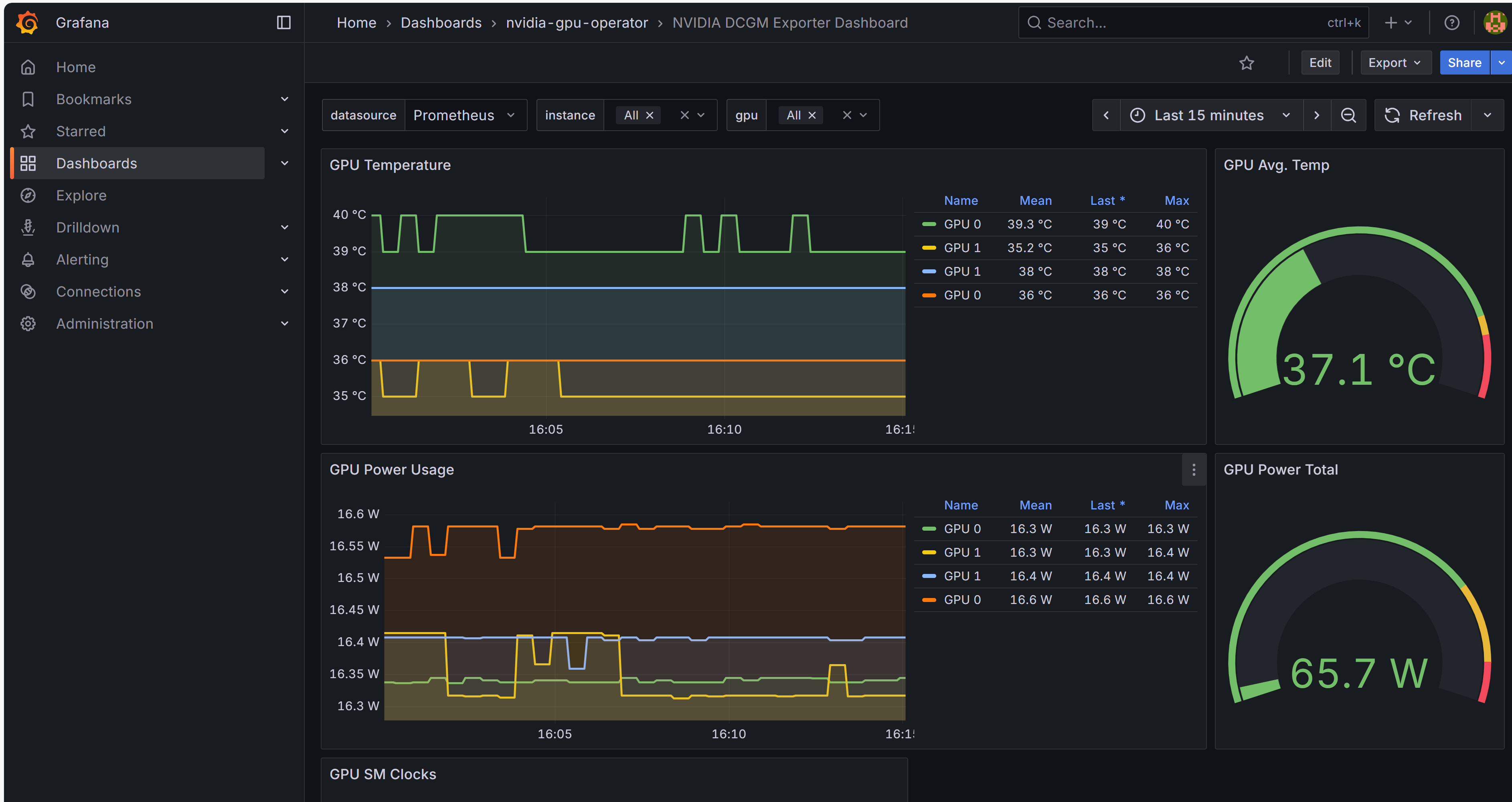
The NVIDIA Data Center GPU Manager (DCGM) dashboard monitors GPU performance and health.
For the local developer setup, the DCGM dashboard is already installed and visible in Grafana. For the production setup, complete the following steps:
Create the
dcgm-dashboard.yamlfile with the following GrafanaDashboard content:apiVersion: grafana.integreatly.org/v1beta1 kind: GrafanaDashboard metadata: name: nvidia-dcgm-exporter-dashboard namespace: nvidia-gpu-operator spec: instanceSelector: matchLabels: dashboards: grafana resyncPeriod: 5s allowCrossNamespaceImport: true url: https://raw.githubusercontent.com/NVIDIA/dcgm-exporter/main/grafana/dcgm-exporter-dashboard.json
Apply the GrafanaDashboard:
oc apply -f dcgm-dashboard.yaml
SR-IOV Network Monitoring#
The SR-IOV network dashboard is a critical monitoring dashboard. Because the application pods run on high-speed networks, this dashboard helps you track the performance of pods that use SR-IOV virtual functions (VFs) and verify that they meet expected throughput levels.
To set it up, follow the SR-IOV Network Monitoring Helm Chart guide, or deploy the sriov-network-monitoring Helm chart from the Helm Dashboard with the following values.yaml file:
# Default values for sriov-network-monitoring.
# This is a YAML-formatted file.
# Declare variables to be passed into your templates.

metricsExporter:
  image:
    tag: v1.1.1
  # Must be set to 'v1' or 'v2' based on the cgroup version of the system
  cgroup: "" # Run "stat -fc %T /sys/fs/cgroup/", if it returns "tmpfs", cgroup is v1, if it returns "cgroup2fs", cgroup is v2.
To determine the cgroup version, run the following command on the cluster node where the SR-IOV network is deployed:
stat -fc %T /sys/fs/cgroup/
If the command returns
tmpfs, the cgroup version isv1. If it returnscgroup2fs, the cgroup version isv2.Important
Run the preceding command on the cluster node, not on the jump node. In a production setup, you can access the cluster node in debug mode by running the following command from the jump node:
oc debug node/<node-name>
chroot /host
After you deploy the Helm chart, check the status of the pods:
kubectl get pods
The output looks similar to the following:
NAME                                                              READY   STATUS             RESTARTS   AGE
sriov-network-sriov-network-monitoring-d98vl                      1/1     Running            0          5m
sriov-network-sriov-network-monitoring-gpffx                      1/1     Running            0          5m
sriov-network-sriov-network-monitoring-ql82b                      1/1     Running            0          5m
Note
The number of pods is the same as the number of worker nodes.
The SR-IOV Network Dashboard takes one to two minutes to start showing metrics.
If the pods do not reach the
Runningstatus, describe the pod to check for errors. If you see the following error:Warning FailedMount 1s (x6 over 16s) kubelet MountVolume.SetUp failed for volume "kubecgroup" : hostPath type check failed: /sys/fs/cgroup/kubepods.slice/ is not a directory
Check the
kubepods.sliceservice status:sudo systemctl status kubepods.slice
If the service is not active, start it:
sudo systemctl start kubepods.slice
After you install the Helm chart, the SR-IOV Network Dashboard is visible in Grafana.
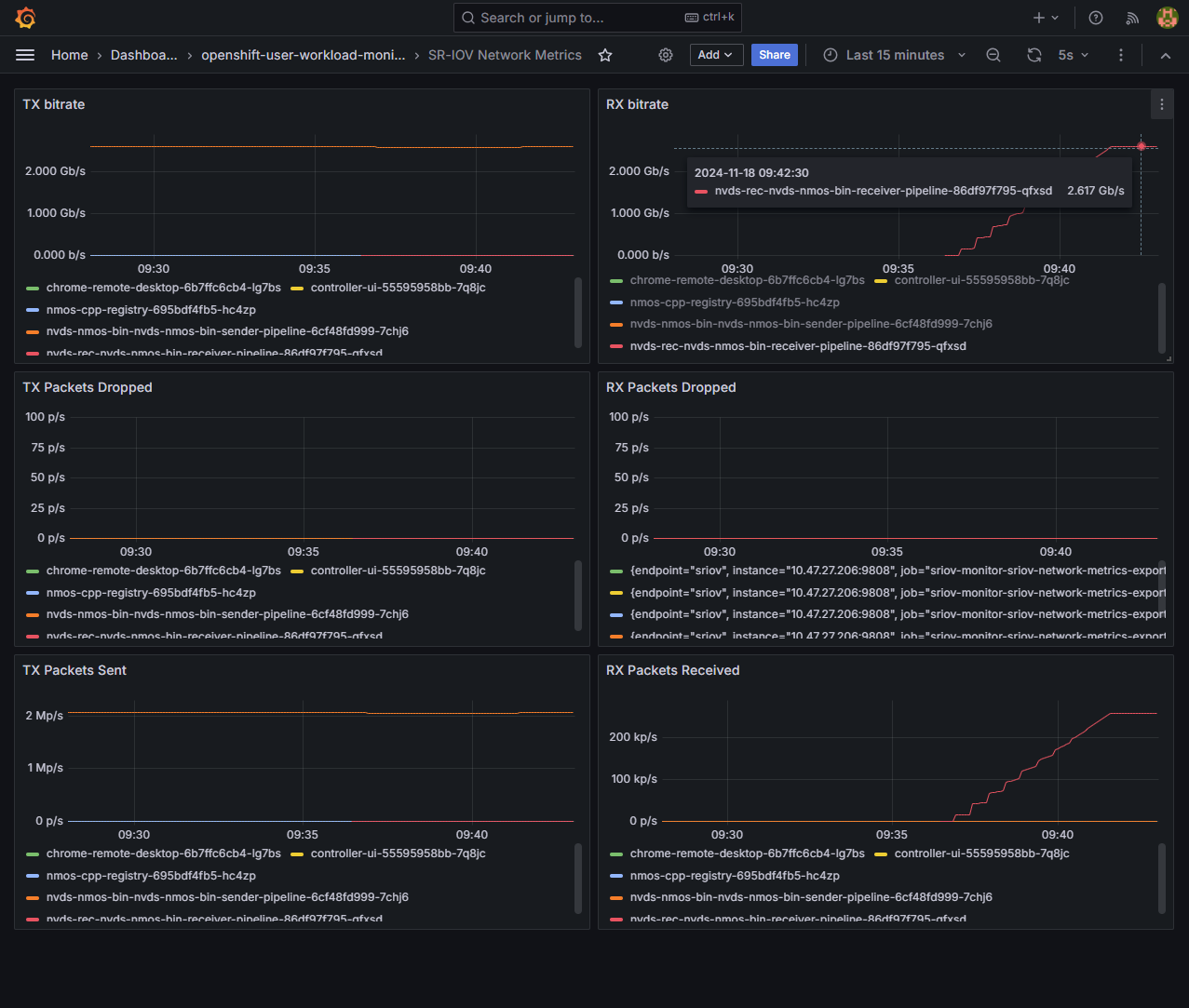
The dashboard displays key metrics for the pods that use the VFs, such as the transmit (TX) and receive (RX) rates and the number of packets sent, received, and dropped. Use these metrics to monitor performance and troubleshoot issues.
PTP Monitoring#
PTP is crucial for time synchronization and ST 2110 compliance.
To monitor PTP metrics, follow the PTP Monitoring Helm Chart guide.
Note
Only the production setup supports this Helm chart.
After you install the Helm chart, the PTP Dashboard is visible in Grafana.
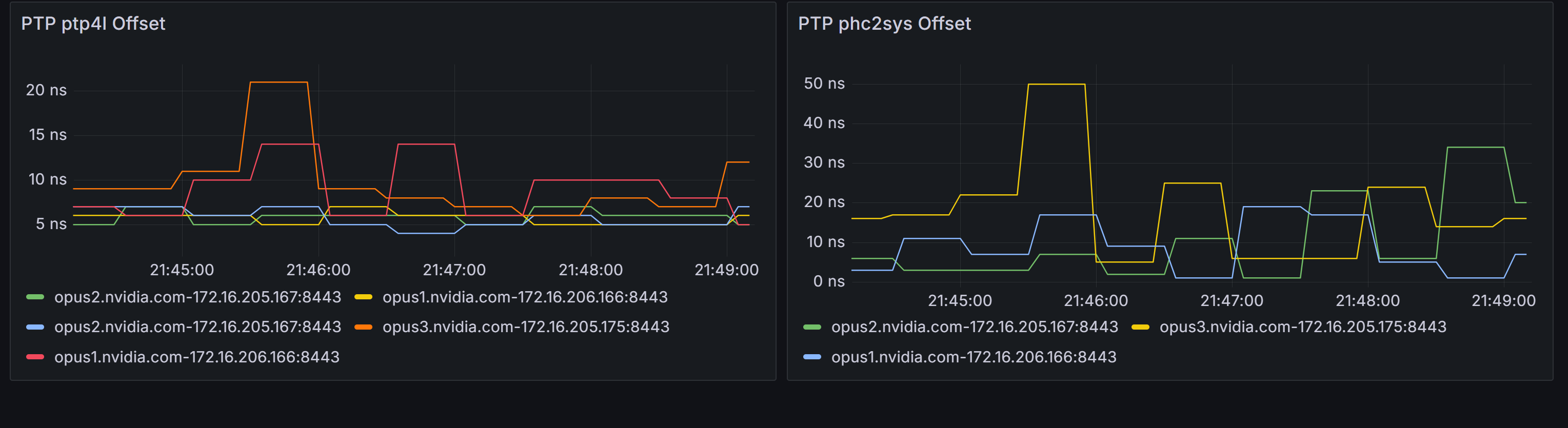
The dashboard displays two key metrics:
NIC-Switch Synchronization (
ptp4l)NIC-System Clock Synchronization (
phc2sys)
NMOS Registry Monitoring#
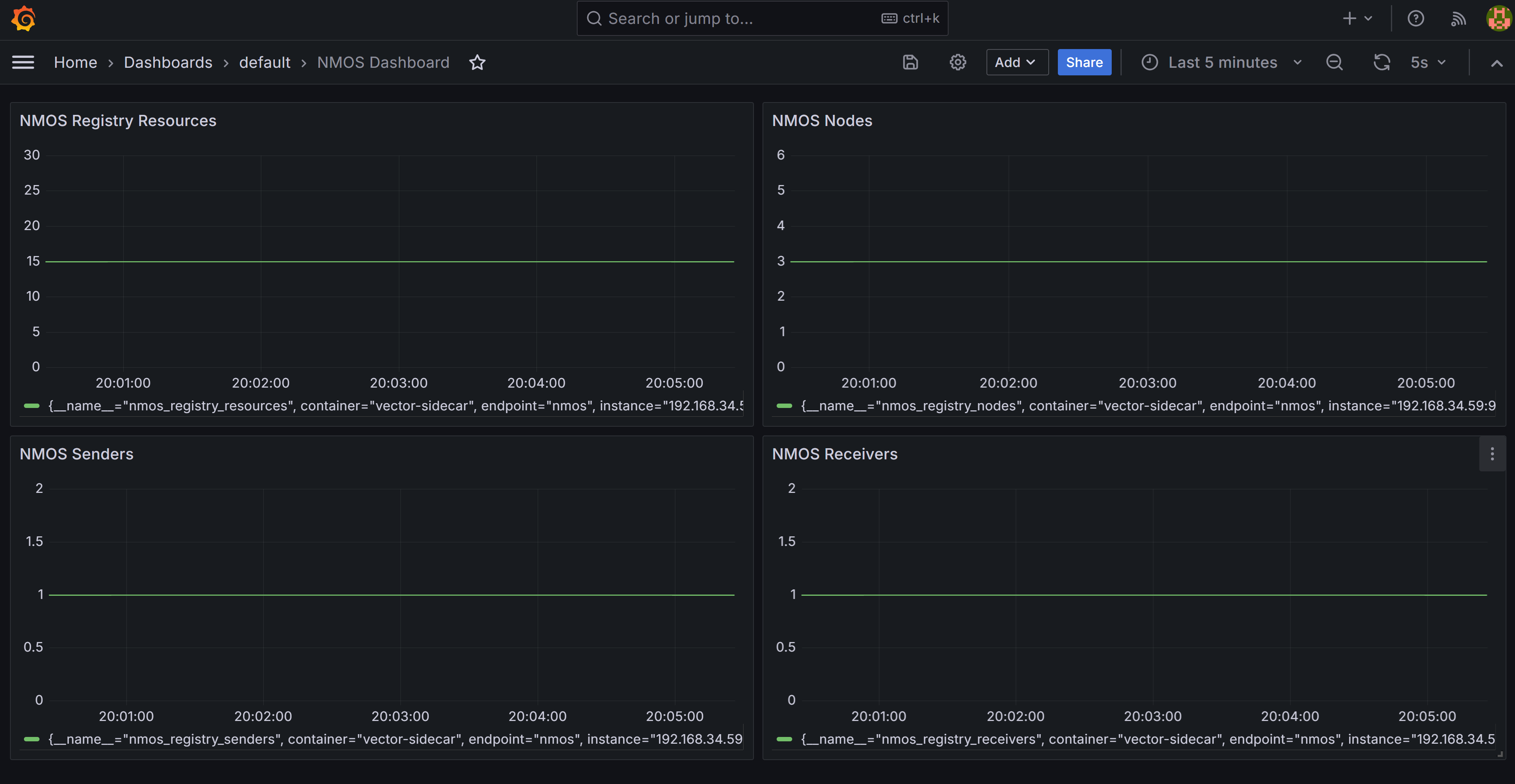
The NMOS Registry Dashboard displays the number of NMOS-enabled nodes, senders, and receivers registered in the reference NMOS Registry.
To set it up, follow the NMOS Registry Helm chart guide, or deploy the Helm chart from the Helm Dashboard. In the values.yaml file, set prometheusExporter.enabled to true:
# Enable Log Exporter to Prometheus
prometheusExporter:
  enabled: true
  error_log: /logs/vector.txt # Error log must be in logs directory to be shared with vector sidecar containers
After you install the Helm chart, the NMOS Dashboard is visible in Grafana.