


Cluster Configuration#
Ansible Settings#
Ensure that you have Ansible version 2.15 or later installed.
Edit ansible.cfg and add the following lines:
[defaults]
jinja2_native=True
OpenShift CLI#
Log in to the Red Hat console and select Downloads.
Search for OpenShift command-line interface (oc) under Command-line interface (CLI) tools. Select Linux as the operating system, and then select Download.
Extract the downloaded package to a directory that is on the
PATH, for example,/usr/local/bin. Verify that you can run theoccommand from a new terminal window.
OpenShift Web Console#
You can obtain credentials for the OpenShift web console in two ways:
After cluster installation: A successful cluster installation writes the console URL and password to
cluster-credentials.txtin the installation directory. For more information, refer to end of installation output.- Red Hat console:
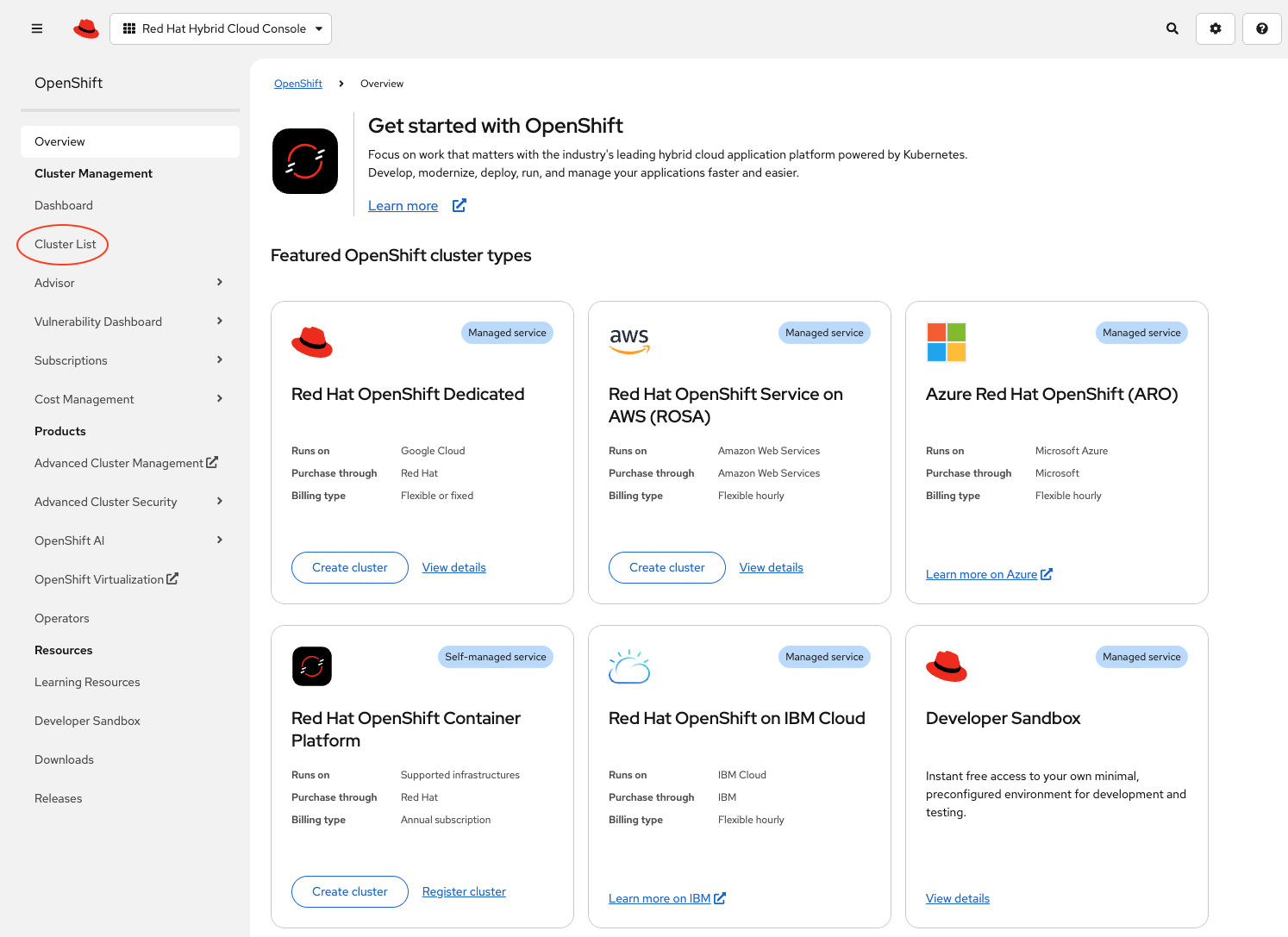
Log in to the Red Hat console and select Cluster List.
Select the cluster. Verify that it has
Readystatus. If it does not, the installation did not complete. Rerun the installation playbook.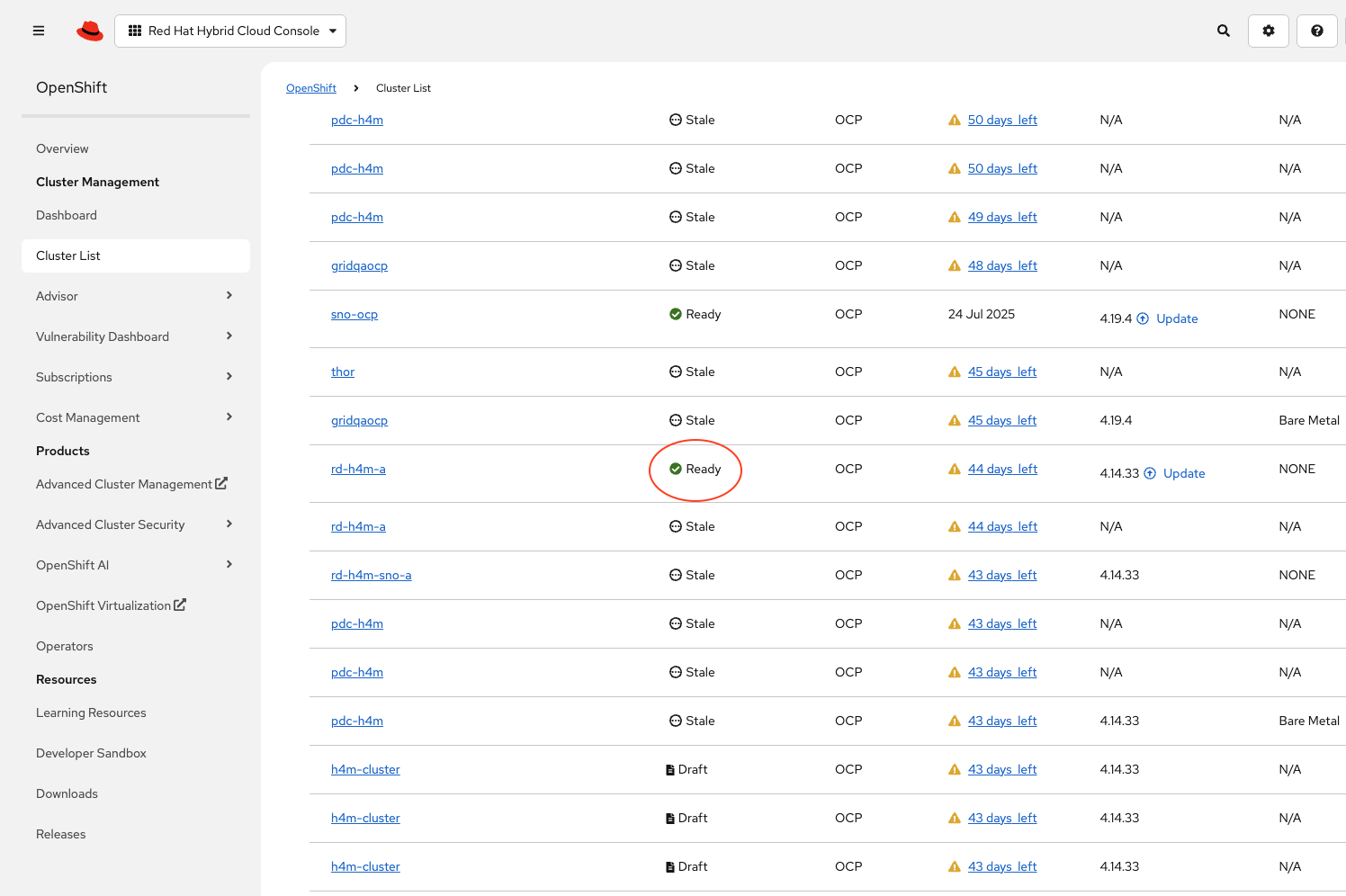
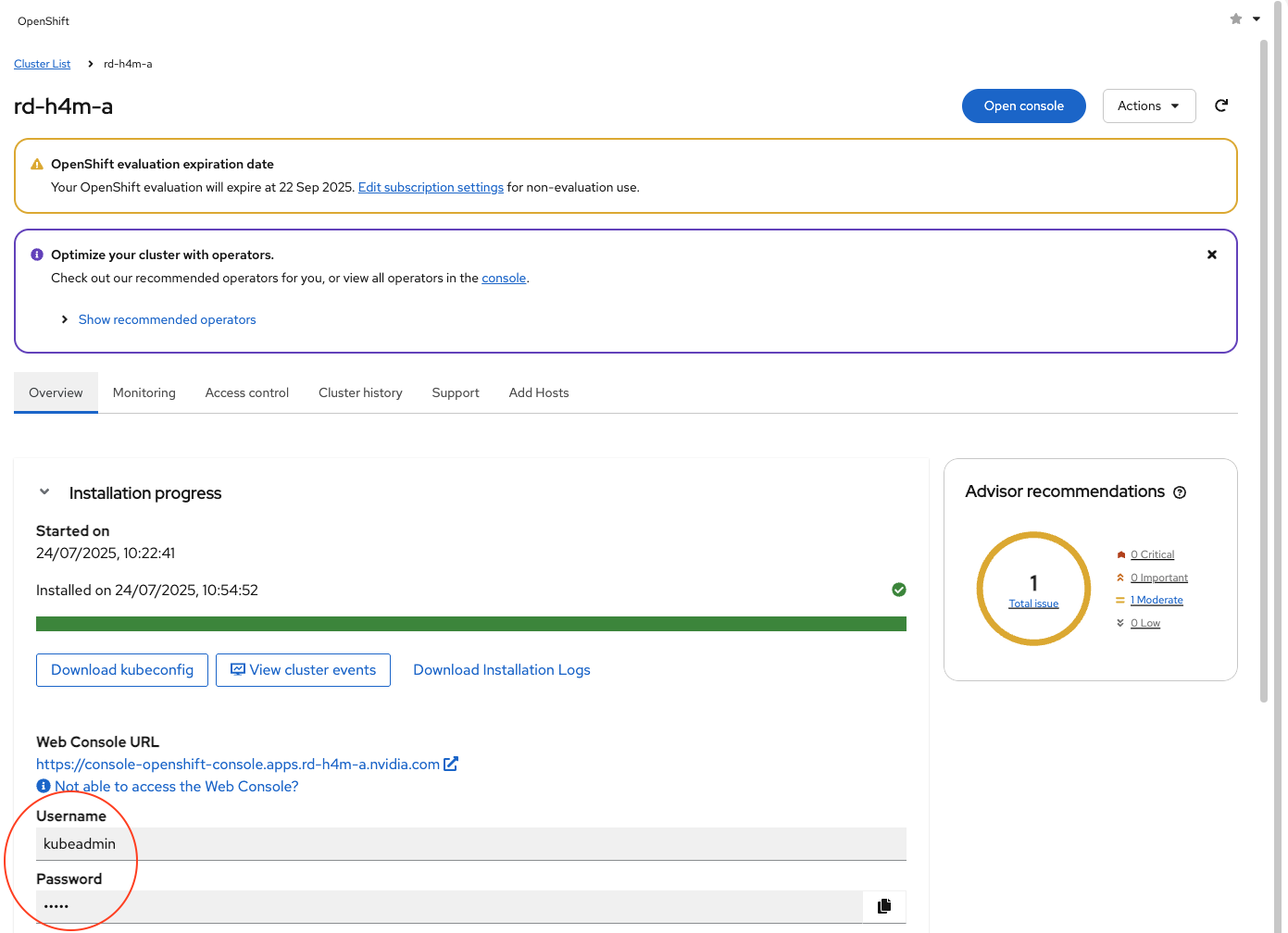
In the cluster credentials that appear, select Web Console URL, and log in to the OpenShift web console with the credentials.
Note
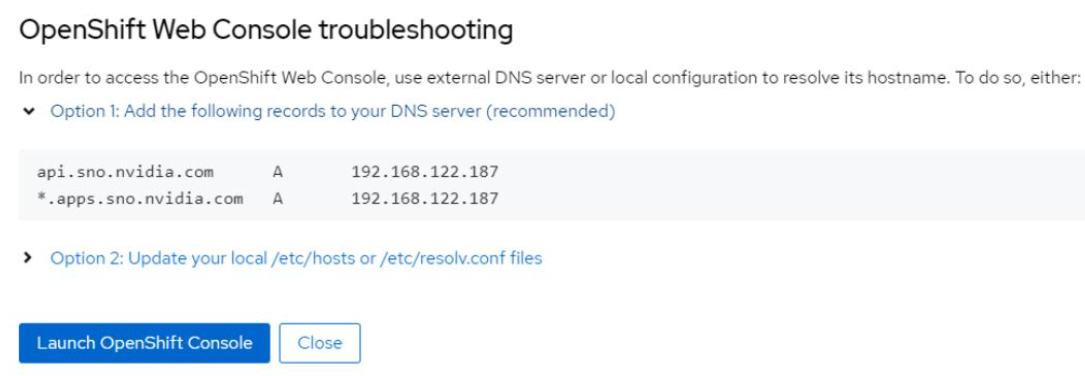
If you cannot access the web console, refer to IP Addresses and DNS Records. You can also select Not able to access the Web Console to open a troubleshooting dialog box with cluster access information.
OpenShift API Token#
Use an API token to authenticate with an OpenShift cluster, configure nodes, and install operators. These operators include NVIDIA Network Operator, NVIDIA GPU Operator, and OpenShift SR-IOV Network Operator. To generate an API token, complete the following steps:
Access the OpenShift web console by entering the console URL in a browser.
Log in to the OpenShift web console using your
kubeadmincredentials.Select the kubeadmin user icon in the top-right corner.
Select Copy login command. In the new tab that opens, select Display Token.
Note the server URL and token.
Sample server URL: https://api.h4m-cluster.example.com:6443
Sample token: sha256~69rjndX6omNdXuGLpi_bp3WX_3rTRFkMJQBaU-6A-N0
Running the Configuration Playbook#
Important
Before you run the configuration playbook, review and update the required variables in the custom-vars.yaml file in the configuration directory.
This file contains all the necessary settings for configuring the cluster, including the server URL and token.
If you do not provide these values, the playbook fails.
If you set storage.provider to rook-ceph, prepare spare object storage daemon (OSD) disks before you run the configuration playbook. For instructions, refer to Prepare Disks for Rook Ceph OSDs.
Open a terminal and type
octo verify that the OpenShift CLI tool is on thePATHand that you can run it.Navigate to the directory where you extracted the configuration tarball (for example,
/home/user/openshift-automation/configuration/).Run the Ansible playbook using the following command. The playbook takes about two hours to complete, depending on the cluster size.
ANSIBLE_LOG_PATH=./configuration_$(date +'%Y%m%d_%H%M%S').log ansible-playbook main.yaml -e @custom-vars.yaml -e "NGC_API_KEY=<API-KEY>" -vv
where:
<API-KEY>is an NGC API keyThe
-vvflag enables verbose output for debugging. You can change it to-vfor less detail or-vvvor-vvvvfor increasingly more detailed logs.
Note
If you do not set
JINJA2_NATIVEtoTrueinansible.cfg, the playbook fails with the following error:ERROR! '{{' is not a valid tag.
To resolve this error without modifying
ansible.cfg, addANSIBLE_JINJA2_NATIVE=Trueto the beginning of the preceding command.
Check Network Adapter Firmware and Configuration#
To produce ST 2110-compliant streams, ensure that each network adapter is optimally configured. To check and update the network adapter firmware, use the Driver Toolkit. The Driver Toolkit is a container image that includes the kernel packages that tools in driver containers commonly require. For more information, refer to the Driver Toolkit documentation.
Repeat this section for each of your driver-toolkit containers.
Find the Driver Toolkit image for the cluster:
oc adm release info --image-for=driver-toolkit
quay.io/openshift-release-dev/ocp-v4.0-art-dev@sha256:4feae2e6bb59f667431e11e832d294fc5900c1ab38a3bb845191ee93524208e4
Create a new project namespace:
oc new-project driver-toolkit
Create
driver_toolkit.yamlbased on the following template:apiVersion: v1 kind: ServiceAccount metadata: name: driver-toolkit-container --- apiVersion: rbac.authorization.k8s.io/v1 kind: Role metadata: name: driver-toolkit-container rules: - apiGroups: - security.openshift.io resources: - securitycontextconstraints verbs: - use resourceNames: - privileged --- apiVersion: rbac.authorization.k8s.io/v1 kind: RoleBinding metadata: name: driver-toolkit-container roleRef: apiGroup: rbac.authorization.k8s.io kind: Role name: driver-toolkit-container subjects: - kind: ServiceAccount name: driver-toolkit-container userNames: - system:serviceaccount:mft-driver:driver-toolkit-container --- apiVersion: apps/v1 kind: DaemonSet metadata: name: driver-toolkit-container spec: selector: matchLabels: app: driver-toolkit-container template: metadata: labels: app: driver-toolkit-container spec: serviceAccount: driver-toolkit-container serviceAccountName: driver-toolkit-container containers: - image: quay.io/openshift-release-dev/ocp-v4.0-art-dev@sha256:<SHA> name: driver-toolkit-container imagePullPolicy: Always command: [sleep, infinity] securityContext: privileged: true nodeSelector: node-role.kubernetes.io/<machine-config-pool>: ""
Replace
<machine-config-pool>withholoscanmediafor a five-node cluster, or withmasterfor a three-node cluster or single-node OpenShift (SNO).Replace
<SHA>in the image name with the Driver Toolkit image digest from step 1.Deploy the daemon set:
oc create -f driver-toolkit.yaml
Note
This step reports a warning similar to
Warning: would violate PodSecurity "restricted:v1.24". You can safely ignore it.List the pods in the new
driver-toolkitproject:oc get pods NAME READY STATUS RESTARTS AGE driver-toolkit-container-l6d5c 1/1 Running 0 19m driver-toolkit-container-qlj5d 1/1 Running 0 19m
Log in to the first container:
oc exec -it driver-toolkit-container-l6d5c -- /bin/bash
Download the NVIDIA Firmware Tools (MFT) archive into the current directory:
wget https://www.mellanox.com/downloads/MFT/mft-4.33.0-169-x86_64-rpm.tgzExtract the archive:
tar -xvf mft-4.33.0-169-x86_64-rpm.tgz
Navigate to the extracted directory and install:
cd mft-4.33.0-169-x86_64-rpm
./install.sh
...
-I- In order to start mst, please run "mst start".
Install the PCI Utilities package and start
mstas instructed in previous output:yum install pciutils -y ... Complete! mst start Starting MST (Mellanox Software Tools) driver set Loading MST PCI module - Success Loading MST PCI configuration module - Success Create devices -W- Missing "lsusb" command, skipping MTUSB devices detection Unloading MST PCI module (unused) - Success
Check the network adapter firmware using the following command:
mlxfwmanager -u --online
Follow the prompts to update the firmware as required. Firmware updates take several minutes, and you must restart the machine for them to take effect. You can restart one time, after you make all configuration changes.
Check the PCI addresses of the MST devices, which are the network adapters:
mst status

MST modules:
------------
    MST PCI module is not loaded
    MST PCI configuration module loaded
MST devices:
------------

/dev/mst/mt4129_pciconf0      - PCI configuration cycles access.
                                domain:bus:dev.fn=0000:37:00.0 addr.reg=88
                                Chip revision is: 00
/dev/mst/mt4129_pciconf1      - PCI configuration cycles access.
                                domain:bus:dev.fn=0000:8b:00.0 addr.reg=88
                                Chip revision is: 00
/dev/mst/mt41692_pciconf0     - PCI configuration cycles access.
                                domain:bus:dev.fn=0000:a0:00.0 addr.reg=88
                                Chip revision is: 01
For each device in the previous output, ensure that
REAL_TIME_CLOCK_ENABLEisTrue. Query the setting with the following command, and change it as needed:mlxconfig -d /dev/mst/mt4129_pciconf0 query REAL_TIME_CLOCK_ENABLE Device #1: ---------- Device type: ConnectX7 Name: MCX713106AC-VEA_Ax Description: NVIDIA ConnectX-7 HHHL Adapter Card; 200GbE; Dual-port QSFP112; PCIe 5.0 x16; Crypto Enabled; Secure Boot Enabled Device: /dev/mst/mt4129_pciconf0 Configurations: Next Boot REAL_TIME_CLOCK_ENABLE False(0)
If
REAL_TIME_CLOCK_ENABLEis set toFalse(0), enable it:mlxconfig -d /dev/mst/mt4129_pciconf0 set REAL_TIME_CLOCK_ENABLE=1 Device #1: ---------- Device type: ConnectX7 Name: MCX713106AC-VEA_Ax Description: NVIDIA ConnectX-7 HHHL Adapter Card; 200GbE; Dual-port QSFP112; PCIe 5.0 x16; Crypto Enabled; Secure Boot Enabled Device: /dev/mst/mt4129_pciconf0 Configurations: Next Boot New REAL_TIME_CLOCK_ENABLE False(0) True(1) Apply new Configuration? (y/n) [n] : y Applying... Done! -I- Please reboot machine to load new configurations.
Any configuration change requires a reboot. You can reboot one time, after you make all configuration changes.
If you use AMD-based servers, ensure that
PCI_WR_ORDERINGis set toforce_relaxfor each device in themst statusoutput from step 15. Query the value ofPCI_WR_ORDERINGwith the following command:mlxconfig -d /dev/mst/mt4129_pciconf0 query PCI_WR_ORDERING Device #1: ---------- Device type: ConnectX7 Name: MCX713106AC-VEA_Ax Description: NVIDIA ConnectX-7 HHHL Adapter Card; 200GbE; Dual-port QSFP112; PCIe 5.0 x16; Crypto Enabled; Secure Boot Enabled Device: /dev/mst/mt4129_pciconf0 Configurations: Next Boot PCI_WR_ORDERING per_mkey(0)
If
PCI_WR_ORDERINGis set toper_mkey(0), set it toforce_relax:mlxconfig -d /dev/mst/mt4129_pciconf0 set PCI_WR_ORDERING=1 Device #1: ---------- Device type: ConnectX7 Name: MCX713106AC-VEA_Ax Description: NVIDIA ConnectX-7 HHHL Adapter Card; 200GbE; Dual-port QSFP112; PCIe 5.0 x16; Crypto Enabled; Secure Boot Enabled Device: /dev/mst/mt4129_pciconf0 Configurations: Next Boot New PCI_WR_ORDERING per_mkey(0) force_relax(1) Apply new Configuration? (y/n) [n] : y Applying... Done! -I- Please reboot machine to load new configurations.
If you use a purchased Rivermax license rather than a time-limited development license, enable NIC serial number validation with
VF_VPD_ENABLE. Query the current value:mlxconfig -d /dev/mst/mt4129_pciconf0 query VF_VPD_ENABLE Device #1: ---------- Device type: ConnectX6DX Name: MCX623106AN-CDA_Ax Description: ConnectX-6 Dx EN adapter card; 100GbE; Dual-port QSFP56; PCIe 4.0/3.0 x16; Device: /dev/mst/mt4129_pciconf0 Configurations: Next Boot VF_VPD_ENABLE False(0)
If
VF_VPD_ENABLEis set toFalse(0), enable it:mlxconfig -d /dev/mst/mt4129_pciconf0 set VF_VPD_ENABLE=1 Device #1: ---------- Device type: ConnectX7 Name: MCX713106AC-VEA_Ax Description: NVIDIA ConnectX-7 HHHL Adapter Card; 200GbE; Dual-port QSFP112; PCIe 5.0 x16; Crypto Enabled; Secure Boot Enabled Device: /dev/mst/mt4129_pciconf0 Configurations: Next Boot New VF_VPD_ENABLE False(0) True(1) Apply new Configuration? (y/n) [n] : y Applying... Done! -I- Please reboot machine to load new configurations.
Any configuration change requires a reboot. You can reboot one time, after you make all configuration changes.
Exit the Driver Toolkit container:
exit

Exit...
Repeat the preceding steps for each of the other Driver Toolkit containers.
Delete the driver-toolkit daemon set:
oc delete -f driver-toolkit.yaml
Delete the driver-toolkit project:
oc delete project driver-toolkit
Restore the OpenShift CLI default project:
oc project default

Now using project "default" on server "https://api.h4m.example.com:6443".
Reboot each worker machine by following the instructions in Reboot Node Gracefully.
Note
After cluster configuration is complete, run Platform Verification to validate cluster readiness before you deploy the reference applications.
Reference Applications#
You can deploy a set of reference applications on the cluster using another Ansible playbook. For instructions, refer to Application Deployment.