Installing USDA syntax highlighting in Visual Studio Code#
Many Learn OpenUSD exercises include USD ASCII (.usda) and generic USD (.usd) files. Installing a language extension in Visual Studio Code gives you syntax highlighting, clearer structure when you read layers, and helpful navigation on asset paths and references.
The steps below use Visual Studio Code. The same workflow applies in Cursor and other editors built on VS Code, including the Extensions view and marketplace.
Install the USD Language extension#
Open Visual Studio Code.
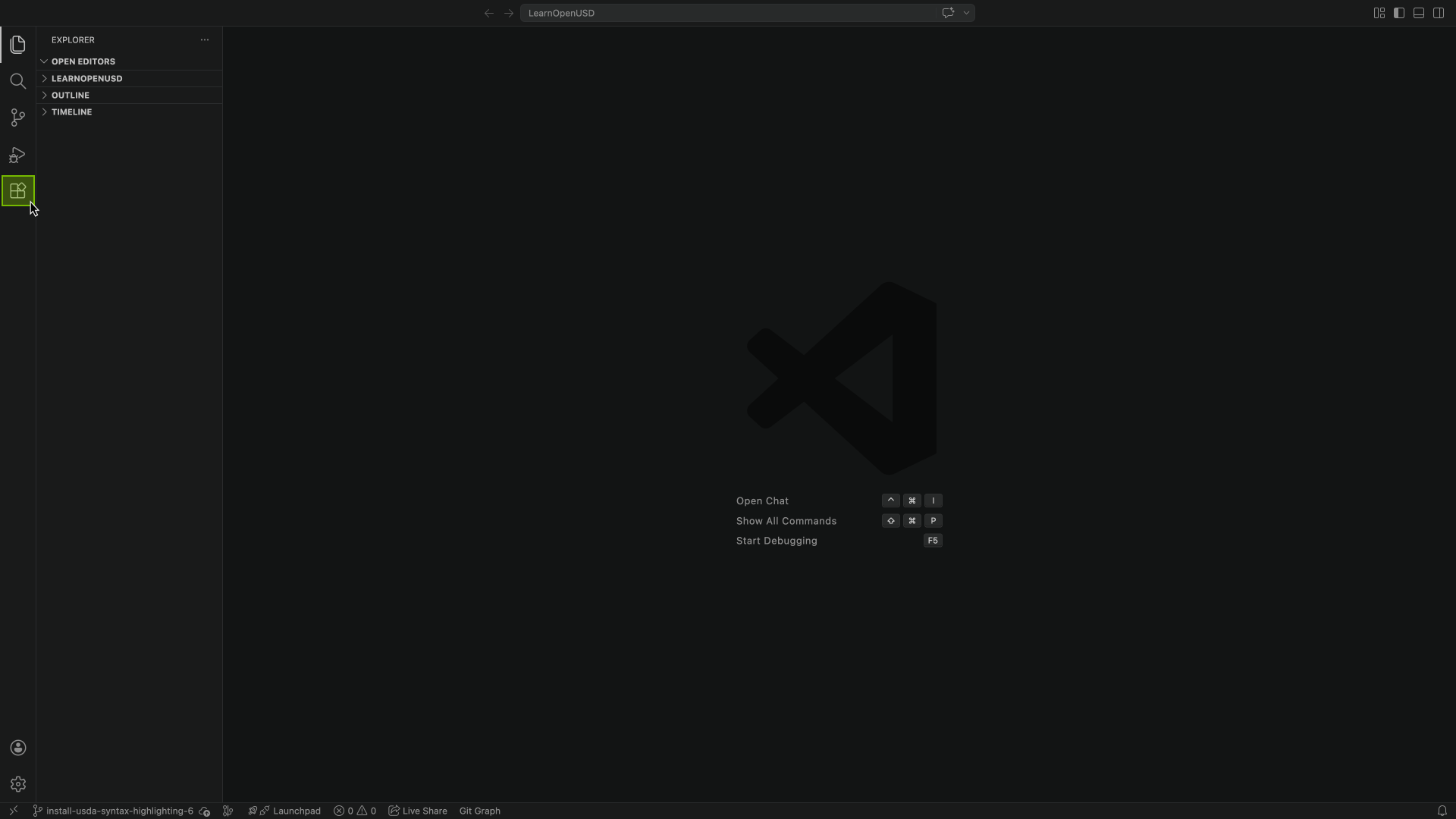
Open the Extensions view by clicking the Extensions icon in the Activity Bar on the left.
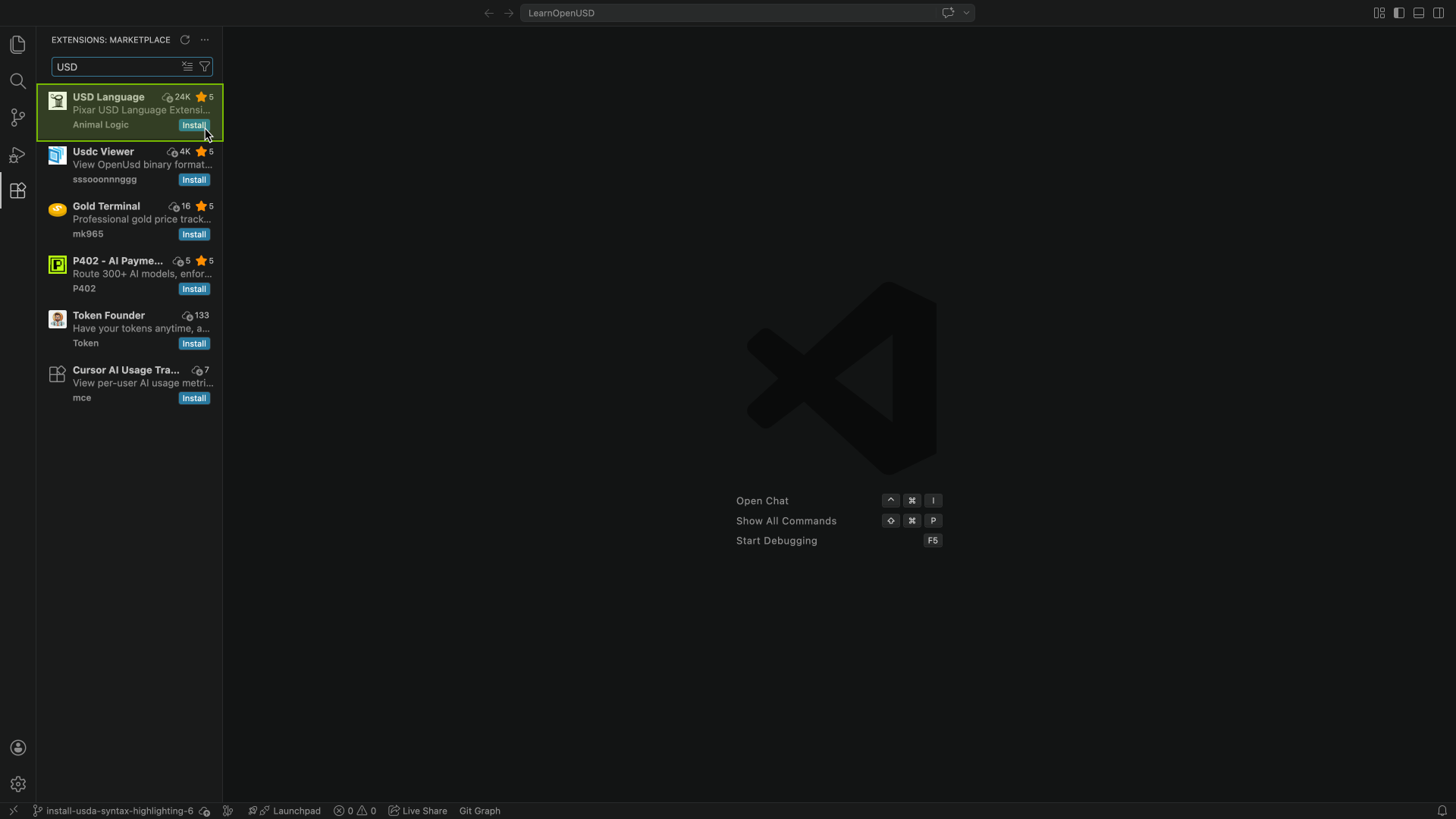
In the Extensions search box, type USD.
In the results, find USD Language published by Animal Logic (Pixar USD language support). Select it, then click Install. You can install from the list or open the full marketplace page and use Install there.
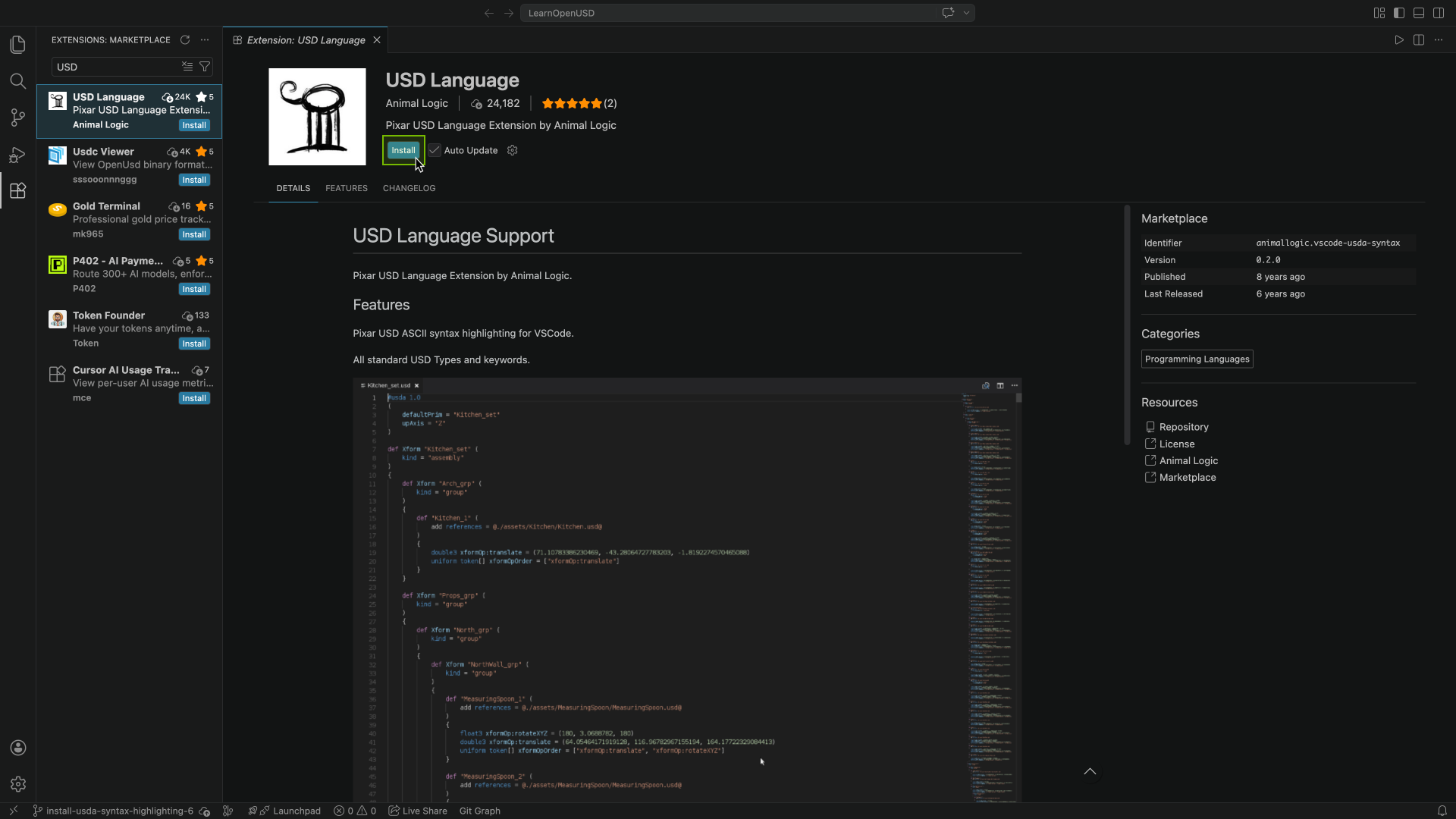
When installation finishes, you can leave the extension’s default settings as they are for typical Learn OpenUSD work.
Note
To install from a terminal instead, use VS Code’s CLI (if code is on your PATH): code --install-extension animallogic.vscode-usda-syntax. The extension identifier in the marketplace is animallogic.vscode-usda-syntax.
Verify highlighting and navigation#
Open your Learn OpenUSD workspace folder in the editor (File > Open Folder).
Open any
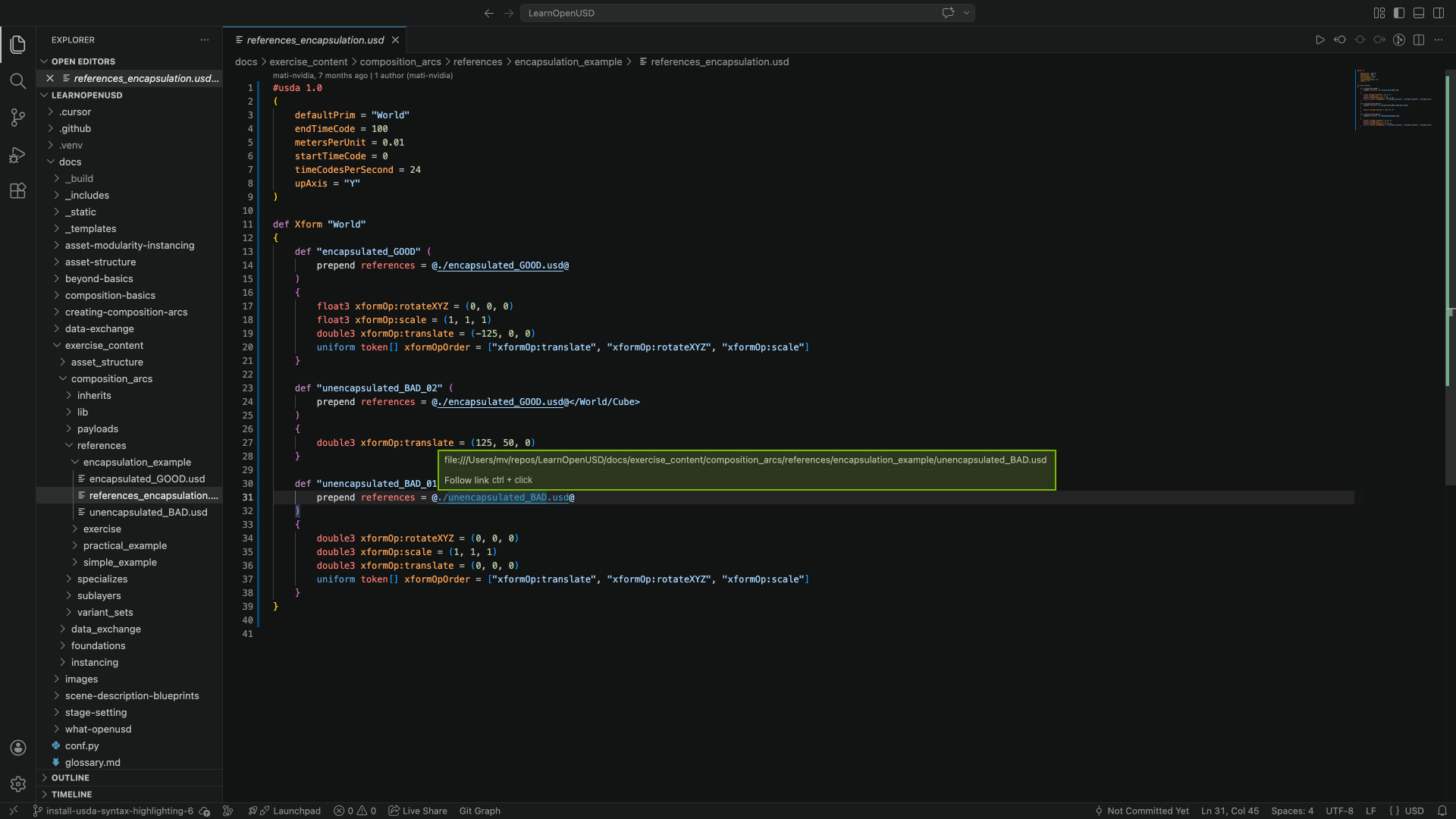
.usdor.usdaexercise file, for example, underdocs/exercise_content/.Confirm the language mode in the status bar (lower right) shows USD when the file is active. You should see keyword and type coloring similar to the screenshots below.
Optionally, hover a quoted asset path (for example after
references) or a scene path. The extension can show a resolved path and hints such as Follow link with Ctrl+click (Windows or Linux) or Cmd+click (macOS) to open the target file.
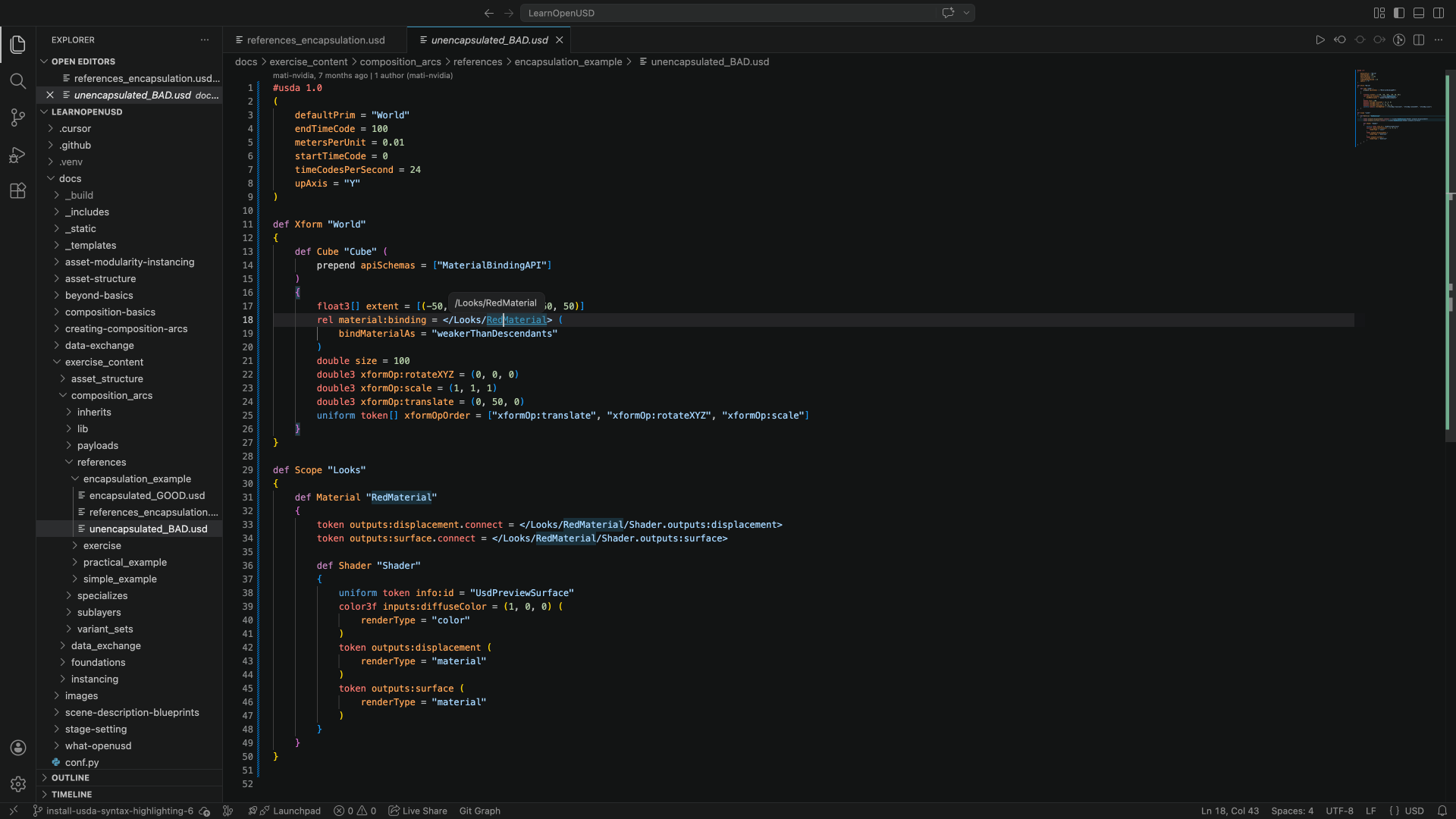
You are set up to browse USDA layers with highlighting and basic navigation support alongside the rest of the curriculum.