Installing the Snowflake Native App

View as Markdown

In just four easy steps, you can install Kumo as a native Snowflake app to generate high-quality predictions, while keeping your data safely inside your Snowflake environment.

  1. Get access to Kumo from the Snowflake Marketplace
  2. Install Kumo
  3. Setup Kumo (create necessary databases, roles, network rules, and privileges for Kumo)
  4. Launch and start using Kumo!

1. Get access to the Kumo Native app

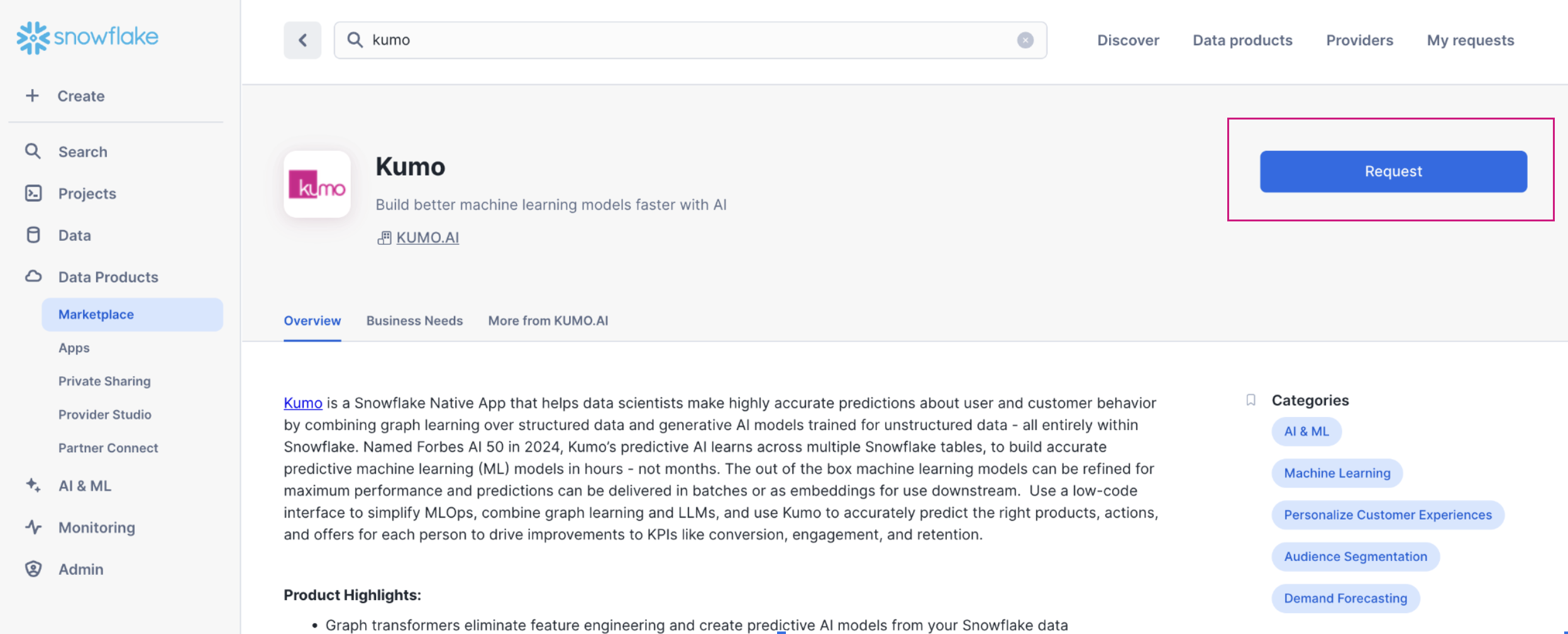
Customers can access the Kumo Native app through the Enterprise Access listing in Snowflake Marketplace.

Enterprise Access

Use this listing if you are actively working with Kumo account representatives for a proof of concept or are already under contract. To do this, click the Get button, and then select Request.

Note that the user requesting the app must have ACCOUNTADMIN role or a role with IMPORT SHARE and CREATE DATABASE privileges

Request Kumo

2. Install Kumo

Prerequisites

Before installing and configuring Kumo as a native Snowflake application, ensure that you have completed the following:

Install the Kumo Native App

Note that the following steps can only be done using the ACCOUNTADMIN role or by a user/role with the appropriate privileges

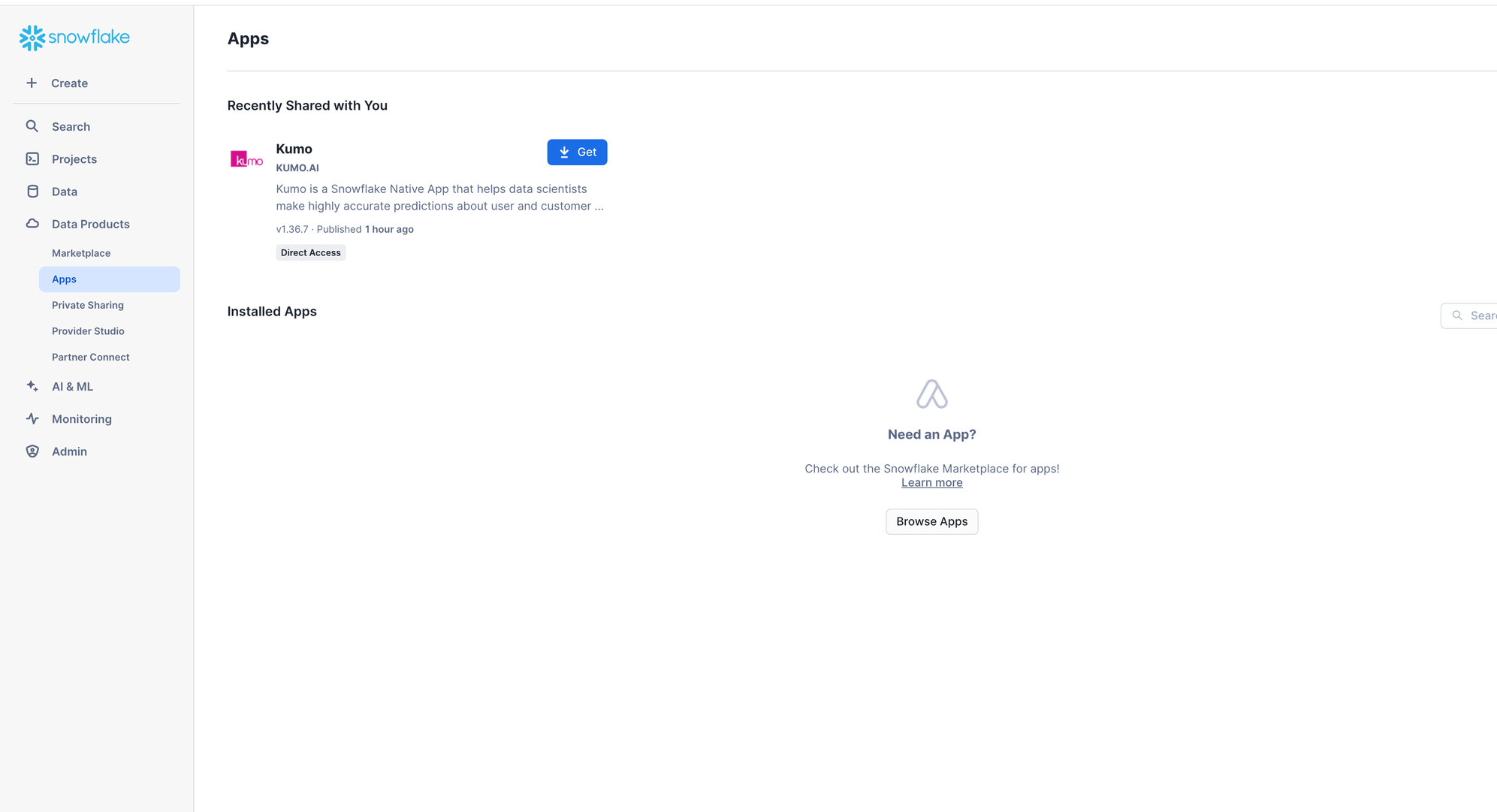
  1. You should see Kumo shared with you when navigating to “Data Products” → “Apps” in SnowSight. Click the Get button.

Download the Kumo app

  1. Choose a warehouse to download the app and click Get in the next prompt. This warehouse is used to only install the app.
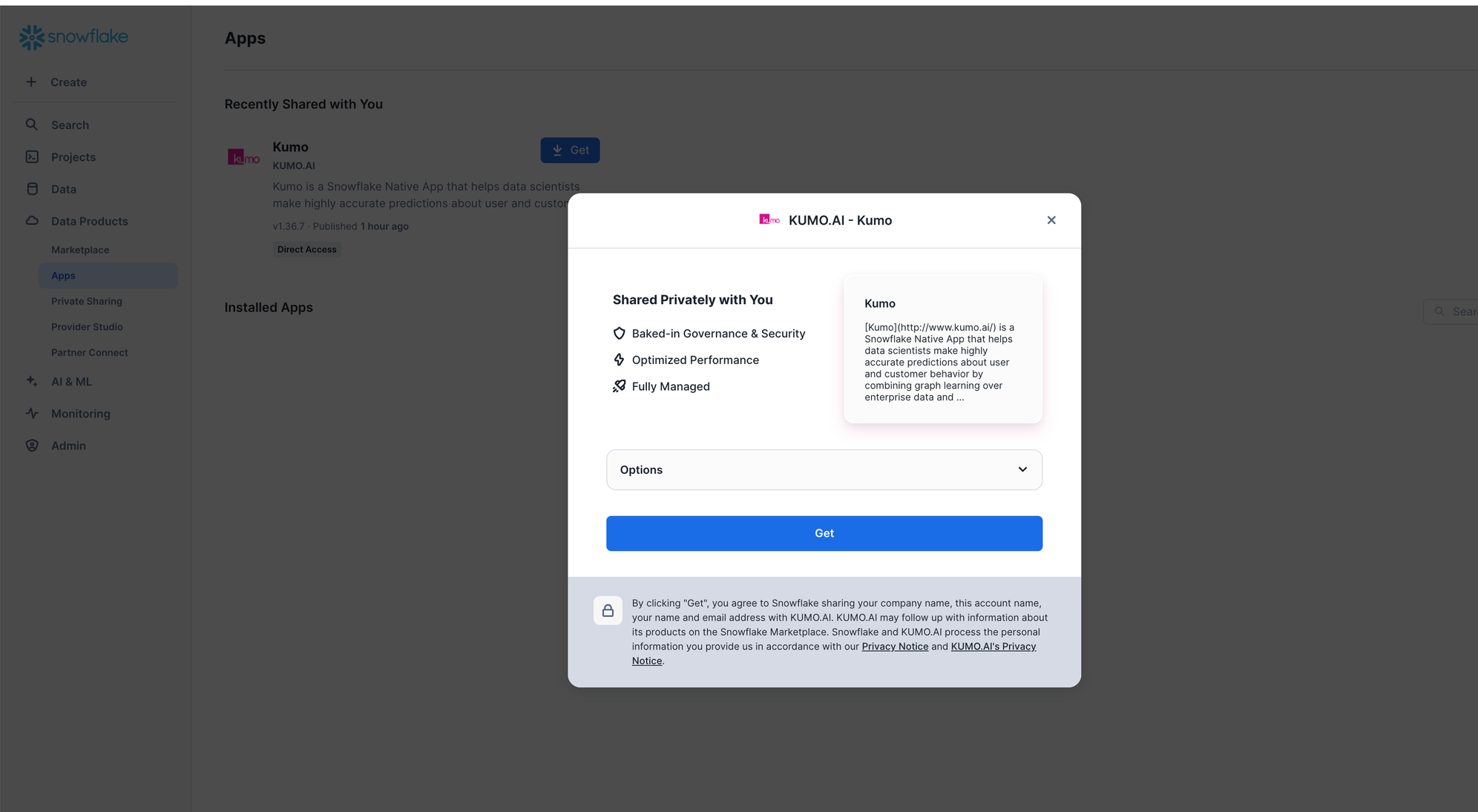
Choose warehouse and get Kumo

  1. The app will start installing and take 2-5 mins to complete.
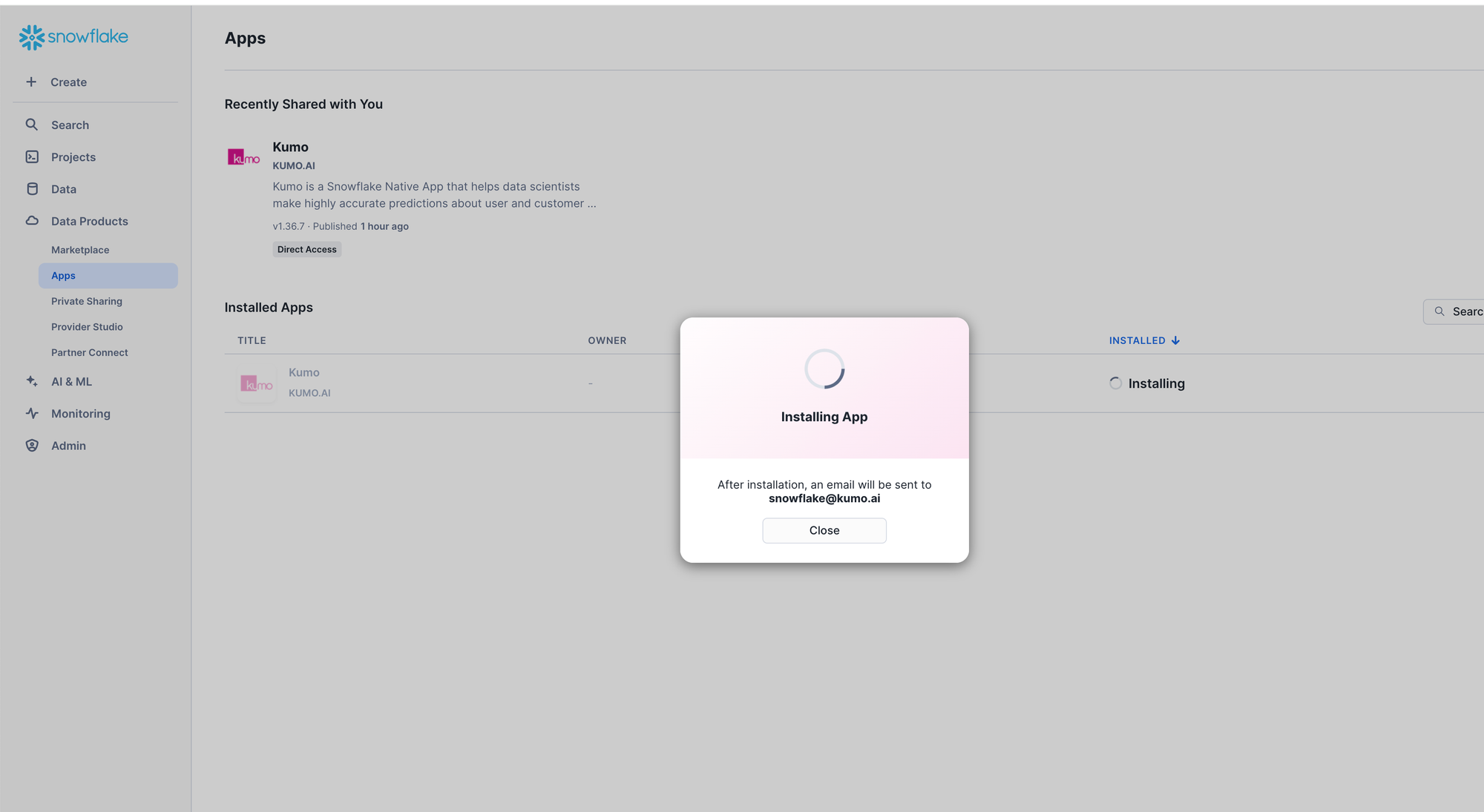
Installing Kumo

  1. Once the installation is completed, click on Done and setup Kumo using the instructions in the next section.
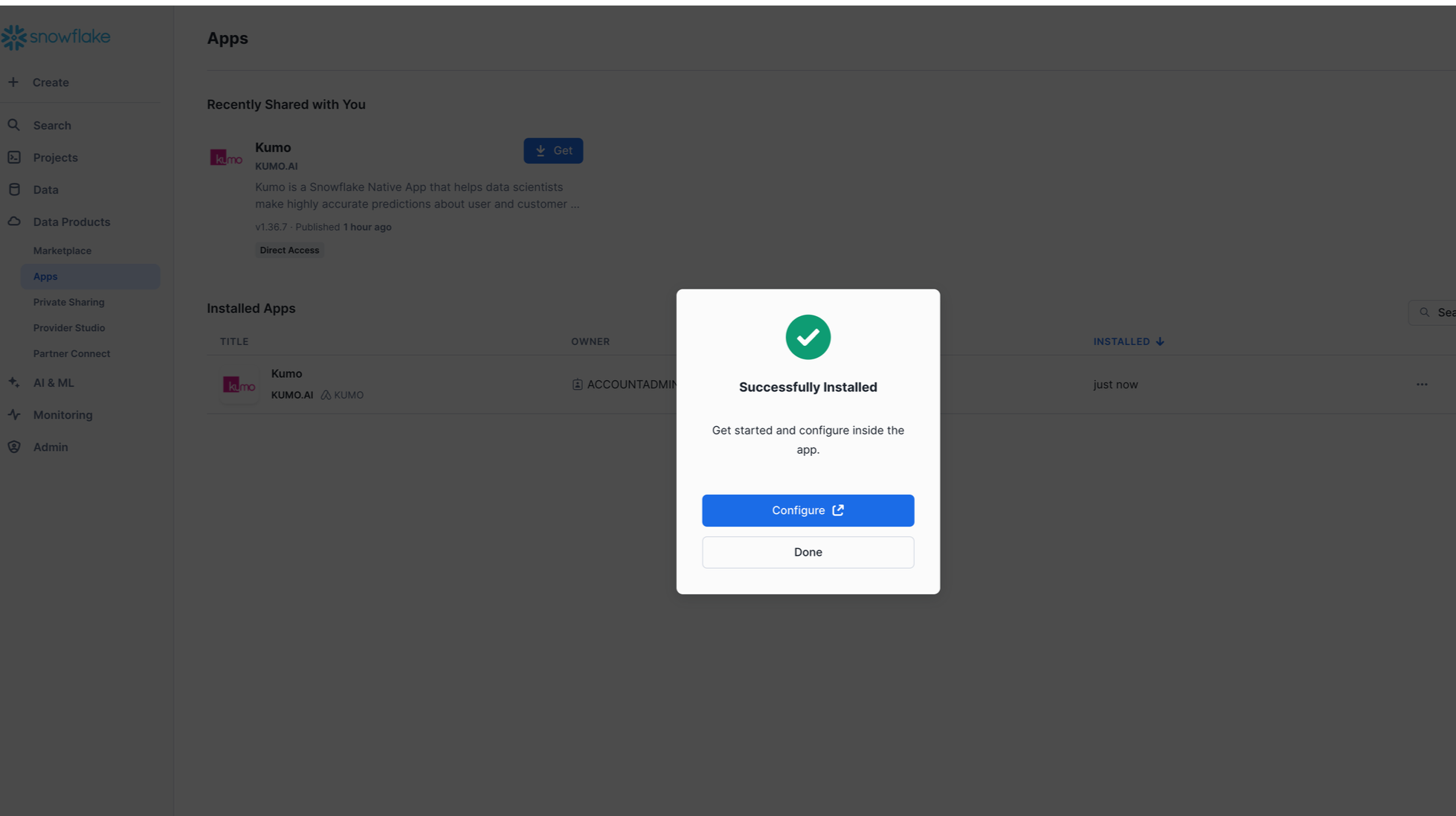
Completed installation

3. Setting up the Kumo Native app

The Kumo Native app needs to be installed/set up by a Snowflake account administrator or a user who has ACCOUNTADMIN privileges on the account. It can be set up either using (a) Snowsight or (b) SQL (preferable for automation), as described next.

Setup using Snowsight

Kumo can be set up using Snowsight using the following steps:

  1. Click “Grant” to grant the required privileges to the app.
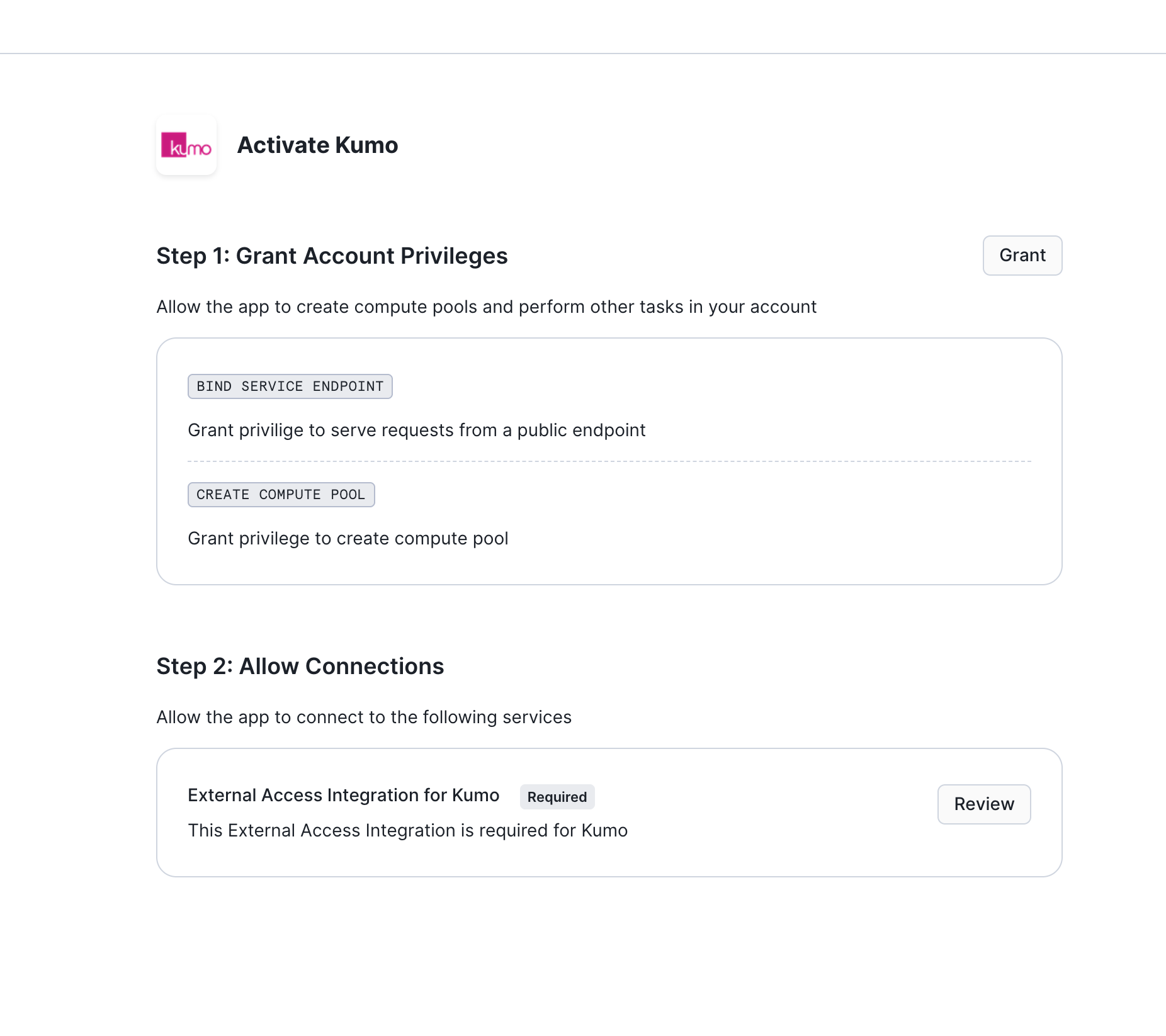
Click "Grant" to grant required privileges to Kumo

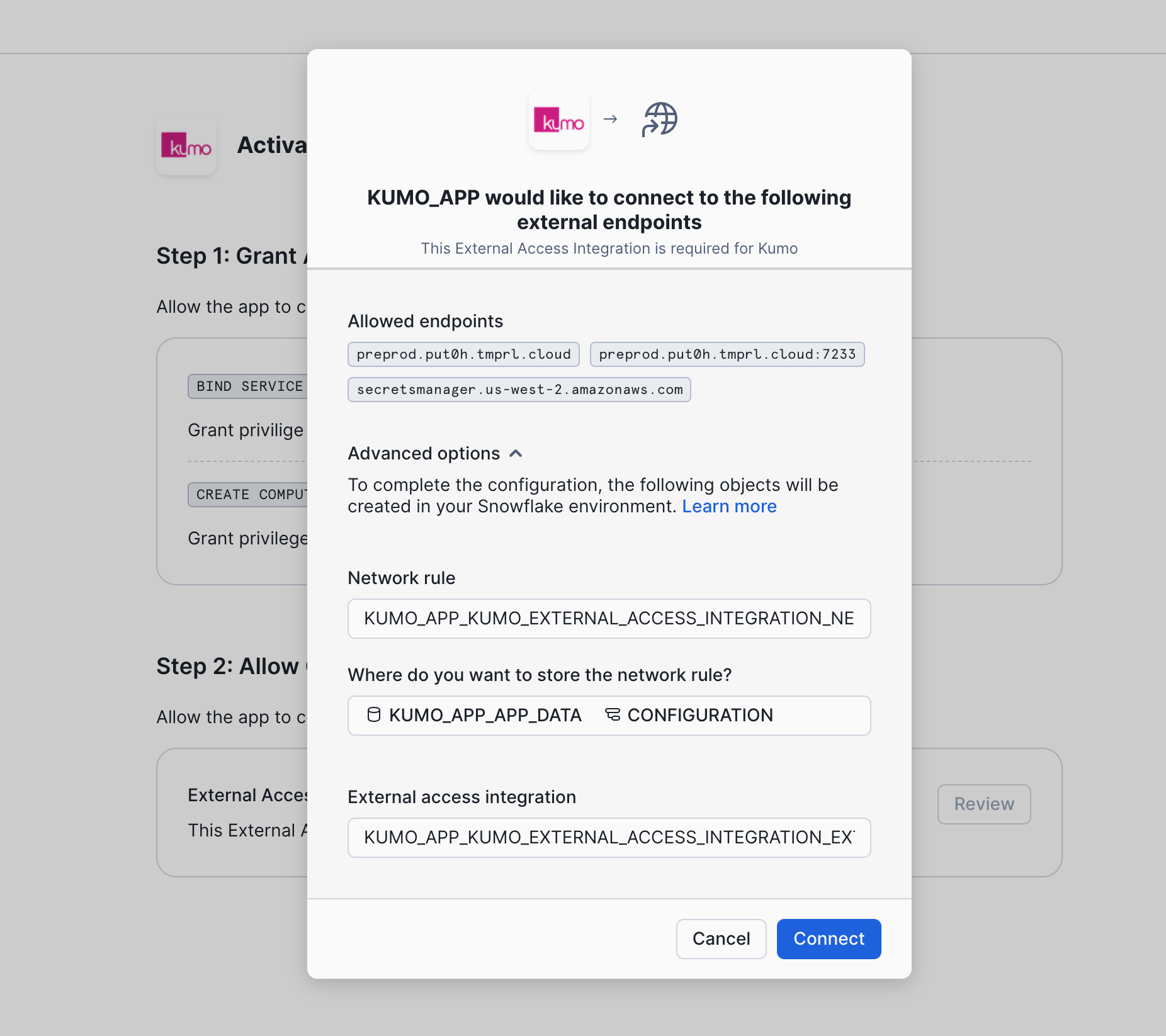
  1. Click “Review” and “Connect” to create the external access integrations required for Kumo.
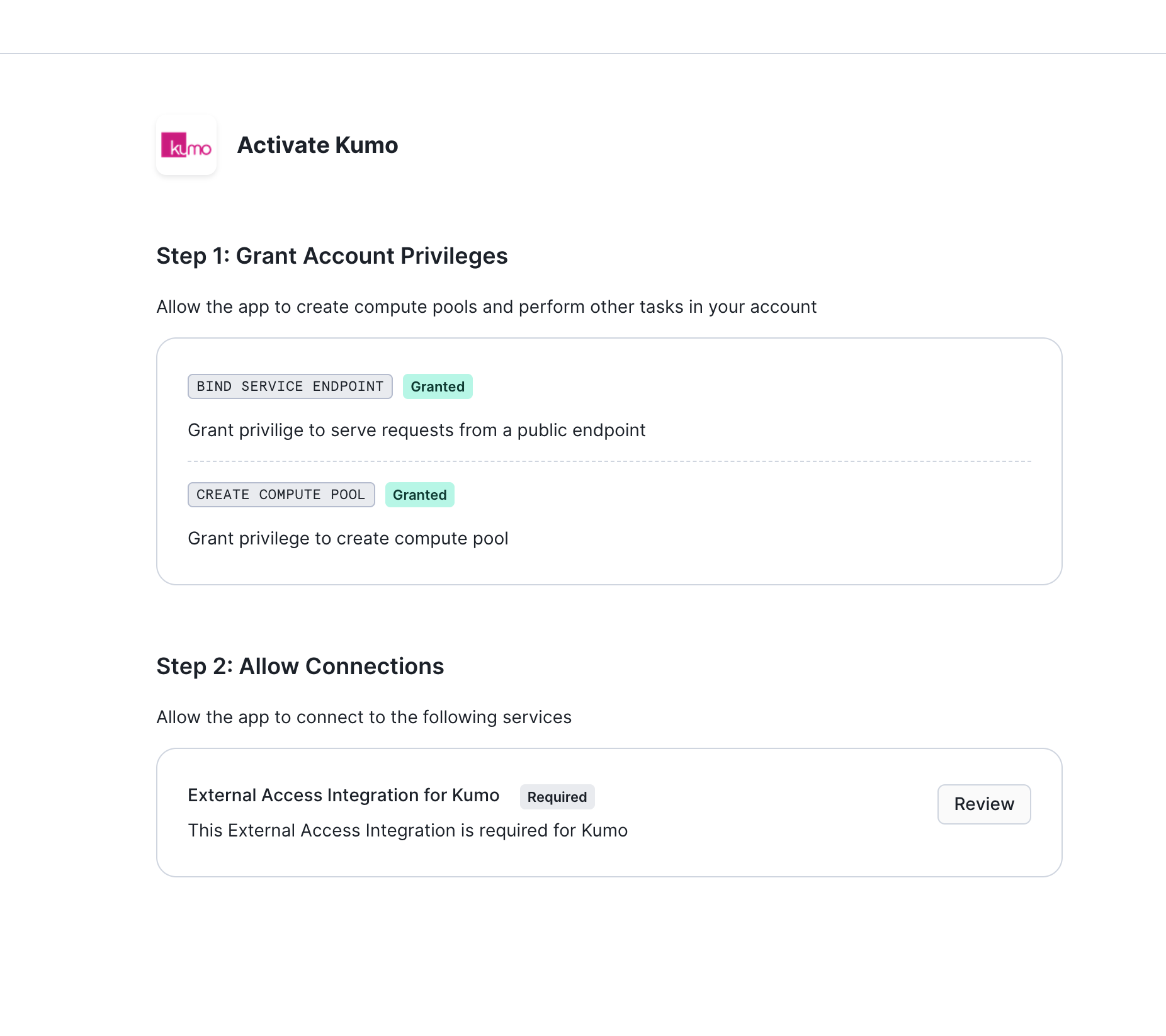
Click "Review" to review external access integration for Kumo

Click "Connect" to create external access integration for Kumo

  1. Click “Activate” to start the Kumo app. This step can take 20 to 30 mins.
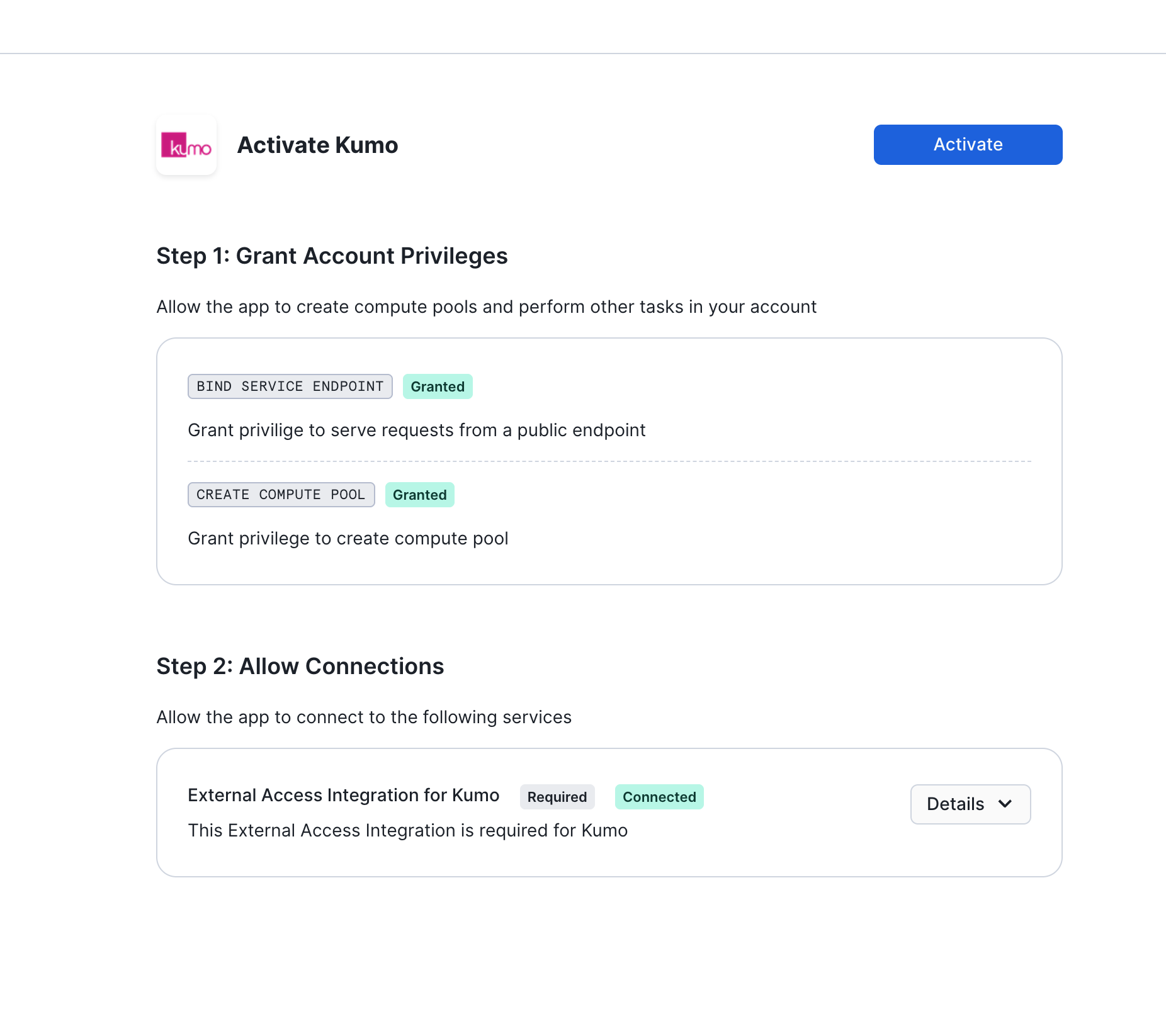
Click "Activate" to start to Kumo

  1. Navigate to the “Access management” tab on the application and click “Add” to grant access to users who will be using the app.
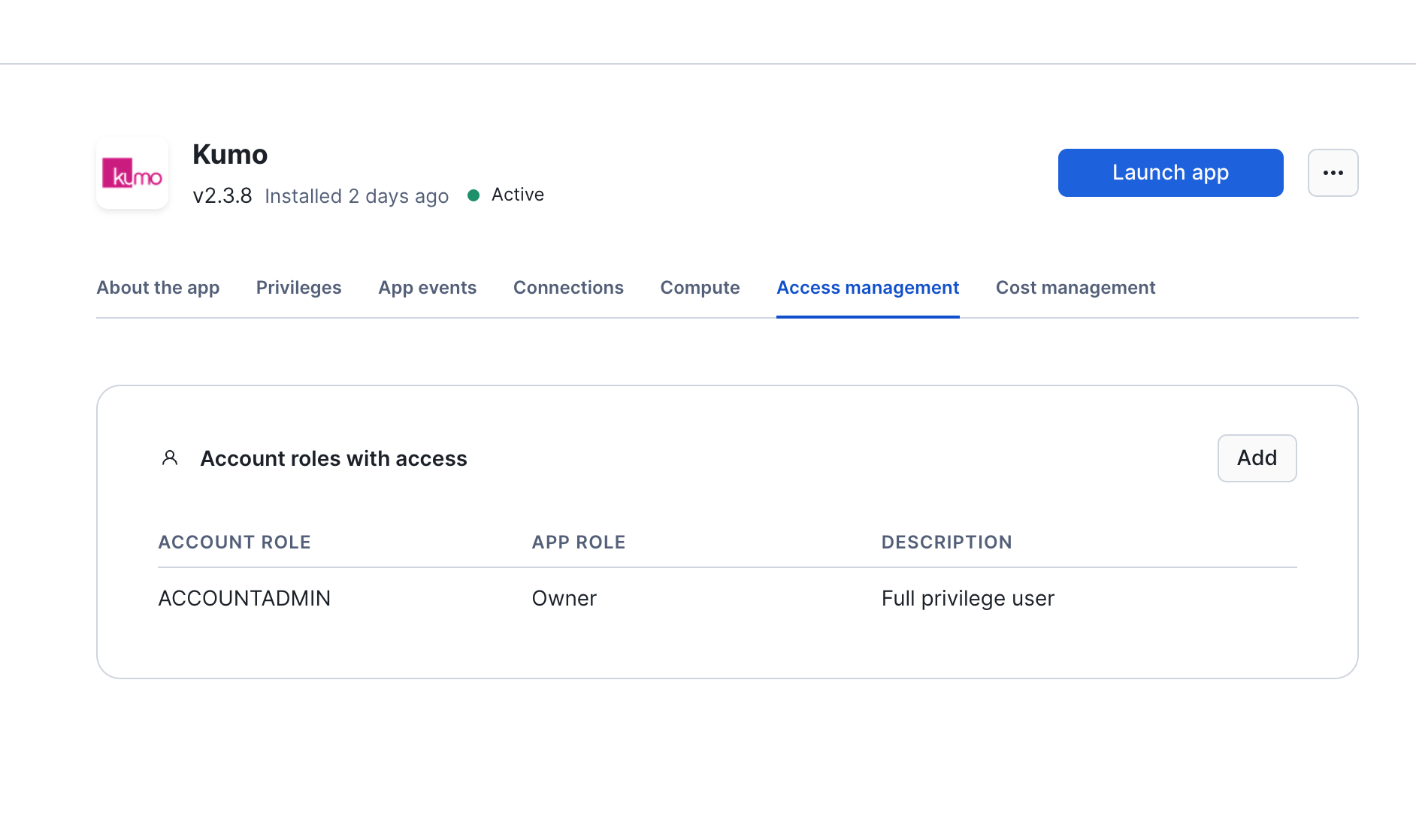
Click "Access management" to grant access to Kumo

Setup using SQL

Create required objects and roles

The following SQL script creates the databases, roles, network rules and privileges required to setup Kumo in your account. It uses the ACCOUNTADMIN role and a user with that role should execute it.

  1. You are required to provide the warehouse name. Note that ACCOUNTADMIN must have USAGE privilege on the warehouse provided.
  2. Set the name of the Kumo Native app if a different name was used when the app was installed from the marketplace. The app name defaults to KUMO.
SQL
1-----------------------------
2--- USER INPUT REQUIRED ---
3-----------------------------
4SET USER_WAREHOUSE = '<ADD WAREHOUSE TO USE>';
5
6-- (Optional) Modify the following if a different name was used to install the app.
7SET KUMOAPP_NAME = 'KUMO';
8SET KUMOAPP_DB = 'KUMO_APP_DB';
9
10SET KUMOAPP_USR = CONCAT(($KUMOAPP_NAME),'.APP_USER');
11
12USE ROLE ACCOUNTADMIN;
13USE WAREHOUSE IDENTIFIER($USER_WAREHOUSE);
14
15-- Grant BIND SERVICE ENDPOINT privilege to the Kumo application to enable
16-- network ingress and access to the Kumo UI for users of Kumo in your account.
17-- Details of the privilige can be found here
18-- https://other-docs.snowflake.com/LIMITEDACCESS/native-apps/na-spcs-consumer#set-up-access-to-network-objects
19GRANT BIND SERVICE ENDPOINT ON ACCOUNT TO APPLICATION IDENTIFIER($KUMOAPP_NAME);
20
21-- Grant CREATE COMPUTE POOL privilege to allow the Kumo application to create compute pools
22-- This allows for efficient management of compute pools by Kumo.
23GRANT CREATE COMPUTE POOL ON ACCOUNT TO APPLICATION IDENTIFIER($KUMOAPP_NAME);
24
25-- Share events from the application with the provider, KUMO.AI
26ALTER APPLICATION IDENTIFIER($KUMOAPP_NAME) SET AUTHORIZE_TELEMETRY_EVENT_SHARING=true;
27
28-- Database and schema to hold network rules for the Kumo application along
29-- with usage for the Kumo application.
30CREATE DATABASE IF NOT EXISTS IDENTIFIER($KUMOAPP_DB);
31USE DATABASE IDENTIFIER($KUMOAPP_DB);
32CREATE SCHEMA IF NOT EXISTS KUMO_SCHEMA;
33USE SCHEMA KUMO_SCHEMA;
34
35---------------------
36-- EGRESS RULES FOR KUMO
37---------------------
38
39CREATE OR REPLACE PROCEDURE CREATE_EGRESS_RULES(kumo_app_name varchar)
40RETURNS STRING
41LANGUAGE PYTHON
42RUNTIME_VERSION = '3.10'
43PACKAGES = ('snowflake-snowpark-python')
44HANDLER = 'create_egress_rule'
45EXECUTE AS CALLER
46AS
47$$
48import json
49
50
51def create_egress_rule(session, kumo_app_name):
52df = session.sql(f"CALL {kumo_app_name}.PROCEDURES.GET_CONFIGURATION('KUMO_EXTERNAL_ACCESS_INTEGRATION')").collect()
53result = json.loads(df[0][0])
54if "payload" not in result or "host_ports" not in result["payload"] or len(result["payload"]["host_ports"]) == 0:
55 raise RuntimeError(f'Error creating egress rules: {result}')
56
57hosts = result["payload"]["host_ports"]
58session.sql(f"""CREATE OR REPLACE NETWORK RULE kumo_network_rule
59 MODE = EGRESS
60 TYPE = HOST_PORT
61 VALUE_LIST = ({', '.join(f"'{item}'" for item in hosts)})
62 """).collect()
63
64session.sql("""CREATE OR REPLACE EXTERNAL ACCESS INTEGRATION KUMO_EXTERNAL_ACCESS_INTEGRATION_APP
65 ALLOWED_NETWORK_RULES = (kumo_network_rule)
66 ENABLED = true""").collect()
67session.sql(f"GRANT USAGE ON INTEGRATION KUMO_EXTERNAL_ACCESS_INTEGRATION_APP TO APPLICATION {kumo_app_name}").collect()
68session.sql(f"CALL {kumo_app_name}.PROCEDURES.register_single_callback('KUMO_EXTERNAL_ACCESS_INTEGRATION', 'ADD', SYSTEM$REFERENCE('external_access_integration', 'KUMO_EXTERNAL_ACCESS_INTEGRATION_APP', 'PERSISTENT'))").collect()
69return f"Created egress rules and external access integration for {hosts}"
70$$;
71
72CALL CREATE_EGRESS_RULES($KUMOAPP_NAME);
73
74------------------------
75
76-- Create KUMO_USER_ROLE and grant necessary privileges. This role can be assigned to
77-- any Snowflake user who is expected to use the Kumo application.
78CREATE ROLE IF NOT EXISTS KUMO_USER_ROLE;
79
80-- Grant the Application role to KUMO_USER_ROLE.
81GRANT APPLICATION ROLE IDENTIFIER($KUMOAPP_USR) TO ROLE KUMO_USER_ROLE;
82
83-- Grant USAGE on the database, schema and warehouse to KUMO_USER_ROLE.
84GRANT USAGE ON DATABASE IDENTIFIER($KUMOAPP_DB) TO ROLE KUMO_USER_ROLE;
85GRANT USAGE ON ALL SCHEMAS IN DATABASE IDENTIFIER($KUMOAPP_DB) TO ROLE KUMO_USER_ROLE;
86GRANT USAGE ON WAREHOUSE IDENTIFIER($USER_WAREHOUSE) TO ROLE KUMO_USER_ROLE;

Grant user(s) privilege to use Kumo

The Snowflake administrator can provide access to the Kumo app to other users with the following commands. Modify <DEFAULT_USER_ROLE> to the role used by the user to start and use Kumo.

SQL
1-----------------------------
2--- USER INPUT REQUIRED ---
3-----------------------------
4USE ROLE ACCOUNTADMIN;
5-- Grant the KUMO_USER_ROLE to the DEFAULT_ROLE of any user who are expected to use the Kumo application.
6GRANT ROLE KUMO_USER_ROLE TO ROLE <DEFAULT_USER_ROLE>;

4. Launch and Use Kumo

This can be done by any user who has been granted access to the Kumo app (access can be granted using the steps above with sql or Snowsight).

Using Snowsight

  1. Navigate to the app from “Data products” -> “Apps” -> “Kumo” and click on “Activate”. This step can take 20 to 30mins.

Click Activate to start Kumo

  1. Once the activation is complete, you can access Kumo by clicking the “Launch” button. You will be re-directed to a URL where you can login with your snowflake credentials.
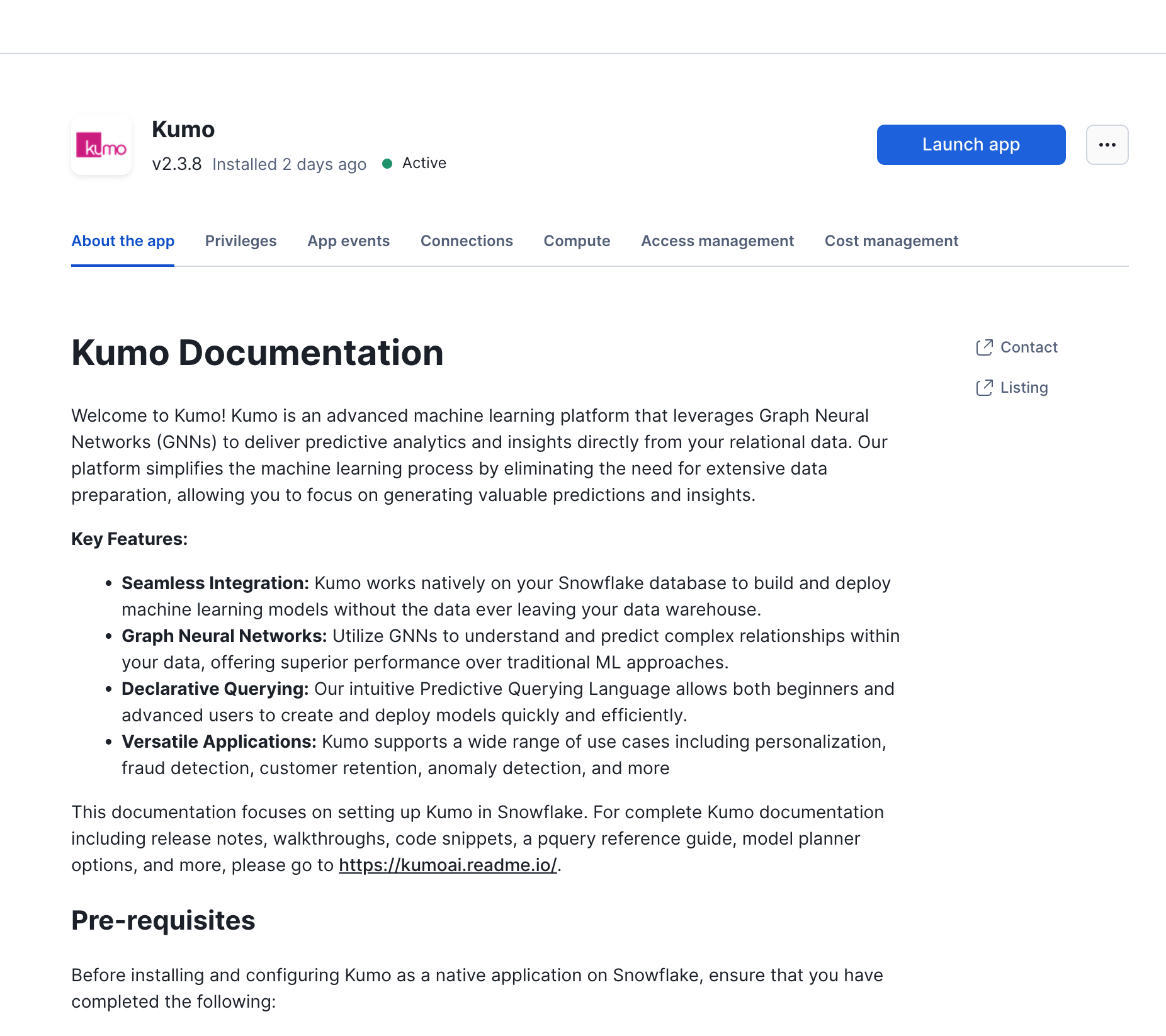
Click Launch to access Kumo

Using SQL

  1. Launch the Kumo app using the following commands. Note that KUMO_USER_ROLE should have privileges to use the warehouse provided in the command below.
SQL
1-----------------------------
2--- USER INPUT REQUIRED ---
3-----------------------------
4-- Note that KUMO_USER_ROLE should be granted usage on this warehouse.
5SET USER_WAREHOUSE = '<ADD WAREHOUSE TO USE>';
6-- Modify the following if a different name was used to install the app.
7SET KUMOAPP_NAME = 'KUMO';
8
9USE ROLE KUMO_USER_ROLE;
10
11USE WAREHOUSE IDENTIFIER($USER_WAREHOUSE);
12SET KUMOAPP_COMPUTE = CONCAT(($KUMOAPP_NAME),'.PROCEDURES.START_APP');
13CALL IDENTIFIER($KUMOAPP_COMPUTE)('USER_SCHEMA');

The above command returns the URL to use to access Kumo and can take 20-30 minutes to complete. DO NOT abort this command as this might leave the app in an inconsistent state.

  1. Navigate to the URL from the above command in your preferred browser. Login using your Snowflake credentials and you will see the Kumo UI.

When private link is enabled on your Snowflake account, accessing the Kumo Native app requires you to configure private connectivity to SPCS as described in Snowflake’s SPCS PrivateLink Connectivity documentation. You will be required to perform the “Configure Public Endpoints Access” steps in the docs to enable ingress requests from your network to the service’s public endpoint. We recommend having your IT/networking team confirm that the PrivateLink endpoints under *.privatelink.snowflakecomputing.com are resolvable and accessible from your environment. This may require adding or updating DNS records (e.g., CNAME entries) so that the hostname resolves correctly.

Split Tunneling VPN Configurations - Some customers have VPN configurations that use split tunneling. In these cases, make sure to include both *snowflakecomputing.app and *snowflakecomputing.com in your allowlists.

After launching the app using Snowsight or SQL as described above, you will need to run the following commands to retrieve the private link URL that can be used to access Kumo.

SQL
1-----------------------------
2--- USER INPUT REQUIRED ---
3-----------------------------
4SET KUMOAPP_NAME = 'KUMO';
5
6SET SERVICE_NAME = CONCAT(($KUMOAPP_NAME),'.user_schema.kumo_service');
7
8SHOW ENDPOINTS IN SERVICE IDENTIFIER($SERVICE_NAME);
9
10SELECT "privatelink_ingress_url" FROM TABLE(RESULT_SCAN(LAST_QUERY_ID())) WHERE "name" = 'proxy';

Using Kumo

For guidelines on how to use Kumo, visit the Kumo Quick Start Guide.

Managing the Kumo app

The following steps can be used to manage the lifecycle of the Kumo Native app. Users can invoke these based on the specific operations they need to perform.

Shutting down Kumo

You can stop the Kumo application using the following command when you are not actively using the application.

1SET KUMOAPP_NAME = 'KUMO';
2SET KUMOAPP_STOP = CONCAT(($KUMOAPP_NAME),'.PROCEDURES.SHUTDOWN_APP');
3CALL IDENTIFIER($KUMOAPP_STOP)('USER_SCHEMA');

Note: Once the app is shutdown, it can restarted using the START_APP procedure above. Note that restarting the Kumo app will generate a new url to access it.

Updating Kumo

If the Kumo app is running and needs to be updated (to get the latest version of Kumo published), you can run the following:

1SET KUMOAPP_NAME = 'KUMO';
2SET KUMOAPP_STOP = CONCAT(($KUMOAPP_NAME),'.PROCEDURES.UPDATE_APP');
3CALL IDENTIFIER($KUMOAPP_STOP)('USER_SCHEMA');

This procedure returns the URL used to access Kumo.

Note: Updating the app using the above command preserves the URL used to access it unlike the restart above using SHUTDOWN_APP and START_APP above.

Retrieving the Kumo access URL

The URL to access the Kumo native app once it is started can be retrieved using the following:

1SET KUMOAPP_NAME = 'KUMO';
2SET KUMOAPP_STOP = CONCAT(($KUMOAPP_NAME),'.PROCEDURES.GET_END_POINT');
3CALL IDENTIFIER($KUMOAPP_STOP)('USER_SCHEMA');

Appendix

Deleting the Kumo Native app

You can reset your account and remove all objects associated with Kumo using the following script. Note that this will permanently delete all metadata, data and models trained with the Kumo Native app and this cannot be reverted. Please reach out to Kumo support if you have any questions regarding the deletion of your Kumo app.

SQL
1-- Description: This script is used to reset the account to the initial state before the Kumo app setup.
2
3-- NOTE: All the objects created for the Kumo app will be deleted.
4-- Any models trained or data stored in the Kumo app will be lost.
5
6USE ROLE ACCOUNTADMIN;
7-----------------------------
8--- USER INPUT REQUIRED ---
9-----------------------------
10
11SET USER_WAREHOUSE = '<ADD WAREHOUSE TO USE>';
12SET KUMOAPP_NAME = 'KUMO';
13SET KUMOAPP_DB = 'KUMO_APP_DB';
14
15USE WAREHOUSE IDENTIFIER($USER_WAREHOUSE);
16
17-- Delete the Kumo application and all associated objects.
18DROP APPLICATION IF EXISTS IDENTIFIER($KUMOAPP_NAME) CASCADE;
19
20-- Drop the role created for the user of Kumo app.
21DROP ROLE IF EXISTS KUMO_USER_ROLE;
22
23-- Drop the external access rule created for the Kump app.
24DROP EXTERNAL ACCESS INTEGRATION IF EXISTS KUMO_EXTERNAL_ACCESS_INTEGRATION;
25
26USE DATABASE IDENTIFIER($KUMOAPP_DB);
27
28CREATE OR REPLACE PROCEDURE DROP_ALL_NETWORK_RULES(db_name varchar)
29RETURNS STRING
30LANGUAGE PYTHON
31RUNTIME_VERSION = '3.8'
32PACKAGES = ('snowflake-snowpark-python')
33HANDLER = 'main'
34AS
35$$
36
37def main(session, db_name):
38 """
39 Method to drop all network egress rules created for Kumo.
40 """
41 # get allow list and
42 db_names = session.sql(f"SHOW DATABASES like '{db_name}'").collect()
43 if len(db_names) == 0:
44 return f"No Database found with name {db_name}. No rules to delete"
45
46 rows = session.sql(f"SHOW NETWORK RULES IN DATABASE {db_name}").collect()
47 dropped_rules = []
48 for row in rows:
49 row_dict = row.as_dict()
50 if 'name' in row_dict:
51 rule = f"{db_name}.{row_dict['schema_name']}.{row_dict['name']}"
52 session.sql(f"DROP NETWORK RULE IF EXISTS {rule}").collect()
53 dropped_rules.append(rule)
54 return f"Successfully deleted {len(rows)} network rules in Database {db_name}: {', '.join(dropped_rules)}"
55$$;
56
57CALL DROP_ALL_NETWORK_RULES($KUMOAPP_DB);
58
59-- Drop Database created for the Kumo app
60DROP DATABASE IF EXISTS IDENTIFIER($KUMOAPP_DB);

Enabling mandatory event sharing for Kumo

Be sure to share ALL events from the native app so that Kumo can provide any necessary operational support—this is required when using Kumo’s Snowflake native app. You can examine the logs and events shared with Kumo using the event table configured for your account. See Snowflake’s documentation for more details about event sharing.

Instructions to configure event sharing is below. Note that in both cases an event table must be configured for your Snowflake account. See Setting up an event table for details.

Configuring an existing Kumo Native App

Using Snowsight: If you have an existing Kumo app installation, you can easily enable mandatory events in Snowsight by going to Data Products -> Apps -> Kumo -> Events and Logs. On the Events and Logstab, toggle the All events button in the Events and logs sharing section.
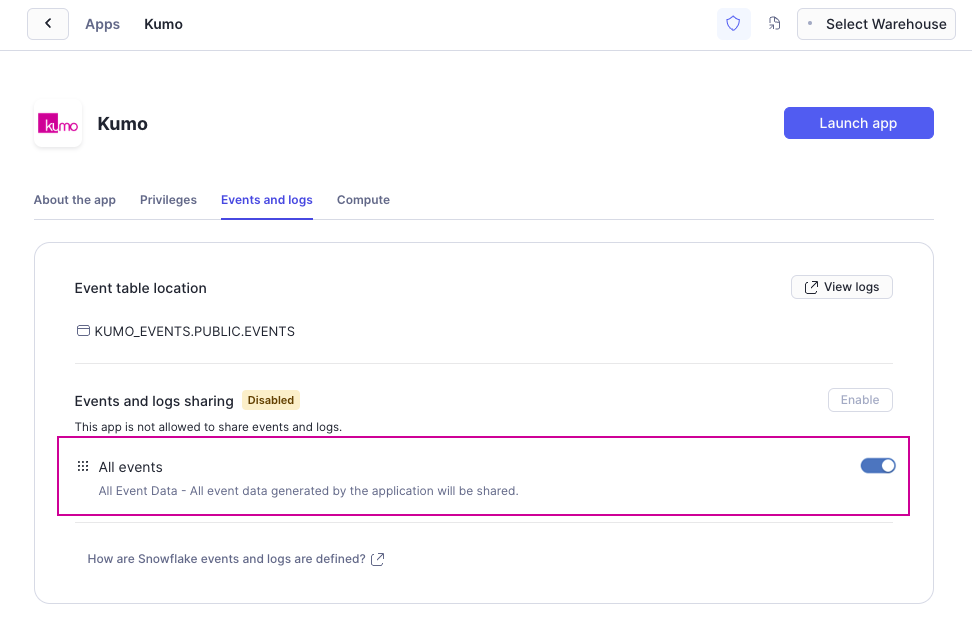
Configuring event sharing

Using SQL: The above event sharing can also be enabled using the following commands:

SQL
1-- Set app name if it's different from the default.
2SET KUMOAPP_NAME = 'KUMO';
3-- Enables event sharing for the Native app.
4ALTER APPLICATION IDENTIFIER($KUMOAPP_NAME) SET AUTHORIZE_TELEMETRY_EVENT_SHARING=true;

Configuring a New Kumo installation

All mandatory events will be enabled by default when installing Kumo. You will be notified of this when attempting to install the Kumo app. Note that an event table must be configured for your account to ensure installation can proceed.
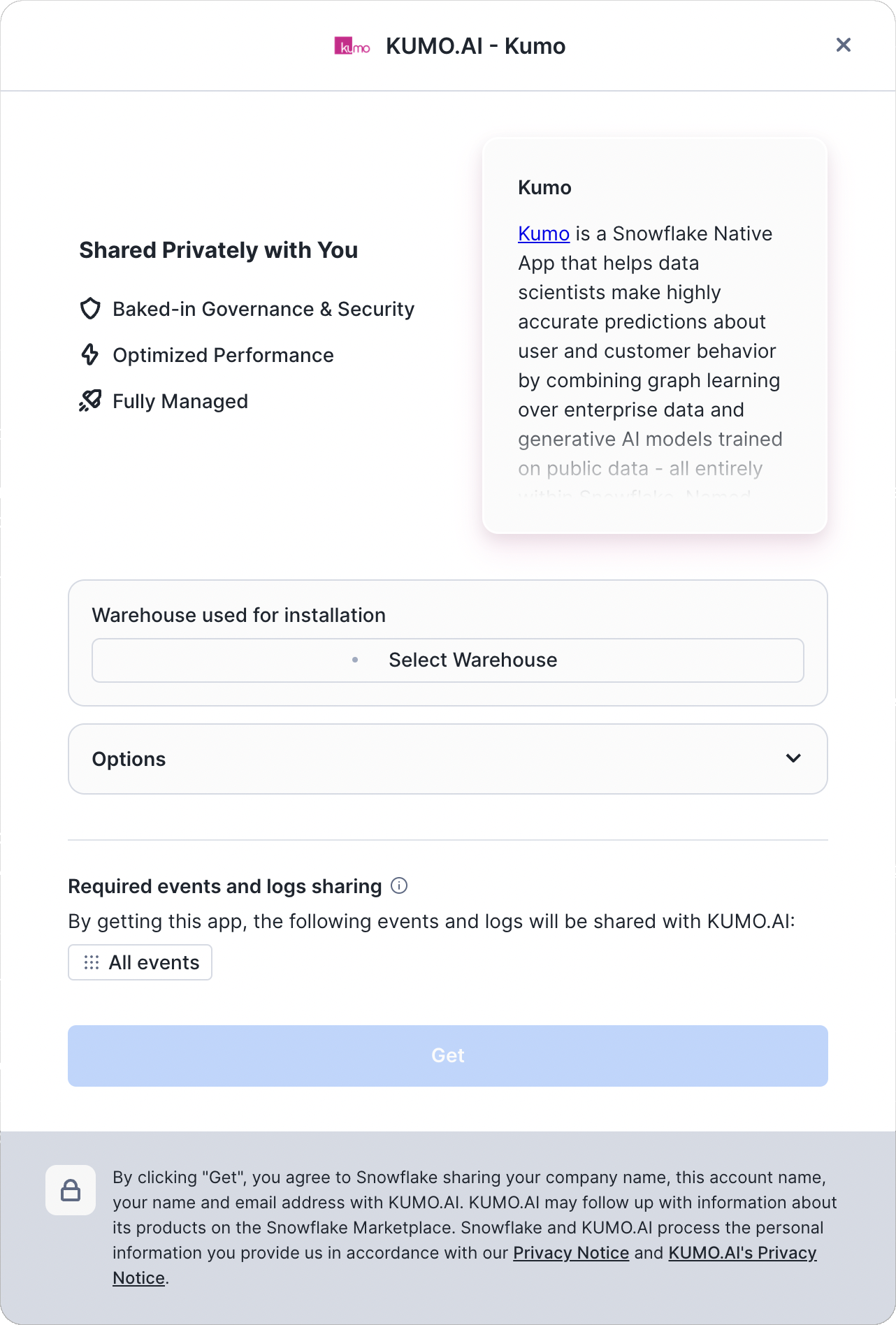
Event sharing enabled by default when installing Kumo

Using Kumo without granting CREATE COMPUTE POOL privileges

We strongly recommend granting the CREATE COMPUTE POOL privilege to the Kumo native app as described above. This allows the app to intelligently manage the required compute pools — for example, as the Kumo platform evolves, we will change the types of compute pools used to building models in a cost-efficient manner. To control costs, usage limits can be set on the native app using Snowflake budgets.

However, if you intend to manage the compute pools yourself, the Kumo application can be started using the following commands instead of the commands in Step 4 above. The setup depends on the underlying cloud platform where your Snowflake account is hosted - follow the respective instructions from below.

For legacy Kumo users (onboarded before June 2025), who use a single GPU compute pool on AWS, see instructions below.

AWS

1-- Use the ACCOUNTADMIN role or any role that has the privileges to create compute pools.
2USE ROLE ACCOUNTADMIN;
3
4SET USER_WAREHOUSE = '<ADD WAREHOUSE TO USE>';
5
6-----------------------------
7--- USER INPUT REQUIRED ---
8-----------------------------
9
10USE WAREHOUSE IDENTIFIER($USER_WAREHOUSE);
11
12-- Modify the following if a different name was used to install the app.
13SET KUMOAPP_NAME = 'KUMO';
14
15CREATE COMPUTE POOL IF NOT EXISTS KUMO_CONTROL_PLANE_POOL
16 FOR APPLICATION IDENTIFIER($KUMOAPP_NAME)
17 min_nodes = 1
18 max_nodes = 1
19 instance_family = 'CPU_X64_L'
20 INITIALLY_SUSPENDED = TRUE
21 AUTO_SUSPEND_SECS = 600;
22
23CREATE COMPUTE POOL IF NOT EXISTS KUMO_COMPUTE_PLANE_POOL_GPU_NV_S
24 FOR APPLICATION IDENTIFIER($KUMOAPP_NAME)
25 min_nodes = 1
26 max_nodes = 1
27 instance_family = 'GPU_NV_S'
28 INITIALLY_SUSPENDED = TRUE
29 AUTO_SUSPEND_SECS = 600;
30
31CREATE COMPUTE POOL IF NOT EXISTS KUMO_COMPUTE_PLANE_POOL_GPU_NV_M
32 FOR APPLICATION IDENTIFIER($KUMOAPP_NAME)
33 min_nodes = 1
34 max_nodes = 1
35 instance_family = 'GPU_NV_M'
36 INITIALLY_SUSPENDED = TRUE
37 AUTO_SUSPEND_SECS = 600;
38
39CREATE COMPUTE POOL IF NOT EXISTS KUMO_COMPUTE_PLANE_POOL_HIGHMEM_X64_S
40 FOR APPLICATION IDENTIFIER($KUMOAPP_NAME)
41 min_nodes = 1
42 max_nodes = 1
43 instance_family = 'HIGHMEM_X64_S'
44 INITIALLY_SUSPENDED = TRUE
45 AUTO_SUSPEND_SECS = 600;
46
47CREATE COMPUTE POOL IF NOT EXISTS KUMO_COMPUTE_PLANE_POOL_HIGHMEM_X64_M
48 FOR APPLICATION IDENTIFIER($KUMOAPP_NAME)
49 min_nodes = 1
50 max_nodes = 1
51 instance_family = 'HIGHMEM_X64_M'
52 INITIALLY_SUSPENDED = TRUE
53 AUTO_SUSPEND_SECS = 600;
54
55CREATE COMPUTE POOL IF NOT EXISTS KUMO_COMPUTE_PLANE_POOL_HIGHMEM_X64_L
56 FOR APPLICATION IDENTIFIER($KUMOAPP_NAME)
57 min_nodes = 1
58 max_nodes = 1
59 instance_family = 'HIGHMEM_X64_L'
60 INITIALLY_SUSPENDED = TRUE
61 AUTO_SUSPEND_SECS = 600;
62
63GRANT USAGE ON COMPUTE POOL KUMO_CONTROL_PLANE_POOL to APPLICATION IDENTIFIER($KUMOAPP_NAME);
64GRANT USAGE ON COMPUTE POOL KUMO_COMPUTE_PLANE_POOL_GPU_NV_S to APPLICATION IDENTIFIER($KUMOAPP_NAME);
65GRANT USAGE ON COMPUTE POOL KUMO_COMPUTE_PLANE_POOL_GPU_NV_M to APPLICATION IDENTIFIER($KUMOAPP_NAME);
66GRANT USAGE ON COMPUTE POOL KUMO_COMPUTE_PLANE_POOL_HIGHMEM_X64_S to APPLICATION IDENTIFIER($KUMOAPP_NAME);
67GRANT USAGE ON COMPUTE POOL KUMO_COMPUTE_PLANE_POOL_HIGHMEM_X64_M to APPLICATION IDENTIFIER($KUMOAPP_NAME);
68GRANT USAGE ON COMPUTE POOL KUMO_COMPUTE_PLANE_POOL_HIGHMEM_X64_L to APPLICATION IDENTIFIER($KUMOAPP_NAME);
69
70SET KUMOAPP_COMPUTE = CONCAT(($KUMOAPP_NAME),'.PROCEDURES.START_APP');
71
72CALL IDENTIFIER($KUMOAPP_COMPUTE)('USER_SCHEMA', 'KUMO_CONTROL_PLANE_POOL',
73 ARRAY_CONSTRUCT(
74 ARRAY_CONSTRUCT('GPU_NV_S', 'KUMO_COMPUTE_PLANE_POOL_GPU_NV_S'),
75 ARRAY_CONSTRUCT('GPU_NV_M', 'KUMO_COMPUTE_PLANE_POOL_GPU_NV_M'),
76 ARRAY_CONSTRUCT('HIGHMEM_X64_S', 'KUMO_COMPUTE_PLANE_POOL_HIGHMEM_X64_S'),
77 ARRAY_CONSTRUCT('HIGHMEM_X64_M', 'KUMO_COMPUTE_PLANE_POOL_HIGHMEM_X64_M'),
78 ARRAY_CONSTRUCT('HIGHMEM_X64_L', 'KUMO_COMPUTE_PLANE_POOL_HIGHMEM_X64_L'))
79);

Azure

1-----------------------------
2--- USER INPUT REQUIRED ---
3-----------------------------
4-- Note that KUMO_USER_ROLE should be granted usage on this warehouse.
5SET USER_WAREHOUSE = '<ADD WAREHOUSE TO USE>';
6USE WAREHOUSE IDENTIFIER($USER_WAREHOUSE);
7-- Modify the following if a different name was used to install the app.
8SET KUMOAPP_NAME = 'KUMO';
9
10-- Use the ACCOUNTADMIN role or any role that has the privileges to create compute pools.
11USE ROLE ACCOUNTADMIN;
12
13CREATE COMPUTE POOL IF NOT EXISTS KUMO_CONTROL_PLANE_POOL
14 FOR APPLICATION IDENTIFIER($KUMOAPP_NAME)
15 min_nodes = 1
16 max_nodes = 1
17 instance_family = 'CPU_X64_L'
18 INITIALLY_SUSPENDED = TRUE
19 AUTO_SUSPEND_SECS = 600;
20
21CREATE COMPUTE POOL IF NOT EXISTS KUMO_COMPUTE_PLANE_POOL_GPU_NV_SM
22 FOR APPLICATION IDENTIFIER($KUMOAPP_NAME)
23 min_nodes = 1
24 max_nodes = 1
25 instance_family = 'GPU_NV_SM'
26 INITIALLY_SUSPENDED = TRUE
27 AUTO_SUSPEND_SECS = 600;
28
29CREATE COMPUTE POOL IF NOT EXISTS KUMO_COMPUTE_PLANE_POOL_GPU_NV_2M
30 FOR APPLICATION IDENTIFIER($KUMOAPP_NAME)
31 min_nodes = 1
32 max_nodes = 1
33 instance_family = 'GPU_NV_2M'
34 INITIALLY_SUSPENDED = TRUE
35 AUTO_SUSPEND_SECS = 600;
36
37CREATE COMPUTE POOL IF NOT EXISTS KUMO_COMPUTE_PLANE_POOL_HIGHMEM_X64_S
38 FOR APPLICATION IDENTIFIER($KUMOAPP_NAME)
39 min_nodes = 1
40 max_nodes = 1
41 instance_family = 'HIGHMEM_X64_S'
42 INITIALLY_SUSPENDED = TRUE
43 AUTO_SUSPEND_SECS = 600;
44
45CREATE COMPUTE POOL IF NOT EXISTS KUMO_COMPUTE_PLANE_POOL_HIGHMEM_X64_M
46 FOR APPLICATION IDENTIFIER($KUMOAPP_NAME)
47 min_nodes = 1
48 max_nodes = 1
49 instance_family = 'HIGHMEM_X64_M'
50 INITIALLY_SUSPENDED = TRUE
51 AUTO_SUSPEND_SECS = 600;
52
53CREATE COMPUTE POOL IF NOT EXISTS KUMO_COMPUTE_PLANE_POOL_HIGHMEM_X64_SL
54 FOR APPLICATION IDENTIFIER($KUMOAPP_NAME)
55 min_nodes = 1
56 max_nodes = 1
57 instance_family = 'HIGHMEM_X64_SL'
58 INITIALLY_SUSPENDED = TRUE
59 AUTO_SUSPEND_SECS = 600;
60
61GRANT USAGE ON COMPUTE POOL KUMO_CONTROL_PLANE_POOL to APPLICATION IDENTIFIER($KUMOAPP_NAME);
62GRANT USAGE ON COMPUTE POOL KUMO_COMPUTE_PLANE_POOL_GPU_NV_SM to APPLICATION IDENTIFIER($KUMOAPP_NAME);
63GRANT USAGE ON COMPUTE POOL KUMO_COMPUTE_PLANE_POOL_GPU_NV_2M to APPLICATION IDENTIFIER($KUMOAPP_NAME);
64GRANT USAGE ON COMPUTE POOL KUMO_COMPUTE_PLANE_POOL_HIGHMEM_X64_S to APPLICATION IDENTIFIER($KUMOAPP_NAME);
65GRANT USAGE ON COMPUTE POOL KUMO_COMPUTE_PLANE_POOL_HIGHMEM_X64_M to APPLICATION IDENTIFIER($KUMOAPP_NAME);
66GRANT USAGE ON COMPUTE POOL KUMO_COMPUTE_PLANE_POOL_HIGHMEM_X64_SL to APPLICATION IDENTIFIER($KUMOAPP_NAME);
67
68SET KUMOAPP_COMPUTE = CONCAT(($KUMOAPP_NAME),'.PROCEDURES.START_APP');
69
70CALL IDENTIFIER($KUMOAPP_COMPUTE)('USER_SCHEMA', 'KUMO_CONTROL_PLANE_POOL',
71 ARRAY_CONSTRUCT(
72 ARRAY_CONSTRUCT('GPU_NV_SM', 'KUMO_COMPUTE_PLANE_POOL_GPU_NV_SM'),
73 ARRAY_CONSTRUCT('GPU_NV_2M', 'KUMO_COMPUTE_PLANE_POOL_GPU_NV_2M'),
74 ARRAY_CONSTRUCT('HIGHMEM_X64_S', 'KUMO_COMPUTE_PLANE_POOL_HIGHMEM_X64_S'),
75 ARRAY_CONSTRUCT('HIGHMEM_X64_M', 'KUMO_COMPUTE_PLANE_POOL_HIGHMEM_X64_M'),
76 ARRAY_CONSTRUCT('HIGHMEM_X64_SL', 'KUMO_COMPUTE_PLANE_POOL_HIGHMEM_X64_SL'))
77);

Legacy AWS users using a single compute pool

For legacy users where a single compute pool is used, the Kumo app can be started using the following commands:

1-- Modify the following if a different name was used to install the app.
2SET KUMOAPP_NAME = 'KUMO';
3
4SET KUMOAPP_COMPUTE = CONCAT(($KUMOAPP_NAME),'.PROCEDURES.START_APP');
5
6-- Create a compute pool if none exist. Otherwise, use the name of an existing compute pool
7-- in subsequent lines.
8CREATE COMPUTE POOL IF NOT EXISTS KUMO_COMPUTE_PLANE_POOL_GPU_NV_M
9 FOR APPLICATION IDENTIFIER($KUMOAPP_NAME)
10 min_nodes = 1
11 max_nodes = 1
12 instance_family = 'GPU_NV_M'
13 INITIALLY_SUSPENDED = TRUE
14 AUTO_SUSPEND_SECS = 600;
15
16
17GRANT USAGE ON COMPUTE POOL KUMO_COMPUTE_PLANE_POOL_GPU_NV_M to APPLICATION IDENTIFIER($KUMOAPP_NAME);
18
19CALL IDENTIFIER($KUMOAPP_COMPUTE)('KUMO_COMPUTE_PLANE_POOL_GPU_NV_M', 'USER_SCHEMA', 'GPU_NV_M');