

Training
How Predictive Query Training Works
During the training process, Kumo creates a table of historical data slices to use as examples. Each example specifies a historical context (for example, all historic data relevant to customer A, up to July 3, 2018) and a target (that is, customer A will spend $30 in the next 2 months). Kumo materializes these training tables one timeframe at a time, starting with the most recent examples.
Training and Validation
Kumo partitions your historical training examples into three sets:
- Holdout Data Split: The most recent timeframe(s) of training examples, used for evaluating the model on how well it generalizes to future unseen data, and entirely kept out of the model training process.
- Validation Data Split: The second-to-most recent timeframe(s) of training examples, used during the neural architecture search experimentation process for determining which model coming out of the experimentation process is best for promoting to an evaluation on the holdout data split.
- Training Data Split: All remaining earlier timeframe(s) of training examples, used for training each of the models created during the experimentation process.
Model Planning
After writing your predictive query, the next step is to configure or confirm your model plan.
Under Run Mode, you can set the run mode for your model plan. Select the run mode that best suits your scenario:
- Normal: Default value.
- Fast: Speeds up the search process, typically about 4x faster than Normal mode.
- Best: Typically takes 4x the time used by Normal mode.
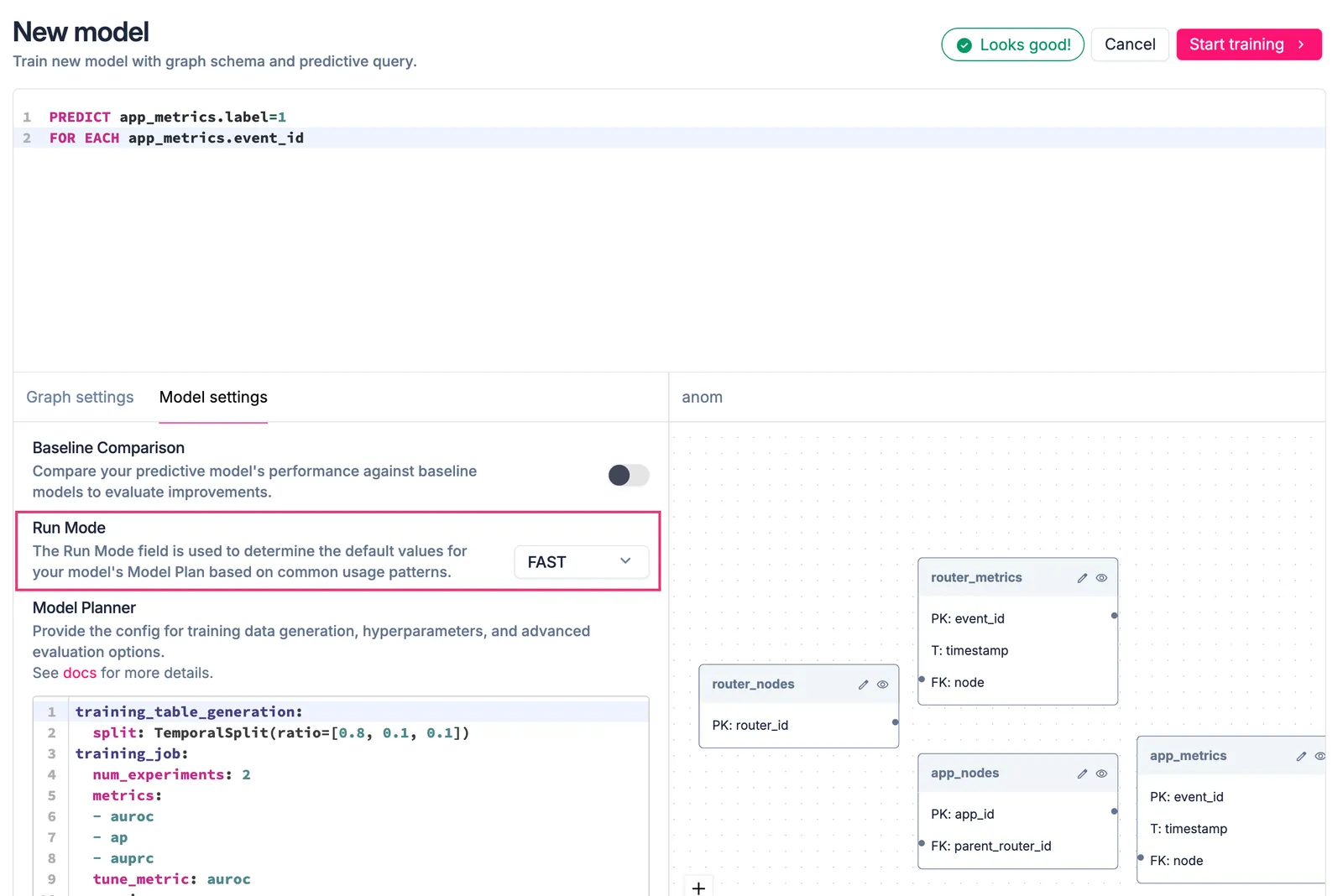
By default, Kumo decides the size of the search space to complete the search in a reasonable time. This yields a close-to-optimal result. This happens automatically under the Normal run mode. Depending on your budget for training time, you may configure a longer or shorter training duration.
There is a trade-off between search time and optimal search results.
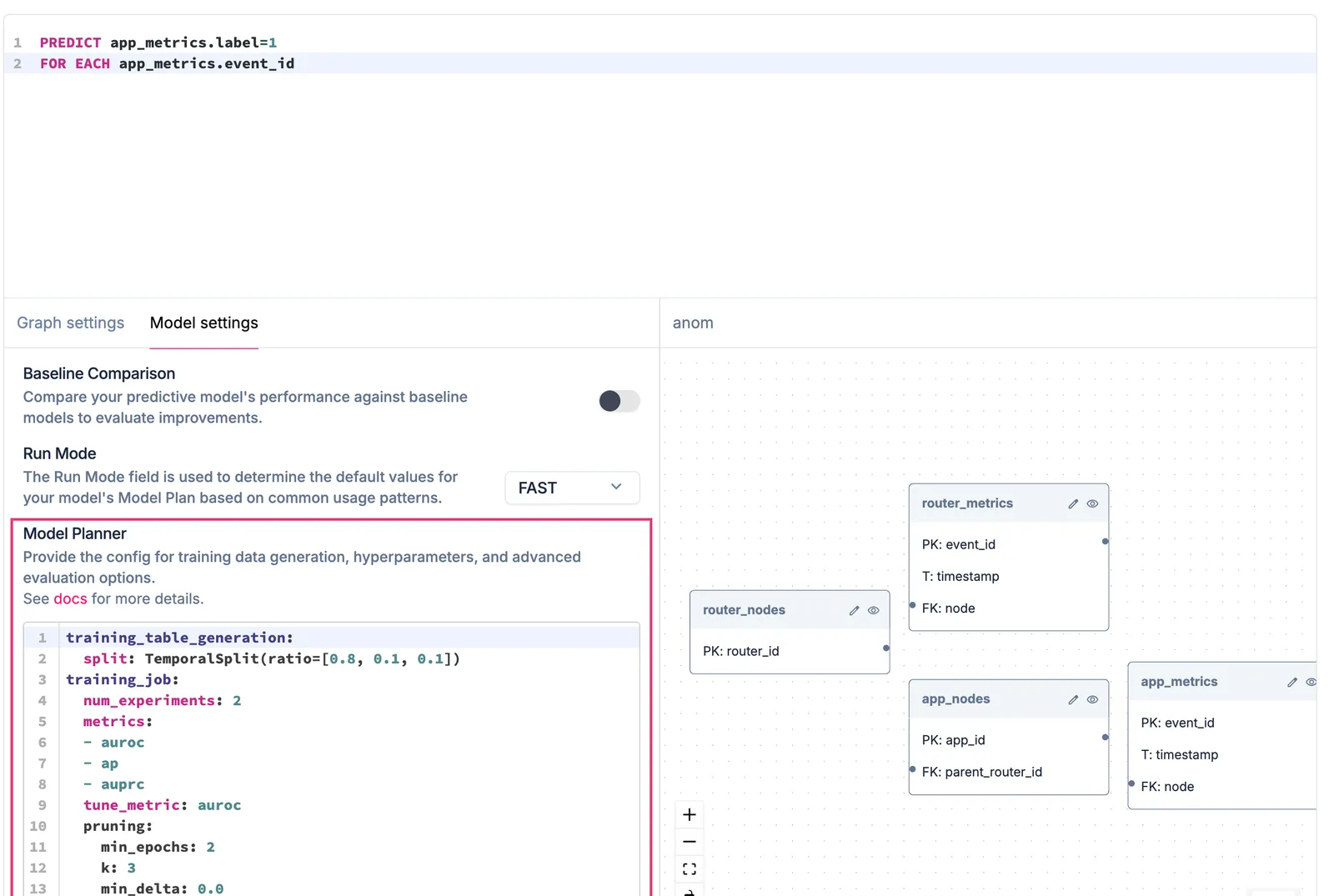
Under Model Planner, you can set specific configurations for your pQuery’s training data generation, hyperparameters, and other advanced evaluation options. Kumo automatically provides model planning configuration settings that work best in most cases; advanced ML practitioners can edit them as required.
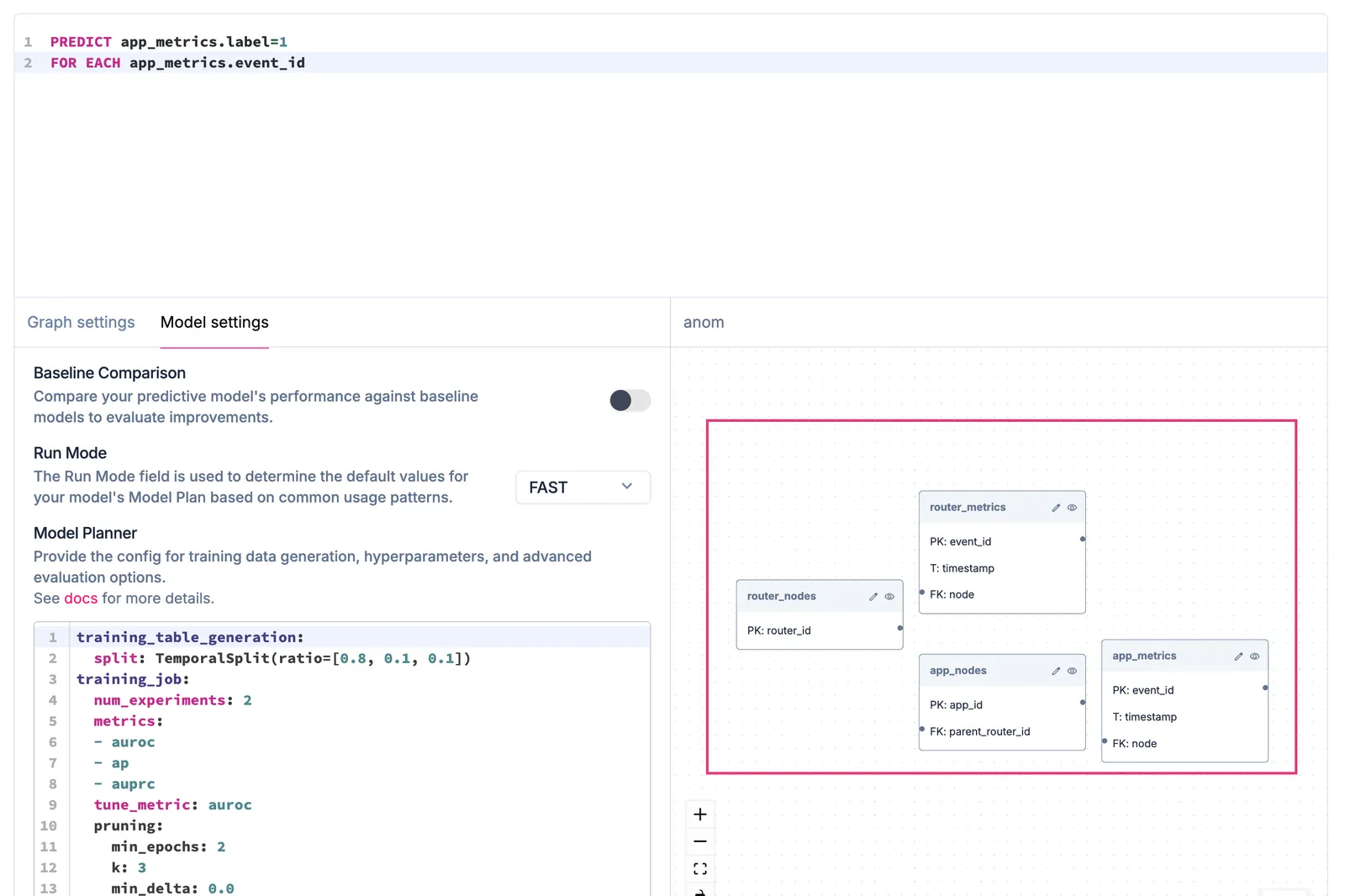
You can also view graph links of your tables, as well as time ranges for checking the degree of overlap (for each table in your graph with a time column).
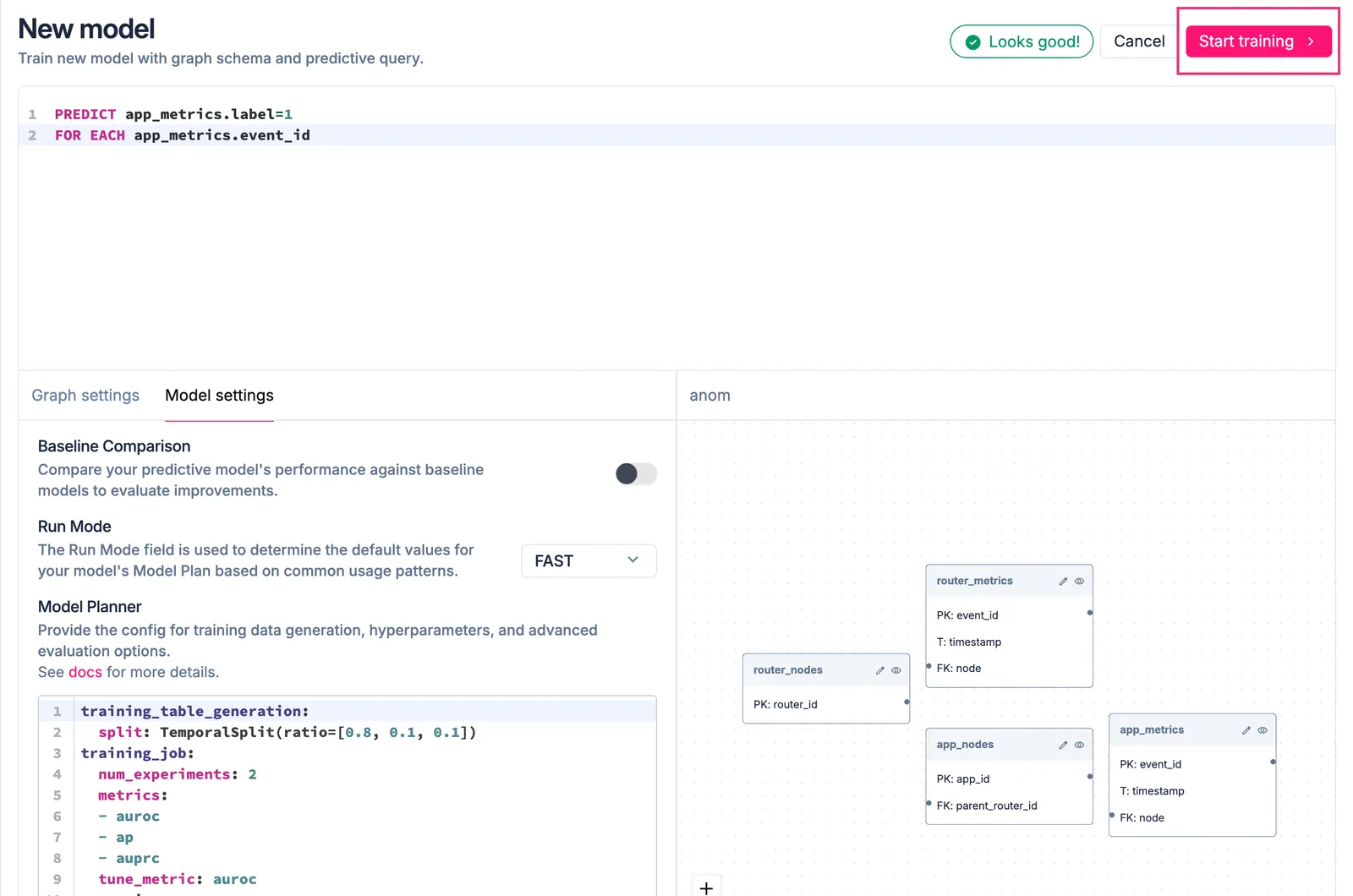
Click Start Training to begin training your model.
Training Your Predictive Query
After you click Start Training, Kumo immediately launches a training job that finds the optimal set of ML parameters for your pQuery. Depending on the size of your graph (that is, the combined size of its underlying tables), this job usually takes between 1 and 10 hours.
You can check the status of your training job by clicking on the relevant training job under the Models tab.
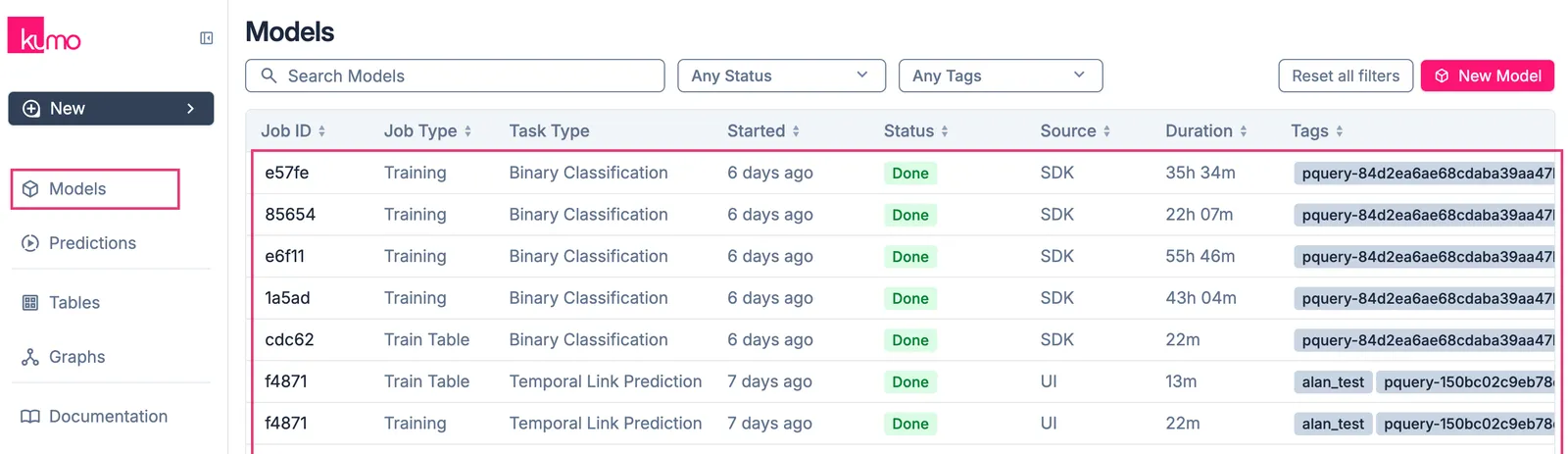
Clicking on the Training job lets you view experiment monitoring metrics and training data statistics in real time.
If your training job stalls or becomes problematic, click Cancel Training to cancel the training and start over.
After this step is complete, you can use the same predictive query at a regular cadence to generate batch predictions, potentially multiple times a day.
Limiting Your Training Window
In some cases, you may want to limit your training window. For example, upon inspecting the time ranges in your data, you may notice that your dataset contains multiple years of data. This may result in prolonged target generation times due to shifting target distributions over time.
To mitigate this, use the train_start_offset parameter to define the offset from the most recent entry to use when generating training labels. Use train_end_offset to define the offset from the most recent entry to exclude from label generation.
These parameters let you limit your learning interval and the labels that are generated.
For example, you may want to use only training examples for customers that churned in the last year, but those customers may have 10 years of data that you use for training the model:
train_start_offset and train_end_offset only apply to temporal queries, such as those that use a temporal aggregation like SUM().
Analyzing Your Training Results
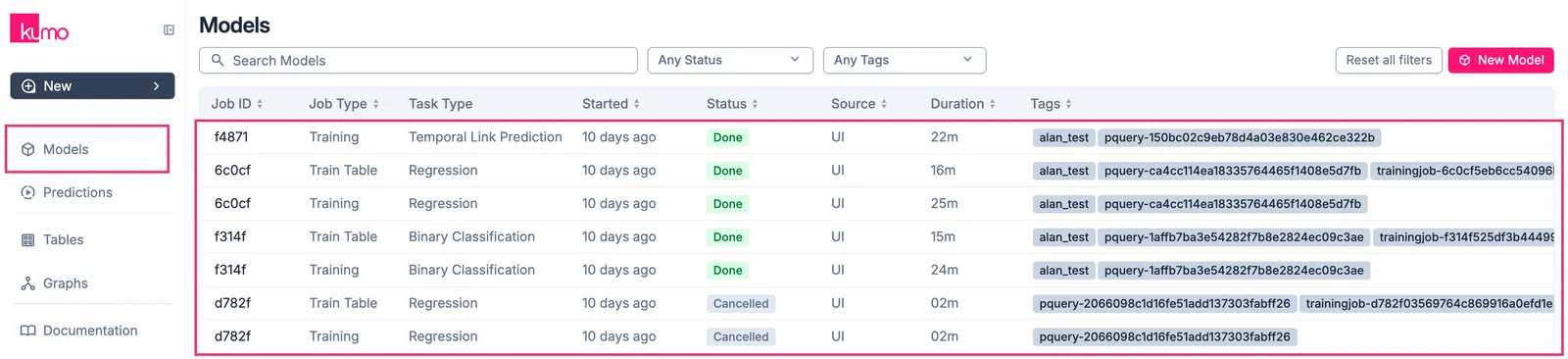
Kumo provides a full suite of tools and metrics for understanding how Kumo generates your training results. To access a predictive query’s experiment monitoring metrics, click on the Training job in the Models tab to view the results of the neural architecture search experiments.
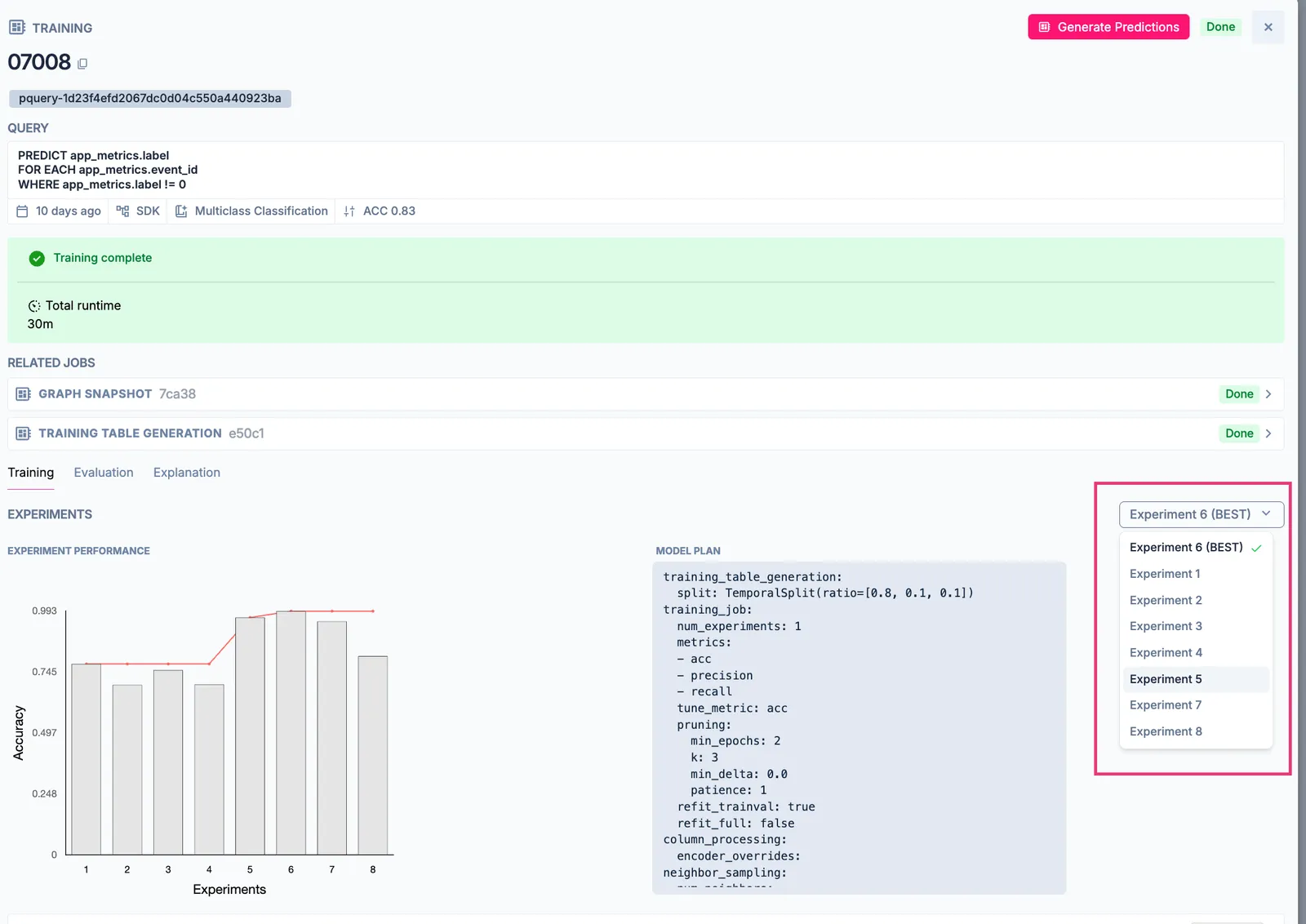
Kumo displays statistics for the best performing experiment alongside the other experiments. You can also view your model planner configurations and settings per experiment by selecting a particular experiment from the drop-down list.
Experiment Monitoring Metrics
During the training process, Kumo automatically defines a search space of potential graph neural network (GNN) model architectures and hyperparameters. Kumo then selects a subset of specific architecture and hyperparameter configurations to run as experiments.
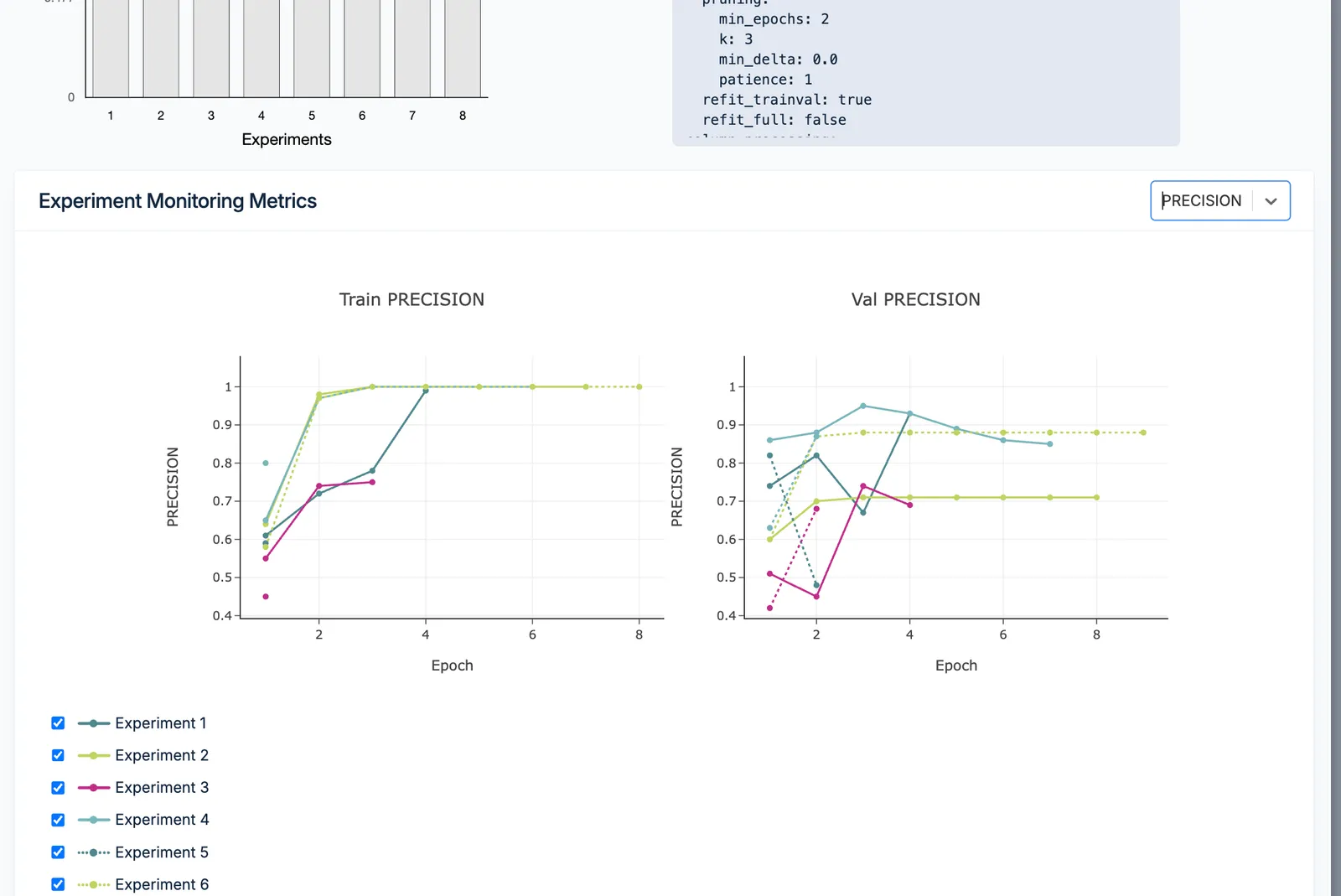
Kumo fully evaluates the single winning experiment (that is, the winning model architecture and hyperparameter configuration on the validation data split) on the holdout data split. The results create your predictive query’s evaluation metrics.
Predictive query training sessions in progress may not display all experiment monitoring metrics.
Training Data Statistics
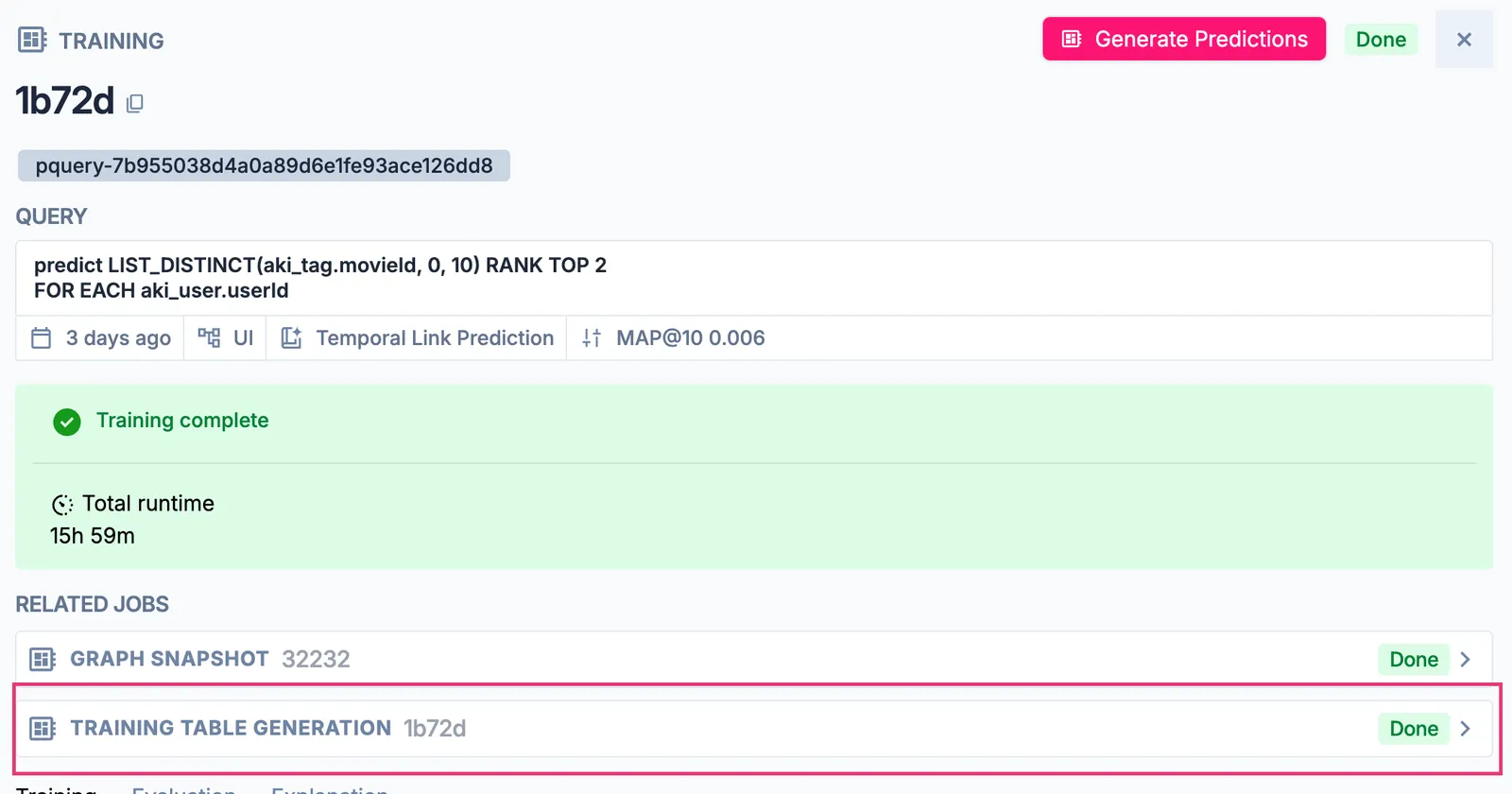
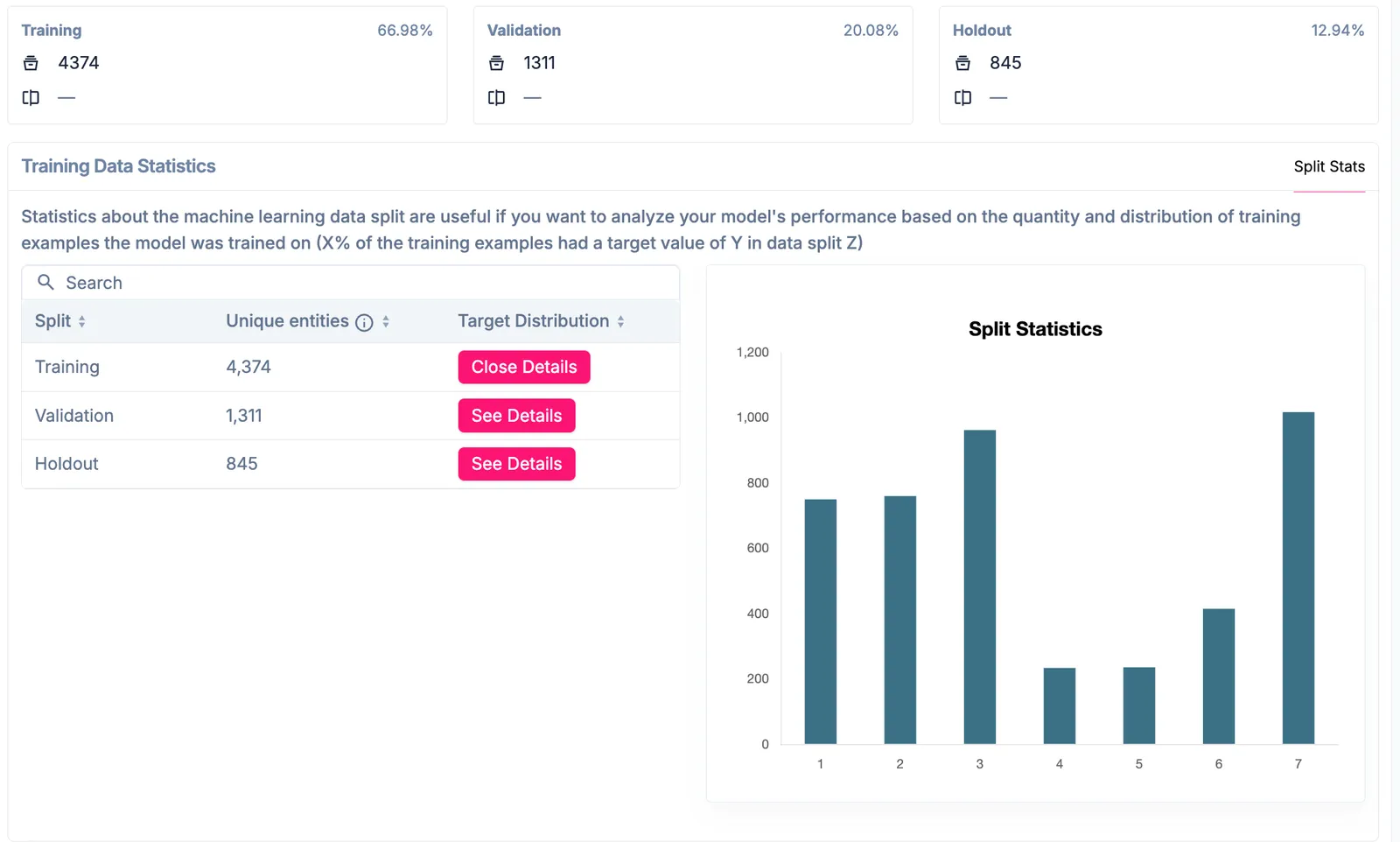
Kumo displays training, validation, and holdout data details under the TRAINING TABLE GENERATION tab under related jobs when a specific training job is opened.
Kumo provides statistics for the training, validation, and holdout data splits for you to evaluate the quality and distribution of your training examples.
For more information about the language, see Predictive Query Structure.