

Create and Manage Identities
An identity is an administrator-managed set of authentication settings that Kumo reuses to access an external data source. Admins assign identities to Groups so users can create connectors in the Projects that belong to those Groups. You need the Admin role to create or change identities.
Before you create an identity, choose the provider that stores your data and review its requirements below. You also need at least one Group to assign to the identity. To create a Group, see Add users to Groups.
To create an identity:
- Open Admin, select Identity settings, then select Add Identity.
- Enter an Identity name and, optionally, a slug and description.
- Select the provider and complete the authentication fields for that provider.
- Assign one or more Kumo groups, which determines which Projects can use the identity.
- Select Add.
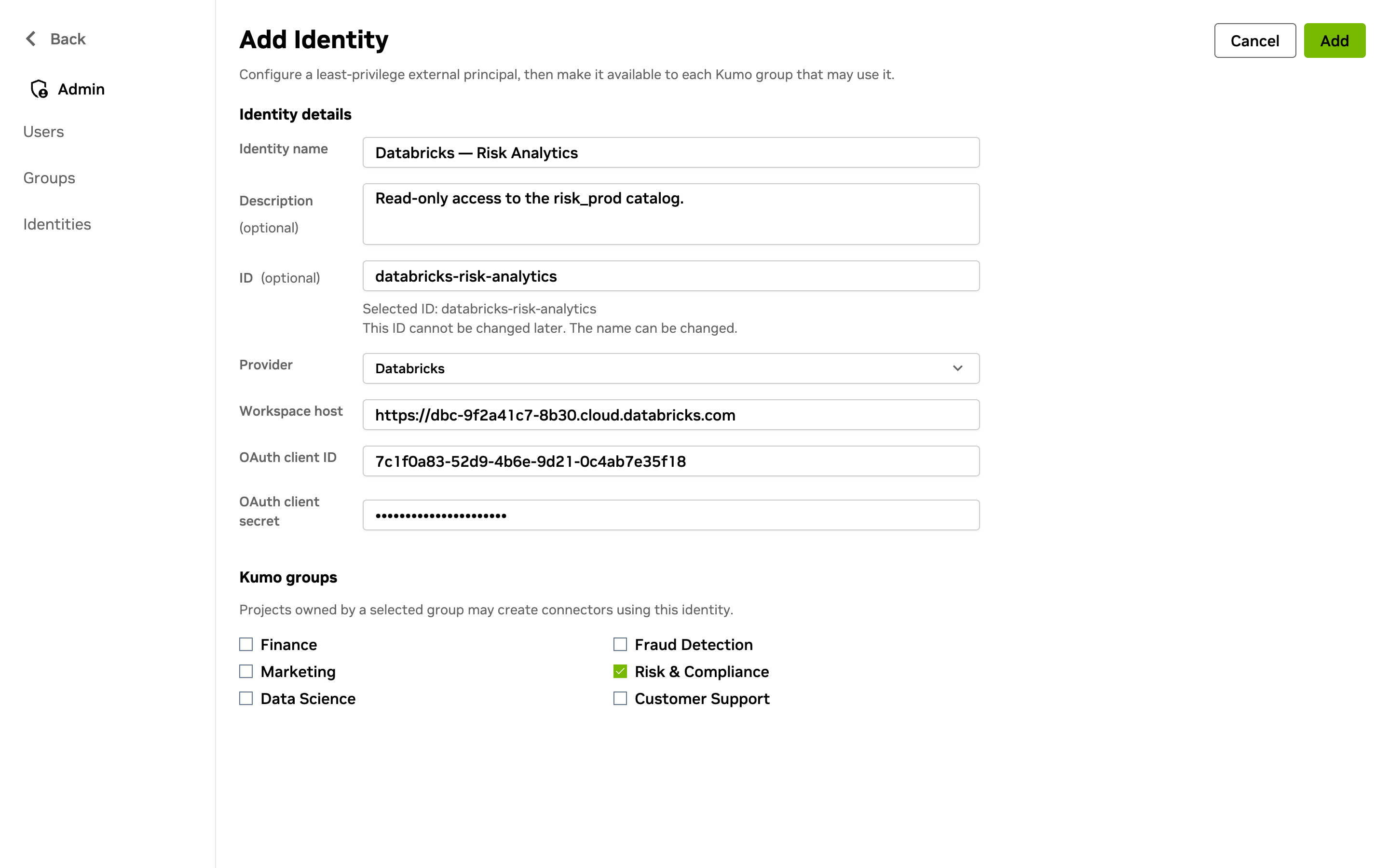
After creation, you can update an identity’s name, description, and Group assignments. You cannot change an identity’s provider or the principal it authenticates as, so create a new identity if you need different settings. For identities that store credentials, you can rotate the stored credential without changing that principal. The rotation updates every connector that uses the identity.
Choose an identity type based on where your data is stored and how Kumo should authenticate. The provider sections list the required fields and the access that the selected identity needs.
 Amazon S3 identity
Create an Amazon S3 identity with the shared fields above and these required fields. This identity configures Kumo to use AWS assume-role authentication.
Before creating the identity:
- Grant the role named in Role ARN read access to the relevant bucket and, when Kumo writes outputs,
s3:PutObjectands3:ListBucketas appropriate. - Do not use the retired fixed
kumo-{% $customerId %}-external-shared-iam-roleprincipal from earlier documentation.
Use this bucket-policy pattern, replacing <data bucket name> and <Role ARN>:
For step-by-step help, see AWS’s Add Bucket Policy guide.
For a KMS key in another AWS account:
- Grant the same Role ARN
kms:Decryptandkms:GenerateDataKeyon the key. - Keep the account-root permissions in the existing KMS key policy.
 BigQuery identity
Create a BigQuery identity with the shared fields above, then choose Authentication. The selected authentication option determines which Google Cloud principal needs access to BigQuery:
Grant the selected principal the following roles:
roles/bigquery.dataViewerroles/bigquery.filteredDataViewerroles/bigquery.metadataViewerroles/bigquery.readSessionUserroles/bigquery.userroles/bigquery.dataEditorwhen Kumo must export results back to BigQuery
For a JSON-key identity, see Google’s instructions to create a service account and create a service account key.
 Snowflake identity
Create a Snowflake identity with the shared fields above and provide the following:
For Authentication, choose one of the following:
For account-identifier format, see Snowflake’s account identifier guide.
For key-pair authentication:
- Generate a private/public key pair.
- Assign the public key to the Snowflake user.
- Preserve line breaks in the private key.
For example: ALTER USER example_user SET RSA_PUBLIC_KEY='MIIBIjANBgkqh...';.
The user owner or a user with SECURITYADMIN or higher must make this change.
Alternatively, create a service user with its RSA_PUBLIC_KEY field set, as described in Snowflake’s CREATE USER reference.
 Databricks identity
Create a Databricks identity with the shared identity fields above and provide the following for the Databricks service principal:
The current UI does not support personal access tokens for this workflow.
 Azure Data Lake Storage identity
Create an Azure Data Lake Storage identity with the shared identity fields above and provide the following:
The current form does not collect a client secret.
Grant the identity’s service principal the following access:
- At least Storage Blob Data Reader on the container or storage account.
- Storage Blob Data Contributor if Kumo must write prediction outputs.
- For AKS deployments, workload identity can exchange the projected service-account token for an Azure credential, so no client secret is stored.
To assign an Azure role:
- Open the storage account or container in the Azure portal.
- Open Access Control (IAM).
- Select Add role assignment.
- Select Storage Blob Data Reader or Storage Blob Data Contributor.
- Assign the role to the service principal.
AKS / Helm deployments with workload identity
For AKS deployments:
- Configure the Kumo service principal to federate with the AKS pod identity.
- Use the workload-identity settings below:
The AKS workload identity mutating webhook injects AZURE_FEDERATED_TOKEN_FILE into labeled pods.
Kumo exchanges that projected service-account token for a short-lived Azure credential at runtime.
Set an ADLS URI for the dataplane storage bucket:
 Google Cloud Storage identity
Create a Google Cloud Storage identity with the shared identity fields above, then choose Authentication:
Grant the selected principal the following roles:
Narrower custom roles may grant equivalent permissions. Bucket creation, IAM mutation, and account-wide listing are not runtime requirements.
For the recommended mode, apply one IAM binding to your bucket, then create the identity:
For a requester-pays bucket, set the connector’s Requester-pays project (optional) and grant serviceusage.services.use on that project.
This routes billing only, so the selected principal still needs read access to the bucket itself.
For a JSON-key identity, see Google’s instructions to create a service account and create a service account key.
Next steps
Once you have a Group and a Project, connect a data source so the Project has data to model.