

SSO Configuration Guide
Kumo uses Auth0 to support a variety of secure single-sign-on mechanisms to simplify user management for your team. The two easiest integrations are:
- Google Workspace Single Sign On
- OIDC - OpenID Connect - supporting many other services including Okta and Azure Active Directory
To enable Google Workspace Single Sign On for your environment, no action is needed on your end. Contact your Kumo point of contact, and it can be enabled within hours.
The remainder of this document describes the process to set up OIDC. For illustration, Okta is used as the OIDC provider, but these instructions work with any other OIDC-compliant auth provider.
Okta Configuration
-
Go to your Applications and create a new Application with the following settings:
- Sign-in method: OIDC - OpenID Connect
- Application type: Single-Page Application
-
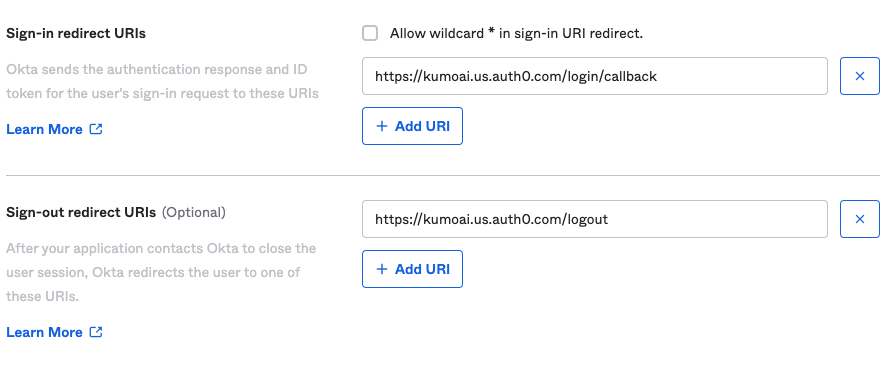
Under General Settings, make sure to select Grant types of Authorization Code and Implicit (Hybrid)
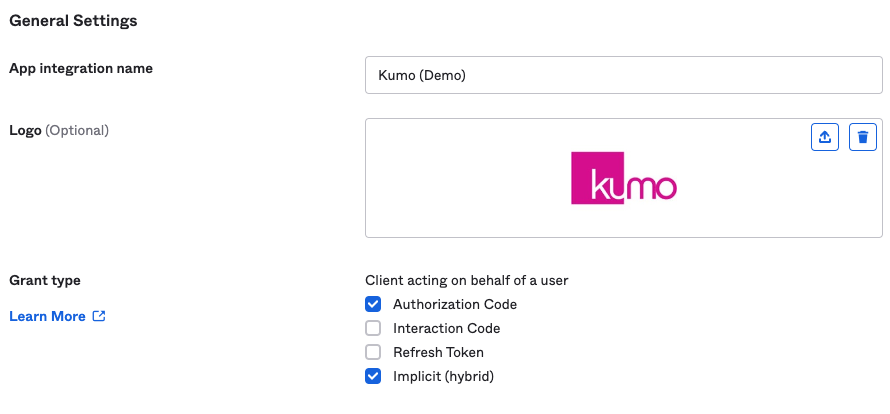
- Next, add the following sign-in and sign-out URLs
- Sign In: https://auth.kumoai.cloud/login/callback
- Sign Out: https://auth.kumoai.cloud/logout
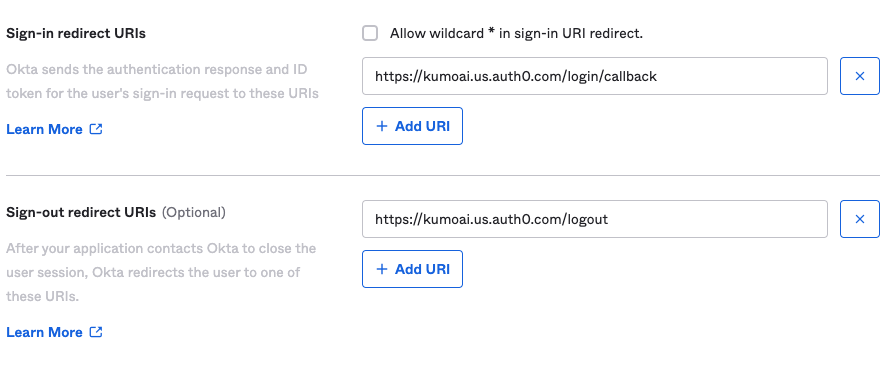
NOTE: Use auth.kumoai.cloud instead of kumoai.us.auth0.com as shown in the image above
- Select your preferred Assignment policy
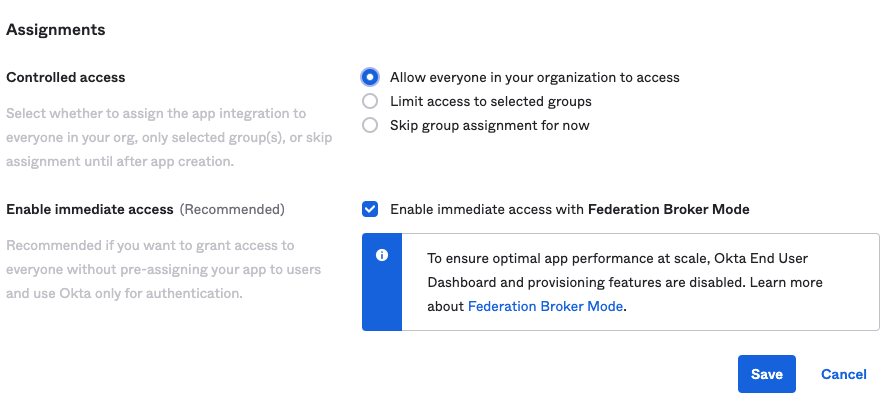
- Click Save to create the app.
- Copy the Client ID and your Okta base URL
- Example Client ID:
0oa654ok0jBdIJrpT5d7 - Example Okta URL:
dev-22499602.okta.com
- Example Client ID:
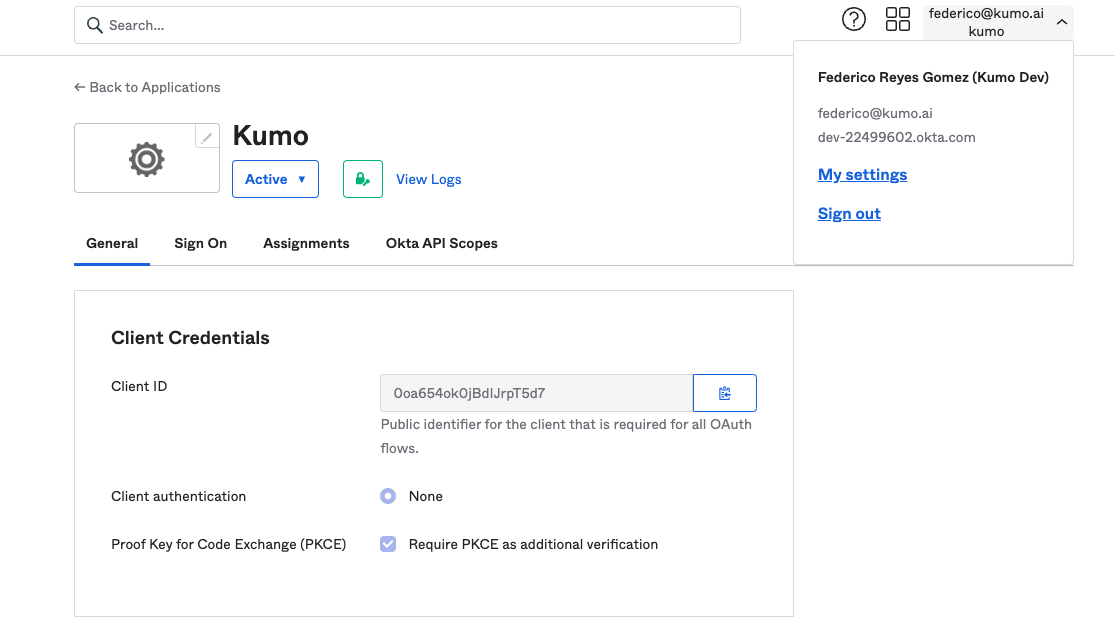
- Send your Client ID and Okta Base URL to the Kumo team
You receive a notification from Kumo when your SSO onboarding is complete.