

Data Connectors
To train models, you need to connect a data source first. Once connected, Kumo can train and retrain models as your data is refreshed. For identity-backed sources, an administrator must first create an identity and assign it to the Group that owns your Project.
Set up Connector
-
Go to Connectors from the side menu and select Add Connector.
-
Select your data source.
-
Select a compatible identity already assigned to your Project’s Group.
-
Enter the following:
-
Provide the target fields for that source.
-
Select Add to create the connector.
Important: You need an identity with the right permissions before you can create a connector. If no suitable identity is available, contact your administrator to create and assign an identity for your Group.
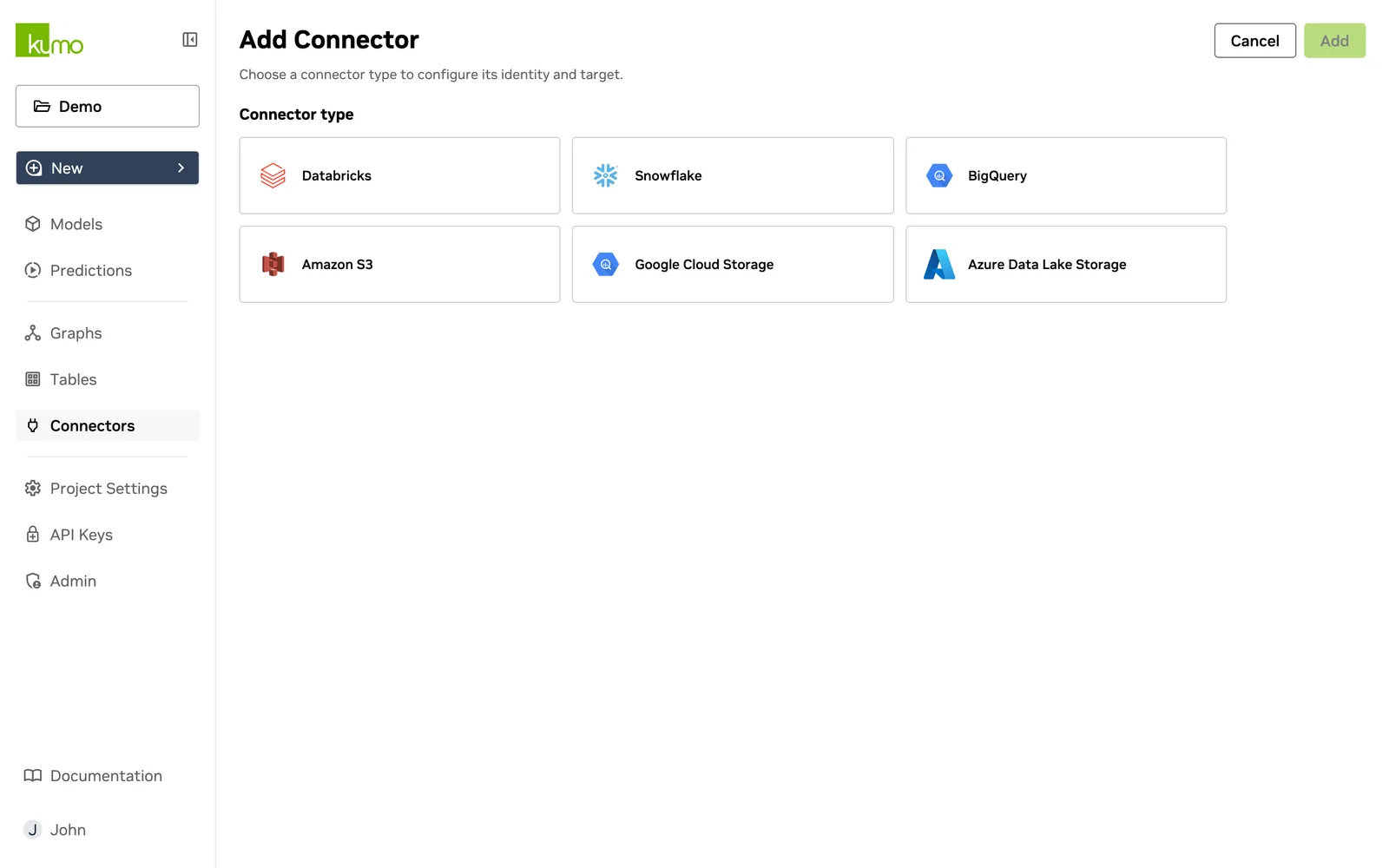
Supported Data Sources
Kumo currently supports the following data source types:
 Amazon S3
Select an Amazon S3 identity, then enter the following:
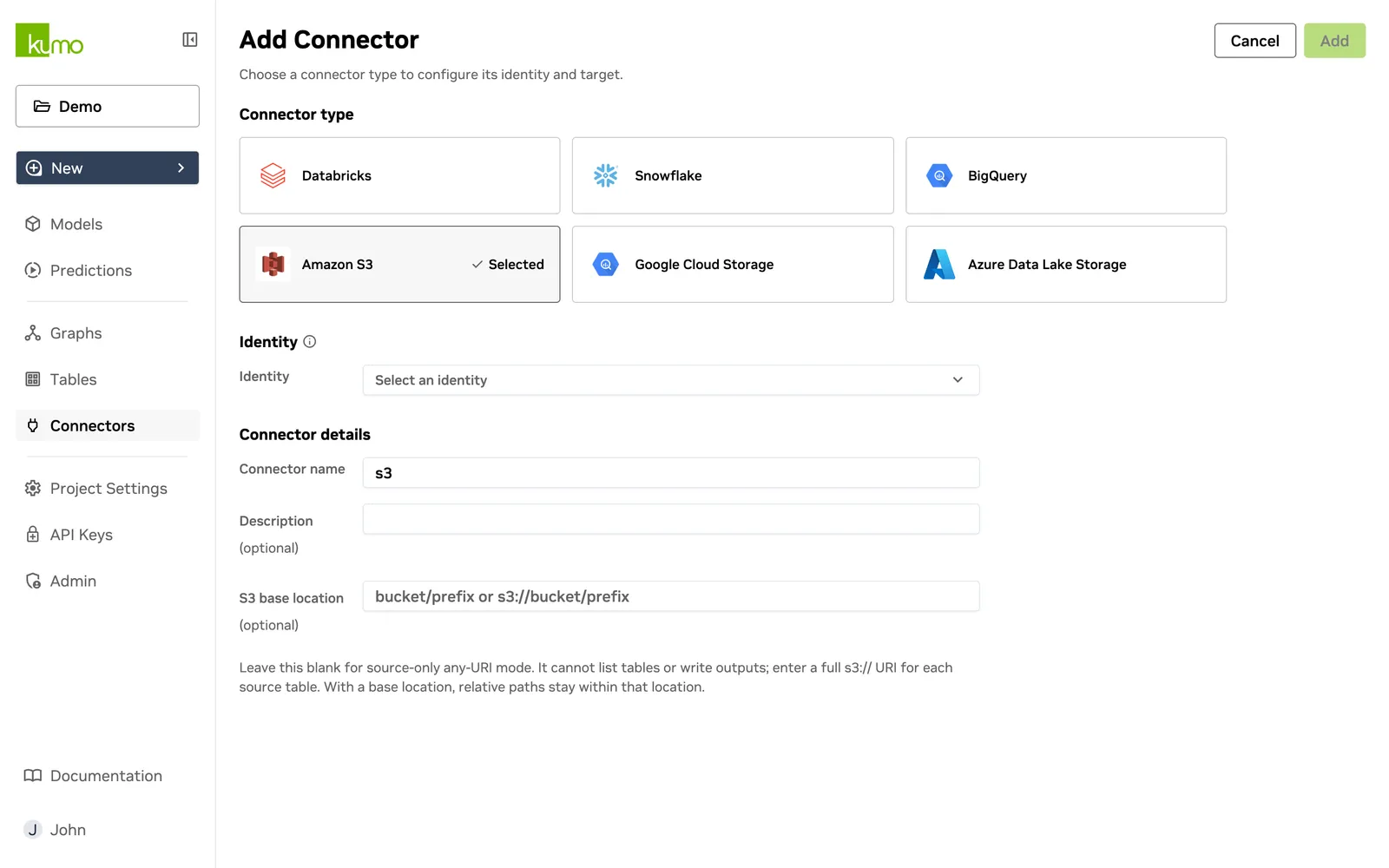
Choose a connector mode:
The root directory can contain files or second-level table directories:
- When it contains files, Kumo ignores subdirectories and ingests files as tables.
- When it contains directories, each is one table; files within it must have the same format and schema, and it cannot contain further nested directories.
Do not use dots in the S3 bucket name.
Use the following file-format guidance:
- Cast columns to their proper data types.
- Do not use Hive-partitioned tables.
Limits:
- Each Parquet partition must not exceed 512 MB.
- CSV tables can have up to 128 partitions and up to 10 GB total.
Limit the root to 30 tables for best performance. Use Parquet where possible, especially for large datasets.
 BigQuery
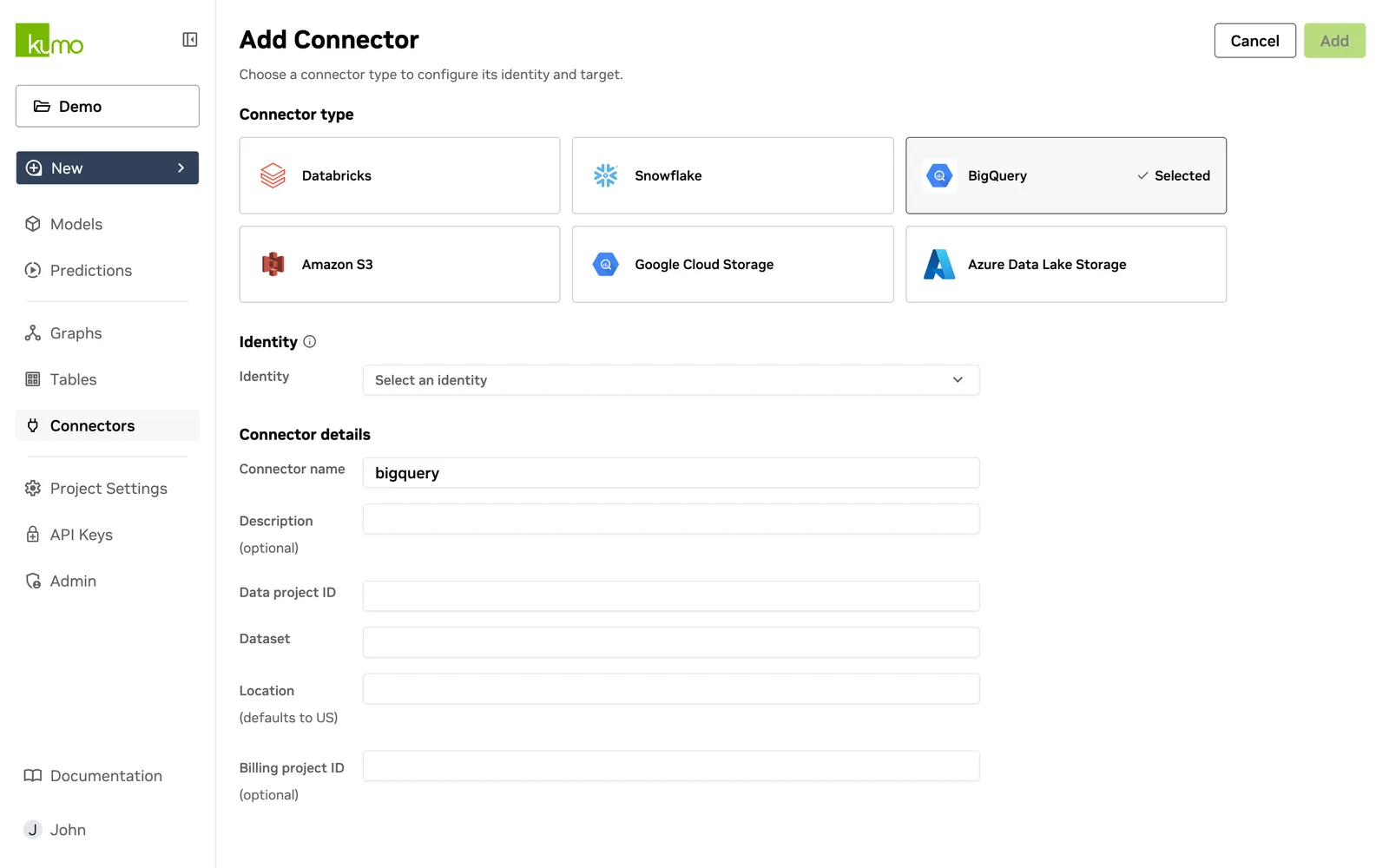
Select a BigQuery identity, then enter the following:
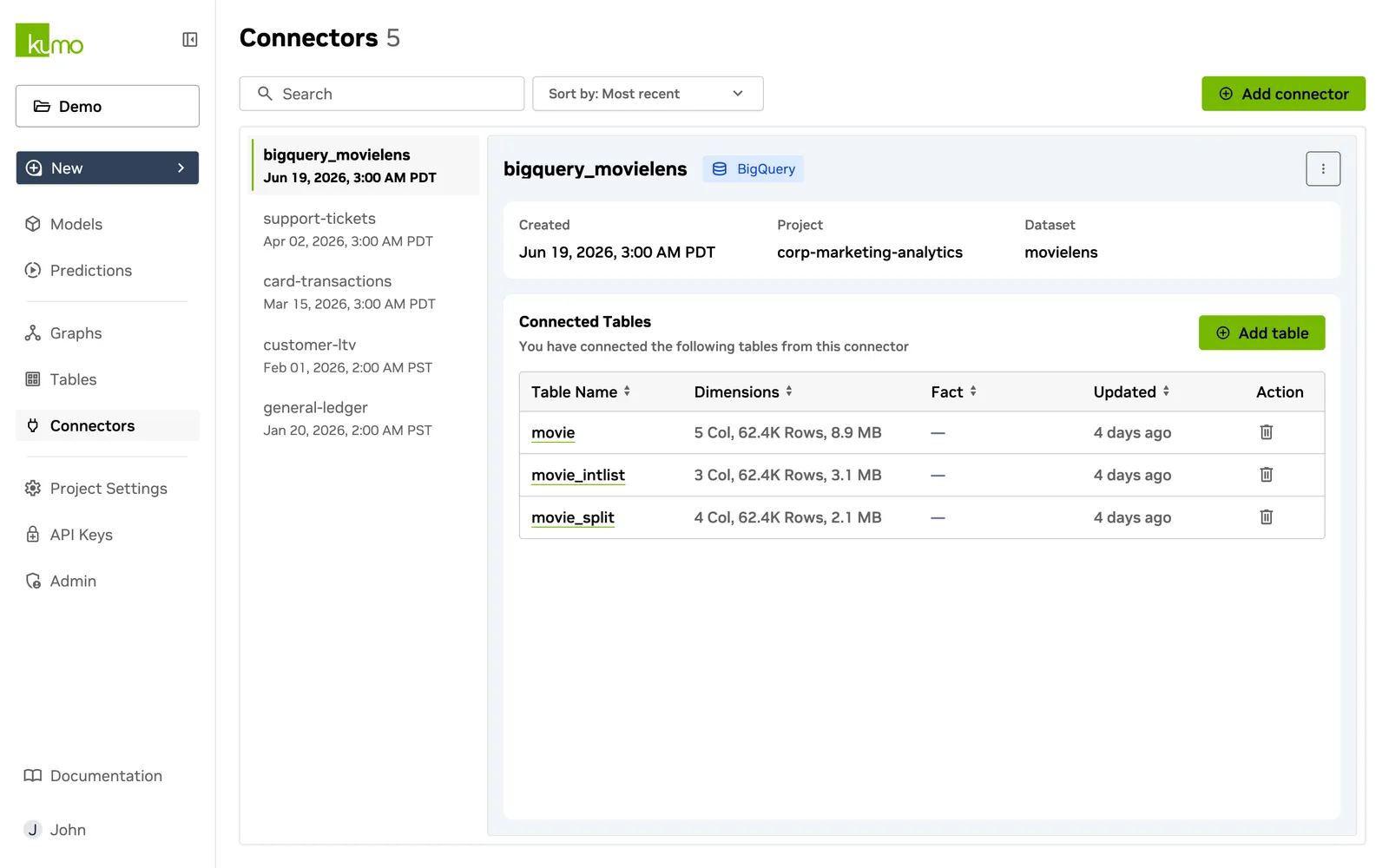
To verify the connection:
- Select the connector from the list on the Connectors page.
- Review its details in the right panel.
 Snowflake
Select a compatible Snowflake identity, then enter the following:
The selected identity’s service account must have access to the database, schema, and warehouse through the connector’s Role (optional) when you provide one, or through its default role when you leave the field blank.
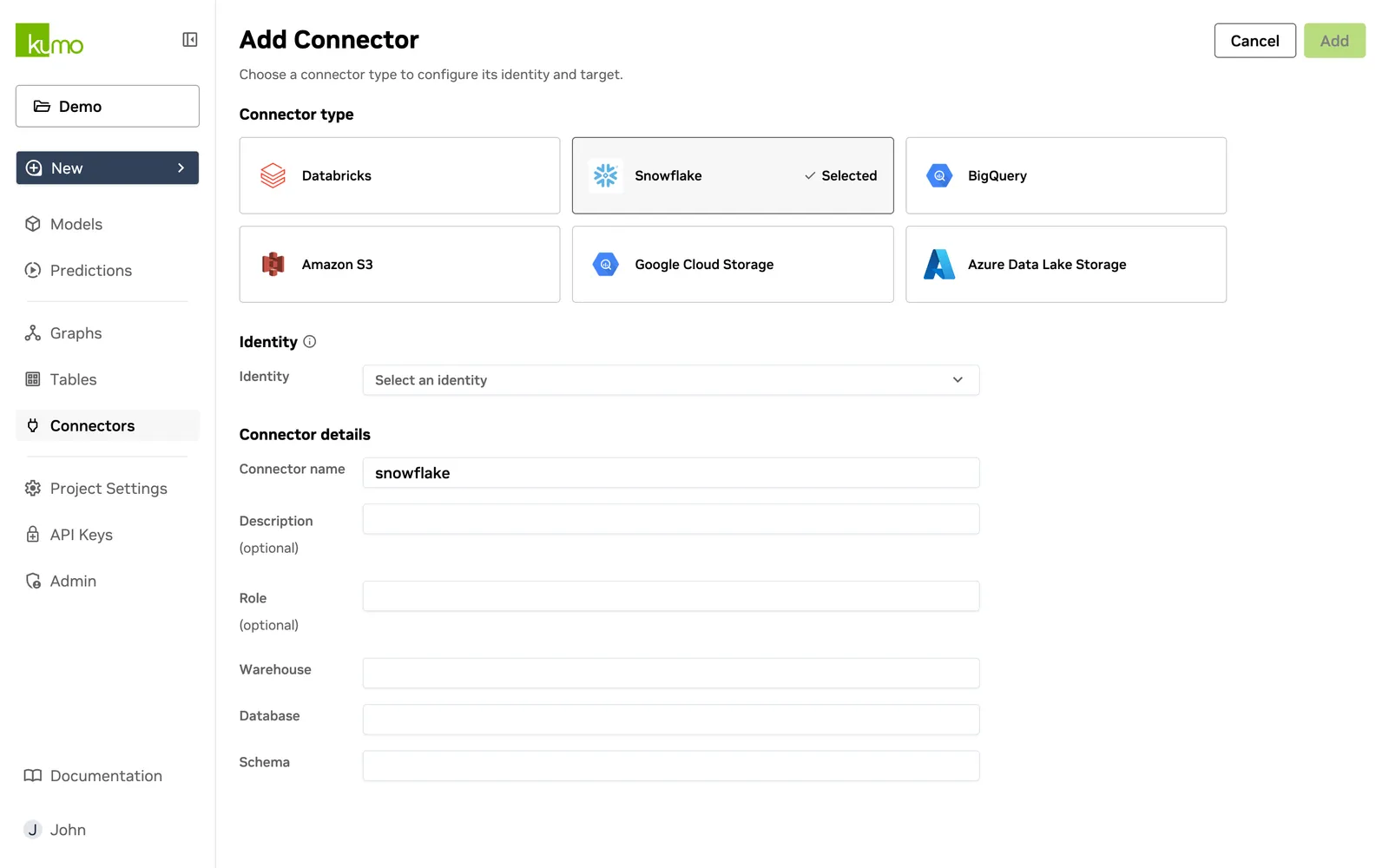
For a database customer_db, schema customer_schema, warehouse customer_warehouse, and role user_role, grant the minimum privileges below.
CREATE TABLE and DROP TABLE are needed only when Kumo writes predictions back.
When Role (optional) is blank, Kumo uses the service account’s DEFAULT_ROLE.
Run DESCRIBE USER <username> in Snowflake to check that role.
If the instance is VPN-protected, add the Kumo Cloud Network gateway to its allowlist as described in Snowflake’s network-policies documentation.
Recommended SaaS warehouse sizes:
Snowflake Secure Data Sharing legacy path
Secure Data Sharing and secure_data_sharing are not current identity or Add Connector options.
This retained alternative provisioning guidance does not describe the current connector UI.
To set up Secure Data Sharing:
- Enable Provider Sharing in Snowflake.
- Share within the same cloud and region when possible.
- Create a share, grant it access to the required database objects, then add the matching Kumo account:
Constraints:
- If regions differ, data replication is required, but Kumo does not recommend it.
- Secure Sharing is available in Standard, Enterprise, Business Critical, and VPS editions, although Business Critical accounts cannot share with lower editions.
Sharing constraints:
- The creating role needs
CREATE SHAREand access to the shared objects. - Shares may include tables, external tables, secure views, and secure materialized views, but only secure views can be shared as views.
- Avoid
SELECT(*)in views because source-table changes can break it. - Kumo incurs the compute cost of querying shared data, so you do not incur extra storage costs for the share.
Use the Kumo account that matches your cloud and region:
Security considerations:
- Kumo creates a database from the received share for EDA and proof-of-value operations.
- Kumo creates a unique role in that database to control access.
- Access is provided only to Kumo’s designated point of contact.
Use SHARE_USAGE, QUERY_HISTORY, and LOGIN_HISTORY to audit use, and regularly review the assigned role and share permissions.
 Databricks
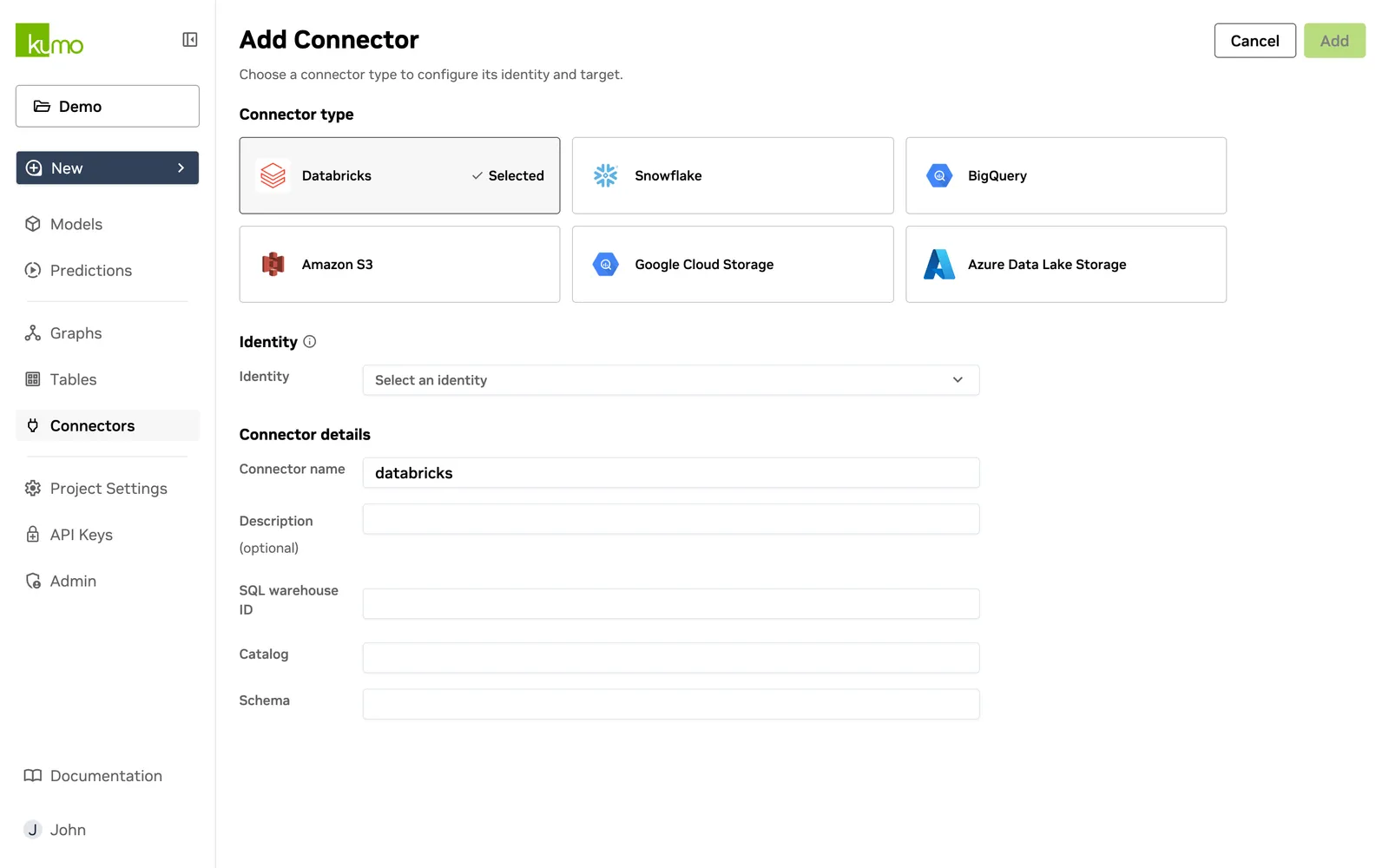
Select a compatible Databricks identity, then enter the following:
The current UI does not offer Cluster ID or personal-access-token fields.
 Azure Data Lake Storage
Before connecting, create the following:
- An Azure Storage account with hierarchical namespace enabled (ADLS Gen2).
- A container (filesystem) in that account.
Select an Azure Data Lake Storage identity, then enter the following:
Name requirements:
- The filesystem name must use lowercase alphanumeric characters and hyphens and be 3-63 characters long.
- The storage-account name must use lowercase alphanumeric characters and be 3-24 characters long.
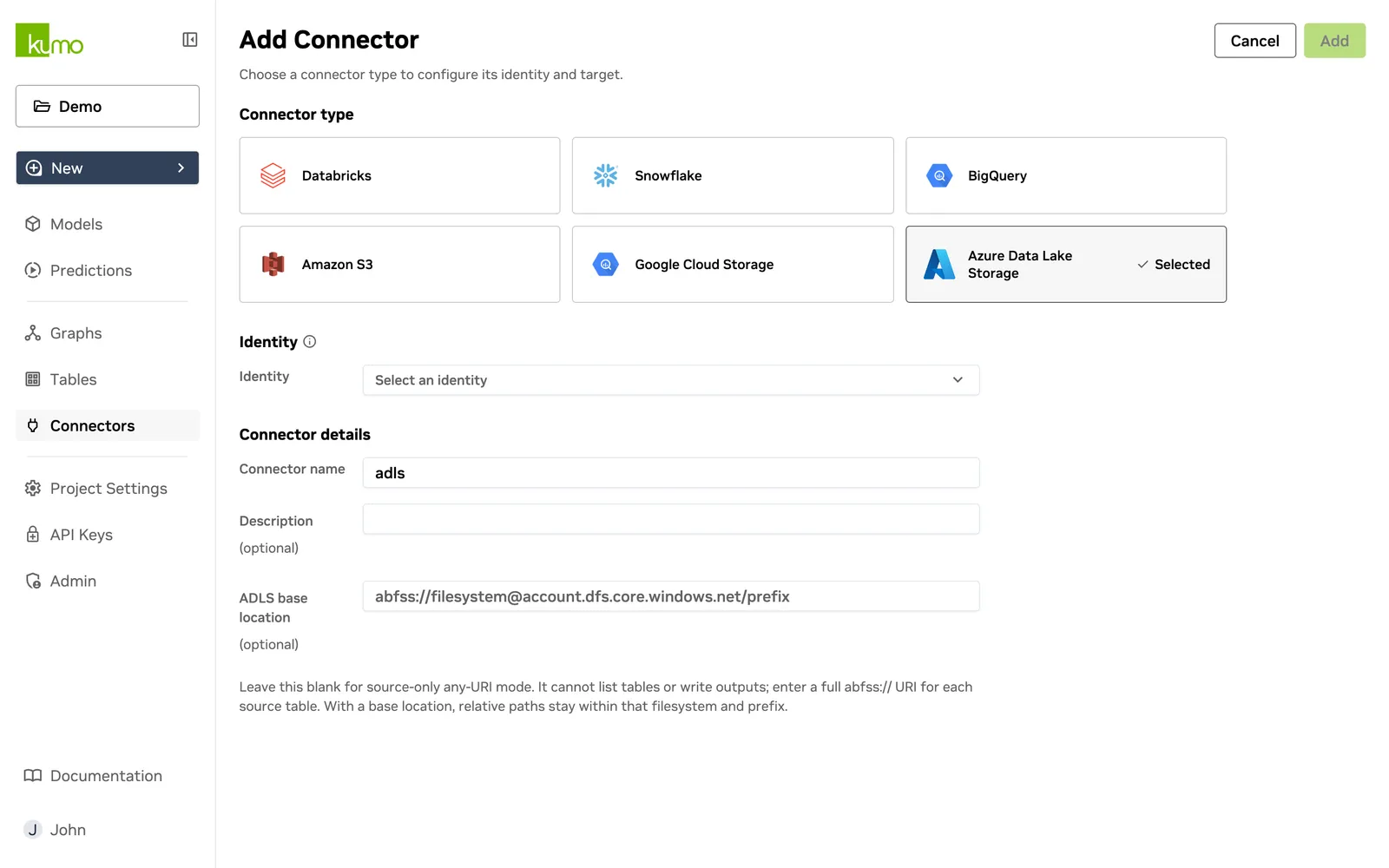
Choose a connector mode:
The base location can contain files or immediate table directories.
Limits:
- Each directory must contain only CSV or Parquet files of one format and schema, with no nested directories.
- Parquet partitions must not exceed 512 MB.
- CSV tables can have 128 partitions and up to 10 GB total.
Limit the base location to 30 tables for best performance.
The endpoint suffix must match the identity’s Azure cloud:
 Google Cloud Storage
Select a compatible Google Cloud Storage identity, then enter the following:
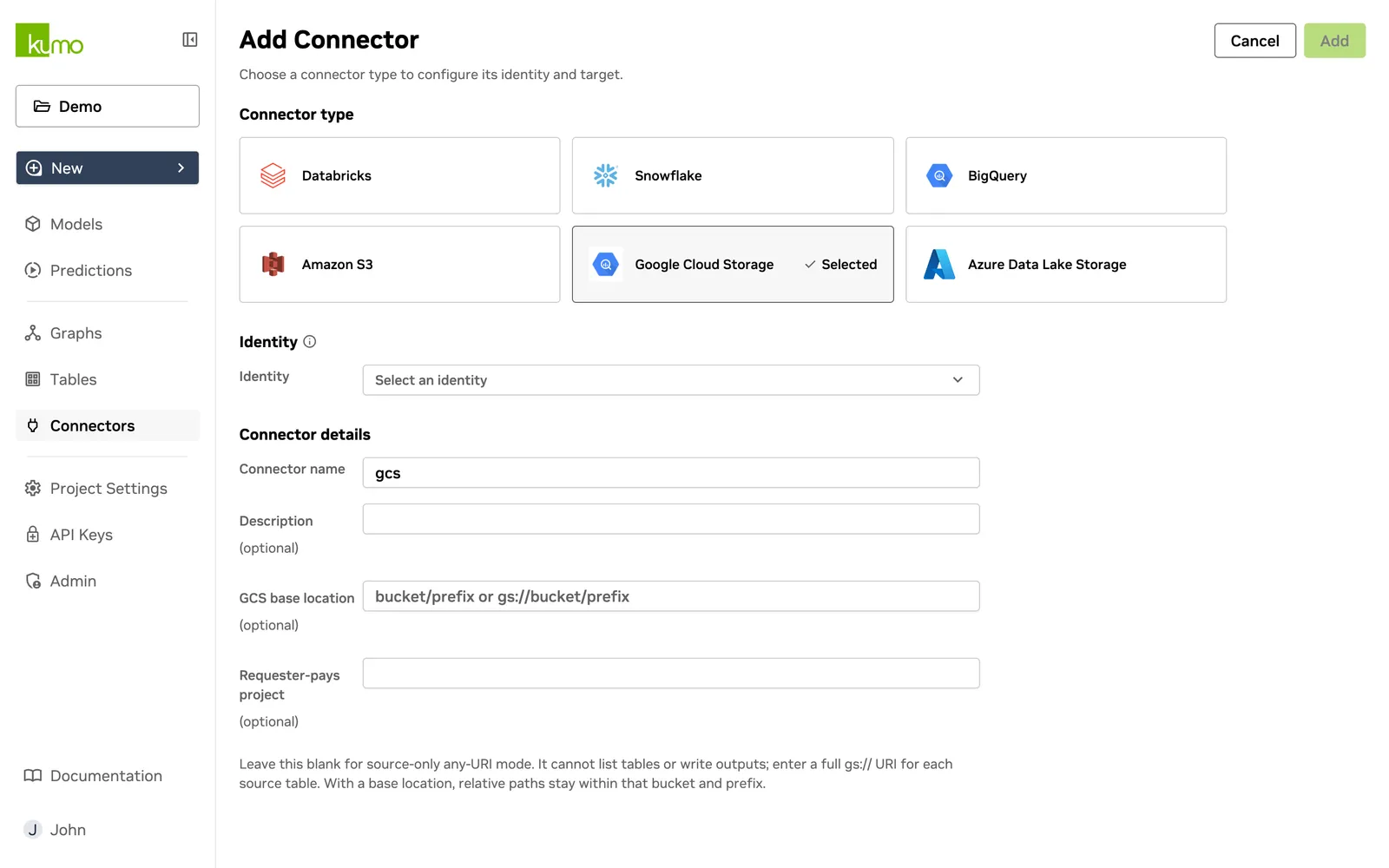
Choose a connector mode:
 Local Upload
Local Upload is available in the current release and does not require an identity or connector.
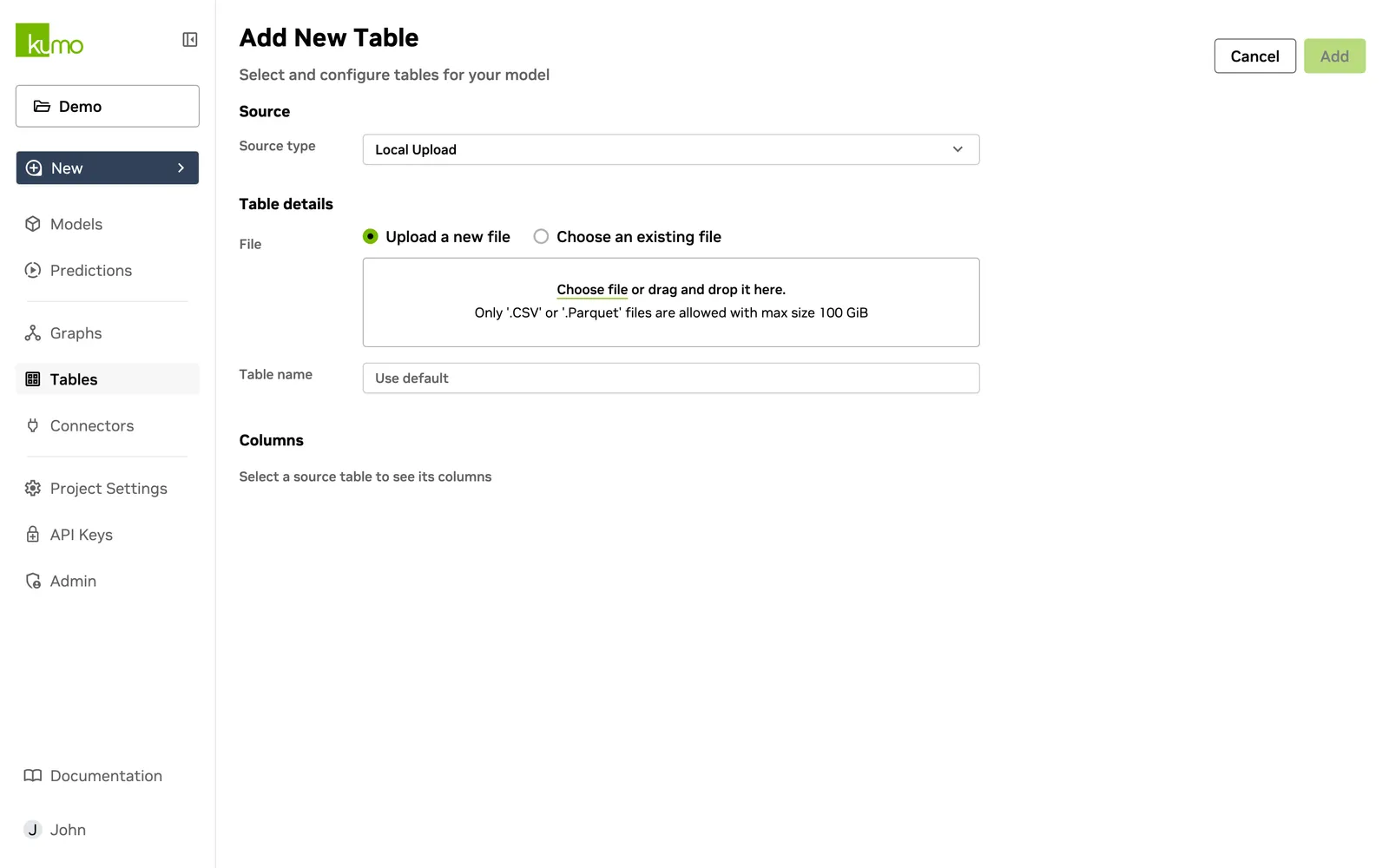
- On Tables, select Add table.
- Choose Local Upload from Source.
- Drag in or browse to a CSV or Parquet file.
- Select Upload.
- Review columns and preprocessing options.
- Select Add table.
Upload limits:
- Files uploaded through the UI can be up to 100 GiB.
- CSV files must contain more than one column.
Managing Connectors
To edit or delete a connector:
- Select it.
- Click the ︙ options button.
- Choose Edit or Delete.
Editing changes only the connector name and description. The referenced identity and target configuration are immutable.
Next steps
After connecting a data source, create a table to make its data available for graph creation.