

AWS S3
Kumo supports reading CSV and Apache Parquet files from AWS S3. The connector reads from a specific top-level directory, which can contain either files or second-level subdirectories. Each file or second-level directory represents a single table in Kumo.
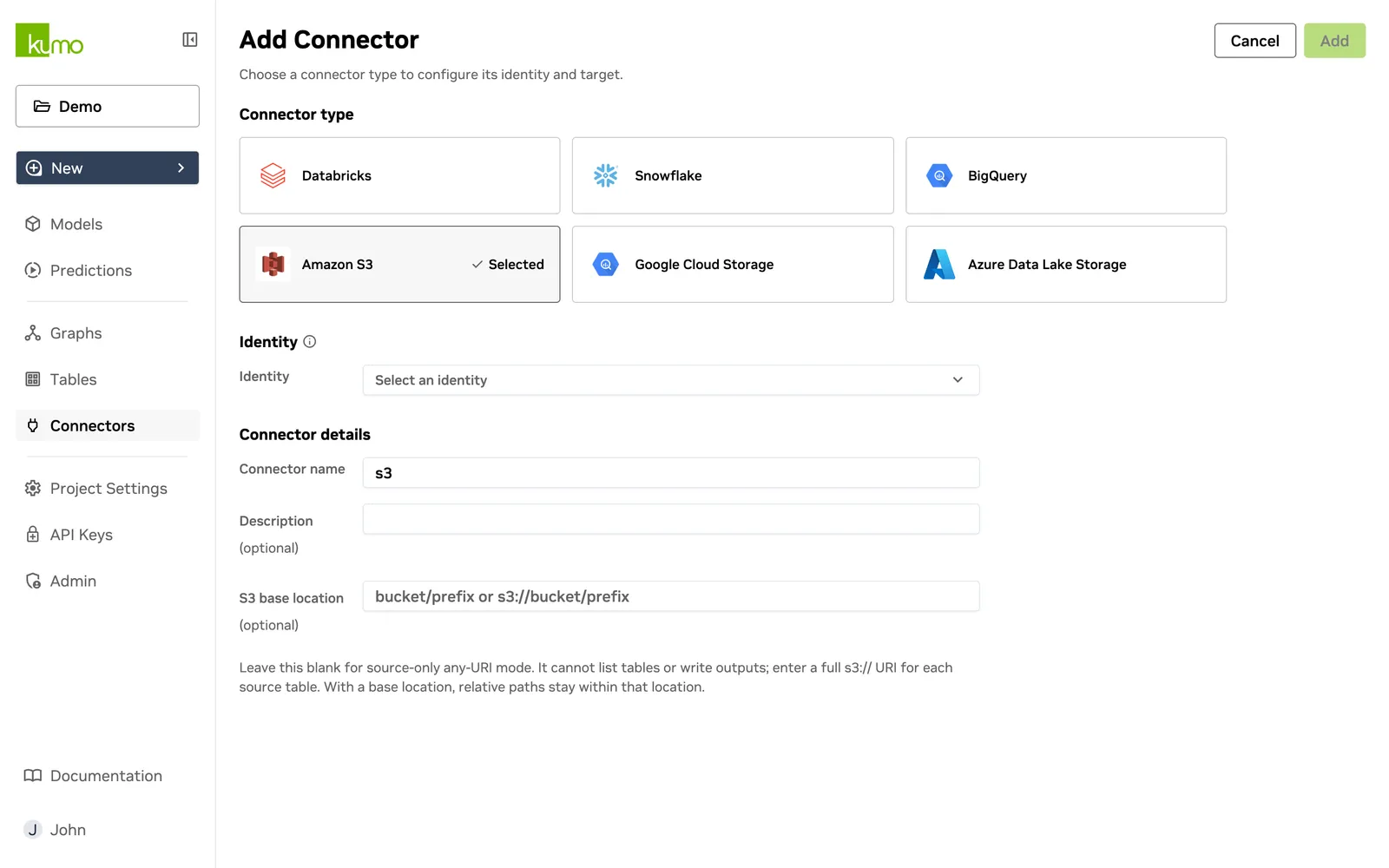
Directory Configuration
- If the top-level directory contains files, Kumo ignores any subdirectories and ingests only the files as tables.
- If the top-level directory contains subdirectories, each second-level directory is treated as a separate table, subject to the following rules:
- All files within a subdirectory must be of the same type (either CSV or Parquet).
- All files must share the same column schema (for CSV, this means identical headers).
- Subdirectories must not contain additional nested directories - only CSV or Parquet files are allowed.
- The resulting table combines all rows from all files in the subdirectory.
- Ensure your S3 bucket name does not contain dots (
.) to comply with AWS virtual-hosted style URL requirements.
Example Storage Structure
Limit the number of tables from the root directory to 30 for optimal performance.
Data Format and Size Considerations
Parquet Files
- Cast columns to their proper data types (for example,
timestampfor dates) to streamline ingestion and validation. - Hive partitioned tables are not supported.
- The data size per partition must not exceed 512 MB.
CSV Files
- A CSV table can have up to 128 partitions.
- The total data size across all partitions must not exceed 10 GB.
Convert your dataset to Parquet when your dataset is large.
Granting Access
To allow Kumo to access your data, update your S3 bucket policy by replacing:
<data bucket name>with your actual S3 bucket name.{% $customerId %}with your company name.
For step-by-step instructions, refer to the AWS Add Bucket Policy guide or contact Kumo Support for assistance.
Once the policy is applied, share the details with Kumo Support to finalize access configuration.
Data Sharing Steps - Updating KMS Key Policy
To allow an external IAM role to access an S3 bucket encrypted with a KMS key in a different account, update the KMS key policy:
- Locate the KMS Key Policy attached to the S3 bucket in the account where the KMS key is defined.
- Append the following statement to the existing KMS Key Policy to grant access to the
kumo-{% $customerId %}-external-shared-iam-role.
Do not remove existing access permissions for the account root. Doing so may result in loss of administrative access to the KMS key.
For guidance on updating the KMS key policy, refer to the AWS Add KMS Key Policy for S3 Bucket guide or contact your Kumo Success Manager.
After applying the policy, share the KMS Key ARN with your Kumo contact (for example, via Slack or email).
They will use it to apply a corresponding policy update to Kumo’s AWS account role: kumo-{% $customerId %}-external-shared-iam-role.