Google Cloud BigQuery
Kumo supports reading tables from Google Cloud BigQuery by connecting through a Service Account Key.
Prerequisites
Before configuring the BigQuery connector, ensure you have:
- Google Cloud Project ID
- Dataset Name (optional, if restricting access to a specific dataset)
- Service Account Key (JSON file)
If you haven’t created a Service Account and Key, follow these steps:
Save your Project ID and JSON key file securely - you will need them during setup.
Required Permissions
To allow Kumo to access BigQuery, assign the following roles to your Service Account:
roles/bigquery.dataViewerroles/bigquery.filteredDataViewerroles/bigquery.metadataViewerroles/bigquery.readSessionUserroles/bigquery.user
For exporting results back to BigQuery, grant:
roles/bigquery.dataEditor
Configuring Your BigQuery Connection
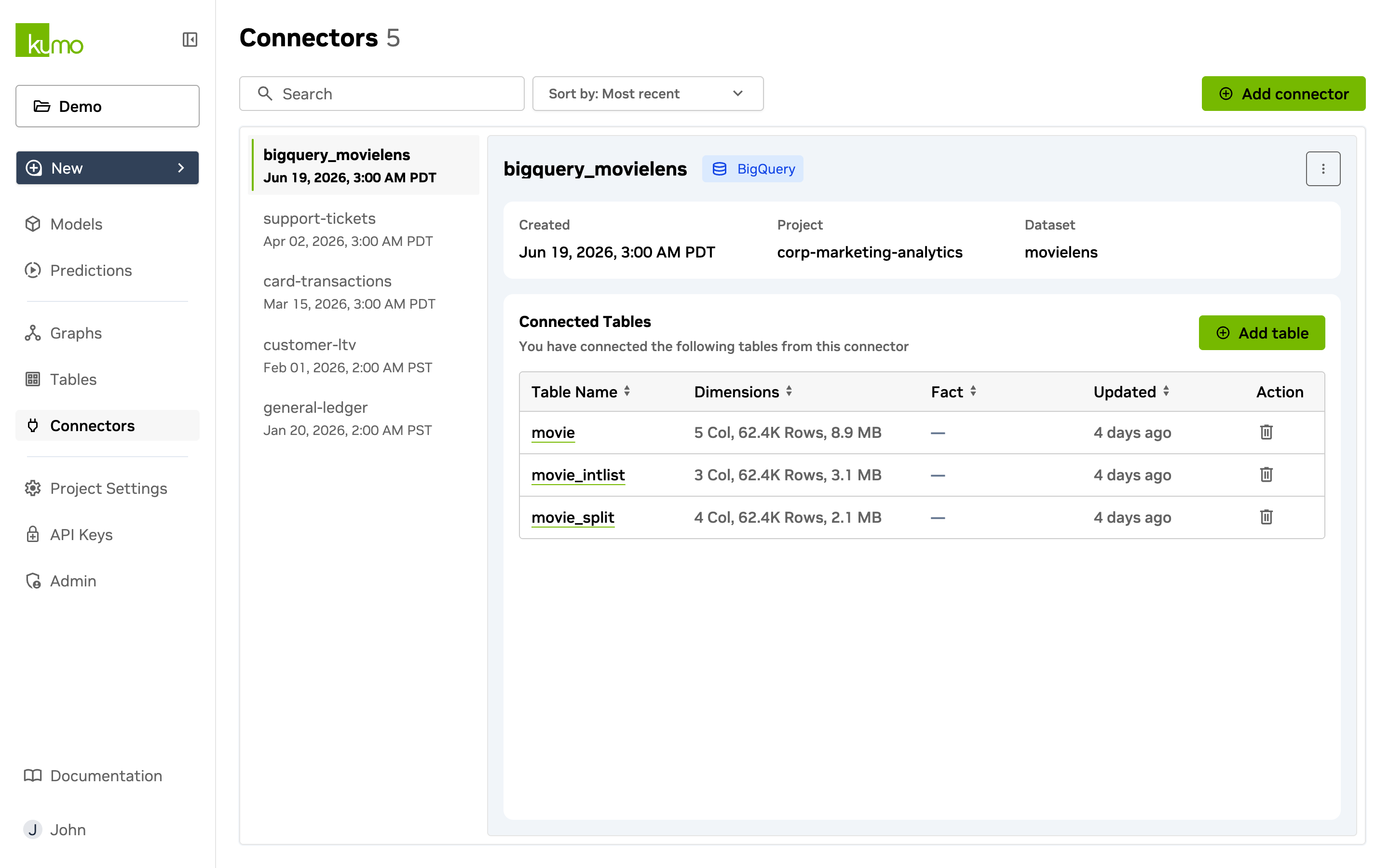
- Navigate to Connectors in the side menu and click Add Connector.
- Select BigQuery and enter the required details:
- Project ID – Grants access to all datasets in your project.
- Dataset Name (optional) – Restricts access to a specific dataset.
- Service Account Key File (JSON) – Upload your service account key file.
- Click Add Connector to finalize the setup.
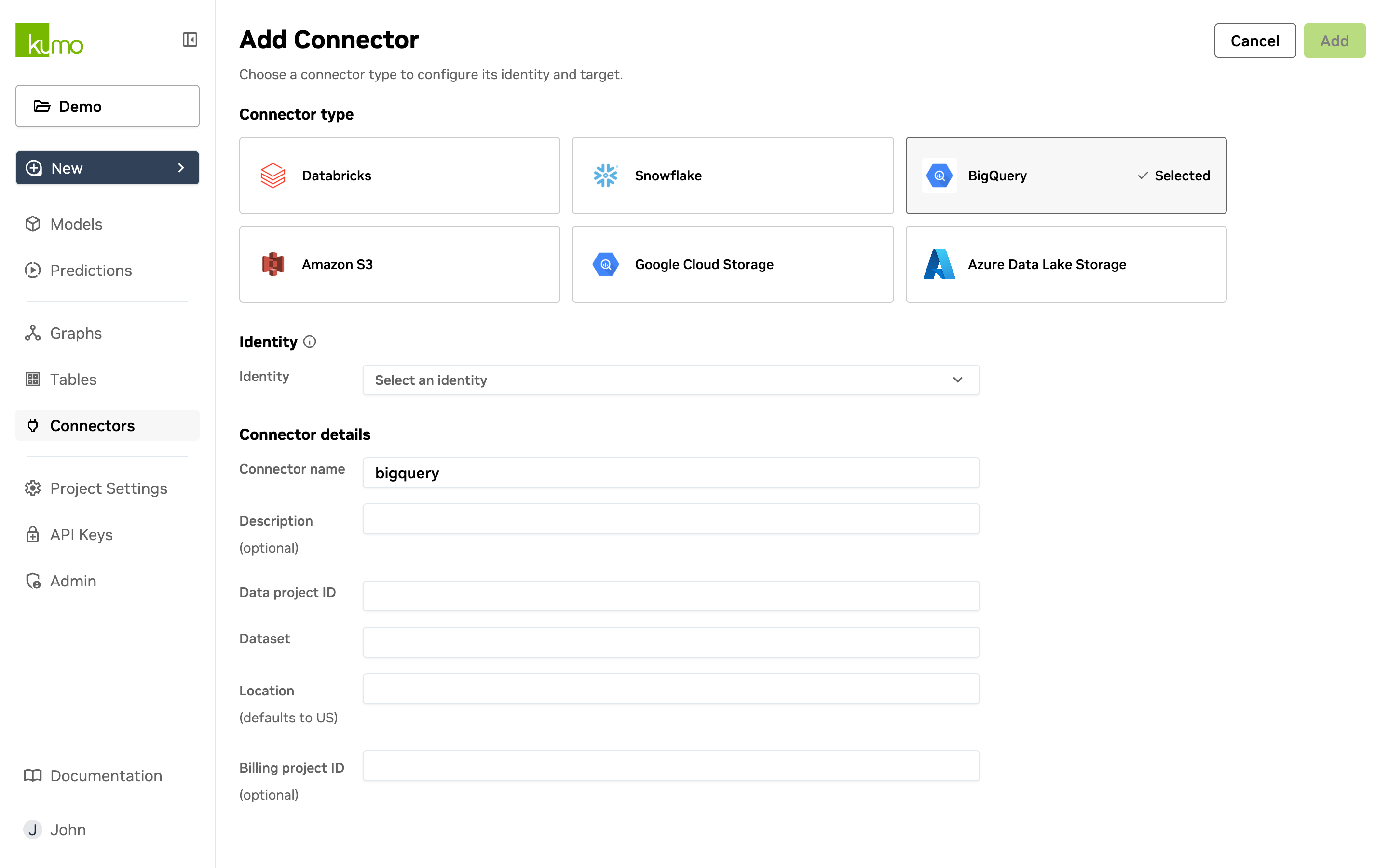
Verifying Your BigQuery Connector
To verify the connector, click its name in the Name column on the Connectors page. The example below uses a connector named “bigquery_movielens”.