

NVStreamer
Introduction
NVStreamer is an NVIDIA developer software that enables storing and serving of video files that can then be streamed using the RTSP protocol. It is particularly useful for testing with VIOS, as it provides an alternative means to cameras for creating video sources as input to VIOS. Specifically, it provides a mechanism to test specific video files as VIOS inputs. VIOS can be configured to receive RTSP streams as if they were originating from an ONVIF-S camera.
NVStreamer provides an option to either upload the videos from webUI or read the videos from the local file system. The local video files can be mounted inside the NVStreamer container and it will start streaming the video files.
NVStreamer Dashboard
Open a web browser (we suggest Chrome) and navigate to this address (on the same system or another one on the same network):
http://[NVStreamer-IP]:31000
HTTP, (not HTTPS) where [NVStreamer-IP] is the host IP address on the local network (you can use ifconfig on the terminal to verify the IP).
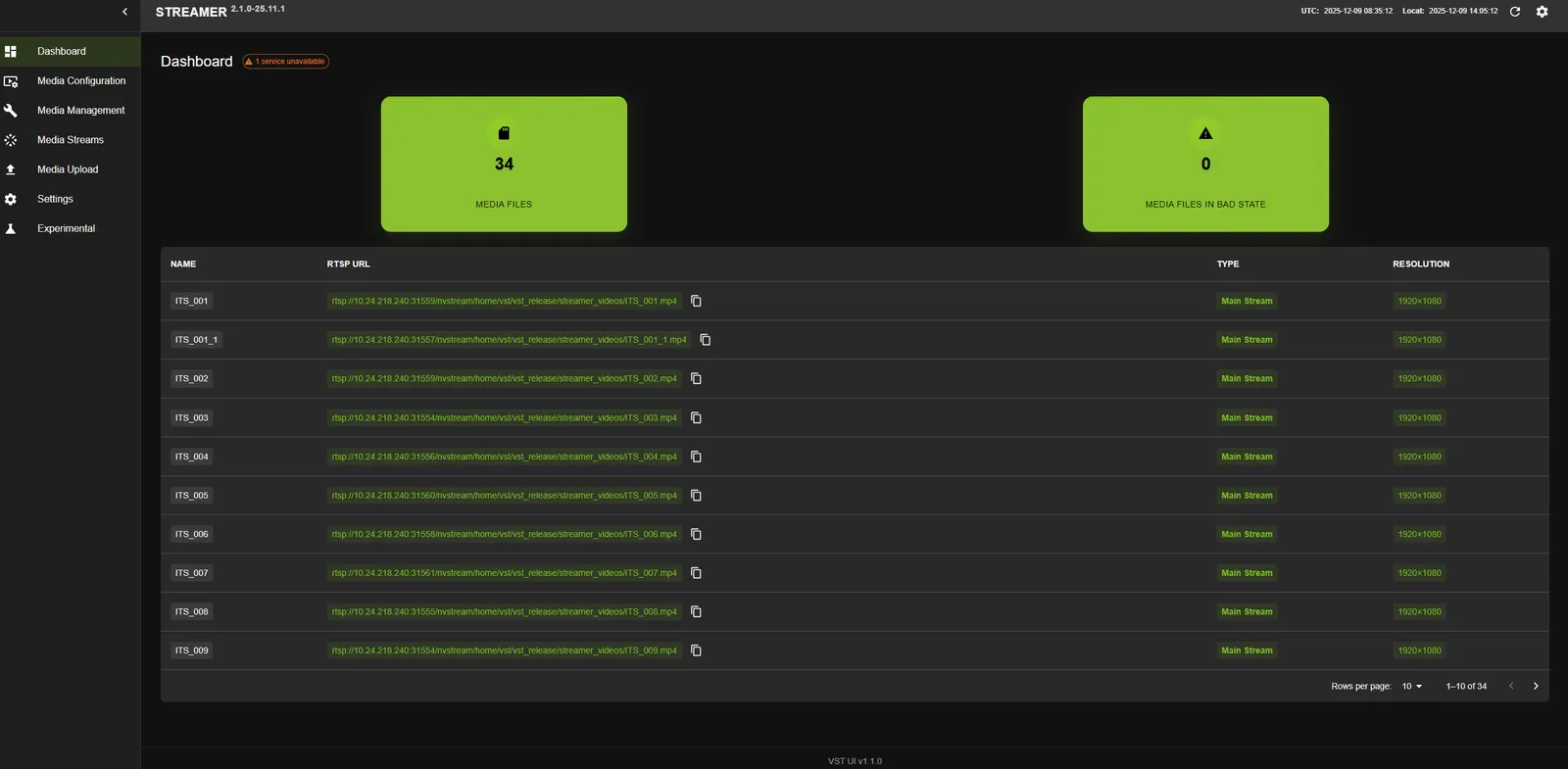
The following UX will open, you can see the all the available video streams and corresponding RTSP URLs like below.
Uploading Videos to NVStreamer
To upload videos from the web UI:
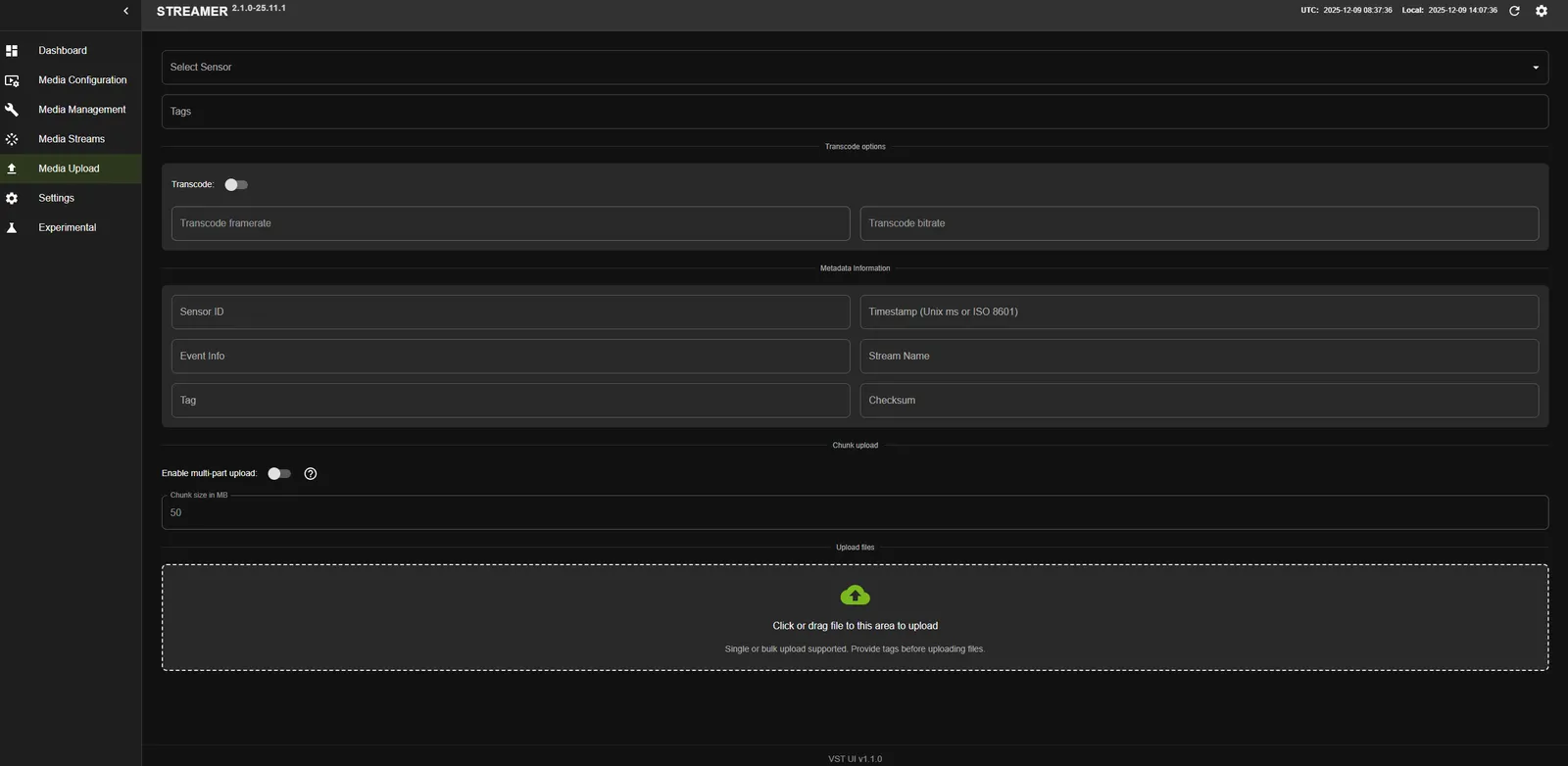
- Click on the Media Upload tab on the left sidebar.
- Drag and drop the videos to upload, or click to select videos from your file system.
- Monitor the upload progress - a green progress line will appear at the bottom left.
- Once complete, the file name will appear in gray.
- An RTSP stream will be automatically created with the file name.
- Check the NVStreamer Dashboard to see the new RTSP stream.
Streaming Videos from NVStreamer
To stream videos using webRTC:
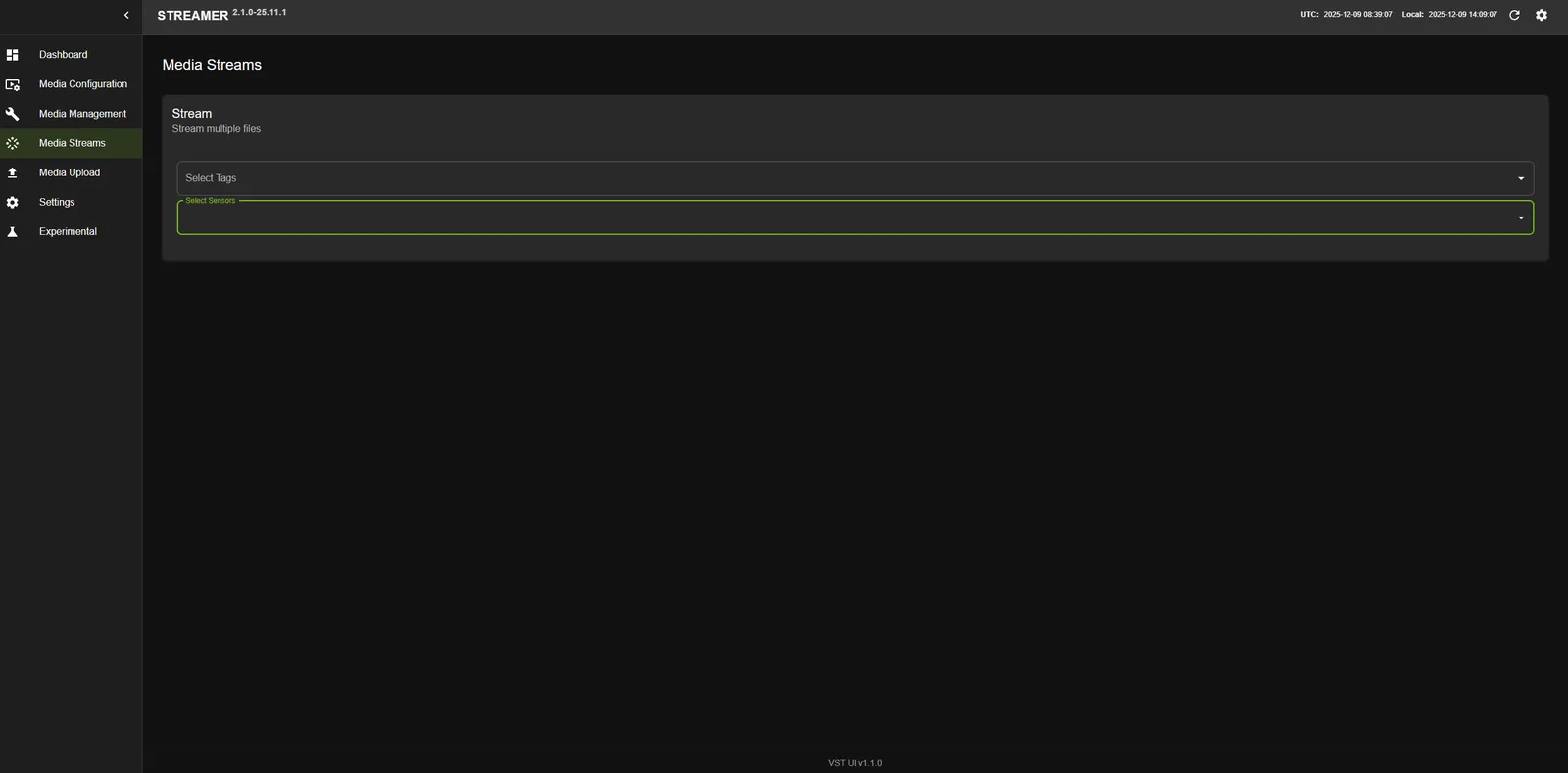
- Navigate to the Streams tab on the left sidebar.
- All uploaded videos will be listed in the NVStreamer Dashboard.
- Select the video you want to stream.
- The video will begin streaming via webRTC.
Remove Files
To remove files from NVStreamer:
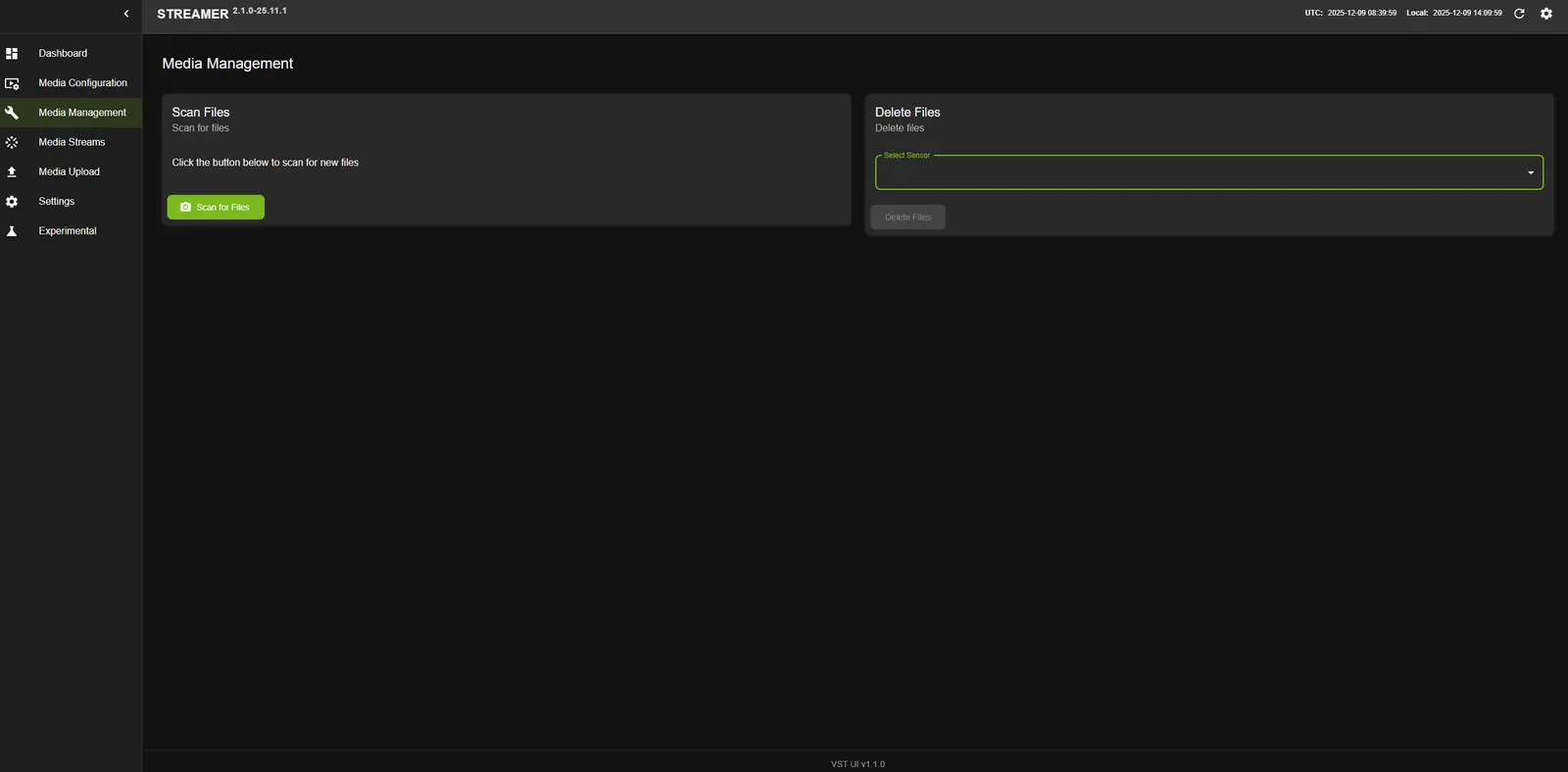
- Go to the Management tab in the UI.
- Select the Delete files option.
- Select the file from the dropdown menu.
- Click the Delete button.
NVStreamer Configuration
Configure the UI base path
By default, NVStreamer serves its UI at http://[NVStreamer-IP]:31000/, and the UI sends REST API requests without a path prefix, such as /api/v1/live/streams. Leave NVSTREAMER_UI_BASE_PATH unset or set it to an empty value to preserve this behavior.
To expose the NVStreamer UI and its REST APIs through a reverse proxy at a path prefix, set NVSTREAMER_UI_BASE_PATH when the NVStreamer container starts. For example:
With this value, use http://[NVStreamer-IP]:31000/nvstreamer/ as the public UI URL. The UI prefixes its REST API requests with the same path, for example /nvstreamer/api/v1/live/streams.
Configure the reverse proxy to route requests under /nvstreamer to NVStreamer and strip that prefix before forwarding them. For example, the public request /nvstreamer/api/v1/live/streams must reach NVStreamer as /api/v1/live/streams. If the proxy does not perform this routing and prefix removal, the prefixed UI and API requests fail.
This setting applies only to the UI hosted by NVStreamer. It does not change the VIOS UI served through VIOS ingress.
Synchronize Streaming of Videos
NVStreamer provides a mechanism to synchronize the streaming of videos. This is useful for testing with VIOS, as it provides an alternative means to cameras for creating video sources which are synchronized with each other with respect to time.
To enable synchronized streaming:
-
Set the config parameter
nv_streamer_sync_file_countto specify the number of files to sync with respect to each other. Synced streams send no media until all of them are playing. If clients take longer than the default 150 seconds to start, raisenv_streamer_sync_data_arrival_timeout_secsso the streams are not dropped while waiting. -
Ensure all files to be synced have the same encoding attributes (resolution, frame rate, bitrate, duration).
-
If files have different encoding attributes, use the following
ffmpegcommands to standardize them:a. Cut the video to make the duration the same:
b. Remove bframes and modify key-intervals:
-
Upload the standardized files to NVStreamer.
NVStreamer Config Parameters
Following table describes the parameters in NVStreamer config file: