

Search
The Search Workflow enables natural language queries across video archives to locate specific events, objects, or actions.
Use Cases
- Event retrieval from large video archives
- Cross-video search for specific objects or actions
- Forensic analysis of recorded footage
Estimated Deployment Time: 15-20 minutes
The following diagram illustrates the search workflow architecture:
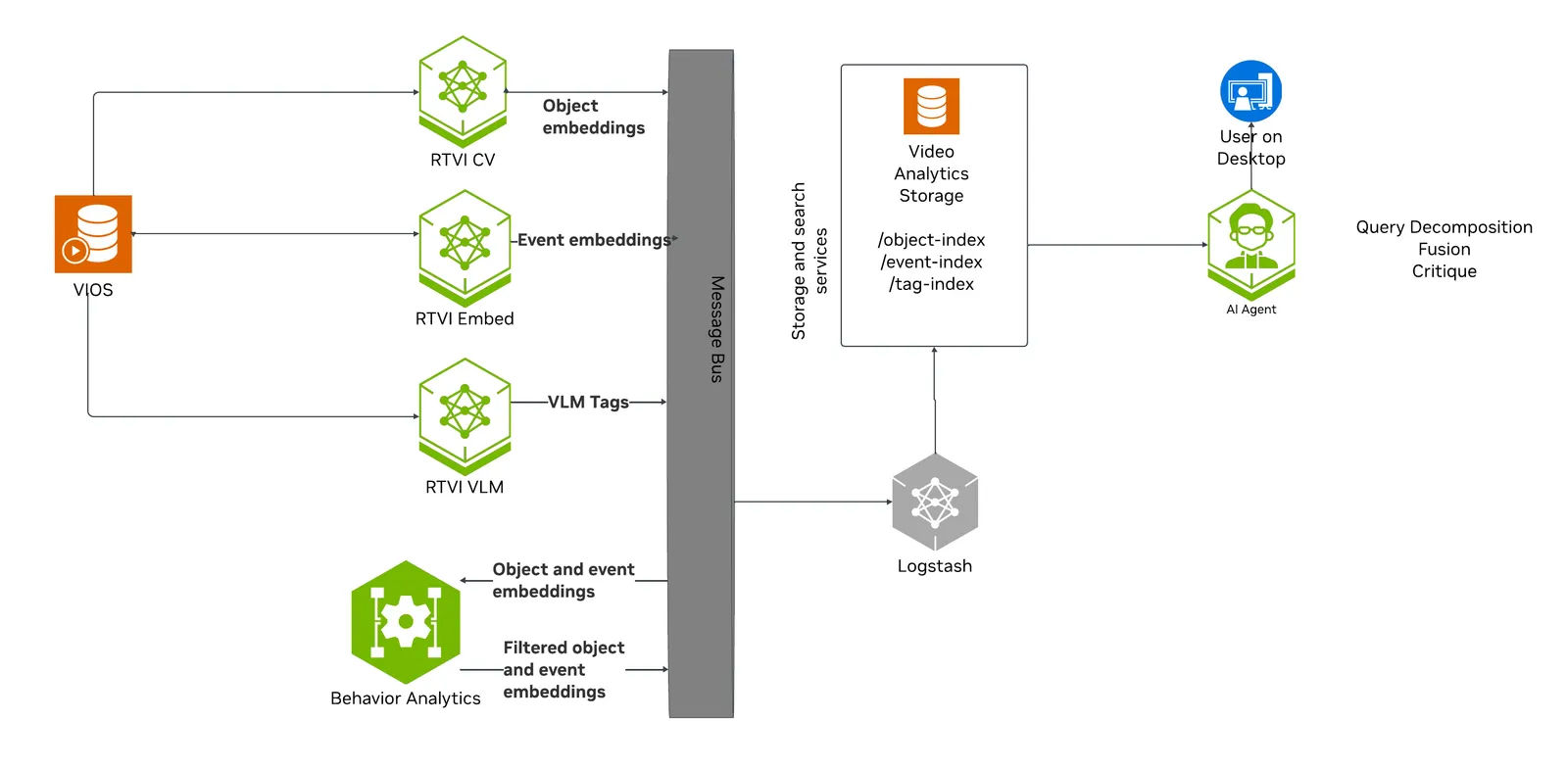
Key Features of the Vision Agent with Search:
- Upload videos to the agent for search.
- Semantic search of videos for key actions, events, and object attributes using embedding-based video indexing.
- Natural language query support (e.g., “find all instances of forklifts”).
- Automatic query decomposition for chat requests. The search agent extracts refined query text, source names, time windows, visual attributes, action intent, image-search context, and result-count hints.
- Four search routes: embed search for actions/events, attribute search for visual descriptors, fusion search for queries that combine actions and visual descriptors, and Search by Image for finding visually similar objects from selected bounding boxes on paused video frames.
- Filter and retrieve timestamped results using similarity scores and video/stream names.
What’s being deployed
- VSS Agent: Agent service that uses a configured LLM endpoint to route requests and orchestrate tool calls to VSS microservices and model endpoints (LLM/VLM NIMs) to answer questions and generate outputs
- VSS Agent UI: Web UI with chat, video upload, and different views
- VSS Video IO & Storage (VIOS): Video ingestion, recording, and playback services used by the agent for video access and management
- Nemotron LLM (NIM): LLM inference service used for reasoning, tool selection, and response generation
- RTVI-VLM: Real Time Video Intelligence VLM Microservice serving Cosmos3 Nano Reasoner. It backs the critic agent that verifies search results and the video understanding tool. There is no separate VLM NIM container in this profile
- Video Analytics API: REST query and browse surface over the Elasticsearch indices, used by the Search tab
- Phoenix: Observability and telemetry service for agent workflow monitoring
- ELK: Elasticsearch, Logstash and Kibana stack to index and search embeddings of video clips
- Kafka: A real-time message bus to publish embeddings, to be consumed and indexed by ELK for search
- RTVI-Embed: Real Time Video Intelligence Embed Microservice to generate action/event embeddings for videos and text, based on Cosmos-Embed1-448p-Anomaly-Detection
- RTVI-CV: Real Time Video Intelligence Computer Vision Microservice to generate object attribute embeddings for videos
- Behavior Analytics: Behavior Analytics microservice to perform sequential frame analysis for object detection and tracking in videos/streams.
This list describes the stock profile. The manual Compose deployment below uses it as it stands, and so does the Agent Skills deployment that names the in-stack Agent. The other two Agent Skills deployments do not: both drop the in-stack VSS Agent, Phoenix, and the Agent’s LLM. The NemoClaw deployment keeps the Web UI; a capability-composed build drops it. Ask for the in-stack VSS Agent if you plan to use the Agent REST API or the manual Agent UI workflow.
Search Workflow Data Flow
The search workflow has two related paths: ingestion and query execution.
During ingestion, uploaded videos and RTSP streams are registered with VSS Video IO & Storage (VIOS). VIOS notification webhooks then fan each source out to RTVI-Embed, which generates video/action embeddings, and to RTVI-CV, whose output Behavior Analytics turns into object-level behavior embeddings. Elasticsearch stores these embeddings in separate indices:
mdx-embed-filtered-*for video/action embeddings used by embed search.mdx-behavior-*for object behavior embeddings used by attribute search and Search by Image.mdx-raw-*for raw frame/object data used when frame lookup is enabled for attribute search.
During query execution, the Agent UI Search Tab calls the Vision Agent chat interface. Queries are entered in the Chat Sidebar, which streams search_agent through /v1/chat/stream. An LLM decomposes the natural language query and selects the best search route. Matching clips populate the Search Tab results grid. Filter controls on the Search Tab refine those agent results; they do not run a separate search.
The Vision Agent chat path can run:
- Embed search: Generates a text embedding with RTVI-Embed/Cosmos-Embed1-448p-Anomaly-Detection and searches video/action embeddings in Elasticsearch.
- Attribute search: Generates text embeddings with RTVI-CV and searches behavior embeddings for visual descriptors such as clothing, color, or carried objects.
- Fusion search: Runs embed search first, then runs attribute search over each candidate window and reranks with a fusion score.
- Search by Image: When the user starts from a selected bounding box on a paused video frame, the workflow uses the selected object’s embedding from the behavior index to search for visually similar objects.
Prerequisites
Before you begin, ensure all of the prerequisites are met. See Prerequisites for more details.
Deploy
With Agent Skills
As an alternative to running the workflow manually, you can use VSS Agent Skills from a coding agent such as Claude Code, Codex, or NemoClaw.
First install the skills as described in Installing Skills and make it accessible to your coding agent.
Your coding agent drives the workflow: it deploys the stack, provisions sources, and runs retrieval. Step 1 offers three deployments, and the one you pick decides how you operate it afterwards. All three assume the same supported hardware as the manual workflow.
Step 1: Deploy the Search Stack
The host must meet the same deployment requirements listed under Manually (supported GPU/hardware for that profile) and must meet the Prerequisites. The skill selects the hardware profile to match your system, as detailed in Development Profile GPU Requirements.
Deployment is driven by the vss-build-vision-ai skill. It can deploy the Search developer profile as it ships, or compose a leaner stack from the capabilities you name. Any prompt below can also name an image tag to run a release’s images instead of the containers.env default, for example “…with image tag 3.3.0.” See Container image tag. The skill presents the composed architecture for your confirmation before it generates or deploys anything.
Stock Search profile with the in-stack Agent
This deploys the profile unchanged, including the in-stack VSS Agent, the Agent UI, and Phoenix — the service set under What’s being deployed. Naming the Agent is what keeps it in the build, so this is the deployment to choose if you want the Agent UI or the Agent REST API.
Deploy prompt structure
What the agent does:
- Loads the
vss-build-vision-aiskill and detects the repository, GPU hardware, and host networking values. - Validates required credentials (such as
NGC_CLI_API_KEY) and prompts you if any are missing. - Selects the
searchprofile and a hardware profile that fits your system, then builds the deployment configuration. - Reviews the configuration with you, then deploys the containers.
- Waits until all services are healthy and returns the endpoints available for the deployment.
Operate it either way: with the prompts in Steps 2 to 7 below, or through the UI steps under Manually.
Stock Search profile driven by NemoClaw
The same profile with NemoClaw as the harness. When the prompt does not name an agent, the skill asks whether to deploy NemoClaw and takes yes as the default. NemoClaw runs as a sandbox on the host and drives the deployment over its public routes, so the in-stack VSS Agent, Phoenix, and the Agent’s LLM are left out.
Deploy prompt structure
The agent follows the same steps as above, then brings up the NemoClaw sandbox against the deployed origin and reports its chat URL. You reach the deployment through that chat, and the Web UI’s chat sidebar and Chat tab answer through it as well. The /api, /chat, and /websocket ingress routes are unavailable here. Operate this deployment with the prompts in Steps 2 to 7 below.
NemoClaw’s chat and the Web UI’s chat surfaces both wait for a gateway token before they answer. For connection and video transfer steps, see the Quickstart’s NemoClaw handoff.
Custom search build
The skill can also compose a stack from the capabilities you name rather than from a fixed profile. State the capabilities you want and how you intend to reach them. Do not name services or list what to exclude; the skill selects a Foundation and keeps only what your stated capabilities reach.
This build carries no chat interface and no in-stack agent, so the VSS UI and Phoenix entries under Service Endpoints do not apply to it. Kibana and the Video Analytics API are retained as browse surfaces over stored data, and retrieval runs through the vss CLI.
Deploy prompt structure
This prompt builds a retrieval-only stack. Search returns matches with similarity scores and time ranges, but no VLM is deployed, so results are not verified and no tags are produced to search. To include both, add a sentence naming them:
That added sentence does two things. Asking for verification puts RTVI-VLM in the build and routes /rtvi-vlm through the ingress, which also gives you visual follow-up questions about a clip: verification and those questions are both per-request calls to the same service, so asking for one gives you both. Asking for tag search additionally makes RTVI-VLM a VIOS fan-out consumer, so each newly registered source is tagged as it arrives — deploying the service alone never does that. Ask for neither and the service is left out, because retrieval itself never calls it.
On the multi-GPU layouts under Manually, either prompt deploys on 2 GPUs, because RTVI-CV and RTVI-Embed keep their pinned devices. In the retrieval-only build each has its GPU to itself, since that build drops both the LLM and the VLM. Asking for verification puts RTVI-VLM back alongside RTVI-CV on GPU 0 at a memory fraction of 0.4, which is the shared layout the profile ships.
On the single-GPU hosts described under Step 1: Deploy the Search Agent in the manual workflow below, both retrieval services share the one GPU. Ask for verification on DGX Spark or AGX Thor and the VLM has to be a remote endpoint, because those boards cannot host one locally alongside the perception pipeline.
What the agent does:
- Reads the skill and its search references to determine the Foundation, its authoritative service set, the GPU layout, and sizing.
- Composes the build as a delta on that Foundation. The VSS Agent, VSS Agent UI, Phoenix, and the LLM are dropped, because retrieval is driven through the CLI rather than a chat surface. RTVI-VLM is dropped as well unless you asked for verification or tag search.
- Runs pre-flight checks on the repo path, GPU and Docker runtime, and NGC credentials.
- Prepares the environment and the data directory tree, then writes the build artifacts under
_builds/<name>/, including the resolved Compose fileresolved.yml. - Deploys the resolved Compose file and waits until every service reports healthy, then reports the build’s public origin.
Step 2: Video Management
For instructions on downloading sample data, see Download Sample Data From NGC in the Quickstart guide.
Replace <sample-data-dir> with the absolute extraction location from the
Quickstart’s download step. For a coding agent running on the deployment host,
provide the host path:
If you selected NemoClaw, follow the Quickstart’s
handoff, using
warehouse_sample.mp4 as the filename in the transfer command. Then provide the
sandbox path:
What the agent does on Agent-backed and headless deployments:
- Reads the
vss-manage-video-io-storageskill and its source provisioning reference. - Uses the recorded deployment configuration and registers the source once with
vss vios add. - Lets VIOS’s mounted notification configuration fan the source out asynchronously to the configured consumers, such as RTVI-CV, RTVI-Embed, and optional RTVI-VLM tagging. Their outputs feed the indices queried by search.
- Verifies the sensor is registered and online, then waits for the configured consumers to finish processing it.
The in-stack Agent deployment uses the same registration path. VIOS notification receivers perform the detection, embedding, and optional tagging fan-out; no Agent /complete call is required. The search skill queries the resulting archive and hands source registration to vss-manage-video-io-storage.
It may take up to a few minutes depending on the size of the video(s).
To ingest a live stream instead, have NVStreamer serve a file as a synthetic RTSP camera and provision that:
Provision a live RTSP source
For NemoClaw, use the file copied into the sandbox above:
Provisioning uses the origin vss configure recorded, so configure the CLI first.
Before the CLI can search, it has to be pointed at the build’s ingress, but this is not a step you need to run. The agent does it on the first query: it resolves the deployment’s origin, runs vss configure against it, and repeats that after each ingestion, because the recorded index inventory is a snapshot and a freshly deployed stack records none.
For optional configuration from the host terminal, see With the VSS CLI.
Step 3: Search with a simple query
Your agent can search videos given natural-language queries, without requiring a chat UI/interface.
Use its search capability to find all instances of forklifts in the uploaded video warehouse_sample.mp4 by using the following prompt:
Simple search prompt
What the agent does:
- Reads the
vss-search-archiveskill to determine the retrieval path. - Confirms the source is registered in VIOS; if it is not, reports that and asks before ingesting.
- Chooses a retrieval route and runs it through
vss search run, which takes no endpoint because the CLI resolves everything from whatvss configurerecorded. The four routes match the ones the chat interface selects between:embedfor actions and events,attributefor visual descriptors,fusionfor queries combining both, andobjectfor identity lookup by tracked object id. - Verifies the top results with the critic if the build includes RTVI-VLM. The CLI attempts this by default and skips it when the service is absent.
- Presents results as a table with time ranges, similarity scores, verification verdicts, and the per-criteria breakdown.
Each result carries the source name, a description, start_time and end_time, the sensor id, a screenshot URL, the similarity score, any tracked object ids, and a verification verdict. The verdict is confirmed, rejected, or unverified, and the criteria breakdown lists the individual conditions extracted from the query and whether each was satisfied. See Critic Agent Overview for how the verdicts are reached.
An empty result set is an answer, not a failure. It means the deployment holds nothing matching the query, and re-running the same search will not change that. A backend problem reports itself as a failure instead.
Every verdict is unverified on a build deployed without result verification, and the criteria breakdown is empty. Retrieval is unaffected, and the scores and time ranges remain valid.
Step 4: Search with additional filters
To search with additional filters:
- VLM tag search: search the tags RTVI-VLM produced during ingestion with a prompt like
Find clips tagged "forklift loading a pallet".Fusion search leaves those tags out of its ranking unless its tag leg is enabled with--w-tagonvss search run fusion, which is off by default.
Both stock deployments tag by default, because the profile’s VIOS notification configuration ships the RTVI-VLM fan-out enabled. A custom build tags only if you asked for tag search in Step 1.
Step 5: Ask a Follow-up Question
Follow-up questions related to the search results can also be asked in the same coding-agent conversation. For example:
Questions like this one are answered from the results already returned, so they work on any deployment. Questions about what is visible in a clip are different: they re-examine the video through RTVI-VLM. Both stock deployments include it; a custom build needs the verification prompt from Step 1. Without RTVI-VLM the agent reports the missing service rather than deploying one.
Step 6: Delete Videos or Streams
To remove an uploaded video or RTSP stream, issue the appropriate prompt:
Delete an uploaded video
Delete an RTSP stream
Step 7: Teardown the deployment
To teardown the deployment, issue the following prompt:
The default teardown removes the project’s containers, network, and named volumes, including the multi-GB NIM and RTVI model caches. To keep the caches for an immediate redeploy, ask for that explicitly:
Bind-mounted data under VSS_DATA_DIR, such as Elasticsearch and Kafka data and VIOS recordings, survives either path and would carry into the next deployment. Clearing it is a separate step that needs root, so the agent will surface the command and confirm with you before running it.
On the NemoClaw deployment the sandbox is a separate lifecycle from the containers, so tearing down one leaves the other running. Ask for the sandbox to be destroyed as well when you are finished with it.
With the VSS CLI
Use the CLI directly to see what was recorded, or to point it at a different deployment. It is a host process invoked project-locally, never a globally installed vss and never inside a container:
Replace <VSS_PUBLIC_URL> with the ingress origin returned for your deployment.
libs/vss is the CLI’s own workspace, so no extra is required. configure
probes each route and records the ones that answer, along with the Elasticsearch
index list, and configure show prints what it recorded.
Manually
For instructions on downloading the deployment package, see Download the Deployment Package in the Quickstart guide.
Step 1: Deploy the Search Agent
The release Search configuration loads search_prompt_policy.SearchPromptWorker from the
deployment’s mounted search_prompt_policy.py. Keep that module on PYTHONPATH when
customizing the agent container; the supplied Compose and Helm deployments configure
the mount and import path. Its prompt policy infers time filters only when the query
explicitly requests a date or time. Explicit API start/end parameters still apply.
For a custom Helm agent configuration, enable searchPromptPolicy when selecting
this worker; the stock Search profile enables it automatically.
-
Set the NGC CLI API key and authenticate Docker to
nvcr.iobefore running the deploy commands. See Verify Your NGC Access.Run in the deployment host terminal -
Refer to Configure the LLM and Configure the VLM for all LLM and VLM (local and remote) configuration options.
-
For advanced settings and Agent Customization, edit the profile
user-overrides.env.See Configuration for common variables, valid values, defaults, and env-file precedence. The complete profile-specific template is
deploy/docker/developer-profiles/dev-profile-search/overrides.env.
Critic Agent
The critic agent uses a VLM (Cosmos3 Nano Reasoner) to verify search results and runs during search in agent/chat mode.
The critic is chosen per request, not at deploy time. End users turn the critic on or off on a per-query basis using the Enable Critic toggle in the Vision Agent chat settings (see Critic Agent Overview). The toggle maps to the request-level use_critic flag and is on by default.
RTVI-VLM serves both the critic and the video understanding tool, so the search profile always deploys it. Because the critic is a per-request choice, the VLM is deployed whether or not any given query uses it.
GPU requirements:
The search profile deploys on 2 GPUs, and both are shared. GPU 0 runs RTVI-CV alongside RTVI-VLM, which serves the critic from a Cosmos3 Nano Reasoner FP8 checkpoint at a memory fraction of 0.4 so that RTVI-CV fits beside it. GPU 1 runs RTVI-Embed alongside the LLM. Both LLM_MODE and VLM_MODE default to local_shared, and the profile marks GPU 0 and GPU 1 as shared rather than reserving either for a single service.
Offloading a model to a remote endpoint frees capacity on a shared GPU without changing the count, because RTVI-CV and RTVI-Embed stay on their pinned devices. Dedicating a model to its own GPU raises the count:
- Default: 2 GPUs. GPU 0 runs RTVI-CV and RTVI-VLM; GPU 1 runs RTVI-Embed and the LLM.
- Dedicated LLM + VLM: 4 GPUs. GPU 0 and GPU 1 keep RTVI-CV and RTVI-Embed; the LLM and the VLM each take a GPU of their own.
- Remote LLM: 2 GPUs. GPU 1 runs RTVI-Embed alone; the LLM is offloaded.
- Remote VLM: 2 GPUs. GPU 0 runs RTVI-CV alone; the VLM is offloaded.
- Remote LLM + VLM: 2 GPUs, running the retrieval services only.
Single-GPU hosts are the exception. On GB300, DGX Spark and AGX Thor the profile collapses every local service onto the one GPU. The two edge boards go further and require both models to be remote, since their GPU is already carrying the perception pipeline.
From the repository checkout root, enter the Compose deployment directory:
overrides.env is the checked-in template. Copy it to any
filename matching *-overrides.env before selecting a layout. Files matching
that pattern are ignored by Git so local settings and credentials are not
committed. The commands below use user-overrides.env as a concrete example;
if you choose another name, use it consistently in every --env-file argument.
Repeat the copy only when you want to discard prior layout changes:
Before starting Compose, complete the host settings and select one hardware
layout below in deploy/docker/developer-profiles/dev-profile-search/user-overrides.env.
Environment-variable overrides: In deploy/docker/developer-profiles/dev-profile-search/user-overrides.env, update existing values in place; add a variable only when it is absent. COMPOSE_PROFILES is derived from values above it, so appending duplicate model-mode or model-slug variables can select the wrong services.
Host-path and service-address overrides (all hardware profiles):
VSS_APPS_DIR: Absolute path to this repository’sdeploy/dockerdirectory.VSS_DATA_DIR: Absolute writable host directory for downloaded models, videos, and service data.HOST_IP: IP address or hostname that clients use to reach services on this VSS host. Set it to an address reachable by the intended clients.EXTERNAL_IP: Address VSS puts in externally reachable service URLs. It defaults to${HOST_IP}; on a cloud host or when clients connect from outside the host network, set it to the instance’s public address or external hostname.
Set these required placeholder values in the existing assignments:
Prepare host data directories before starting Compose. Export
VSS_DATA_DIR with the same absolute path set above, then run this block. The
guard stops before mkdir or chmod if the value is absent or is not absolute:
HARDWARE_PROFILE accepts IGX-THOR, but search is not supported there. The profile’s edge handling covers DGX Spark and AGX Thor only. Use one of the layouts below.
Default container image tag
containers.env uses VSS_CONTAINER_TAG as the default tag for all images.
Export the tag selected for this documentation branch before choosing a hardware
layout:
Any service-specific image tag or tag suffix shown inside a hardware tab supersedes or augments this common default. Use the SBSA settings shown in the GB300 and DGX Spark tabs when deploying on those platforms.
On the search profile the agent’s media framing is set by VLM_AGENT_MEDIA_MODE, not by VLM_MODE. The remote-VLM layouts below keep VLM_MODEL_TYPE=rtvi, so the agent reaches the offloaded VLM through RTVI-VLM, which fetches the clip inside the deployment network and forwards it, and VLM_AGENT_MEDIA_MODE stays at its local_shared default. Point the agent straight at the remote endpoint with VLM_MODEL_TYPE=nim only together with VLM_AGENT_MEDIA_MODE=remote, as the DGX Spark and AGX Thor tabs do; without it the agent sends a deployment-internal clip URL that the remote endpoint cannot resolve.
H100
GB300
RTXPRO6000BW
L40S
DGX-SPARK
AGX-THOR
OTHER
Default
Dedicated GPU
Remote LLM
Remote VLM
Remote LLM + VLM
2 GPUs. GPU 0 runs RTVI-CV and RTVI-VLM; GPU 1 runs RTVI-Embed and the LLM. The profile ships this layout, so no device or mode overrides are needed. Set the shared RTVI-VLM memory fraction to 0.4.
After replacing every placeholder in the selected layout, from deploy/docker
validate the resolved configuration, then start the profile:
On the first bring-up, Docker Compose pulls the required containers from the
configured NGC registries and builds five support images locally:
Elasticsearch, its initializer, the Kafka topic
initializer, the broker health checker, and the search Kibana initializer.
Those builds pull base images from Docker Hub and docker.elastic.co; the
Kafka support-image builds also download jq from GitHub. Allow outbound access
and disk space for both pulls and local builds. Depending on your network
speed, this may take a few minutes.
Once the deployment is complete, check that all the containers are running and healthy:
You can now access the Agent UI at http://<HOST_IP>:7777/.
This deployment uses the following defaults:
- LLM model: nvidia/nemotron-3.5-lightning-30b-a3b, served locally and sharing GPU 1 with RTVI-Embed
- VLM model: nvidia/cosmos3-nano-reasoner, FP8 (
ngc:nim/nvidia/cosmos3-nano-reasoner:modelopt-fp8-final_format_fix), served by RTVI-VLM on GPU 0 at a memory fraction of0.4 - Critic agent: chosen per request through the
use_criticflag, on by default. There is no deploy-time flag
When using a remote VLM of model-type nim (not openai), see How does a remote nim VLM access videos? for access requirements.
The default deployed model is Cosmos3 Nano Reasoner with FP8 precision.
You can change this model by selecting an option from the following table and
setting VLM_NAME to the Name value and RTVI_VLM_MODEL_PATH to the Path value
in user-overrides.env.
Available VLM Models
The search profile deploys two GPUs by default, and RT-VLM shares GPU 0 with
RTVI-CV. On that shared GPU, use an FP8 checkpoint: Cosmos3 Super Reasoner FP8
is the option to use for Super. This is a validated shared-GPU placement, not
just a recommendation — on a 95 GiB H100 NVL, RTVI-CV and RT-VLM both reach
ready with ~31 GiB still free at RTVI_VLLM_GPU_MEMORY_UTILIZATION=0.55. The
BF16 checkpoints are roughly twice the size and leave RTVI-CV too little memory
to initialize its detection engine, so BF16 fits only a layout that gives the
VLM its own GPU — never co-locate Super BF16 with RTVI-CV.
Super models have only been tested on RTX PRO 6000 and H100.
NVFP4 models only work on Blackwell platforms. NVFP4 is the lightest of the three precisions, but it has not been tested on the shared-GPU search layout.
Super’s weights are roughly three times larger than Nano’s, so raise the VLM’s share of the GPU when you select the FP8 checkpoint:
VLM_NAME must match the id RT-VLM advertises at /v1/models for the selected
checkpoint; a mismatch fails with 400 BadParameters: No such model.
Embedding Models
The search profile deploys with Cosmos-Embed1-448p-anomaly-detection for RT-Embed and SigLIP2 for RTVI-CV by default.
To use different embedding models, see Changing Embedding Models below.
Step 2: Video Management
Click on the Video Management tab in the left sidebar to access video management features. You can add video sources by uploading video files or adding RTSP streams.
For instructions on downloading sample data, see Download Sample Data From NGC in the Quickstart guide.
Upload a Video
From the UI’s Video Management tab, upload the video file warehouse_sample.mp4 from your local machine and wait for the upload to complete. It may take a few minutes depending on the size of the video. Once the video is uploaded, it appears in the video list.
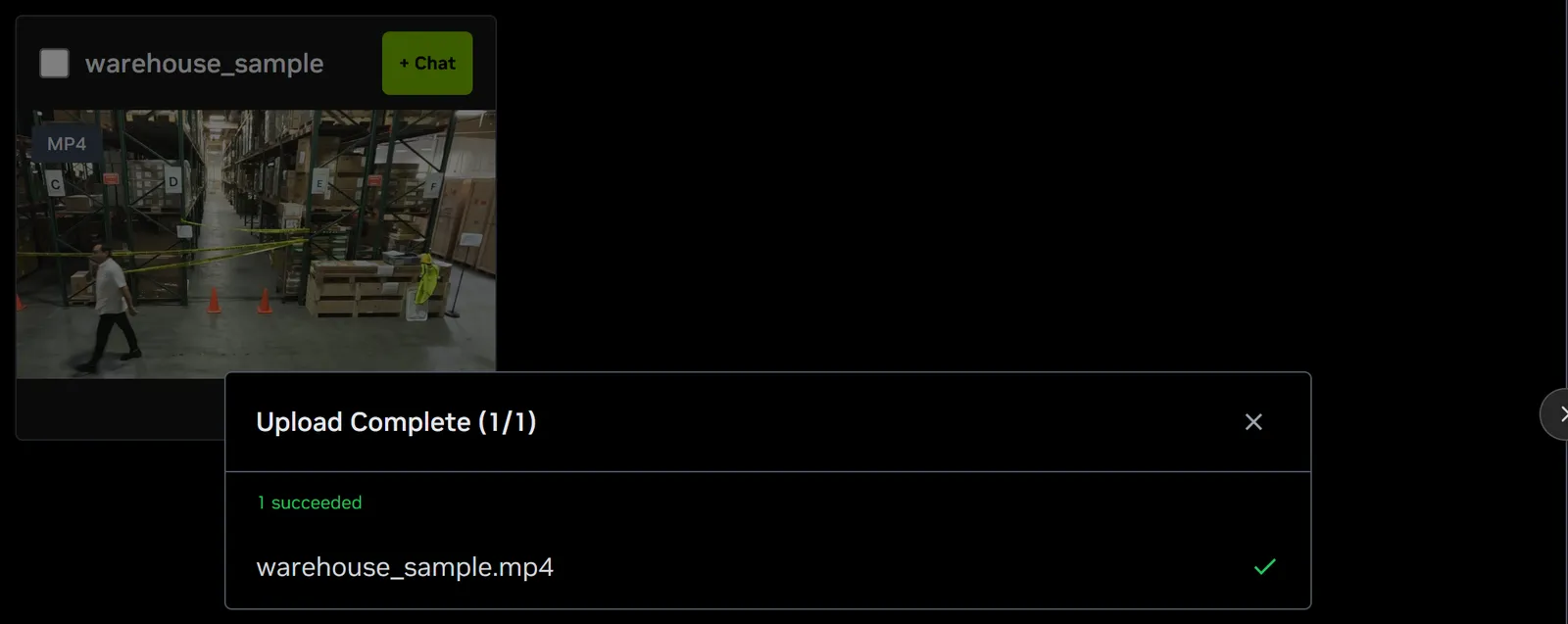
The upload streams the file to VIOS, whose notification webhooks fan it out to RTVI-CV, RTVI-Embed, and RTVI-VLM for detection, embedding, and tagging. Uploaded files support video/mp4 and video/x-matroska content types.
- Vector embeddings generated for the uploaded videos and streams remain only until minimum index age is reached (from the time of first upload).
- After that, the embeddings are deleted and the uploaded videos and streams are no longer searchable.
- However, the uploaded videos and streams are still accessible in the video management tab. The videos and streams have to be re-uploaded/added to make them searchable again.
- Default minimum index age is 48 hours for the Search Workflow. This can be configured in the ILM (Index Lifecycle Management) policy settings in the Dashboard, before the indices are expired.
Add an RTSP Stream
From the UI’s Video Management tab, add a live RTSP stream as a video source by providing:
- RTSP URL (required): The RTSP stream URL (e.g.,
rtsp://<HOST_IP>:<PORT>/nvstream/tmp/nv_streamer/videos/warehouse_sample.mp4) - Sensor Name (required): A descriptive name for the camera (e.g.,
warehouse_sample.mp4). This field is automatically populated from the RTSP URL but can be edited.
Once added, the RTSP stream appears in the video list alongside uploaded videos and can be used for search queries.
When an RTSP stream is added, VIOS registers it and its notification webhooks fan it out to RTVI-CV, RTVI-Embed, and RTVI-VLM, as for uploaded videos.
Create an RTSP Stream from a Video Using NVStreamer
If you have a video file and want to stream it as an RTSP source, you can use the NVStreamer service that is deployed alongside other services.
Access NVStreamer
The NVStreamer UI is available at http://<HOST_IP>:31000, where <HOST_IP> is the same IP address used for the agent UI.
Upload a Video to NVStreamer
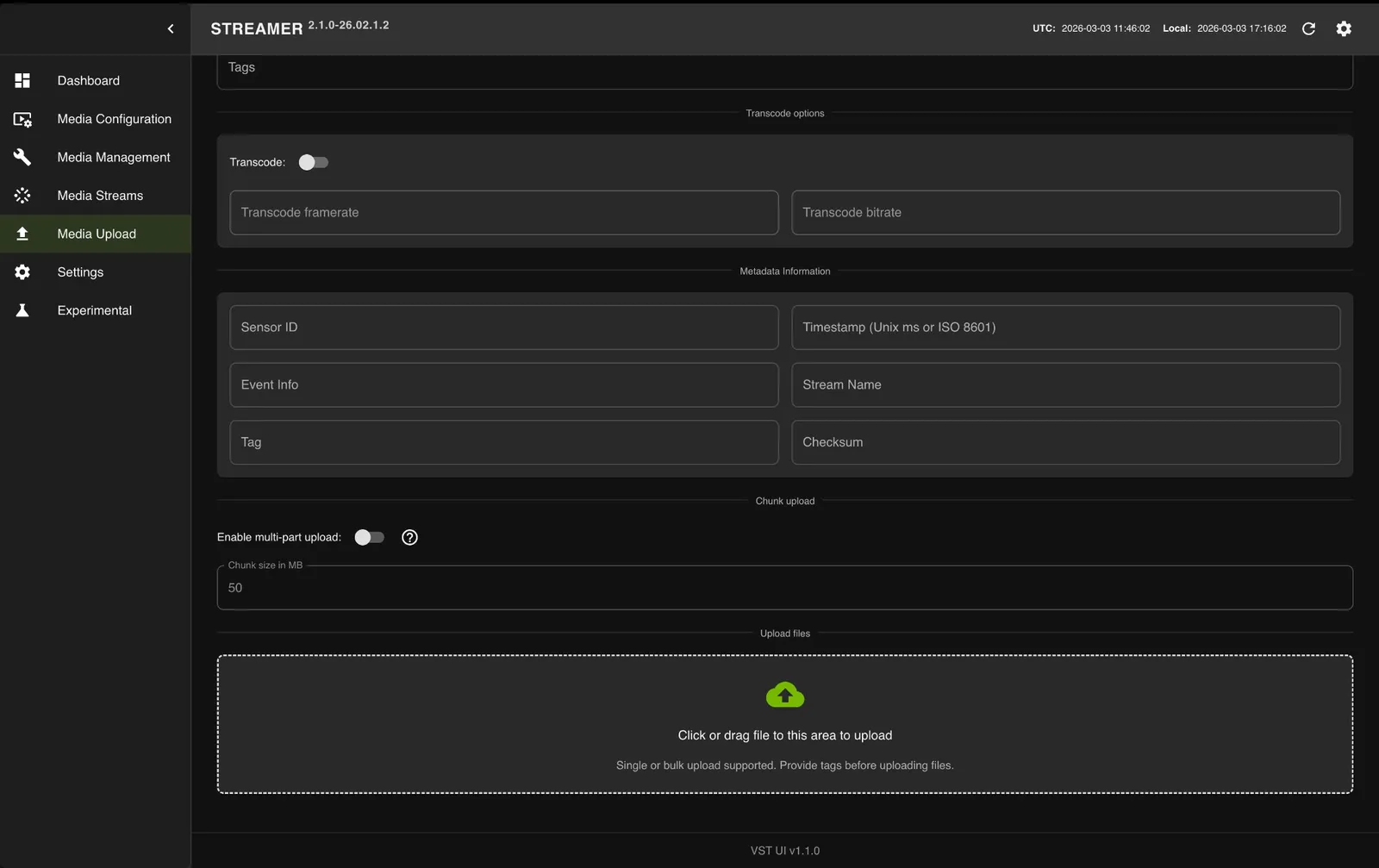
- Open the NVStreamer UI at
http://<HOST_IP>:31000. - Click on the Media Upload tab in the left sidebar.
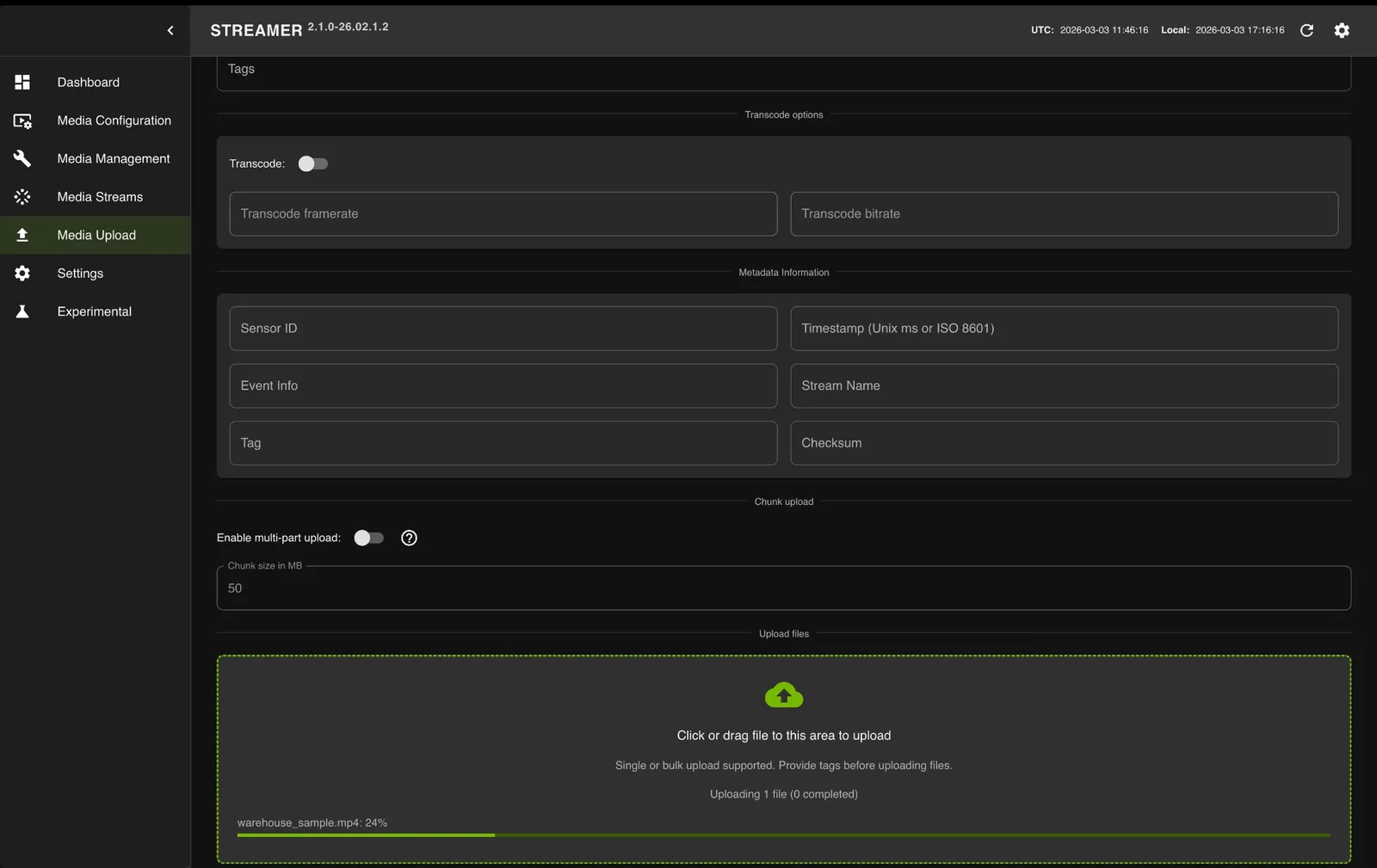
- Click or drag video files to the upload area.
- Wait for the upload to complete.
Get the RTSP URL
- After the upload completes, click on the Dashboard tab.
- Locate your video in the table and copy the RTSP URL using the copy button.
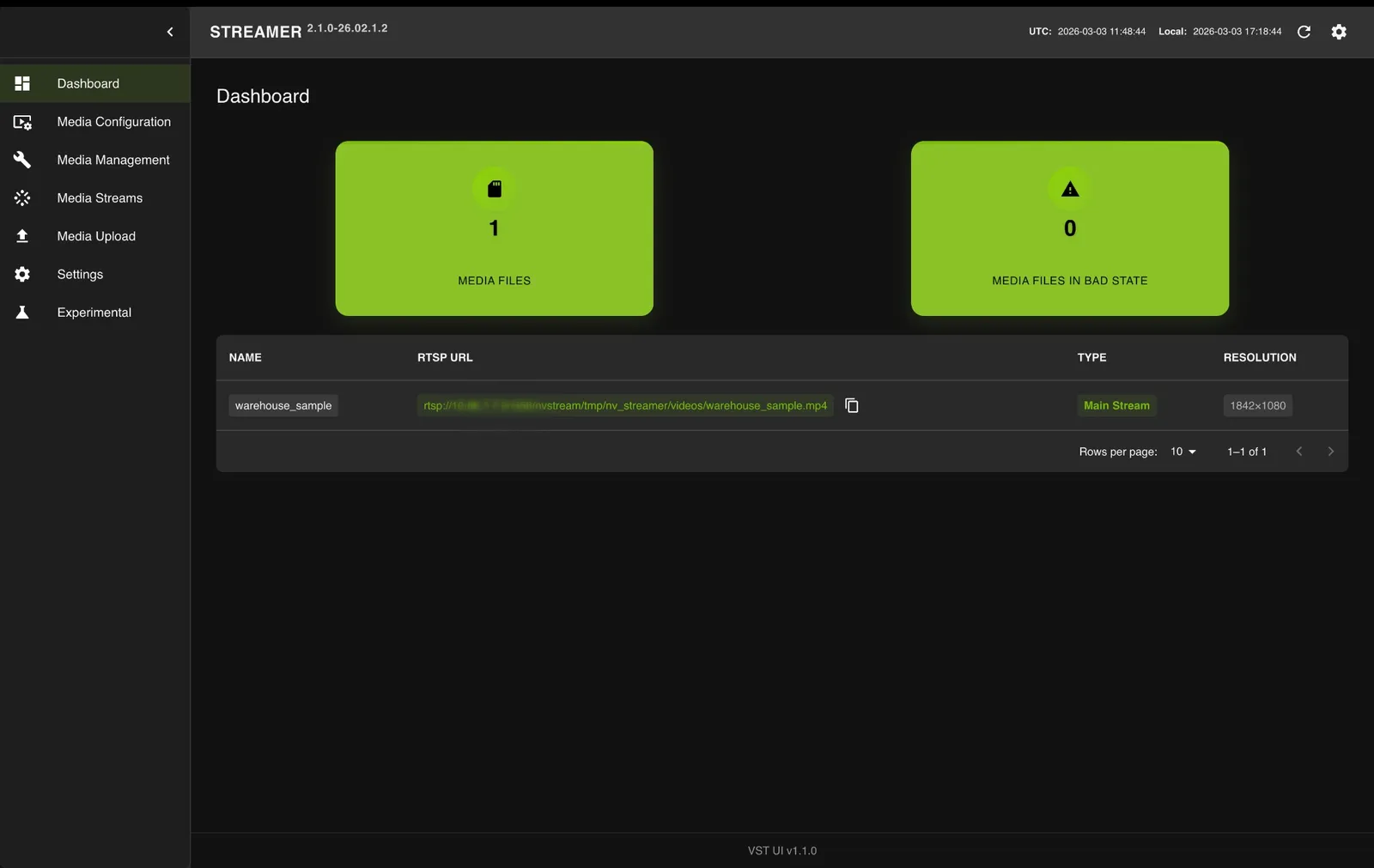
Add the RTSP URL to the Agent
Add the copied RTSP URL (e.g., rtsp://<HOST_IP>:31556/nvstream/tmp/nv_streamer/videos/warehouse_sample.mp4) as an RTSP stream in the UI’s Video Management tab (see above) to use it as a video source for search queries.
To avoid duplicate results due to looping of the same video, ensure that the RTSP stream is deleted from the video management tab some time after it has been added to the agent for search queries.
Step 3: Search with the Vision Agent chat
The Search tab includes a Vision Agent chat interface on the right side. All Search Tab results come from this chat path. The Vision Agent automatically selects the best search method based on your query. You can also specify filters directly within your query instead of using the filter panel.
Using the Chat Interface
-
Navigate to the Search tab.
-
Click the round Chat button at the bottom right to open the chat sidebar.
-
Open the chat settings popover next to the chat input and configure:
- Search media source type: Select from the dropdown (for example,
video_fileorrtsp) to specify which source index to search. - Enable Critic: Toggle the critic agent on or off for this query. The toggle is on by default; turn it off to skip VLM verification of the results for this request (e.g., for faster responses or when exploring broad results).
- Search media source type: Select from the dropdown (for example,
-
Enter a natural language query in the chat input at the bottom (e.g.,
a person with green jacket). -
Press Enter or click the send button to submit your query.
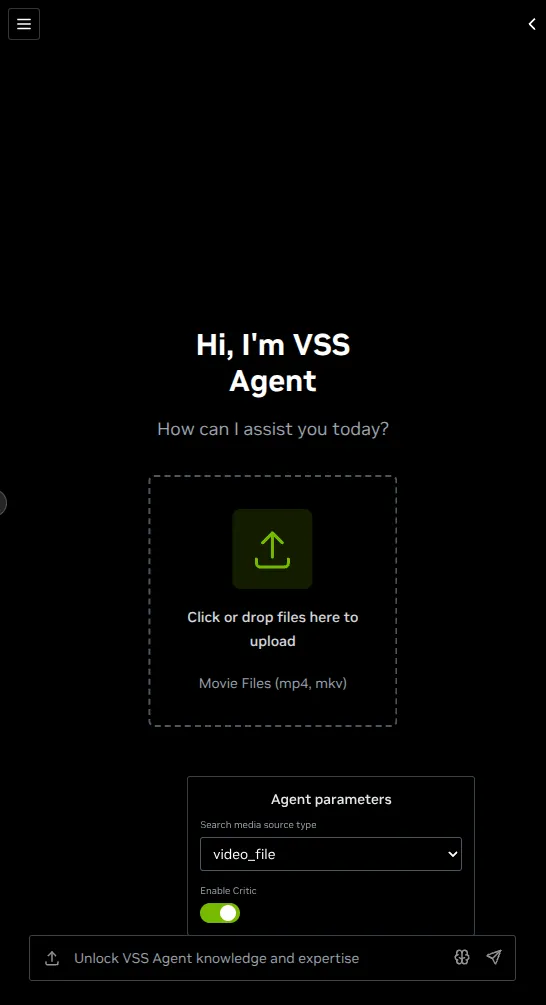
Result Returned by the Agent
The Vision Agent processes your query, selects the best search method (Embed, Attribute, Fusion, or Search by Image), and returns matching video clips in the left panel.
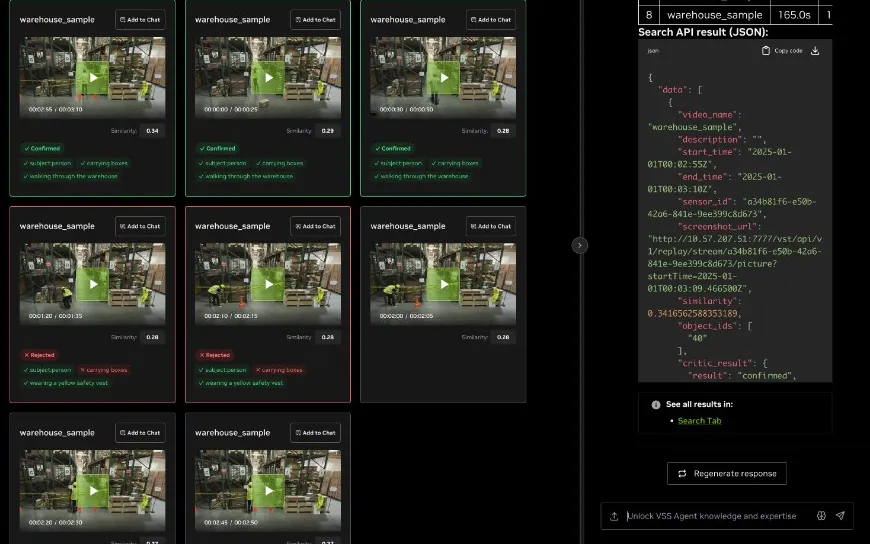
The query returns up to 10 results by default. To get more, ask for a specific count in the query (for example, top 20) and raise Show top K Results in the filters (Step 4) to display them.
Each response in the chat window includes:
-
Intermediate Steps — Expandable section showing the sequence of function calls and tool invocations the agent makes to process your query.
-
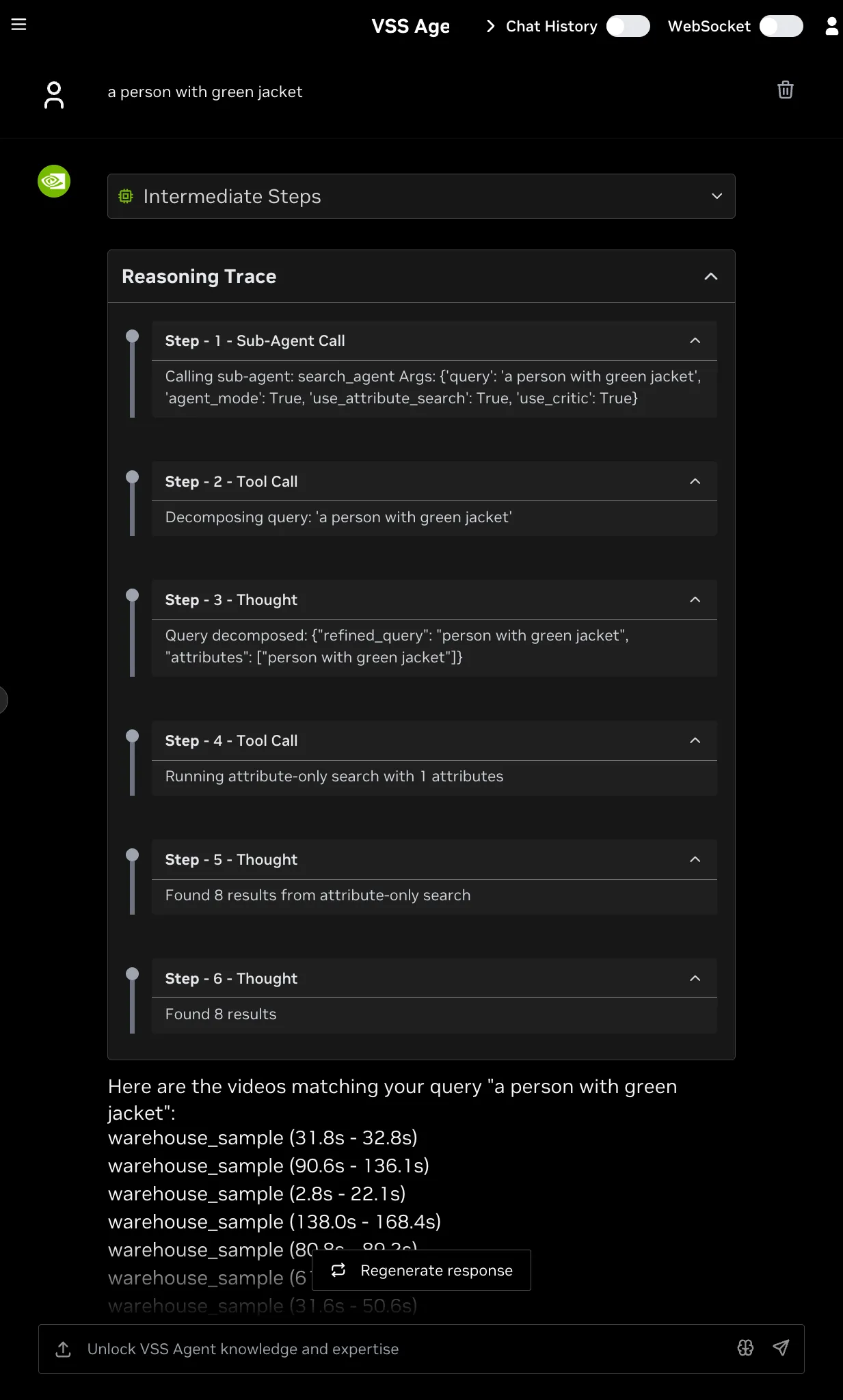
Reasoning Trace — Step-by-step breakdown of the agent’s decision-making: query decomposition, search method selection, and result summary. Expand each step for full details.
-
Search Results Summary — Number of matching videos found (e.g., “Found 10 matching videos”).
-
Search API result (JSON) — Raw JSON response with detailed metadata for each result:
-
video_name: Name of the source video -
description: Match description -
start_time/end_time: Clip timestamps in ISO 8601 format -
similarity: Cosine similarity score -
sensor_id: Source sensor identifier -
screenshot_url: URL to the clip thumbnail -
object_ids: Detected object identifiers -
critic_result(only present when the critic agent is enabled for the request): Verification details for the clip:result:"confirmed"or"rejected".criteria_met: A map of each criterion extracted from the query to a boolean indicating whether the clip satisfies it (e.g.,{"subject:person": true, "carrying boxes": false, "wearing a yellow safety vest": true}).
-
-
Download — Download the JSON response as a file.
-
Regenerate response — Re-run the query for updated results.
The Vision Agent chat interface in the Search tab only supports searching for events, actions, and object attributes in videos and RTSP streams.
Reasoning Trace
The Reasoning Trace section provides a step-by-step breakdown of the agent’s internal decision-making process. You can see which search method was used and how the agent interpreted your query by expanding the Reasoning Trace in the chat response.
It shows:
- Sub-Agent Call — The initial call to the
search_agentwith parameters such asagent_mode,use_attribute_search, and the user query. - Tool Call — Query decomposition and search execution steps, such as running embed search, attribute-only search, fusion reranking, Search by Image, or critic verification.
- Thought — The agent’s interpretation and progress, including the refined query, extracted attributes, selected time/source filters, image-search context, result counts, fallback decisions, and critic status.
Understanding Search Types in Agent Chat
Follow up questions related to the search results (e.g., What are the durations of the top 5 results?) can also be asked in the chat interface.
The Vision Agent uses four search methods to find relevant video clips and objects. It automatically selects the best method based on the decomposed query:
Embed Search
- Searches for events, actions, and activities in videos (e.g., “carrying boxes”, “walking”, “driving”)
- Uses semantic embeddings to understand the context and meaning of actions
- Used for queries that describe what is happening in the video
Attribute Search
- Searches for visual descriptors and object attributes (e.g., “person with green jacket”, “person in a hard hat”)
- Uses behavior embeddings to find specific visual characteristics
- Used for queries that describe how objects or people look
- Note: Results with the same object (same sensor_id and object_id) are automatically merged together, combining their time ranges into a single longer clip. Clips shorter than 1 second are extended to at least 1 second. This means attribute search results can have variable durations depending on how many times the same object appears in the top results.
- Multiple Attributes: When multiple attributes are recognized in an attribute-only search, the system uses “append mode” - each attribute is searched independently with the requested top_k, and results from all attributes are combined.
Fusion Search
- Combines both Embed and Attribute search for queries that include both actions and visual descriptors
- First finds relevant events using embed search, then reranks the embed results based on attributes to search for
- Automatically falls back to attribute-only search if the embed search confidence is low
- Used for complex queries like “a person with a green jacket carrying boxes”
- Multiple Attributes in Fusion: When multiple attributes are recognized in fusion search, the system uses “fuse mode” - each attribute is searched with top_k=1 in the same video, and object IDs from all matching attributes are combined into a single result with one screenshot. This ensures that fusion results show objects that match all specified attributes together.
Search by Image
-
Searches for objects visually similar to a selected object bounding box on a paused video frame
-
Fetches the selected object’s embedding from the behavior index and runs object-level KNN search
-
Bypasses embed search and fusion reranking
-
Used after the user pauses on a video clip from one of the search results (using one of the above search methods) and selects a bounding box on the paused video frame
-
Using Search by Image:
-
Click on one of the video clips in the search results and pause the video.
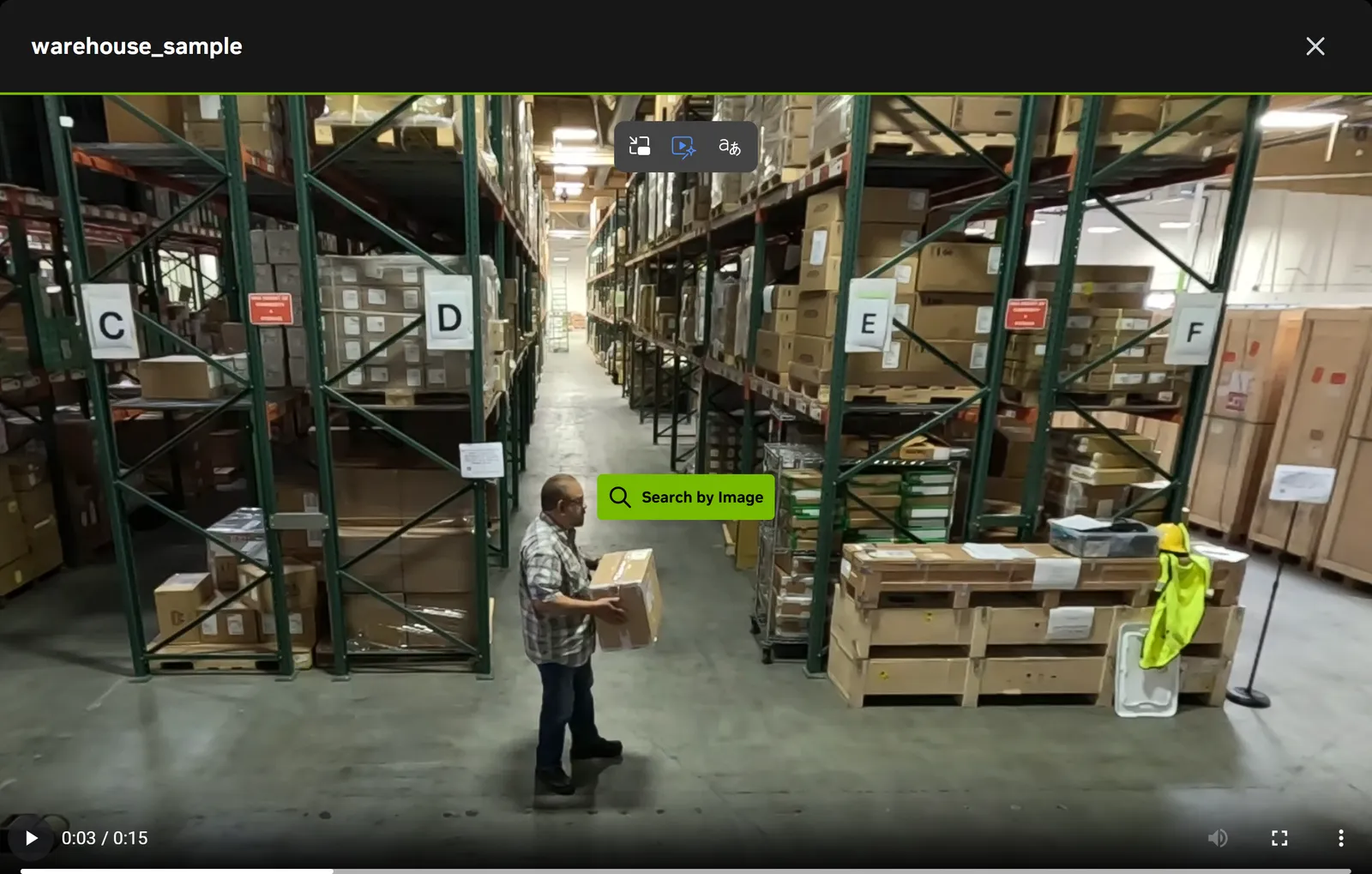
-
Then click ‘Search by Image’. Wait for interface to load metadata of the paused video frame.
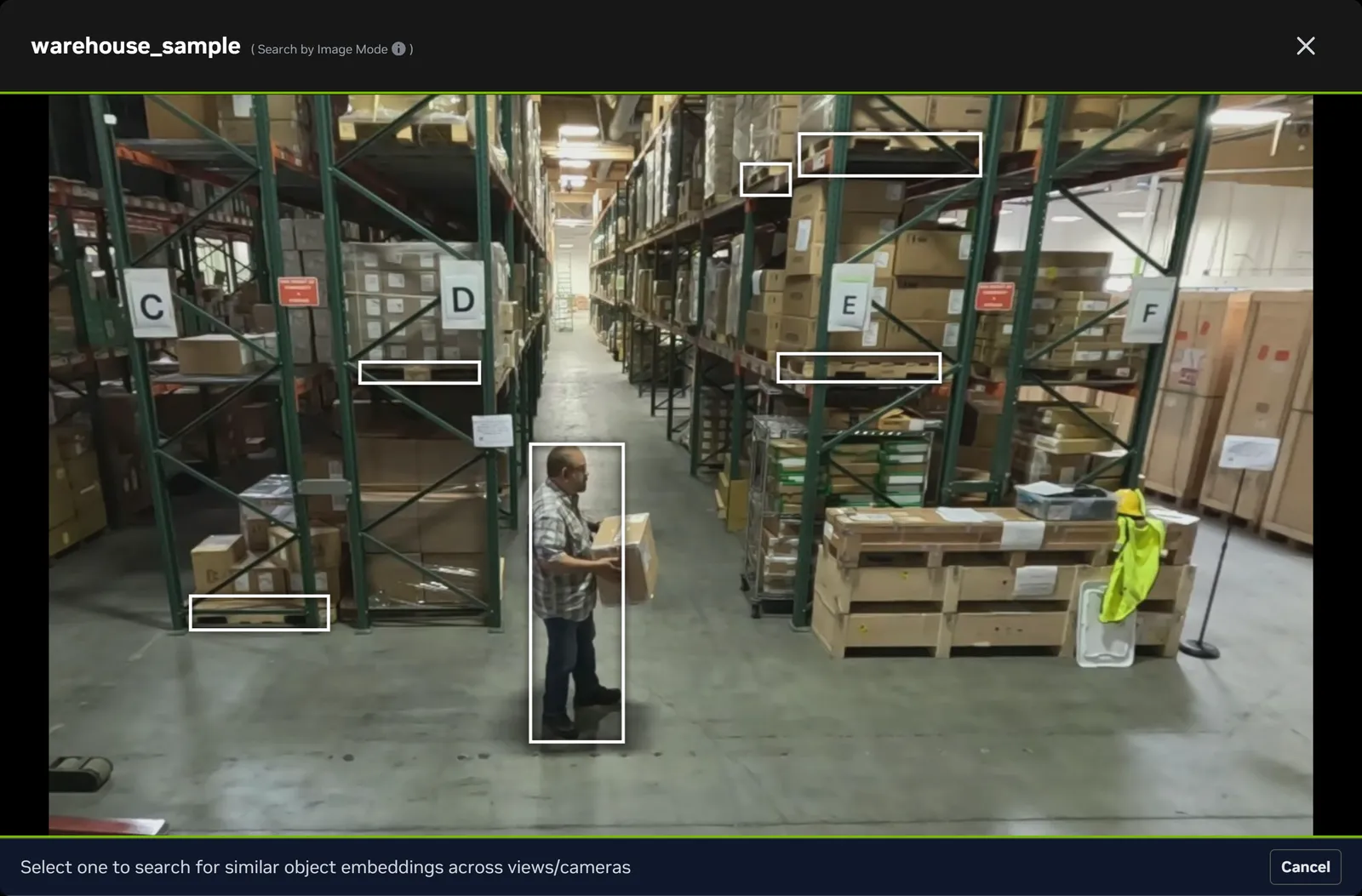
-
Select one of the bounding boxes overlaid on the video frame and click ‘Search’.
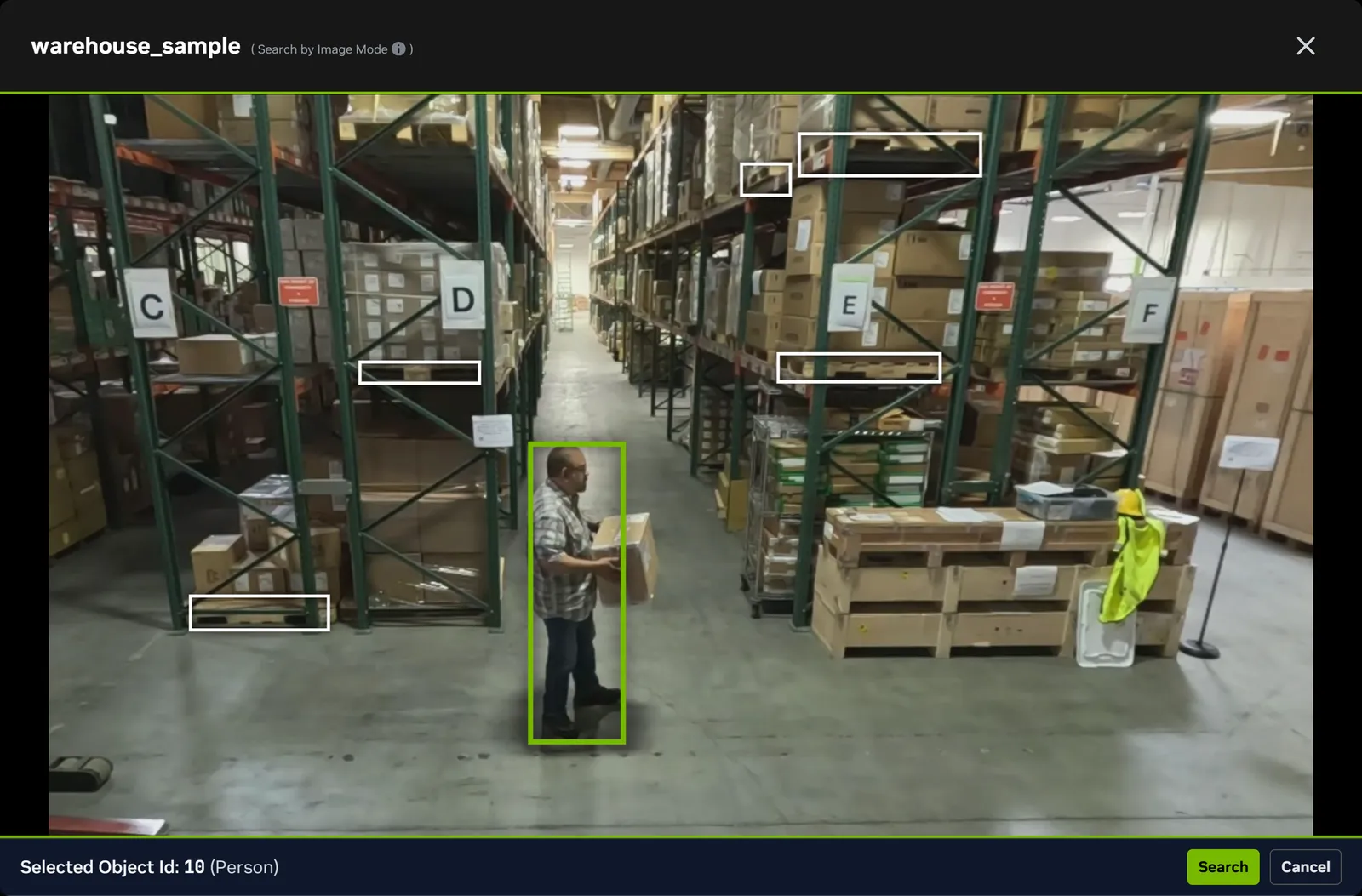
-
The search results will be returned in the chat interface against the query
Find similar objects matching object_id=<>.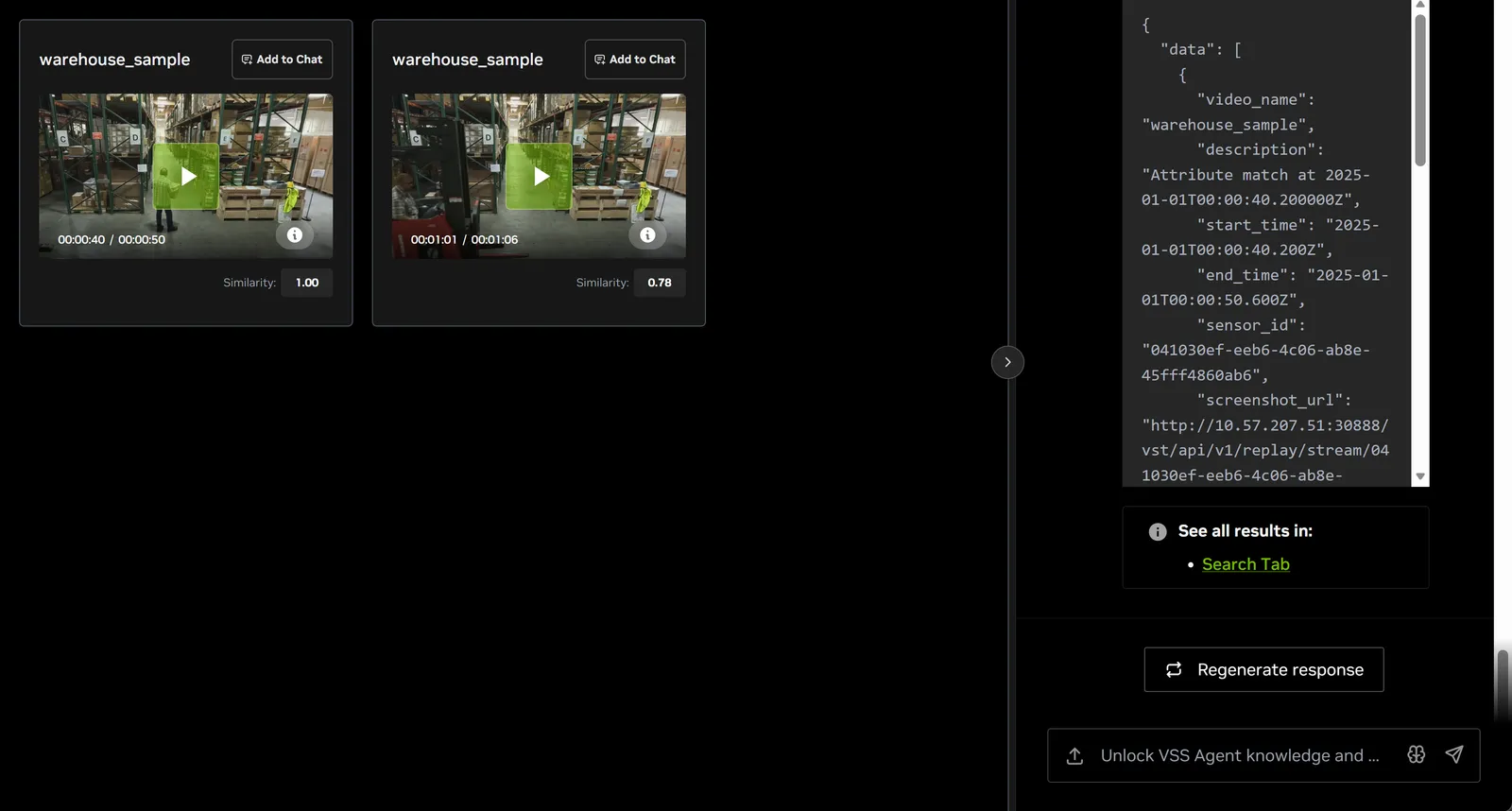
-
Fusion Algorithm Options
By default, fusion search uses Reciprocal Rank Fusion (RRF) with default weights. No configuration changes are required.
If you need to customize the fusion algorithm, you can modify the settings in the search agent configuration file at deploy/docker/developer-profiles/dev-profile-search/vss-agent/configs/config.yml:
Reciprocal Rank Fusion (RRF) - Default
Formula: rrf_score = 1.0 / (rank_action + rrf_k) + rrf_w * normalised_attribute_score
Weighted Linear Fusion
Formula: fusion_score = w_embed * embed_score + w_attribute * normalised_attribute_score
RRF with Attribute Rank
This option combines the embed rank and attribute rank instead of combining embed rank with the normalized attribute score.
Formula: rrf_score = 1.0 / (rank_embed + rrf_k) + rrf_w * (1.0 / (rank_attribute + rrf_k))
Embed Confidence Threshold
You can also configure the embed_confidence_threshold parameter to control when fusion search falls back to attribute-only search:
Top Percent Filter
The optional top_percent_filter setting filters results before consecutive segments are merged. For example, 0.9 keeps only results with similarity greater than or equal to 90 percent of the highest similarity in the current result set.
Understanding Search Path Selection
The Vision Agent automatically selects the best search method based on your query. Here’s how different queries are processed:
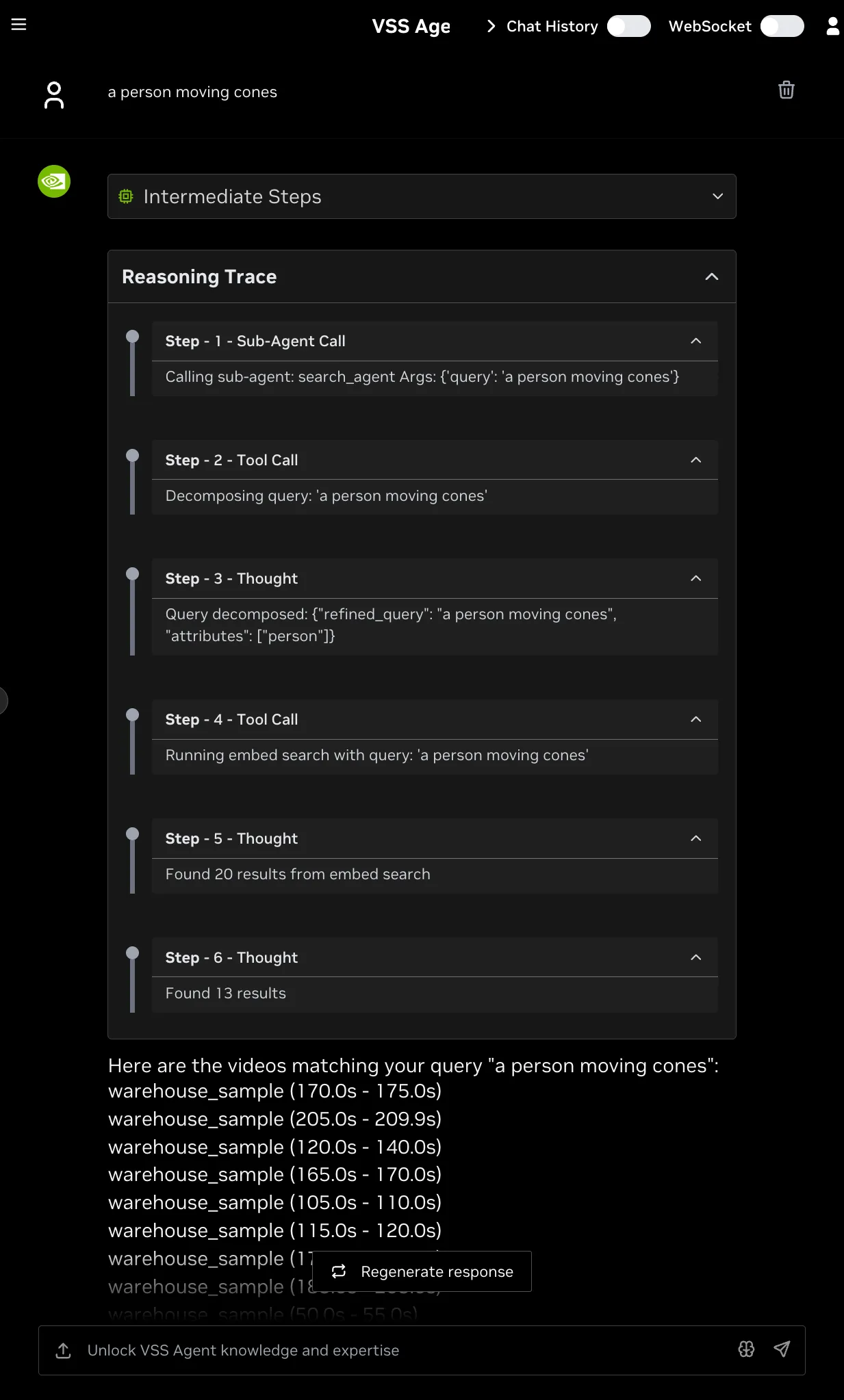
Example 1: Embed Search Only
Query: “a person moving cones”
- Search Type: Embed Search
- Why: The query describes an action/event with no descriptive visual attributes
- Process: Searches event embeddings to find clips showing the action
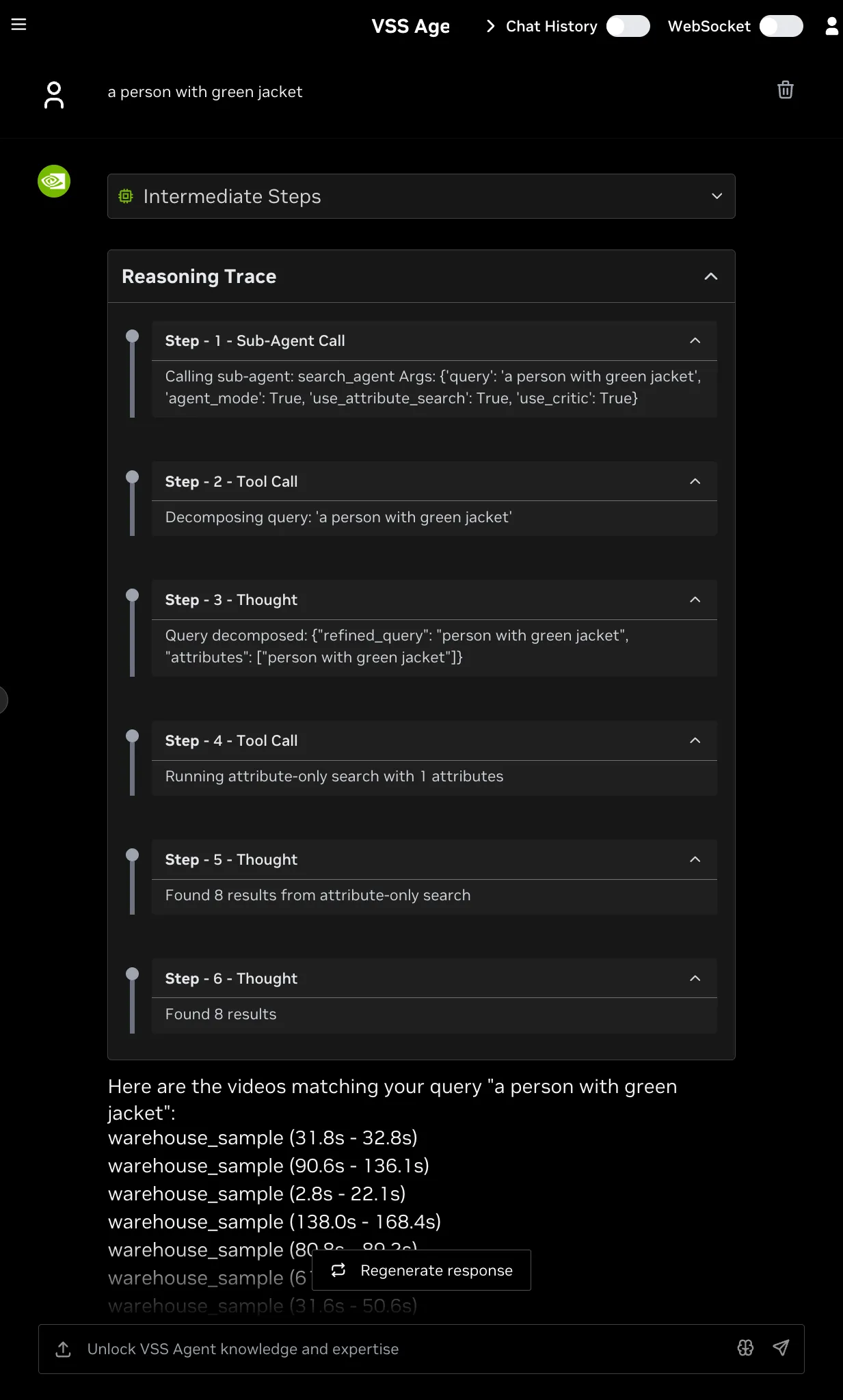
Example 2: Attribute Search Only
Query: “person in green jacket”
- Search Type: Attribute Search
- Why: The query contains only visual descriptors (attributes), no actions
- Process: Searches behavior embeddings to find objects matching the visual description
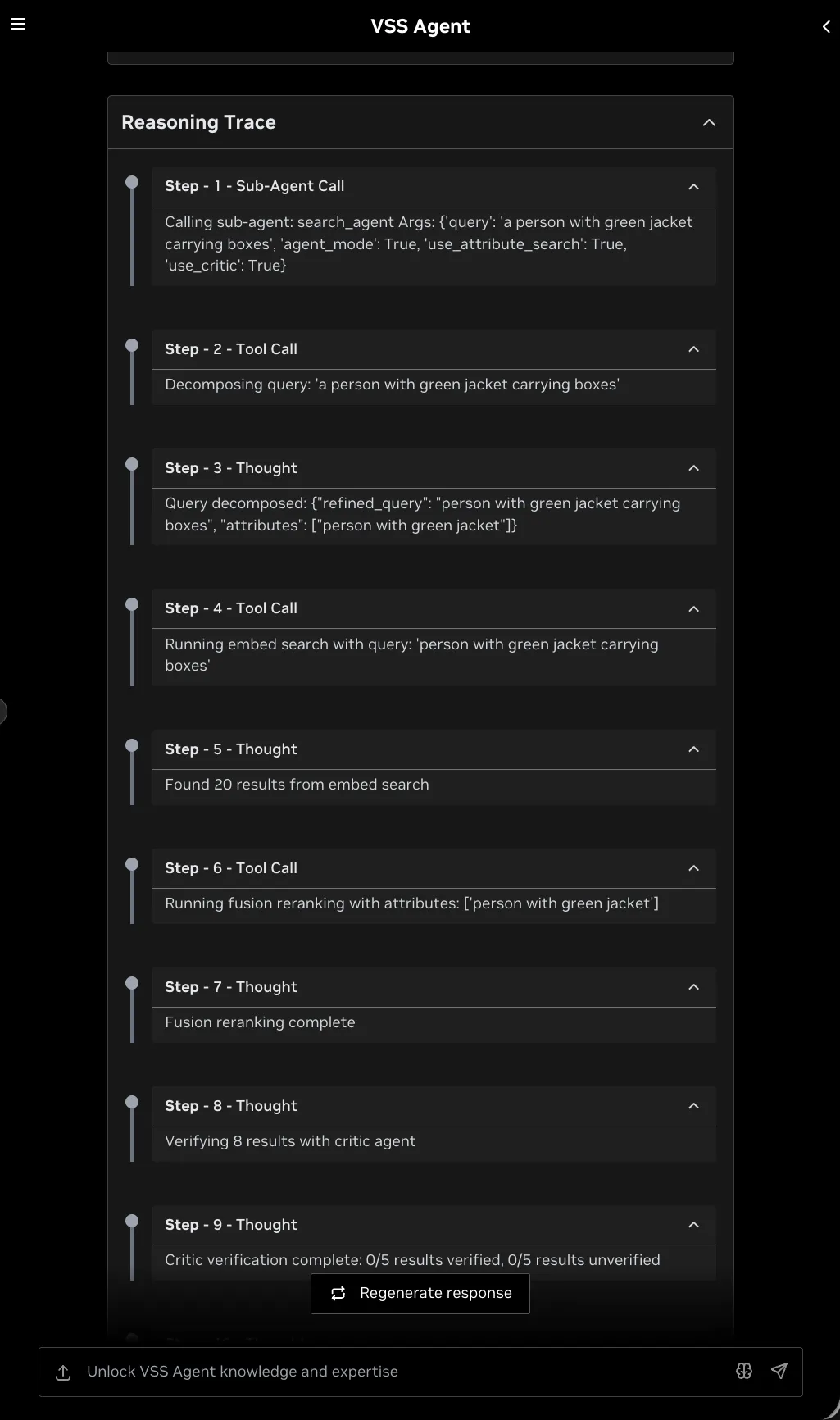
Example 3: Fusion Search
Query: “a person carrying boxes in green jacket”
- Search Type: Fusion Search
- Why: The query contains both visual attributes (“green jacket”) and an action (“carrying boxes”)
- Process:
- First performs Embed Search to find clips showing “carrying boxes”
- Then reranks the embed results based on attributes to search for (e.g., “green jacket”)
- Combines scores from both searches for more accurate results
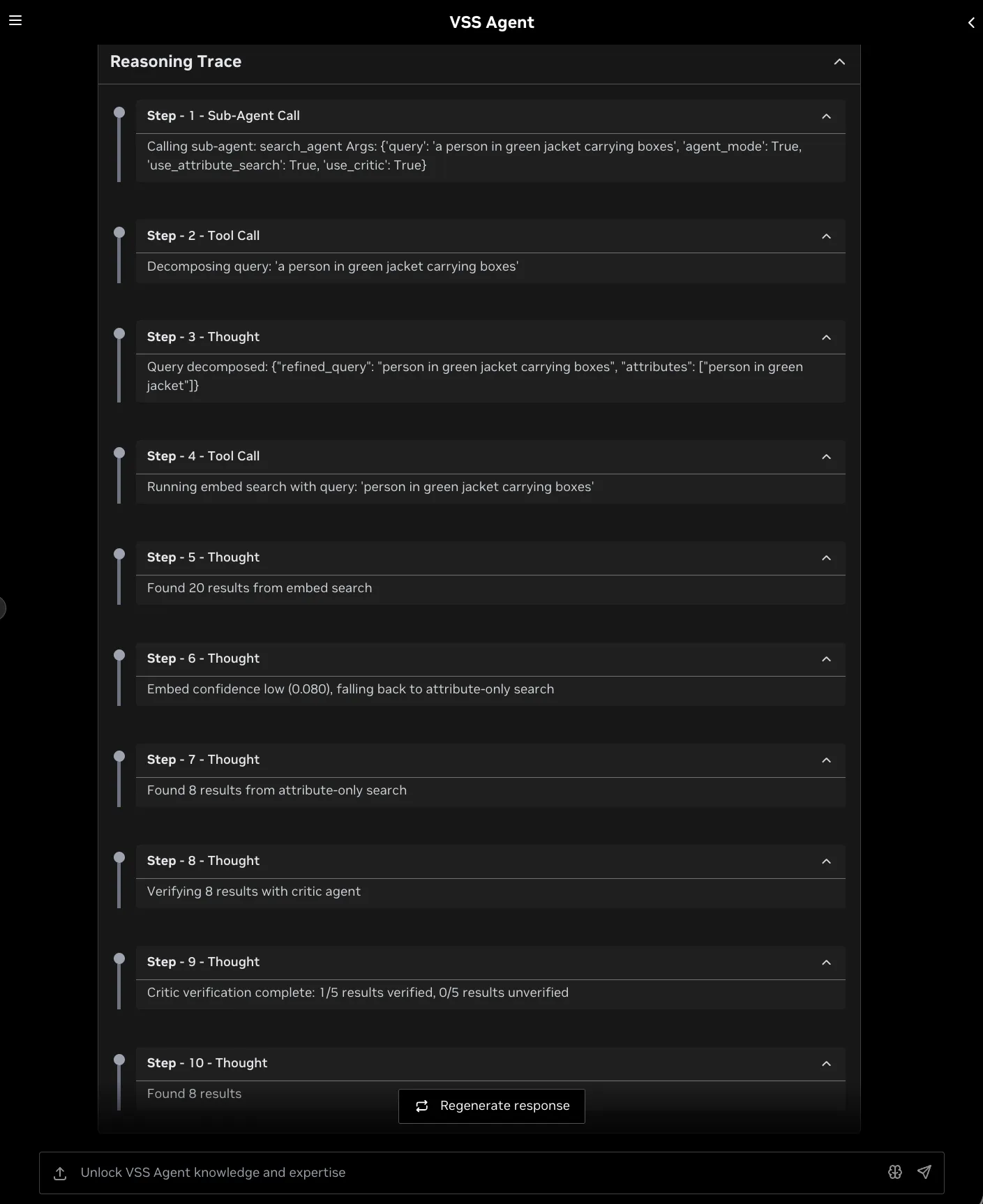
Example 4: Fallback to Attribute Search
Query: “person running in green jacket”
- Search Type: Attribute Search (fallback from Fusion)
- Why: The query contains both attributes and action, but the embed search confidence is too low (below
embed_confidence_threshold) - Process: Falls back to Attribute Search only when embed search confidence is insufficient for fusion
Example 5: Search by Image
Action: Select an image from a previous result and start Search by Image
- Search Type: Search by Image
- Why: The query starts from a visual example selected in the UI.
- Process:
- Looks up the selected object’s embedding in the behavior index.
- Uses that embedding as the query vector.
- Returns similar objects with timestamps, screenshot URLs, and object IDs.
Step 4: Narrow results with filters
To try additional filters, upload the video file sample-warehouse-ladder.mp4 (following the steps in Step 2: Upload a video).
Run a query as in Step 3, then collapse the chat sidebar with the chevron button (Collapse Chat sidebar) on its left edge. The controls below are in the left sidebar and are disabled while the chat sidebar is open or a response is streaming. They narrow the results the query returned:
- Expand Filters in the left sidebar. Changes apply as you edit the fields:
- Video sources: Show results only from the selected videos
- Min Cosine Similarity: Set a minimum similarity threshold (-1.00 to 1.00) to filter results based on how closely they match your query. Set a lower threshold for broader results, or raise it for high-confidence matches. Optimal values vary depending on the video content.
- Show top K Results: Set the maximum number of returned results to display (default 10)
Configure the desired filters. They refine the clips already returned by the agent and do not issue a new search.
For example, in the filter panel:
- Select specific Video sources to show results only from those videos
- Set Min Cosine Similarity to
0.2to only show results with a similarity score of 0.2 or higher - Set Show top K Results to
5to display maximum of top 5 results
After configuring the filters, the search results will be refined based on the applied criteria.
Critic Agent Overview
The Critic Agent is a specialized agent that reviews search results with a VLM and annotates each evaluated result as confirmed or rejected.
When configured, the critic agent reviews search results and annotates evaluated clips before the final response is assembled. If additional search iterations are enabled, rejected results can cause the backend to fetch more candidates. The default search profile sets search_max_iterations: 1, so the critic verifies the initial result set and the result JSON includes the verdict in critic_result.
Enabling/Disabling the Critic Agent
The critic agent runs by default on every query, and whether it runs is decided per request rather than at deploy time. In the Vision Agent chat, open the chat settings popover next to the chat input and use the Enable Critic toggle to turn the critic agent on or off for each query. The toggle is on by default; turn it off when you want raw search results without VLM verification, for example for faster responses or when you are exploring broad results. This toggle corresponds to the use_critic flag in the search request payload.
Because the choice is per request, there is no deployment-wide switch, and the search profile always deploys RTVI-VLM since it also serves the video understanding tool. What the server config controls is how much the critic evaluates, through num_videos_to_evaluate below.
Partial Verification (num_videos_to_evaluate)
The num_videos_to_evaluate configuration parameter controls how many of the top search results are sent to the VLM for verification. Results are ordered by relevance score, and only the first N results (determined by this parameter) are evaluated by the critic. The remaining results are returned as-is without verification.
For example, with the default configuration of num_videos_to_evaluate: 5 and a search that returns 10 results:
- Results 1—5 (highest relevance) are sent to the VLM and receive a verification status (
confirmed,rejected, orunverified) along with acriteria_metbreakdown. - Results 6—10 are included in the final output with a verification status of
--, indicating they were not evaluated.
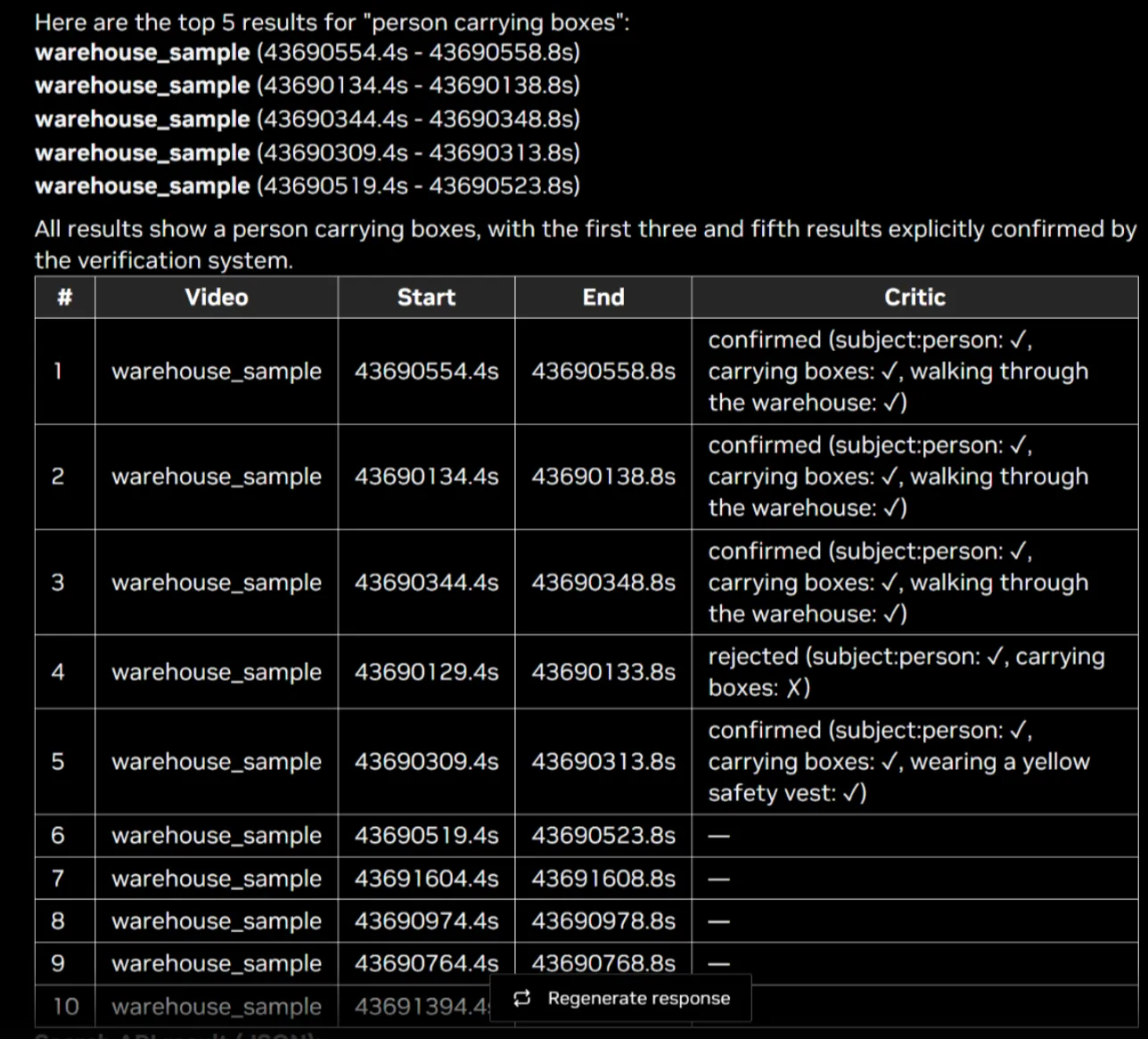
This means the final response contains a mix of verified and unverified results. Verified results have an explicit pass/fail status, while unverified results have no critic metadata. This trade-off reduces VLM inference cost and latency at the expense of full coverage.
To verify all results, set num_videos_to_evaluate to a value equal to or greater than the expected result count, or remove the parameter entirely (the code default evaluates all results when unset).
How the Critic Agent Appears in the Reasoning Trace
When the critic agent is enabled for a request, the Vision Agent’s reasoning trace shows the verification flow:
- Verifying N results with critic agent — The critic agent is invoked to evaluate the candidate set (for example, “Verifying 9 results with critic agent”).
- Critic verification complete — The trace reports how many results were verified and rejected (for example, “Critic verification complete: 2/5 results verified, 3/5 results rejected”).
- Found N results — The final count reflects the result set returned after any configured search iteration. Each evaluated result includes a
critic_resultfield in the JSON output.
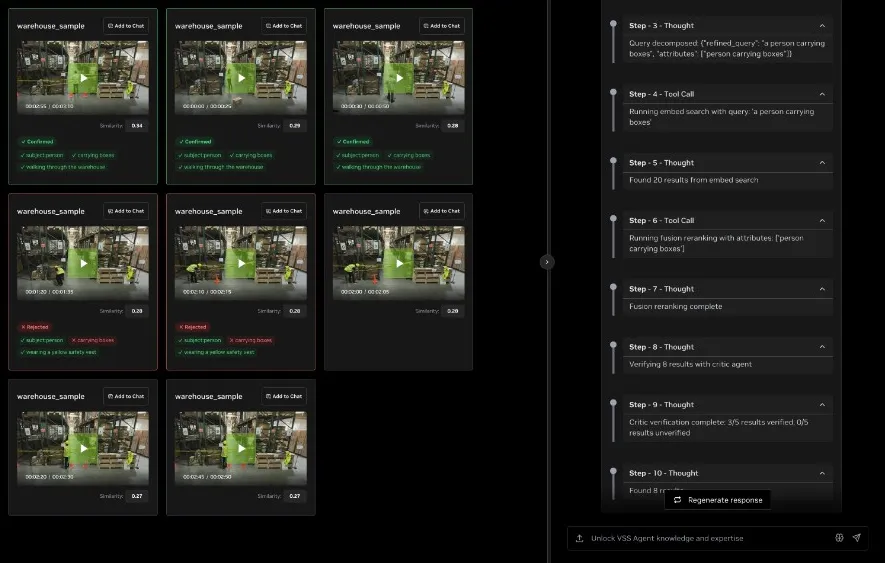
Critic Agent Input and Output
The critic agent uses a VLM (Vision Language Model) to verify each search result clip against the user query. It receives the query and metadata for multiple video clips, fetches and analyzes each clip via the VLM, then classifies each clip as confirmed or rejected.
Input — For each search result clip, the critic receives:
- The user query (e.g., “a person carrying boxes”).
- Video metadata for that clip:
sensor_id,start_timestamp, andend_timestamp.
Verification — For each clip:
- The query is turned into a verification prompt that asks the VLM to break the query into criteria and judge each as true or false for that video.
- A playable URL for the clip is obtained and the clip plus the prompt is sent to the VLM.
- The VLM returns a small JSON object per clip, e.g.,
{"subject:person": true, "carrying boxes": false}.
Decision — Each clip is classified as follows:
- CONFIRMED — Every criterion is true → keep the result.
- REJECTED — Any criterion is false. The result is annotated as rejected, and the system can increment
top_kand run another search iteration if configured.
For each verified clip, the critic output is returned as a critic_result object on that result, with the following fields:
result— One of"confirmed"or"rejected".criteria_met— A map of each criterion extracted from the query to a boolean indicating whether the clip satisfies it (e.g.,{"subject:person": true, "carrying boxes": false, "wearing a yellow safety vest": true}).
How the Critic Result Is Displayed in the UI
When the critic agent has run for a request, the search results panel and chat response display the verification details alongside each clip:
-
Each evaluated result card shows a colored badge that reflects the critic verdict:
- ✓ Confirmed — green badge.
- ✗ Rejected — red badge.
-
The result card border is colored to match the verdict (green for confirmed, red for rejected). Cards from a search that did not run the critic agent retain the default border.
-
Below the badge, each criterion extracted from the query is listed as a small chip with a green check (✓) when satisfied or a red cross (✗) when not satisfied.
-
Search results are sorted by critic verdict before similarity: Confirmed clips appear first, then Rejected. Within each verdict group, clips are ordered by descending similarity score. When the critic did not run for the request, results retain their original similarity ordering.
-
In the chat response, the same per-result outcome is summarized in a table with a Critic column (e.g.,
confirmed (subject:person: ✓, carrying boxes: ✓, walking through the warehouse: ✓)), and the fullcritic_resultobject is included in the Search API result (JSON) payload.
Temporal Deduplication for Video Embeddings
Temporal deduplication is an optional ingestion optimization that keeps only embeddings for new or changing content and skips those similar to recent ones, yielding a smaller, more meaningful set with less storage and processing. It uses a sliding-window algorithm:
- Window — A fixed-size buffer holds the last N vectors (e.g., 60); when full, the oldest is dropped.
- Similarity — For each new embedding, count how many consecutive window entries (newest backward) are “similar” (distance or cosine-similarity threshold). Only consecutive similar neighbors are counted.
- Decision — Below a minimum count (e.g., 3) → store (novel or transitional). At or above minimum → skip (redundant).
- Max interval — If too much time has passed since the last stored point, always store the current point (long gaps are never dropped).
Example (Conceptual)
Suppose the window holds recent embeddings for scenes A, A, B, B, B (oldest to newest).
-
New point like B Counting backward: B, B, B → 3 consecutive similar neighbors. Result: Skip (redundant—same pattern as recent B’s).
-
New point like C (different scene) Counting backward: C is not similar to B → 0 consecutive similar neighbors. Result: Store (novel—new pattern).
-
New point like B, but we’re just coming from A Window: A, A, A, B, B. New point like B. Backward: B, B → 2 similar; then A is not similar → count stays 2. Result: Store (transitional—B is “new” relative to recent A’s).
So the same “B-like” embedding is sometimes stored (when it marks a transition) and sometimes skipped (when it’s just more of the same), which is what you want for temporal deduplication.
Advantages
Fewer embeddings and faster search while preserving scene changes and transitions; loops and repetitive content are deduplicated. Window size, similarity threshold, and minimum-neighbor count are configurable (stricter = more points kept; looser = more compression).
Caveat
Deduplication is lossy — skipped embeddings do not appear in search results. A higher similarity threshold reduces missing important transitions but can lower query recall (e.g., a static 30-second scene may return results covering only part of it). Use this feature when optimizing storage or search performance by reducing embedding volume.
Step 5: Delete Videos or Streams
You can delete uploaded videos or RTSP streams from the UI’s Video Management tab. Once deleted, the selected videos or streams are removed from the video list and no longer appear in search results.
Deleting an uploaded video is best-effort. The agent deletes matching documents from the embed, behavior, and raw Elasticsearch indices when Elasticsearch cleanup is configured, removes the RTVI-CV registration when configured, and deletes the VIOS sensor and storage. Deleting an RTSP stream removes the live stream from VIOS and RTVI services, but the search profile keeps VIOS storage for removed RTSP streams and does not delete previously indexed Elasticsearch data. Previously ingested RTSP data can remain available for chat and search queries until index lifecycle cleanup removes it.
Step 6: Teardown the agent
To teardown the agent, run the following command:
This command stops the manually deployed search-profile containers and removes their Compose volumes.
Service Endpoints
Once deployed, the following services are available:
Changing Embedding Models
Real-Time Embedding
The Real-Time Embedding microservice (RT-Embed) supports the Cosmos-Embed1 model, a joint video-text embedder.
Cosmos-Embed1-448p-anomaly-detection is the default variant deployed with the VSS search profile.
To use a different model, for example, Cosmos-Embed1-448p set the environment RTVI_EMBED_MODEL and MODEL_PATH variables as follows:
RTVI_EMBED_MODEL— Identifier for the embedding model used by RT-EmbedMODEL_PATH— HuggingFace repository URL from which RT-Embed downloads the model at startup
Real-Time Object Embedding
The Real-Time Video Intelligence CV microservice (RTVI-CV) supports CLIP-style image (vision encoder) and text embedder models.
SigLIP2 is the default model deployed with the VSS search profile.
Output Embedding Dimension
The object embeddings are stored in elasticsearch as vector embeddings, using a fixed dimension of 1152 for SigLIP2.
Known Issues
-
A race condition between RTVI-embed and LLM NIM during deployment can result in an unhealthy state for the RTVI-embed container. To resolve this:
- Stop the LLM NIM.
- Wait for RTVI-embed to become healthy.
- Restart LLM NIM.
-
Queries with negative intent (e.g., “people without a yellow hat”) may return the same results as positive intent queries (e.g., “people with a yellow hat”).
-
Sometimes, the agent may also return false positive results (i.e., results that are not relevant to the query).
-
Queries with a single word (e.g., “person”) may return no results.
-
The duration of video clips in search results may be longer than the displayed duration.
-
‘Description’ is empty in the response generated by the Vision Agent chat interface.
-
Uploading a video through the Agent chat sidebar in the Search profile returns an
Internal Server Error. During upload through chat sidebar, query is sent to the agent, and the top agent for search currently does not have the necessary support to handle this. -
By default, the timestamps for uploaded videos start from
2025-01-01 00:00:00. -
When an RTSP stream is added, an extra
mdx-raw-1970-01-01index may be created in Kibana for the initial frames. This index can be safely ignored; subsequent frames are written to the current-datemdx-raw-*index, and search results are unaffected. -
Renaming an uploaded RTSP stream after it has been added is not supported. We would need to delete the existing entry from the Video Management tab and re-add the RTSP stream with the new name.
-
Deleting an RTSP stream that has ended, may subsequently fail new stream addition or a new video upload.
-
When a source video is removed from NVStreamer, the corresponding RTSP stream continues to appear as a live input in the VSS UI Video Management tab.
-
When the critic agent is enabled and VLM service is not available, the search results may not appear in the main window.
-
For RTSP streams with H265 encoding that have been removed, thumbnail may not be visible in the VSS UI. See Image capture failure for more details.
-
An ‘Index not found’ error may occur, when there are no videos corresponding to the source type selected.
-
When uploading a video to VIOS, if the video is larger than the maximum upload size, the upload may fail. See Why do large file uploads to VIOS fail? for more details.