

Observability
This page covers observability features for VSS Agents, including distributed tracing via Phoenix.
Overview
VSS Agents support distributed tracing through Phoenix, an open-source observability platform for AI applications. The NeMo Agent Toolkit (NAT) natively integrates with Phoenix as a built-in telemetry exporter, enabling you to monitor and debug agent workflows.
Phoenix provides:
- Project-based Organization: Organize traces by workflow or deployment
- Distributed Tracing: Track agent execution flow, tool calls, and LLM interactions
- Performance Monitoring: Analyze latency, token usage, and throughput metrics
- Debugging: Inspect individual traces to understand agent behavior and diagnose issues
Enabling Telemetry
To enable Phoenix telemetry in the agent service, configure the telemetry settings in your agent’s configuration file. Refer to Agent Configuration for the full configuration reference.
Navigating the Phoenix UI
Once Phoenix telemetry is enabled and your agent is running, access the Phoenix UI at http://<your-machine-ip>:7777/phoenix.
Projects View
The Phoenix UI organizes traces by project. Select a project to view all traces associated with that agent workflow.
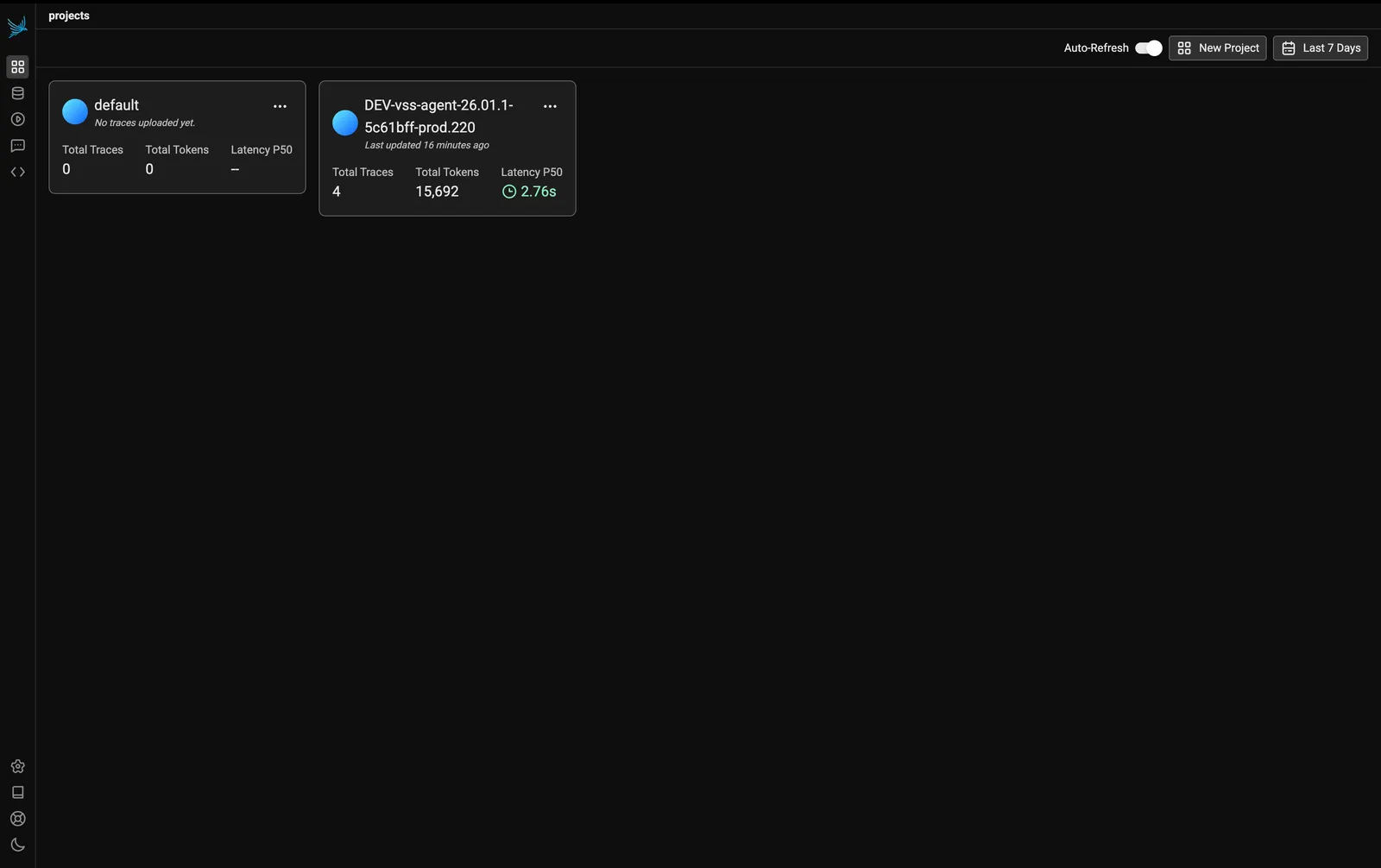
In the example above, select the DEV-vss-agent-26.01.1-5c61bff-prod.220 project to view traces from the VSS Agent workflow.
Traces List
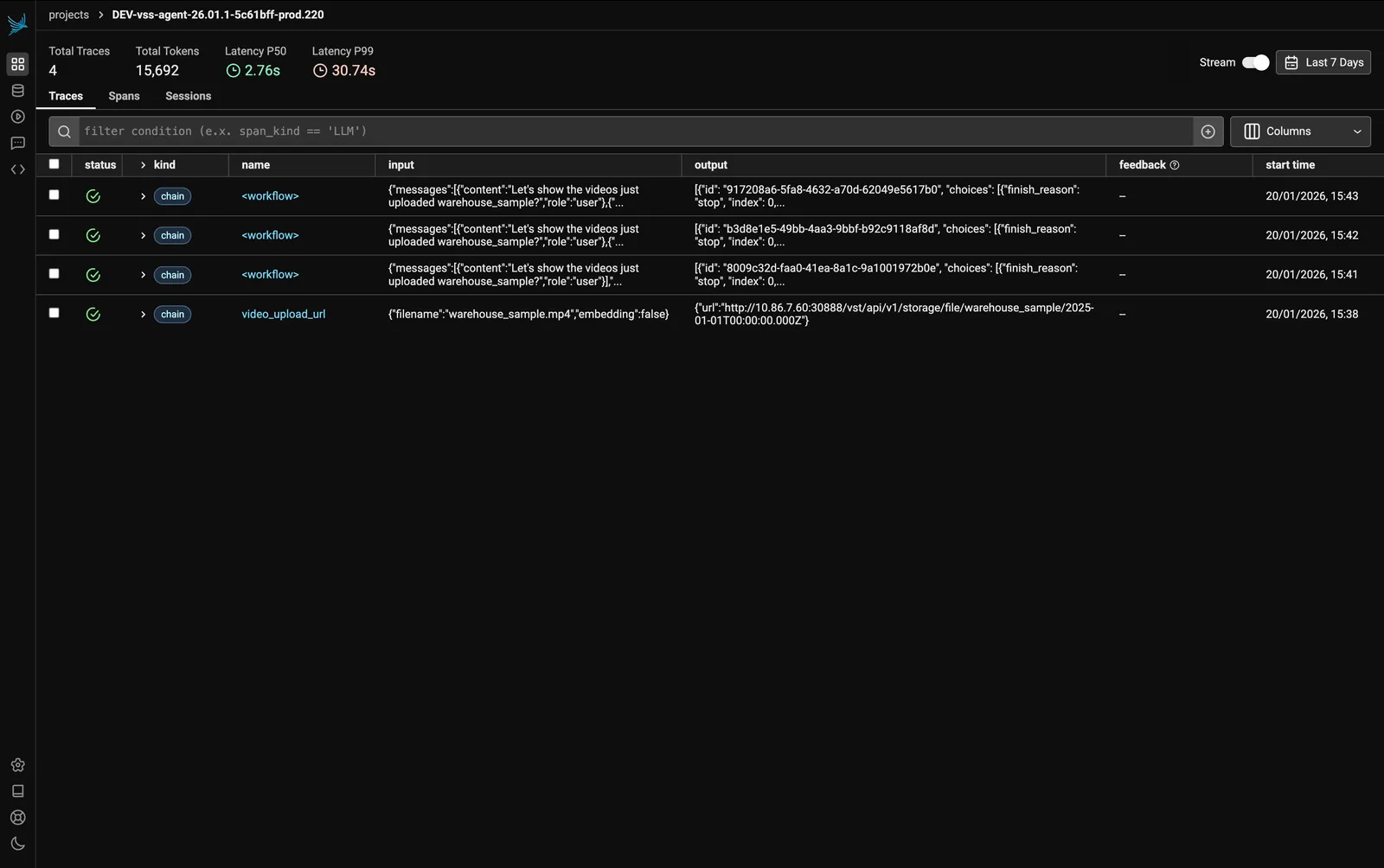
The traces list displays summary metrics at the top:
- Total Traces: Number of recorded traces (e.g., 5)
- Total Tokens: Combined token usage across all traces (e.g., 19,719)
- Latency P50: Median latency (e.g., 2.59s)
- Latency P99: 99th percentile latency (e.g., 30.45s)
Each trace in the list shows the following fields:
- Status: Success or error indicator
- Kind: Type of operation (e.g., workflow, LLM, tool)
- Name: The trace or span name
- Input: The user query or function input
- Output: The response or return value
- Start Timestamp: When the interaction occurred
Click on any trace to view its detailed span breakdown.
Sample Query Trace
This example demonstrates a trace for the query:
The following screenshots show the complete trace visualization with all spans expanded.
Workflow Execution
The trace begins with the workflow span, which orchestrates the entire agent execution:
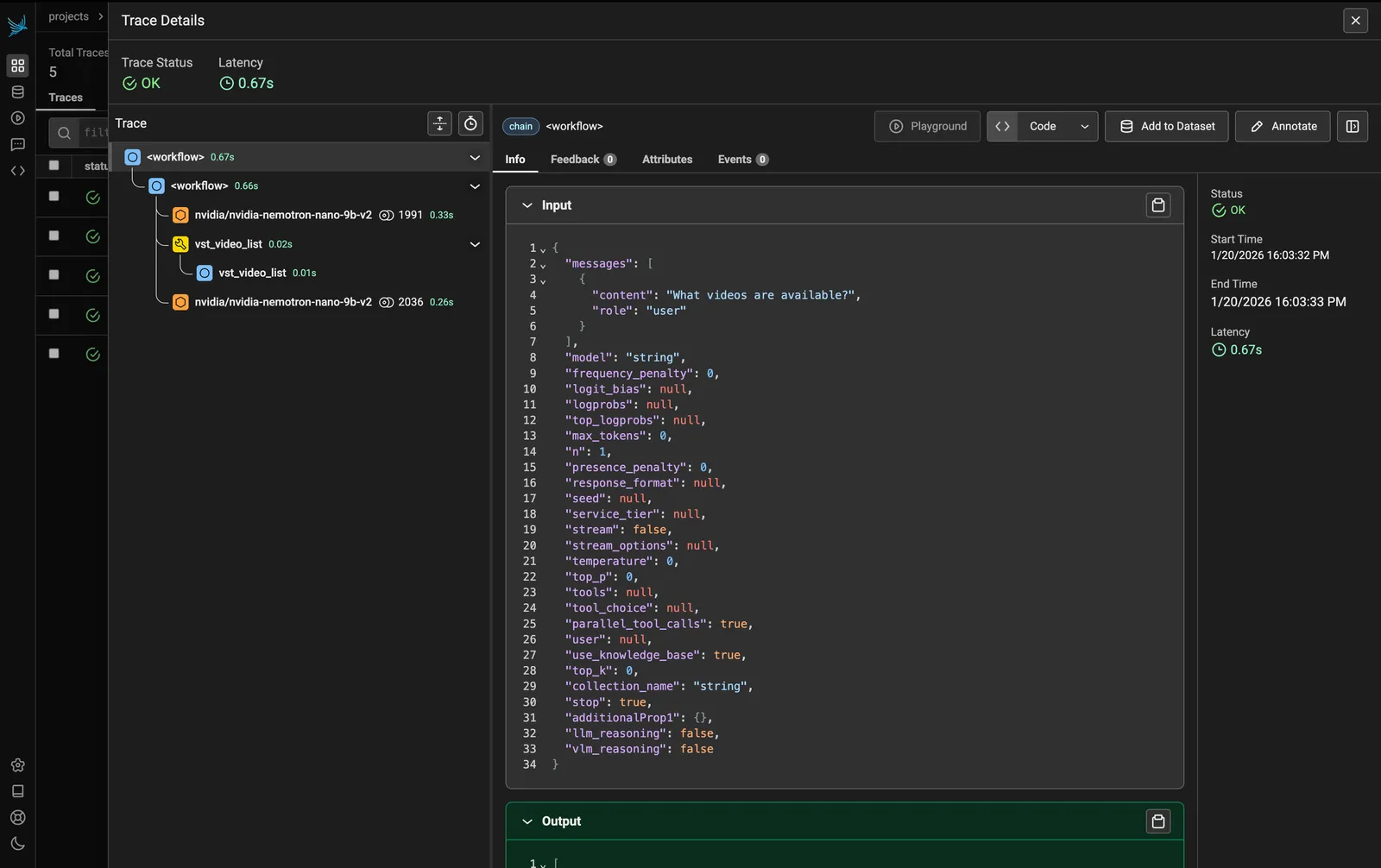
The workflow includes:
-
LLM Call (nvidia/nemotron-3.5-lightning-30b-a3b): The first LLM call processes the user query. Click on this span to view:
- Input: The user’s question and system prompt
- Output: The LLM’s reasoning and decision to call a tool
Tool Call and Final Response
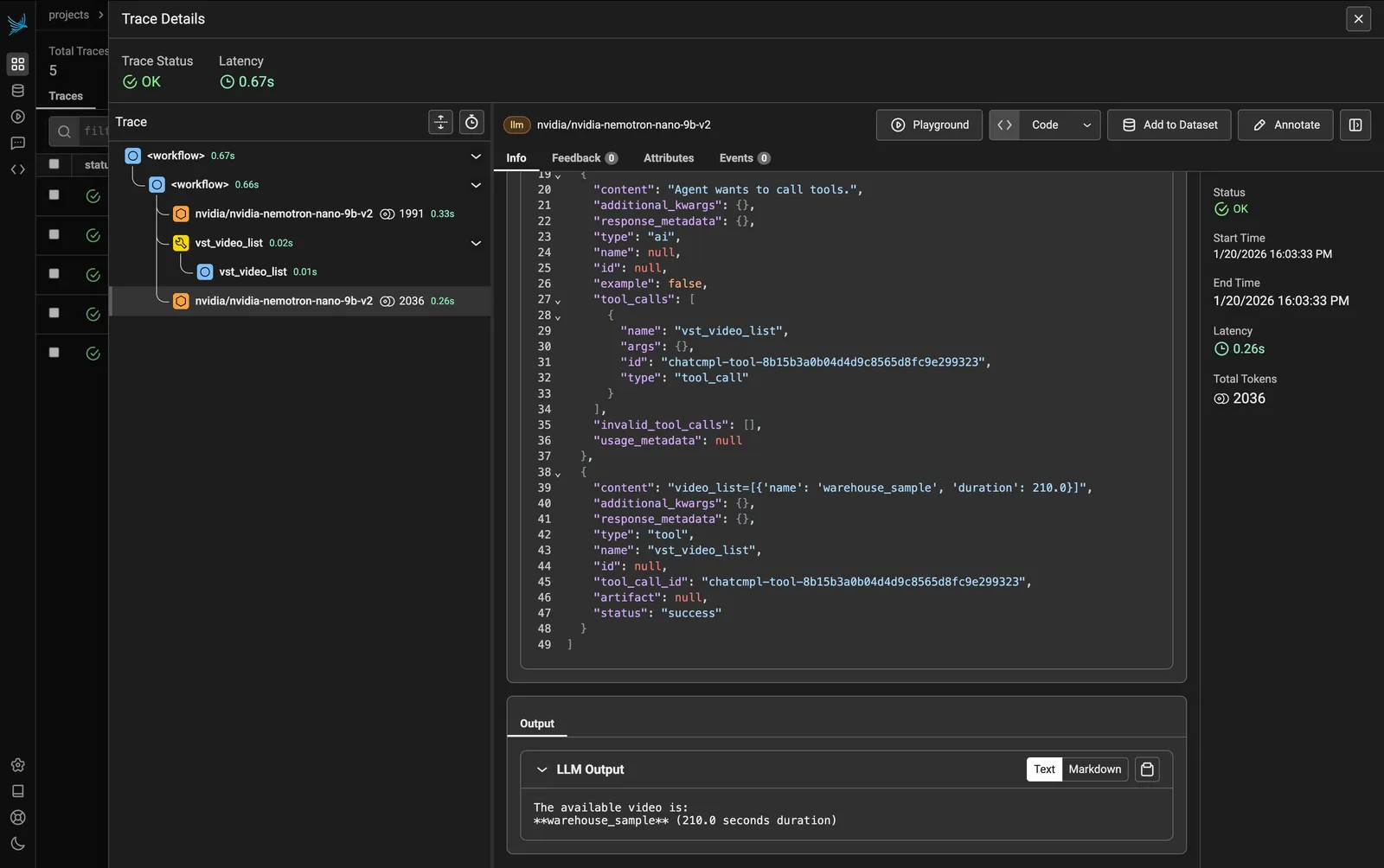
After the initial LLM reasoning, the agent executes the appropriate tool:
-
Tool Call (vst_video_list): The agent calls the
vst_video_listtool to retrieve available videos. Click on this span to view:- Input: Tool parameters (if any)
- Output: List of available videos returned by the tool
-
LLM Call (Final Response): The second LLM call takes the tool output and generates the final response for the user. Click on this span to view:
- Input: The tool results combined with conversation context
- Output: The formatted response presented to the user
Understanding the Trace Structure
The trace view shows a hierarchical execution pattern typical of agent workflows:
Inspecting Span Details
Click on any span to view its details. The right panel displays key metrics:
- Status: Success indicator (e.g., OK)
- Start Time: When the span began (e.g., 1/20/2026 16:03:33 PM)
- End Time: When the span completed (e.g., 1/20/2026 16:03:33 PM)
- Latency: Duration of the operation (e.g., 0.26s)
- Total Tokens: Token count for LLM calls (e.g., 2036)
The Info tab shows the span’s input and output:
- Input: The exact parameters passed to the function or LLM prompt
- Output: The response or return value from the operation
Key Metrics to Monitor
When analyzing traces, pay attention to:
- Total Latency: End-to-end time for the complete workflow
- LLM Latency: Time spent waiting for LLM responses (often the largest contributor)
- Tool Execution Time: Duration of individual tool calls (e.g.,
vst_video_list) - Token Usage: Monitor input and output tokens for cost optimization
Viewing Container Logs
Container logs are essential for diagnosing deployment issues, runtime errors, and service behavior.
Listing Containers
To see all running containers in your deployment:
Viewing Logs
View logs for a specific container:
Common Log Analysis Tasks
Search for errors: