

Video Summarization
The Video Summarization Workflow enables analysis and summarization of video content without being constrained by the standard VLM context window limitations, allowing for the analysis of long-form video content.
Capabilities
- Summarize uploaded videos that are longer than the standard VLM context window.
- Generate reports for one or more uploaded videos.
- Configure live streams for caption generation (experimental).
- Summarize live streams over a time range (experimental).
- Generate reports for live streams over a time range (experimental).
- Review extracted events in the Kibana dashboard.
Use Cases
- Automated incident report generation
- Event detection in extended video archives
- Shift summaries and daily activity reports
Technical Approach
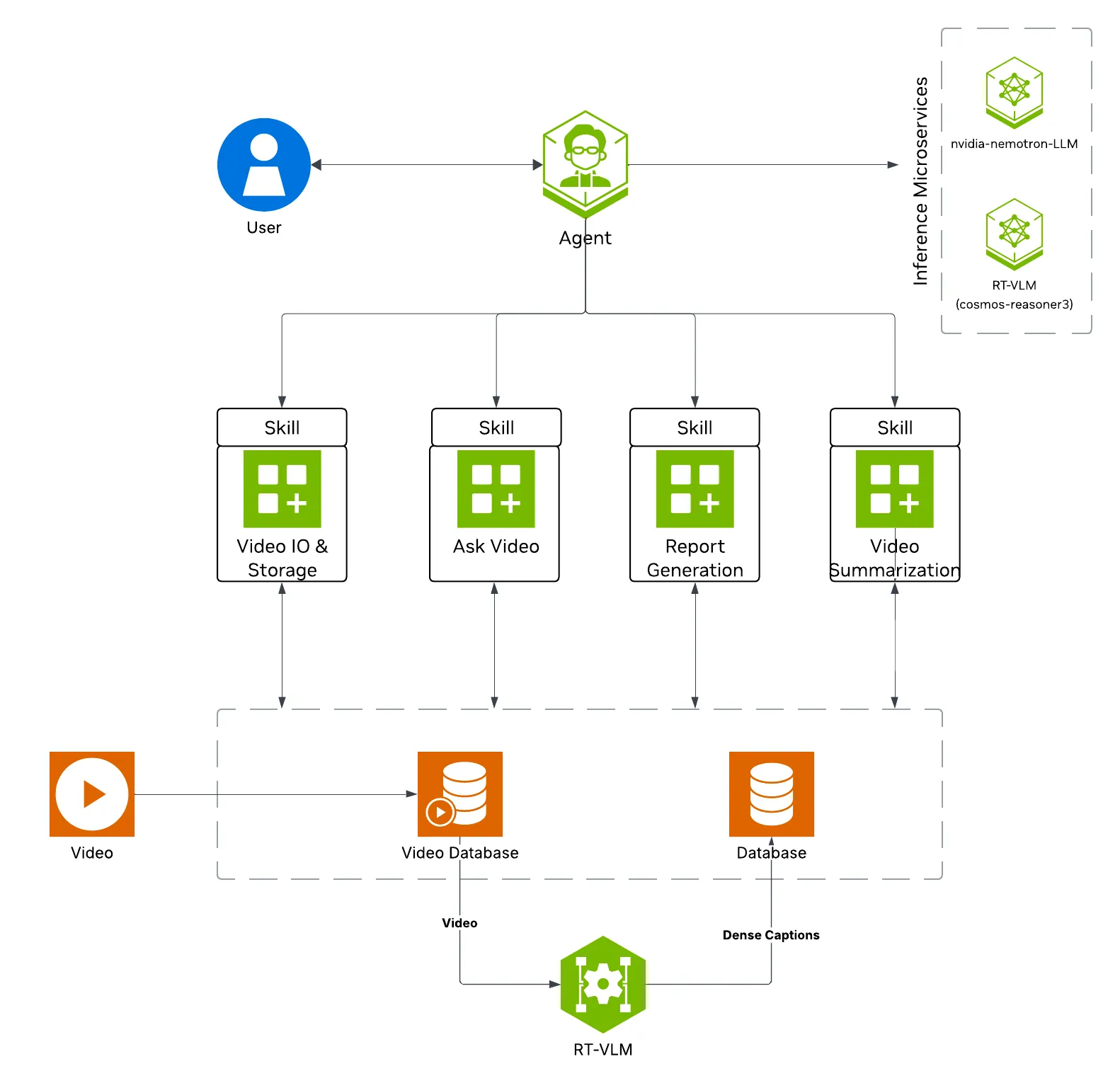
Standard VLMs are limited to processing short video clips, usually less than 1 minute, depending on the number of subsampled frames and level of detail required. This workflow uses the Video Summarization microservice to segment longer videos, analyze each segment with a VLM, and synthesize the results into coherent summaries with timestamped events. For live streams, the workflow can store VLM captions and events for stream summaries and reports. Stream summary and report generation are experimental.
Estimated Deployment Time: 15-20 minutes
The following diagram illustrates the video summarization architecture:
Key Features of the Vision Agent with Video Summarization:
- Generate narrative summaries for uploaded video files.
- Generate reports for a single uploaded video or for multiple uploaded videos in one request.
- Formulate timestamped highlights based on user-defined events.
- Configure live streams for caption generation with a monitoring scenario, events, and optional objects of interest (experimental).
- Summarize live streams and generate reports using stored captions and events (experimental).
- Return results through the AI agent interface.
What’s being deployed
- VSS Agent: Agent service that uses a configured LLM endpoint to route requests and orchestrate tool calls to VSS microservices and model endpoints (LLM/VLM NIMs) to answer questions and generate outputs
- VSS Agent UI: Web UI with chat, video upload, and different views
- VSS Video IO & Storage (VIOS): Video ingestion, recording, and playback services used by the agent for video access and management
- Nemotron LLM (NIM): LLM inference service used for reasoning, tool selection, and response generation
- Cosmos3 Nano Reasoner: Integrated vision-language model checkpoint with physical reasoning capabilities, loaded by RTVI-VLM
- RTVI-VLM: Real-Time Video Intelligence VLM service used by the Video Summarization profile for VLM calls
- VSS Video Summarization: Microservice for segmenting and summarizing video content (uploaded files of any length, plus RTSP live streams)
- Kafka: Message bus used for stream caption and summary events
- ELK: Elasticsearch, Logstash, and Kibana stack for storing and reviewing Video Summarization events and captions
- Phoenix: Observability and telemetry service for agent workflow monitoring
This list describes the stock profile used by the manual Compose deployment. Build Vision AI customizes that profile for the requested capabilities. With the default NemoClaw harness, or with no harness, it does not deploy the in-stack VSS Agent or Phoenix. It also omits the Agent’s local LLM unless another selected service needs it. Ask for the in-stack VSS Agent if you plan to use the Agent REST API or the manual Agent UI workflow below.
Prerequisites
Before you begin, ensure all of the prerequisites are met. See Prerequisites for more details.
Deploy
For instructions on downloading sample data and the deployment package, see Download Sample Data and Deployment Package in the Quickstart guide.
With Agent Skills
Step 1: Deploy the Agent
Use VSS Agent Skills from an agent such as Claude Code, Codex, or NemoClaw to deploy and operate the video summarization workflow.
First, install the vss-build-vision-ai skill as described in Agent Skills and make it
accessible to your agent. The host must meet the same deployment requirements listed above (supported GPU/hardware for that profile)
and must meet the Prerequisites.
The vss-build-vision-ai skill will choose the <platform> and <mode> to match your system, as detailed in Development Profile GPU Requirements.
Refer to the requirements table for valid platform and mode combinations compatible with your hardware.
Deploy prompt structure
Name an image tag in the prompt to run a release’s images instead of the
containers.env default. See
Container image tag.
What the agent does:
- Loads the
vss-build-vision-aiskill and detects the repository, GPU hardware, and host networking values. - Validates required credentials (such as
NGC_CLI_API_KEY) and prompts you if any are missing. - Selects the
lvsprofile and a platform and mode that fit your hardware, then builds the deployment configuration. - Reviews the configuration with you, then deploys the containers.
- Waits until all services are healthy and returns the endpoints available for the deployment, including the NemoClaw URL when that harness is selected.
Step 2: Upload a Video
To operate the video summarization and report generation workflow from your agent, install the vss-manage-video-io-storage, vss-summarize-video, and vss-generate-video-report skills as described in Agent Skills.
Your agent can then upload videos, summarize them, and generate reports through VSS with natural-language prompts, without requiring manual interaction with the UI.
Upload a video through the vss-manage-video-io-storage skill. Replace
<sample-data-dir> with the absolute extraction location from the Quickstart’s
Download Sample Data From NGC.
Upload a video to VIOS
If you selected NemoClaw, follow the Quickstart’s
handoff, using
warehouse_sample.mp4 as the filename in the transfer command. Then use its
sandbox path:
What the agent does:
- Loads the
vss-manage-video-io-storageskill and verifies that VIOS is reachable. - Uploads the video file to VIOS.
- Confirms that VIOS lists the new video.
Step 3: Summarize a Video and Generate Reports
Ask your agent to summarize an uploaded video or generate a structured report for it. The vss-summarize-video skill handles direct summary requests through the Video Summarization microservice (with a VLM fallback). For report requests, the vss-generate-video-report skill uses the Video Summarization MS path when the lvs profile is ready and renders the result into a report template.
Summarize an Uploaded Video
Summarize an uploaded video
What the agent does:
- Loads the
vss-summarize-videoskill and probes the Video Summarization service readiness, routing to the Video Summarization MS when it is ready and to the VLM fallback otherwise. - Resolves the clip URL, stream ID, and timeline through the
vss-manage-video-io-storageskill. - Collects the monitoring scenario, events, and optional objects of interest, or uses defaults when told to run autonomously.
- Calls the Video Summarization service with the clip URL, scenario, events, and chunking parameters.
- Renders the narrative summary and timestamped events.
Generate a Report
Generate a report for an uploaded video
What the agent does:
- Loads the
vss-generate-video-reportskill and selects the per-clip report mode. - Detects that the
lvsprofile is deployed (the Video Summarization service is ready), so it delegates to thevss-summarize-videoskill for the summary and timestamped events instead of the VLM-direct path. - Resolves a browser-playable clip URL through the
vss-manage-video-io-storageskill for the clip links in the report. - Renders the summary and events into the report template.
- Returns the rendered report.
Stream summary and report generation are experimental and are not available through Agent Skills. They require the in-stack VSS Agent. To use them, ask Build Vision AI to deploy the in-stack Agent, as described in the Quickstart’s deployment-path comparison, or follow the manual deployment and Step 4: Summarize and report on a live stream below.
With the VSS CLI
The VSS CLI can upload media and run the Video Summarization service directly from the deployment host. Configure it once against the public VSS ingress, enable memory for persisted jobs, mint a clip URL for an uploaded video, and start a summary:
Replace HOST_IP, VIDEO_NAME, SENSOR_ID, MEDIA_URL, and START_TIME with values from the deployment and command outputs. vss summarize run is synchronous and can take several minutes for a long video. With memory enabled, it records a job before starting the model request; use vss summarize list to find the job ID and vss summarize status --job-id JOB_ID or vss summarize get --job-id JOB_ID from another shell while it runs. Without vss configure memory --enable, the retrieval commands exit with code 4.
Manually
Step 1: Deploy the Agent
- Set the NGC CLI API key and authenticate Docker to
nvcr.iobefore running the deploy commands. See Verify Your NGC Access. - Refer to Configure the LLM and Configure the VLM for all LLM and VLM (local and remote) configuration options.
- For advanced settings and Agent Customization, edit the profile
user-overrides.env.
See Configuration for common variables,
valid values, defaults, and env-file precedence. The complete profile-specific
template is
deploy/docker/developer-profiles/dev-profile-lvs/overrides.env.
From the repository checkout root, enter the Compose deployment directory:
overrides.env is the checked-in template. Copy it to any
filename matching *-overrides.env before selecting a layout. Files matching
that pattern are ignored by Git so local settings and credentials are not
committed. The commands below use user-overrides.env as a concrete example;
if you choose another name, use it consistently in every --env-file argument.
Repeat the copy only when you want to discard prior layout changes:
Before starting Compose, complete the host settings and select one hardware
layout below in deploy/docker/developer-profiles/dev-profile-lvs/user-overrides.env.
Environment-variable overrides: In deploy/docker/developer-profiles/dev-profile-lvs/user-overrides.env, update existing values in place; add a variable only when it is absent. COMPOSE_PROFILES is derived from values above it, so appending duplicate model-mode or model-slug variables can select the wrong services.
Host-path and service-address overrides (all hardware profiles):
VSS_APPS_DIR: Absolute path to this repository’sdeploy/dockerdirectory.VSS_DATA_DIR: Absolute writable host directory for downloaded models, videos, and service data.HOST_IP: IP address or hostname that clients use to reach services on this VSS host. Set it to an address reachable by the intended clients.EXTERNAL_IP: Address VSS puts in externally reachable service URLs. It defaults to${HOST_IP}; on a cloud host or when clients connect from outside the host network, set it to the instance’s public address or external hostname.
Set these required placeholder values in the existing assignments:
Prepare host data directories before starting Compose. Export
VSS_DATA_DIR with the same absolute path set above, then run this block. The
guard stops before mkdir or chmod if the value is absent or is not absolute:
Default container image tag
containers.env uses VSS_CONTAINER_TAG as the default tag for all images.
Export the tag selected for this documentation branch before choosing a hardware
layout:
Any service-specific image tag or tag suffix shown inside a hardware tab supersedes or augments this common default. Use the SBSA settings shown in the GB300 and DGX Spark tabs when deploying on those platforms.
H100
GB300
RTXPRO6000BW
L40S
OTHER
Shared GPU
Dedicated GPU
Remote LLM
Remote VLM
Remote LLM + VLM
After replacing every placeholder in the selected layout, from deploy/docker
validate the resolved configuration, then start the profile:
On the first bring-up, Docker Compose pulls the required containers from the
configured NGC registries and builds five support images locally:
Elasticsearch, its initializer, the Kafka topic
initializer, the broker health checker, and the LVS Kibana initializer. Those
builds pull base images from Docker Hub and docker.elastic.co; the Kafka
support-image builds also download jq from GitHub. Allow outbound access and disk
space for both pulls and local builds. Depending on your network speed, this
may take a few minutes.
This deployment uses the following defaults:
- LLM model:
nvidia/nemotron-3.5-lightning-30b-a3b - VLM model:
nim_nvidia_cosmos3-nano-reasoner_bf16-finalthrough RTVI-VLM
When using a remote VLM of model-type nim (not openai), see How does a remote nim VLM access videos? for access requirements.
Once the deployment is complete, check that all the containers are running and healthy:
Once all the containers are running, you can access the Agent UI at http://<HOST_IP>:7777/.
Kubernetes deployment is supported by the Video Summarization Helm chart in deploy/helm/developer-profiles/dev-profile-lvs.
Use the chart README and values-lvs.yaml in the source repository for the complete values reference.
At minimum, configure the NGC API key, storage class, external host, and Kibana public URL before running
helm dependency build and helm upgrade --install.
Example prompts
Use natural language prompts in the chat interface. The agent routes the request to the appropriate Video Summarization, VLM, VIOS, or report tool.
Step 2: Upload a video
In the video management tab, drag and drop the video warehouse_sample.mp4 into the upload area.
Once the video is uploaded, the video will appear in the video list.
Step 3: Generate a report for uploaded videos
Ask the agent to generate a report about the uploaded video. Here is an example prompt:
The screenshots in this step show the in-stack VSS Agent UI. VSS Agent collects the Video Summarization parameters in Human in the Loop (HITL) dialog windows and provides the finished report as a PDF download. With NemoClaw’s OpenClaw runtime, HITL happens in the OpenClaw chat: the agent asks for needed parameters inline, you answer in the conversation, and the summary or report appears in the chat UI. The VSS Agent’s structured HITL dialogs are not available through an external VSS UI connected to NemoClaw, so the dialog and PDF screenshots do not represent that experience.
To generate reports across multiple uploaded videos, include the video names in one prompt:
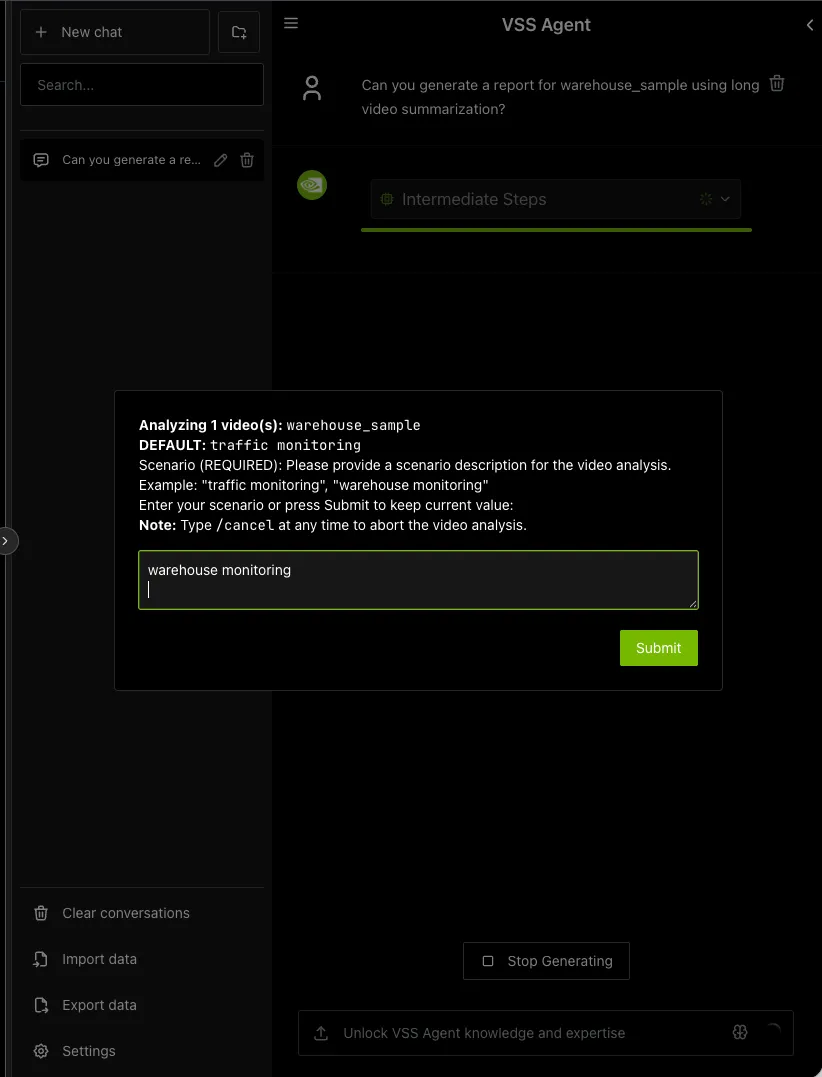
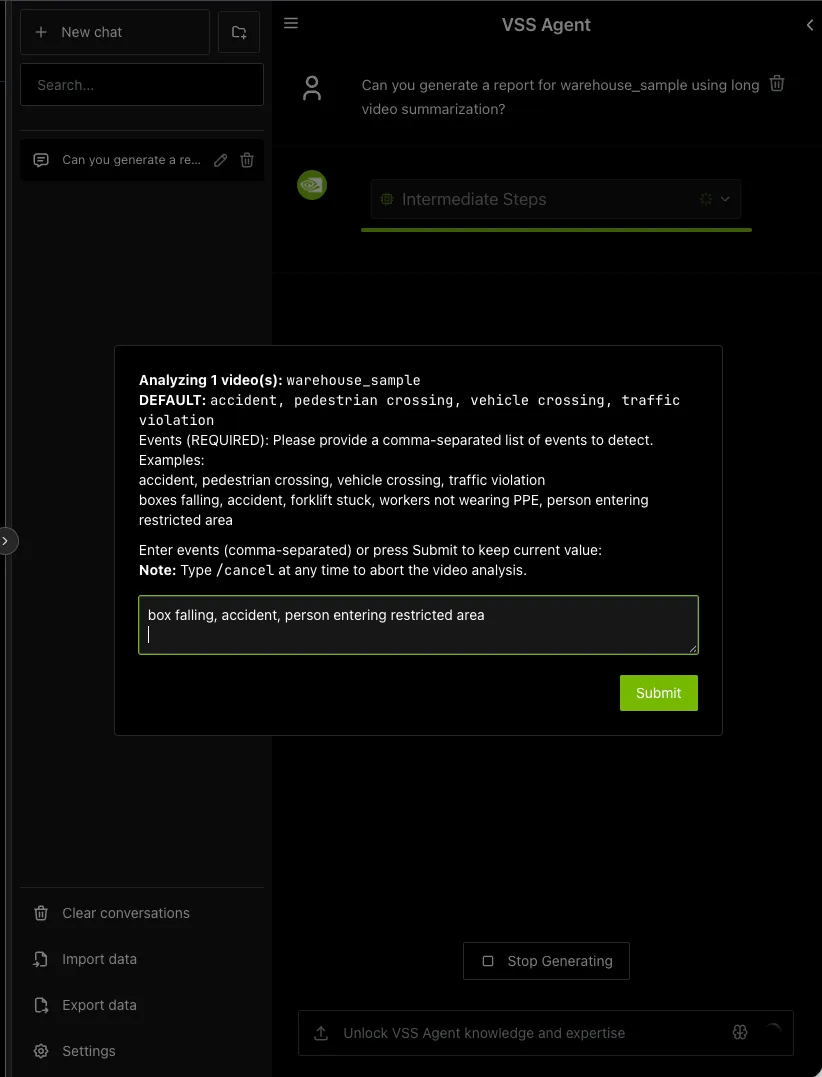
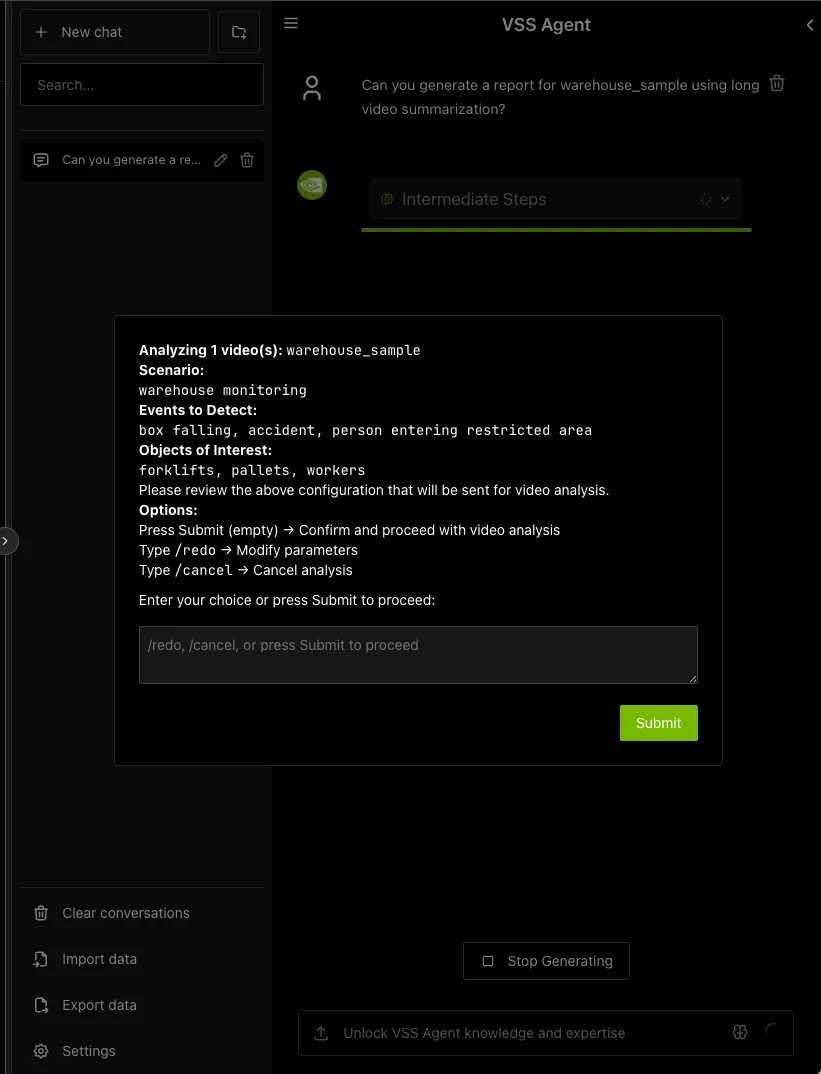
In the VSS Agent UI, the agent prompts you with four dialog windows to customize the Video Summarization microservice parameters.
You can cancel the workflow at any time by typing “/cancel” in the pop-up input box.
Scenario Describe the monitoring context. For example:
Events List events of interest to track. For example:
Objects of Interest Specify objects to monitor. For example:
Confirmation Confirm the prompts by clicking ‘Submit’.
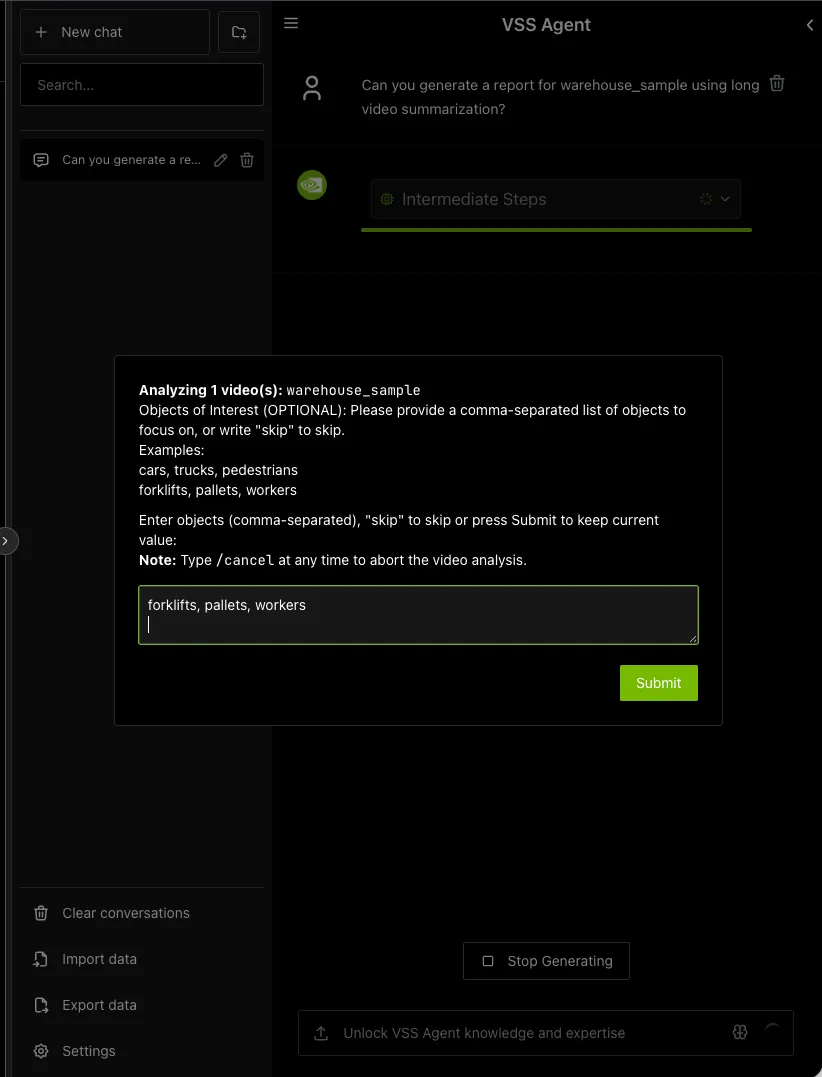
You can also redo the prompts by typing “/redo” or cancel the workflow by typing “/cancel”.
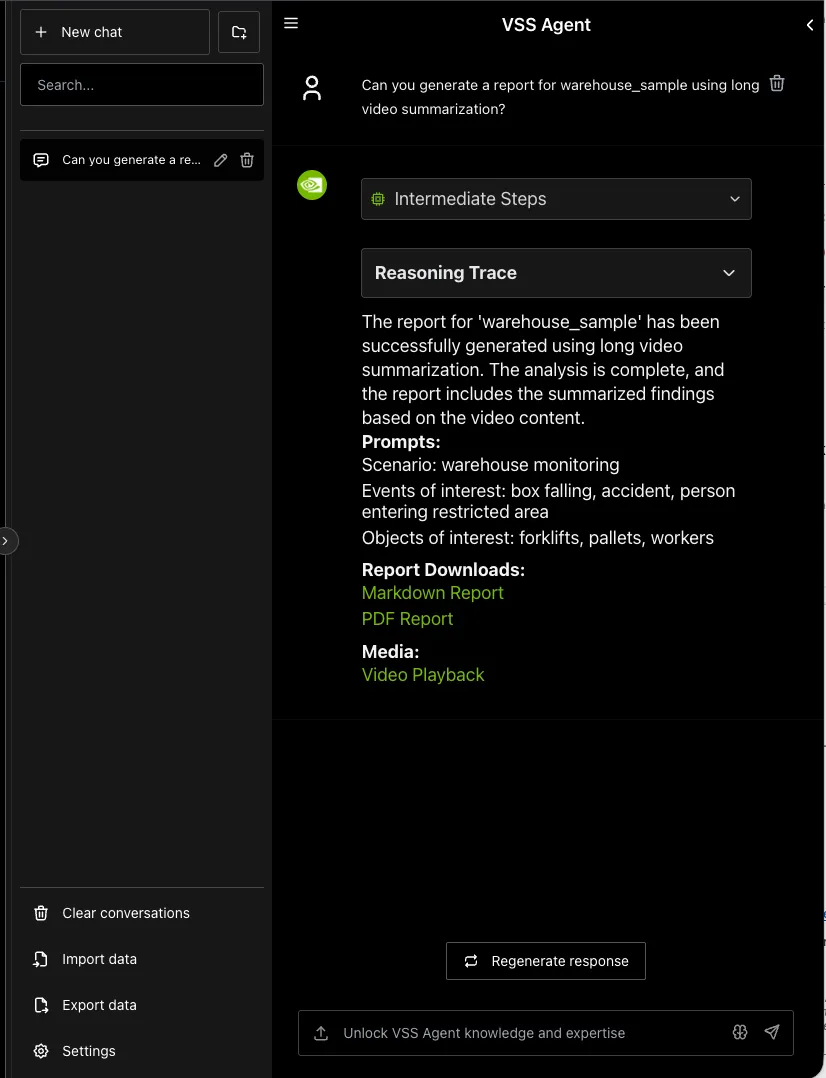
If you did not cancel the workflow, the agent will show the intermediate steps of the agent’s reasoning while the response is being generated and then output the final answer. You can download the report in PDF format by clicking on ‘PDF Report’ in the agent’s response:
Step 4: Summarize and report on a live stream
Stream summary and stream report generation are experimental. The supported flow is to add a stream from the Video Management tab, ask the agent to start generating captions for the stream, wait for captions to accumulate, and then request a summary or a report for a timestamp range covered by stored captions.
The Video Summarization profile can also analyze live streams. First add a stream from the Video Management tab, then ask the agent to start caption generation for that stream. The agent prompts for the same monitoring scenario, events, and optional objects of interest that are used for uploaded-video analysis.
Example prompt:
After caption generation starts, allow time for captions to accumulate before requesting summaries or reports for the stream.
If no captions are available in Elasticsearch for the requested stream and time period, the summary or report request can return empty results. This can happen when the requested time period is before caption generation started, or when the caption generation prompt causes no captions to be stored for that time period.
If multiple agent sessions or agent instances connect to the same backend, the caption generation prompt is overwritten by the latest query. The agent does not have visibility into caption prompts set by other agent instances.
If you ask for a stream summary or report before caption generation has been started for that stream, the agent prompts you to start caption generation first instead of running the request.
Stream reports differ from uploaded-video reports in their format. For example, stream reports use ISO 8601 timestamps instead of seconds, and they do not include per-event screenshots, per-event [Watch Clip] links, or a Resources playback URL.
Step 5: Search for specific events in the Dashboard
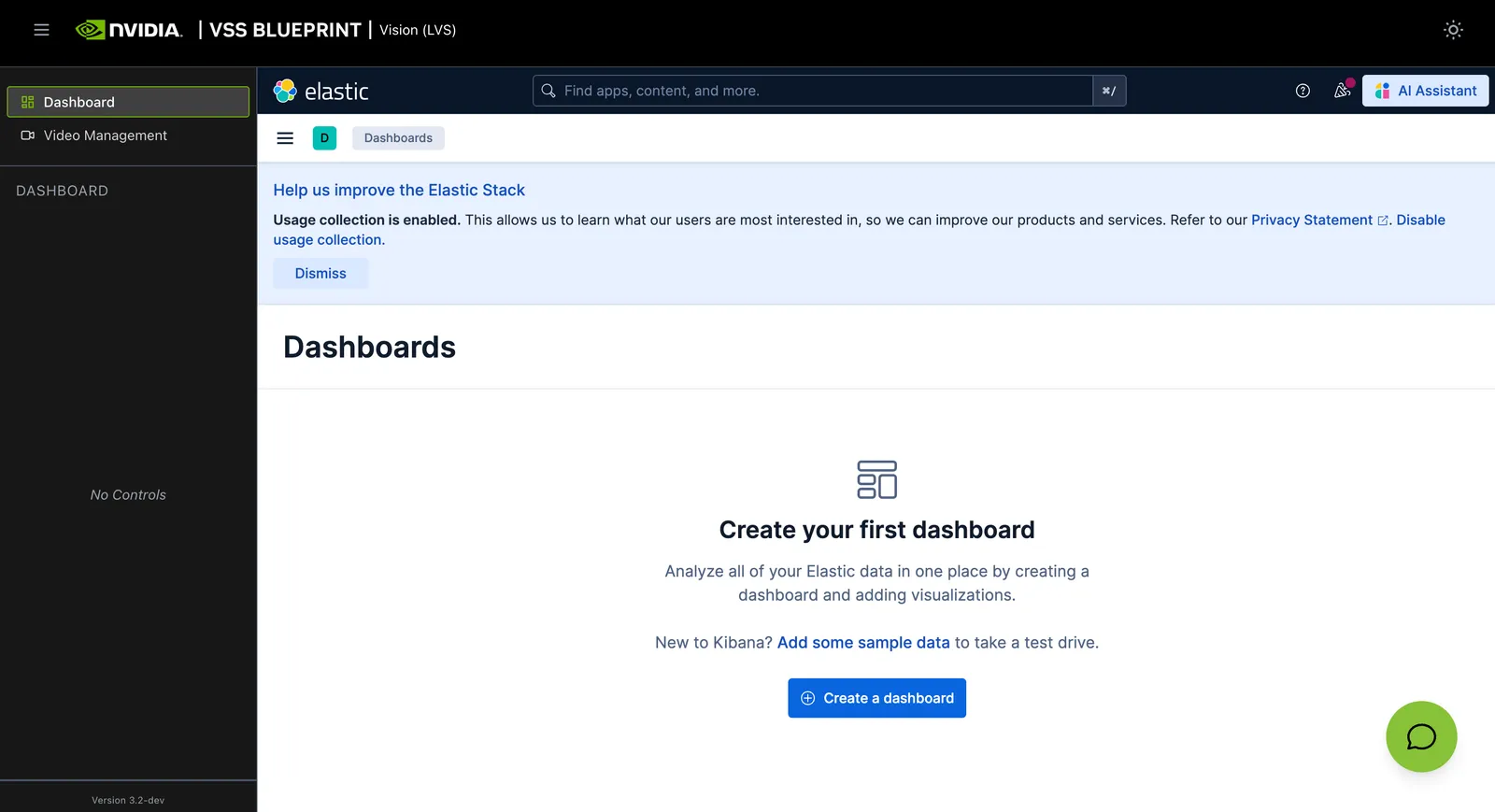
On the left sidebar, click on “Dashboard” to open the Kibana dashboard in the main window. From the menu icon, choose the “Discover” tab.
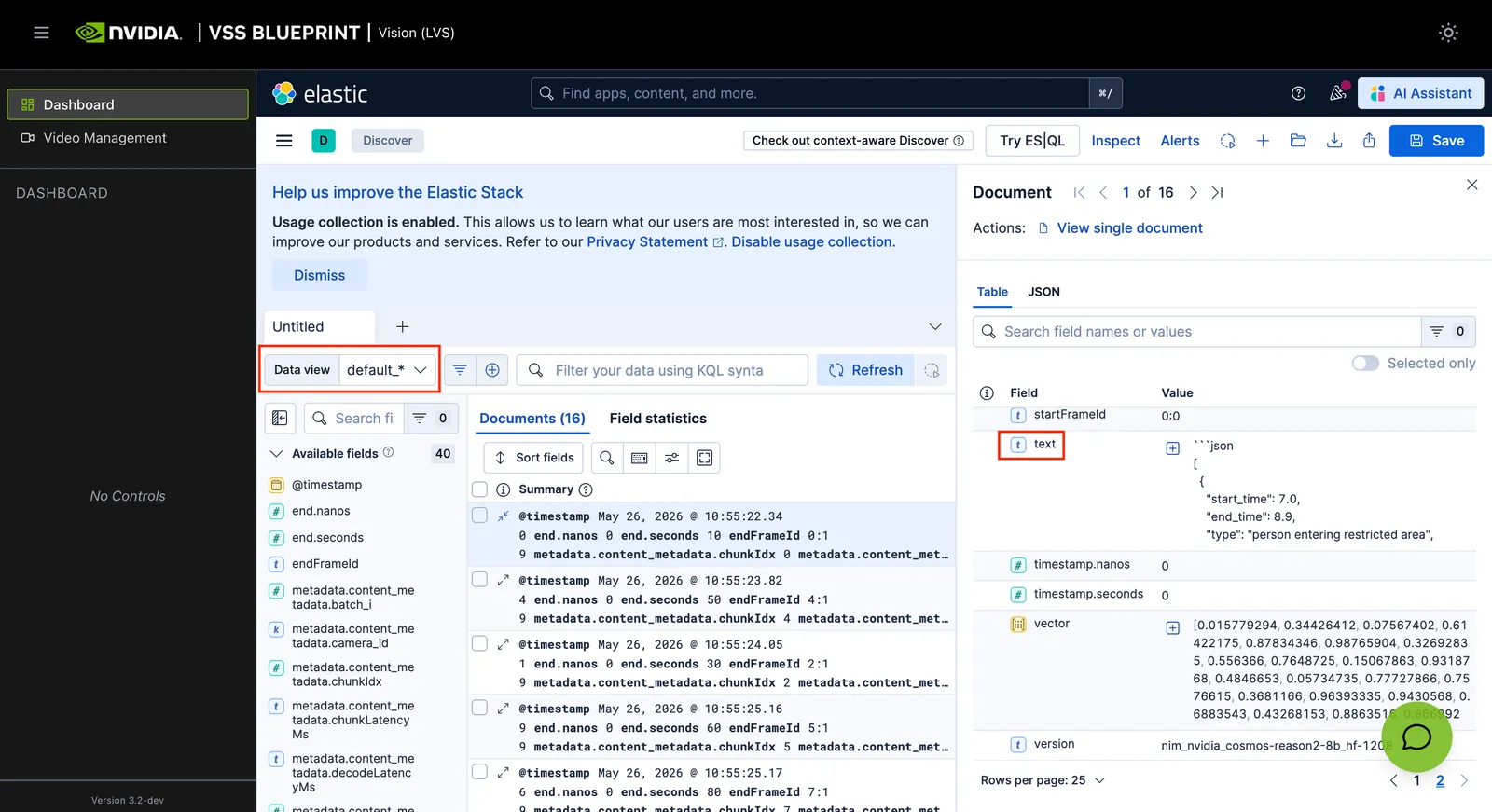
Set default_* in the Data view dropdown. Here you can see the events detected in the video or stream. When you click on a row item, a panel opens on the right side with details about the backend request and the event.
Step 6: Teardown the Agent
To teardown the agent, run the following command:
This command stops the manually deployed Video Summarization containers and removes their Compose volumes.
Service Endpoints
The following endpoints apply to the stock manual Compose deployment. Build Vision AI reports the endpoints available in the deployment it creates; use that deployment summary instead of assuming every endpoint below is present.
Optional: Use Nemotron Nano V3 Omni (audio-aware VLM)
The Video Summarization profile defaults to Cosmos3 Nano Reasoner as the VLM. To swap in Nemotron-Nano-V3-Omni-GA0420-FP8 for audio-aware summarization, export your Hugging Face token in the shell that will run Docker Compose:
Keep all Omni settings in
deploy/docker/developer-profiles/dev-profile-lvs/user-overrides.env.
The Step 1 Compose commands load this file after the profile .env, so values
in user-overrides.env take precedence over values in .env.
Uncomment the existing Optional Nemotron Nano Omni RT-VLM override block
in your user-overrides.env copy. If the block is missing, copy it from
deploy/docker/developer-profiles/dev-profile-lvs/overrides.env and uncomment
it. Replace existing assignments for the same variables so each variable has
one active value. The resulting Omni settings should be:
Keep the template’s HF_TOKEN=${HF_TOKEN:-} entry unchanged so Compose reads
the exported credential without storing it in a repository file.
RTVI_VLLM_GPU_MEMORY_UTILIZATION is hardware- and placement-dependent; 0.45
is the value for this example. Rerun the full Docker Compose command from Step 1.
After the deployment is complete, verify with:
The response should show "audio_support": true and the model ID
Nemotron-Nano-V3-Omni-GA0420-FP8, matching VLM_NAME in user-overrides.env.
For full RTVI-VLM environment variable reference, see Real-Time VLM Microservice.
Next steps
To run long-video summarization and real-time VLM alerting in one deployment, use the documented combined custom build. Do not start the stock LVS and alerts profiles as separate stacks on the same host.
Additionally, you can dive deeper into the agent tools for video management, report generation, and video understanding.
Known Issues
- For OpenAI remote VLM endpoint, please use
gpt-4ofor now. Other models are not supported yet. - Not supported: OpenAI VLM with a build.nvidia.com LLM. When using a build.nvidia.com LLM, do not use an OpenAI VLM or set
OPENAI_API_KEY.
For known issues and limitations, see:
- Agent Known Issues - VSS Agent known issues and limitations
- Known Issues - VSS Agent UI known issues
Troubleshooting
When encountering issues with the Video Summarization workflow:
- View container logs - See Viewing Container Logs for instructions on viewing and analyzing container logs
- Navigate the Phoenix UI - See Navigating the Phoenix UI for step-by-step guidance on viewing traces and debugging agent workflows
- Check known issues - Review Agent Known Issues (agent) and Known Issues (UI) for documented limitations and workarounds