

Behavior Analytics
Overview
Introduction
The Behavior Analytics microservice is implemented in Python and leverages the Python Multiprocessing library for parallel processing.
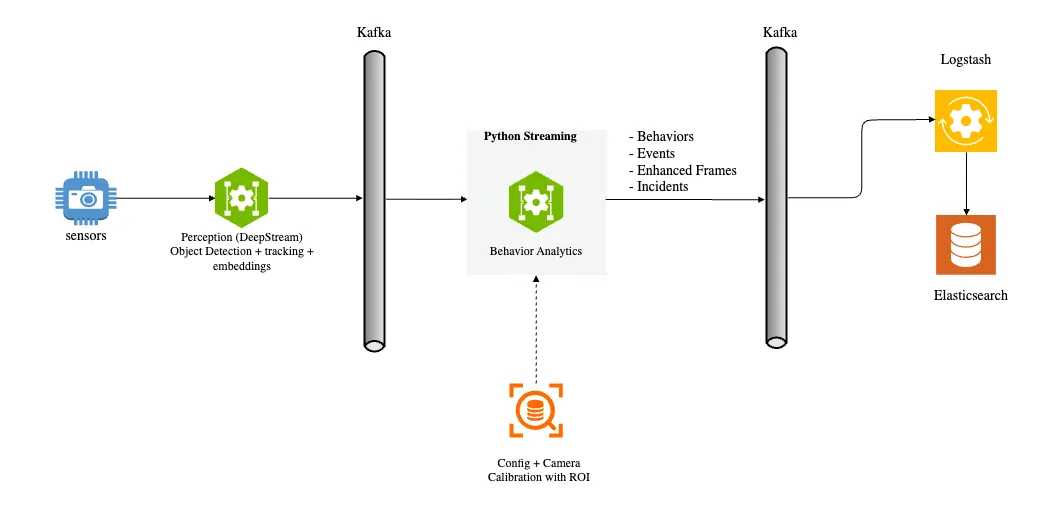
The perception layer processes camera or video input streams, performing sequential frame analysis for object detection and tracking. It generates object embeddings and sends protobuf messages containing frame metadata to a message broker. The pipeline supports multiple message brokers including Kafka, Redis Streams, and MQTT, allowing flexibility based on deployment requirements. The diagram above illustrates the input and output of the Behavior Analytics pipeline within the overall dataflow context.
The metadata from the perception layer represents a frame containing object detection bounding boxes, tracking IDs, embedding vectors, and other attributes. This input is processed by the pipeline to generate Behavior data. A Behavior represents an object tracked over time with its associated attributes. The key components of the pipeline are:
- Protobuf Message to Frame: Converts protobuf messages or byte arrays into Frame objects.
- Dynamic Configuration: Applies runtime updates to
appandsensorsconfig keys frommdx-notification, with per-key allowlist validation and ack-back semantics. - Dynamic Calibration: Loads and manages calibration data, supporting multiple coordinate systems (image, Cartesian, geo) and monitoring for calibration file changes.
- Image to Real World Coordinate: Transforms image coordinates to real-world coordinates (latitude, longitude) or other coordinate systems such as Cartesian. Also validates if points fall within defined Regions of Interest (ROI).
- Behavior State Management: Manages the state of each object’s Behavior for individual cameras, processing objects across all camera sensors simultaneously.
- Behavior Processing: Calculates key metrics such as speed, direction, and distance based on object movement, appearance, and embeddings.
- Video Embedding Downsampling: Optional. Compresses time-series video embedding data (e.g. VisionLLM) per sensor while preserving patterns and transitions; supports Swinging Door Trending (SDT) and Sliding Window algorithms.
- Event Detection: Generates events including Tripwire events and ROI events.
- Incident Generation: Detects violations (proximity, restricted zone, confined zone, FOV count) and generates incidents when violations persist beyond configured thresholds.
- Sink: Sends Behavior data, events, and incidents to message brokers (Kafka, Redis Streams, or MQTT).
Input & Output
The pipeline stages and their corresponding inputs and outputs are shown below:
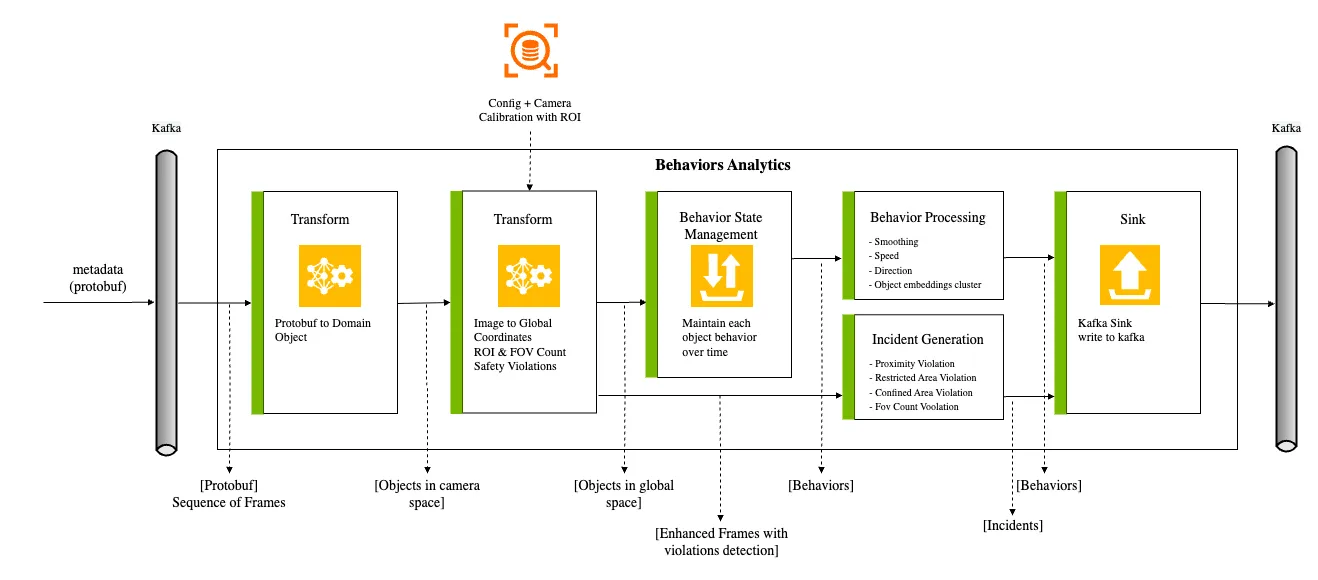
Each stage’s inputs and outputs:
Configuration
ConfigFile
The configuration file supports multiple message broker types. You can configure Kafka, Redis Streams, or MQTT based on your deployment requirements. Set sourceType and sinkType in the app section to specify which broker to use (default is kafka).
Configuration Parameters
-
Message Broker Selection: The pipeline supports multiple message brokers. Configure
sourceTypeandsinkTypein theappsection:kafka(default): Use Kafka for message streamingredisStream: Use Redis Streams for lightweight deploymentsmqtt: Use MQTT for IoT-oriented deployments
-
Kafka Broker: Configure Kafka connection for message streaming:
brokers: List of broker host:port pairs (e.g.,10.137.149.51:9092). The sensor-processing layer sends all metadata to this Kafka broker, and the Python streaming pipeline consumes the metadata.group: Consumer group name (required, no default)consumer.autoOffsetReset: Where to start reading when no offset exists (default:latest)consumer.enableAutoCommit: Enable automatic offset commits (default:false)consumer.maxPollIntervalMs: Maximum delay between poll invocations in milliseconds (default:900000)consumer.maxPartitionFetchBytes: Maximum bytes per partition per fetch request (default:10485760)consumer.fetchMaxBytes: Maximum bytes per fetch request (default:104857600)consumer.maxPollRecords: Maximum records returned per poll (default:1000)consumer.timeout: Consumer timeout in seconds (default:0.01)consumer.retryMaxAttempts: Maximum attempts to create a consumer / connect to the broker before giving up (default:3)consumer.retryIntervalSec: Seconds to wait between consumer-creation attempts (default:30.0)producer.lingerMs: Time to wait before sending a batch in milliseconds (default:0)producer.messageMaxBytes: Maximum size of a single produced message in bytes (default:10485760)producer.batchSize: Soft target for batching multiple messages together, in bytes — single messages can exceed this (default:16384)topics: List of key-value pairs mapping logical names to actual topic names (see table below)
-
Redis Stream: Configure Redis connection for Redis Streams-based messaging:
host: Redis server hostname (default:localhost)port: Redis server port (default:6379)db: Redis database number (default:0)group: Consumer group name (required, no default)consumer.readCount: Maximum entries returned per read (default:1000)consumer.readBlockMs: Block timeout in milliseconds for stream reads (default:5)consumer.mkstream: Create stream if it doesn’t exist (default:true)consumer.retryMaxAttempts: Maximum attempts to set up the Redis consumer before giving up (default:3)consumer.retryIntervalSec: Seconds to wait between connection attempts (default:30.0)producer.maxLen: Maximum stream length, oldest entries trimmed beyond this (default:10000)streams: List of key-value pairs mapping logical names to actual stream names (see table below)
-
MQTT: Configure MQTT broker connection:
host: MQTT broker hostname (required, no default)port: MQTT broker port (required, no default)clientId: Client identifier for MQTT connection (required, no default)keepAliveSec: Keep-alive interval in seconds (default:60)consumer.qos: Consumer Quality of Service level (default:1)consumer.maxPollCount: Maximum messages per poll (default:1000)consumer.pollTimeoutSec: Poll timeout in seconds (default:0.01)consumer.retryMaxAttempts: Maximum attempts to connect to the MQTT broker before giving up (default:3)consumer.retryIntervalSec: Seconds to wait between connection attempts (default:30.0)producer.qos: Producer Quality of Service level (default:1)producer.retain: Retain published messages on the broker (default:true)topics: List of key-value pairs mapping logical names to actual topic names (see table below)
-
Topics/Streams: Each entry is a key-value pair where
nameis the logical key used by the pipeline andvalueis the actual topic or stream name:
-
App Pipeline Config
numWorkersForBehaviorCreation: Number of workers to run behavior creation. If set to 0, behavior creation will not run. Read with no default by the analytics 2D/3D, public-safety and smart-city apps — a config that omits the key crashes those apps at startup. The composite and search/alerts apps default it to 0.numWorkersForFrameEnhancement: Number of workers to run frame enhancement. If set to 0, frame enhancement will not run. No default for the analytics 2D/3D, public-safety and robot-speed-control apps; 0 for the composite app.numWorkersForSpaceEstimation: Number of workers to run the periodic space-utilization estimator. No default for the analytics 3D app; 0 for the composite app. Requires cartesian 3D input (it readsobject.bbox3d).numWorkersForEmbedFiltering: Number of workers to run video-embedding downsampling (search/alerts and composite apps). Default: 0numWorkersForBehaviorClustering: Number of workers to run trajectory-clustering enrichment for behaviors (Smart Cities Application). No default for the smart-city app; 0 for the composite app. The smart-city app registers the processor only wheninference.enableistrue.numWorkersForIncidentGeneration: Number of workers to run incident generation (SearchAndAlertsApp). Default: 0in3dMode: If true, the pipeline runs in 3D mode. Supports env-var indirection: a value starting with$is resolved from the environment. Default: falsecompactFrame: If true, the pipeline compacts the frame metadata. Recommended for 3D / multi-sensor frames. Default: falseobjectConfidenceThreshold: Minimum confidence score for object detection. Objects below this threshold are filtered out. Default: 0.5clusterThreshold: Cosine similarity threshold for per-object embedding clustering (Chinese Restaurant Process) during state management. Default: 0.9imageLocationMode: (Image calibration only.) Bbox reference point:bottom_centerorcenter. Default: bottom_centerroiEventDetectionMode: How ROI ENTRY/EXIT is decided —coordinateorbbox. See ROI event detection mode. Unrecognized values fall back tocoordinate. Default: coordinateadvancedOverlay: If true, the space-utilization visualization draws transparent patches that avoid overlapping existing objects. Costs roughly 0.04 s → 1.7 s per visualization. Default: false
-
Tripwire (Sensor-level config)
tripwireMinPoints: Minimum number of points an object must be detected before and after the tripwire to generate a trip event. Default: 5
-
Proximity Detection (Sensor-level config)
proximityDetectionEnable: If true, the pipeline checks for proximity violations between objects. Default: falseproximityDetectionThreshold: Distance threshold (in meters) for proximity detection. Default: 1.8proximityDetectionCenterClasses: List of object types to use as center objects for proximity detection (e.g., AMR, humanoid). Default: []proximityDetectionSurroundingClasses: List of object types to check proximity against the center objects. Default: []
-
State Management
behaviorStateValidInterval: Maximum gap (in seconds) between an object’s previous state end and next state start before treating them as separate behaviors. This is also the inactivity gap after which a track’s state is reclaimed: if an object with the sameidreappears after the gap, a new behavior is created. The uniqueness of the behavior is based on sensor + id + start timestamp. The gap is measured on the sensor’s own event clock, never the wall clock, so a lagging or replayed pipeline is not mistaken for a quiet camera. Default: 6behaviorWatermarkSec: The watermark for the behavior in seconds. Default: 30behaviorMaxPoints: Maximum number of behavior points to store. Default: 200behaviorEmitOnce: If true, only ended tracks are written — onebehaviorStateValidIntervalafter a track goes quiet — instead of writing every live track on every batch. A track that ends is written in either mode, carryinginfo["isComplete"] = "true"; the key decides only whether live tracks accompany it. Tracks still live at shutdown are flushed and marked complete in either mode. Events, anomalies and incidents are always built from the per-batch behaviors and are unaffected. Default: falsebehaviorStateEndToleranceSec: Grace window (in seconds) past a state’s end within which late messages are still accepted into that state. Default: 0.1behaviorTimeThreshold: ISO-8601 instant; messages at or before it are filtered out. Default: 1970-01-01T00:00:00.000ZstateManagementFilter: Whitelist of object types to admit into the pipeline; other types are dropped at frame ingest, before state management. If the list is empty, no filter is applied and all types pass through. Default: []
-
Incident Detection (App-level config)
incidentObjectTtl: TTL (seconds) for retained object presence data used during incident confirmation. Default: 3600proximityViolationIncidentEnable: Enable proximity violation incident generation. RequiresproximityDetectionEnableat the sensor level. Default: falseproximityViolationIncidentThreshold: Duration (seconds) the violation must persist before an incident is confirmed. Default: 1proximityViolationIncidentExpirationWindow: Largest detection gap (seconds) tolerated before the current violation run is closed. Accepts fractional values. Keep it below the matching threshold. Default: 0.5restrictedAreaViolationIncidentEnable: Enable restricted area violation incidents. Default: falserestrictedAreaViolationIncidentThreshold: Minimum violation duration (seconds) before an incident is reported. Accepts fractional values. Default: 1restrictedAreaViolationIncidentExpirationWindow: Largest detection gap (seconds) tolerated before the current violation run is closed. Accepts fractional values. Keep it below the matching threshold. Default: 0.5confinedAreaViolationIncidentEnable: Enable confined area violation incidents. Default: falseconfinedAreaViolationIncidentThreshold: Minimum violation duration (seconds) before an incident is reported. Accepts fractional values. Default: 1confinedAreaViolationIncidentExpirationWindow: Largest detection gap (seconds) tolerated before the current violation run is closed. Accepts fractional values. Keep it below the matching threshold. Default: 0.5fovCountViolationIncidentEnable: Enable FOV count violation incidents. Default: falsefovCountViolationIncidentObjectThreshold: Object count at which a violation fires. The comparison iscount >= threshold, not>, so the default of1makes a single object a violation. To alert on “more than N”, set it toN + 1. Default: 1fovCountViolationIncidentThreshold: Minimum violation duration (seconds) before an incident is reported. Accepts fractional values. Default: 1fovCountViolationIncidentExpirationWindow: Largest detection gap (seconds) tolerated before the current violation run is closed. Accepts fractional values. Keep it below the matching threshold. Default: 0.5fovCountViolationIncidentObjectType: Object type to count for FOV violations. Default: Person
-
Frame Management (Sensor-level config)
sensorMinFrames: Minimum number of frames to process for frame state management. Default: 5
-
Video Embedding (App-level config)
embedEnableDownsampling: If true, enable video embedding downsampling; if false, embeddings are passed through unchanged. Default: falseembedDownsamplerType: Downsampler algorithm:sdtorwindow. Default: windowembedSensorTTLSec: Seconds of inactivity after which a sensor’s downsampler state is purged. Default: 3600embedDownsampleToleranceMode: Tolerance metric:distanceorcosine. Default: cosineembedDownsampleSimilarityThreshold: Cosine similarity threshold (cosine mode). Default: 0.90embedDownsampleDistanceThreshold: Euclidean distance threshold in normalized space (distance mode). Default: 0.15embedDownsampleMaxIntervalSec: Maximum interval (seconds) between saved points; forces a save if exceeded. Default: 60embedDownsampleWindowSize: Sliding window size in points (window algorithm only). Default: 60embedDownsampleMinNeighbours: Minimum consecutive similar neighbors to skip a point (window algorithm only). Default: 3
-
Space Analytics
spaceAnalyticsIntervalSec: Interval (in seconds) to invoke space analytics. Default: 5.0spaceAnalyticsGridSize: Size of the grid for space analytics. The target area is treated as a rectangle and divided into smaller square grids. The grid size is the length of one side of the square grid. Pallet placement is based on the grids. Smaller grid sizes increase the search space. Default: 0.2spaceAnalyticsUnsafeSize: Size threshold (in meters) to determine unsafe pallets. If a pallet is placed partially outside the designated area (buffer zone) and the size of the outside portion exceeds this value, it is flagged as unsafe. Default: 0.5spaceAnalyticsTargetClasses: List of object types to target for space analytics. Default: [“Box”, “Pallet”]spaceAnalyticsUseGA: If true, the pipeline uses a genetic algorithm to optimize object placements for maximum space utilization; otherwise, a greedy search algorithm is used. Default: falsespaceAnalyticsPopulationSizeGA: Population size for the genetic algorithm. Effective only ifuseGAis true. Default: 200spaceAnalyticsNumGenerationsGA: Number of generations for the genetic algorithm. Effective only ifuseGAis true. Default: 300
-
Playback Configs
playbackSensors: List of sensor IDs to include in playback. If empty, all sensors are used. Default: []playbackLoop: Number of times to loop through playback data. Default: 1playbackFilterEmptyObjects: If true, filters out frames with no objects. Default: trueplaybackInSimulationMode: If true, uses simulated time for playback. Default: falseplaybackStartUpDelaySec: Delay in seconds before playback starts. Default: 0playbackSimulationTimedeltaInMin: Time delta in minutes for simulation mode. Default: 60playbackSimulationFps: Frames per second for simulation playback. Default: 1playbackSimulationBaseTime: Base timestamp for simulation (ISO format). Default: ""
-
Trajectory Configs (Smart Cities Application)
trajGeoCoordEnable: Enable geo coordinates for trajectory processing. Default: truetrajDirectionMode: Direction calculation mode (0=bearing-based). Default: 0trajDirectionClusterMode: Direction clustering mode. Default: 1trajSmoothMinPoints: Minimum points required for trajectory smoothing. Default: 20trajSmoothWindowSize: Window size for trajectory smoothing. Default: 5trajDistanceStride: Stride for distance computation. Default: 5trajSpeedSegmentSize: Segment size for speed computation. Default: 10mapMatchingMaxPoints: Maximum points for map matching. Default: 5mapMatchingClasses: Object classes to apply map matching. Default: []
-
Anomaly Detection (Sensor-level config, Smart Cities Application)
anomalyActionThreshold: Confidence threshold for anomaly action detection. Default: 0.5anomalyIgnoreSensors: List of sensor IDs to ignore for anomaly detection. Default: []anomalyClasses: List of object classes for anomaly detection. Default: []anomalySpeedViolation: JSON config for speed violation detection. Includesenable,mphThreshold,timeIntervalSecThreshold. Despite its name,mphThresholdis interpreted as pixels per second for image-coordinate calibration, including when no calibration file is provided.anomalyUnexpectedStop: JSON config for unexpected stop detection. Includesenable,mphThreshold,timeIntervalSecThreshold. Despite its name,mphThresholdis interpreted as pixels per second for image-coordinate calibration, including when no calibration file is provided.anomalyAbnormalMovement: JSON config for abnormal movement detection. Includesenable,distanceMetersThreshold,timeIntervalSecThreshold,changeInDirectionDegree.anomalyFallRisk: JSON config for fall risk detection. Includesenable(defaulttrue),nConfirmStart(default10),nConfirmEnd(default50).anomalyLackMovement: JSON config for lack-of-movement detection. Includesenable(defaulttrue),durationThresholdin seconds (default120.0).anomalyCollisionDetection: JSON config for collision detection. Includesenable,targetClasses,distanceMetersThreshold.
-
Inference Config
inference.enable: Enable Triton Inference Server integration. Default: falseinference.url: URL of the Triton Inference Server. Default: localhost:8000
-
Overriding Default Config
-
All sensors use the configuration defined with sensor “id”: “default”.
-
You can override one or more default configurations for a given sensor by adding a new entry with the sensor name. Configuration keys in JSON use camelCase (e.g.
tripwireMinPoints). The following overrides the default tripwire min points for sensor-idWarehouse_Cam1:
-
CalibrationFile
Use the Calibration tool to generate the JSON file. For more details, refer to the Calibration. For the calibration JSON structure, see Calibration Schema.
Components & Customization
To help understand more and potentially customize the microservice, here’s a deep dive of the components’ implementation and the data flow between them:
Application Framework
The recommended way to build analytics applications is using the BaseApp framework. When you build a new pipeline (by modifying ours or creating one from scratch), the library dependencies will be fetched from our artifact repository.
BaseApp provides:
- Automatic source/sink management for multiple message broker types (Kafka, Redis Streams, MQTT)
- Worker-based multi-processing with configurable parallelism
- Dynamic calibration support with automatic type detection (image, cartesian, geo)
- Graceful shutdown handling with signal handlers (SIGINT, SIGTERM)
- Performance monitoring with
BatchStats - Built-in write methods for behaviors, events, frames, incidents, and anomalies
Example
For a complete example, refer to apps/analytics/main_analytics_2d_app.py.
Built-in Methods
Protobuf to Object
The protobuf message payload is sent to a message broker (Kafka, Redis Streams, or MQTT) as a ByteArray. For example, a Kafka ProducerRecord contains (topic, key, value), with topic=mdx-raw, key=sensor-id, and value=protobuf-byte-array. When the Behavior Analytics microservice receives the message, it transforms the byte array into a Frame object. The Frame object corresponds to the video frame being processed by the perception layer. It contains all detected objects for a given frame and their corresponding bounding boxes in a single message. Each object may include additional attributes like embedding vectors, pose data, etc.
To read more about the schema, refer to the Protobuf-Schema.
Usage
When using the BaseApp framework, data reading is handled automatically via self.read_raw():
For standalone source usage (without BaseApp), use the source factory:
Definition
The raw frame object is translated to JSON before being stored in Elasticsearch, the JSON representation is as below.
API
BaseApp provides the following read methods that internally use the configured source:
For low-level source access, use the Source interface:
Image to Global Coordinate Transformation
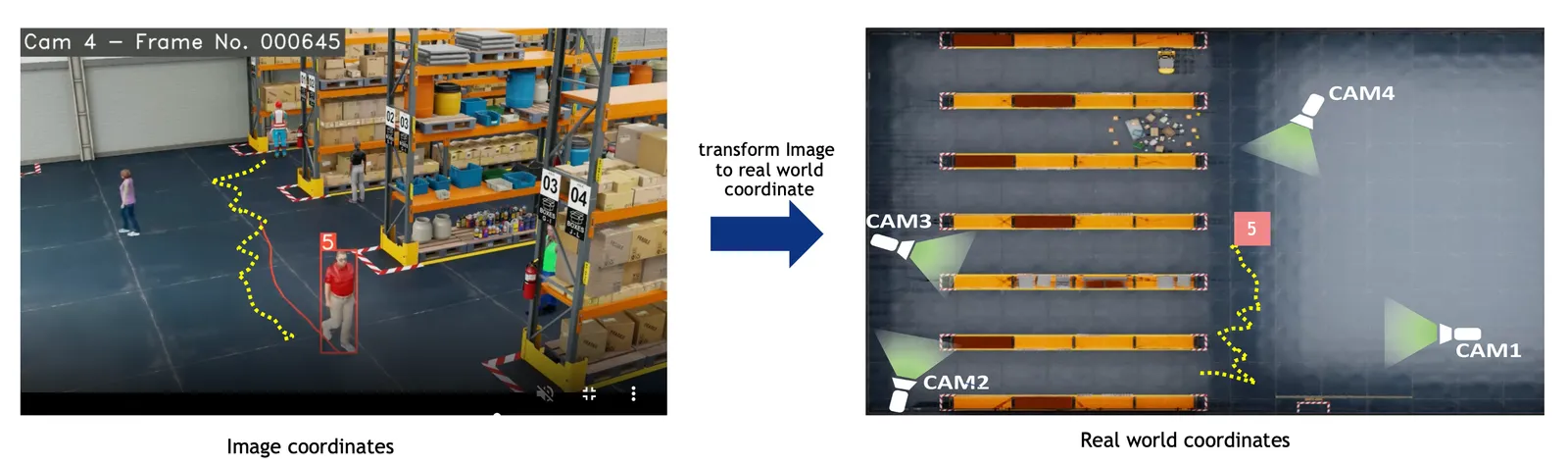
Frame metadata includes object-id, bbox in image/pixel coordinates, object-type, and other attributes.
Cartesian or geo calibration: Diagram: image coordinates (left) transformed via homography to real-world—geo (lat/lon) or Cartesian (meters)—for speed, distance, ROI, etc. Bbox reference is configurable for image calibration (see Image calibration (no transformation)).
Image calibration: No transformation; output stays in image/pixel. Default when no calibration file or calibrationType is "image".
Usage
With BaseApp, calibration is initialized as self.calibration. DynamicCalibration detects type (image, cartesian, geo) from the JSON and creates the right implementation.
For standalone usage without BaseApp:
Calibration types
Three types are supported, selected by calibrationType in the calibration JSON (defaulting to image when no file is provided). See the subsections below.
Image calibration (no transformation)
CalibrationI does not transform coordinates; output stays in image/pixel space (no homography). Use when:
- No calibration file at startup (or one will be added later)
calibrationTypeis"image"- Analytics are image-space only
No homography; transform_bbox returns the chosen bbox reference point. 2D bbox only; 3D not supported. filter_frames_by_sensor_id returns all frames (no sensor filtering).
Image location mode (image calibration only)
Config imageLocationMode (JSON key: imageLocationMode) sets the bbox reference point:
Applies only to image calibration (CalibrationI). Cartesian/geo use a fixed convention.
Euclidean/Cartesian calibration
CalibrationE transforms image coordinates to real-world Cartesian (meters) via a per-sensor homography matrix. Use for building or floor maps. Supports 2D bbox (bottom-center reference) and 3D bbox when in3dMode is true; transform_bbox uses perspective transform. Frames are filtered by sensor ID (only sensors defined in calibration are kept).
Geo calibration
Calibration transforms image coordinates to real-world; output is lat/lon (WGS-84) or Cartesian depending on config (trajGeoCoordEnable, coordinate reference system, origin). Handles four cases: latlon→latlon, latlon→cartesian, cartesian→latlon, cartesian→cartesian. 2D bbox only (bottom-center); homography from image to geo/cartesian. Frames are filtered by sensor ID.
Definition
Message represents a single object + contextual data:
API
Behavior State Management (BSM)
As the perception layer tracks a given object, the object-id remains the same during the time the object is seen by a single camera. This helps in forming a Behavior for a given object. Behavior defines the sequence of real world coordinates an object was detected at, its appearance, embeddings, pose etc., The span of the Behavior may be short lived based on how long it was seen with respect to a given camera. There are cases where the span of the Behavior can be very long. An example is a car stopped due to a red signal or a car parked on the roadside or a person standing in a queue.
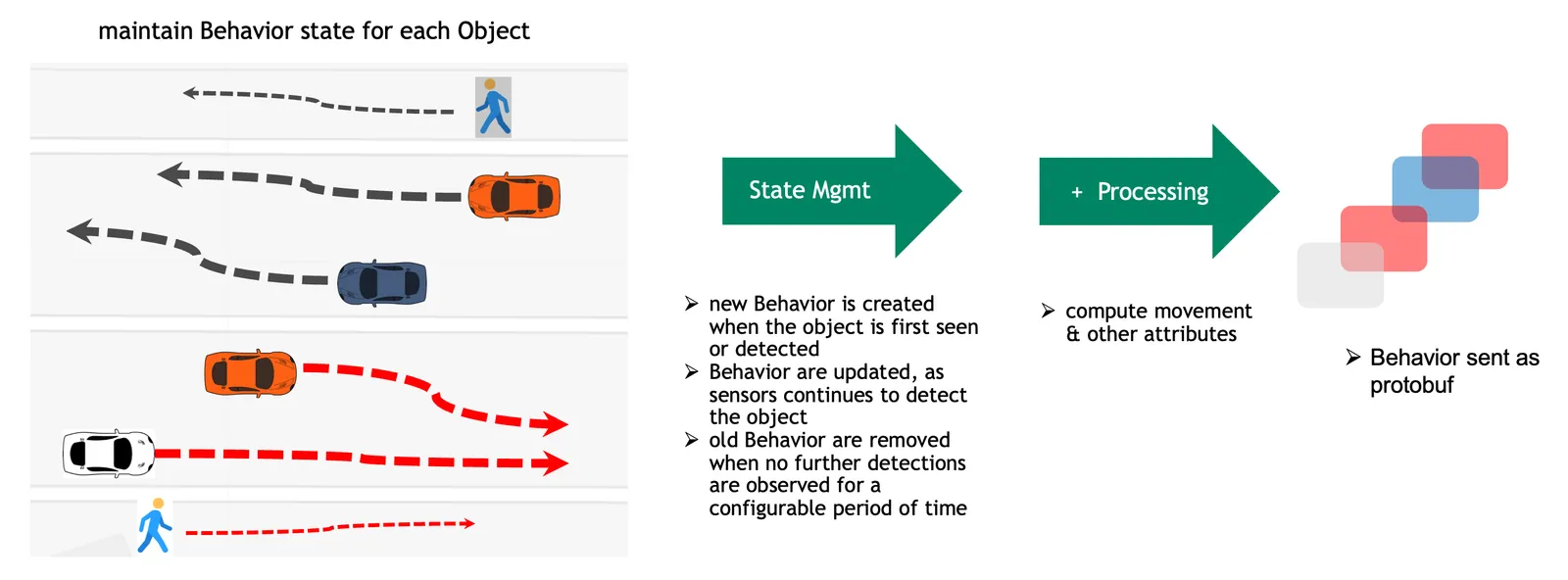
The above diagram depicts a few tracks with respect to vehicle and people movement as seen by the camera. However, this can be any kind of object, like a robot, a bicycle, etc. The BSM maintains the Behavior state on live streaming data. As the objects are detected by the perception layer and frame metadata is sent over the network to the Kafka broker, the Behavior Analytics pipeline consumes all detections corresponding to an object and maintains the Behavior state in memory. The in-memory copy of the Behavior is backed up by a persistent store for reliability. The Behavior gets updated when the perception layer sends more detection metadata with respect to the same object. At some point in time, the object gets out of the Field of View of the camera and no more metadata is sent to the BSM. The BSM then cleans up the Behavior corresponding to the object that is no longer seen. The period of time after which the BSM cleans up the state is configurable. To keep the memory footprint of the Behavior state low, only minimal information is stored during the life of the Behavior. The state comprises the object ID, sensor ID, locations, start and end timestamps, object embeddings, etc.
Behavior State Management API
Usage
State management is driven one batch at a time, not one track at a time. process_batch takes the
whole messages_map because deciding which tracks have fallen silent is only sound once every message
in the batch has reached its state and every sensor clock has advanced — looping per key would end tracks
whose own messages are still sitting later in the same batch.
At shutdown, call flush_behaviors() to release every track still held — live tracks are
retained in both emission modes — otherwise those behaviors are never written. Everything it
returns is marked info["isComplete"] = "true", since shutdown ends every remaining track:
Use StateMgmt for image and Cartesian coordinates. For geographic coordinates use
StateMgmtG from mdx.analytics.core.stream.state.behavior.state_management_g;
it does not track trips, so trip_behaviors is always empty there and no tripwire or
ROI events are produced.
Definition
process_batch returns a BehaviorBatch. The three lists hold live references, so enriching an
entry in place — adding anomaly info, compacting — is visible to whatever is written:
Because behaviors_to_write already accounts for behaviorEmitOnce, no caller needs to know
whether emit-once is on.
The per-track state itself:
API
When using BaseApp, use the built-in write_behaviors() and write_events() methods to publish results. See Sink.
Embeddings Cluster
Behavior comprises of sequence of real world coordinates an object was detected at, its appearance, embeddings, pose etc., The embeddings or the feature vector represents the object appearance, these embeddings are generated continuously and may vary based on factors like lighting, camera angle and field of view. Embeddings cluster tries to summarize 100s of feature vectors into few salient ones that can be used to represent an object appearance. The cluster algorithm used is CRP, it is a non-parametric generative Bayesian model, the data is processed in a streaming mode, clustering is done in an incremental model. As the sequence of embeddings is processed by the pipeline, it simultaneously learns the number of clusters, the model of each cluster, and entity assignments into clusters. The state of the cluster model is maintained by computing the cluster centers across every micro batch.
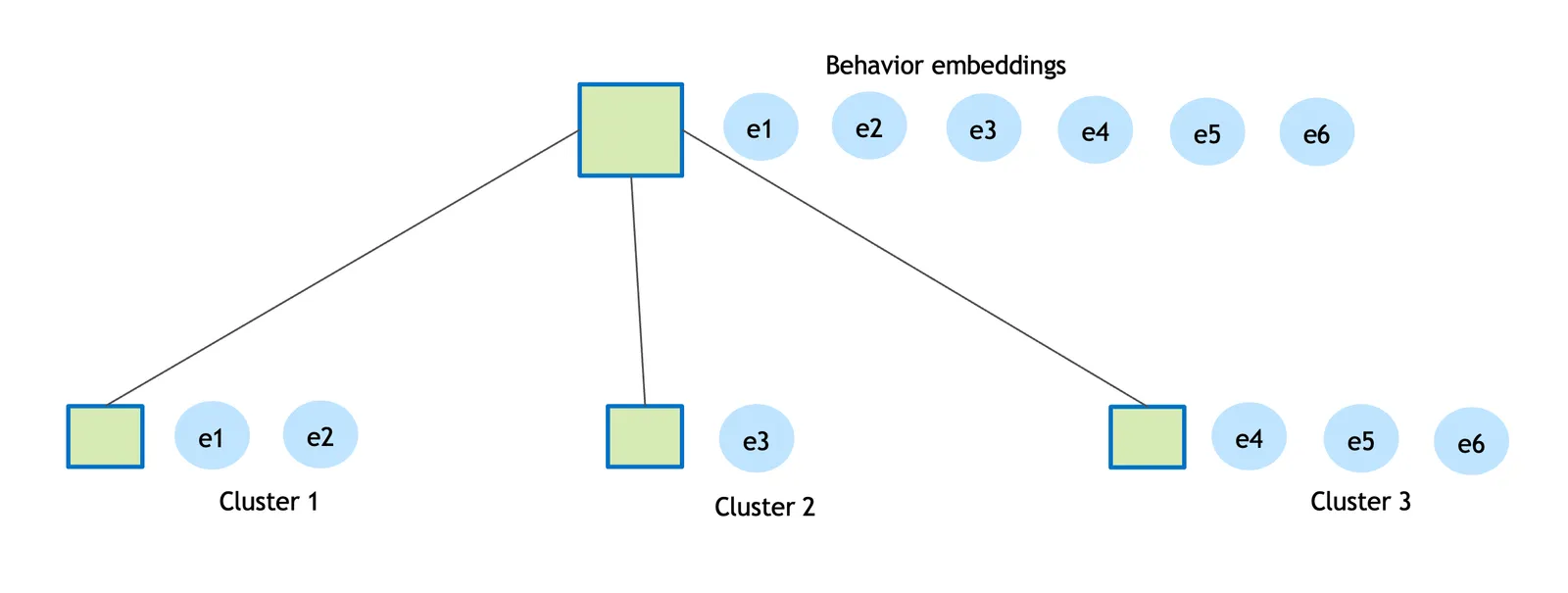
The diagram above shows only a few embeddings instead of hundreds; the idea is to create a few representative embeddings from all the detections for a given object. The clustering distance used is cosine similarity, and the default threshold is 0.9. The clustering process completes when an object is no longer detected by a sensor.
Usage
Behavior Processing
Behavior Attributes
The key attributes of the Behavior are based on object movement + Object appearance with highest confidence + Sensor + Place + Embeddings + Pose + Gesture + Gaze:
Movement Attributes
For image and Cartesian coordinates, Trajectory is used:
For geographic coordinates use TrajectoryG from
mdx.analytics.core.schema.trajectory.trajectory_g. It subclasses Trajectory and overrides
bearing, direction, speed and speed_over_time to use haversine distance, and adds
direction_index and direction_based_cluster_index.
Average Speed Computation
The distance computation is made with respect to two consecutive points in the smoothened trajectory. The trajectory distance is the sum of all the individual distances obtained between consecutive points.
Compute distance d between two consecutive points:
For geographic coordinates, Haversine distance is used and the resulting speed is reported in mph. For image-coordinate calibration, distance is measured in pixels and speed is reported in px/s. Image-coordinate calibration is also the default when no calibration file is provided.
Speed Computation Over Time
Here is an example of Vehicle moving East with an average speed of 29.95 miles/hr, covering 212.87 meters in 15.90 seconds. However, the average speed may not exactly depict the vehicle speed, how it changes over time. If we consider the speed over time, it looks as below:
The speed computation over time is computed based on smaller segments of the trajectory. default is every segment with a span of 1 seconds speed is computed.
Direction
The Direction is computed based on the bearing of the Object.
The formula is to calculate the bearing of the trajectory from the first to the last point.
For Cartesian and image coordinates the angle with the x axis is used.
For Cartesian and image coordinates left, right, up & down is used.
The direction definition based on bearing is as follows:
Video Embedding Downsampling
Video embedding downsampling reduces the volume of time-series video embedding data (e.g. VisionLLM protobuf messages) while preserving important patterns and transitions. It is useful for pipelines that consume high-dimensional embedding streams and need to store or forward a compressed subset. The implementation supports two algorithms and per-sensor state with configurable tolerance and lifecycle.
Algorithms
- Swinging Door Trending (SDT): Interpolation-based compression. Uses a one-point look-ahead: the last committed point (anchor), a pending point (candidate), and the current point. The candidate is skipped if it lies within a tolerance band of the line from anchor to current. Good for smooth, gradual embedding changes; O(1) memory; one-point latency. Call
get_pending_video_embeddings()at shutdown to flush the pending candidate. - Sliding Window: Neighbor-based novelty detection. Keeps a fixed-size window of recent embeddings; a new point is saved only if it has fewer than
min_neighboursconsecutive similar neighbors in the window. Good for cyclical or repetitive patterns; O(window size) memory; no look-ahead delay.
Both algorithms support distance (Euclidean in normalized vector space) or cosine (similarity) tolerance metrics. Embeddings are normalized before comparison. Typical thresholds: SDT distance ~0.15, cosine ~0.91; Window distance ~0.45, cosine ~0.90 (looser thresholds for pattern matching).
Configuration
Video embedding is configured via AppConfig.video_embedding (VideoEmbeddingConfig). App-level keys use the embed prefix (camelCase in JSON). For the full list of parameters and defaults, see Configuration Parameters (Video Embedding, App-level config).
Usage
Use VideoEmbeddingStateMgmt with VideoEmbeddingConfig (e.g. from config.video_embedding). Create one manager and call update_video_embeddings(sensor_id, video_embeddings) per sensor for each batch; at shutdown call get_pending_video_embeddings() to flush pending candidates (important for SDT). The class creates downsamplers lazily per sensor and purges sensors inactive beyond sensor_ttl_sec.
Applications such as the fusion search app read video embeddings from a source, pass them through VideoEmbeddingStateMgmt, and write filtered/downsampled results via write_embed_filtered (or a custom sink).
API
Tolerance and algorithm choice can be tuned via the parameters in the Configuration table above.
Event Detection
The event detection system supports two types of events:
- Tripwire Events: It was triggered when objects cross the tripwire line segment.
- ROI Events: It was triggered when objects enter or exit the ROI polygon boundary.
Both tripwire and ROI are defined in the camera/sensor calibration JSON. Multiple tripwires or ROIs can be configured for each sensor.
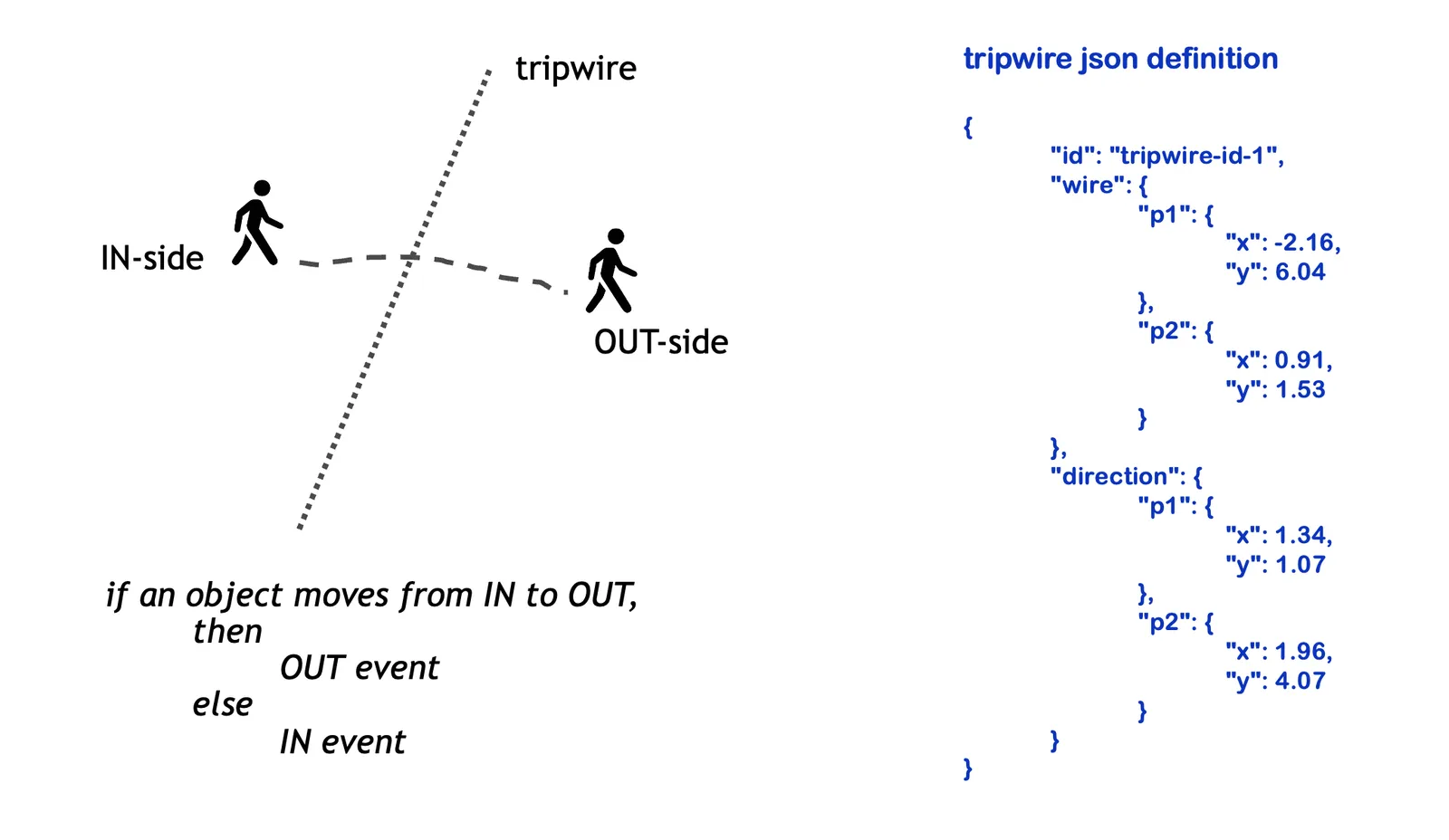
The wire is defined as a line segment between two points. The direction specifies IN point (p1) and OUT point (p2).
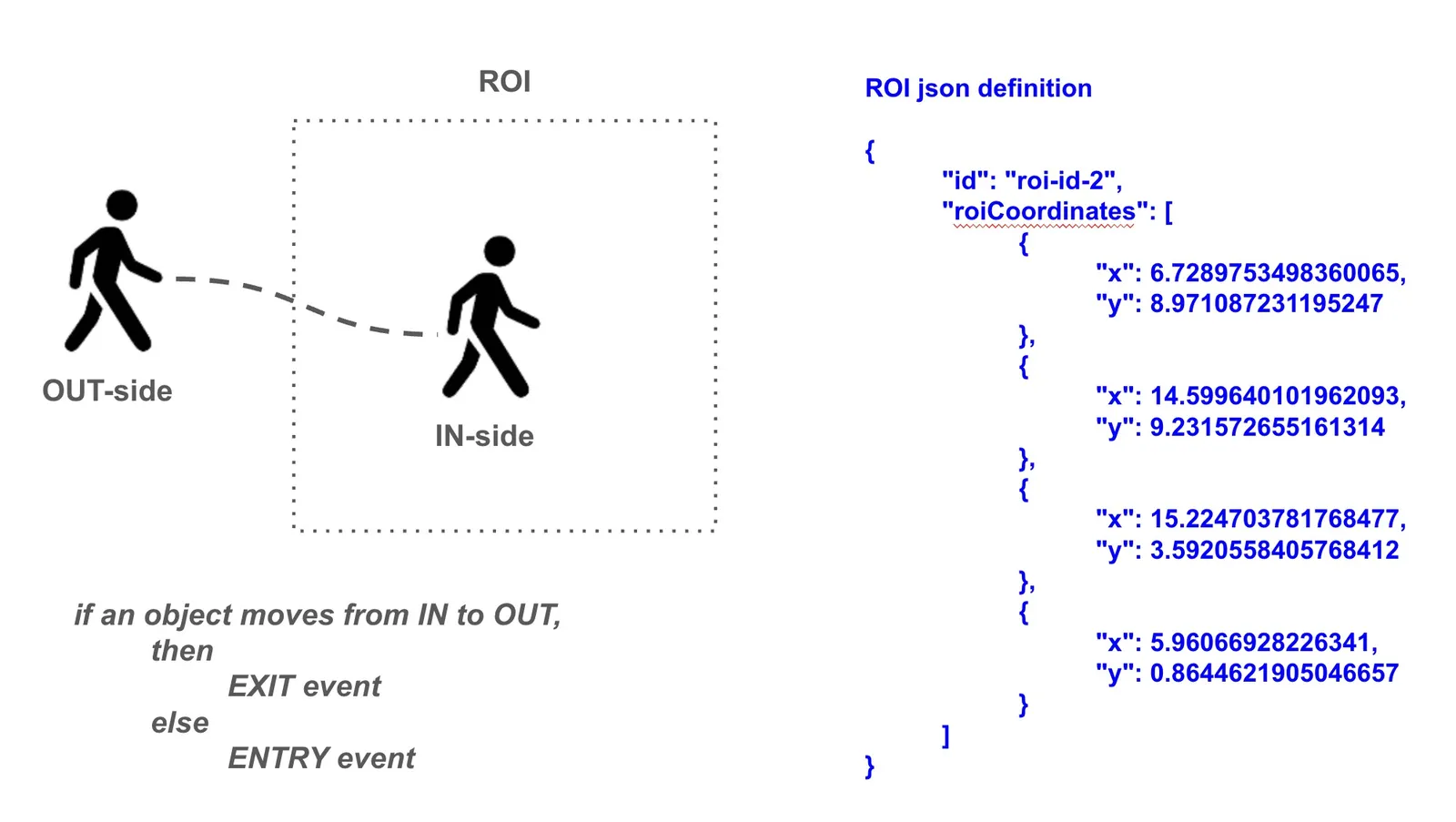
The roiCoordinates define the vertices of the ROI polygon.
Usage
Definition
The Behavior object (an entry of BehaviorBatch.trip_behaviors) contains the trajectory information including locations, start and end timestamps for each tracked object. The system processes this trajectory by:
- Splitting it into overlapping tracklets of length
2 × tripwireMinPoints(the sensor-leveltripwireMinPoints, default5, so 10 points per tracklet) - For tripwires: Checking if tracklets have sufficient points before and after crossing the wire
- For ROIs: Checking if tracklets have sufficient points both inside and outside the ROI boundary
ROI event detection mode
The app-level roiEventDetectionMode key controls how ROIEvent decides whether an object is inside an ROI:
bbox is supported only for image calibration, where object.bbox and the ROI polygon share
image-pixel coordinates. Under cartesian or geo calibration the ROI and trajectory are in world units
(metres / lat-lon) while object.bbox stays in image pixels, so the pipeline falls back to
coordinate and logs a one-time warning. Any unrecognized value is normalized to coordinate.
If you want bbox-overlap ROI events on a camera that has a world-space calibration, convert the ROI polygon into image space (via the inverse homography) and supply it in an image calibration.
API
For image coordinates use same TripwireEvent, ROIEvent.
Incidents
The Incidents framework detects violations in video frames and tracks them over time to generate confirmed incidents when violations persist beyond configured thresholds. This transforms transient violations (which may be false positives) into confirmed incidents that warrant attention.
Key Concepts
- Violation: A detected event from an enhanced frame (e.g., objects too close, unauthorized area access). Violations are instantaneous detections within a single frame.
- Violation State: Internal tracking of violation duration and continuity across frames.
- Incident: A violation that exceeds the configured time threshold and needs reporting.
For configuration details, see Configuration Parameters. For calibration schema details, refer to Calibration Schema.
Violation Types
The framework supports four types of violations that can be promoted to incidents:
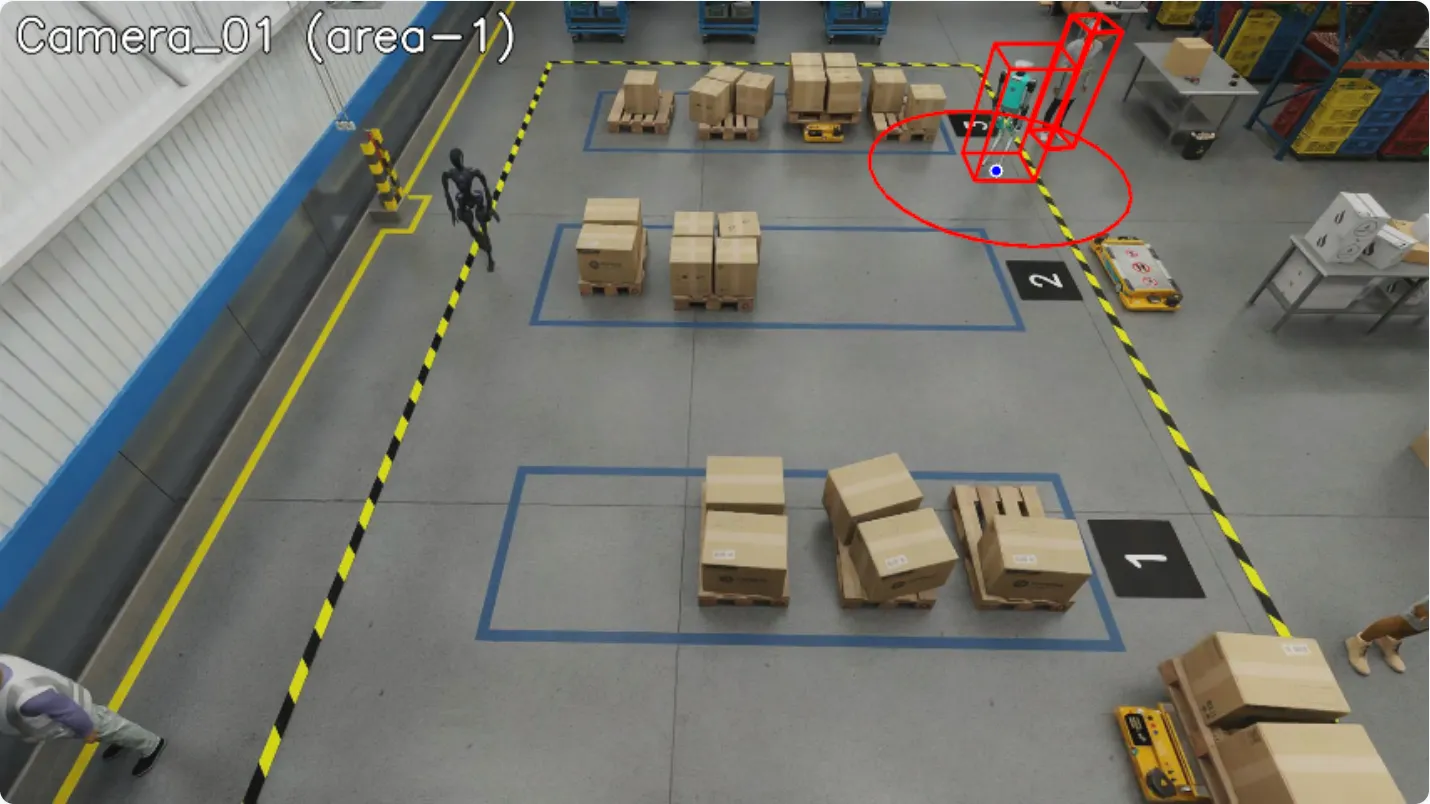
Proximity Violation
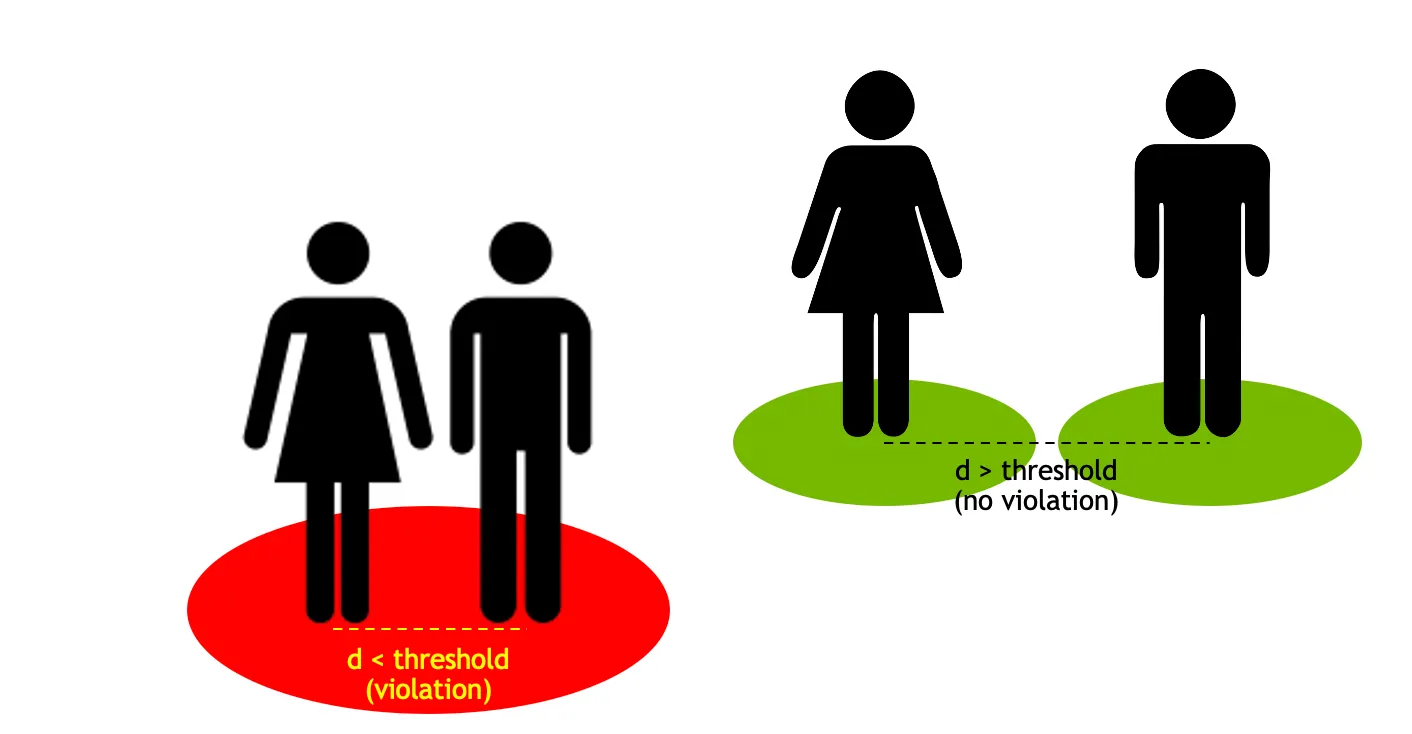
The objects detected are clustered via distance calculation and reports the cluster of points/objectIds involved in the violation.
The image below shows a proximity violation between a humanoid and a person. The distance between the two objects is less than the proximity threshold.
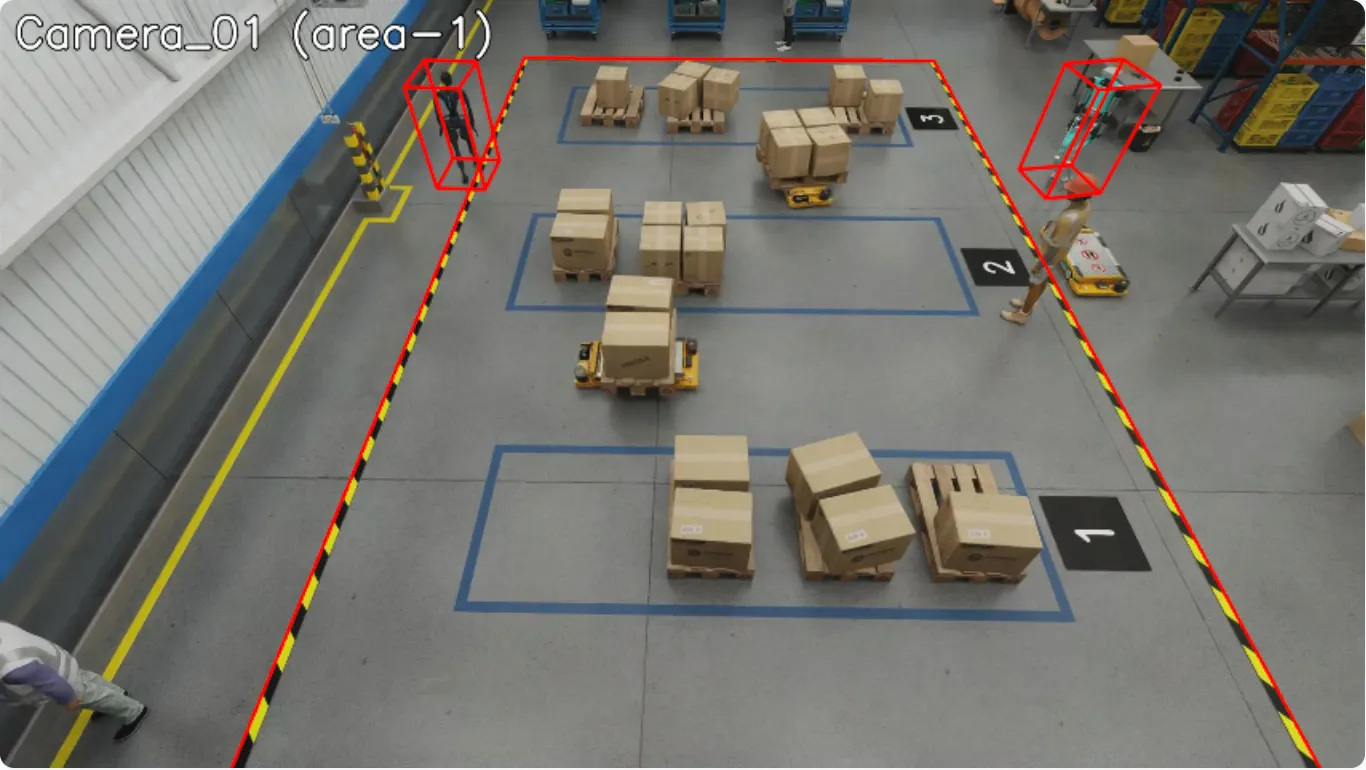
Confined Area Violation
The confined area violation is detected via point-in-polygon calculation. The system detects if any object is outside their designated confined area.
The image below shows the confined area violation. There are two humanoids present outside their designated confined areas. confinedObjectTypes for the area is set to “Humanoid” object type.
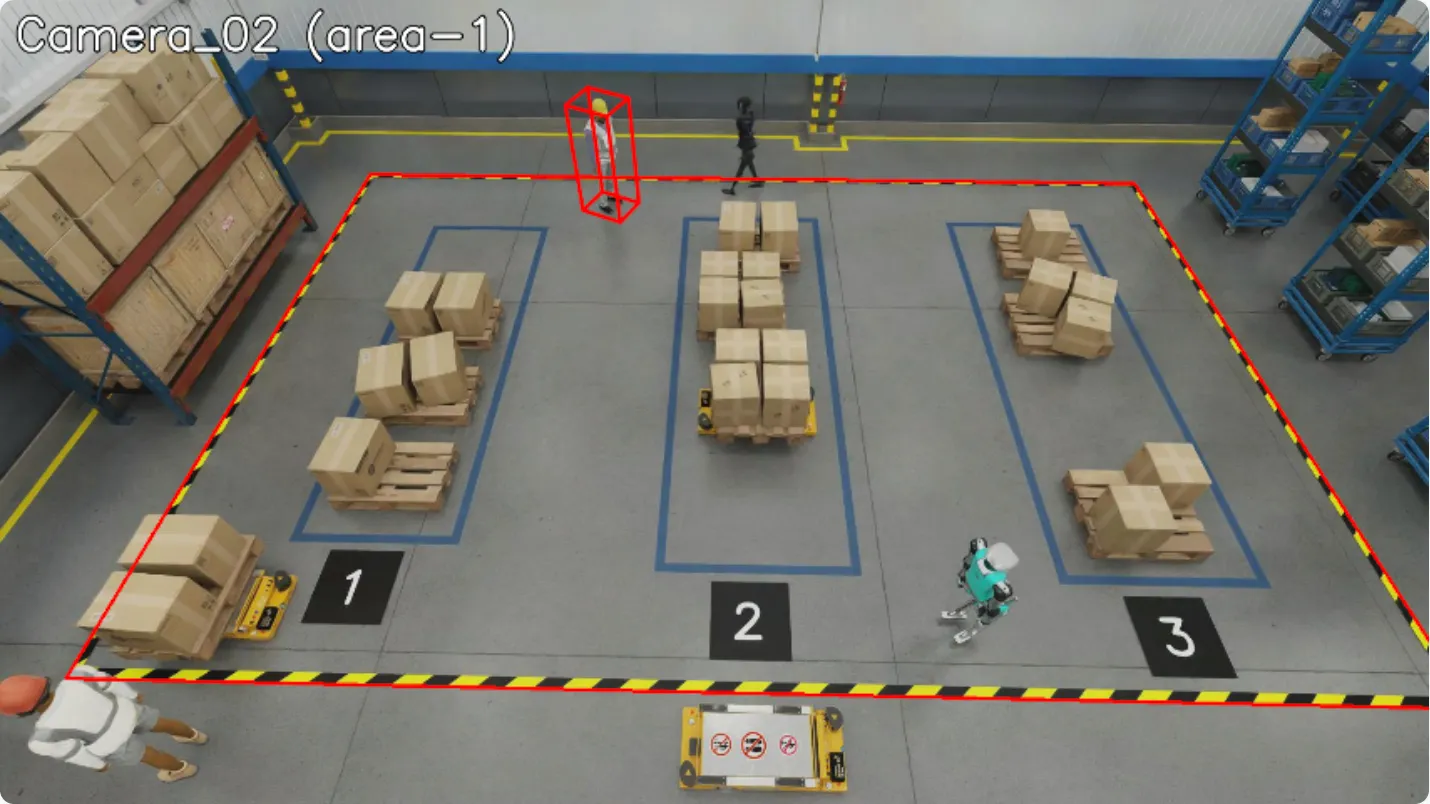
Restricted Area Violation
The restricted area violation is also detected via point-in-polygon calculation. The system detects if any object is inside their designated restricted area.
The image below shows the restricted area violation. One person is not allowed to be in the restricted area but is present inside it. restrictedObjectTypes for the same area is set to “Person” object type.
FOV Count Violation
The FOV count violation is triggered when the number of objects of a specific type in the field of view exceeds the configured threshold. This is useful for crowd control and capacity management scenarios.
The violation is configured via fovCountViolationIncidentObjectThreshold (the count at which the violation fires, compared as count >= threshold) and fovCountViolationIncidentObjectType (object type to count, e.g., “Person”). Because the comparison is inclusive, “no more than N in view” is expressed as a threshold of N + 1.
Violation Detection API
Enhanced Frame Data
The transform_frame method enriches the frame with FOV counts, ROI counts, and social-distancing (proximity) data. Proximity violations are written to the socialDistancing field as an SD object: proximityDetections is the number of violating clusters, clusters holds the world-coordinate points of each cluster, and info carries the proximityViolation flag plus the proximityViolationObjects groups (object IDs joined with , within a cluster and | across clusters). When no violation is present, proximityDetections is 0, clusters is empty, and info is {"proximityViolation": "false"}.
Incident Generation
Violations are tracked over time, and when they persist beyond the configured threshold, they become incidents.
Time Parameters
Each violation type has configurable timing parameters:
Configuration
Incident Configuration Parameters
Usage
Incident Structure
For object-specific violations (Proximity, Restricted Area, Confined Area):
When object presence is tracked (e.g. Proximity Violation, FOV Count Violation), info may also include objectTimeline: a JSON string mapping object IDs to lists of {start, end} intervals (ISO 8601) during the violation window.
FOV Count Violation incidents use a single state per sensor (no primary object). objectIds lists all objects that contributed to the violation; info has no primaryObjectId and may include objectTimeline. Call get_incidents() regularly so completed states are cleared and memory stays bounded.
Data Flow
Sink
The pipeline supports multiple sink types for publishing processed data:
- Kafka Sink: Publishes data to Kafka topics.
- Redis Streams Sink: Publishes data to Redis Streams for lightweight deployments.
- MQTT Sink: Publishes data to MQTT topics for IoT-oriented deployments.
The sink type is configured via the sinkType parameter in the app configuration section. Set it to kafka, redisStream, or mqtt based on your deployment requirements.
Usage with BaseApp
When using BaseApp, the sink is automatically initialized and available via built-in write methods:
Standalone Sink Usage
For standalone usage without BaseApp, use the sink factory:
API
BaseApp write methods (recommended):
Low-level Sink interface:
You can develop custom sink implementations by extending the Sink base class.
Customization in your deployment
You can customize code by extracting a file from the Behavior Analytics Docker image, editing it on your host, and mounting it into the container via Docker Compose. The container uses the mounted file instead of the one baked into the image. All code of the installed analytics library is under /usr/local/lib/python3.13/site-packages/mdx/analytics/core.
General pattern
- Get the file from the image — Run the image and print the file contents (or copy it out), then save to a file on your host.
- Edit the file — Apply your code changes locally.
- Mount and run — In your Compose file (e.g.
warehouse-2d-app.yml), add a volume mapping from your host file to the path inside the container under/usr/local/lib/python3.13/site-packages/mdx/analytics/core/.... Restart the stack.
Step 1: Get the file from the image
The image is distroless (no shell). Run the image with python3 -c "..." to print the file contents. Replace <path/to/module.py> with the path to the module file under .../site-packages/mdx/analytics/core/ (e.g. transform/calibration/my_module.py). Save the output to a file on your host:
Redirect the output to a file (e.g. > module.py), or copy-paste into your editor and save.
Step 2: Change the file
Edit the file as needed on your host.
Step 3: Mount and run
In your deployment YAML file (e.g. warehouse-2d-app.yml), under the volumes: section for the analytics service, add:
Replace path/to/your/module.py with your host path and <path/to/module.py> with the same path used in Step 1. Restart the deployment.
Dynamic Configuration
The system supports dynamic updates to app and sensors config keys at runtime. BaseApp wires a ConfigListener (one per main process) plus a per-worker ConfigFileMonitor which together:
- Validate: every inbound notification is checked against the per-key allowlist and value rules; bad items are rejected per-item without affecting good ones.
- Apply: validated items are merged into the live
AppConfigand cached values are invalidated so the next read returns the new value. - Persist: applied snapshots are atomically written to
CONFIG_DIRso workers (separate processes) pick them up via file monitor. - Acknowledge: every
upsertproduces anackevent back onmdx-notificationcarrying the post-apply state and per-item rejection details if any.
How It Works
When BaseApp starts:
AppRunnerinitializes a singleConfigListener(per main process) that consumesmdx-notificationfiltered by message keybehavior-analytics-config.- Each worker’s
BaseApp.__init__instantiates its ownConfigFileMonitorwatchingCONFIG_DIR. - On an
upsertnotification, the listener validates the payload, applies the mutable items to its localAppConfig, atomically writes the merged result toCONFIG_DIR, and publishes anack. - Each worker’s
ConfigFileMonitordetects the file change viaon_movedand applies the same updates to its ownAppConfiginstance. - Components reading
self.config.<key>at use-time see the new value on their next read.
Notification Message Format
Acknowledgement statuses returned by the listener in the ack event:
What Can Be Updated at Runtime
Mutable — change takes effect on the next read of the value (typically within milliseconds):
- App-level (
app[*]):behaviorEmitOnce,behaviorMaxPoints,behaviorStateEndToleranceSec,behaviorStateValidInterval,behaviorTimeThreshold,behaviorWatermarkSec,clusterThreshold,objectConfidenceThreshold,compactFrame,useObjectLocation,incidentObjectTtl,stateManagementFilter,imageLocationMode,roiEventDetectionMode,in3dMode,advancedOverlay, alltraj*andmapMatching*keys, and every*IncidentEnable/*IncidentThreshold/*IncidentExpirationWindow/fovCountViolationIncidentObjectThreshold/fovCountViolationIncidentObjectTypekey. - Sensor-level (
sensors[*].configs[*]):tripwireMinPoints,sensorMinFrames, allproximityDetection*keys,anomalyActionThreshold,anomalyClasses,anomalyIgnoreSensors,anomalySpeedViolation,anomalyUnexpectedStop,anomalyAbnormalMovement,anomalyFallRisk,anomalyLackMovement.
Read-only — restart required. Update attempts targeting these are rejected by the validator so operators don’t silently expect them to land:
- Whole top-level sections:
kafka,redisStream,mqtt,coordinateReferenceSystem,inference. - App keys consumed once at startup:
sourceType,sinkType,numWorkersForBehaviorCreation,numWorkersForFrameEnhancement,numWorkersForSpaceEstimation,numWorkersForEmbedFiltering,numWorkersForBehaviorClustering,numWorkersForIncidentGeneration. - Sub-configs consumed by classes that capture values at
__init__: allspaceAnalytics*keys (held insideSpaceAnalyzer), allembed*keys (held inside the video-embedding downsamplers), andanomalyCollisionDetection(held by the Smart City app). - Dead keys that are rejected on purpose so an operator never believes they landed:
coordinateSystem(coordinate handling is driven byin3dModeplus the calibration type) andinSimulationMode(its only reader was removed; useplaybackInSimulationModefor playback).
To change anything in the read-only set, restart the process.
Usage with BaseApp
When using BaseApp, dynamic configuration is handled automatically:
Standalone Usage
For standalone usage:
API
Startup Bootstrap
On startup, each replica publishes a request-config event tagged with a per-replica reference ID (behavior-analytics-<uuid>). The video analytics API replies with the latest verified config in an upsert-all event echoing that reference ID, so the reply targets only the requesting replica. If no reply arrives within the bootstrap timeout (default 15 seconds), the replica continues with its on-disk baseline config; later upsert events are still honored once the API becomes reachable.
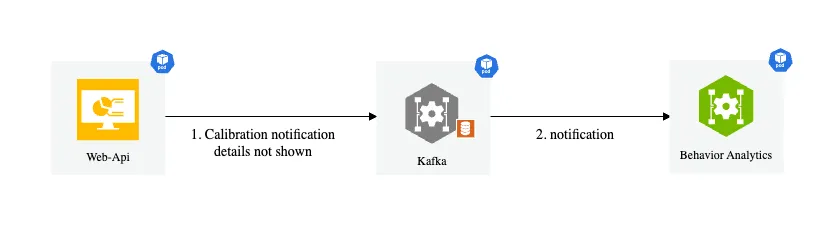
Dynamic Calibration
The system supports dynamic calibration at runtime. BaseApp uses the DynamicCalibration wrapper which:
- Type detection: Reads
calibrationType(image, cartesian, geo) from JSON; missing/unknown → image (CalibrationI). - No file at startup: Starts with image; a file can be added later for a one-time switch to cartesian or geo.
- File monitoring: Watches the calibration directory; if started with a file, changes only reload data (type does not switch).
- Notification listener: Listens to
mdx-notification.
How It Works
When BaseApp starts:
DynamicCalibrationis initialized with the optional calibration file pathcalibration.start_listen()is called to start file monitoringCalibrationListeneris started byAppRunnerto listen for notifications- When a notification is received, it writes the new calibration to a file
- The file monitor detects the change and reloads the calibration data
Notification Message Format
Unlike Dynamic Configuration, calibration updates do not produce an ack message back to the video analytics API. A schema violation or other application failure is observable only via container logs (look for calibration schema violation or rejecting invalid calibration payload entries) — the producing side has no programmatic way to confirm the update landed. Validation runs in two layers (listener pre-write gate and watcher defense-in-depth); both reject without modifying the live calibration, so a bad payload never destabilizes the running pipeline.
Usage with BaseApp
When using BaseApp, dynamic calibration is handled automatically:
Standalone Usage
For standalone usage:
API
Space Utilization
Space utilization is a feature that allows you to analyze the space occupied by objects in a given area. It can be used to monitor the utilization of a warehouse, parking lot, or any other space where objects are present. It is initially designed for monitoring the utilization of the buffer zones in a warehouse, but can be extended to other use cases as well.
Usage
Initialize the SpaceAnalyzer with the app config and calibration file, then invoke the analyze method to analyze space utilization in specified zones,
calculating metrics such as occupied space, free space, and maximum additional pallets that can be placed. It supports both genetic algorithm and greedy search approaches
for pallet placement optimization.
The details on the designated config parameters can be found in the above space analytics config section.
Output
The main methods analyze returns the computed space utilization metrics in two formats:
- NV schema format: This is the default output format, which is used in the space utilization app.
- Dictionary format: This is a more general output format used by agents, which includes additional information such as the objects bounding boxes for visualization uses.
Below we list out the key metrics along with the brief description that are included in the output.
The layouts of the free space and utilizable free space are also included in the output. NV schema output format follows exactly the definition in JSON-Schema, please refer to JSON-Schema for more details.
The dictionary format output also includes the bounding boxes of the objects in the scene for visualization purposes. The dictionary format output is consumed directly in agent workflows. Below is a sample output of the dictionary format:
Logic and Method
The logic to compute the space utilization metrics is described as follows:
- Everything is projected from 3D to 2D floor space (top-down view) of the monitored area.
totalSpaceis the size of the designated buffer zone which is on the floor plane.spaceOccupiedis the total area within the buffer zone that is occupied by target objects. Typical target objects are pallets and boxes. The detected 3D bounding boxes of the target objects are projected onto the floor plane and total size of the projected area (within the buffer zone) is calculated.freeSpaceis calculated astotalSpace - spaceOccupied.spaceUtilizationis calculated asspaceOccupied / totalSpace.numExtraPalletsis calculated as the maximum number of extra pallets that can fit into the free space.utilizableFreeSpaceis calculated asnumExtraPallets * pallet size.freeSpaceQualityis calculated asutilizableFreeSpace / freeSpace.
The computation of freeSpaceQuality is demonstrated in the figure below. The black rectangle indicates a 4-by-5 buffer zone, the spares are pallets with size 1-by-1,
red squares are existing pallets in the buffer zone and blue squares are the extra pallets that can still be placed in, assuming all units are in meters.
In the right case the 3 existing pallets are placed tightly together in a corner and the free space can be fully utilized to place 17 extra pallets thus the freeSpaceQuality is 100%.
In the left case the 4 existing pallets are placed spreading out thus only 7 extra pallets can be placed in the free space which yields 43.75% as the freeSpaceQuality.
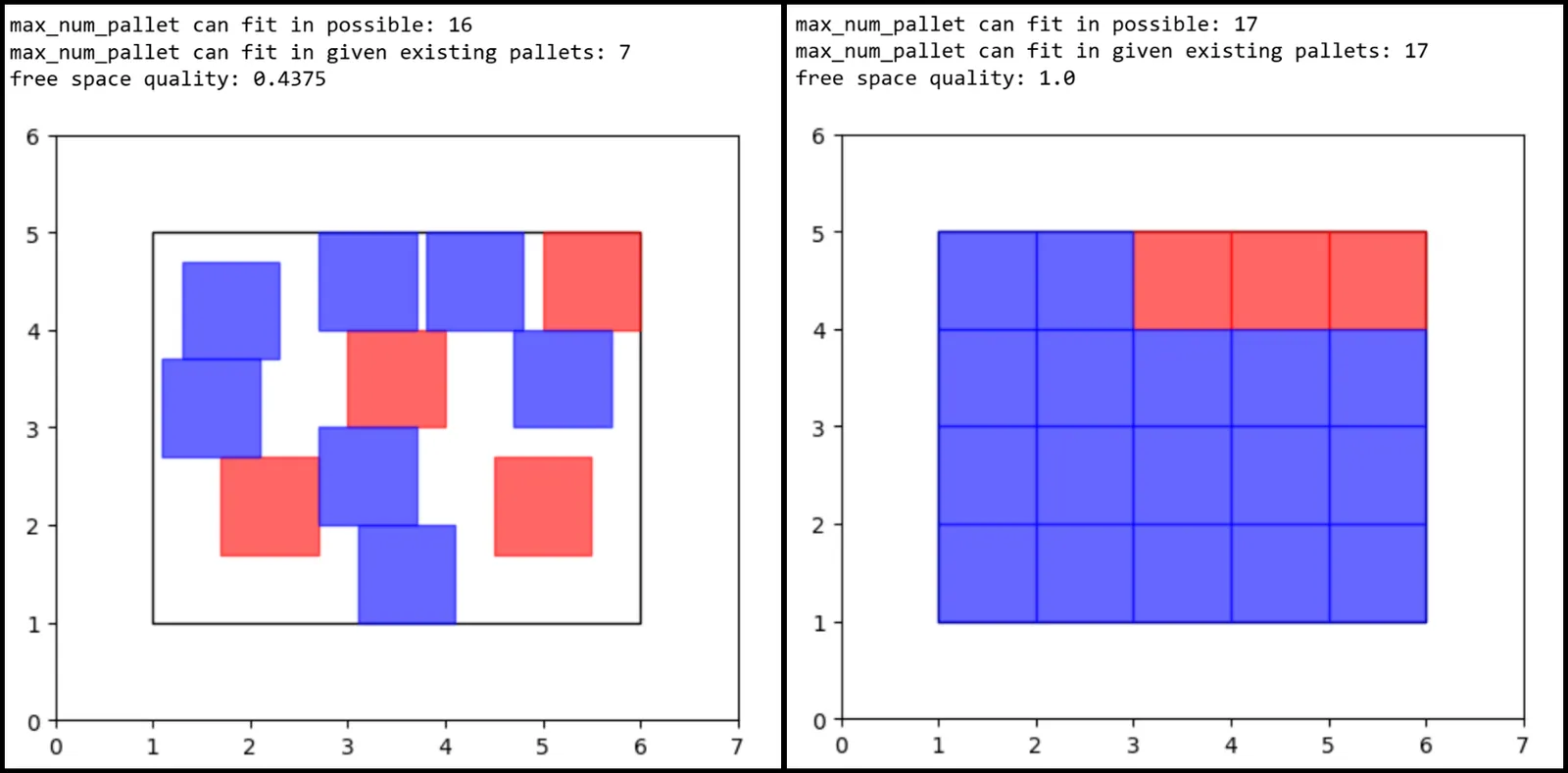
The key value and trickiest one to compute here is numExtraPallets.
Finding the maximum number extra of pallets is an optimization problem to find the best placement strategy to fit the most pallets
into the free space under the condition that pallets cannot be overlapping with each other or with existing objects in the buffer zone.
To find this optimal placement strategy we provide two different search algorithms as options here: genetic algorithm (GA) and greedy search.
-
Genetic algorithm logic is constructed as follows:
- Genome = the placement plan of N pallets: [(x1,y1), (x2,y2), …., (xN,yN)] there (x,y) is the center location of each pallet.
- Fitness score = the negative value of number of crosses between the N pallets and against the buffer zone boundaries + the existing pallets. So here fitness score is
<=0, the larger the better, if fitness score=0 reached which means a placement plan is found, in other words: N pallets can be fit in the free area. - Crossover is randomly swap two genomes (x1,y1) and (x2,y2) to (x1,y2) and (x2,y1)
- Mutation is randomly add delta to (x1,y1) and (x2,y2) to (x1+delta,y1+delta) and (x2+delta,y2+delta)
- We gradually increase N and find the largest N with fitness score=0, which is the maximum number of pallets that can fit in the free space.
-
Greedy search logic is constructed as follows:
- Place extra pallets one at a time util no more pallets can be fit in.
- Try to put a pallet in the top-left corner of the buffer zone.
- If it fits in, Tty to put a new pallet in, starting from the initial location next to the previous one
- If it doesn’t fit in, slide it X distance to the right and try again (if reach right end, slide down and start from the very left)
- If no more pallets can be fit in, stop and return the number of pallets that have been fit in.
Under the simplified assumption of rectangle-shaped buffer zone and square-shaped pallet of our current use case, Greedy Search provides on-par or better accuracy and much faster processing speed comparing to GA.
Greedy search is the default method used in the space utilization app, and user can also choose to use GA by setting the useGA parameter to true in the space analytics config section.
Other Tools
Under py-analytics-stream library, we created tools for warehouse blueprint agents to use in various agentic workflows.
Space Utilization Tool
API
The class and key method definitions for the Space Utilization tool are as follows:
Controller module for Space Utilization Analytics.
param str config_path Path to the app config file.
param Optional[str] calibration_path Path to the calibration file in JSON format. If not provided, calibration will be initialized from API.
ivar AppConfig config Application configuration object.
ivar CalibrationE calibration Calibration module for coordinate transformation.
ivar SpaceAnalyzer space_analyzer Space analysis module.
ivar float cam_font_size Font size for camera annotations.
ivar bool in_3d_mode Whether to use 3D mode for visualization.
Analyze space utilization from detection data.
This method:
- Loads detection data from file or uses provided data
- Converts detection data to protobuf format
- Processes detections through space analyzer
- Returns analysis results for specified zones
param str detections Detection data or path to JSON file containing detection data.
param float pallet_width Width of pallets in meters. Defaults to 1.0.
param List[str] target_zones List of zone IDs to analyze. If empty, analyzes all zones.
param bool frames_from_file Whether detections parameter is a file path. Defaults to False.
return List of dictionaries containing analysis results for each zone.
rtype List[Dict[str, Any]]
Example:
Project 3D analysis results onto a 2D image.
This method:
-
Loads base image from file
-
For each analyzed zone:
- Overlays unsafe pallets or free space visualization
- Applies annotations and titles
-
Resizes output to specified dimensions
-
Optionally converts to base64 string
param List[Dict[str, Any]] outputs_dict Analysis results from space_analysis_on_demand.
param str image_path Path to the image file to overlay results on.
param str sensor_id ID of the camera sensor.
param Tuple[int, int] output_size Output image dimensions (width, height). Defaults to (960, 540).
param bool show_unsafe_pallets Whether to show unsafe pallets. Defaults to True.
param bool export_base64 Whether to return image as base64 string. Defaults to True.
param Optional[float] font_size Font size for annotations. If None, uses default from config.
param Optional[str] title Title to display on image. If None, uses sensor_id.
return Base64 encoded image string if export_base64=True, otherwise numpy array.
rtype Union[str, np.ndarray]
Example:
Visualize frame alerts including proximity, confined area, and restricted area alerts.
This method:
-
Reads and processes frame alerts data
-
Applies visualization for different alert types:
- Proximity alerts between objects
- Confined area violations
- Restricted area violations
-
Applies color and thickness settings from config
-
Adds title and annotations
-
Resizes and optionally exports as base64
param Union[str, Dict[str, Any]] mdx_frame_alerts Frame alerts data or path to JSON file.
param str image_path Path to the image file to overlay alerts on.
param str sensor_id ID of the camera sensor.
param Tuple[int, int] output_size Output image dimensions (width, height). Defaults to (960, 540).
param bool frames_from_file Whether mdx_frame_alerts is a file path. Defaults to False.
param bool export_base64 Whether to return image as base64 string. Defaults to False.
param Optional[str] title Title to display on image. If None, uses sensor_id.
param Optional[float] font_size Font size for annotations. If None, uses default from config.
return Base64 encoded image string if export_base64=True, otherwise numpy array.
rtype Union[str, np.ndarray]
Example:
Config
The full config file for the SpaceUtilization tool is shown below:
Space analytics parameters (spaceAnalyticsIntervalSec, spaceAnalyticsGridSize, etc.) follow the same naming convention as described in the space analytics config section.
The extra parameters in the app section are described below:
Samples
Sample space utilization visualization is shown below. The green color patch indicates the extra pallets that can be placed in the free space, and the blue color shows the rest of the free space.
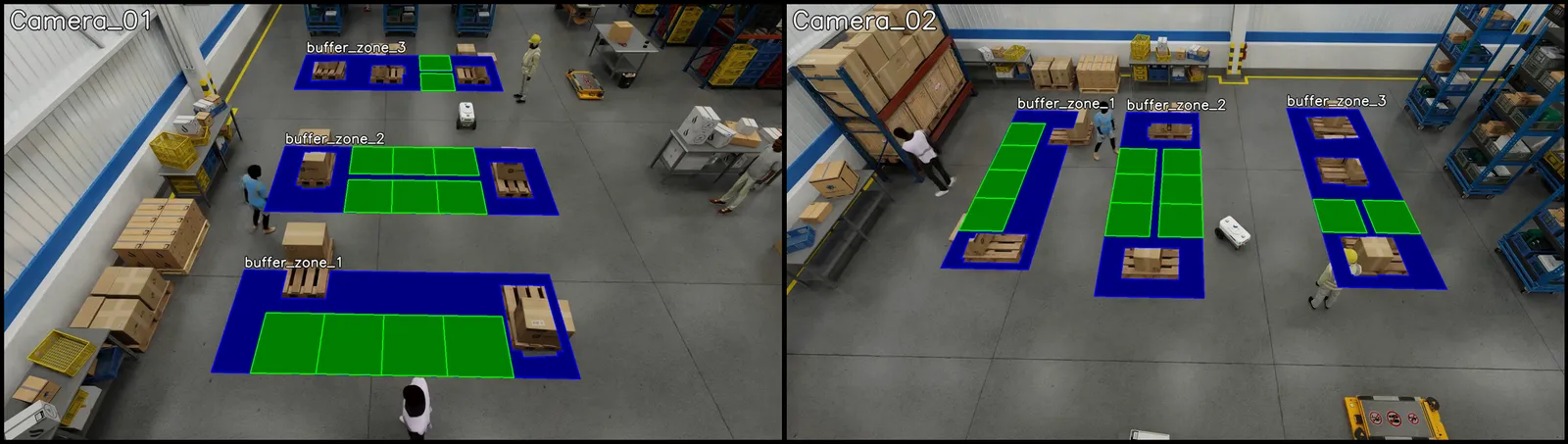
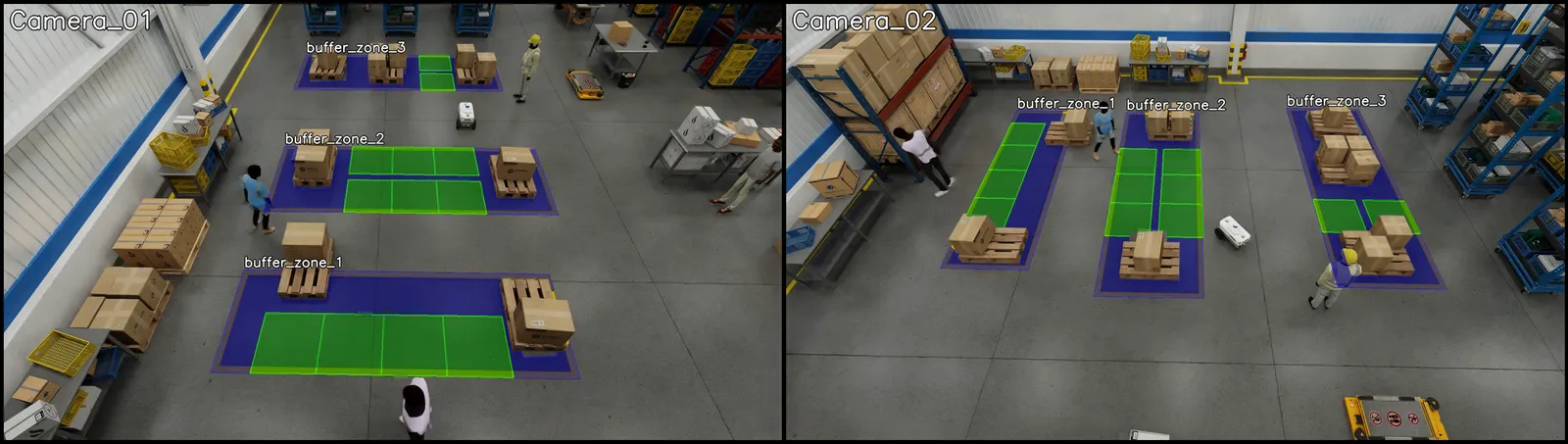
When visualizing space utilization, if advancedOverlay is set to true, the tool will make the color patch transparent as well as avoid overlapping on the existing objects (boxes/pallets) in the buffer zone.
This makes image visualization more intuitive to read but will also introduce extra computation time. For reference, a single visualization invocation time goes from 0.04sec to 1.7sec when using advanced overlay.
Sample space utilization visualization with advanced overlay is shown below.
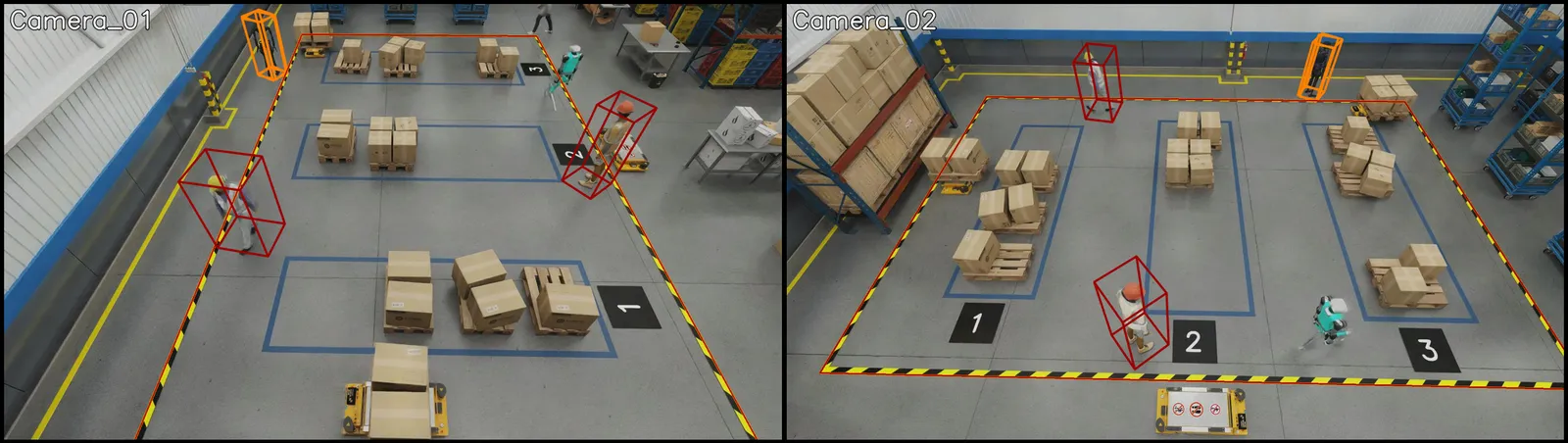
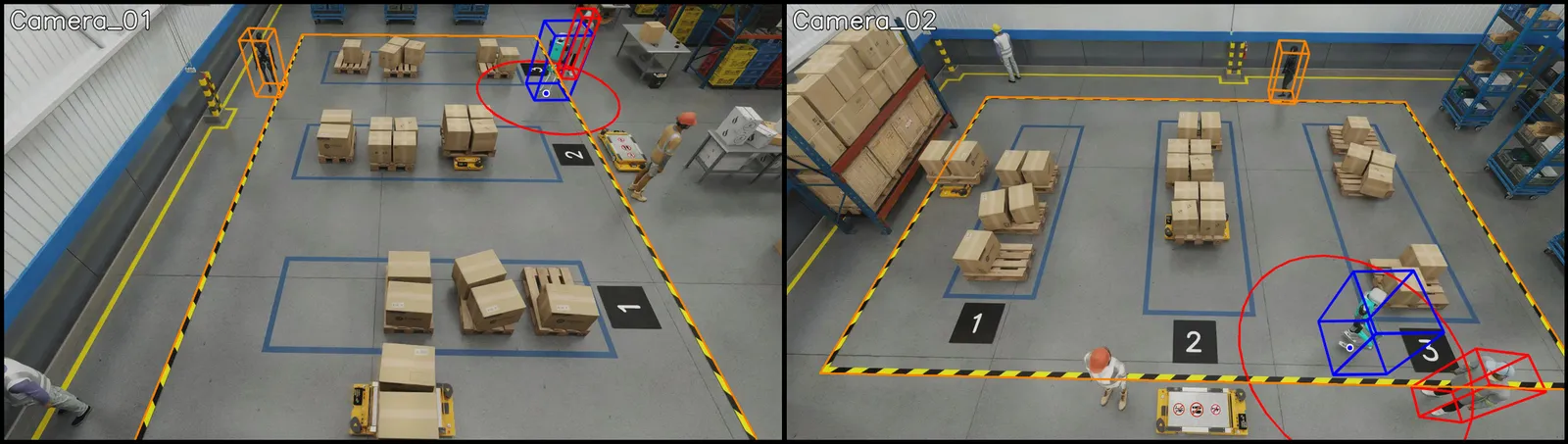
Sample visualizations of frame alerts are shown below. The dark red color bounding box highlights the restricted area violation objects. The orange color bounding box shows the confined area violation objects. The blue color bounding box shows the center object of a proximity violation detection, the red circle indicates the proximity range and the red bounding box highlights the proximity violation object.
USD Search Tool
The USD Search tool is a module designed to provide the agent knowledge of the study environment. In our sample warehouse blueprint workflows, synthetic data is used and the study environment is the USD asset. USD Search tool has an option to use USD Search API as the endpoint to query the USD asset, and that is how we named it this way initially. Essentially the Asset Graph Service (AGS) API is the only part used from USD search APIs. The alternative to using AGS API is to use mdxAPI for fetching asset information. mdxAPI is required for the calibration anyways thus using it for asset information as well removing the dependency on AGS API.
USD Search tool is used for tasks such as:
- Finding the size of a specific object (e.g. pallet)
- Finding the dimension of a specific area (e.g. buffer zone)
- Finding the best camera to view a specific area
- Finding the best camera to view a set of specific objects
- Finding the id used within the system of sub-areas and groups
API
The class and key method definitions for the USD Search tool are as follows:
A controller module for searching and analyzing USD (Universal Scene Description) scene elements.
The class supports loading data either from JSON files or through API endpoints. Controlled by configuration settings.
param str config_path Path to the app config file.
param Optional[str] calibration_path Path to the calibration file in JSON format.
param Optional[str] asset_json_path Path to the asset JSON file.
ivar AppConfig config Application configuration object.
ivar CalibrationE calibration Calibration module for coordinate transformation.
ivar dict asset_dict Dictionary containing asset information.
ivar str prim_query_base_url Base URL for primitive queries.
ivar list prim_pallets List of pallet primitives.
ivar list prim_buffer_zones List of buffer zone primitives.
ivar list prim_cameras List of camera primitives.
ivar dict pallet_size_map Mapping of pallet IDs to their sizes.
ivar dict buffer_zone_to_camera_map Mapping of buffer zones to cameras.
ivar dict bev_camera_map Mapping of BEVs to cameras.
ivar dict camera_fov_coverage_map Mapping of cameras to their FOV coverage.
Get the size of a pallet given its ID.
This method:
- Checks if pallet size map exists, fetches if not
- Looks up the pallet ID in the size map
- Returns the size or None if not found
The size is calculated as the square root of the pallet’s area (width * length).
param str pallet_id The ID of the pallet to look up.
return The size of the pallet, or None if not found.
rtype Optional[float]
Example:
usd_search = USDSearch(“config.json”) size = usd_search.get_pallet_size(“Pallet_A1”)
Example output: 1.25
Get the dimensions of a buffer zone given its ID.
This method:
- Retrieves available ROIs from calibration
- Searches for the specified buffer zone
- Returns coordinates if found, empty list if not
param str buffer_zone_id The ID of the buffer zone to look up.
return List of [x,y] coordinates defining the buffer zone dimensions, or empty list if not found.
rtype List[List[float]]
Example:
usd_search = USDSearch(“config.json”) dimensions = usd_search.get_buffer_zone_dimensions(“zone_1”)
Example output: [[0.0, 0.0], [1.0, 0.0], [1.0, 1.0], [0.0, 1.0]]
Get best camera for viewing multiple buffer zones.
This method:
- Gets lists of cameras for each buffer zone
- Finds cameras that can see all zones
- Calculates combined score for each camera
- Returns camera with highest score
The camera score is based on:
- Number of buffer zones visible
- Coverage area of each zone
- Balance of visibility across zones
param list buffer_zones List of buffer zone IDs. If empty, analyzes all buffer zones.
return ID of best camera for viewing all specified buffer zones, or None if not found.
rtype Optional[str]
Example:
usd_search = USDSearch(“config.json”)
Get best camera for specific zones
best_camera = usd_search.get_best_camera_on_buffer_zones([“zone_1”, “zone_2”])
Get best camera for all zones
best_camera_all = usd_search.get_best_camera_on_buffer_zones()
Get mapping of areas to buffer zones, cameras and BEVs (Bird’s Eye Views).
This method:
- Gets BEVs for specified areas
- Gets buffer zones for each BEV
- Gets best camera for each buffer zone group
- Returns lists of zones, cameras, BEVs, and areas
param list areas List of area IDs. If empty, analyzes all areas.
return Tuple containing (buffer_zones_list, camera_list, bev_id_list, area_id_list).
rtype Tuple[List[List[str]], List[str], List[str], List[str]]
Example:
usd_search = USDSearch(“config.json”) zones, cameras, bevs, areas = usd_search.get_zone_camera_bev_on_areas()
Get best camera for viewing frame alerts.
This method:
- Loads frame alerts from file if specified
- Gets list of cameras for the BEV
- Calculates camera scores based on object positions
- Returns camera with highest score
The method considers multiple types of alerts:
- Proximity alerts between objects
- Confined area violations
- Restricted area violations
param dict mdx_frame_alerts Dictionary containing frame alert data or path to JSON file.
param bool frames_from_file If True, loads alert data from file path.
return ID of best camera for viewing the alerts, or None if not found.
rtype Optional[str]
Example:
Create mapping from sensors to their ROIs (Regions of Interest).
This method:
- Processes sensor information from calibration
- Filters by sensor type if specified
- Creates mapping of sensors to ROI IDs
param Optional[str] sensor_type Filter by sensor type. Valid values are:
- “camera”: Only include camera sensors
- “group”: Only include group sensors
- None: Include all sensor types
return Dictionary mapping sensor IDs to lists of ROI IDs.
rtype Dict[str, List[str]]
Example:
Config
The full config file for the USDSearch tool is shown below:
The parameters in the app section are described below:
The parameters related to fetch asset information are reserved for uses in future release.
The safety and metric agent in this release is not using the asset information.
For users customizing the provided software to incorporate other assets, the below parameters can be ignored: apiAGS, usdFilePath, useAssetJson.
The agent will still work as expected without these parameters or with the default provided values.
For the same reason, the asset.json file (included in the sample deployment to be used by mdxAPI) can be ignored as well when working with different assets.
Skill
The vss-setup-behavior-analytics Agent Skill deploys the Behavior Analytics microservice
standalone — without the perception layer, agent, or UI — by editing the existing
services/analytics/behavior-analytics/compose.yml and bringing the
vss-behavior-analytics-base container up on its own. Use it when you want to run the
analytics pipeline against an existing broker (or no broker at all), swap the entrypoint,
or point the service at a custom config or calibration without redeploying the full
warehouse blueprint stack.
The Skill is published in the skills/deployment/vss-setup-behavior-analytics folder of the VSS Blueprint repository.
Install it the same way as any other VSS Agent Skill — see Installing Skills
for the catalog-wide install flow.
When to invoke
Ask your coding agent (Claude Code or Codex) for any of the following:
- “Deploy behavior analytics” or “run behavior-analytics standalone”
- “I just want to run analytics, not the full stack”
- “Change the entrypoint to search_and_alerts / composite / smart_city / analytics 3D / mv3dt”
- “Use my own behavior-analytics config / calibration JSON”
- “Point behavior-analytics at the
warehouse-3d(ormv3dt) config without spinning up the rest of the warehouse profile” - “Publish a dynamic config / dynamic calibration update into a running behavior-analytics”
What the Skill walks through
The Skill drives the operator through four decisions, then deploys:
- Entrypoint — pick one of the shipped apps:
-
Config (required) — either a profile-shipped config (recommended pairings are listed in the Skill reference) or any custom JSON conforming to the shape documented in Configuration Parameters. Mounted into the container at
/resources/vss-behavior-analytics-config.jsonand passed via--config. -
Calibration (optional) — pick a
"cartesian"/"geo"/"image"calibration file (profile-shipped or custom), or skip it entirely. If skipped, the app starts with aDynamicCalibrationwrapper that waits for the first calibration notification onmdx-notificationbefore switching to the typed subclass. See Image to Global Coordinate Transformation for the calibration types. -
Broker — Kafka / Redis Streams / MQTT is not required to launch. Without a reachable broker, the container cycles via
restart: alwaysuntil one comes up. With a broker, the dynamic-update flows below become available.
Dynamic updates without redeploy
Once the container is running and a broker is reachable, the Skill can also walk you through the two runtime-update flows that don’t require restarting the container:
- Dynamic config — publish an
upsert(per-key patch) orupsert-all(full snapshot) tomdx-notificationwith Kafka keybehavior-analytics-config. See Dynamic Configuration for the wire contract and ack semantics. - Dynamic calibration — publish to the same topic with Kafka key
calibrationusingupsert-all/upsert/deleteactions. See Dynamic Calibration for the per-action validation policy.
Both flows live entirely on the broker — the producer can be video-analytics-api, a
custom script, or any Kafka/Redis/MQTT client that mirrors the wire shape.
Example
After installing the vss-setup-behavior-analytics skill, drive it from your
coding agent.
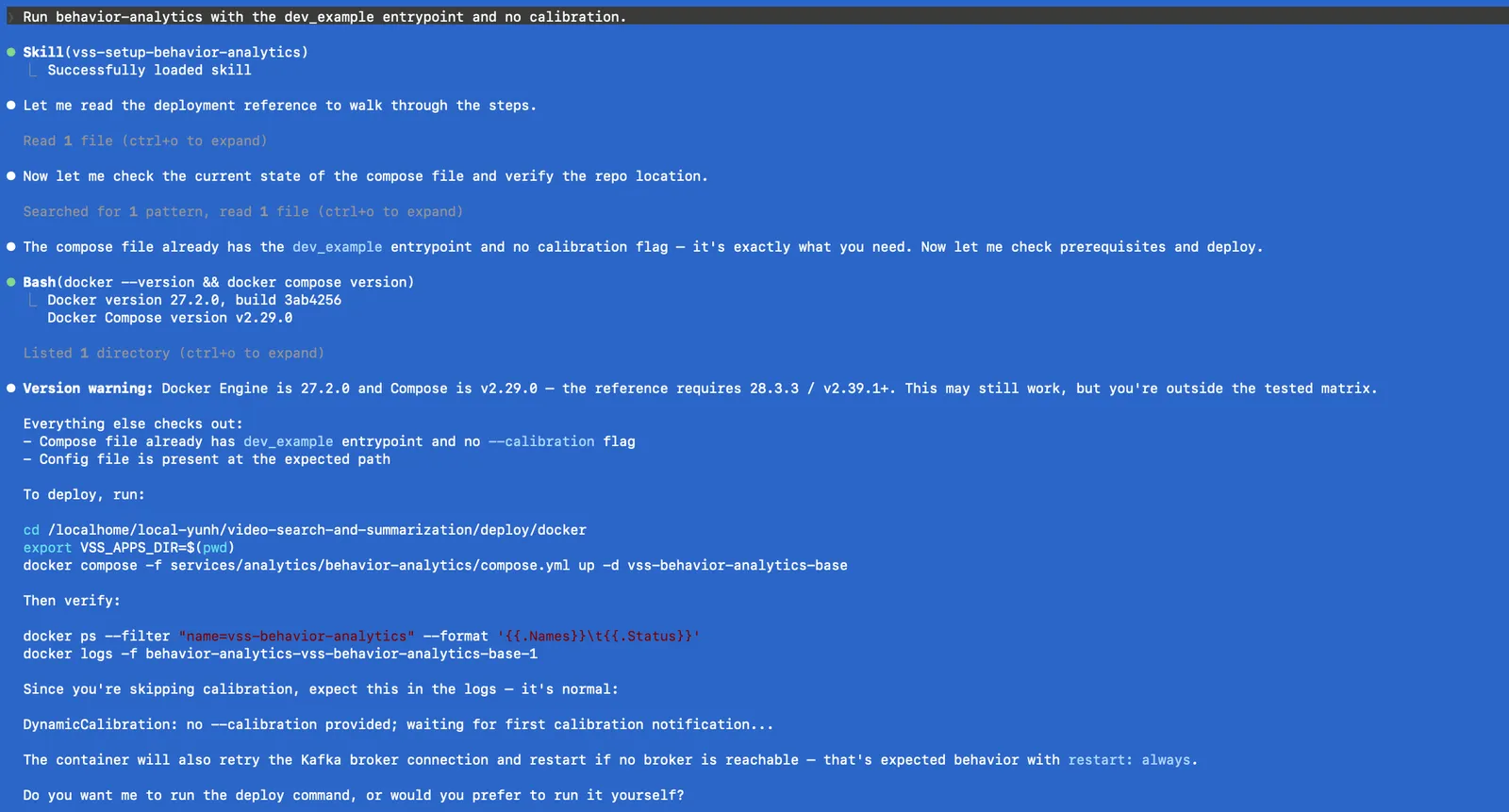
A single prompt drives the skill through the steps below. It only edits the compose file when the requested entrypoint or calibration differs from the current state, so a no-op request goes straight to deploy:
- Inspect the compose file. The skill greps
services/analytics/behavior-analytics/compose.ymlfor the active entrypoint and--calibrationflag. If it already matches the request (here, thesearch_and_alertsentrypoint with no calibration), no edit is made. - Check prerequisites. The skill runs
docker --versionanddocker compose version. The reference targets Docker28.3.3/ Composev2.39.1+; older toolchains (for example27.2.0/v2.29.0) usually still work, but the skill warns that you are outside the tested matrix. - Deploy. From
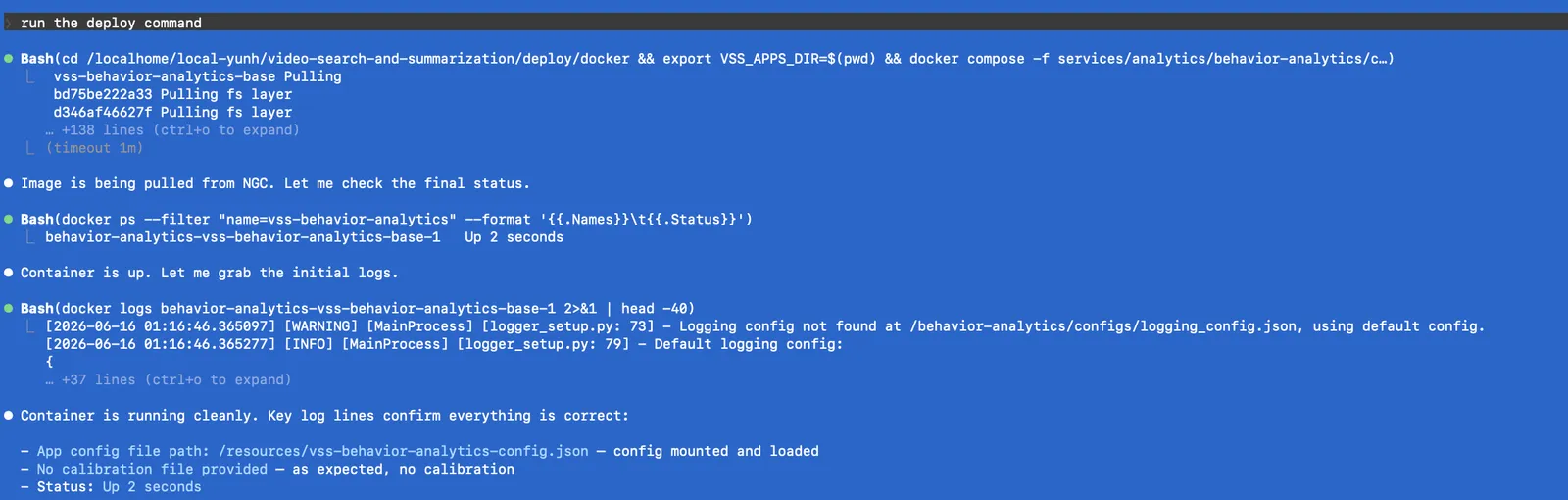
<repo>/deploy/dockerwithVSS_APPS_DIRexported, the skill brings up onlyvss-behavior-analytics-basefrom the compose file. On a first run the image is pulled from NGC. - Verify.
docker psshows the containerUp, and the logs confirm the config was mounted at/resources/vss-behavior-analytics-config.jsonand that no calibration file was provided, so the app waits for the first calibration notification onmdx-notificationkafka topic.
The two screenshots below were captured against an earlier release that shipped a
dev_example entrypoint. That app has since been folded into the entrypoints listed
above; the skill’s flow — inspect, check prerequisites, deploy, verify — is unchanged.
When no broker is reachable, the logs show the expected broker-less state:
kafka retries localhost:9092 continuously, the workers find no
partitions on mdx-raw kafka topic and retry every 30 seconds, and the app process keeps
cycling its retry logic rather than exiting. Once a Kafka broker comes up at
localhost:9092 the workers connect and start processing on the next retry
cycle.

For the standalone-service walkthrough, configuration field guide, and per-flow wire
contracts, refer to the Skill’s bundled references under
skills/deployment/vss-setup-behavior-analytics/references/ in the VSS Blueprint repository.