

Quickstart
This guide provides a comprehensive step-by-step walkthrough to help you quickly set up and start using the Warehouse Blueprint.
The Warehouse Blueprint is a video analytics solution that supports real-time object detection, tracking, and analytics. It offers two message broker options to accommodate different deployment scenarios:
- Kafka: High-throughput message broker optimized for datacenter deployments with robust persistence and scalability.
- Redis Streams: Lightweight message broker ideal for edge deployments with minimal memory footprint and low-latency requirements.
Choose the message broker based on your deployment environment: Kafka for centralized datacenter installations, or Redis for distributed edge locations where resources are constrained.
Components Overview
The high-level diagram illustrates the components of the Warehouse Blueprint. The diagram features the 2D, 3D, or MV3DT blueprint. The Agent communicates with the Blueprint’s data services through APIs.
The following diagram shows the major components of the Warehouse Blueprint:
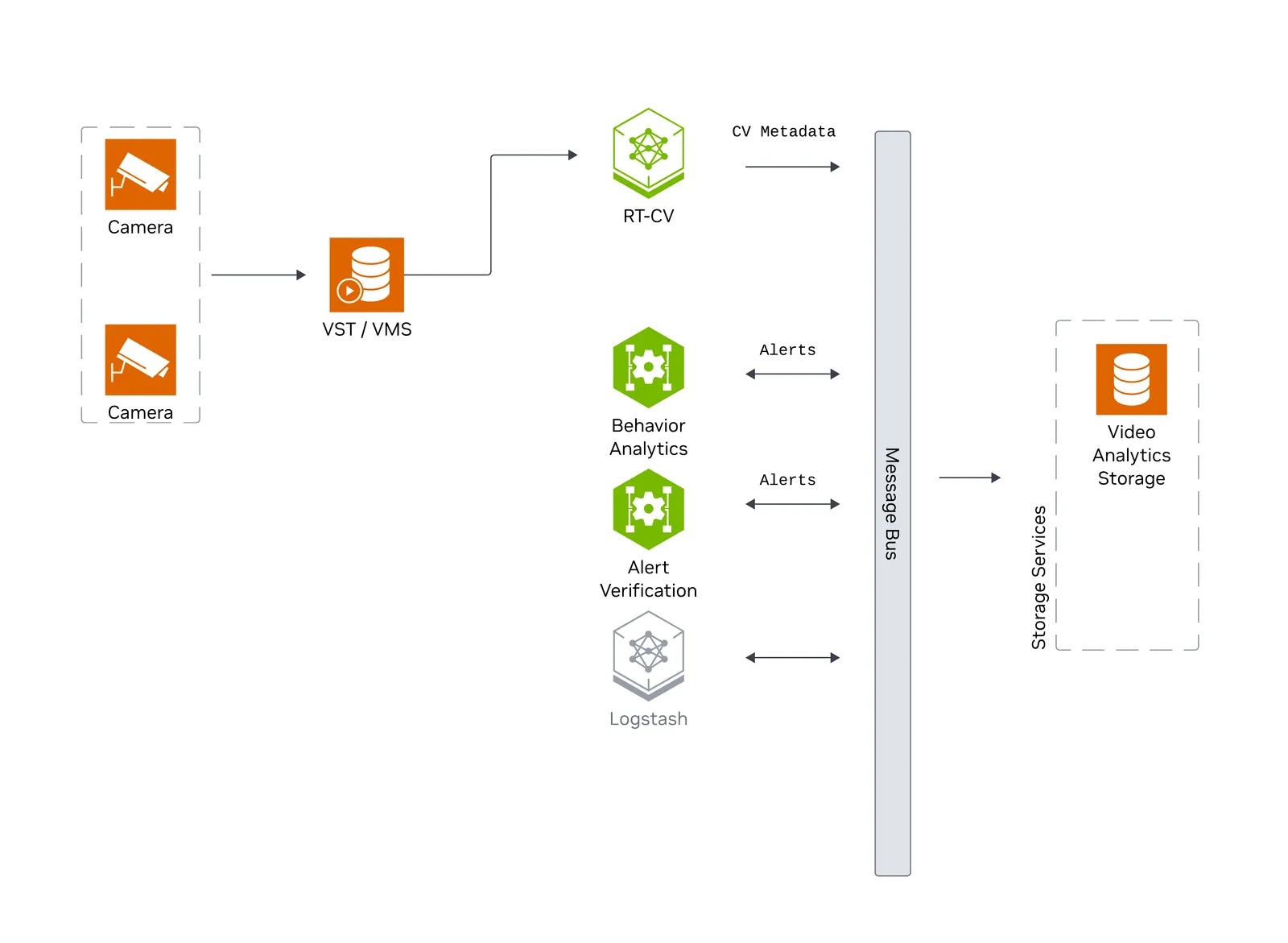
Camera streams are ingested by VST/VMS, processed by RT-CV (perception) and Behavior Analytics microservices, with CV metadata and alerts published to the Message Bus and persisted via Storage Services.
The following diagram shows how AI Agents interact with the Warehouse Blueprint:
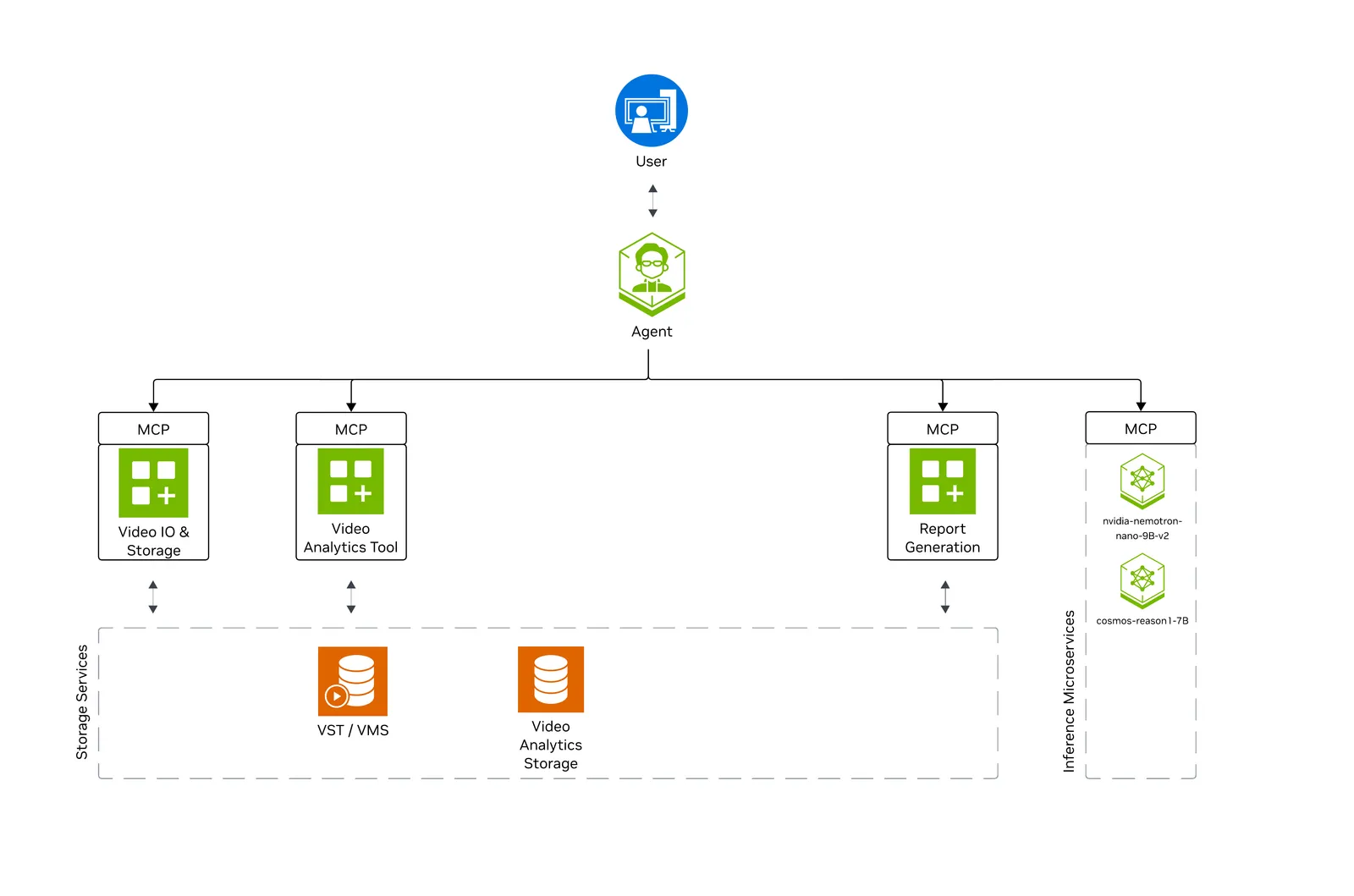
The Agent orchestrates MCP servers for Video IO, Video Analytics, and Report Generation, leveraging Nemotron (LLM) and Cosmos-Reason (RTVI-VLM) inference microservices.
Prerequisites
Before you begin, ensure all of the prerequisites are met. See Prerequisites for more details.
Deployment Options
The Warehouse Blueprint offers flexible deployment options with the following profiles:
Supported GPU Hardware
See Hardware Profiles and Deployment Paths for supported profiles, published performance, and GPU placement.
NVIDIA Certified GPU Servers and Workstations
Download Warehouse Artifacts
This section guides you through the steps to download the Warehouse Blueprint artifacts.
Setup NGC Access
Download the Deployment Package
Perform this on the machine where you intend to deploy the blueprint.
Git LFS required: The repository uses Git LFS for large files. Install it before cloning or pulling. For example, on Ubuntu/Debian: sudo apt-get install git-lfs. On other systems, see Git LFS installation.
Warehouse App Data
Warehouse App Data contains sample videos, playback data, runtime directories, and the sample-data license. Calibration files and configuration templates come from the repository. Perception models are downloaded from NGC during deployment using models-download.json; TensorRT engines are built on first run and cached under $VSS_DATA_DIR/models/. MV3DT Compose also stages CLIP-ReID (reid_model.onnx, 1280-D) and SigLIP 2 (siglip_v2_vdeployable_v2.0) under $VSS_DATA_DIR/models/reid on first boot.
The package includes the following MP4 datasets at 1920x1080 and 30 FPS:
The repository includes 2D, 3D, and MV3DT calibration for nv-warehouse-4cams, warehouse-loading-dock-3cams-synthetic, and warehouse-4cams-20mx20m-synthetic, so any of these three datasets can be used with any Warehouse analytics mode. Set NUM_STREAMS to the camera count shown below.
The package also includes degraded synthetic loading-dock footage (warehouse-loading-dock-3cams-degraded-synthetic, 3 cameras) with low-light and lower-quality camera visuals. It can be used the same way as a custom dataset, with calibration the same as warehouse-loading-dock-3cams-synthetic.
After extracting the package, set VSS_DATA_DIR in industry-profiles/warehouse-operations/overrides.env to point to the extracted data directory.
If you use your own videos or RTSP streams, they must have a resolution of 1920 x 1080 and be encoded without B-frames.
To check for and remove B-frames, see the FAQ guidance.
For custom video inputs, provide time-synchronized MP4 videos encoded without B-frames that are at least 60 seconds long and all videos should have the same duration.
The tracklet-based AMC method relies heavily on moving people in the input videos. Ensure that the videos contain a sufficient number of clearly visible moving people.
Deploy Warehouse Blueprint
Configure Environment settings
This section explains the most commonly edited variables in industry-profiles/warehouse-operations/.env and overrides.env.
Deployment Selection
Select the deployment profile, message broker, and deployment size below. Update the corresponding existing values in industry-profiles/warehouse-operations/overrides.env; do not append duplicate keys. Keep the shipped COMPOSE_PROFILES_WH_* definitions and update the COMPOSE_PROFILES selector that follows them. The three datasets with repository calibration can be selected independently of the analytics mode; set NUM_STREAMS to the selected dataset’s camera count. For 3D, also set DATASET_TYPE as described under Common Variables.
Default deployment: The shipped overrides.env selects the 2D Vision AI profile with Kafka and the extended service set (MODE=2d, BP_PROFILE=bp_wh_kafka). It includes ELK, Video Analytics API, and monitoring, but no agents, LLM, or RT-VLM.
2D + Agents
2D
3D
MV3DT
Auto-Calibration
Extended and minimal deployments
Minimal deployments are available for the Kafka and Redis 2D, 3D, and MV3DT profiles and are recommended on resource-constrained edge systems. They exclude ELK (Elasticsearch, Logstash, and Kibana), Video Analytics API, HAProxy, monitoring, and import helpers.
In the VIOS (VST) UI, metadata for live streams is read from Kafka or Redis, while metadata for recorded streams is read from Elasticsearch. Because Elasticsearch is not deployed in a minimal configuration, bounding boxes do not appear for recorded streams.
Auto-calibration GPU requirement
The auto-calibration profile requires an NVIDIA GPU with a hardware encoder (NVENC). See the Auto Calibration system requirements before selecting MODE=auto-calibration.
Hardware Profiles and Deployment Paths
Run nvidia-smi -L to identify the GPU model, then use the hardware tab below to set HARDWARE_PROFILE and the GPU placement for your deployment path.
Set the common deployment variables in industry-profiles/warehouse-operations/overrides.env:
industry-profiles/warehouse-operations/overrides.env is tracked by Git. Do
not write API keys or other credentials into it. For a remote LLM, export the
credential in the shell that runs Docker Compose:
The existing NVIDIA_API_KEY=${NVIDIA_API_KEY:-} and
OPENAI_API_KEY=${OPENAI_API_KEY:-} entries in overrides.env pass the
exported value to the deployment without storing it in the repository.
Container image coordinates are centralized in containers.env and loaded by the deployment command. In your hardware tab:
- Copy the settings from Hardware Profile into
industry-profiles/warehouse-operations/overrides.env. For GB300 and DGX-SPARK, also export the SBSA image-tag suffix as described in the hardware tab. - Choose exactly one deployment path and copy its settings into the same file.
Default container image tag
containers.env uses VSS_CONTAINER_TAG as the default tag for all images.
Export the tag selected for this documentation branch before choosing a hardware
layout:
Any service-specific image tag or tag suffix shown inside a hardware tab supersedes or augments this common default. Use the SBSA settings shown in the GB300 and DGX Spark tabs when deploying on those platforms.
RTXPRO6000BW
RTXPRO4500BW
GB300
H100
L40S
IGX-THOR
DGX-SPARK
Hardware Profile
Vision AI only
Agents + Remote LLM
Agents + Local LLM
Published performance
HARDWARE_PROFILE also selects the per-GPU stream cap and any required DeepStream latency, tracker, and frame-interval tuning through the VSS Configurator. Do not copy those generated settings into overrides.env.
To update an existing hardware profile or add a GPU that is not listed above, see Adding a New Hardware Profile in the VSS Configurator documentation.
Switch between Kafka and Redis
With ENABLE_PROFILE_CONFIGURATOR=true, the VSS Configurator uses STREAM_TYPE to toggle Kafka or Redis settings for these services:
- DeepStream perception: updates broker connection string, broker config file, and protocol library.
- Behavior Analytics: updates source and sink type to
kafkaorredisStream. - VST: updates notification message broker consumer settings.
- Video Analytics API: sets
kafka.brokersto["localhost:9092"]for Kafka ornullfor Redis.
For the common configuration pattern and examples of file updates automated by the VSS Configurator, see VSS Configurator commons and profiles.
Elasticsearch ILM policy retention period
Elasticsearch data is cleaned up every 4 hours as part of the ILM policy provided as part of the blueprint.
To increase the retention period, adjust index lifecycle (ILM) time by setting ELASTICSEARCH_ILM_MIN_AGE in industry-profiles/warehouse-operations/.env (for example 12h or 1d). This value is passed to the Elasticsearch init container when ILM policies are applied.
Default: 4h
For how ILM policies are defined and other tuning options, see ELK (Elasticsearch, Logstash, Kibana).
NIM Deployment Modes
The following modes apply to the LLM_MODE environment variable.
The Warehouse Blueprint uses rtvi-vlm for VLM inference. Configure RTVI_VLM_ENDPOINT, RTVI_VLM_MODEL_PATH, and RTVI_VLM_MODEL_TO_USE in industry-profiles/warehouse-operations/overrides.env. The shared RTVI_VLM_BASE_URL default is defined in services/rtvi/rtvi.env and normally does not need to be changed.
The bp_wh agent profile that deploys RTVI-VLM is not supported on IGX-THOR or DGX-SPARK.
For details on the RTVI-VLM microservice (configuration, supported models, and APIs), see Real-Time VLM.
Model Configuration
For the full set of variables (ports, agent settings, VST adaptor, calibration, etc.), use the inline comments in the shipped industry-profiles/warehouse-operations/.env.
Deploy the Blueprint
Ensure industry-profiles/warehouse-operations/.env and overrides.env are configured for your deployment before proceeding. Review the Deployment Selection and environment settings sections above.
Deploy Warehouse Blueprint
Initialization of some components might take a while, especially the first time, because large container images will be pulled.
Before updating the Warehouse configuration or running docker compose up, check whether containers from a previous deployment are still present:
No containers belonging to the previous deployment should be present before starting a new deployment. Stale containers from a previous deployment can cause silent errors. For example, already-running containers can create the false impression that a new deployment has started successfully.
Verify Deployment
- Verify if containers are in running state:
Verify deployment
-
Check to make sure streams were properly added to VST. To do so, navigate to the VST UI (see endpoint below) and check the Dashboard to confirm your streams are in a healthy state. If you do not see them there, check NVStreamer or your source to make sure they are active.
-
Check vss-rtvi-cv FPS to make sure DeepStream is running properly. View the vss-rtvi-cv logs by running the below command and looking for FPS lines in the logs. Ensure it is running at the desired FPS. If this is lower than expected, make sure your GPU is not oversaturated.
On first MV3DT boot, wait for appearance ReID before expecting perception FPS. Models download in the one-shot vss-reid-embed-init-mv3dt container (exit 0), then etcd, MinIO, and Milvus must be healthy, then:
The 300s figure on the ReID health check is a start grace period, not a maximum. Retries continue after that, so first-boot engine build can take longer. Perception does not start until the probe succeeds.
-
Check Kibana for indexed analytics data and alerts. Go to the endpoint listed below and navigate to the dashboard.
-
Check the VSS UI (see endpoint below) and test a few prompts after the system is up for a few minutes and a few alerts are present.
For detailed testing and validation steps, refer to:
- 2D Vision AI Profile
- 2D Vision AI with Agents Profile
- 3D Vision AI Profile
- MV3DT Vision AI Profile
- Troubleshooting Guide
Service Access Points
Once deployed, the following service access points are available:
- The Phoenix UI is only available when agent telemetry is enabled. For how to enable telemetry and inspect traces, see VSS Agents Observability.
- Observability stack access details (Grafana, Prometheus, and exporters) are documented in Observability.
Teardown the Deployment
To stop and remove the Warehouse Blueprint deployment:
The down -v --rmi all command removes this Compose project’s non-external volumes and service images. The dangling-volume command is host-wide and can remove unused volumes created by other Docker projects. cleanup_all_datalog.sh deletes Warehouse runtime data and generated artifacts selected by the env file; by default, it restores original files from the oldest configurator backups and then deletes the backup files. Deleted volume and runtime data cannot be recovered unless it was backed up. Use these cleanup commands only after confirming their scope; omit them when you only need to stop the Warehouse deployment.
Customization
The Blueprint supports several levels of customization, including but not limited to adding new cameras and updating models. For details, refer to the following sections under the Blueprint deep dive pages:
- 2D Vision AI Profile Customization
- 2D Vision AI with Agents Profile Customization
- 3D Vision AI Profile Customization
- MV3DT Vision AI Profile Customization
Warehouse Blueprint Skill
Agent Skills are reusable capabilities that coding agents such as Claude Code or Codex
can load to deploy and operate the VSS Blueprint from natural-language requests. For the
Warehouse Blueprint, use the vss-build-vision-ai Skill. It treats Warehouse as a
pre-built industry blueprint: it selects a supported Warehouse variant, validates the
host and app data, generates a self-contained deployment, brings up the stack, and
monitors readiness without requiring the operator to memorize every deployment command.
For the complete VSS Skills catalog and installation model, see Agent Skills.
The screenshots show an example 2D Kafka deployment in a coding agent. Hardware selections, versions, and diagnostic results are specific to that host; follow the current Prerequisites for your deployment.
Installing Skills
Install the Skills the same way as any other VSS Agent Skill. See Installing Skills for the full installation flow.
After installation, start a new coding-agent session before invoking the Skill by name.
Deploy the Warehouse Blueprint
-
Ask your coding agent to deploy the Warehouse Blueprint. For example:
Select the deployment variant, service set, and dataset when prompted, and provide any missing credentials.
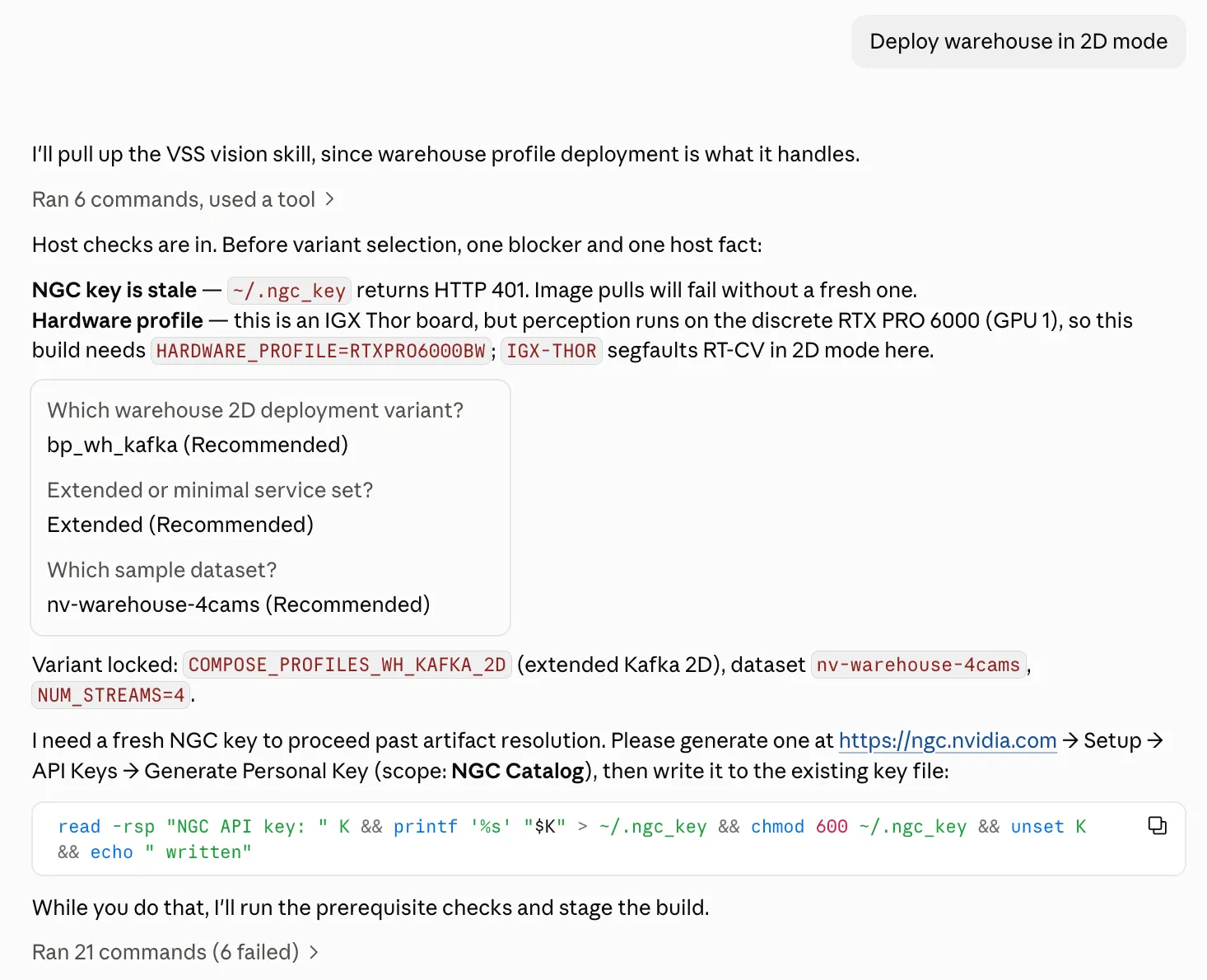
Select the Warehouse deployment and provide the required inputs. -
Review the proposed architecture and generated configuration.
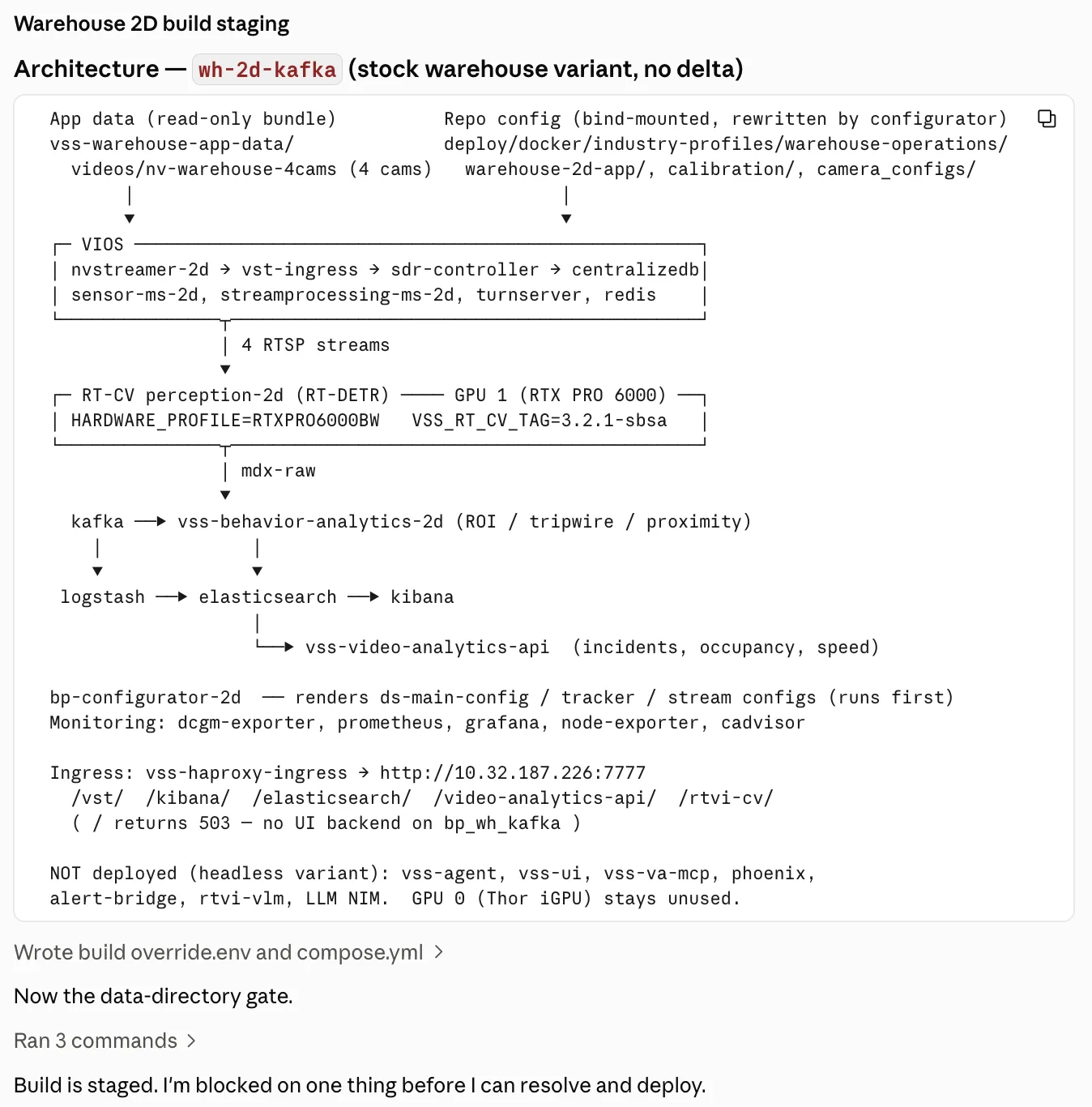
Review the services, data flow, and GPU placement. -
Review the pre-flight results and resolve any blockers before deployment. In this example, the NGC key must be replaced.
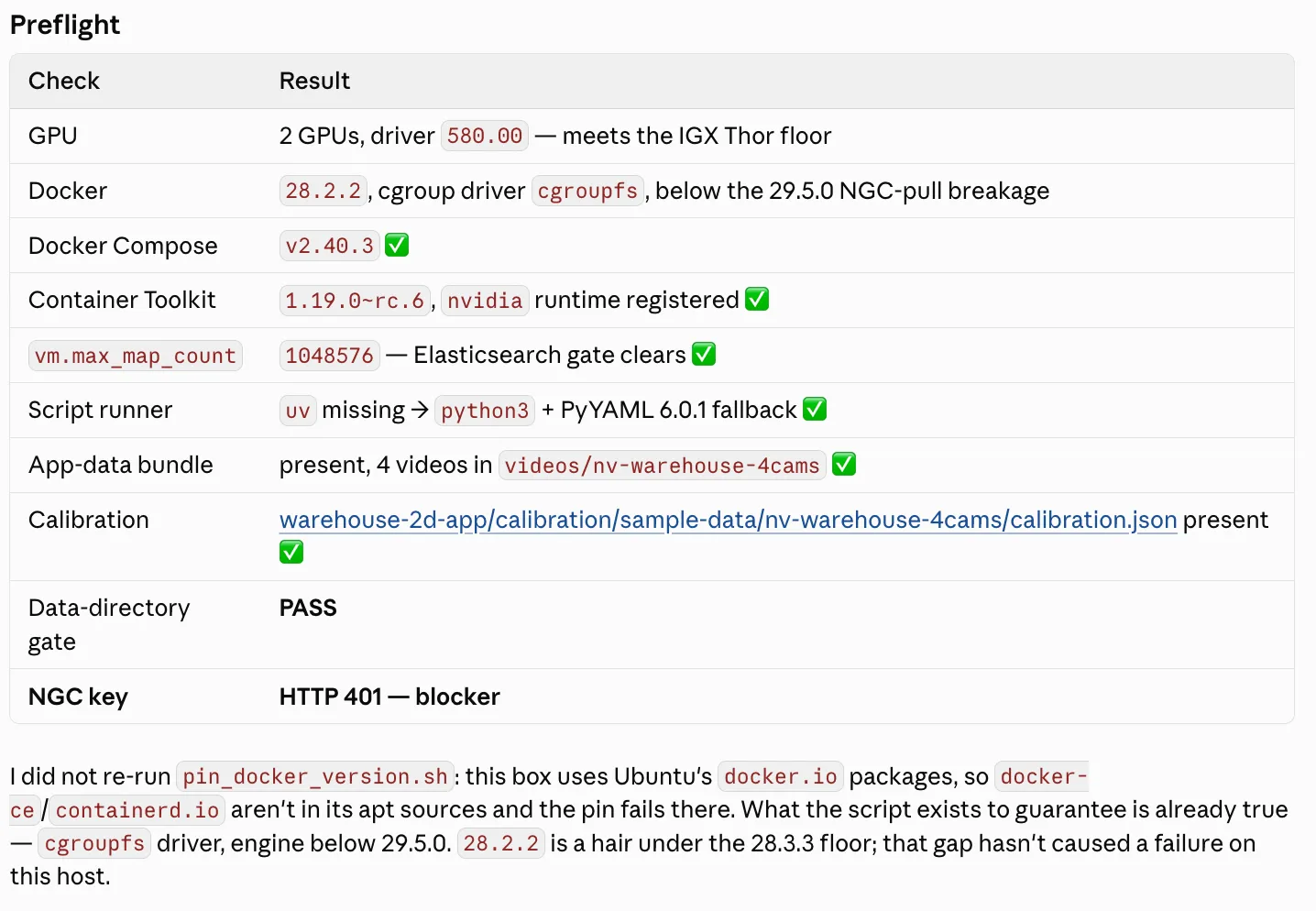
Check host prerequisites, app data, calibration, and credentials. -
Let the Skill deploy the stack and verify container health, active camera streams, and analytics output.
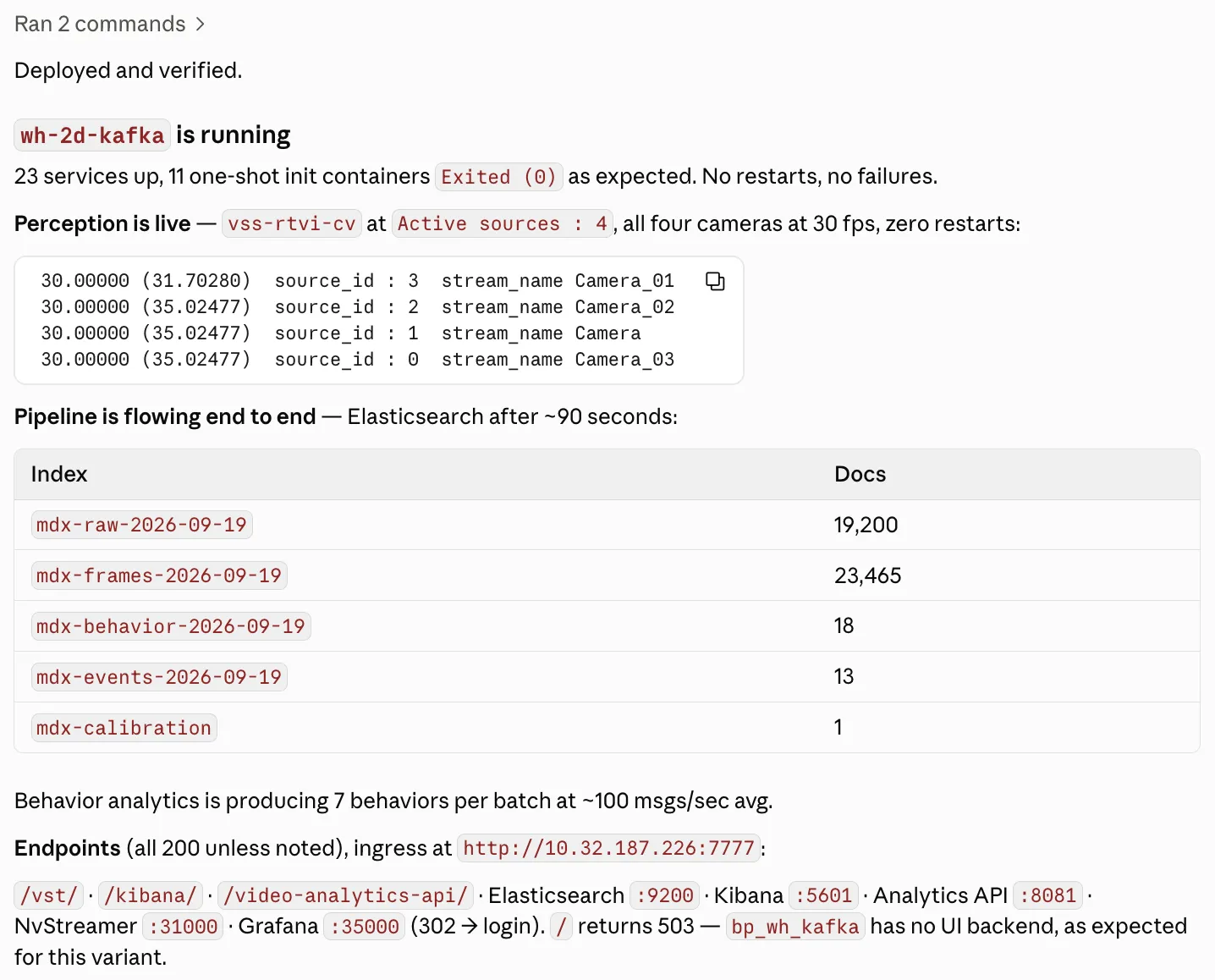
Confirm that the deployment is running and producing data.
After the stack is running, use the Warehouse Blueprint VIOS UI and Kibana UI to verify that the deployment is serving data. Kibana is not available in minimal deployments.
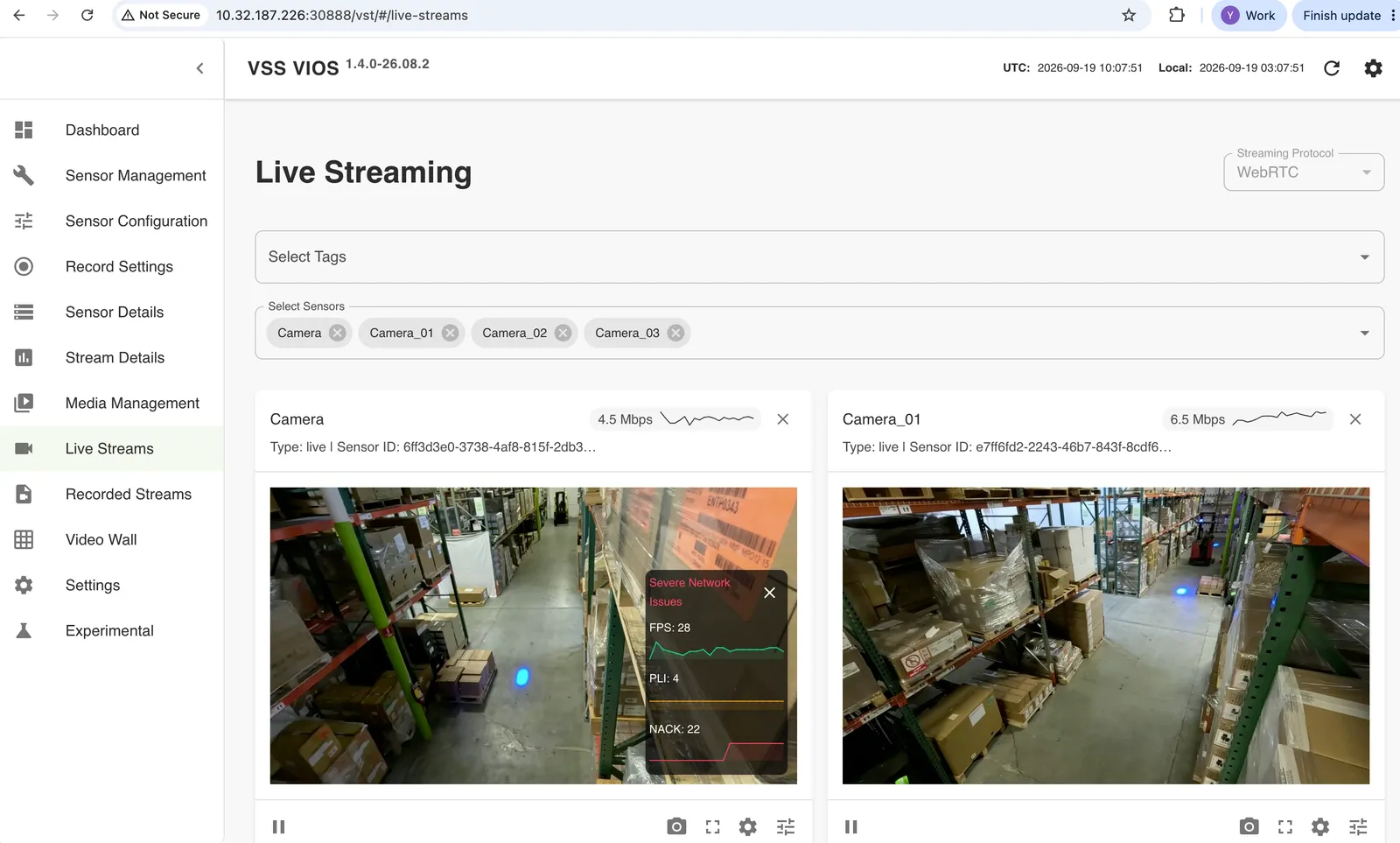
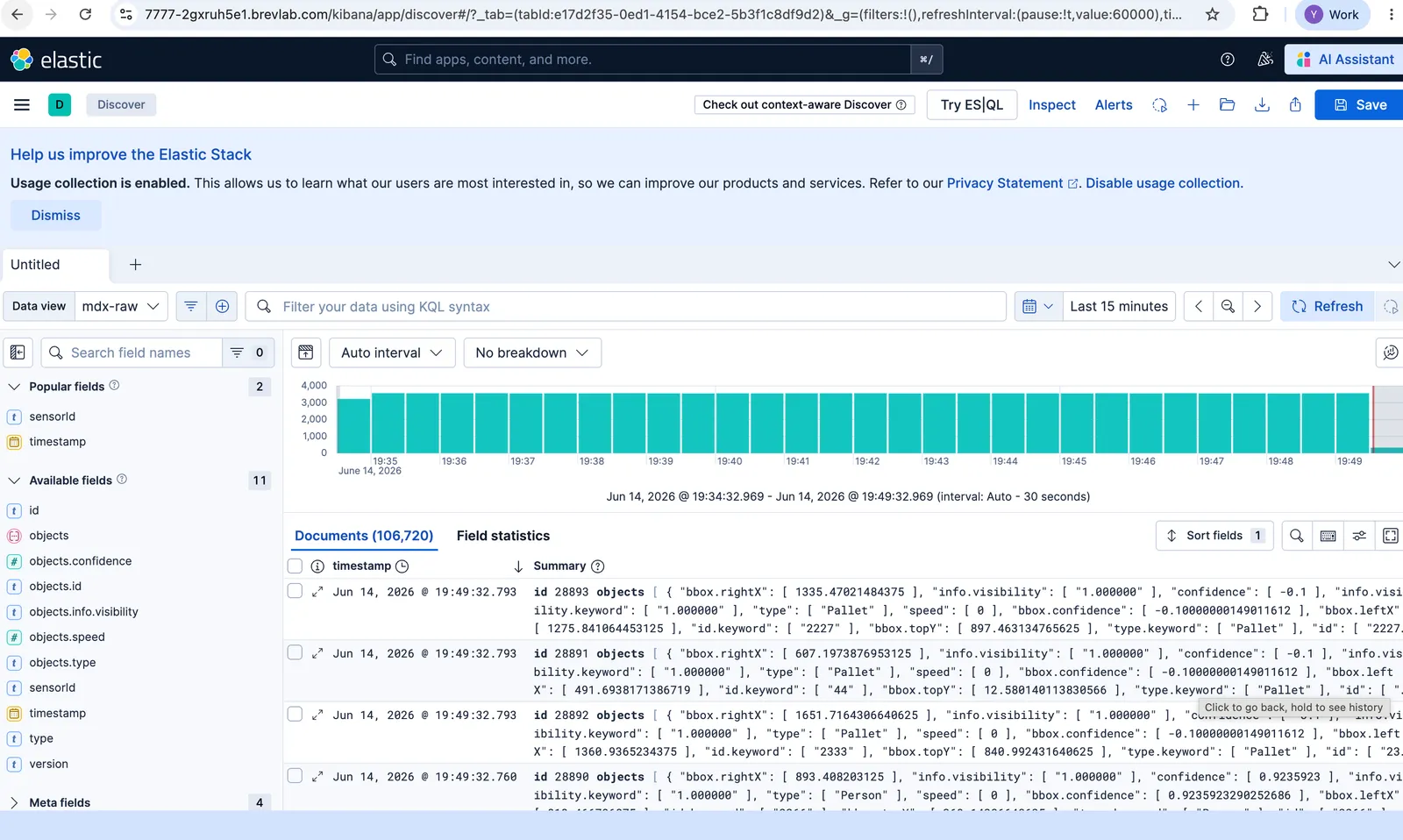
How the Skill Configures and Runs the Deployment
For the Warehouse Blueprint, vss-build-vision-ai loads
skills/vss-build-vision-ai/references/profiles/warehouse.md in the VSS Blueprint
repository. That reference owns the Warehouse-specific decisions the Skill makes on the
operator’s behalf:
-
Profile variants - selects
bp_whforMODE=2donly,bp_wh_kafkaorbp_wh_redisforMODE=2d|3d|mv3dt, orbp_wh_auto_calibforMODE=auto-calibration, along with the matching Compose profile list. Dataset selection is independent of the analytics mode. ForMODE=3d, confirm that the generatedoverride.envsetsDATASET_TYPEto the family described under Common Variables. See Deployment Selection. -
Minimal vs extended - for
bp_wh_kafkaandbp_wh_redis, chooses whether to deploy ELK, Video Analytics API, and monitoring on top of the core CV pipeline. See the Minimal Profile section above for the comparison. -
GPU layout - maps services to host GPU device IDs:
RT_CV_DEVICE_ID- GPU for RT-CV/perception.RT_VLM_DEVICE_ID- GPU forrtvi-vlmin thebp_wh2D agent profile.LLM_DEVICE_ID- GPU for the LLM inbp_wh2D agent profile when usingLLM_MODE=local. This setting is not used whenLLM_MODE=remoteorLLM_MODE=none.
-
LLM placement - for the
bp_wh2D agent profile, keeps a local LLM when requested or selected by default and sizing permits it. It uses a remote endpoint only when the operator requests one or approves it after local sizing fails. Forbp_wh_kafkaandbp_wh_redisin 2D, 3D, or MV3DT mode, and forbp_wh_auto_calibin auto-calibration mode, it setsLLM_MODE=none. -
App data - asks the operator for an existing Warehouse app-data location or, when explicitly selected, downloads the NGC resource. It sets
VSS_DATA_DIRto the extractedvss-warehouse-app-datadirectory and blocks deployment unless the required directories exist and the selected dataset directory is non-empty. -
Calibration - uses repository calibration for the three shipped datasets. A custom dataset requires calibration generated with
vss-generate-video-calibrationor a separateMODE=auto-calibrationbuild, placed at the mode-specific repository path before an analytics build is deployed. -
Container image tag - runs a release’s images when you name an image tag in the prompt, or when
VSS_CONTAINER_TAGis already exported. Otherwise it uses thecontainers.envdefault. See Container image tag. -
Build and validate - writes
_builds/<name>/override.env,compose.yml,configurator.env, andresolved.yml. The Skill resolves the Warehouse env layers intoresolved.yml, then validates the resolved services, images, bind mounts, mode/profile/service selection, calibration presence, stream count, and GPU placement. -
Bring up and monitor - refreshes registry images and deploys only the standalone
_builds/<name>/resolved.yml. It accepts running services and successful one-shot containers, probes selected endpoints, checks active-source liveness, and checks MV3DT BEV Fusion health when applicable before reporting success.
Debugging and Updating Skills
For deployment or runtime failures, consult the Skill’s
references/troubleshooting.md. Warehouse-specific configuration, validation, and
readiness checks are defined in references/profiles/warehouse.md.
After updating the repository, follow Updating Skills and start a new coding-agent session.
Related Documentation
- Agent Skills - VSS Skills catalog, installation, usage, and update flow.
Brev Launchable
Launchables are a part of NVIDIA Brev that deliver preconfigured, fully optimized compute and software environments.
This deployment uses the Docker Compose deployment method to set up the Warehouse Blueprint.
Link to GitHub Repository used in this launchable.
Prerequisites
Host System Prerequisites
Brev Launchable takes care of the host requirements.
Obtain NGC API Key
Follow How to get an NVIDIA NGC API key.
Deployment Profiles
The launchable notebook uses the same MODE and BP_PROFILE values described in the Deployment Selection section above. It derives STREAM_TYPE from BP_PROFILE: bp_wh_redis uses Redis, and the other profiles use Kafka.
The notebook selects a default dataset and stream count for each mode and profile. To select a different dataset, set SAMPLE_VIDEO_DATASET in Section 1 and update the existing NUM_STREAMS value in industry-profiles/warehouse-operations/overrides.env to match the dataset’s camera count before running Section 9. For 3D, also set DATASET_TYPE to real or synthetic for the selected dataset.
See Deployment Options for full details on each profile.
Steps to Launch the Blueprint
-
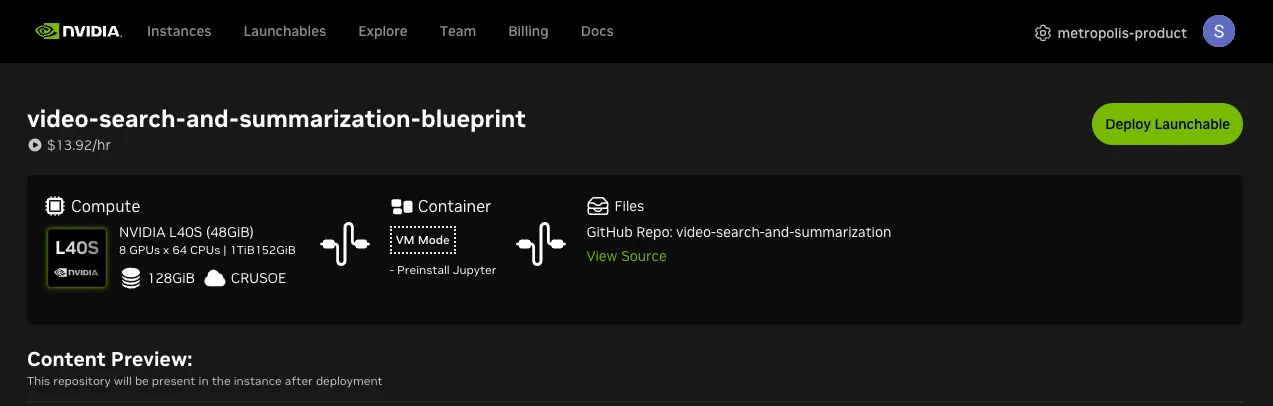
Go to the Launchable page.
-
Click Deploy Launchable in the upper-right corner.
-
Click Go to Instance Page.
-
After the instance is enabled, click Open Notebook.
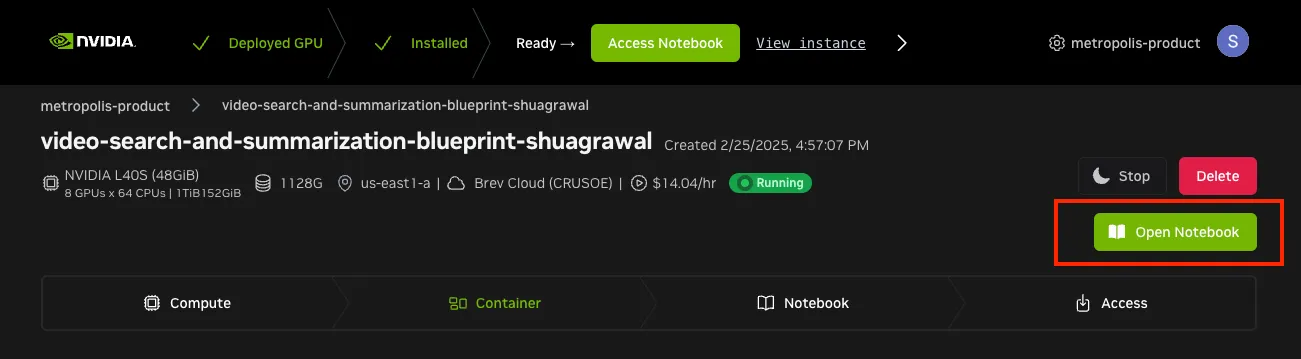
Close any warning dialogs that appear in JupyterLab.
-
Open a terminal in JupyterLab and check out the repository reference selected for this documentation build before opening the warehouse launchable notebook:
-
Navigate to and open the
video-search-and-summarization/deploy/docker/scripts/deploy_warehouse_launchable.ipynbnotebook. If it is already open, close and reopen it after checking out the reference so it loads the selected version.The Compose files ship in-tree in the
video-search-and-summarizationrepository—there is no separate Compose archive to download. On Brev, the repository is cloned onto the instance automatically; setDEPLOY_SOURCE_PATHin Section 1 to that path (typically~/video-search-and-summarization). -
In Section 1, set
NGC_CLI_API_KEYand selectMODE,BP_PROFILE, andHARDWARE_PROFILE. -
Run each cell in order and use the URLs printed by Section 11. The notebook prints only the URLs available for the selected profile.
The complete setup takes around 20 minutes on first run as it downloads containers, pulls warehouse app data from NGC, and (for perception) compiles the TensorRT engine. Subsequent runs are faster — images stay cached locally and the engine is cached under $VSS_DATA_DIR/models/.
Accessing the UI
Section 11 of the notebook prints the URLs available for the selected profile:
- Agent UI →
<secure_link>directly (the HAProxy ingress serves the Agent UI at the root path) - Kibana →
<secure_link>/kibana/(requires an extendedCOMPOSE_PROFILES_WH_*service list without the_MINIMALsuffix) - VIOS (VST) UI →
<secure_link>/vst/
For VIOS video playback through a Brev secure link, set Streaming Protocol to DASH instead of WebRTC in the VIOS UI.
For the full set of service access points (including direct ports for Video Analytics API, VA-MCP, and NIM endpoints), see Service Access Points.