

2D Vision AI Profile
Overview
Introduction
The VSS Warehouse 2D Blueprint is a comprehensive guide to building a 2D intelligent video analytics system. It provides a detailed overview of the system architecture, data flow, and key components.
Deployment Architecture
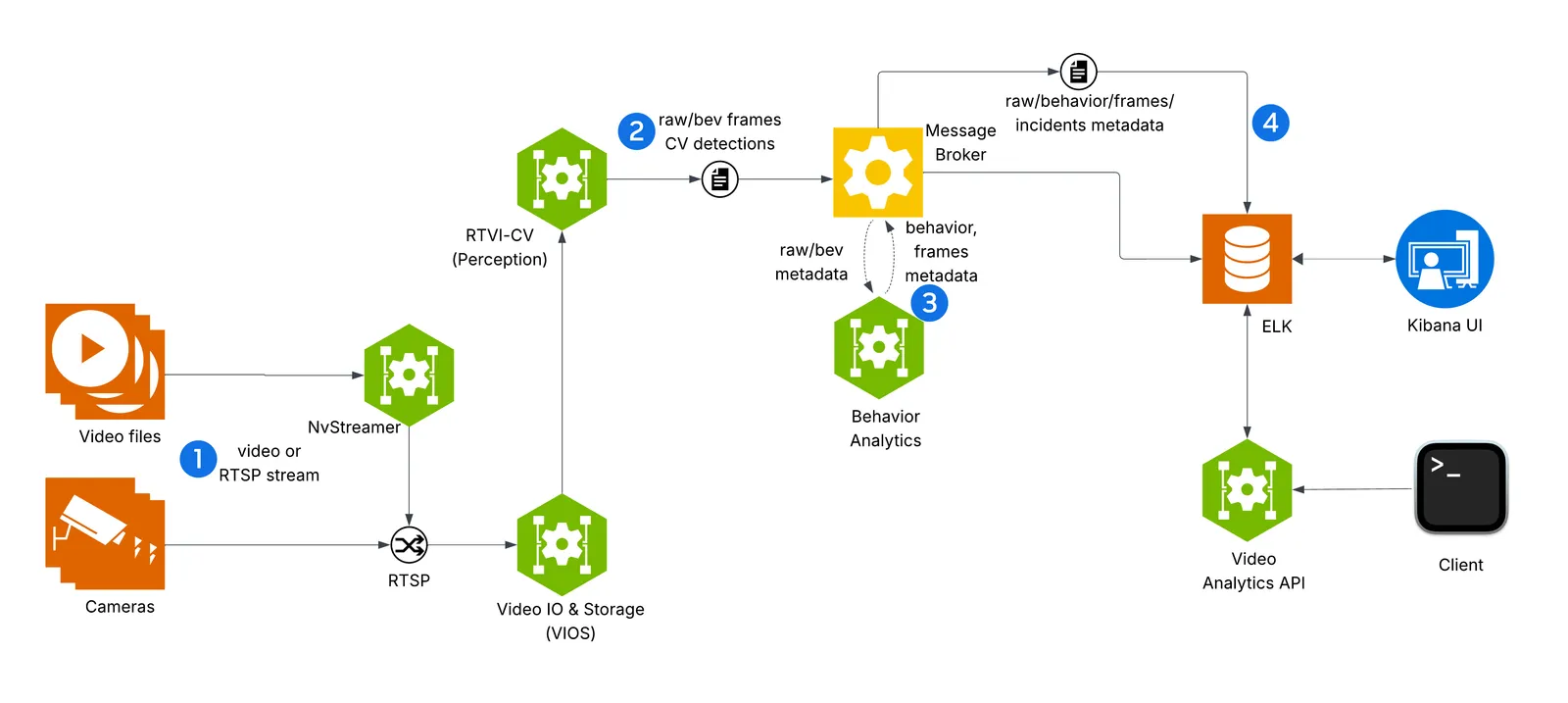
Components and Interactions
The diagram depicts VSS Warehouse 2D Blueprint, emphasizing 2D single-camera detection, tracking, and behavior analytics for safety events and metrics. Below is a breakdown of the components and their interactions.
-
Input Source
- Videos: Raw video data stored in a filesystem, serving as input for processing.
- NvStreamer (NVStreamer): A microservice that streams videos via RTSP (Real-Time Streaming Protocol) to the VIOS (Video IO & Storage). NvStreamer can be swapped with real-world cameras.
-
Video IO & Storage (VIOS) (VIOS Microservices)
- VIOS ingests video streams from NvStreamer via RTSP.
- It records the streams and forwards them (via RTSP) to the DeepStream microservice for further processing.
-
DeepStream (2D Single Camera Detection and Tracking (RT-DETR))
- DeepStream processes RTSP streams for 2D single-camera detection and tracking, utilizing the RT-DETR (Real-Time Detection Transformer) model (RT-DETR (2D warehouse detection)) to generate precise 2D bounding boxes for diverse objects including people, humanoid robots, autonomous vehicles, and warehouse equipment.
- RT-DETR features a ResNet-50 backbone, pretrained on warehouse scene datasets for accurate 2D object detection in industrial environments.
- It sends frame data, including detected and tracked object IDs, in Protobuf format to the message broker via the
mdx-rawtopic.
-
Message Broker (Kafka or Redis)
- The message broker serves as the central hub for data distribution, using Protobuf for all data exchanges.
- Kafka (Kafka): High-throughput message broker optimized for datacenter deployments with robust persistence and scalability.
- Redis Streams: Lightweight message broker ideal for edge deployments with minimal memory footprint and low-latency requirements.
- It also functions as a control bus, managing notifications (in JSON, via
mdx-notification) for calibration updates, such as new ROI or tripwire definitions.
-
Behavior Analytics (Behavior Analytics)
- This microservice consumes
mdx-rawdata (Protobuf) from the message broker. - It processes the data to generate behavior analytics, safety insights, and metrics.
- The resulting data, in Protobuf format, is sent back to the message broker for indexing into Elasticsearch.
- This microservice consumes
-
Storage
- ELK (Elasticsearch, Logstash, Kibana) (ELK): Logstash retrieves mdx-raw outputs and safety violation frames from the message broker, converts Protobuf to JSON, stores the data in Elasticsearch, and supports querying and visualization.
-
Visualization
-
External Interfaces
- API Gateway and MCP (API Gateway / MCP): Enables external systems to interact with the events data through API calls.
Key Technologies
- Microservices: Components like NvStreamer, VIOS, DeepStream, and Behavior Analytics are modular microservices.
- RTSP: Facilitates real-time video streaming.
- Protobuf: Ensures efficient, compact data exchange.
- Message Broker: Manages data distribution and control messaging.
- ELK Stack: Supports storage, logging, and visualization.
- JSON: Used for notifications and calibration data.
Setup and Configuration
Testing and Validation
Kibana UI
In the new Kibana UI (versions 8.0 and later), “Index Patterns” have been renamed to “Data Views”.
Check for Events, Frames and Behavior Data Views in Kibana
- Launch Chrome browser
- In the address bar enter
http://<IP_address>:7777/kibana
In the user interface, navigate to the Management -> Stack Management section and select Data Views under Kibana. If the data views are not visible, create a new data view (via “Create data view” button on the top right corner) for mdx-raw, mdx-frames and mdx-behavior.
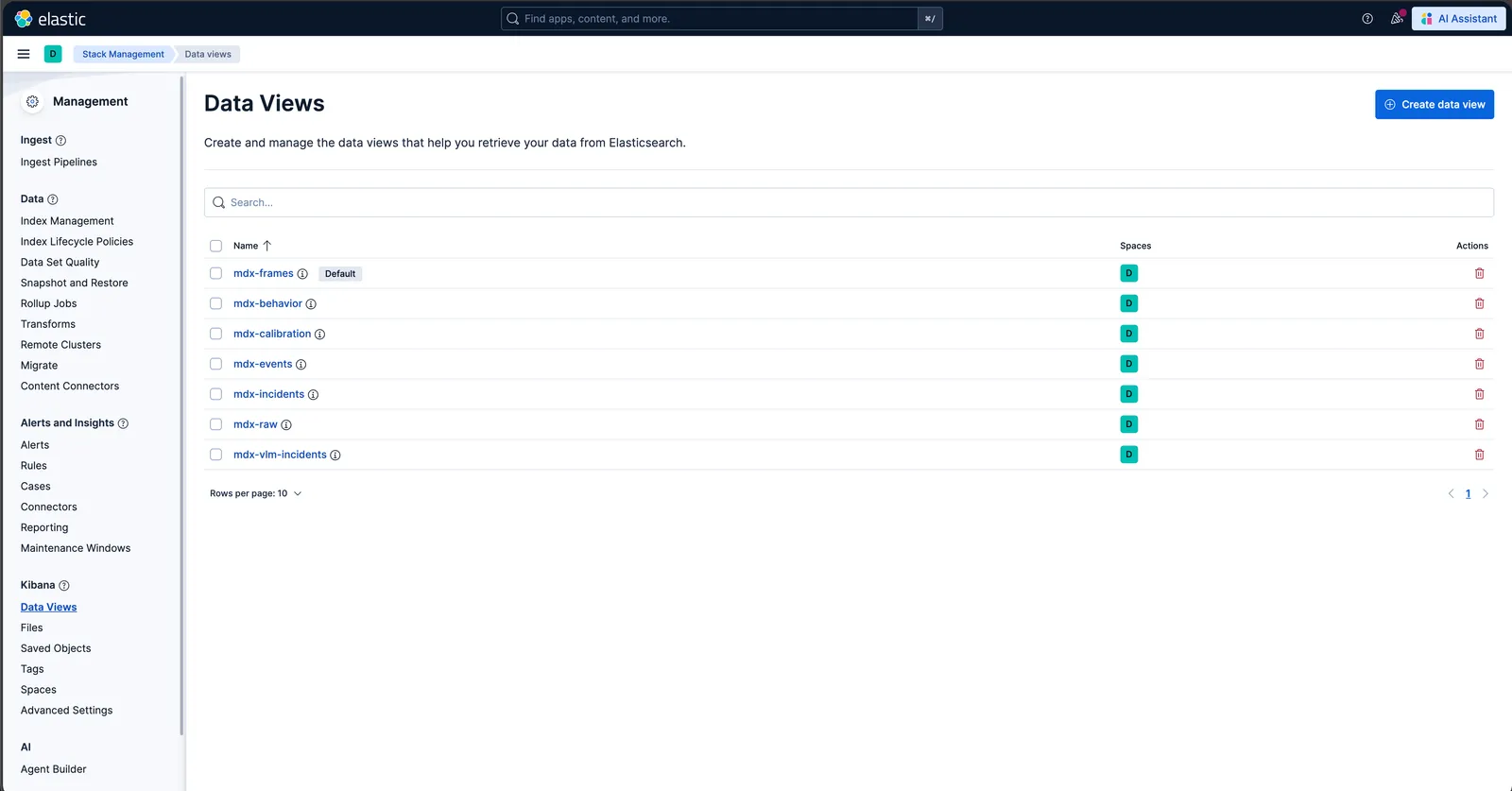
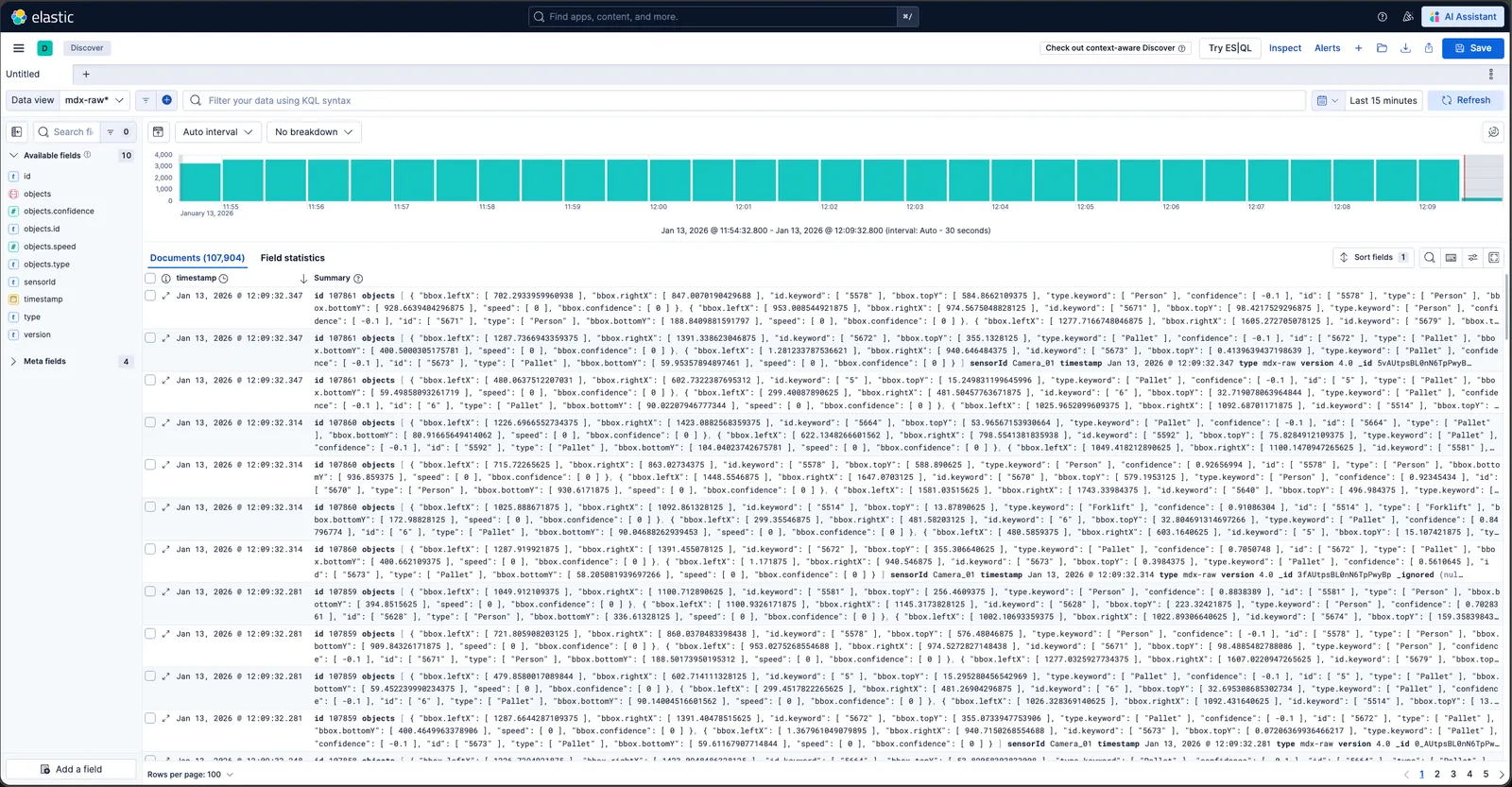
Browse the Kibana UI, discover the data views and visualize the data.
VIOS UI
Please note: At this point the web-based application is only available for Chrome browser running on Linux, Windows or macOS, details can be found in VIOS docs.
- Launch Chrome browser
- In the address bar enter
http://<IP_address>:30888/vst/
Configure and View
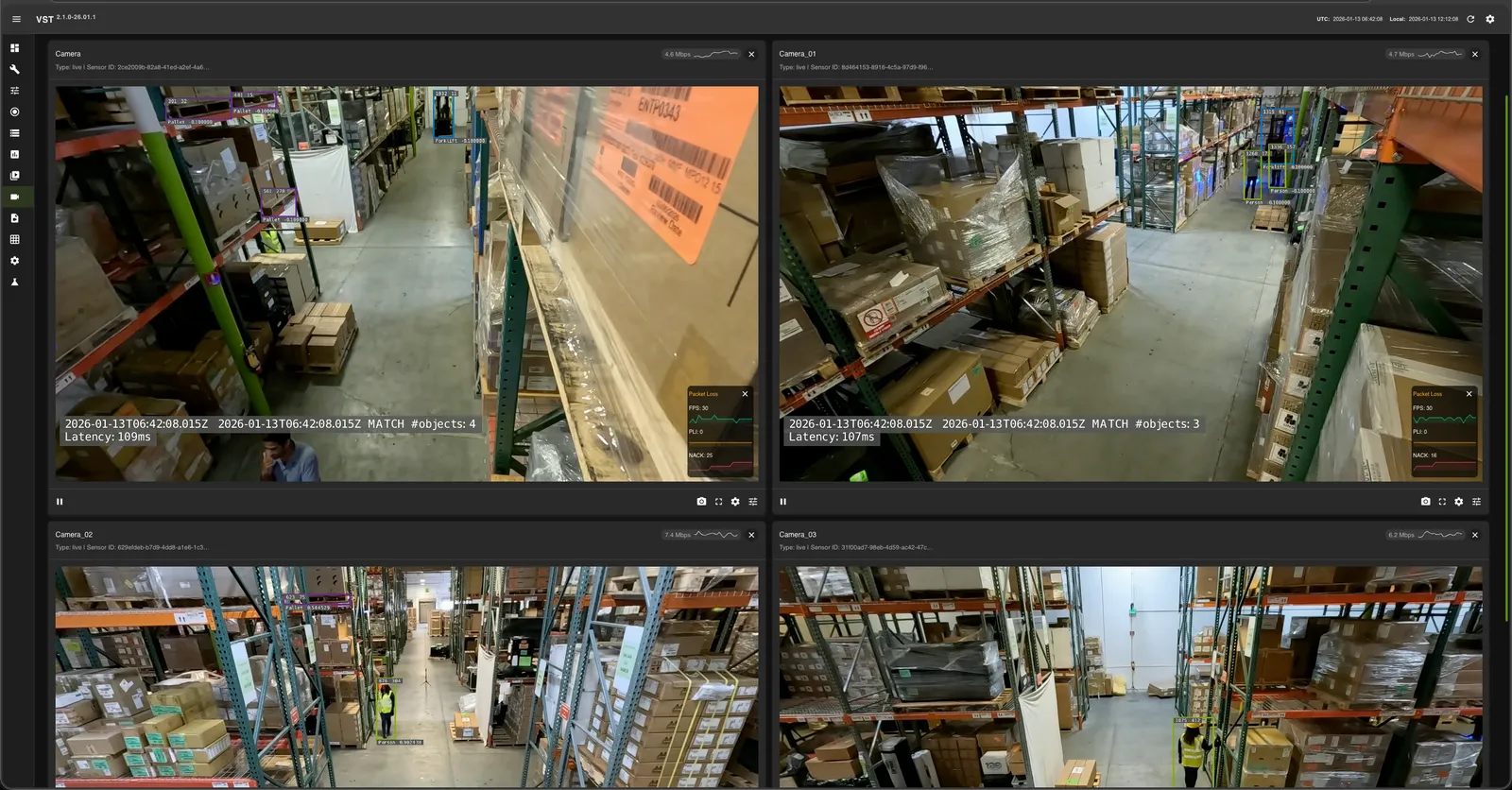
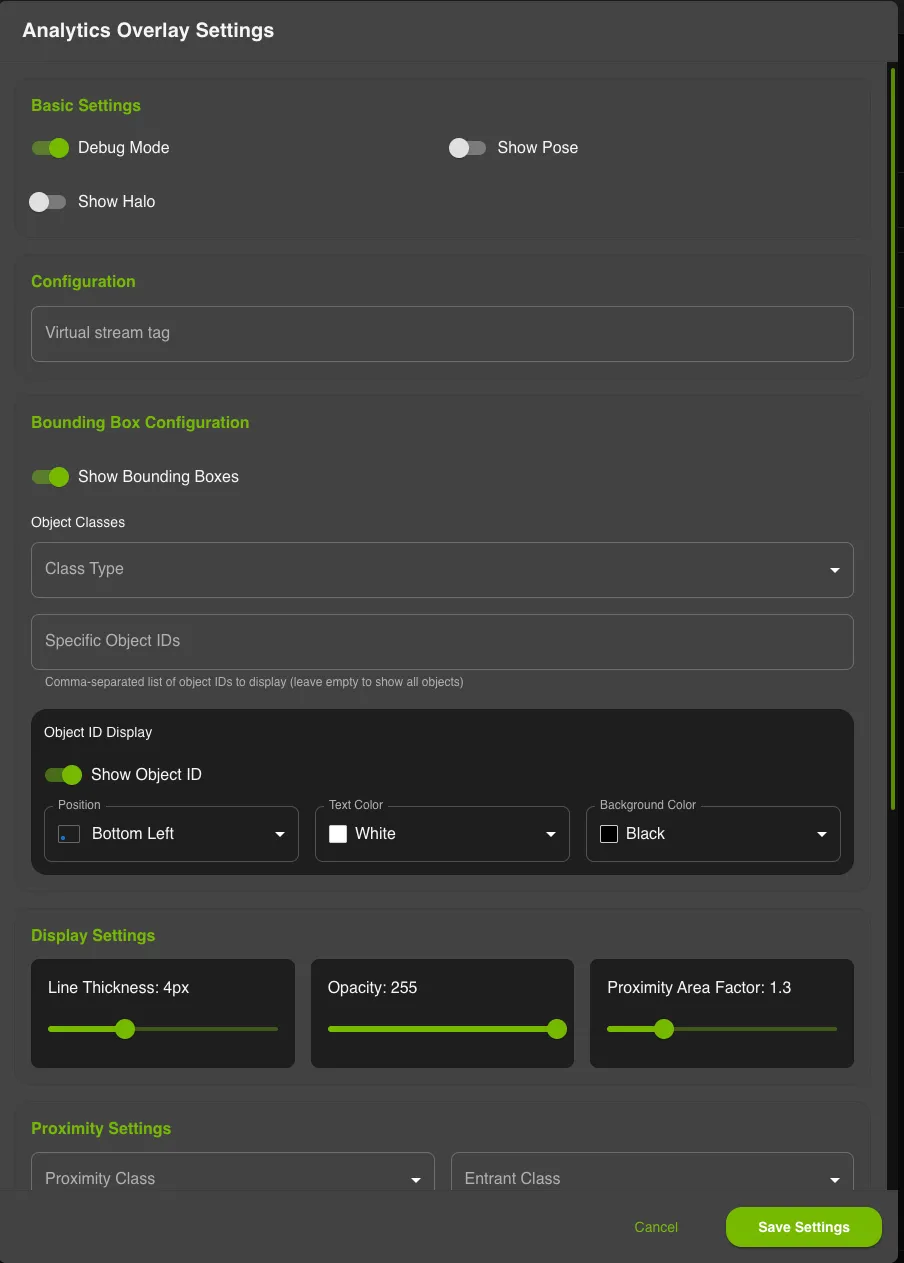
Show Object IDs
To display object IDs in VST for the 2D profile, open Analytics Overlay Settings and:
- Enable Show Bounding Boxes under Bounding Box Configuration.
- Enable Show Object ID under Object ID Display.
- Click Save Settings.
Debug Mode is optional and adds diagnostic overlays; it is not required to display object IDs.
Events and Incidents
Events
The VSS Warehouse 2D Blueprint processes live camera feeds, detects and tracks objects of interest, and generates events based on configurable logic.
Two types of events are supported:
- ROI Events: Triggered when objects enter or exit a predefined region of interest (ROI).
- Tripwire Events: Triggered when objects cross a predefined tripwire.
Each event type is associated with a specific logic and configuration. For more details, see Event Detection.
All event data is stored in Elasticsearch, and can be queried and visualized in Kibana and the VIOS UI.
Incidents
In addition to instantaneous events, the 2D Blueprint detects violations in each enhanced frame and tracks them over time. When a violation persists beyond its configured threshold, it is promoted to a confirmed incident. The 2D Blueprint generates the following incident types:
- Proximity Violation: Objects come too close to each other (for example, a person near moving equipment).
- Restricted Area Violation: Objects enter a prohibited zone (ROI).
- Confined Area Violation: Objects leave a designated safe zone.
Incident timing (threshold and expiration window) is configurable per type. For the violation-to-incident framework, configuration parameters, and enhanced-frame data, see Incident Generation.
Use Cases
ROI events, tripwire events, and the proximity, restricted-area, and confined-area incidents together provide a powerful foundation for safety monitoring and operational intelligence in warehouse environments, enabling real-time situational awareness and proactive safety management across multiple critical use cases.
-
ROI events continuously monitor whether designated safety zones remain human-free or equipment-free, ensuring that hazardous areas such as automated vehicle pathways, robotic work cells, or restricted maintenance zones are clear before operations commence. By tracking cumulative enter and exit counts for defined ROIs, the system maintains accurate occupancy counts and can alert when unauthorized access occurs or when occupancy thresholds are exceeded.
-
Tripwire events enable precise directional counting at strategic locations such as doorways, loading dock entrances, and zone boundaries. This is particularly valuable for monitoring areas not directly visible to cameras: if a person crosses a tripwire entering a blind corridor but no corresponding exit event is detected within an expected timeframe, the system can infer continued presence and raise safety alerts or delay automated equipment operations in that zone.
-
Incidents capture sustained unsafe conditions: proximity violations flag dangerous closeness between humans and moving equipment such as forklifts, autonomous mobile robots (AMRs), or industrial manipulators for collision avoidance; restricted-area violations enforce access control on prohibited zones; and confined-area violations detect when objects leave their designated safe zones.
Together, these events and incidents form a comprehensive safety net that supports critical warehouse operations including dynamic safe-zone enforcement, pedestrian-vehicle collision prevention, restricted-area access control, and loading-dock safety management—all while providing the rich data necessary for compliance reporting, incident investigation, and continuous safety process improvement.
Latency Measurements
The latency may vary based on the hardware, the number of objects in a scene, the number of ROIs and tripwires, and the machine’s load.
Customization
The Blueprint supports several levels of customization:
- Data Level: Add, remove, or replace cameras while maintaining the existing workflow.
- Model Level: Fine-tune perception models to better suit your use cases.
- Application Level: Build new microservices or applications using the provided APIs and components.
- Microservice Level: Modify existing microservices from source code to extend functionality.
Adding New Cameras or Custom Datasets
Recorded videos and live RTSP streams must be encoded without B-frames and have a resolution of 1920 x 1080.
To check for and remove B-frames, see the FAQ guidance.
For Auto Calibration with custom recorded videos, provide time-synchronized MP4 files encoded without B-frames. Each video must be at least 60 seconds long, and all videos must have the same duration.
If using the tracklet-based AMC method, ensure that the videos contain a sufficient number of clearly visible moving people.
Step 1: Prepare video sources
Choose one of the following options to provide video sources for the 2D profile:
-
Using recorded videos
Use this option to run the VSS with local video files instead of live camera feeds. Place your videos in the
videosdirectory under the path configured byVSS_DATA_DIRin$VSS_APPS_DIR/industry-profiles/warehouse-operations/overrides.env. -
Using live RTSP streams
Use this option when you want to use live RTSP endpoints. Define each camera in
$VSS_APPS_DIR/industry-profiles/warehouse-operations/camera_configs/camera_info.jsonso the VSS Configurator can read the camera list and generate the required configuration. The following steps apply when using live RTSP streams.(i) Create a Sensor Info File (
camera_info.json):The
camera_namevalue should be unique for each camera, andrtsp_urlshould point to the camera stream.Required fields:
camera_name,rtsp_url
Each rtsp_url in camera_info.json must be reachable from the machine where you deploy VSS. VIOS connects to those URLs directly. Before you deploy, test every URL from the deployment machine (for example, with VLC or ffplay).
(ii) Configure VSS Configurator environment variables: Set the following in $VSS_APPS_DIR/industry-profiles/warehouse-operations/overrides.env, which is loaded after warehouse .env and takes precedence:
Step 2: Configure number of streams
Configuring Number of Streams
Number of streams to be processed can be configured in two ways:
-
Static Configuration: Set the
NUM_STREAMSenvironment variable in warehouseoverrides.envfile to specify the desired number of streams for video dataset or RTSP streams.The configured number of streams should be less than or equal to the maximum streams supported by your hardware profile and deployment mode. VSS Configurator can be used to automatically cap the stream count using the formula:
final_stream_count = min(NUM_STREAMS, max_streams_supported). WhenSENSOR_INFO_SOURCE=nvstreamer, the sameNUM_STREAMSvalue is the expected camera count the Sensor Configuration Manager waits for before VST registration. For more details, refer to the How to Count Files Dynamically (Prerequisites) section and NVStreamer Settings in VSS Configurator Documentation. -
Dynamic Configuration: Use the VSS Configurator’s prerequisite operations to automatically count the number of video files in the recorded videos directory and use that count for configuration updates.
Dynamic Configuration cannot be used for live RTSP streams.
Example: Automatically determine stream count from video files in the dataset directory:
How it works: If your dataset directory has 6 video files and the GPU supports a maximum of 4 streams, the configurator computes: final_stream_count = min(6, 4) = 4. For more details, refer to the How to Count Files Dynamically (Prerequisites) section in VSS Configurator Documentation.
When using a custom recorded-video dataset, NUM_STREAMS depends on the number of video files available in that dataset. Make sure NUM_STREAMS is less than or equal to the number of videos you want to process.
To use a custom dataset:
-
For a custom synthetic dataset, use a dataset name that ends in
-synthetic(for example,my-warehouse-synthetic). Custom real datasets do not have a suffix requirement. -
Set
SAMPLE_VIDEO_DATASETin$VSS_APPS_DIR/industry-profiles/warehouse-operations/overrides.envto the name of your dataset. -
Place the video files in
$VSS_DATA_DIR/videos/$SAMPLE_VIDEO_DATASET/. -
Add the image metadata and floor map files under
$VSS_APPS_DIR/industry-profiles/warehouse-operations/warehouse-2d-app/calibration/sample-data/${SAMPLE_VIDEO_DATASET}. If you already have a calibration, addcalibration.jsonto the same directory. Otherwise, generate it in Step 3. You can refer to sample datasets provided in the repository for the expected file structure and sample contents.
Refer to RT-DETR Real-Time Performance for more details on the max streams supported for a particular GPU. If GPU is not found in list, then increase the streams gradually to find the optimal number of streams that can be used
Step 3: Choose a calibration option
2D supports three calibration states — pick one:
- Cartesian (
"calibrationType": "cartesian"): full image-to-global calibration, generated using Auto Calibration’s AMC method. ROI/tripwire authoring is fully supported. Follow Cartesian coordinate calibration below. - Image coordinates, with a calibration file (
"calibrationType": "image"): a pixel-coordinate calibration file exported from Auto Calibration workflow, without an image-to-global transform. Auto Calibration supports ROI/tripwire authoring and image-mode JSON export. Follow Image coordinate calibration below. - Running 2D without calibration: skip calibration entirely. Detection/ tracking still runs in image (pixel) coordinates; ROI/tripwire events are unavailable. See below.
Auto Calibration setup
Auto Calibration supports two types of calibrations in 2D profile: image-coordinate calibration and Cartesian calibration.
Before deploying the stack and generating a calibration, create the projects directory:
Projects will be saved in ${VSS_APPS_DIR}/services/auto-calibration/projects.
Change the ownership of the Auto Calibration data and projects directories to UID 1000 and GID 1000:
Configure industry-profiles/warehouse-operations/overrides.env using the Auto-Calibration tab under Deployment Selection, then follow Deploy the Blueprint to start the Auto-Calibration profile.
Follow the Auto Calibration workflow steps using the warehouse dataset and VST stack. The workflow supports both calibration types; choose the appropriate export for your use case.
Image coordinate calibration
Use Export Image-Mode JSON to export ROIs and tripwires in pixel coordinates with "calibrationType": "image".
For image-coordinate calibration ("calibrationType": "image") only, add ROIs or tripwires to the sensors that require them. If only one sensor needs an ROI or tripwire, annotate that sensor and proceed with the export. Sensors that need neither ROIs nor tripwires do not need to be included in the image-coordinate calibration.json. This omission applies only to image-coordinate calibration, not Cartesian calibration.
Cartesian coordinate calibration
Export a Cartesian calibration with "calibrationType": "cartesian" to map camera image coordinates to a global coordinate system.
Save and apply the calibration
Bring the Docker Compose stack down after exporting the calibration. Save the exported file as $VSS_APPS_DIR/industry-profiles/warehouse-operations/warehouse-2d-app/calibration/sample-data/${SAMPLE_VIDEO_DATASET}/calibration.json, then proceed to Step 4 to redeploy with the new calibration.
- Maintain a single
calibration.jsonfile per deployment. - Each sensor name in
calibration.jsonmust match the correspondingcamera_nameincamera_info.jsonor the name of the corresponding video placed in${VSS_DATA_DIR}/videos. - For 2D profile use cases that require ROIs or tripwires, draw them only in the camera views that need them.
- Add new camera information following the schema defined in Calibration Schema.
- The
imageMetadatafile needs to be generated manually. - Manually add any other attributes that are missing from the generated calibration file but are required for your use case.
- Auto Calibration requires time-synchronized videos as input. For RTSP cameras, record videos from the RTSP source (e.g. using ffmpeg or similar tools), manually trim the videos to time-synchronize them if needed, then provide them to Auto Calibration.
Running 2D without calibration
Applies only when there’s no calibration.json file at all — not for either
calibration type above. Detection/tracking still runs directly on the camera
stream in image (pixel) coordinates; only ROI/tripwire events in
behavior-analytics are unavailable. Calibration is enabled by default; to
skip it entirely:
-
Remove
import-calibration-output-container-2dfrom whichever profile variable you’re deploying with —COMPOSE_PROFILES_WH_2D,COMPOSE_PROFILES_WH_KAFKA_2D,COMPOSE_PROFILES_WH_REDIS_2D,COMPOSE_PROFILES_PLAYBACK_KAFKA_2D,COMPOSE_PROFILES_PLAYBACK_REDIS_2D— edit the value directly inoverrides.env. -
Remove
--calibration /resources/calibration.jsonfrom thevss-behavior-analyticsservice’scommand:inwarehouse-2d-app/warehouse-2d-app.yml. This is a static line in the compose file, not an env var, so it needs a direct edit (or a compose override file layered on top). -
Also remove the
vss-behavior-analytics-2dservice’scalibration.jsonbind mount in the same file — thevolumes:line ending.../calibration/sample-data/$SAMPLE_VIDEO_DATASET/calibration.json:/resources/calibration.json. This is independent of the profile and command changes above. If a custom dataset has nocalibration.jsonon the host, Compose creates an empty directory at that path to satisfy the mount, which then blocks placing a realcalibration.jsonthere later — leave the mount in only if the file already exists. -
The
bp-configurator-2dservice’s/opt/datamount (.../calibration/sample-data/$SAMPLE_VIDEO_DATASET:/opt/data) is unused in 2D mode — good to remove.
Step 4: Redeploy the stack to apply the new calibration
Before redeploying, replace the Auto-Calibration settings in industry-profiles/warehouse-operations/overrides.env with the settings from the 2D tab under Deployment Selection. Then follow Deploy the Blueprint to start the 2D profile with the new calibration.
Before updating the warehouse overrides.env file or running docker compose up, check whether containers from a previous Docker Compose deployment are still present:
No containers belonging to the previous deployment should be present before starting a new deployment. Stale containers from a previous deployment can cause silent errors. For example, already-running containers can create the false impression that a new deployment has started successfully.
Model Customization
Perception Model Fine-tuning
The Blueprint uses RT-DETR (Real-Time Detection Transformer) as its primary perception model. RT-DETR features a ResNet-50 backbone and is pretrained on warehouse scene datasets for precise 2D object detection in industrial environments. For details, see: 2D Single Camera Detection and Tracking.
For fine-tuning the RT-DETR model via TAO Toolkit on custom datasets, refer to: RT-DETR (TAO fine-tuning).
Application Customization
The Blueprint uses a modular microservices architecture with the following communication channels:
- Message Broker (Kafka or Redis)
- Elasticsearch database
- REST APIs
Users can build their own microservices by consuming data from the above channels.
For complete API documentation, see API Reference Page.
Available Service Ports
The following ports are used during deployment, and users can leverage them for any potential integration:
Analytics Microservices Customization (Advanced)
For detailed information about customizing specific analytics microservices, refer to:
Hardware Config Customization
The 2D Warehouse Blueprint requires several configuration files to be properly tuned based on your GPU hardware and deployment requirements. When changing hardware (e.g., switching from H100 to L4 GPU) or adjusting the number of video streams, multiple configuration files must be updated to ensure optimal performance and prevent GPU overload.
Configuration Files Requiring Hardware-Based Updates
The following table lists the configuration files that typically require updates when hardware changes:
There are two approaches to customize these configuration files:
Approach 1: Manual Configuration
Manually update all required configuration files before deploying the blueprint. This is time consuming, error prone and often not suitable for production deployments.
Approach 2: Automatic Config Management using VSS Configurator
The VSS Configurator provides a declarative approach to automatically update all required configuration files based on your hardware profile and deployment mode. This is the recommended approach for production deployments and simplifies the configuration management process.
For how the configurator updates configurations in this blueprint, see VSS Configurator for the Warehouse Blueprint. The guide describes configuration inputs, affected files, stream ceilings, and hardware-specific overrides.
To enable the VSS Configurator, in VSS Configurator’s environment variables you must set:
The VSS Configurator is enabled by default (ENABLE_PROFILE_CONFIGURATOR=true).
When enabled, it runs before the Blueprint Deployment starts and adjusts configuration files based on the hardware profile and deployment mode as defined in the HARDWARE_PROFILE and MODE environment variables.
The VSS Configurator provides a comprehensive set of features for automated profile configuration management:
Execution Order: Environment Variable Validation → Prerequisite Operations → Variable Computations → Configuration File Updates
For detailed information on how to create custom hardware profiles and advanced configuration options, refer to the Profile Configuration Manager section in VSS Configurator Documentation.