

Window Layouts#
Nsight Graphics has an intuitive window management and docking system. Windows may be dragged and docked in your preferred locations.
Floating Windows#
Windows may be dragged out of the main Nsight Graphics window so that they can be independently managed. Other windows can then dock onto that floating window. On operating systems that support it, such as Microsoft Windows, windows may also be managed from the taskbar.
Pinned Windows#
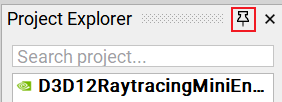
Select the pin icon to collapse the associated window to the side of the main window.
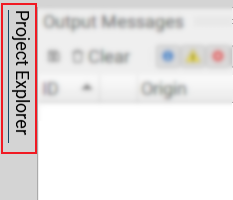
Once pinned, the item can be clicked to open the window for quick reference; clicks away collapse the pinned window to view other concerns.
User Named Layouts#
Nsight Graphics allows you to customize the size and position of the views to create a layout that is targeted to the task at hand. For example, if you are focused on debugging a problem with API usage, you can put the Events View and API Inspector next to each other as you work your way through the frame, inspecting the API state at different points in the frame. The view locations are automatically saved when you exit the frame replay and restored when capture a new frame.
However, different problem types may require unique layouts. To facilitate a smooth transition from one layout to another, you can save and restore activity-centric view arrangements via user named layouts.
You can access this save/load capability from the Window pull down in the main menu. The section pertaining to layouts includes entries to “Save Window Layout…”, “Restore Window Layout”, “Manage Window Layouts…”, and restore the “Default Window Layout.”
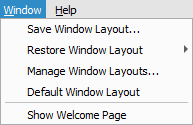
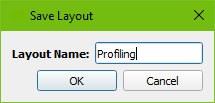
“Save Window Layout…” brings up a dialog that allows you to specify a name for the current layout. The layouts are saved to a Layouts folder in the documents directory as named .nvlayout files and can be shared with colleagues.
Once you have saved a layout (or two), you can restore them by using the “Restore Window Layout” menu entry. When you mouse to it, a sub-menu pops out with all of your saved layouts. Simply select the entry you want and the views are restored to their original locations.
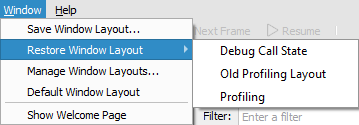
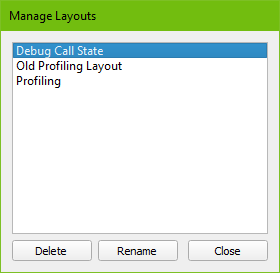
There may come a time when you want to clean up some unused layouts. When you select the “Manage Window Layouts” entry, a dialog comes up that allows you to delete or rename old layouts, etc.
Finally, the “Reset Window Layout” entry in this section allows you to restore the layout to the default one for the current activity.