

Video Summarization Workflow#
The Video Summarization Workflow enables analysis and summarization of video content without being constrained by the standard VLM context window limitations, allowing for the analysis of long-form video content.
Capabilities
Use Cases
Automated incident report generation
Event detection in extended video archives
Shift summaries and daily activity reports
Technical Approach
Standard VLMs are limited to processing short video clips, usually less than 1 minute, depending on the number of subsampled frames and level of detail required. This workflow uses a microserivce which will segment videos of any length, analyze each segment with a VLM, and then synthesize the results into a coherent summary with timestamped events.
Estimated Deployment Time: 15-20 minutes
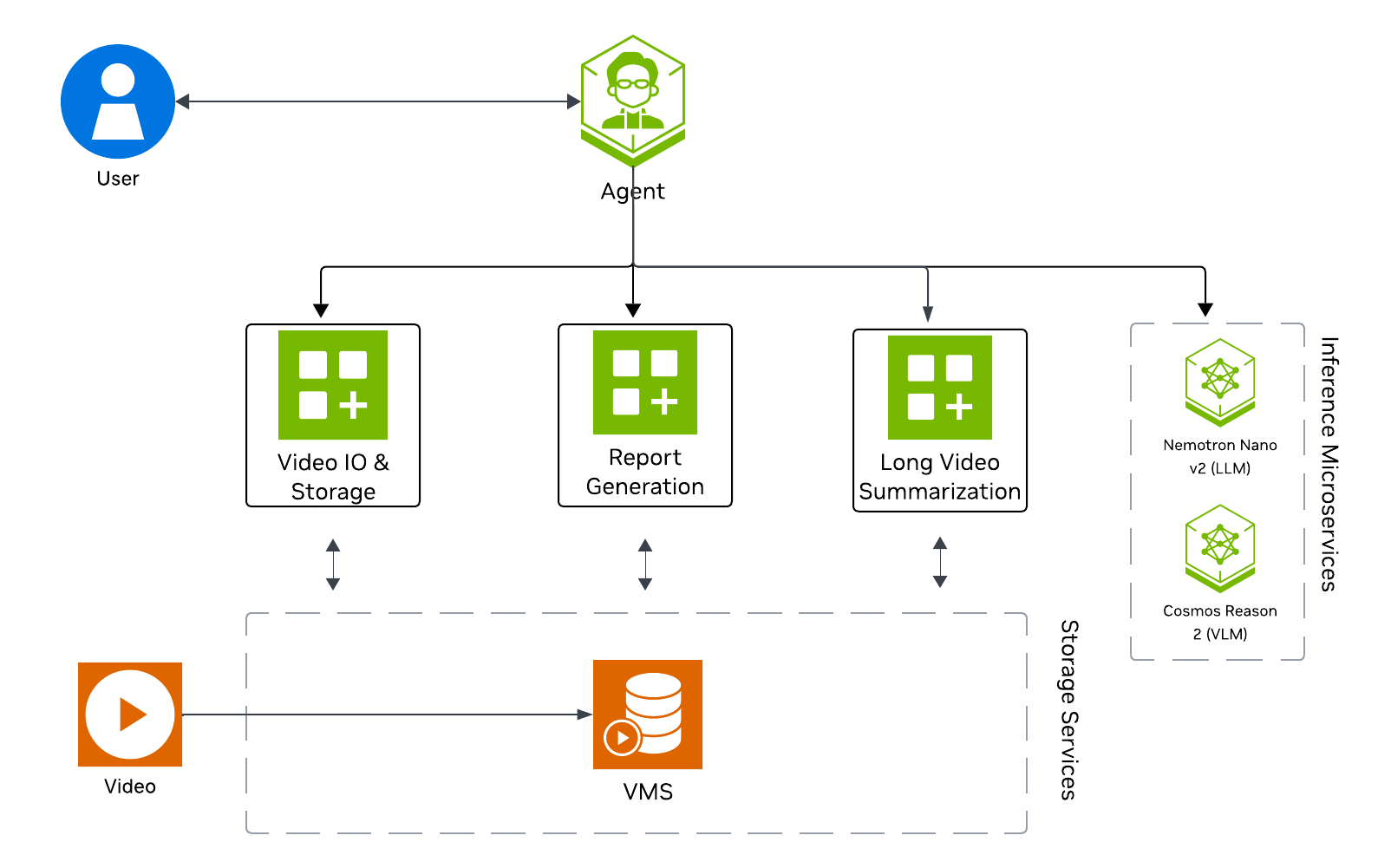
The following diagram illustrates the video summarization architecture:
Key Features of the Vision Agent with Long Video Summarization:
Quickly generate an overall summary within seconds, offering a high-level narrative of the video.
Formulate timestamped highlights of the video based on user-defined events.
Processes uploaded video files (minutes to hours in duration)
Generates narrative summaries of video content
Returns results through the AI agent interface
What’s being deployed#
VSS Agent: Agent service that orchestrates tool calls and model inference to answer questions and generate outputs
VSS Agent UI: Web UI with chat, video upload, and different views
VSS Video IO & Storage (VIOS): Video ingestion, recording, and playback services used by the agent for video access and management
Nemotron LLM (NIM): LLM inference service used for reasoning, tool selection, and response generation
Cosmos Reason 2 (NIM): Vision-language model with physical reasoning capabilities
VSS Long Video Summarization: Microservice for segmenting and summarizing long-form video content
ELK (without Logstash): Elasticsearch, and Kibana stack for log storage and analysis
Phoenix: Observability and telemetry service for agent workflow monitoring
Prerequisites#
Before you begin, ensure all of the prerequisites are met. See Prerequisites for more details.
Deploy#
Note
For instructions on downloading sample data and the deployment package, see Download Sample Data and Deployment Package in the Quickstart guide.
Skip to Step 1: Deploy the Agent if you have already downloaded and deployed another agent workflow.
Step 1: Deploy the Agent#
Note
Set the NGC CLI API key, then run the deploy commands for your GPU type.
Refer to VSS-Agent-Customization-configure-llm and VSS-Agent-Customization-configure-vlm for all LLM and VLM (local and remote) configuration options.
For advanced settings and Agent Customization, see the deploy command help.
# Set NGC CLI API key
export NGC_CLI_API_KEY='your_ngc_api_key'

# View all available options
scripts/dev-profile.sh --help
scripts/dev-profile.sh up -p lvs -H H100
scripts/dev-profile.sh up -p lvs -H H100 \
    --llm-device-id 0 --vlm-device-id 1
export LLM_ENDPOINT_URL=https://your-llm-endpoint.com
scripts/dev-profile.sh up -p lvs -H H100 \
    --use-remote-llm
export VLM_ENDPOINT_URL=https://your-vlm-endpoint.com
scripts/dev-profile.sh up -p lvs -H H100 \
    --use-remote-vlm
export LLM_ENDPOINT_URL=https://your-llm-endpoint.com
export VLM_ENDPOINT_URL=https://your-vlm-endpoint.com
scripts/dev-profile.sh up -p lvs -H H100 \
    --use-remote-llm --use-remote-vlm
scripts/dev-profile.sh up -p lvs -H RTXPRO6000BW
scripts/dev-profile.sh up -p lvs -H RTXPRO6000BW \
    --llm-device-id 0 --vlm-device-id 1
export LLM_ENDPOINT_URL=https://your-llm-endpoint.com
scripts/dev-profile.sh up -p lvs -H RTXPRO6000BW \
    --use-remote-llm
export VLM_ENDPOINT_URL=https://your-vlm-endpoint.com
scripts/dev-profile.sh up -p lvs -H RTXPRO6000BW \
    --use-remote-vlm
export LLM_ENDPOINT_URL=https://your-llm-endpoint.com
export VLM_ENDPOINT_URL=https://your-vlm-endpoint.com
scripts/dev-profile.sh up -p lvs -H RTXPRO6000BW \
    --use-remote-llm --use-remote-vlm
scripts/dev-profile.sh up -p lvs -H L40S \
    --llm-device-id 0 --vlm-device-id 1
export LLM_ENDPOINT_URL=https://your-llm-endpoint.com
scripts/dev-profile.sh up -p lvs -H L40S \
    --use-remote-llm
export VLM_ENDPOINT_URL=https://your-vlm-endpoint.com
scripts/dev-profile.sh up -p lvs -H L40S \
    --use-remote-vlm
export LLM_ENDPOINT_URL=https://your-llm-endpoint.com
export VLM_ENDPOINT_URL=https://your-vlm-endpoint.com
scripts/dev-profile.sh up -p lvs -H L40S \
    --use-remote-llm --use-remote-vlm
See Local LLM and VLM deployments on OTHER hardware for known limitations and constraints.
scripts/dev-profile.sh up -p lvs -H OTHER \
    --llm-env-file /path/to/llm.env --vlm-env-file /path/to/vlm.env
scripts/dev-profile.sh up -p lvs -H OTHER \
    --llm-device-id 0 --vlm-device-id 1 \
    --llm-env-file /path/to/llm.env --vlm-env-file /path/to/vlm.env
export LLM_ENDPOINT_URL=https://your-llm-endpoint.com
scripts/dev-profile.sh up -p lvs -H OTHER \
    --use-remote-llm --vlm-env-file /path/to/vlm.env
export VLM_ENDPOINT_URL=https://your-vlm-endpoint.com
scripts/dev-profile.sh up -p lvs -H OTHER \
    --use-remote-vlm --llm-env-file /path/to/llm.env
export LLM_ENDPOINT_URL=https://your-llm-endpoint.com
export VLM_ENDPOINT_URL=https://your-vlm-endpoint.com
scripts/dev-profile.sh up -p lvs -H OTHER \
    --use-remote-llm --use-remote-vlm
This command will download the necessary containers from the NGC Docker registry and start the agent. Depending on your network speed, this may take a few minutes.
This deployment uses the following defaults:
Host IP: src IP from
ip route get 1.1.1.1LLM model: nvidia/nvidia-nemotron-nano-9b-v2
VLM model: nvidia/cosmos-reason2-8b
To use a different IP than the one derived:
-i: Manually specify the host IP address.-e: Optionally specify an externally accessible IP address for services that need to be reached from outside the host.
Note
When using a remote VLM of model-type nim (not openai), see How does a remote nim VLM access videos? for access requirements.
Once the deployment is complete, check that all the containers are running and healthy:
docker ps
Once all the containers are running, you can access the agent UI at http://<HOST_IP>:3000/.
Step 2: Upload a video#
In the chat interface, drag and drop the video warehouse_sample.mp4 into the chat window.
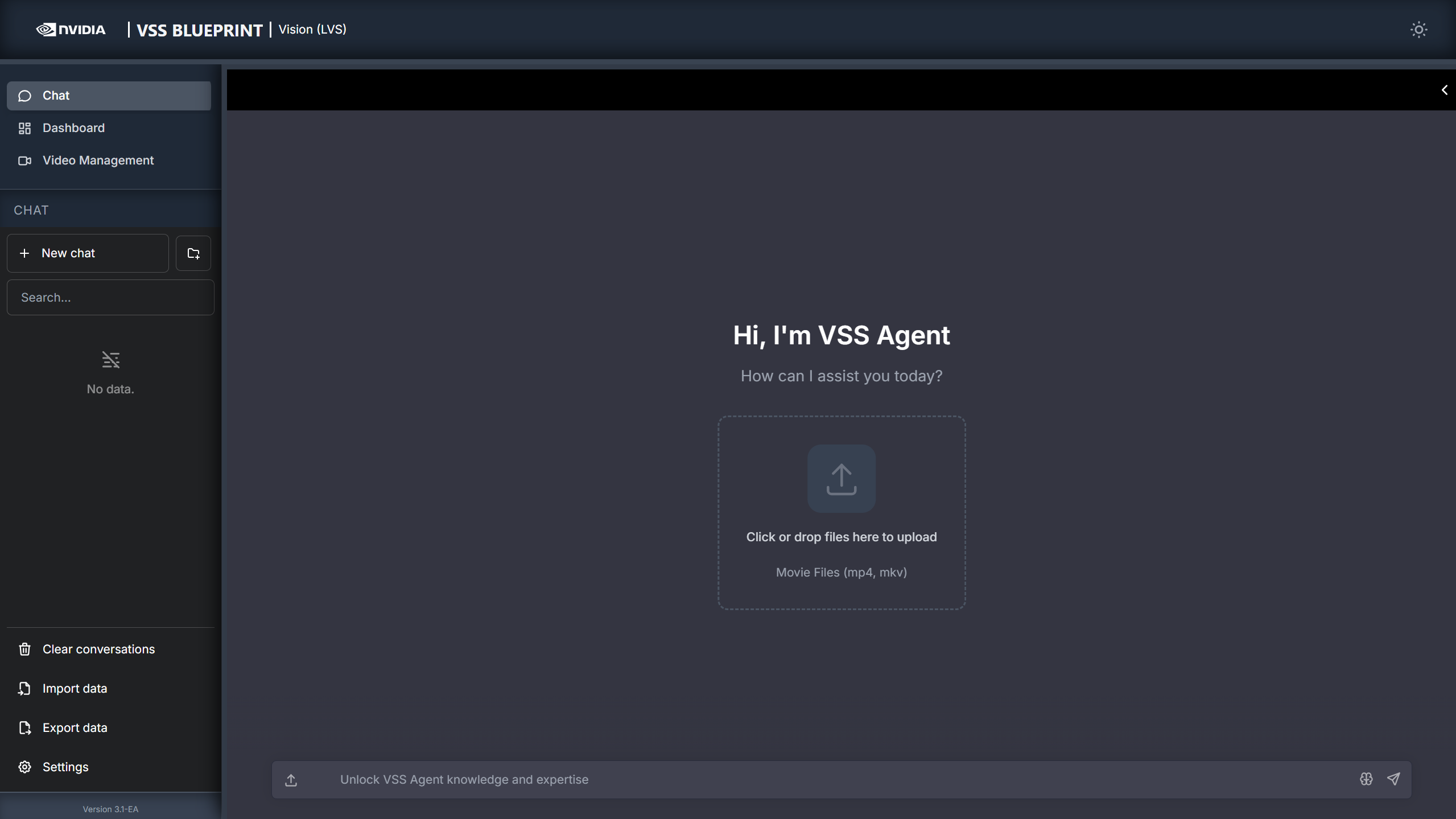
Once the video is uploaded, the agent will respond with a message indicating that the video has been uploaded.
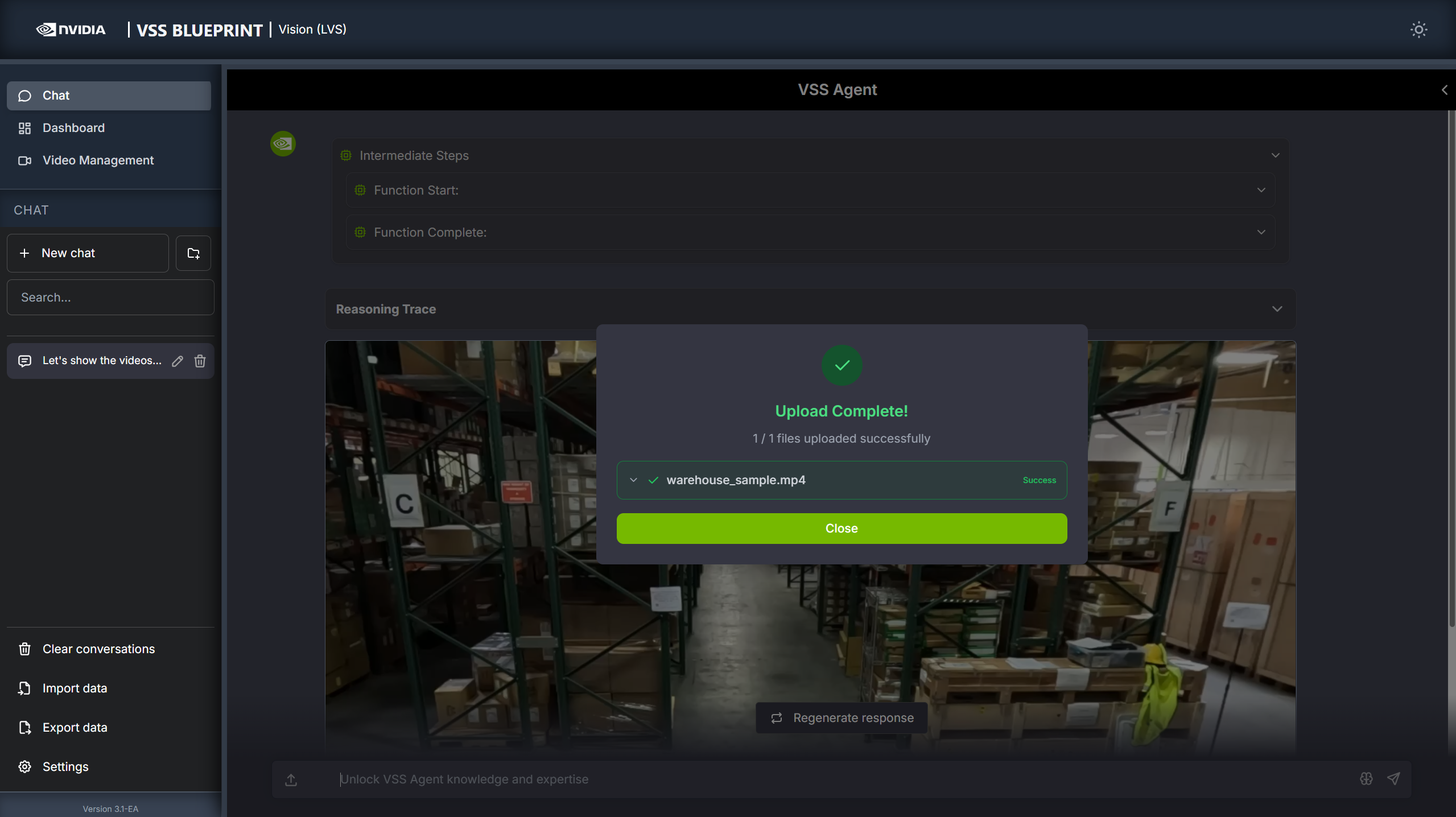
Step 3: Generate a report#
You can now ask the agent to generate a report about the video. Here is an example prompt:
Can you generate a report for warehouse_sample using long video summarization?
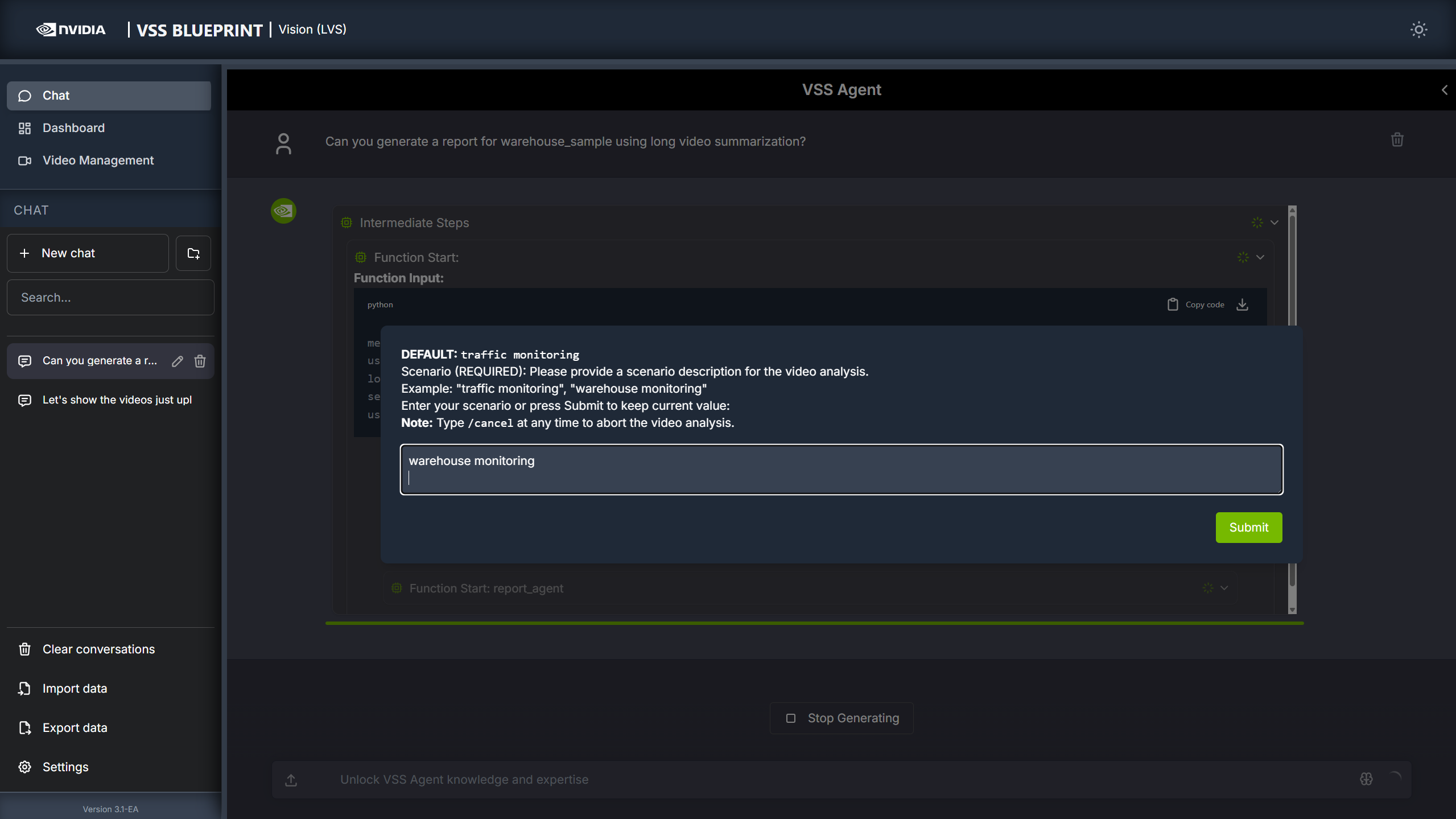
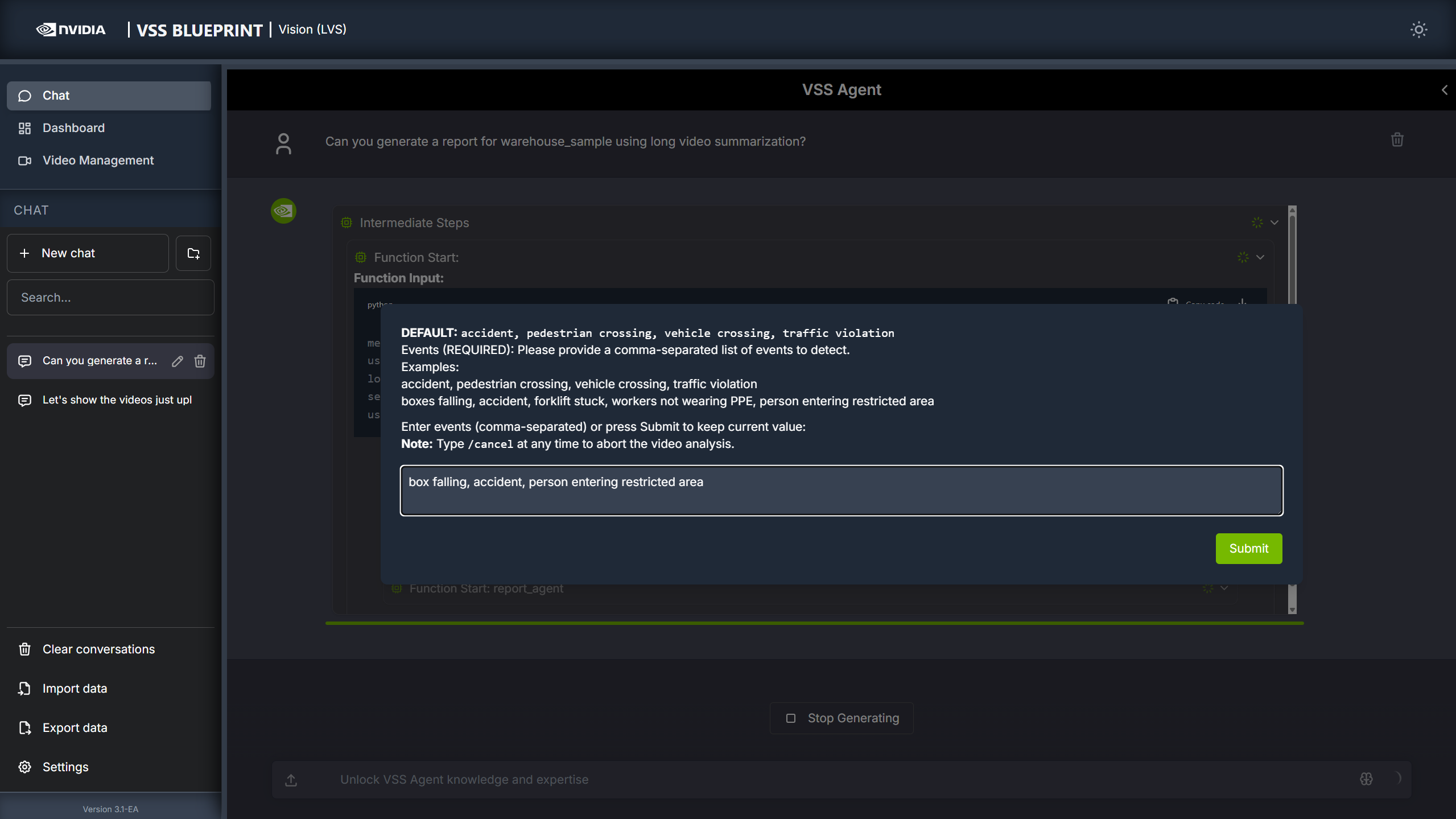
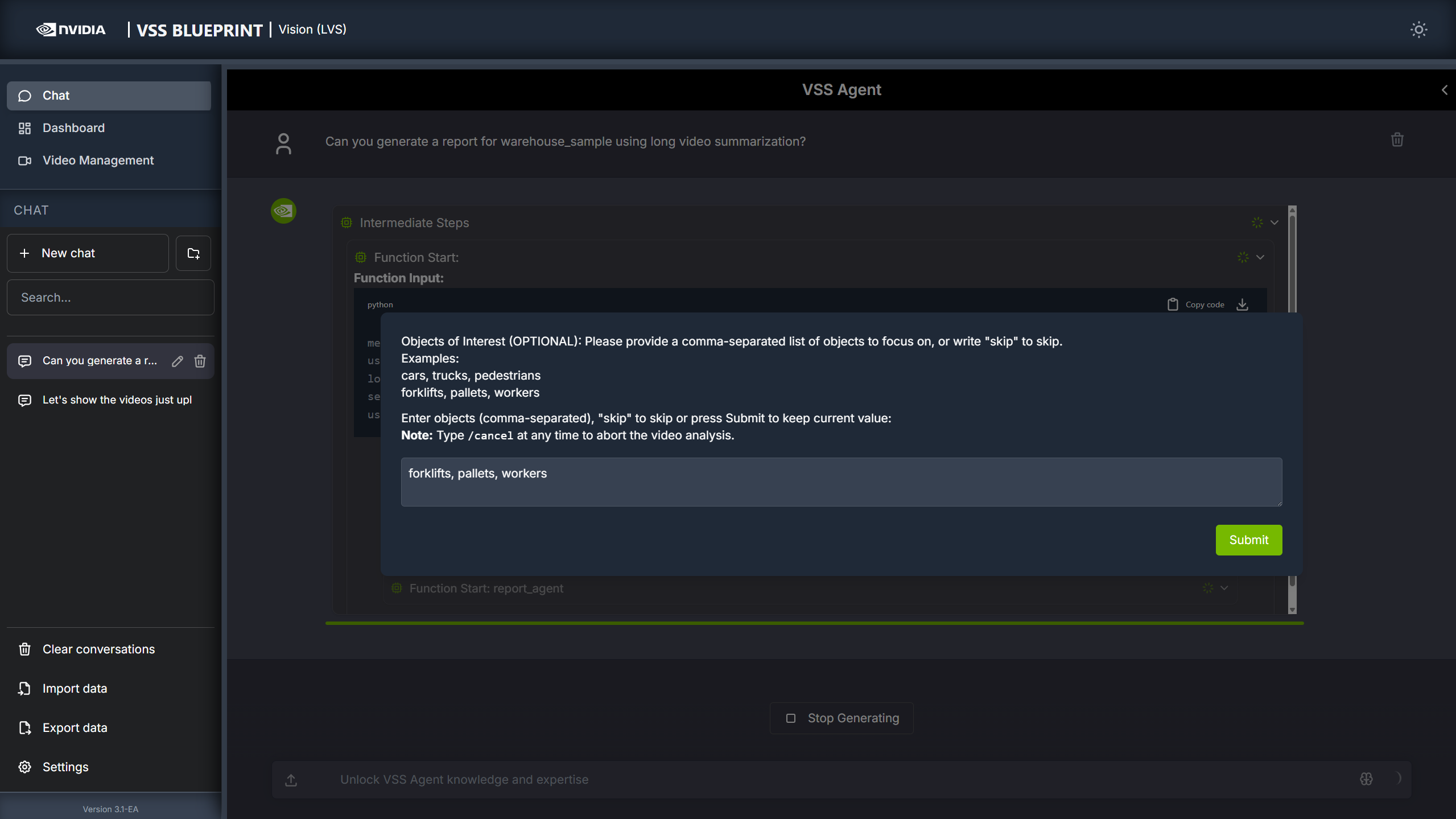
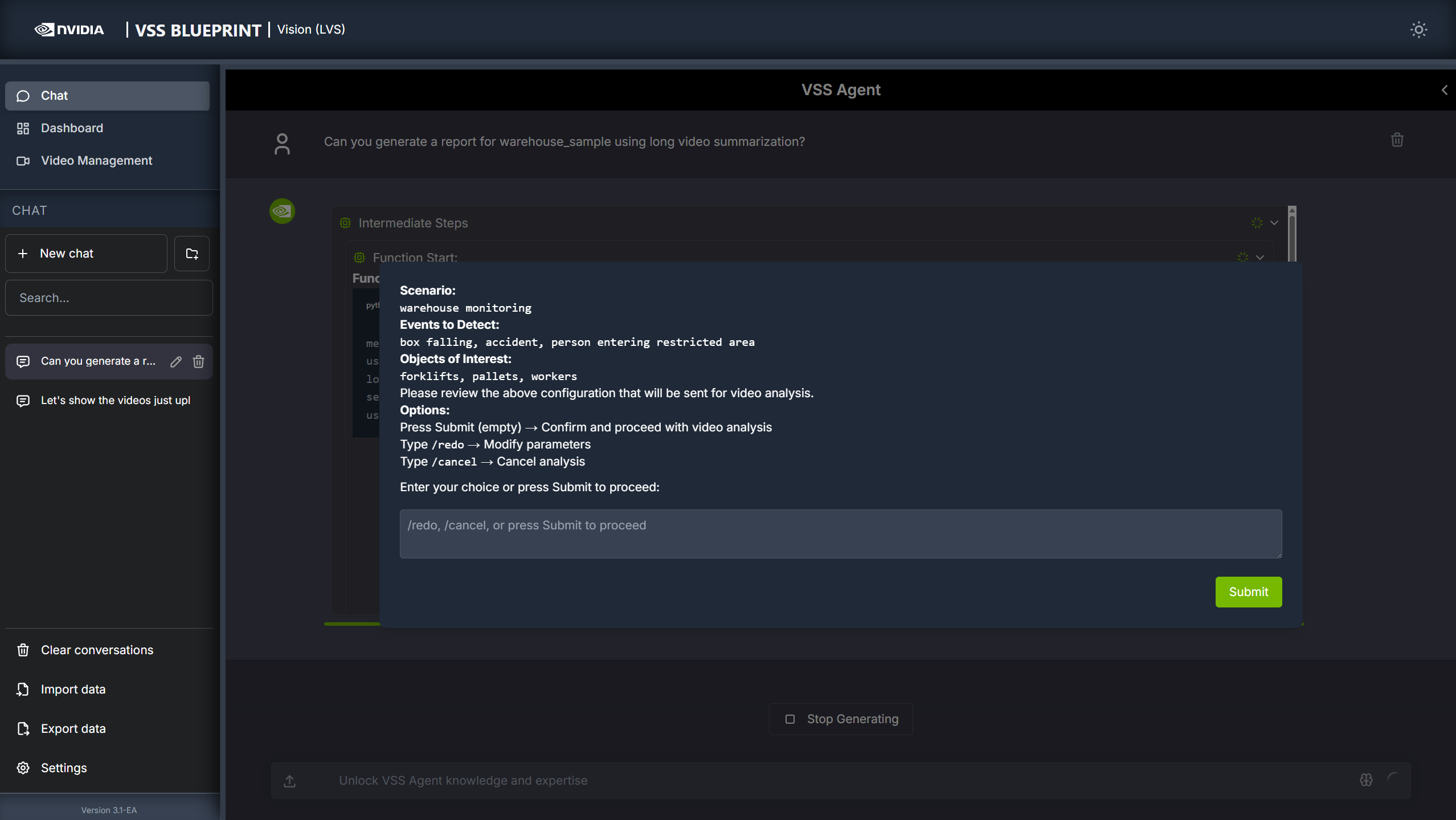
The agent will prompt you with 4 dialog windows to customize the LVS microservice parameters.
You can cancel the workflow at any time by typing “/cancel” in the pop-up input box.
- Scenario
Describe the monitoring context. For example:
warehouse monitoring
- Events
List events of interest to track. For example:
box falling, accident, person entering restricted area
- Objects of Interest
Specify objects to monitor. For example:
forklifts, pallets, workers
- Confirmation
Confirm the prompts by clicking “Submit”.
You can also redo the prompts by typing “/redo” or cancel the workflow by typing “/cancel”.
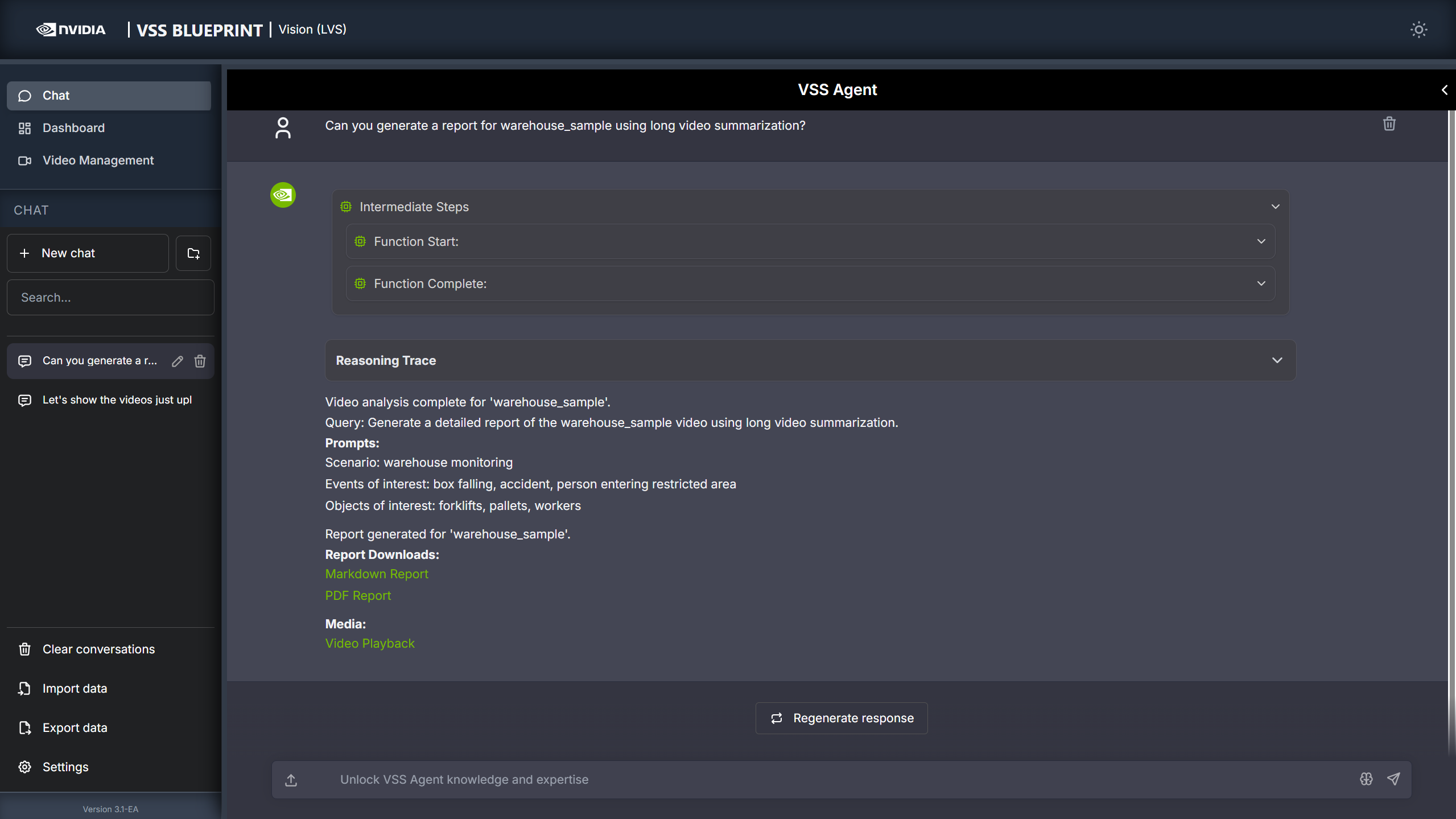
If you did not cancel the workflow, the agent will show the intermediate steps of the agent’s reasoning while the response is being generated and then output the final answer. You can download the report in PDF format by clicking on “PDF Report” in the agent’s response:
Step 4: Search for specific events in the Dashboard#
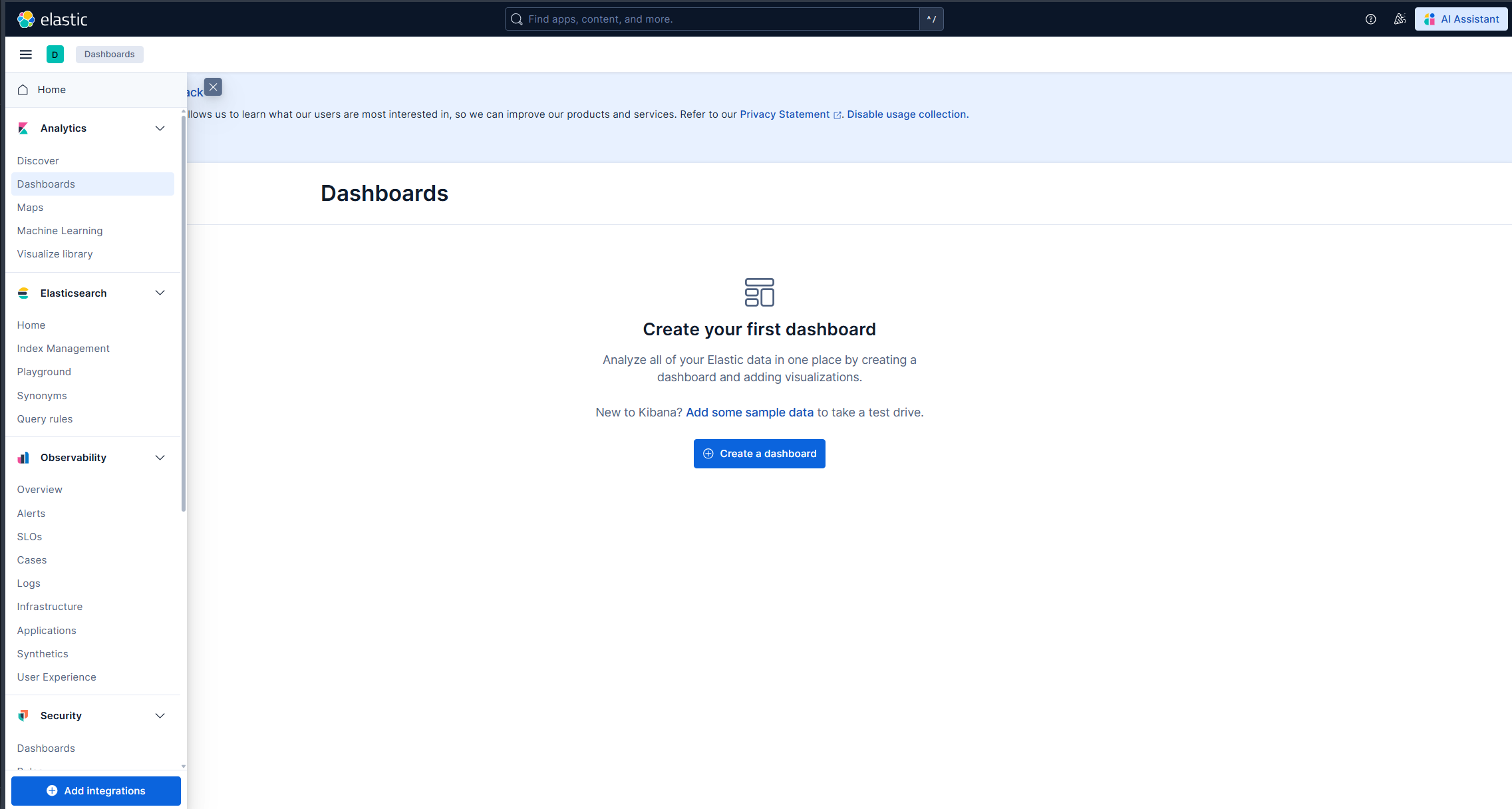
On the left sidebar, click on “Dashboard” to open the elastic dashboard in the main window. From the menu icon, choose the “Discover” tab.
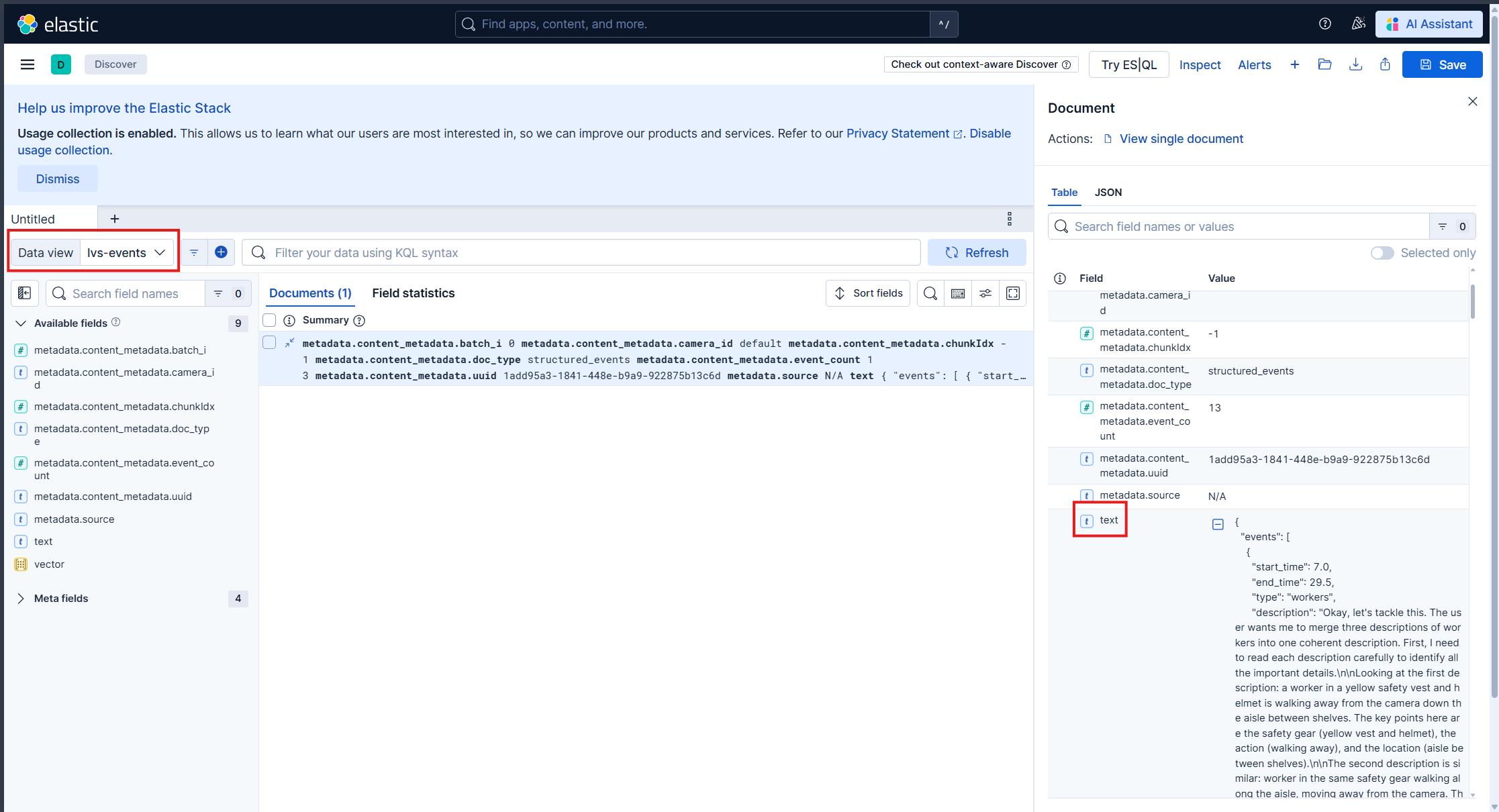
Set lvs-events in the Data view dropdown. Here you can see for each query, the events that were detected in the video. When you click on a row item, a panel will open in the right side with details about the backend request and the event.
Step 5: Teardown the Agent#
To teardown the agent, run the following command:
scripts/dev-profile.sh down
This command will stop and remove the agent containers.
Next steps#
Once you’ve familiarized yourself with the long video summarization workflow, you can explore adding other agent workflows, such as search and alerting.
Additionally, you can dive deeper into the agent tools for video management, report generation, and video understanding.
Known Issues#
For OpenAI remote VLM endpoint, please use gpt-4o for now. Other models are not supported yet.
Not supported: OpenAI VLM with a build.nvidia.com LLM. When using a build.nvidia.com LLM, do not use an OpenAI VLM or set
OPENAI_API_KEY.
For known issues and limitations, see:
Agent Known Issues - VSS Agent known issues and limitations
Known Issues - VSS Agent UI known issues
Troubleshooting#
When encountering issues with the LVS workflow:
View container logs - See Viewing Container Logs for instructions on viewing and analyzing container logs
Navigate the Phoenix UI - See Navigating the Phoenix UI for step-by-step guidance on viewing traces and debugging agent workflows
Check known issues - Review Agent Known Issues (agent) and Known Issues (UI) for documented limitations and workarounds