

VSS Reference User Interface#
Overview#
The VSS Reference User Interface is a web-based interface that allows you to interact with the VSS system.
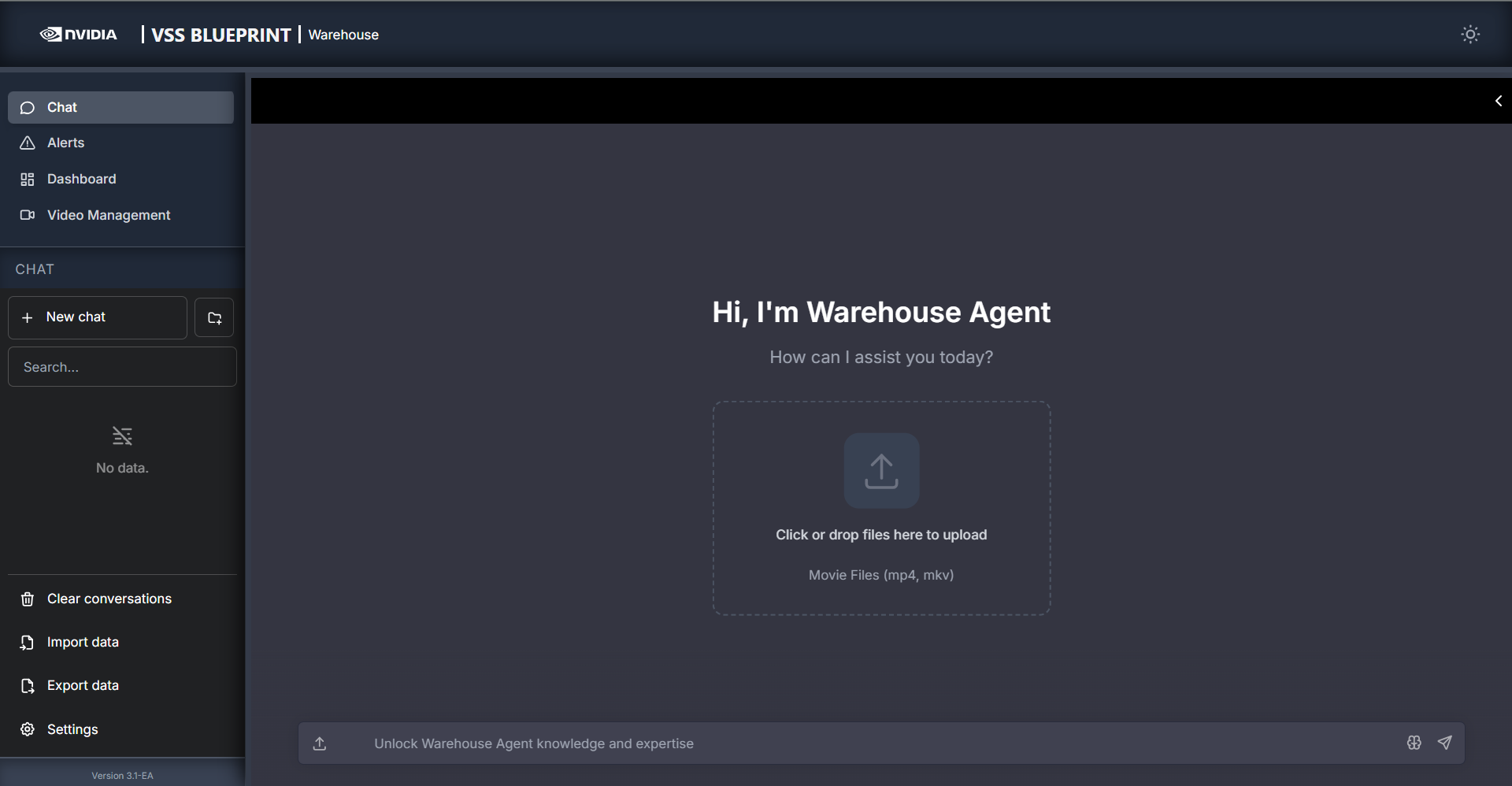
The UI supports both dark and light themes. To change the theme, click the theme toggle button in the top right corner.
Tabs represent the major functionalities of the UI and can be enabled based on the deployed blueprint. Below the list of tabs on the main left sidebar, exists the controls pertaining to the current tab.
Each tab is described in detail in its respective section below.
Tabs#
1. Chat Tab#
Chat tab connects to the agent service for the deployed blueprint. This tab uses the NeMo Agent Toolkit (NAT) Chat UI (NVIDIA/NeMo-Agent-Toolkit-UI) to interact with the agent service.
Type your question in the input box at the bottom of the UI. Press Enter or click the send button to send the question to the agent service.
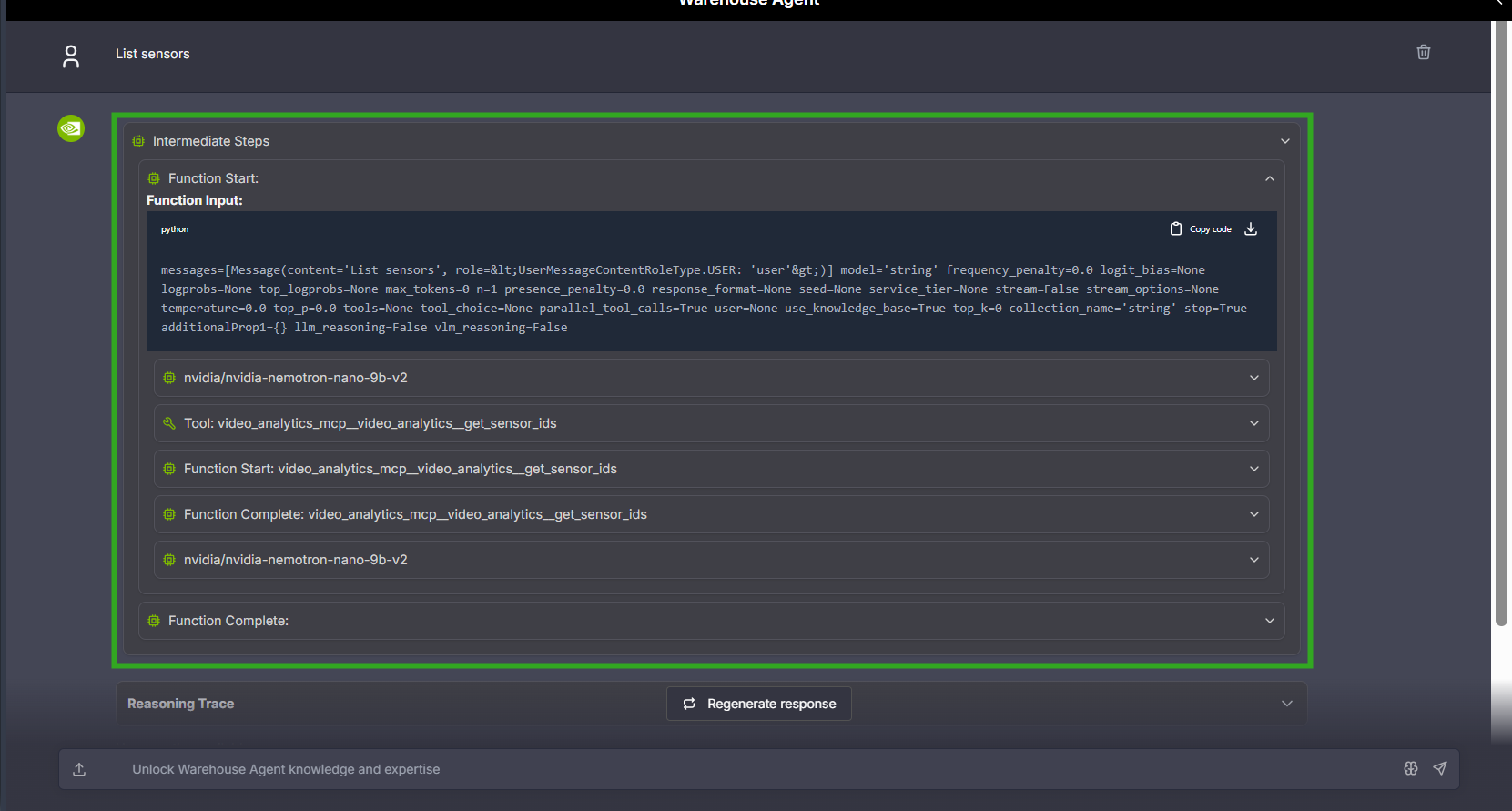
For streamed responses (see Settings below), each answer card includes an “Insights” component. This shows the intermediate steps of the agent’s reasoning as the response is generated.
Video Upload#
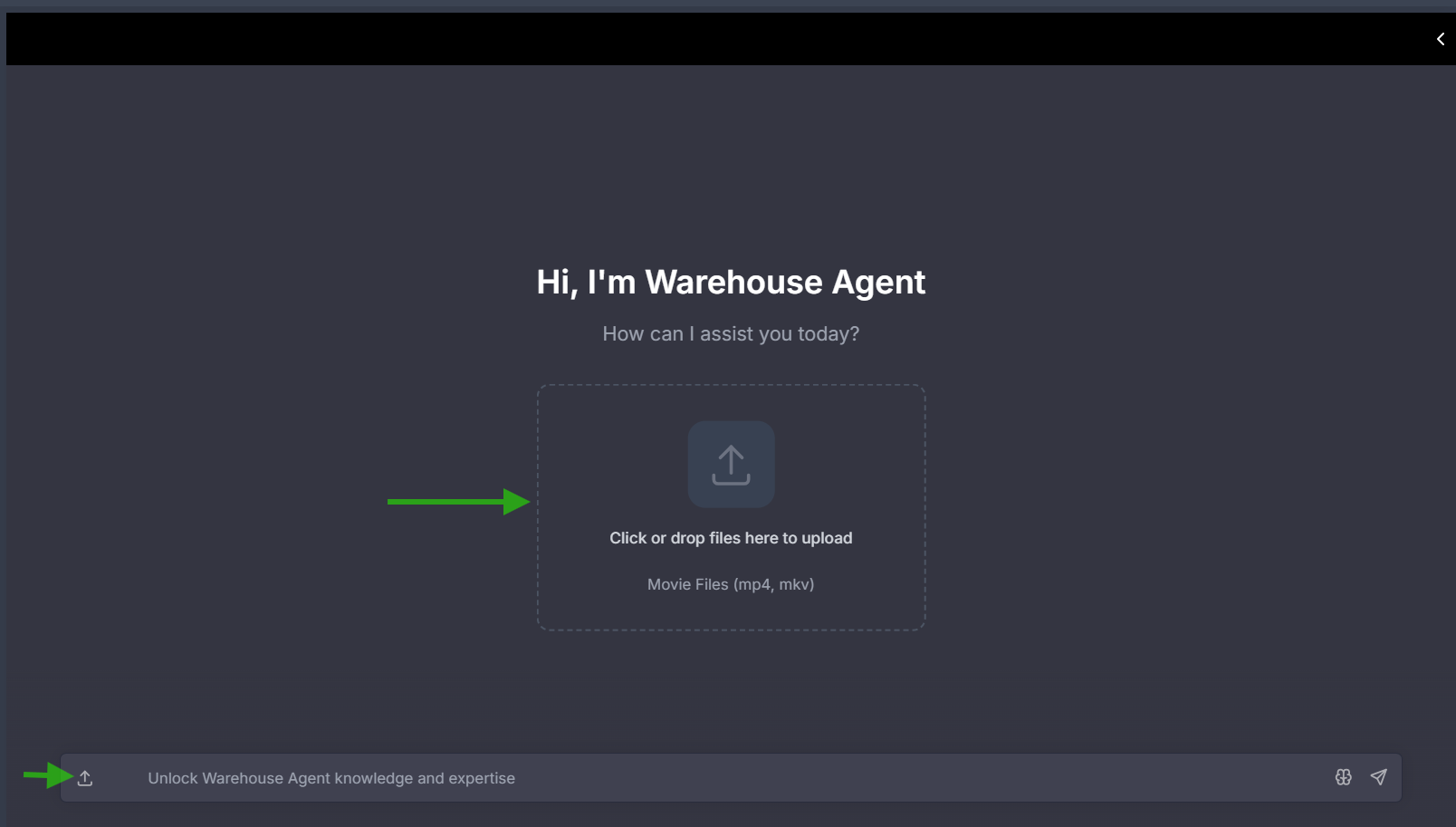
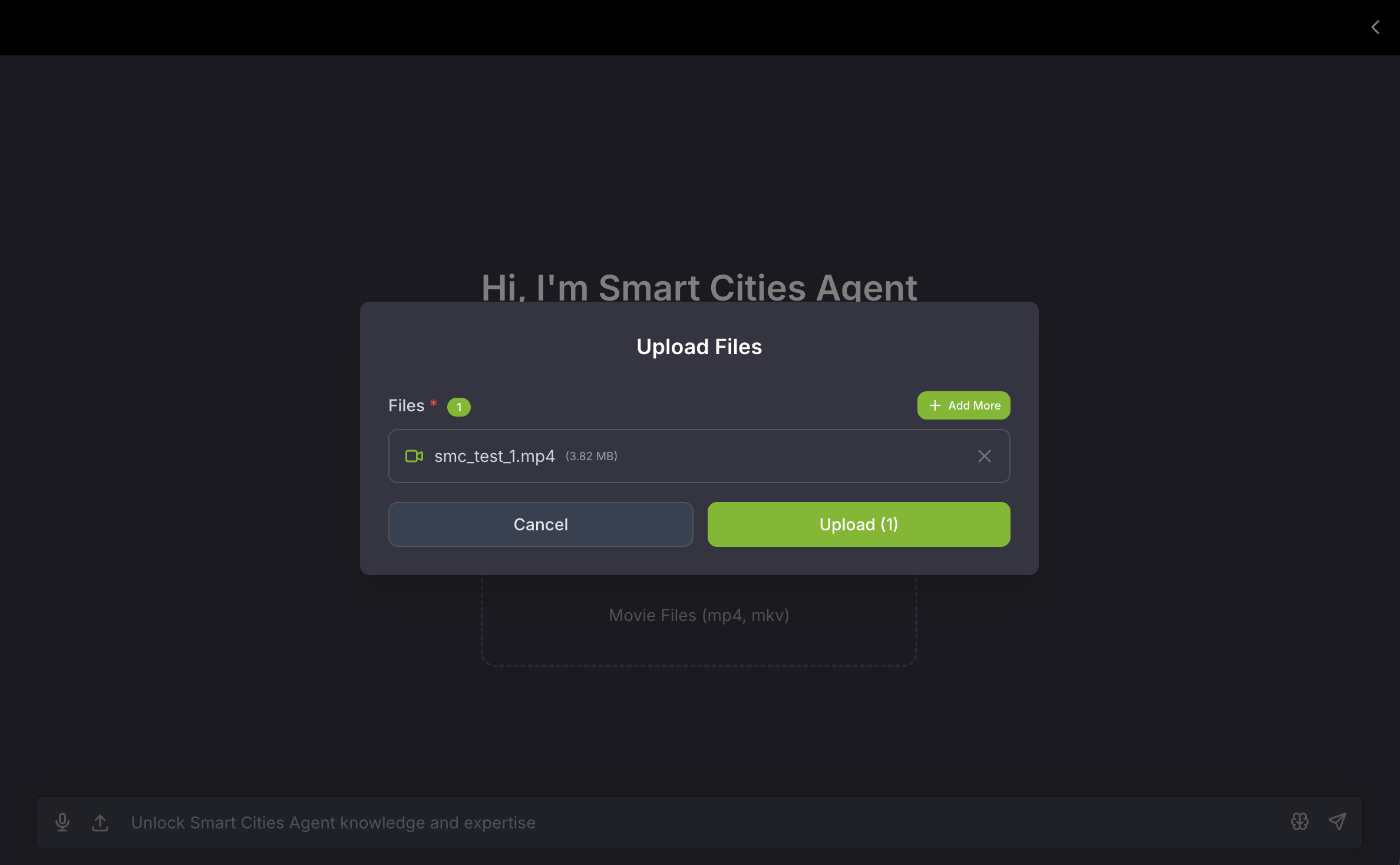
The Chat Tab supports uploading video files for analysis by the Agent.
Drag and Drop: Drag video files directly into the upload area
Click to Browse: Click the upload area to open a file browser
Upload Button: Click the upload icon button next to the chat input box
Supported Formats: MP4, MKV
After uploading, the agent can analyze the video content and answer questions about it.
Note
Upload functionality through the chat tab will not be available if disabled in the deployment scripts.
Chat Controls#
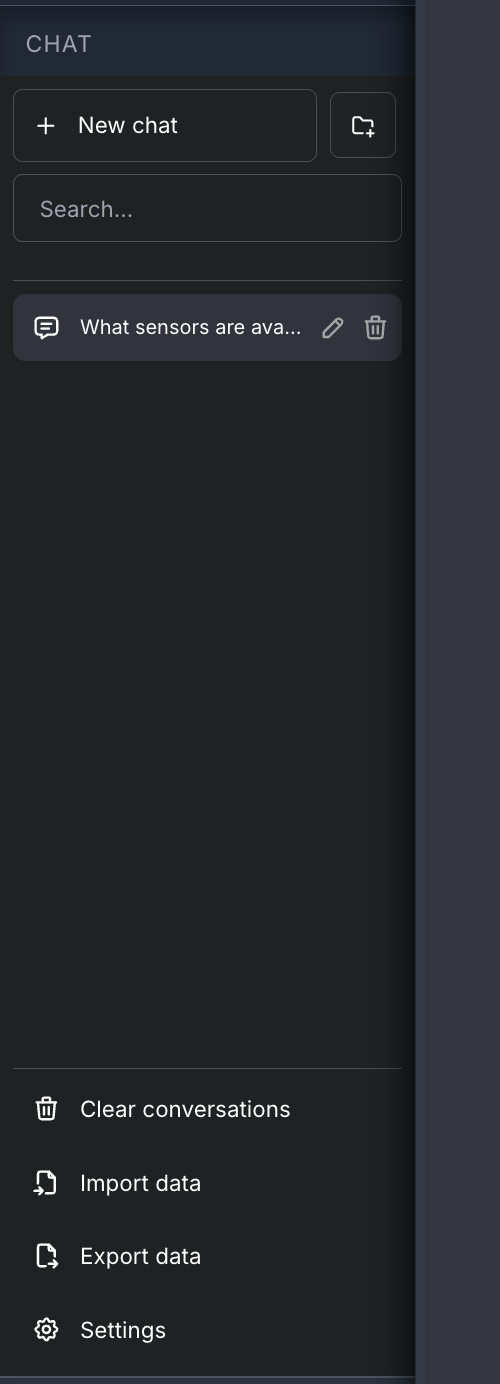
The left panel contains chat controls:
New chat: Start a new conversation
New folder: Create a new folder to organize conversations
Search: Search through existing conversations
Chat History: List of previous conversations (shows “No data” when empty)
Export data: Export conversation data to a file
Import data: Import (a previous exported) conversation data from a file
Settings#
The bottom left corner of the left panel has a settings button. This allows you to configure:
“HTTP URL for Chat Completion” - The URL of the agent query endpoint.
Possible values:
“http://<AGENT_SERVICE_HOST_IP>:<AGENT_SERVICE_HOST_PORT>/chat”
“http://<AGENT_SERVICE_HOST_IP>:<AGENT_SERVICE_HOST_PORT>/chat/stream”
“http://<AGENT_SERVICE_HOST_IP>:<AGENT_SERVICE_HOST_PORT>/generate”
“http://<AGENT_SERVICE_HOST_IP>:<AGENT_SERVICE_HOST_PORT>/generate/stream”
The ‘/chat’ and ‘/generate’ endpoints are the same and allow non-streaming responses.
The ‘/chat/stream’ and ‘/generate/stream’ endpoints are the same and allow streaming responses.
“Enable Intermediate Steps” - Show or hide the “Insights” component.
“Expand Intermediate Steps by default” - Auto-expand the hierarchy in the “Insights” component.
“Override intermediate Steps with same Id” - Show nested hierarchy view of agent call sequences.
Note
If using the provided deployment scripts, some of the settings come pre-configured.
For the current version, only use the theme toggle button in the top right panel to switch between dark and light themes for the Chat tab. The other settings in the top right panel are not to be changed.
2. Alerts Tab#
Alerts Tab is a monitoring interface for viewing, filtering, and investigating incidents detected by AI-powered analytics in real-time.
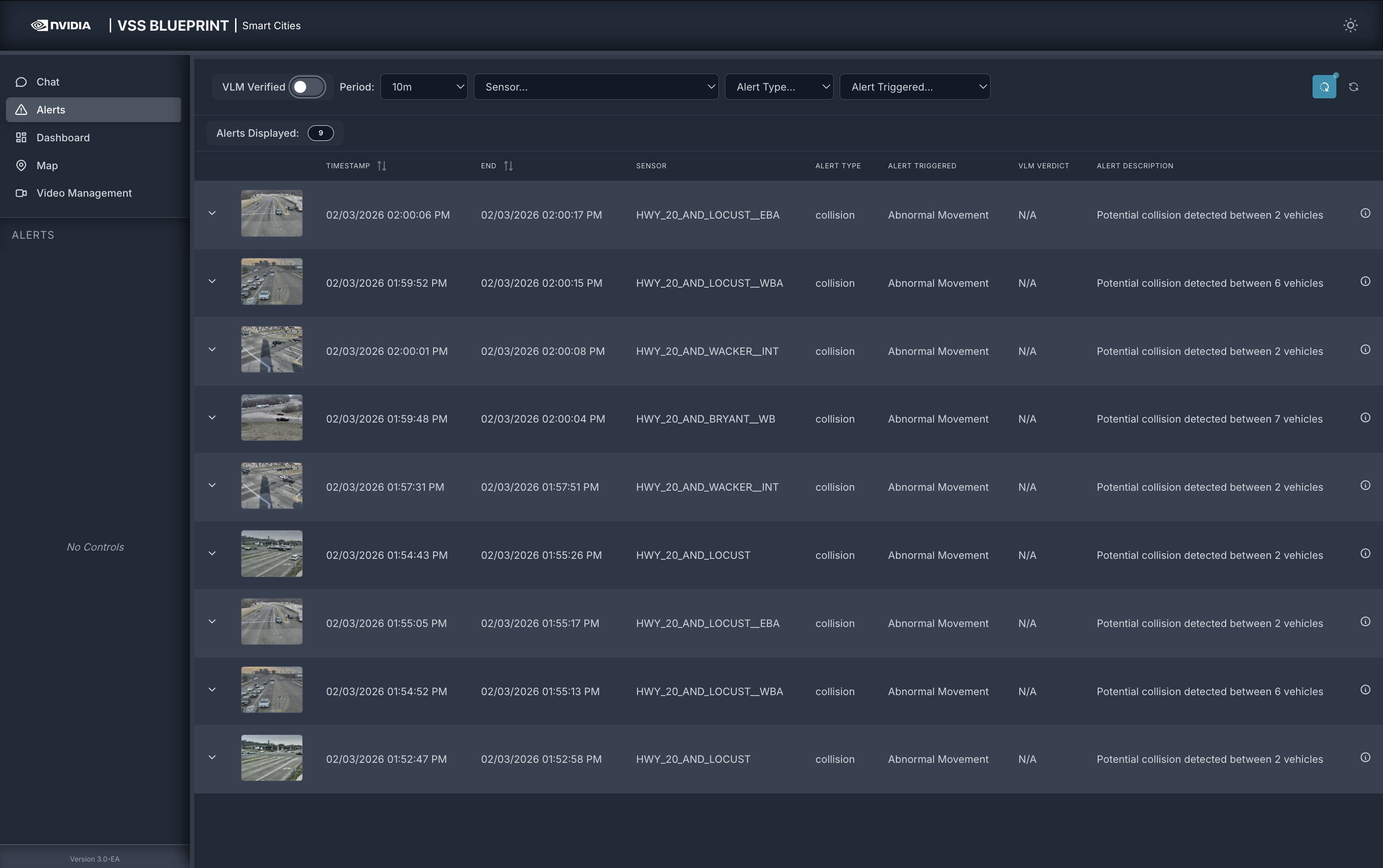
Key Features:
Advanced filtering (verification, verdict, time, sensor, type, trigger)
Sortable table with expandable metadata
Integrated video playback
Auto-refresh with configurable intervals
Light/Dark theme support
Default Configuration:
These initial settings are configured via system environment variables:
Setting |
Default |
Environment Variable |
|---|---|---|
VLM Verified |
ON |
|
Time Window |
10 minutes |
|
Max Results |
100 alerts |
|
Auto-Refresh |
1 second |
|
Main Sections:
This guide covers two primary interface components:
Filter Controls - Controls for filtering and refreshing data (top bar and filter tags)
Alerts Table - Sortable table displaying incidents with video playback and metadata
Filter Controls#
VLM Verified Toggle#

|
|
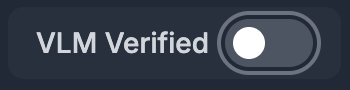
Filter by VLM Verified
ON 🔵 = verified alerts only
OFF ⚪ = all unverified alerts
Verdict Filter#
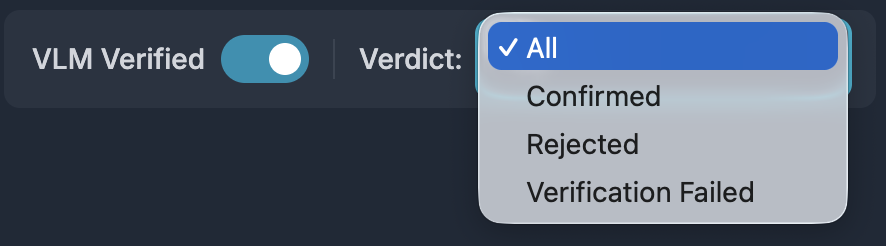
Shows when VLM Verified is ON. Options:
All
Confirmed (true positives)
Rejected (false positives)
Verification Failed
Time Period#
|
|
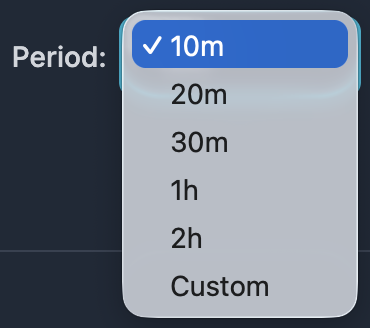
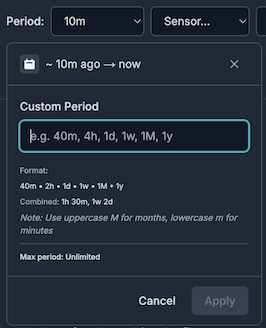
Options: 10min (default) • 20 min • 30 min • 1h • 2h • Custom
Tip: Shorter periods load faster. Custom ranges persist for the session.
Time#
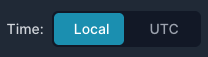
This toggle lets you switch the time displayed in the alert table between Local Time and UTC.
Sensor / Alert Type / Alert Triggered#

Click dropdown → Select value → Filter tag appears
Click ✕ on tag to remove
Quick add: Click values in table
Filter Tags: Color-coded badges (🔵 Sensor • 🟠 Alert Type • 🟢 Triggered). Multiple filters use AND logic.
Refresh Controls#
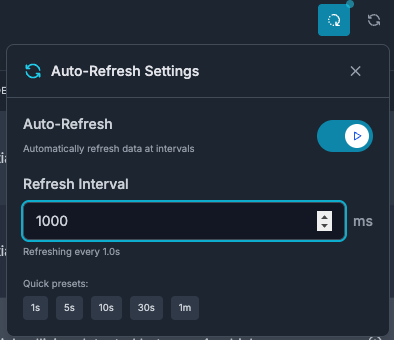
Auto-Refresh (↻ icon): 1s / 5s / 10s / 30s / 1min intervals. Blue with pulsing dot = enabled.
Manual Refresh (🔄 icon): Click to refresh immediately.
Best Practice: Use 1-5s for monitoring, 30s-1m to reduce load, disable during analysis.
Alerts Displayed#
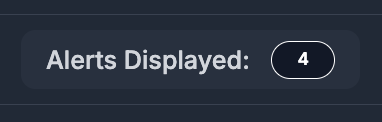
The counter displays the total number of alerts matching your current filters. The counter updates automatically when:
Filters are applied or removed
New alerts arrive (with auto-refresh enabled)
Date range changes
Use this counter to quickly verify how many alerts match your filter criteria.
Alerts Table#
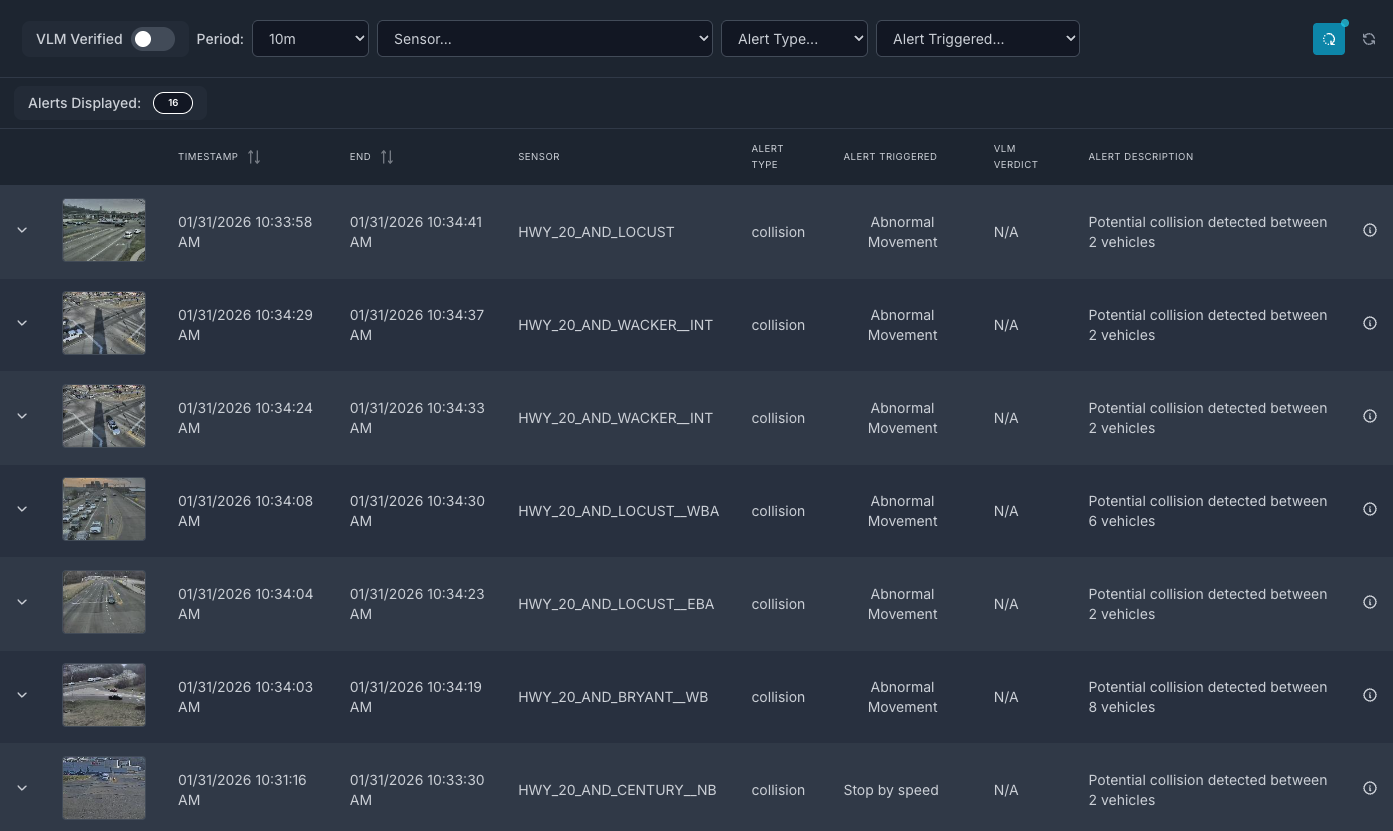
Columns#
Column |
Description |
▼/▲ |
Expand/collapse metadata |
Thumbnail |
Video preview (click to play) |
Timestamp |
Start time (sortable: ↑ ↓ ⇅) |
End |
End time (sortable: ↑ ↓ ⇅) |
Sensor |
ID (click to filter) |
Alert Type |
Classification (click to filter) |
Alert Triggered |
Module that detected alert (click to filter) |
VLM Verdict |
🟢 Confirmed • 🔴 Rejected • 🟡 Failed • ⚪ N/A |
Description |
Alert details |
ⓘ |
Expand/collapse metadata |
Sorting#
Click Timestamp/End columns: 1st=Ascending ↑, 2nd=Descending ↓, 3rd=Reset ⇅
Expandable Rows#
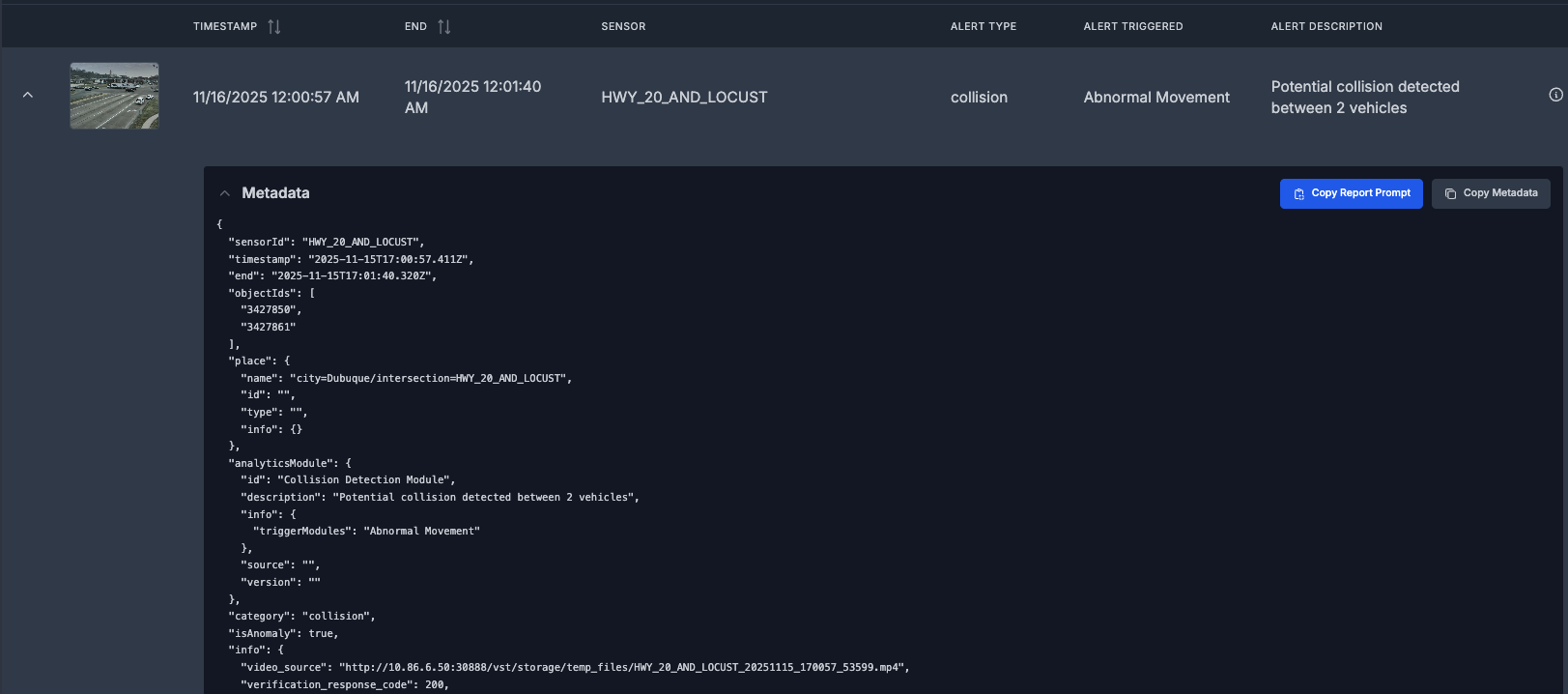
Click ▼ or ⓘ to view the Metadata section of the row.
Copy Functions:
Copy Report Prompt: Formatted template with metadata for AI analysis (requires template config)
Copy Metadata: Complete JSON data for debugging/sharing
Both copy to clipboard with visual confirmation.
Video Playback#
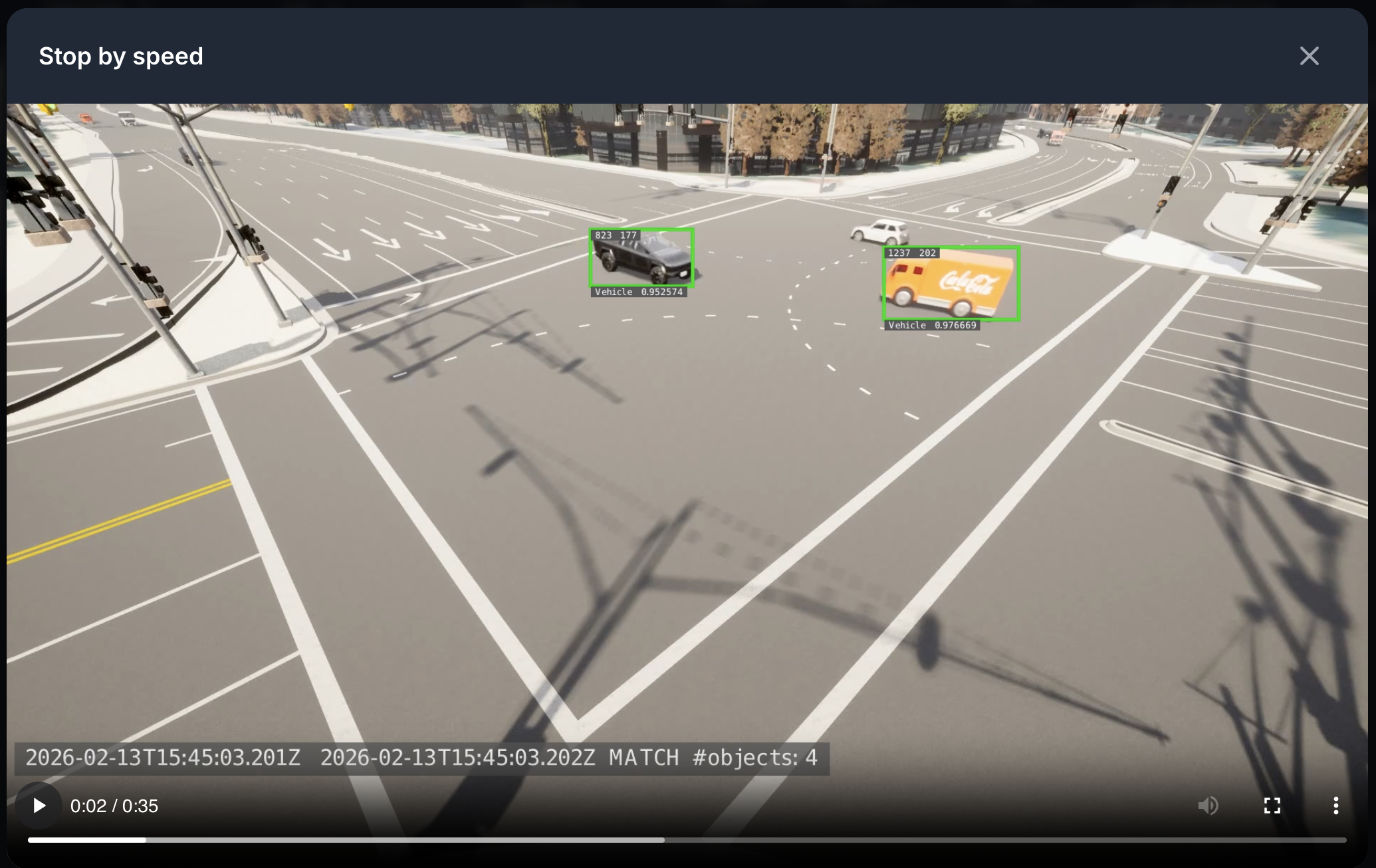
Click thumbnail/play button → Modal with Play/Pause, seek, volume, fullscreen
Requires: Sensor mapping, VST service, network connectivity
3. Dashboard Tab#
This tab shows the Kibana dashboard for the blueprint that it is deployed on.
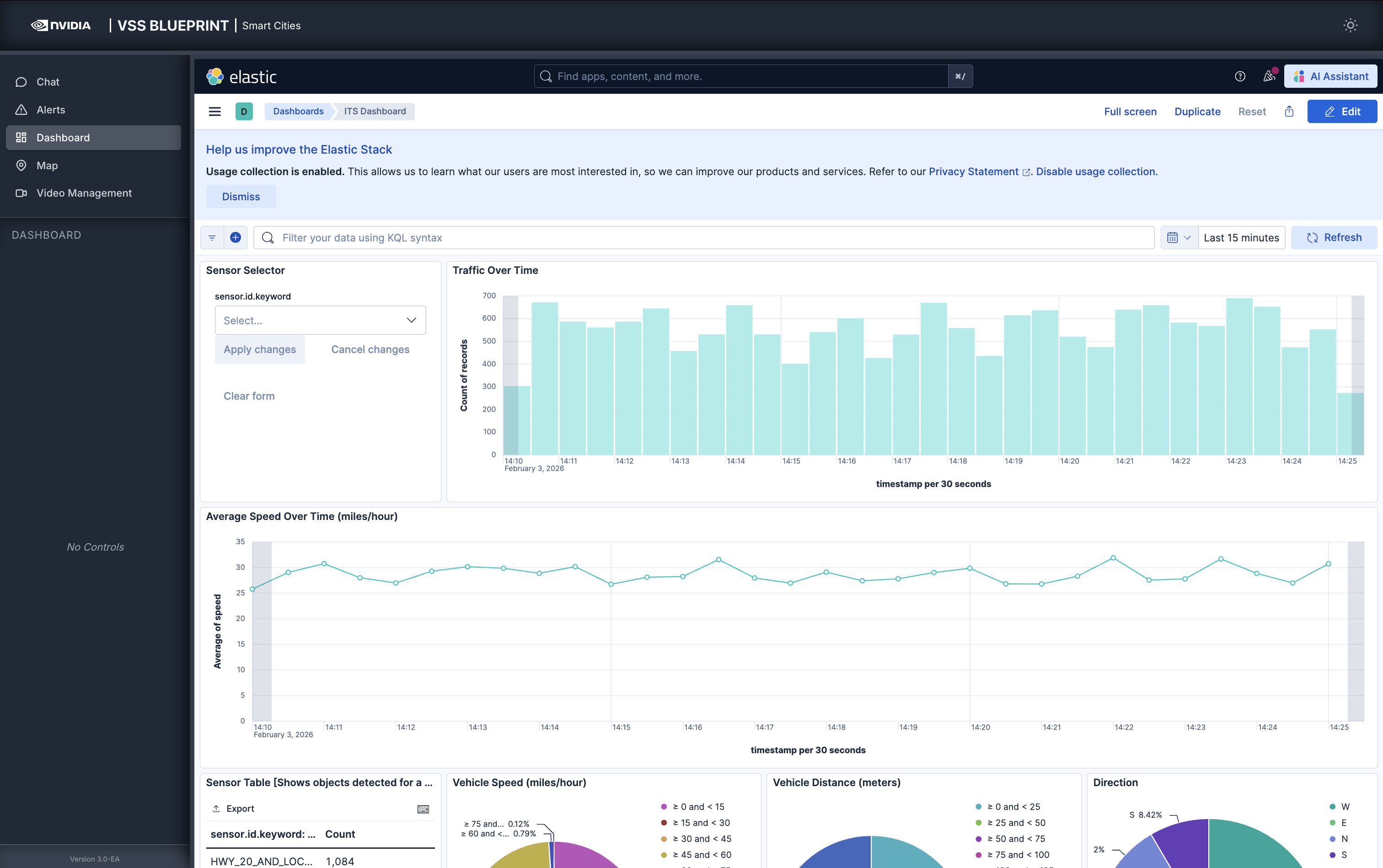
Note
Blueprint deployments typically include a pre-configured Kibana dashboard (as shown above).
Refer to the Kibana documentation for usage details.
4. Search Tab#
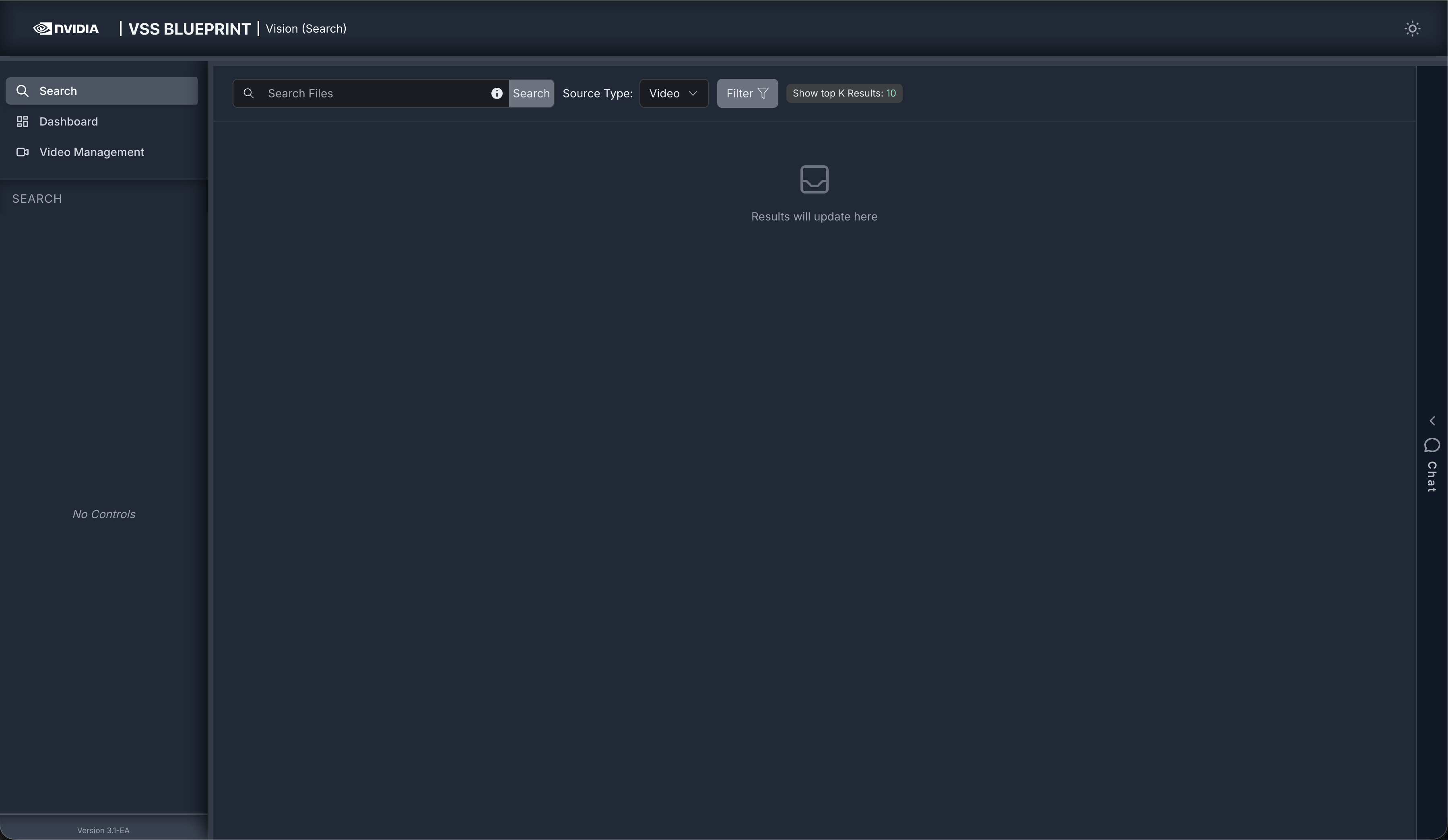
Search Tab provides a semantic video search interface that allows users to find relevant video clips using natural language queries or metadata filters powered by AI-based similarity matching.
Key Features:
Natural language video search
Manual filtering mode with advanced filter options
Configurable result count (Top K) for performance optimization
Advanced filtering: datetime range, sensors, description, similarity threshold
Local timezone handling for accurate time display
Auto-refresh when switching between tabs
Interactive filter tags with quick remove functionality
Video results displayed as responsive grid cards with thumbnails
Integrated video playback modal with full controls
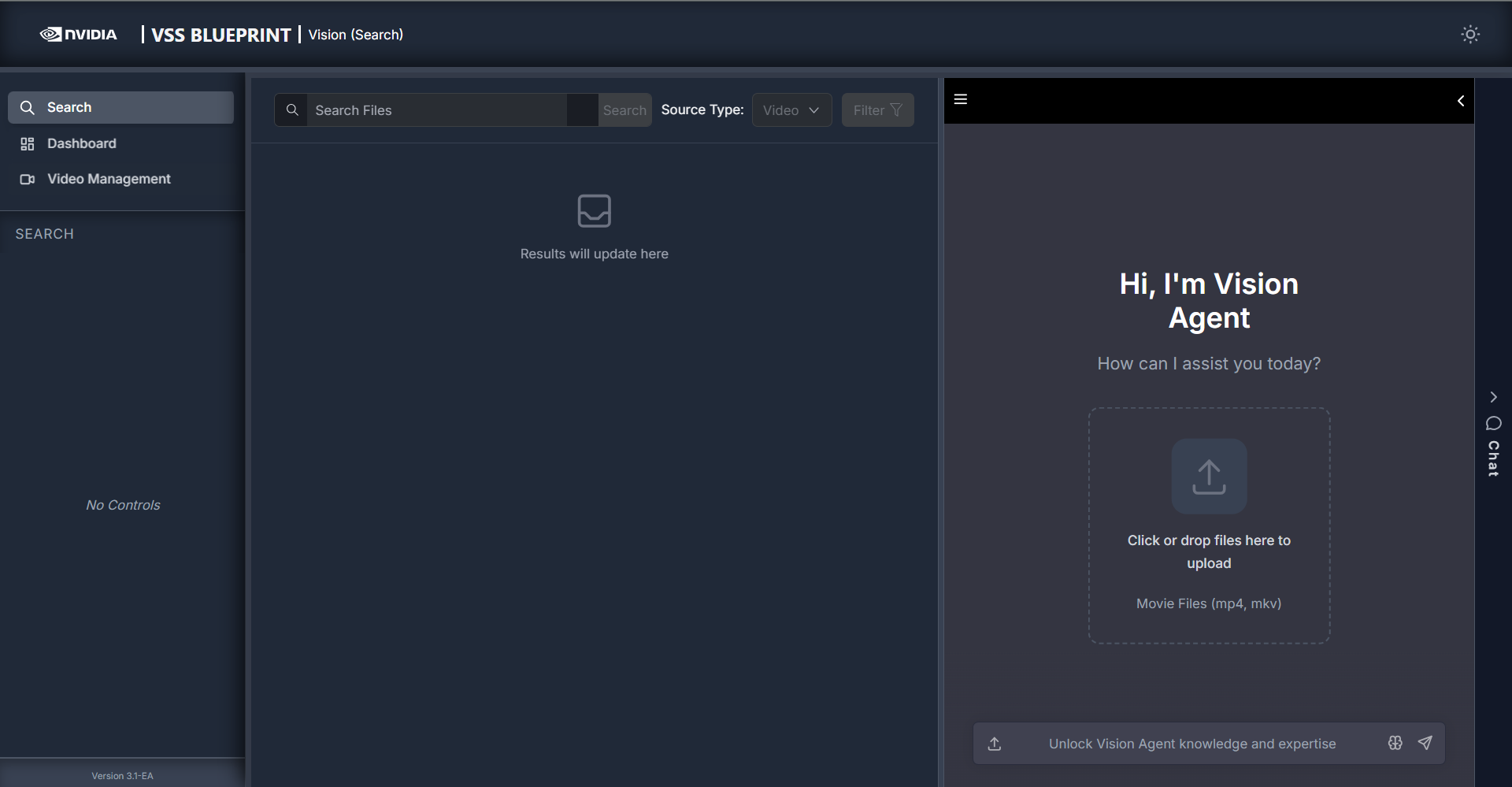
Collapsible Chat Sidebar for direct agent interaction within the Search Tab
Main Sections:
This guide covers the primary interface components:
Search Controls - Search input, source type, and filter button
Filter Options - Advanced filtering popover with date range, sensors, description, similarity threshold, and result count
Filter Tags - Visual display of active filters with quick remove functionality
Video Results - Responsive grid of video cards with thumbnails, time ranges, and metadata
Chat Sidebar - Collapsible agent chat panel with video upload and conversational search
Search Controls#
Search Input#

The search input field is required and supports natural language queries. Type your query in the search box and click the “Search” button to execute.
Examples:
“Find videos with people walking”
“Show me clips with a person in green jacket carrying boxes”
“Search for vehicle activity near entrance”
Input Behavior:
The search field displays an error highlight (red border) if you attempt to search with an empty query
The error clears automatically when you start typing
Search is triggered only by clicking the “Search” button or pressing Enter
Clicking the Close icon (X) to clear the search input and resets the search
Source Type#
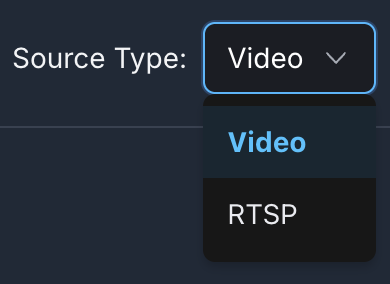
Select the source type to search from. The default is Video File.
Video File - Search from uploaded video files
RTSP - Search from live RTSP camera streams
Filter Options#
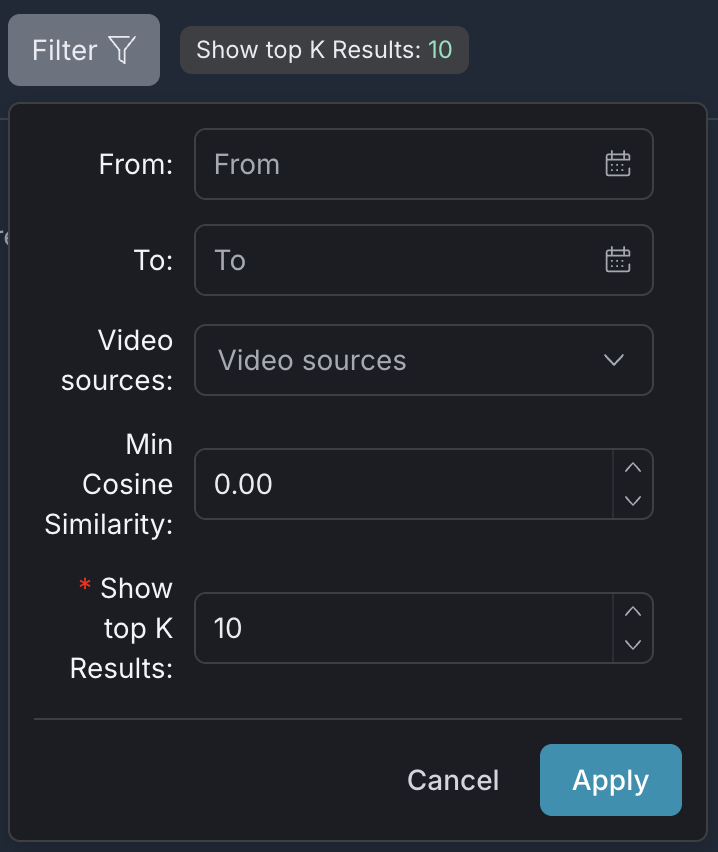
Click the “Filter” button to open the filter popover with advanced filtering options. The popover automatically closes when you click outside of it or click the “Apply” button to apply your filters.
Note
Filter options are only available when the Chat Sidebar is collapsed. When the Chat Sidebar is open, the Filter button and existing filter tags are disabled.
The filter popover provides the following options:
Datetime Range#
Select start and end dates to filter videos within a specific time period.
From: Starting date and time
To: Ending date and time
Format:
MMM dd yyyy hh:mm:ss aa(12-hour format with AM/PM)Times are interpreted as local timezone and sent to the API without timezone conversion
Tip: Leave both fields empty to search across all available time periods.
Video Names#
Multi-select dropdown to filter video names.
Select one or multiple video names from the list
Video names are fetched from the VST API
Min Cosine Similarity#
Set a minimum similarity threshold to filter results by relevance score.
Range: -1.00 to 1.00
Higher values (e.g., 0.80) return more relevant matches
Lower values (e.g., 0.20) return broader results
Value is automatically rounded to 2 decimal places
Default: No minimum threshold (returns all results)
Show top K Results#
Specify the maximum number of search results to display.
Required field - Must have a value
Minimum: 1 result
Default: 10 results
Enter any positive integer based on your needs
If the field is left empty when closing the popover, it automatically resets to the default value of 10
A filter tag is displayed only when the value differs from the default (10)
Filter Tags#

Active filters are displayed as tags below the search controls:
Click ✕ on any tag to remove that filter and reset to default (except for “Show top K Results” tag, which cannot be removed individually)
Click “Clear All” to remove all removable filters at once
Tags display: From date, To date, Video names (sensors), Min Cosine Similarity, Description, Show top K Results (only shown when value differs from default of 10)
Video Results#
Search results are displayed as a responsive grid of video cards.
Video Card#
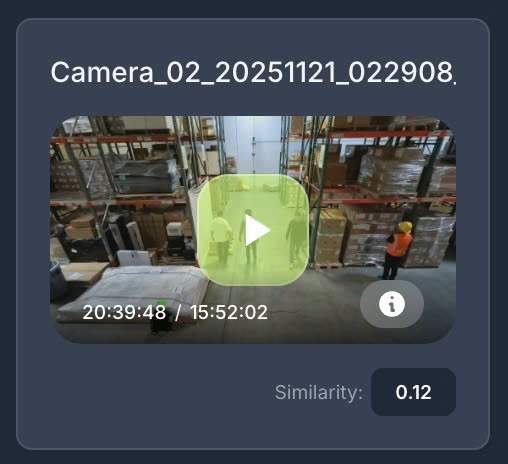
Each video card displays:
Element |
Description |
Video Name |
Filename of the video clip |
Thumbnail |
Preview image from the video (click to play) |
Play Button |
Click to open video in playback modal |
Time Range |
Start time / End time of the clip in |
Info Icon ⓘ |
Hover to see video description (if available) |
Similarity Score |
Cosine similarity value (-1.00 - 1.00) indicating relevance. Displayed when available from search results |
Video Playback#
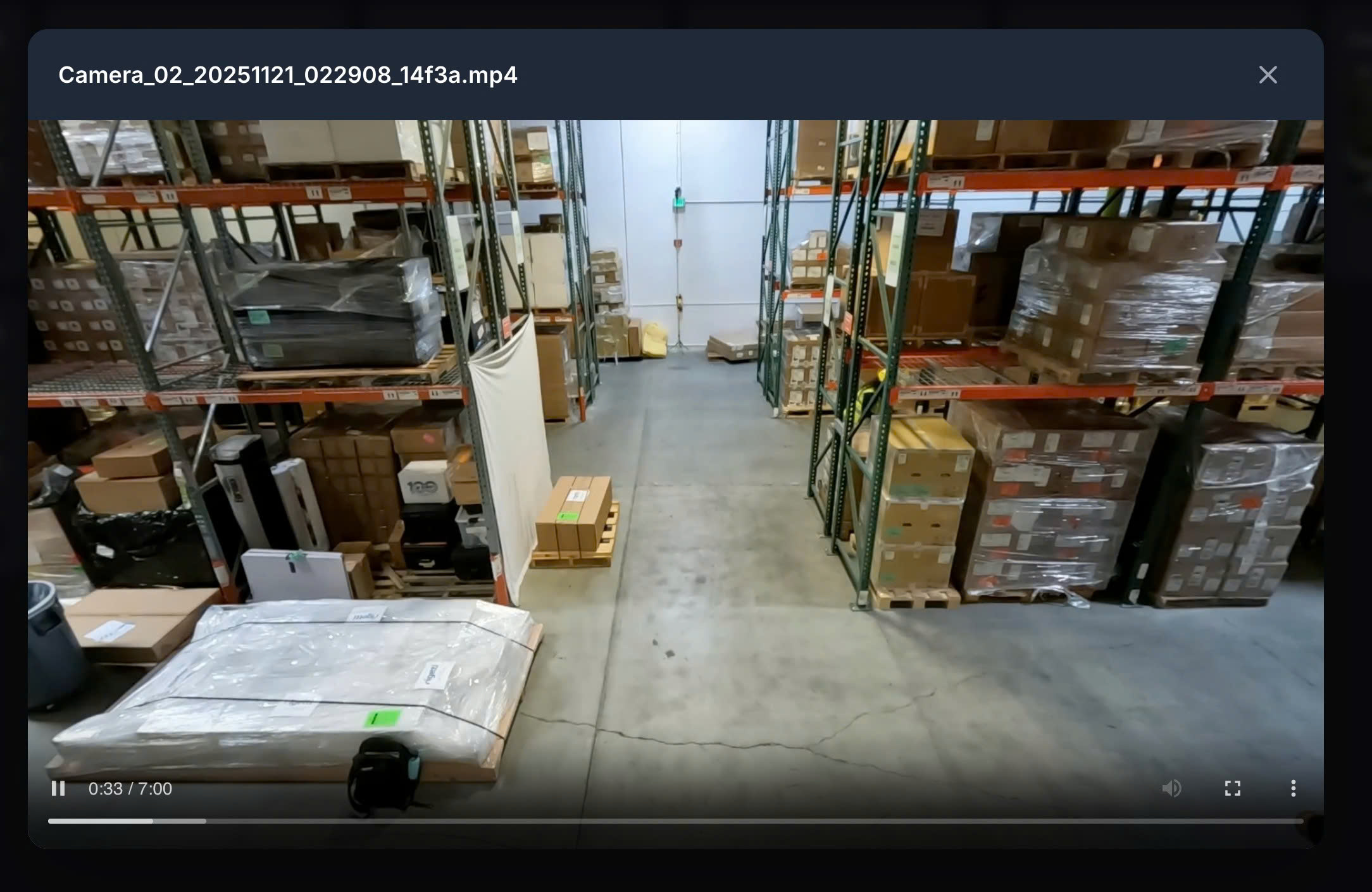
Click the play button or thumbnail to open the video playback modal with:
Play/Pause controls
Seek bar
Volume control
Fullscreen option
Requires: VST service connectivity and proper sensor configuration.
Chat Sidebar#
The Search Tab includes a collapsible Chat Sidebar on the right side that provides direct access to the Vision Agent without leaving the search interface.
Toggle:
Click the vertical “Chat” tab on the right edge to open or close the sidebar
The sidebar is resizable by dragging its left edge (between 1/3 and 2/3 of the content area width)
Default width: 380px
This side bar is similar to the Chat Tab, but is specifically designed for the Search Tab.
Interaction Modes:
When the Chat Sidebar is open, the behavior is similar to when it is collapsed while an agent query is executing: the search controls (search input, source type, filters, and filter tags) are disabled in both cases. In the open state, users interact with the agent through the Chat Sidebar, and the agent’s responses can automatically populate the search results grid. This allows conversational search — ask the agent a question and see matching video results appear in the main search area.
Example
Type a natural-language query in the Chat Sidebar and the agent will run a search and fill the results grid. For example, ask “person with yellow hat carrying boxes”; the agent interprets the query, runs the search, and matching video clips appear in the main area. The screenshot below illustrates this flow: the query in the chat and the corresponding search results (e.g. thumbnails and clips) shown in the grid.
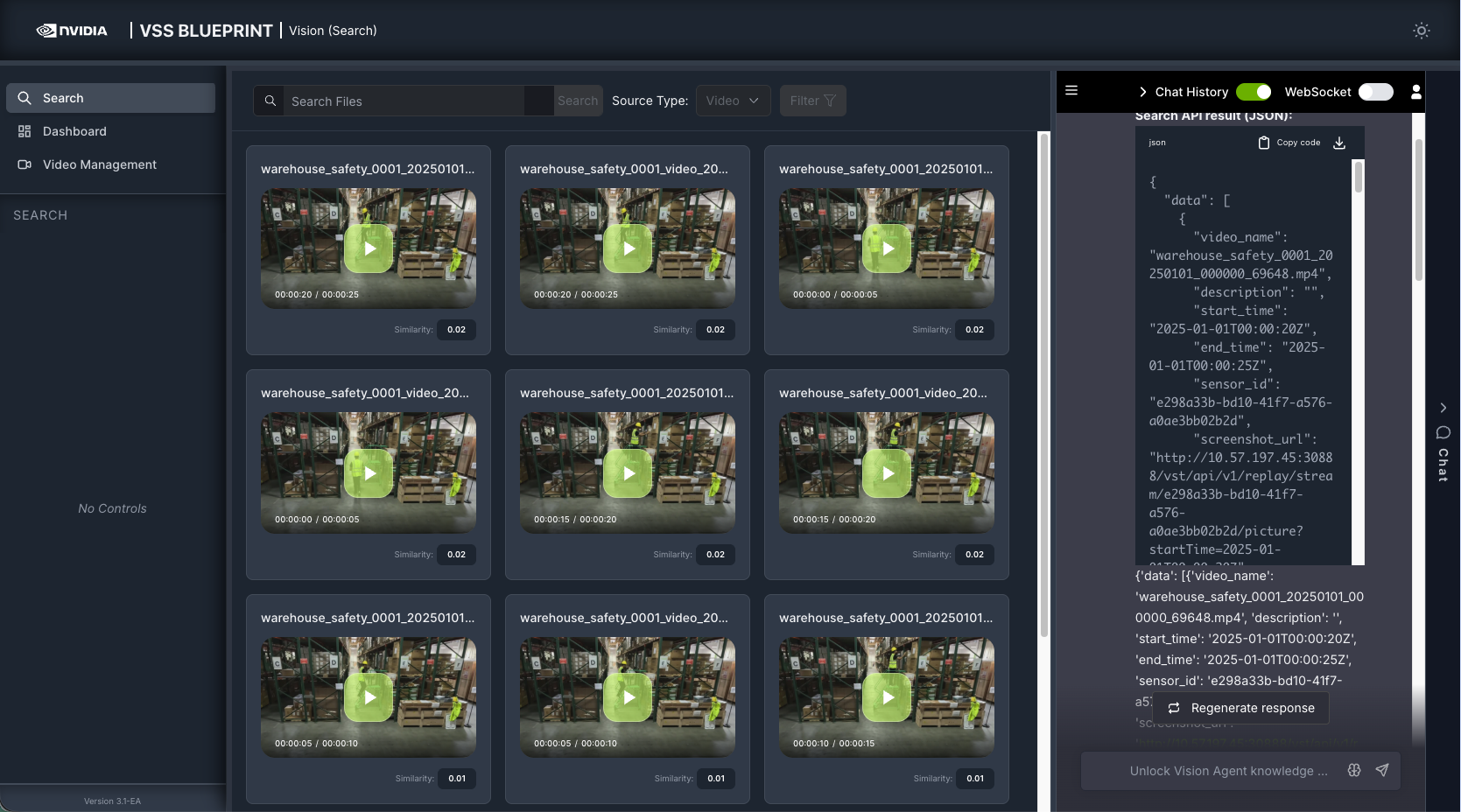
When the Chat Sidebar is collapsed, the search controls are re-enabled and users can perform manual searches with filters as usual.
Unseen response indicator:
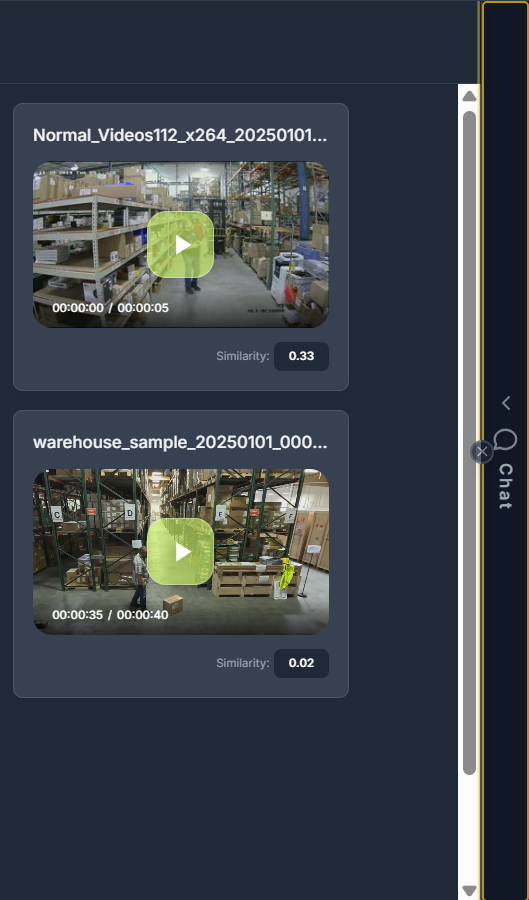
When a response to a query is unseen and the Chat Sidebar was closed, the vertical “Chat” tab on the right edge shows an orange border once the new response is generated to indicate unseen content. You can clear the indicator (mark as seen) in either of these ways:
Open the Chat Sidebar — viewing the content marks it as seen and removes the orange border.
Click the cancel button on the orange border — marks the new content as seen and removes the indicator without opening the sidebar.
5. Video Management Tab#
Video Management Tab provides an interface for managing video streams, including uploaded video files and live RTSP camera feeds.
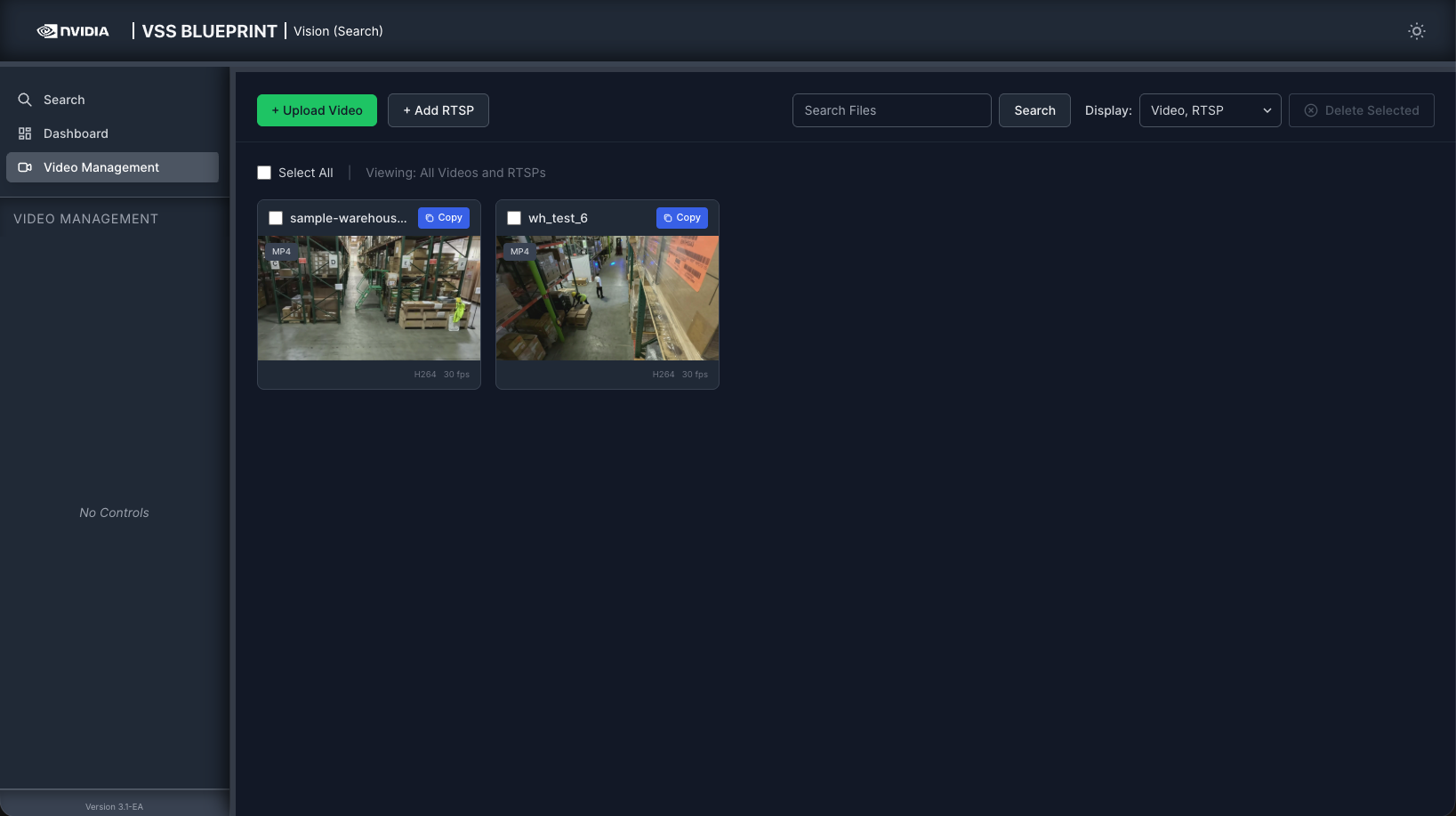
Key Features:
Upload video files (MP4, MKV formats)
Optional upload configuration fields (if configured via system settings)
Add live RTSP camera streams
Grid view of all streams with thumbnails
Search and filter streams by name and type
Bulk selection and deletion of streams
Real-time upload progress tracking
Stream metadata display (codec, framerate)
Main Sections:
This guide covers the primary interface components:
Toolbar - Search, filter, upload, and bulk operations
Streams Grid - Visual display of all video and RTSP streams
Video Upload - Upload files with optional configuration fields
RTSP Management - Add and manage live camera feeds
Toolbar Controls#

The toolbar at the top provides quick access to common operations:
Search Bar#

Type a search query to filter streams by name. Click the search button or press Enter to apply the filter.
Filter Toggles#
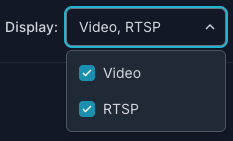
Toggle buttons to show/hide specific stream types:
Show Videos - Display uploaded video files
Show RTSPs - Display live RTSP camera streams
Both toggles are enabled by default. Disable either to filter the view.
Upload Video / Add RTSP Buttons#
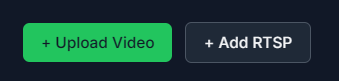
Upload Video - Opens the video upload dialog for uploading video files
Add RTSP - Opens the RTSP stream configuration dialog for adding live camera feeds
Note
These buttons may appear disabled (grayed out) if the deployment does not support the respective features. A disabled Upload Video button indicates that video file uploads are not enabled in the current deployment configuration. Similarly, a disabled Add RTSP button indicates that RTSP stream management is not supported in this deployment.
Streams Grid#
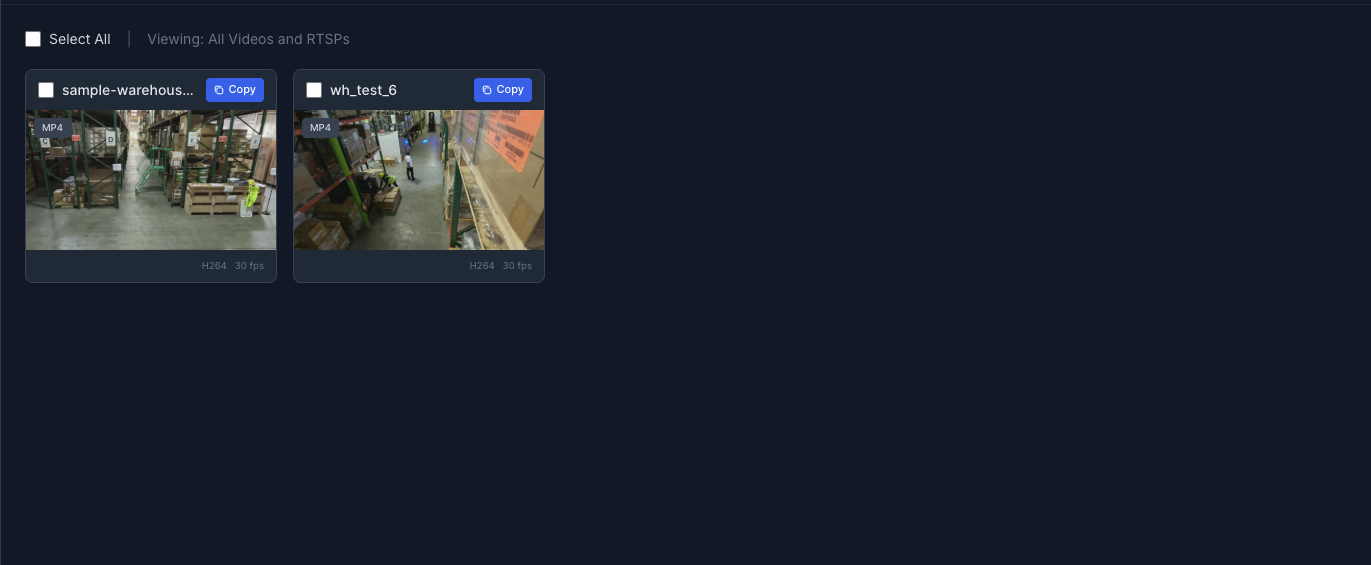
The main content area displays all streams as cards in a responsive grid layout.
Stream Card#
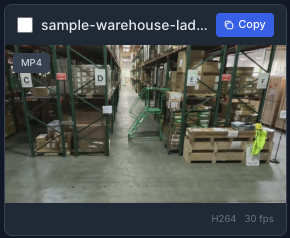
Each stream card displays:
Element |
Description |
Checkbox |
Select stream for bulk operations |
Stream Name |
Sensor or file name (displayed in header) |
Thumbnail |
Live preview for RTSP, last frame for uploaded videos |
Type Badge |
“RTSP” for live streams, file extension (e.g., “MP4”, “MKV”) for videos |
Copy Button |
Copy stream context to clipboard as JSON (contains |
Video Metadata |
Video codec (e.g., H264, H265) and framerate (e.g., 30 fps) |
Empty State#
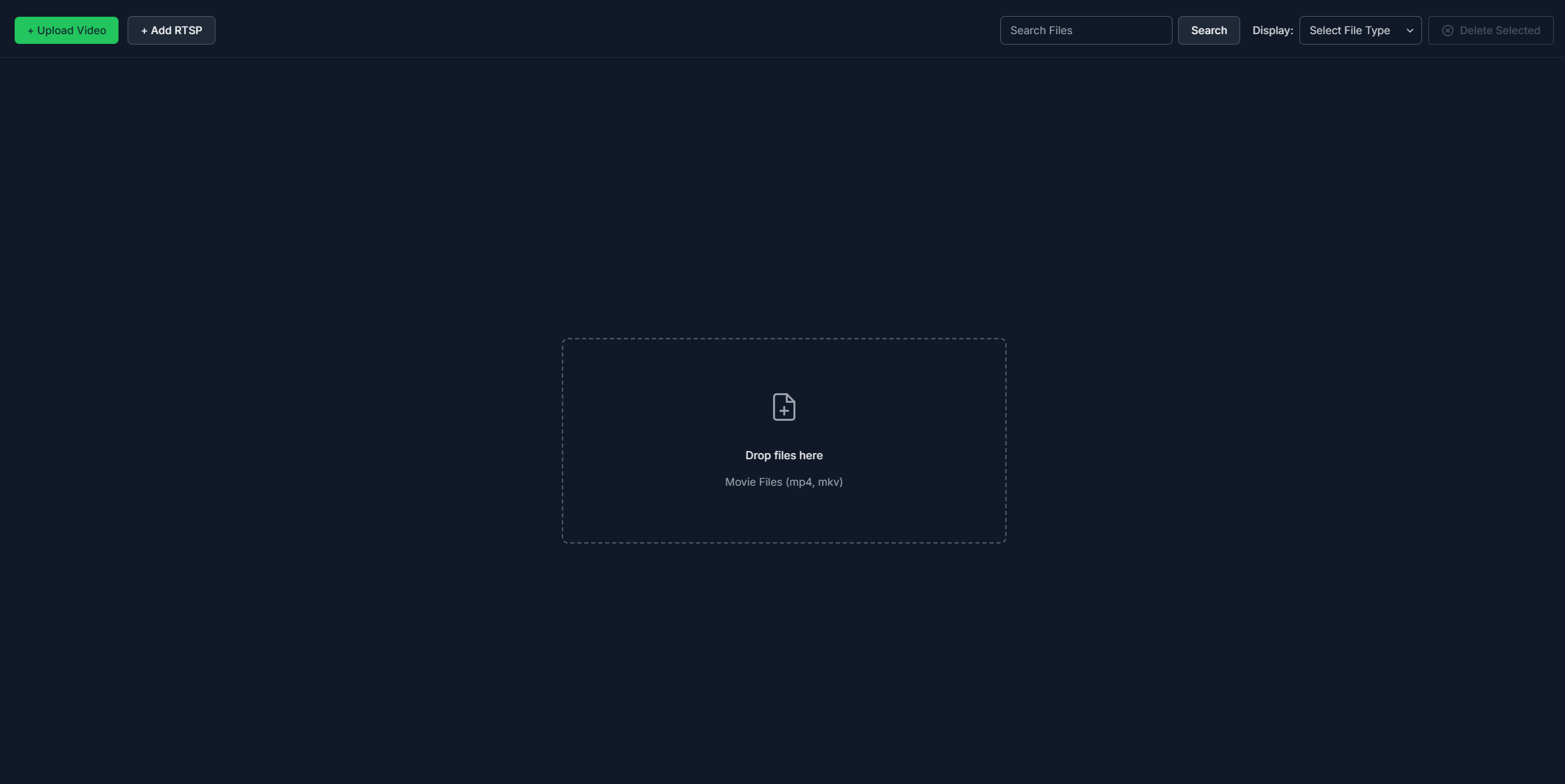
When no streams exist, an empty state is displayed with a button to upload your first video. Files can also be dragged and dropped into the empty state to upload them.
Upload Dialog#
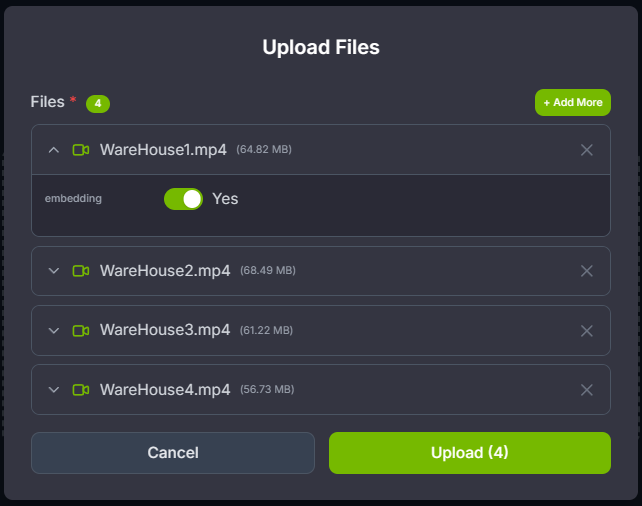
The upload dialog allows you to select video files and optionally configure them before uploading:
File Selection:
Click the dashed area or drag-and-drop files to select videos
Supported formats: MP4, MKV
Multiple files can be selected at once
Click “+ Add More” to add additional files after initial selection
File Configuration:
Each file in the upload list can be expanded (click the chevron icon) to configure optional fields if system-level configuration is enabled.
Note: Configuration fields are optional and only appear if NEXT_PUBLIC_CHAT_UPLOAD_FILE_CONFIG_TEMPLATE_JSON is configured. Common field types include boolean toggles, text inputs, number inputs, and select dropdowns. The available fields depend entirely on your system’s deployment configuration.
File Management:
Each file in the list shows the video icon, filename, file size in MB, expand/collapse button (chevron icon) to show/hide configuration fields, and remove button (X icon) to remove file from upload queue.
Click “Upload (N)” button to start uploading all files, or “Cancel” to close the dialog without uploading.
Upload Progress Panel#
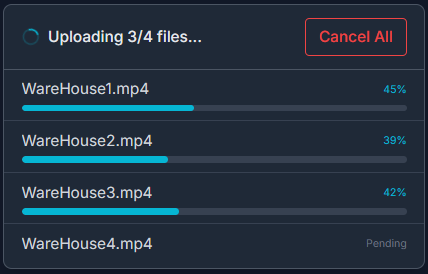
After confirming upload, a progress panel appears at the bottom of the screen.
Upload Status:
Each file displays one of the following statuses:
Status |
Description |
Pending |
File queued for upload |
Uploading |
Progress bar with percentage (0-100%) |
Success |
Upload completed successfully (green checkmark) |
Error |
Upload failed with error message |
Cancelled |
Upload was cancelled by user |
Progress Controls:
Cancel Uploads - Stop all pending and in-progress uploads
Close Panel - Dismiss the progress panel (only available when no uploads are in progress)
Note: The system uploads multiple files in parallel for faster processing. Successfully uploaded videos will appear in the streams grid automatically.
Adding RTSP Streams#
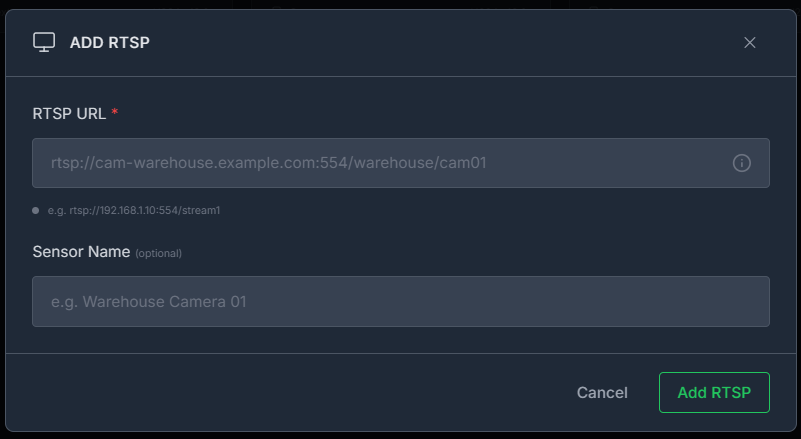
Click the “Add RTSP” button in the toolbar to add a live camera stream.
RTSP URL Field (Required):
Enter the RTSP stream URL in the format: rtsp://[username:password@]hostname:port/path
Examples:
rtsp://192.168.1.10:554/stream1rtsp://cam-warehouse.example.com:554/warehouse/cam01
The system will automatically extract a suggested sensor name from the URL path.
Sensor Name Field (Optional):
Enter a friendly name for the sensor (e.g., “Warehouse Camera 01”).
Auto-populated from RTSP URL path if not manually specified
Can be manually edited to provide a more descriptive name
Used for display in the streams grid
RTSP Validation:
The system validates RTSP URLs:
Must start with
rtsp://Connection is verified when “Add RTSP” button is clicked
Error messages displayed if URL is invalid or connection fails
Click “Add RTSP” to add the stream or “Cancel” to close the dialog.
Deleting Streams#
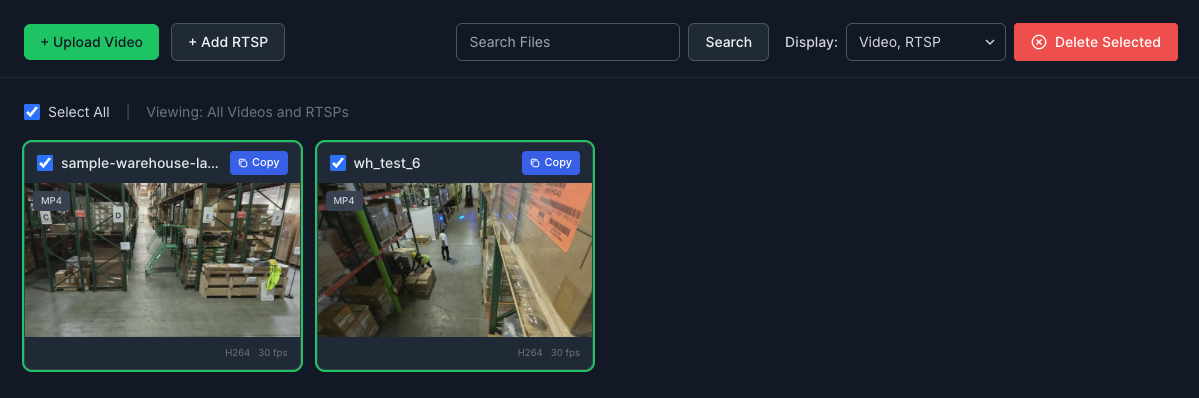
To delete streams:
Click the checkbox on one or more stream cards to select them
Click the “Delete Selected (N)” button in the toolbar
The selected streams will be deleted and the streams grid will be refreshed.
Warning: This action cannot be undone. Make sure you want to delete the selected streams before confirming.
Known Issues#
Overall Issues#
Chat Tab#
After several queries, the UI may show a “Storage limit exceeded” error. To resolve this issue, delete the conversation history and refresh the page. Additionally, clear the cookies and session storage from browser dev tools.
The above storage limit issue may lead to UI crash due to out of memory which can be fixed by refreshing the page.
If the backend agent restarts, the UI doesn’t clear the outdated chat history.
Alerts Tab#
When a sensor is removed, its existing alerts may still appear in the alerts list, but the related thumbnails and videos are no longer accessible because the sensor data has been deleted.
The All Alerts view is subject to a hard result limit with no pagination, causing older alerts within the selected time range to be omitted and leading to inconsistent results.
Dashboard Tab#
No known issues.
Search Tab#
The “Show top K Results” value should be kept below 100 for optimal search performance. Setting a higher value may result in slow responses or no results being returned.
In the current version, the default time range of the filter is initialized from the first day of the current year and extends for 5 minutes, e.g.,
2026-01-01 00:00:00–2026-01-01 00:05:00.When a live RTSP stream is removed directly from NVStreamer, the VSS Search UI may still display the stream as active.
On each browser refresh, the “Show top K Results” value resets to the default of 10 instead of retaining the previously selected value
Video Management Tab#
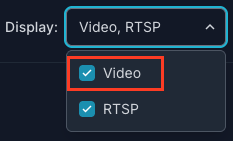
The Display-Video option is currently visible but will be removed in the next release for both the alerts profiles (CV/VLM), as it is not supported.
In the Add RTSP stream popup, the Sensor Name field is currently marked as optional in the UI, but it is actually required. This will be fixed in an upcoming update.
There is no way to rename a stream after uploading. This will be fixed in an upcoming update. Until then, to use a different name you must upload a new stream with the desired name.